> ## Documentation Index
> Fetch the complete documentation index at: https://docs.rocket.new/llms.txt
> Use this file to discover all available pages before exploring further.
# AdSense
> Connect Google AdSense to Rocket and add display ads to your app - banner placements, in-article ads, and in-feed units, all wired up from chat.
export const LlmsDirective = () =>
For the complete documentation index, see llms.txt.
For a lightweight markdown version of this page, append .md to the URL.
;
Describe where you want ads to appear in chat and Rocket generates the placement code, responsive ad units, and layout adjustments automatically.
## What you can do
Place ads between articles, in the sidebar, and after post content to generate revenue from your blog traffic.
Insert standard IAB ad units - leaderboard, medium rectangle, skyscraper - throughout your app.
Insert ads after specific paragraphs in long-form content without disrupting the reading experience.
Insert native-looking ads between items in content feeds, product listings, or search results.
## Before you connect
You need your **Publisher ID** from Google AdSense. It looks like `pub-1234567890123456`.
**Find your Publisher ID in the AdSense help center**
Your Publisher ID (`pub-XXXXXXXX`) is embedded in your page's public HTML source and is not a secret. Entering it in the connection popup carries no security risk.
AdSense is a **task-level** connector. Each Rocket task connects to its own Publisher ID independently.
## Connect AdSense
You can connect from two places - both open the same popup.
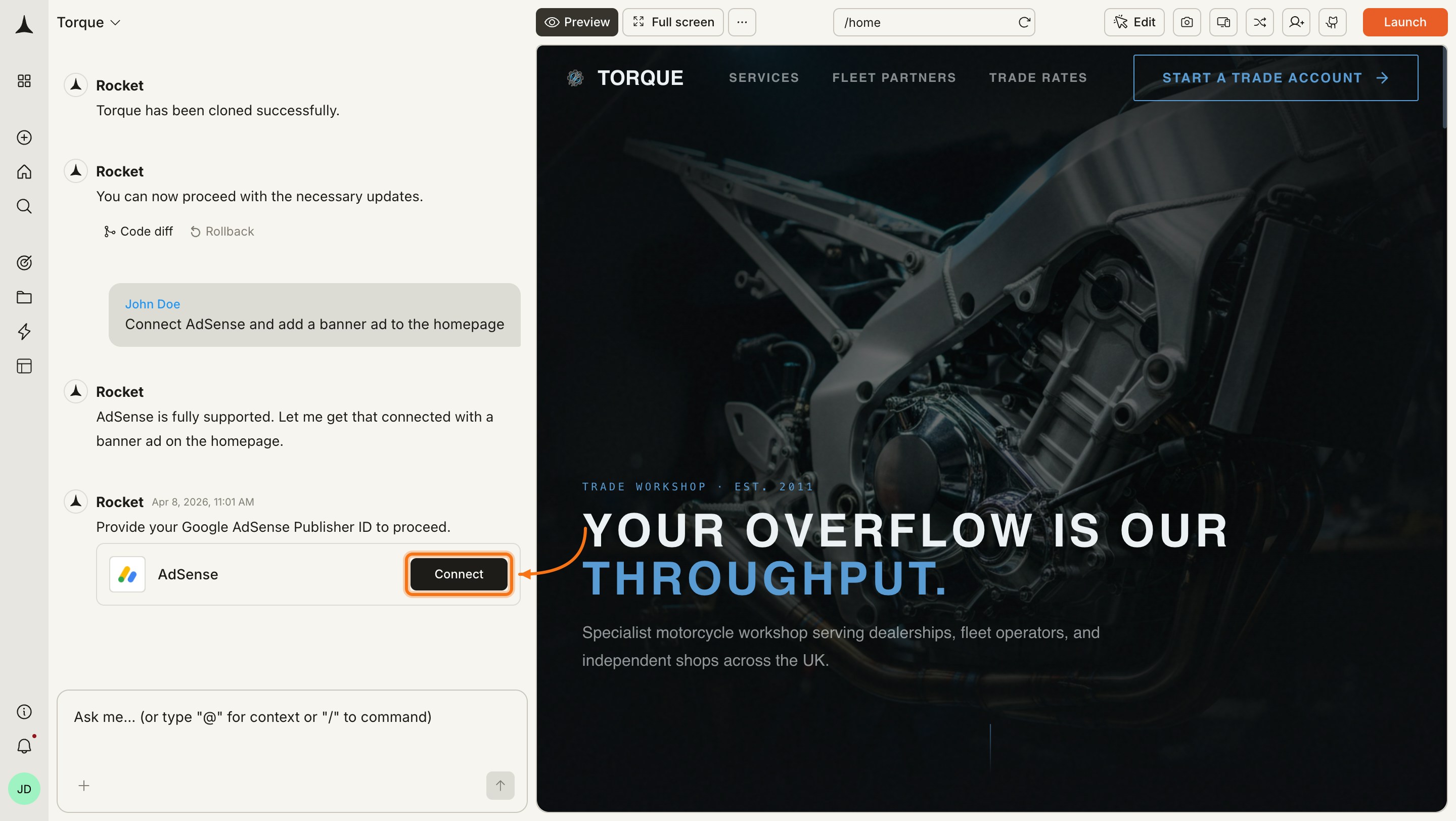
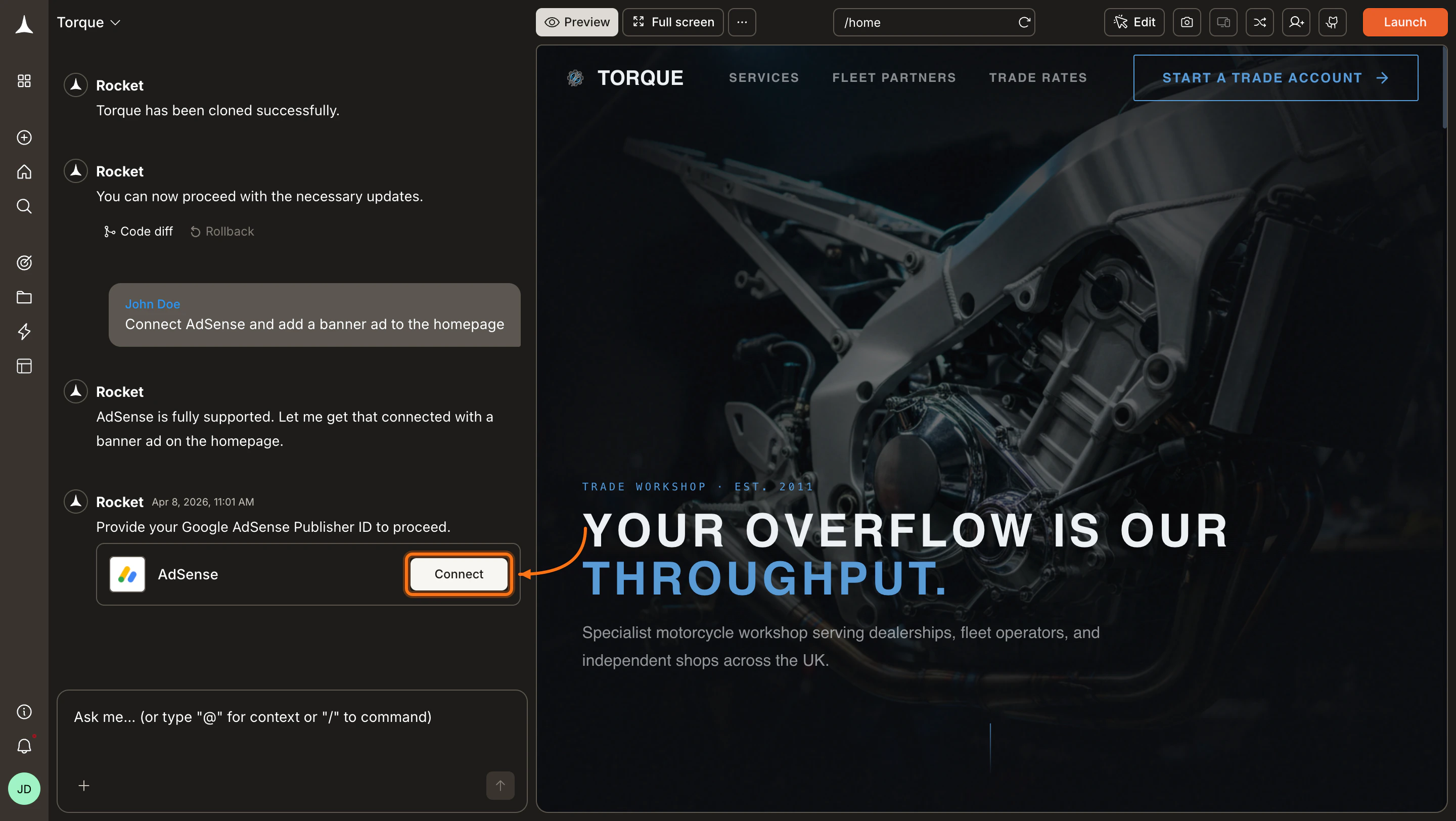
**Option 1: From chat**
Type a prompt that mentions AdSense - for example, `Connect AdSense and add a banner ad to the homepage`. Rocket detects the intent and shows a **Connect** button inline. Click it and the popup opens.
 **Option 2: From the Connectors tab**
Click the **`...`** button in the preview toolbar, then select **Connectors**.
**Option 2: From the Connectors tab**
Click the **`...`** button in the preview toolbar, then select **Connectors**.
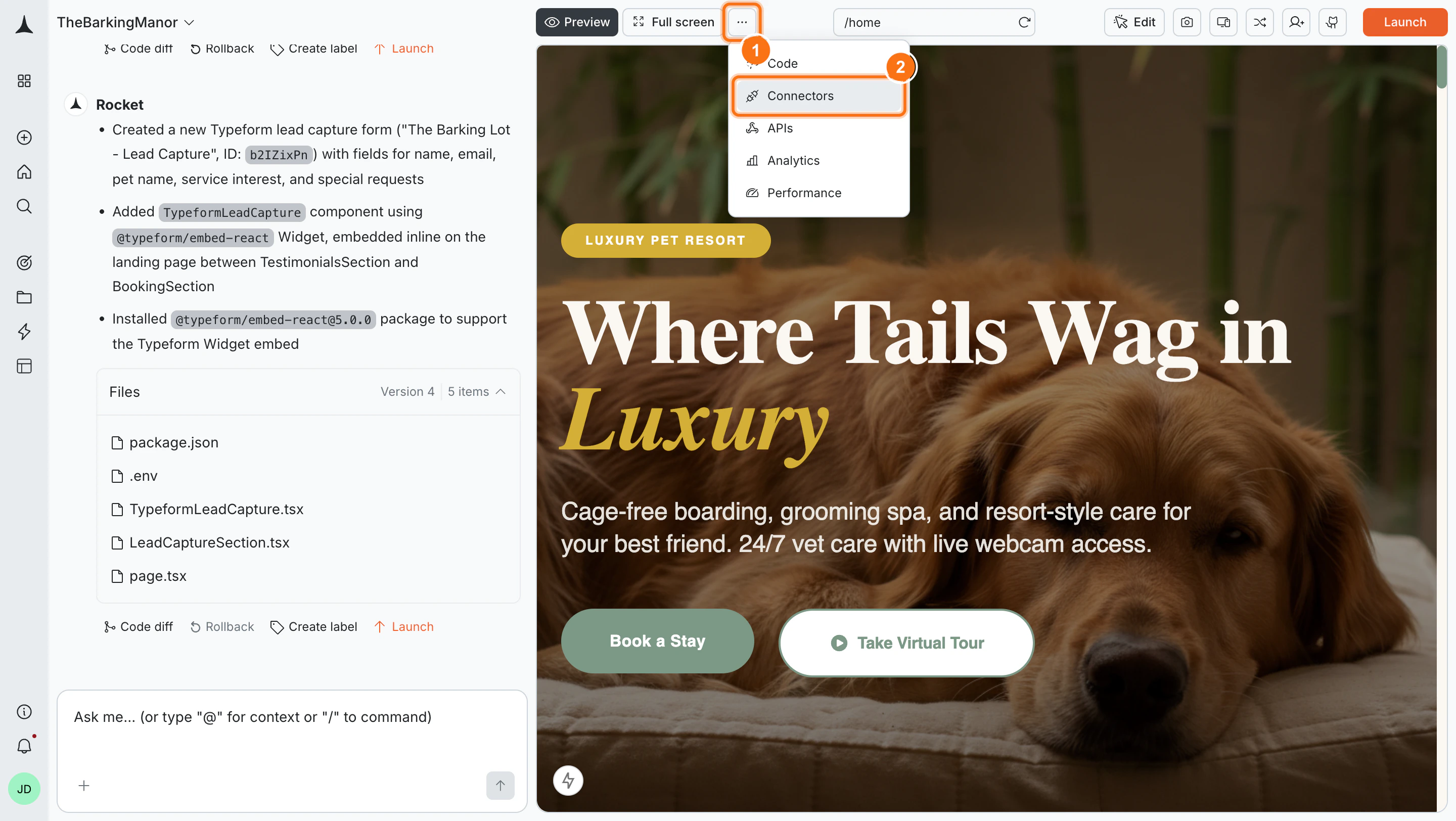
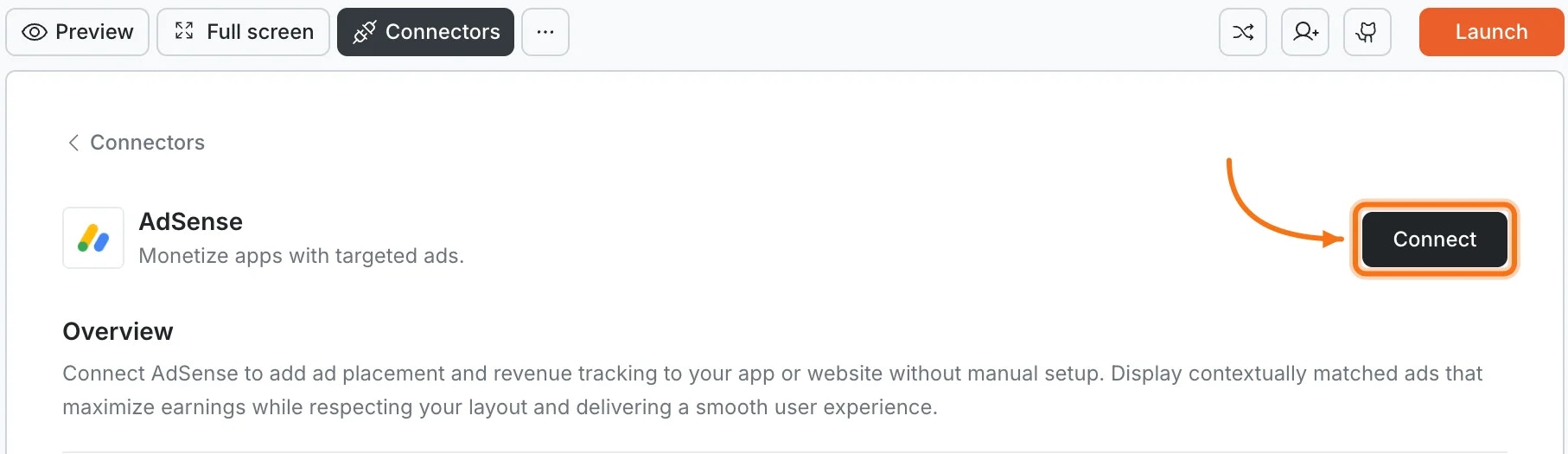
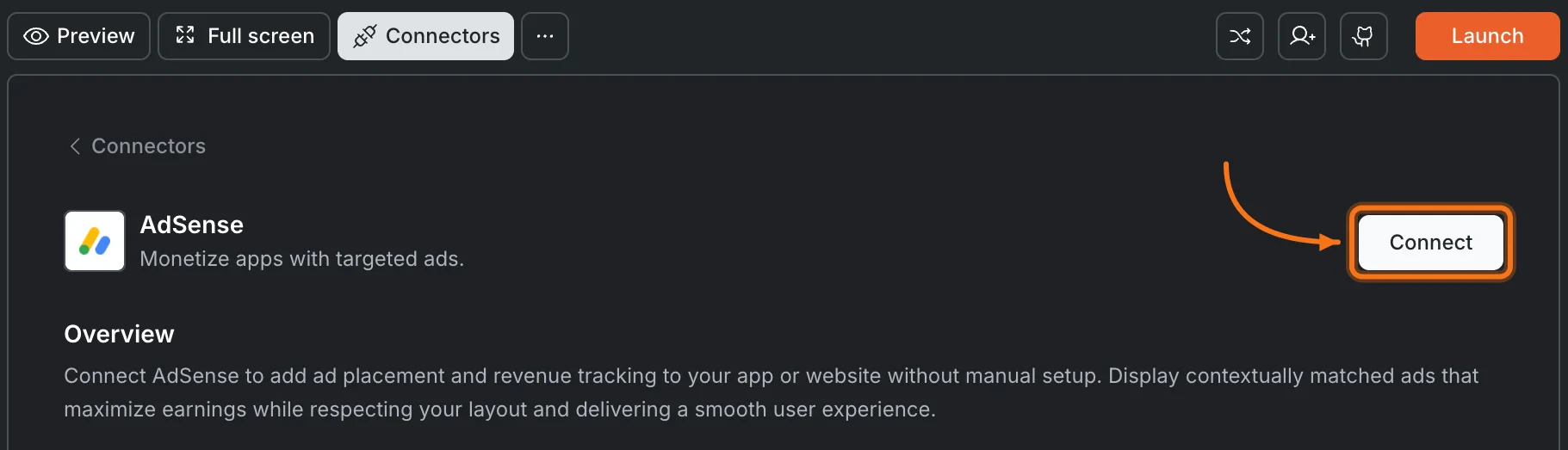
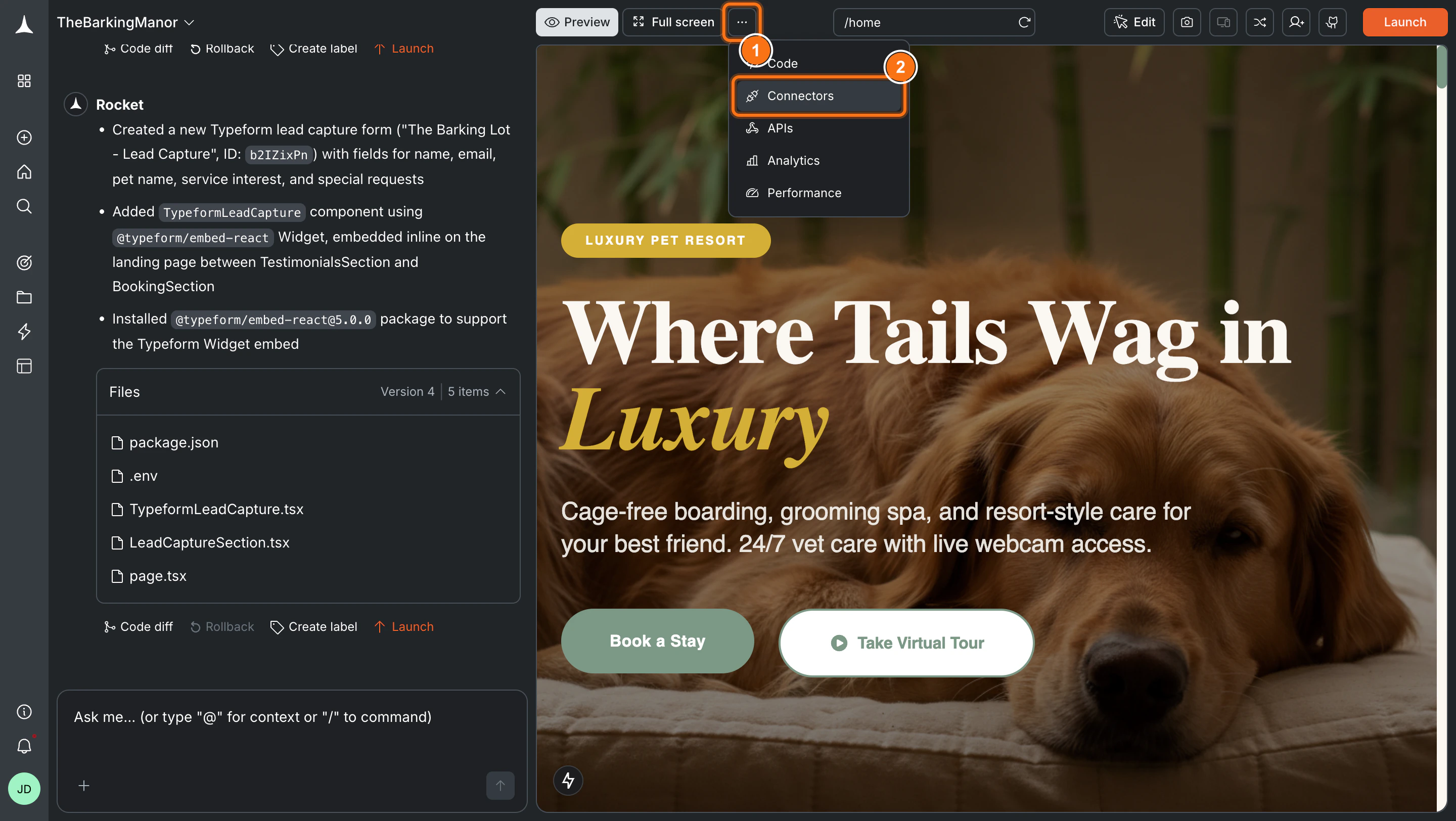 Click the **AdSense** card, then click **Connect**.
 **After clicking Connect**
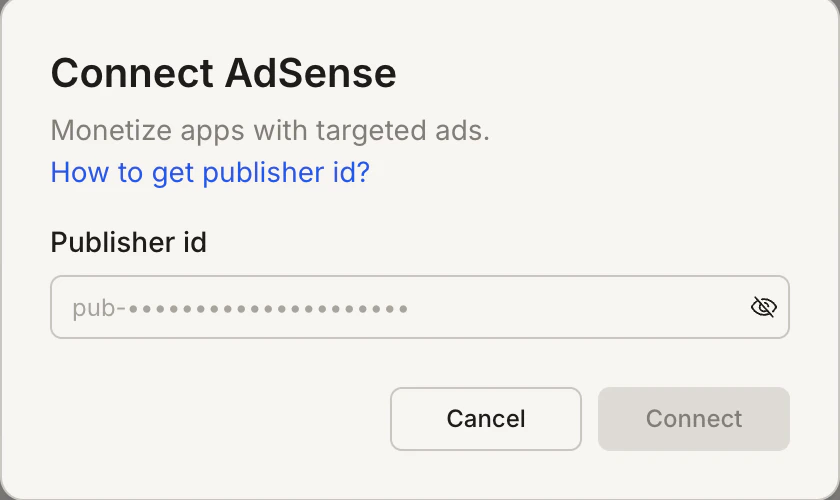
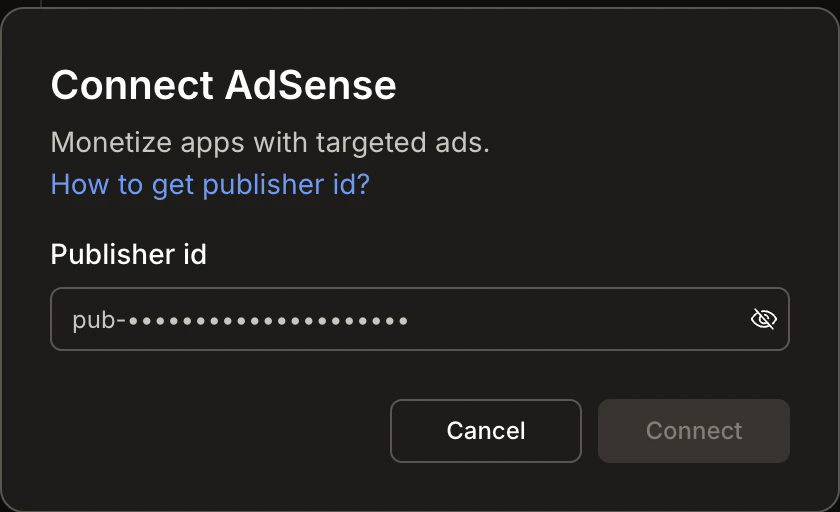
A popup opens. Enter your **Publisher ID**, then click **Connect**. A green dot appears next to AdSense when the connection is active.
**After clicking Connect**
A popup opens. Enter your **Publisher ID**, then click **Connect**. A green dot appears next to AdSense when the connection is active.
 **Update or disconnect**
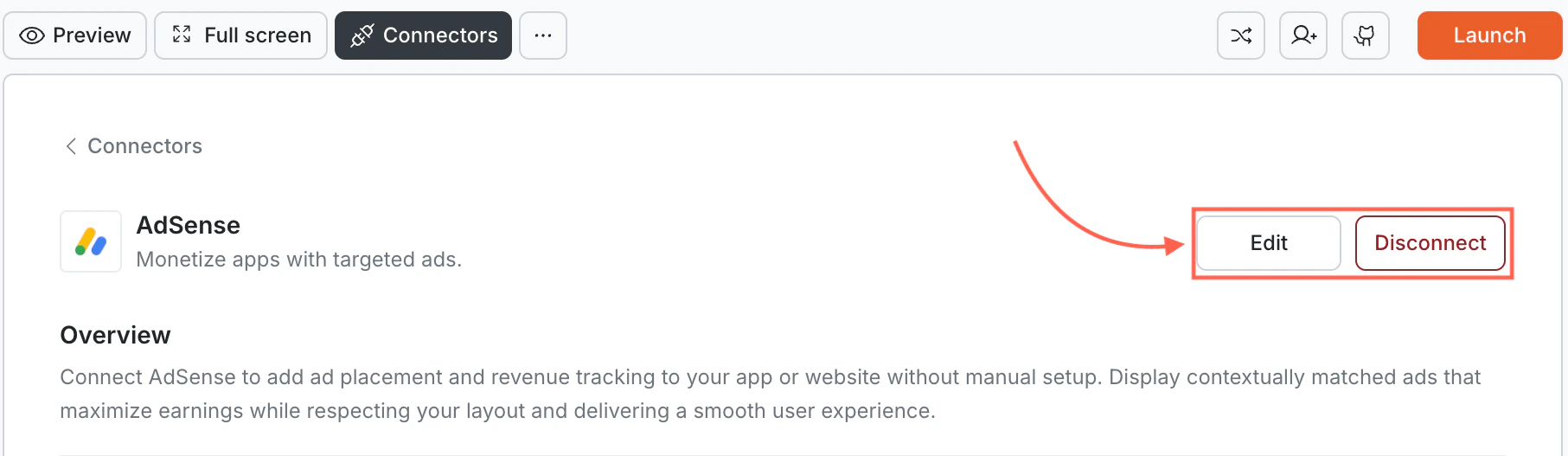
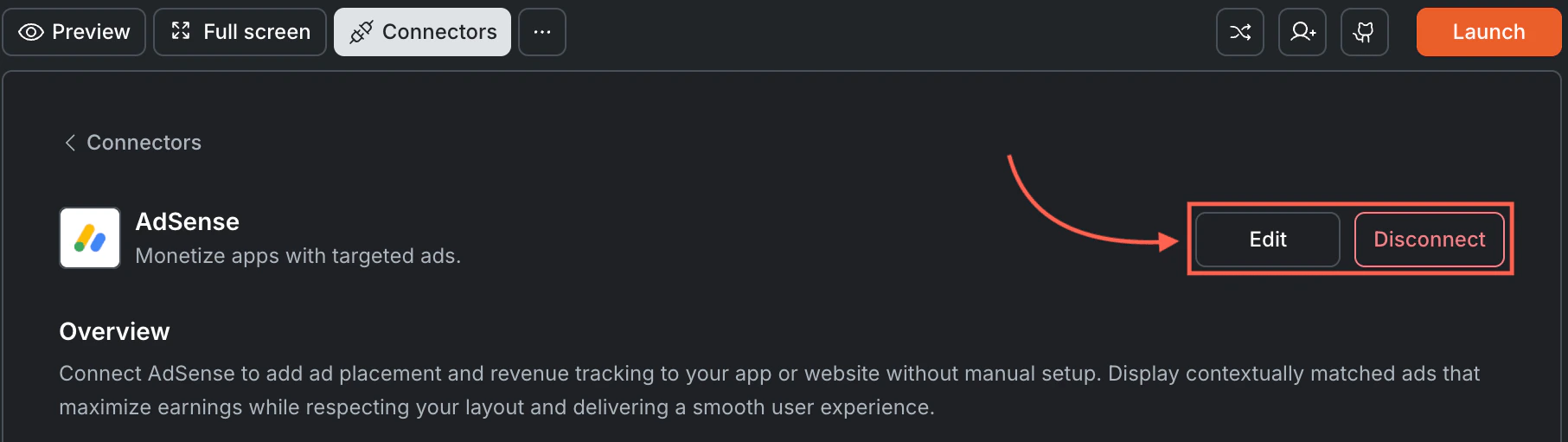
Go to [**Connectors > AdSense**](#connect-adsense). Click **Edit** to update your Publisher ID or **Disconnect** to remove the integration.
**Update or disconnect**
Go to [**Connectors > AdSense**](#connect-adsense). Click **Edit** to update your Publisher ID or **Disconnect** to remove the integration.
 You can connect from two places - both open the same popup.
**Option 1: From chat**
Type a prompt that mentions AdSense. Rocket detects the intent, shows a **Connect** button, and the popup opens when you tap it.
**Option 2: From the Connectors tab**
1. Tap the **More** button in the header.
2. Tap **Integrations**.
3. Tap the **AdSense** card, then tap **Connect**.
**After tapping Connect**
A popup opens. Enter your **Publisher ID**, then tap **Done**.
A green dot appears next to AdSense when the connection is active.
**Update or disconnect**
Go back to the **AdSense** card in Integrations. Tap **Edit** to update your Publisher ID or **Disconnect** to remove it from this task.
## Example prompts
| What you want | Prompt to use |
| :--------------- | :---------------------------------------------------------------------------------------------------- |
| Header banner | `Add a responsive AdSense leaderboard ad below the navigation bar on every page.` |
| Sidebar ad | `Place a 300x250 medium rectangle AdSense ad in the sidebar, sticky on scroll.` |
| In-article ad | `Insert an AdSense ad after the third paragraph of every blog post.` |
| In-feed ad | `Add an AdSense in-feed ad after every 5th post in my blog listing.` |
| Footer ad | `Place a responsive AdSense banner above the footer on all pages.` |
| Mobile-only ad | `Show a full-width AdSense ad between content sections, only on mobile devices.` |
| Desktop-only ad | `Add a skyscraper ad in the right sidebar, visible only on desktop screens wider than 1024px.` |
| Between sections | `Insert an AdSense ad between the features section and the testimonials section on the landing page.` |
## Tips
* **Ads only display on deployed tasks.** AdSense will not render in the Rocket preview. Deploy your task and test on the live URL.
* **Google must approve your site.** Your domain and content must comply with [AdSense program policies](https://support.google.com/adsense/answer/48182) before ads appear. Approval can take days to weeks. New sites with thin or limited content may be rejected, so ensure your site has substantial, original content before applying.
* **Ad blockers will hide ads.** A significant percentage of users run ad-blocking extensions. Keep this in mind when projecting revenue.
* **Too many ads hurt user experience.** Google may limit ad serving if your page has an unfavorable content-to-ad ratio. Follow AdSense best practices for ad density.
* **One Publisher ID per task.** Each Rocket task connects to one AdSense account. Use different tasks for different Publisher IDs.
## What's next?
Track how ads affect user engagement and bounce rates with GA4.
Pair AdSense with a headless CMS to monetize your content-driven site.
Deploy your task so AdSense can start serving ads on your live site.
Browse every available integration.
You can connect from two places - both open the same popup.
**Option 1: From chat**
Type a prompt that mentions AdSense. Rocket detects the intent, shows a **Connect** button, and the popup opens when you tap it.
**Option 2: From the Connectors tab**
1. Tap the **More** button in the header.
2. Tap **Integrations**.
3. Tap the **AdSense** card, then tap **Connect**.
**After tapping Connect**
A popup opens. Enter your **Publisher ID**, then tap **Done**.
A green dot appears next to AdSense when the connection is active.
**Update or disconnect**
Go back to the **AdSense** card in Integrations. Tap **Edit** to update your Publisher ID or **Disconnect** to remove it from this task.
## Example prompts
| What you want | Prompt to use |
| :--------------- | :---------------------------------------------------------------------------------------------------- |
| Header banner | `Add a responsive AdSense leaderboard ad below the navigation bar on every page.` |
| Sidebar ad | `Place a 300x250 medium rectangle AdSense ad in the sidebar, sticky on scroll.` |
| In-article ad | `Insert an AdSense ad after the third paragraph of every blog post.` |
| In-feed ad | `Add an AdSense in-feed ad after every 5th post in my blog listing.` |
| Footer ad | `Place a responsive AdSense banner above the footer on all pages.` |
| Mobile-only ad | `Show a full-width AdSense ad between content sections, only on mobile devices.` |
| Desktop-only ad | `Add a skyscraper ad in the right sidebar, visible only on desktop screens wider than 1024px.` |
| Between sections | `Insert an AdSense ad between the features section and the testimonials section on the landing page.` |
## Tips
* **Ads only display on deployed tasks.** AdSense will not render in the Rocket preview. Deploy your task and test on the live URL.
* **Google must approve your site.** Your domain and content must comply with [AdSense program policies](https://support.google.com/adsense/answer/48182) before ads appear. Approval can take days to weeks. New sites with thin or limited content may be rejected, so ensure your site has substantial, original content before applying.
* **Ad blockers will hide ads.** A significant percentage of users run ad-blocking extensions. Keep this in mind when projecting revenue.
* **Too many ads hurt user experience.** Google may limit ad serving if your page has an unfavorable content-to-ad ratio. Follow AdSense best practices for ad density.
* **One Publisher ID per task.** Each Rocket task connects to one AdSense account. Use different tasks for different Publisher IDs.
## What's next?
Track how ads affect user engagement and bounce rates with GA4.
Pair AdSense with a headless CMS to monetize your content-driven site.
Deploy your task so AdSense can start serving ads on your live site.
Browse every available integration.