> ## Documentation Index
> Fetch the complete documentation index at: https://docs.rocket.new/llms.txt
> Use this file to discover all available pages before exploring further.
# Airtable
> Connect Airtable to Rocket and build CRMs, content calendars, and inventory trackers: all wired up from chat.
export const LlmsDirective = () =>
For the complete documentation index, see llms.txt.
For a lightweight markdown version of this page, append .md to the URL.
;
Describe the data views you need in chat and Rocket generates forms, dashboards, and filtered lists that read from and write to your Airtable bases automatically.
This connector is only available for **Next.js TypeScript** web build tasks.
## What you can do
Manage contacts, deals, and sales pipelines with a clean interface backed by Airtable data.
Plan and schedule blog posts, social media content, and marketing campaigns from a shared calendar.
Track stock levels, product details, and reorder thresholds for physical or digital goods.
Organize tasks, assign team members, and track progress with a Kanban board.
Collect RSVPs, manage attendee lists, and display upcoming events from Airtable.
## Connect Airtable
Airtable uses OAuth so no API key is needed.
Airtable is a **workspace-level** connector. No matter where you connect it (Settings, Connectors tab, or chat), it links to your entire Rocket workspace and is available across all tasks.
You can connect from three places. All do the same thing.
**Option 1: From chat**
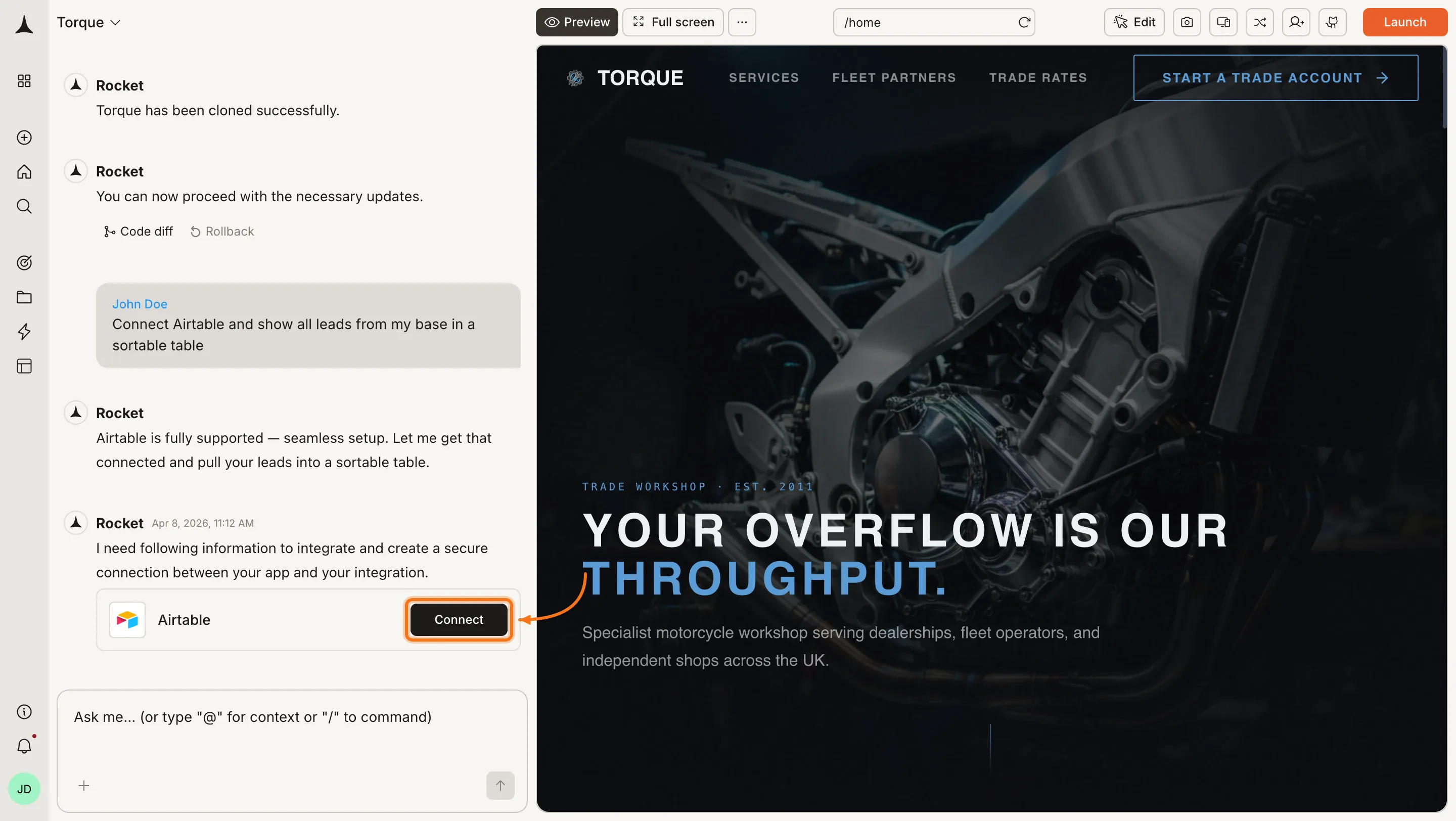
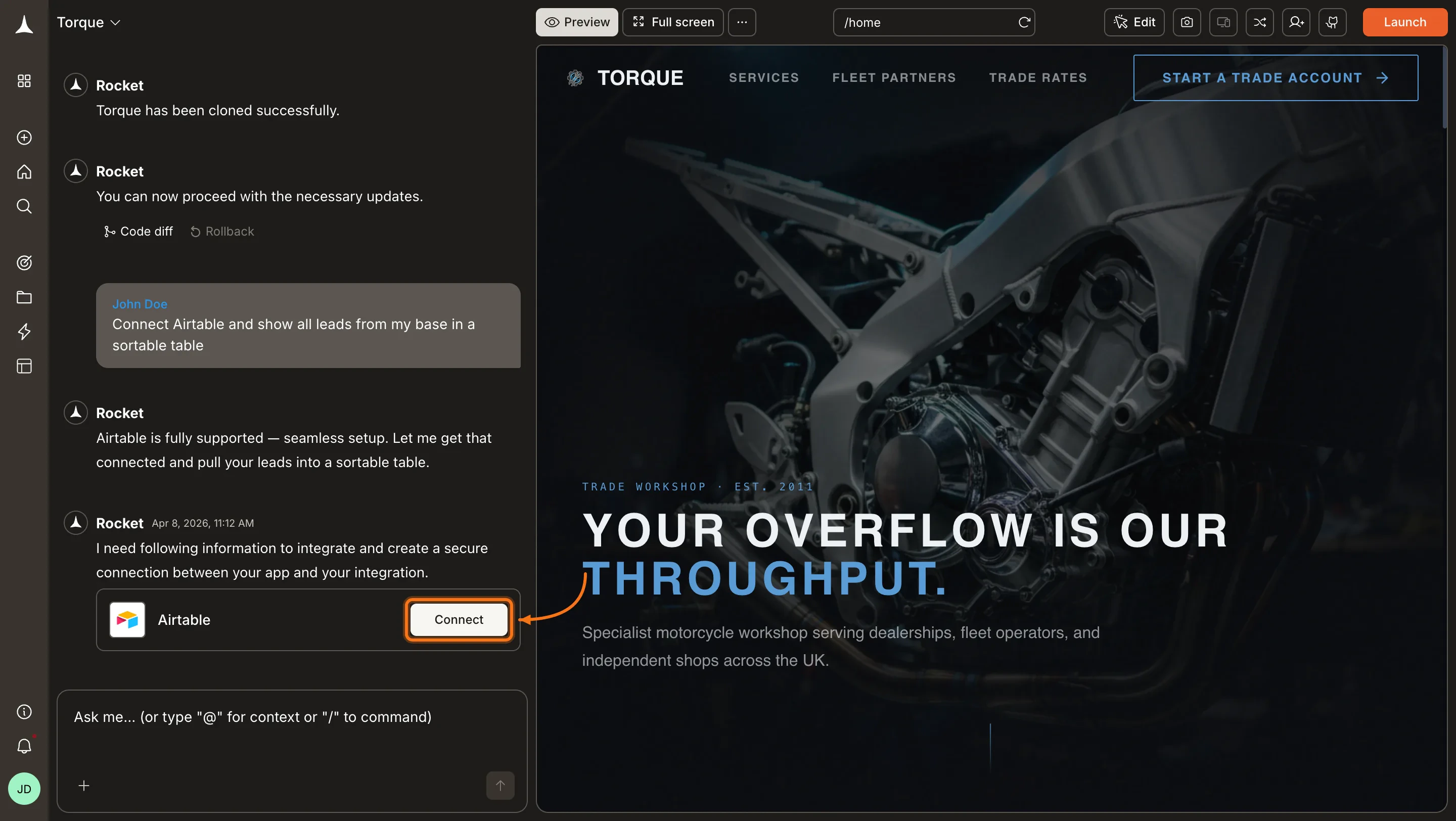
Type a prompt that mentions Airtable, for example `Connect Airtable and show all leads from my base in a sortable table`. Rocket detects the intent and shows a **Connect** button inline. Click it and the OAuth flow opens.
 **Option 2: From the Connectors tab**
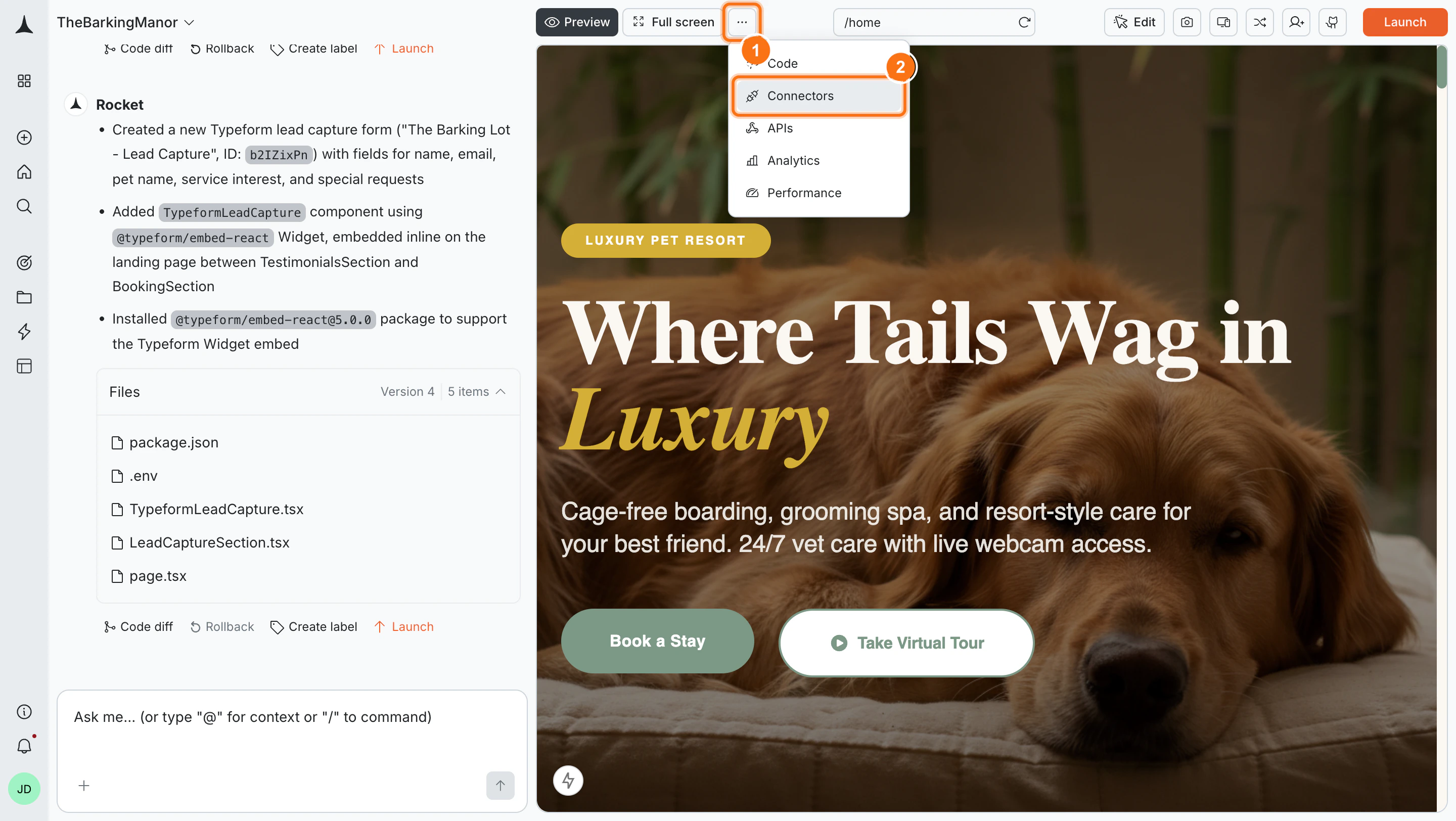
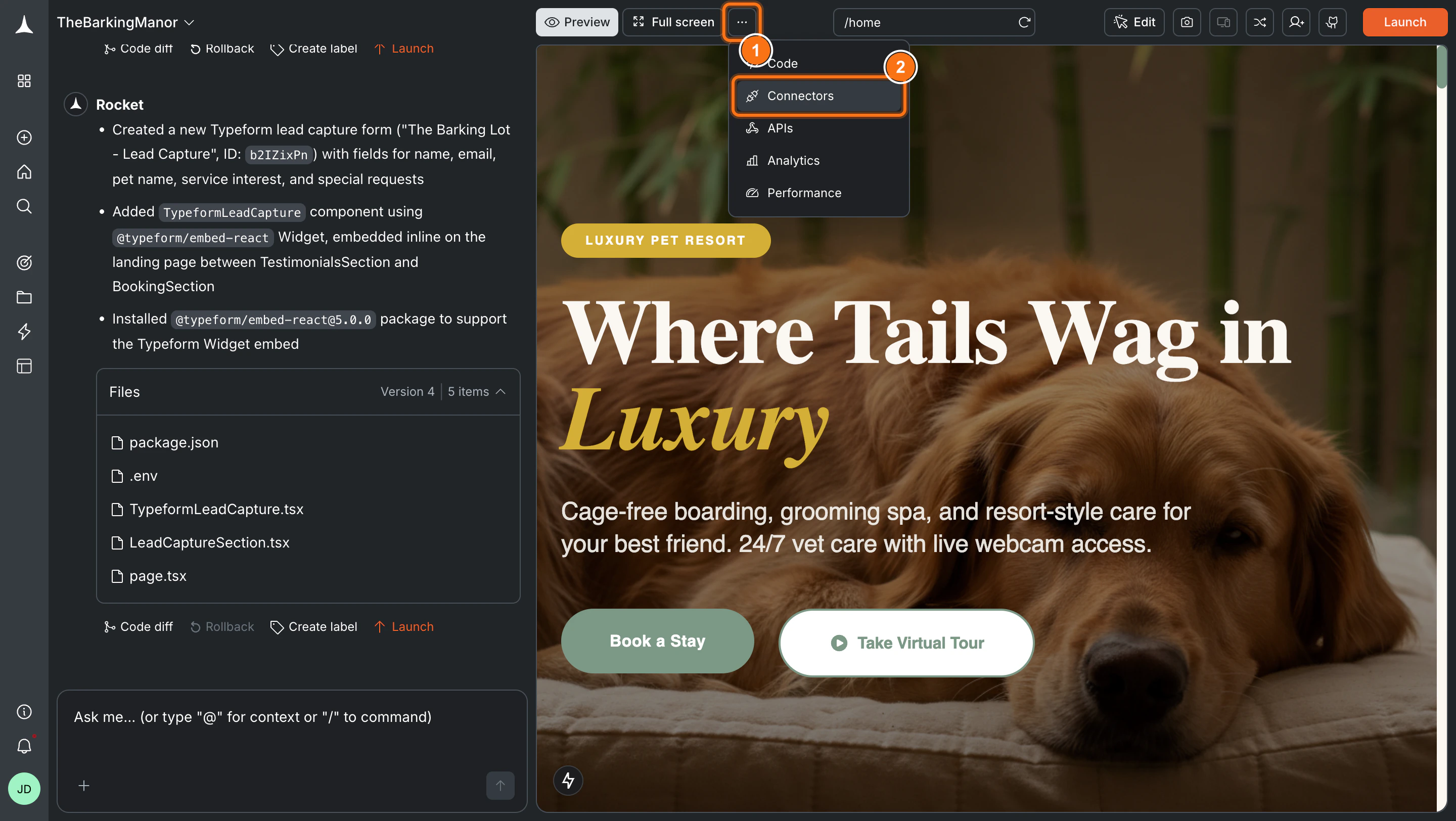
Click the **`...`** button in the preview toolbar, then select **Connectors**.
**Option 2: From the Connectors tab**
Click the **`...`** button in the preview toolbar, then select **Connectors**.
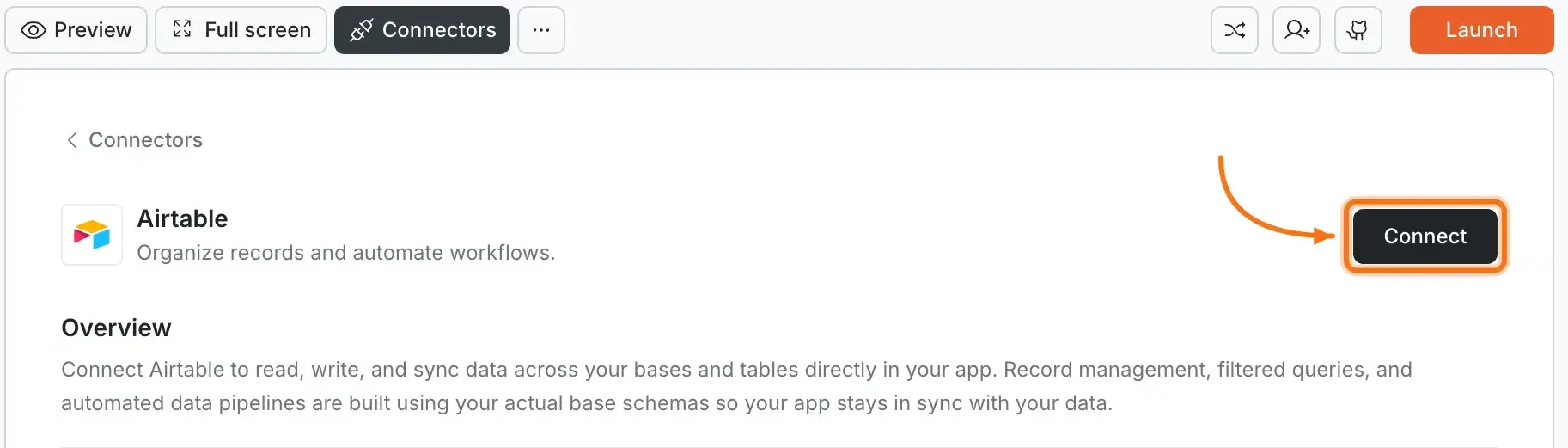
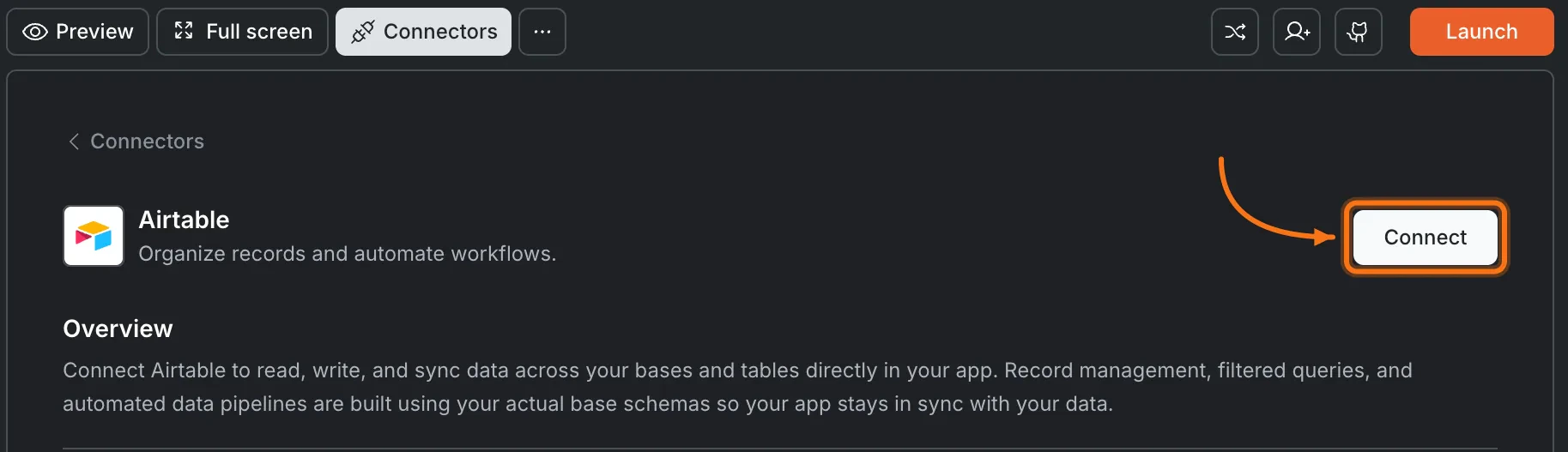
 Click the **Airtable** card, then click **Connect**.
 **Option 3: From workspace Settings**
Connect once from Settings and it is available across all tasks.
**After clicking Connect**
An Airtable authorization screen opens in your browser.
**Option 3: From workspace Settings**
Connect once from Settings and it is available across all tasks.
**After clicking Connect**
An Airtable authorization screen opens in your browser.
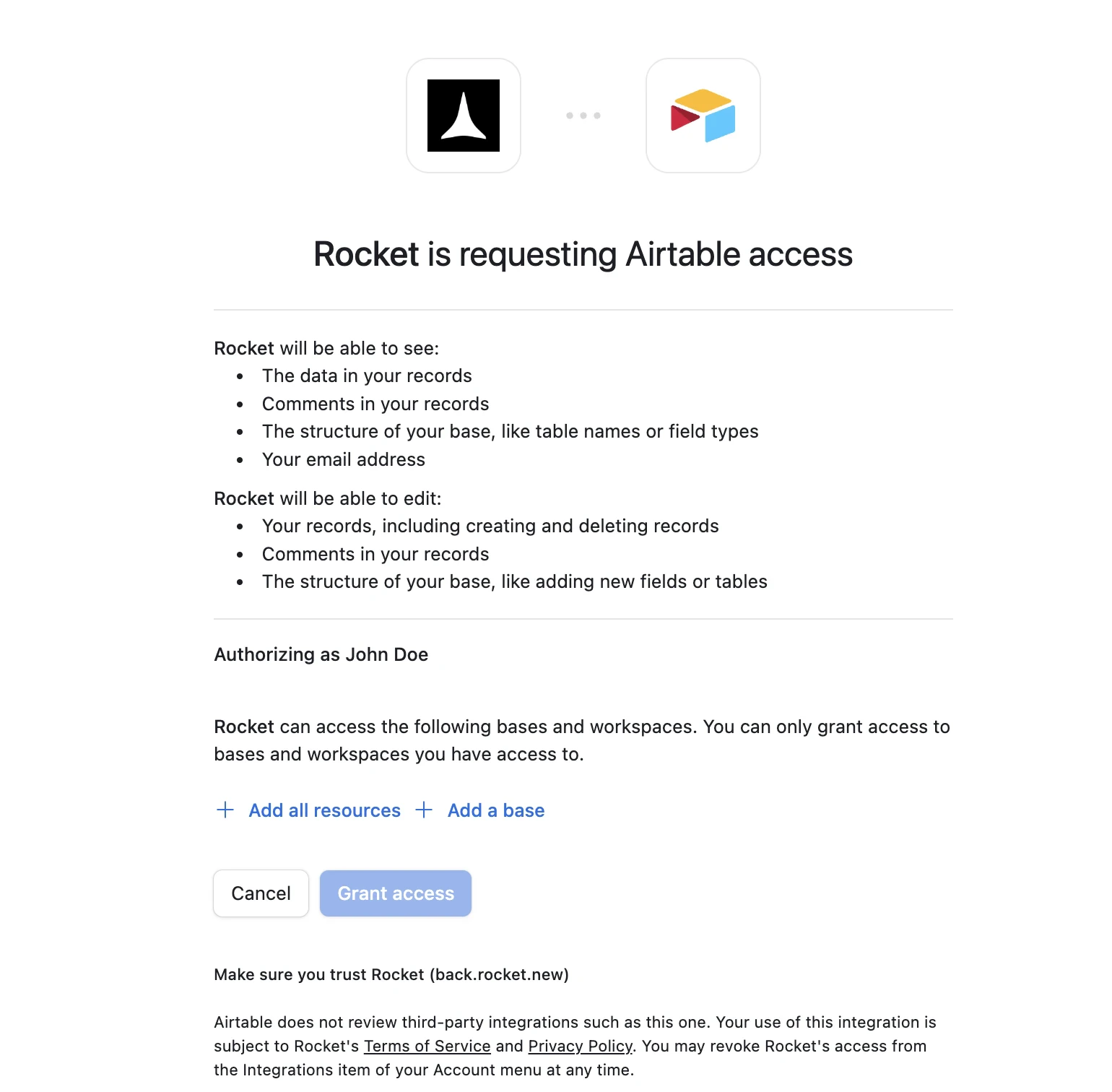 Choose which bases Rocket can access:
* **Add all resources** grants access to all current and future bases in your workspace. Recommended for most users.
* **Add a base** grants access to specific bases only. Use this if you want to limit Rocket's access to a subset of your data.
Click **Grant access**. A green dot appears next to Airtable when the connection is active.
**Disconnect**
Disconnect or switch accounts from workspace Settings.
You can connect from three places - all do the same thing.
**Option 1: From workspace Settings**
Open your workspace, go to **Settings**, and tap **Connectors**. Tap the **Airtable** card and tap **Connect**.
**Option 2: From the Connectors tab inside a task**
1. Tap the **More** button in the header.
2. Tap **Integrations**.
3. Tap the **Airtable** card, then tap **Connect**.
**Option 3: From chat**
Type a prompt that mentions Airtable. Rocket detects the intent and shows a **Connect** button inline - tap it.
**After tapping Connect**
An Airtable authorization screen opens. Choose which bases to grant access to:
* **Add all resources** grants access to all current and future bases. Recommended for most users.
* **Add a base** grants access to specific bases only.
Tap **Grant access**. A green dot appears next to Airtable when the connection is active.
**Disconnect**
Go back to the **Airtable** card in Integrations. Tap **Disconnect** to remove the integration.
## Example prompts
| What you want | Prompt to use |
| :---------------- | :------------------------------------------------------------------------------------------ |
| Lead dashboard | `Show all leads from my Airtable base in a sortable table with status filters.` |
| Add-record form | `Create a form that adds new contacts to my Airtable Contacts table.` |
| Content calendar | `Build a monthly calendar view of blog posts from my Airtable content base.` |
| Inventory tracker | `Display products from Airtable with stock levels and a low-stock warning badge.` |
| Kanban board | `Create a drag-and-drop Kanban board synced with my Airtable tasks base.` |
| Search and filter | `Add a search bar and category filter to my Airtable product listing page.` |
| Detail page | `When a user clicks a row, open a detail page showing all fields for that Airtable record.` |
| CSV export | `Add an Export to CSV button that downloads all visible Airtable records.` |
| Charts | `Show a bar chart of leads by status using data from my Airtable base.` |
| Inline editing | `Let users edit Airtable records directly in the table without opening a separate form.` |
## Tips
* **Choose base access carefully.** "Add all resources" is convenient but grants broad access. Use "Add a base" if you only want Rocket to work with specific bases.
* **Base structure matters.** Make sure your Airtable base has clear table and field names. Rocket reads these to generate accurate views and forms.
* **Rate limits apply.** Airtable limits API requests to 5 requests per second per base. High-traffic apps may need caching or a dedicated backend.
* **Deleting records is permanent.** Airtable does not have a built-in undo for deleted rows. Be cautious with delete operations.
* **One Airtable account per workspace.** All tasks share the same connected account.
## What's next?
Need a full relational database with auth? Supabase pairs well with Airtable for hybrid setups.
Send automated emails when new records are added to your Airtable base.
Track how users interact with your Airtable-powered dashboards and forms.
Browse every available integration.
Choose which bases Rocket can access:
* **Add all resources** grants access to all current and future bases in your workspace. Recommended for most users.
* **Add a base** grants access to specific bases only. Use this if you want to limit Rocket's access to a subset of your data.
Click **Grant access**. A green dot appears next to Airtable when the connection is active.
**Disconnect**
Disconnect or switch accounts from workspace Settings.
You can connect from three places - all do the same thing.
**Option 1: From workspace Settings**
Open your workspace, go to **Settings**, and tap **Connectors**. Tap the **Airtable** card and tap **Connect**.
**Option 2: From the Connectors tab inside a task**
1. Tap the **More** button in the header.
2. Tap **Integrations**.
3. Tap the **Airtable** card, then tap **Connect**.
**Option 3: From chat**
Type a prompt that mentions Airtable. Rocket detects the intent and shows a **Connect** button inline - tap it.
**After tapping Connect**
An Airtable authorization screen opens. Choose which bases to grant access to:
* **Add all resources** grants access to all current and future bases. Recommended for most users.
* **Add a base** grants access to specific bases only.
Tap **Grant access**. A green dot appears next to Airtable when the connection is active.
**Disconnect**
Go back to the **Airtable** card in Integrations. Tap **Disconnect** to remove the integration.
## Example prompts
| What you want | Prompt to use |
| :---------------- | :------------------------------------------------------------------------------------------ |
| Lead dashboard | `Show all leads from my Airtable base in a sortable table with status filters.` |
| Add-record form | `Create a form that adds new contacts to my Airtable Contacts table.` |
| Content calendar | `Build a monthly calendar view of blog posts from my Airtable content base.` |
| Inventory tracker | `Display products from Airtable with stock levels and a low-stock warning badge.` |
| Kanban board | `Create a drag-and-drop Kanban board synced with my Airtable tasks base.` |
| Search and filter | `Add a search bar and category filter to my Airtable product listing page.` |
| Detail page | `When a user clicks a row, open a detail page showing all fields for that Airtable record.` |
| CSV export | `Add an Export to CSV button that downloads all visible Airtable records.` |
| Charts | `Show a bar chart of leads by status using data from my Airtable base.` |
| Inline editing | `Let users edit Airtable records directly in the table without opening a separate form.` |
## Tips
* **Choose base access carefully.** "Add all resources" is convenient but grants broad access. Use "Add a base" if you only want Rocket to work with specific bases.
* **Base structure matters.** Make sure your Airtable base has clear table and field names. Rocket reads these to generate accurate views and forms.
* **Rate limits apply.** Airtable limits API requests to 5 requests per second per base. High-traffic apps may need caching or a dedicated backend.
* **Deleting records is permanent.** Airtable does not have a built-in undo for deleted rows. Be cautious with delete operations.
* **One Airtable account per workspace.** All tasks share the same connected account.
## What's next?
Need a full relational database with auth? Supabase pairs well with Airtable for hybrid setups.
Send automated emails when new records are added to your Airtable base.
Track how users interact with your Airtable-powered dashboards and forms.
Browse every available integration.