> ## Documentation Index
> Fetch the complete documentation index at: https://docs.rocket.new/llms.txt
> Use this file to discover all available pages before exploring further.
# Anthropic
> Connect Anthropic to Rocket and add Claude-powered AI to your app: chatbots, document analysis, content moderation, and more.
export const LlmsDirective = () =>
For the complete documentation index, see llms.txt.
For a lightweight markdown version of this page, append .md to the URL.
;
Connect your Anthropic API key and describe the AI feature you need in chat. Rocket wires up Claude for chatbots, document analyzers, coding assistants, and more.
## What you can do
Add a Claude-powered assistant that answers user questions, explains features, or supports your product.
Let users upload contracts, reports, or articles and get structured summaries with key insights.
Review user-generated content for policy violations with nuanced understanding of context and intent.
Build an in-app code reviewer that explains logic, suggests improvements, and catches bugs.
Help users improve their writing with feedback on tone, structure, clarity, and style.
## Before you connect
**Get your Anthropic API key** from the Anthropic Console.
Never paste your API key directly into chat. Always use the secure connector popup. If your key is exposed, rotate it immediately from the Anthropic Console.
Anthropic is a **task-level** connector. Each Rocket task connects to its own API key independently.
## Connect Anthropic
You can connect from two places. Both open the same popup.
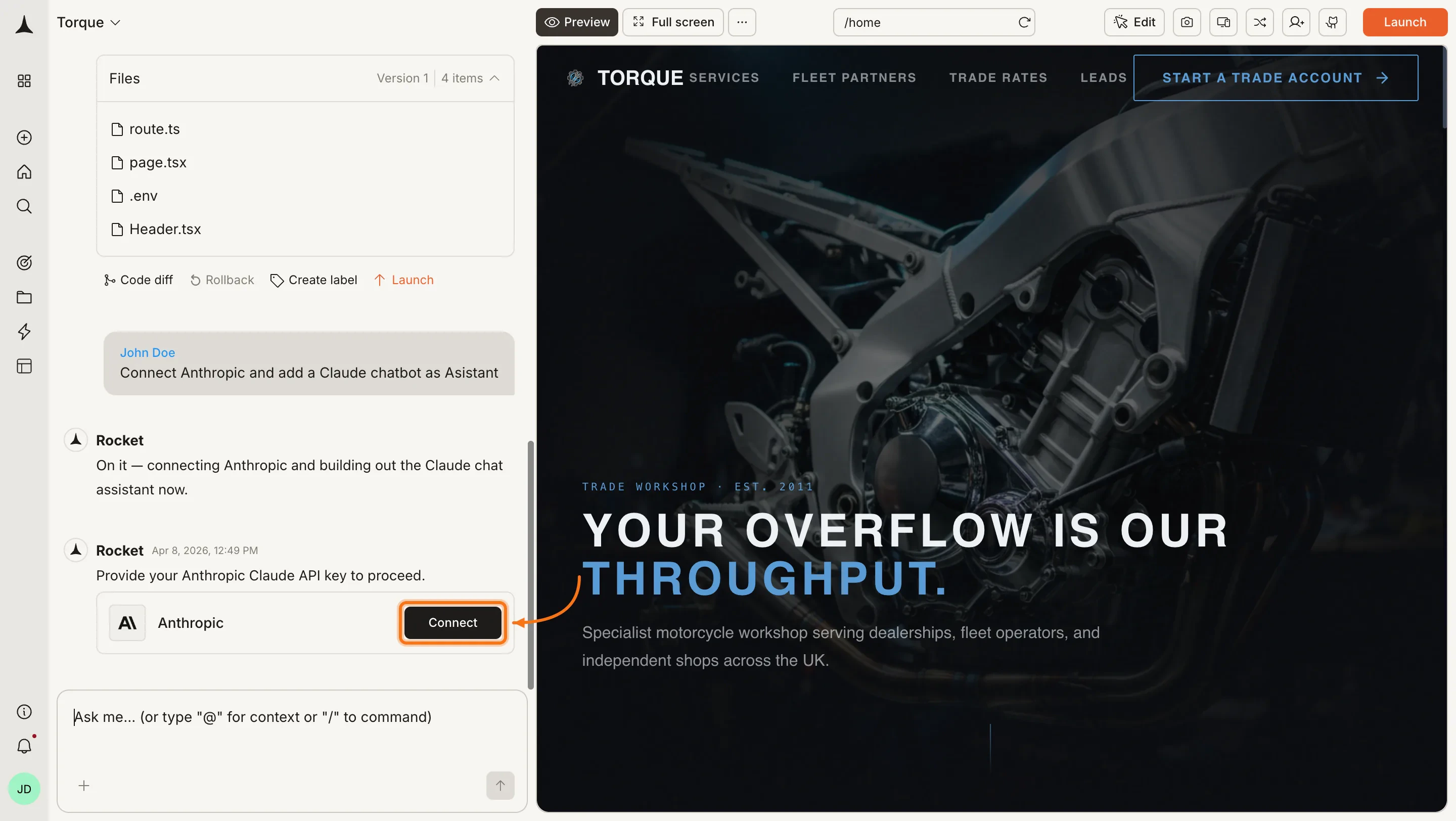
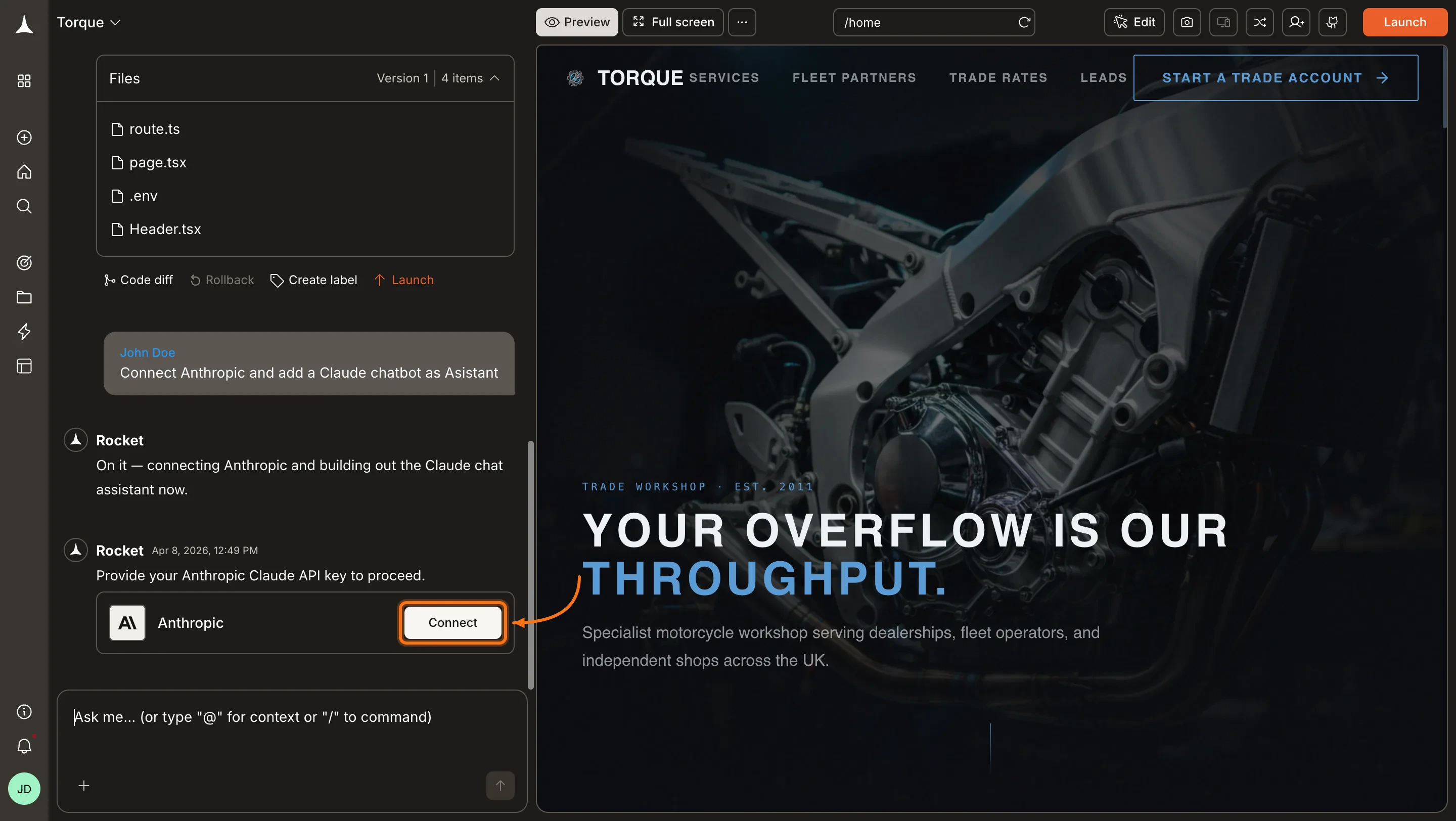
**Option 1: From chat**
Type a prompt that mentions Anthropic or Claude, for example `Connect Anthropic and add a Claude chatbot to my app`. Rocket detects the intent and shows a **Connect** button inline. Click it and the popup opens.
 **Option 2: From the Connectors tab**
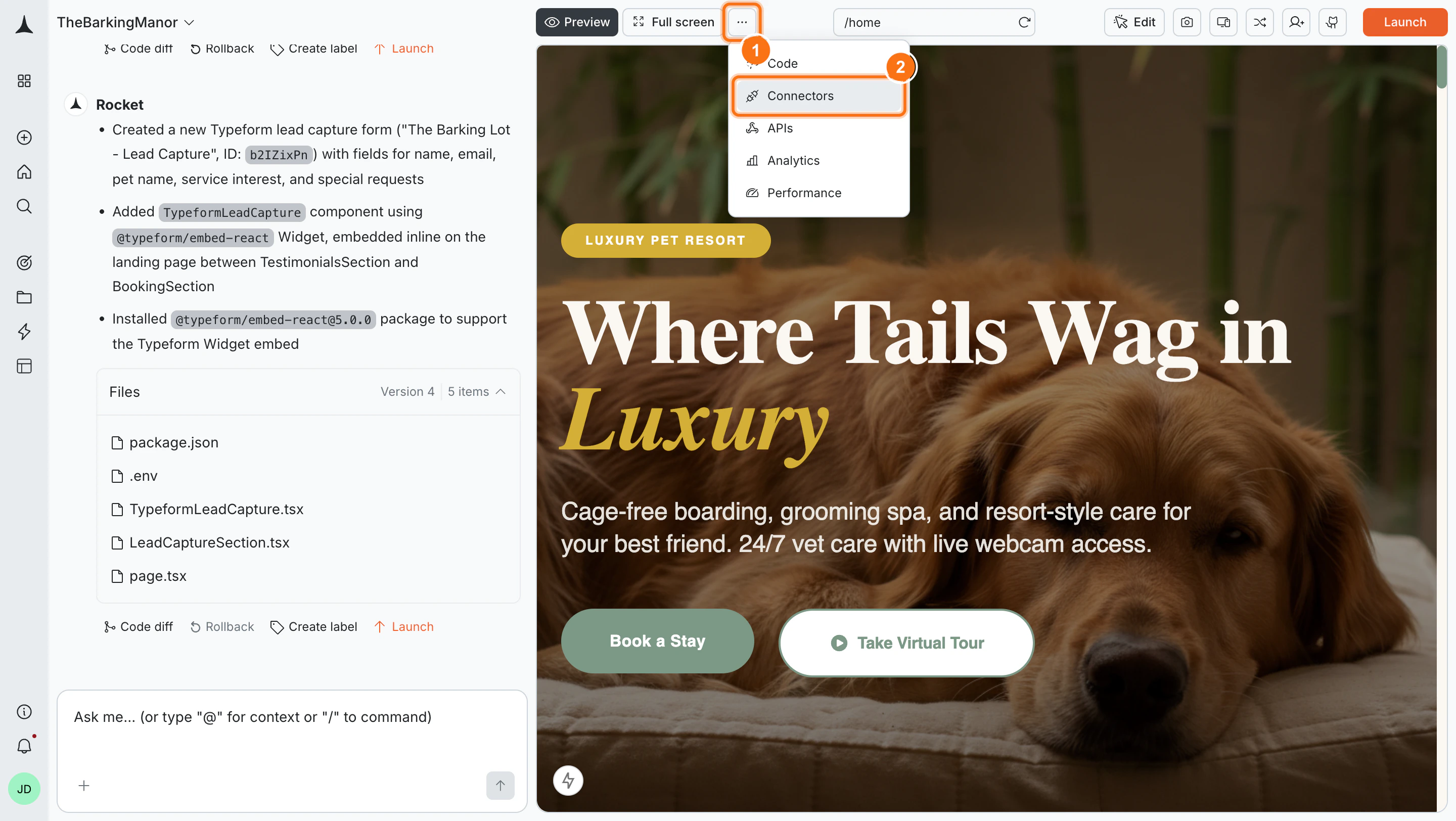
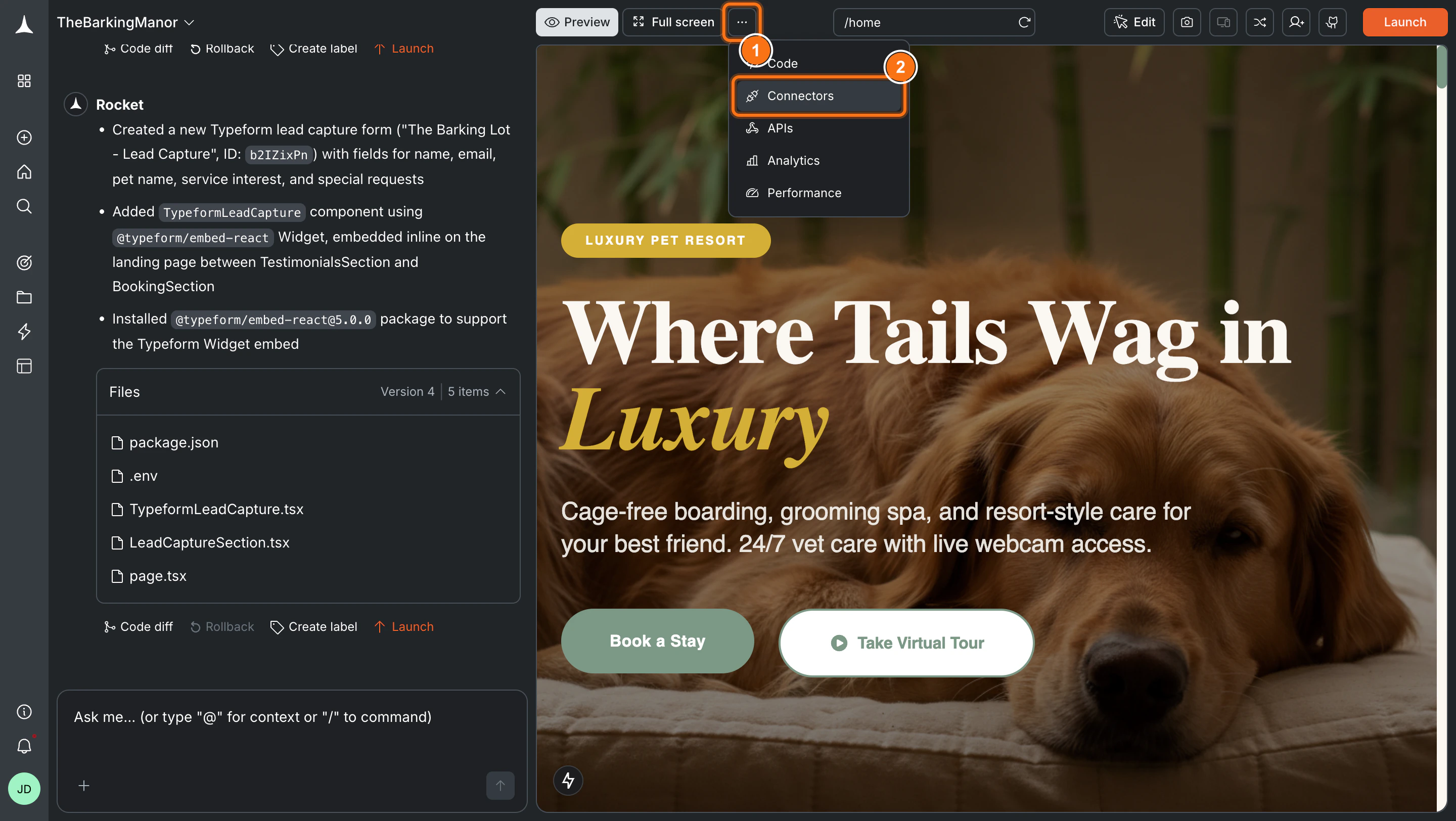
Click the **`...`** button in the preview toolbar, then select **Connectors**.
**Option 2: From the Connectors tab**
Click the **`...`** button in the preview toolbar, then select **Connectors**.
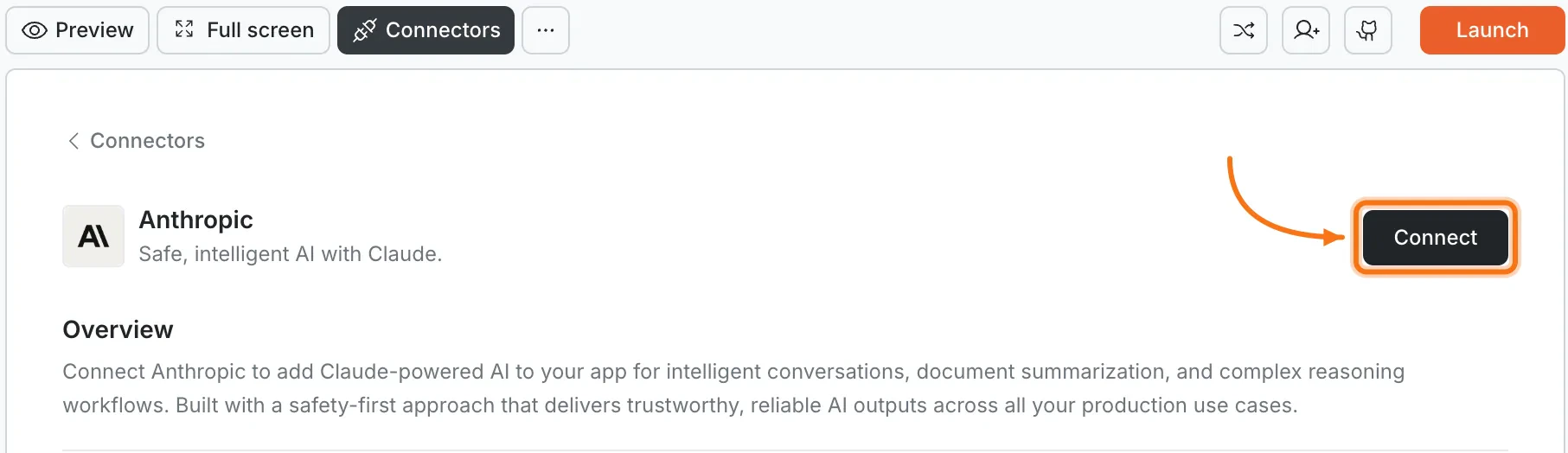
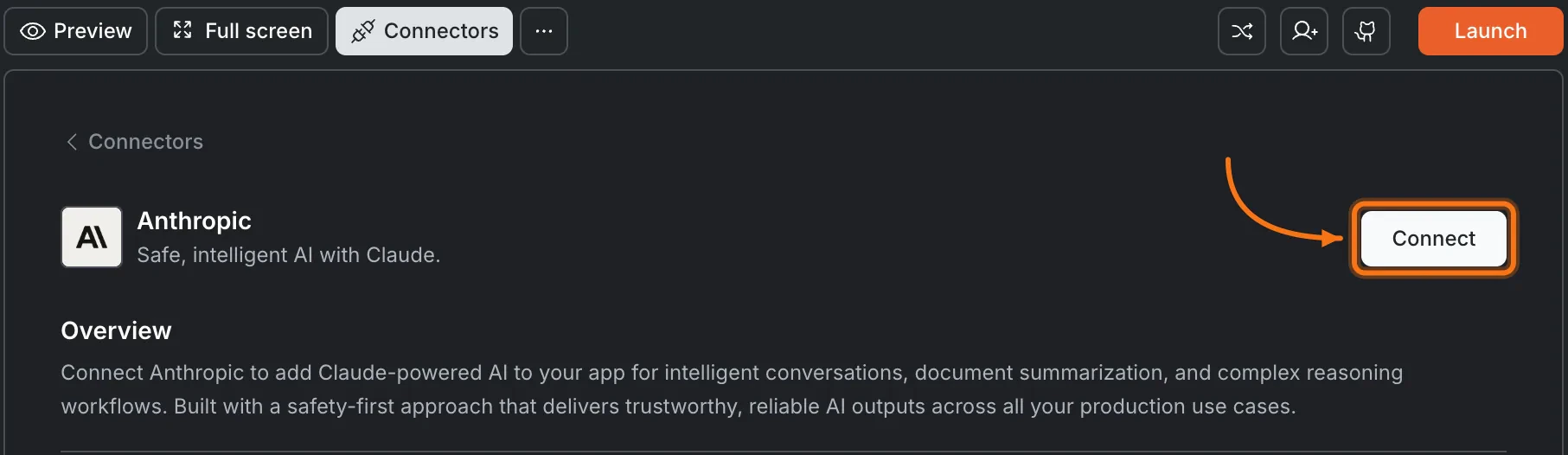
 Click the **Anthropic** card, then click **Connect**.
 **After clicking Connect**
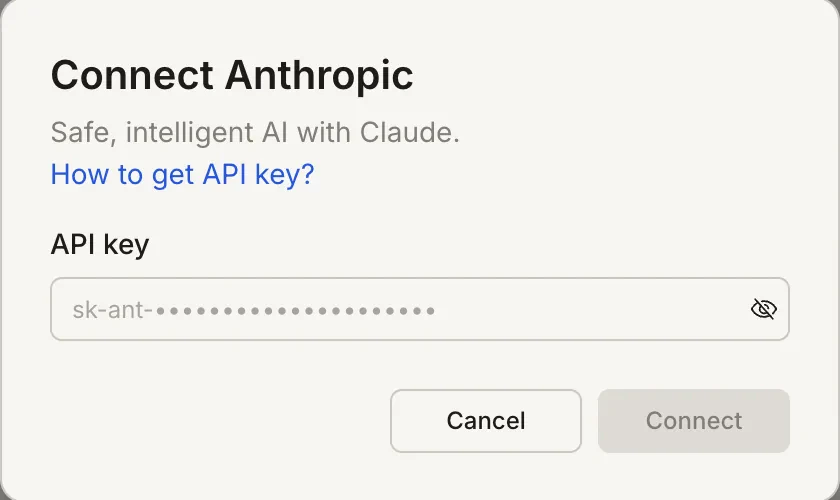
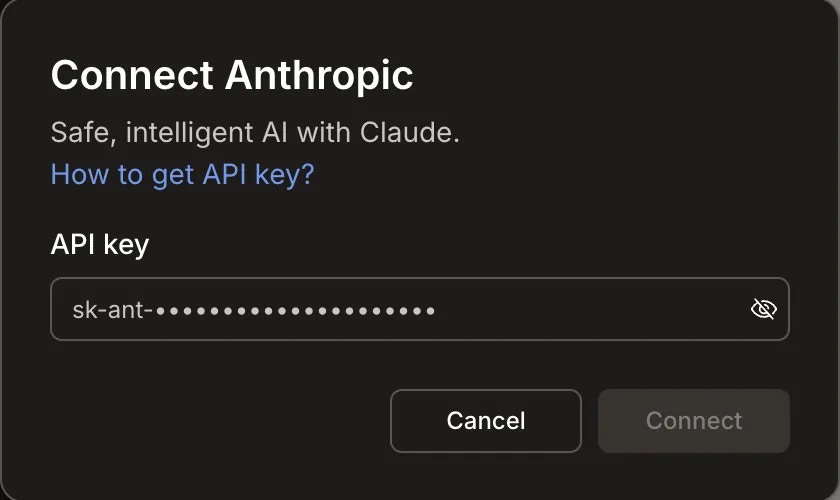
A popup opens. Paste your **API key** and click **Connect**.
**After clicking Connect**
A popup opens. Paste your **API key** and click **Connect**.
 A green dot appears next to Anthropic when the connection is active.
**Update or disconnect**
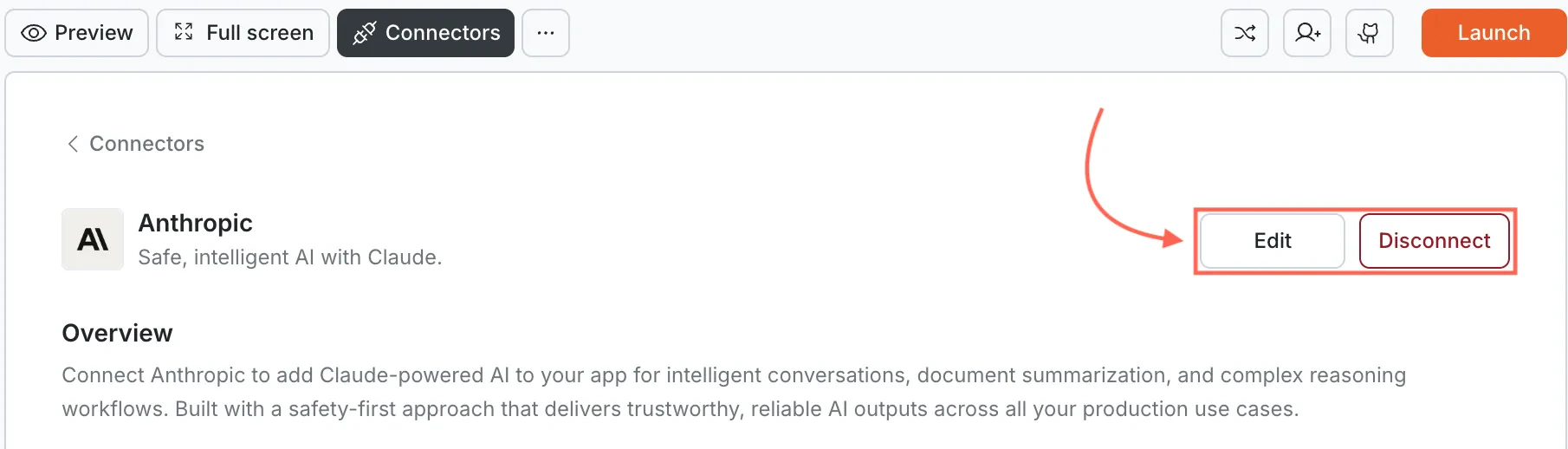
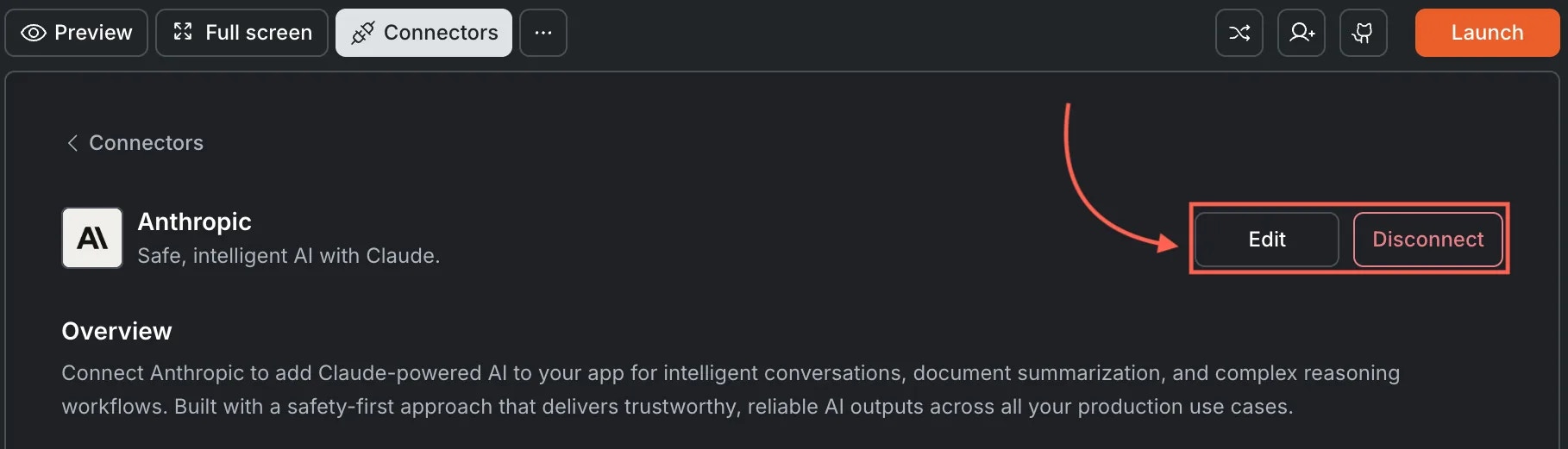
Go to [**Connectors > Anthropic**](#connect-anthropic). Click **Edit** to update the key or **Disconnect** to remove the integration.
A green dot appears next to Anthropic when the connection is active.
**Update or disconnect**
Go to [**Connectors > Anthropic**](#connect-anthropic). Click **Edit** to update the key or **Disconnect** to remove the integration.
 You can connect from two places. Both open the same popup.
**Option 1: From chat**
Type a prompt that mentions Anthropic or Claude. Rocket detects the intent, shows a **Connect** button, and the popup opens when you tap it.
**Option 2: From the Connectors tab**
1. Tap the **More** button in the header.
2. Tap **Integrations**.
3. Tap the **Anthropic** card, then tap **Connect**.
**After tapping Connect**
A popup opens. Paste your **API key** and tap **Done**.
A green dot appears next to Anthropic when the connection is active.
**Update or disconnect**
Go back to the **Anthropic** card in Integrations. Tap **Edit** to update the key or **Disconnect** to remove it from this task.
## Example prompts
| What you want | Prompt to use |
| :----------------- | :----------------------------------------------------------------------------------------------------- |
| Chatbot | `Add a Claude-powered chatbot that answers user questions about my product.` |
| Document summary | `Let users upload a PDF and get a structured summary with key takeaways from Claude.` |
| Content moderation | `Build a moderation queue that uses Claude to flag and explain policy violations in user comments.` |
| Code review | `Add a code review panel where developers paste code and Claude suggests improvements.` |
| Writing assistant | `Create a writing helper that gives feedback on tone, clarity, and structure.` |
| Email drafter | `Add an AI email composer that generates professional responses based on bullet points.` |
| Translation | `Build a translation tool that uses Claude to translate content between English, Spanish, and French.` |
| Q\&A from data | `Create a Q&A interface where Claude answers questions based on data stored in Supabase.` |
| Meeting notes | `Build a tool where users paste meeting transcripts and Claude extracts action items and decisions.` |
| Lesson planner | `Generate a structured lesson plan from a topic and grade level using Claude.` |
## Tips
* **Claude excels at nuanced, careful tasks.** For content requiring sensitivity, reasoning, or safety, Claude often outperforms other models. Compare results with OpenAI to find the best fit.
* **Token usage affects your bill.** Long documents and multi-turn conversations consume more tokens. Monitor usage in the Anthropic Console.
* **API billing is separate from Rocket.** Anthropic charges based on token usage. Check their [pricing page](https://www.anthropic.com/pricing) for current rates.
* **Claude works with the context you provide.** By default, Claude does not fetch live data or search the web within Rocket. For real-time search, pair it with the Perplexity integration.
* **One API key per task.** Each Rocket task connects to one Anthropic API key independently.
## What's next?
Compare Claude with GPT models to find the best AI fit for your app.
Add real-time web search with citations alongside Claude's reasoning.
Store conversation history and user data for Claude-powered features.
Send AI-generated content, summaries, or reports via email.
You can connect from two places. Both open the same popup.
**Option 1: From chat**
Type a prompt that mentions Anthropic or Claude. Rocket detects the intent, shows a **Connect** button, and the popup opens when you tap it.
**Option 2: From the Connectors tab**
1. Tap the **More** button in the header.
2. Tap **Integrations**.
3. Tap the **Anthropic** card, then tap **Connect**.
**After tapping Connect**
A popup opens. Paste your **API key** and tap **Done**.
A green dot appears next to Anthropic when the connection is active.
**Update or disconnect**
Go back to the **Anthropic** card in Integrations. Tap **Edit** to update the key or **Disconnect** to remove it from this task.
## Example prompts
| What you want | Prompt to use |
| :----------------- | :----------------------------------------------------------------------------------------------------- |
| Chatbot | `Add a Claude-powered chatbot that answers user questions about my product.` |
| Document summary | `Let users upload a PDF and get a structured summary with key takeaways from Claude.` |
| Content moderation | `Build a moderation queue that uses Claude to flag and explain policy violations in user comments.` |
| Code review | `Add a code review panel where developers paste code and Claude suggests improvements.` |
| Writing assistant | `Create a writing helper that gives feedback on tone, clarity, and structure.` |
| Email drafter | `Add an AI email composer that generates professional responses based on bullet points.` |
| Translation | `Build a translation tool that uses Claude to translate content between English, Spanish, and French.` |
| Q\&A from data | `Create a Q&A interface where Claude answers questions based on data stored in Supabase.` |
| Meeting notes | `Build a tool where users paste meeting transcripts and Claude extracts action items and decisions.` |
| Lesson planner | `Generate a structured lesson plan from a topic and grade level using Claude.` |
## Tips
* **Claude excels at nuanced, careful tasks.** For content requiring sensitivity, reasoning, or safety, Claude often outperforms other models. Compare results with OpenAI to find the best fit.
* **Token usage affects your bill.** Long documents and multi-turn conversations consume more tokens. Monitor usage in the Anthropic Console.
* **API billing is separate from Rocket.** Anthropic charges based on token usage. Check their [pricing page](https://www.anthropic.com/pricing) for current rates.
* **Claude works with the context you provide.** By default, Claude does not fetch live data or search the web within Rocket. For real-time search, pair it with the Perplexity integration.
* **One API key per task.** Each Rocket task connects to one Anthropic API key independently.
## What's next?
Compare Claude with GPT models to find the best AI fit for your app.
Add real-time web search with citations alongside Claude's reasoning.
Store conversation history and user data for Claude-powered features.
Send AI-generated content, summaries, or reports via email.