> ## Documentation Index
> Fetch the complete documentation index at: https://docs.rocket.new/llms.txt
> Use this file to discover all available pages before exploring further.
# Azure DevOps
> For teams building in Rocket from Azure DevOps: connect for work-item context, then set env vars so your app can call Azure DevOps APIs.
export const LlmsDirective = () =>
For the complete documentation index, see llms.txt.
For a lightweight markdown version of this page, append .md to the URL.
;
For teams who plan work in Azure DevOps and build in Rocket. Connect so you can build or fix from a work item or wiki URL and update Azure DevOps from chat. After you set env vars, your app can call Azure DevOps APIs.
You need two pieces: the **connector** (Azure DevOps as generation context for Rocket) and **environment variables plus a PAT** (so your generated app can call Azure DevOps APIs). Connect at **workspace** level (Settings, shared across tasks) or **task** level (Connectors tab or chat).
**Before you start:** a Microsoft account with access to the target Azure DevOps organization and project; permission to approve OAuth (or an admin if you see **Need admin approval**); a Personal Access Token you can create (or an admin policy that allows it); and the organization name from `https://dev.azure.com/{organization}` plus the project name for env vars. Use the same organization in **Select Organization** and `AZURE_DEVOPS_ORG`.
## What you can do
Paste a user story or task URL. Rocket reads requirements and acceptance criteria, then generates the feature.
Paste a bug URL. Rocket reads reproduce steps and expected vs actual behavior, then produces a targeted fix.
Ask Rocket to read the active sprint and build the highest-priority work first.
Point Rocket at a repository or pull request so new code matches your existing patterns.
Paste a failing build URL. Rocket checks the logs and fixes the issue in the app.
Paste a wiki URL. Rocket follows the specs on that page when generating the feature.
## Connect Azure DevOps
Authorize with Microsoft, then select the organization Rocket should use. You can also connect from [workspace Settings](/getting-started/workspace/connectors).
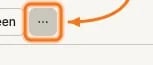
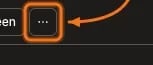
In the preview toolbar, click the **`...`** button.
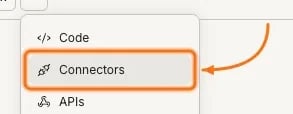
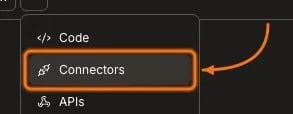
 Select **Connectors** from the menu.
 Click the **Azure DevOps** card.

 On the Azure DevOps connector page, click **Connect**.
 A Microsoft sign-in screen opens. Sign in with an account that has access to your Azure DevOps organization, review the permissions Rocket requests, and approve access. You return to Rocket when authorization completes.
If Microsoft shows **Need admin approval**, ask your Microsoft Entra admin (your organization’s Microsoft login) to [grant admin consent](https://learn.microsoft.com/en-us/entra/identity/enterprise-apps/grant-admin-consent) or [review consent requests](https://learn.microsoft.com/en-us/entra/identity/enterprise-apps/review-admin-consent-requests). For OAuth scopes and consent, see [Microsoft Entra OAuth for Azure DevOps](https://learn.microsoft.com/en-us/azure/devops/integrate/get-started/authentication/entra-oauth?view=azure-devops) and the [OAuth scope reference](https://learn.microsoft.com/en-us/azure/devops/integrate/get-started/authentication/oauth?view=azure-devops#available-scopes).
Under **Select Organization**, choose which Azure DevOps organization to connect, then confirm. When the connection is active, **Disconnect** is available on the connector page.
A Microsoft sign-in screen opens. Sign in with an account that has access to your Azure DevOps organization, review the permissions Rocket requests, and approve access. You return to Rocket when authorization completes.
If Microsoft shows **Need admin approval**, ask your Microsoft Entra admin (your organization’s Microsoft login) to [grant admin consent](https://learn.microsoft.com/en-us/entra/identity/enterprise-apps/grant-admin-consent) or [review consent requests](https://learn.microsoft.com/en-us/entra/identity/enterprise-apps/review-admin-consent-requests). For OAuth scopes and consent, see [Microsoft Entra OAuth for Azure DevOps](https://learn.microsoft.com/en-us/azure/devops/integrate/get-started/authentication/entra-oauth?view=azure-devops) and the [OAuth scope reference](https://learn.microsoft.com/en-us/azure/devops/integrate/get-started/authentication/oauth?view=azure-devops#available-scopes).
Under **Select Organization**, choose which Azure DevOps organization to connect, then confirm. When the connection is active, **Disconnect** is available on the connector page.
 Your account needs access to the organization and project you intend to use. Admins can [add organization users](https://learn.microsoft.com/en-us/azure/devops/organizations/accounts/add-organization-users?view=azure-devops) and [grant project access](https://learn.microsoft.com/en-us/azure/devops/organizations/security/add-users-team-project?view=azure-devops). OAuth approval alone does not grant admin rights; see the [Azure DevOps permissions reference](https://learn.microsoft.com/en-us/azure/devops/organizations/security/permissions?view=azure-devops).
Disconnect or switch accounts from workspace Settings.
Tap **More** in the header, then **Integrations**. Open **Azure DevOps**, tap **Connect**, authorize with Microsoft, then select your organization.
## Set environment variables
These three values are for the **generated app**, not for signing into the connector. Use the same organization you chose under **Select Organization**.
Create a Personal Access Token in Azure DevOps with Microsoft’s [Personal Access Token guide](https://learn.microsoft.com/en-us/azure/devops/organizations/accounts/use-personal-access-tokens-to-authenticate?view=azure-devops\&tabs=Windows). If PAT creation or scopes are restricted, see [PAT policies for administrators](https://learn.microsoft.com/en-us/azure/devops/organizations/accounts/manage-pats-with-policies-for-administrators?view=azure-devops). The organization name appears in `https://dev.azure.com/{organization}`; the project name is in the project selector and URL. See Microsoft’s guides for [finding organizations](https://learn.microsoft.com/en-us/azure/devops/organizations/accounts/get-list-of-organizations-connected-to-microsoft-entra-id?view=azure-devops) and [viewing projects](https://learn.microsoft.com/en-us/azure/devops/organizations/projects/create-project?view=azure-devops#list-projects).
| Variable | Purpose |
| :--------------------- | :------------------------------------- |
| `AZURE_DEVOPS_ORG` | Azure DevOps organization name |
| `AZURE_DEVOPS_PROJECT` | Project within that organization |
| `AZURE_DEVOPS_PAT` | Personal Access Token for app API auth |
Reference them in server-side code as `process.env.AZURE_DEVOPS_ORG`, `process.env.AZURE_DEVOPS_PROJECT`, and `process.env.AZURE_DEVOPS_PAT`.
Never paste your Personal Access Token into chat, and never share passwords, OAuth tokens, refresh tokens, client secrets, or PATs with support. Add placeholders in `.env`, then set real values in Environment settings. If a token is exposed, revoke it in Azure DevOps and create a new one.
Open the Code tab and add:
```plaintext wrap theme={null}
AZURE_DEVOPS_ORG=your-org
AZURE_DEVOPS_PROJECT=your-project
AZURE_DEVOPS_PAT=your-pat-here
```
Open **Settings → Environment** and fill in Staging and Production for all three variables.
Ask Rocket to use these variables when building Azure DevOps-backed features in your app.
How to add and manage Staging and Production values in Rocket.
## Example prompts
Pick the tab that matches what you are doing. Paste an Azure DevOps URL when you have one. Review changes in Azure DevOps before sharing; they appear in your org immediately.
| Goal | Say this in chat |
| :----------------- | :--------------------------------------------------------------------------------------------------------------------- |
| Build from a story | `Build the feature described in [ADO_URL]. Read the requirements, acceptance criteria, and linked items first.` |
| Fix a bug | `Fix the bug at [ADO_URL]. Read the steps to reproduce and expected vs actual behavior, then generate a targeted fix.` |
| See my work | `Show my assigned Azure DevOps work items in this project and suggest which one to build first.` |
| Search the board | `Search Azure DevOps for work items about checkout and summarize the open ones.` |
| Create follow-ups | `Create Azure DevOps tasks for QA and edge cases from this build, and link them under the parent story.` |
| Update and comment | `Move work item [ADO_URL] to Done and leave a comment describing what was built.` |
| Goal | Say this in chat |
| :-------------------- | :------------------------------------------------------------------------------------------ |
| Build from the sprint | `Read my team's current sprint in Azure DevOps and build the highest-priority story first.` |
| Check the backlog | `Show the product backlog for our team and summarize what is ready to build.` |
| See capacity | `Check our team's capacity for the current sprint and call out who is overloaded.` |
| Set up a sprint | `Create a two-week sprint named Sprint 24 in Azure DevOps and assign it to our team.` |
| Goal | Say this in chat |
| :------------------ | :------------------------------------------------------------------------------------------------------------- |
| Match existing code | `Use the repository and recent pull requests at [ADO_URL] as context so the new feature matches our patterns.` |
| Search the codebase | `Search our Azure DevOps repo for how we handle authentication and reuse that approach.` |
| Open a pull request | `Create a branch and open a pull request for the changes we just made, with a clear title and description.` |
| Review a PR | `Read the pull request at [ADO_URL], summarize the discussion, and apply any agreed fixes.` |
| Goal | Say this in chat |
| :------------------ | :----------------------------------------------------------------------------------- |
| Fix a failing build | `Read the failing build at [ADO_URL], check the logs, and fix the issue in the app.` |
| Check status | `List our pipelines and tell me which builds failed in the last day.` |
| Run a pipeline | `Run the main build pipeline on the branch we just created.` |
| After a build | `Show the commits and work items associated with build [ADO_URL].` |
| Goal | Say this in chat |
| :-------------------- | :--------------------------------------------------------------------------------------- |
| Build from a spec | `Read the wiki page at [ADO_URL] and build the described feature following those specs.` |
| Find the right page | `Search our Azure DevOps wiki for the onboarding runbook and use it as context.` |
| Document what shipped | `Create or update a wiki page summarizing what we built and how to try it.` |
| Goal | Say this in chat |
| :-------------------------- | :------------------------------------------------------------------------------- |
| See coverage | `List the test plans and suites for this project and summarize what is covered.` |
| Results from a build | `Pull the test results from build [ADO_URL] and summarize what failed.` |
| Create cases from the build | `Create a test plan with cases and steps that cover the feature we just built.` |
## What's next?
Prefer Jira for tickets and sprints? Connect it for issue-driven builds.
Already using Linear? Connect it for bi-directional ticket integration.
Push your code to a repository and keep version history.
Browse every available integration.
Your account needs access to the organization and project you intend to use. Admins can [add organization users](https://learn.microsoft.com/en-us/azure/devops/organizations/accounts/add-organization-users?view=azure-devops) and [grant project access](https://learn.microsoft.com/en-us/azure/devops/organizations/security/add-users-team-project?view=azure-devops). OAuth approval alone does not grant admin rights; see the [Azure DevOps permissions reference](https://learn.microsoft.com/en-us/azure/devops/organizations/security/permissions?view=azure-devops).
Disconnect or switch accounts from workspace Settings.
Tap **More** in the header, then **Integrations**. Open **Azure DevOps**, tap **Connect**, authorize with Microsoft, then select your organization.
## Set environment variables
These three values are for the **generated app**, not for signing into the connector. Use the same organization you chose under **Select Organization**.
Create a Personal Access Token in Azure DevOps with Microsoft’s [Personal Access Token guide](https://learn.microsoft.com/en-us/azure/devops/organizations/accounts/use-personal-access-tokens-to-authenticate?view=azure-devops\&tabs=Windows). If PAT creation or scopes are restricted, see [PAT policies for administrators](https://learn.microsoft.com/en-us/azure/devops/organizations/accounts/manage-pats-with-policies-for-administrators?view=azure-devops). The organization name appears in `https://dev.azure.com/{organization}`; the project name is in the project selector and URL. See Microsoft’s guides for [finding organizations](https://learn.microsoft.com/en-us/azure/devops/organizations/accounts/get-list-of-organizations-connected-to-microsoft-entra-id?view=azure-devops) and [viewing projects](https://learn.microsoft.com/en-us/azure/devops/organizations/projects/create-project?view=azure-devops#list-projects).
| Variable | Purpose |
| :--------------------- | :------------------------------------- |
| `AZURE_DEVOPS_ORG` | Azure DevOps organization name |
| `AZURE_DEVOPS_PROJECT` | Project within that organization |
| `AZURE_DEVOPS_PAT` | Personal Access Token for app API auth |
Reference them in server-side code as `process.env.AZURE_DEVOPS_ORG`, `process.env.AZURE_DEVOPS_PROJECT`, and `process.env.AZURE_DEVOPS_PAT`.
Never paste your Personal Access Token into chat, and never share passwords, OAuth tokens, refresh tokens, client secrets, or PATs with support. Add placeholders in `.env`, then set real values in Environment settings. If a token is exposed, revoke it in Azure DevOps and create a new one.
Open the Code tab and add:
```plaintext wrap theme={null}
AZURE_DEVOPS_ORG=your-org
AZURE_DEVOPS_PROJECT=your-project
AZURE_DEVOPS_PAT=your-pat-here
```
Open **Settings → Environment** and fill in Staging and Production for all three variables.
Ask Rocket to use these variables when building Azure DevOps-backed features in your app.
How to add and manage Staging and Production values in Rocket.
## Example prompts
Pick the tab that matches what you are doing. Paste an Azure DevOps URL when you have one. Review changes in Azure DevOps before sharing; they appear in your org immediately.
| Goal | Say this in chat |
| :----------------- | :--------------------------------------------------------------------------------------------------------------------- |
| Build from a story | `Build the feature described in [ADO_URL]. Read the requirements, acceptance criteria, and linked items first.` |
| Fix a bug | `Fix the bug at [ADO_URL]. Read the steps to reproduce and expected vs actual behavior, then generate a targeted fix.` |
| See my work | `Show my assigned Azure DevOps work items in this project and suggest which one to build first.` |
| Search the board | `Search Azure DevOps for work items about checkout and summarize the open ones.` |
| Create follow-ups | `Create Azure DevOps tasks for QA and edge cases from this build, and link them under the parent story.` |
| Update and comment | `Move work item [ADO_URL] to Done and leave a comment describing what was built.` |
| Goal | Say this in chat |
| :-------------------- | :------------------------------------------------------------------------------------------ |
| Build from the sprint | `Read my team's current sprint in Azure DevOps and build the highest-priority story first.` |
| Check the backlog | `Show the product backlog for our team and summarize what is ready to build.` |
| See capacity | `Check our team's capacity for the current sprint and call out who is overloaded.` |
| Set up a sprint | `Create a two-week sprint named Sprint 24 in Azure DevOps and assign it to our team.` |
| Goal | Say this in chat |
| :------------------ | :------------------------------------------------------------------------------------------------------------- |
| Match existing code | `Use the repository and recent pull requests at [ADO_URL] as context so the new feature matches our patterns.` |
| Search the codebase | `Search our Azure DevOps repo for how we handle authentication and reuse that approach.` |
| Open a pull request | `Create a branch and open a pull request for the changes we just made, with a clear title and description.` |
| Review a PR | `Read the pull request at [ADO_URL], summarize the discussion, and apply any agreed fixes.` |
| Goal | Say this in chat |
| :------------------ | :----------------------------------------------------------------------------------- |
| Fix a failing build | `Read the failing build at [ADO_URL], check the logs, and fix the issue in the app.` |
| Check status | `List our pipelines and tell me which builds failed in the last day.` |
| Run a pipeline | `Run the main build pipeline on the branch we just created.` |
| After a build | `Show the commits and work items associated with build [ADO_URL].` |
| Goal | Say this in chat |
| :-------------------- | :--------------------------------------------------------------------------------------- |
| Build from a spec | `Read the wiki page at [ADO_URL] and build the described feature following those specs.` |
| Find the right page | `Search our Azure DevOps wiki for the onboarding runbook and use it as context.` |
| Document what shipped | `Create or update a wiki page summarizing what we built and how to try it.` |
| Goal | Say this in chat |
| :-------------------------- | :------------------------------------------------------------------------------- |
| See coverage | `List the test plans and suites for this project and summarize what is covered.` |
| Results from a build | `Pull the test results from build [ADO_URL] and summarize what failed.` |
| Create cases from the build | `Create a test plan with cases and steps that cover the feature we just built.` |
## What's next?
Prefer Jira for tickets and sprints? Connect it for issue-driven builds.
Already using Linear? Connect it for bi-directional ticket integration.
Push your code to a repository and keep version history.
Browse every available integration.