> ## Documentation Index
> Fetch the complete documentation index at: https://docs.rocket.new/llms.txt
> Use this file to discover all available pages before exploring further.
# Brevo
> Connect Brevo to your Rocket.new app - send emails, SMS, and manage CRM contacts with a single prompt.
export const LlmsDirective = () =>
For the complete documentation index, see llms.txt.
For a lightweight markdown version of this page, append .md to the URL.
;
Connect Brevo and describe the messaging flow you want in chat. Rocket generates the complete logic: templates, API calls, contact management, and automation triggers.
Brevo is a great choice when you need email, SMS, and CRM in a single platform. Pair with [Supabase](/build/connectors/supabase/overview) for user data and [Stripe](/build/connectors/stripe) for payment-triggered communications.
## What you can do
Password resets, order confirmations, invoices, and verification emails triggered by user actions.
Promotional emails, announcements, and seasonal campaigns to your contact lists.
SMS messages for promotions, alerts, and time-sensitive notifications through Brevo's built-in SMS feature.
Manage contacts, segment audiences, and automate workflows based on user behavior.
Collect subscriber emails and deliver regular newsletters with dynamic content.
## Before you connect
You need your **API key** from the Brevo dashboard.
**Create or copy your Brevo API key**
Never paste your Brevo API key directly into chat. Always use the secure connection popup. If your key has been exposed, revoke it from Brevo Settings and create a new one.
## Connect Brevo
You can connect from two places - both open the same popup.
**Option 1: From chat**
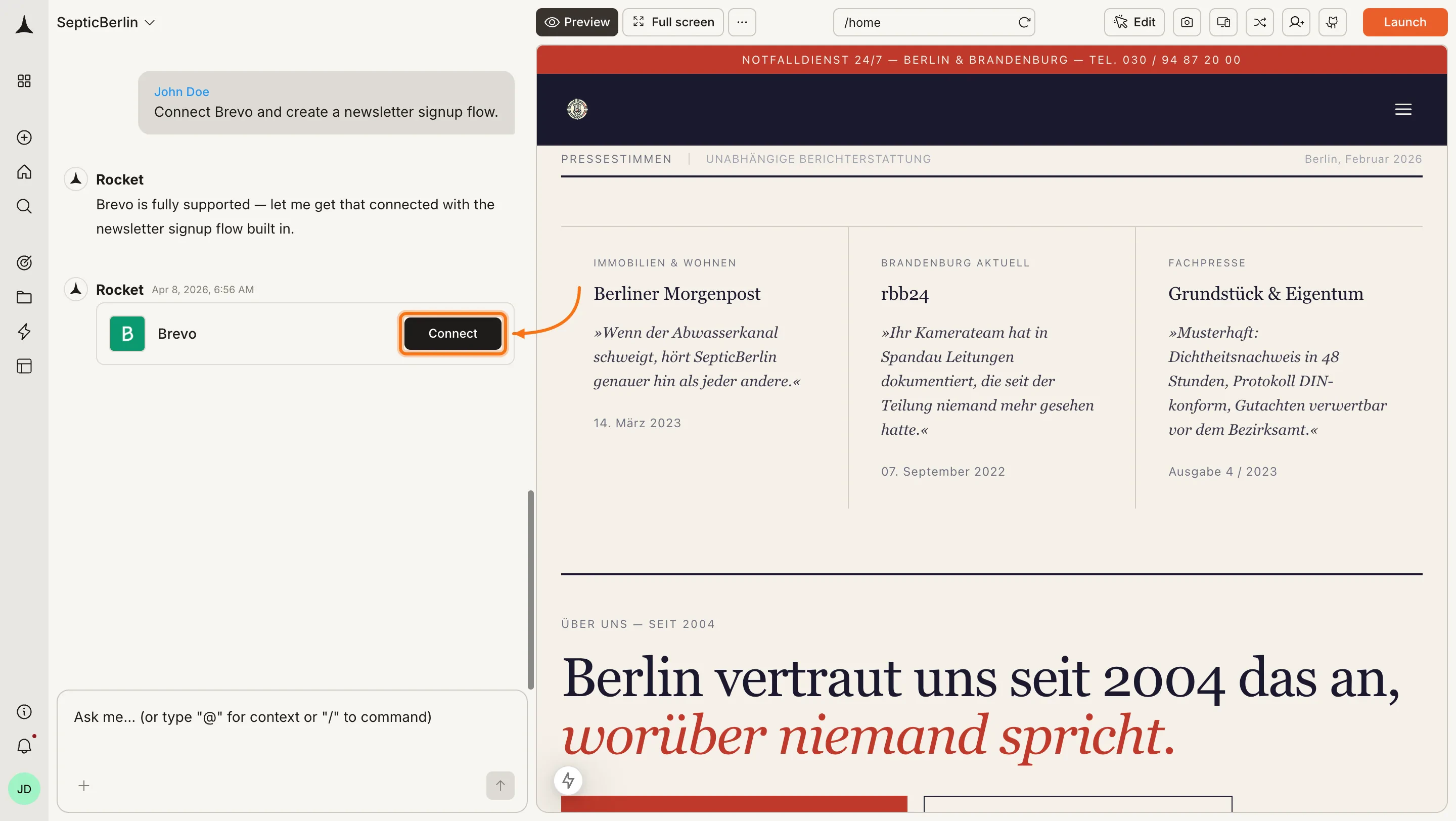
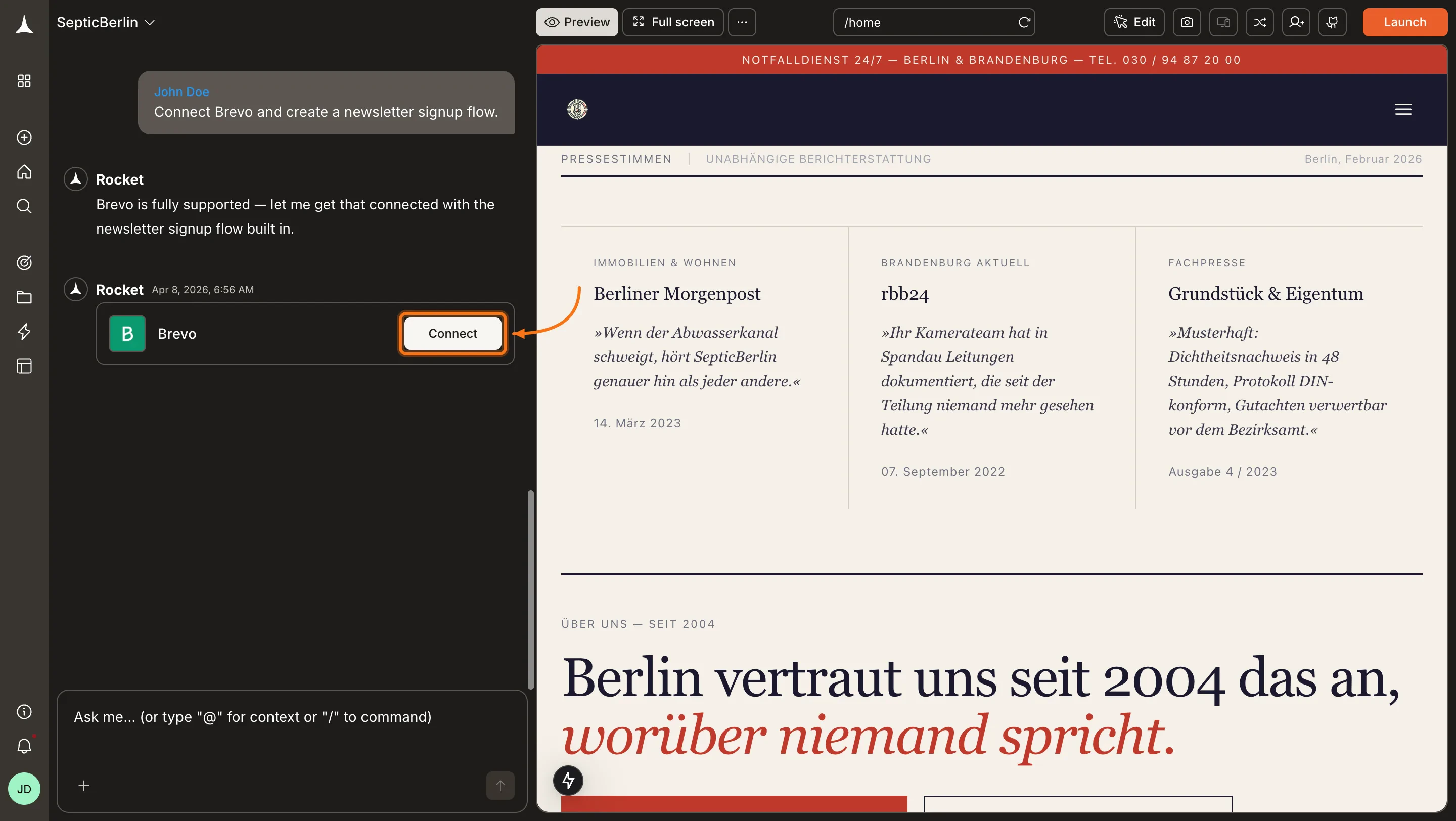
Type a prompt that mentions Brevo - for example, `Connect Brevo and send a welcome email when a new user signs up`. Rocket detects the intent and shows a **Connect** button inline. Click it and the popup opens.
 **Option 2: From the Connectors tab**
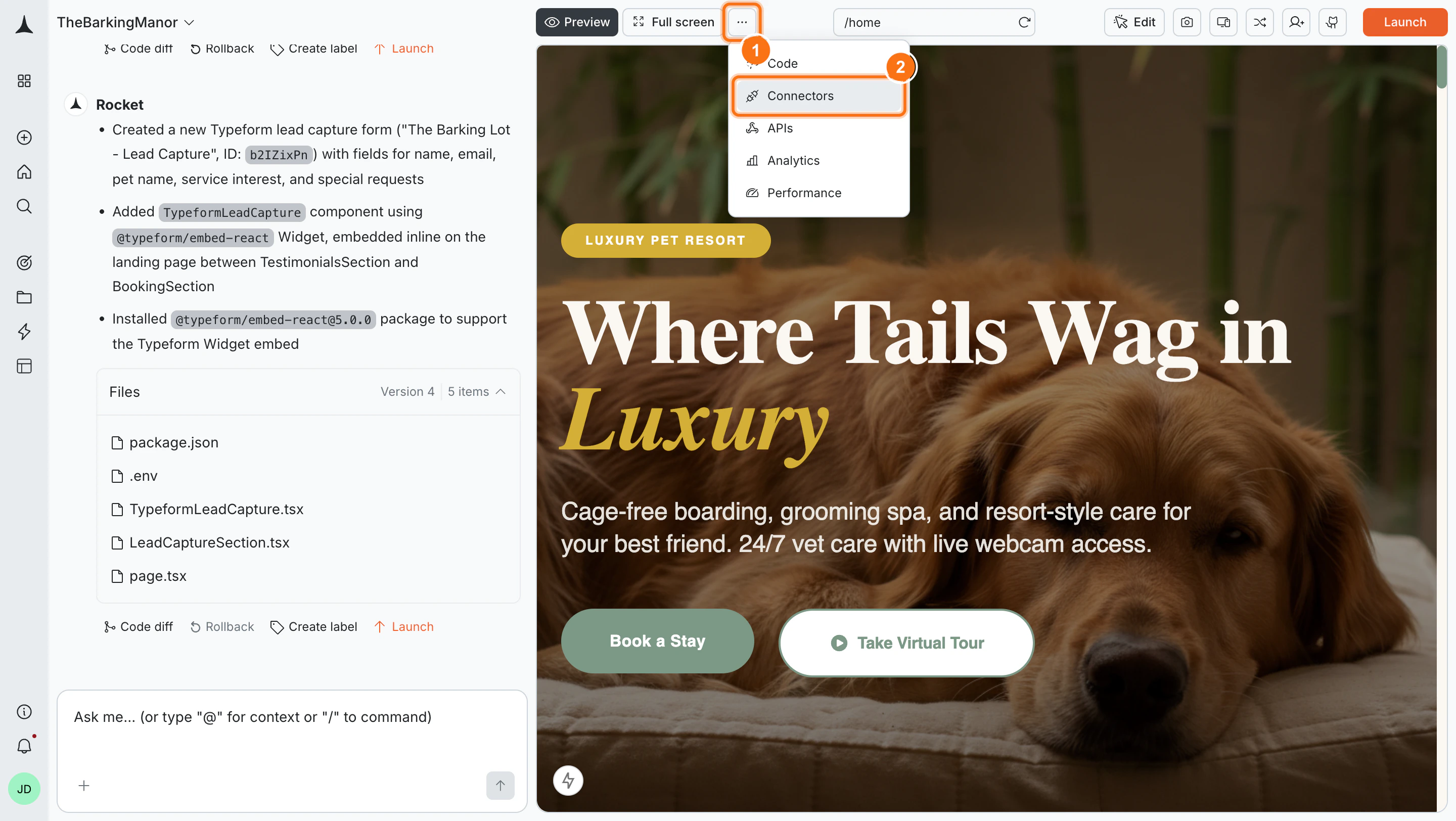
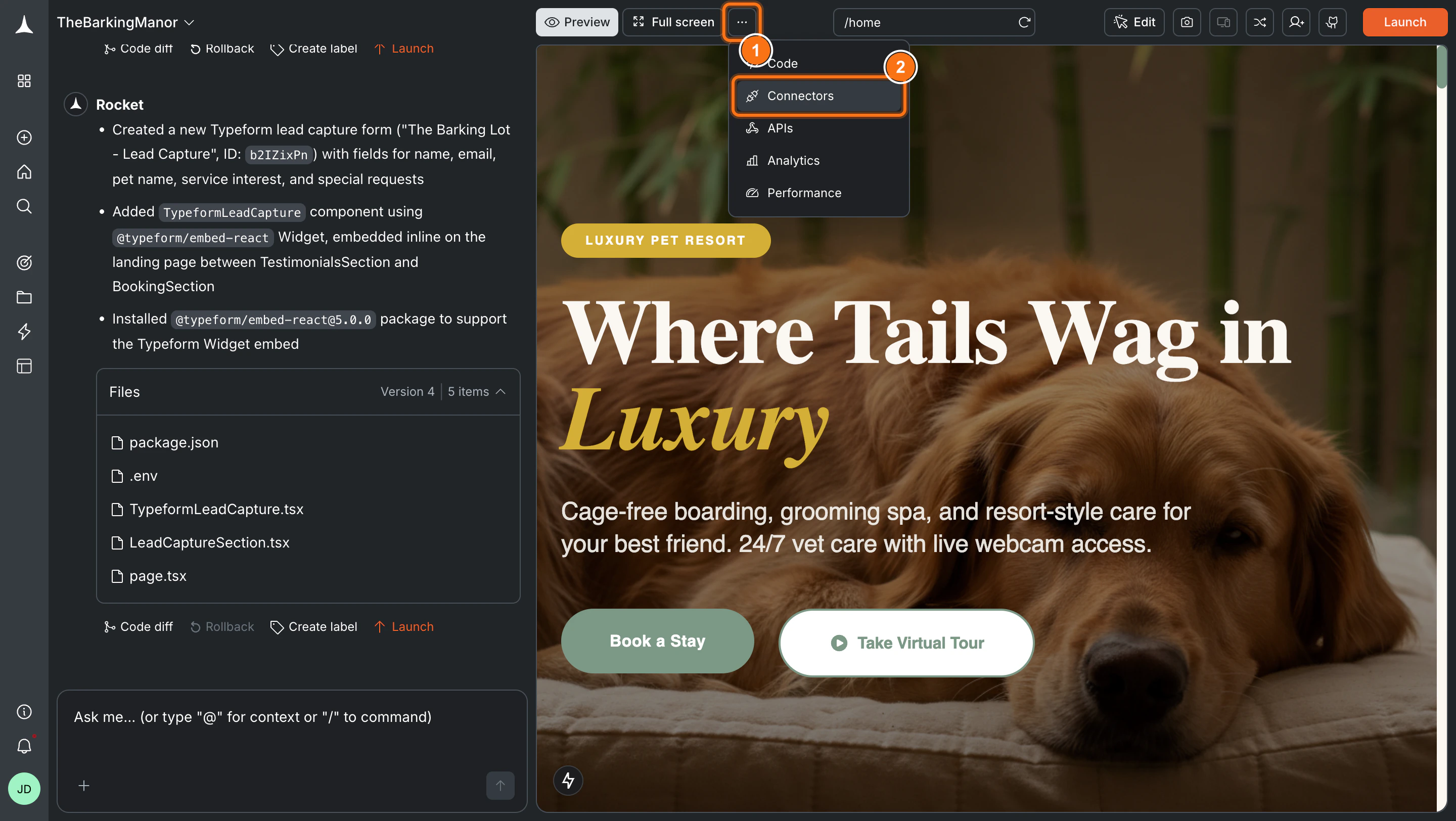
Click the **`...`** button in the preview toolbar, then select **Connectors**.
**Option 2: From the Connectors tab**
Click the **`...`** button in the preview toolbar, then select **Connectors**.
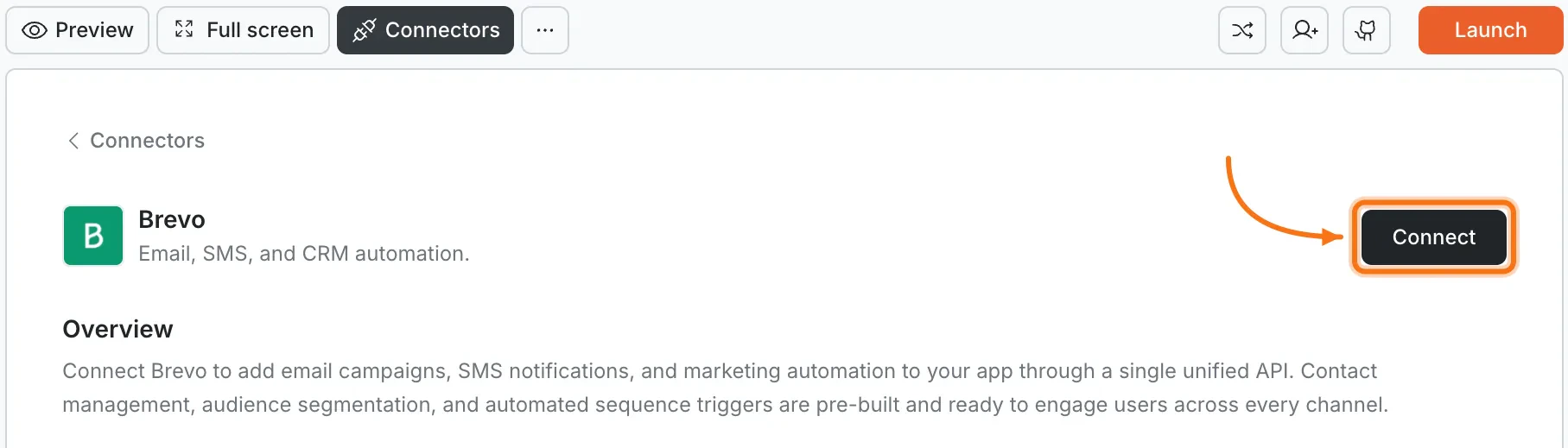
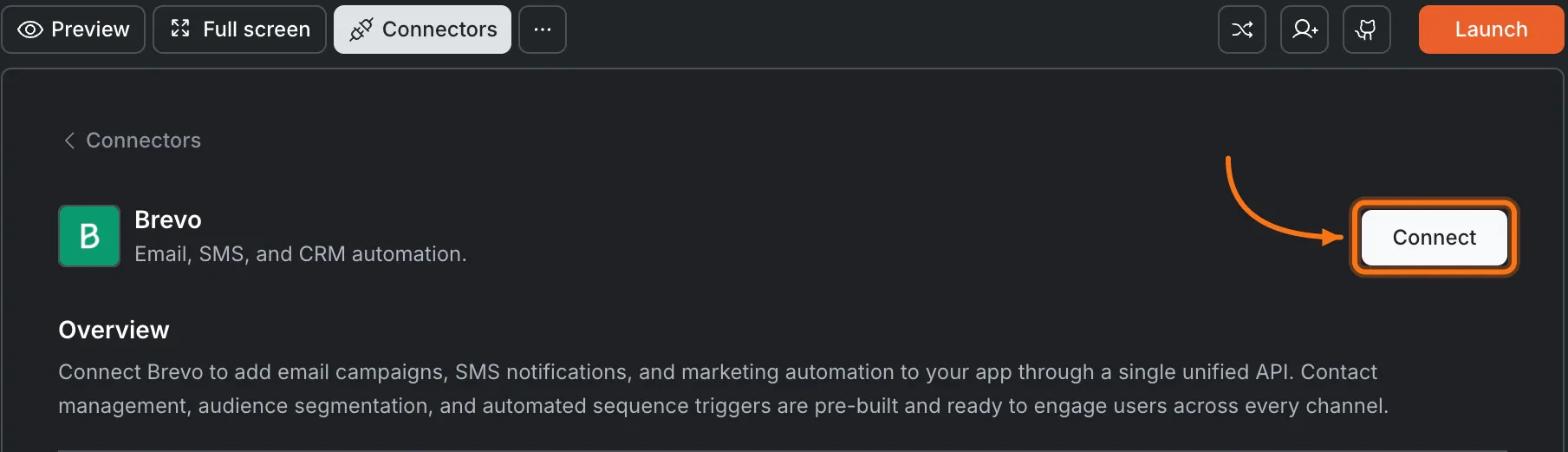
 Click the **Brevo** card, then click **Connect**.
 **After clicking Connect**
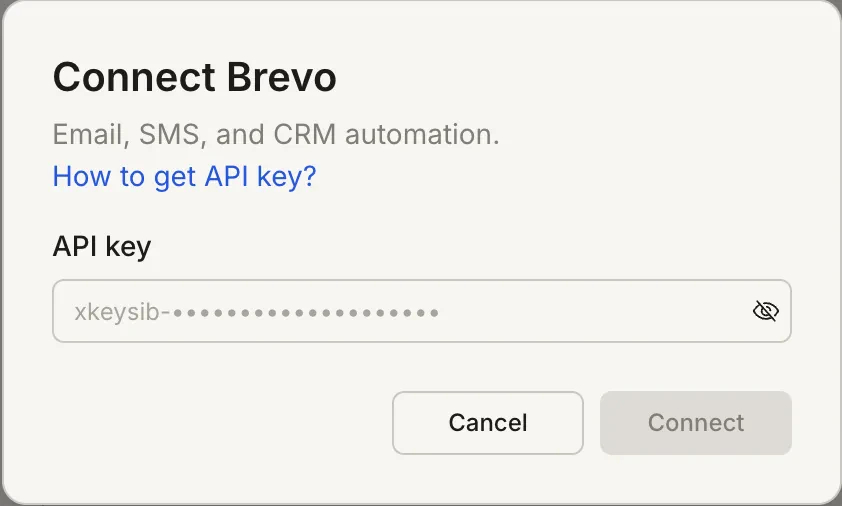
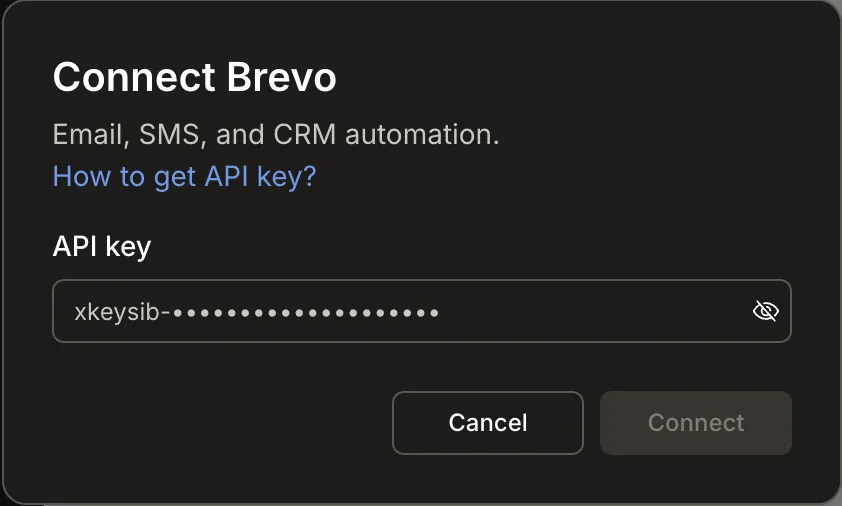
A popup opens. Paste your **API key**, then click **Save**. A green dot appears next to Brevo when the connection is active.
**After clicking Connect**
A popup opens. Paste your **API key**, then click **Save**. A green dot appears next to Brevo when the connection is active.
 **Update or disconnect**
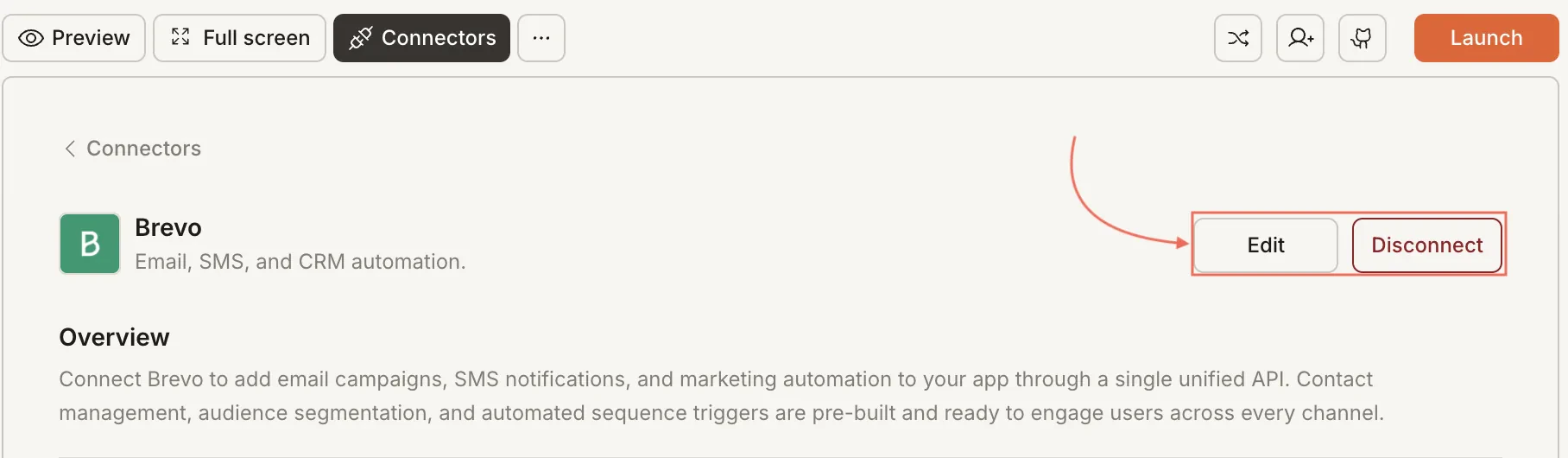
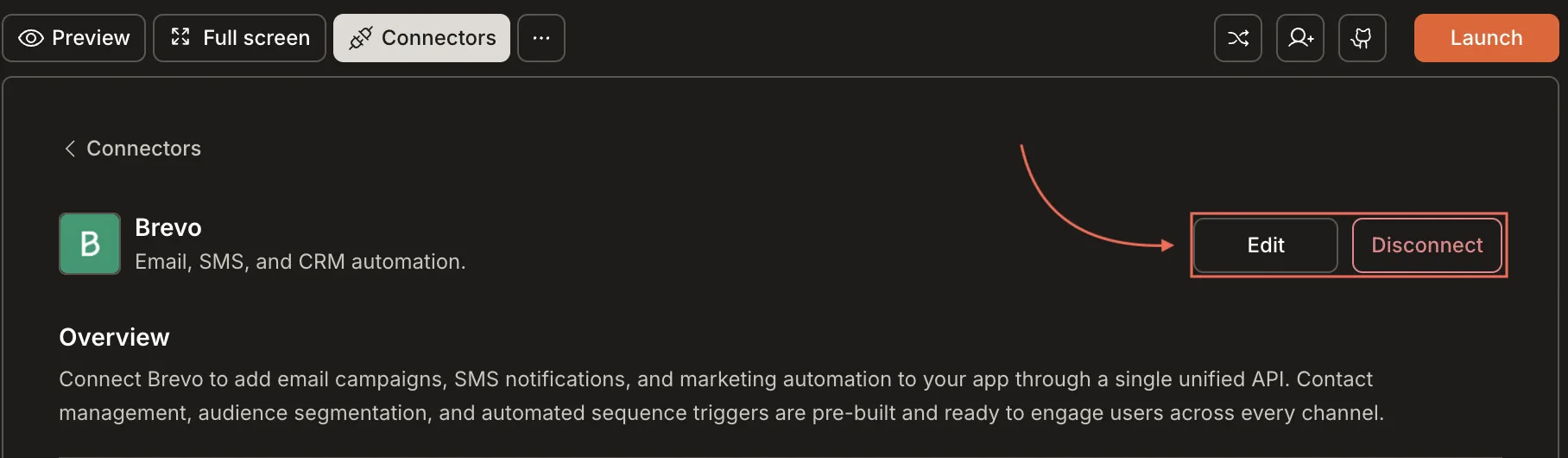
Go to [**Connectors > Brevo**](#connect-brevo). Update your key or click **Disconnect** to remove the integration.
**Update or disconnect**
Go to [**Connectors > Brevo**](#connect-brevo). Update your key or click **Disconnect** to remove the integration.
 You can connect from two places - both open the same popup.
**Option 1: From chat**
Type a prompt that mentions Brevo. Rocket detects the intent, shows a **Connect** button, and the popup opens when you tap it.
**Option 2: From the Connectors tab**
1. Tap the **More** button in the header.
2. Tap **Integrations**.
3. Tap the **Brevo** card, then tap **Connect**.
**After tapping Connect**
A popup opens. Paste your **API key**, then tap **Done**. A green dot appears next to Brevo when the connection is active.
**Update or disconnect**
Go to **Integrations > Brevo**. Update your key or tap **Disconnect** to remove the integration.
## Example prompts
| Use case | Prompt |
| ------------------ | -------------------------------------------------------------------------------------------------------- |
| Welcome email | `Send a welcome email through Brevo when a new user signs up, with onboarding steps.` |
| Password reset | `Add a forgot-password flow that sends a reset link via Brevo with a 15-minute expiration.` |
| Marketing campaign | `Build a campaign page where I can write a promotional email, select a Brevo contact list, and send it.` |
| SMS notification | `Send an SMS through Brevo to users who opted in when their order ships.` |
| Drip sequence | `Start a 5-email onboarding drip sequence through Brevo when a user creates an account.` |
| Newsletter | `Add a newsletter signup form and send a monthly email through Brevo with the latest blog posts.` |
| Abandoned cart | `Send an abandoned cart email through Brevo 1 hour after a user leaves items in their cart.` |
| Contact tagging | `When a user upgrades to Pro, update their Brevo contact attributes and add a "pro" tag.` |
| Event reminder | `Send an event reminder email through Brevo 24 hours before a user's scheduled appointment.` |
| Re-engagement | `Send a re-engagement email to Brevo contacts who have not opened an email in 60 days.` |
## Tips
* **Brevo combines email, SMS, and CRM.** Unlike standalone email services, Brevo includes SMS sending and contact management in one platform.
* **Free tier includes 300 emails per day.** Brevo's free plan allows 300 emails daily with no contact limit. Upgrade for higher sending volume and advanced features.
* **Transactional and marketing are separate.** Brevo treats transactional emails and marketing campaigns as separate categories with different sending limits.
* **Manage contacts in Brevo.** You can add contacts through Rocket, but deleting contacts, managing unsubscribes, and editing campaign templates must be done in the Brevo dashboard.
* **One Brevo account per project.** Each Rocket project connects to one Brevo API key.
## What's next?
Store user data and trigger emails based on database events and user actions.
Send payment confirmations and receipt emails after Stripe transactions.
Compare with SendGrid for high-volume transactional email at scale.
Compare with Resend for simpler developer-focused transactional email.
You can connect from two places - both open the same popup.
**Option 1: From chat**
Type a prompt that mentions Brevo. Rocket detects the intent, shows a **Connect** button, and the popup opens when you tap it.
**Option 2: From the Connectors tab**
1. Tap the **More** button in the header.
2. Tap **Integrations**.
3. Tap the **Brevo** card, then tap **Connect**.
**After tapping Connect**
A popup opens. Paste your **API key**, then tap **Done**. A green dot appears next to Brevo when the connection is active.
**Update or disconnect**
Go to **Integrations > Brevo**. Update your key or tap **Disconnect** to remove the integration.
## Example prompts
| Use case | Prompt |
| ------------------ | -------------------------------------------------------------------------------------------------------- |
| Welcome email | `Send a welcome email through Brevo when a new user signs up, with onboarding steps.` |
| Password reset | `Add a forgot-password flow that sends a reset link via Brevo with a 15-minute expiration.` |
| Marketing campaign | `Build a campaign page where I can write a promotional email, select a Brevo contact list, and send it.` |
| SMS notification | `Send an SMS through Brevo to users who opted in when their order ships.` |
| Drip sequence | `Start a 5-email onboarding drip sequence through Brevo when a user creates an account.` |
| Newsletter | `Add a newsletter signup form and send a monthly email through Brevo with the latest blog posts.` |
| Abandoned cart | `Send an abandoned cart email through Brevo 1 hour after a user leaves items in their cart.` |
| Contact tagging | `When a user upgrades to Pro, update their Brevo contact attributes and add a "pro" tag.` |
| Event reminder | `Send an event reminder email through Brevo 24 hours before a user's scheduled appointment.` |
| Re-engagement | `Send a re-engagement email to Brevo contacts who have not opened an email in 60 days.` |
## Tips
* **Brevo combines email, SMS, and CRM.** Unlike standalone email services, Brevo includes SMS sending and contact management in one platform.
* **Free tier includes 300 emails per day.** Brevo's free plan allows 300 emails daily with no contact limit. Upgrade for higher sending volume and advanced features.
* **Transactional and marketing are separate.** Brevo treats transactional emails and marketing campaigns as separate categories with different sending limits.
* **Manage contacts in Brevo.** You can add contacts through Rocket, but deleting contacts, managing unsubscribes, and editing campaign templates must be done in the Brevo dashboard.
* **One Brevo account per project.** Each Rocket project connects to one Brevo API key.
## What's next?
Store user data and trigger emails based on database events and user actions.
Send payment confirmations and receipt emails after Stripe transactions.
Compare with SendGrid for high-volume transactional email at scale.
Compare with Resend for simpler developer-focused transactional email.