> ## Documentation Index
> Fetch the complete documentation index at: https://docs.rocket.new/llms.txt
> Use this file to discover all available pages before exploring further.
# ElevenLabs
> Connect ElevenLabs to your Rocket.new app and add AI-powered voice generation, text-to-speech, and voice cloning with a single prompt.
export const LlmsDirective = () =>
For the complete documentation index, see llms.txt.
For a lightweight markdown version of this page, append .md to the URL.
;
Connect your ElevenLabs API key and describe the voice feature you need in chat. Rocket generates the complete integration: text-to-speech components, voice selection, audio playback, and content management.
This connector is only available for **Next.js TypeScript** web build tasks.
## What you can do
Convert any text into natural, lifelike speech with multiple voice options and language support.
Clone a custom voice from audio samples and use it to generate speech unique to your brand or product.
Generate speech in multiple languages from a single voice, ideal for global apps and localized content.
Create voiceovers for videos, podcasts, courses, or product demos directly from your app.
Manage generated audio files, organize voice projects, and stream or download audio from your app.
## Before you connect
You need an ElevenLabs API key.
Get your ElevenLabs API key from the dashboard
| Key detail | Value |
| :------------------- | :----------------------------- |
| **Prefix** | `sk_` |
| **Min length** | 20 characters |
| **Where to find it** | ElevenLabs Settings > API Keys |
Never paste your API key directly into chat. Always use the secure connector popup. If your key is exposed, rotate it immediately from the ElevenLabs dashboard.
ElevenLabs is a **task-level** connector. Each Rocket task connects to its own API key independently.
## Connect ElevenLabs
You can connect from two places - both open the same popup.
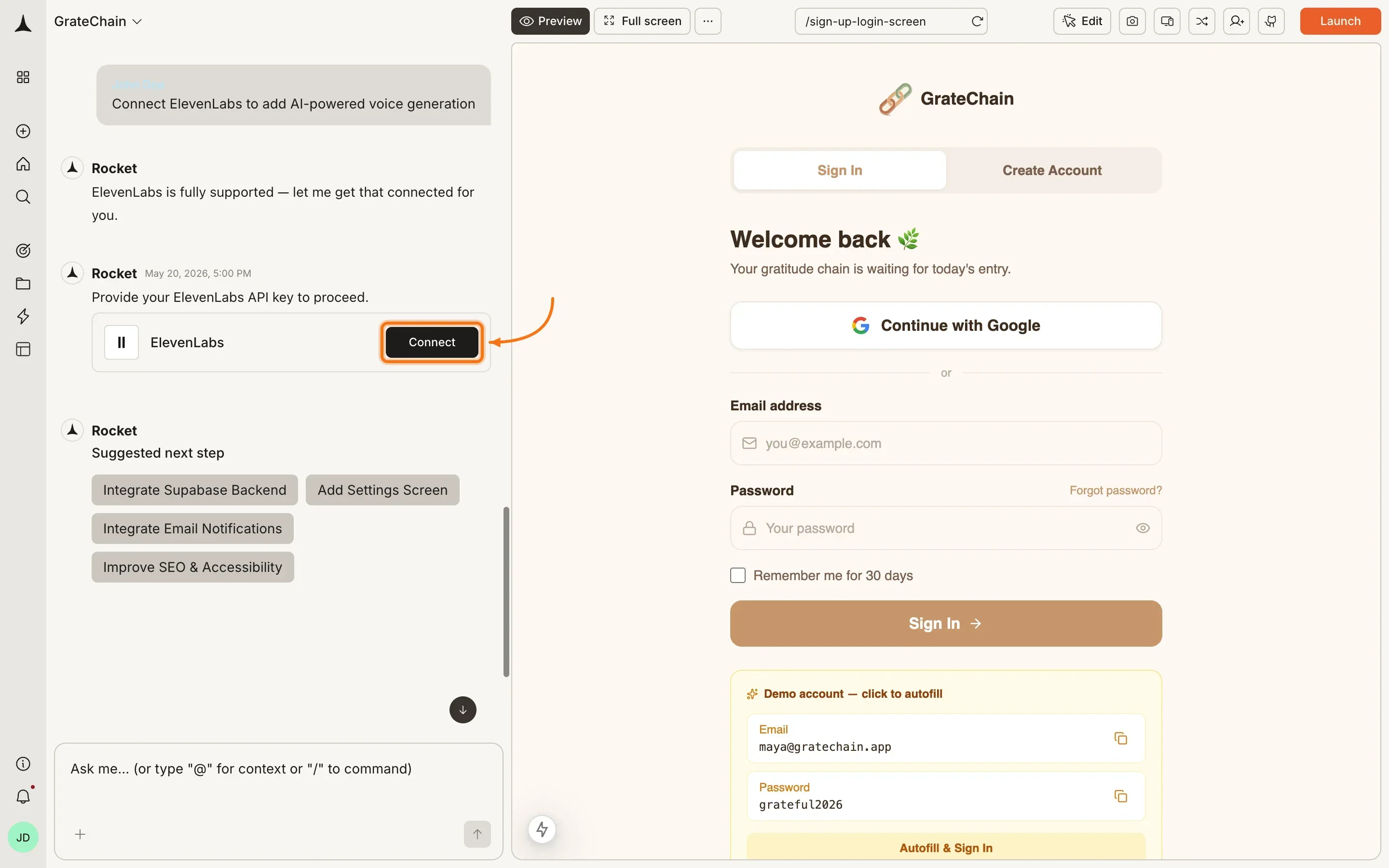
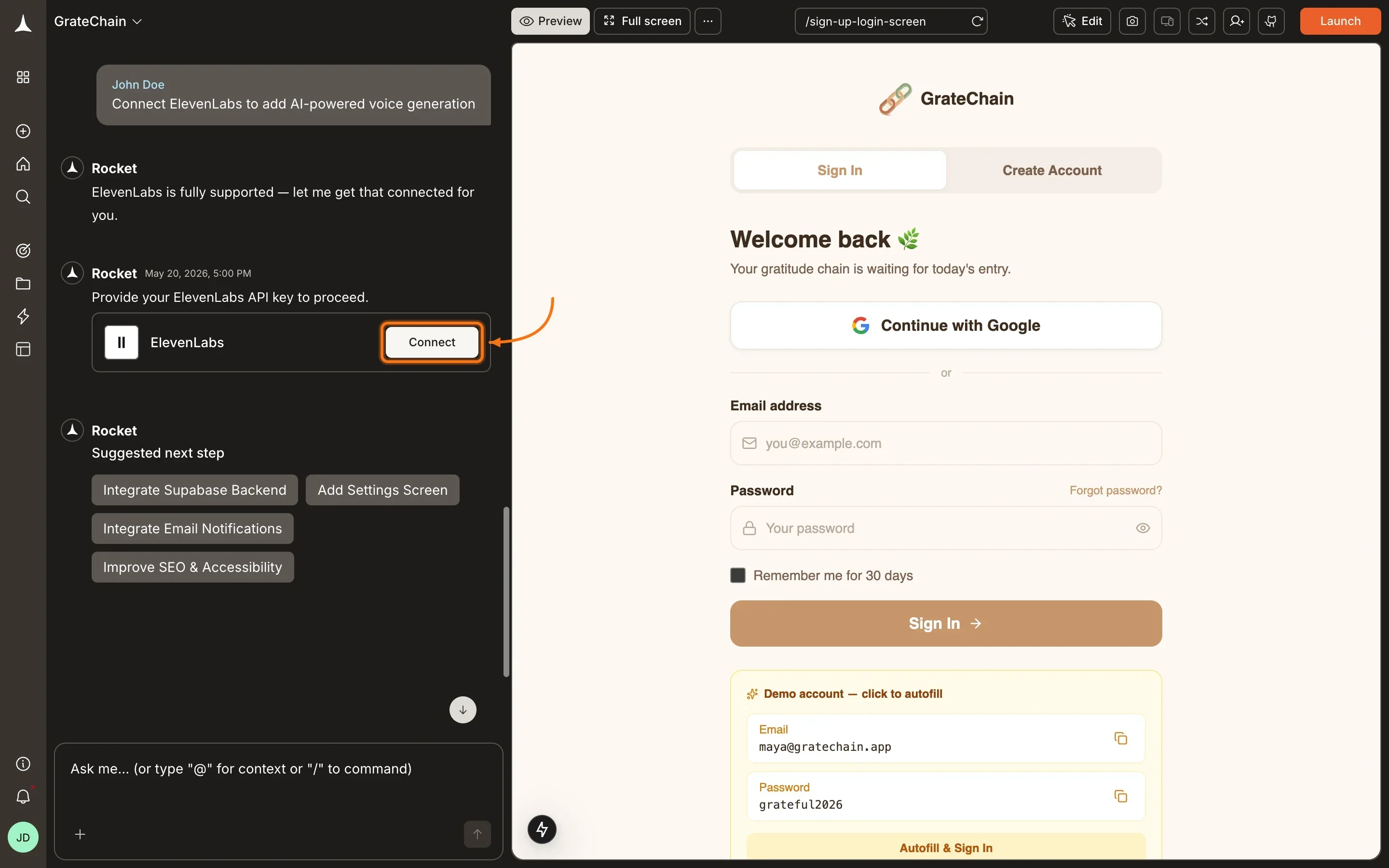
**Option 1: From chat**
Type a prompt that mentions ElevenLabs or text-to-speech - for example, `Connect ElevenLabs and add text-to-speech to my app`. Rocket detects the intent and shows a **Connect** button inline. Click it and the popup opens.
 **Option 2: From the Connectors tab**
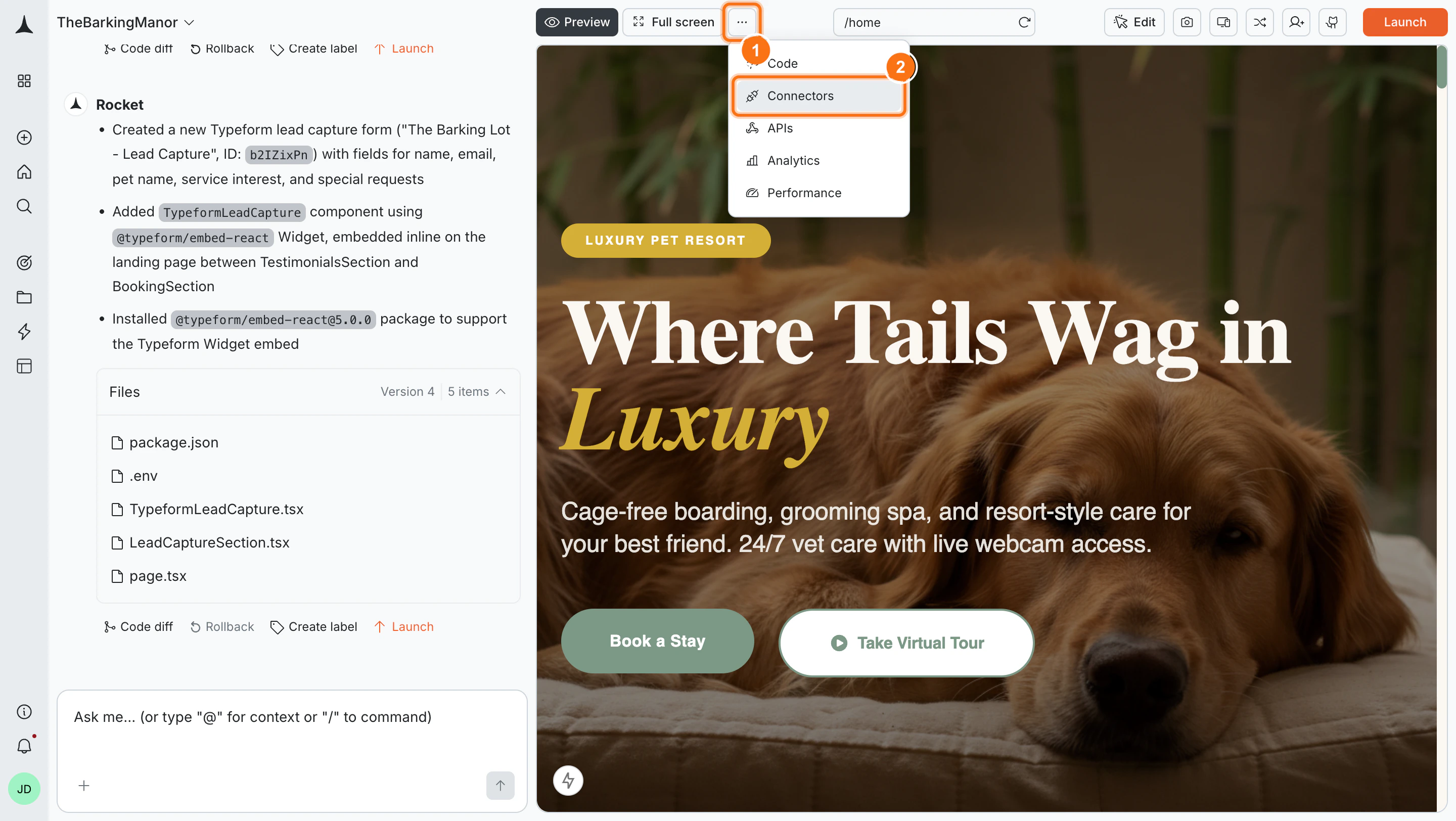
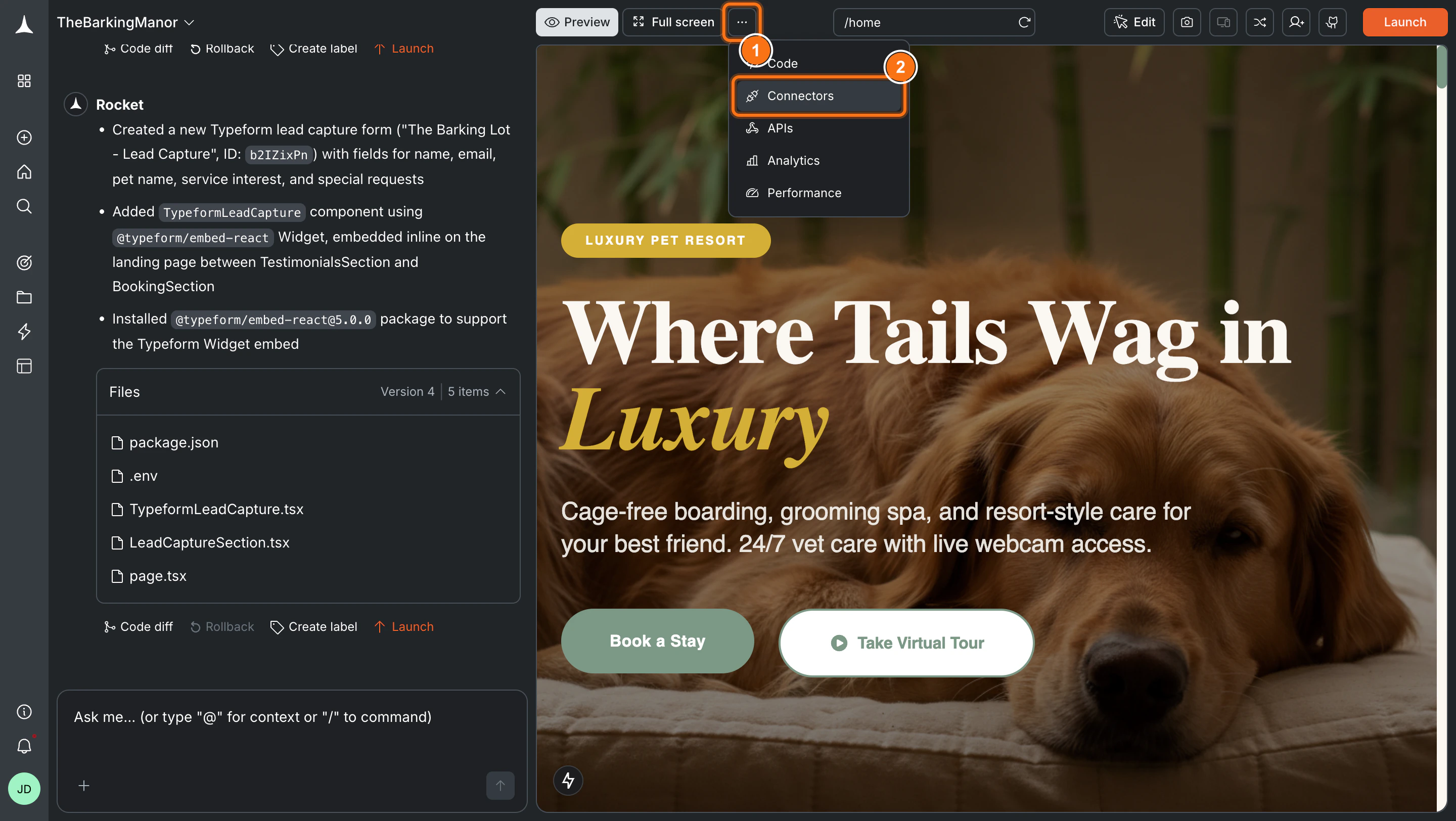
Click the **`...`** button in the preview toolbar, then select **Connectors**.
**Option 2: From the Connectors tab**
Click the **`...`** button in the preview toolbar, then select **Connectors**.
 Click the **ElevenLabs** card, then click **Connect**.
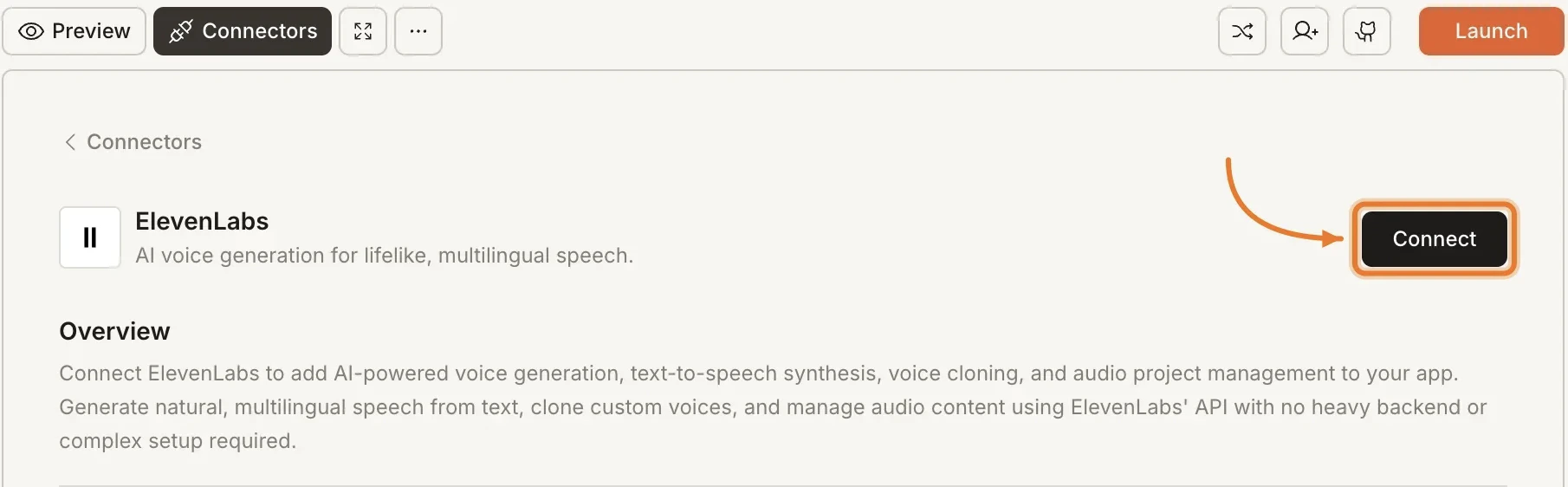
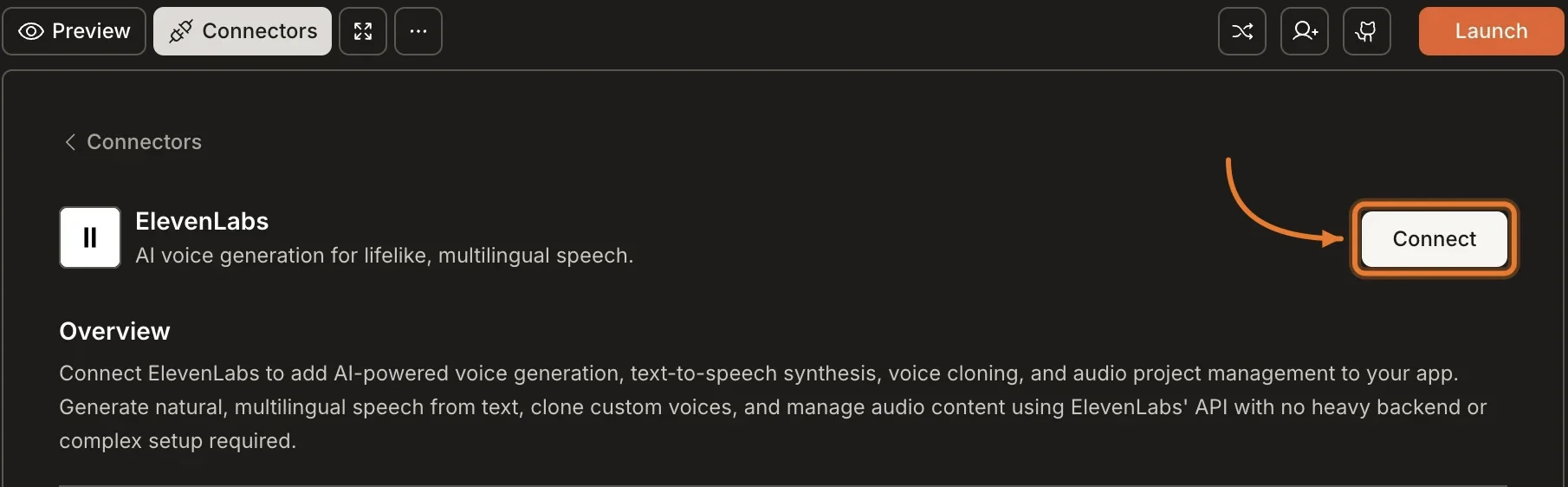 **After clicking Connect**
A popup opens. Paste your **API key** and click **Connect**.
**After clicking Connect**
A popup opens. Paste your **API key** and click **Connect**.
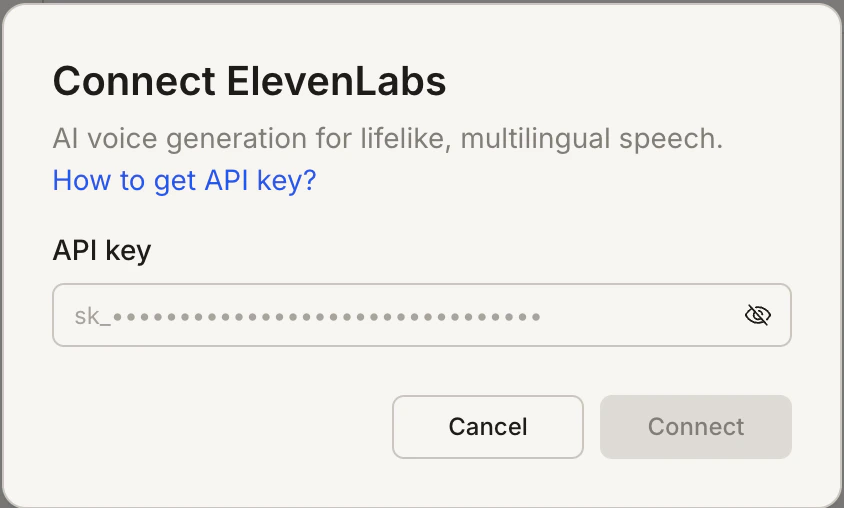
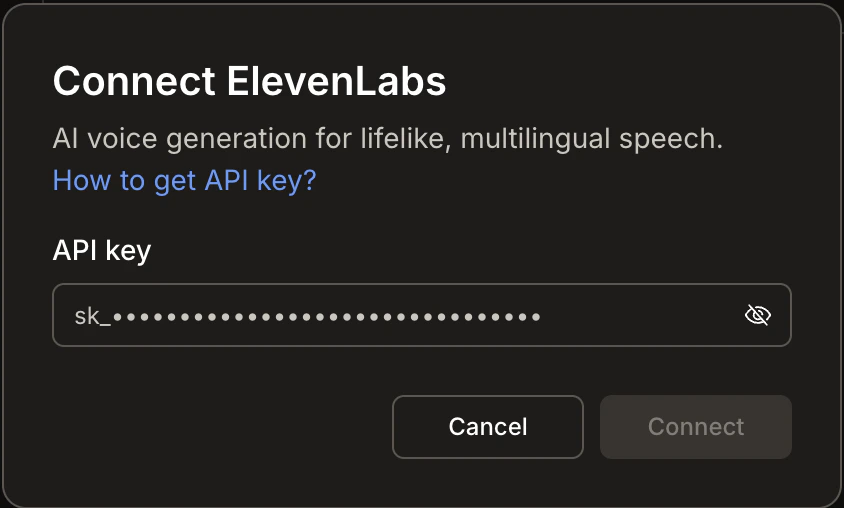 A green dot appears next to ElevenLabs when the connection is active.
**Update or disconnect**
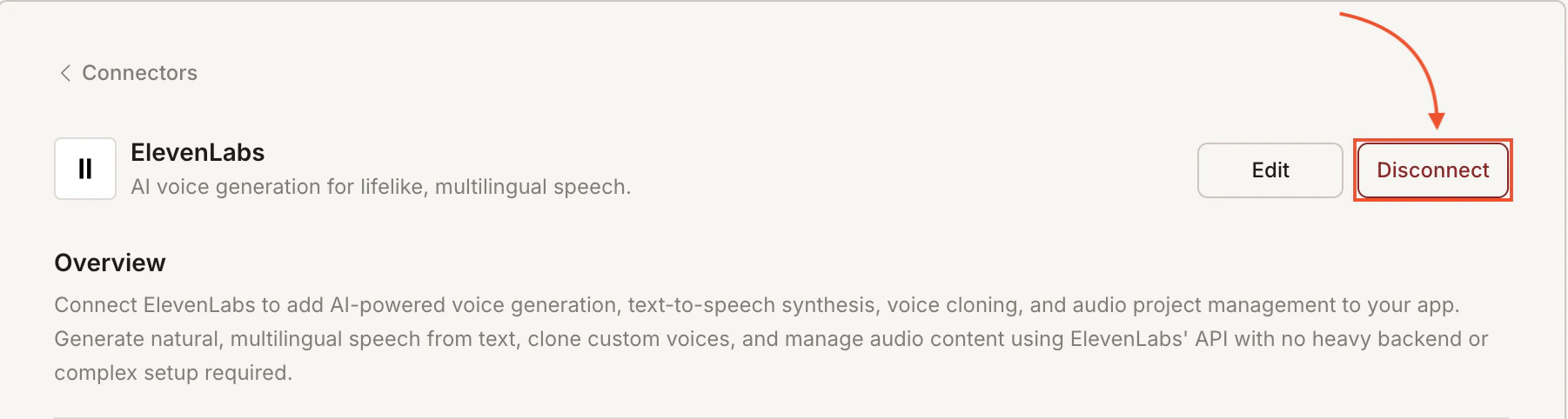
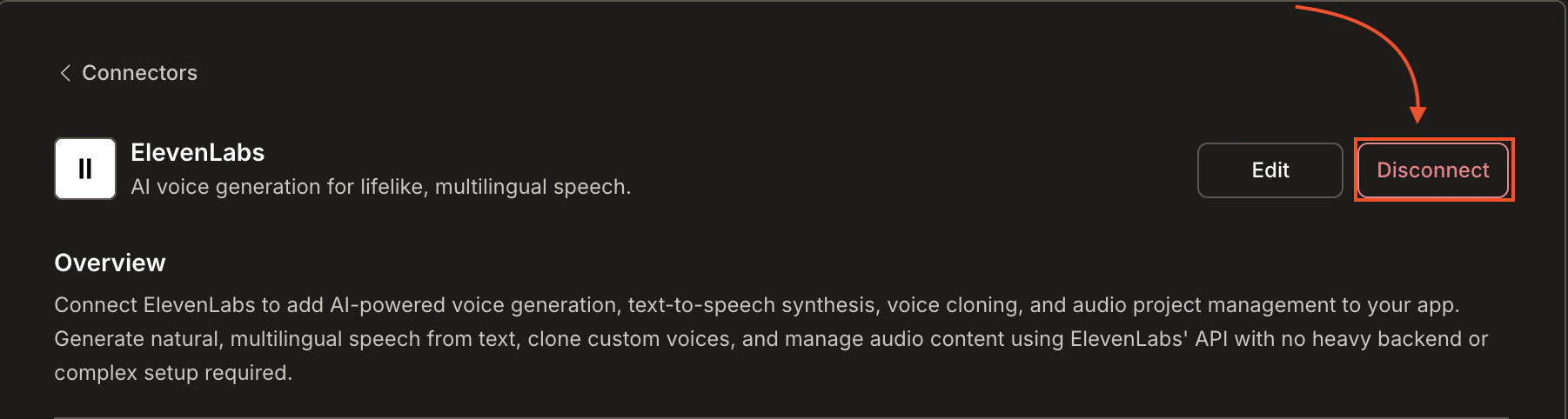
Go to [**Connectors > ElevenLabs**](#connect-elevenlabs). Click **Edit** to update the key or **Disconnect** to remove the integration.
A green dot appears next to ElevenLabs when the connection is active.
**Update or disconnect**
Go to [**Connectors > ElevenLabs**](#connect-elevenlabs). Click **Edit** to update the key or **Disconnect** to remove the integration.
 You can connect from two places - both open the same popup.
**Option 1: From chat**
Type a prompt that mentions ElevenLabs or text-to-speech. Rocket detects the intent, shows a **Connect** button, and the popup opens when you tap it.
**Option 2: From the Connectors tab**
1. Tap the **More** button in the header.
2. Tap **Integrations**.
3. Tap the **ElevenLabs** card, then tap **Connect**.
**After tapping Connect**
A popup opens. Paste your **API key** and tap **Done**.
A green dot appears next to ElevenLabs when the connection is active.
**Update or disconnect**
Go back to the **ElevenLabs** card in Integrations. Tap **Edit** to update the key or **Disconnect** to remove it from this task.
## Example prompts
| What you want | Prompt to use |
| :---------------------- | :--------------------------------------------------------------------------------------------------------------------- |
| Text-to-speech page | `Add a text-to-speech feature where users type text and hear it spoken aloud using ElevenLabs.` |
| Voice selector | `Build a voice selection page that lets users preview different ElevenLabs voices before generating speech.` |
| Voiceover tool | `Create a voiceover generator where users paste a script and download the audio file using ElevenLabs.` |
| Multilingual narration | `Add multilingual narration to my app. Let users pick a language and generate speech from their text with ElevenLabs.` |
| Audio content library | `Build an audio content library where users generate, store, and replay voice clips using ElevenLabs.` |
| Podcast intro generator | `Generate podcast intro audio from a text script using ElevenLabs and let users download it as MP3.` |
| Accessibility reader | `Add a "Read aloud" button to each article that uses ElevenLabs to read the content to the user.` |
| Custom voice setup | `Let users upload a voice sample to clone their voice with ElevenLabs, then use it for all generated audio.` |
## Tips
* **API billing is separate.** ElevenLabs charges based on character usage. Monitor your quota in the [ElevenLabs dashboard](https://elevenlabs.io/app/subscription).
* **Start with pre-made voices.** ElevenLabs offers a library of ready-to-use voices. Use them to prototype before investing in voice cloning.
* **Character limits apply.** Each plan has a monthly character allowance. Keep generated audio concise and cache results where possible.
* **Voice cloning requires samples.** To clone a voice, you need at least one minute of clean audio. Higher quality samples produce better results.
* **One API key per task.** Each Rocket task connects to one ElevenLabs API key independently.
## What's next?
Combine ElevenLabs speech with GPT-generated scripts for fully automated audio content.
Use Claude to write long-form narration scripts, then voice them with ElevenLabs.
Store generated audio files and user voice preferences in Supabase.
Browse every available integration.
You can connect from two places - both open the same popup.
**Option 1: From chat**
Type a prompt that mentions ElevenLabs or text-to-speech. Rocket detects the intent, shows a **Connect** button, and the popup opens when you tap it.
**Option 2: From the Connectors tab**
1. Tap the **More** button in the header.
2. Tap **Integrations**.
3. Tap the **ElevenLabs** card, then tap **Connect**.
**After tapping Connect**
A popup opens. Paste your **API key** and tap **Done**.
A green dot appears next to ElevenLabs when the connection is active.
**Update or disconnect**
Go back to the **ElevenLabs** card in Integrations. Tap **Edit** to update the key or **Disconnect** to remove it from this task.
## Example prompts
| What you want | Prompt to use |
| :---------------------- | :--------------------------------------------------------------------------------------------------------------------- |
| Text-to-speech page | `Add a text-to-speech feature where users type text and hear it spoken aloud using ElevenLabs.` |
| Voice selector | `Build a voice selection page that lets users preview different ElevenLabs voices before generating speech.` |
| Voiceover tool | `Create a voiceover generator where users paste a script and download the audio file using ElevenLabs.` |
| Multilingual narration | `Add multilingual narration to my app. Let users pick a language and generate speech from their text with ElevenLabs.` |
| Audio content library | `Build an audio content library where users generate, store, and replay voice clips using ElevenLabs.` |
| Podcast intro generator | `Generate podcast intro audio from a text script using ElevenLabs and let users download it as MP3.` |
| Accessibility reader | `Add a "Read aloud" button to each article that uses ElevenLabs to read the content to the user.` |
| Custom voice setup | `Let users upload a voice sample to clone their voice with ElevenLabs, then use it for all generated audio.` |
## Tips
* **API billing is separate.** ElevenLabs charges based on character usage. Monitor your quota in the [ElevenLabs dashboard](https://elevenlabs.io/app/subscription).
* **Start with pre-made voices.** ElevenLabs offers a library of ready-to-use voices. Use them to prototype before investing in voice cloning.
* **Character limits apply.** Each plan has a monthly character allowance. Keep generated audio concise and cache results where possible.
* **Voice cloning requires samples.** To clone a voice, you need at least one minute of clean audio. Higher quality samples produce better results.
* **One API key per task.** Each Rocket task connects to one ElevenLabs API key independently.
## What's next?
Combine ElevenLabs speech with GPT-generated scripts for fully automated audio content.
Use Claude to write long-form narration scripts, then voice them with ElevenLabs.
Store generated audio files and user voice preferences in Supabase.
Browse every available integration.