> ## Documentation Index
> Fetch the complete documentation index at: https://docs.rocket.new/llms.txt
> Use this file to discover all available pages before exploring further.
# Gemini
> Connect Google Gemini to Rocket and add multimodal AI to your app: image analysis, visual search, and text generation in one integration.
export const LlmsDirective = () =>
For the complete documentation index, see llms.txt.
For a lightweight markdown version of this page, append .md to the URL.
;
Connect your Gemini API key and describe the AI feature you need in chat. Rocket handles all the integration code automatically so you can focus on what your features should do.
This connector is only available for **Next.js TypeScript** web build tasks.
## What you can do
Let users upload images and get detailed descriptions, alt text, or extracted information using Gemini's vision capabilities.
Let users send both text and images in a conversation, with Gemini responding using context from both.
Generate blog posts, product descriptions, social media copy, or marketing content from simple prompts.
Let users search by uploading an image and finding similar items or related information.
Extract text, tables, and structured data from photos of documents, receipts, or handwritten notes.
## Before you connect
**Get your Gemini API key** from Google AI Studio.
Never paste your API key directly into chat. Always use the secure connector flow. If you believe your key has been exposed, rotate it immediately from [Google AI Studio](https://aistudio.google.com/app/apikey).
The API key is scoped to the task you connect it in. Each task stores its own key. Connecting in one task does not affect others.
## Connect Gemini
You can connect from two places. Both open the same popup.
**Option 1: From chat**
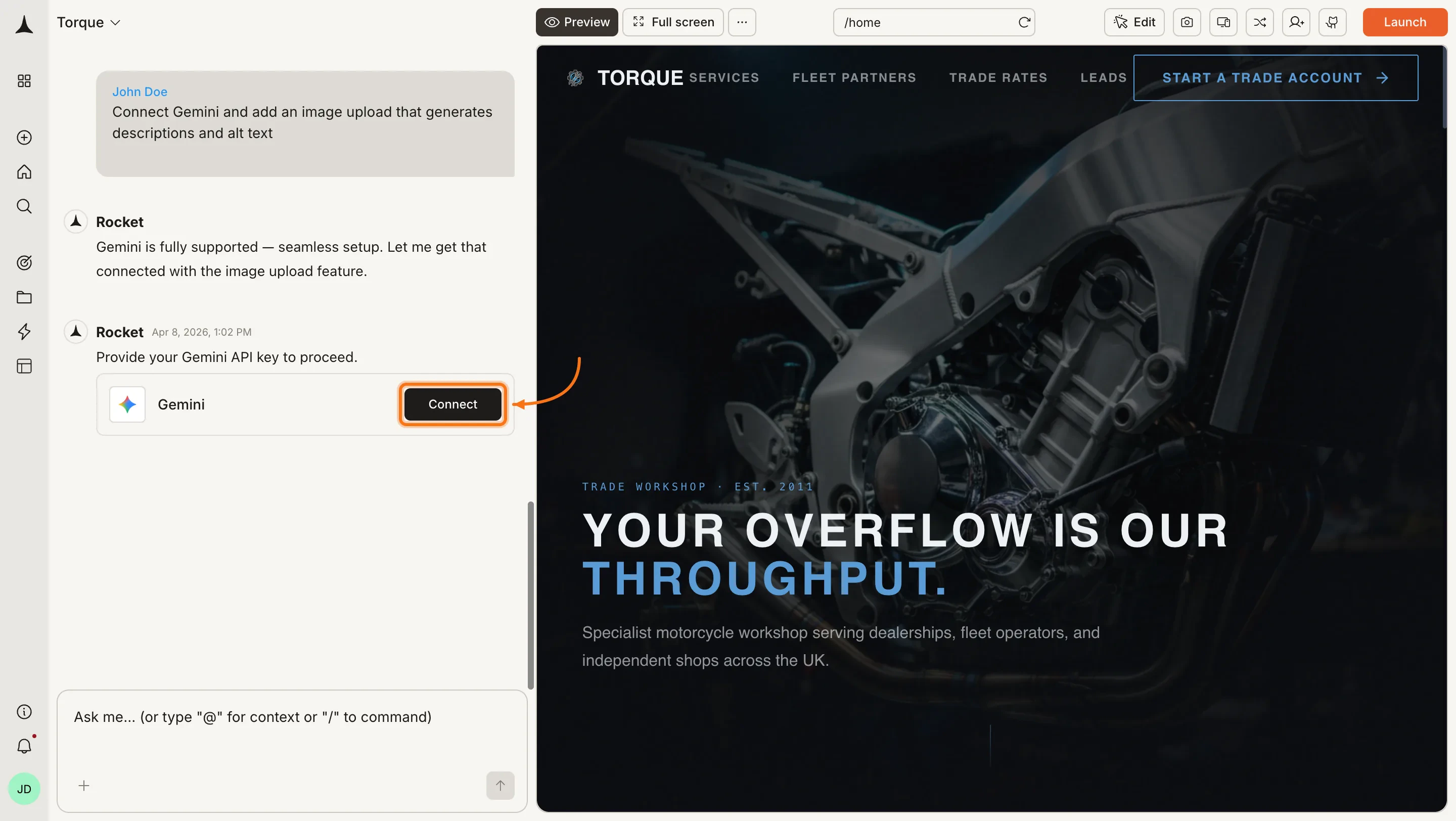
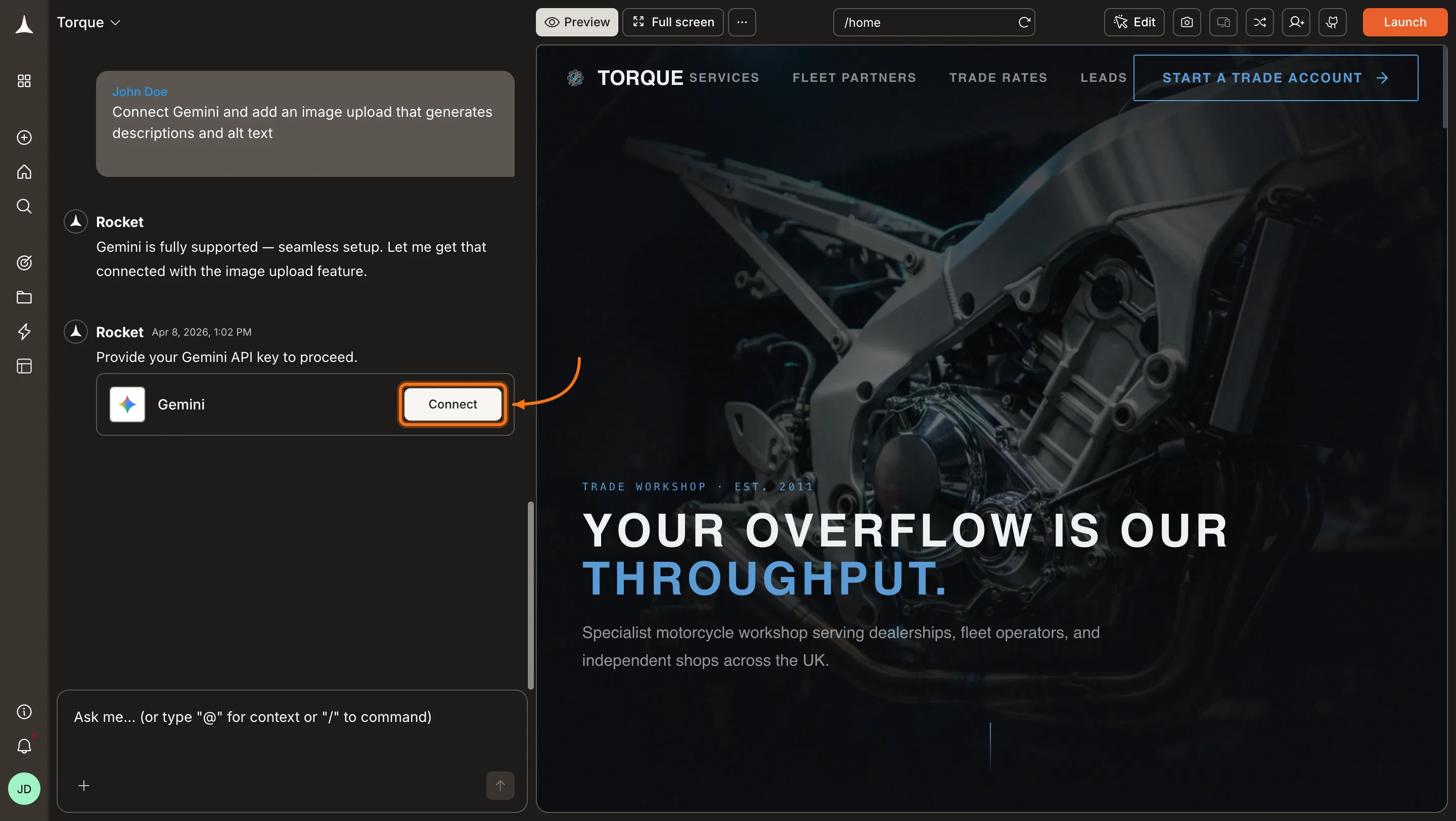
Type a prompt that mentions Gemini, for example `Connect Gemini and add an image upload that generates descriptions and alt text`. Rocket detects the intent and shows a **Connect** button inline. Click it and the popup opens.
 **Option 2: From the Connectors tab**
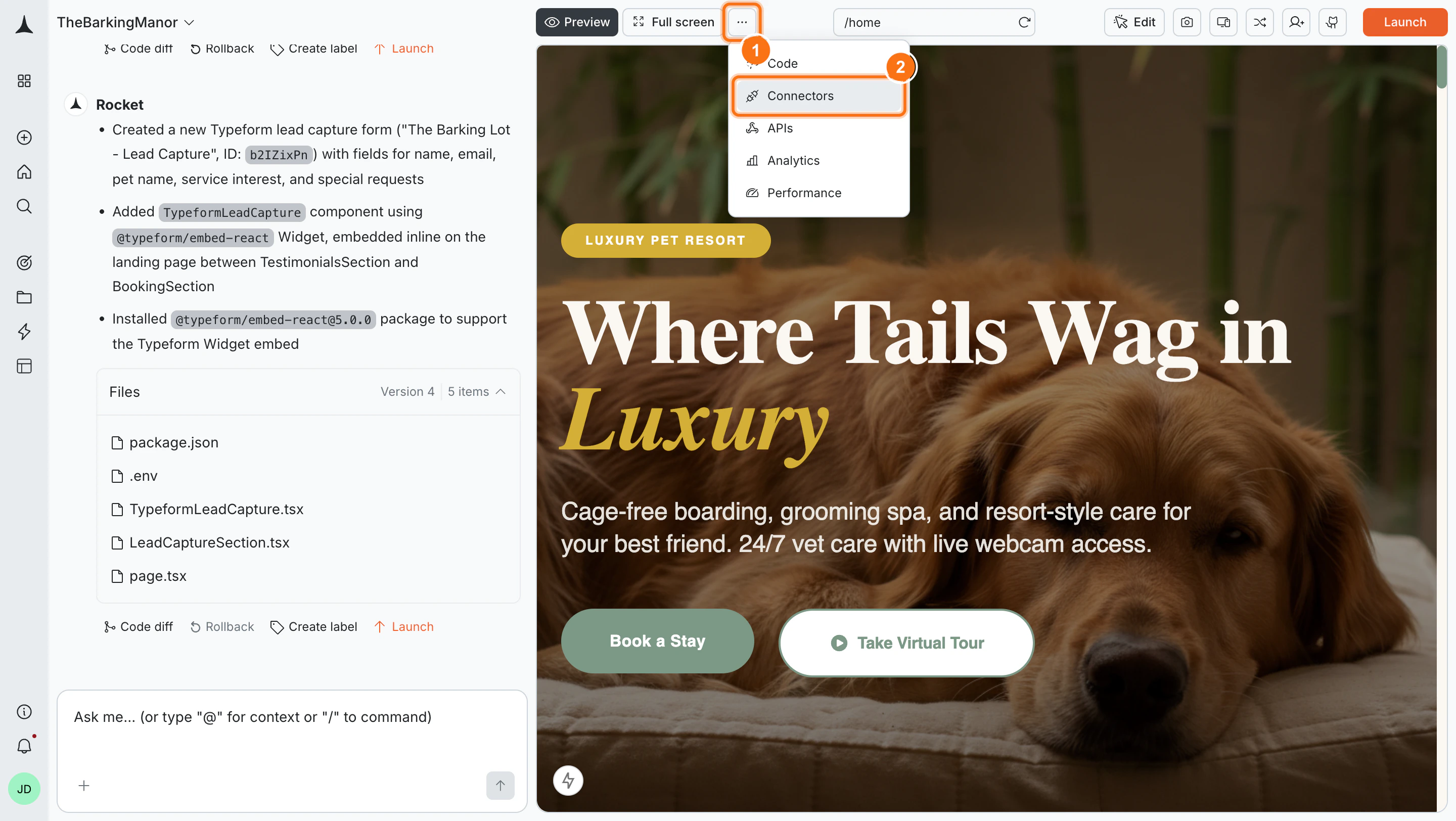
Click the **`...`** button in the preview toolbar, then select **Connectors**.
**Option 2: From the Connectors tab**
Click the **`...`** button in the preview toolbar, then select **Connectors**.
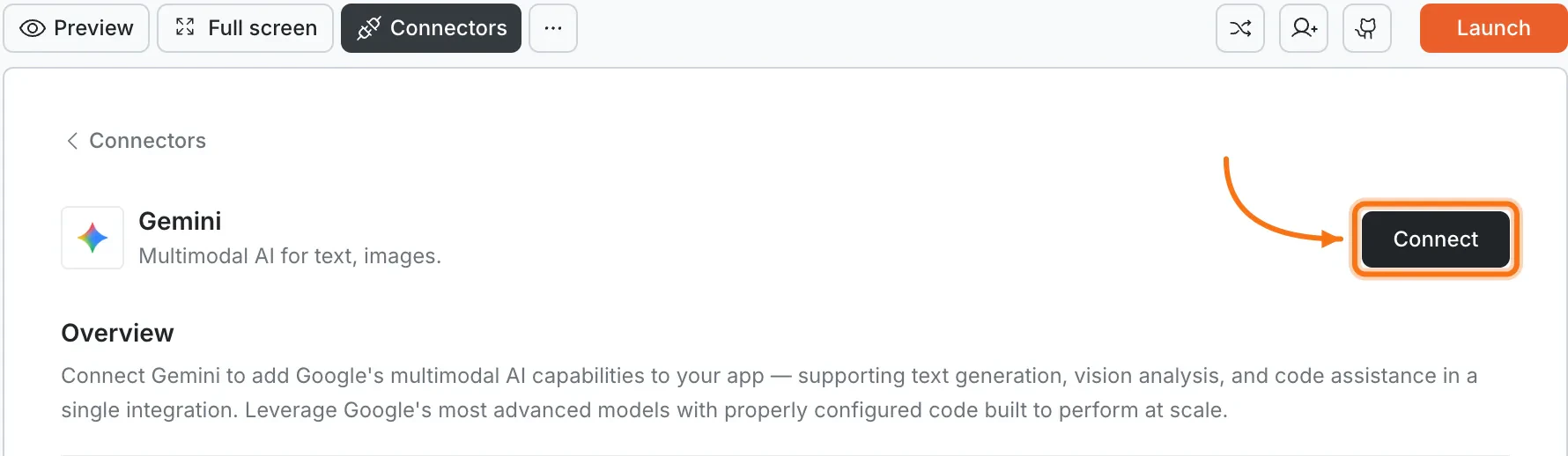
 Click the **Gemini** card, then click **Connect**.
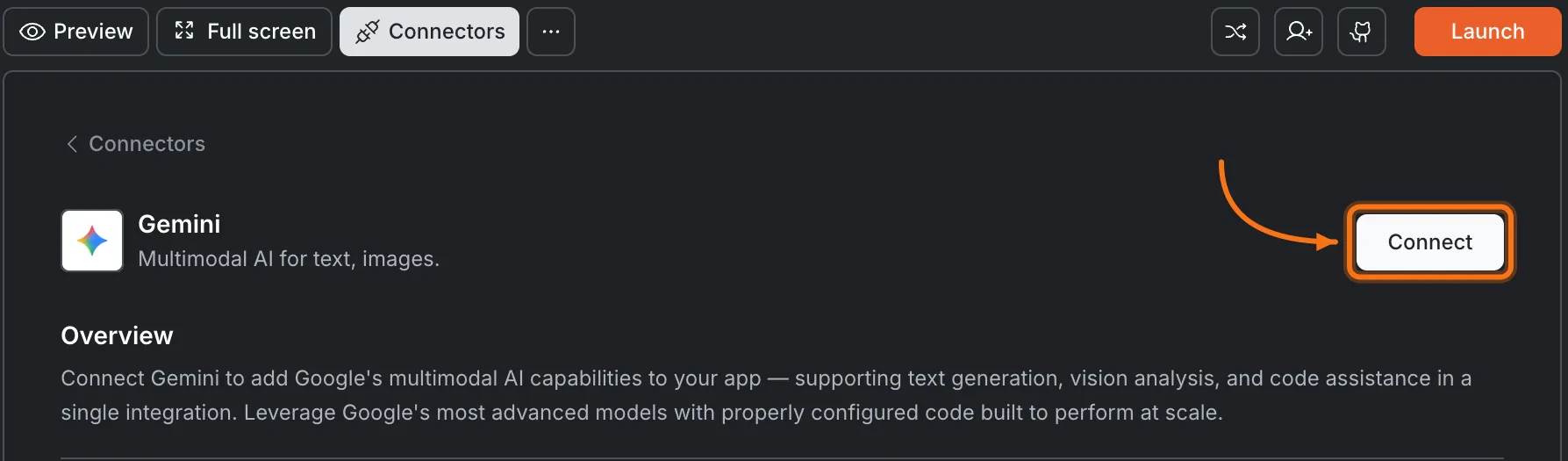 **After clicking Connect**
A popup opens. Paste your **API key** and click **Connect**.
**After clicking Connect**
A popup opens. Paste your **API key** and click **Connect**.
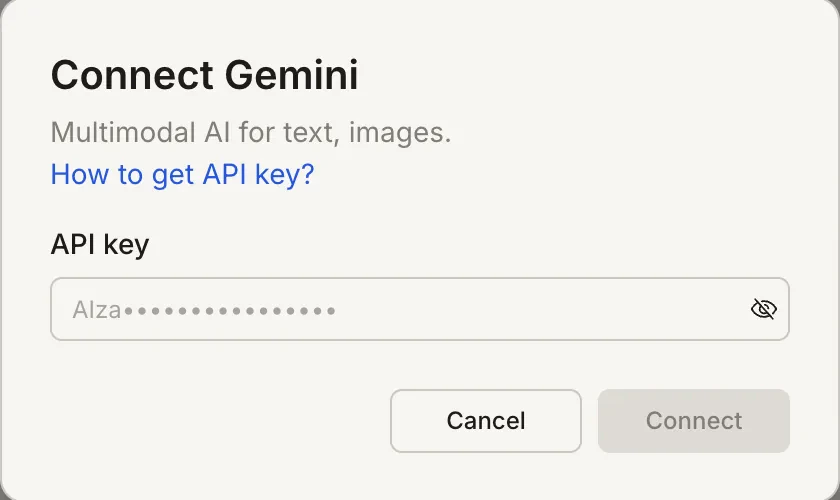
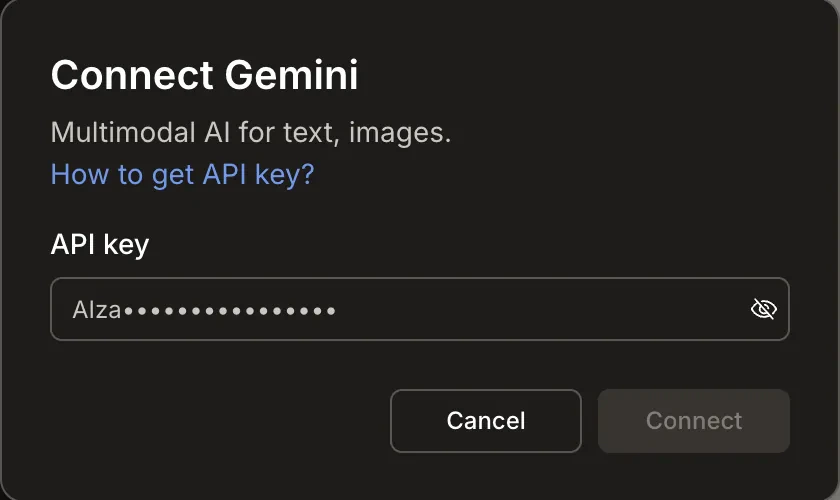 A green dot appears next to Gemini when the connection is active.
**Update or disconnect**
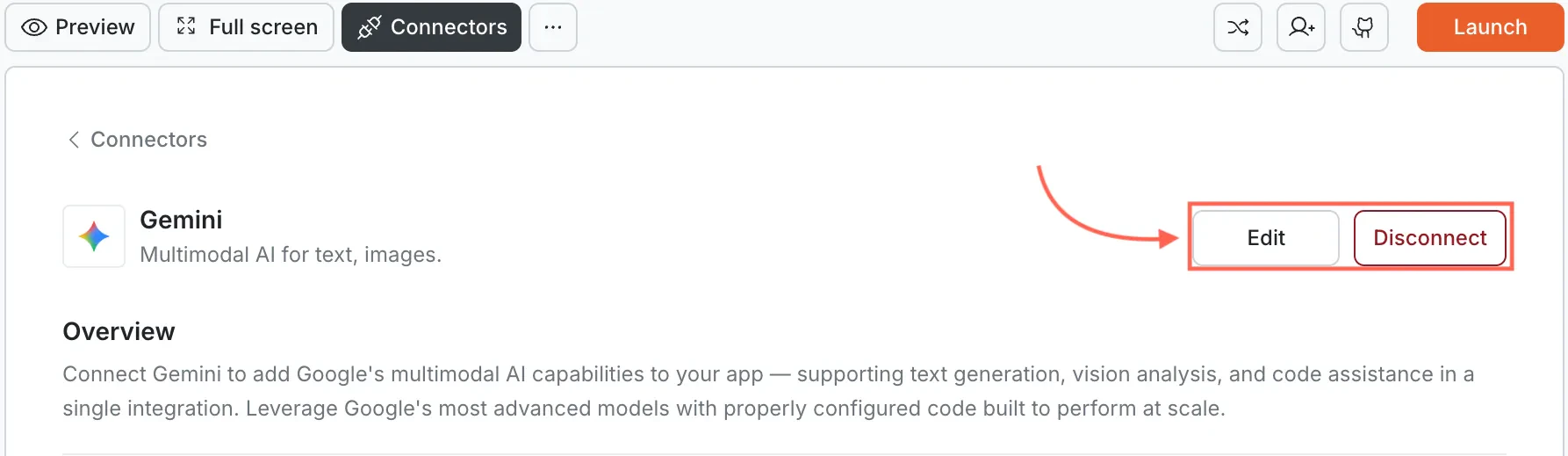
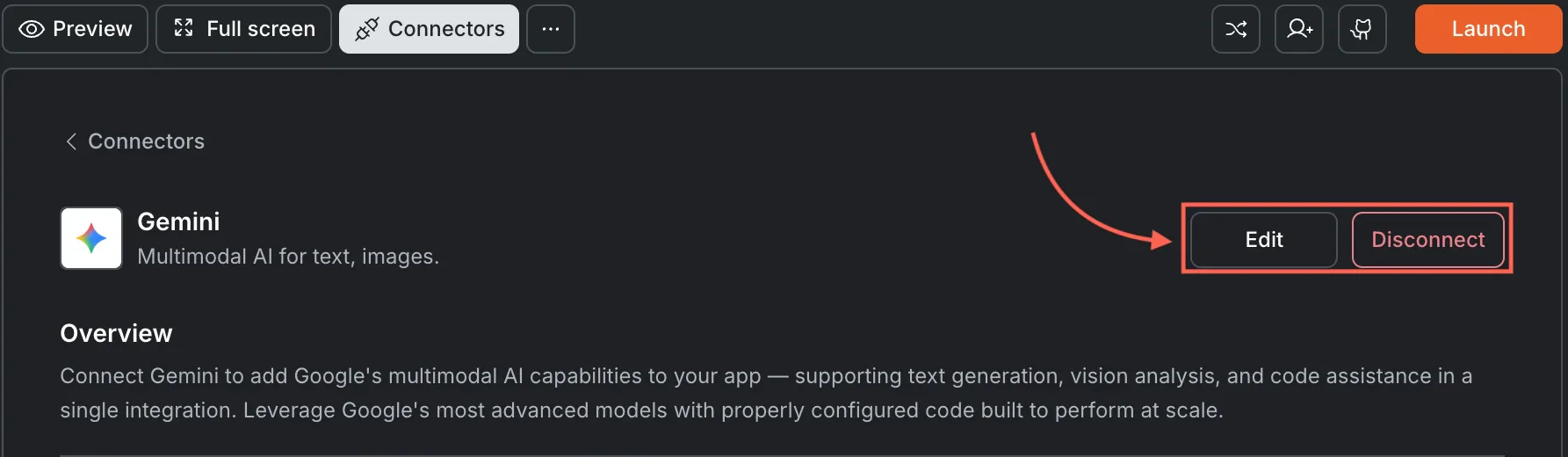
Go to [**Connectors > Gemini**](#connect-gemini). Click **Edit** to update the key or **Disconnect** to remove the integration.
A green dot appears next to Gemini when the connection is active.
**Update or disconnect**
Go to [**Connectors > Gemini**](#connect-gemini). Click **Edit** to update the key or **Disconnect** to remove the integration.
 Open the task in the Rocket mobile app. Tap the **More** button in the header, then tap **Connectors**. Tap the **Gemini** card and enter your API key.
## Example prompts
| Use case | Prompt |
| :--------------------- | :----------------------------------------------------------------------------------------------------------- |
| Image description | `Add an image upload that uses Gemini to generate a detailed description and alt text.` |
| Photo search | `Build a visual search where users upload a product photo and Gemini identifies similar items.` |
| Document scanner | `Create a receipt scanner that extracts line items, totals, and dates from uploaded photos.` |
| Content writer | `Build a blog post generator where users enter a topic and Gemini writes a draft with headings.` |
| Image chat | `Add a chat widget where users can attach images and Gemini responds with context from both text and image.` |
| Social media generator | `Generate Instagram captions and hashtags from an uploaded product photo using Gemini.` |
| Diagram explainer | `Let users upload a diagram or flowchart and Gemini explains each step in plain language.` |
| Product catalog | `Auto-generate product descriptions and categories from uploaded product images using Gemini.` |
| Handwriting reader | `Build a tool that converts handwritten notes to typed text using Gemini vision.` |
| Quiz generator | `Create a quiz from an uploaded textbook page using Gemini to extract key concepts and questions.` |
## Tips
* **Best for multimodal tasks.** If your app needs to understand images, screenshots, or documents alongside text, Gemini is the strongest choice among Rocket's AI connectors.
* **Image size limits apply.** Images passed inline must be under 20MB per request. For larger files, Rocket uses the Gemini Files API which supports up to 100MB.
* **API billing is separate from Rocket.** Google charges based on token usage and input type. Image inputs consume more tokens than text. See [Google AI pricing](https://ai.google.dev/pricing).
* **Key is scoped to this task.** Each Rocket task connects to one Gemini API key.
Open the task in the Rocket mobile app. Tap the **More** button in the header, then tap **Connectors**. Tap the **Gemini** card and enter your API key.
## Example prompts
| Use case | Prompt |
| :--------------------- | :----------------------------------------------------------------------------------------------------------- |
| Image description | `Add an image upload that uses Gemini to generate a detailed description and alt text.` |
| Photo search | `Build a visual search where users upload a product photo and Gemini identifies similar items.` |
| Document scanner | `Create a receipt scanner that extracts line items, totals, and dates from uploaded photos.` |
| Content writer | `Build a blog post generator where users enter a topic and Gemini writes a draft with headings.` |
| Image chat | `Add a chat widget where users can attach images and Gemini responds with context from both text and image.` |
| Social media generator | `Generate Instagram captions and hashtags from an uploaded product photo using Gemini.` |
| Diagram explainer | `Let users upload a diagram or flowchart and Gemini explains each step in plain language.` |
| Product catalog | `Auto-generate product descriptions and categories from uploaded product images using Gemini.` |
| Handwriting reader | `Build a tool that converts handwritten notes to typed text using Gemini vision.` |
| Quiz generator | `Create a quiz from an uploaded textbook page using Gemini to extract key concepts and questions.` |
## Tips
* **Best for multimodal tasks.** If your app needs to understand images, screenshots, or documents alongside text, Gemini is the strongest choice among Rocket's AI connectors.
* **Image size limits apply.** Images passed inline must be under 20MB per request. For larger files, Rocket uses the Gemini Files API which supports up to 100MB.
* **API billing is separate from Rocket.** Google charges based on token usage and input type. Image inputs consume more tokens than text. See [Google AI pricing](https://ai.google.dev/pricing).
* **Key is scoped to this task.** Each Rocket task connects to one Gemini API key.