> ## Documentation Index
> Fetch the complete documentation index at: https://docs.rocket.new/llms.txt
> Use this file to discover all available pages before exploring further.
# Code sync
> Connect GitHub code sync to your Rocket.new app: two-way sync for Next.js TypeScript projects.
export const LlmsDirective = () =>
For the complete documentation index, see llms.txt.
For a lightweight markdown version of this page, append .md to the URL.
;
For Next.js TypeScript projects, Rocket supports full two-way sync with GitHub. Rocket pushes changes to a `rocket-update` branch and automatically opens a pull request to `main` for each batch of code edits. Pull changes made by teammates or in your local IDE back into Rocket at any time.
Code sync requires a paid plan (Pro or above).
For all other frameworks, sync is one-way (push only). You need to manually click **Push** when you want to update GitHub. No automatic PR is created.
## How it works
| Direction | What happens | Supported projects |
| :-------------------------- | :--------------------------------------------------------------------------------------------------------------- | :---------------------- |
| **Push** (Rocket to GitHub) | Rocket pushes changes to the `rocket-update` branch and automatically opens a pull request to `main` for review. | Next.js TypeScript only |
| **Push** (Rocket to GitHub) | Push your code to GitHub manually. No automatic pull request is created. | All other frameworks |
| **Pull** (GitHub to Rocket) | Imports the latest state of `main` back into your Rocket project, with conflict resolution if needed. | Next.js TypeScript only |
## Push to GitHub
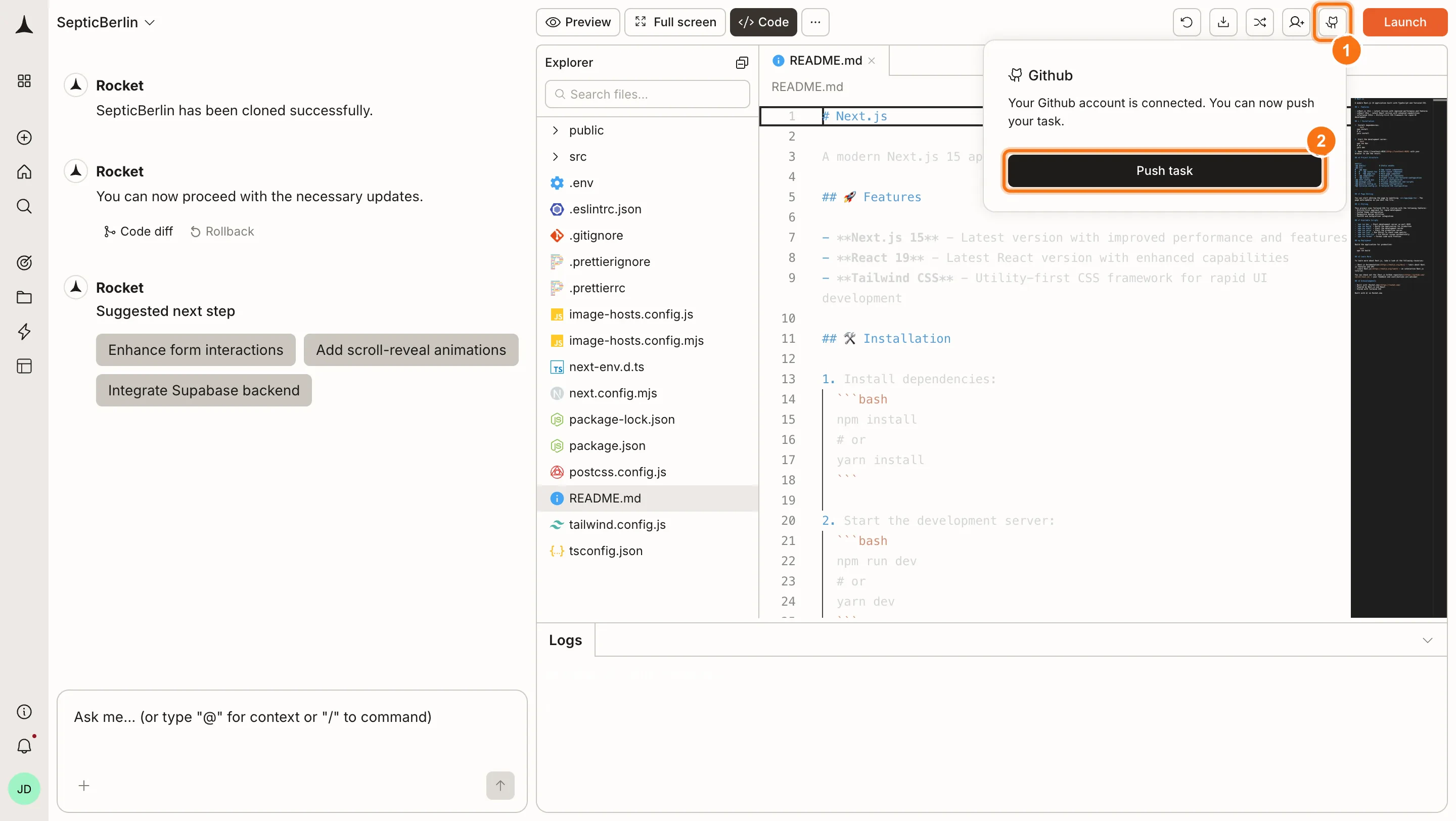
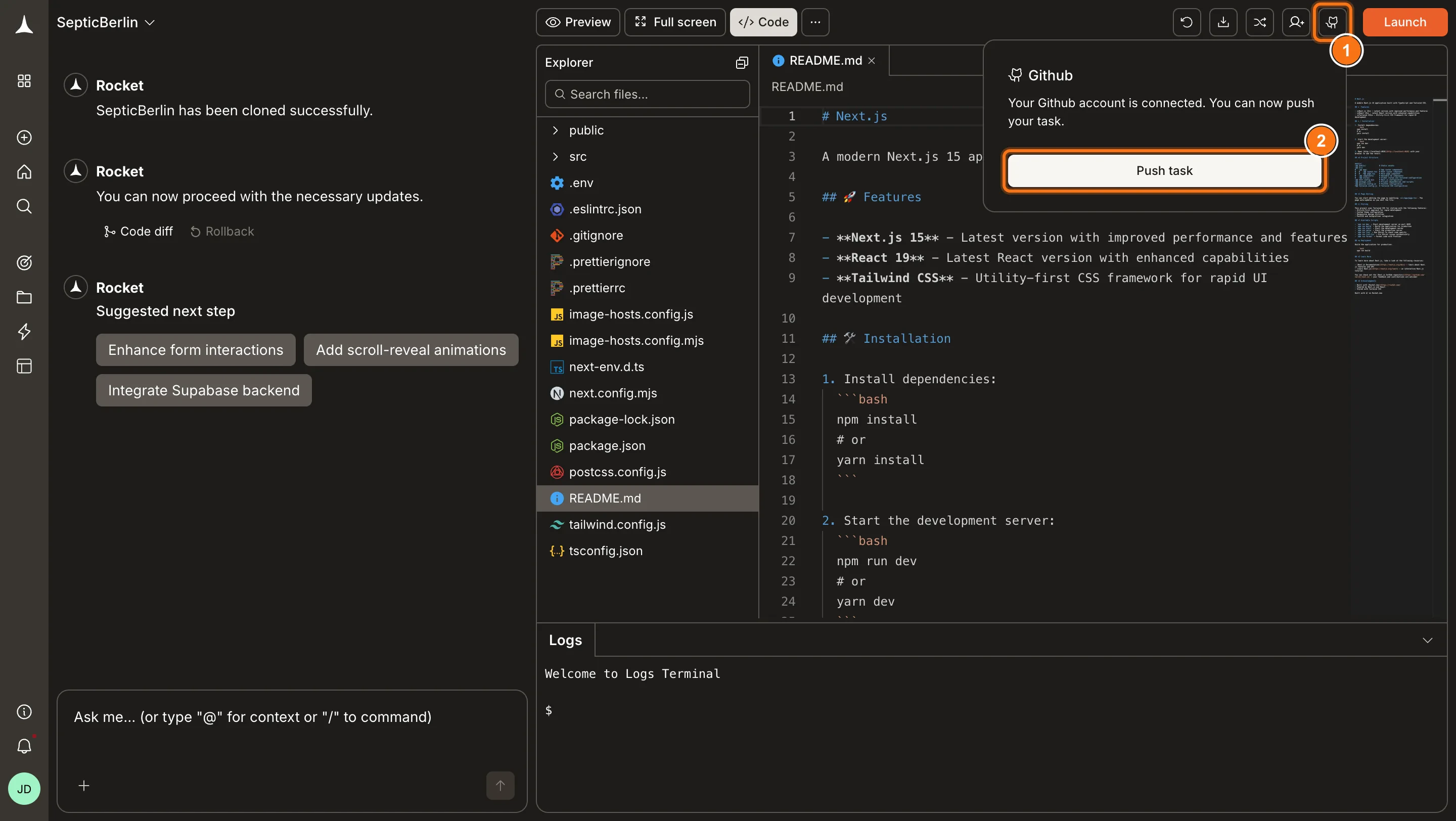
Click the **GitHub** icon in the toolbar.
Click **Push** to send your project code to GitHub. Rocket automatically creates a repository for you. For **Next.js TypeScript** projects, Rocket pushes to the `rocket-update` branch and automatically opens a pull request to `main` so your changes can be reviewed. For all other frameworks, the code is pushed but no automatic PR is created. Push again anytime to update with your latest changes.
 ## Pull from GitHub
Available for Next.js TypeScript projects only. After your initial push, the GitHub button changes to **Pull from GitHub**.
Click the **Pull from GitHub** button in the toolbar.
## Pull from GitHub
Available for Next.js TypeScript projects only. After your initial push, the GitHub button changes to **Pull from GitHub**.
Click the **Pull from GitHub** button in the toolbar.
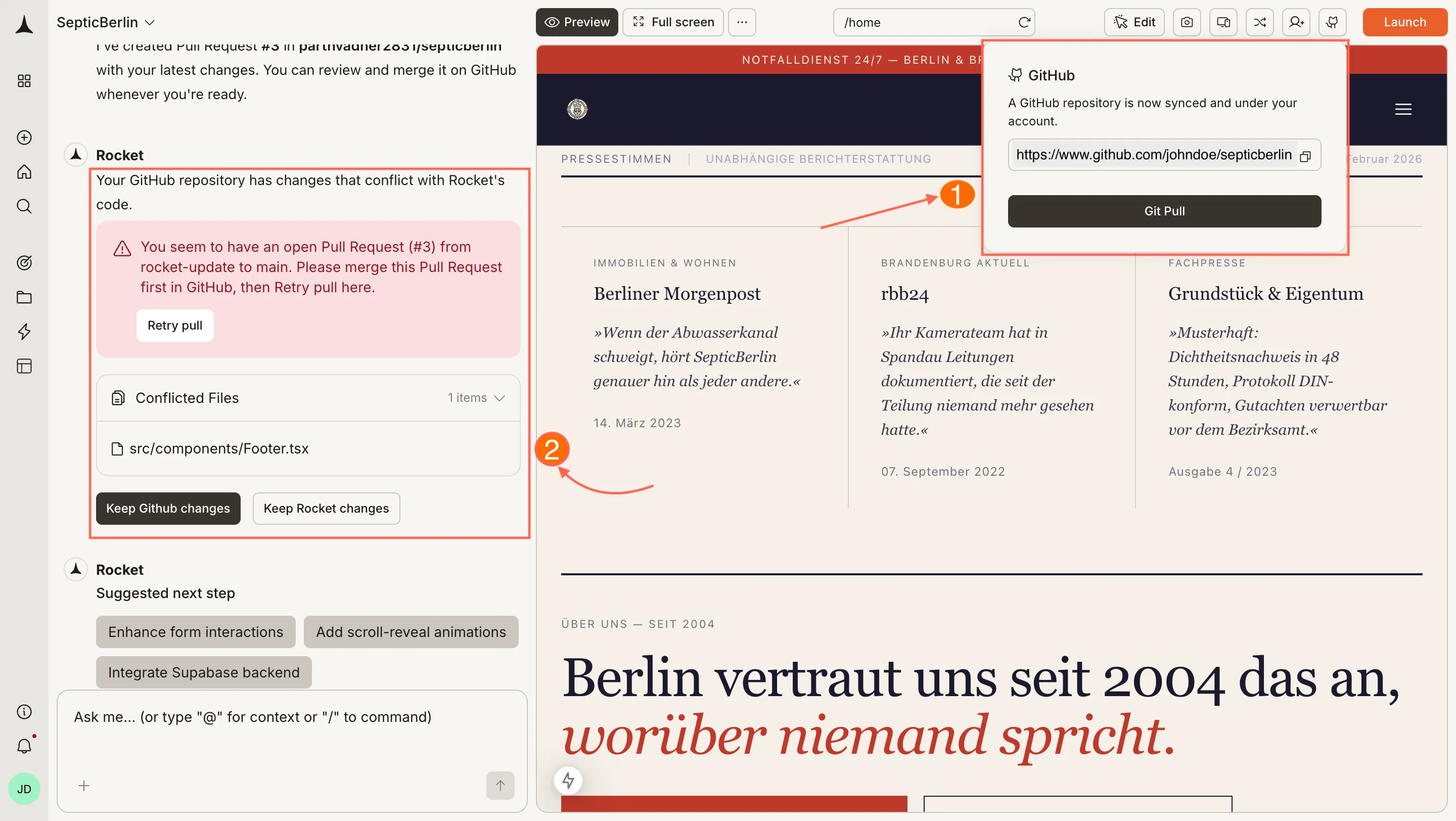
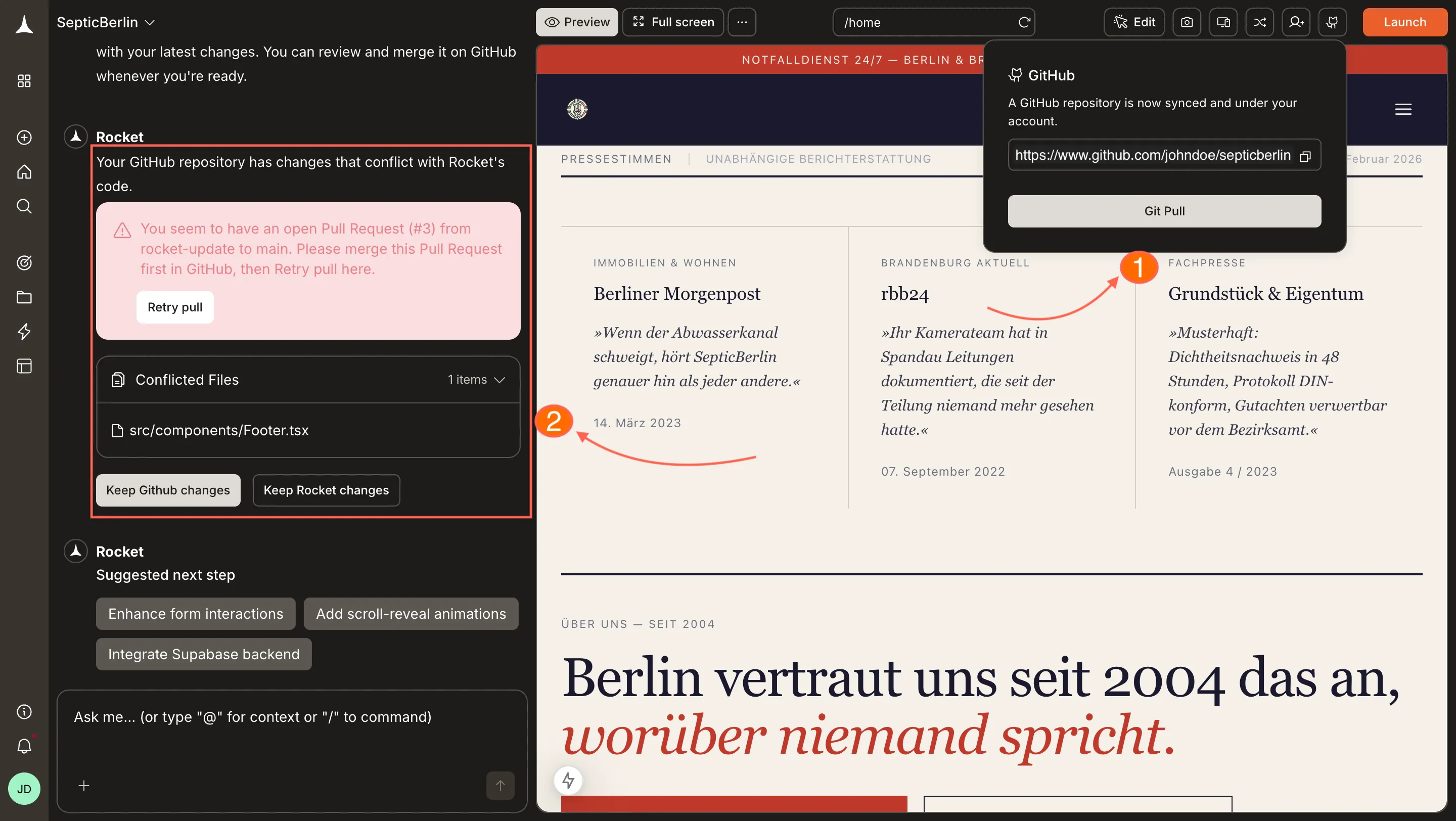 If there are no conflicts, the pull completes immediately and you see a success message with no further steps needed.
If changes in GitHub conflict with your Rocket project, Rocket surfaces them so you can choose how to resolve before the pull completes.
If there are no conflicts, the pull completes immediately and you see a success message with no further steps needed.
If changes in GitHub conflict with your Rocket project, Rocket surfaces them so you can choose how to resolve before the pull completes.
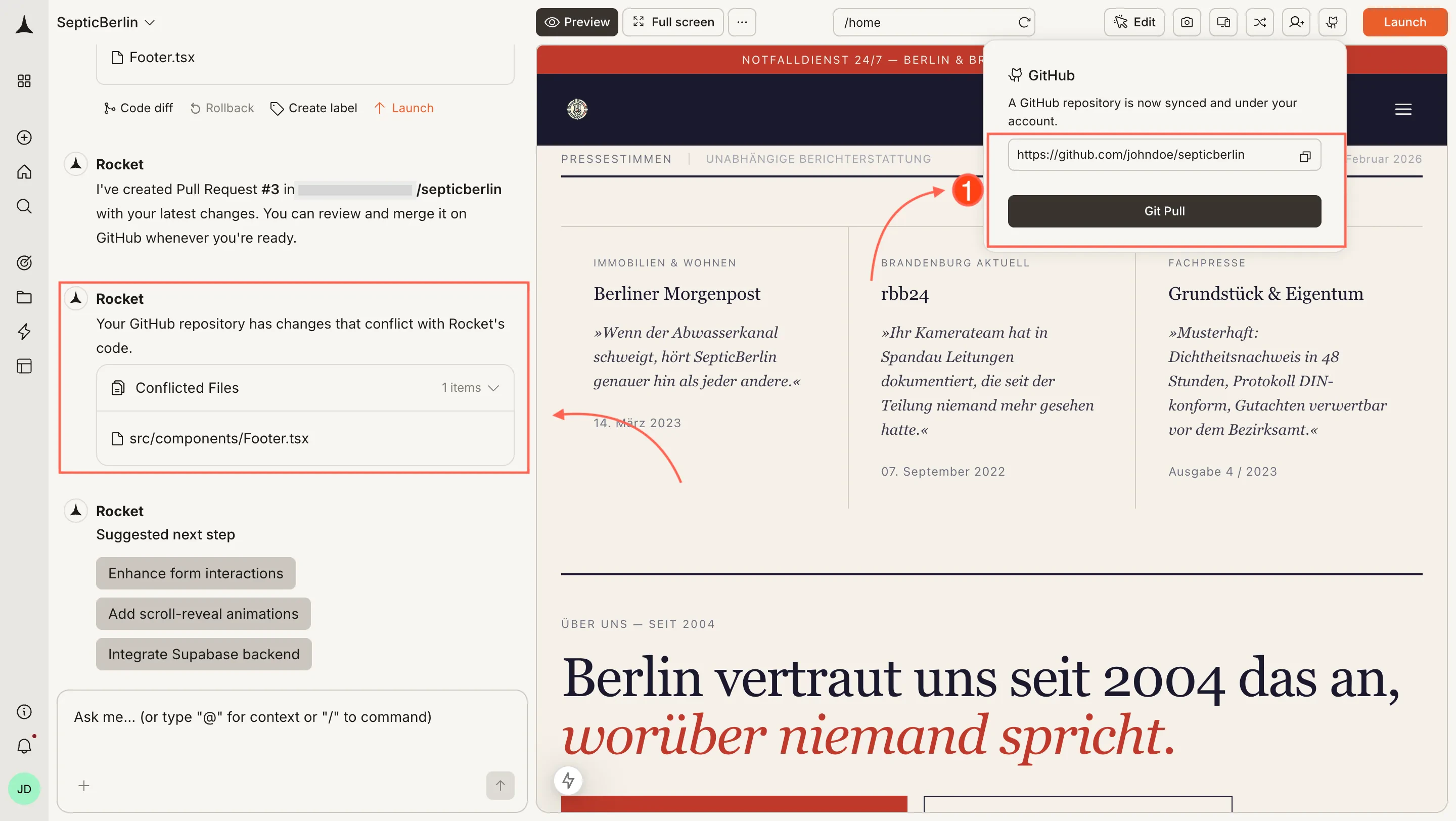
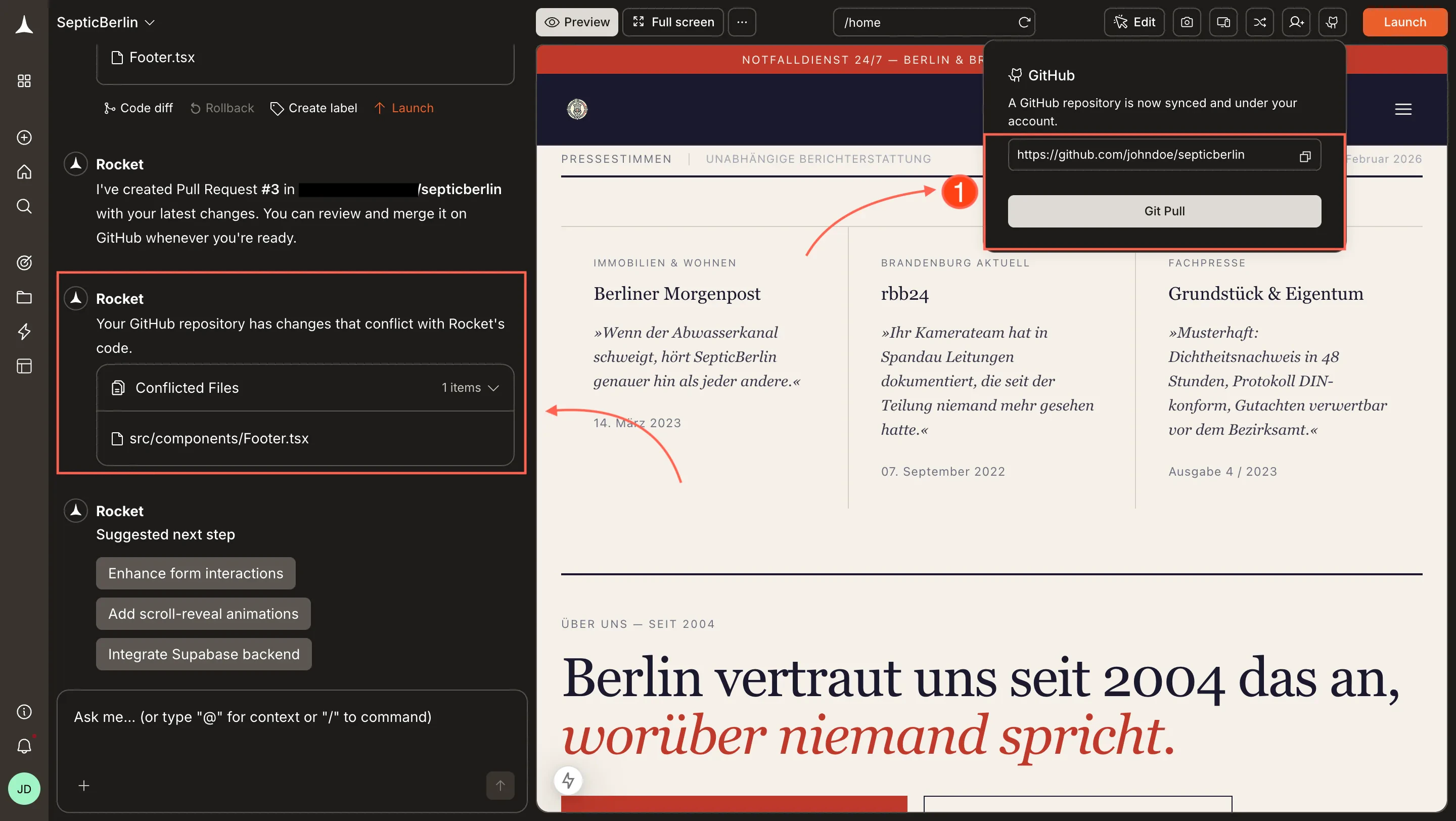 Once the pull is complete, your preview updates automatically and you can keep iterating.
For Rocket-generated apps, pulls are from the `main` branch only. For cloned repositories, Rocket pulls from the branch you selected when cloning. Changes on other branches will not be pulled into Rocket.
## When to push vs pull
| Scenario | Action |
| :----------------------------------------------------- | :------------------------------------------ |
| You iterated in Rocket and want to back up or share | **Push** to GitHub |
| A teammate committed changes in their IDE | **Pull** from GitHub into Rocket |
| You edited code locally and want to continue in Rocket | **Pull** from GitHub into Rocket |
| You want to trigger a CI/CD pipeline | **Push** to GitHub, then your pipeline runs |
## Disconnect
GitHub is connected at the workspace level. Disconnecting removes the GitHub link for your entire Rocket account.
Disconnect or switch accounts from workspace Settings.
Your task files in Rocket remain intact after disconnecting. To reconnect, go through the same steps and authorize a GitHub account.
## Limitations
* **Next.js TypeScript only for pull and auto PR.** Two-way sync and automatic PR creation require a Next.js project using TypeScript. JavaScript-only Next.js projects and all other frameworks support manual push only, with no automatic PR.
* **Branch behaviour.** For Next.js TypeScript projects, Rocket pulls from `main` and pushes to a `rocket-update` branch, opening a PR to `main` for each batch of changes. For cloned repositories, Rocket pulls from the branch selected at clone time. Other branches are not synced.
* **Manual push for other frameworks.** For non-Next.js or JavaScript-only projects, you need to manually click Push when you want to update GitHub.
## One-way sync (other frameworks)
For non-Next.js or JavaScript-only projects, GitHub integration is push-only and manual. Push your code to GitHub for backup and collaboration by clicking the **Push** button when you want to update. No automatic pull request is created. Changes made directly in GitHub will not sync back to Rocket. Always make changes in Rocket first, then push.
See the full GitHub connector setup guide, including authorization and permissions.
## What's next?
Import an existing Next.js TypeScript repo to start building in Rocket.
Browse and edit your project files directly in Rocket.
Deploy your app to the web after pushing to GitHub.
Connect your GitHub account, manage repository settings, and push code.
Once the pull is complete, your preview updates automatically and you can keep iterating.
For Rocket-generated apps, pulls are from the `main` branch only. For cloned repositories, Rocket pulls from the branch you selected when cloning. Changes on other branches will not be pulled into Rocket.
## When to push vs pull
| Scenario | Action |
| :----------------------------------------------------- | :------------------------------------------ |
| You iterated in Rocket and want to back up or share | **Push** to GitHub |
| A teammate committed changes in their IDE | **Pull** from GitHub into Rocket |
| You edited code locally and want to continue in Rocket | **Pull** from GitHub into Rocket |
| You want to trigger a CI/CD pipeline | **Push** to GitHub, then your pipeline runs |
## Disconnect
GitHub is connected at the workspace level. Disconnecting removes the GitHub link for your entire Rocket account.
Disconnect or switch accounts from workspace Settings.
Your task files in Rocket remain intact after disconnecting. To reconnect, go through the same steps and authorize a GitHub account.
## Limitations
* **Next.js TypeScript only for pull and auto PR.** Two-way sync and automatic PR creation require a Next.js project using TypeScript. JavaScript-only Next.js projects and all other frameworks support manual push only, with no automatic PR.
* **Branch behaviour.** For Next.js TypeScript projects, Rocket pulls from `main` and pushes to a `rocket-update` branch, opening a PR to `main` for each batch of changes. For cloned repositories, Rocket pulls from the branch selected at clone time. Other branches are not synced.
* **Manual push for other frameworks.** For non-Next.js or JavaScript-only projects, you need to manually click Push when you want to update GitHub.
## One-way sync (other frameworks)
For non-Next.js or JavaScript-only projects, GitHub integration is push-only and manual. Push your code to GitHub for backup and collaboration by clicking the **Push** button when you want to update. No automatic pull request is created. Changes made directly in GitHub will not sync back to Rocket. Always make changes in Rocket first, then push.
See the full GitHub connector setup guide, including authorization and permissions.
## What's next?
Import an existing Next.js TypeScript repo to start building in Rocket.
Browse and edit your project files directly in Rocket.
Deploy your app to the web after pushing to GitHub.
Connect your GitHub account, manage repository settings, and push code.