> ## Documentation Index
> Fetch the complete documentation index at: https://docs.rocket.new/llms.txt
> Use this file to discover all available pages before exploring further.
# Notion
> Connect Notion to Rocket and build directly from your pages, databases, and wikis, or write generated content back to your workspace.
export const LlmsDirective = () =>
For the complete documentation index, see llms.txt.
For a lightweight markdown version of this page, append .md to the URL.
;
Connect Notion via OAuth and describe what you want to build in chat. Rocket reads your pages, databases, and wikis as source material and can write generated content back into your workspace.
Notion is a **workspace-level** connector. Connect it once from Settings and it is available across all tasks.
## What you can do
Link a product requirements document in Rocket. Rocket reads feature lists, user stories, and acceptance criteria, then builds exactly what was specced.
A product catalog database becomes a storefront. A contacts database becomes a CRM. A job listings database becomes a careers page.
Replace lorem ipsum with real copy pulled from your brand guidelines, product docs, or culture pages in Notion.
Turn internal knowledge into functional tools. Onboarding wikis become checklist apps. Support docs become searchable help centers.
Use Notion pages as source material for changelogs, roadmaps, about pages, and FAQs.
Push generated landing page copy, campaign briefs, project docs, social copy banks, and client handoffs back into your workspace.
## Before you connect
Notion uses OAuth, so no API key is required. You authorize Rocket through Notion's login flow and choose which pages and databases to share.
Rocket can only read pages you explicitly grant access to during the OAuth flow. It cannot access your entire workspace unless you select all pages.
## Connect Notion
You can connect from three places. All do the same thing.
**Option 1: From chat**
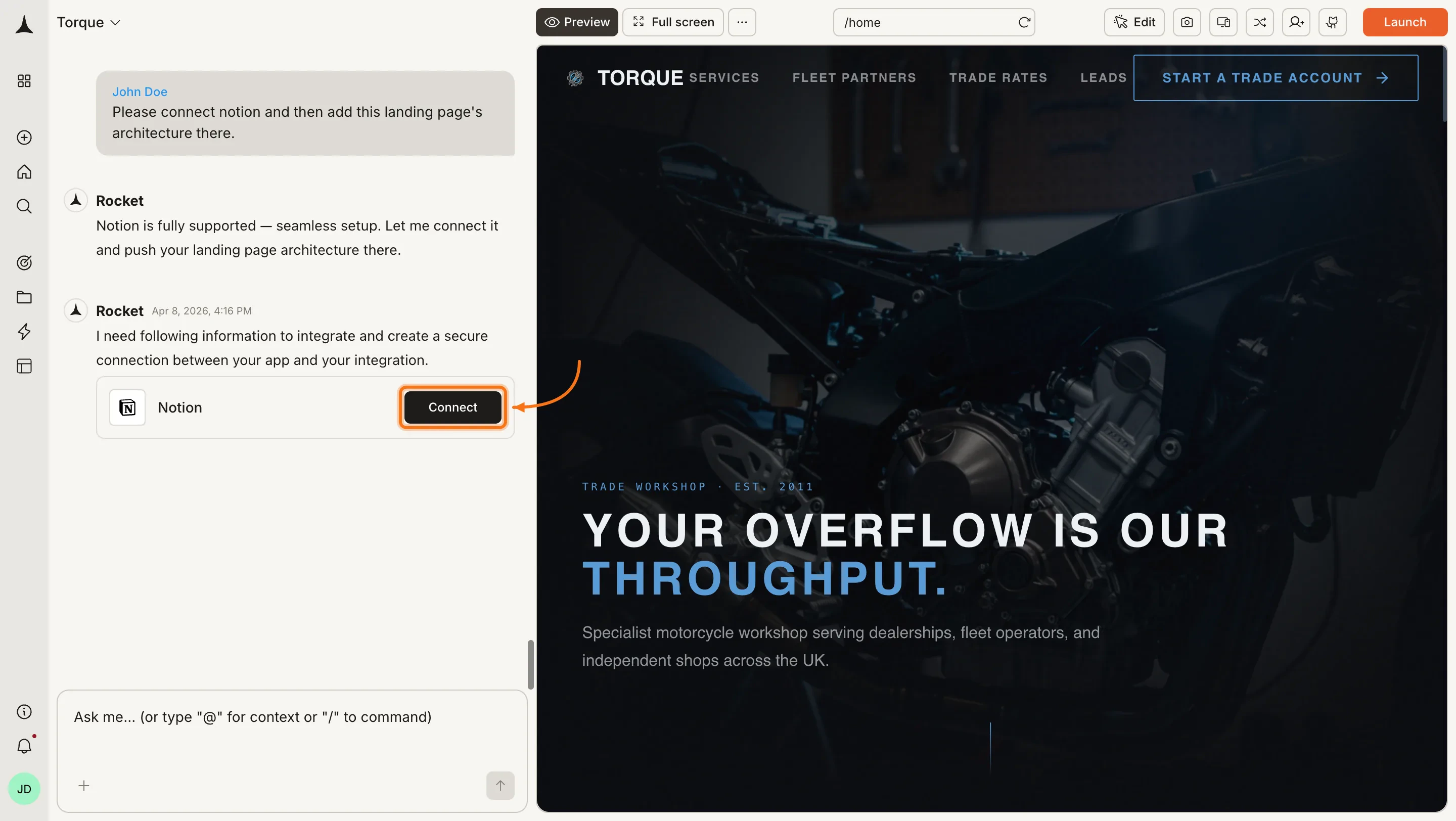
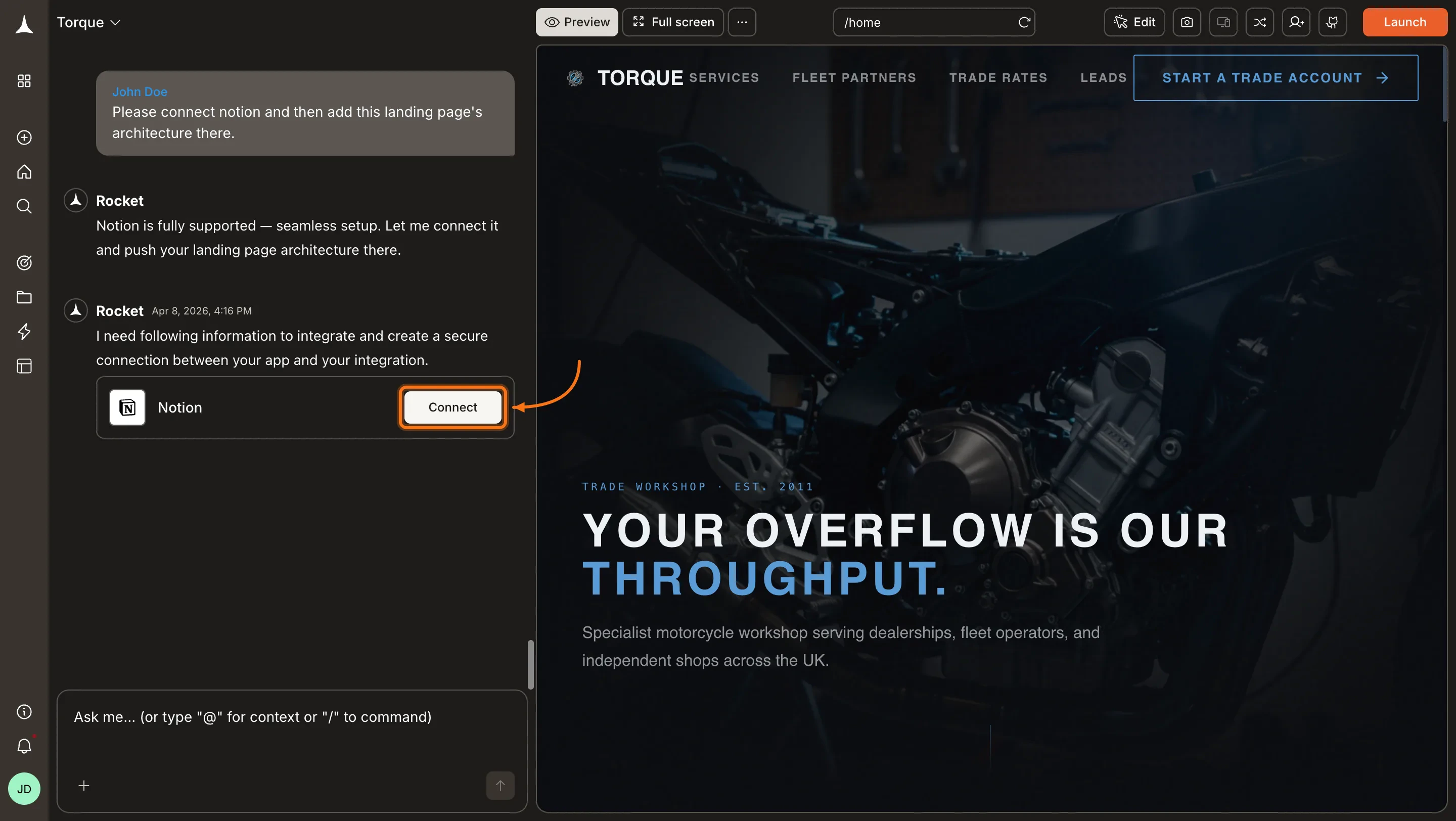
Type a prompt that references a Notion page or database, for example `Read my PRD at [NOTION_URL] and build the described app`. Rocket detects the intent and shows a **Connect** button inline. Click it to open the authorization flow.
 **Option 2: From the Connectors tab**
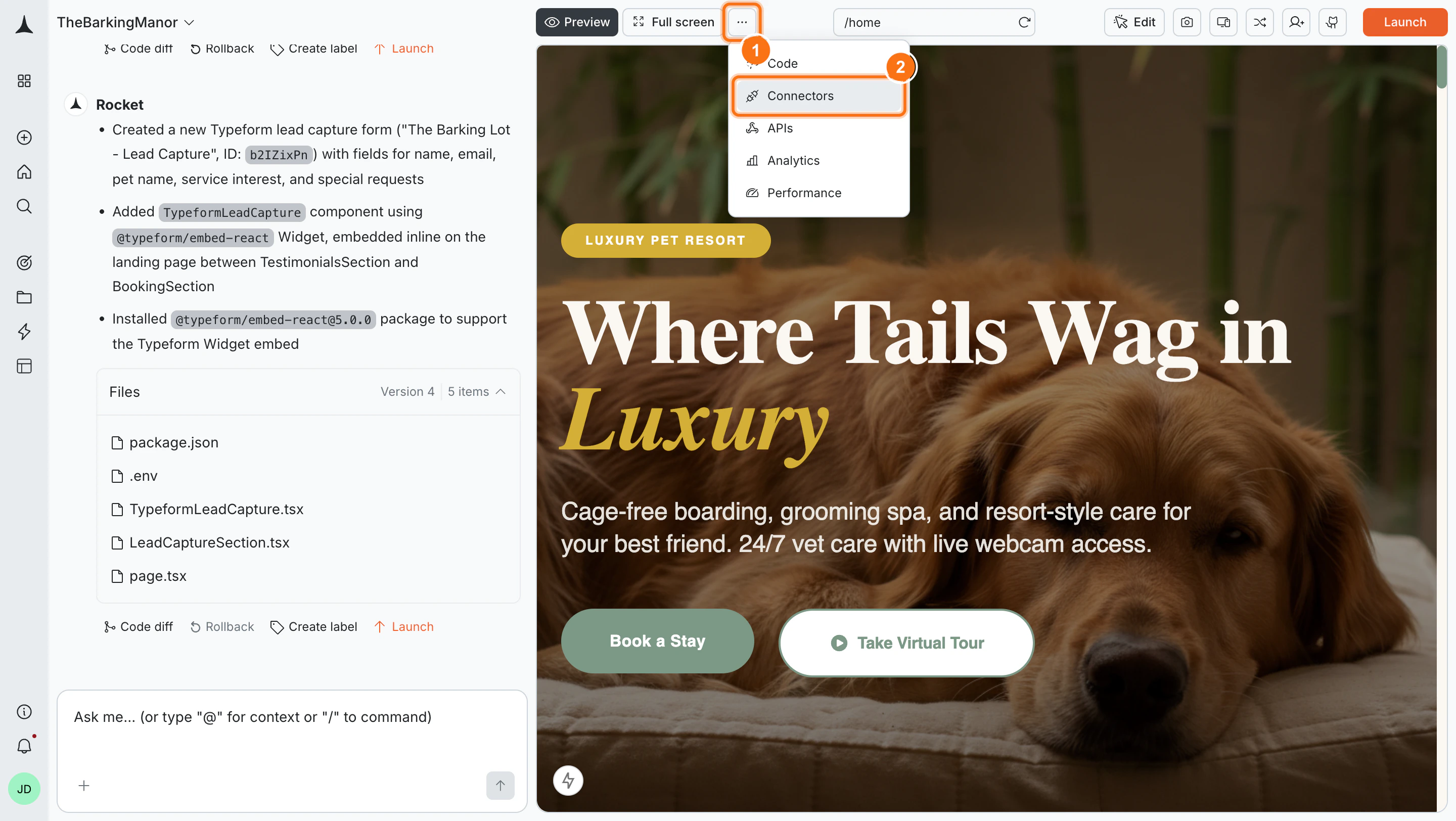
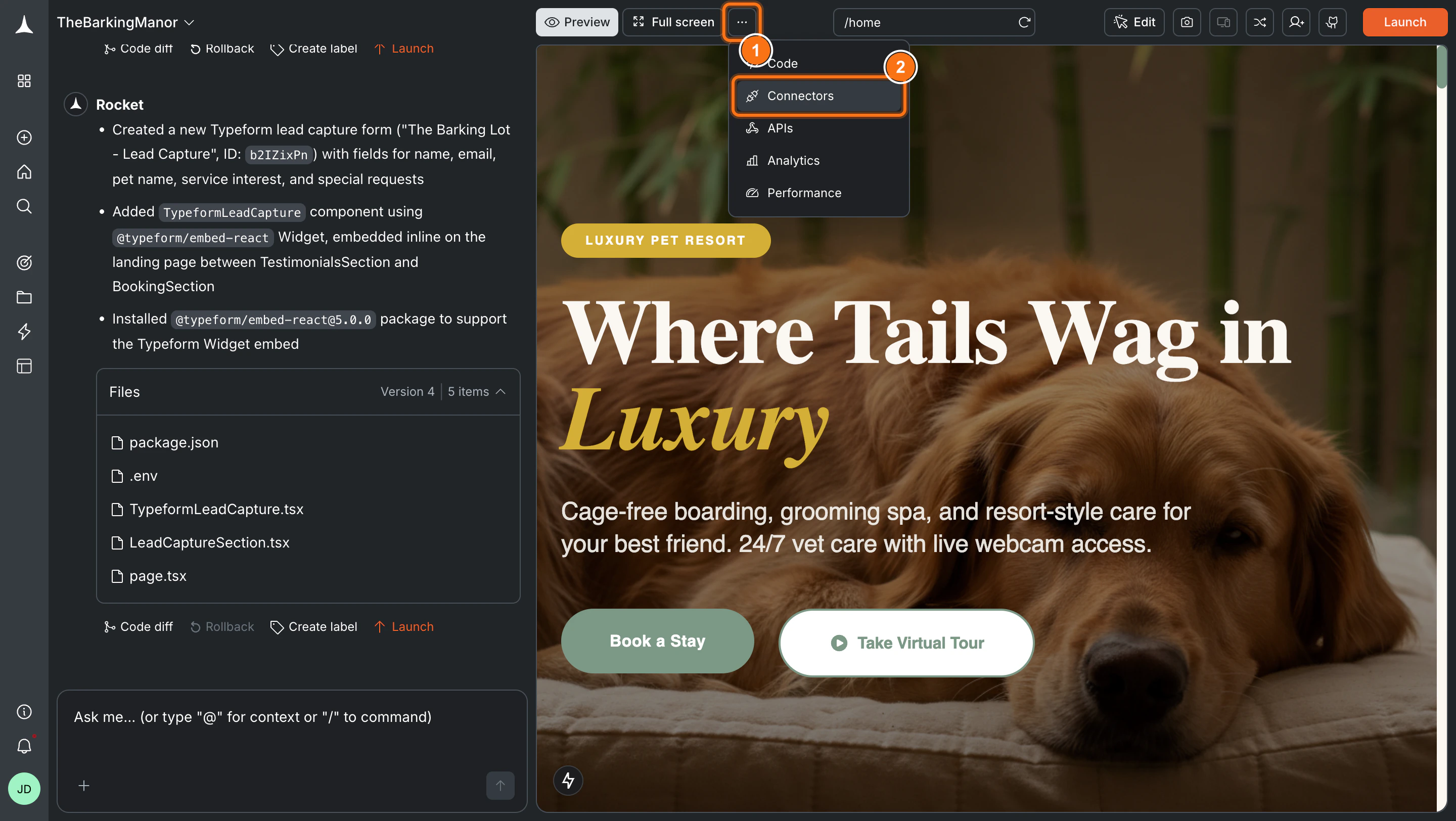
Click the **`...`** button in the preview toolbar, then select **Connectors**.
**Option 2: From the Connectors tab**
Click the **`...`** button in the preview toolbar, then select **Connectors**.
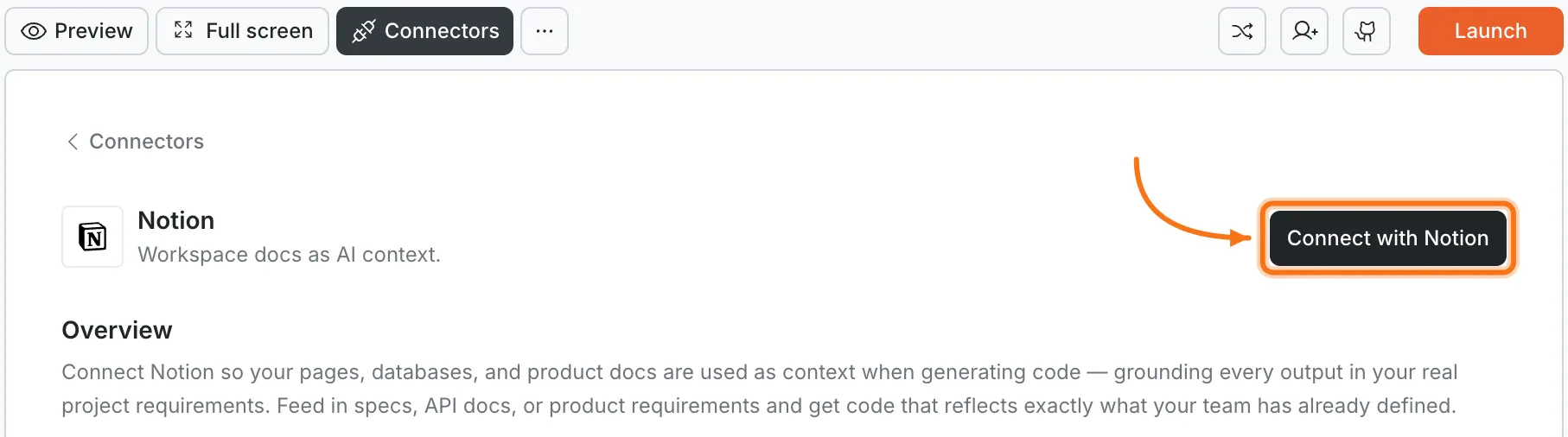
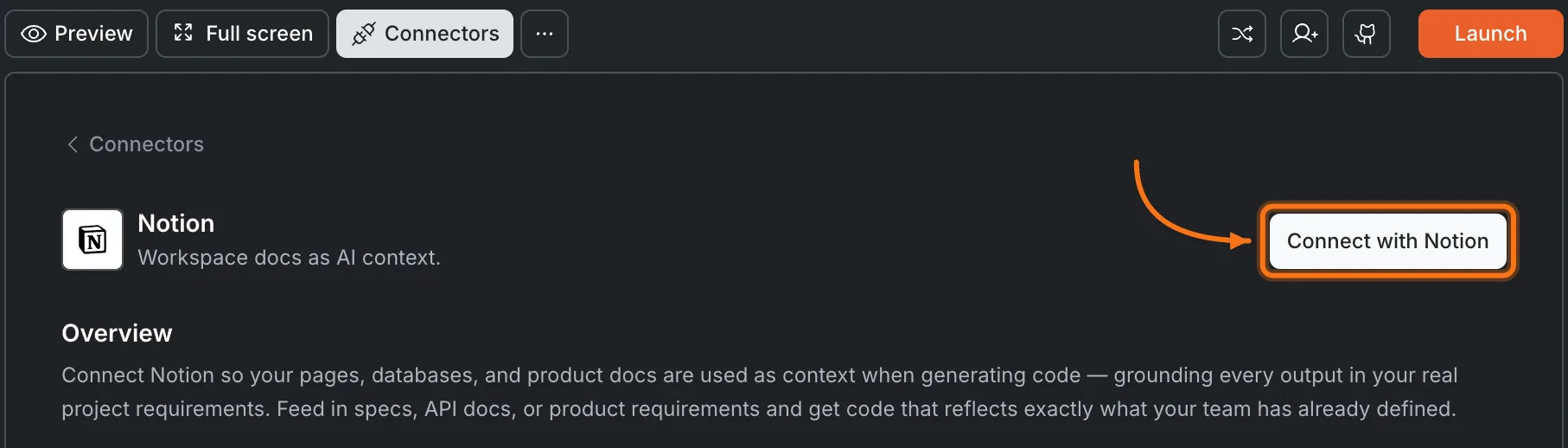
 Click the **Notion** card, then click **Connect with Notion**.
 **Option 3: From workspace Settings**
Connect once from Settings and it is available across all tasks.
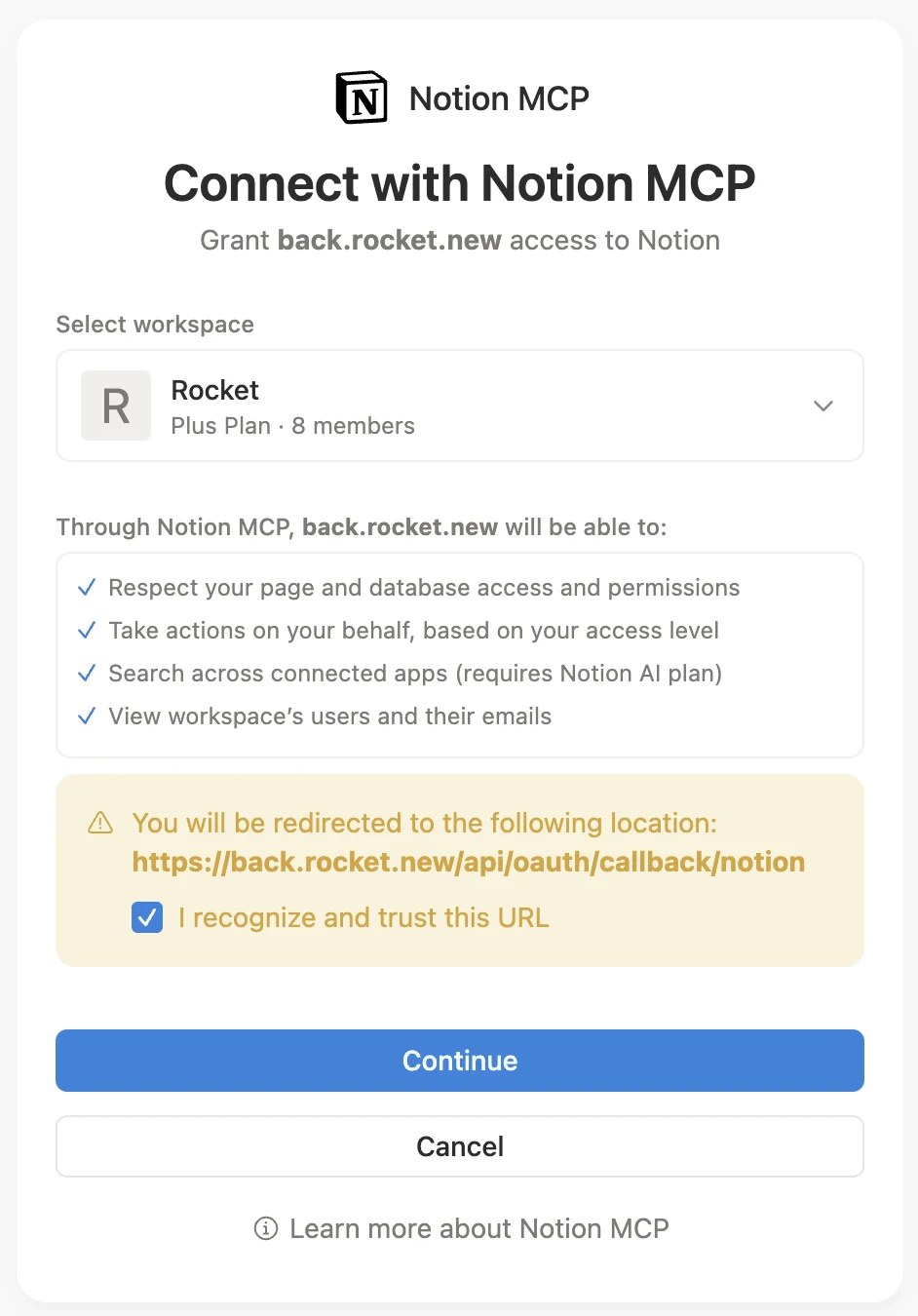
**After clicking Connect with Notion**
Notion's authorization screen opens. Select the workspace you want to connect, review the permissions, check **I recognize and trust this URL**, and click **Continue**.
**Option 3: From workspace Settings**
Connect once from Settings and it is available across all tasks.
**After clicking Connect with Notion**
Notion's authorization screen opens. Select the workspace you want to connect, review the permissions, check **I recognize and trust this URL**, and click **Continue**.
 A green dot appears next to Notion when the connection is active.
**Disconnect**
Disconnect or switch accounts from workspace Settings.
You can connect from two places. Both do the same thing.
**Option 1: From chat**
Type a prompt that references a Notion page or database. Rocket shows a **Connect** button inline. Tap it to open the authorization flow.
**Option 2: From the Connectors tab**
1. Tap the **More** button in the header.
2. Tap **Integrations**.
3. Tap the **Notion** card, then tap **Connect with Notion**.
**After tapping Connect with Notion**
Notion's authorization screen opens. Select the workspace you want to connect, review the permissions, and tap **Continue**.
A green dot appears next to Notion when the connection is active.
## Example prompts
Replace `[NOTION_URL]` with the link to your Notion page or database.
### Read from Notion
| Use case | Prompt |
| :-------------------------- | :------------------------------------------------------------------------------------------------------------------------------------------- |
| Build from PRD | `Read my PRD at [NOTION_URL] and build the described app with all features, user stories, and data models.` |
| Enrich hero section | `Update the hero section using my brand guidelines at [NOTION_URL]. Rewrite the headline, subtext, and CTA to match our actual positioning.` |
| Update features from spec | `Update the features section using my product spec at [NOTION_URL]. Rewrite every feature card to reflect what we actually built.` |
| Add FAQ from knowledge base | `Replace the FAQ section using questions from [NOTION_URL]. Add pricing, integration, and security FAQ blocks.` |
| Add changelog page | `Add a changelog page using my release notes at [NOTION_URL] with real dates and feature descriptions.` |
| Add roadmap page | `Add a public roadmap page using my roadmap doc at [NOTION_URL] with features, timelines, and status indicators.` |
### Write back to Notion
| Use case | Prompt |
| :--------------------------- | :-------------------------------------------------------------------------------------------------------------- |
| Save copy for review | `Save all copy from this landing page to Notion at [NOTION_URL] for the marketing team to review.` |
| Create campaign brief | `Create a campaign brief in Notion covering objective, target audience, key messages, and CTAs from this page.` |
| Create project documentation | `Create project documentation in Notion covering what was built, every page, section, and design decision.` |
| Create social copy bank | `Create a social copy bank in Notion with LinkedIn posts, X posts, and captions derived from this page.` |
| Create client handoff doc | `Create a client handoff doc in Notion covering what was built, what to update, and next steps.` |
## Tips
* **Select only what Rocket needs.** During the OAuth flow, share only the pages and databases relevant to your task. Focused context produces better results.
* **Paste Notion URLs directly in chat.** Linking to a specific page or database gives Rocket exact context. Vague references may pull the wrong content.
* **Write-back is structured.** Rocket writes back as Notion pages with proper headings, code blocks, and tables - not plain text.
* **Database relations are supported.** Rocket understands linked databases and can use related records as context.
* **Generated docs are drafts.** Treat content Rocket writes to Notion as starting points. Review and refine before sharing externally.
A green dot appears next to Notion when the connection is active.
**Disconnect**
Disconnect or switch accounts from workspace Settings.
You can connect from two places. Both do the same thing.
**Option 1: From chat**
Type a prompt that references a Notion page or database. Rocket shows a **Connect** button inline. Tap it to open the authorization flow.
**Option 2: From the Connectors tab**
1. Tap the **More** button in the header.
2. Tap **Integrations**.
3. Tap the **Notion** card, then tap **Connect with Notion**.
**After tapping Connect with Notion**
Notion's authorization screen opens. Select the workspace you want to connect, review the permissions, and tap **Continue**.
A green dot appears next to Notion when the connection is active.
## Example prompts
Replace `[NOTION_URL]` with the link to your Notion page or database.
### Read from Notion
| Use case | Prompt |
| :-------------------------- | :------------------------------------------------------------------------------------------------------------------------------------------- |
| Build from PRD | `Read my PRD at [NOTION_URL] and build the described app with all features, user stories, and data models.` |
| Enrich hero section | `Update the hero section using my brand guidelines at [NOTION_URL]. Rewrite the headline, subtext, and CTA to match our actual positioning.` |
| Update features from spec | `Update the features section using my product spec at [NOTION_URL]. Rewrite every feature card to reflect what we actually built.` |
| Add FAQ from knowledge base | `Replace the FAQ section using questions from [NOTION_URL]. Add pricing, integration, and security FAQ blocks.` |
| Add changelog page | `Add a changelog page using my release notes at [NOTION_URL] with real dates and feature descriptions.` |
| Add roadmap page | `Add a public roadmap page using my roadmap doc at [NOTION_URL] with features, timelines, and status indicators.` |
### Write back to Notion
| Use case | Prompt |
| :--------------------------- | :-------------------------------------------------------------------------------------------------------------- |
| Save copy for review | `Save all copy from this landing page to Notion at [NOTION_URL] for the marketing team to review.` |
| Create campaign brief | `Create a campaign brief in Notion covering objective, target audience, key messages, and CTAs from this page.` |
| Create project documentation | `Create project documentation in Notion covering what was built, every page, section, and design decision.` |
| Create social copy bank | `Create a social copy bank in Notion with LinkedIn posts, X posts, and captions derived from this page.` |
| Create client handoff doc | `Create a client handoff doc in Notion covering what was built, what to update, and next steps.` |
## Tips
* **Select only what Rocket needs.** During the OAuth flow, share only the pages and databases relevant to your task. Focused context produces better results.
* **Paste Notion URLs directly in chat.** Linking to a specific page or database gives Rocket exact context. Vague references may pull the wrong content.
* **Write-back is structured.** Rocket writes back as Notion pages with proper headings, code blocks, and tables - not plain text.
* **Database relations are supported.** Rocket understands linked databases and can use related records as context.
* **Generated docs are drafts.** Treat content Rocket writes to Notion as starting points. Review and refine before sharing externally.