> ## Documentation Index
> Fetch the complete documentation index at: https://docs.rocket.new/llms.txt
> Use this file to discover all available pages before exploring further.
# Perplexity
> Connect Perplexity to Rocket and add AI-powered search with cited, real-time answers to your app.
export const LlmsDirective = () =>
For the complete documentation index, see llms.txt.
For a lightweight markdown version of this page, append .md to the URL.
;
Connect your Perplexity API key and describe the search feature you need in chat. Rocket handles all the integration code automatically so you can focus on what your features should do.
This connector is only available for **Next.js TypeScript** web build tasks.
## What you can do
Let users ask questions and get answers backed by linked sources from across the web.
Let users paste a claim and verify it against current web sources.
Research competitors, market trends, or industry news with sourced summaries.
Aggregate and summarize the latest news on a topic with links to original articles.
Answer user questions using both internal data and live web sources, with full citations.
## Before you connect
**Get your Perplexity API key** from your Perplexity account.
Never paste your API key directly into chat. Always use the secure connector flow. If you believe your key has been exposed, rotate it immediately from your Perplexity account.
The API key is scoped to the task you connect it in. Each task stores its own key. Connecting in one task does not affect others.
## Connect Perplexity
You can connect from two places. Both open the same popup.
**Option 1: From chat**
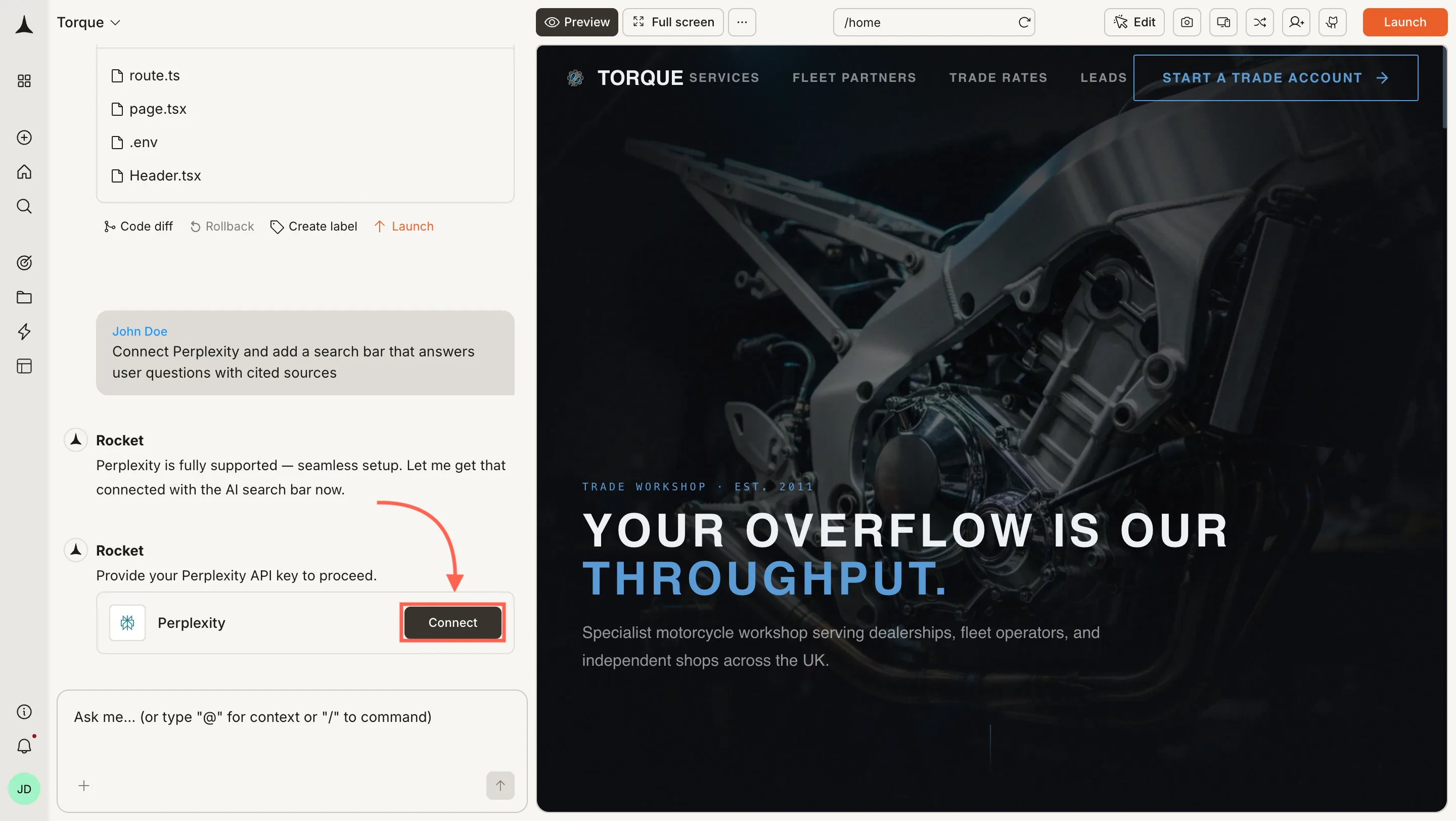
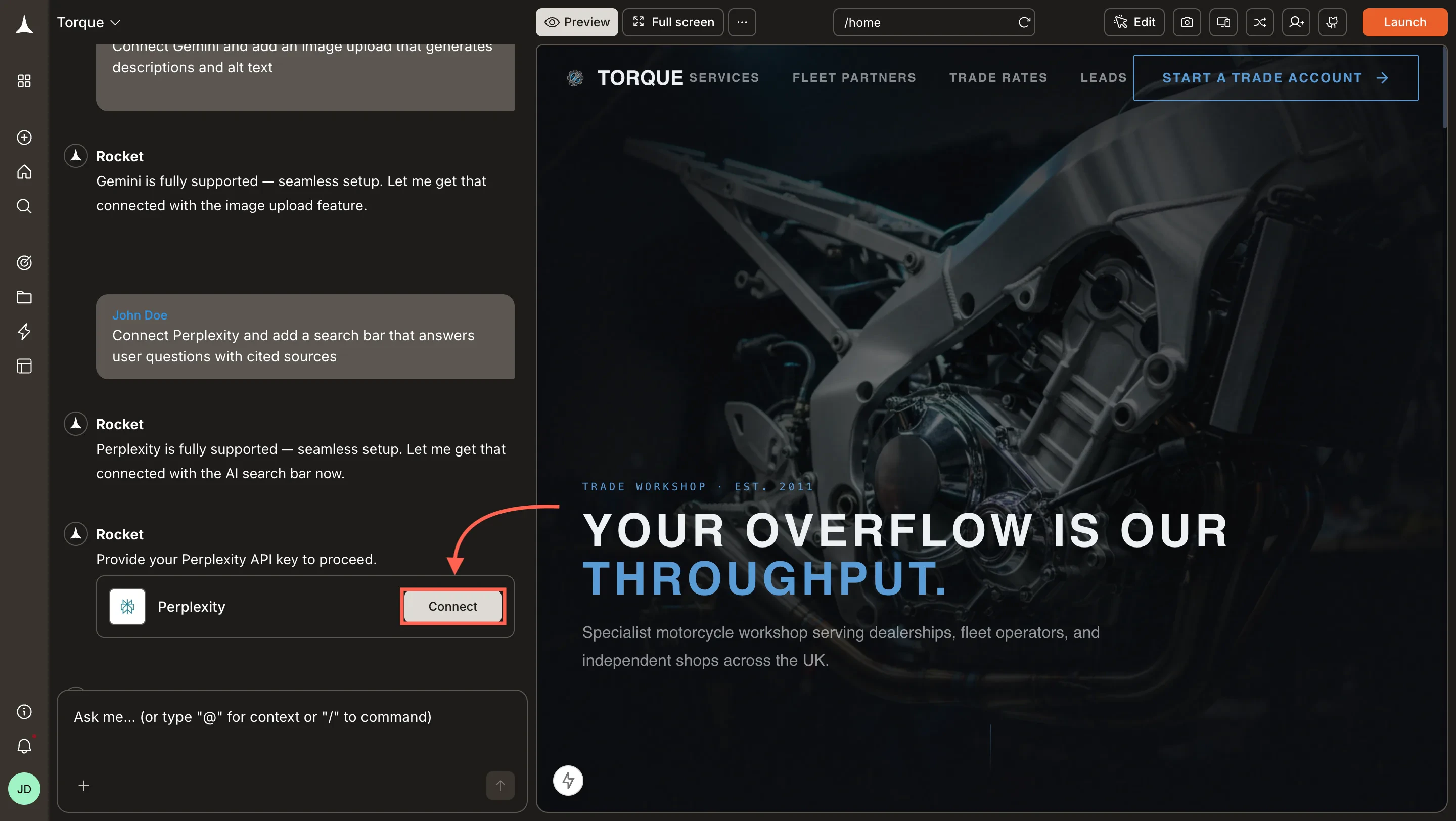
Type a prompt that mentions Perplexity, for example `Connect Perplexity and add a search bar that answers user questions with cited sources`. Rocket detects the intent and shows a **Connect** button inline. Click it and the popup opens.
 **Option 2: From the Connectors tab**
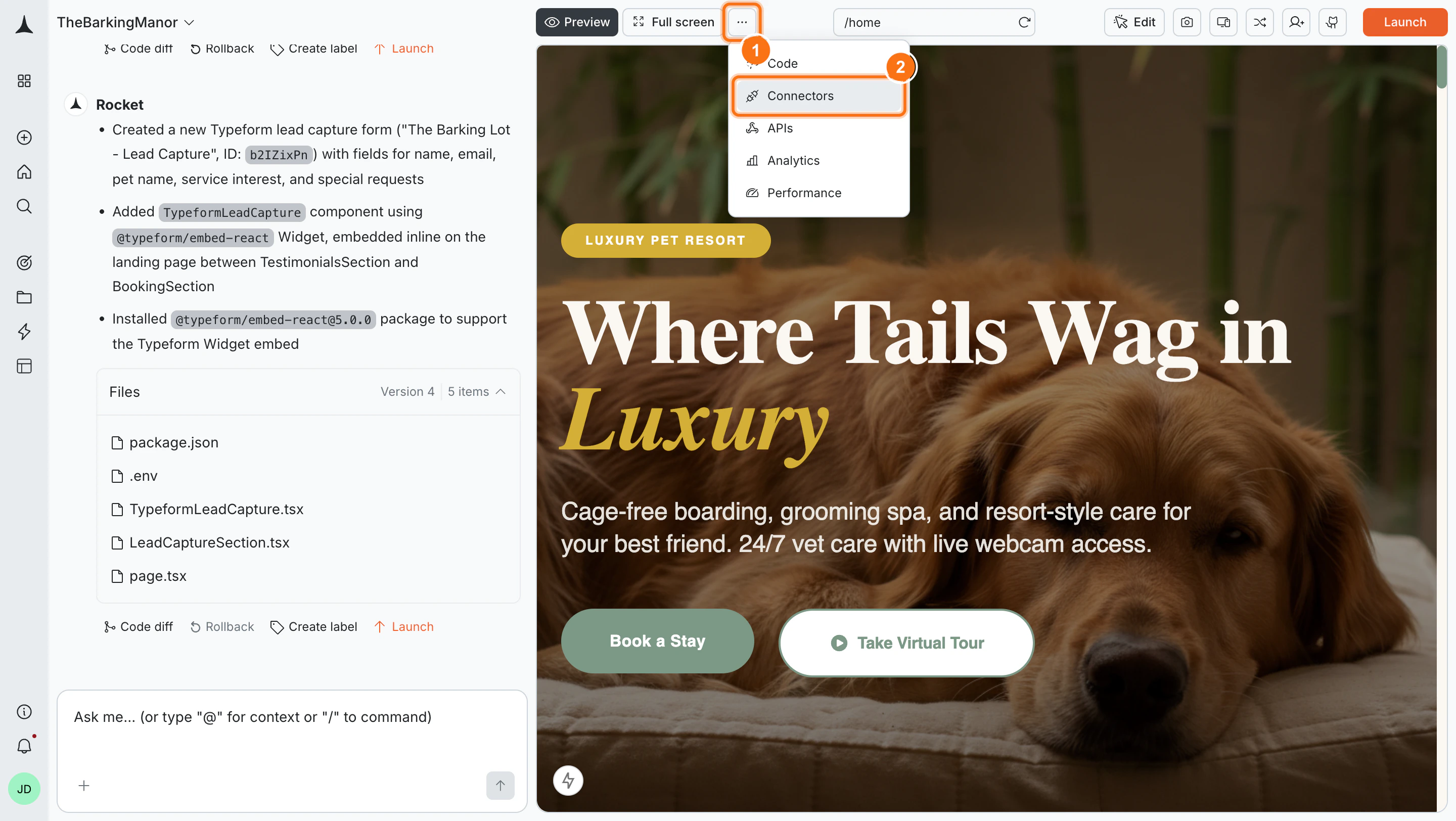
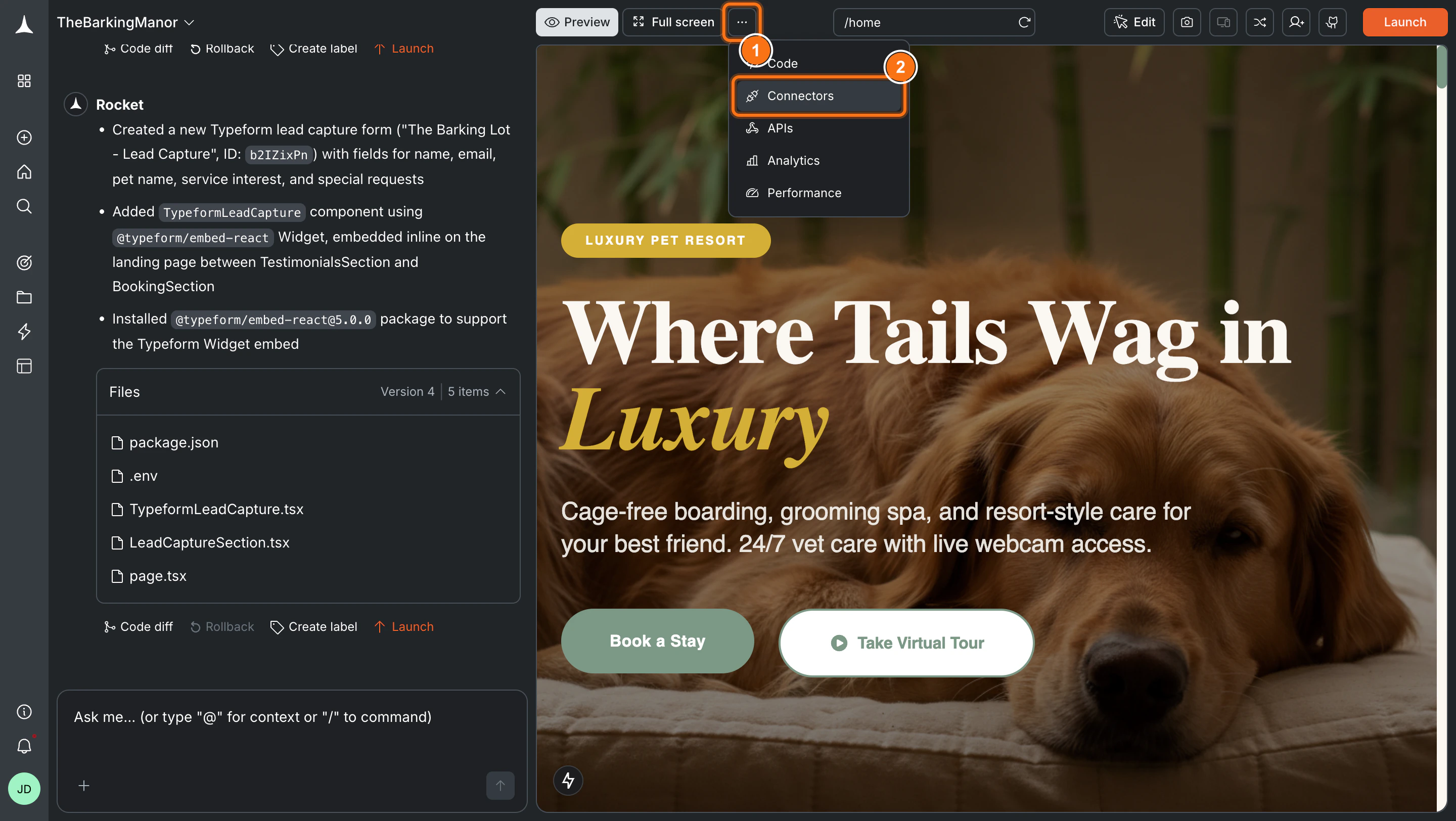
Click the **`...`** button in the preview toolbar, then select **Connectors**.
**Option 2: From the Connectors tab**
Click the **`...`** button in the preview toolbar, then select **Connectors**.
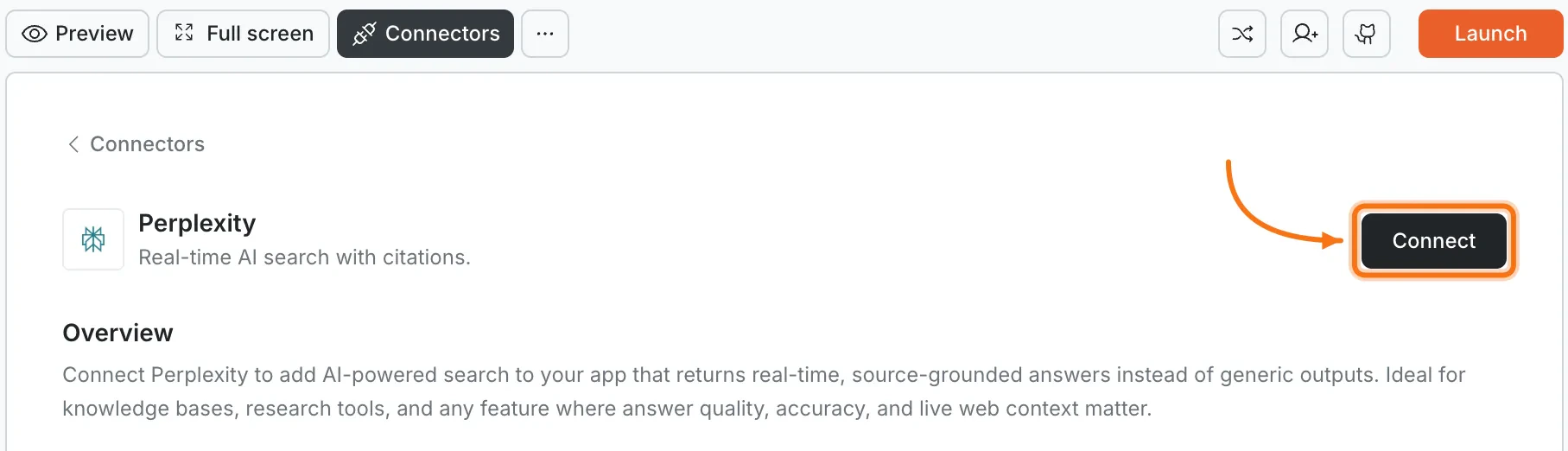
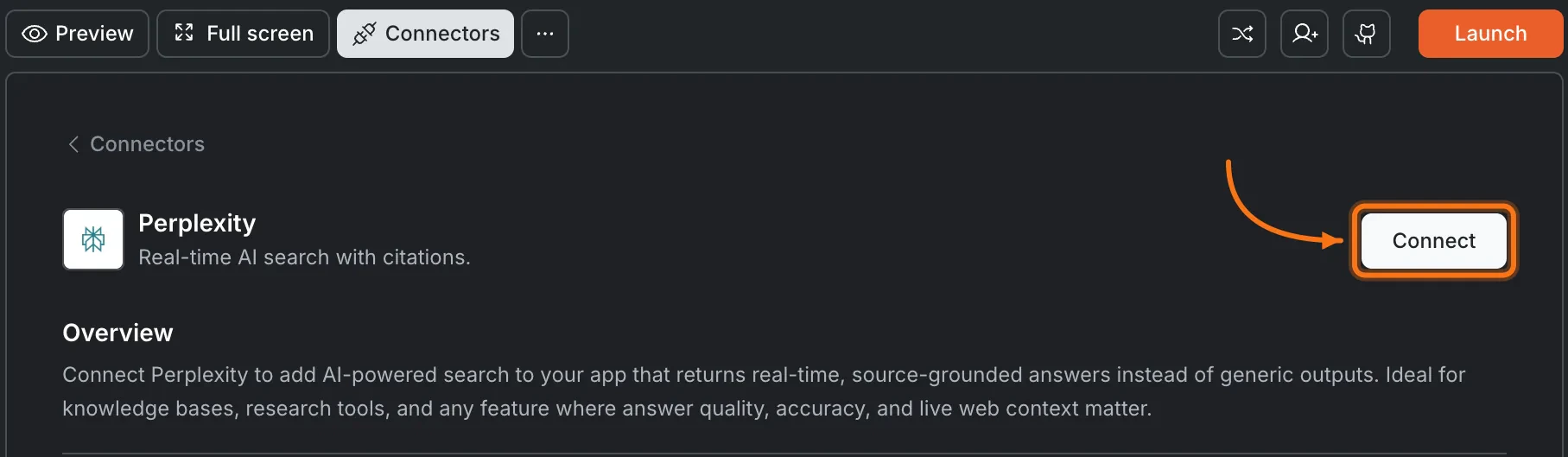
 Click the **Perplexity** card, then click **Connect**.
 **After clicking Connect**
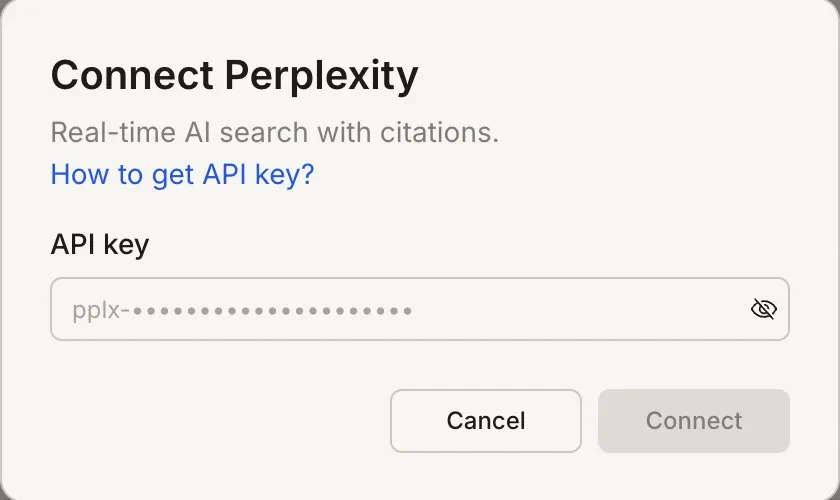
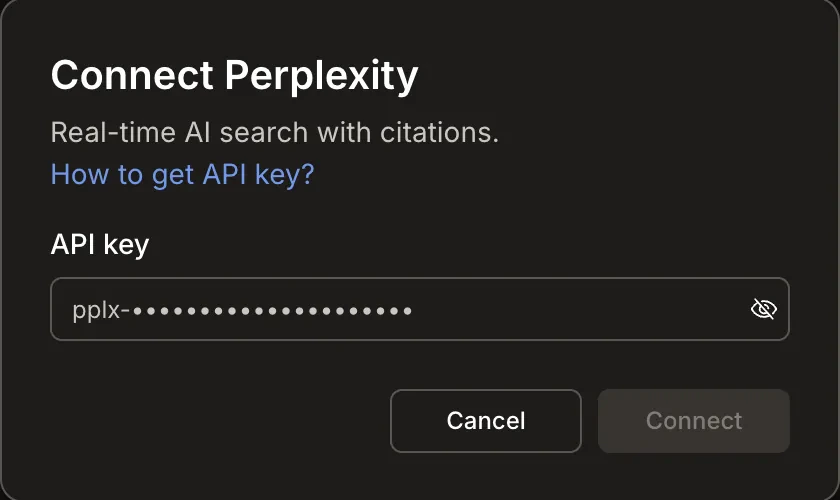
A popup opens. Paste your **API key** and click **Connect**.
**After clicking Connect**
A popup opens. Paste your **API key** and click **Connect**.
 A green dot appears next to Perplexity when the connection is active.
**Update or disconnect**
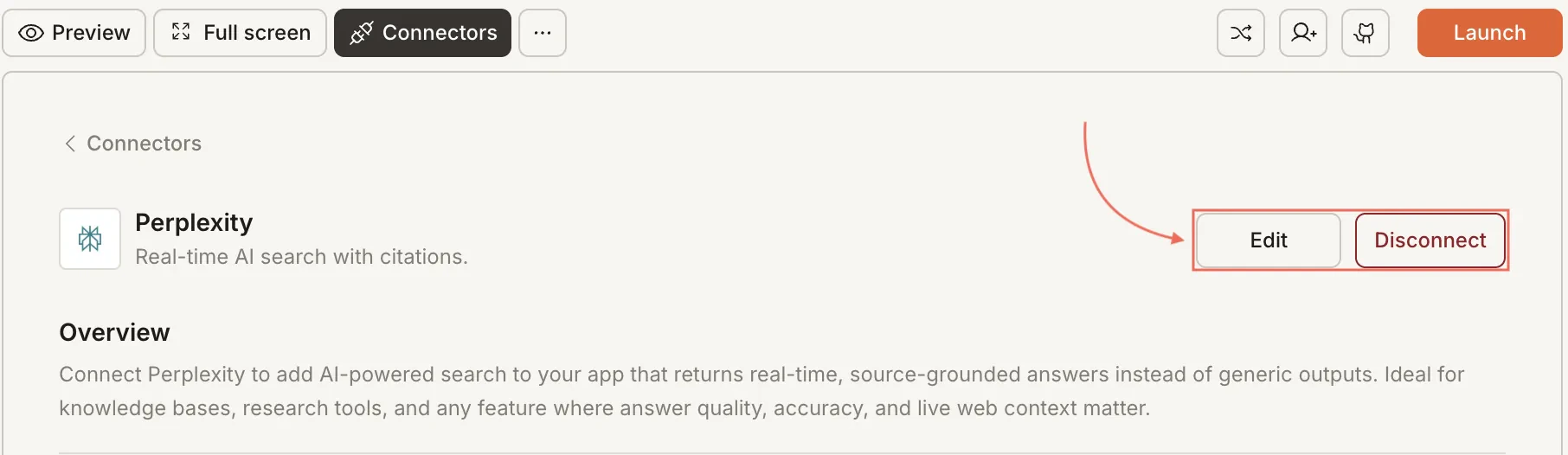
Go to [**Connectors > Perplexity**](#connect-perplexity). Click **Edit** to update the key or **Disconnect** to remove the integration.
A green dot appears next to Perplexity when the connection is active.
**Update or disconnect**
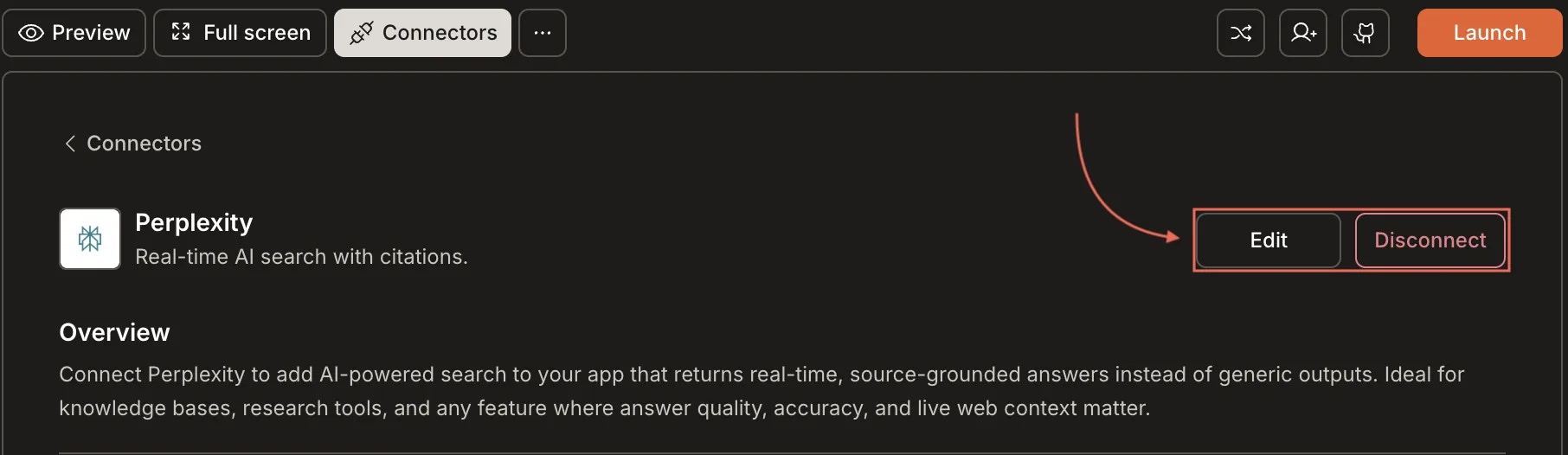
Go to [**Connectors > Perplexity**](#connect-perplexity). Click **Edit** to update the key or **Disconnect** to remove the integration.
 Open the task in the Rocket mobile app. Tap the **More** button in the header, then tap **Connectors**. Tap the **Perplexity** card and enter your API key.
## Example prompts
| Use case | Prompt |
| :----------------- | :------------------------------------------------------------------------------------------------- |
| Search bar | `Add a search bar that uses Perplexity to answer user questions with cited sources.` |
| Fact-checker | `Build a fact-checking tool where users paste a claim and get a verified answer with sources.` |
| Research assistant | `Create a research panel where users enter a topic and get a summary with linked references.` |
| News feed | `Build a news aggregator that shows the latest headlines and summaries on a chosen topic.` |
| Competitor tracker | `Add a competitor analysis page where users enter a company name and get recent news and updates.` |
| Product comparison | `Create a product comparison tool that researches specs and pricing from across the web.` |
| Knowledge Q\&A | `Create a Q&A page where users ask questions and get answers sourced from our docs and the web.` |
| Trend monitor | `Build a dashboard that tracks trending topics in a specific industry with source links.` |
## Tips
* **Best for factual, search-based tasks.** For creative writing, code generation, or open-ended conversation, use Anthropic or OpenAI instead.
* **Citation quality varies by topic.** Perplexity pulls from live web results, so niche or very recent topics may have fewer high-quality sources.
* **Rate limits apply.** Monitor usage in your Perplexity dashboard to avoid hitting caps during high traffic.
* **API billing is separate from Rocket.** Perplexity charges based on API usage. See their [pricing page](https://docs.perplexity.ai/guides/pricing).
* **Key is scoped to this task.** Each Rocket task connects to one Perplexity API key.
Open the task in the Rocket mobile app. Tap the **More** button in the header, then tap **Connectors**. Tap the **Perplexity** card and enter your API key.
## Example prompts
| Use case | Prompt |
| :----------------- | :------------------------------------------------------------------------------------------------- |
| Search bar | `Add a search bar that uses Perplexity to answer user questions with cited sources.` |
| Fact-checker | `Build a fact-checking tool where users paste a claim and get a verified answer with sources.` |
| Research assistant | `Create a research panel where users enter a topic and get a summary with linked references.` |
| News feed | `Build a news aggregator that shows the latest headlines and summaries on a chosen topic.` |
| Competitor tracker | `Add a competitor analysis page where users enter a company name and get recent news and updates.` |
| Product comparison | `Create a product comparison tool that researches specs and pricing from across the web.` |
| Knowledge Q\&A | `Create a Q&A page where users ask questions and get answers sourced from our docs and the web.` |
| Trend monitor | `Build a dashboard that tracks trending topics in a specific industry with source links.` |
## Tips
* **Best for factual, search-based tasks.** For creative writing, code generation, or open-ended conversation, use Anthropic or OpenAI instead.
* **Citation quality varies by topic.** Perplexity pulls from live web results, so niche or very recent topics may have fewer high-quality sources.
* **Rate limits apply.** Monitor usage in your Perplexity dashboard to avoid hitting caps during high traffic.
* **API billing is separate from Rocket.** Perplexity charges based on API usage. See their [pricing page](https://docs.perplexity.ai/guides/pricing).
* **Key is scoped to this task.** Each Rocket task connects to one Perplexity API key.