> ## Documentation Index
> Fetch the complete documentation index at: https://docs.rocket.new/llms.txt
> Use this file to discover all available pages before exploring further.
# Strapi
> Connect Strapi to Rocket and build blogs, documentation sites, and e-commerce catalogs from your headless CMS: no copy-pasting content or API setup.
export const LlmsDirective = () =>
For the complete documentation index, see llms.txt.
For a lightweight markdown version of this page, append .md to the URL.
;
Point Rocket at your Strapi instance and describe the content experience you want in chat. Rocket reads your content types, generates the pages, and wires up the data.
This connector is only available for **Next.js TypeScript** web build tasks.
## What you can do
Publish articles with images, categories, and author profiles managed in Strapi.
Structured docs with sidebar navigation and versioned content from Strapi.
Display products with images, descriptions, pricing, and variant options from Strapi.
Render pages from Strapi content types with modular blocks like heroes, feature grids, and CTAs.
Showcase team members, partners, or directory listings pulled from Strapi.
## Before you connect
You need two things: your **Strapi project URL** (e.g. `https://your-project.strapiapp.com`) and an **API token** from your Strapi Admin Panel.
**Get your Strapi API token** from the Strapi documentation.
Never paste your API token directly into chat. Always use the secure connection popup. If a token is ever exposed, revoke it from the Strapi Admin Panel and create a new one.
Strapi is a **task-level** connector. Each Rocket task connects to its own Strapi instance independently.
## Connect Strapi
You can connect from two places. Both do the same thing.
**Option 1: From chat**
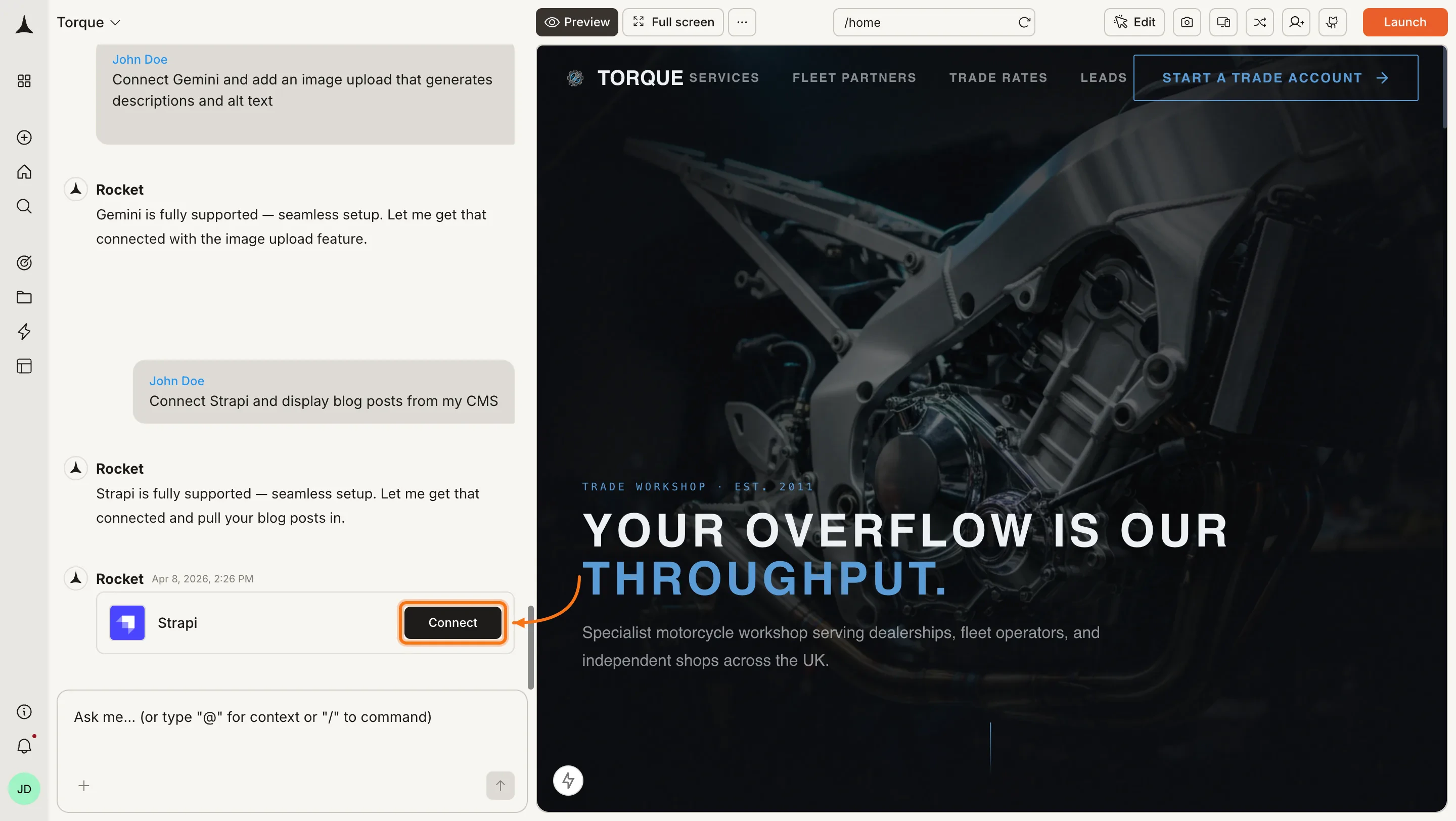
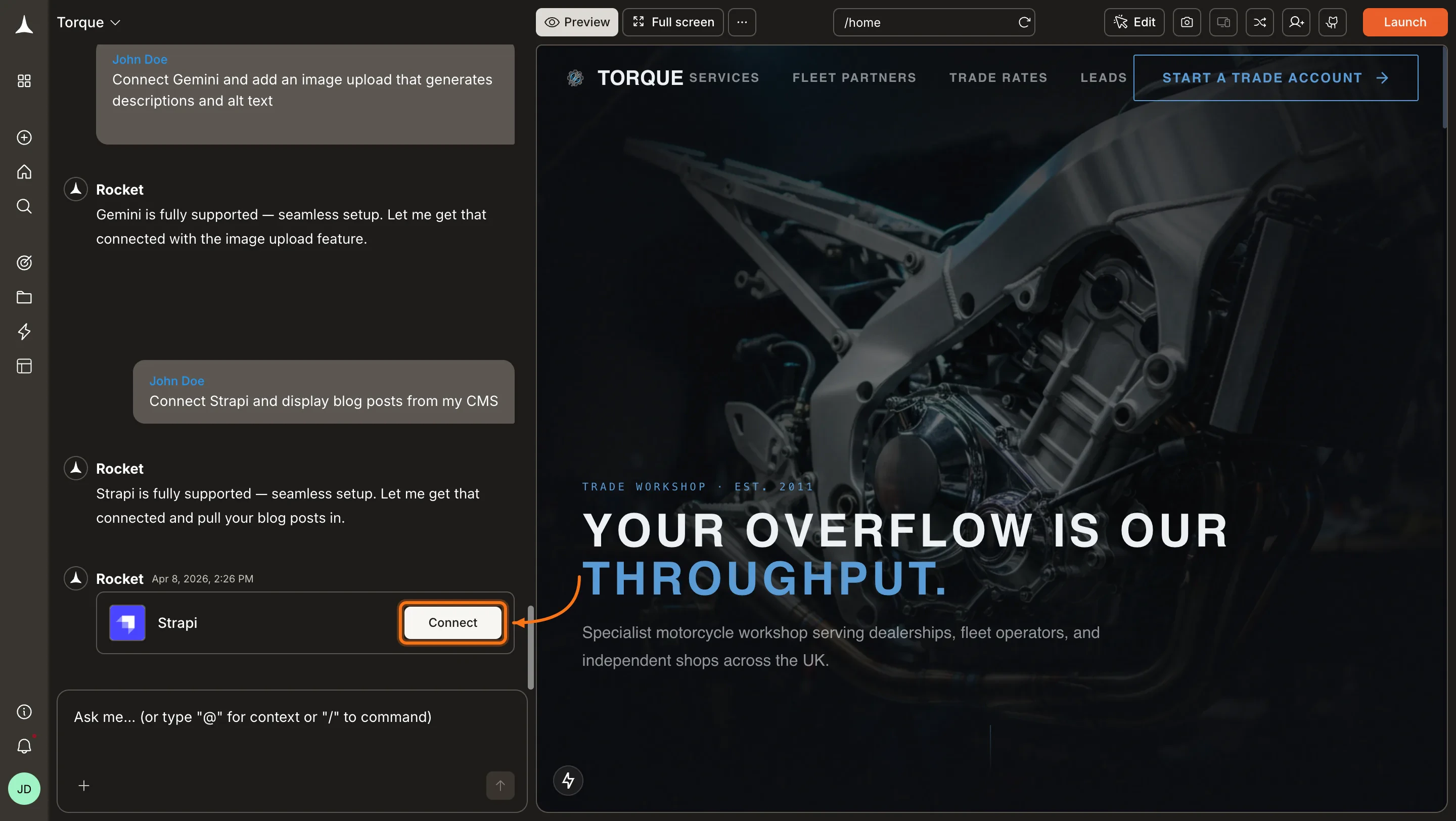
Type a prompt that mentions Strapi, for example `Connect Strapi and display blog posts from my CMS`. Rocket detects the intent and shows a **Connect** button inline. Click it to open the credentials popup.
 **Option 2: From the Connectors tab**
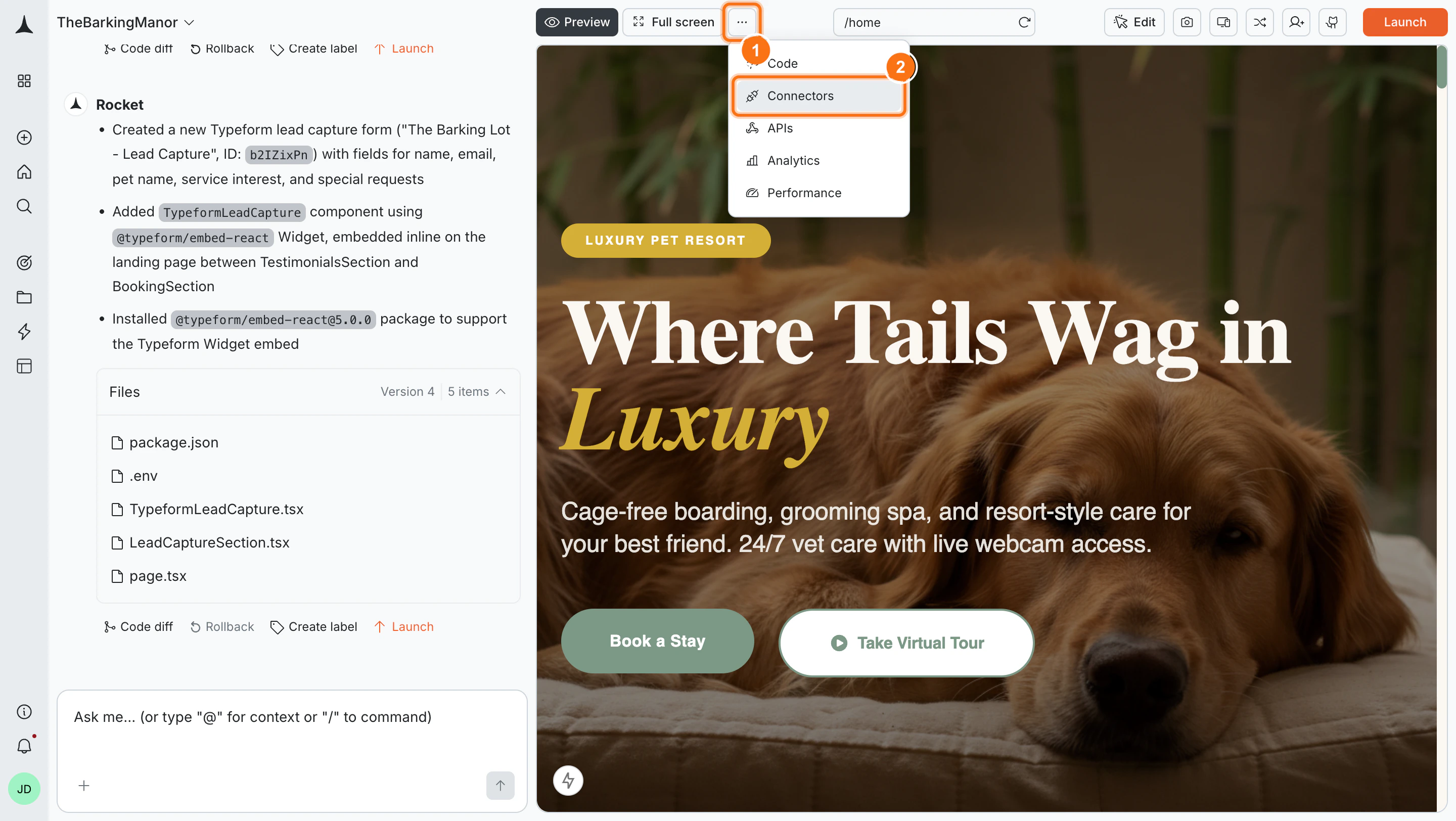
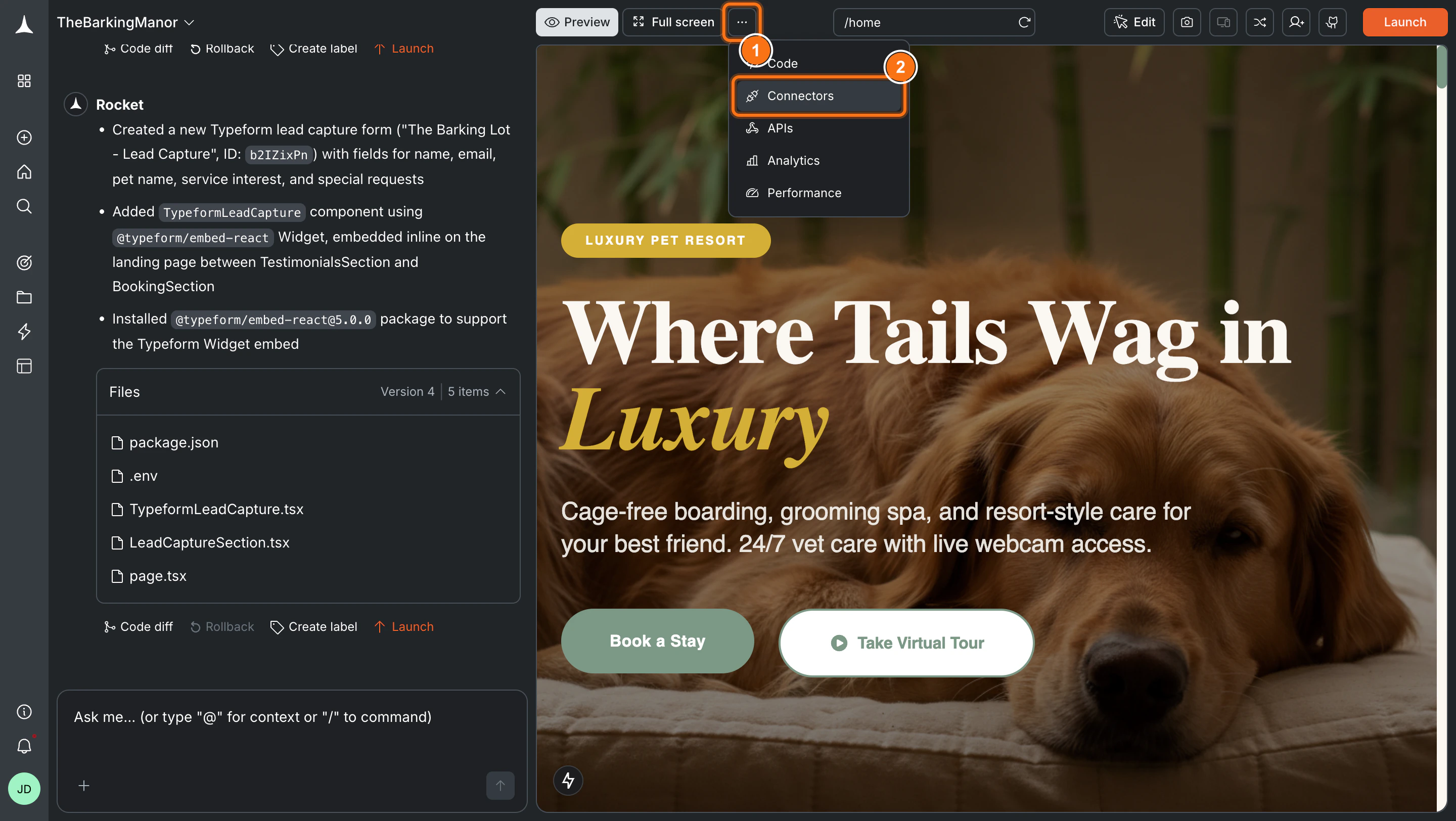
Click the **`...`** button in the preview toolbar, then select **Connectors**.
**Option 2: From the Connectors tab**
Click the **`...`** button in the preview toolbar, then select **Connectors**.
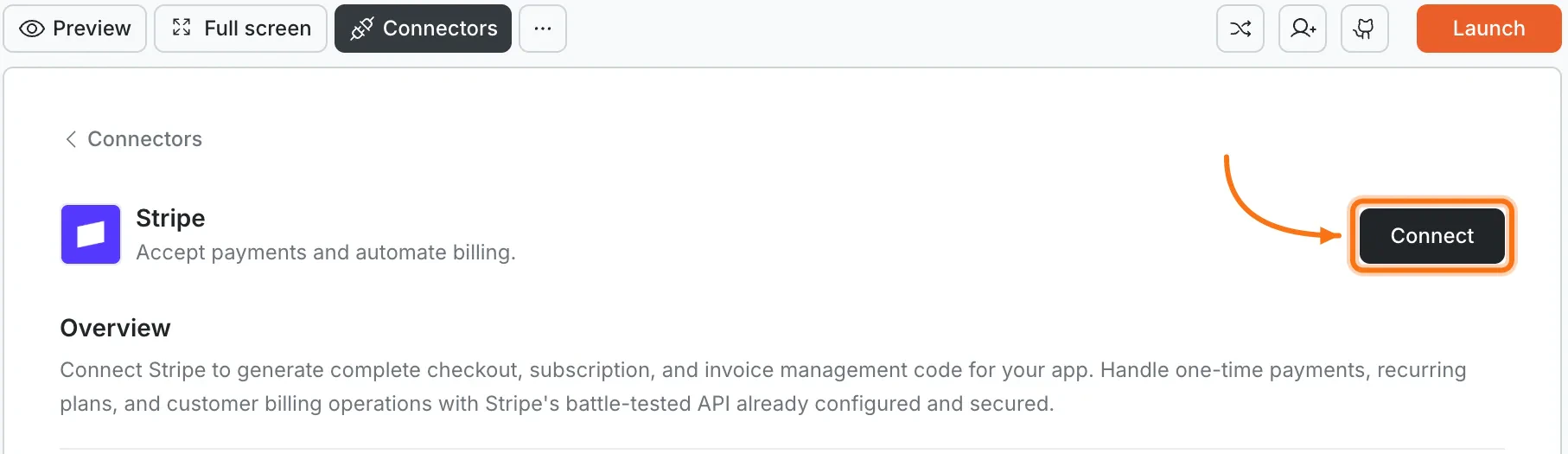
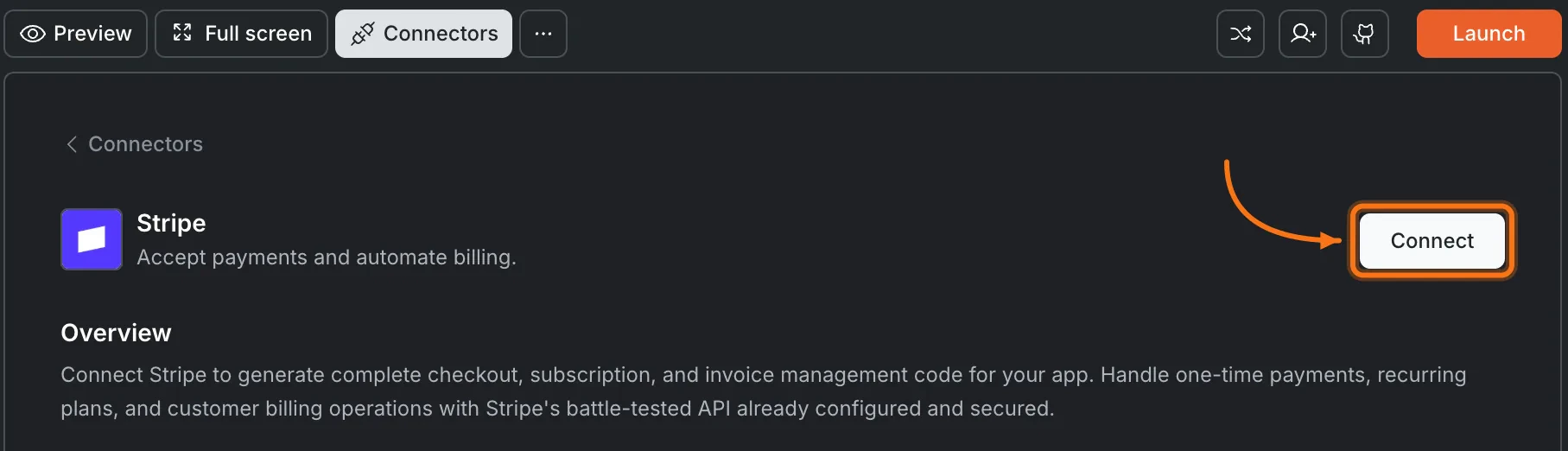
 Click the **Strapi** card, then click **Connect**.
 **After clicking Connect**
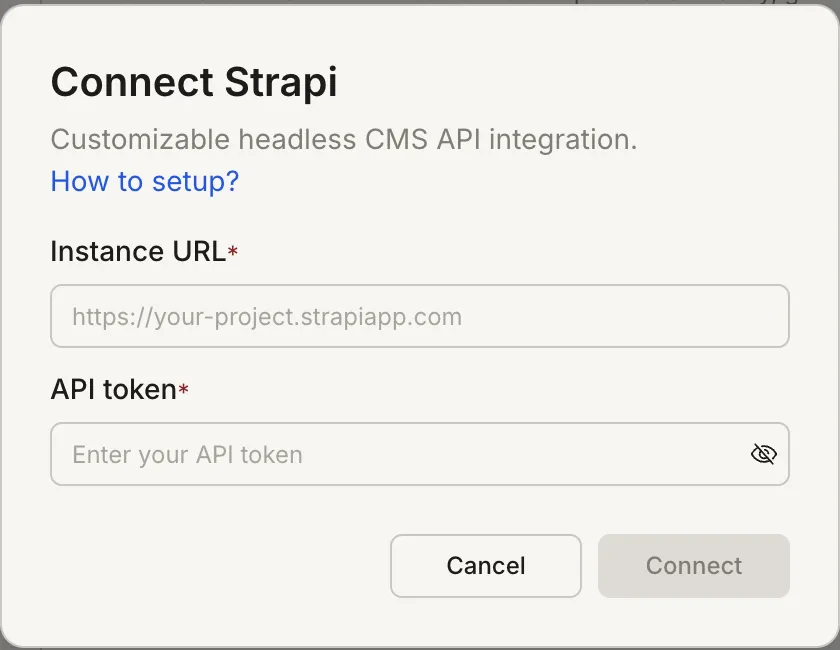
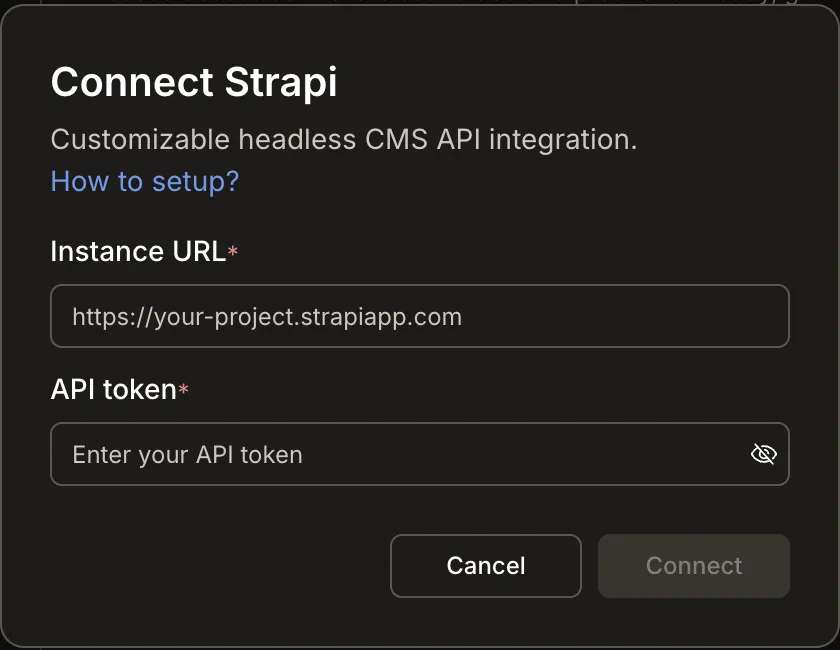
A popup opens. Enter your **Instance URL** and **API token**, then click **Connect**.
**After clicking Connect**
A popup opens. Enter your **Instance URL** and **API token**, then click **Connect**.
 A green dot appears next to Strapi when the connection is active.
**Update or disconnect**
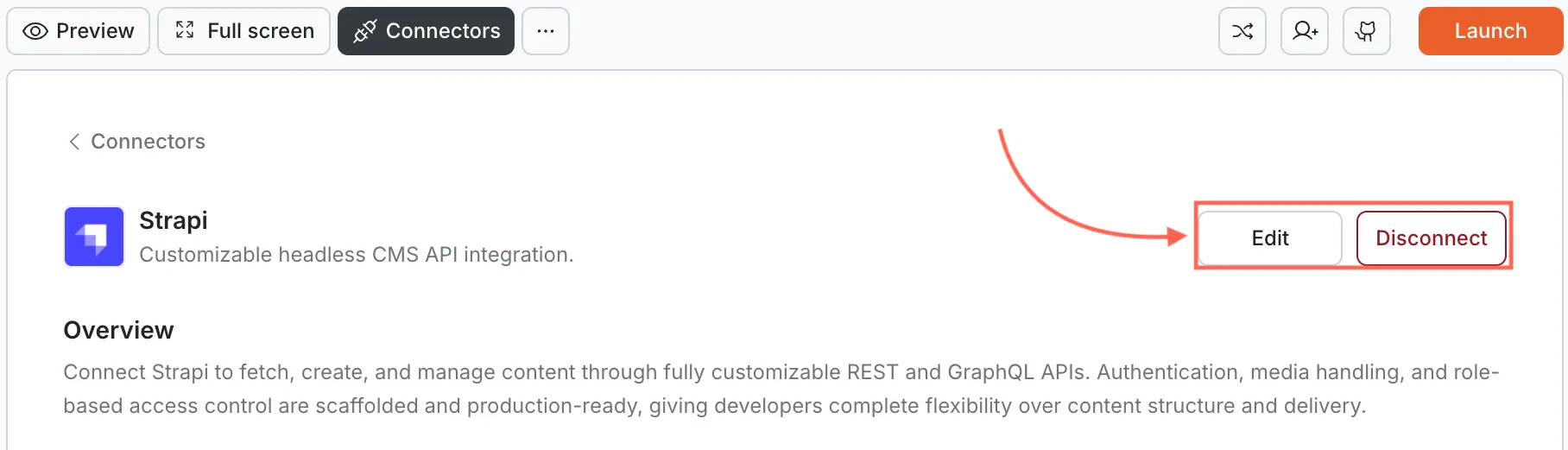
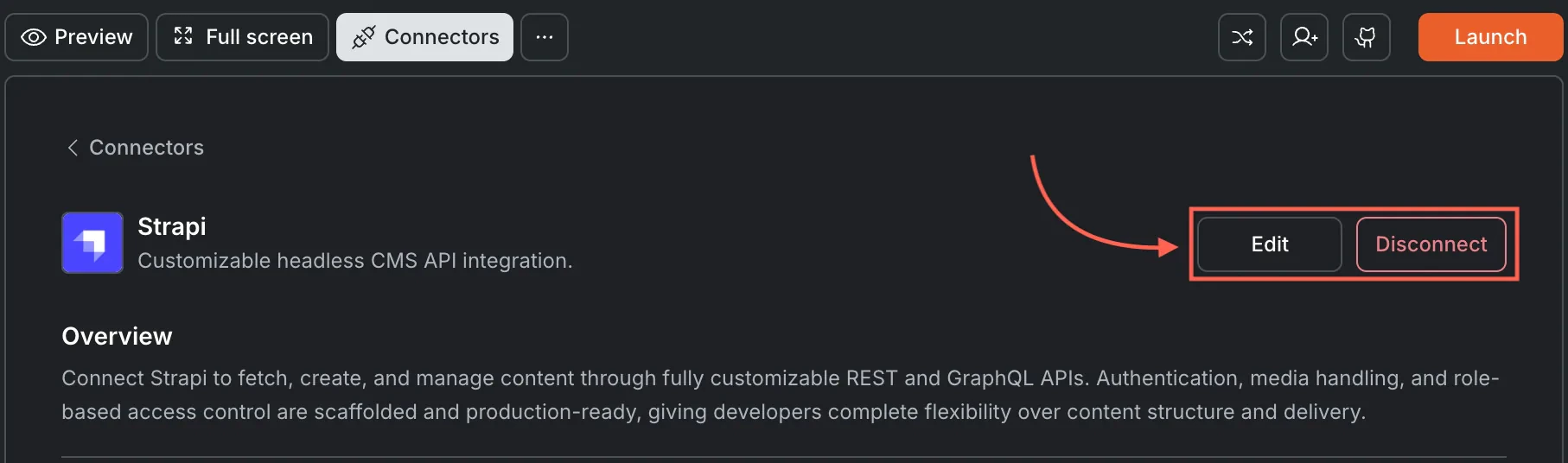
Open [**Connectors > Strapi**](#connect-strapi) and click the card. Click **Edit** to update your credentials or **Disconnect** to remove the integration from this task.
A green dot appears next to Strapi when the connection is active.
**Update or disconnect**
Open [**Connectors > Strapi**](#connect-strapi) and click the card. Click **Edit** to update your credentials or **Disconnect** to remove the integration from this task.
 You can connect from two places. Both do the same thing.
**Option 1: From chat**
Type a prompt that mentions Strapi. Rocket detects the intent and shows a **Connect** button inline. Tap it to open the credentials screen.
**Option 2: From the Connectors tab**
Tap the **More** button in the header.
Tap **Integrations**.
Tap the **Strapi** card, then tap **Connect**.
**After tapping Connect**
A popup opens. Enter your **Instance URL** and **API token**, then tap **Done**.
A green dot appears next to Strapi when the connection is active.
**Update or disconnect**
Go back to the **Strapi** card in Integrations. Tap **Edit** to update credentials or **Disconnect** to remove it from this task.
## Set up your Strapi instance
Skip this section if you already have a running Strapi instance with the MCP plugin installed.
The MCP plugin is required for both Strapi Cloud and self-hosted projects.
**Option A: Strapi Cloud**
Go to [Strapi Cloud](https://cloud.strapi.io) and create an account.
Connect your repository from GitHub or GitLab, or pick a default template.
Deploy from the cloud dashboard.
Continue to [Install the MCP plugin](#install-the-mcp-plugin) below.
**Option B: Self-hosted**
Create a new Strapi project locally:
```bash wrap theme={null}
npx create-strapi@latest
```
Answer the setup questions and wait for installation to complete.
Continue to [Install the MCP plugin](#install-the-mcp-plugin) below.
### Install the MCP plugin
Inside your Strapi project folder:
```bash wrap theme={null}
npm install @sensinum/strapi-plugin-mcp @strapi/admin@latest
```
Update `config/plugins.ts`:
```js wrap theme={null}
module.exports = ({ env }) => {
const allowedIPs = env('MCP_ALLOWED_IPS');
const ipConfig = !allowedIPs
? '*'
: allowedIPs === '*'
? '*'
: allowedIPs.split(',').map(ip => ip.trim());
return {
mcp: {
enabled: true,
config: {
session: {
type: 'memory',
max: 20,
ttlMs: 600000,
updateAgeOnGet: true
},
allowedIPs: ipConfig,
}
}
};
};
```
```bash wrap theme={null}
npm run build && npm run develop
```
Strapi starts at `http://localhost:1337`. For Strapi Cloud, commit and push to trigger deployment.
**Create content types and set permissions**
Open the **Strapi Admin Panel**. For Strapi Cloud, click the **Visit app** button in your project dashboard to open the admin panel.
Go to **Content-Type Builder** and create your content types (e.g., Blog, Product, Page).
Add fields and save.
Go to **Content Manager** and add sample records.
Go to **Settings > Users & Permissions > Roles**.
Select the **Public** role and enable `find` and `findOne` for your content types.
Save.
## Example prompts
| What you want | Prompt to use |
| :-------------------- | :---------------------------------------------------------------------------------------- |
| Blog listing | `Show all articles from my Strapi blog content type with thumbnails and dates.` |
| Article detail page | `When a user clicks an article, show the full rich-text body and author bio from Strapi.` |
| Documentation site | `Build a docs site with sidebar navigation from my Strapi docs collection.` |
| Product catalog | `Create a product grid from Strapi with images, prices, and a detail page for each item.` |
| Dynamic page sections | `Render pages from Strapi page-sections with hero, features, and CTA block types.` |
| Search | `Add a search bar to my Strapi blog that filters articles by title and content.` |
| Category filter | `Add category tabs to my Strapi product listing that filter items by type.` |
| Pagination | `Add pagination to my Strapi blog listing, showing 12 posts per page.` |
| Image gallery | `Display images from my Strapi media library in a responsive masonry grid.` |
## Tips
* **Your API token is stored securely.** Rocket encrypts it at rest and never exposes it in client-side code.
* **Strapi must be publicly accessible.** Your instance needs to be reachable from the internet. Local-only instances will not work unless tunnelled.
* **One Strapi project per task.** Each Rocket task connects to one set of Strapi credentials. Use different tasks for different Strapi instances.
* **Content deletion happens in Strapi.** Rocket can create and update records, but delete content and assets directly from your Strapi admin panel.
* **Use the right token type.** Full Access works for development. Use a Read-only token for production apps that only display content.
## What's next?
Comparing headless CMS options? See how Directus works with Rocket.
Pair Strapi content with Supabase auth and user management.
Send notification emails when new content is published from Strapi.
Browse every available integration.
You can connect from two places. Both do the same thing.
**Option 1: From chat**
Type a prompt that mentions Strapi. Rocket detects the intent and shows a **Connect** button inline. Tap it to open the credentials screen.
**Option 2: From the Connectors tab**
Tap the **More** button in the header.
Tap **Integrations**.
Tap the **Strapi** card, then tap **Connect**.
**After tapping Connect**
A popup opens. Enter your **Instance URL** and **API token**, then tap **Done**.
A green dot appears next to Strapi when the connection is active.
**Update or disconnect**
Go back to the **Strapi** card in Integrations. Tap **Edit** to update credentials or **Disconnect** to remove it from this task.
## Set up your Strapi instance
Skip this section if you already have a running Strapi instance with the MCP plugin installed.
The MCP plugin is required for both Strapi Cloud and self-hosted projects.
**Option A: Strapi Cloud**
Go to [Strapi Cloud](https://cloud.strapi.io) and create an account.
Connect your repository from GitHub or GitLab, or pick a default template.
Deploy from the cloud dashboard.
Continue to [Install the MCP plugin](#install-the-mcp-plugin) below.
**Option B: Self-hosted**
Create a new Strapi project locally:
```bash wrap theme={null}
npx create-strapi@latest
```
Answer the setup questions and wait for installation to complete.
Continue to [Install the MCP plugin](#install-the-mcp-plugin) below.
### Install the MCP plugin
Inside your Strapi project folder:
```bash wrap theme={null}
npm install @sensinum/strapi-plugin-mcp @strapi/admin@latest
```
Update `config/plugins.ts`:
```js wrap theme={null}
module.exports = ({ env }) => {
const allowedIPs = env('MCP_ALLOWED_IPS');
const ipConfig = !allowedIPs
? '*'
: allowedIPs === '*'
? '*'
: allowedIPs.split(',').map(ip => ip.trim());
return {
mcp: {
enabled: true,
config: {
session: {
type: 'memory',
max: 20,
ttlMs: 600000,
updateAgeOnGet: true
},
allowedIPs: ipConfig,
}
}
};
};
```
```bash wrap theme={null}
npm run build && npm run develop
```
Strapi starts at `http://localhost:1337`. For Strapi Cloud, commit and push to trigger deployment.
**Create content types and set permissions**
Open the **Strapi Admin Panel**. For Strapi Cloud, click the **Visit app** button in your project dashboard to open the admin panel.
Go to **Content-Type Builder** and create your content types (e.g., Blog, Product, Page).
Add fields and save.
Go to **Content Manager** and add sample records.
Go to **Settings > Users & Permissions > Roles**.
Select the **Public** role and enable `find` and `findOne` for your content types.
Save.
## Example prompts
| What you want | Prompt to use |
| :-------------------- | :---------------------------------------------------------------------------------------- |
| Blog listing | `Show all articles from my Strapi blog content type with thumbnails and dates.` |
| Article detail page | `When a user clicks an article, show the full rich-text body and author bio from Strapi.` |
| Documentation site | `Build a docs site with sidebar navigation from my Strapi docs collection.` |
| Product catalog | `Create a product grid from Strapi with images, prices, and a detail page for each item.` |
| Dynamic page sections | `Render pages from Strapi page-sections with hero, features, and CTA block types.` |
| Search | `Add a search bar to my Strapi blog that filters articles by title and content.` |
| Category filter | `Add category tabs to my Strapi product listing that filter items by type.` |
| Pagination | `Add pagination to my Strapi blog listing, showing 12 posts per page.` |
| Image gallery | `Display images from my Strapi media library in a responsive masonry grid.` |
## Tips
* **Your API token is stored securely.** Rocket encrypts it at rest and never exposes it in client-side code.
* **Strapi must be publicly accessible.** Your instance needs to be reachable from the internet. Local-only instances will not work unless tunnelled.
* **One Strapi project per task.** Each Rocket task connects to one set of Strapi credentials. Use different tasks for different Strapi instances.
* **Content deletion happens in Strapi.** Rocket can create and update records, but delete content and assets directly from your Strapi admin panel.
* **Use the right token type.** Full Access works for development. Use a Read-only token for production apps that only display content.
## What's next?
Comparing headless CMS options? See how Directus works with Rocket.
Pair Strapi content with Supabase auth and user management.
Send notification emails when new content is published from Strapi.
Browse every available integration.