> ## Documentation Index
> Fetch the complete documentation index at: https://docs.rocket.new/llms.txt
> Use this file to discover all available pages before exploring further.

# Supabase

> Connect Supabase to Rocket and get a full backend - database, auth, file storage, and edge functions - all scaffolded from chat.

export const LlmsDirective = () => <blockquote className="llms-directive">
    For the complete documentation index, see <a href="/llms.txt">llms.txt</a>.
    For a lightweight markdown version of this page, append .md to the URL.
  </blockquote>;

<LlmsDirective />

Tell Rocket what your app needs in chat - user accounts, a database, file uploads - and it generates the complete backend implementation.

Supabase bundles PostgreSQL, auth, file storage, and edge functions into a single service. It is the foundational backend for most Rocket apps and pairs naturally with Stripe, Resend, and SendGrid.

<Divider />

## What you can build

<CardGroup cols={2}>
  <Card title="User authentication" icon="lock">
    Sign-up, login, password reset, and protected routes. Supports email/password and social providers like Google and GitHub.
  </Card>

  <Card title="Database and content" icon="table">
    Store and manage structured data with a PostgreSQL database. Control who can read or edit each row with row-level security policies.
  </Card>

  <Card title="Real-time updates" icon="chart-line">
    Push live changes to your UI instantly when rows are inserted, updated, or deleted in your database.
  </Card>

  <Card title="File uploads and storage" icon="cloud-arrow-up">
    Let users upload images, documents, or other files with secure access controls and organized storage buckets.
  </Card>

  <Card title="Multi-tenant apps" icon="building">
    Build SaaS products where each organization sees only its own data, with invite flows and role management.
  </Card>

  <Card title="Edge functions" icon="server">
    Run server-side logic like sending emails or calling third-party APIs without exposing secret keys to the client.
  </Card>
</CardGroup>

<Divider />

## Connect Supabase

Supabase connects via OAuth - no API keys needed.

<Note>
  Supabase is a **workspace-level** connector. No matter where you connect it (Settings, Connectors tab, or chat), it links to your entire Rocket workspace and is available across all tasks.
</Note>

<Tabs>
  <Tab title="Web Browser">
    You can connect from three places - all do the same thing.

    **Option 1: From workspace Settings**

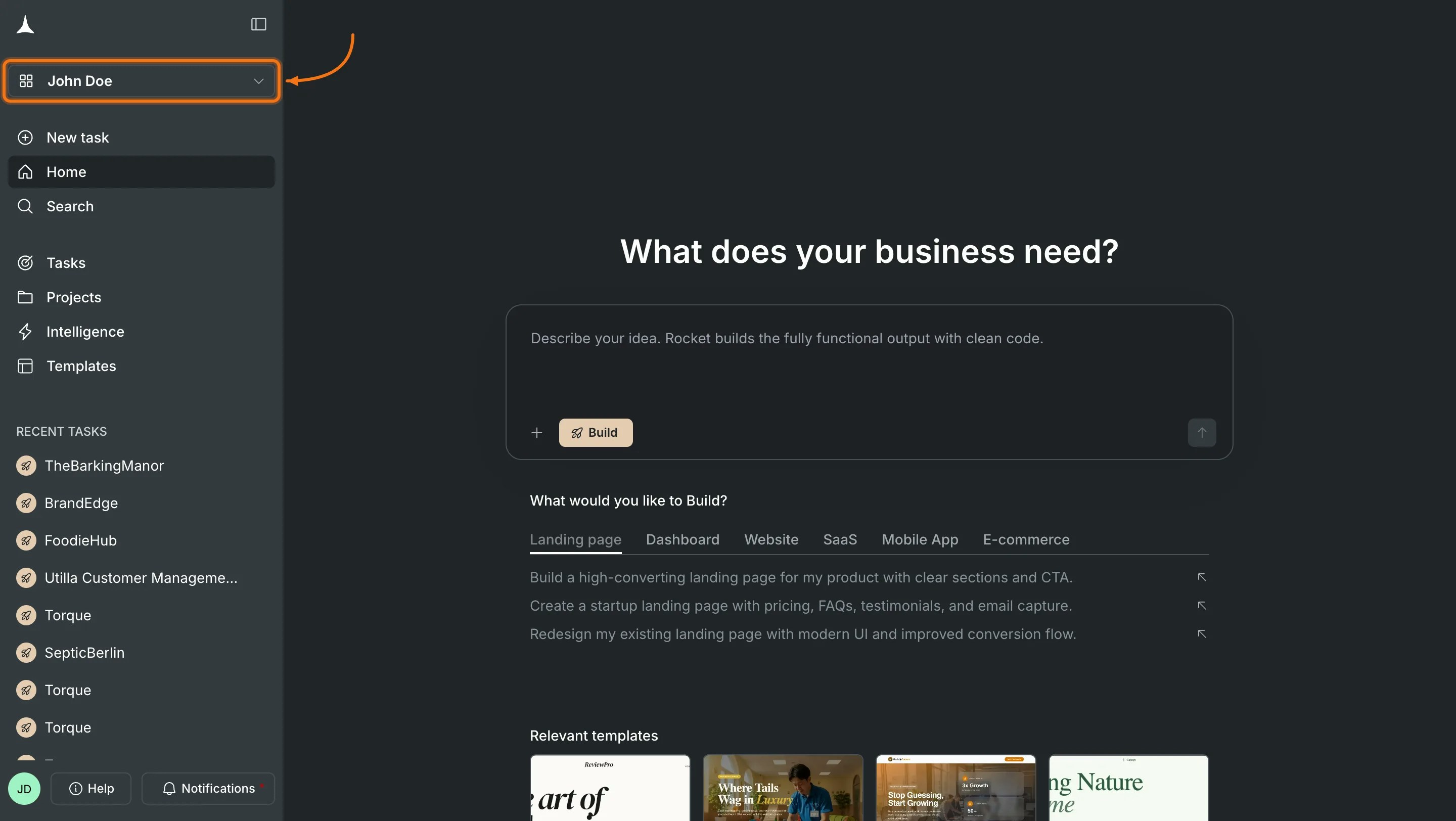
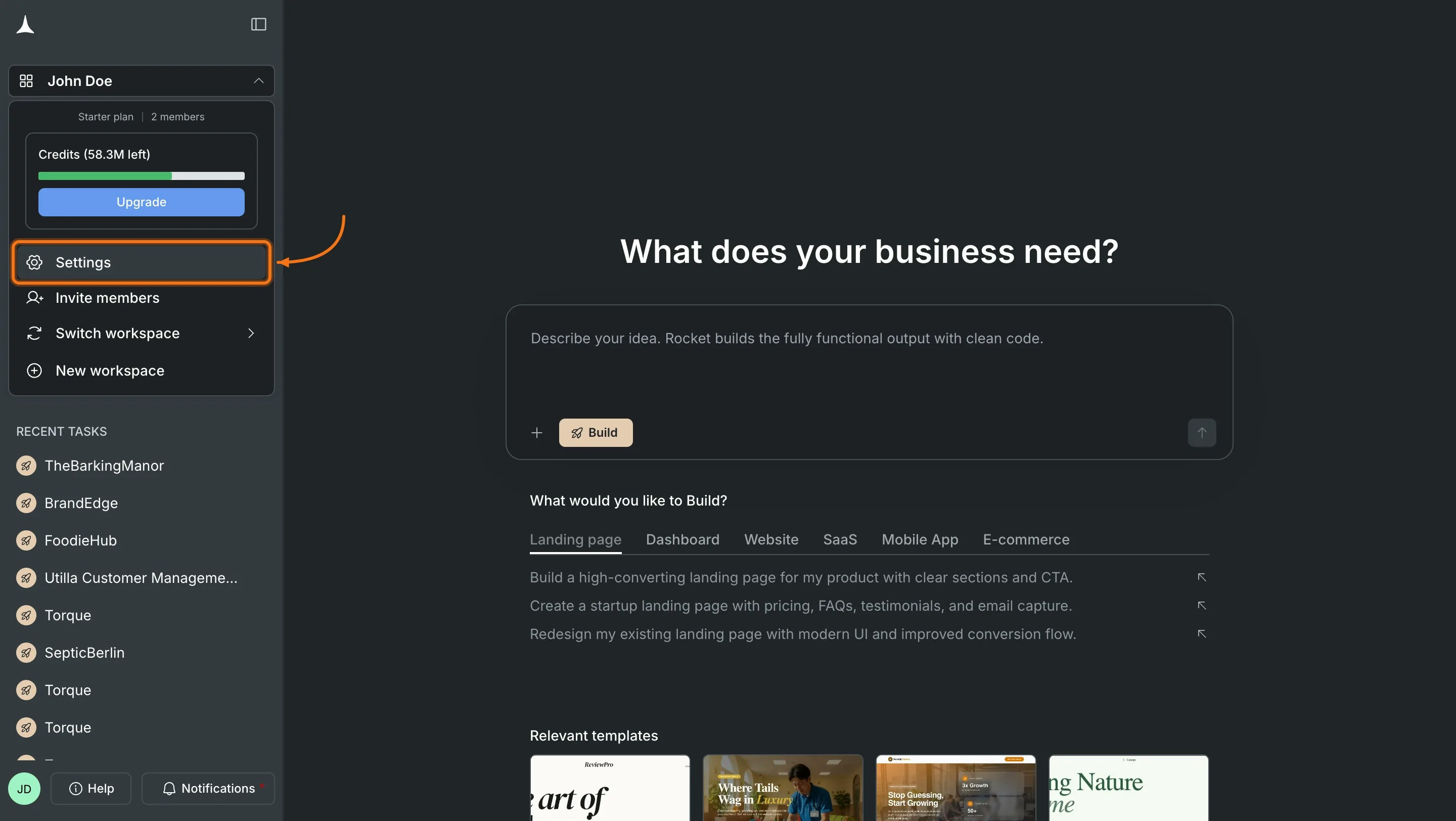
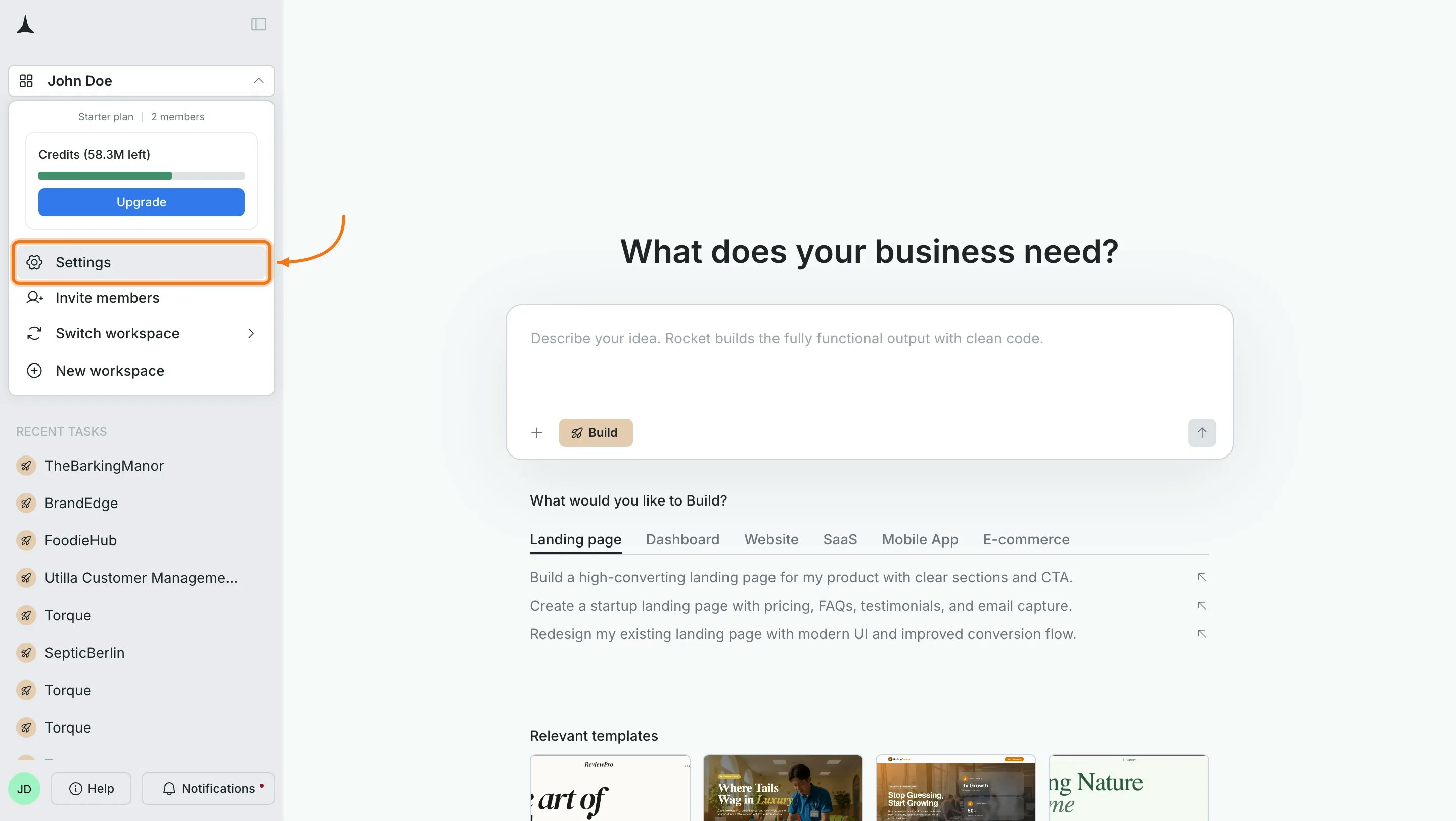
    Click your profile in the top-left, then select **Settings**.
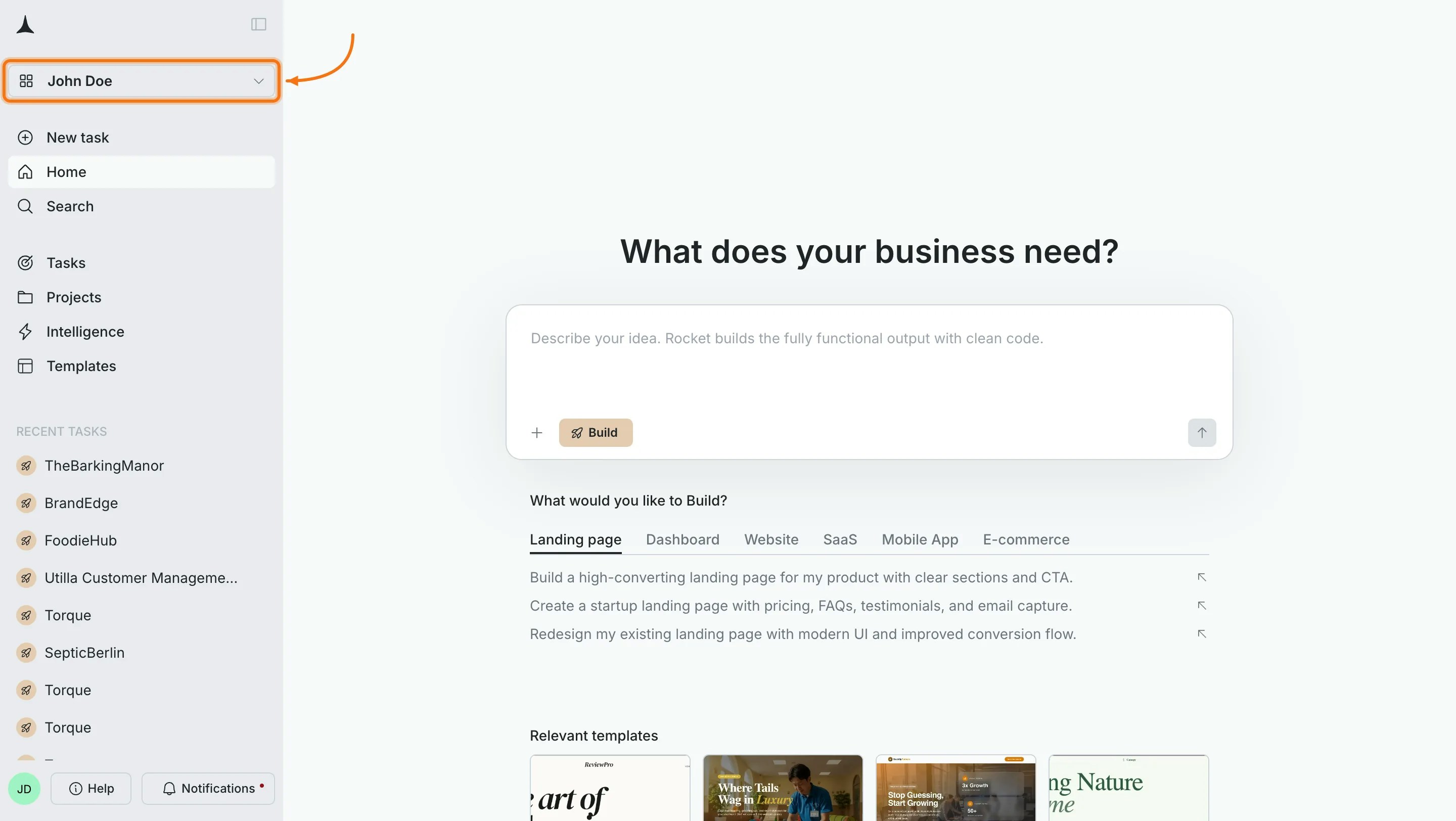
    <Frame caption="Open Settings from your profile">
      <img src="https://mintcdn.com/dhiwisepvtltd-5e04e6a4/kK5WOZR2-IAgA9O3/images/build-docs/connectors/supabase/overview/web-browser/supabase-settings-profile-light.webp?fit=max&auto=format&n=kK5WOZR2-IAgA9O3&q=85&s=4e9b4b6c2435c50238daf3fe11515eea" alt="Profile menu with Settings option highlighted." className="theme-image light-image" width="2880" height="1624" data-path="images/build-docs/connectors/supabase/overview/web-browser/supabase-settings-profile-light.webp" />

      <img src="https://mintcdn.com/dhiwisepvtltd-5e04e6a4/kK5WOZR2-IAgA9O3/images/build-docs/connectors/supabase/overview/web-browser/supabase-settings-profile-dark.webp?fit=max&auto=format&n=kK5WOZR2-IAgA9O3&q=85&s=79439f388a58ccb8f1375aba332a0096" alt="Profile menu with Settings option highlighted." className="theme-image dark-image" width="2880" height="1624" data-path="images/build-docs/connectors/supabase/overview/web-browser/supabase-settings-profile-dark.webp" />
    </Frame>

    Open the **Connectors** tab, click the **Supabase** card, and follow the OAuth flow.
    <Frame caption="Supabase card in workspace Settings">
      <img src="https://mintcdn.com/dhiwisepvtltd-5e04e6a4/kK5WOZR2-IAgA9O3/images/build-docs/connectors/supabase/overview/web-browser/supabase-settings-light.webp?fit=max&auto=format&n=kK5WOZR2-IAgA9O3&q=85&s=8af57a98f4da6e24373bf9a913bf354f" alt="Workspace Settings showing the Connectors tab with the Supabase card." className="theme-image light-image" width="2880" height="1624" data-path="images/build-docs/connectors/supabase/overview/web-browser/supabase-settings-light.webp" />

      <img src="https://mintcdn.com/dhiwisepvtltd-5e04e6a4/kK5WOZR2-IAgA9O3/images/build-docs/connectors/supabase/overview/web-browser/supabase-settings-dark.webp?fit=max&auto=format&n=kK5WOZR2-IAgA9O3&q=85&s=730f9f2203ceeb961a95d3fb75589854" alt="Workspace Settings showing the Connectors tab with the Supabase card." className="theme-image dark-image" width="2880" height="1624" data-path="images/build-docs/connectors/supabase/overview/web-browser/supabase-settings-dark.webp" />
    </Frame>

    <Card title="Manage workspace connectors" icon="plug" href="/getting-started/workspace/connectors" horizontal arrow="true">
      Connect once from Settings and it is available to all tasks.
    </Card>

    **Option 2: From the Connectors tab inside a task**

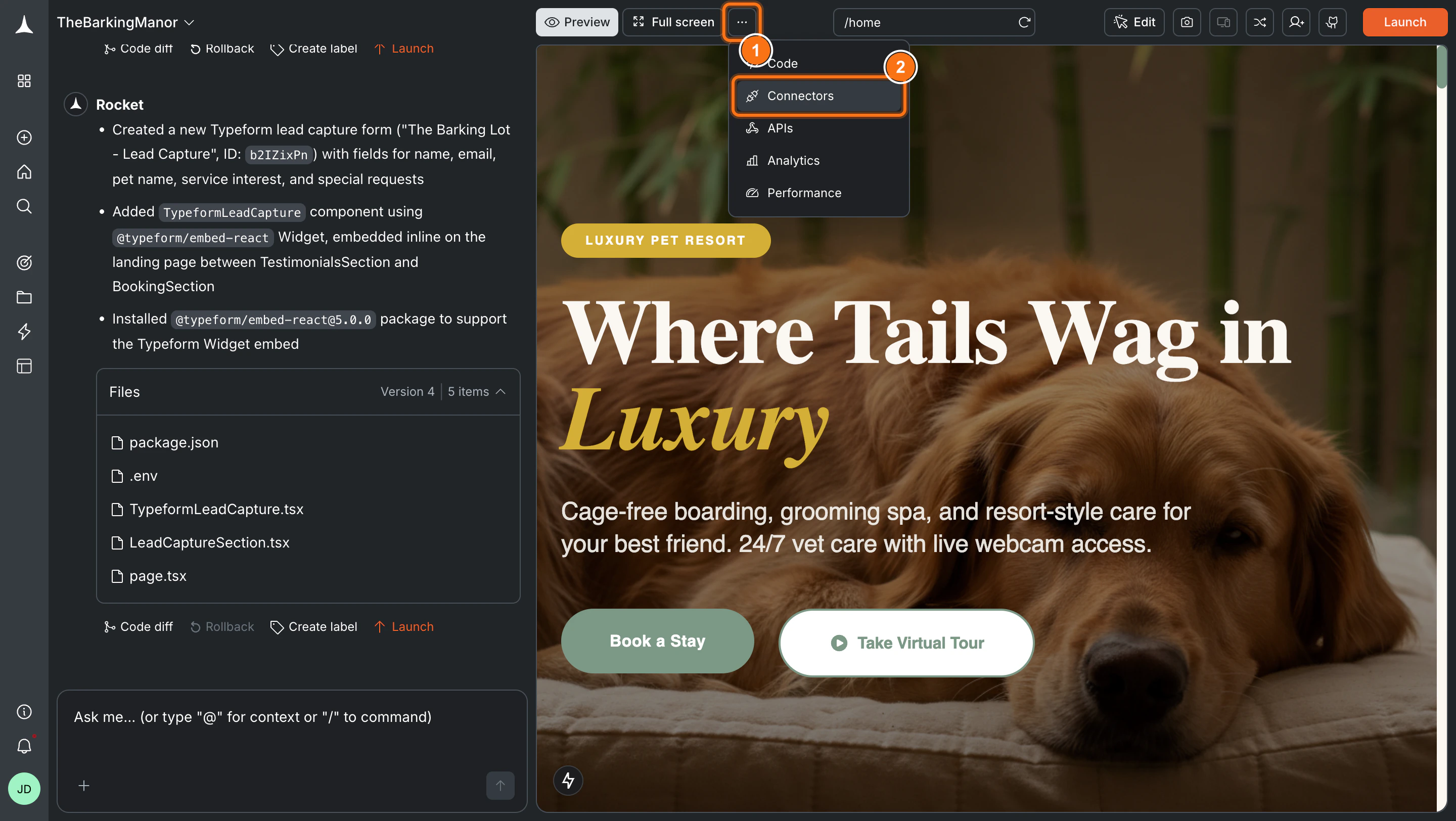
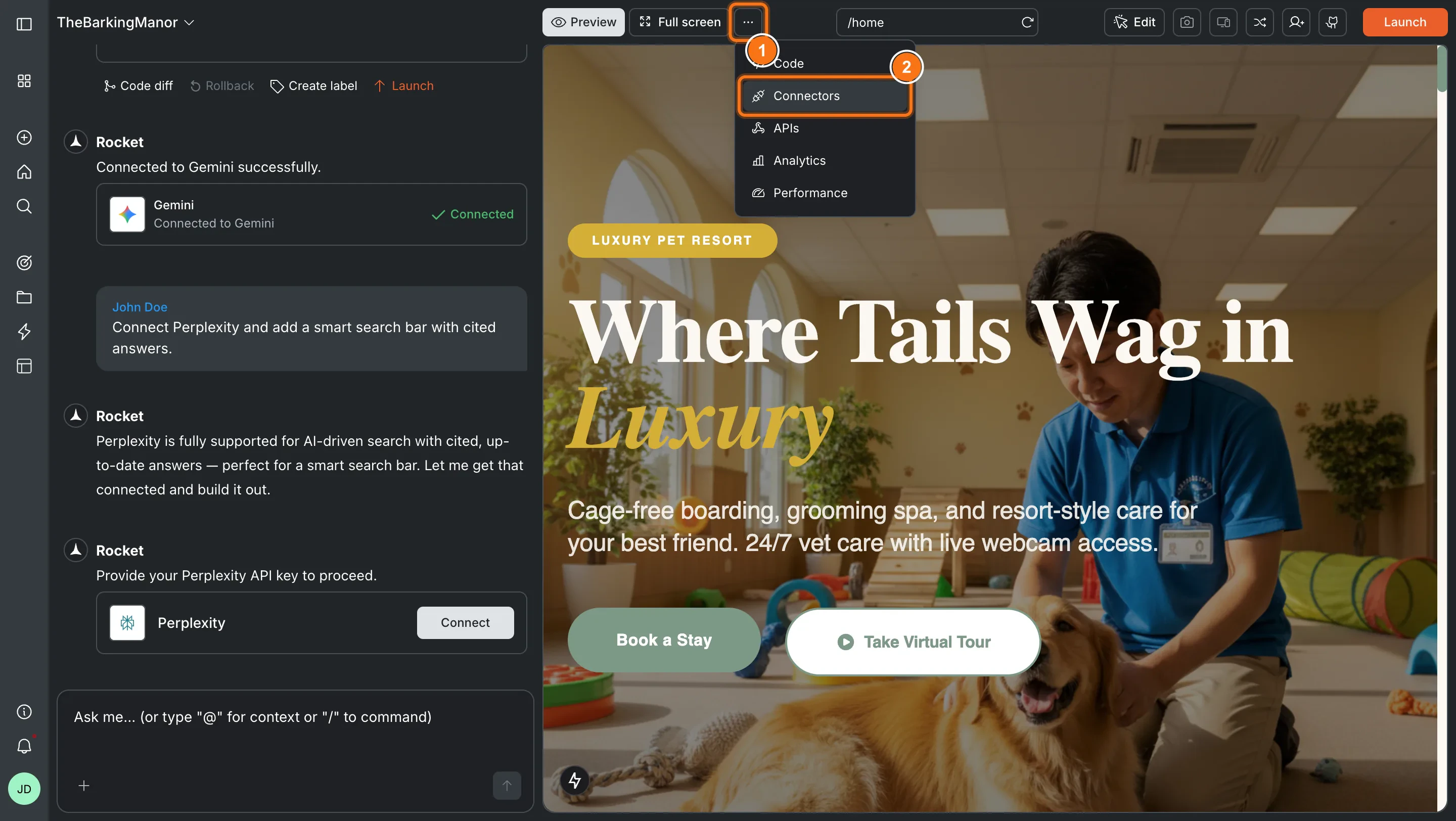
    Click the **`...`** button in the preview toolbar, then select **Connectors**.
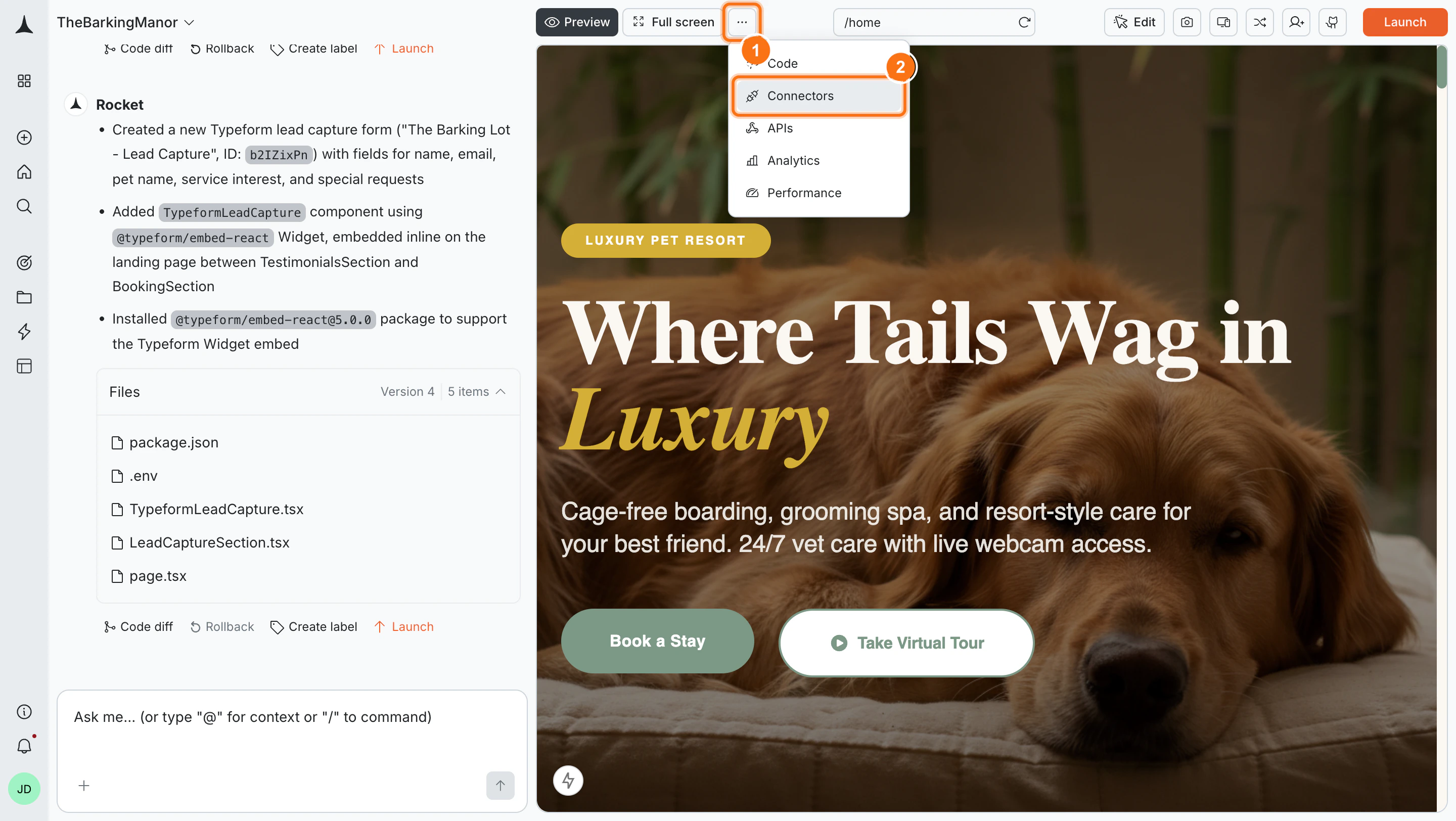
    <Frame caption="Open Connectors from the toolbar">
      <img src="https://mintcdn.com/dhiwisepvtltd-5e04e6a4/2lqYWidv_xVHKfL6/images/build-docs/connectors/shared/connectors-tab-open-light.webp?fit=max&auto=format&n=2lqYWidv_xVHKfL6&q=85&s=7bd785a0e878564054e08328b2aa3d6b" alt="Toolbar dropdown with Connectors option highlighted." className="theme-image light-image" width="2880" height="1624" data-path="images/build-docs/connectors/shared/connectors-tab-open-light.webp" />

      <img src="https://mintcdn.com/dhiwisepvtltd-5e04e6a4/2lqYWidv_xVHKfL6/images/build-docs/connectors/shared/connectors-tab-open-dark.webp?fit=max&auto=format&n=2lqYWidv_xVHKfL6&q=85&s=d047040372d776cb47e4e483de8eeb8d" alt="Toolbar dropdown with Connectors option highlighted." className="theme-image dark-image" width="2880" height="1624" data-path="images/build-docs/connectors/shared/connectors-tab-open-dark.webp" />
    </Frame>

    Click the **Supabase** card in the Connectors panel.
    <Frame caption="Supabase card in the Connectors panel">
      <img src="https://mintcdn.com/dhiwisepvtltd-5e04e6a4/kK5WOZR2-IAgA9O3/images/build-docs/connectors/supabase/overview/web-browser/supabase-connectors-tab-light.webp?fit=max&auto=format&n=kK5WOZR2-IAgA9O3&q=85&s=f80376b0ee3cfc867f1b66c47fff88c8" alt="Connectors panel showing the Supabase card." className="theme-image light-image" width="2880" height="1624" data-path="images/build-docs/connectors/supabase/overview/web-browser/supabase-connectors-tab-light.webp" />

      <img src="https://mintcdn.com/dhiwisepvtltd-5e04e6a4/kK5WOZR2-IAgA9O3/images/build-docs/connectors/supabase/overview/web-browser/supabase-connectors-tab-dark.webp?fit=max&auto=format&n=kK5WOZR2-IAgA9O3&q=85&s=4f3609eaba118bee4c910309c784bbbb" alt="Connectors panel showing the Supabase card." className="theme-image dark-image" width="2880" height="1624" data-path="images/build-docs/connectors/supabase/overview/web-browser/supabase-connectors-tab-dark.webp" />
    </Frame>

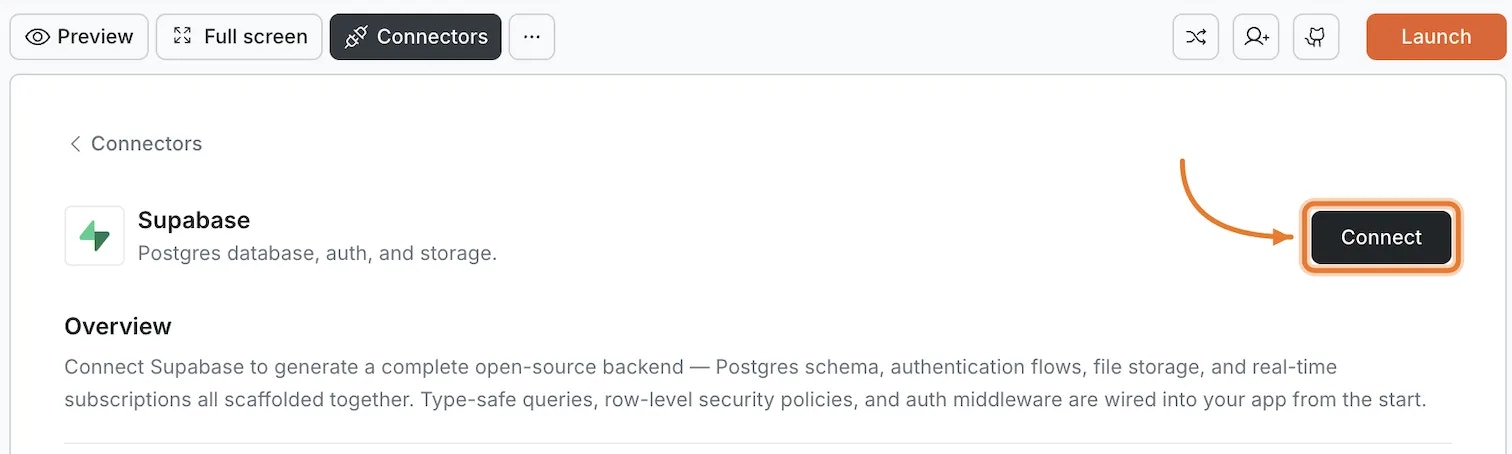
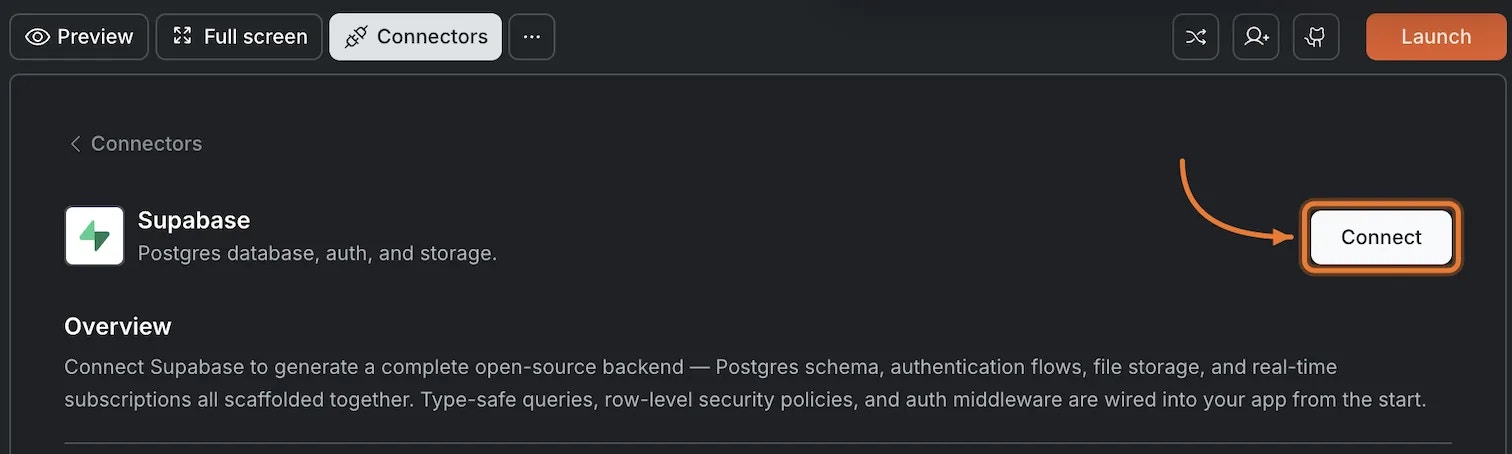
    Then click **Connect**.

    <Frame caption="Supabase Connect button">
      <img src="https://mintcdn.com/dhiwisepvtltd-5e04e6a4/kK5WOZR2-IAgA9O3/images/build-docs/connectors/supabase/overview/web-browser/supabase-click-connect-light.webp?fit=max&auto=format&n=kK5WOZR2-IAgA9O3&q=85&s=7d4e74b05cd0fec116b008b12f301ccc" alt="Supabase card with Connect button highlighted." className="theme-image light-image" width="1512" height="454" data-path="images/build-docs/connectors/supabase/overview/web-browser/supabase-click-connect-light.webp" />

      <img src="https://mintcdn.com/dhiwisepvtltd-5e04e6a4/kK5WOZR2-IAgA9O3/images/build-docs/connectors/supabase/overview/web-browser/supabase-click-connect-dark.webp?fit=max&auto=format&n=kK5WOZR2-IAgA9O3&q=85&s=c57bc4c8a87a9efb508c76ef4e6c90e4" alt="Supabase card with Connect button highlighted." className="theme-image dark-image" width="1512" height="454" data-path="images/build-docs/connectors/supabase/overview/web-browser/supabase-click-connect-dark.webp" />
    </Frame>

    **Option 3: From chat**

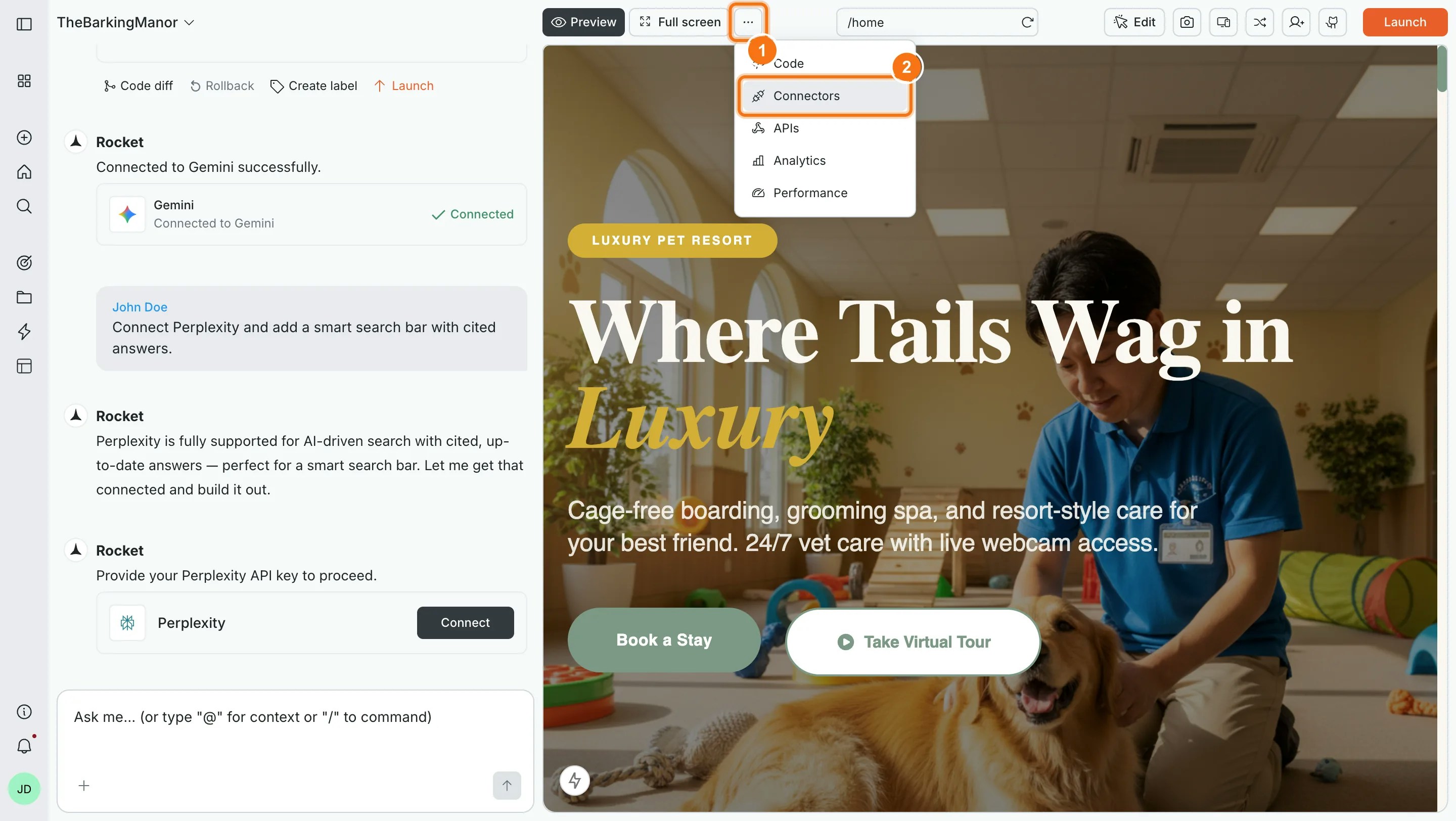
    Type a prompt that mentions auth, database, or file storage. Rocket detects the intent and shows a **Connect** button inline.
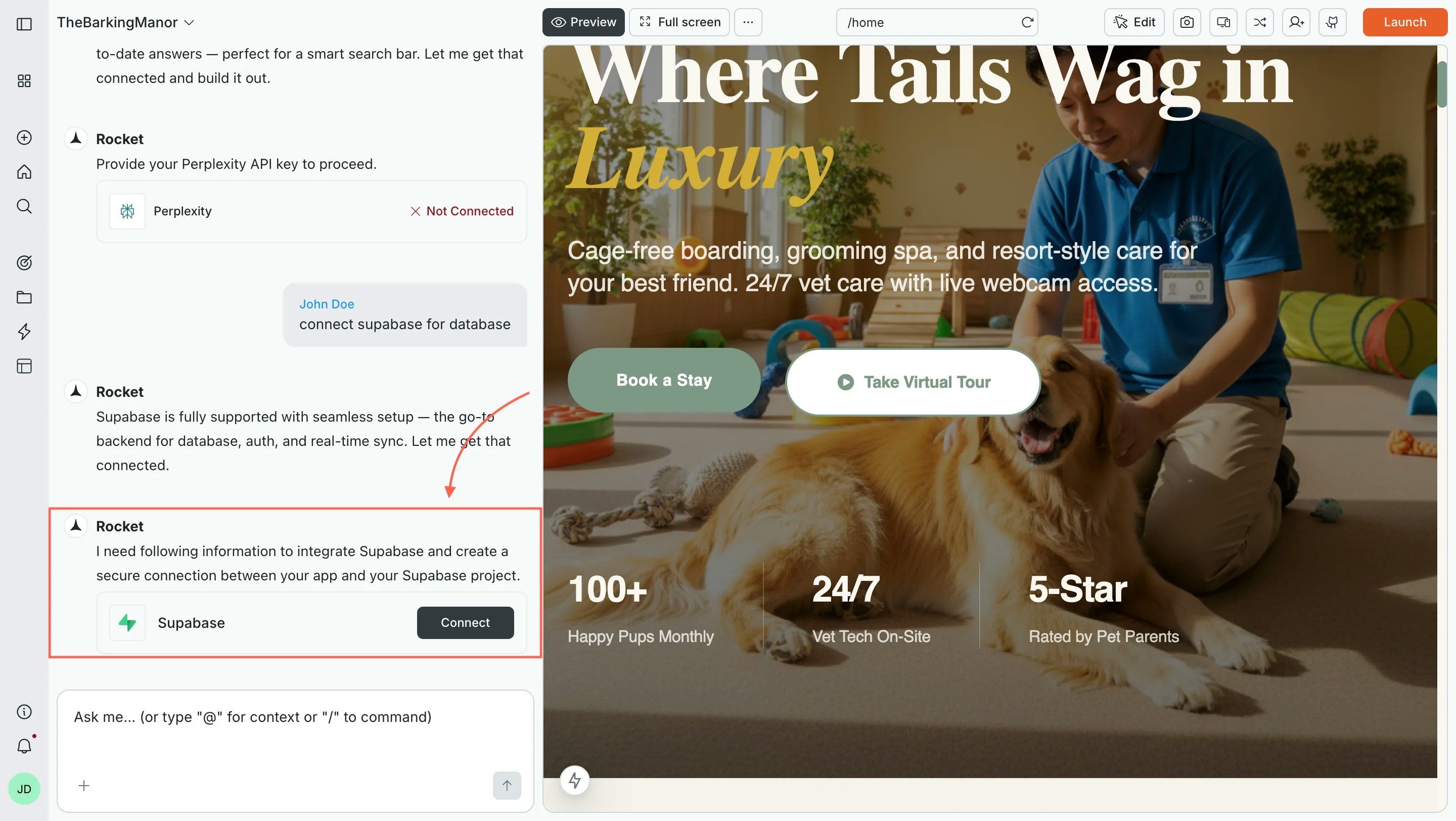
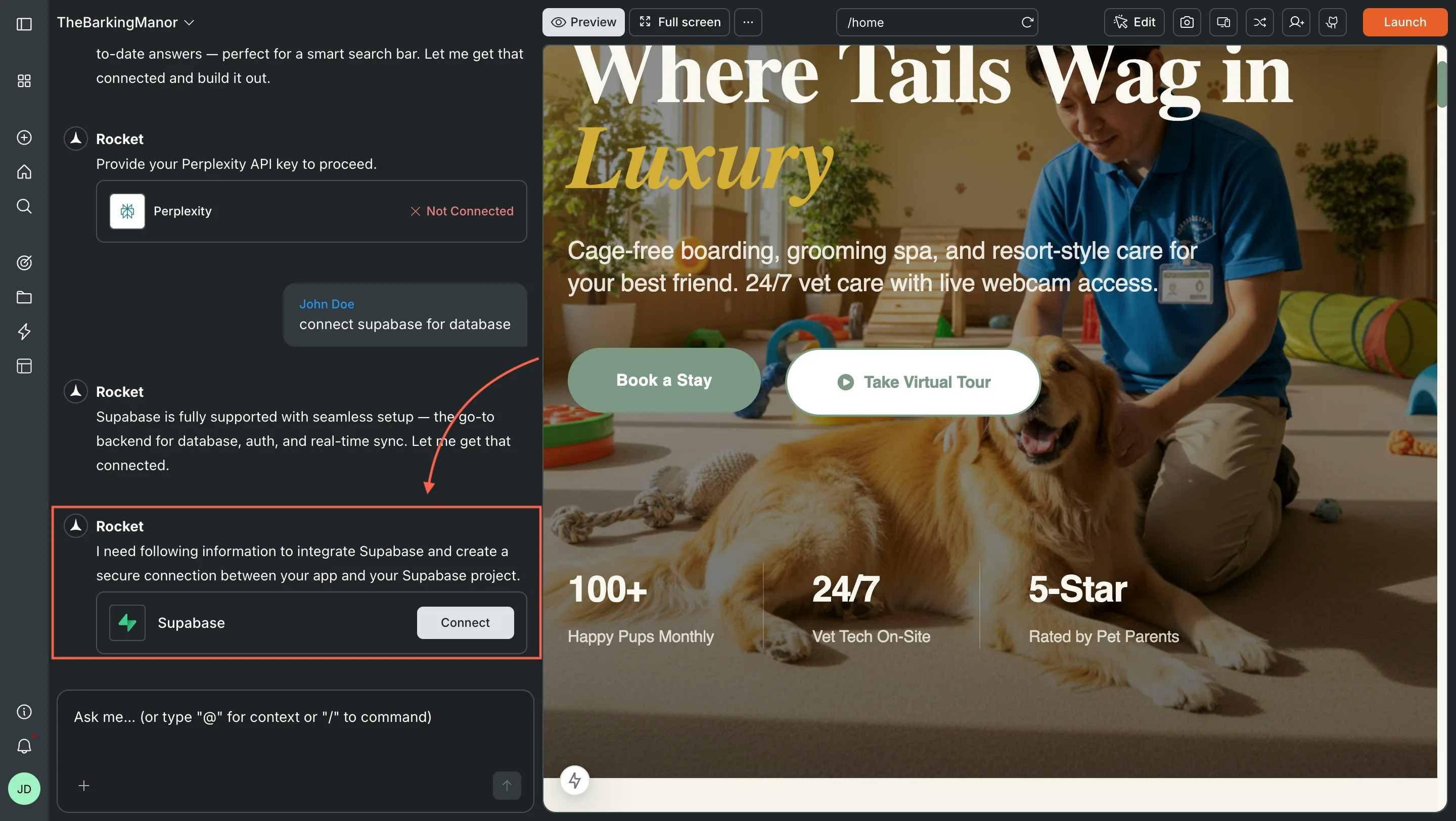
    <Frame caption="Rocket prompts you to connect Supabase from chat">
      <img src="https://mintcdn.com/dhiwisepvtltd-5e04e6a4/kK5WOZR2-IAgA9O3/images/build-docs/connectors/supabase/overview/web-browser/supabase-through-chat-light.webp?fit=max&auto=format&n=kK5WOZR2-IAgA9O3&q=85&s=80268715554eee4300436776251f950c" alt="Rocket chat panel showing a Connect prompt for Supabase." className="theme-image light-image" width="2880" height="1624" data-path="images/build-docs/connectors/supabase/overview/web-browser/supabase-through-chat-light.webp" />

      <img src="https://mintcdn.com/dhiwisepvtltd-5e04e6a4/kK5WOZR2-IAgA9O3/images/build-docs/connectors/supabase/overview/web-browser/supabase-through-chat-dark.webp?fit=max&auto=format&n=kK5WOZR2-IAgA9O3&q=85&s=ec0b938ea22731db2e953ede22e4e313" alt="Rocket chat panel showing a Connect prompt for Supabase." className="theme-image dark-image" width="2880" height="1624" data-path="images/build-docs/connectors/supabase/overview/web-browser/supabase-through-chat-dark.webp" />
    </Frame>

    **After clicking Connect**

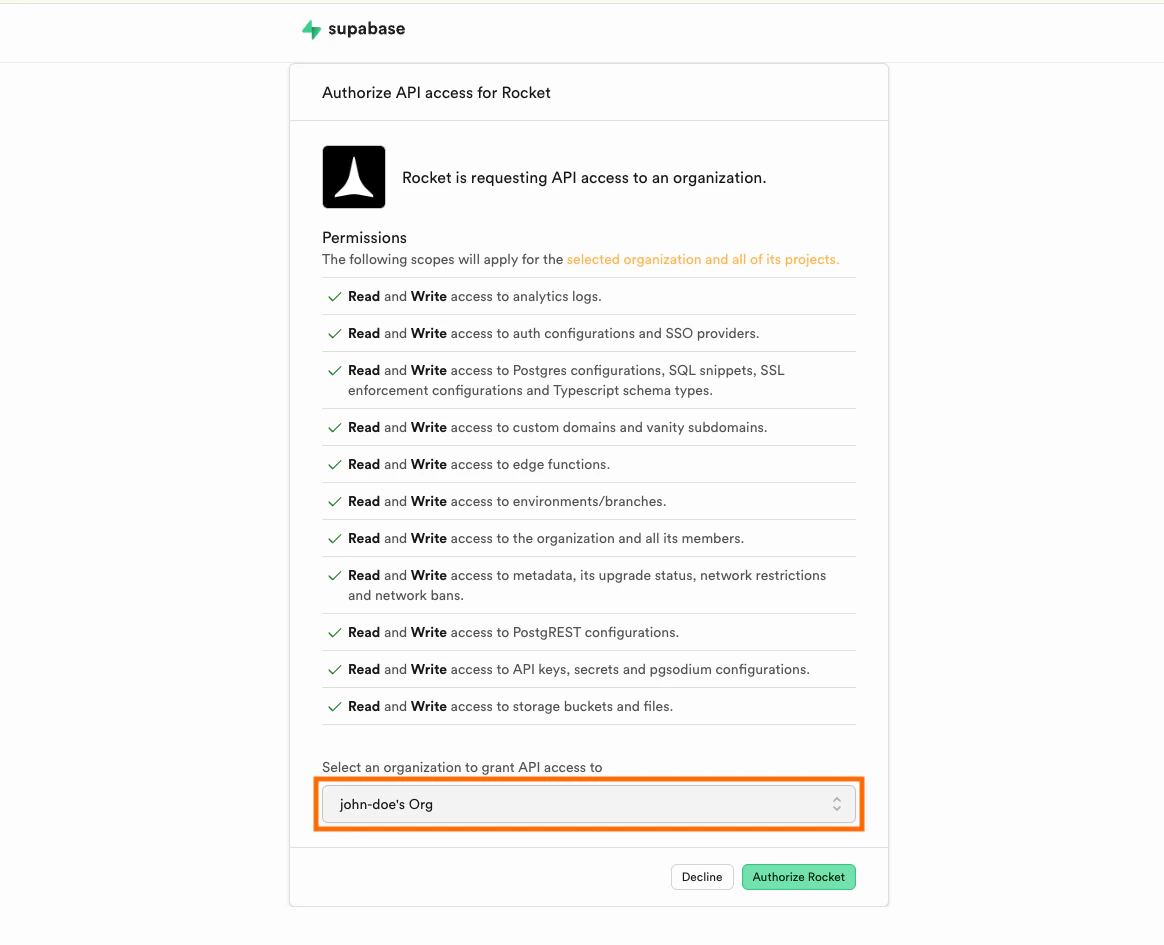
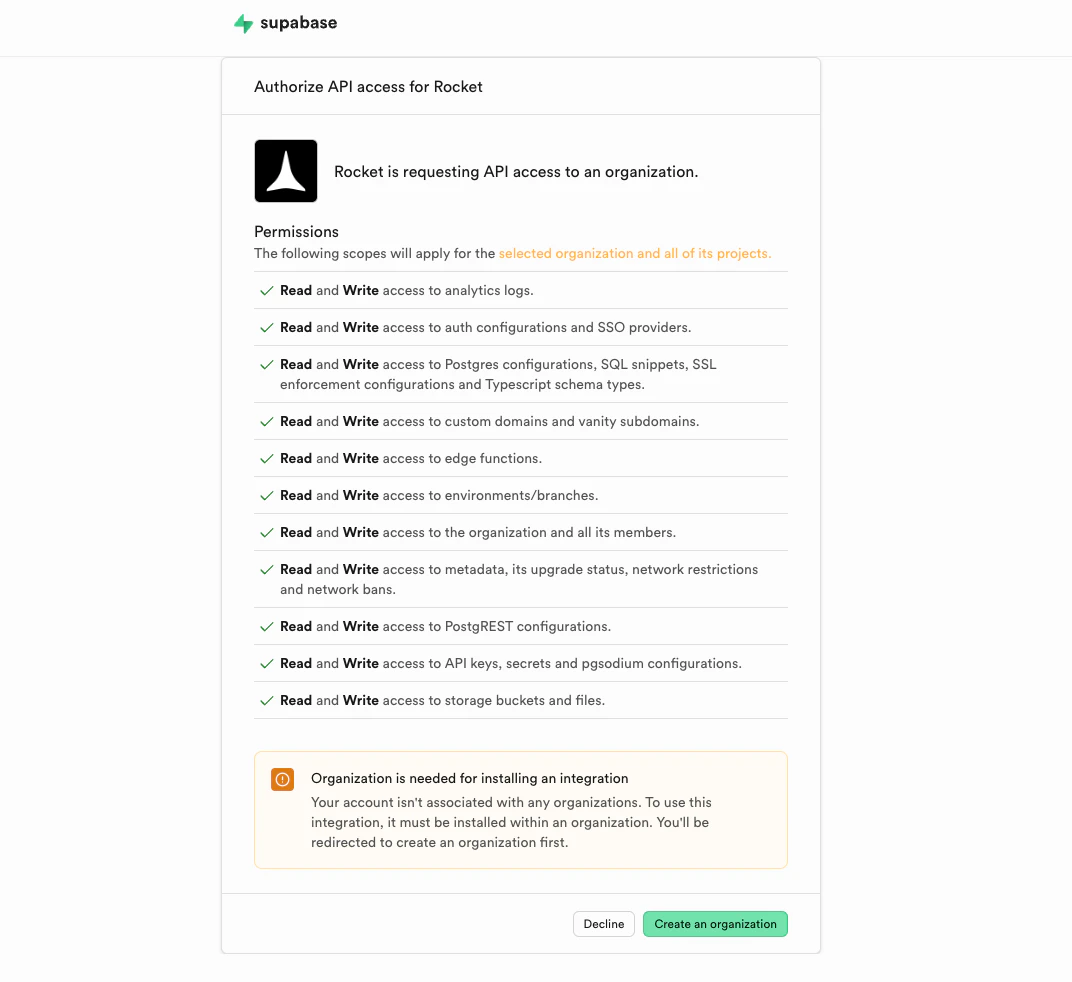
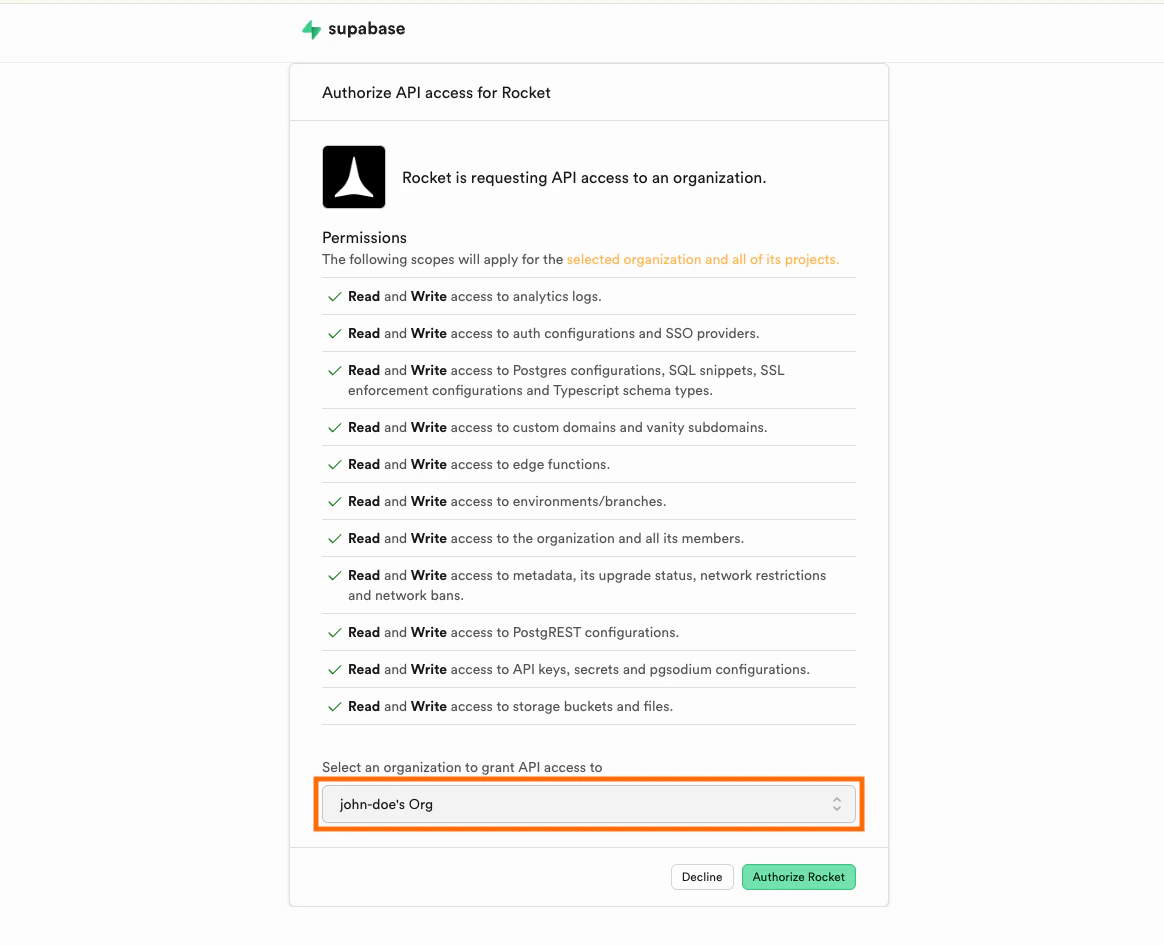
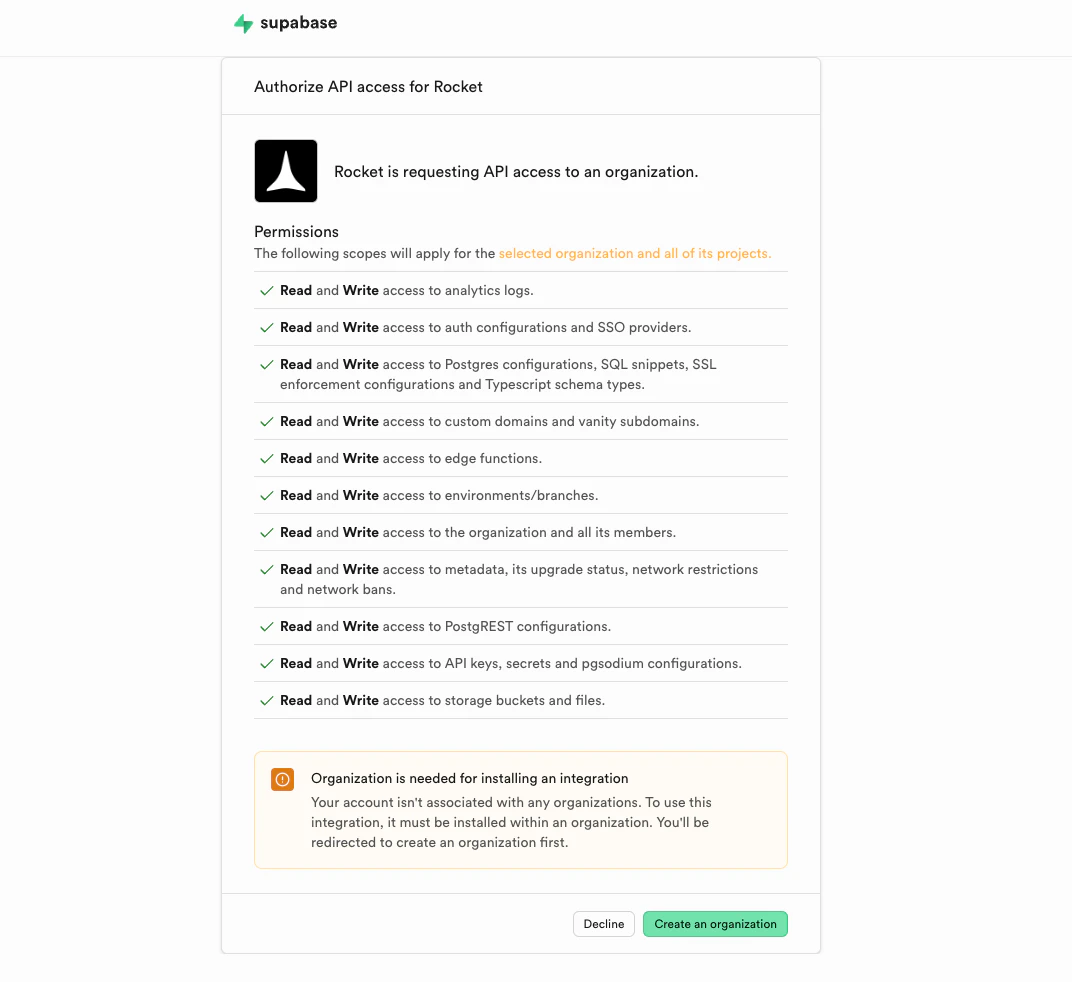
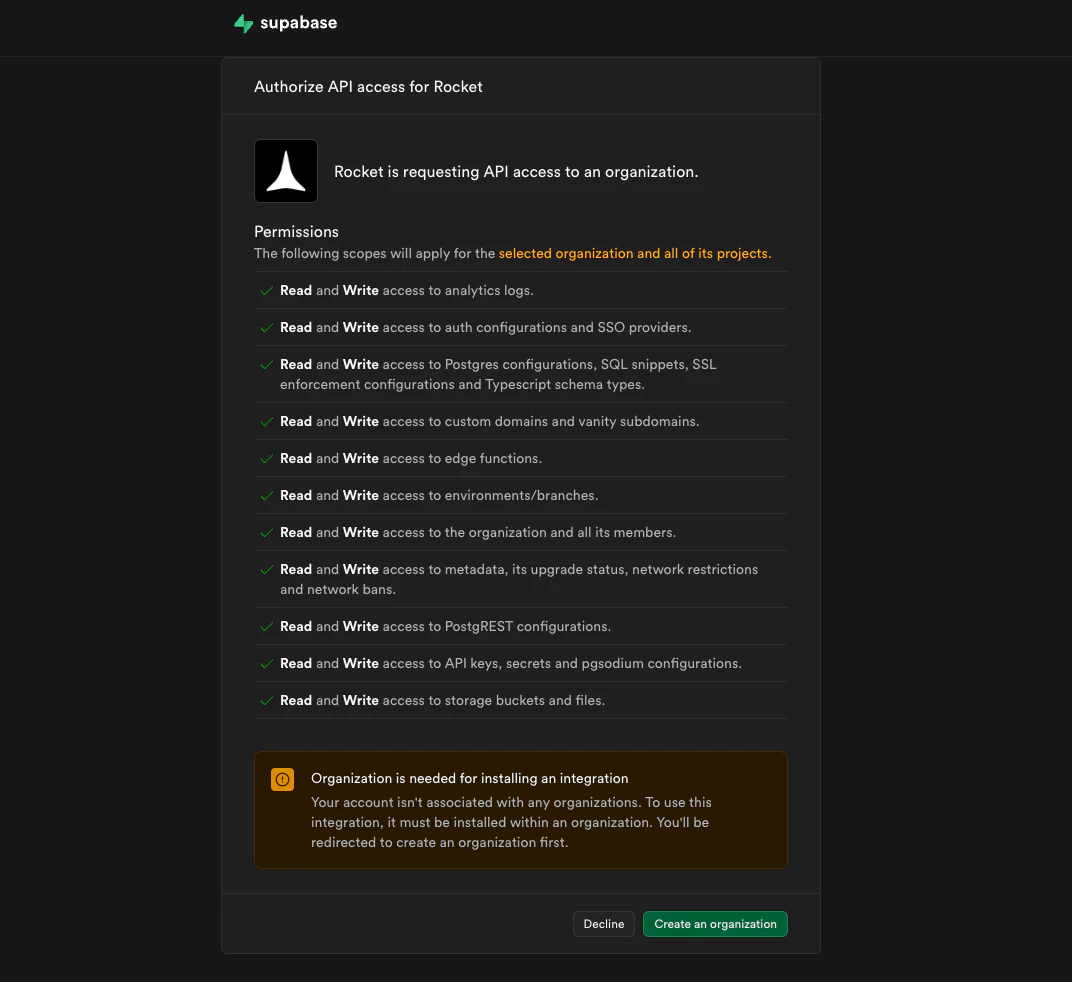
    A Supabase authorization screen opens. Sign in, review the permissions, and click **Authorize Rocket**.
    <Frame caption="Supabase authorization screen">
      <img src="https://mintcdn.com/dhiwisepvtltd-5e04e6a4/2lqYWidv_xVHKfL6/images/build-docs/connectors/supabase/overview/web-browser/authorize-create-organization-light.webp?fit=max&auto=format&n=2lqYWidv_xVHKfL6&q=85&s=7d20e986661e33a2413eadb8d5a2bbac" alt="Supabase OAuth authorization screen." className="theme-image light-image" width="1072" height="982" data-path="images/build-docs/connectors/supabase/overview/web-browser/authorize-create-organization-light.webp" />

      <img src="https://mintcdn.com/dhiwisepvtltd-5e04e6a4/2lqYWidv_xVHKfL6/images/build-docs/connectors/supabase/overview/web-browser/authorize-create-organization-dark.webp?fit=max&auto=format&n=2lqYWidv_xVHKfL6&q=85&s=83db0ac369fb2ba9913c82ab7b311fa5" alt="Supabase OAuth authorization screen." className="theme-image dark-image" width="1072" height="982" data-path="images/build-docs/connectors/supabase/overview/web-browser/authorize-create-organization-dark.webp" />
    </Frame>

    You will then be asked to select or create an organization and link a project.

    <AccordionGroup>
      <Accordion title="Create a Supabase organization">
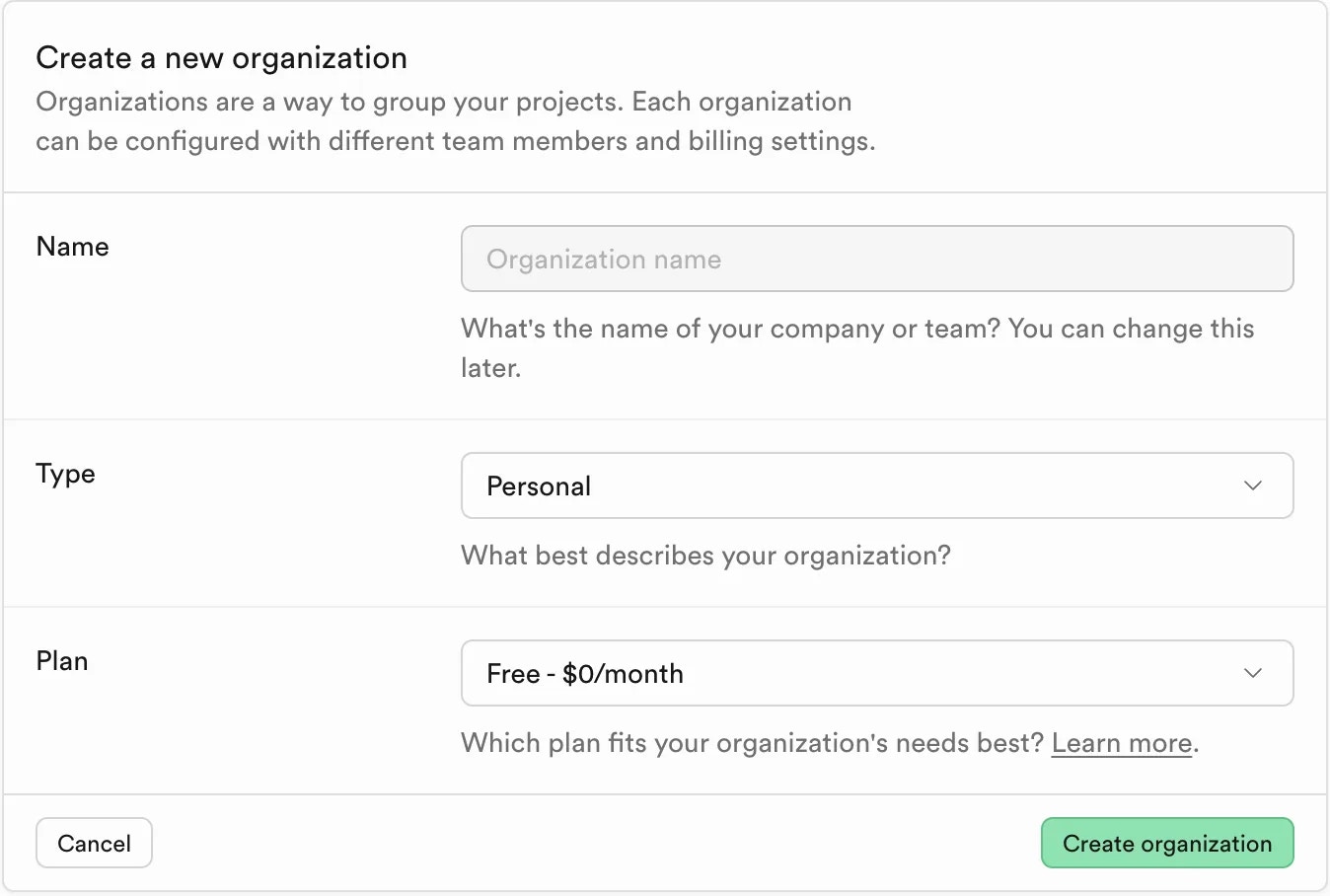
        If you do not have one yet, you will be prompted to create one first.
        <Frame caption="Create a new Supabase organization">
          <img src="https://mintcdn.com/dhiwisepvtltd-5e04e6a4/kK5WOZR2-IAgA9O3/images/build-docs/connectors/supabase/overview/web-browser/create-organization-light.webp?fit=max&auto=format&n=kK5WOZR2-IAgA9O3&q=85&s=a15a0cee86cae077d278fb62e5ccf546" alt="Create Supabase org." className="theme-image light-image" width="1348" height="908" data-path="images/build-docs/connectors/supabase/overview/web-browser/create-organization-light.webp" />

          <img src="https://mintcdn.com/dhiwisepvtltd-5e04e6a4/kK5WOZR2-IAgA9O3/images/build-docs/connectors/supabase/overview/web-browser/create-organization-dark.webp?fit=max&auto=format&n=kK5WOZR2-IAgA9O3&q=85&s=46ec2964c6230e02aa3f6ff49e5f7f5a" alt="Create Supabase org." className="theme-image dark-image" width="1348" height="908" data-path="images/build-docs/connectors/supabase/overview/web-browser/create-organization-dark.webp" />
        </Frame>

        Click **Create organization**. Rocket redirects you to select it and continue.
      </Accordion>

      <Accordion title="Select an existing organization">
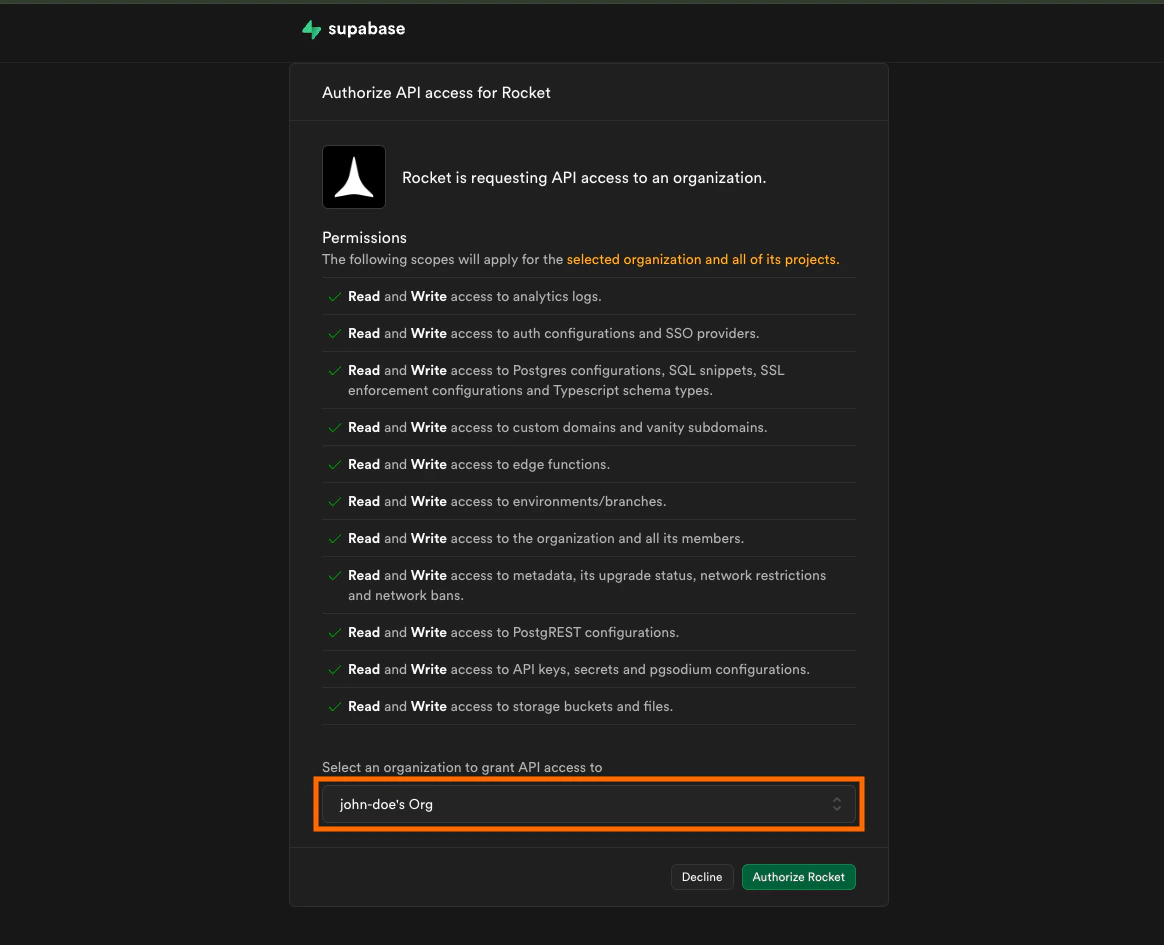
        Choose your organization from the dropdown, then click **Authorize Rocket**.

        <Frame caption="Select your Supabase organization">
          <img src="https://mintcdn.com/dhiwisepvtltd-5e04e6a4/2lqYWidv_xVHKfL6/images/build-docs/connectors/supabase/overview/web-browser/select-organization-light.webp?fit=max&auto=format&n=2lqYWidv_xVHKfL6&q=85&s=812437c68eb16d1912992a91215384d4" alt="Supabase org selection screen." className="theme-image light-image" width="1164" height="945" data-path="images/build-docs/connectors/supabase/overview/web-browser/select-organization-light.webp" />

          <img src="https://mintcdn.com/dhiwisepvtltd-5e04e6a4/2lqYWidv_xVHKfL6/images/build-docs/connectors/supabase/overview/web-browser/select-organization-dark.webp?fit=max&auto=format&n=2lqYWidv_xVHKfL6&q=85&s=0a6b671a4f258b854845c8e6e01be87c" alt="Supabase org selection screen." className="theme-image dark-image" width="1164" height="945" data-path="images/build-docs/connectors/supabase/overview/web-browser/select-organization-dark.webp" />
        </Frame>
      </Accordion>

      <Accordion title="Link a Supabase project" defaultOpen="true">
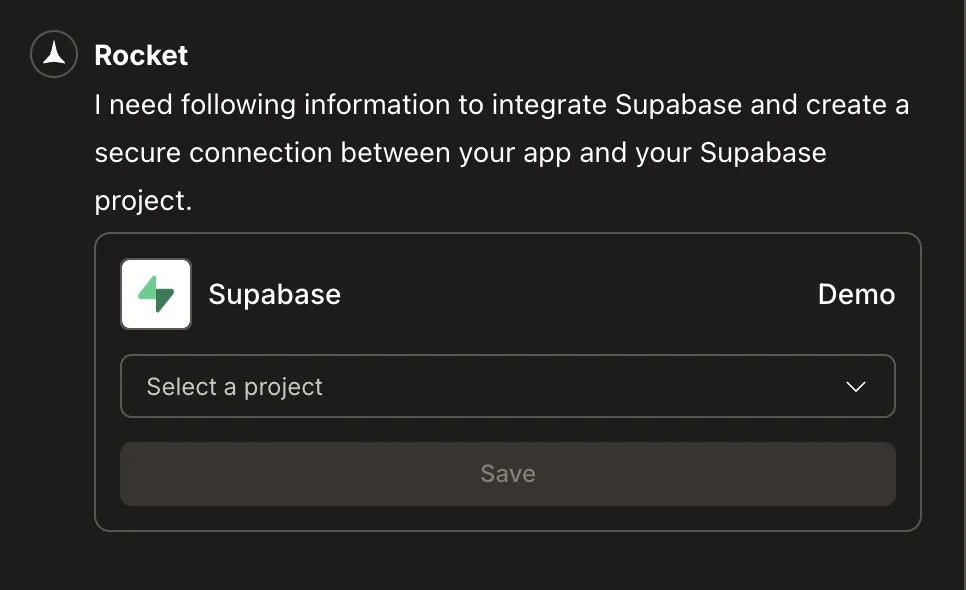
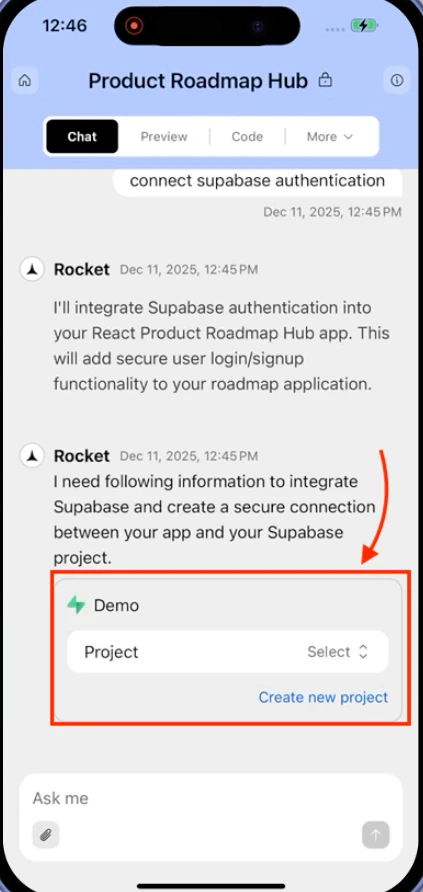
        Once authorized, you will be prompted to link a project to this task.

        **Select an existing project** from the dropdown.

        <Frame caption="Select a Supabase project">
          <img src="https://mintcdn.com/dhiwisepvtltd-5e04e6a4/kK5WOZR2-IAgA9O3/images/build-docs/connectors/supabase/overview/web-browser/select-existing-project-light.webp?fit=max&auto=format&n=kK5WOZR2-IAgA9O3&q=85&s=578964f9b0b172dce74044911f9c130b" alt="Select Supabase project." className="theme-image light-image" width="966" height="590" data-path="images/build-docs/connectors/supabase/overview/web-browser/select-existing-project-light.webp" />

          <img src="https://mintcdn.com/dhiwisepvtltd-5e04e6a4/kK5WOZR2-IAgA9O3/images/build-docs/connectors/supabase/overview/web-browser/select-existing-project-dark.webp?fit=max&auto=format&n=kK5WOZR2-IAgA9O3&q=85&s=2e60c1a344356cfc29dd179d7259ee1b" alt="Select Supabase project." className="theme-image dark-image" width="966" height="590" data-path="images/build-docs/connectors/supabase/overview/web-browser/select-existing-project-dark.webp" />
        </Frame>

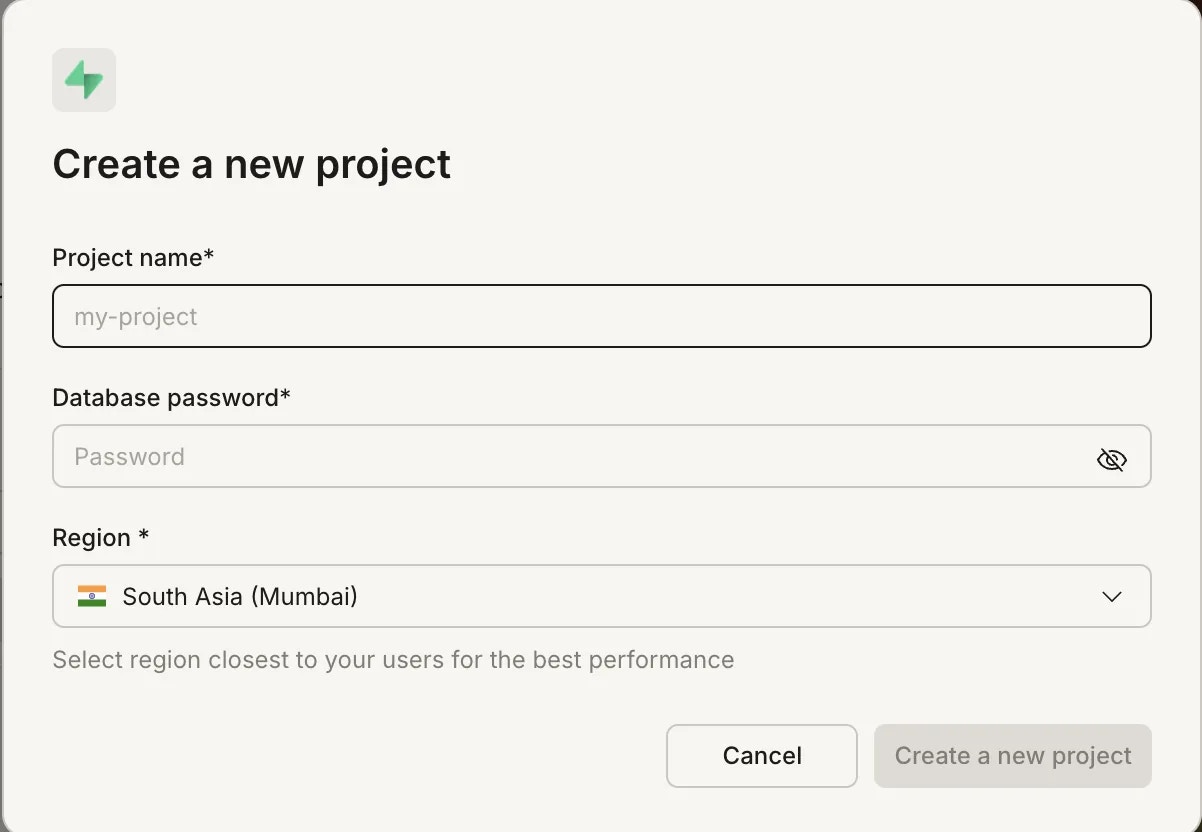
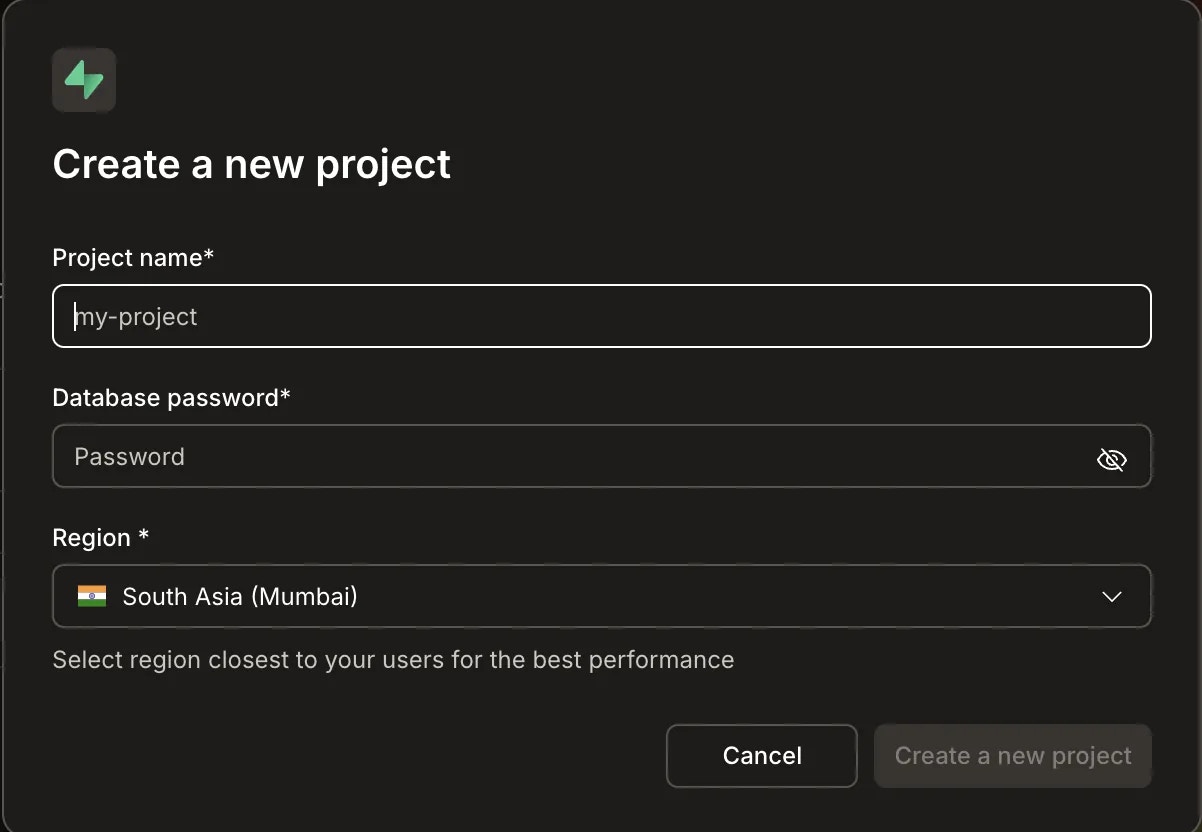
        Or click **Create new Supabase project**, enter a name, password, and region, then click **Create a new project**.

        <Frame caption="Create a new Supabase project">
          <img src="https://mintcdn.com/dhiwisepvtltd-5e04e6a4/kK5WOZR2-IAgA9O3/images/build-docs/connectors/supabase/overview/web-browser/create-new-project-light.webp?fit=max&auto=format&n=kK5WOZR2-IAgA9O3&q=85&s=d3fdcecdba8d969c7a92da2a81d41b9a" alt="Create Supabase project." className="theme-image light-image" width="1202" height="832" data-path="images/build-docs/connectors/supabase/overview/web-browser/create-new-project-light.webp" />

          <img src="https://mintcdn.com/dhiwisepvtltd-5e04e6a4/kK5WOZR2-IAgA9O3/images/build-docs/connectors/supabase/overview/web-browser/create-new-project-dark.webp?fit=max&auto=format&n=kK5WOZR2-IAgA9O3&q=85&s=ee73b12d04c6c445a7188bdf2b354fe5" alt="Create Supabase project." className="theme-image dark-image" width="1202" height="832" data-path="images/build-docs/connectors/supabase/overview/web-browser/create-new-project-dark.webp" />
        </Frame>

        To switch to a different project later, go to **Connectors** and use the Supabase project dropdown.
      </Accordion>

      <Accordion title="Disconnect this task from its Supabase project">
        This removes the linked project from the current task only. Your Supabase account stays connected to the workspace.

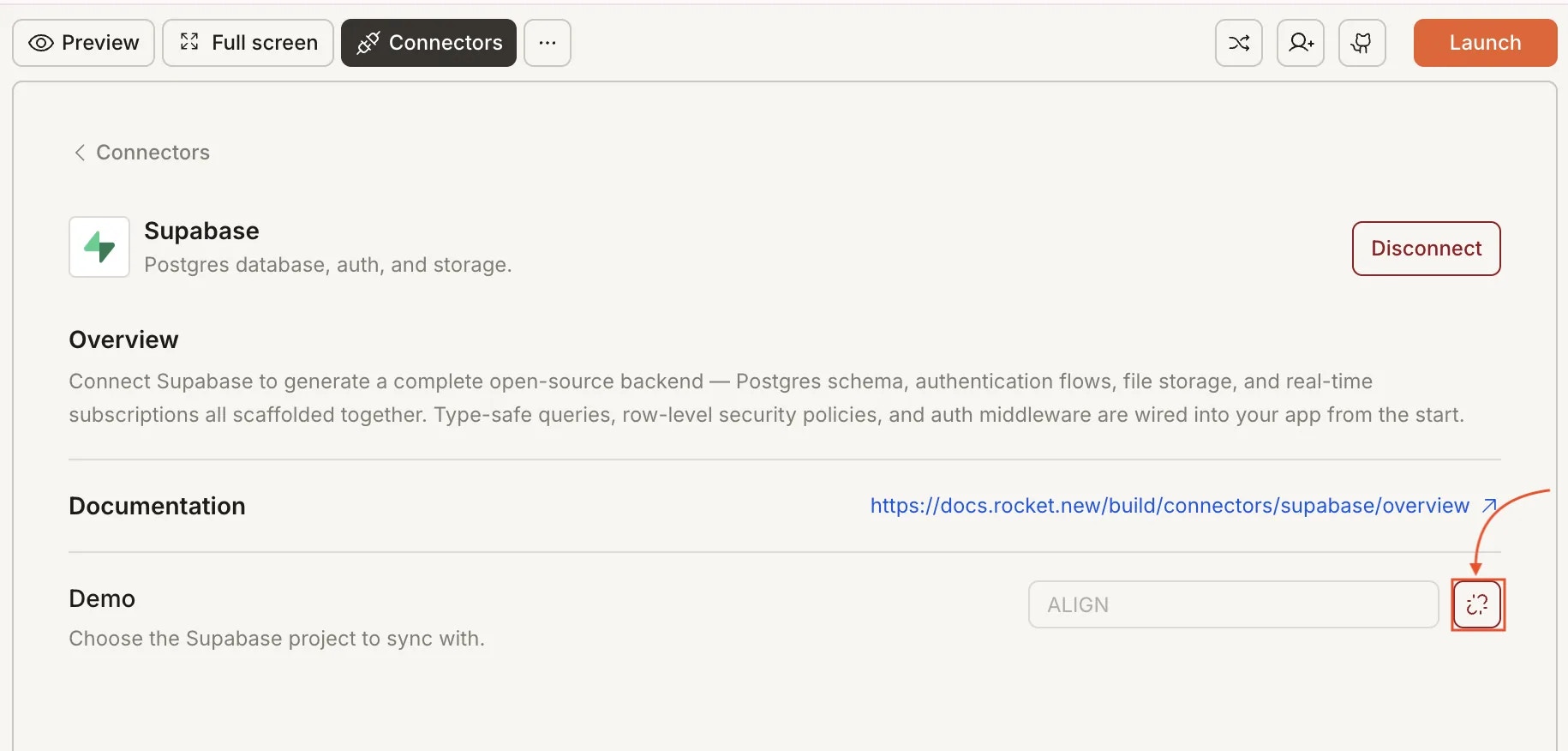
        1. Click the **`...`** button in the toolbar and select **Connectors**.
        2. Click the **Supabase** card.
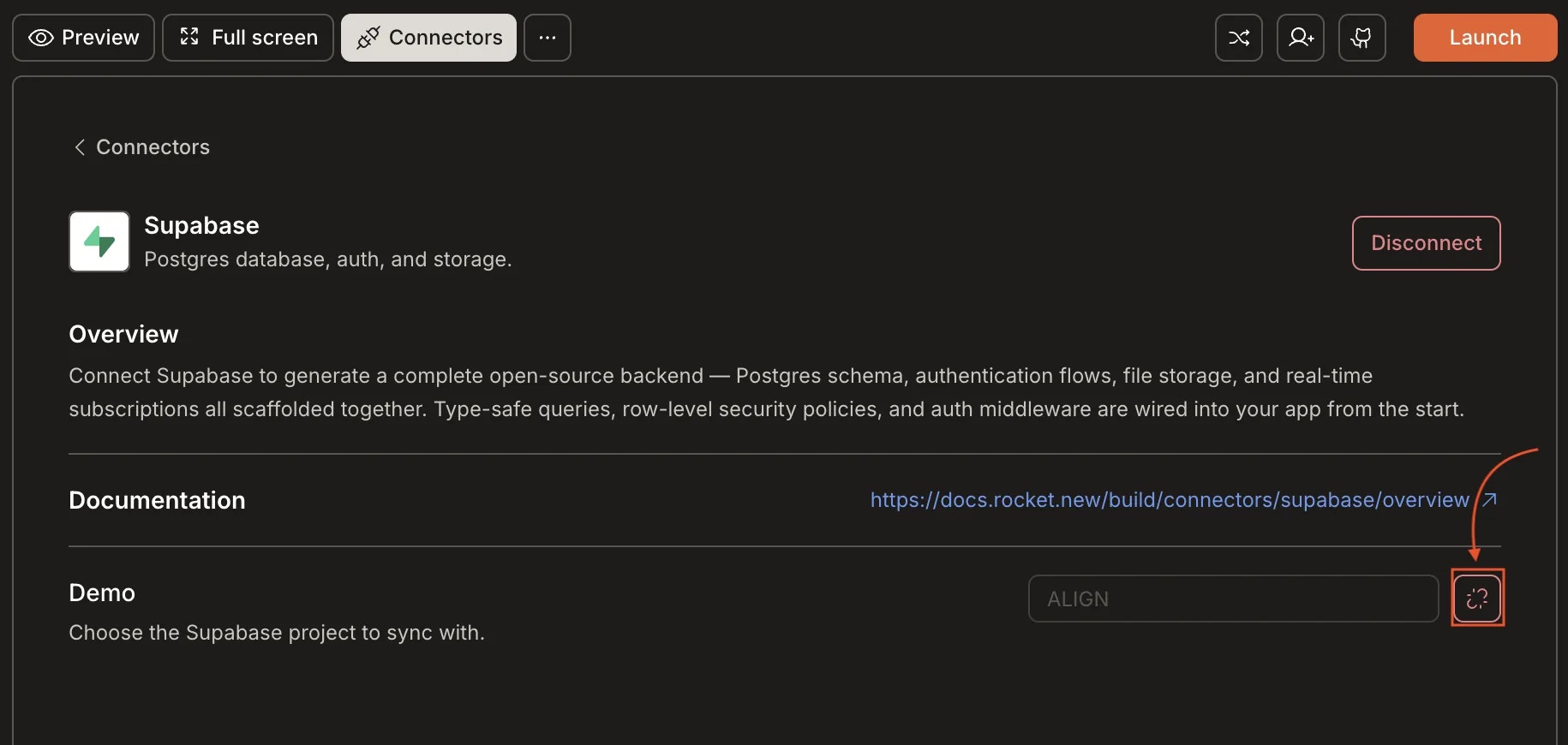
        3. Use the **Demo** dropdown to switch projects, or click **Disconnect** to unlink the current project.

        <Frame caption="Switch or disconnect the linked Supabase project">
          <img src="https://mintcdn.com/dhiwisepvtltd-5e04e6a4/kK5WOZR2-IAgA9O3/images/build-docs/connectors/supabase/overview/web-browser/task-disconnect-light.webp?fit=max&auto=format&n=kK5WOZR2-IAgA9O3&q=85&s=de523668fb545b7f3d025e1aac54e9f3" alt="Supabase Connectors panel showing the project selector dropdown." className="theme-image light-image" width="1830" height="876" data-path="images/build-docs/connectors/supabase/overview/web-browser/task-disconnect-light.webp" />

          <img src="https://mintcdn.com/dhiwisepvtltd-5e04e6a4/kK5WOZR2-IAgA9O3/images/build-docs/connectors/supabase/overview/web-browser/task-disconnect-dark.webp?fit=max&auto=format&n=kK5WOZR2-IAgA9O3&q=85&s=f51291e1e683c8f825980c9398fb19e5" alt="Supabase Connectors panel showing the project selector dropdown." className="theme-image dark-image" width="1830" height="870" data-path="images/build-docs/connectors/supabase/overview/web-browser/task-disconnect-dark.webp" />
        </Frame>
      </Accordion>
    </AccordionGroup>
  </Tab>

  <Tab title="Mobile App">
    You can connect from two places.

    **Option 1: From Settings**

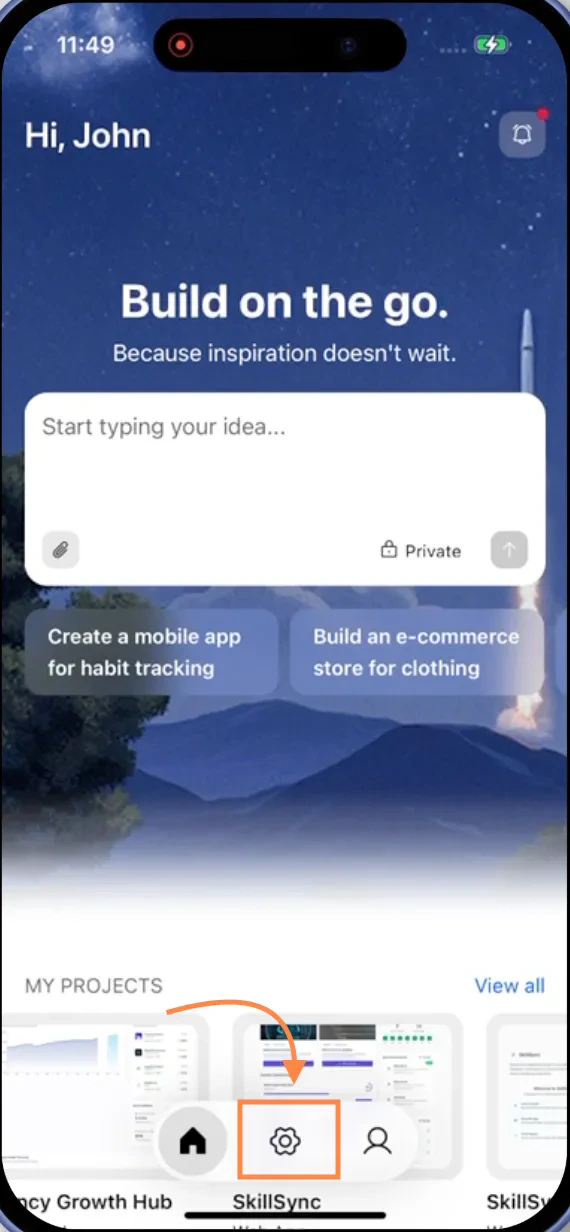
    1. Tap **Settings** in the footer of the homepage.
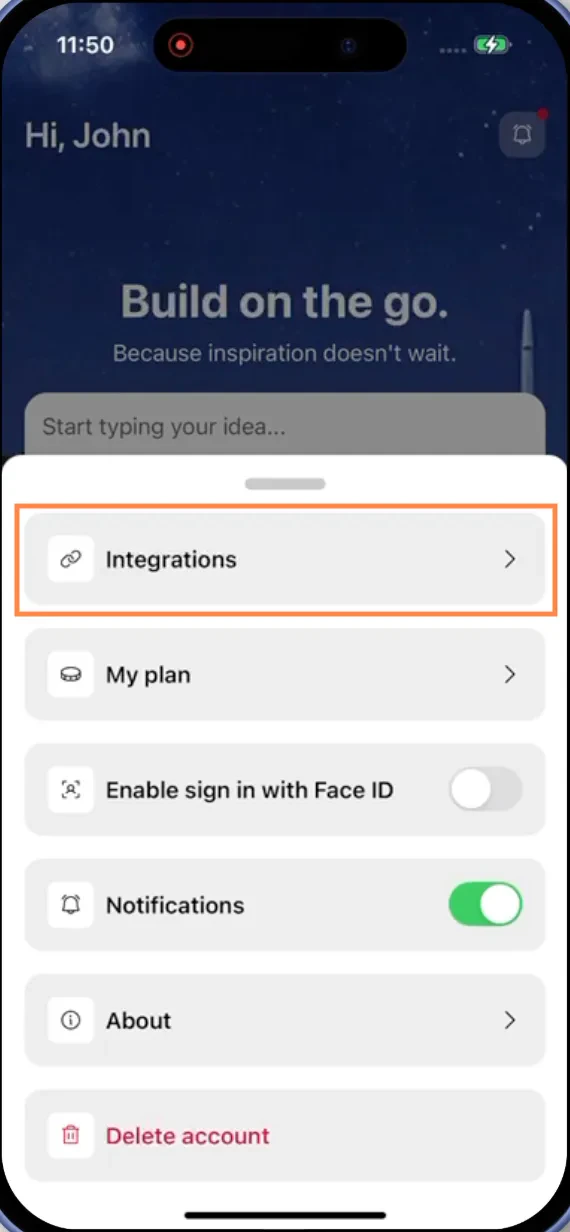
    2. Tap **Integrations**.
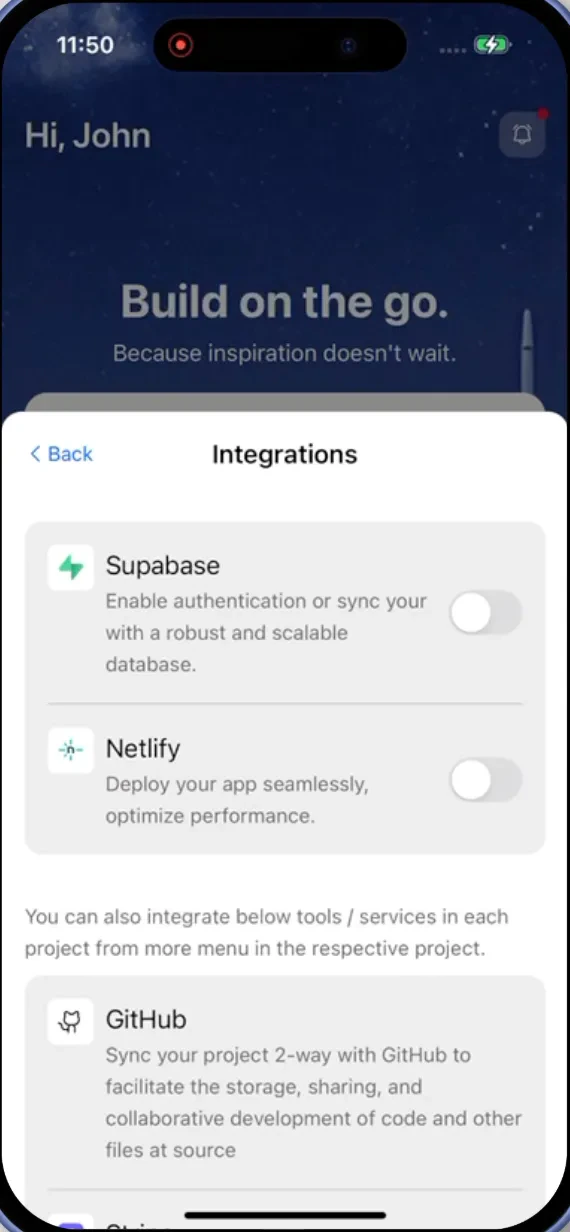
    3. Enable the toggle next to **Supabase**.

    <Frame caption="Settings in the footer">
      <img src="https://mintcdn.com/dhiwisepvtltd-5e04e6a4/2lqYWidv_xVHKfL6/images/build-docs/connectors/supabase/overview/mobile-app/supabase-connect-setting-in-rocket-app.webp?fit=max&auto=format&n=2lqYWidv_xVHKfL6&q=85&s=77dbde901f350d64fbcd270be35d1481" alt="Settings icon in footer." className="theme-mobile-image" width="570" height="1232" data-path="images/build-docs/connectors/supabase/overview/mobile-app/supabase-connect-setting-in-rocket-app.webp" />
    </Frame>

    <Frame caption="Integrations tab">
      <img src="https://mintcdn.com/dhiwisepvtltd-5e04e6a4/2lqYWidv_xVHKfL6/images/build-docs/connectors/supabase/overview/mobile-app/select-integrations-in-rocket-app.webp?fit=max&auto=format&n=2lqYWidv_xVHKfL6&q=85&s=6ffe26e1f3b722a7a9f6e7d41fcab3a8" alt="Integrations tab." className="theme-mobile-image" width="570" height="1232" data-path="images/build-docs/connectors/supabase/overview/mobile-app/select-integrations-in-rocket-app.webp" />
    </Frame>

    <Frame caption="Enable the Supabase toggle">
      <img src="https://mintcdn.com/dhiwisepvtltd-5e04e6a4/2lqYWidv_xVHKfL6/images/build-docs/connectors/supabase/overview/mobile-app/enable-toggle-supabase-in-rocket-app.webp?fit=max&auto=format&n=2lqYWidv_xVHKfL6&q=85&s=6cfa88371eca04efe1dd36da163dbc33" alt="Supabase toggle enabled." className="theme-mobile-image" width="570" height="1232" data-path="images/build-docs/connectors/supabase/overview/mobile-app/enable-toggle-supabase-in-rocket-app.webp" />
    </Frame>

    **Option 2: From the Connectors tab inside a task**

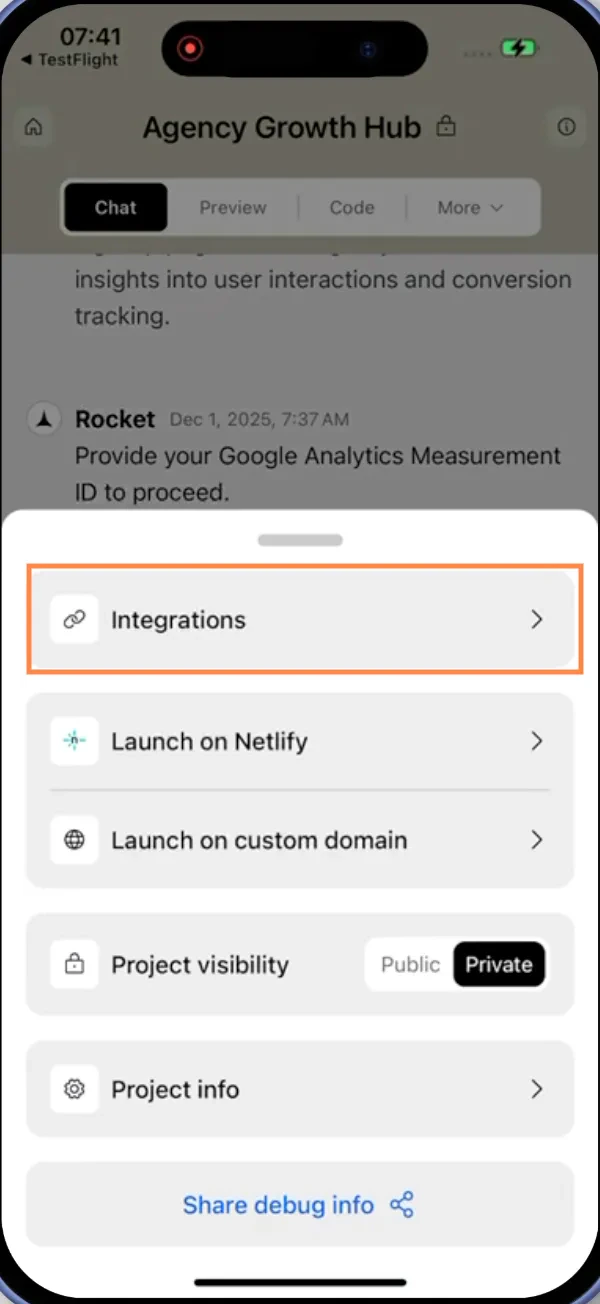
    1. Tap the **More** button in the header.
    2. Tap **Integrations**.
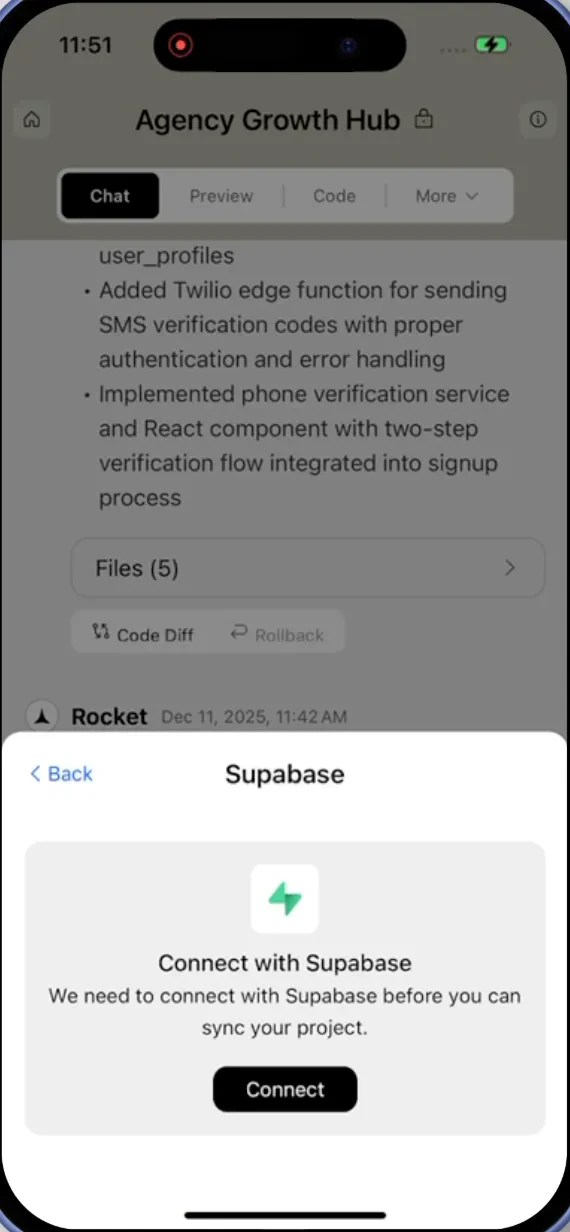
    3. Tap the **Supabase** card, then tap **Connect**.

    <Frame caption="Connectors tab via More">
      <img src="https://mintcdn.com/dhiwisepvtltd-5e04e6a4/2lqYWidv_xVHKfL6/images/build-docs/connectors/supabase/overview/mobile-app/more-button-integration-tab-in-rocket-app.webp?fit=max&auto=format&n=2lqYWidv_xVHKfL6&q=85&s=efc18b03be361fc3ea44fc7dc4bcb49d" alt="Integrations tab via More." className="theme-mobile-image" width="600" height="1304" data-path="images/build-docs/connectors/supabase/overview/mobile-app/more-button-integration-tab-in-rocket-app.webp" />
    </Frame>

    <Frame caption="Supabase card in Connectors">
      <img src="https://mintcdn.com/dhiwisepvtltd-5e04e6a4/2lqYWidv_xVHKfL6/images/build-docs/connectors/supabase/overview/mobile-app/supabase-connect-in-rocket-app.webp?fit=max&auto=format&n=2lqYWidv_xVHKfL6&q=85&s=be928a4144b417379476bb3e598c7d18" alt="Supabase connect card." className="theme-mobile-image" width="570" height="1232" data-path="images/build-docs/connectors/supabase/overview/mobile-app/supabase-connect-in-rocket-app.webp" />
    </Frame>

    **After tapping Connect**

    A Supabase authorization screen opens. Sign in, review the permissions, and tap **Authorize Rocket**.

    <Frame caption="Supabase authorization screen">
      <img src="https://mintcdn.com/dhiwisepvtltd-5e04e6a4/2lqYWidv_xVHKfL6/images/build-docs/connectors/supabase/overview/mobile-app/authorize-create-organization-light.webp?fit=max&auto=format&n=2lqYWidv_xVHKfL6&q=85&s=096e5803d6850aaf7f0ed33f2f046811" alt="Supabase OAuth screen." className="theme-mobile-image" width="1072" height="982" data-path="images/build-docs/connectors/supabase/overview/mobile-app/authorize-create-organization-light.webp" />
    </Frame>

    You will then be asked to select or create an organization and link a project.

    <AccordionGroup>
      <Accordion title="Create a Supabase organization">
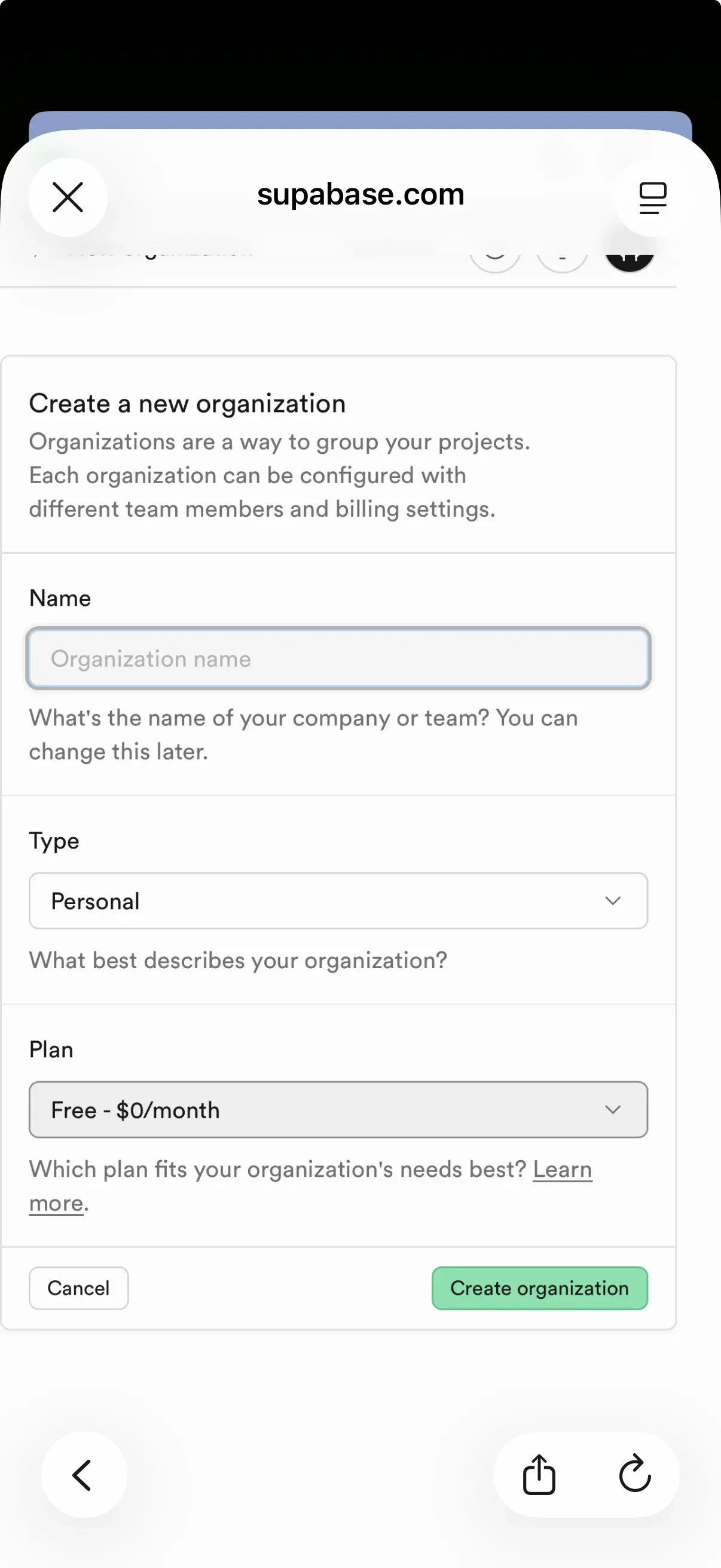
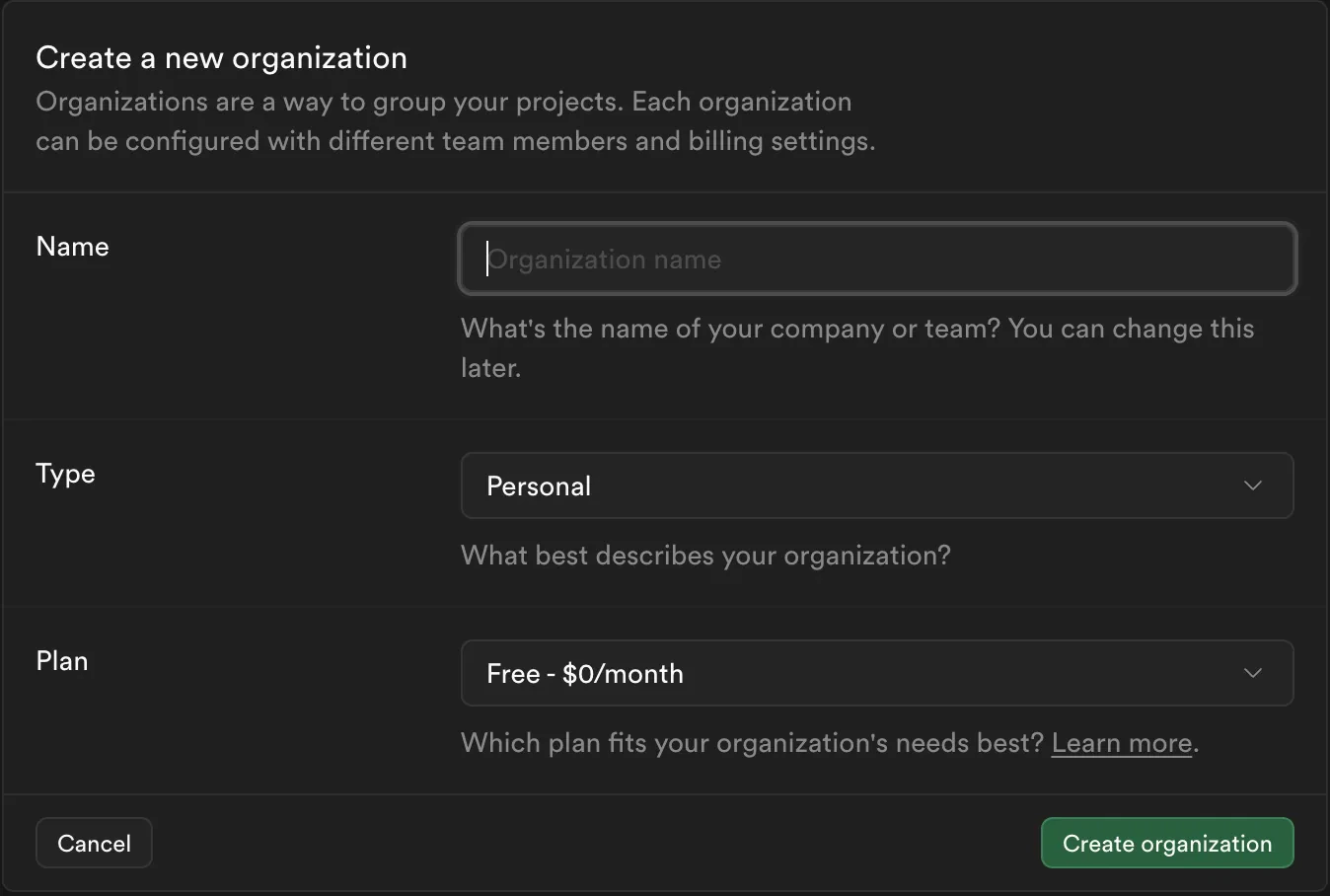
        If you do not have one yet, you will be prompted to create one first.
        <Frame caption="Create a Supabase organization">
          <img src="https://mintcdn.com/dhiwisepvtltd-5e04e6a4/2lqYWidv_xVHKfL6/images/build-docs/connectors/supabase/overview/mobile-app/create-organization-in-rocket-app.webp?fit=max&auto=format&n=2lqYWidv_xVHKfL6&q=85&s=8da0888e1dda403fdbfb4543c92ac527" alt="Create Supabase organization." className="theme-mobile-image" width="1206" height="2622" data-path="images/build-docs/connectors/supabase/overview/mobile-app/create-organization-in-rocket-app.webp" />
        </Frame>

        Tap **Create organization**. Rocket redirects you to select it and continue.
      </Accordion>

      <Accordion title="Select an existing organization">
        Choose your organization from the dropdown, then tap **Authorize Rocket**.

        <Frame caption="Select your Supabase organization">
          <img src="https://mintcdn.com/dhiwisepvtltd-5e04e6a4/2lqYWidv_xVHKfL6/images/build-docs/connectors/supabase/overview/mobile-app/select-organization-light.webp?fit=max&auto=format&n=2lqYWidv_xVHKfL6&q=85&s=73be02d980ffc45141f1c9a4bdb643ea" alt="Supabase org selection." className="theme-mobile-image" width="1164" height="945" data-path="images/build-docs/connectors/supabase/overview/mobile-app/select-organization-light.webp" />
        </Frame>
      </Accordion>

      <Accordion title="Link a Supabase project" defaultOpen="true">
        Once authorized, you will be prompted to link a project to this task.

        **Select an existing project** from the dropdown.
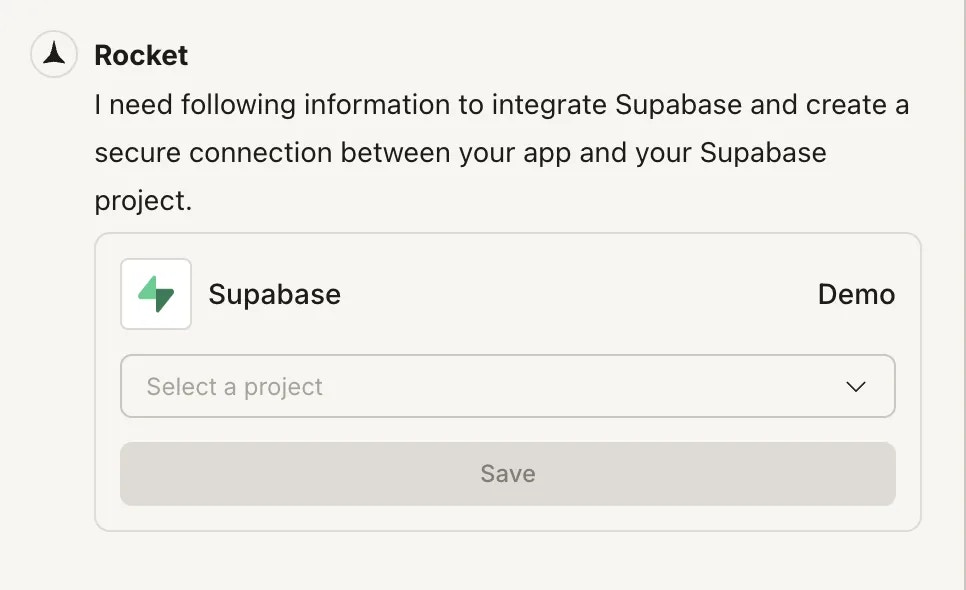
        <Frame caption="Select a Supabase project">
          <img src="https://mintcdn.com/dhiwisepvtltd-5e04e6a4/2lqYWidv_xVHKfL6/images/build-docs/connectors/supabase/overview/mobile-app/select-project-from-supabase-in-rocket-app.webp?fit=max&auto=format&n=2lqYWidv_xVHKfL6&q=85&s=264ffb7aaccb8013e82d49ad98aa450b" alt="Select Supabase project." className="theme-mobile-image" width="423" height="892" data-path="images/build-docs/connectors/supabase/overview/mobile-app/select-project-from-supabase-in-rocket-app.webp" />
        </Frame>

        Or tap **Create new Supabase project**, enter a name, password, and region, then tap **Create a new project**.
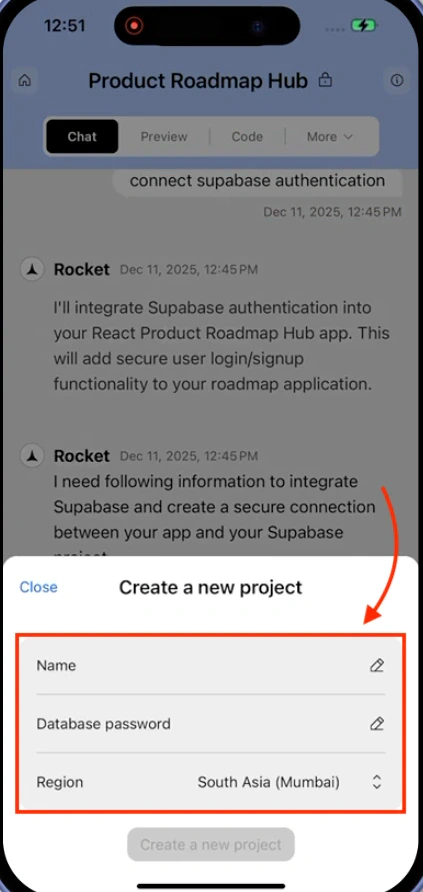
        <Frame caption="Create a new Supabase project">
          <img src="https://mintcdn.com/dhiwisepvtltd-5e04e6a4/2lqYWidv_xVHKfL6/images/build-docs/connectors/supabase/overview/mobile-app/create-a-project-in-supabase-in-rocket-app.webp?fit=max&auto=format&n=2lqYWidv_xVHKfL6&q=85&s=6766a944fbbcfc1d007e0b6d4b9848d5" alt="Create Supabase project." className="theme-mobile-image" width="423" height="892" data-path="images/build-docs/connectors/supabase/overview/mobile-app/create-a-project-in-supabase-in-rocket-app.webp" />
        </Frame>

        To switch to a different project later, go to **Integrations** and use the Supabase project dropdown.
      </Accordion>

      <Accordion title="Disconnect this task from its Supabase project">
        This removes the linked project from the current task only. Your Supabase account stays connected to the workspace.

        1. Tap **More** in the header, then tap **Integrations**.
        2. Tap the **Supabase** card.
        3. Tap **Disconnect project**.
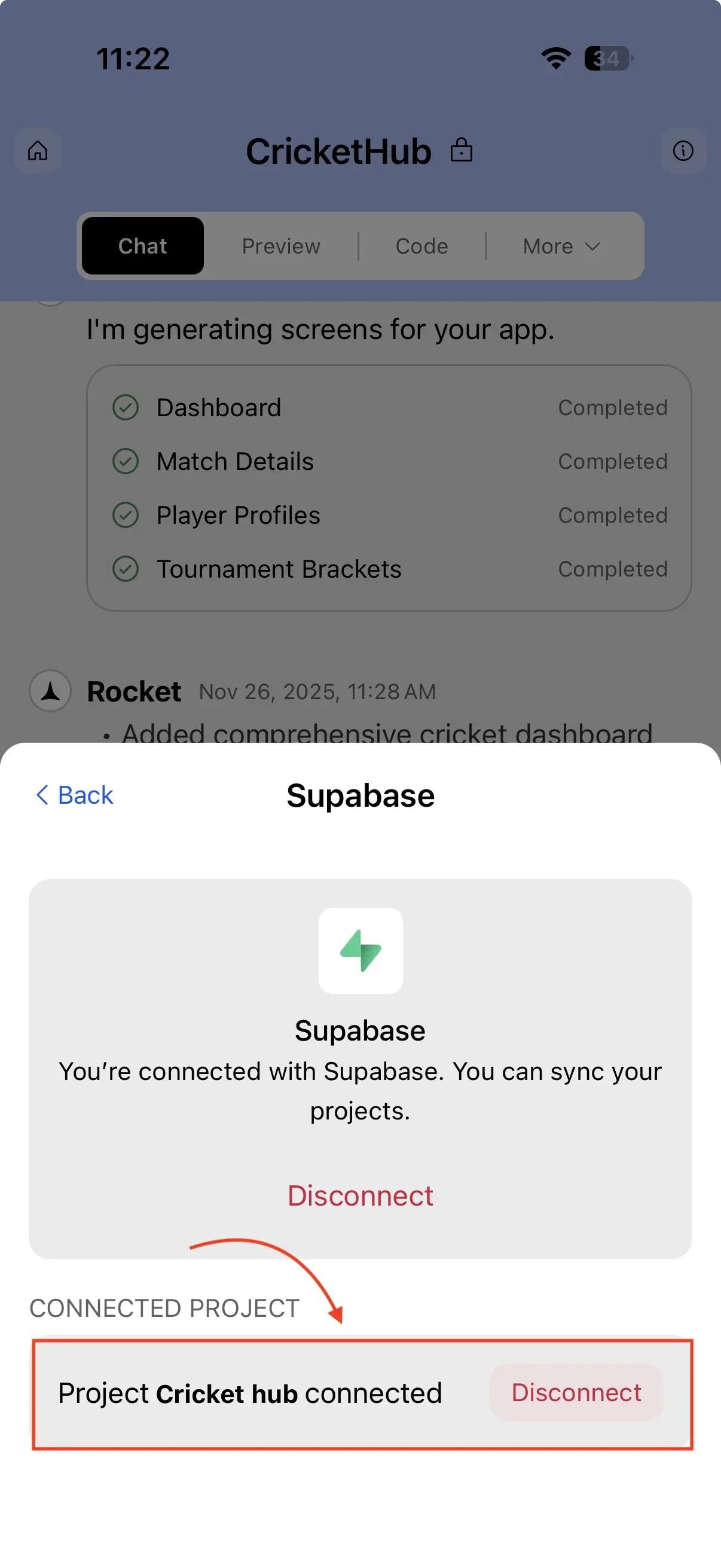
        <Frame caption="Disconnect a Supabase project">
          <img src="https://mintcdn.com/dhiwisepvtltd-5e04e6a4/2lqYWidv_xVHKfL6/images/build-docs/connectors/supabase/overview/mobile-app/disconnect-supabase-project-in-rocket-app.webp?fit=max&auto=format&n=2lqYWidv_xVHKfL6&q=85&s=cbe3eadf2b1b89b112c300be4d2a593c" alt="Disconnect project on mobile." className="theme-mobile-image" width="1206" height="2622" data-path="images/build-docs/connectors/supabase/overview/mobile-app/disconnect-supabase-project-in-rocket-app.webp" />
        </Frame>
      </Accordion>
    </AccordionGroup>
  </Tab>
</Tabs>

<Card title="Manage workspace connectors" icon="plug" href="/getting-started/workspace/connectors#manage-connectors" horizontal arrow="true">
  Disconnect or switch accounts from workspace Settings.
</Card>

<Divider />

## Example prompts

Once Supabase is connected, paste any of these into chat to get started.

| What you want                | Prompt to use                                                                                                   |
| :--------------------------- | :-------------------------------------------------------------------------------------------------------------- |
| Email sign-up and login      | `Add email/password sign-up and login with a protected dashboard page.`                                         |
| Database with a UI           | `Create a products table with name, description, price, and image URL. Add a page to list and filter products.` |
| File uploads                 | `Let users upload profile avatars. Store images in Supabase Storage and display them on the profile page.`      |
| Server-side email on sign-up | `Create a Supabase Edge Function that sends a welcome email when a new user signs up.`                          |
| Per-user data access         | `Add row-level security so users can only read and edit their own records in the posts table.`                  |
| Social login                 | `Add Google and GitHub login options to the sign-up page using Supabase Auth.`                                  |
| Live data feed               | `Show a live feed of new messages in the chat room using Supabase real-time subscriptions.`                     |
| Branded emails               | `Customize the Supabase confirmation email template to match my app's branding.`                                |
| Multi-tenant data            | `Scope all database queries to the current user's organization using RLS policies.`                             |
| Password reset               | `Add a forgot-password page that sends a reset link via Supabase Auth.`                                         |

<Divider />

## Tips

* **One Supabase project per task.** Each Rocket task links to a single Supabase project. Use separate tasks if you need separate databases.
* **Use edge functions for server-side logic.** When code should not reach the client - sending emails, calling APIs with secret keys - ask Rocket to create a Supabase Edge Function instead.
* **Free tier limits.** Supabase free includes two active projects, 500 MB database storage, and 1 GB file storage. See [Supabase pricing](https://supabase.com/pricing) for current limits.
* **Advanced database settings live in Supabase.** Extensions, connection pooling, and RLS policy debugging are managed directly from the [Supabase dashboard](https://supabase.com/dashboard).

<Divider />

## Go deeper

<CardGroup cols={2}>
  <Card title="Push migration scripts" icon="file-code" href="./push-migration-scripts">
    Apply Rocket-generated SQL migration scripts to keep your schema in sync.
  </Card>

  <Card title="Storage buckets" icon="folder" href="./storage-buckets">
    Set up file storage buckets and wire them into your app.
  </Card>

  <Card title="Edge functions" icon="server" href="./edge-functions">
    Generate and deploy Supabase Edge Functions without leaving Rocket.
  </Card>

  <Card title="Social auth" icon="users" href="./social-auth">
    Add Google, GitHub, and other social login providers.
  </Card>

  <Card title="Redirect URLs" icon="link" href="./redirect-urls">
    Set the correct redirect URLs so login and password resets work.
  </Card>

  <Card title="Google sign-in" icon="google" href="./google-sign-in">
    Step-by-step Google sign-in setup for Android APKs.
  </Card>

  <Card title="Existing project" icon="plug" href="./existing-project">
    Reuse an existing Supabase project across multiple Rocket tasks.
  </Card>

  <Card title="Email templates" icon="envelope" href="./email-templates">
    Customize auth email templates to match your app's branding.
  </Card>
</CardGroup>

## What's next?

<CardGroup cols={2}>
  <Card title="Stripe" icon="stripe" href="/build/connectors/stripe">
    Add payments, subscriptions, and checkout to your Supabase-powered app.
  </Card>

  <Card title="Resend" icon="paper-plane" href="/build/connectors/resend">
    Send transactional emails - welcome messages, receipts, password resets.
  </Card>

  <Card title="Build a SaaS app" icon="rocket" href="/learn/recipes/saas">
    Full walkthrough combining Supabase, Stripe, Resend, and Netlify.
  </Card>
</CardGroup>