# Push migration scripts (/build/connectors/supabase/push-migration-scripts)

<LlmsDirective />

<Info>
  Whenever your app creates or updates tables, Rocket generates a Supabase migration script. This guide covers reviewing and pushing those scripts, avoiding issues from skipped changes, and troubleshooting common errors.
</Info>

<Card icon="database" href="/build/connectors/supabase/overview" horizontal arrow="true">
  Not connected yet?
  <b>Follow the steps in our Supabase Integration Guide.</b>
</Card>

## When Rocket generates a script [#when-rocket-generates-a-script]

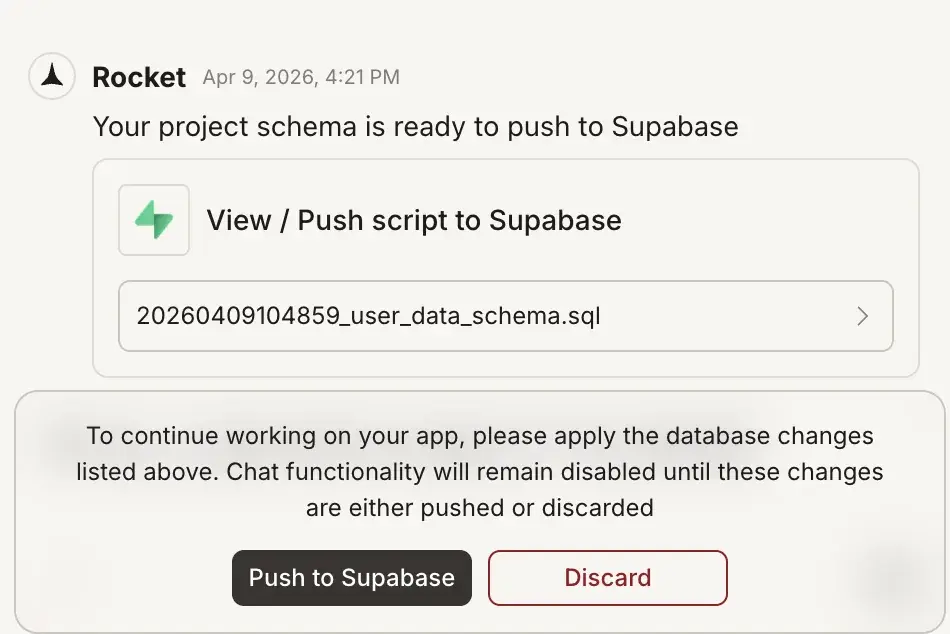
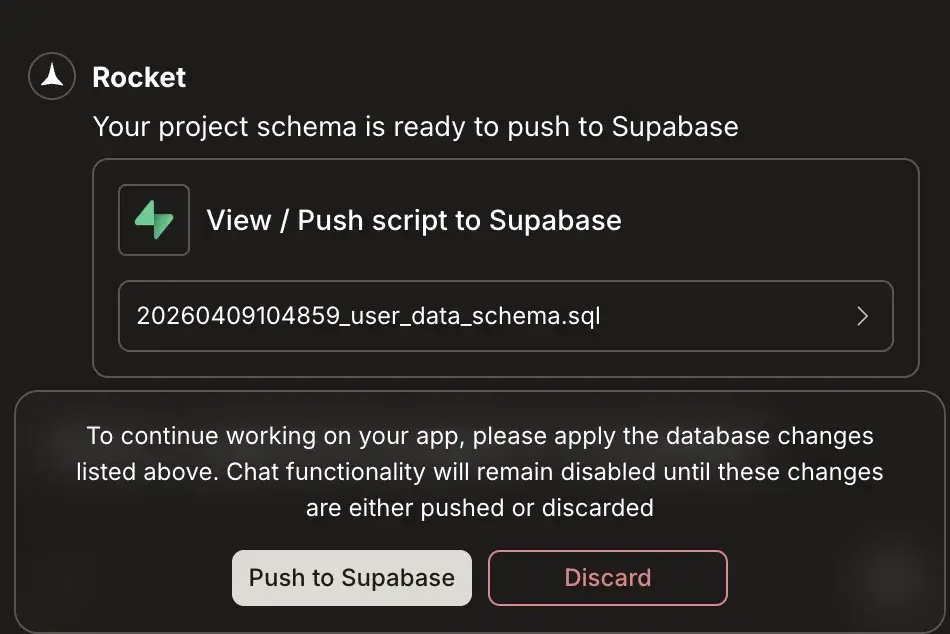
Whenever your app creates or updates tables, Rocket automatically generates a Supabase script. It appears in the chat window with a preview and two options: push or discard.
<Frame caption="Script popup with preview and actions">
  <img src="/images/build/connectors/supabase/push-migration-scripts/push-migration-light.webp" alt="Popup showing a generated Supabase script with options to preview, push, or discard." className="theme-image light-image" />
  <img src="/images/build/connectors/supabase/push-migration-scripts/push-migration-dark.webp" alt="Popup showing a generated Supabase script with options to preview, push, or discard." className="theme-image dark-image" />
</Frame>

Each script popup includes:
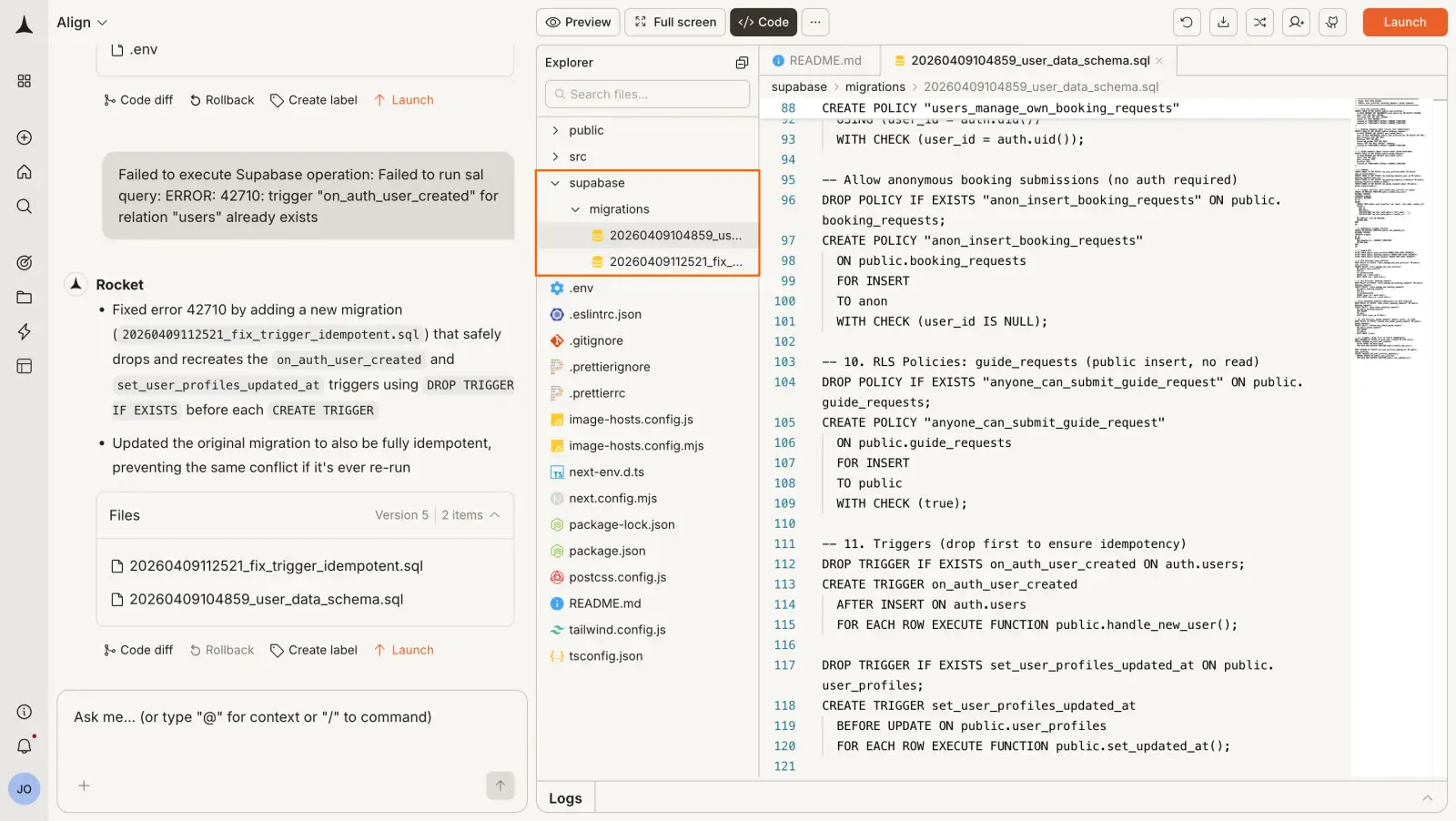
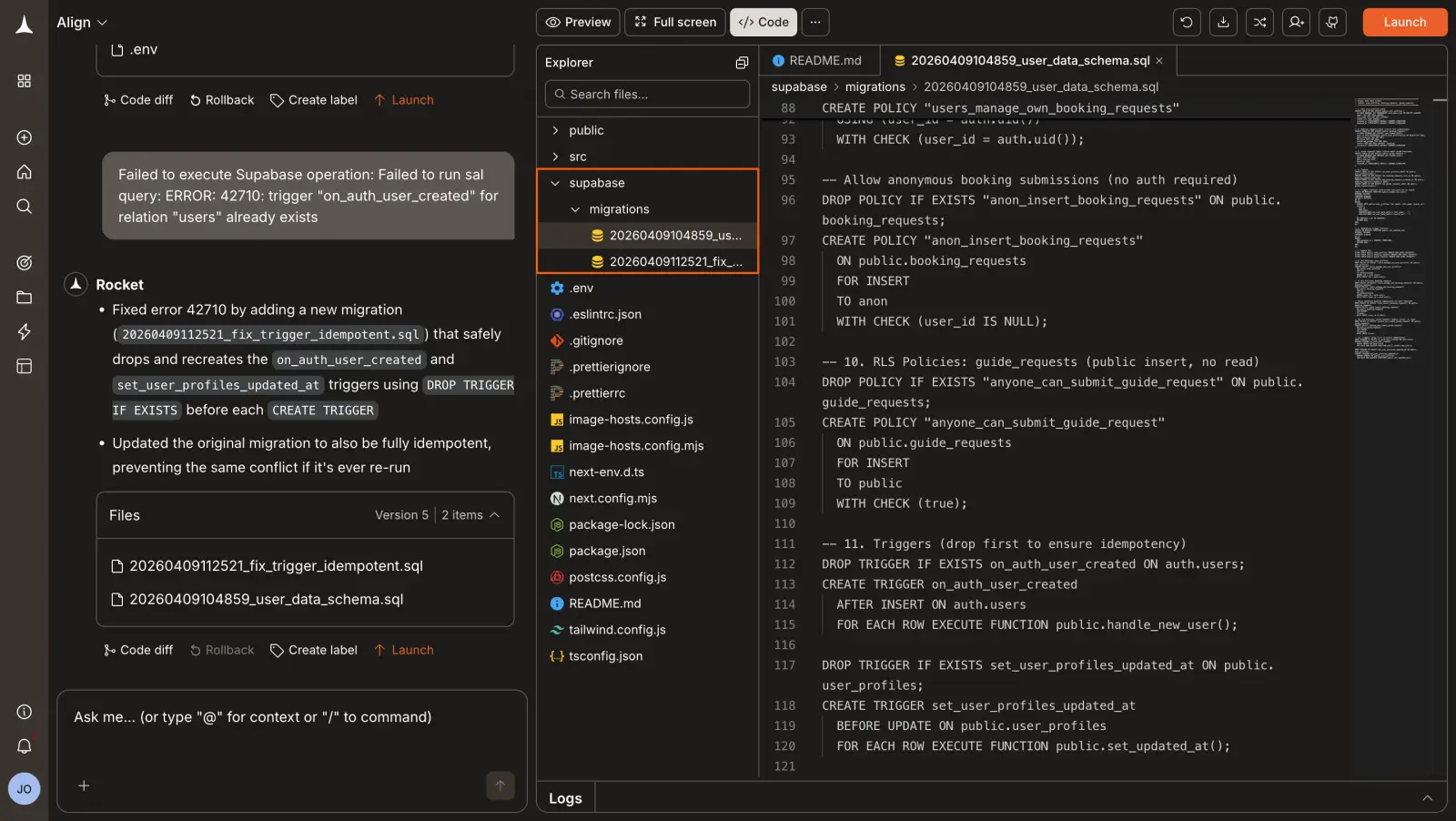
- A clickable **script name** to preview the schema.
- A **Push to Supabase** button to apply the changes.
- A **Discard** button to skip the script.
<Frame caption="Migration script in the Rocket editor">
  <img src="/images/build/connectors/supabase/push-migration-scripts/migration-supabase-light.webp" alt="Rocket editor showing a migration script with push and discard options." className="theme-image light-image" />
  <img src="/images/build/connectors/supabase/push-migration-scripts/supabase-migration-dark.webp" alt="Rocket editor showing a migration script with push and discard options." className="theme-image dark-image" />
</Frame>

### What happens if you skip it [#what-happens-if-you-skip-it]

If you ignore the popup, the changes will not apply to Supabase.

<Warning>
  Skipping scripts can break your app. Later scripts may also fail if earlier fields or tables are missing.
</Warning>

Rocket does not automatically retry or reapply missed scripts. Push them as they appear to keep your schema in sync.

<Note>
  Each script depends on previous changes. Push them in order to avoid conflicts.
</Note>

## Troubleshooting push errors [#troubleshooting-push-errors]

If a script fails to push, here is how to identify and resolve common issues.

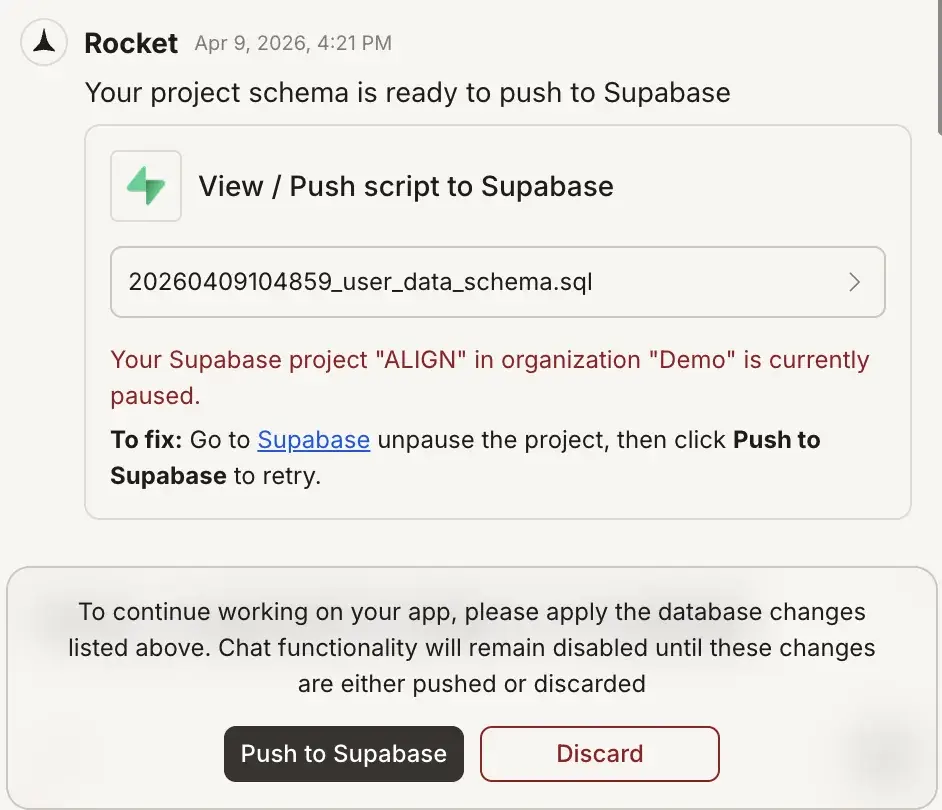
### 1. Supabase project is paused [#1-supabase-project-is-paused]

<Info>
  <b>What you will see:</b>
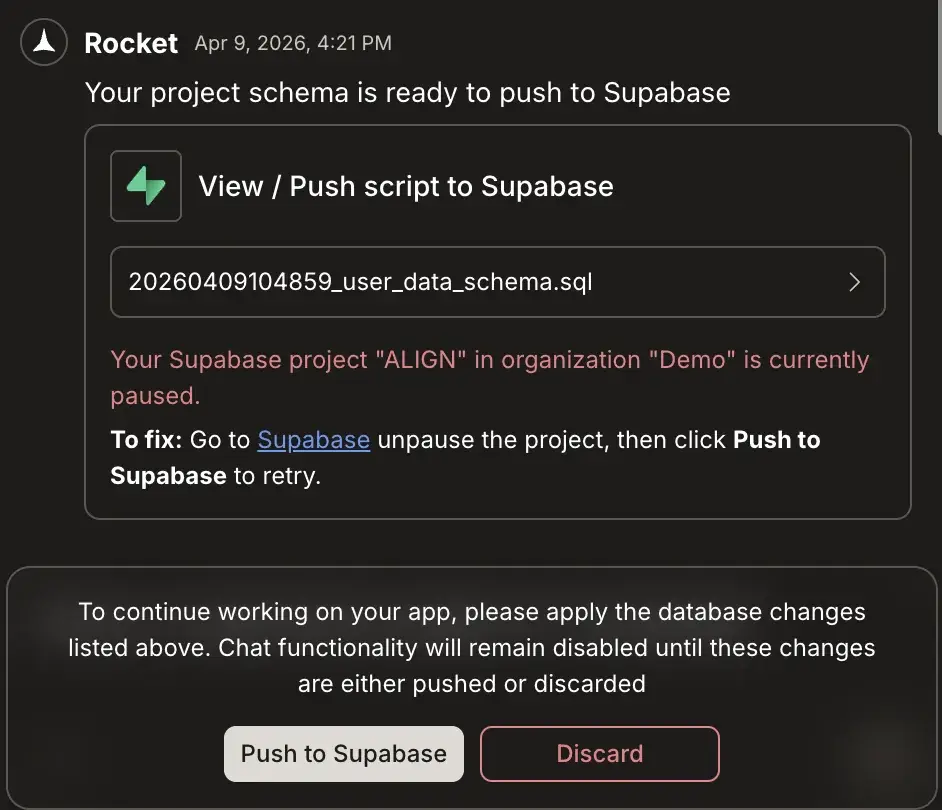
  "Your Supabase project is currently paused."
</Info>

<Frame caption="Paused project error message">
  <img src="/images/build/connectors/supabase/push-migration-scripts/paused-project-push-light.webp" alt="Error message indicating the connected Supabase project is paused." className="theme-image light-image" />
  <img src="/images/build/connectors/supabase/push-migration-scripts/paused-project-push-dark.webp" alt="Error message indicating the connected Supabase project is paused." className="theme-image dark-image" />
</Frame>

To fix this:

<Steps>

  <Step title="Open your Supabase dashboard">
    Go to [supabase.com](https://supabase.com) and open the paused project.
  </Step>

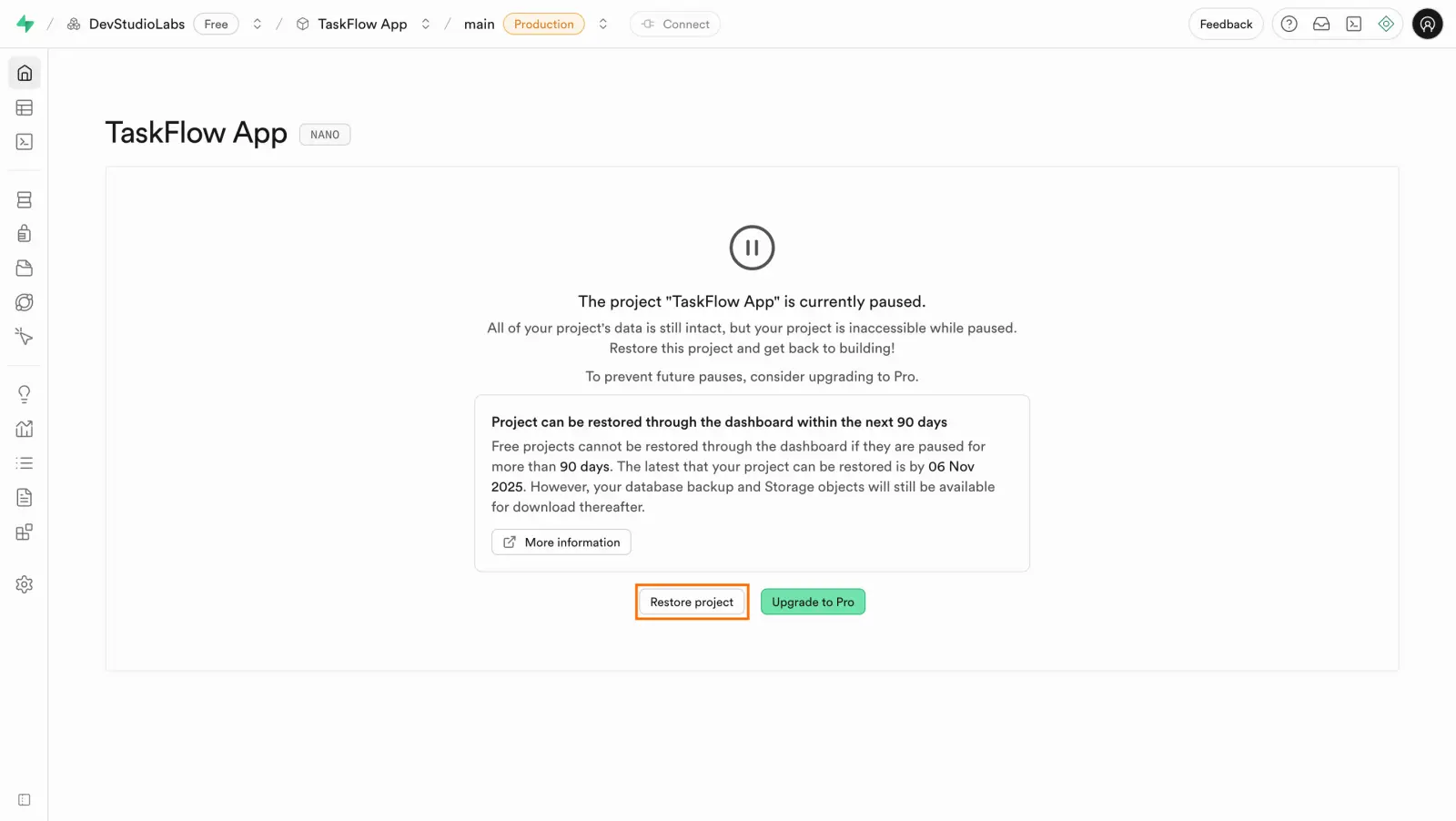
  <Step title="Restore the project">
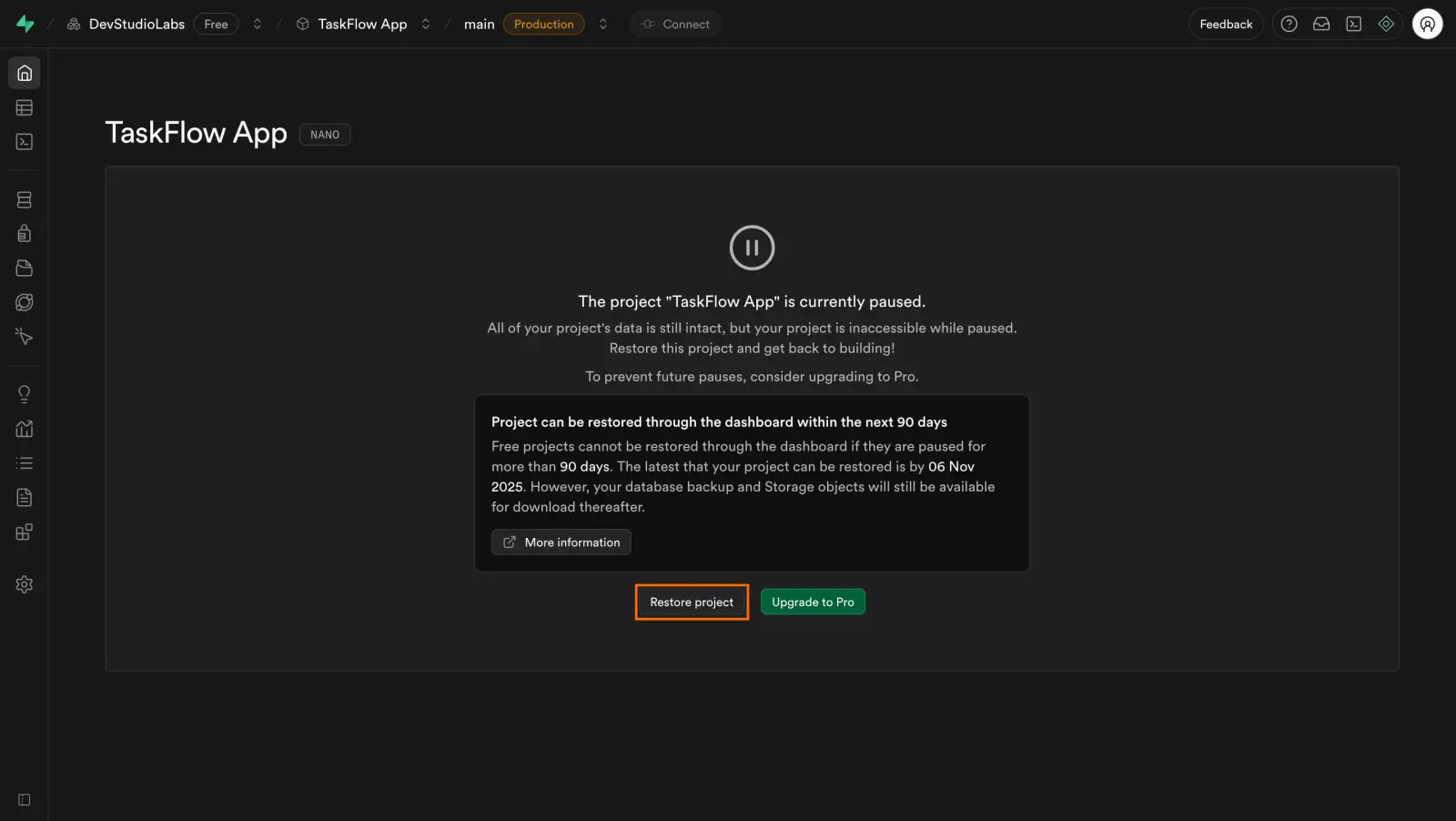
    Click **Restore Project** to reactivate it.
  </Step>

  <Step title="Push the script again">
    Return to Rocket and push the script again.
  </Step>

</Steps>

<Frame caption="Restore button in Supabase dashboard">
  <img src="/images/build/connectors/supabase/push-migration-scripts/supabase-restore-project-light.webp" alt="Restore Project button highlighted in the Supabase dashboard." className="theme-image light-image" />
  <img src="/images/build/connectors/supabase/push-migration-scripts/supabase-restore-project-dark.webp" alt="Restore Project button highlighted in the Supabase dashboard." className="theme-image dark-image" />
</Frame>

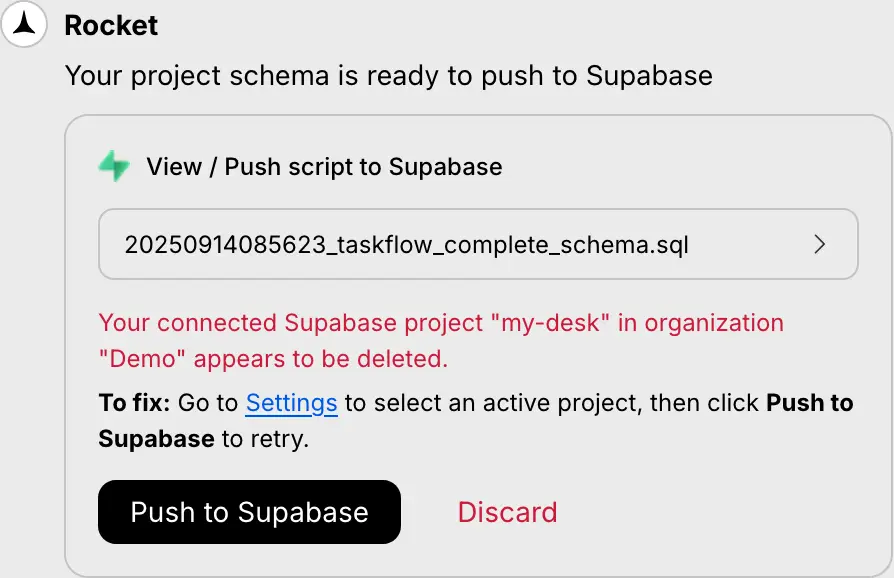
### 2. Supabase project was deleted or disconnected [#2-supabase-project-was-deleted-or-disconnected]

<Info>
  <b>What you will see:</b>
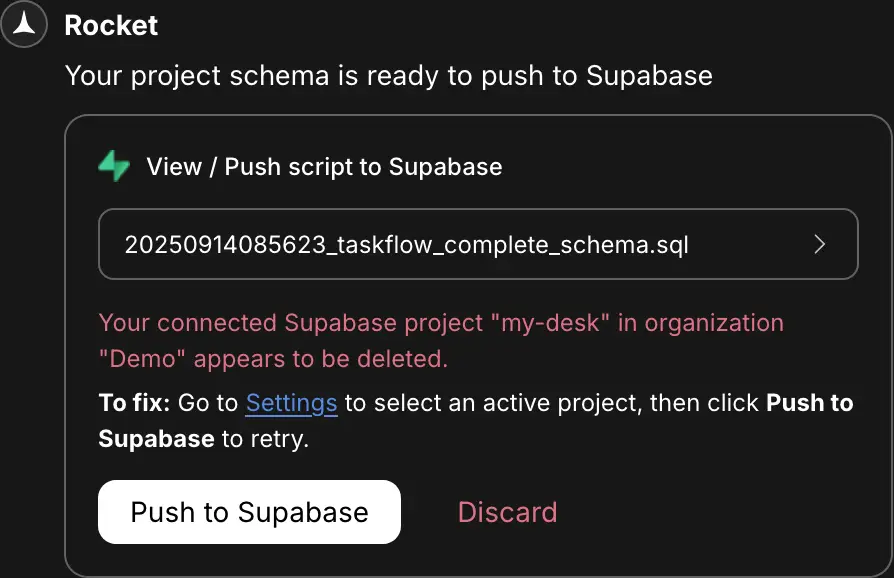
  "Your connected Supabase project appears to be deleted."
</Info>

<Frame caption="Deleted or disconnected project error">
  <img src="/images/build/connectors/supabase/push-migration-scripts/supabase-project-deleted-light.webp" alt="Error message indicating the Supabase project is deleted or disconnected." className="theme-image light-image" />
  <img src="/images/build/connectors/supabase/push-migration-scripts/supabase-project-deleted-dark.webp" alt="Error message indicating the Supabase project is deleted or disconnected." className="theme-image dark-image" />
</Frame>

To fix this:

<Steps>

  <Step title="Open the Supabase connector">
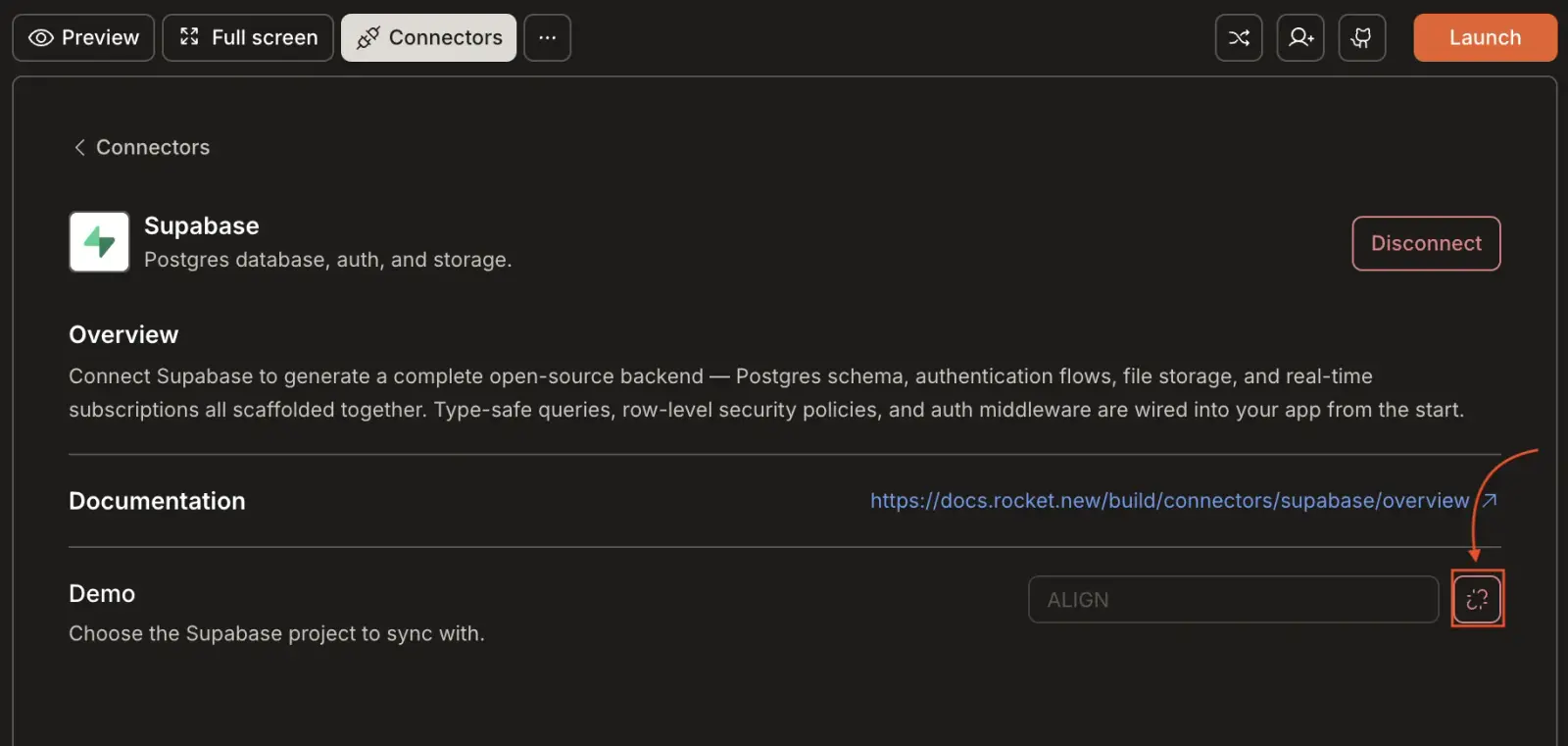
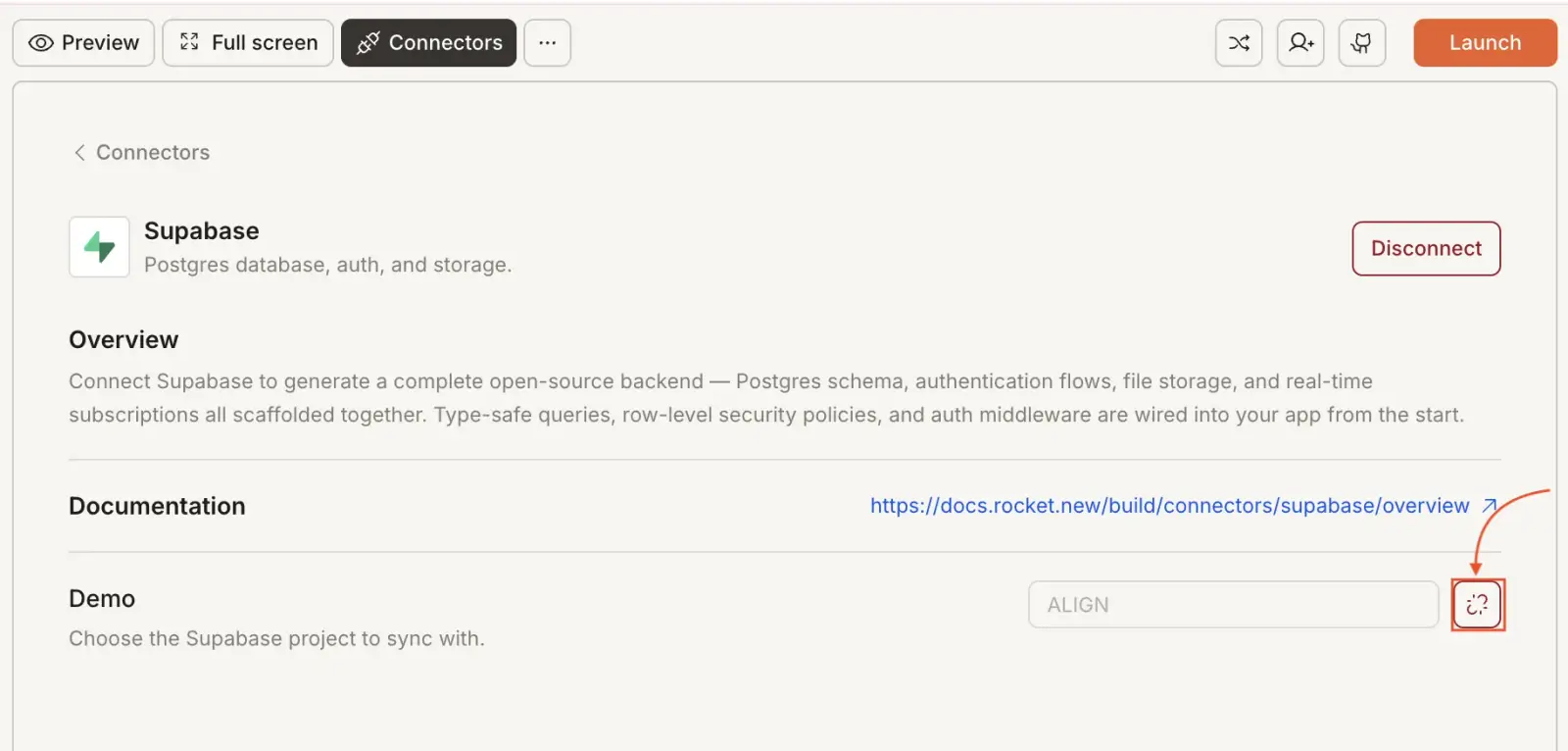
    In Rocket, go to **Connectors → Supabase**.
  </Step>

  <Step title="Select a valid project">
    Select a valid project from the dropdown.
  </Step>

  <Step title="Save and retry">
    Click **Save**, then try pushing the script again.
  </Step>

</Steps>

<Frame caption="Select a valid Supabase project from the Connectors panel">
  <img src="/images/build/connectors/supabase/push-migration-scripts/supabase-connect-project-light.webp" alt="Supabase Connectors panel with project dropdown to select a valid project." className="theme-image light-image" />
  <img src="/images/build/connectors/supabase/push-migration-scripts/supabase-connect-project-dark.webp" alt="Supabase Connectors panel with project dropdown to select a valid project." className="theme-image dark-image" />
</Frame>

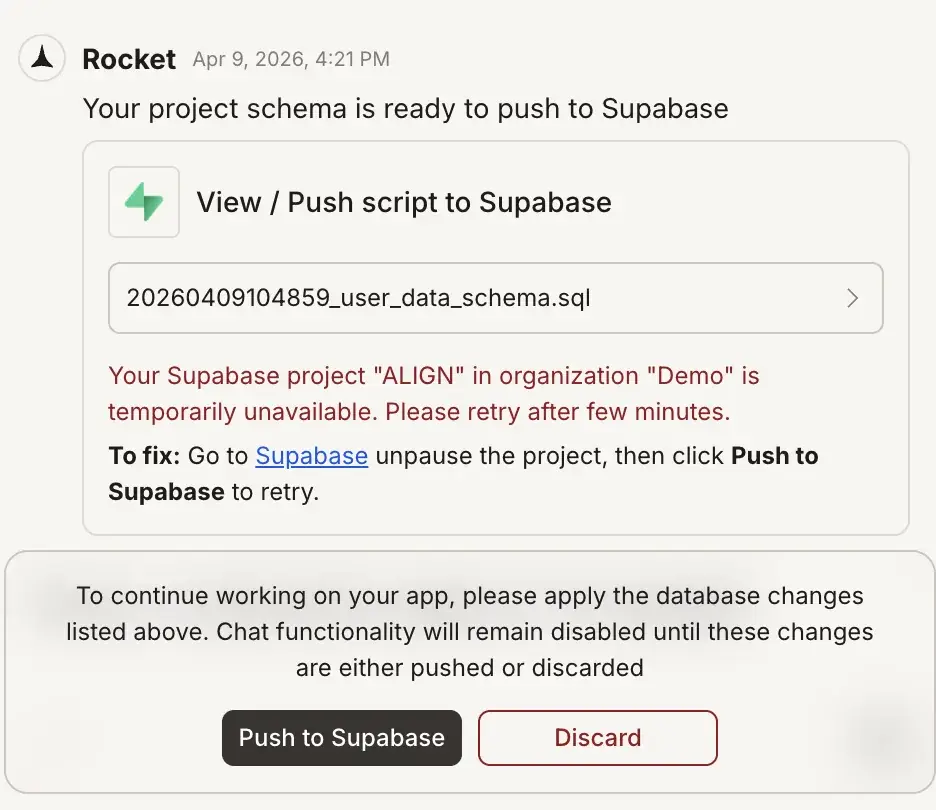
### 3. Supabase is temporarily down [#3-supabase-is-temporarily-down]

<Info>
  <b>What you will see:</b>
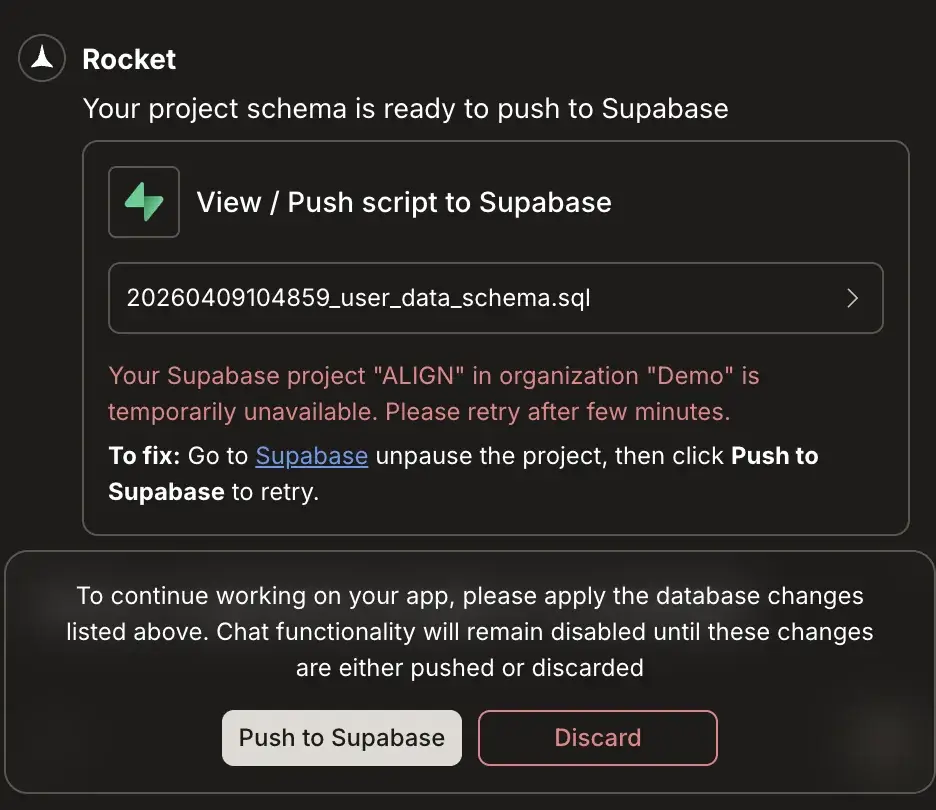
  "Your Supabase project is temporarily unavailable."
</Info>

<Frame caption="Temporary Supabase outage error">
  <img src="/images/build/connectors/supabase/push-migration-scripts/temporarily-unavailable-light.webp" alt="Message showing Supabase is temporarily unavailable." className="theme-image light-image" />
  <img src="/images/build/connectors/supabase/push-migration-scripts/temporarily-unavailable-dark.webp" alt="Message showing Supabase is temporarily unavailable." className="theme-image dark-image" />
</Frame>

Wait a few minutes, then try pushing the script again.

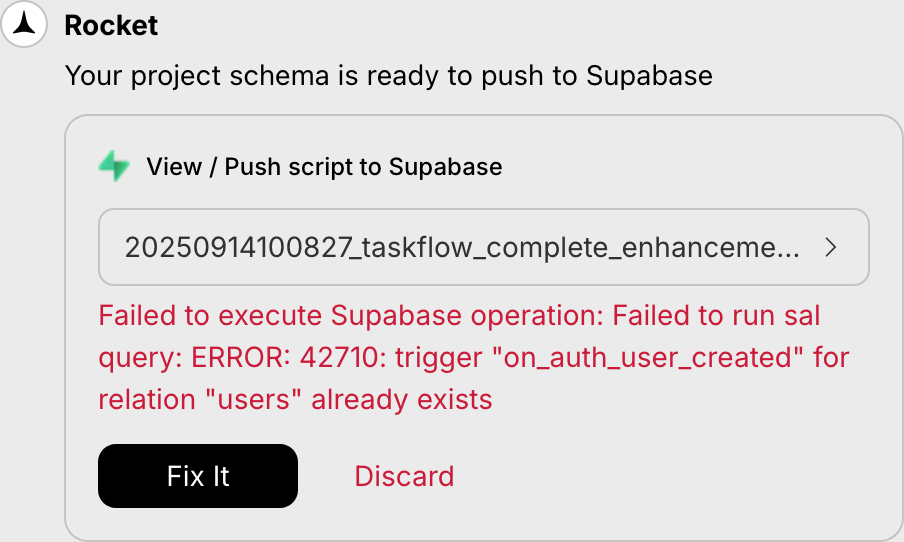
### 4. The script has a schema error [#4-the-script-has-a-schema-error]

<Info>
  <b>What you will see:</b>
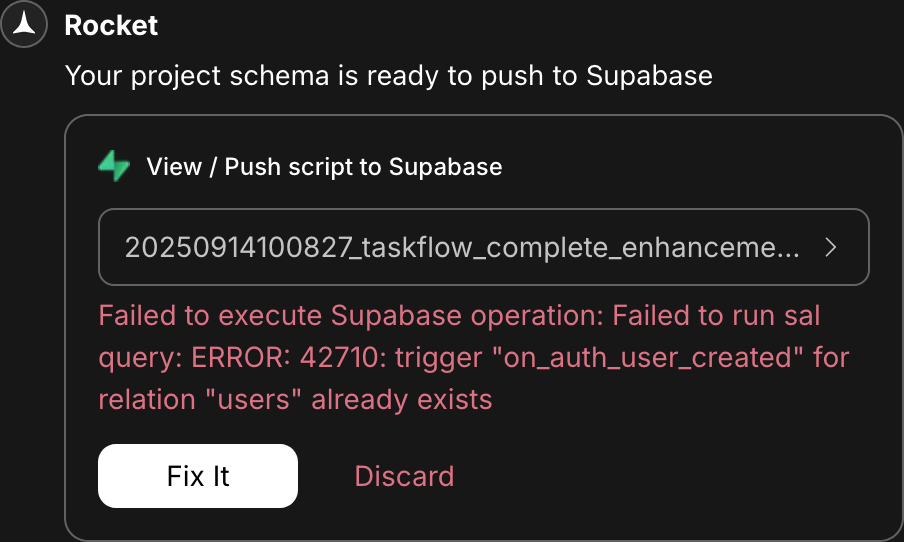
  An error message and a **Fix it** button.
</Info>

<Frame caption="Script error with Fix it option">
  <img src="/images/build/connectors/supabase/push-migration-scripts/supabase-error-fix-it-light.webp" alt="Fix it button displayed in the schema error message." className="theme-image light-image" />
  <img src="/images/build/connectors/supabase/push-migration-scripts/supabase-error-fix-it-dark.webp" alt="Fix it button displayed in the schema error message." className="theme-image dark-image" />
</Frame>

Click **Fix it**. Rocket will automatically repair the script and generate a corrected version.

<Info>
  Rocket handles most schema issues, including naming conflicts, missing dependencies, and broken triggers.
</Info>

## Manually running a script [#manually-running-a-script]

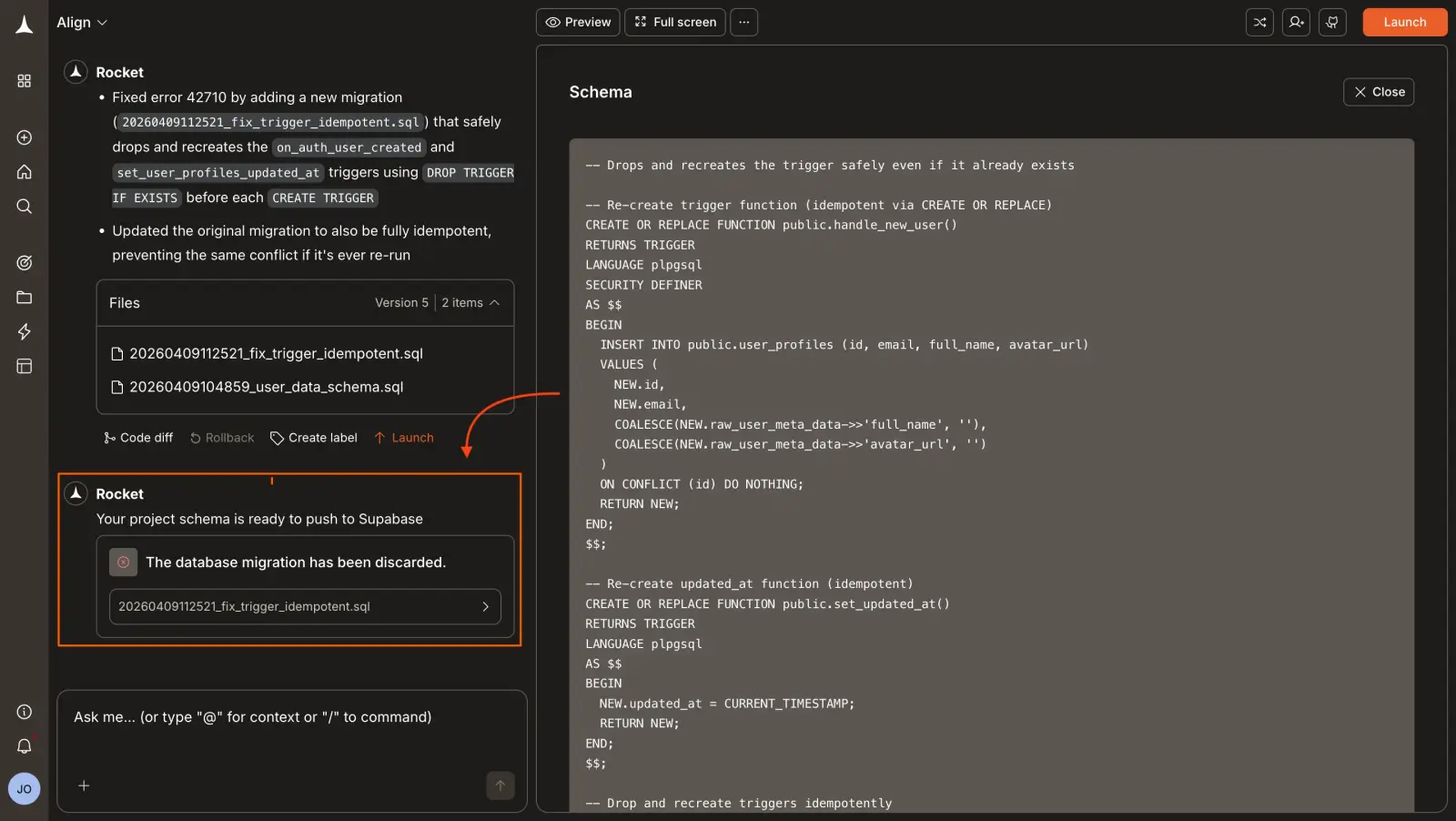
If you discarded a script and later want to apply it, you can run it manually in Supabase.

<Steps>

  <Step title="Copy the SQL from the script popup">
    If it is still visible, click the script name to preview it, then copy the SQL.
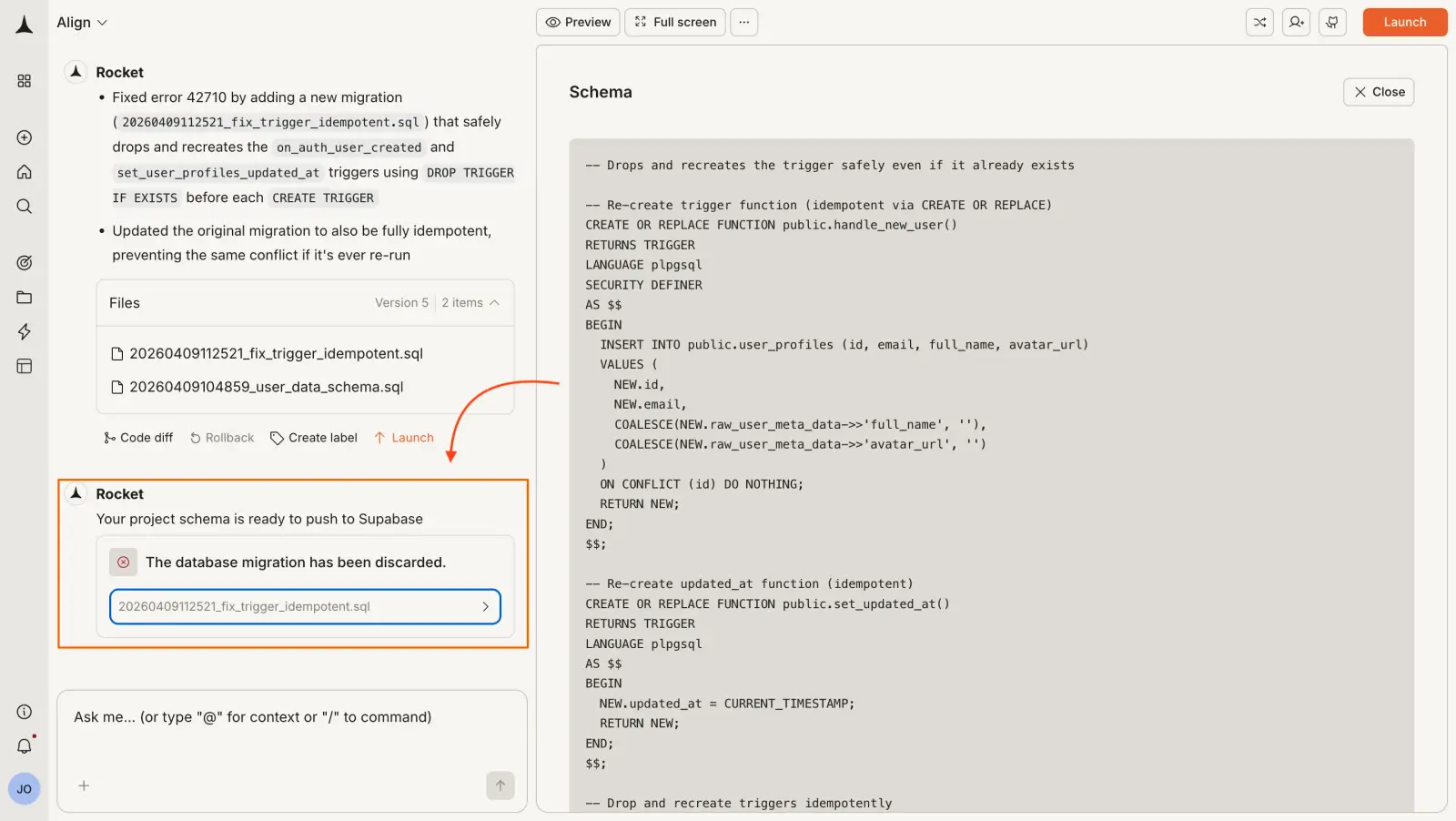
    <Frame caption="Script preview with copy option">
      <img src="/images/build/connectors/supabase/push-migration-scripts/migration-discarded-light.webp" alt="Preview popup of a discarded script with copy option." className="theme-image light-image" />
      <img src="/images/build/connectors/supabase/push-migration-scripts/migration-discarded-dark.webp" alt="Preview popup of a discarded script with copy option." className="theme-image dark-image" />
    </Frame>

    **OR**

    In Rocket, open **Code**, then open the `supabase/migrations/` folder. Each script is saved there with a name and timestamp. Copy the SQL from the script you want.
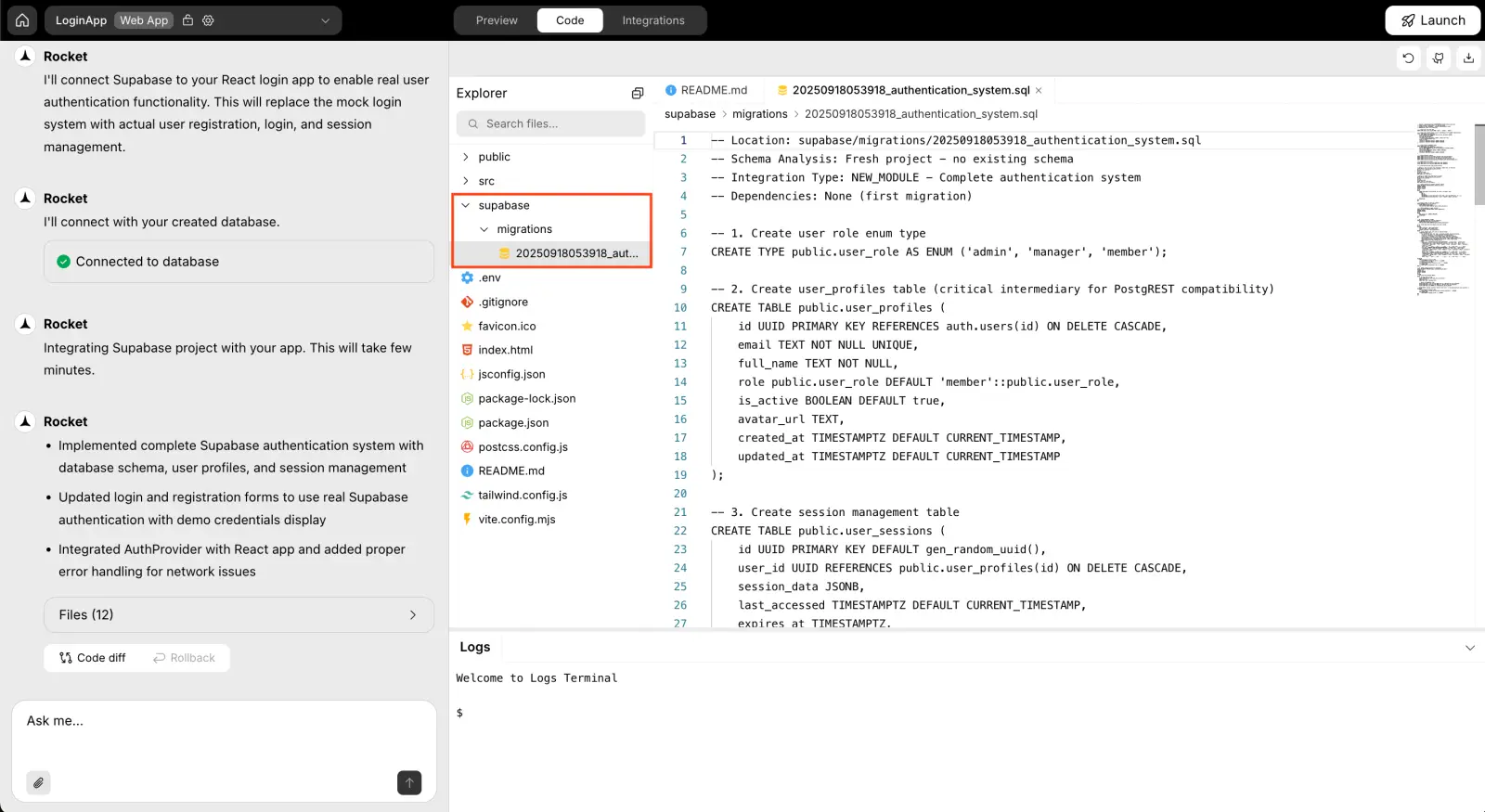
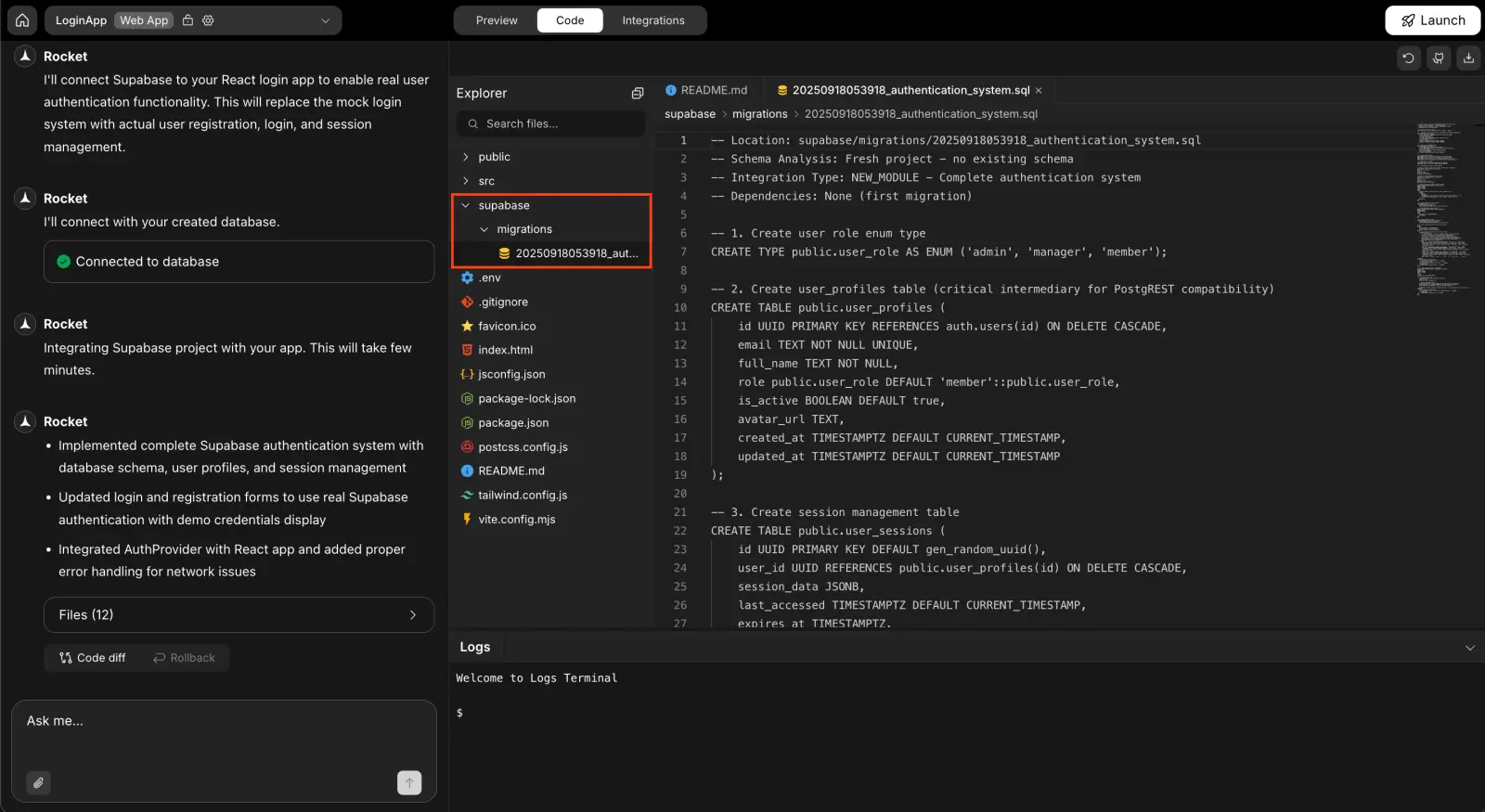
    <Frame caption="Code tab with Supabase migration folder">
      <img src="/images/build/connectors/supabase/push-migration-scripts/supabase-code-view-light.webp" alt="Rocket code view showing the Supabase migrations folder." className="theme-image light-image" />
      <img src="/images/build/connectors/supabase/push-migration-scripts/supabase-code-view-dark.webp" alt="Rocket code view showing the Supabase migrations folder." className="theme-image dark-image" />
    </Frame>
  </Step>

  <Step title="Run the SQL in Supabase">
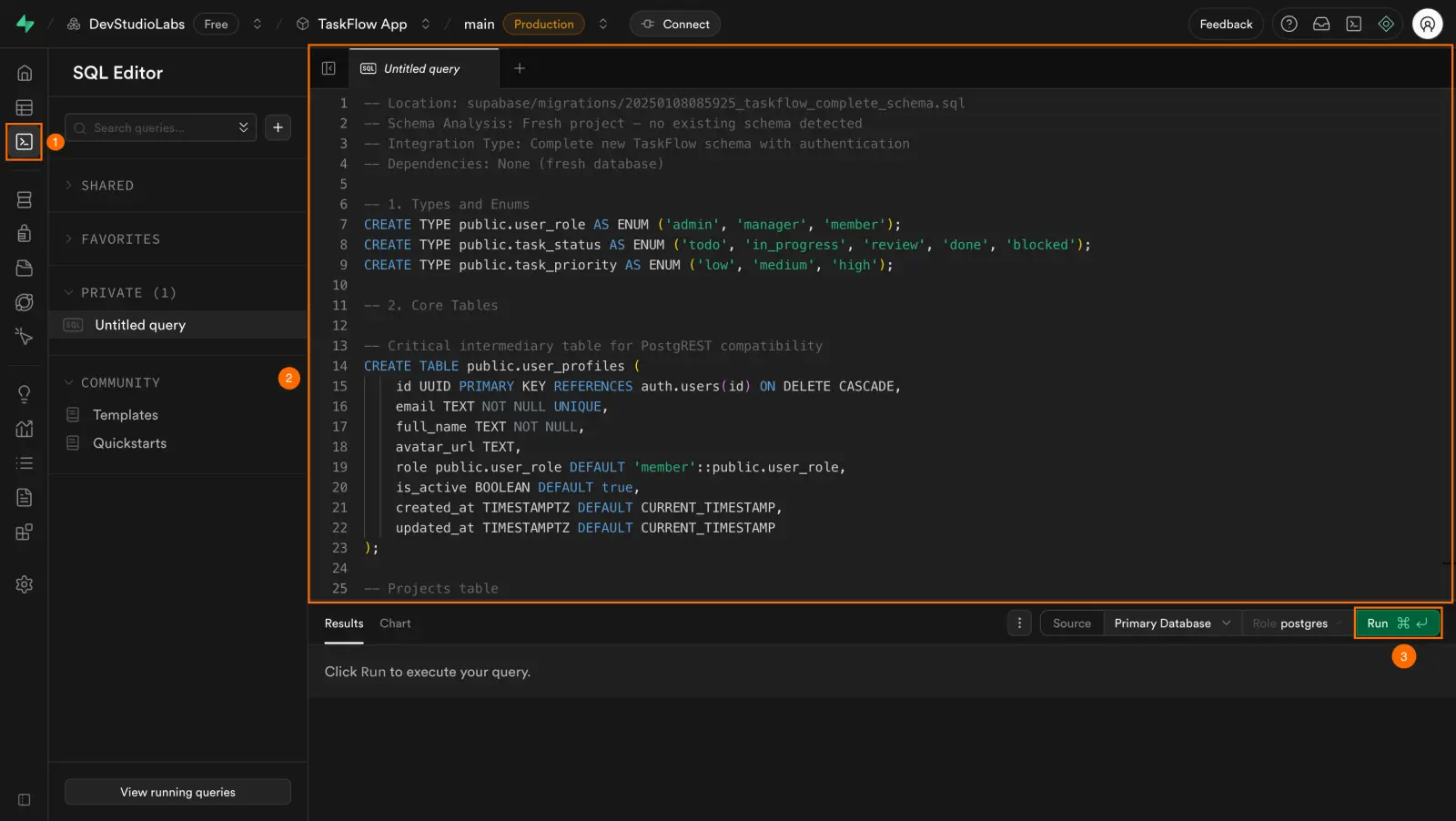
    Paste the SQL into the SQL editor in your Supabase dashboard and click **Run**.
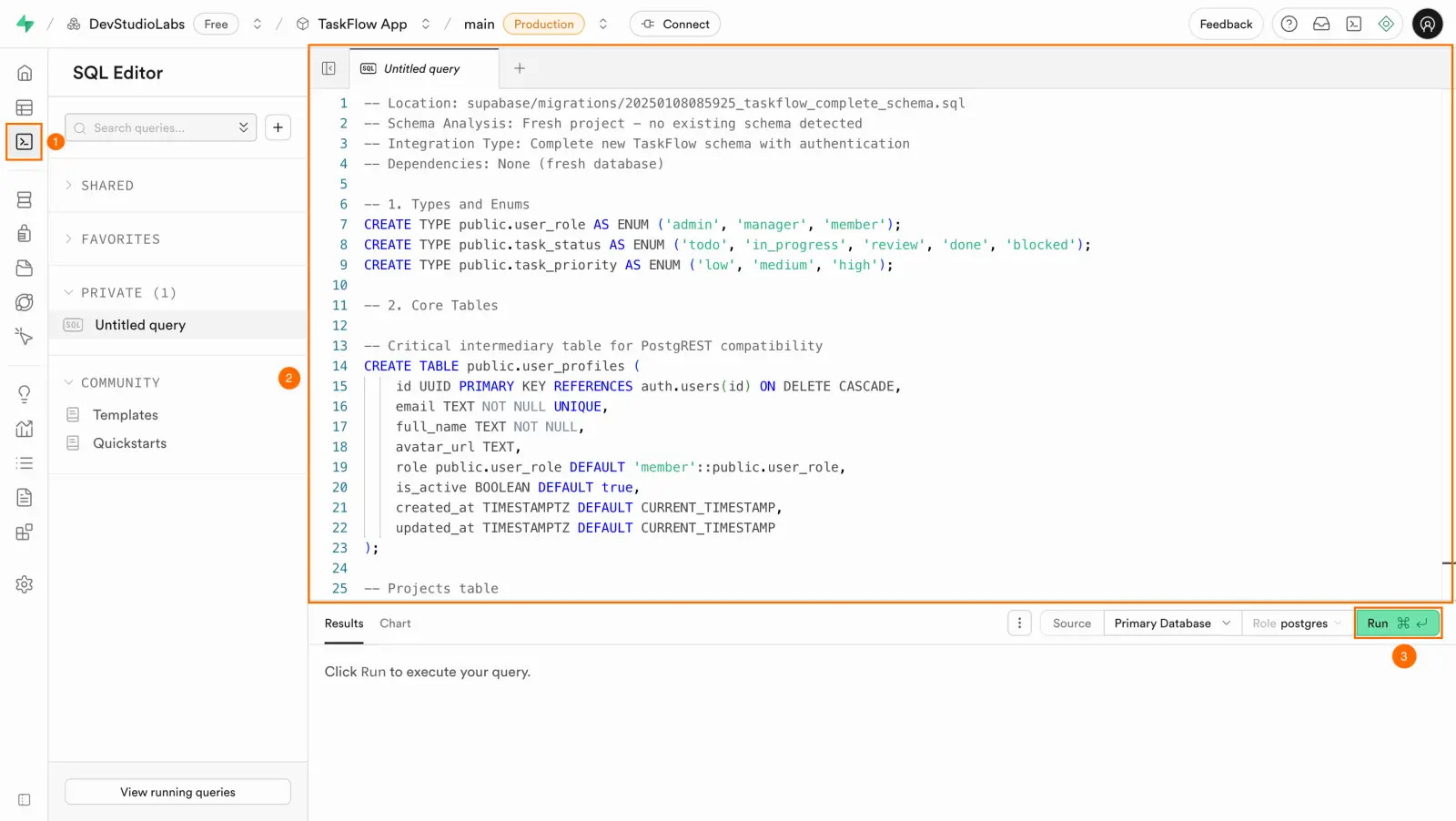
    <Frame caption="SQL editor in Supabase with pasted script">
      <img src="/images/build/connectors/supabase/push-migration-scripts/supabase-manual-script-light.webp" alt="Supabase SQL editor showing a pasted migration script ready to run." className="theme-image light-image" />
      <img src="/images/build/connectors/supabase/push-migration-scripts/supabase-manual-script-dark.webp" alt="Supabase SQL editor showing a pasted migration script ready to run." className="theme-image dark-image" />
    </Frame>
  </Step>

</Steps>

<Note>
  If you change your connected Supabase project, you must run all scripts from the `supabase/migrations/` folder in sequence to match your app's schema.
</Note>

<Card icon="code" horizontal title="Schema synced, app ready.">
  Every Rocket script keeps your app on track. Push as they appear to stay aligned and avoid surprises.
</Card>

---

## What's next? [#whats-next]

<CardGroup cols={2}>
  <Card title="Edge Functions" icon="server" href="/build/connectors/supabase/edge-functions">
    Add backend logic deployed directly from chat.
  </Card>
  <Card title="Supabase overview" icon="database" href="/build/connectors/supabase/overview">
    See all Supabase features available in Rocket.
  </Card>
</CardGroup>