> ## Documentation Index
> Fetch the complete documentation index at: https://docs.rocket.new/llms.txt
> Use this file to discover all available pages before exploring further.
# Redirect URLs
> Set the correct Supabase redirect URL so auth links work in your Rocket.new app.
export const LlmsDirective = () =>
For the complete documentation index, see llms.txt.
For a lightweight markdown version of this page, append .md to the URL.
;
By default, Supabase sends confirmation, password reset, and magic links to `http://localhost:3000`. This guide covers updating the Site URL in Supabase to your live app so those links work correctly for real users.
## Why you need to update redirect URLs
By default, Supabase sends all user links (confirmation, reset, and magic) to `http://localhost:3000`.
If you publish your Rocket app without changing this, users will be sent to a broken page.
Updating this URL ensures users return to your live app after clicking any Supabase link.
## Update the redirect URL in Supabase
Log in to [Supabase](https://supabase.com/) and select the project connected to your Rocket app.
In the left sidebar, click **Authentication**, then open the **URL Configuration** tab.
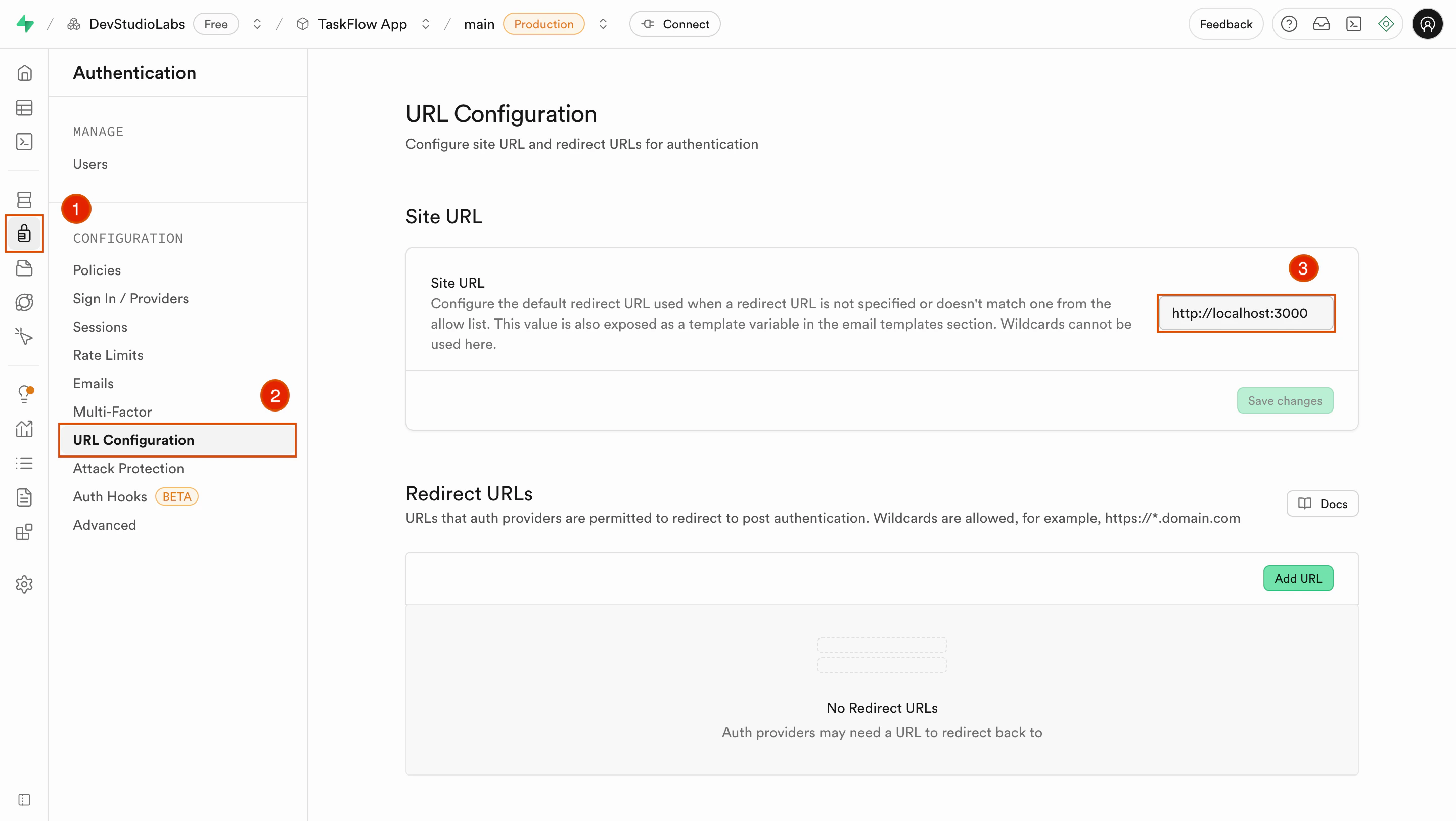
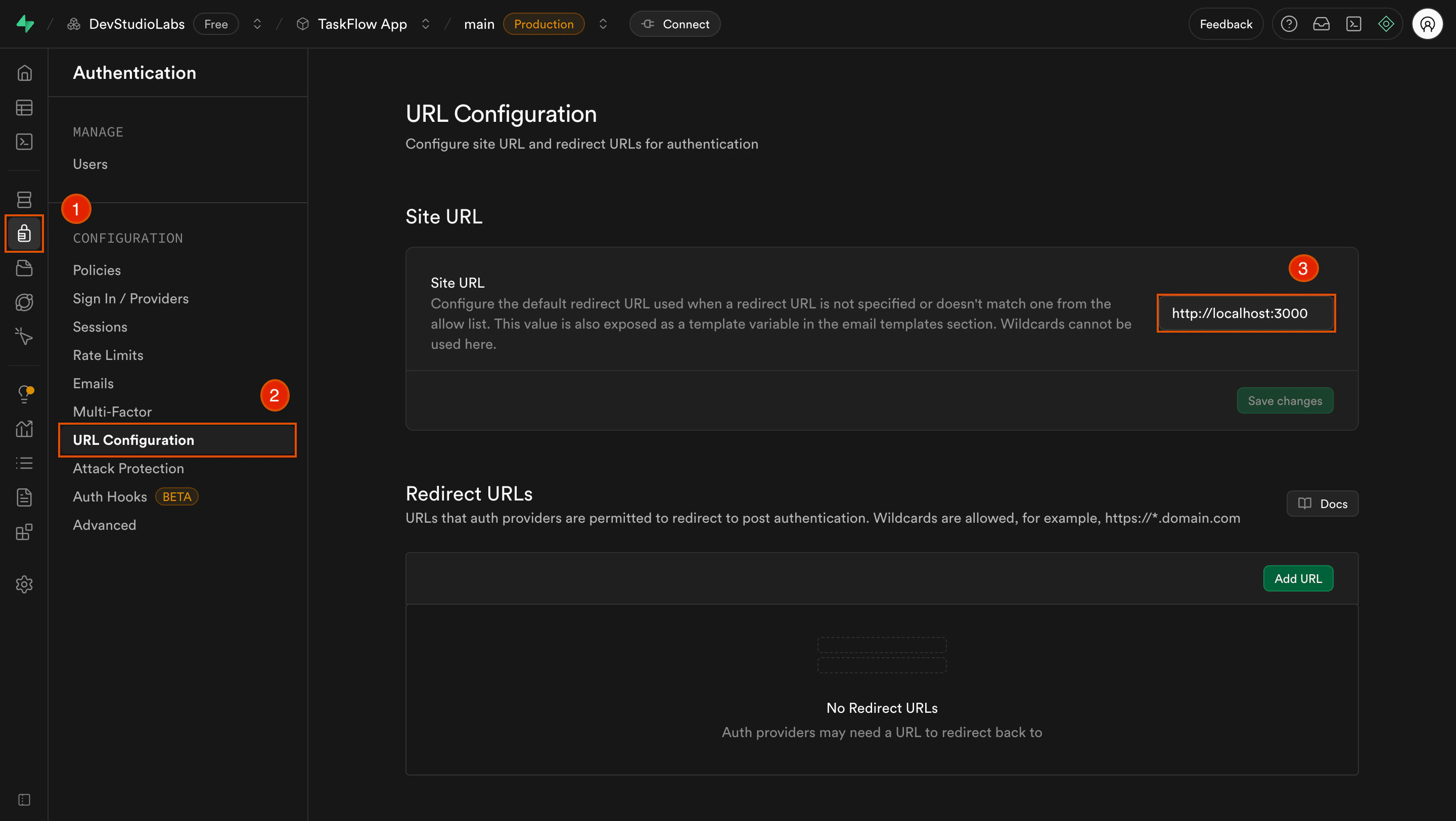 Find the **Site URL** field. Replace `http://localhost:3000` with your app's live URL.
Examples:
* `https://your-app-name.builtwithrocket.new`
* `https://yourdomain.com`
Click **Save** at the bottom of the page.
Sign up using a test email and open the confirmation link. It should take you to your live Rocket app, not `localhost`.
This setting applies to:
* Email confirmation links.
* Password reset links.
* Magic links (if enabled).
## Troubleshooting
### Link still goes to localhost
Clicking the link opens `localhost:3000` instead of your live app.
* Double-check that the **Site URL** field in Supabase is set to your live URL and begins with `https://`.
* Remove any trailing slashes. They can interfere with redirects.
### Link opens the app, but user is not logged in
The link loads your app, but the user is not authenticated.
* Make sure the redirect URL exactly matches your app's domain, including protocol (`https://`) and no trailing slash.
* Confirm your Rocket app is connected to the same Supabase project where the URL is set.
Your Supabase links now take users straight into your live Rocket app.
Find the **Site URL** field. Replace `http://localhost:3000` with your app's live URL.
Examples:
* `https://your-app-name.builtwithrocket.new`
* `https://yourdomain.com`
Click **Save** at the bottom of the page.
Sign up using a test email and open the confirmation link. It should take you to your live Rocket app, not `localhost`.
This setting applies to:
* Email confirmation links.
* Password reset links.
* Magic links (if enabled).
## Troubleshooting
### Link still goes to localhost
Clicking the link opens `localhost:3000` instead of your live app.
* Double-check that the **Site URL** field in Supabase is set to your live URL and begins with `https://`.
* Remove any trailing slashes. They can interfere with redirects.
### Link opens the app, but user is not logged in
The link loads your app, but the user is not authenticated.
* Make sure the redirect URL exactly matches your app's domain, including protocol (`https://`) and no trailing slash.
* Confirm your Rocket app is connected to the same Supabase project where the URL is set.
Your Supabase links now take users straight into your live Rocket app.