> ## Documentation Index
> Fetch the complete documentation index at: https://docs.rocket.new/llms.txt
> Use this file to discover all available pages before exploring further.
# Social login
> Set up social authentication providers in Supabase for your Rocket.new app - Google, GitHub, and more.
export const LlmsDirective = () =>
For the complete documentation index, see llms.txt.
For a lightweight markdown version of this page, append .md to the URL.
;
Enable social sign-in providers in Supabase and connect them to your Rocket app. This guide uses Google as an example. The process is similar for other providers.
Social sign-in only works on your app's live preview or custom domain. It will not work inside Rocket's preview.
## Set up a social provider in Supabase
The steps below use Google as an example.
The process is similar for other providers. For provider-specific instructions, refer to their documentation.
1. In your Supabase project, go to **Authentication** from the left menu.
2. Click **Sign In / Providers**.
3. Select your provider. In this case, choose **Google**.
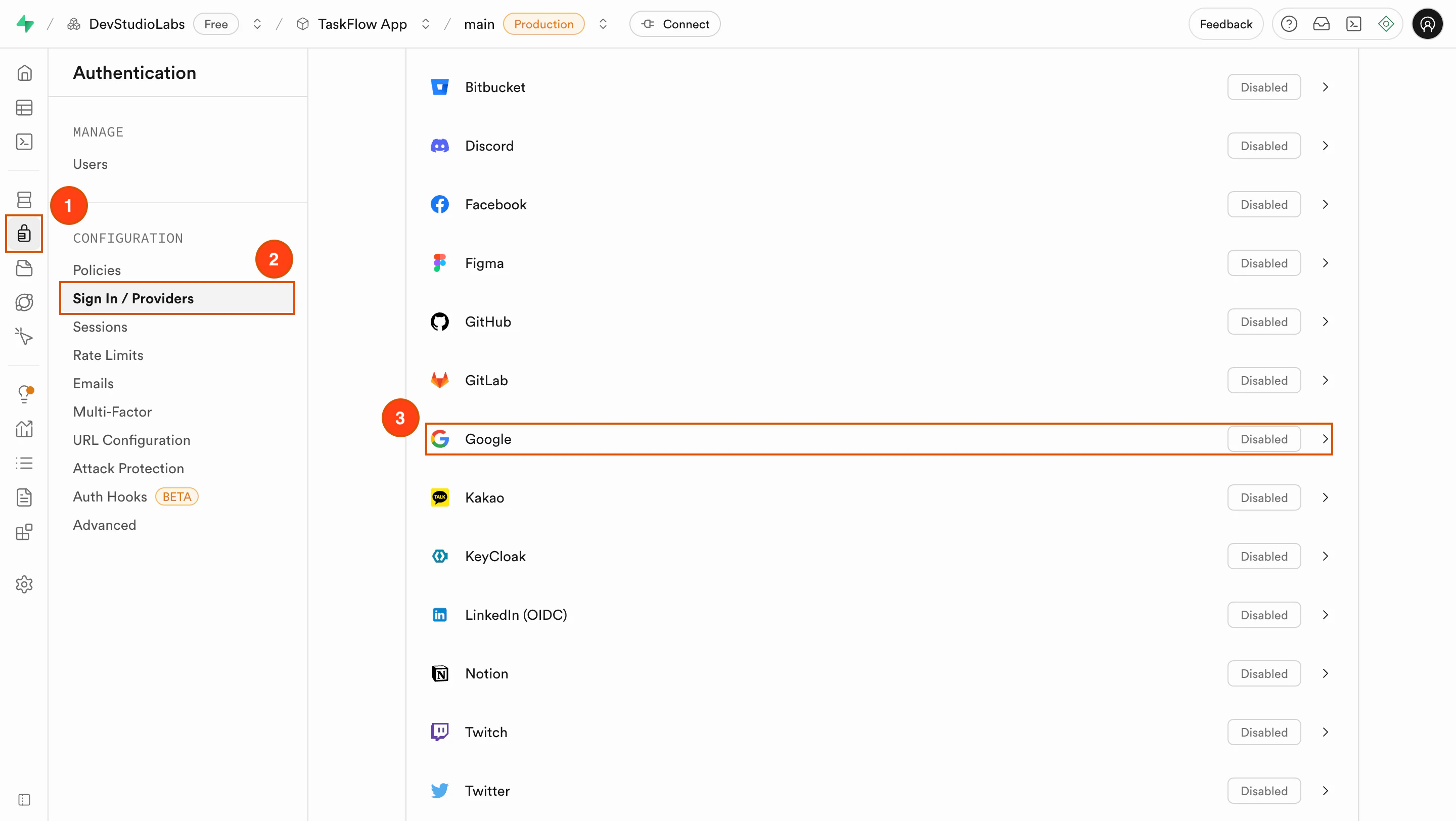
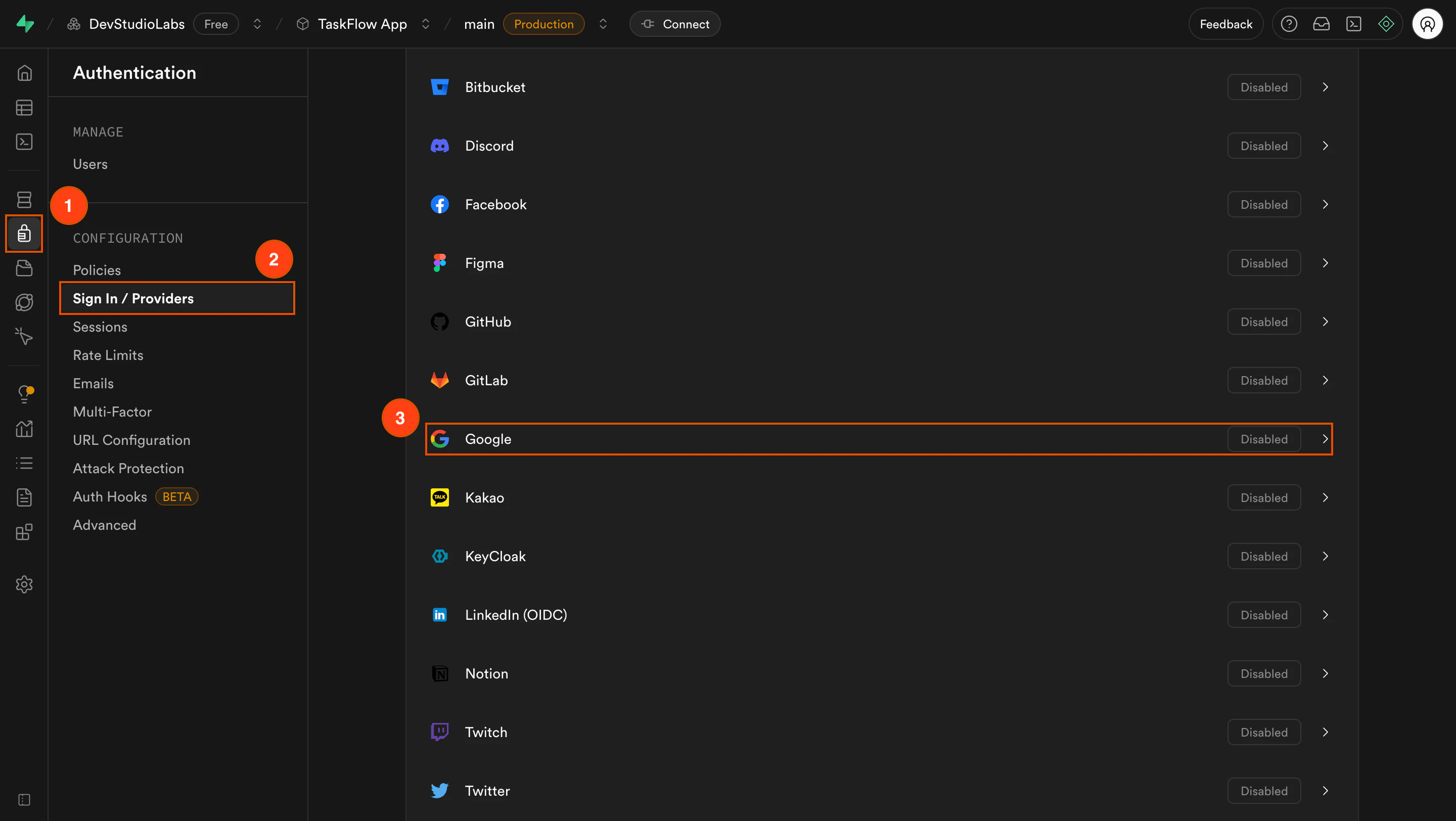 The provider settings panel opens, showing fields for credentials and a callback URL.
In your provider's developer console (e.g., Google Cloud Console):
* Create a new OAuth 2.0 Client ID and Secret.
* Under **Authorized JavaScript origins**, enter your Rocket app's live preview URL or custom domain. Do not use localhost.
* Under **Authorized redirect URIs**, paste the **Callback URL** from Supabase.
For Google, refer to the [Google OAuth setup guide](https://developers.google.com/identity/protocols/oauth2/web-server#creatingcred).
You now have a Client ID and Client Secret from your provider.
Back in Supabase, on the selected provider's settings page:
1. Paste the **Client ID** into the first field.
2. Paste the **Client Secret** into the second field.
3. Copy the **Redirect URL** shown in the third field.
Make sure this exact URL is also set in your provider's console.
The provider settings panel opens, showing fields for credentials and a callback URL.
In your provider's developer console (e.g., Google Cloud Console):
* Create a new OAuth 2.0 Client ID and Secret.
* Under **Authorized JavaScript origins**, enter your Rocket app's live preview URL or custom domain. Do not use localhost.
* Under **Authorized redirect URIs**, paste the **Callback URL** from Supabase.
For Google, refer to the [Google OAuth setup guide](https://developers.google.com/identity/protocols/oauth2/web-server#creatingcred).
You now have a Client ID and Client Secret from your provider.
Back in Supabase, on the selected provider's settings page:
1. Paste the **Client ID** into the first field.
2. Paste the **Client Secret** into the second field.
3. Copy the **Redirect URL** shown in the third field.
Make sure this exact URL is also set in your provider's console.
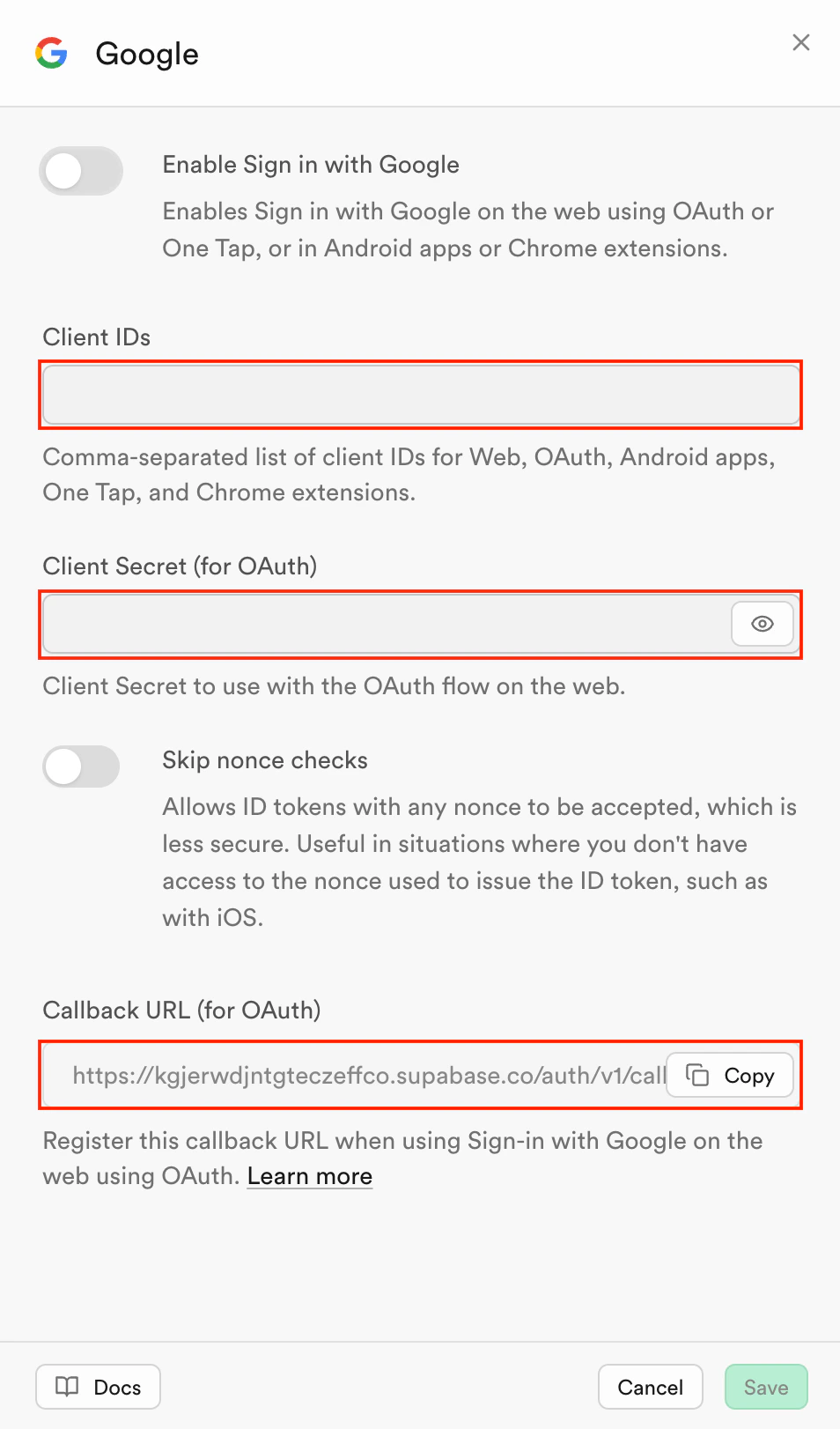
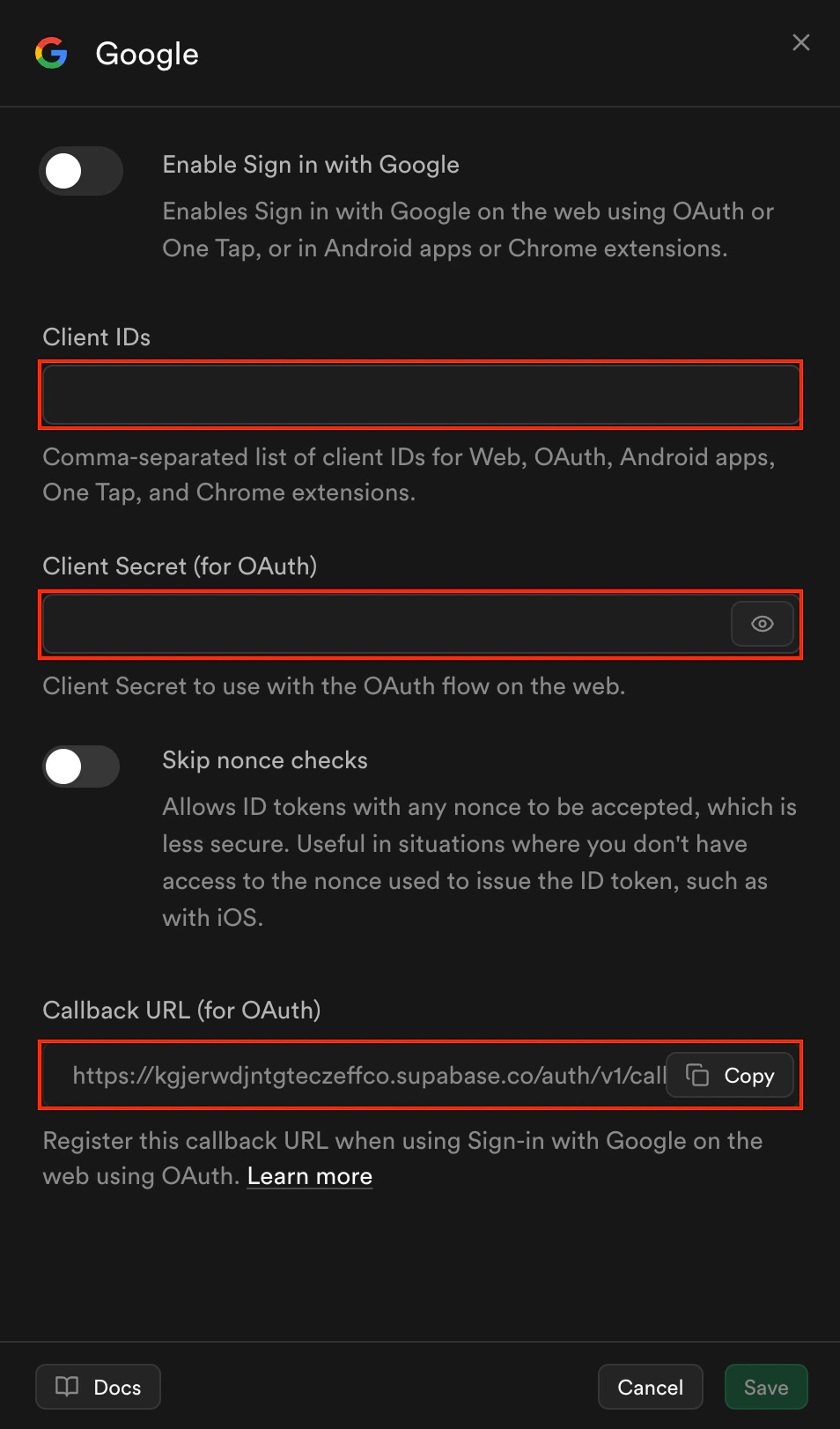 Always copy the callback URL directly from Supabase.
Each provider requires a unique format, and typos will break the flow.
The provider appears as enabled in your Supabase list.
1. Launch your Rocket app to get the live preview URL.
2. Open the live preview or your custom domain (not localhost).
3. Click **Sign in with \[Provider]**.
4. Complete the provider's login flow.
You are redirected back to your Rocket app and signed in successfully.
## Troubleshooting
### 1. OAuth error after clicking sign-in
Clicking the provider button opens an OAuth error page.
* Check that the **Authorized redirect URI** in the provider's console matches the Supabase callback exactly.
* Ensure the **Authorized JavaScript origins** includes your Rocket live preview or custom domain.
### 2. Redirected but not logged in
After login, you are redirected but remain unauthenticated.
* Confirm Rocket is linked to the Supabase project where the provider is enabled.
* Test only using your live preview link or custom domain, not localhost.
You have successfully added social authentication to your Rocket app using Supabase.
Always copy the callback URL directly from Supabase.
Each provider requires a unique format, and typos will break the flow.
The provider appears as enabled in your Supabase list.
1. Launch your Rocket app to get the live preview URL.
2. Open the live preview or your custom domain (not localhost).
3. Click **Sign in with \[Provider]**.
4. Complete the provider's login flow.
You are redirected back to your Rocket app and signed in successfully.
## Troubleshooting
### 1. OAuth error after clicking sign-in
Clicking the provider button opens an OAuth error page.
* Check that the **Authorized redirect URI** in the provider's console matches the Supabase callback exactly.
* Ensure the **Authorized JavaScript origins** includes your Rocket live preview or custom domain.
### 2. Redirected but not logged in
After login, you are redirected but remain unauthenticated.
* Confirm Rocket is linked to the Supabase project where the provider is enabled.
* Test only using your live preview link or custom domain, not localhost.
You have successfully added social authentication to your Rocket app using Supabase.