> ## Documentation Index
> Fetch the complete documentation index at: https://docs.rocket.new/llms.txt
> Use this file to discover all available pages before exploring further.
# Tally
> Connect Tally to Rocket and embed free, unlimited forms for signups, feedback, and data collection - all wired up from chat.
export const LlmsDirective = () =>
For the complete documentation index, see llms.txt.
For a lightweight markdown version of this page, append .md to the URL.
;
Describe the form you need in chat and Rocket generates the embed code, webhook listeners, and response storage automatically. Tally is free with unlimited forms and responses.
This connector is only available for **Next.js TypeScript** web build tasks.
## What you can do
Simple contact form with name, email, and message fields, routed to your inbox or stored in a database.
Collect user feedback, feature requests, or satisfaction ratings with a quick inline form.
Pre-launch waitlist that collects emails and optionally tracks referral sources.
Event registrations, course enrollments, or membership applications with multi-field forms.
## Before you connect
You need a Tally API key.
**Get your Tally API key** from the Tally developer documentation.
Go to **Settings > API Keys**, click **Create API Key**, add a name, and confirm. Copy the key to use during setup.
Tally is a **task-level** connector. Each Rocket task connects to its own API key independently.
## Connect Tally
You can connect from two places. Both do the same thing.
**Option 1: From chat**
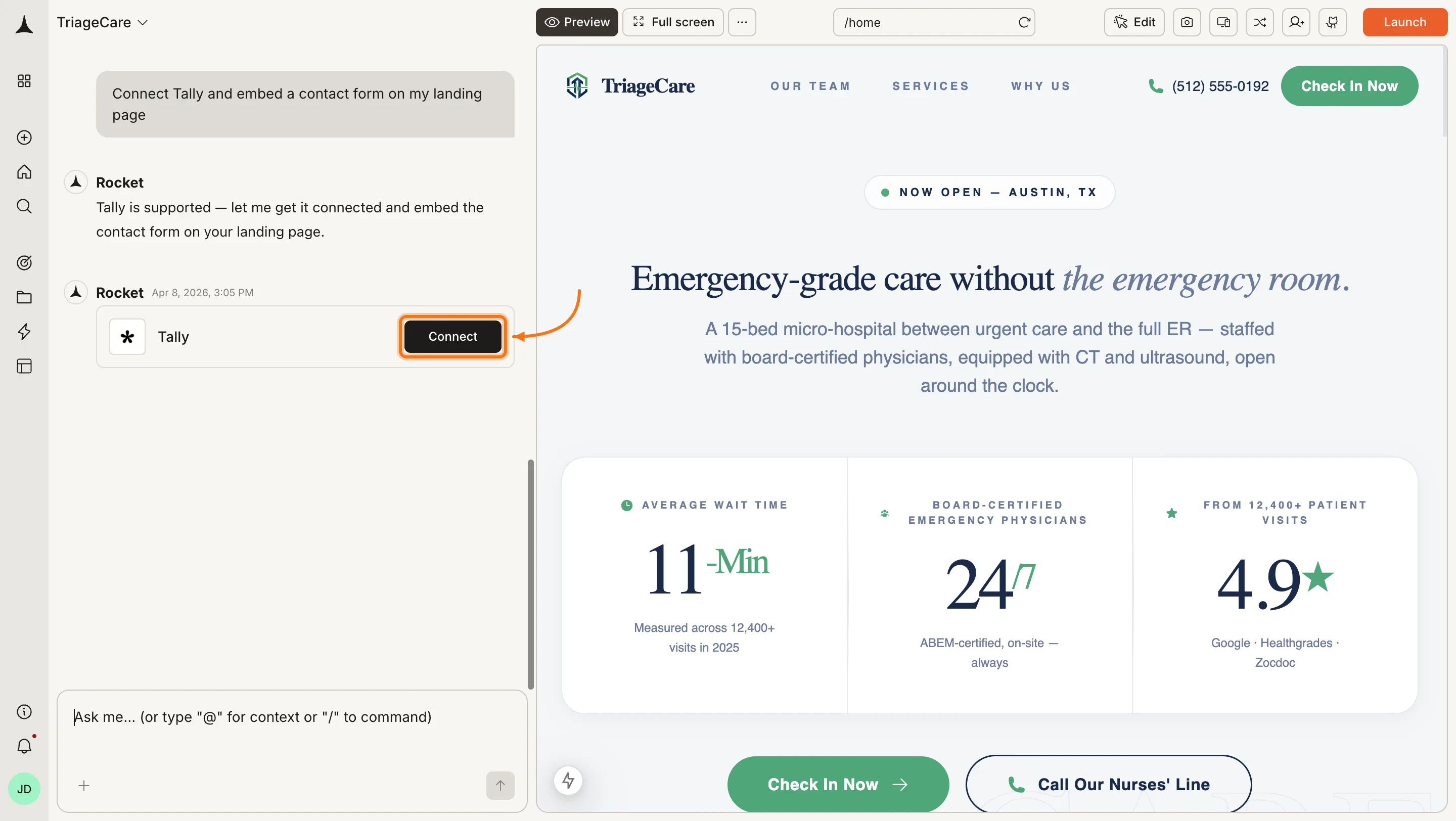
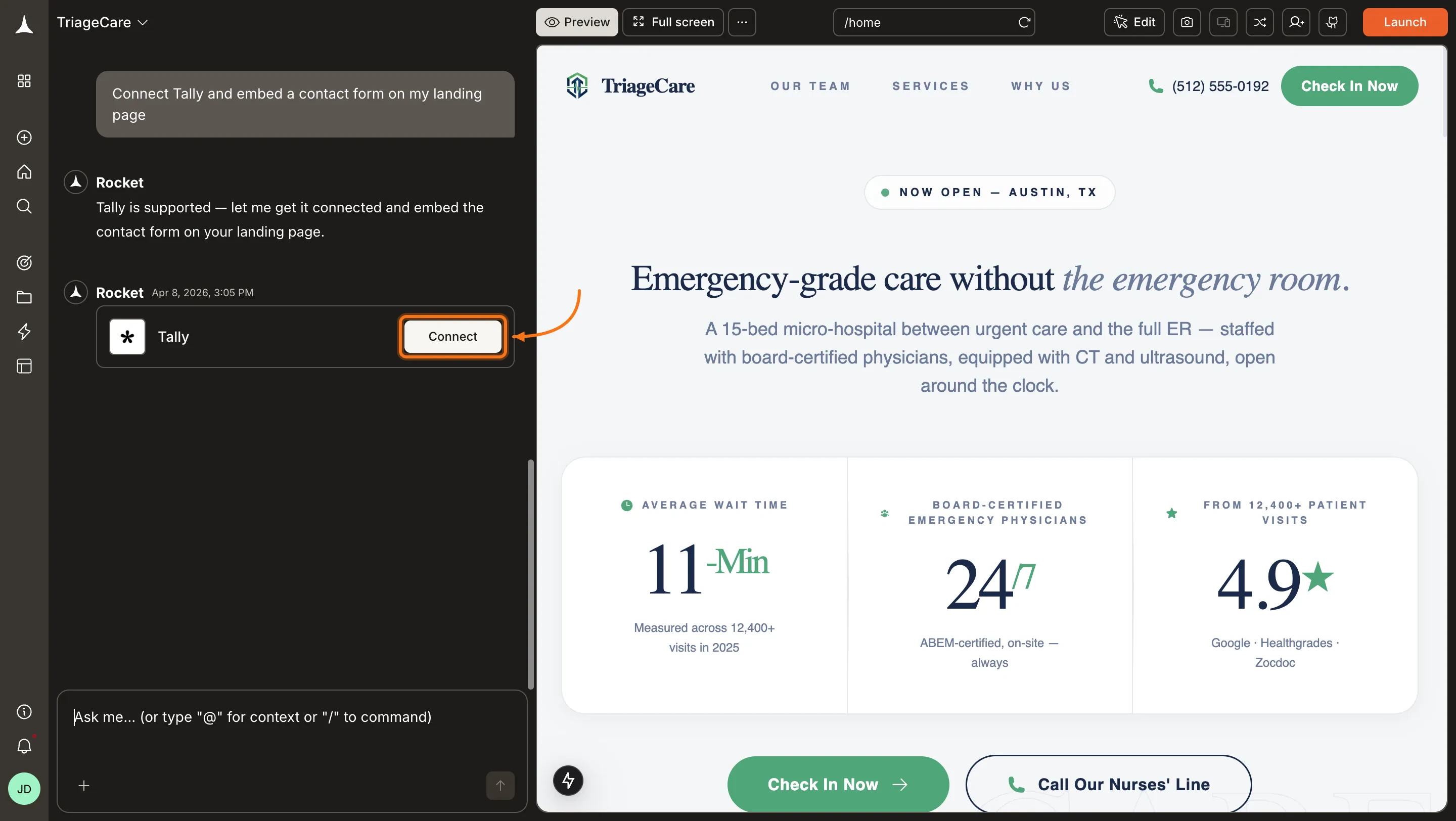
Type a prompt that mentions Tally, for example `Connect Tally and embed a contact form on my landing page`. Rocket detects the intent and shows a **Connect** button inline. Click it to open the credentials popup.
 **Option 2: From the Connectors tab**
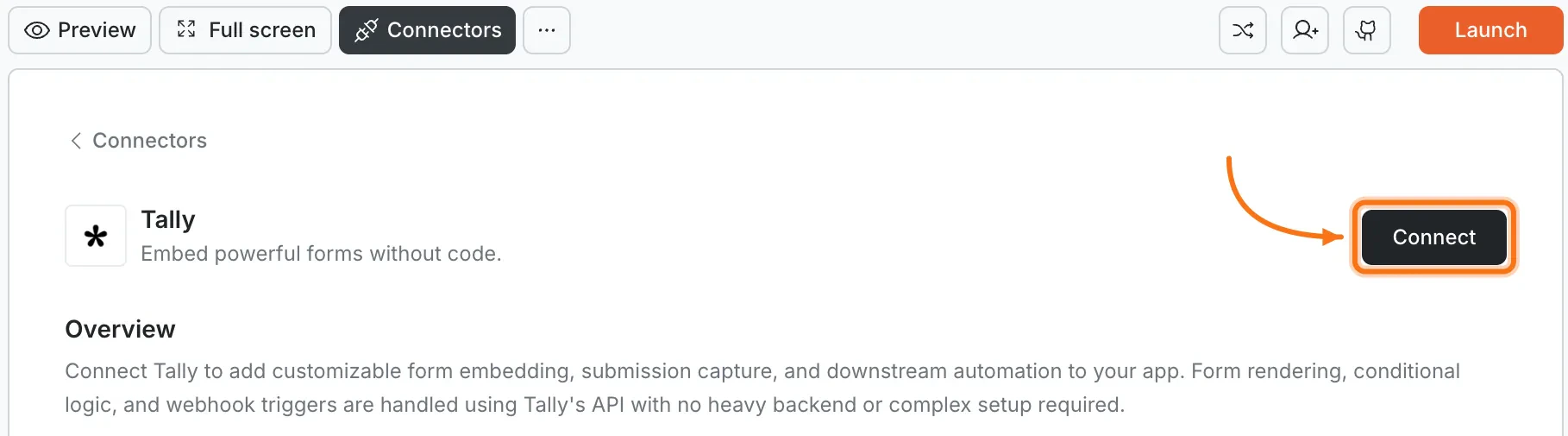
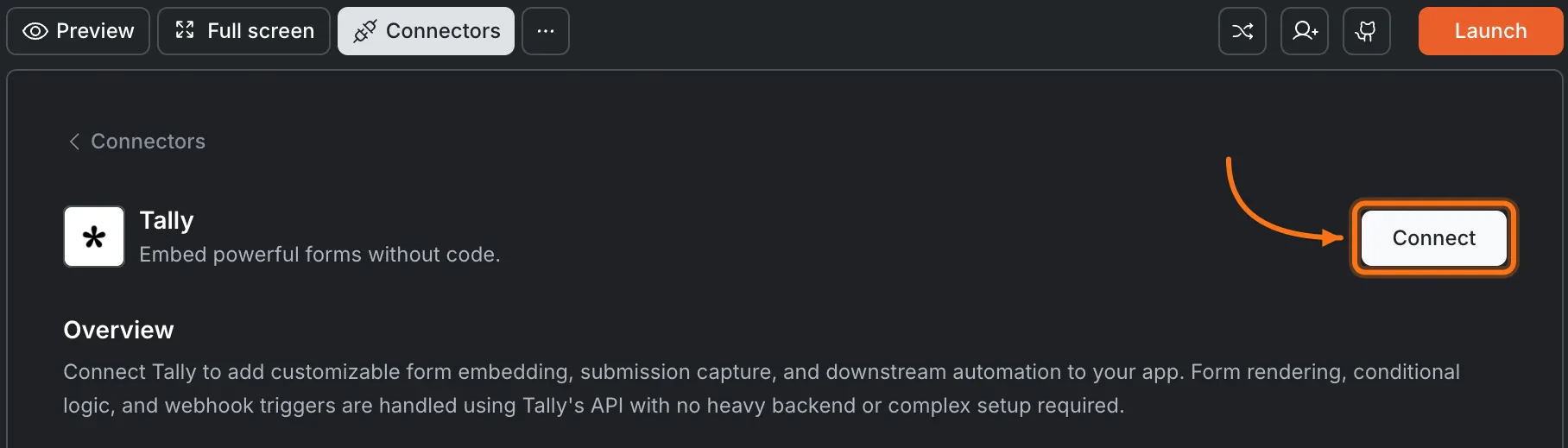
Click the **`...`** button in the preview toolbar, then select **Connectors**.
**Option 2: From the Connectors tab**
Click the **`...`** button in the preview toolbar, then select **Connectors**.

 Click the **Tally** card, then click **Connect**.
 **After clicking Connect**
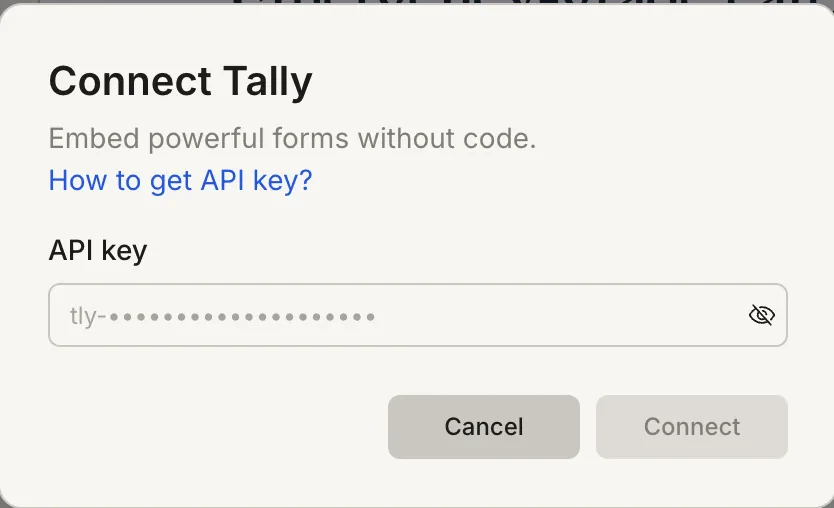
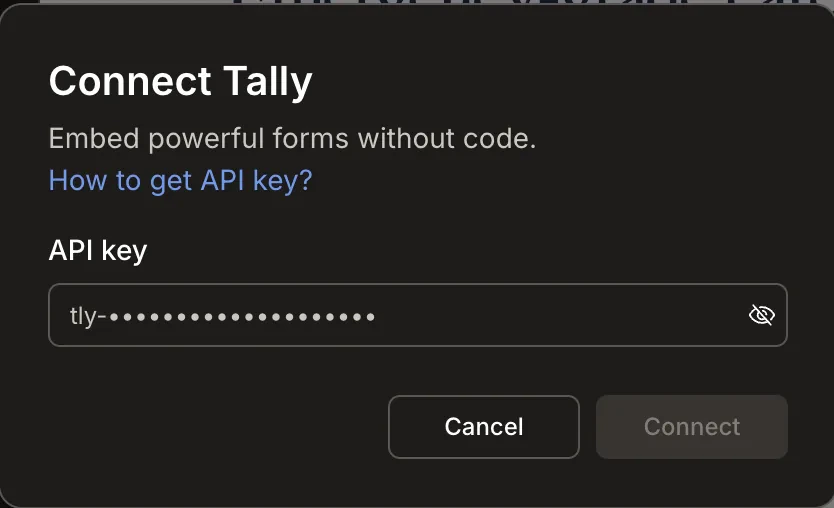
A popup opens. Paste your **API key** and click **Connect**.
**After clicking Connect**
A popup opens. Paste your **API key** and click **Connect**.
 A green dot appears next to Tally when the connection is active.
**Update or disconnect**
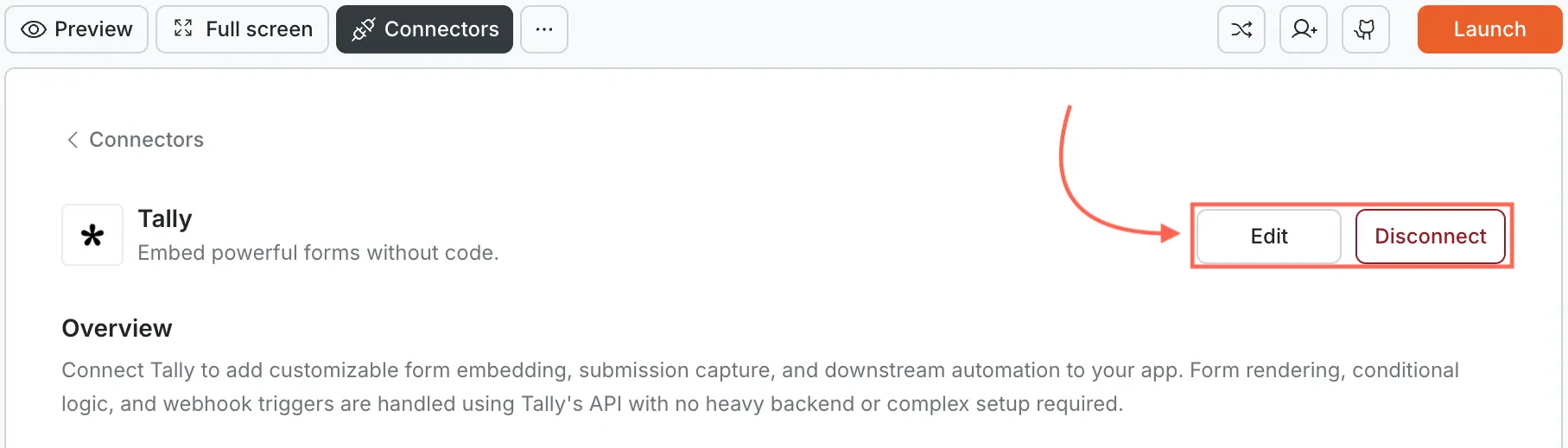
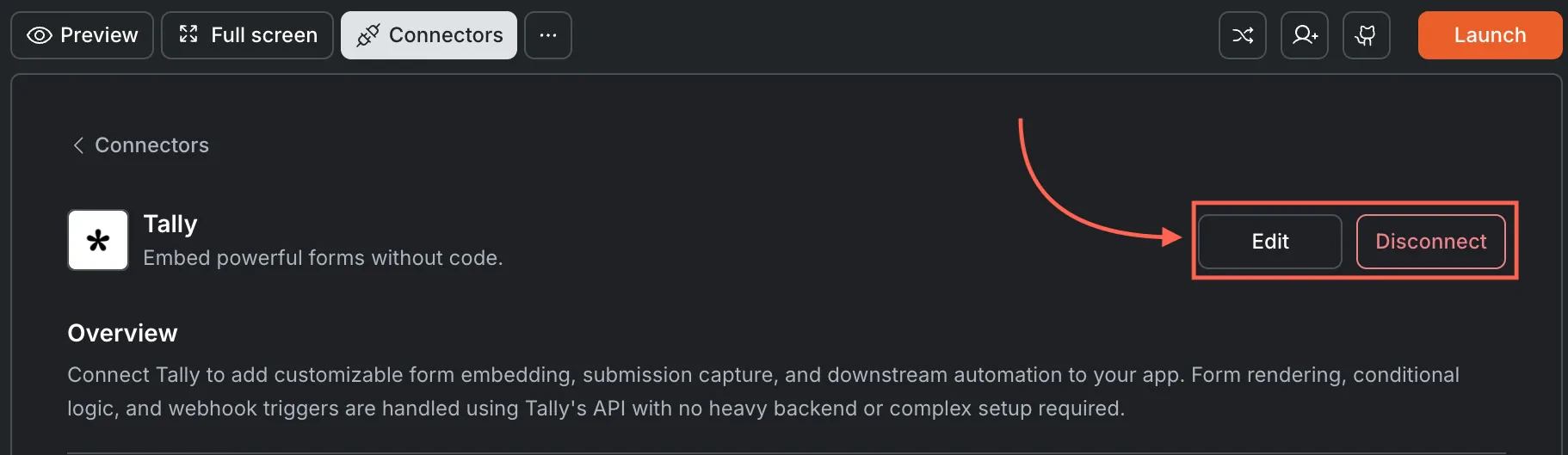
Open [**Connectors > Tally**](#connect-tally) and click the card. Click **Edit** to update the key or **Disconnect** to remove it from this task.
A green dot appears next to Tally when the connection is active.
**Update or disconnect**
Open [**Connectors > Tally**](#connect-tally) and click the card. Click **Edit** to update the key or **Disconnect** to remove it from this task.
 You can connect from two places. Both do the same thing.
**Option 1: From chat**
Type a prompt that mentions Tally. Rocket detects the intent and shows a **Connect** button inline. Tap it to open the credentials screen.
**Option 2: From the Connectors tab**
1. Tap the **More** button in the header.
2. Tap **Integrations**.
3. Tap the **Tally** card, then tap **Connect**.
**After tapping Connect**
A popup opens. Paste your **API key** and tap **Done**.
A green dot appears next to Tally when the connection is active.
**Update or disconnect**
Go back to the **Tally** card in Integrations. Tap **Edit** to update the key or **Disconnect** to remove it from this task.
## Example prompts
| What you want | Prompt to use |
| :---------------- | :--------------------------------------------------------------------------------------------------- |
| Contact form | `Embed a Tally contact form on my /contact page with name, email, and message fields.` |
| Feedback widget | `Add an in-app Tally feedback form that asks for a rating and comment.` |
| Waitlist | `Create a pre-launch waitlist page with a Tally form that collects email addresses.` |
| Registration | `Build a Tally event registration form with name, email, and ticket type.` |
| Newsletter signup | `Add a Tally email signup form in the footer of every page.` |
| Bug report | `Create a Tally bug report form with title, description, steps to reproduce, and screenshot upload.` |
| Job application | `Embed a Tally job application form with name, email, resume upload, and cover letter.` |
| Poll | `Add a quick Tally poll to the homepage asking users which feature they want next.` |
| RSVP | `Build a Tally RSVP form for my event with name, email, and plus-one count.` |
| Beta access | `Create a Tally form for beta access requests with email, use case, and company name.` |
## Tips
* **Unlimited forms and responses on the free plan.** Tally's free tier is ideal for side projects and MVPs.
* **Responses live in Tally.** Submissions are stored in your Tally dashboard. Use webhooks to sync data to Supabase or another database.
* **Embedding options.** Rocket can embed Tally as an inline form, popup, or full-page experience. Describe the style you want in chat.
* **File uploads supported.** Tally forms can accept file uploads. Uploaded files are stored in Tally's infrastructure.
* **One API key per task.** Each Rocket task connects to one Tally API key independently.
## What's next?
A conversational form builder with branching logic and advanced design options.
Store Tally form submissions in a database for querying and display in your app.
Send confirmation emails automatically when someone submits a Tally form.
Track form views and submission rates with GA4 events.
You can connect from two places. Both do the same thing.
**Option 1: From chat**
Type a prompt that mentions Tally. Rocket detects the intent and shows a **Connect** button inline. Tap it to open the credentials screen.
**Option 2: From the Connectors tab**
1. Tap the **More** button in the header.
2. Tap **Integrations**.
3. Tap the **Tally** card, then tap **Connect**.
**After tapping Connect**
A popup opens. Paste your **API key** and tap **Done**.
A green dot appears next to Tally when the connection is active.
**Update or disconnect**
Go back to the **Tally** card in Integrations. Tap **Edit** to update the key or **Disconnect** to remove it from this task.
## Example prompts
| What you want | Prompt to use |
| :---------------- | :--------------------------------------------------------------------------------------------------- |
| Contact form | `Embed a Tally contact form on my /contact page with name, email, and message fields.` |
| Feedback widget | `Add an in-app Tally feedback form that asks for a rating and comment.` |
| Waitlist | `Create a pre-launch waitlist page with a Tally form that collects email addresses.` |
| Registration | `Build a Tally event registration form with name, email, and ticket type.` |
| Newsletter signup | `Add a Tally email signup form in the footer of every page.` |
| Bug report | `Create a Tally bug report form with title, description, steps to reproduce, and screenshot upload.` |
| Job application | `Embed a Tally job application form with name, email, resume upload, and cover letter.` |
| Poll | `Add a quick Tally poll to the homepage asking users which feature they want next.` |
| RSVP | `Build a Tally RSVP form for my event with name, email, and plus-one count.` |
| Beta access | `Create a Tally form for beta access requests with email, use case, and company name.` |
## Tips
* **Unlimited forms and responses on the free plan.** Tally's free tier is ideal for side projects and MVPs.
* **Responses live in Tally.** Submissions are stored in your Tally dashboard. Use webhooks to sync data to Supabase or another database.
* **Embedding options.** Rocket can embed Tally as an inline form, popup, or full-page experience. Describe the style you want in chat.
* **File uploads supported.** Tally forms can accept file uploads. Uploaded files are stored in Tally's infrastructure.
* **One API key per task.** Each Rocket task connects to one Tally API key independently.
## What's next?
A conversational form builder with branching logic and advanced design options.
Store Tally form submissions in a database for querying and display in your app.
Send confirmation emails automatically when someone submits a Tally form.
Track form views and submission rates with GA4 events.