> ## Documentation Index
> Fetch the complete documentation index at: https://docs.rocket.new/llms.txt
> Use this file to discover all available pages before exploring further.
# Twilio
> Connect Twilio to Rocket and send SMS verification codes, alerts, and notifications - all wired up from chat.
export const LlmsDirective = () =>
For the complete documentation index, see llms.txt.
For a lightweight markdown version of this page, append .md to the URL.
;
Describe the SMS flow you want in chat and Rocket generates the complete logic - message templates, sending API calls, phone number formatting, and delivery tracking.
## What you can do
One-time codes for account verification, email confirmation, or identity checks.
An extra layer of security with SMS-based verification during login.
SMS notifications when order status changes, from confirmation to delivery.
Automated SMS reminders before scheduled appointments, meetings, or events.
Time-sensitive alerts for system events, threshold warnings, or custom triggers.
## Before you connect
You need three values from the [Twilio Console](https://console.twilio.com/):
* **Account SID** - found on the Twilio Console dashboard
* **Auth Token** - found on the Twilio Console dashboard
* **From Phone Number** - your Twilio number in E.164 format, e.g. `+15551234567`
**How to find your Auth Token and Account SID** - Twilio Help Center
Never paste your Account SID or Auth Token directly into chat. Always use the secure connection popup.
Twilio is a **task-level** connector. Each Rocket task connects to its own Twilio credentials independently.
## Connect Twilio
You can connect from two places - both open the same popup.
**Option 1: From chat**
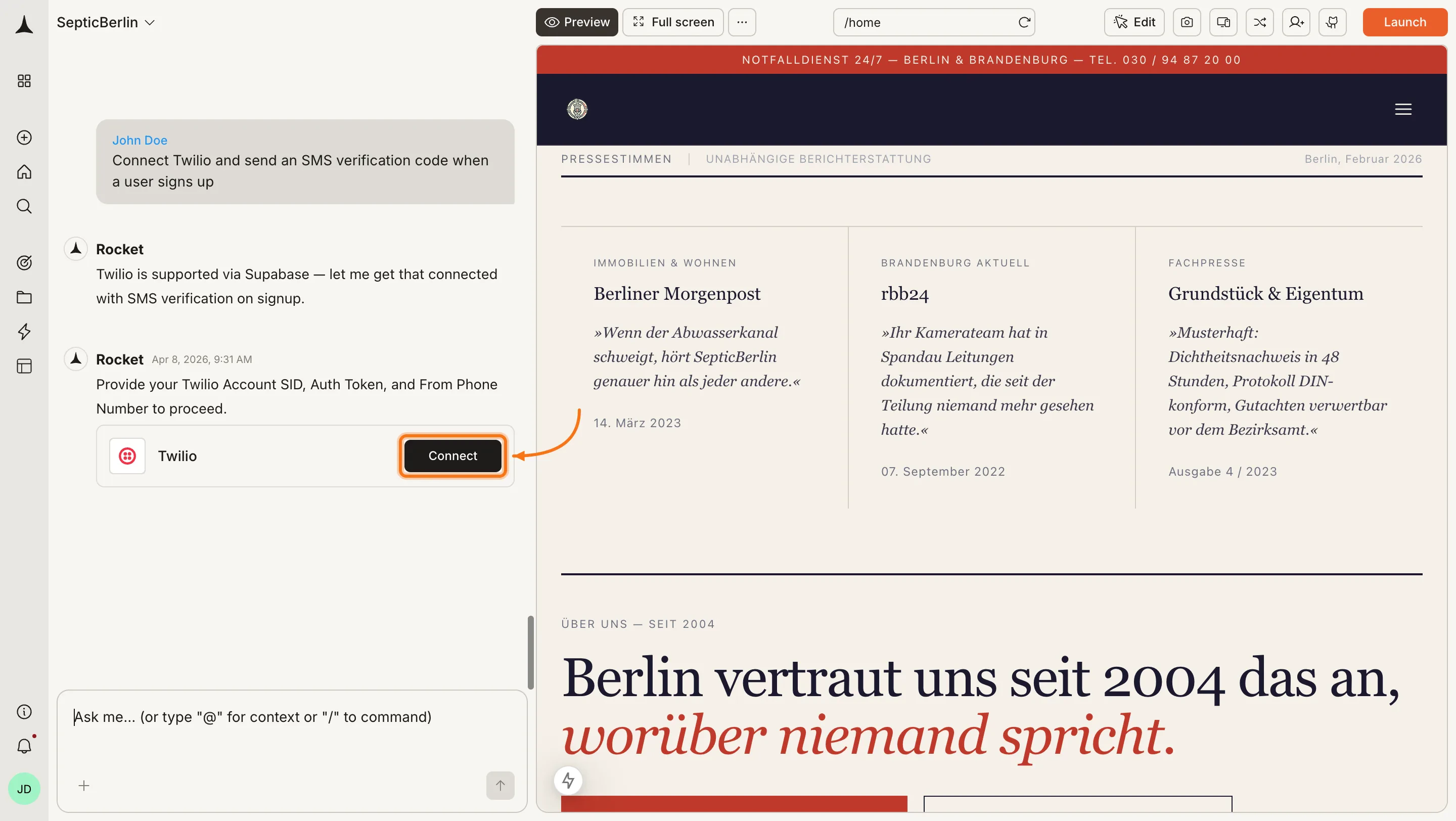
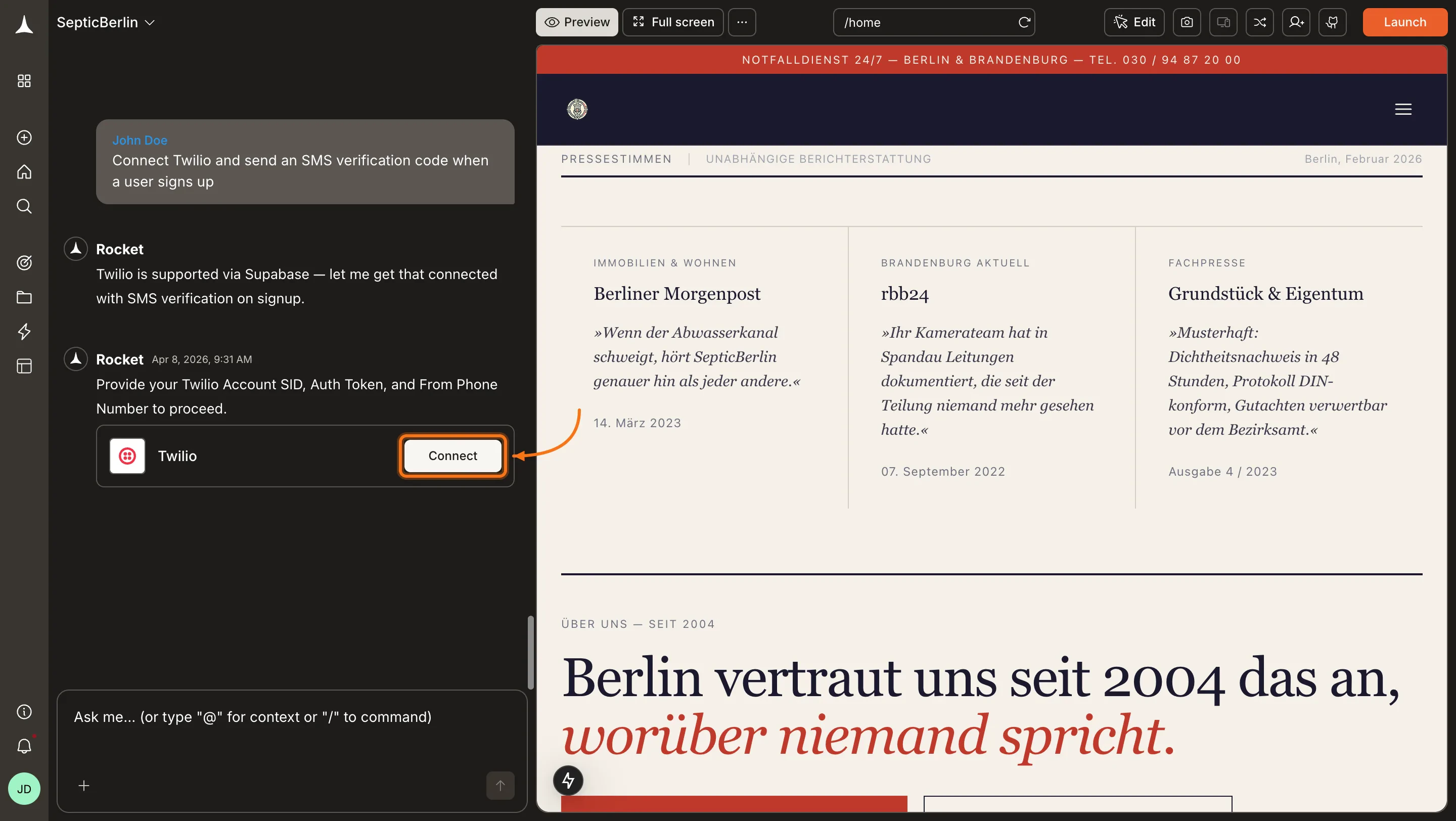
Type a prompt that mentions SMS - for example, `Connect Twilio and send an SMS verification code when a user signs up`. Rocket detects the intent and shows a **Connect** button inline. Click it and the popup opens.
 **Option 2: From the Connectors tab**
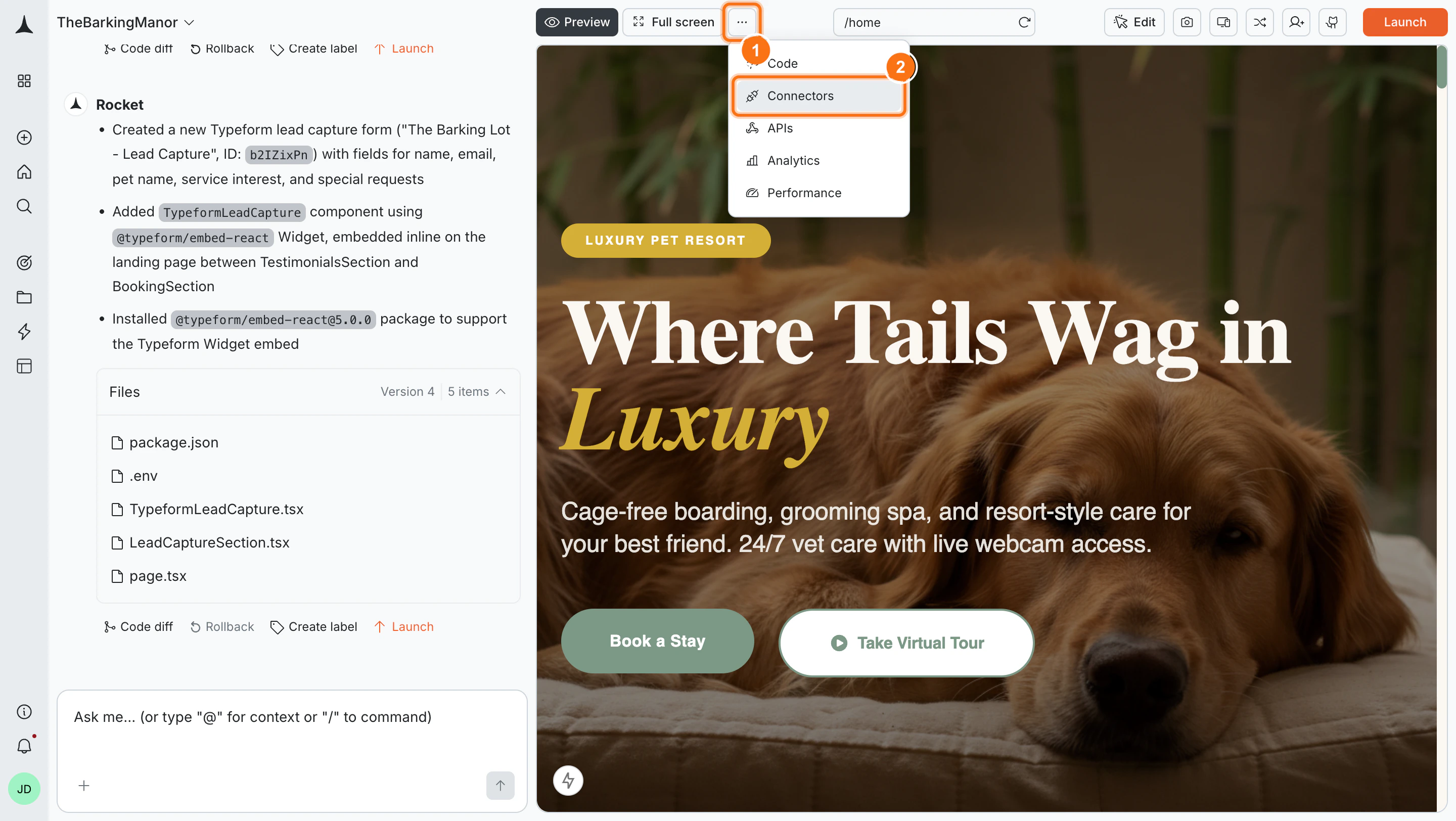
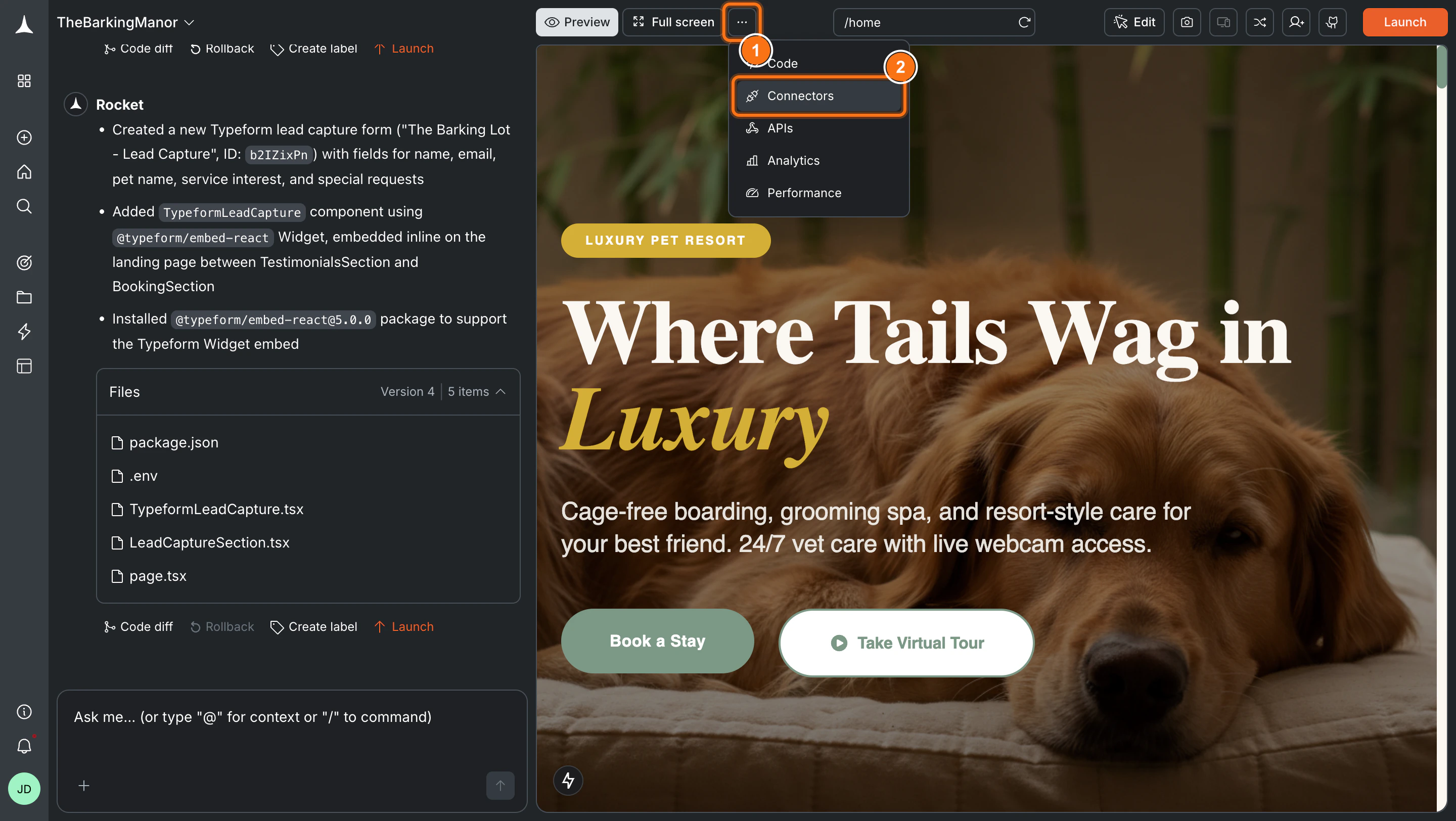
Click the **`...`** button in the preview toolbar, then select **Connectors**.
**Option 2: From the Connectors tab**
Click the **`...`** button in the preview toolbar, then select **Connectors**.
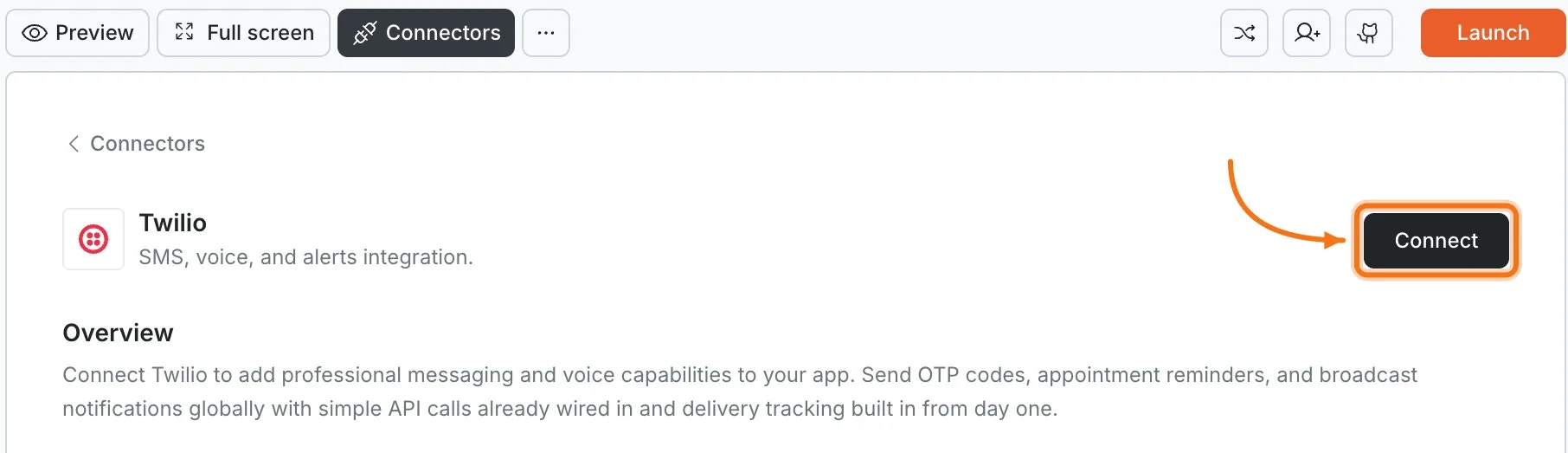
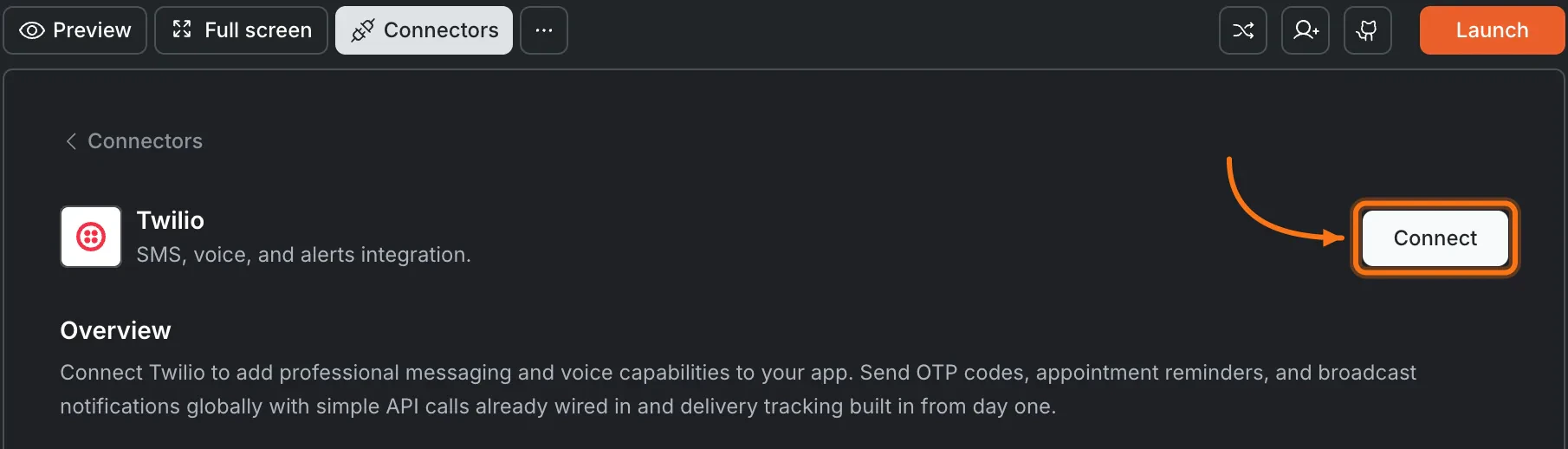
 Click the **Twilio** card, then click **Connect**.
 **After clicking Connect**
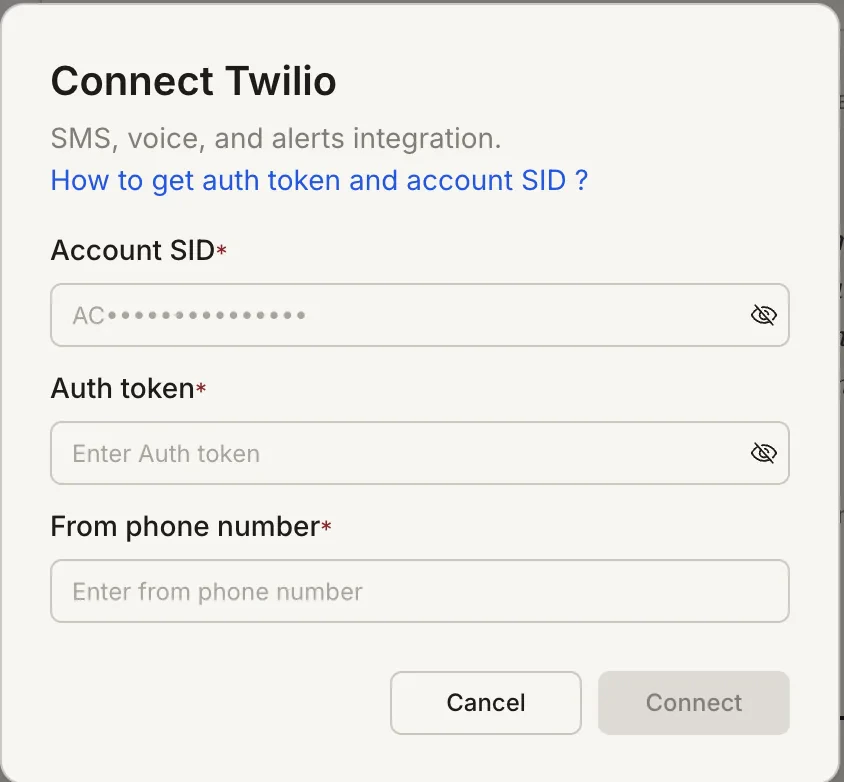
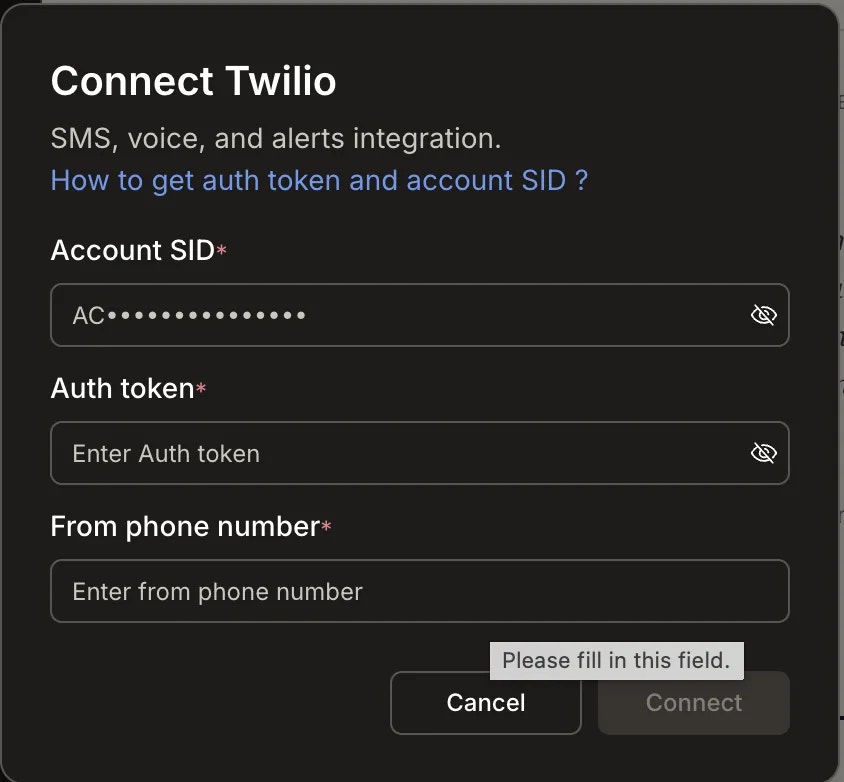
A popup opens. Enter your **Account SID**, **Auth Token**, and **From Phone Number**, then click **Connect**.
**After clicking Connect**
A popup opens. Enter your **Account SID**, **Auth Token**, and **From Phone Number**, then click **Connect**.
 A green dot appears next to Twilio when the connection is active.
**Update or disconnect**
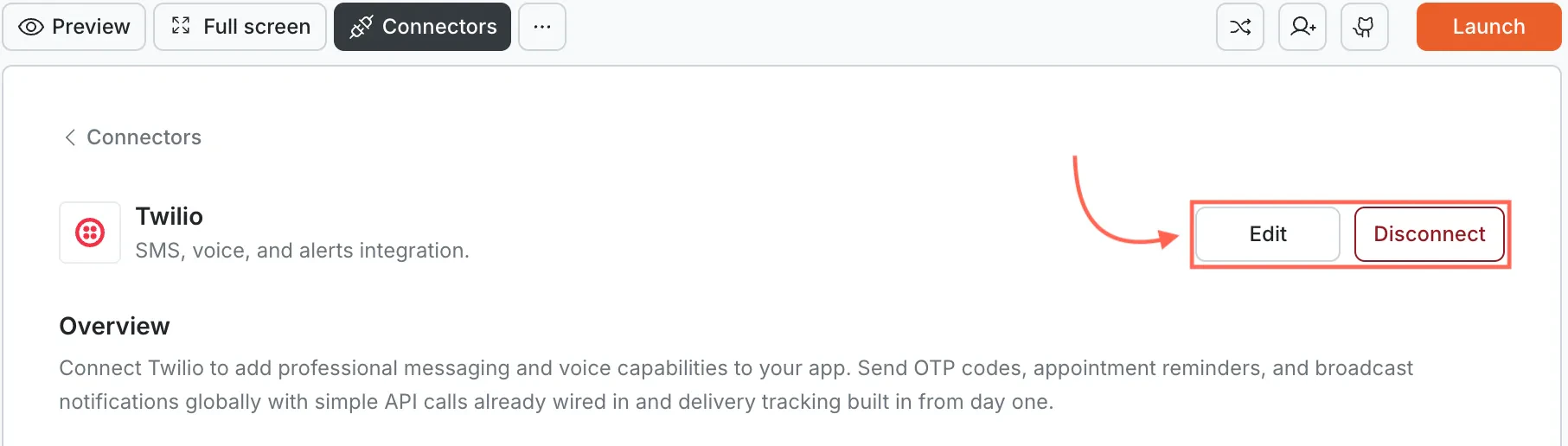
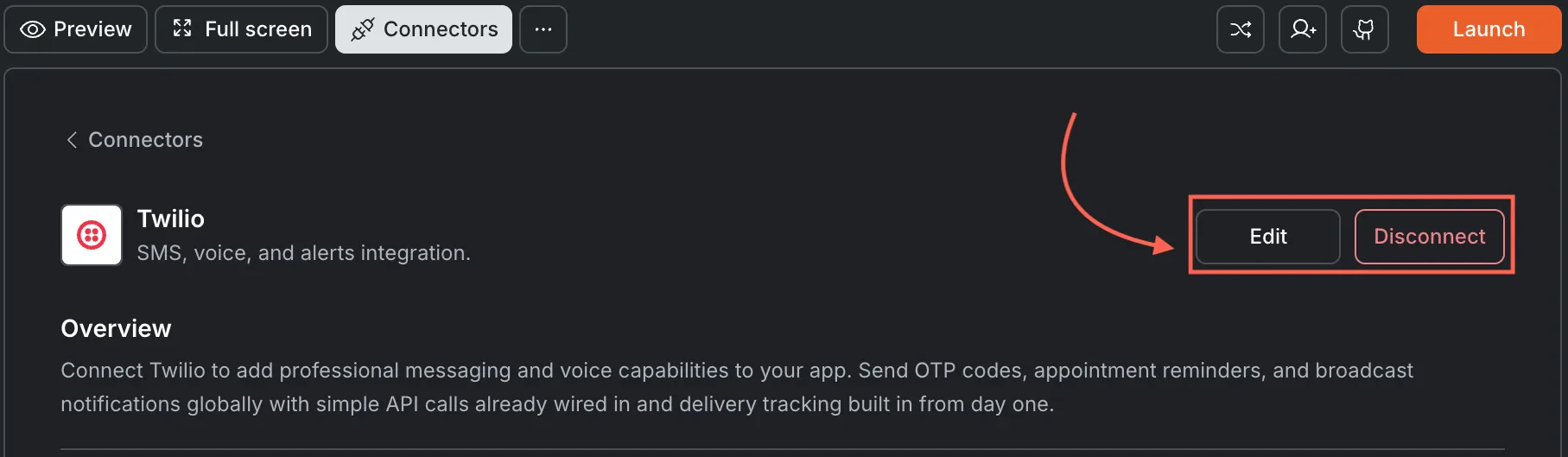
Go to [**Connectors > Twilio**](#connect-twilio). Click **Edit** to update your credentials or **Disconnect** to remove the integration.
A green dot appears next to Twilio when the connection is active.
**Update or disconnect**
Go to [**Connectors > Twilio**](#connect-twilio). Click **Edit** to update your credentials or **Disconnect** to remove the integration.
 You can connect from two places - both open the same popup.
**Option 1: From chat**
Type a prompt that mentions SMS. Rocket detects the intent, shows a **Connect** button, and the popup opens when you tap it.
**Option 2: From the Connectors tab**
1. Tap the **More** button in the header.
2. Tap **Integrations**.
3. Tap the **Twilio** card, then tap **Connect**.
**After tapping Connect**
A popup opens. Enter your **Account SID**, **Auth Token**, and **From Phone Number**, then tap **Done**.
A green dot appears next to Twilio when the connection is active.
**Update or disconnect**
Go back to the **Twilio** card in Integrations. Tap **Edit** to update credentials or **Disconnect** to remove it from this task.
## Example prompts
| What you want | Prompt to use |
| :------------------- | :------------------------------------------------------------------------------------------------------ |
| Verification code | `Send a 6-digit SMS verification code through Twilio when a user signs up. Expire it after 10 minutes.` |
| Two-factor auth | `Add SMS-based two-factor auth to my login flow. Send a code via Twilio after password entry.` |
| Order confirmation | `Send an SMS through Twilio when a user completes checkout with their order number and total.` |
| Shipping update | `Send an SMS through Twilio when an order ships with the tracking number and carrier link.` |
| Appointment reminder | `Send an SMS reminder 24 hours before a scheduled appointment with date, time, and reschedule link.` |
| Password reset | `Send an SMS with a one-time code for password reset. Expire the code after 5 minutes.` |
| Low balance alert | `Send an SMS alert when a user's account balance drops below $5. Include a link to add funds.` |
| Welcome message | `Send a welcome SMS through Twilio when a new user creates an account.` |
| Flash sale alert | `Send an SMS to opted-in users announcing a 24-hour flash sale.` |
## Tips
* **Pair with Supabase.** Rocket stores verification codes and user phone numbers in Supabase. Connect Supabase before Twilio for the best results.
* **Trial accounts have restrictions.** On a Twilio trial account, you can only send SMS to verified numbers. Upgrade before going live.
* **Phone numbers must be in E.164 format.** Always include the country code, e.g. `+15551234567`.
* **SMS costs vary by country.** Twilio charges per message based on destination. Check [Twilio's pricing page](https://www.twilio.com/en-us/sms/pricing/us) for current rates.
* **One Twilio account per task.** Each Rocket task connects to one set of Twilio credentials. Use different tasks for different Twilio accounts.
## What's next?
Store phone numbers and verification codes. Recommended for most Twilio SMS flows.
Send SMS order confirmations and payment alerts after Stripe transactions.
Combine SMS notifications with email for multi-channel communication.
Browse every available integration.
You can connect from two places - both open the same popup.
**Option 1: From chat**
Type a prompt that mentions SMS. Rocket detects the intent, shows a **Connect** button, and the popup opens when you tap it.
**Option 2: From the Connectors tab**
1. Tap the **More** button in the header.
2. Tap **Integrations**.
3. Tap the **Twilio** card, then tap **Connect**.
**After tapping Connect**
A popup opens. Enter your **Account SID**, **Auth Token**, and **From Phone Number**, then tap **Done**.
A green dot appears next to Twilio when the connection is active.
**Update or disconnect**
Go back to the **Twilio** card in Integrations. Tap **Edit** to update credentials or **Disconnect** to remove it from this task.
## Example prompts
| What you want | Prompt to use |
| :------------------- | :------------------------------------------------------------------------------------------------------ |
| Verification code | `Send a 6-digit SMS verification code through Twilio when a user signs up. Expire it after 10 minutes.` |
| Two-factor auth | `Add SMS-based two-factor auth to my login flow. Send a code via Twilio after password entry.` |
| Order confirmation | `Send an SMS through Twilio when a user completes checkout with their order number and total.` |
| Shipping update | `Send an SMS through Twilio when an order ships with the tracking number and carrier link.` |
| Appointment reminder | `Send an SMS reminder 24 hours before a scheduled appointment with date, time, and reschedule link.` |
| Password reset | `Send an SMS with a one-time code for password reset. Expire the code after 5 minutes.` |
| Low balance alert | `Send an SMS alert when a user's account balance drops below $5. Include a link to add funds.` |
| Welcome message | `Send a welcome SMS through Twilio when a new user creates an account.` |
| Flash sale alert | `Send an SMS to opted-in users announcing a 24-hour flash sale.` |
## Tips
* **Pair with Supabase.** Rocket stores verification codes and user phone numbers in Supabase. Connect Supabase before Twilio for the best results.
* **Trial accounts have restrictions.** On a Twilio trial account, you can only send SMS to verified numbers. Upgrade before going live.
* **Phone numbers must be in E.164 format.** Always include the country code, e.g. `+15551234567`.
* **SMS costs vary by country.** Twilio charges per message based on destination. Check [Twilio's pricing page](https://www.twilio.com/en-us/sms/pricing/us) for current rates.
* **One Twilio account per task.** Each Rocket task connects to one set of Twilio credentials. Use different tasks for different Twilio accounts.
## What's next?
Store phone numbers and verification codes. Recommended for most Twilio SMS flows.
Send SMS order confirmations and payment alerts after Stripe transactions.
Combine SMS notifications with email for multi-channel communication.
Browse every available integration.