> ## Documentation Index
> Fetch the complete documentation index at: https://docs.rocket.new/llms.txt
> Use this file to discover all available pages before exploring further.
# Typeform
> Connect Typeform to Rocket and embed conversational forms for lead capture, surveys, and quizzes - all wired up from chat.
export const LlmsDirective = () =>
For the complete documentation index, see llms.txt.
For a lightweight markdown version of this page, append .md to the URL.
;
Describe the form you need in chat and Rocket generates the embed, response handling, and conditional logic automatically.
This connector is only available for **Next.js TypeScript** web build tasks.
Typeform's free plan allows only **10 responses per month**. This limit applies across all your embedded forms. Upgrade to a paid Typeform plan for unlimited responses.
## What you can do
Collect names, emails, and qualifying info from potential customers with a conversational flow that feels personal.
Gather product feedback, satisfaction scores, or market research data with branching logic and progress bars.
Build personality quizzes, knowledge tests, or product recommendation engines with scored outcomes.
Collect detailed applications for jobs, programs, or memberships with file uploads and conditional fields.
Add in-app feedback widgets that let users report bugs, request features, or rate their experience.
## Connect Typeform
Typeform connects via OAuth, so no API key is needed.
Typeform is a **workspace-level** connector. No matter where you connect it (Settings, Connectors tab, or chat), it links to your entire Rocket workspace and is available across all tasks.
You can connect from three places. All do the same thing.
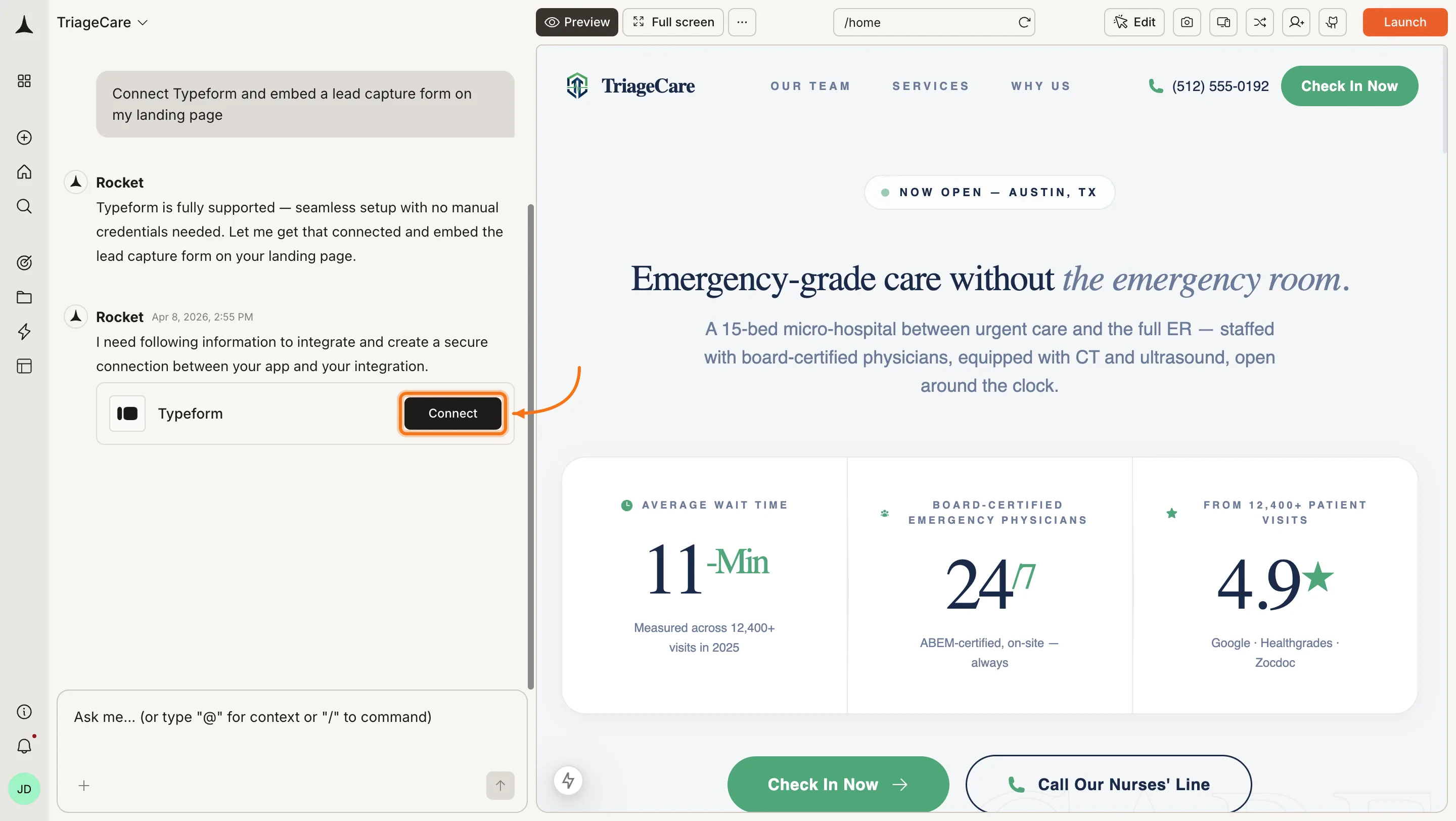
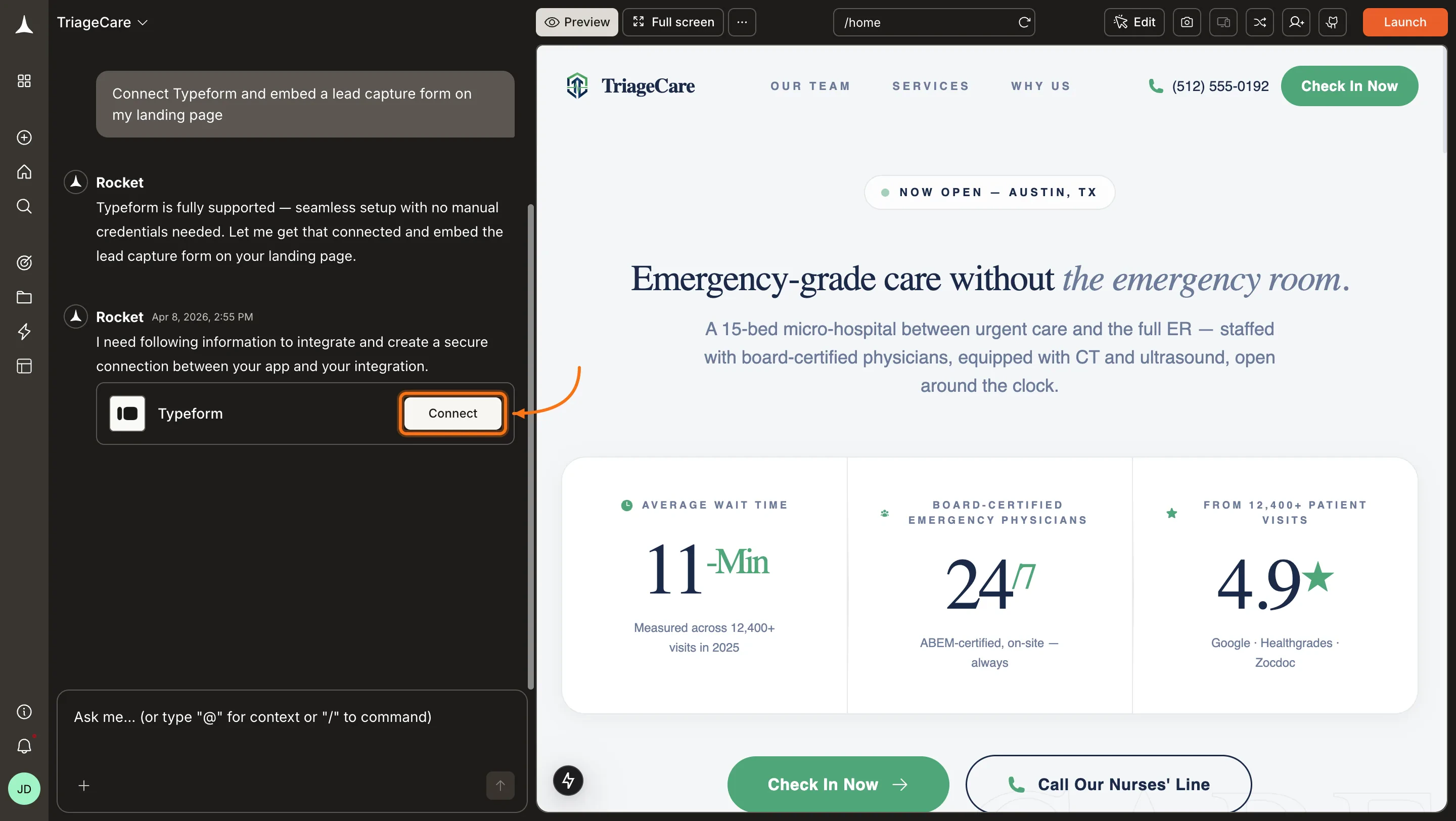
**Option 1: From chat**
Type a prompt that mentions Typeform, for example `Connect Typeform and embed a lead capture form on my landing page`. Rocket detects the intent and shows a **Connect** button inline. Click it and the OAuth flow opens.
 **Option 2: From the Connectors tab**
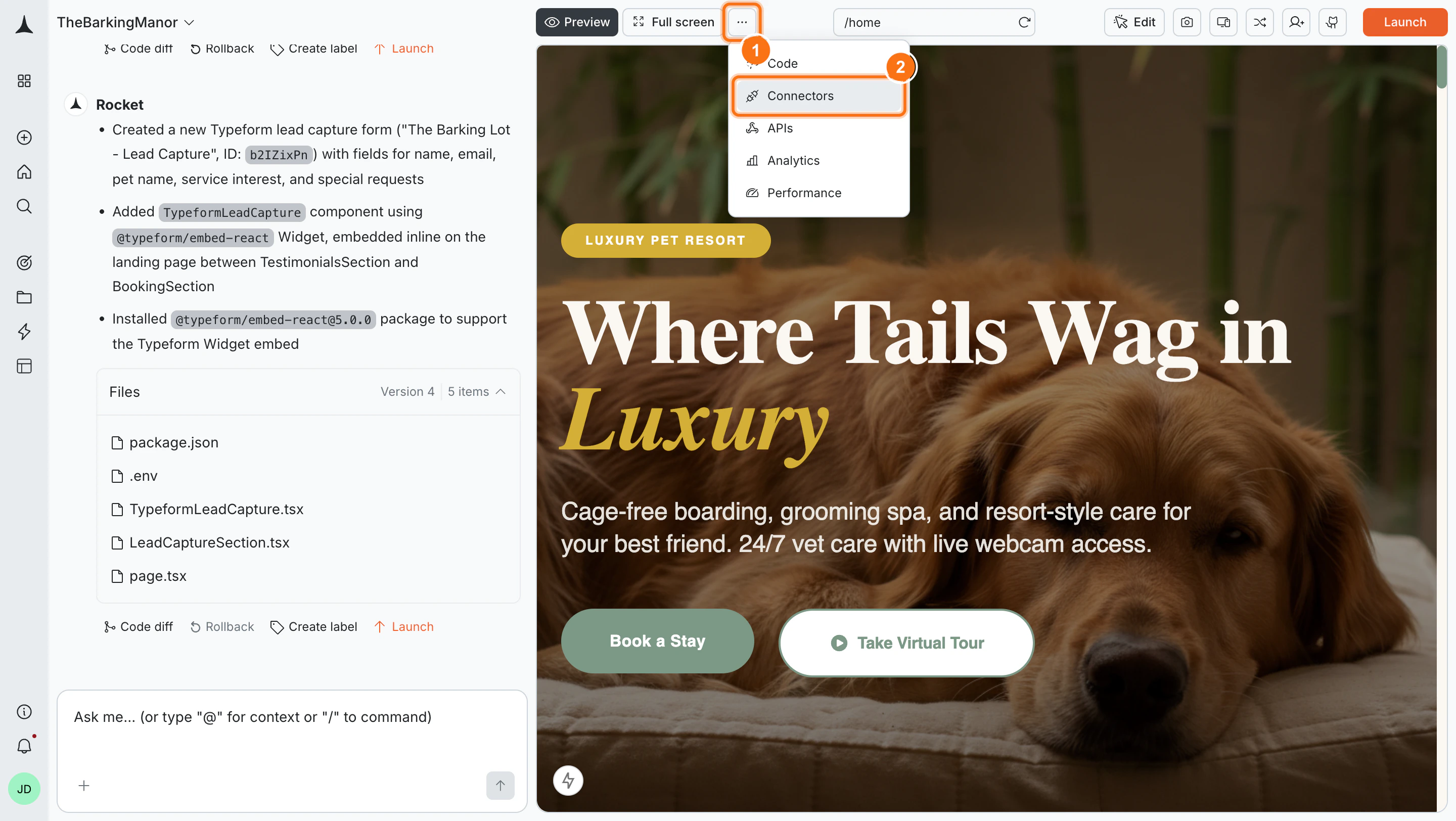
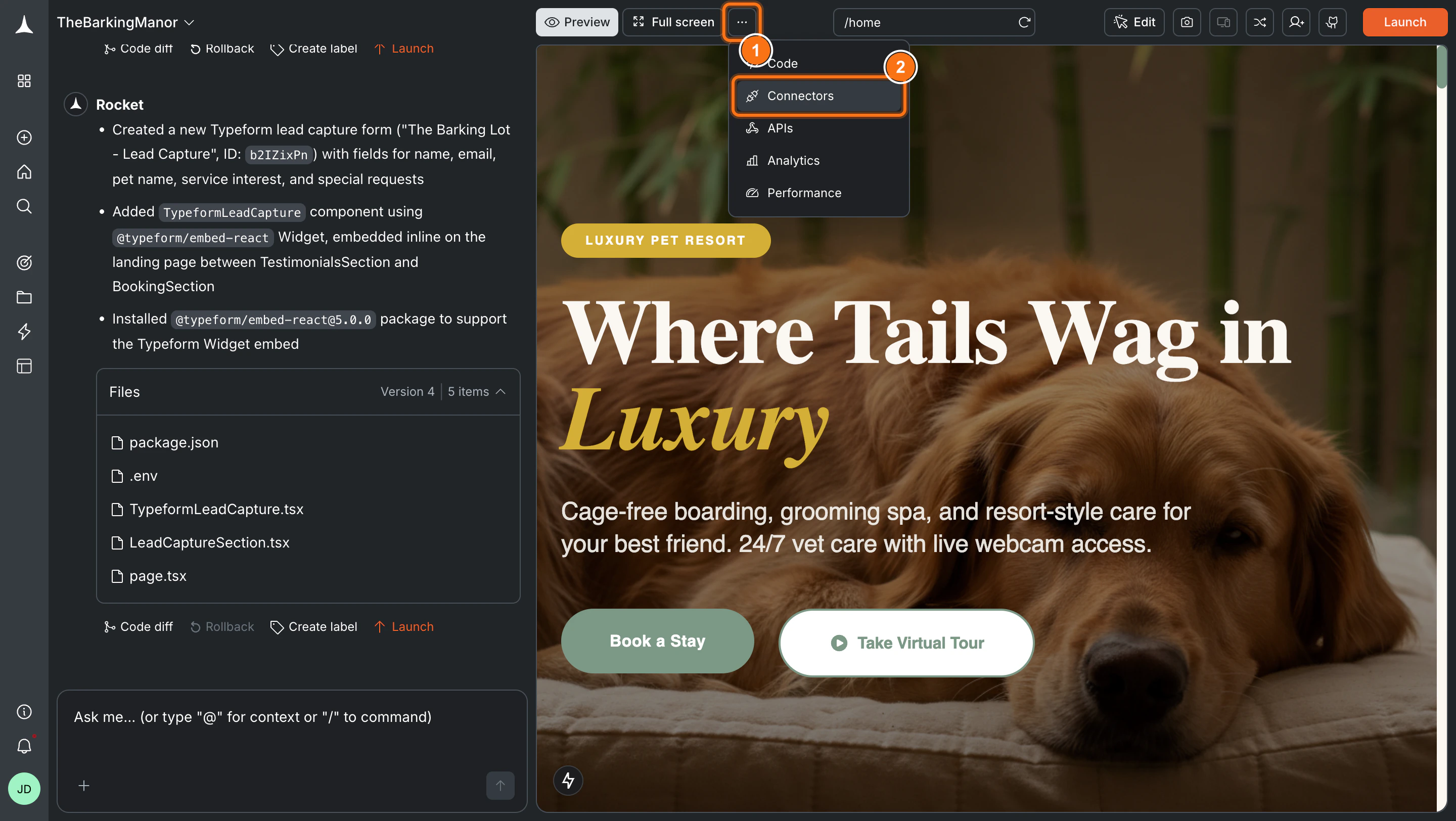
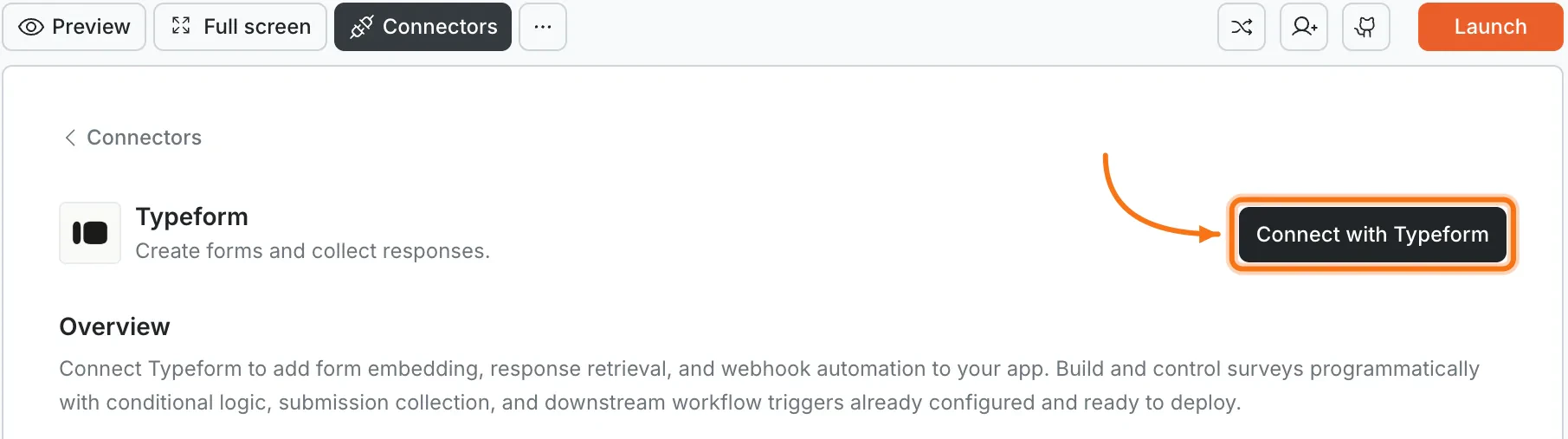
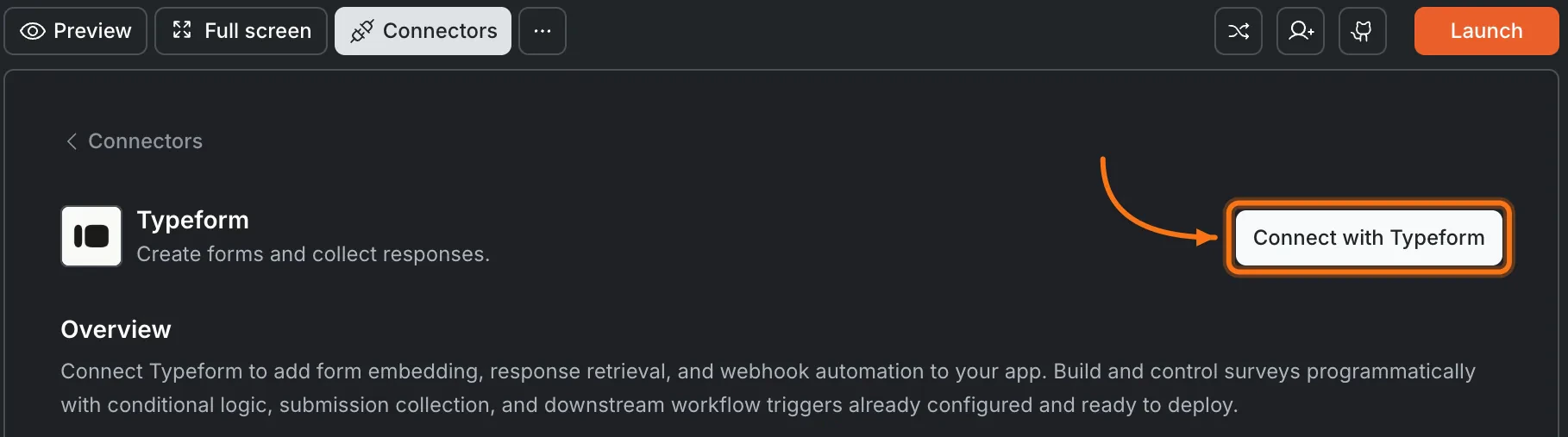
Click the **`...`** button in the preview toolbar, then select **Connectors**.
**Option 2: From the Connectors tab**
Click the **`...`** button in the preview toolbar, then select **Connectors**.
 Click the **Typeform** card, then click **Connect with Typeform**.
 **Option 3: From workspace Settings**
Connect once from Settings and it is available across all tasks.
**After clicking Connect**
A Typeform authorization screen opens in your browser. Log in and grant Rocket access to your forms. A green dot appears next to Typeform when the connection is active.
**Disconnect**
Disconnect or switch accounts from workspace Settings.
You can connect from three places. All do the same thing.
**Option 1: From chat**
Type a prompt that mentions Typeform. Rocket detects the intent and shows a **Connect** button inline. Tap it and the OAuth flow opens.
**Option 2: From the Connectors tab**
1. Tap the **More** button in the header.
2. Tap **Integrations**.
3. Tap the **Typeform** card, then tap **Connect with Typeform**.
**Option 3: From workspace Settings**
Open your workspace, go to **Settings**, and tap **Connectors**. Tap the **Typeform** card and tap **Connect with Typeform**.
**After tapping Connect**
A Typeform authorization screen opens. Log in and grant Rocket access to your forms. A green dot appears next to Typeform when the connection is active.
**Disconnect**
Go back to the **Typeform** card in Integrations. Tap **Disconnect** to remove the integration.
## Example prompts
| What you want | Prompt to use |
| :----------------- | :------------------------------------------------------------------------------------------------- |
| Lead capture | `Embed a Typeform on my landing page that collects name, email, and company.` |
| NPS survey | `Add a Net Promoter Score survey after checkout using Typeform.` |
| Product quiz | `Create a Typeform quiz that recommends a product based on the user's answers.` |
| Contact form | `Add a Typeform contact form to my /contact page with name, email, and message fields.` |
| Waitlist signup | `Embed a Typeform waitlist form that collects email and notifies me via Resend.` |
| Event registration | `Build a Typeform event registration form with name, email, ticket type, and dietary preferences.` |
| Bug report | `Add a floating feedback button that opens a Typeform for bug reports.` |
| Job application | `Create a Typeform job application with resume upload, cover letter, and portfolio link.` |
| Exit survey | `Show a Typeform exit survey when users cancel their subscription.` |
## Tips
* **Responses live in Typeform.** Submissions are stored in your Typeform dashboard. Use webhooks to sync responses to Supabase or another database.
* **Embedding options.** Rocket can embed Typeform as a full page, popup, slider, or inline widget. Describe the style you want in chat.
* **Free plan limits.** Typeform's free tier allows 10 responses per month total across all forms. See the warning above for details.
* **Branching logic stays in Typeform.** Set up conditional logic and branching inside the Typeform editor, then embed the finished form in Rocket.
* **One Typeform account per workspace.** All tasks share the same connected account.
## What's next?
A free alternative form builder with unlimited responses on the free tier.
Store Typeform submissions in a database for querying and display in your app.
Send confirmation emails automatically when someone submits a Typeform.
Track form views, starts, and completions with GA4 events.
**Option 3: From workspace Settings**
Connect once from Settings and it is available across all tasks.
**After clicking Connect**
A Typeform authorization screen opens in your browser. Log in and grant Rocket access to your forms. A green dot appears next to Typeform when the connection is active.
**Disconnect**
Disconnect or switch accounts from workspace Settings.
You can connect from three places. All do the same thing.
**Option 1: From chat**
Type a prompt that mentions Typeform. Rocket detects the intent and shows a **Connect** button inline. Tap it and the OAuth flow opens.
**Option 2: From the Connectors tab**
1. Tap the **More** button in the header.
2. Tap **Integrations**.
3. Tap the **Typeform** card, then tap **Connect with Typeform**.
**Option 3: From workspace Settings**
Open your workspace, go to **Settings**, and tap **Connectors**. Tap the **Typeform** card and tap **Connect with Typeform**.
**After tapping Connect**
A Typeform authorization screen opens. Log in and grant Rocket access to your forms. A green dot appears next to Typeform when the connection is active.
**Disconnect**
Go back to the **Typeform** card in Integrations. Tap **Disconnect** to remove the integration.
## Example prompts
| What you want | Prompt to use |
| :----------------- | :------------------------------------------------------------------------------------------------- |
| Lead capture | `Embed a Typeform on my landing page that collects name, email, and company.` |
| NPS survey | `Add a Net Promoter Score survey after checkout using Typeform.` |
| Product quiz | `Create a Typeform quiz that recommends a product based on the user's answers.` |
| Contact form | `Add a Typeform contact form to my /contact page with name, email, and message fields.` |
| Waitlist signup | `Embed a Typeform waitlist form that collects email and notifies me via Resend.` |
| Event registration | `Build a Typeform event registration form with name, email, ticket type, and dietary preferences.` |
| Bug report | `Add a floating feedback button that opens a Typeform for bug reports.` |
| Job application | `Create a Typeform job application with resume upload, cover letter, and portfolio link.` |
| Exit survey | `Show a Typeform exit survey when users cancel their subscription.` |
## Tips
* **Responses live in Typeform.** Submissions are stored in your Typeform dashboard. Use webhooks to sync responses to Supabase or another database.
* **Embedding options.** Rocket can embed Typeform as a full page, popup, slider, or inline widget. Describe the style you want in chat.
* **Free plan limits.** Typeform's free tier allows 10 responses per month total across all forms. See the warning above for details.
* **Branching logic stays in Typeform.** Set up conditional logic and branching inside the Typeform editor, then embed the finished form in Rocket.
* **One Typeform account per workspace.** All tasks share the same connected account.
## What's next?
A free alternative form builder with unlimited responses on the free tier.
Store Typeform submissions in a database for querying and display in your app.
Send confirmation emails automatically when someone submits a Typeform.
Track form views, starts, and completions with GA4 events.