> ## Documentation Index
> Fetch the complete documentation index at: https://docs.rocket.new/llms.txt
> Use this file to discover all available pages before exploring further.
# Excess text boundary
> Fix oversized text boxes with auto-width before import in Rocket.new's Figma-to-code pipeline.
export const LlmsDirective = () =>
For the complete documentation index, see llms.txt.
For a lightweight markdown version of this page, append .md to the URL.
;
## Why text boundaries matter
Text boxes that are wider than their actual content cause misalignment in the generated app. Rocket uses the text boundary to determine positioning, so excess width shifts elements out of place.
## Best practice: use auto-width
Always wrap your **Text** element with its boundary using **auto-width** in Figma. This prevents alignment and positioning errors during import.
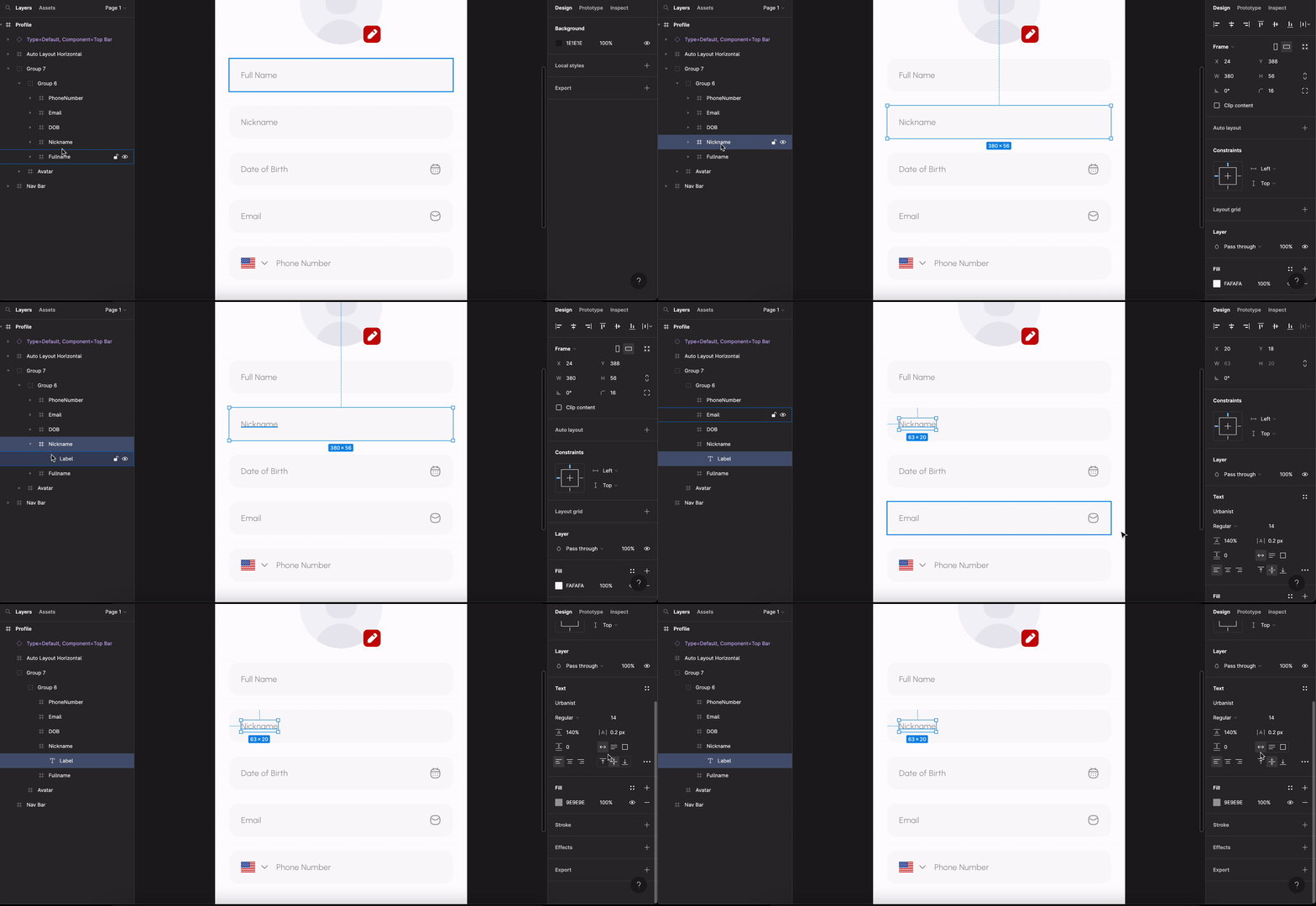 ## Aligning text with other objects
When a text element sits next to another element (for example, an image), the text must be centered with it. If the text boundary extends beyond the actual text content, it will appear misaligned in the generated design.
See all design guidelines for preparing your Figma files.
## Aligning text with other objects
When a text element sits next to another element (for example, an image), the text must be centered with it. If the text boundary extends beyond the actual text content, it will appear misaligned in the generated design.
See all design guidelines for preparing your Figma files.