> ## Documentation Index
> Fetch the complete documentation index at: https://docs.rocket.new/llms.txt
> Use this file to discover all available pages before exploring further.
# Group components and layers
> Organize Figma layers and component hierarchies for cleaner imports in Rocket.new's Figma-to-code pipeline.
export const LlmsDirective = () =>
For the complete documentation index, see llms.txt.
For a lightweight markdown version of this page, append .md to the URL.
;
## Why grouping matters
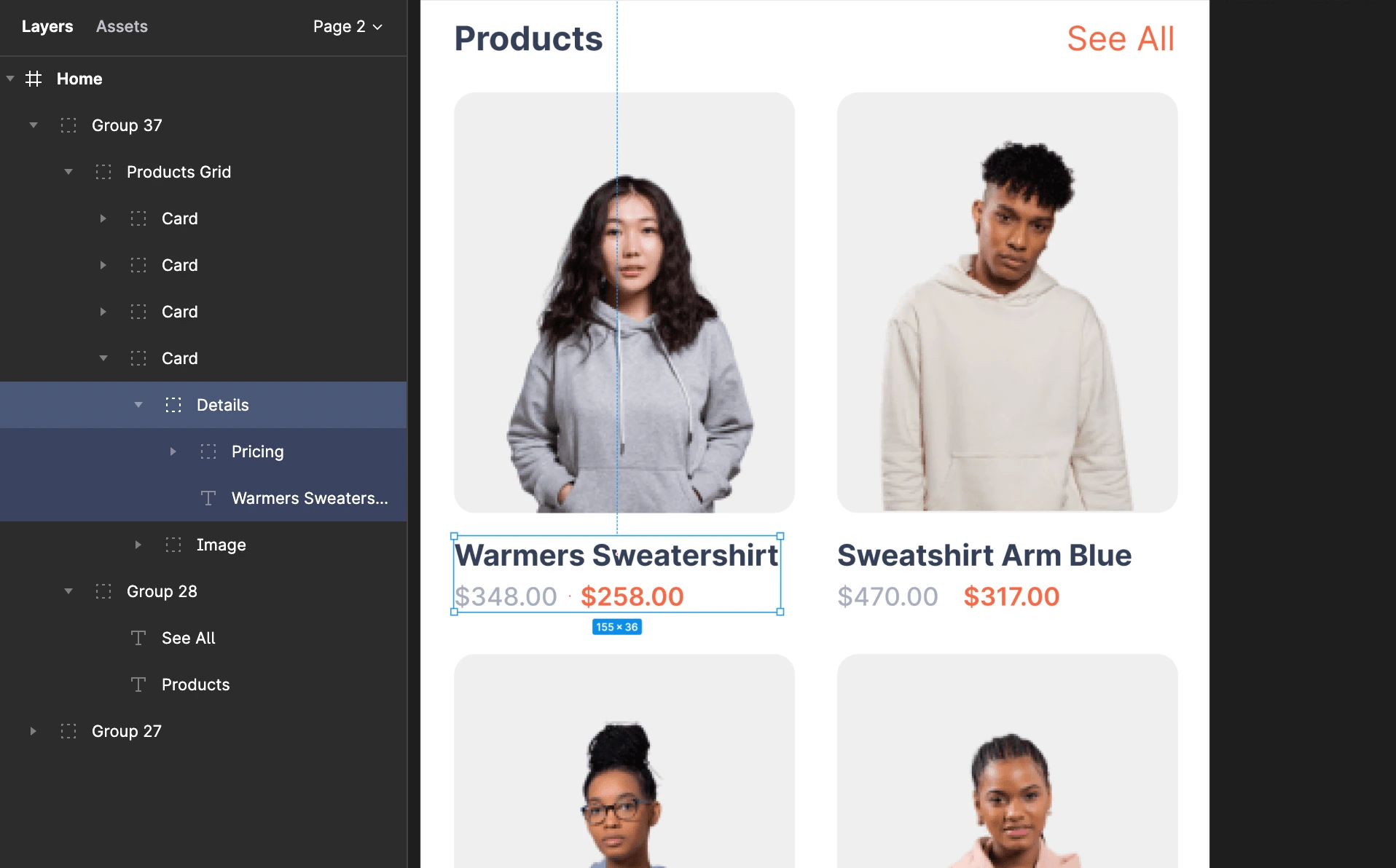
Everything in a screen design is made up of layers. When those layers are properly grouped, Rocket can generate better, more accurate results. [Groups](https://www.figma.com/best-practices/groups-versus-frames/) reduce clutter by combining related components into fewer layers, and they auto-adjust when child objects are resized.
 ## How to group effectively
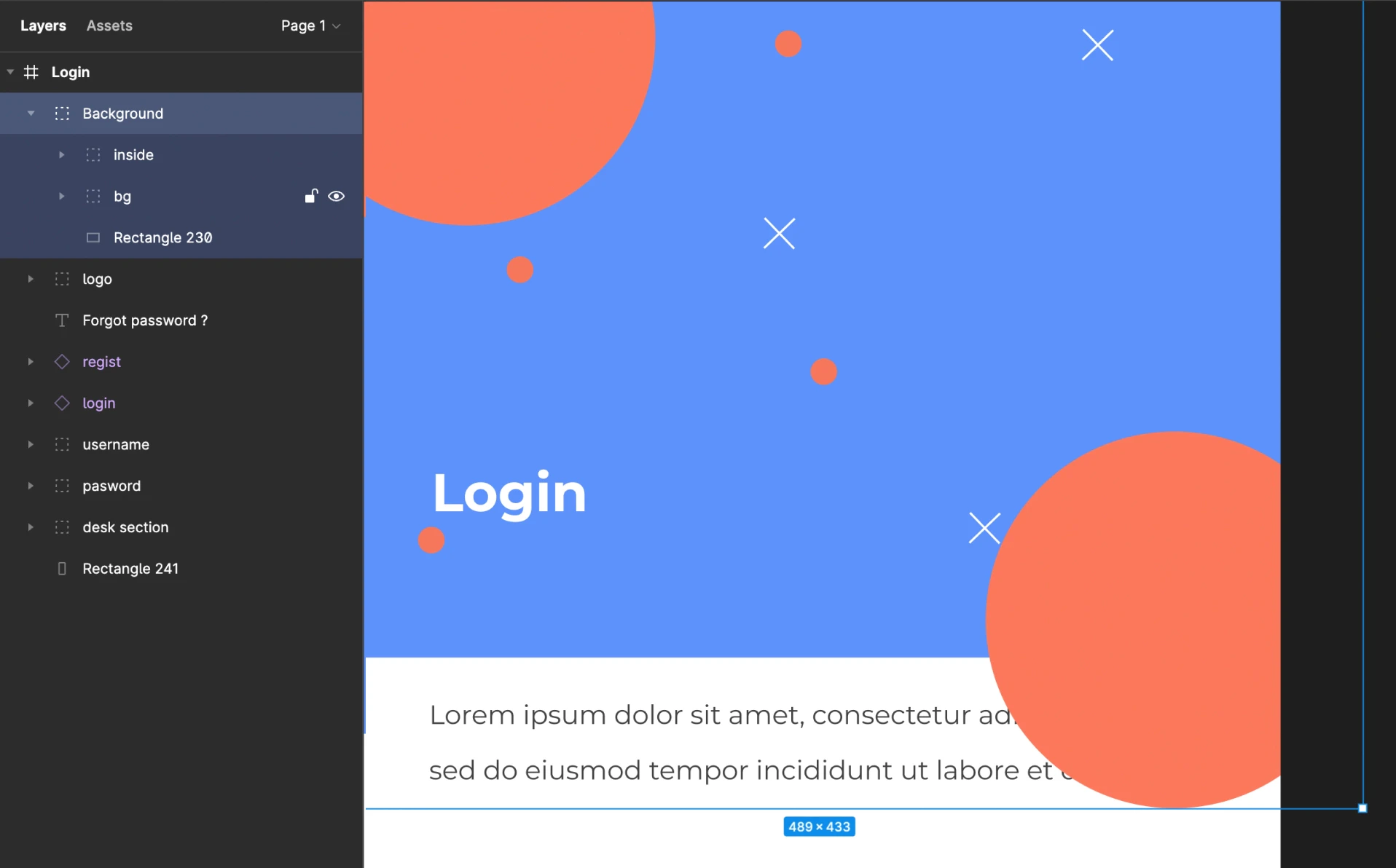
* Combine related elements like **background images, buttons, or text** into a single group.
* Maintain a clear hierarchy order inside groups.
* Use groups to simplify layering across your design, making components easier to manage and reuse.
## How to group effectively
* Combine related elements like **background images, buttons, or text** into a single group.
* Maintain a clear hierarchy order inside groups.
* Use groups to simplify layering across your design, making components easier to manage and reuse.
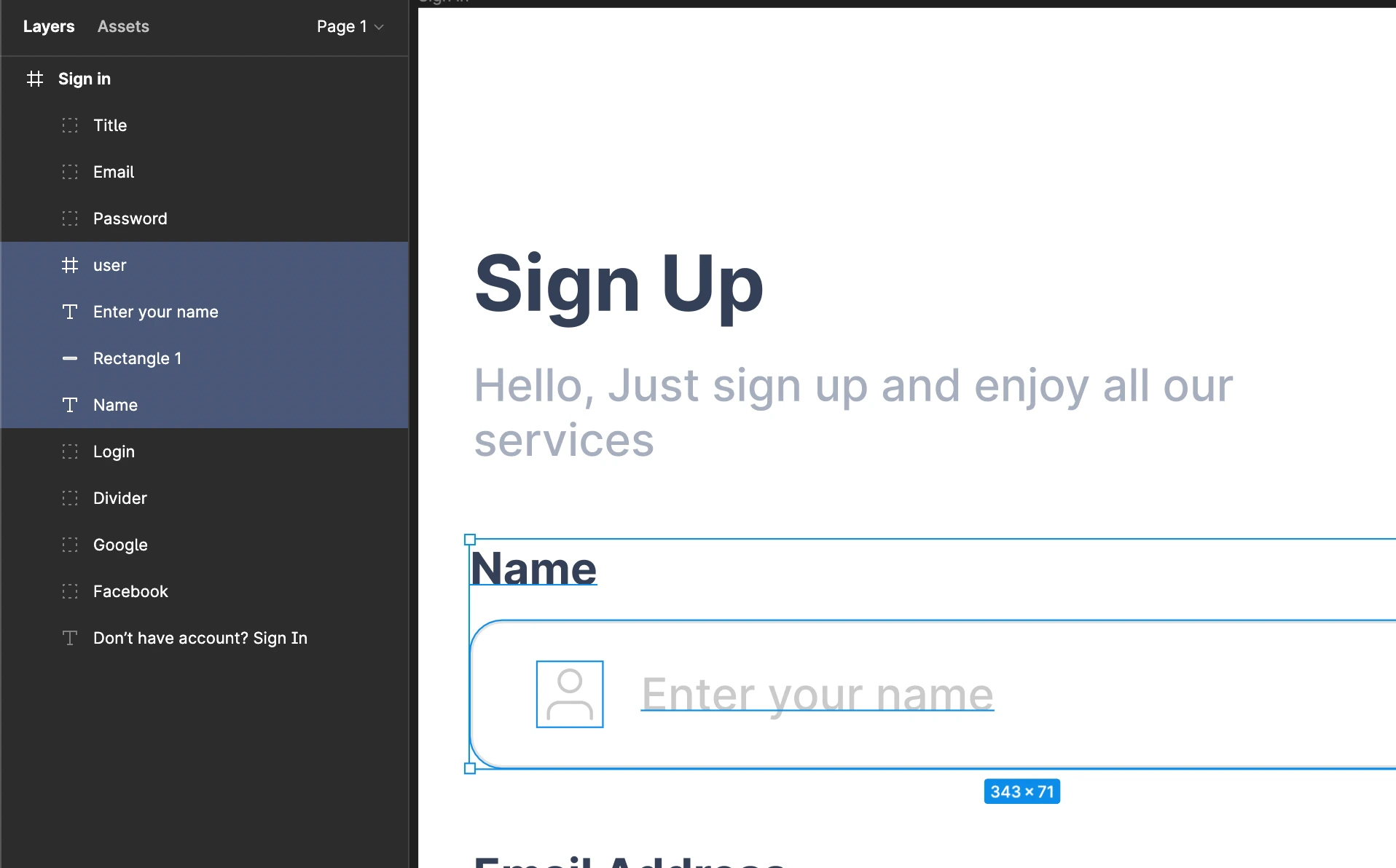 Avoid ungrouped designs. Proper grouping helps Rocket identify and map your components accurately during import.
## Example
In an e-commerce shopping list screen:
Place the background image as the base layer.
Add product image, title, description, and price on top.
Layer them properly, then group them into one element.
This creates a clean hierarchy that is easy to manage and generates accurately in Rocket.
Avoid ungrouped designs. Proper grouping helps Rocket identify and map your components accurately during import.
## Example
In an e-commerce shopping list screen:
Place the background image as the base layer.
Add product image, title, description, and price on top.
Layer them properly, then group them into one element.
This creates a clean hierarchy that is easy to manage and generates accurately in Rocket.
 See all design guidelines for preparing your Figma files.
***
## What's next?
Learn how to import your Figma design into Rocket.
Start a project from a text prompt instead of a design file.
See all design guidelines for preparing your Figma files.
***
## What's next?
Learn how to import your Figma design into Rocket.
Start a project from a text prompt instead of a design file.