> ## Documentation Index
> Fetch the complete documentation index at: https://docs.rocket.new/llms.txt
> Use this file to discover all available pages before exploring further.
# Create a web app
> Convert Figma designs into deployable React or Next.js web apps using Rocket.new's Figma-to-code pipeline.
export const LlmsDirective = () =>
For the complete documentation index, see llms.txt.
For a lightweight markdown version of this page, append .md to the URL.
;
**Figma to production-ready web app in minutes.** Import your Figma designs and Rocket generates a complete React or Next.js web app with responsive layouts, styled components, and clean code that matches your design. Then iterate with chat to add functionality, connect integrations, and ship.
Figma import is only available on the web browser at [rocket.new](https://rocket.new). It is not available in the Rocket mobile app.
## What you can build
Turn your marketing design into a live, responsive site with SEO-ready code.
**Try this prompt after import:**
```plaintext wrap theme={null}
Add a contact form that sends submissions to my email via Resend. Make the hero section animate on scroll.
```
Transform dashboard, SaaS, or product designs into interactive web apps with real logic.
**Try this prompt after import:**
```plaintext wrap theme={null}
Connect Supabase for user authentication. Add login/signup flows and protect the dashboard behind auth. Make the sidebar navigation functional.
```
Convert product catalog designs into working stores with cart and checkout.
**Try this prompt after import:**
```plaintext wrap theme={null}
Connect Stripe for checkout. Make the product grid filterable by category and add a working shopping cart with quantity controls.
```
## Before you begin
**You will need:**
* Access to [rocket.new](https://rocket.new).
* A Figma account and a design file with **view or edit permission**.
Not sure how to get your Figma link? **Follow this quick guide to grab the right URL.**
## Launch your web app
Click the **+** button at the lower left of the input box and select **Add from Figma**.
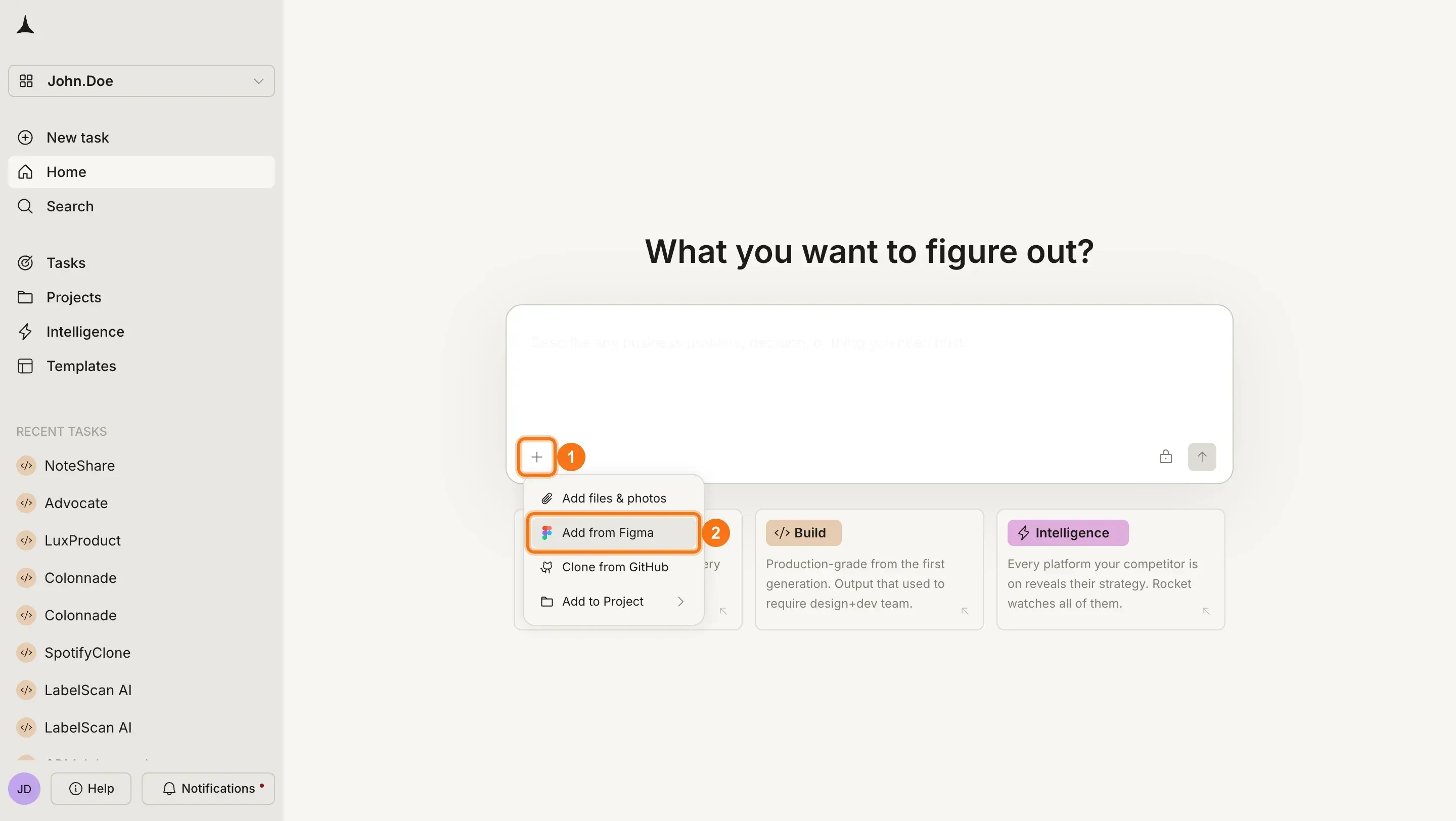
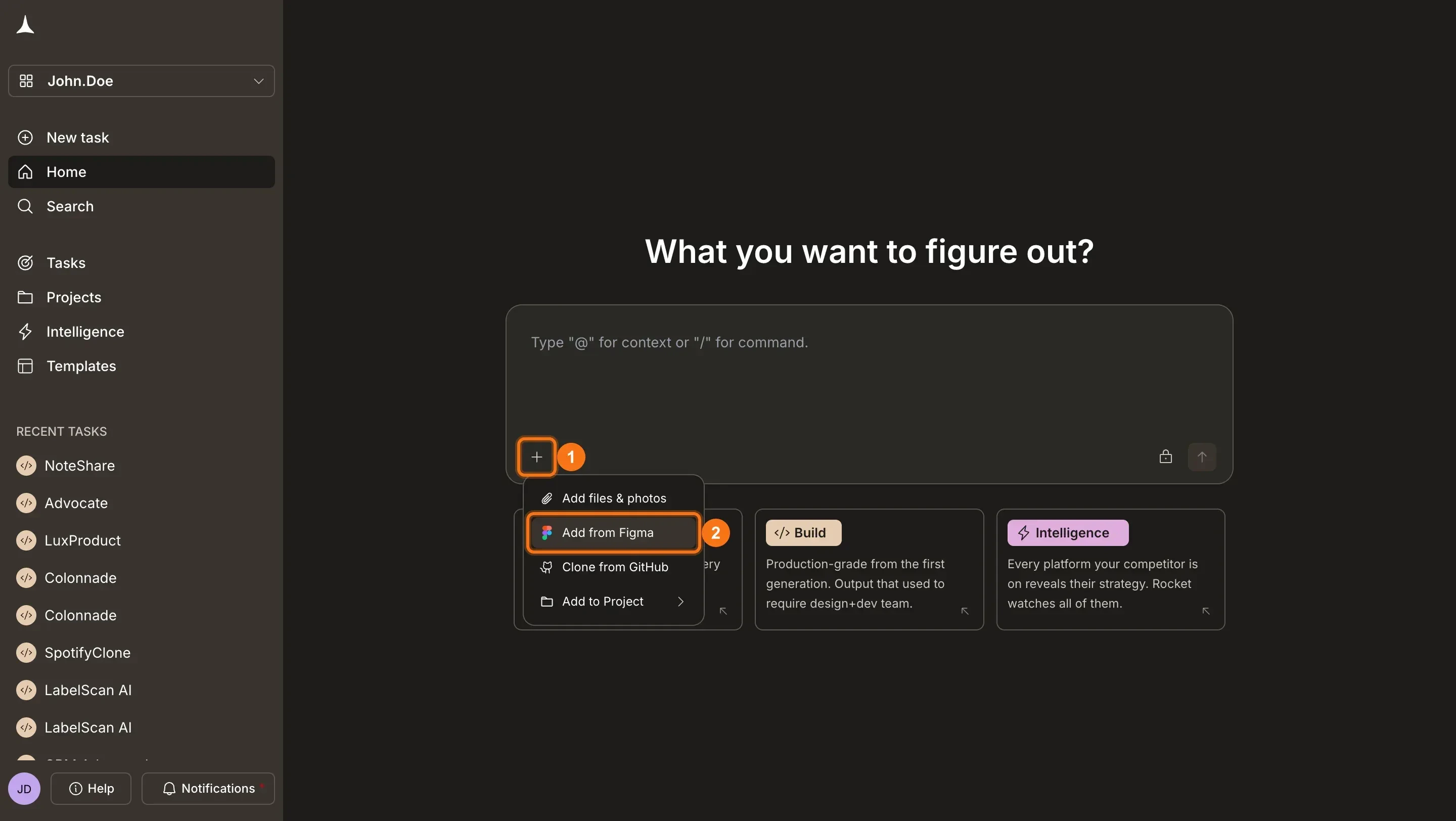 First time? **Connect your Figma account to Rocket** before importing.
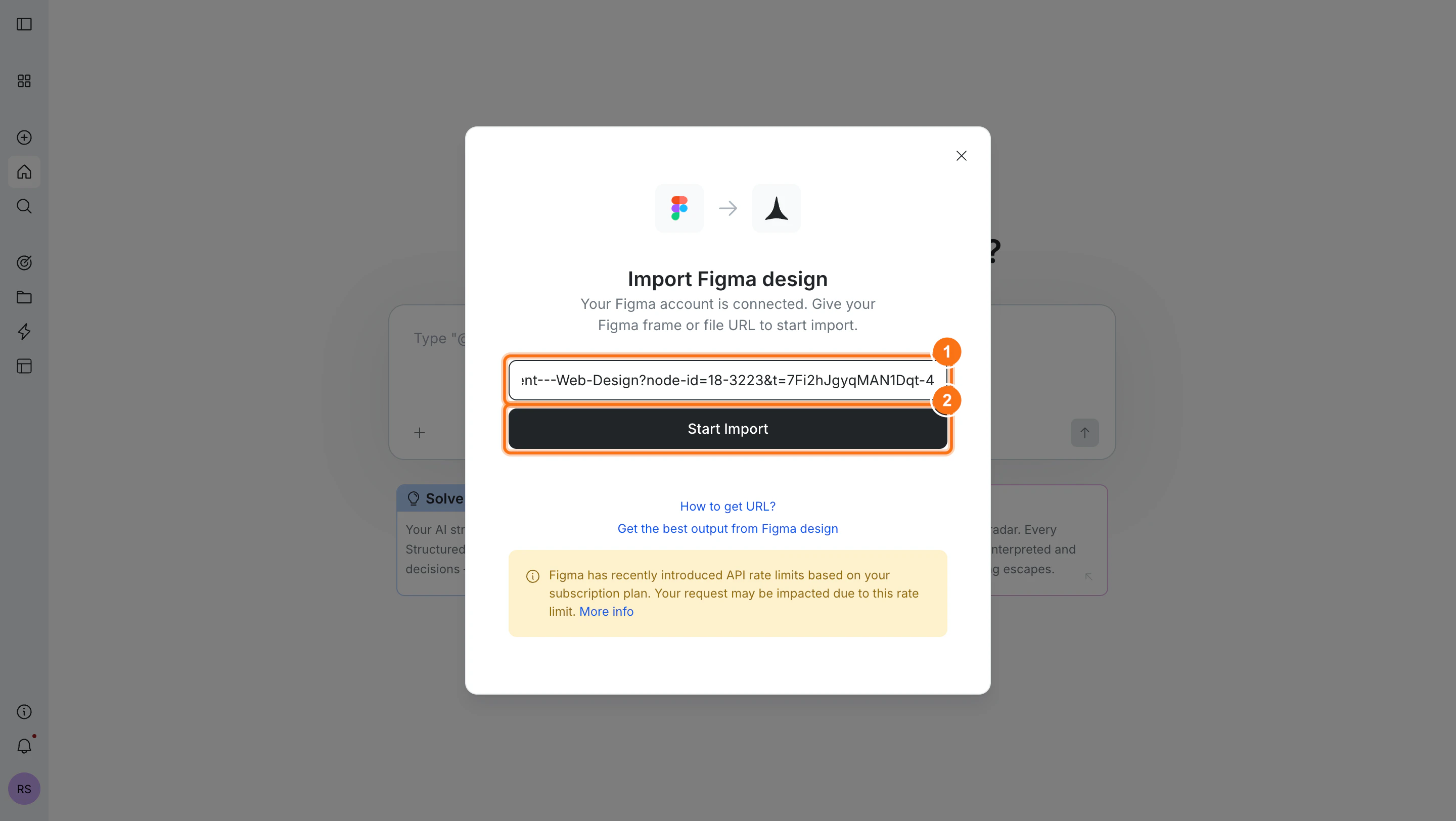
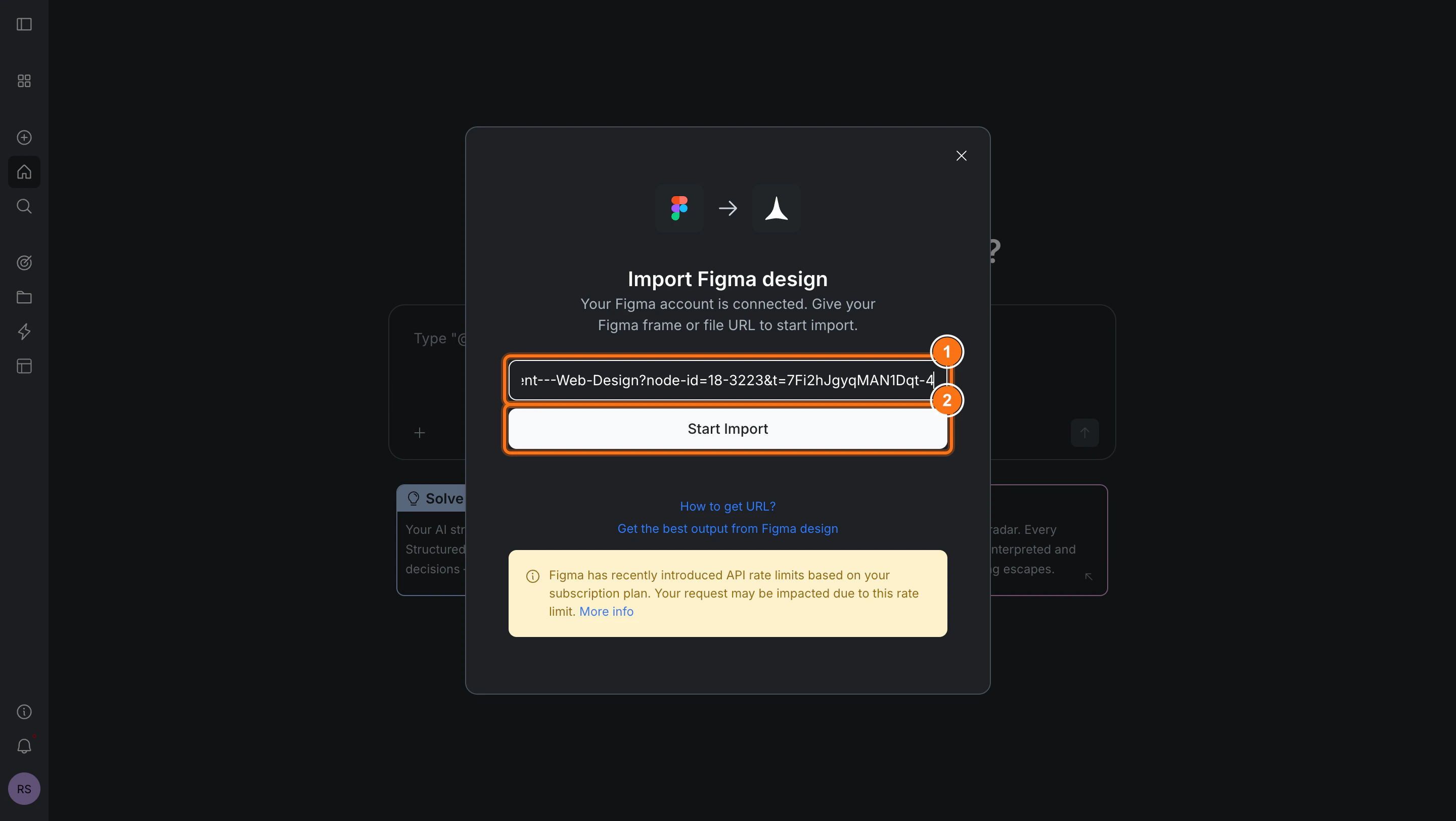
In the **Import Figma design** dialog, paste your Figma frame or file URL and click **Start Import**.
First time? **Connect your Figma account to Rocket** before importing.
In the **Import Figma design** dialog, paste your Figma frame or file URL and click **Start Import**.
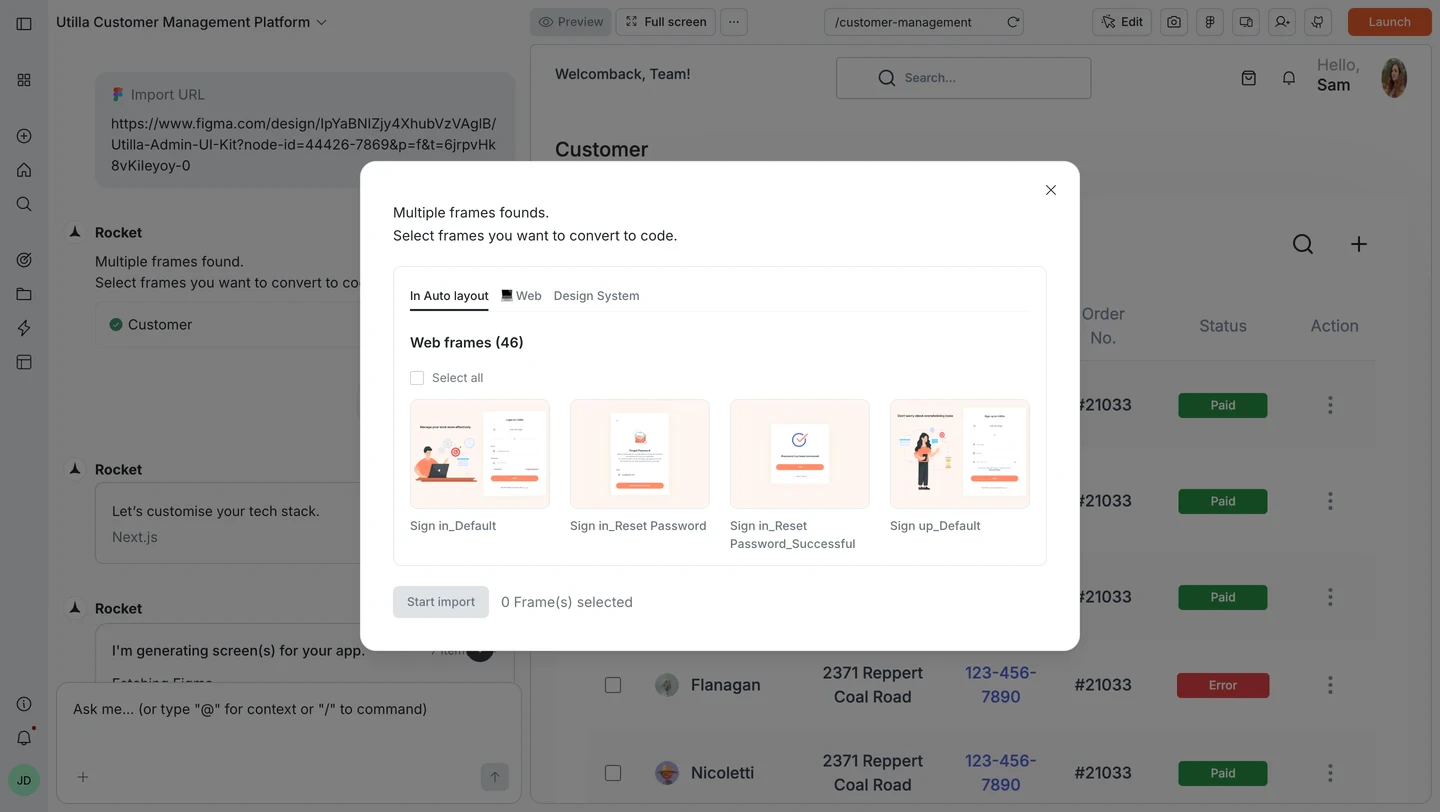
 You can import up to **40 screens** at a time.
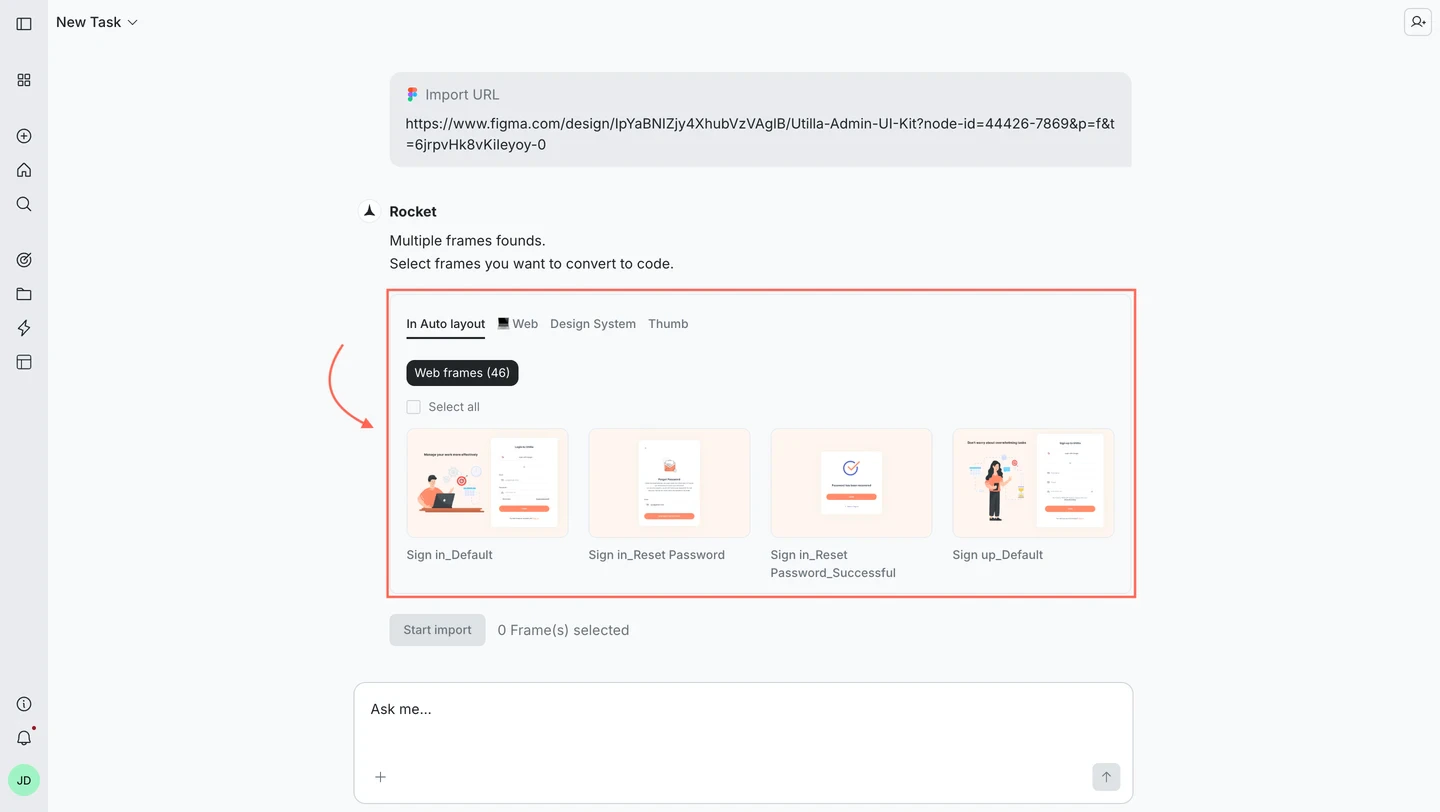
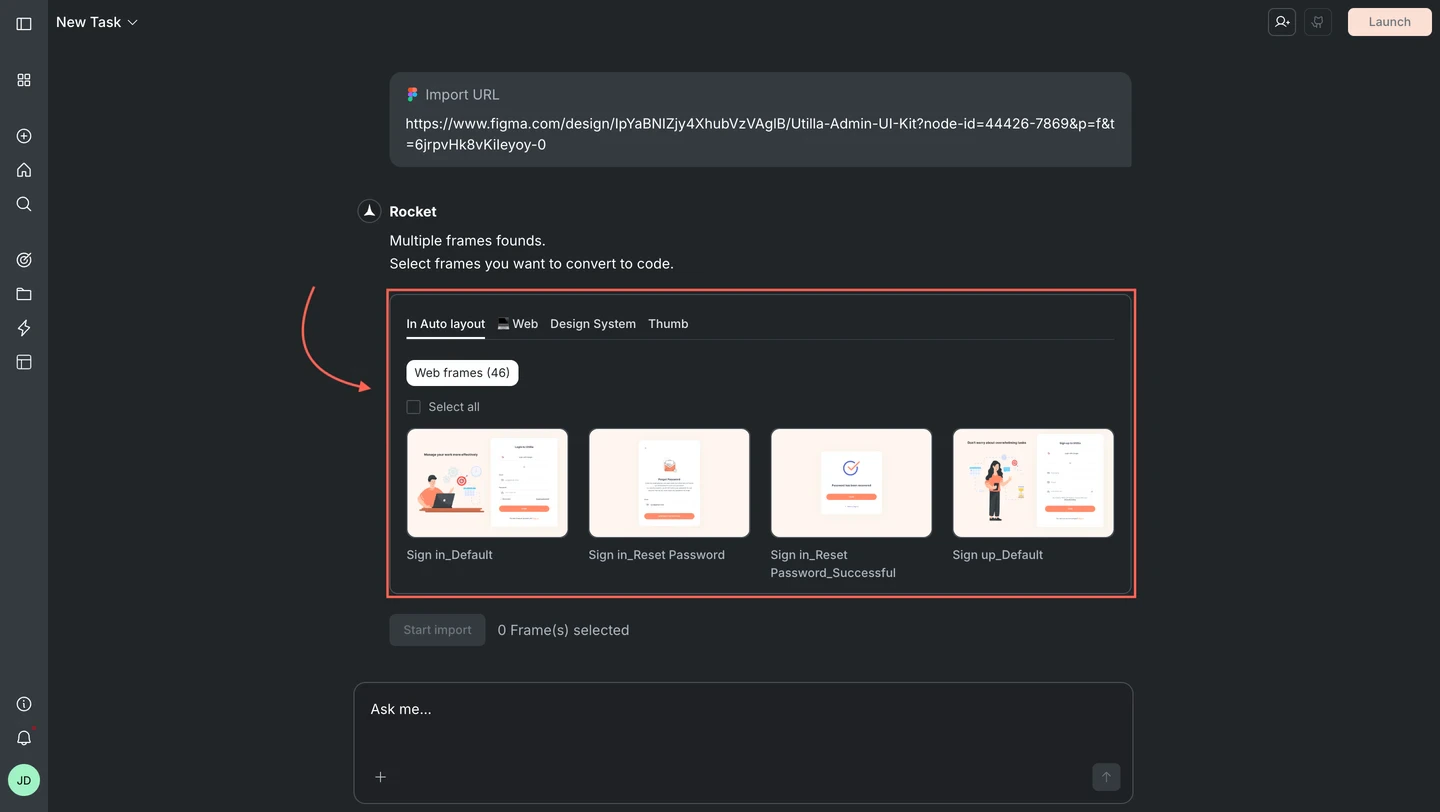
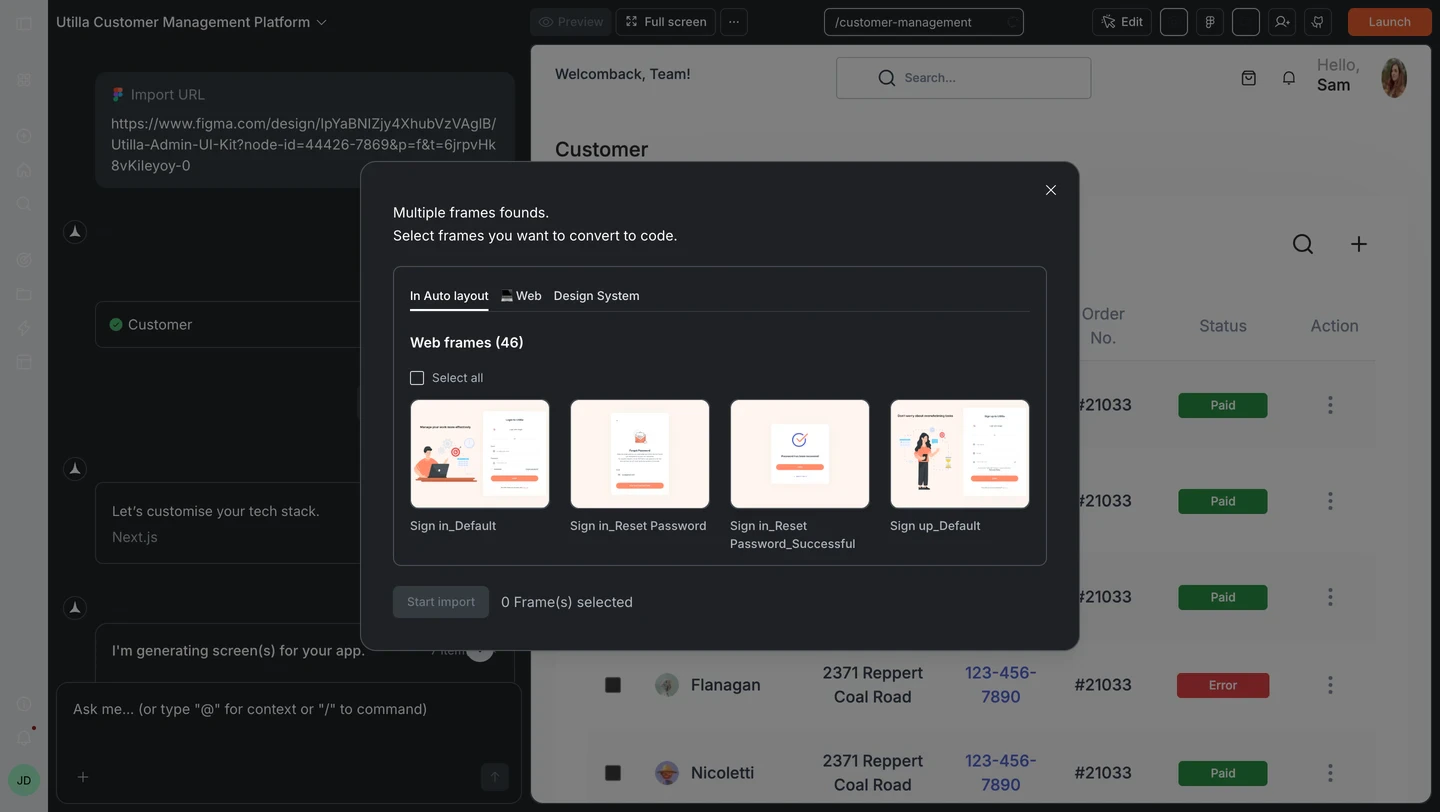
Rocket shows the frames from your Figma file. Select the ones you want to build, then click **Start import**.
You can import up to **40 screens** at a time.
Rocket shows the frames from your Figma file. Select the ones you want to build, then click **Start import**.
 **Using the free plan?** Some features may be limited. Upgrade to keep generating without interruptions.
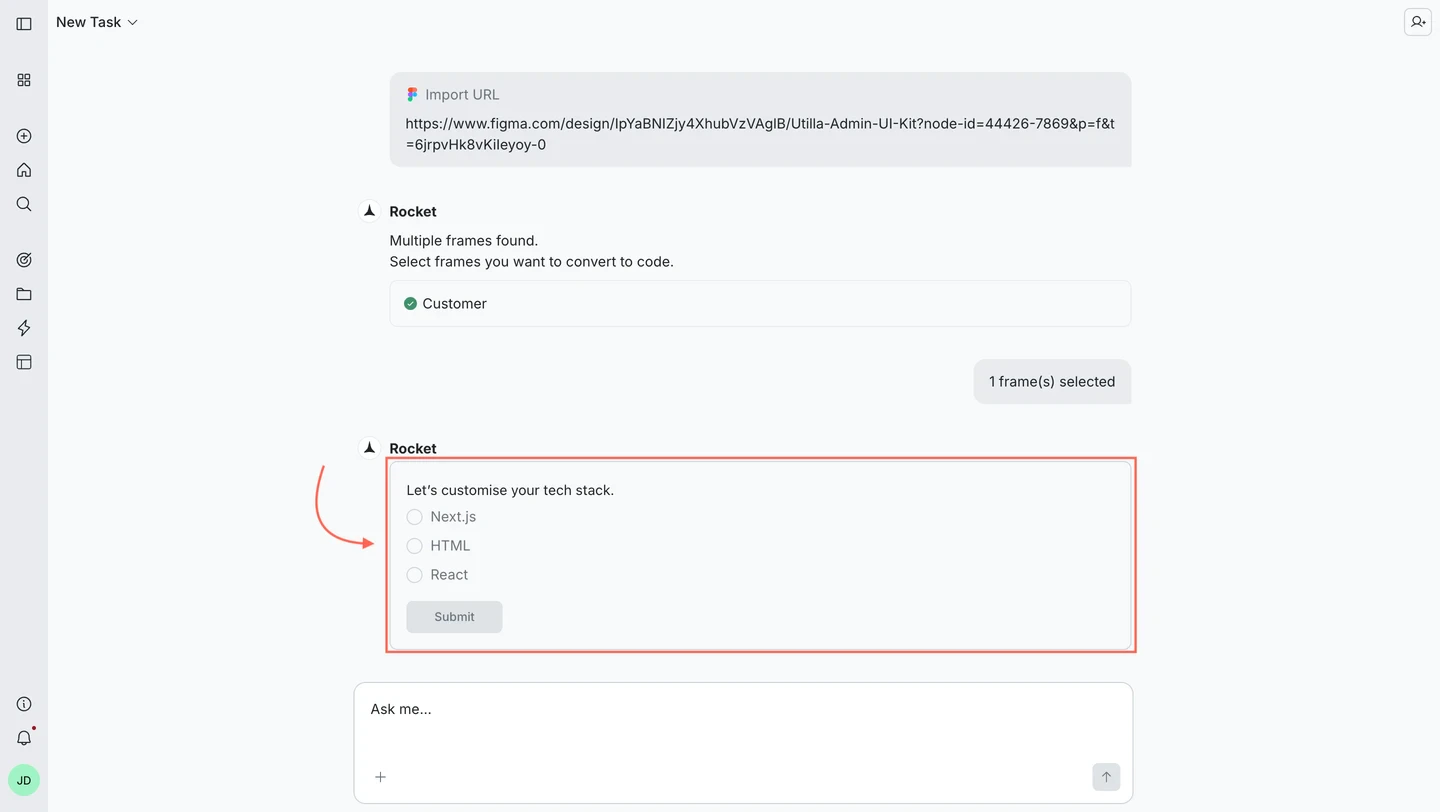
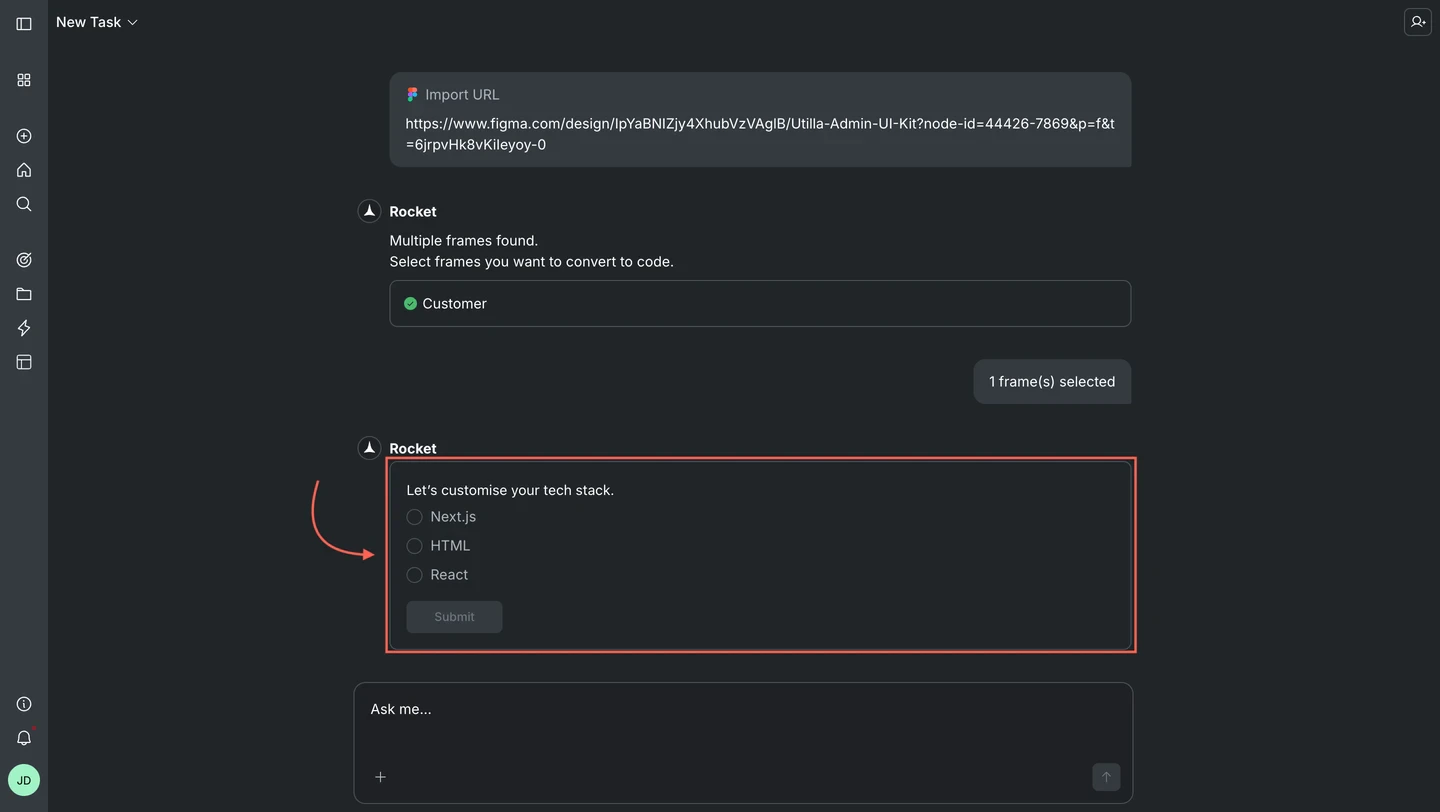
Choose your tech stack. Options include **Next.js**, **HTML**, and **React**:
**Using the free plan?** Some features may be limited. Upgrade to keep generating without interruptions.
Choose your tech stack. Options include **Next.js**, **HTML**, and **React**:
 Rocket fetches your Figma design assets, optimizes layers, and generates structured, readable code screen by screen.
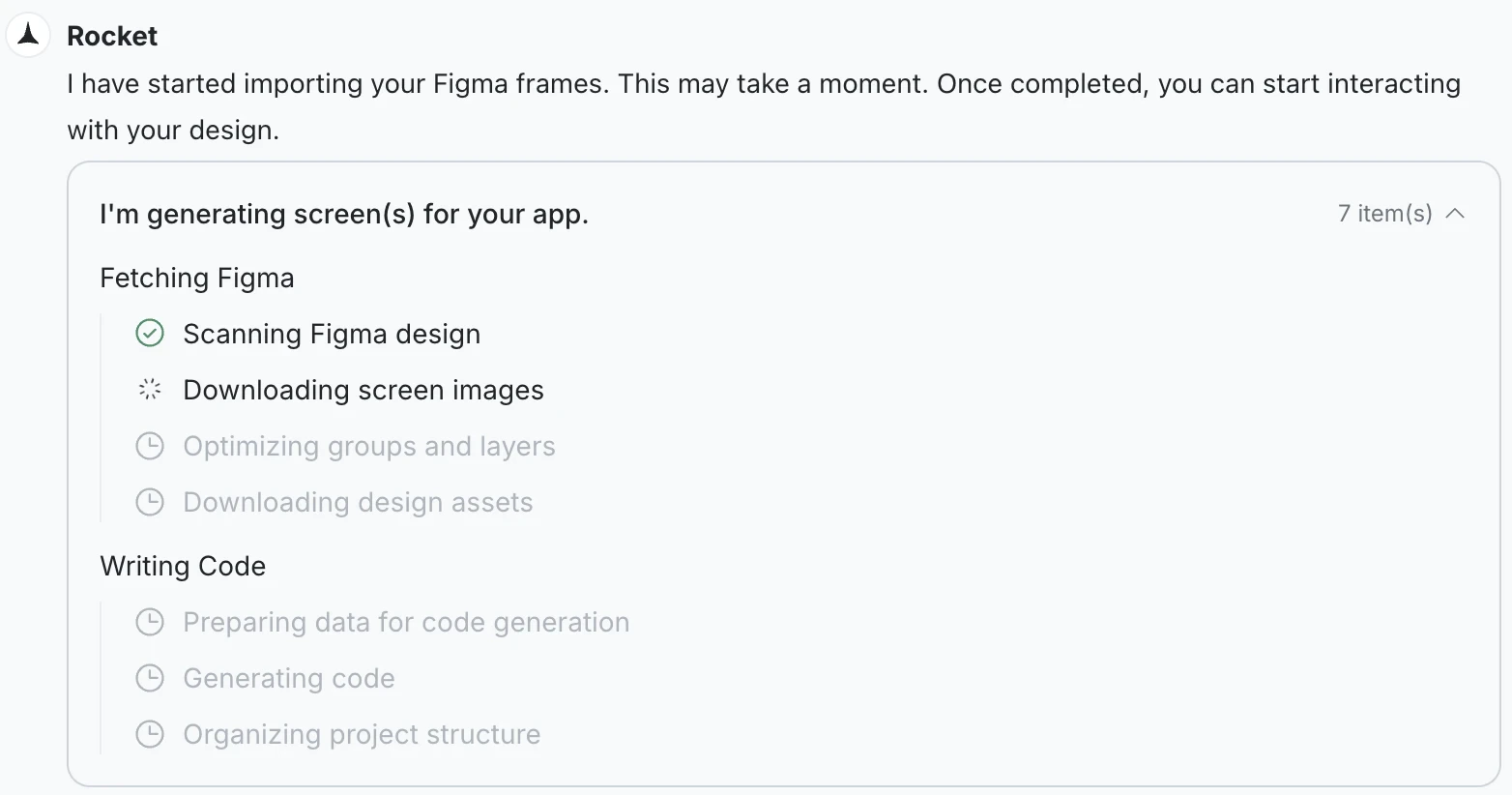
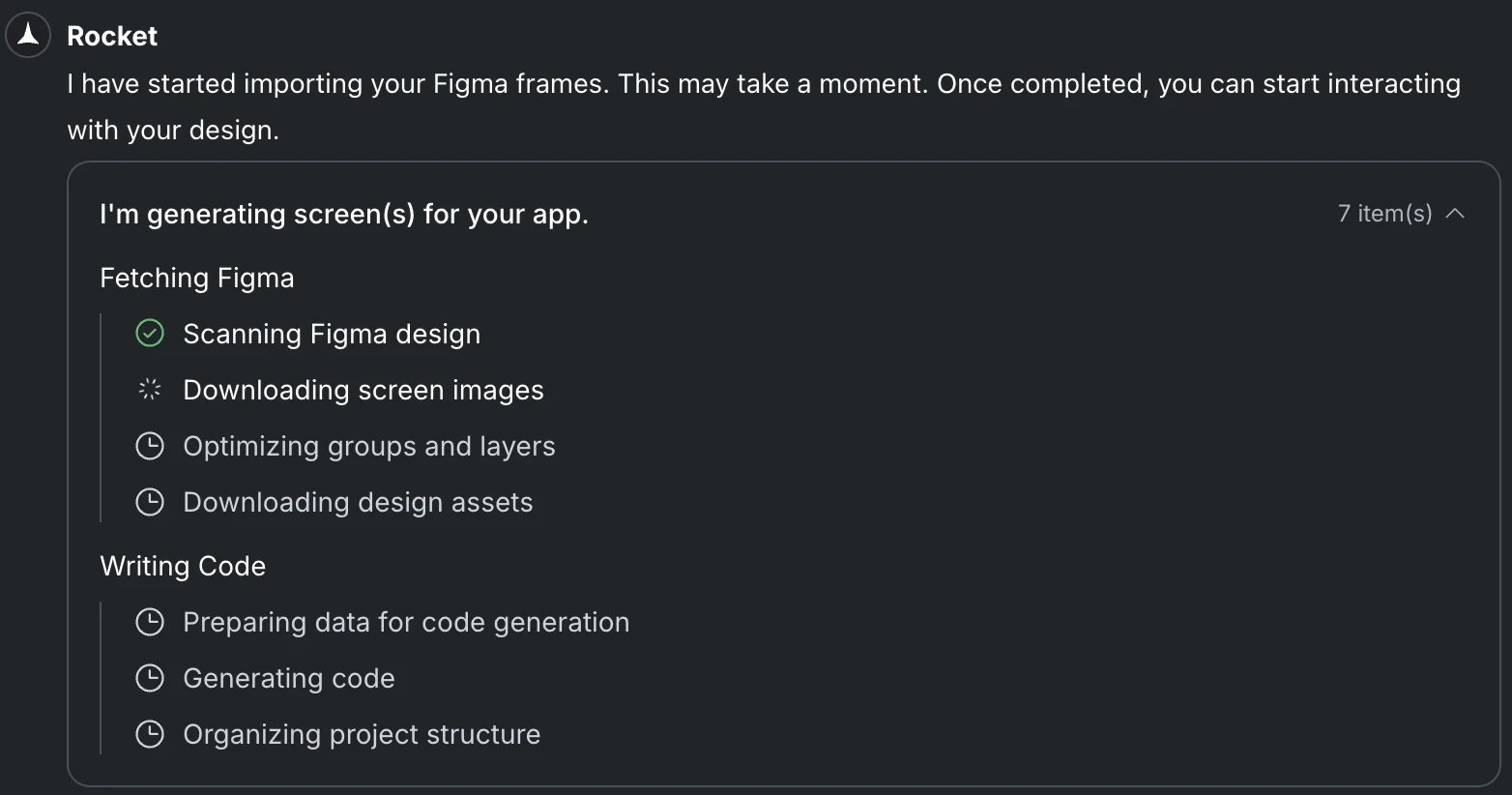 All status checks turn green when your web app is ready.
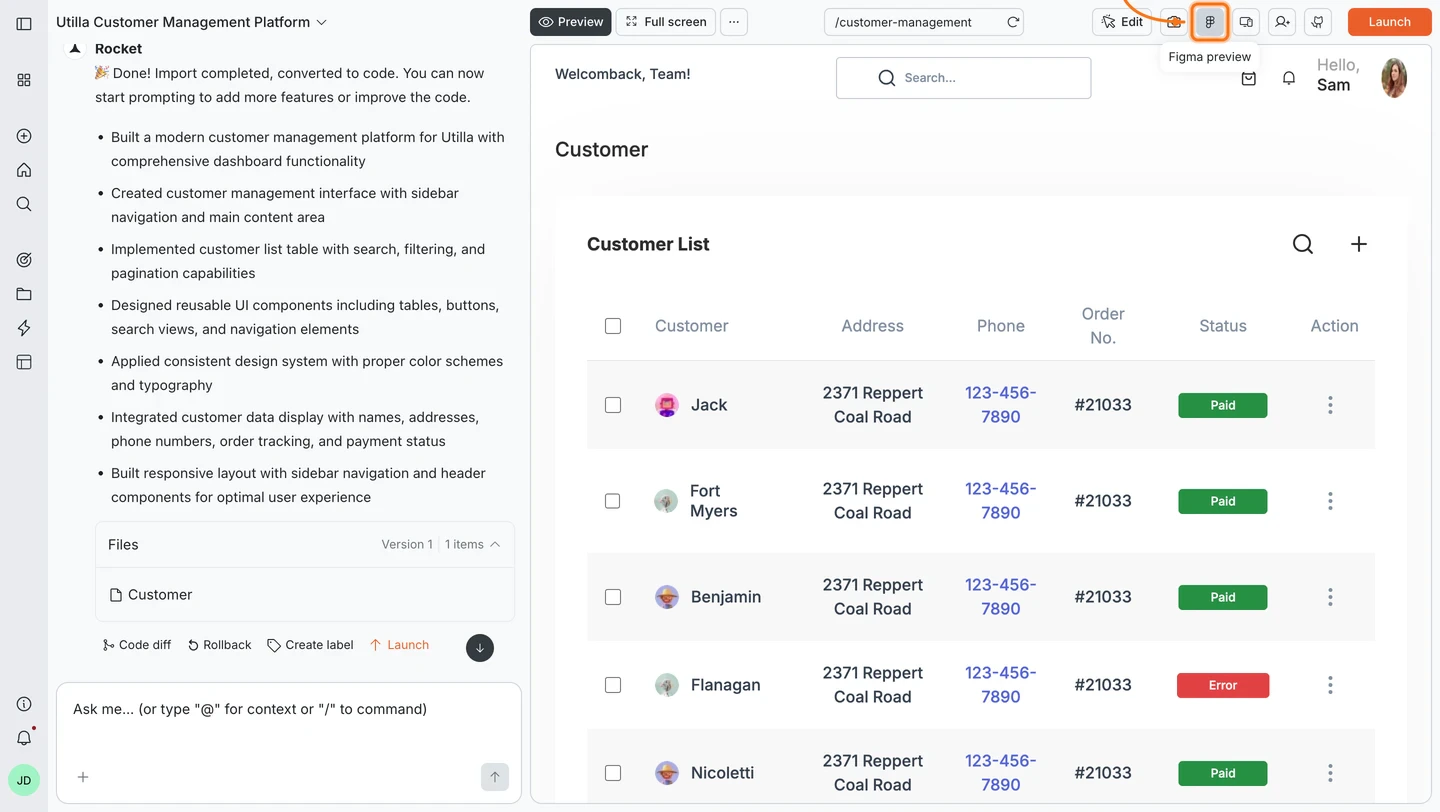
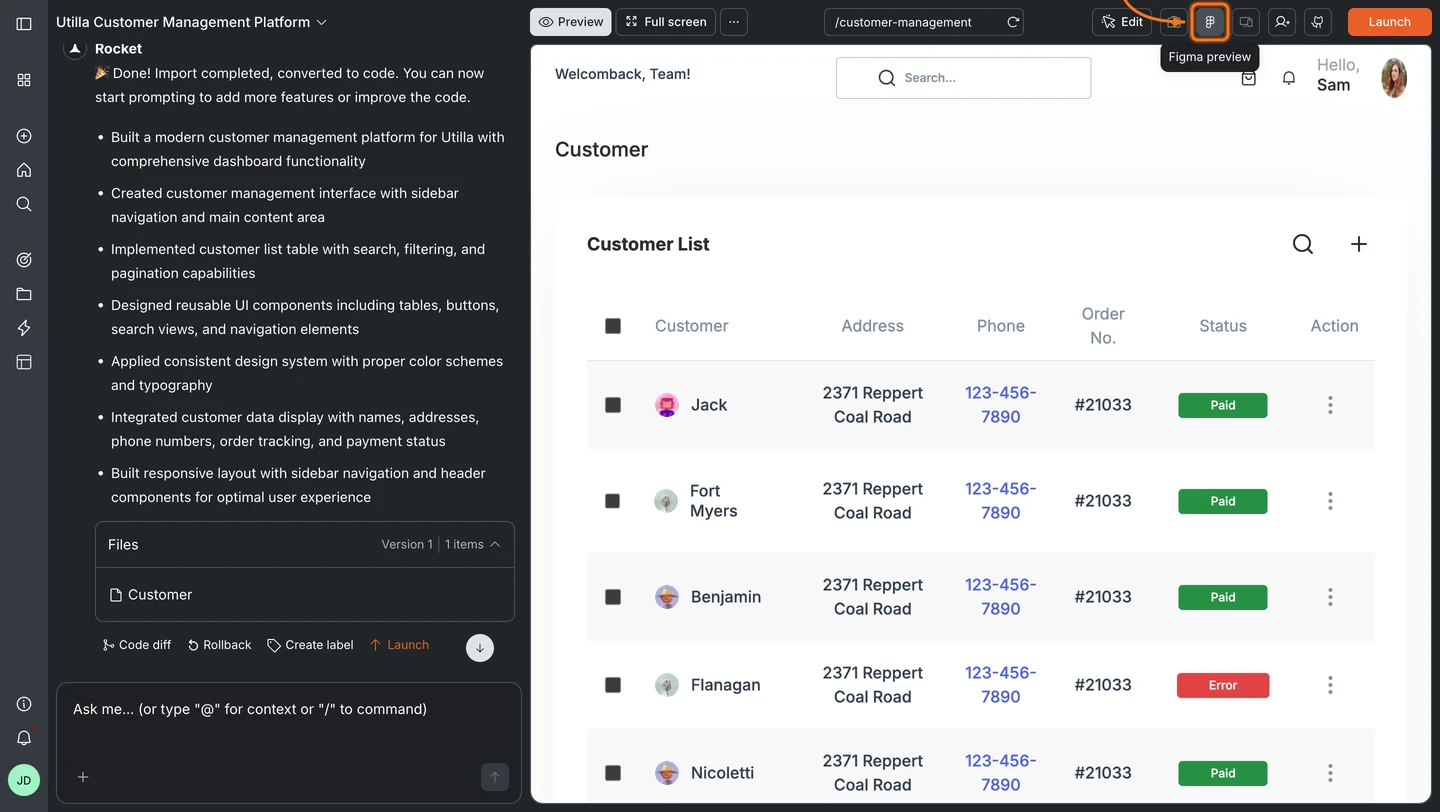
Once generation is complete, use the **Preview** tab at the top of the editor to view your Rocket-generated web app.
To view your original Figma design directly in Rocket, click the **** icon in the top-right navbar. This opens the Figma preview panel, showing your source design alongside the chat panel.
All status checks turn green when your web app is ready.
Once generation is complete, use the **Preview** tab at the top of the editor to view your Rocket-generated web app.
To view your original Figma design directly in Rocket, click the **** icon in the top-right navbar. This opens the Figma preview panel, showing your source design alongside the chat panel.
 **Want to make changes?** Just describe what you want in the chat. No need to go back to Figma.
Try things like:
* "Make the hero section background dark and the text white"
* "Add dark mode to the website"
* "Increase the size of the hero image"
* "Switch the font to Roboto and make the header smaller"
Need to bring in more screens after the initial import?
Click the **+** button at the bottom of the chat, then select **Add new screen**.
**Want to make changes?** Just describe what you want in the chat. No need to go back to Figma.
Try things like:
* "Make the hero section background dark and the text white"
* "Add dark mode to the website"
* "Increase the size of the hero image"
* "Switch the font to Roboto and make the header smaller"
Need to bring in more screens after the initial import?
Click the **+** button at the bottom of the chat, then select **Add new screen**.
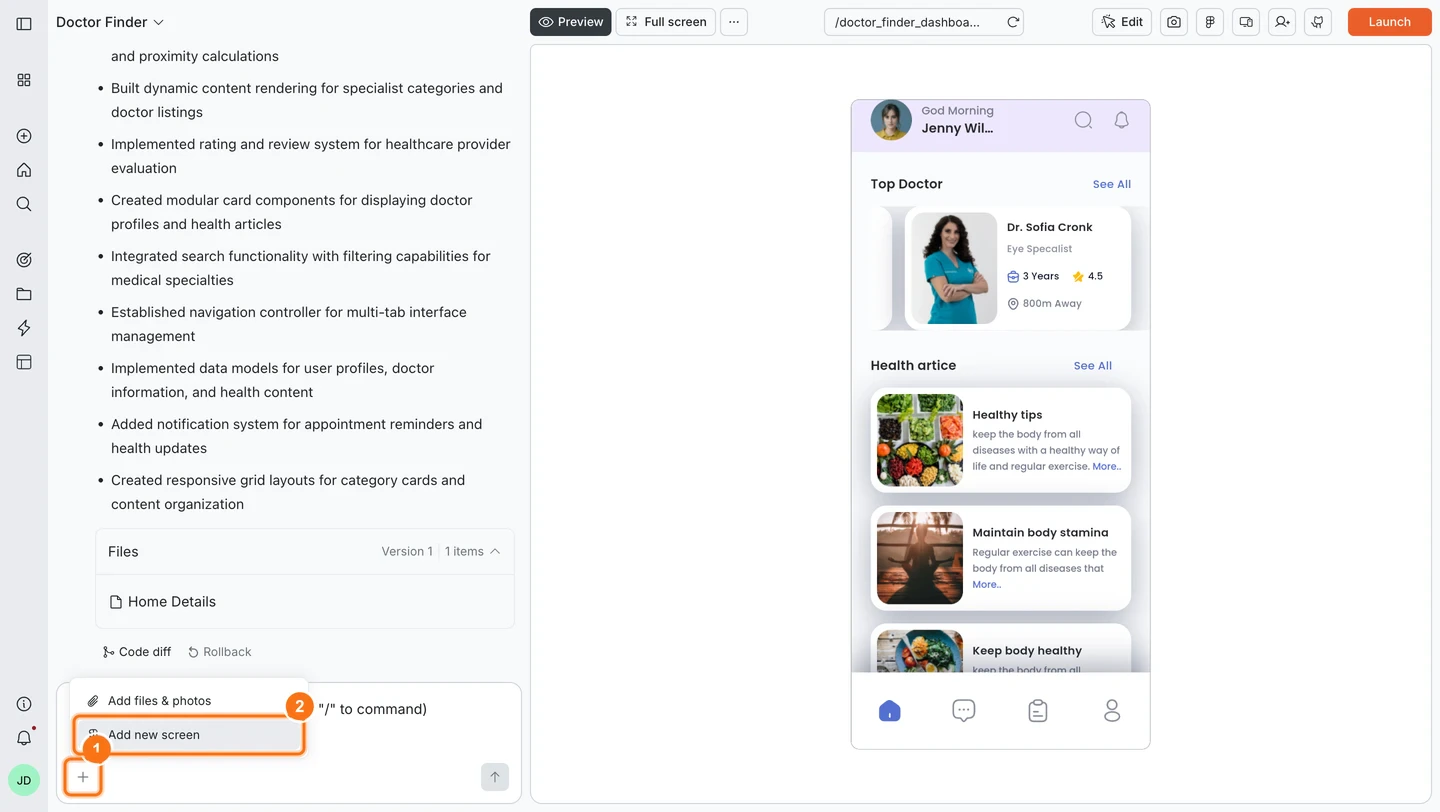
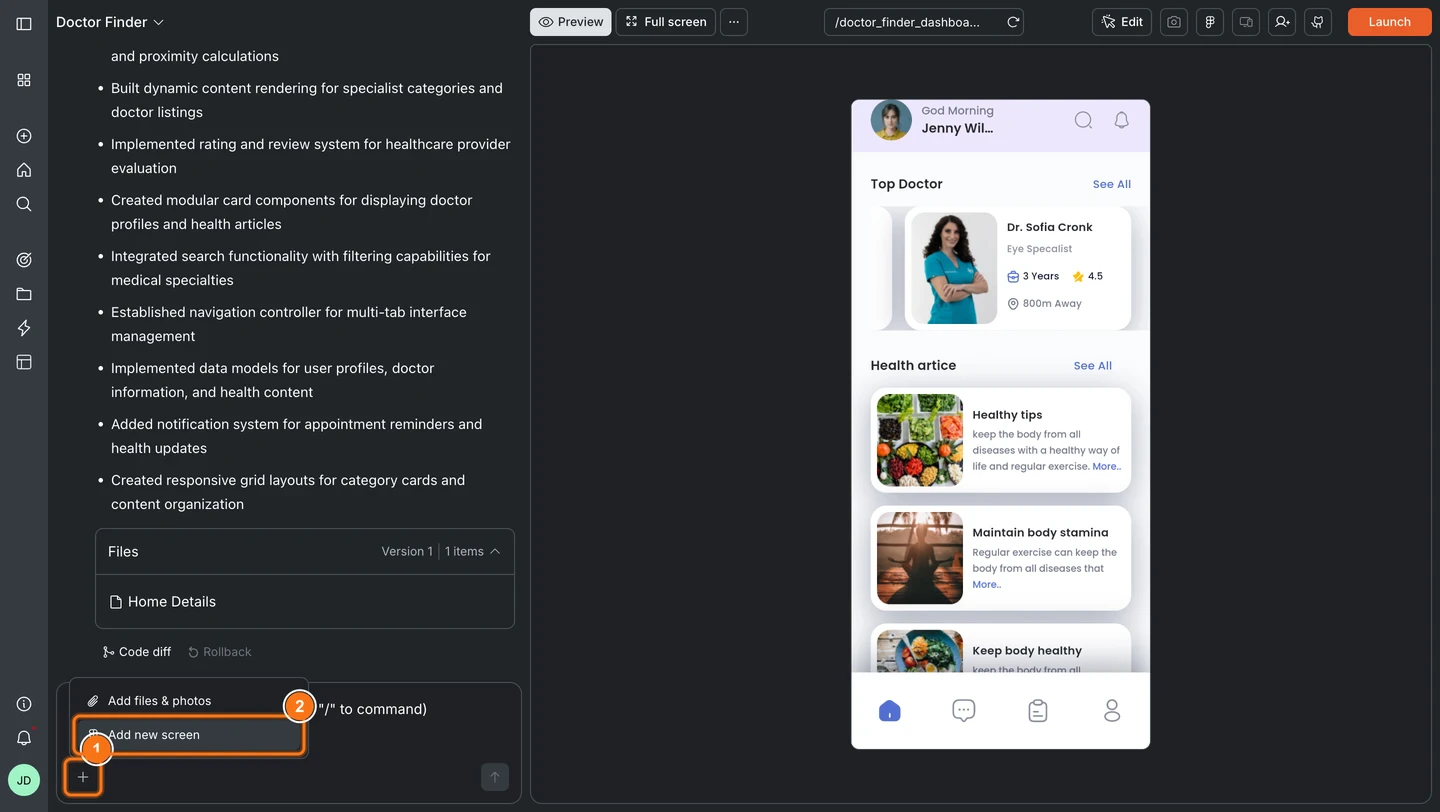 * **From the same file:** Select from the list of available screens (already-imported ones are marked) and click **Start import**.
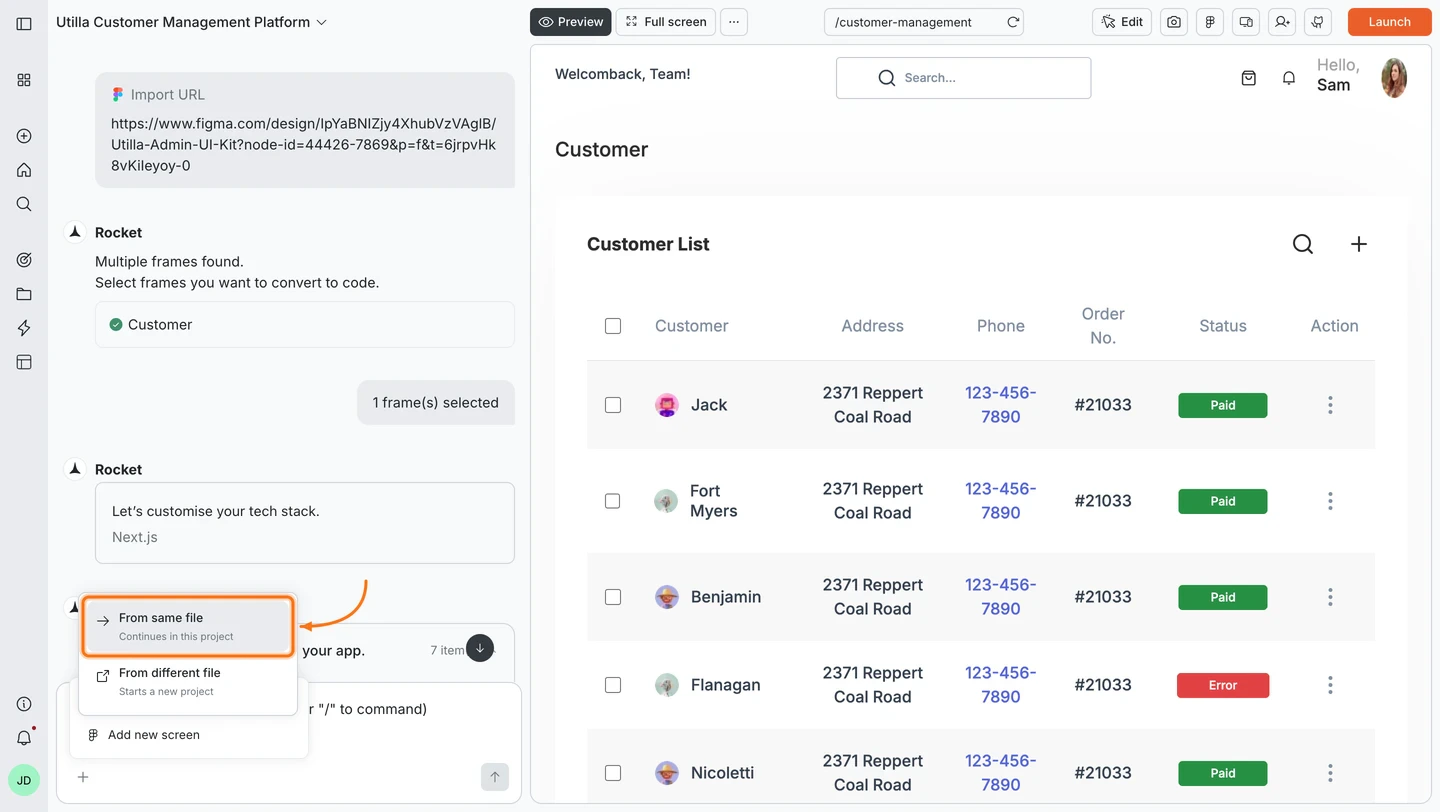
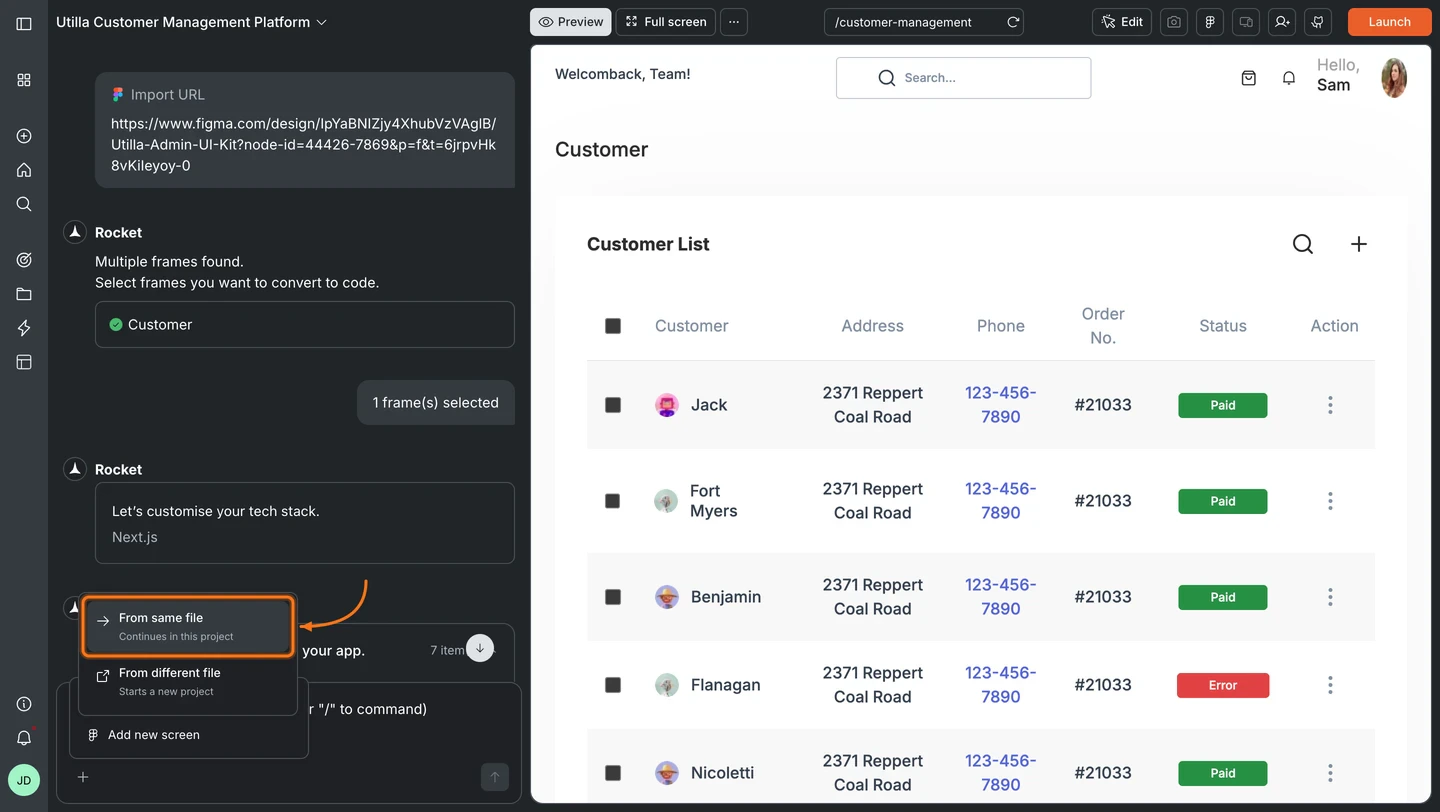 Select the screens you want to add and click **Start import**.
 * **From a different file:** Choose **From different file**, then paste a new Figma URL. This starts a new task. Your current task is not affected.
## After your import
Once Rocket generates your web app, iterate with chat to bring it to life:
| Goal | Prompt |
| :--------------------- | :--------------------------------------------------------------------------------- |
| Add interactivity | `Make the navigation links functional and add smooth page transitions.` |
| Connect a database | `Connect Supabase and store form submissions in a "contacts" table.` |
| Add authentication | `Add login and signup pages with email/password auth via Supabase.` |
| Improve responsiveness | `Make the layout fully responsive. Stack the sidebar below the content on mobile.` |
| Fix visual differences | `The hero section font size does not match my Figma design. Make it 48px bold.` |
| Add dark mode | `Add a dark mode toggle that switches all colors to a dark theme.` |
## Tips
* **Start with key screens.** Import your most important 5-10 screens first, then add more incrementally.
* **Use the Figma preview.** Click the icon in the top-right navbar to view your original Figma design directly in Rocket. Use the **Preview** tab to see the Rocket-generated app.
* **Fix visual mismatches in chat.** If a shadow, spacing, or color does not match, describe the difference and Rocket corrects it.
* **Follow the design guidelines.** Properly grouped layers, correct frame sizes, and clean vectors produce significantly better results. See the [guidelines](/build/create/figma/figma-design-guidelines/overview).
* **Prototype links do not work.** Use file or frame URLs, not prototype links.
## What's next?
Refine your imported app with natural language prompts.
Add payments, databases, AI, email, and analytics.
Best practices for preparing Figma files for import.
Publish your Figma-generated web app.
* **From a different file:** Choose **From different file**, then paste a new Figma URL. This starts a new task. Your current task is not affected.
## After your import
Once Rocket generates your web app, iterate with chat to bring it to life:
| Goal | Prompt |
| :--------------------- | :--------------------------------------------------------------------------------- |
| Add interactivity | `Make the navigation links functional and add smooth page transitions.` |
| Connect a database | `Connect Supabase and store form submissions in a "contacts" table.` |
| Add authentication | `Add login and signup pages with email/password auth via Supabase.` |
| Improve responsiveness | `Make the layout fully responsive. Stack the sidebar below the content on mobile.` |
| Fix visual differences | `The hero section font size does not match my Figma design. Make it 48px bold.` |
| Add dark mode | `Add a dark mode toggle that switches all colors to a dark theme.` |
## Tips
* **Start with key screens.** Import your most important 5-10 screens first, then add more incrementally.
* **Use the Figma preview.** Click the icon in the top-right navbar to view your original Figma design directly in Rocket. Use the **Preview** tab to see the Rocket-generated app.
* **Fix visual mismatches in chat.** If a shadow, spacing, or color does not match, describe the difference and Rocket corrects it.
* **Follow the design guidelines.** Properly grouped layers, correct frame sizes, and clean vectors produce significantly better results. See the [guidelines](/build/create/figma/figma-design-guidelines/overview).
* **Prototype links do not work.** Use file or frame URLs, not prototype links.
## What's next?
Refine your imported app with natural language prompts.
Add payments, databases, AI, email, and analytics.
Best practices for preparing Figma files for import.
Publish your Figma-generated web app.