> ## Documentation Index
> Fetch the complete documentation index at: https://docs.rocket.new/llms.txt
> Use this file to discover all available pages before exploring further.
# From an attachment
> Upload images, PDFs, spreadsheets, or CSVs and Rocket.new builds a working app from your real content.
export const LlmsDirective = () =>
For the complete documentation index, see llms.txt.
For a lightweight markdown version of this page, append .md to the URL.
;
**Give Rocket something to work with.** Have a screenshot of an app you like? A product catalog in a spreadsheet? A blog post in Markdown? Upload it and Rocket analyzes the content, then generates an app that uses it.
Pair it with a description for even better results.
## Supported attachments
| Image type | How Rocket uses it | Best for |
| :-------------------- | :---------------------------------------------- | :-------------------------------------------------------- |
| **UI screenshots** | Analyzes layout, colors, and component patterns | Building something that looks like an app you saw |
| **Design references** | Matches the visual style and design language | Building from Dribbble, Behance, or Pinterest inspiration |
| **Mockups** | Follows the full visual design closely | Turning static designs into working code |
**Supported formats:** `.png`, `.jpg`, `.jpeg`
| File type | How Rocket uses it | Best for |
| :-------------- | :------------------------------------------ | :---------------------------------------------------------- |
| **PDF** | Extracts text, tables, and structure | Building from briefs, specs, or reports |
| **Excel / CSV** | Reads rows, columns, and data relationships | Building data-driven pages, dashboards, or product listings |
| **Markdown** | Parses headings, lists, and content blocks | Building content pages, blogs, or documentation sites |
**Supported file types:** `.pdf`, `.xlsx`, `.csv`, `.md`
**Max file size:** 5 MB per attachment. You can attach up to 5 files at a time.
## What you can build
Screenshot an app and tell Rocket to build something similar with your own content and branding.
**Try this prompt:**
```plaintext wrap theme={null}
Build an app like this screenshot but for a pet care business. Keep the layout and navigation style but use my brand colors (teal and white).
```
Found a design you love? Upload it and Rocket analyzes the UI and builds a matching app.
**Try this prompt:**
```plaintext wrap theme={null}
Build a landing page that matches this design style. Use the same card layout, gradient backgrounds, and typography hierarchy.
```
Upload a static mockup and Rocket generates a fully functional app that matches the design.
**Try this prompt:**
```plaintext wrap theme={null}
Build this dashboard design as a working web app. Make the charts interactive, the sidebar navigation functional, and add a date range filter.
```
Upload a product catalog, pricing list, or dataset and Rocket builds pages from the real data.
**Try this prompt:**
```plaintext wrap theme={null}
Build a product listing page using the data in this spreadsheet. Show each product with its name, price, and description in a card grid.
```
Upload a brief, spec, or report and Rocket extracts the content to build from.
**Try this prompt:**
```plaintext wrap theme={null}
Build a landing page for this product using the content from this PDF. Pull the headline, features, and pricing from the document.
```
Upload a blog post, documentation page, or content outline and Rocket turns it into a styled page.
**Try this prompt:**
```plaintext wrap theme={null}
Turn this Markdown file into a blog post page with a header image, reading time estimate, and author byline.
```
## Detailed walkthrough
### Before you begin
**You will need:**
* A [rocket.new](https://rocket.new) account, signed in.
* An image (`.png`, `.jpg`, `.jpeg`) or file (`.pdf`, `.xlsx`, `.csv`, `.md`) under 5 MB.
Visit **[rocket.new](https://rocket.new)** and sign in.
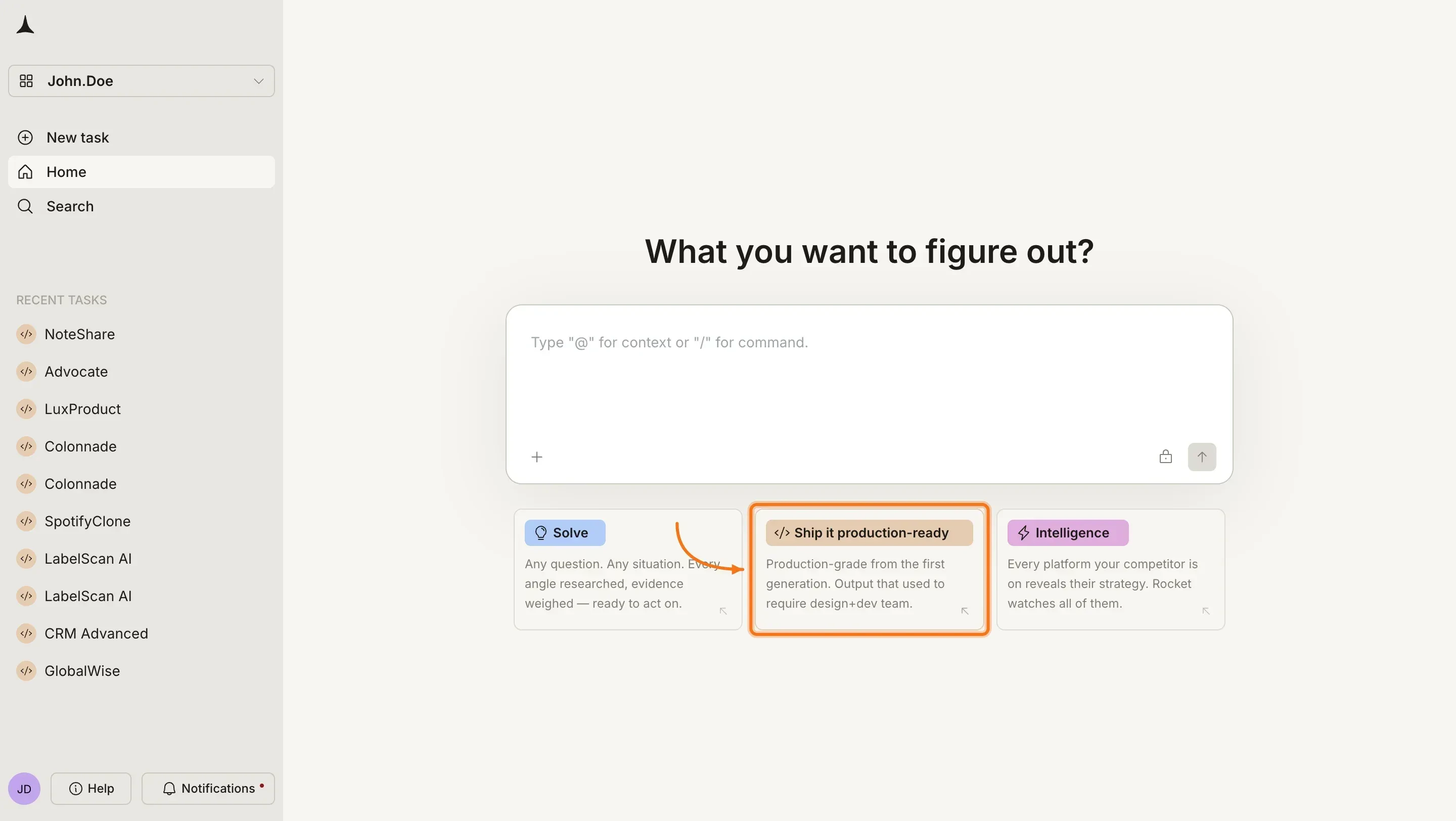
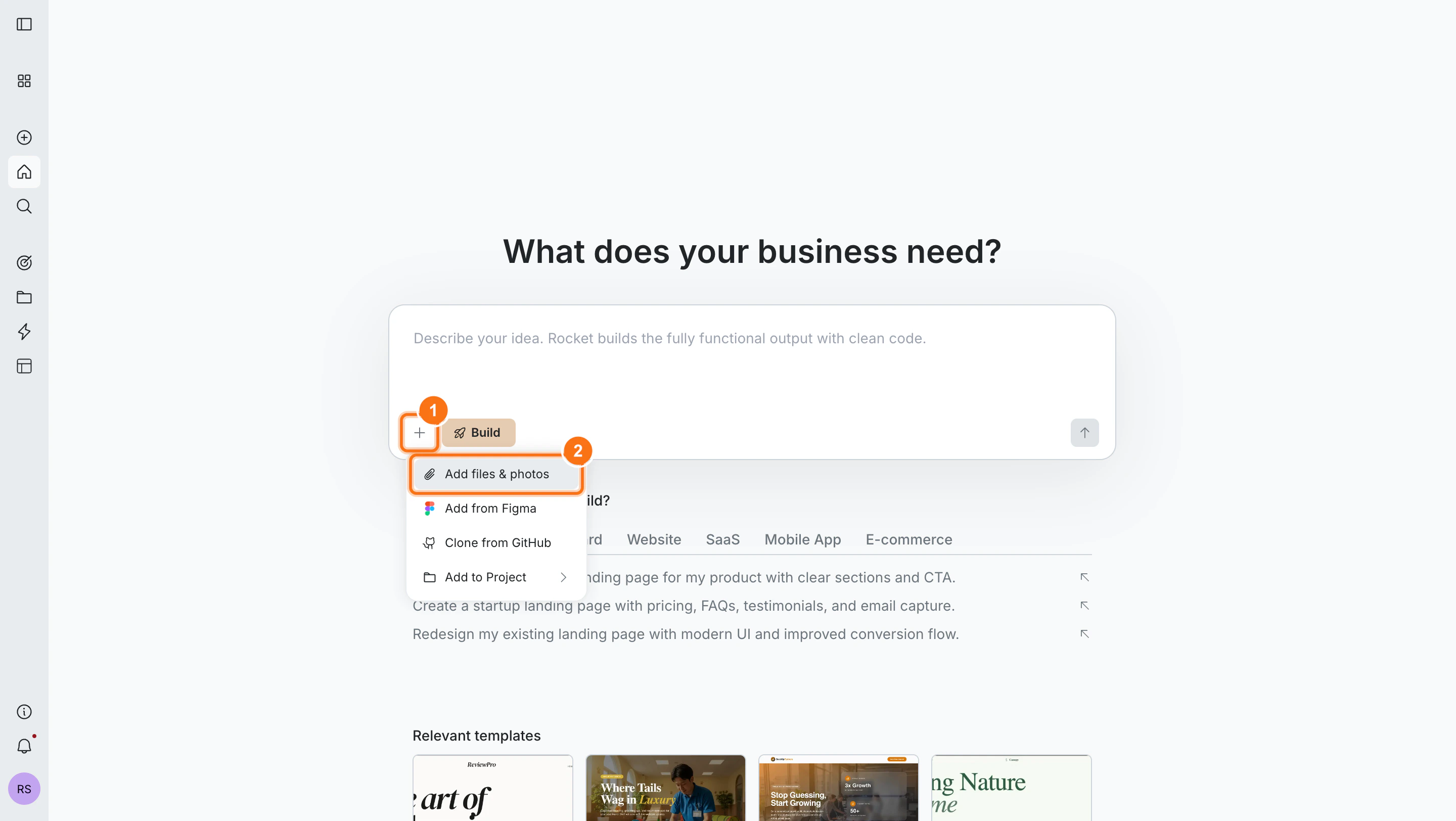
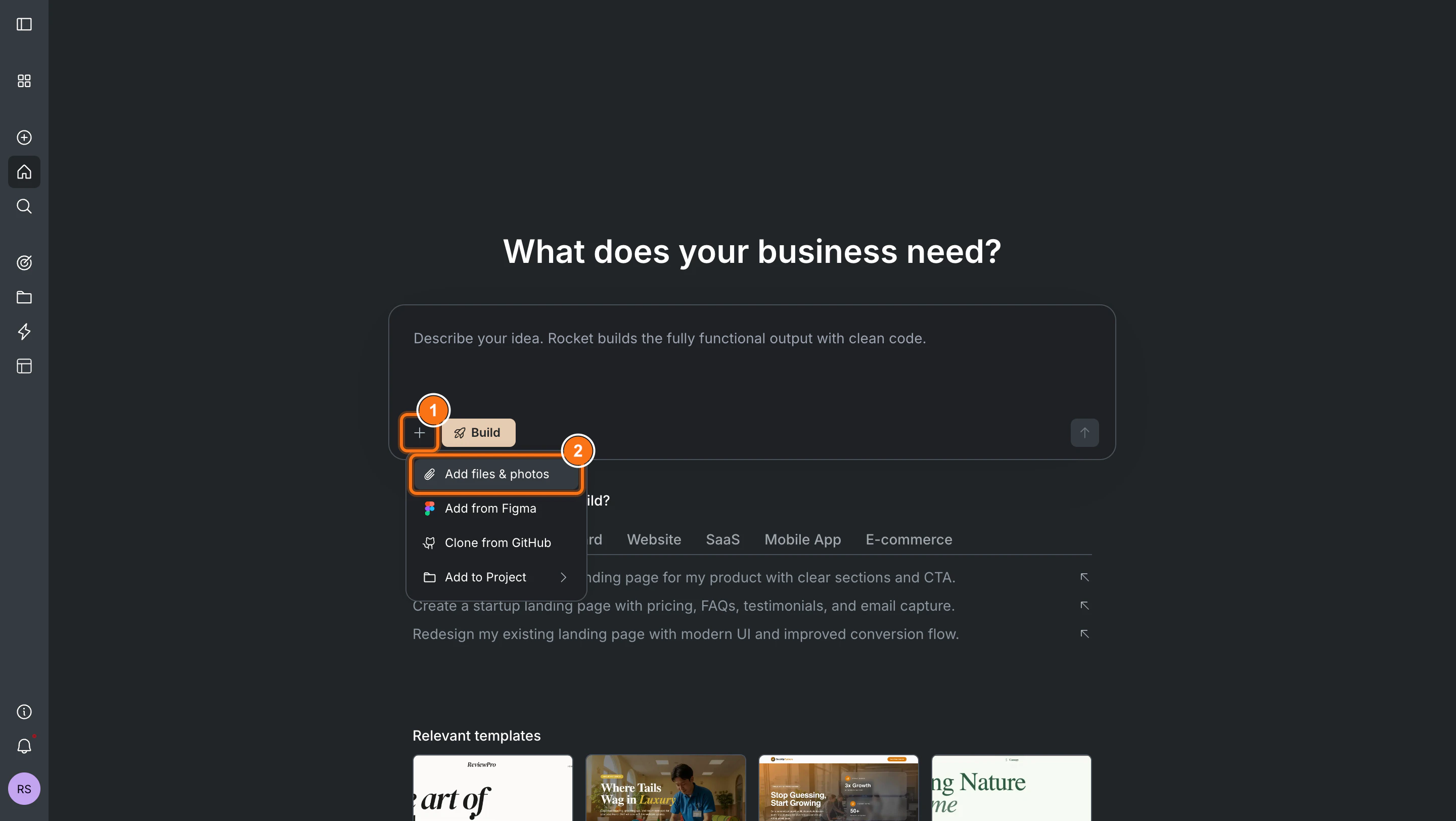
 Click the **+** button at the lower left of the input box and select **Add files & photos**. You can also drag and drop or paste an image directly into the chat.
 Describe what you want built alongside the attachment:
* *"Build an app that looks like this screenshot"*
* *"Create a product page using the data in this spreadsheet"*
* *"Turn this Markdown file into a blog post with a clean layout"*
* *"Use this PDF to build a landing page with the product features"*
Press Enter. Rocket analyzes the attachment and builds from your file and prompt.
If your prompt is specific enough, it starts immediately. If it is too vague, prompt intelligence asks a short set of questions first, then starts.
How Rocket decides when to ask questions and what to do with your answers.
### Before you begin
**You will need:**
* The Rocket app (iPhone or iPad) installed and signed in.
* An image (`.png`, `.jpg`, `.jpeg`) or file (`.pdf`, `.xlsx`, `.csv`, `.md`) under 5 MB.
Tap the **** icon at the bottom of the chat field. Choose **Take Photo**, **Choose from Library**, or **Browse** to upload an image or file.
Describe what you want built alongside the attachment:
* *"Build an app that looks like this screenshot"*
* *"Create a product page using the data in this spreadsheet"*
* *"Turn this Markdown file into a blog post with a clean layout"*
* *"Use this PDF to build a landing page with the product features"*
Press Enter. Rocket analyzes the attachment and builds from your file and prompt.
If your prompt is specific enough, it starts immediately. If it is too vague, prompt intelligence asks a short set of questions first, then starts.
How Rocket decides when to ask questions and what to do with your answers.
### Before you begin
**You will need:**
* The Rocket app (iPhone or iPad) installed and signed in.
* An image (`.png`, `.jpg`, `.jpeg`) or file (`.pdf`, `.xlsx`, `.csv`, `.md`) under 5 MB.
Tap the **** icon at the bottom of the chat field. Choose **Take Photo**, **Choose from Library**, or **Browse** to upload an image or file.
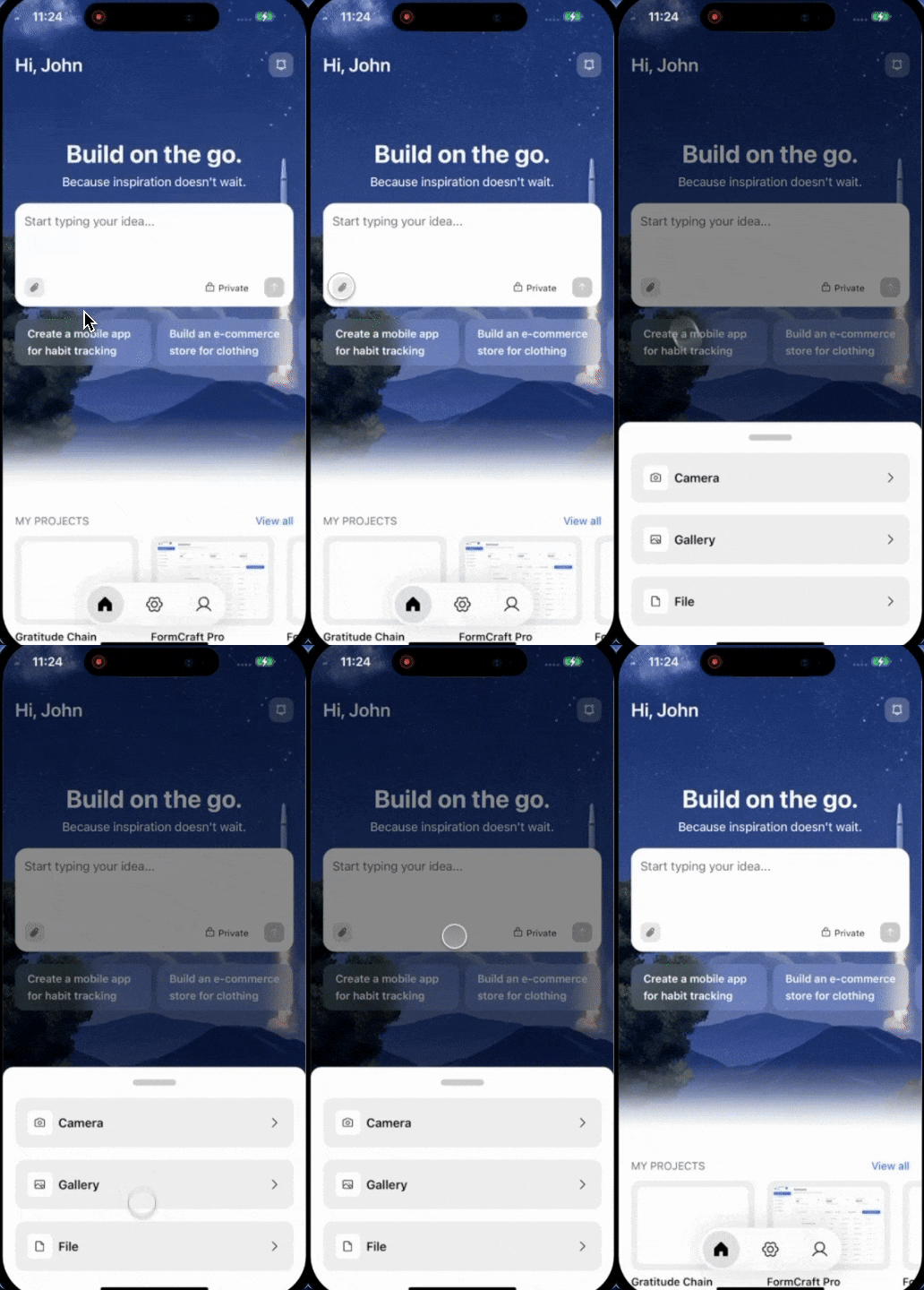 Describe what you want built alongside the attachment:
* *"Build an app that looks like this screenshot"*
* *"Create a product page using the data in this spreadsheet"*
* *"Turn this Markdown file into a blog post with a clean layout"*
* *"Use this PDF to build a landing page with the product features"*
Tap **Send**. Rocket analyzes the attachment and builds from your file and prompt.
If your prompt is specific enough, it starts immediately. If it is too vague, prompt intelligence asks a short set of questions first, then starts.
How Rocket decides when to ask questions and what to do with your answers.
## Prompt cookbook
Pair these prompts with your uploaded attachment:
| Goal | Prompt |
| :----------------------- | :---------------------------------------------------------------------------------------------------- |
| Exact recreation | `Build an app that looks exactly like this image. Match the layout, colors, and components.` |
| Style match, new content | `Use this design style but build a CRM dashboard for tracking sales leads and deals.` |
| Mockup to app | `Turn this mockup into a fully functional web app with working navigation and interactive elements.` |
| Data-driven page | `Build a product listing page from this spreadsheet with name, price, and description for each item.` |
| Content page | `Turn this Markdown file into a styled blog post with a header, reading time, and share buttons.` |
| PDF to landing page | `Build a landing page using the features and pricing from this PDF document.` |
| Different branding | `Use this design layout but replace all content and branding for my company called "Flowboard."` |
| Multiple screens | `This image shows 3 screens of my app. Build all of them with navigation between each screen.` |
## Tips for better results
* **Clear images produce better results.** High-contrast screenshots and crisp mockups outperform blurry or low-resolution images.
* **Add context in your prompt.** The attachment shows Rocket *what* to work with. Your prompt tells it *what to build* and *who it is for*.
* **Real content beats placeholders.** Upload your actual spreadsheet, document, or screenshot instead of describing the data in text.
* **Crop out noise from images.** Remove browser chrome, desktop wallpaper, or unrelated UI elements before uploading.
## What's next?
Refine your app using natural language. Change colors, add features, fix bugs.
Click any element to change text, colors, layout, and spacing directly.
Add payments, databases, AI, email, and more with a single prompt.
Publish to the web with one click and connect a custom domain.
Describe what you want built alongside the attachment:
* *"Build an app that looks like this screenshot"*
* *"Create a product page using the data in this spreadsheet"*
* *"Turn this Markdown file into a blog post with a clean layout"*
* *"Use this PDF to build a landing page with the product features"*
Tap **Send**. Rocket analyzes the attachment and builds from your file and prompt.
If your prompt is specific enough, it starts immediately. If it is too vague, prompt intelligence asks a short set of questions first, then starts.
How Rocket decides when to ask questions and what to do with your answers.
## Prompt cookbook
Pair these prompts with your uploaded attachment:
| Goal | Prompt |
| :----------------------- | :---------------------------------------------------------------------------------------------------- |
| Exact recreation | `Build an app that looks exactly like this image. Match the layout, colors, and components.` |
| Style match, new content | `Use this design style but build a CRM dashboard for tracking sales leads and deals.` |
| Mockup to app | `Turn this mockup into a fully functional web app with working navigation and interactive elements.` |
| Data-driven page | `Build a product listing page from this spreadsheet with name, price, and description for each item.` |
| Content page | `Turn this Markdown file into a styled blog post with a header, reading time, and share buttons.` |
| PDF to landing page | `Build a landing page using the features and pricing from this PDF document.` |
| Different branding | `Use this design layout but replace all content and branding for my company called "Flowboard."` |
| Multiple screens | `This image shows 3 screens of my app. Build all of them with navigation between each screen.` |
## Tips for better results
* **Clear images produce better results.** High-contrast screenshots and crisp mockups outperform blurry or low-resolution images.
* **Add context in your prompt.** The attachment shows Rocket *what* to work with. Your prompt tells it *what to build* and *who it is for*.
* **Real content beats placeholders.** Upload your actual spreadsheet, document, or screenshot instead of describing the data in text.
* **Crop out noise from images.** Remove browser chrome, desktop wallpaper, or unrelated UI elements before uploading.
## What's next?
Refine your app using natural language. Change colors, add features, fix bugs.
Click any element to change text, colors, layout, and spacing directly.
Add payments, databases, AI, email, and more with a single prompt.
Publish to the web with one click and connect a custom domain.