> ## Documentation Index
> Fetch the complete documentation index at: https://docs.rocket.new/llms.txt
> Use this file to discover all available pages before exploring further.
# From GitHub
> Import a Next.js TypeScript repo from GitHub and continue building with Rocket.new AI.
export const LlmsDirective = () =>
For the complete documentation index, see llms.txt.
For a lightweight markdown version of this page, append .md to the URL.
;
Bring your existing code into Rocket. Clone a Next.js TypeScript repository from GitHub and pick up where you left off. Rocket imports your task files, installs dependencies, and sets up a live preview so you can start iterating with AI immediately.
This is available for **Next.js + TypeScript tasks only**.
## Prerequisites
Before importing, make sure you have:
* A [Rocket](https://rocket.new) account
* A GitHub account with access to the repository you want to import
* A **Next.js project using TypeScript** (other frameworks and JavaScript-only projects are not supported)
If you have not connected GitHub to Rocket yet, you will be prompted to authorize during the import flow. See [GitHub connector](/build/connectors/github/overview) for details on permissions and setup.
## Import a repository
Visit [rocket.new](https://rocket.new), sign in, and click the **Build** tab below the input.
Click the **+** button at the lower left of the input box and select **Clone from GitHub**.
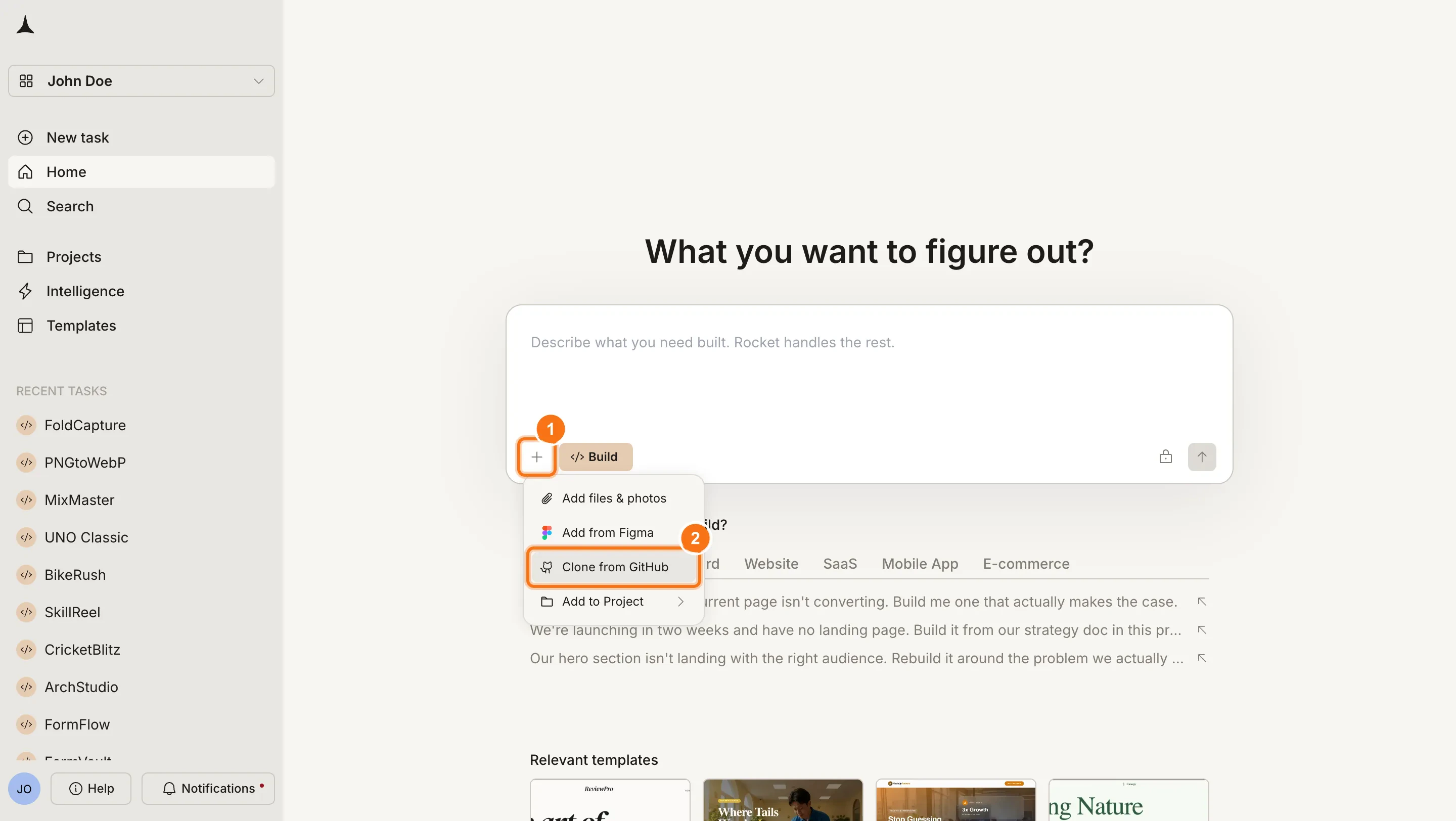
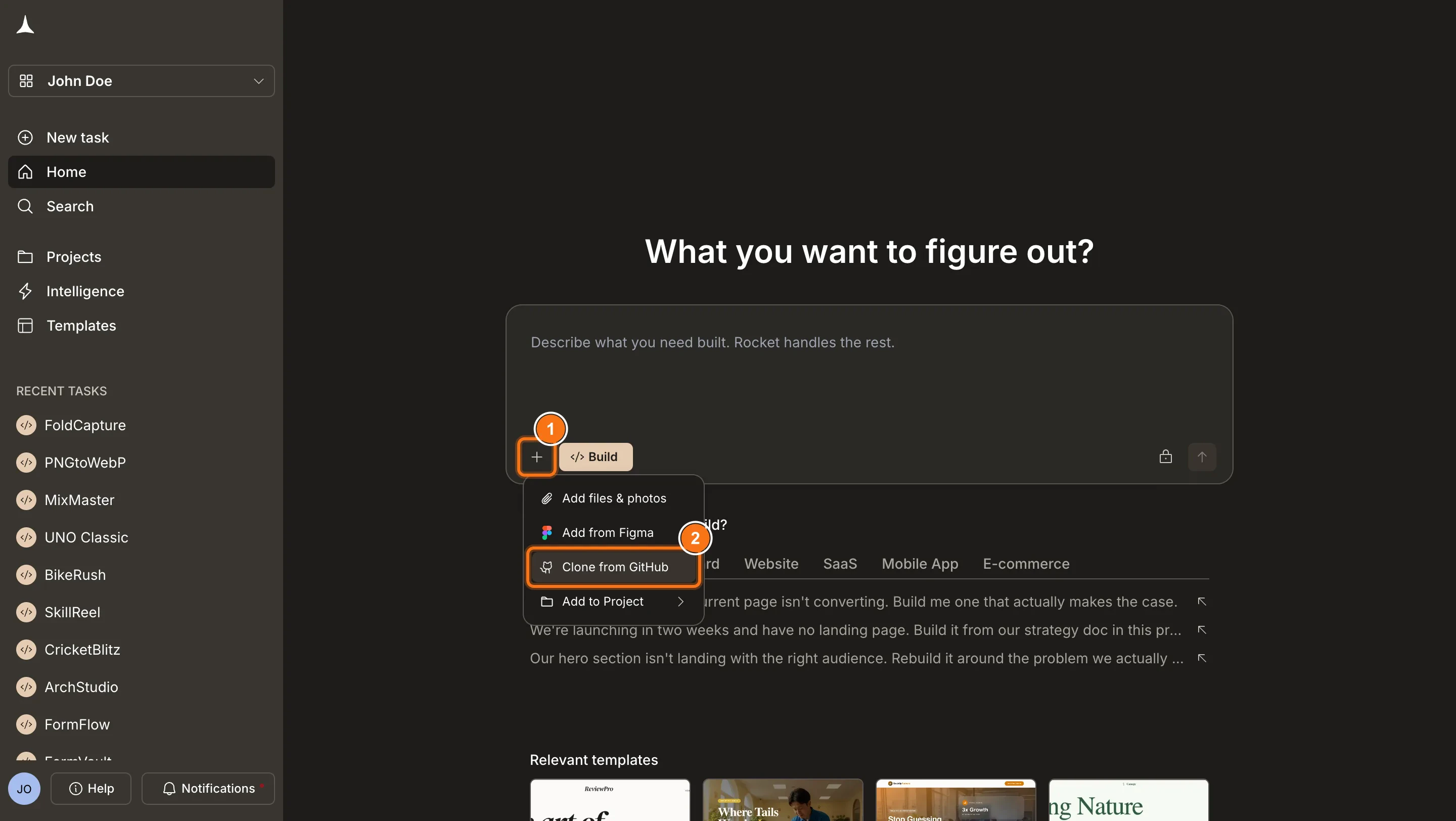 If you have not connected GitHub yet, Rocket will prompt you to authorize. Follow the connector setup guide for details.
A dialog opens listing your GitHub repositories. Select the Next.js TypeScript task you want to import and click **Submit**.
If you have not connected GitHub yet, Rocket will prompt you to authorize. Follow the connector setup guide for details.
A dialog opens listing your GitHub repositories. Select the Next.js TypeScript task you want to import and click **Submit**.
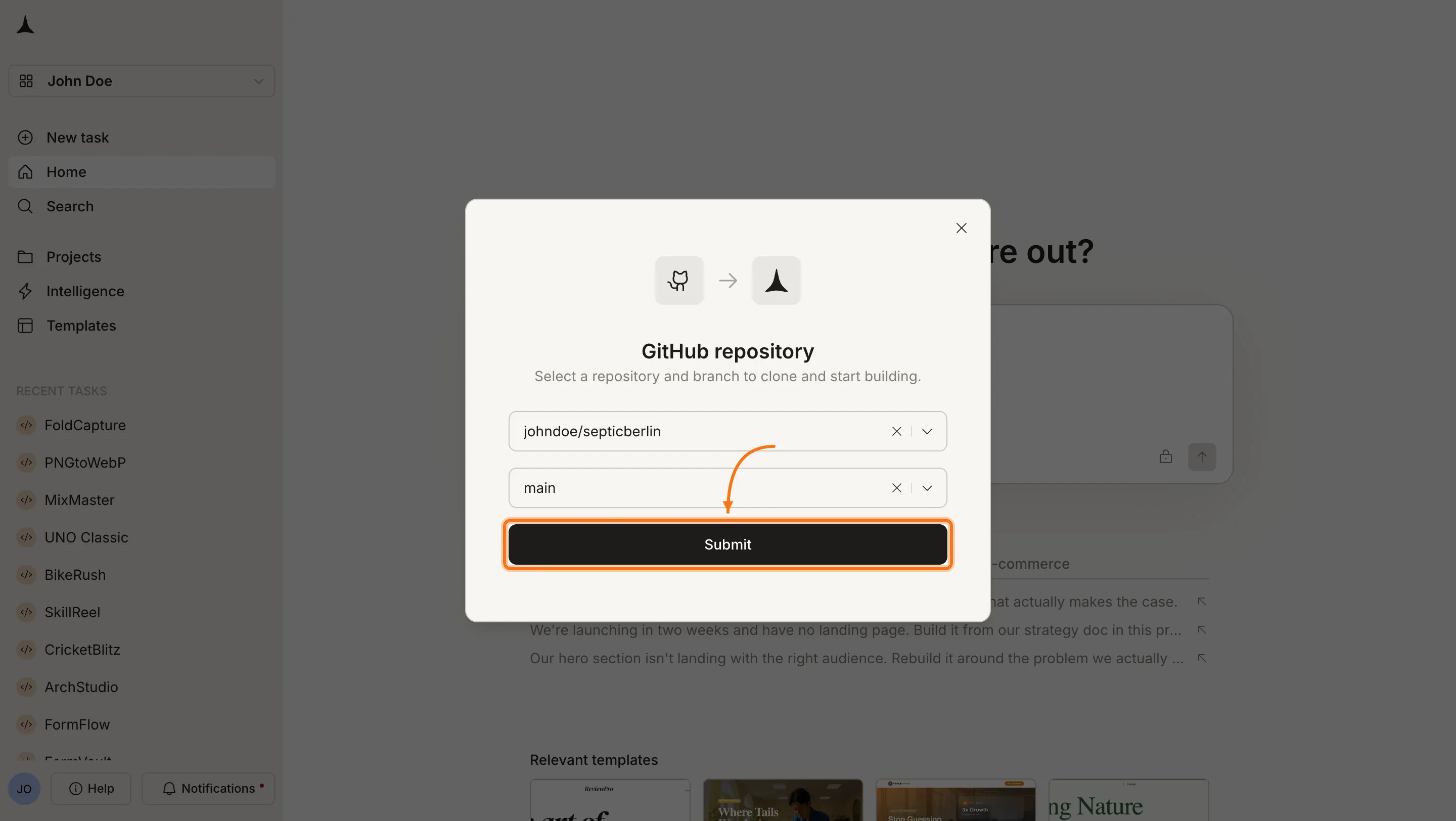
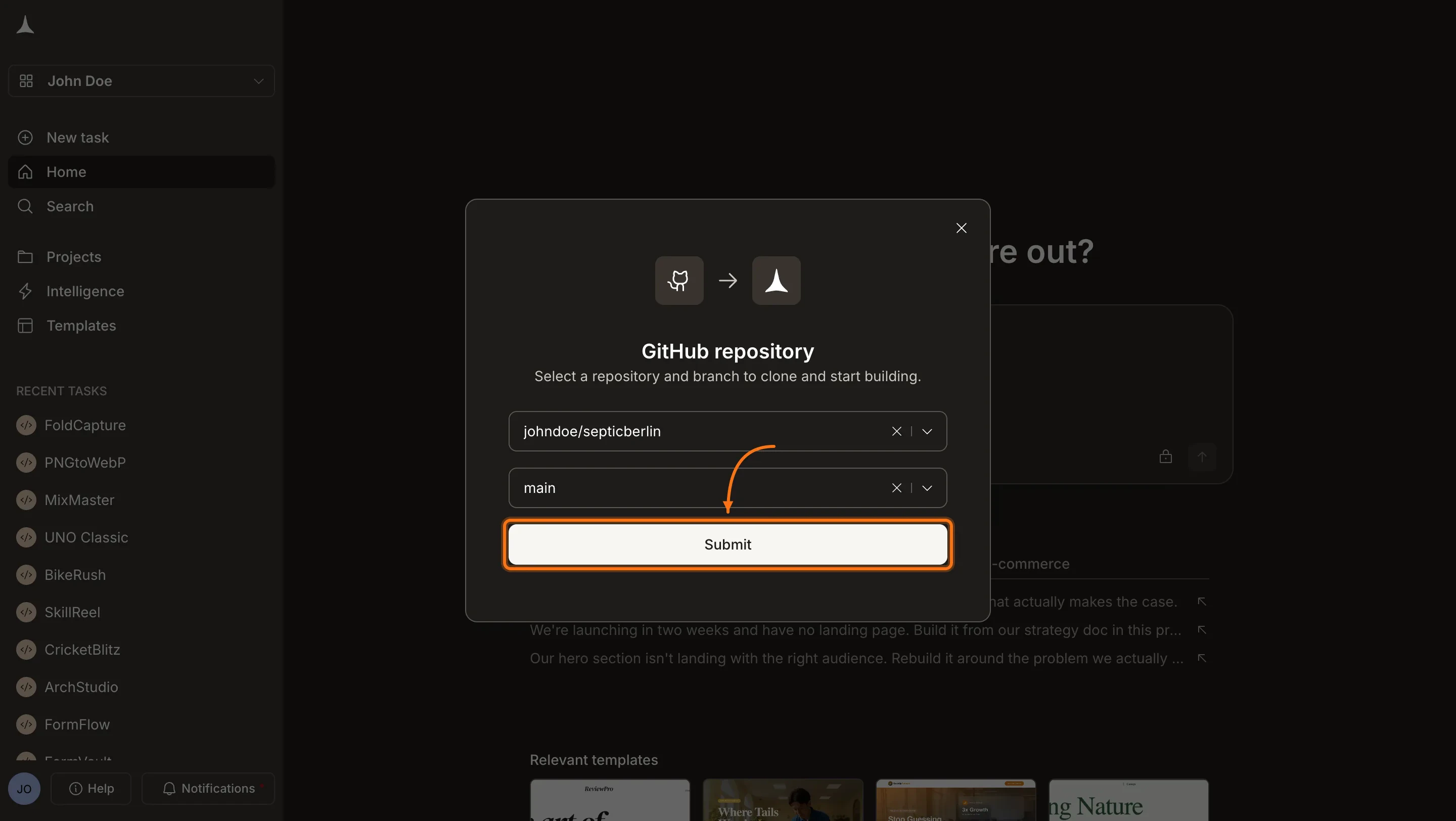 Rocket validates the repository, clones it, installs dependencies, and generates a live preview. This may take a moment depending on task size.
Once the preview is ready, use the chat to iterate on your imported task just like any other Build task.
## What gets imported
| Imported | Not imported |
| :----------------------------------- | :------------------------------------------------ |
| All task files and folders | GitHub Issues and Pull Requests |
| `package.json` dependencies | CI/CD workflow files (GitHub Actions) |
| Environment variable keys and values | Git history (only the latest state is imported) |
| Task structure and routing | Branch-specific content (only the default branch) |
Environment variable values from your `.env` file are imported automatically. Review them under [Environment variables](/build/editor/env-variables) after importing.
## After importing
Once your task is in Rocket, you get full two-way sync with GitHub:
* **Rocket to GitHub:** Rocket pushes changes to the `rocket-update` branch and automatically opens a pull request to `main` for each batch of code edits (manual changes, visual edits, and AI-generated).
* **GitHub to Rocket:** Pull in the latest state of `main` made in your local IDE or by teammates without leaving Rocket.
Learn how two-way GitHub sync works for Next.js TypeScript projects.
## Disconnect from GitHub
GitHub is connected at the workspace level. Disconnecting removes the GitHub link for your entire Rocket account.
Disconnect or switch accounts from workspace Settings.
Your task files in Rocket remain intact after disconnecting. To reconnect, go through the same steps and authorize a GitHub account.
## When to use this vs other starting methods
| Starting method | Best for |
| :----------------------------------------------- | :---------------------------------------------------------------------------- |
| **From GitHub** | You already have a Next.js TypeScript codebase and want to enhance it with AI |
| [From an idea](/build/create/from-an-idea) | Starting fresh with a plain-language description |
| [Redesign](/build/create/commands/redesign) | Rebuilding or redesigning an existing website |
| [From a template](/build/create/using-templates) | Launching quickly from a pre-built starting point |
## What's next?
Push and pull changes between Rocket and GitHub.
Review and manage your environment variables after importing from GitHub.
Iterate on your imported project using natural language.
Browse and edit your project files directly.
Rocket validates the repository, clones it, installs dependencies, and generates a live preview. This may take a moment depending on task size.
Once the preview is ready, use the chat to iterate on your imported task just like any other Build task.
## What gets imported
| Imported | Not imported |
| :----------------------------------- | :------------------------------------------------ |
| All task files and folders | GitHub Issues and Pull Requests |
| `package.json` dependencies | CI/CD workflow files (GitHub Actions) |
| Environment variable keys and values | Git history (only the latest state is imported) |
| Task structure and routing | Branch-specific content (only the default branch) |
Environment variable values from your `.env` file are imported automatically. Review them under [Environment variables](/build/editor/env-variables) after importing.
## After importing
Once your task is in Rocket, you get full two-way sync with GitHub:
* **Rocket to GitHub:** Rocket pushes changes to the `rocket-update` branch and automatically opens a pull request to `main` for each batch of code edits (manual changes, visual edits, and AI-generated).
* **GitHub to Rocket:** Pull in the latest state of `main` made in your local IDE or by teammates without leaving Rocket.
Learn how two-way GitHub sync works for Next.js TypeScript projects.
## Disconnect from GitHub
GitHub is connected at the workspace level. Disconnecting removes the GitHub link for your entire Rocket account.
Disconnect or switch accounts from workspace Settings.
Your task files in Rocket remain intact after disconnecting. To reconnect, go through the same steps and authorize a GitHub account.
## When to use this vs other starting methods
| Starting method | Best for |
| :----------------------------------------------- | :---------------------------------------------------------------------------- |
| **From GitHub** | You already have a Next.js TypeScript codebase and want to enhance it with AI |
| [From an idea](/build/create/from-an-idea) | Starting fresh with a plain-language description |
| [Redesign](/build/create/commands/redesign) | Rebuilding or redesigning an existing website |
| [From a template](/build/create/using-templates) | Launching quickly from a pre-built starting point |
## What's next?
Push and pull changes between Rocket and GitHub.
Review and manage your environment variables after importing from GitHub.
Iterate on your imported project using natural language.
Browse and edit your project files directly.