> ## Documentation Index
> Fetch the complete documentation index at: https://docs.rocket.new/llms.txt
> Use this file to discover all available pages before exploring further.
# Start from a template
> Pick a template, customize it with chat, ship a production-ready app. Zero credits consumed.
export const LlmsDirective = () =>
For the complete documentation index, see llms.txt.
For a lightweight markdown version of this page, append .md to the URL.
;
Pick a template. Customize it with chat. Ship a production-ready app without spending a single credit.
**Zero credits consumed.** You only spend credits when you start customizing through chat. The template itself is free.
## When to use a template
| Scenario | Best starting method |
| :----------------------------------------------------- | :----------------------------------------------------- |
| You can describe exactly what you want | [From an idea](/build/create/from-an-idea) |
| You want a working app now and will customize later | **Templates** (you are here) |
| You have a screenshot, PDF, spreadsheet, or other file | [From an attachment](/build/create/from-an-attachment) |
| You have completed Figma designs | [From Figma](/build/create/figma/overview) |
Templates work best when your project fits a common pattern like SaaS, landing pages, dashboards, or e-commerce, and you want to iterate on something real rather than describe it from scratch.
## How to use a template
**You will need:** A [rocket.new](https://rocket.new) account, signed in.
You can reach templates three ways:
* **Browse-first:** Open **Templates** in the sidebar and pick from the full library
* **Prompt-first:** Describe what you are building and Rocket suggests the closest match
* **Inline on the homepage:** Click the **Build** tab and scroll down to **Relevant templates**
### Explore templates manually
Hover over the left edge of the screen. The sidebar slides open. Click **Templates**.
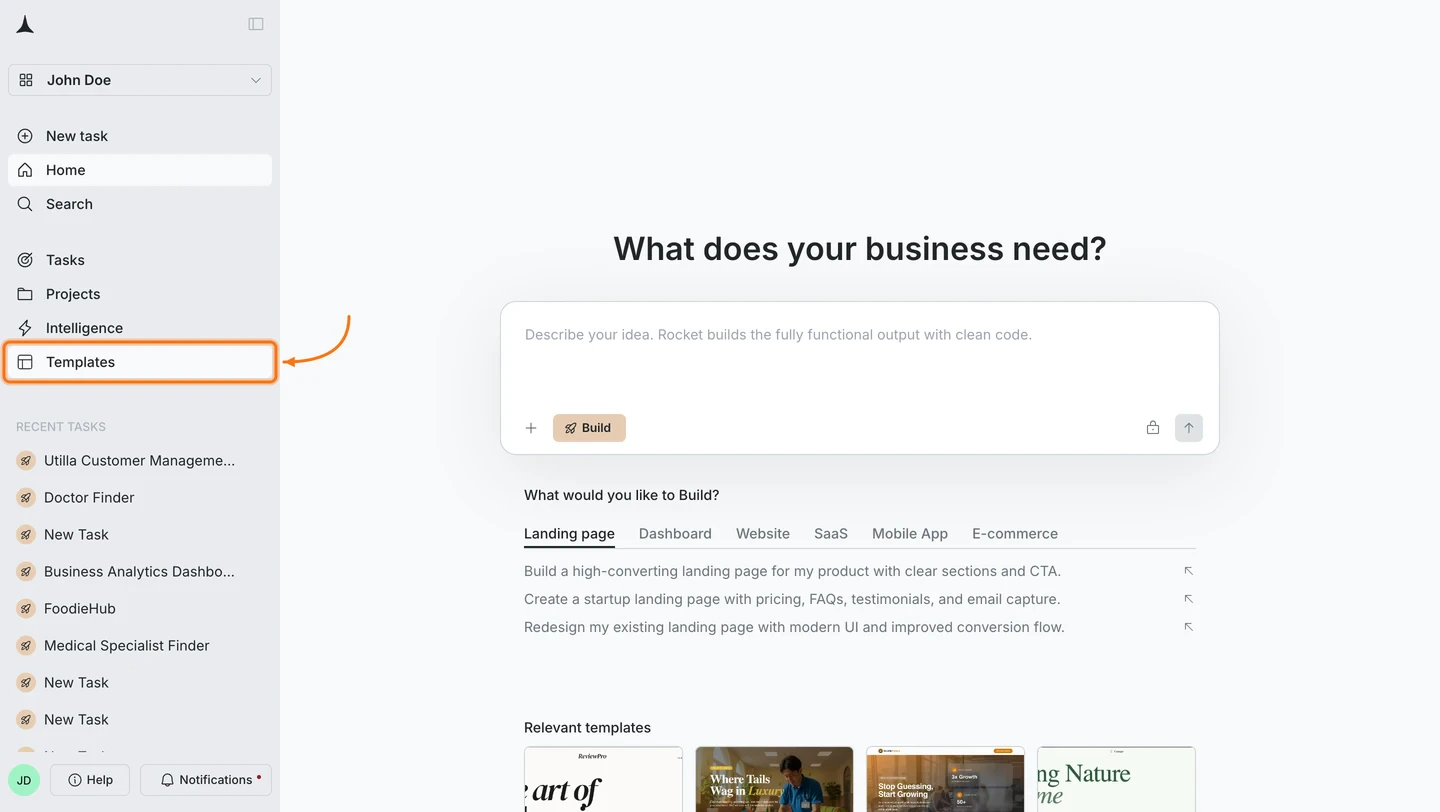
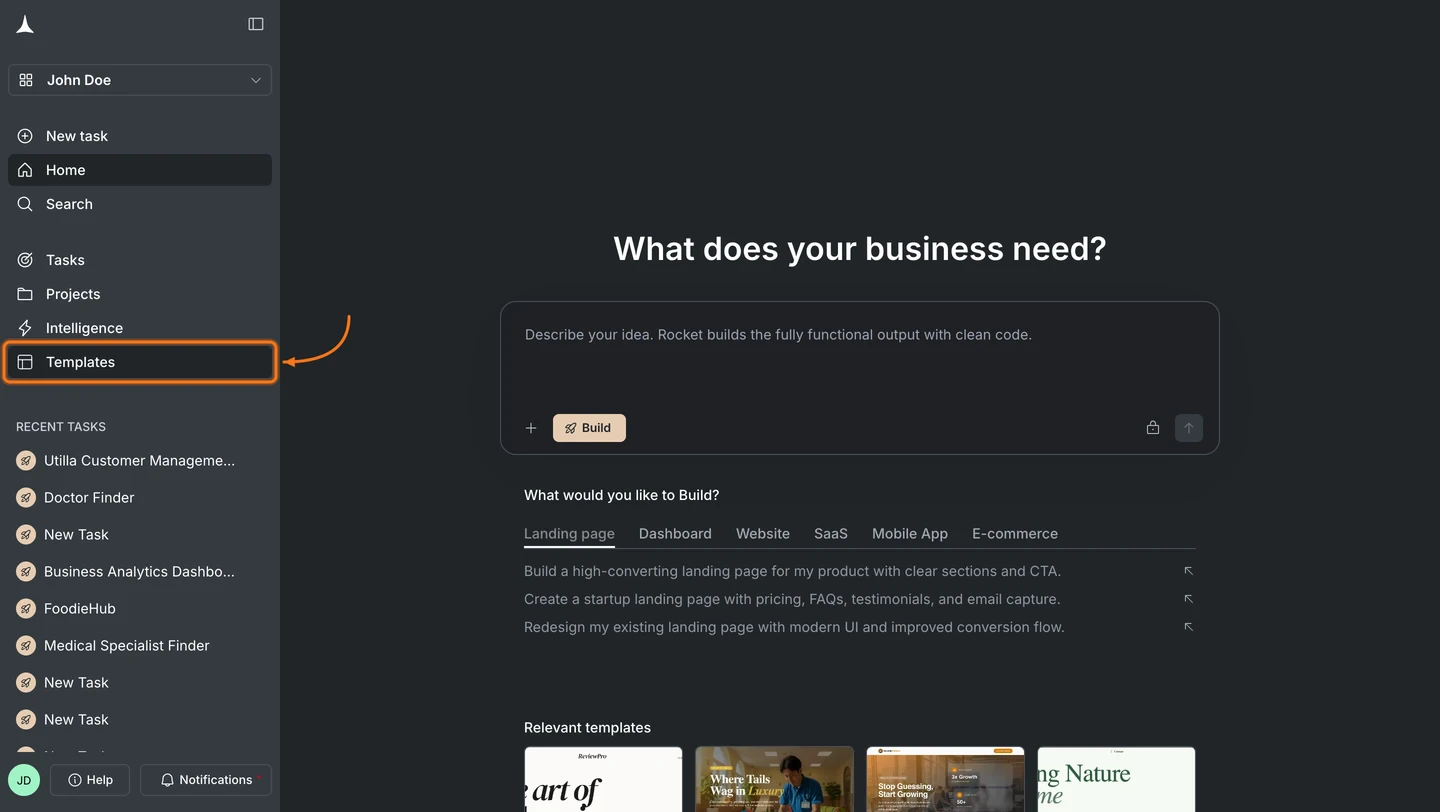 Templates are grouped by category: **Technology**, **Professional Services**, **Health & Medical**, **Blog & Editorial**, **Retail & E-Commerce**, **Food & Beverage**, and more. Search at the top or click a category to browse.
See the [template library](/learn/templates/overview) for every category.
Templates are grouped by category: **Technology**, **Professional Services**, **Health & Medical**, **Blog & Editorial**, **Retail & E-Commerce**, **Food & Beverage**, and more. Search at the top or click a category to browse.
See the [template library](/learn/templates/overview) for every category.
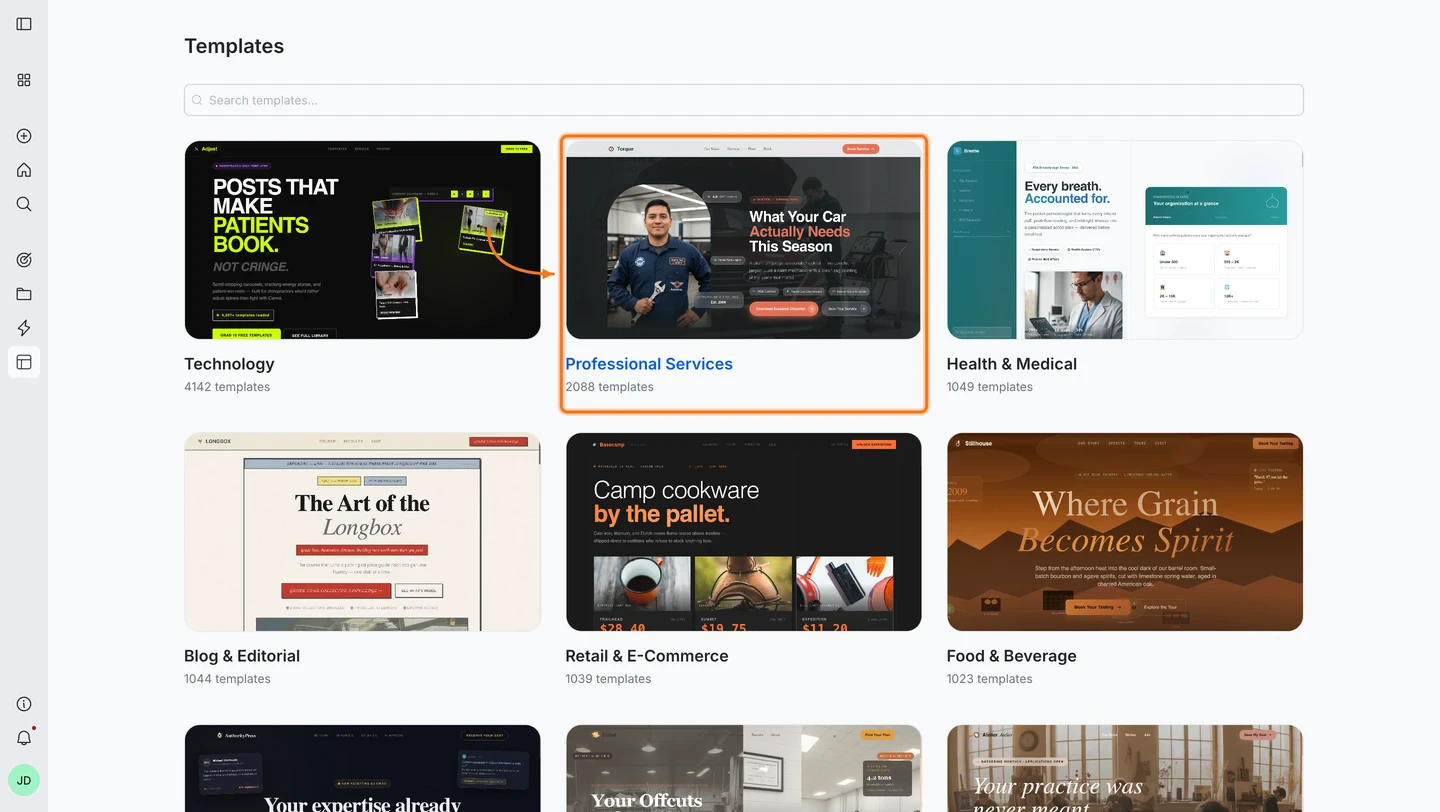
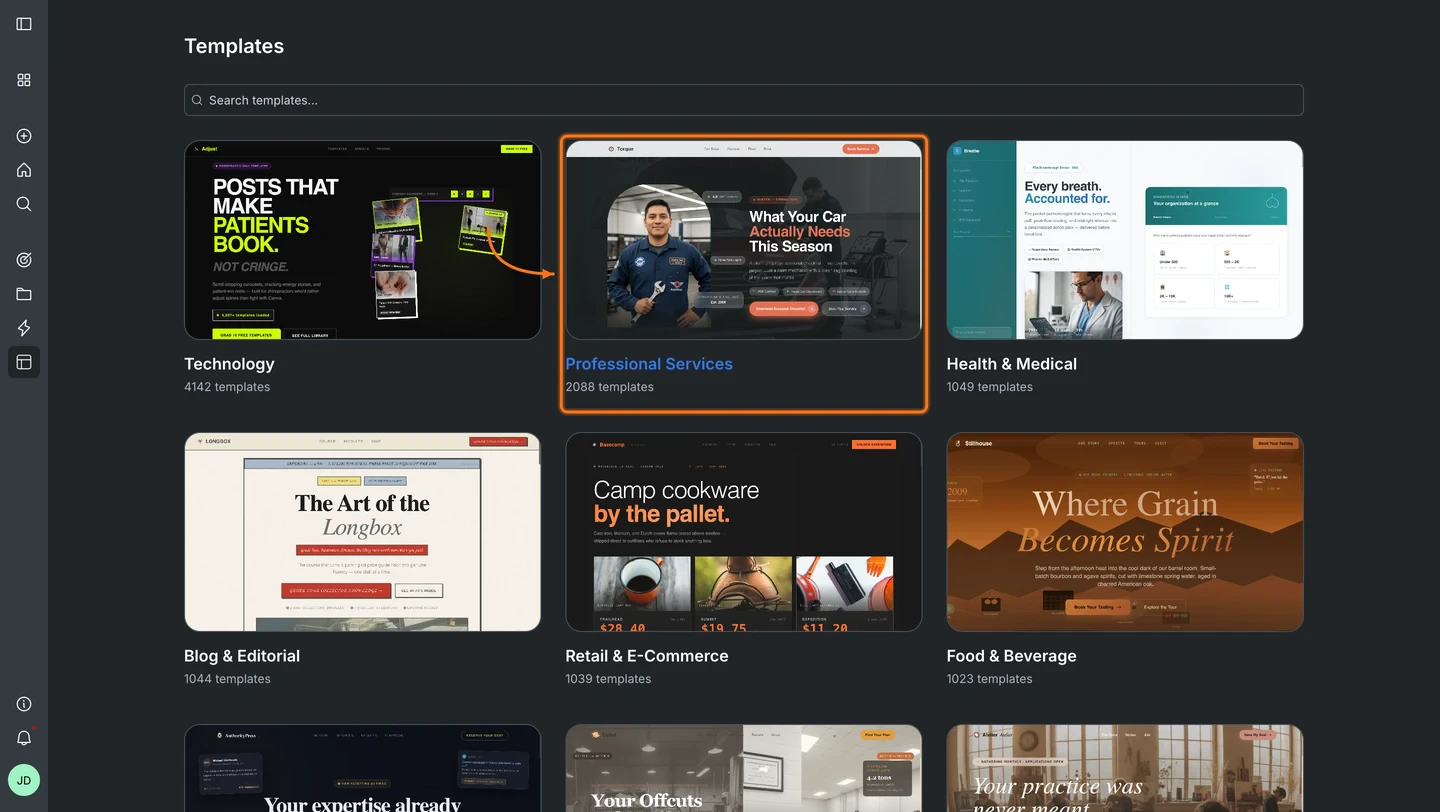 Hover over a card to reveal the link icon and preview it live in the browser before committing.
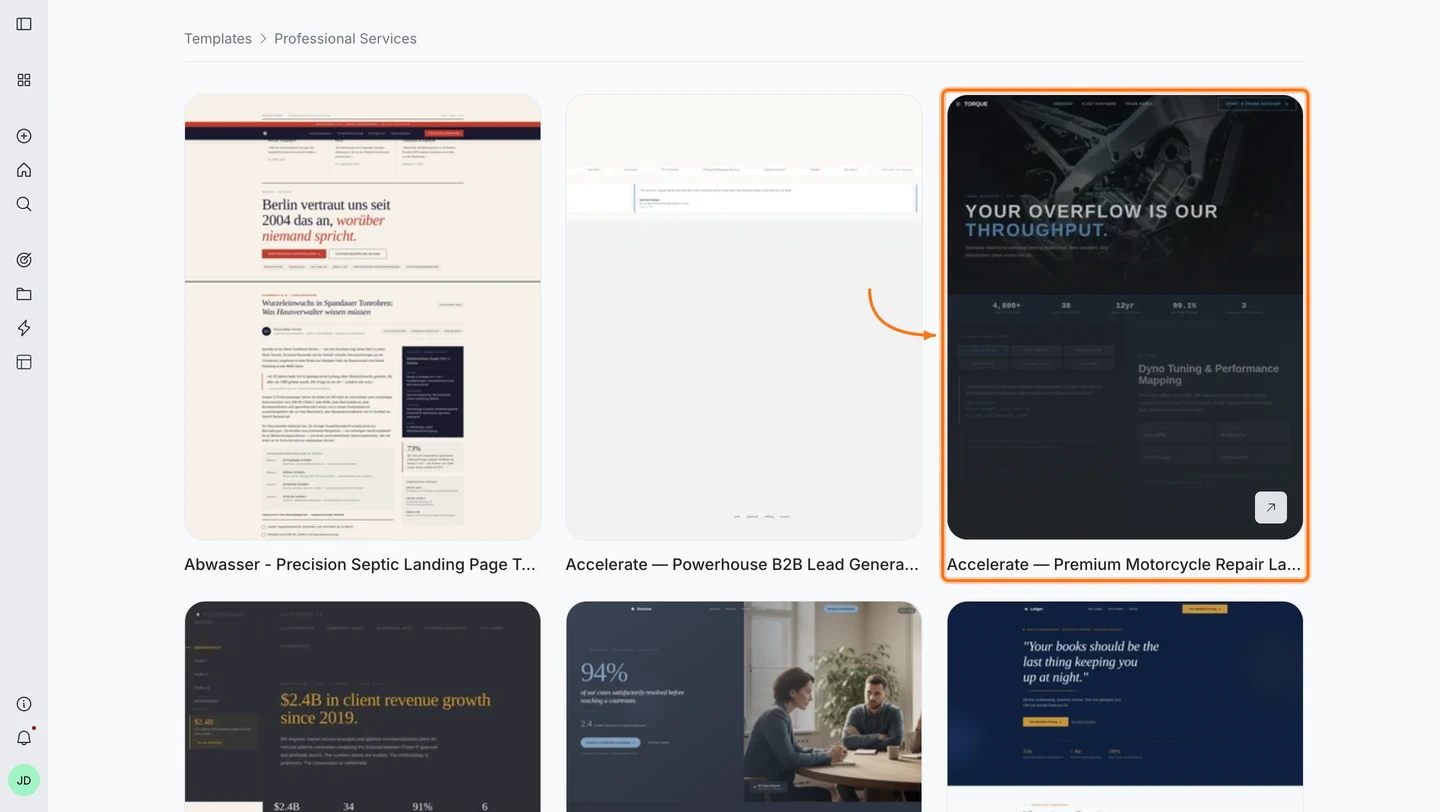
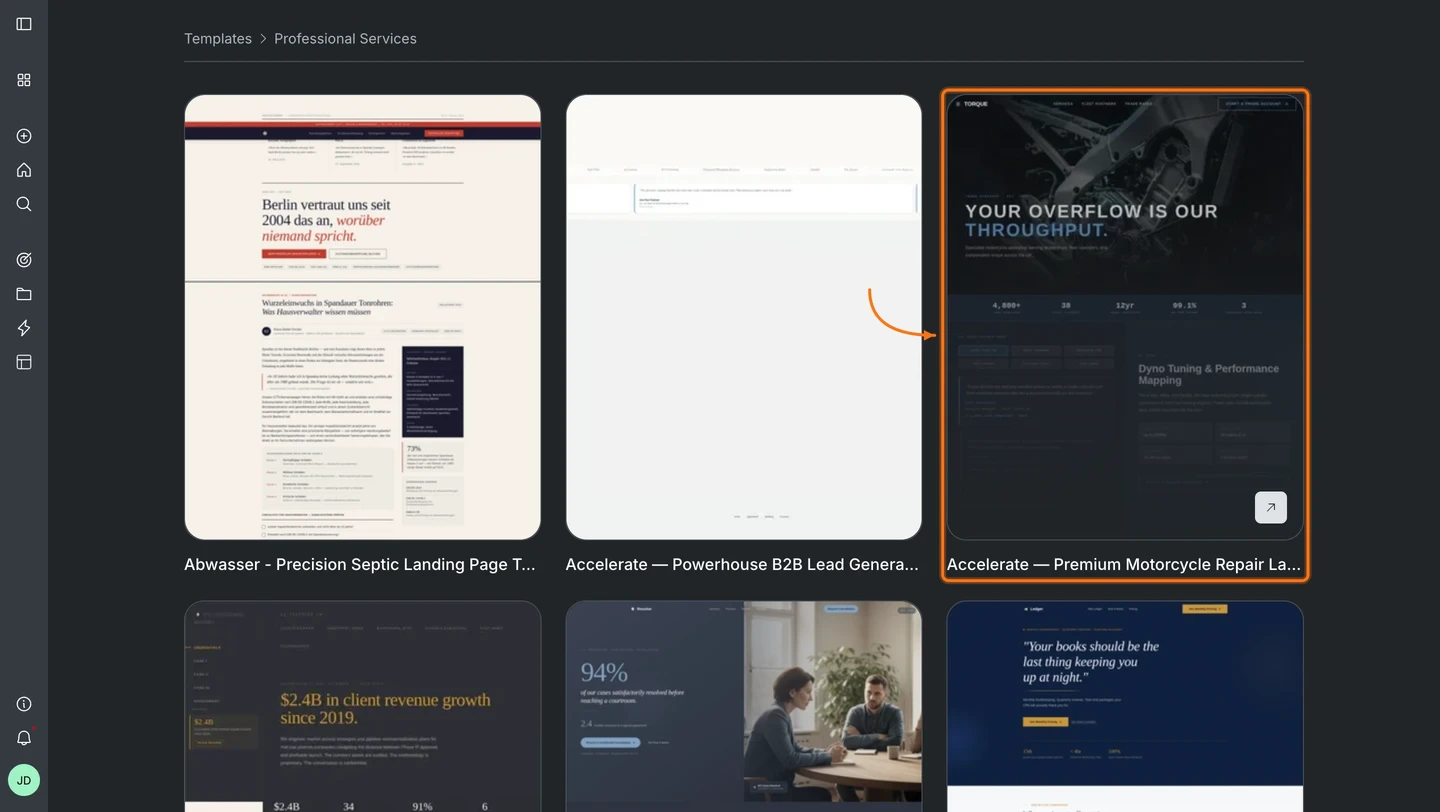 Click a template card to open the preview modal. Hit **View in full screen** to interact with it, then click **Use this template** when ready.
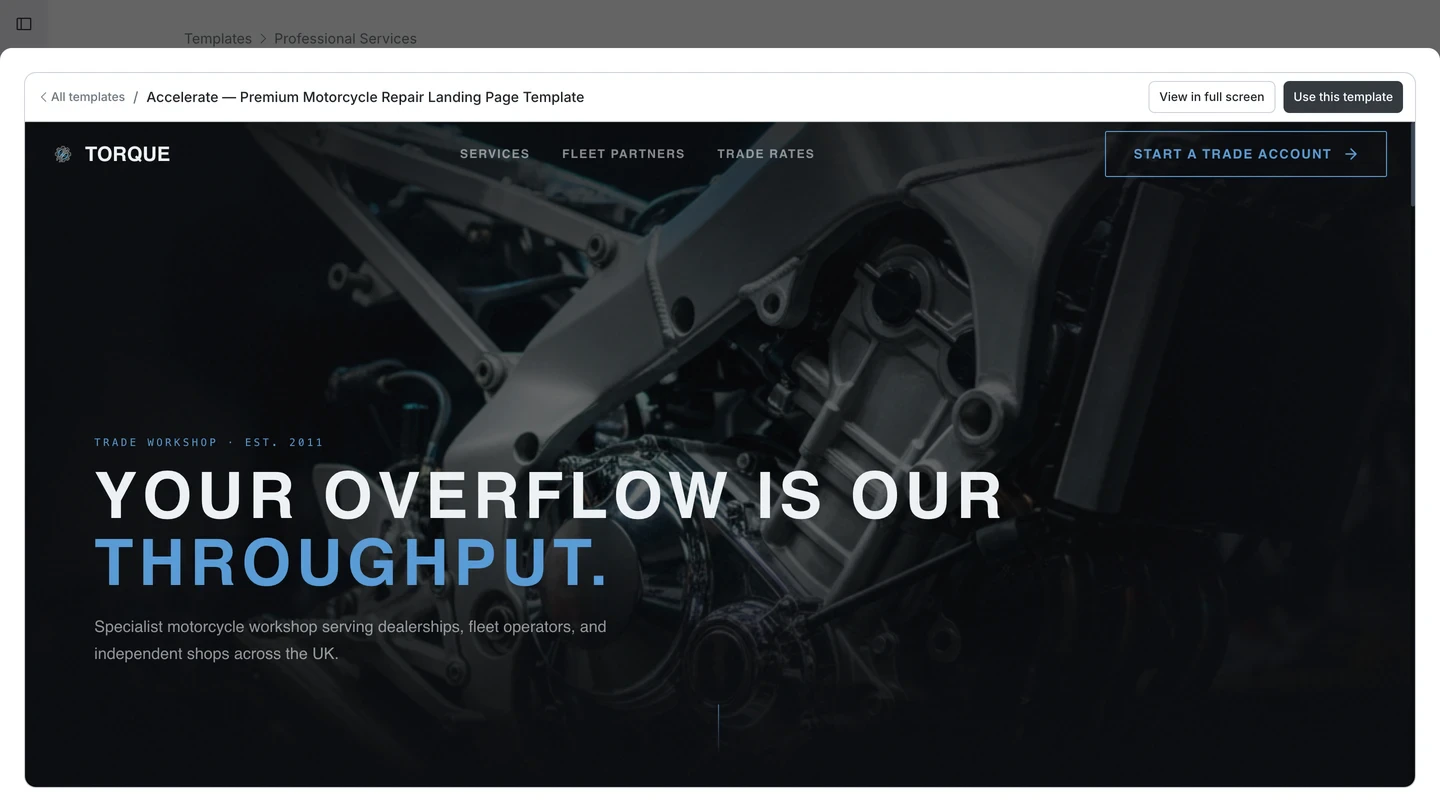
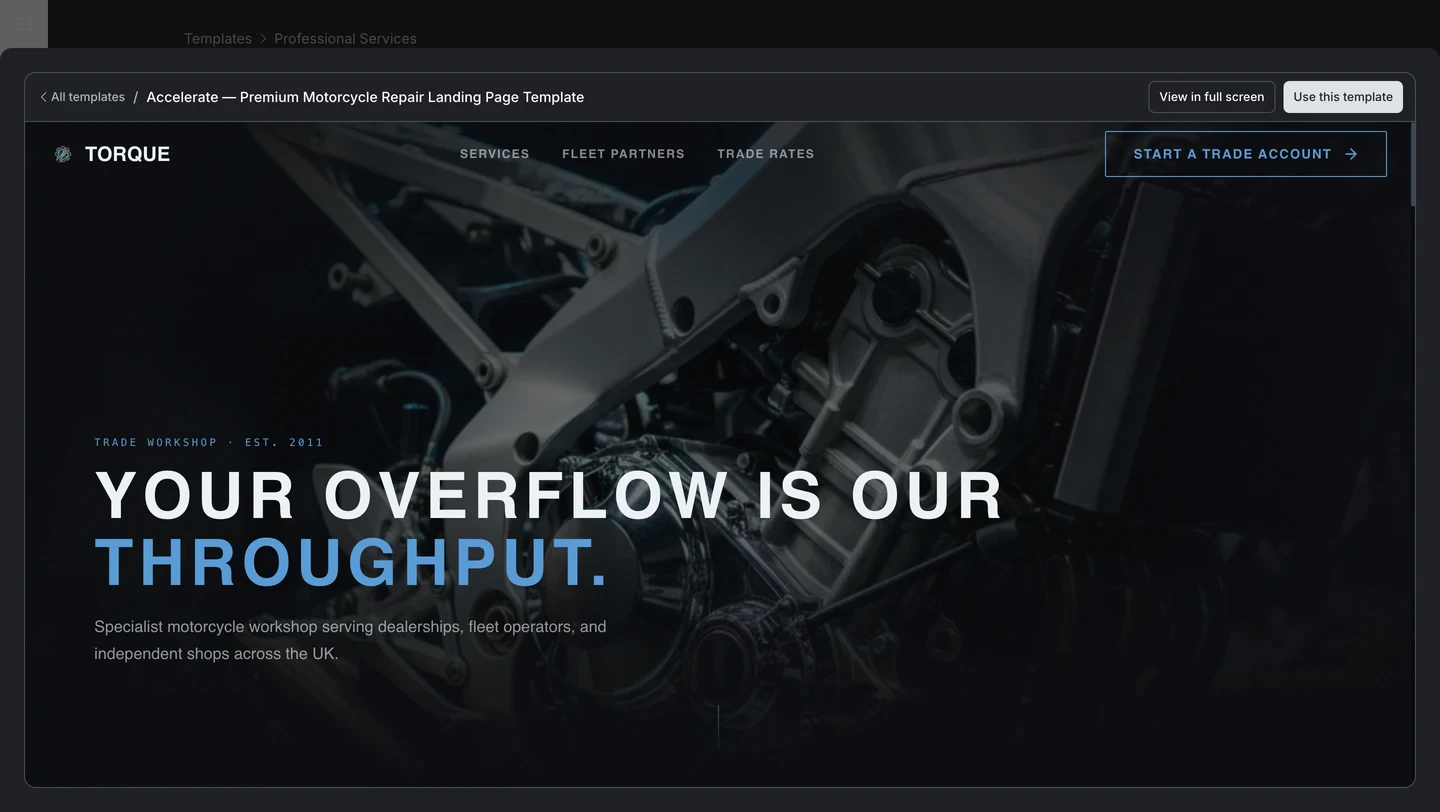 **Done.** You land in chat with your template loaded and ready to customize.
### Get template suggestions while prompting
Describe what you want to build. If your prompt matches a known pattern, Rocket suggests a template before it starts generating. Click **Use Template** to start from it, or **Continue without a template** to build from scratch.
**Done.** You land in chat with your template loaded and ready to customize.
### Get template suggestions while prompting
Describe what you want to build. If your prompt matches a known pattern, Rocket suggests a template before it starts generating. Click **Use Template** to start from it, or **Continue without a template** to build from scratch.
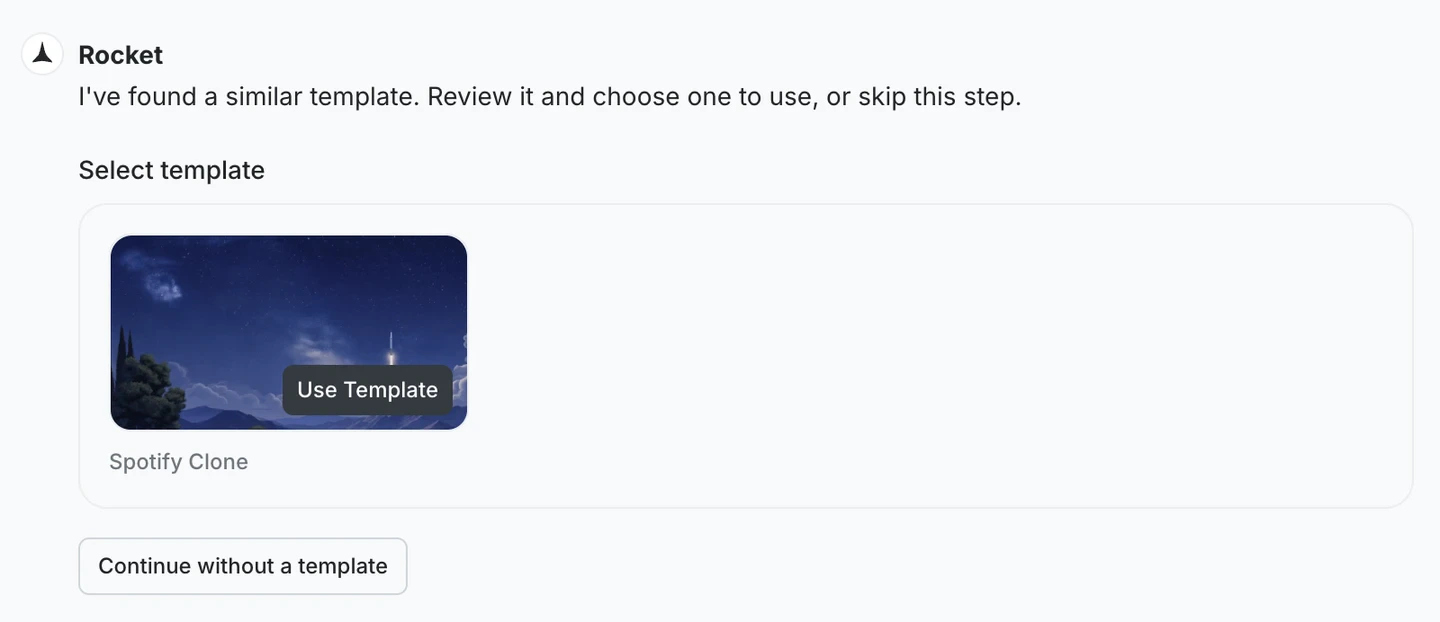
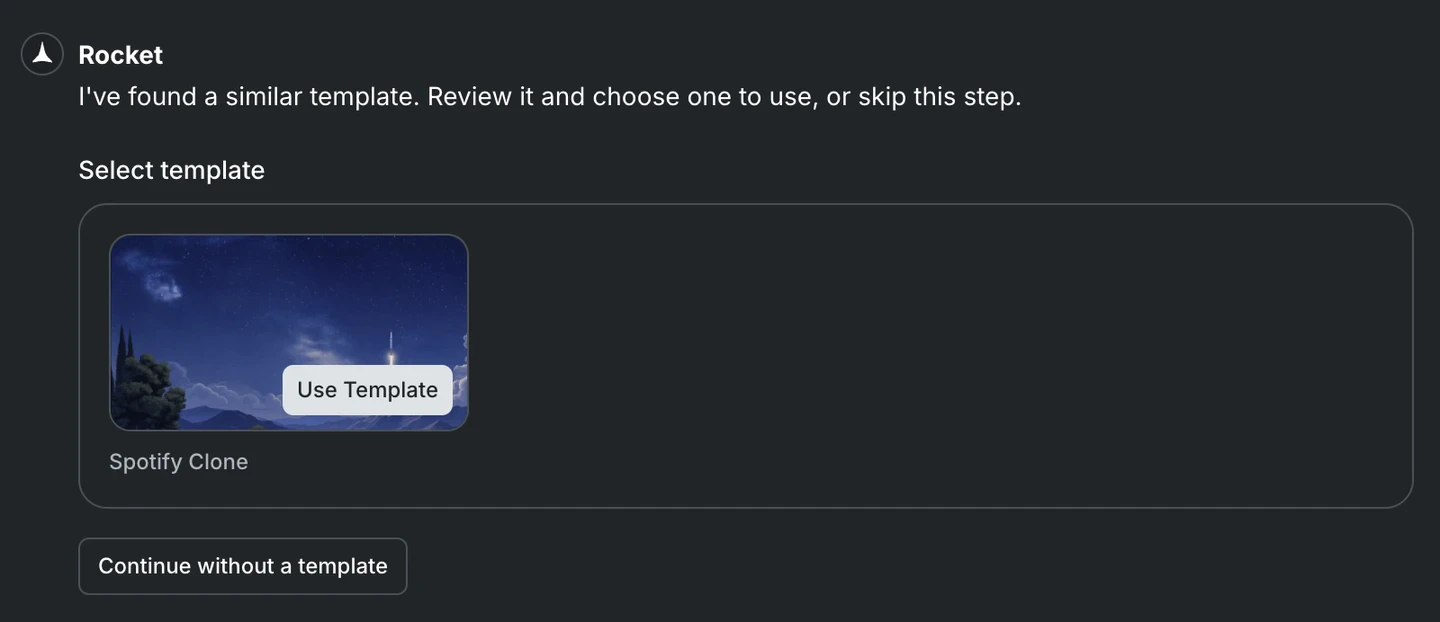 Zero credits. Templates are the fastest path to a production-ready app.
**You will need:** The Rocket app (iPhone or iPad) installed and signed in.
Two ways to reach templates:
* **Browse-first:** Scroll to **Templates** on the home screen and pick from the library
* **Prompt-first:** Describe what you are building and Rocket suggests the closest match
### Explore templates manually
Scroll down on the home screen past **My Projects** to find the **Templates** section. Tap **View all** for the full library, or search at the top.
Zero credits. Templates are the fastest path to a production-ready app.
**You will need:** The Rocket app (iPhone or iPad) installed and signed in.
Two ways to reach templates:
* **Browse-first:** Scroll to **Templates** on the home screen and pick from the library
* **Prompt-first:** Describe what you are building and Rocket suggests the closest match
### Explore templates manually
Scroll down on the home screen past **My Projects** to find the **Templates** section. Tap **View all** for the full library, or search at the top.
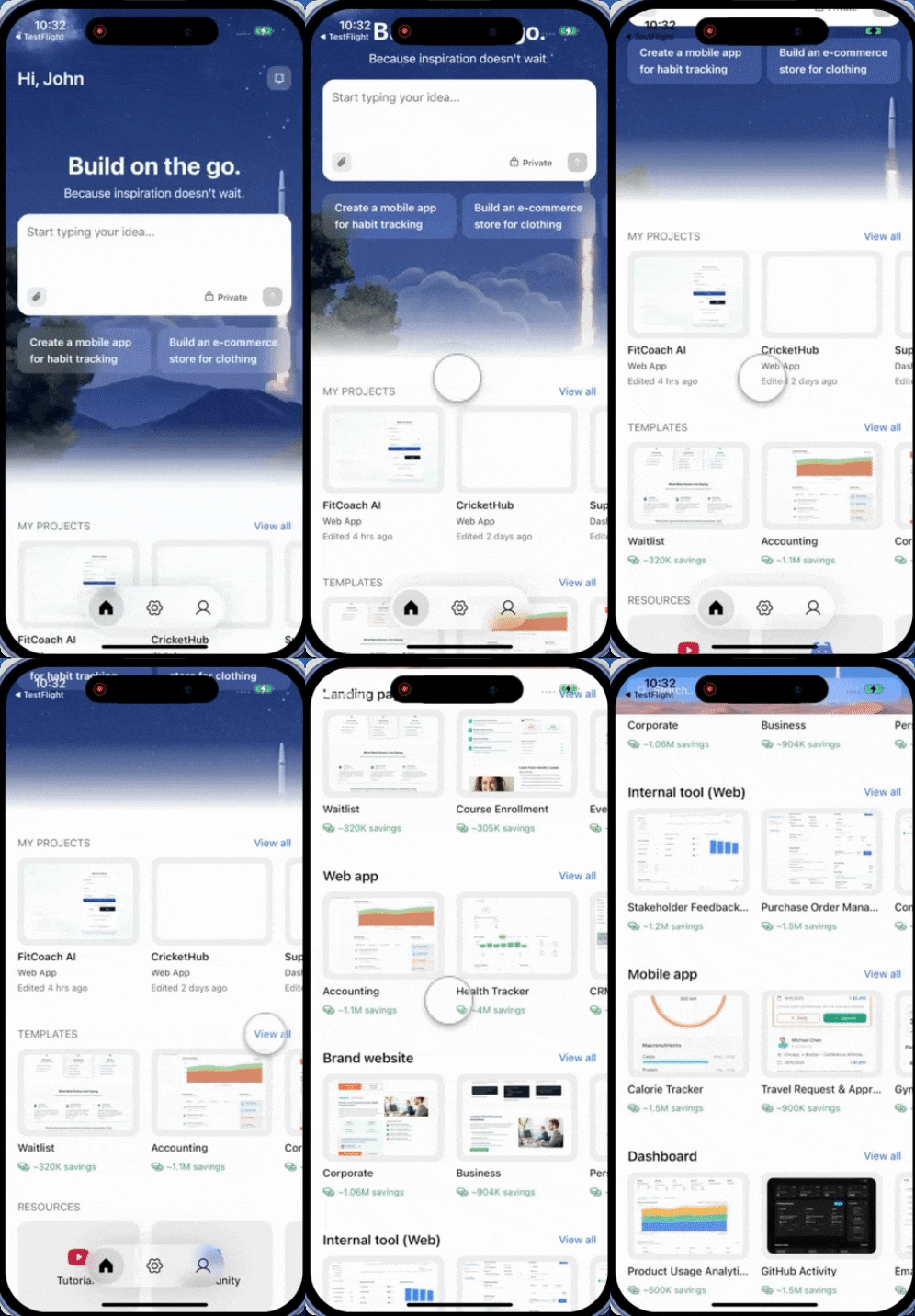 Tap any template to see details, included pages, and layout screenshots.
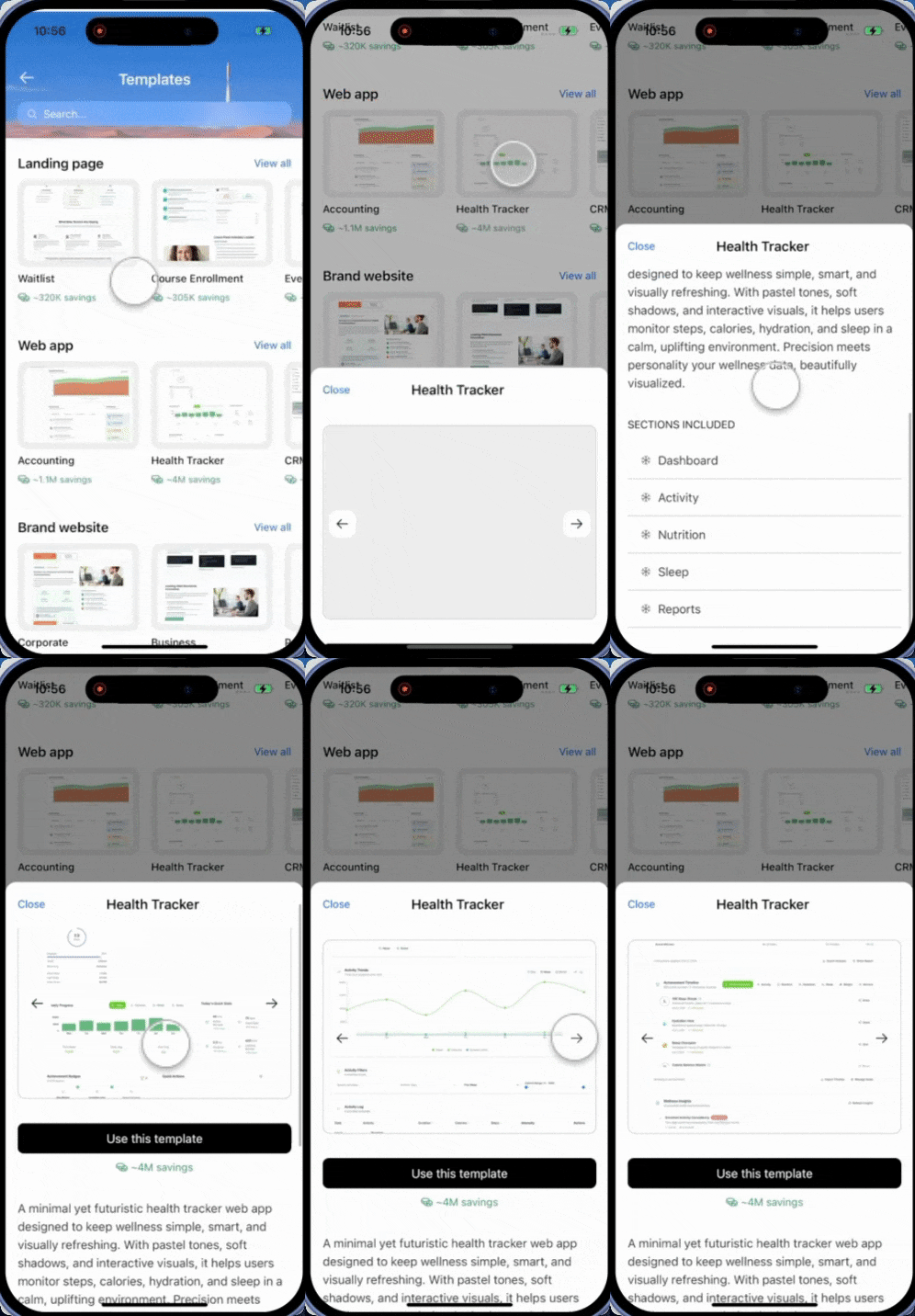 Tap **Use this template**. Rocket opens chat with the template loaded and ready to customize.
**Done.** You are in chat, ready to iterate.
### Get template suggestions while chatting
Describe what you want to build. If your prompt matches a known pattern, Rocket surfaces a template card right in the conversation. Preview it and use it the same way as when browsing.
Zero credits. Templates are the fastest path to a production-ready app.
## How to customize a template
Your template is a full Rocket project. Iterate on it the same way you would any app:
**Try this prompt:**
```plaintext wrap theme={null}
Update the color scheme to use #1E40AF as the primary color and #F8FAFC as the background. Change the logo text to "Flowboard" and update all placeholder content with my brand copy.
```
**Try this prompt:**
```plaintext wrap theme={null}
Add a pricing page with three tiers: Free, Pro ($19/month), and Enterprise (contact us). Include a feature comparison table and a FAQ section below.
```
**Try this prompt:**
```plaintext wrap theme={null}
Connect Stripe for payments and Supabase for user accounts. Add a login/signup flow and protect the dashboard page behind authentication.
```
See [Connectors](/build/connectors/overview) for the full list of supported services.
**Try this prompt:**
```plaintext wrap theme={null}
Change the navigation from a top bar to a collapsible sidebar. Move the user profile menu to the bottom of the sidebar.
```
## What's next?
Change the layout, colors, content, and features by describing what you want.
Wire up payments, databases, AI, email, and analytics in one prompt.
Click any element to tweak it directly, including text, colors, spacing, and layout.
Ship your customized template to the web with one click.
Tap **Use this template**. Rocket opens chat with the template loaded and ready to customize.
**Done.** You are in chat, ready to iterate.
### Get template suggestions while chatting
Describe what you want to build. If your prompt matches a known pattern, Rocket surfaces a template card right in the conversation. Preview it and use it the same way as when browsing.
Zero credits. Templates are the fastest path to a production-ready app.
## How to customize a template
Your template is a full Rocket project. Iterate on it the same way you would any app:
**Try this prompt:**
```plaintext wrap theme={null}
Update the color scheme to use #1E40AF as the primary color and #F8FAFC as the background. Change the logo text to "Flowboard" and update all placeholder content with my brand copy.
```
**Try this prompt:**
```plaintext wrap theme={null}
Add a pricing page with three tiers: Free, Pro ($19/month), and Enterprise (contact us). Include a feature comparison table and a FAQ section below.
```
**Try this prompt:**
```plaintext wrap theme={null}
Connect Stripe for payments and Supabase for user accounts. Add a login/signup flow and protect the dashboard page behind authentication.
```
See [Connectors](/build/connectors/overview) for the full list of supported services.
**Try this prompt:**
```plaintext wrap theme={null}
Change the navigation from a top bar to a collapsible sidebar. Move the user profile menu to the bottom of the sidebar.
```
## What's next?
Change the layout, colors, content, and features by describing what you want.
Wire up payments, databases, AI, email, and analytics in one prompt.
Click any element to tweak it directly, including text, colors, spacing, and layout.
Ship your customized template to the web with one click.