> ## Documentation Index
> Fetch the complete documentation index at: https://docs.rocket.new/llms.txt
> Use this file to discover all available pages before exploring further.
# APIs
> Import APIs from Postman, cURL, or Swagger into Rocket and attach them to UI elements automatically.
export const LlmsDirective = () =>
For the complete documentation index, see llms.txt.
For a lightweight markdown version of this page, append .md to the URL.
;
Import API definitions from Postman, cURL, Swagger, or OpenAPI specs. Rocket generates all the connection code, error handling, and data mapping. You pick the endpoint and the UI element.
API imports are only available on the web browser. They are not supported in the Rocket mobile app.
## What you can connect
Stripe, PayPal, or any payment API with checkout flows, subscriptions, and invoicing.
Supabase, Firebase, your own REST API, or any backend that exposes endpoints.
Weather APIs, maps, social media, shipping, SMS, email, and any service with a REST API.
Internal microservices, staging environments, or any custom backend you have built.
## Before you start
You need one of the following:
* A Postman API key and workspace
* A working cURL command
* A Postman collection export file (`postman.json`)
* A Swagger or OpenAPI spec (JSON or YAML)
You also need any environment variables your API definitions reference, such as `base_url` or `accessToken`.
Learn how to manage secret keys as environment variables.
## Open the APIs panel
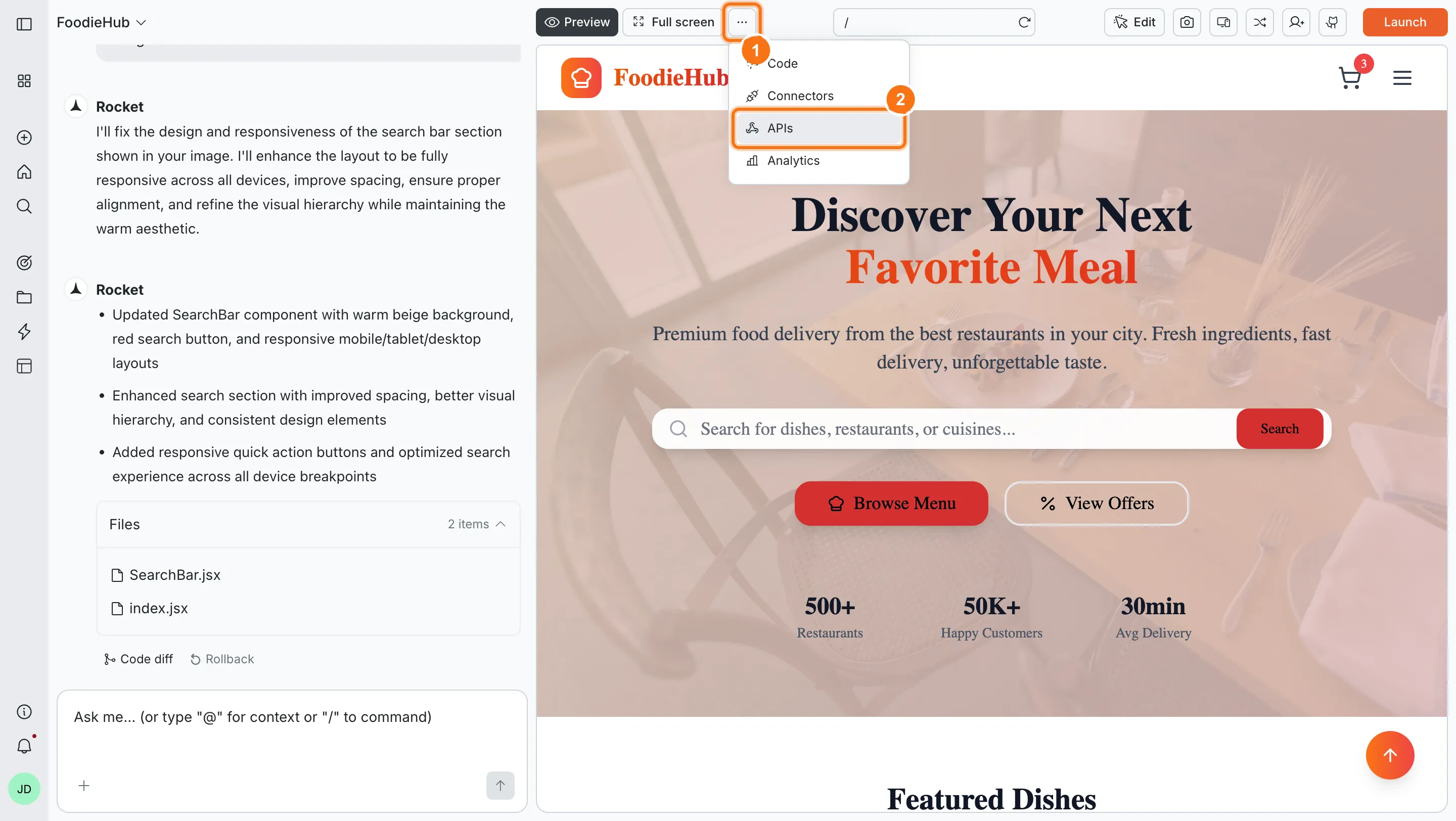
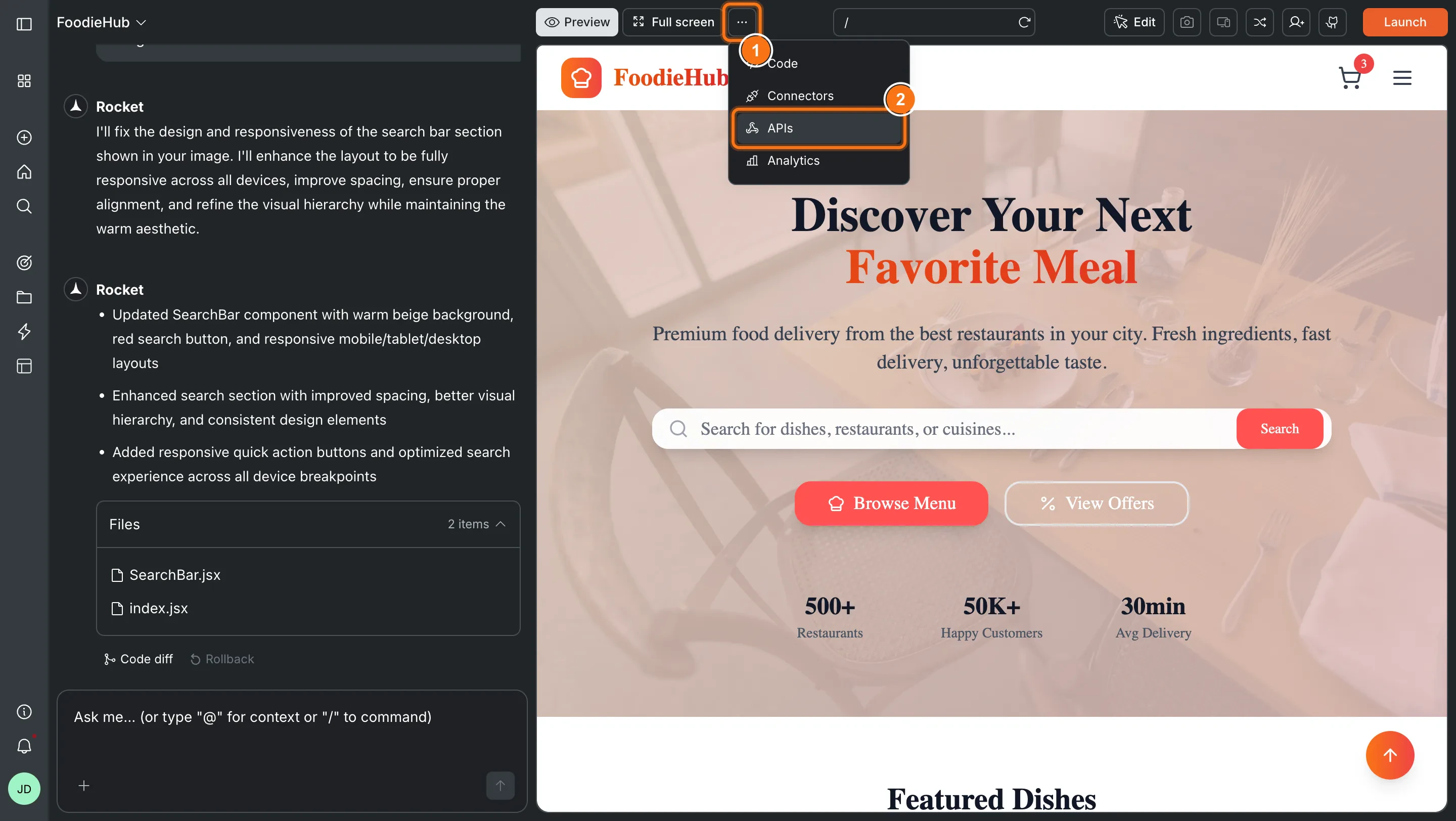
Click the **`...`** button in the preview toolbar and select **APIs**.
 ## Import APIs
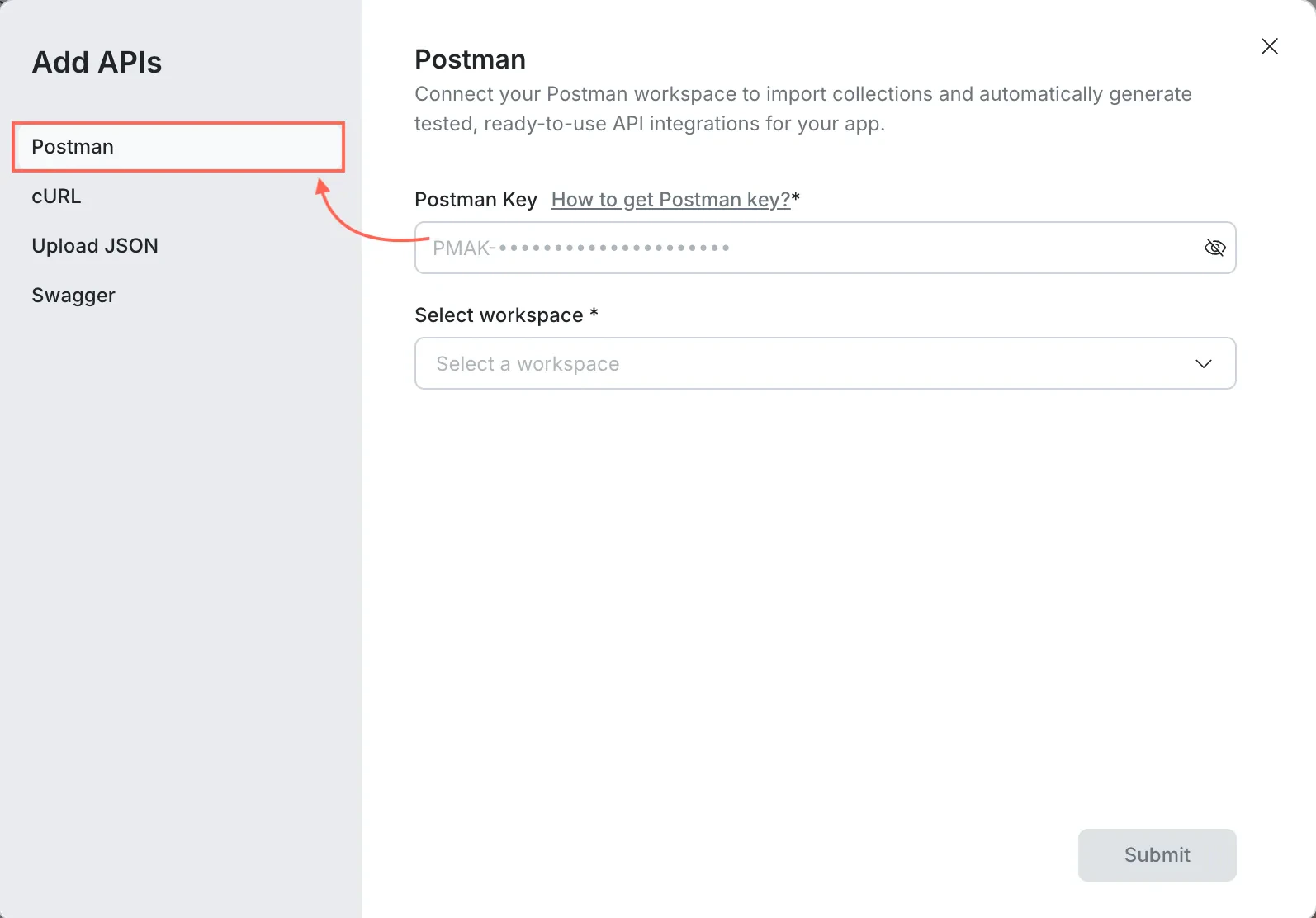
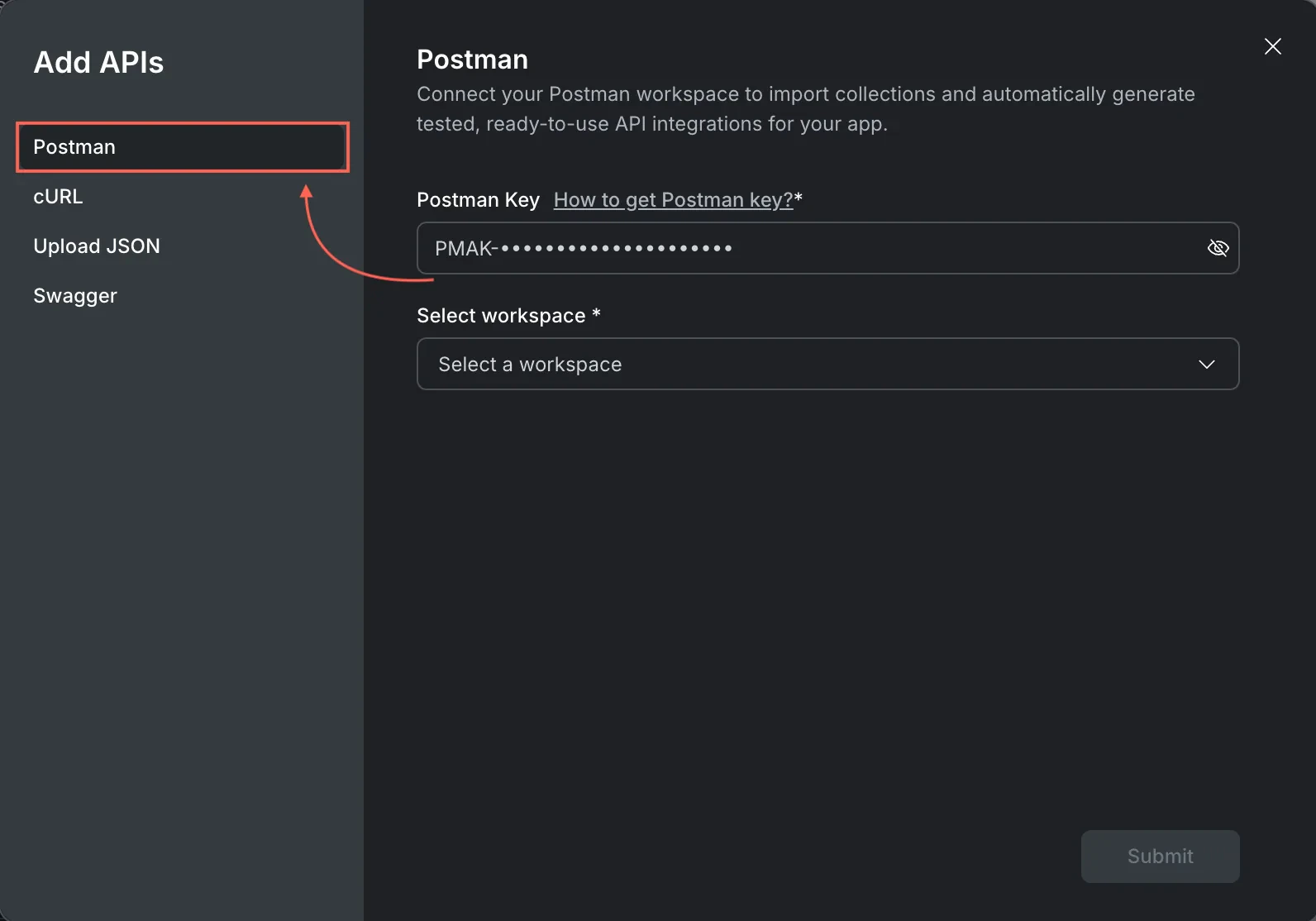
In the APIs panel, open the **Select an API** dropdown and click **Add APIs** to open the import dialog. Pick one of four import methods.
Use this when your APIs already live in a Postman workspace.
**Get your Postman API key:**
Visit Postman's documentation to learn how to generate your API key.
1. Click your avatar in the Postman header, then click **Settings**.
2. Go to **API keys** and click **Generate API Key**.
3. Enter a name and copy the key.
Your Postman API key provides access to any Postman data you have permissions for. Keep it private and rotate it if you believe it has been exposed.
**Import into Rocket:**
1. In **Add APIs**, select the **Postman** tab.
2. Paste your **Postman Key**.
3. Select the **workspace**.
4. Click **Submit**, then select the collections or folders you want to add.
5. Click **Add APIs**.
## Import APIs
In the APIs panel, open the **Select an API** dropdown and click **Add APIs** to open the import dialog. Pick one of four import methods.
Use this when your APIs already live in a Postman workspace.
**Get your Postman API key:**
Visit Postman's documentation to learn how to generate your API key.
1. Click your avatar in the Postman header, then click **Settings**.
2. Go to **API keys** and click **Generate API Key**.
3. Enter a name and copy the key.
Your Postman API key provides access to any Postman data you have permissions for. Keep it private and rotate it if you believe it has been exposed.
**Import into Rocket:**
1. In **Add APIs**, select the **Postman** tab.
2. Paste your **Postman Key**.
3. Select the **workspace**.
4. Click **Submit**, then select the collections or folders you want to add.
5. Click **Add APIs**.
 Use this when you have a working request you can paste.
1. In **Add APIs**, select the **cURL** tab.
2. Paste the full cURL command.
3. Click **Add API**.
Use this when you have a working request you can paste.
1. In **Add APIs**, select the **cURL** tab.
2. Paste the full cURL command.
3. Click **Add API**.
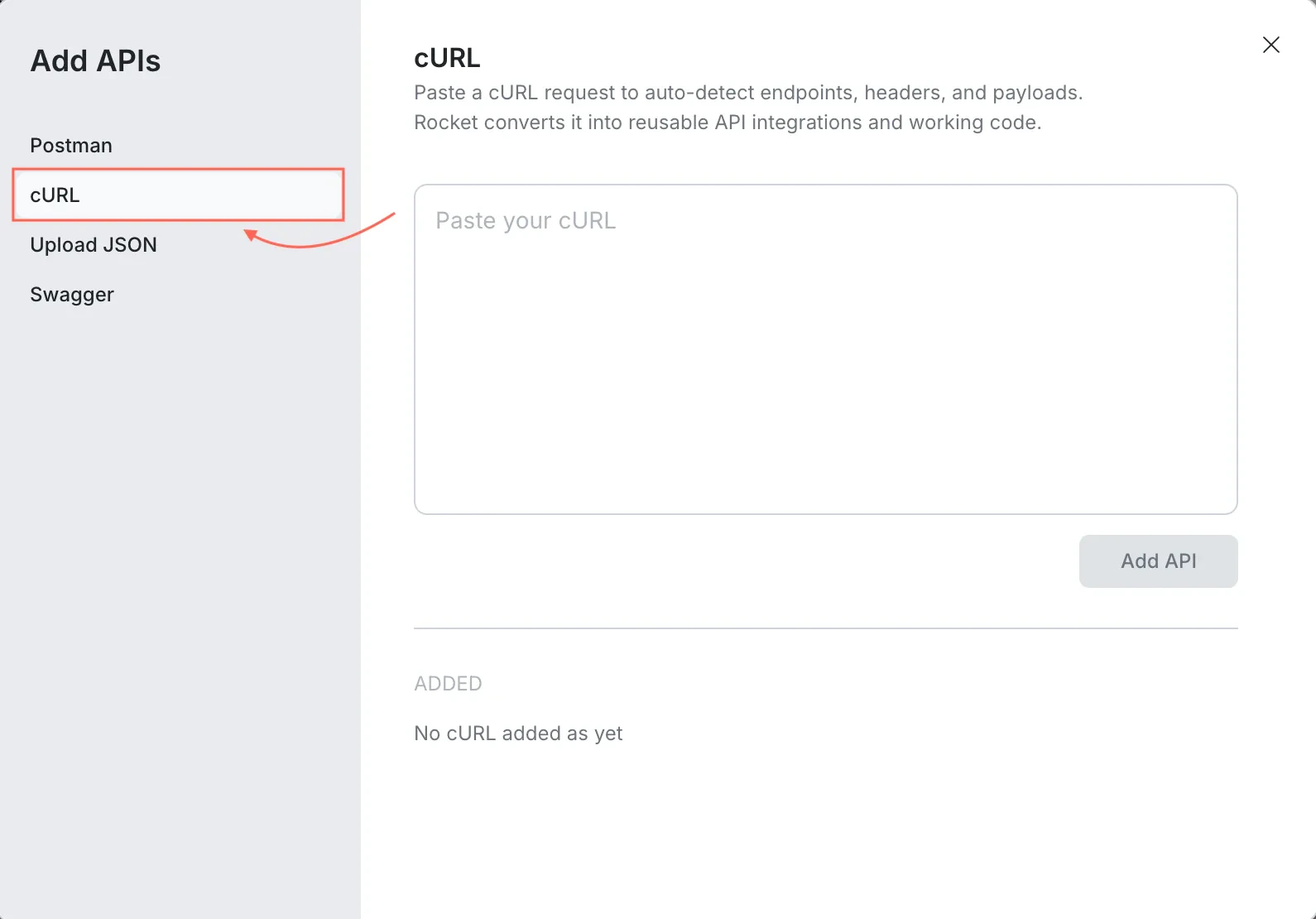
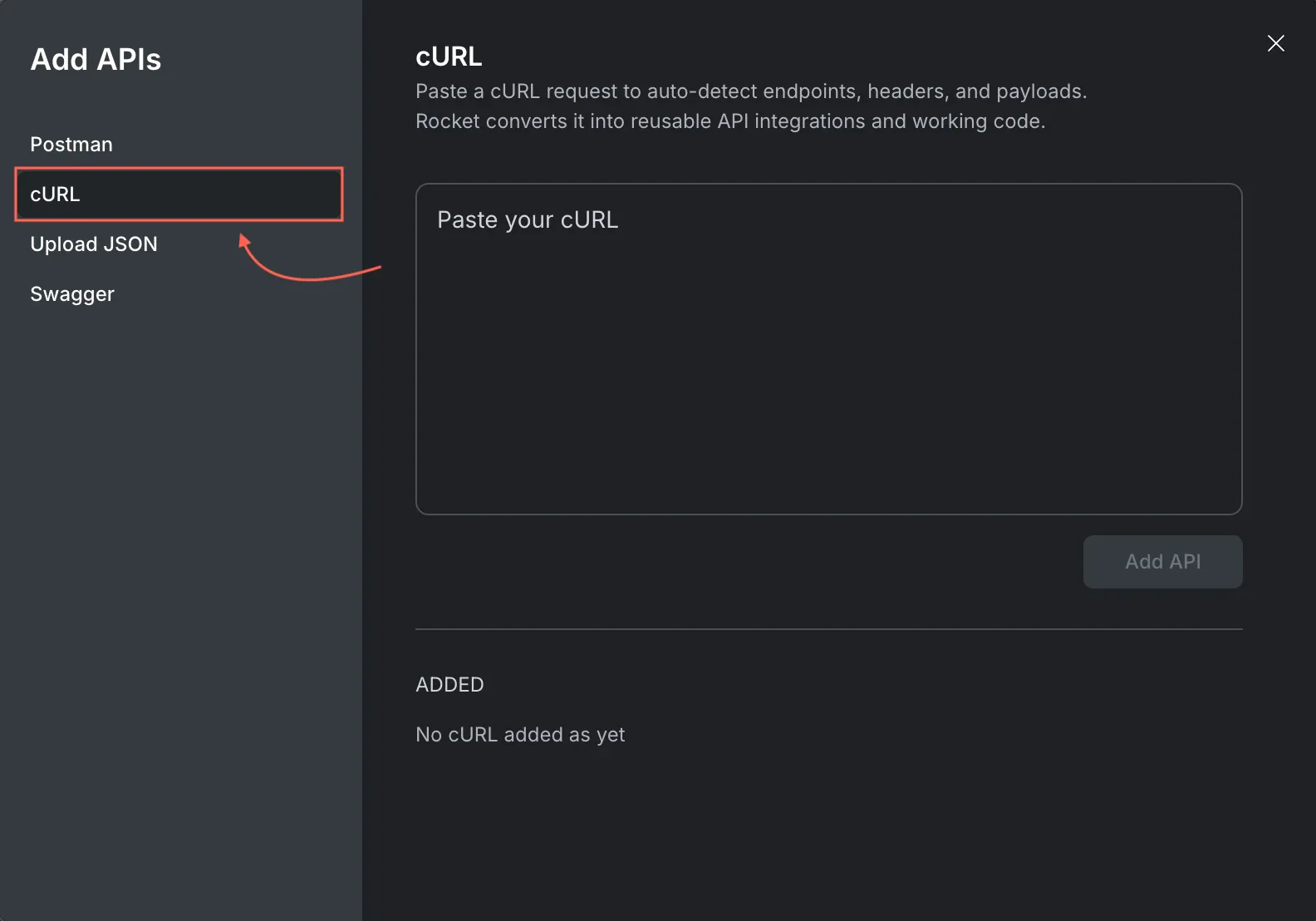 Make sure the cURL includes the correct URL, headers, and auth format. If it uses environment variables, map them to your project's variable format after import.
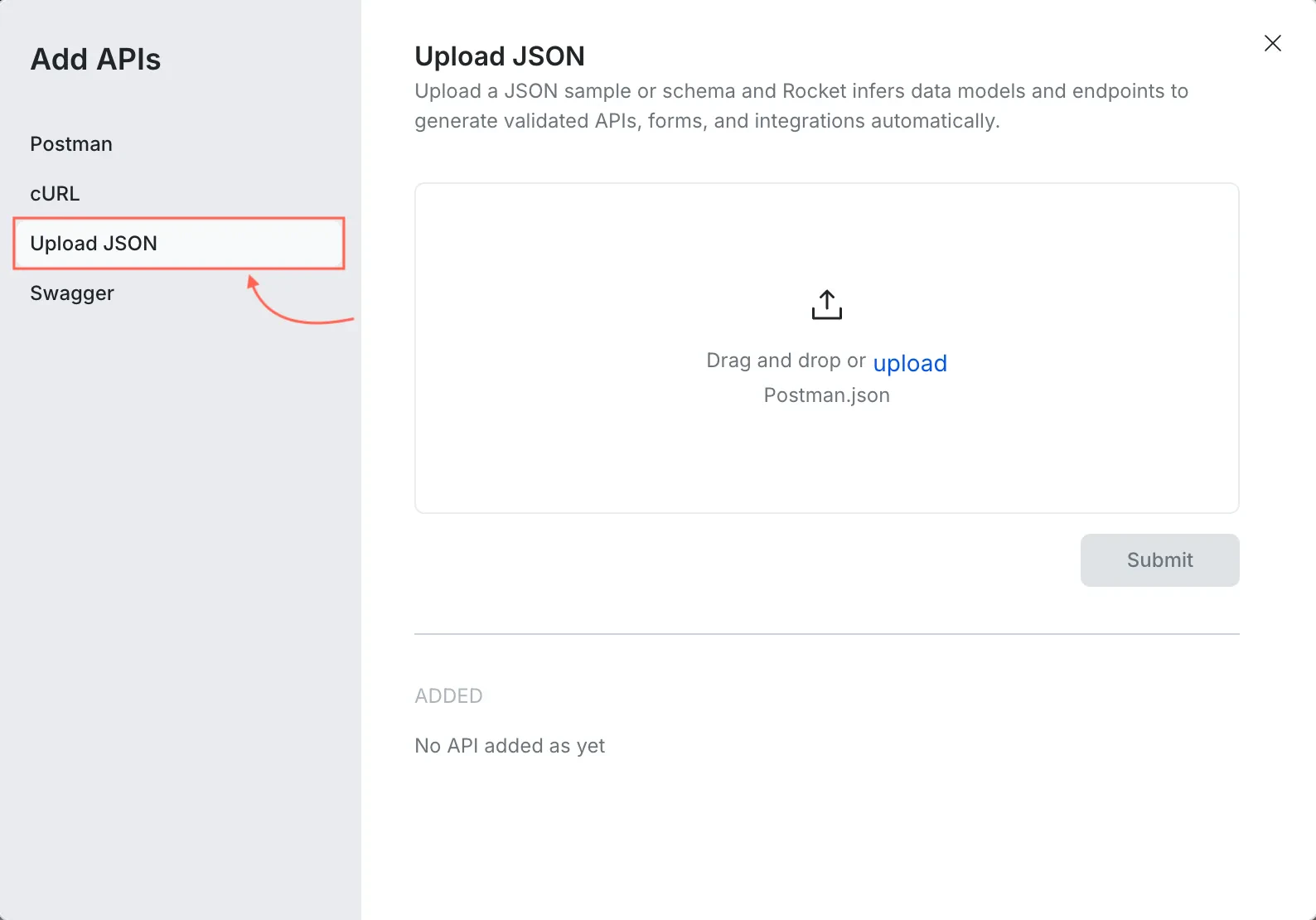
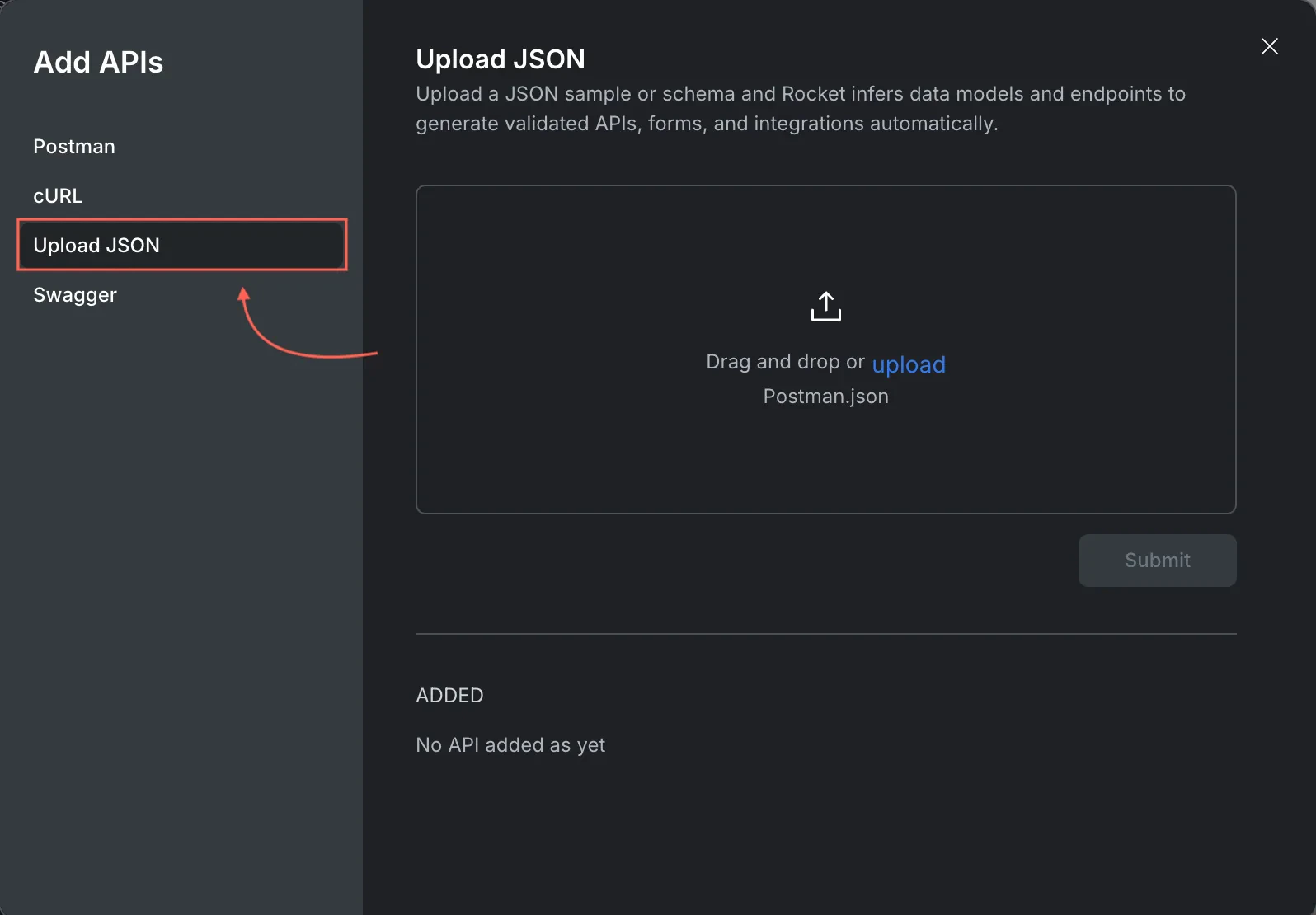
Use this when you have a Postman export file.
1. In **Add APIs**, select **Upload JSON**.
2. Drag and drop or upload your `postman.json`.
3. Click **Submit**.
Make sure the cURL includes the correct URL, headers, and auth format. If it uses environment variables, map them to your project's variable format after import.
Use this when you have a Postman export file.
1. In **Add APIs**, select **Upload JSON**.
2. Drag and drop or upload your `postman.json`.
3. Click **Submit**.
 Use this when your backend provides an OpenAPI spec.
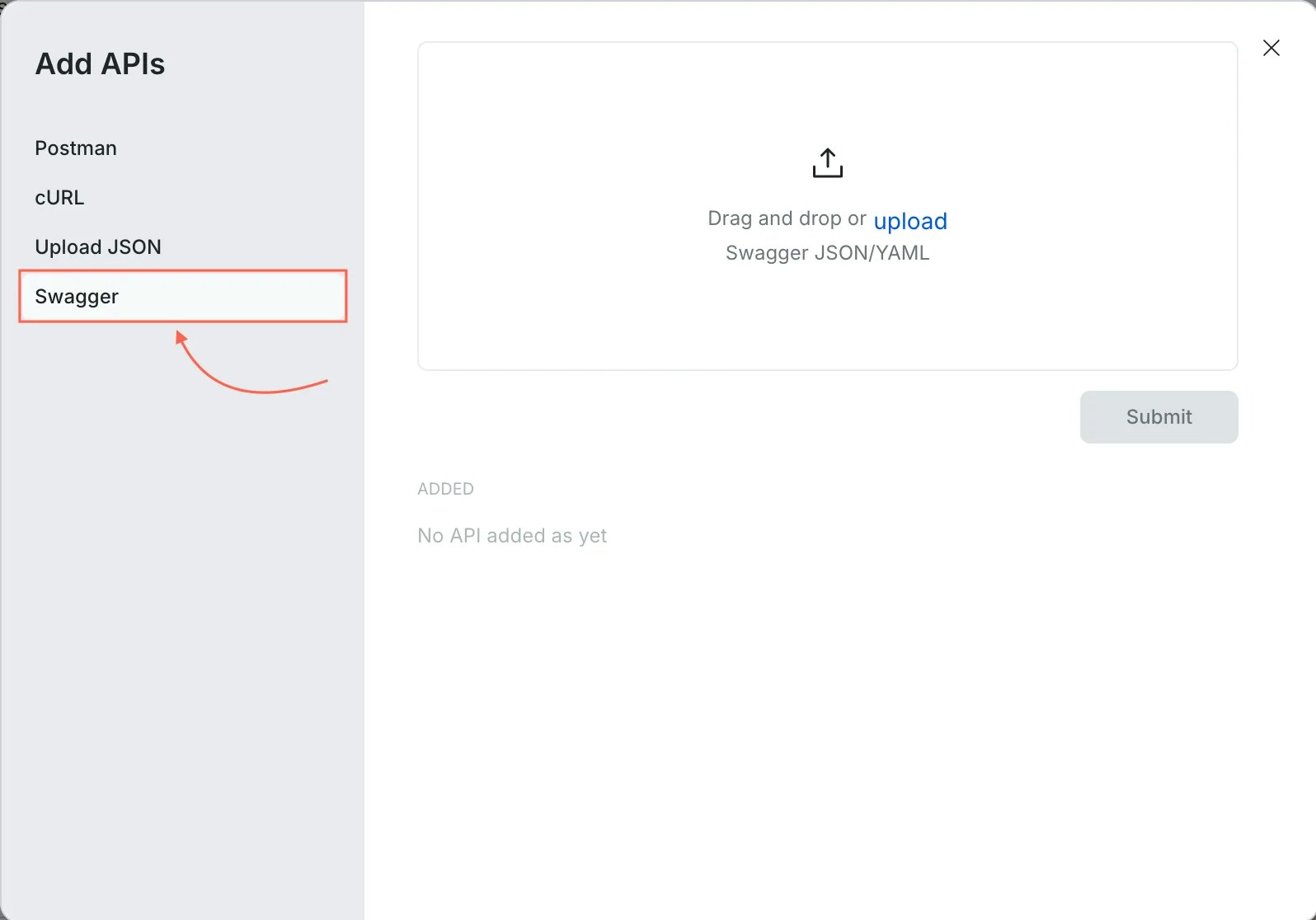
1. In **Add APIs**, select **Swagger**.
2. Drag and drop or upload your Swagger JSON or YAML file.
3. Click **Submit**.
Use this when your backend provides an OpenAPI spec.
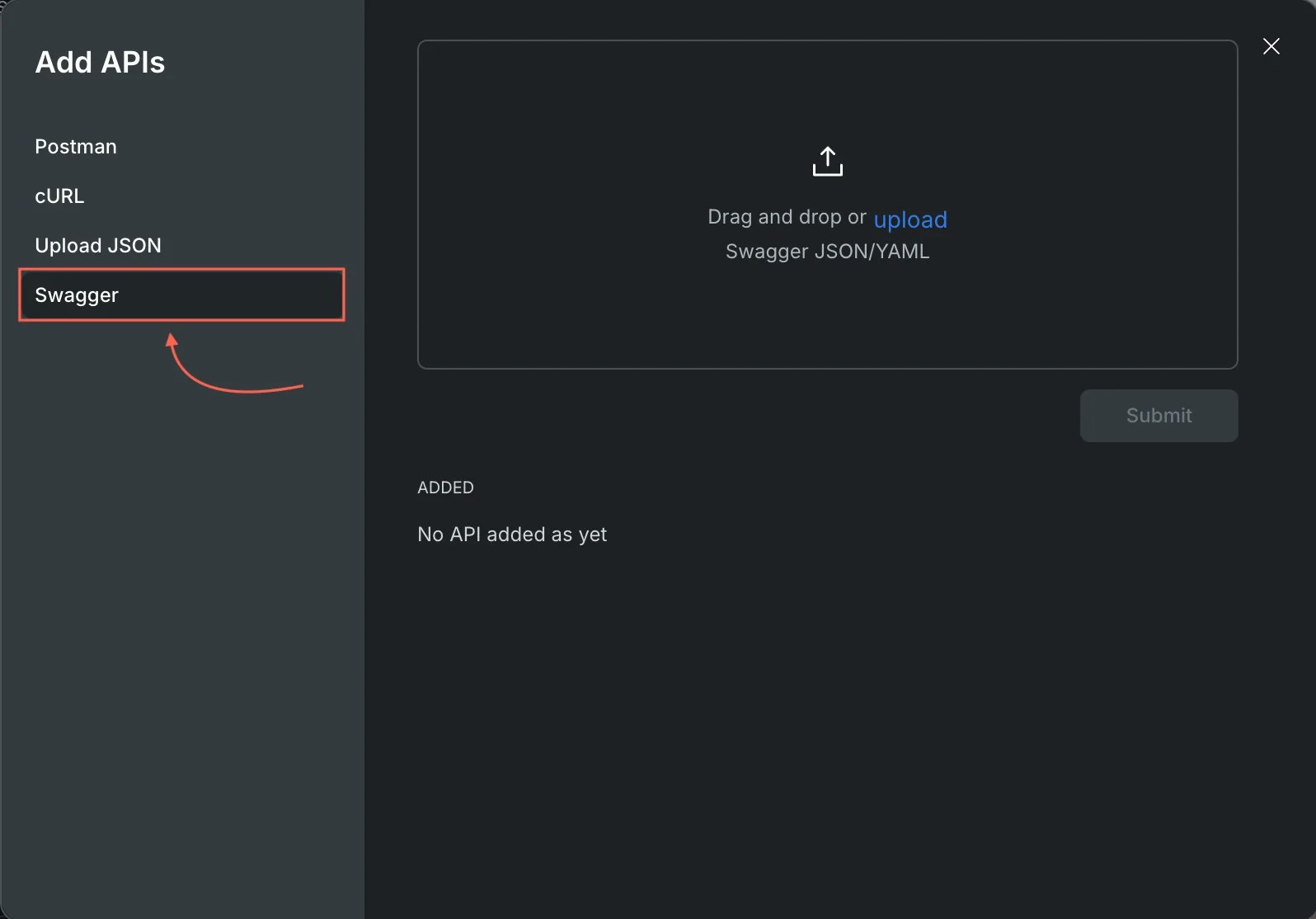
1. In **Add APIs**, select **Swagger**.
2. Drag and drop or upload your Swagger JSON or YAML file.
3. Click **Submit**.
 If your spec defines multiple servers, confirm the base URL matches your environment.
## Integrate an API into a UI element
This connects an endpoint to a screen element so Rocket generates code tied to a real component.
### Select a route and API
In the APIs panel, choose the **route** (the screen or page path, for example `/dashboard` or `/settings`) where the API should run, and select the API from the **Select an API** dropdown. Then click **Integrate API**.
If your spec defines multiple servers, confirm the base URL matches your environment.
## Integrate an API into a UI element
This connects an endpoint to a screen element so Rocket generates code tied to a real component.
### Select a route and API
In the APIs panel, choose the **route** (the screen or page path, for example `/dashboard` or `/settings`) where the API should run, and select the API from the **Select an API** dropdown. Then click **Integrate API**.

 ### Click a UI element
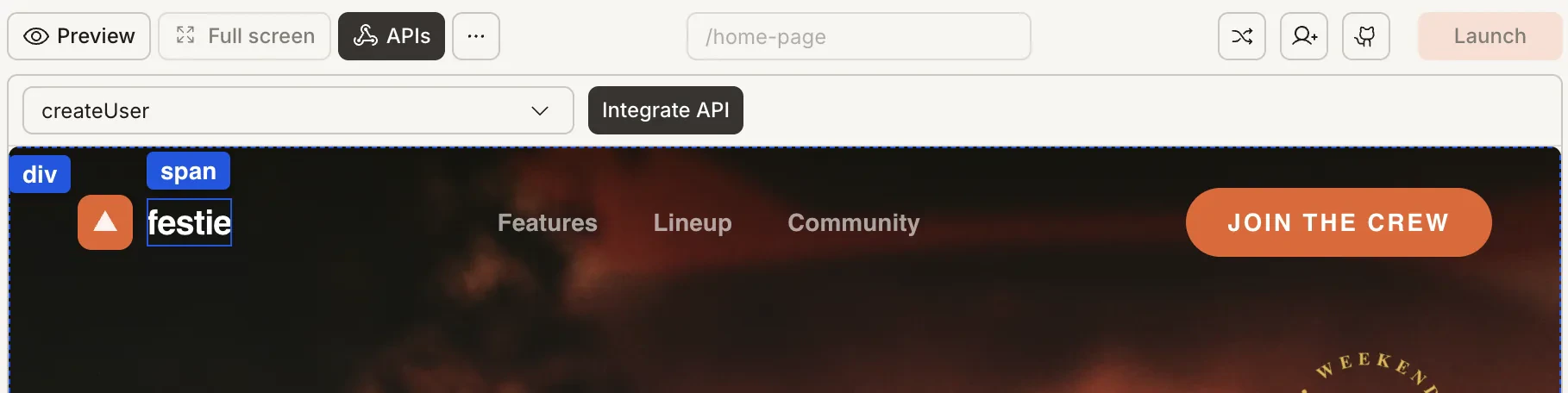
After clicking **Integrate API**, element selection activates. A tag bar appears at the top of the preview showing the available elements. Click the UI element where you want to attach the API.
### Click a UI element
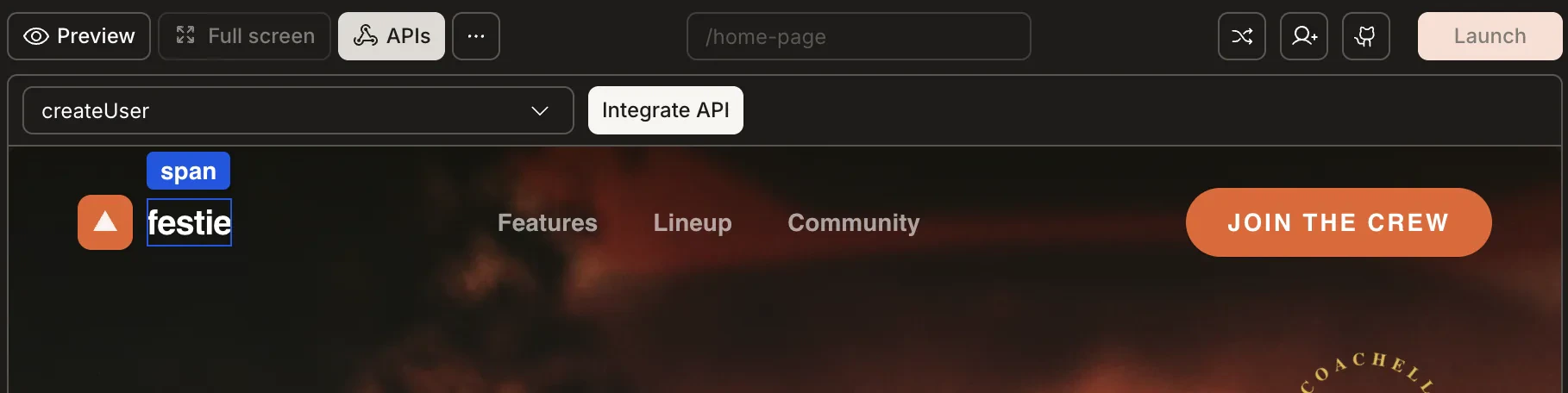
After clicking **Integrate API**, element selection activates. A tag bar appears at the top of the preview showing the available elements. Click the UI element where you want to attach the API.
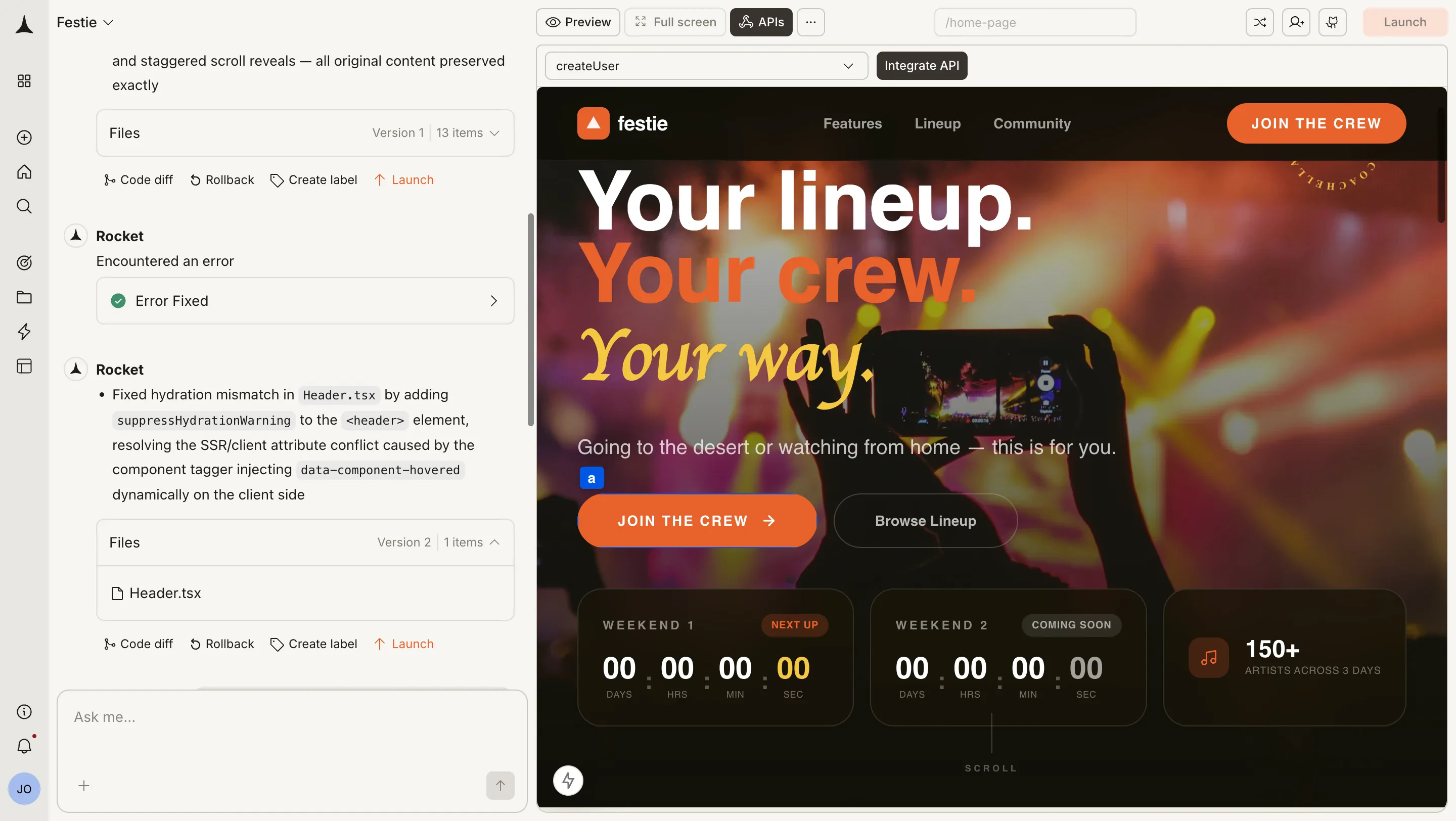
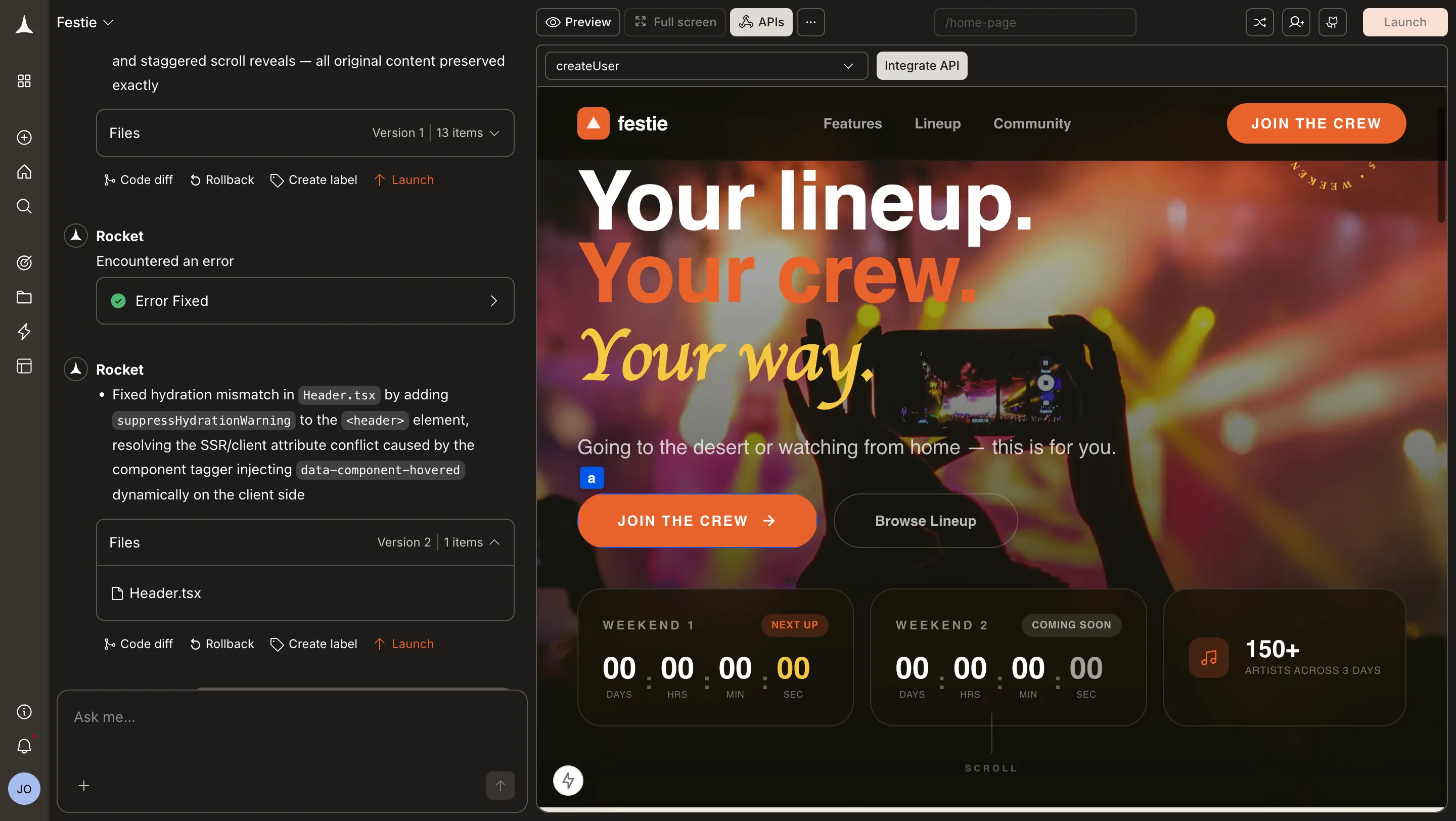 Attach to a stable container element that is always present on the screen. Avoid conditional elements that may not exist on initial render.
### Configure the trigger
After selecting the element, the **When to call this API?** dialog opens. Fill in:
* **When should this API run** (the trigger, e.g. "On page load", "On click of Submit button")
* **Pre API call Instructions** (validation, auth checks, token refresh)
* **Post API call Instructions** (store response, handle errors, navigate on failure)
Attach to a stable container element that is always present on the screen. Avoid conditional elements that may not exist on initial render.
### Configure the trigger
After selecting the element, the **When to call this API?** dialog opens. Fill in:
* **When should this API run** (the trigger, e.g. "On page load", "On click of Submit button")
* **Pre API call Instructions** (validation, auth checks, token refresh)
* **Post API call Instructions** (store response, handle errors, navigate on failure)
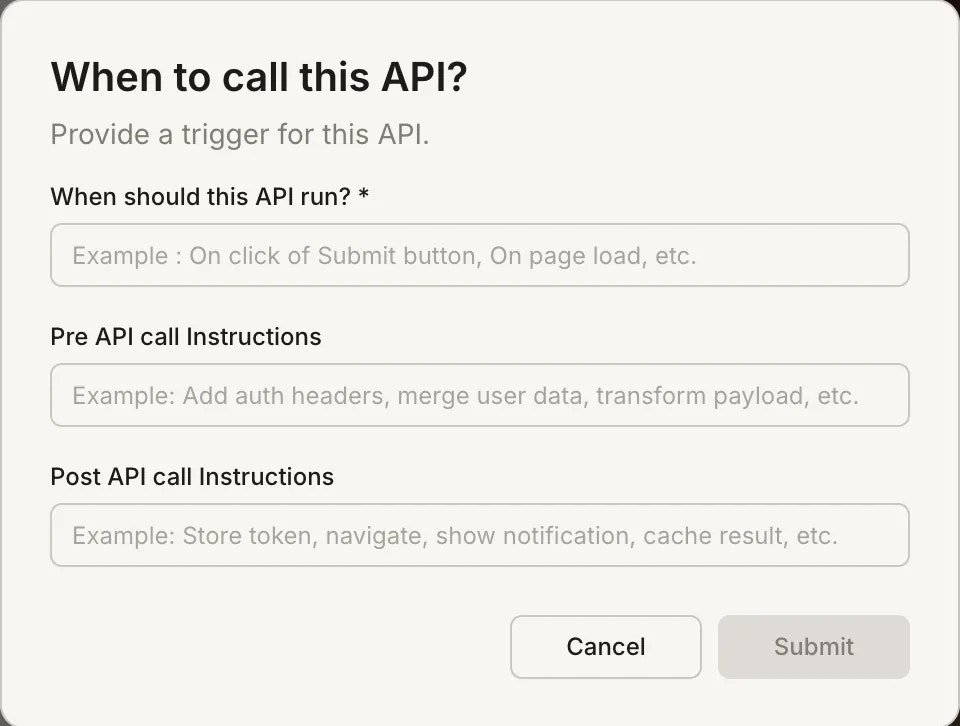
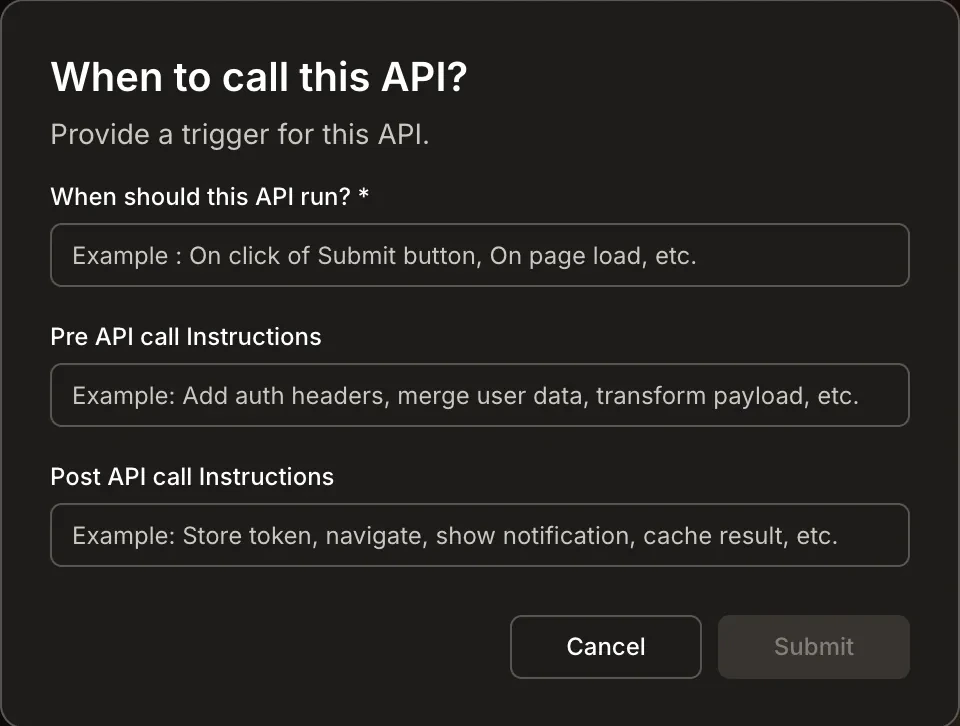 Click **Submit** and Rocket generates the integration code.
**Pre-call tips:**
* Validate required variables exist (base URLs, IDs, query params)
* Check auth state (token exists, not expired)
* Refresh token here if possible
**Post-call tips:**
* Store response data into a named state variable your UI can bind to
* Cache successful responses to improve performance
* Handle error states with clear user feedback
* Navigate when needed (e.g. redirect to login on 401)
Clear pre and post-call instructions help Rocket generate robust error handling code.
## Edit an API response
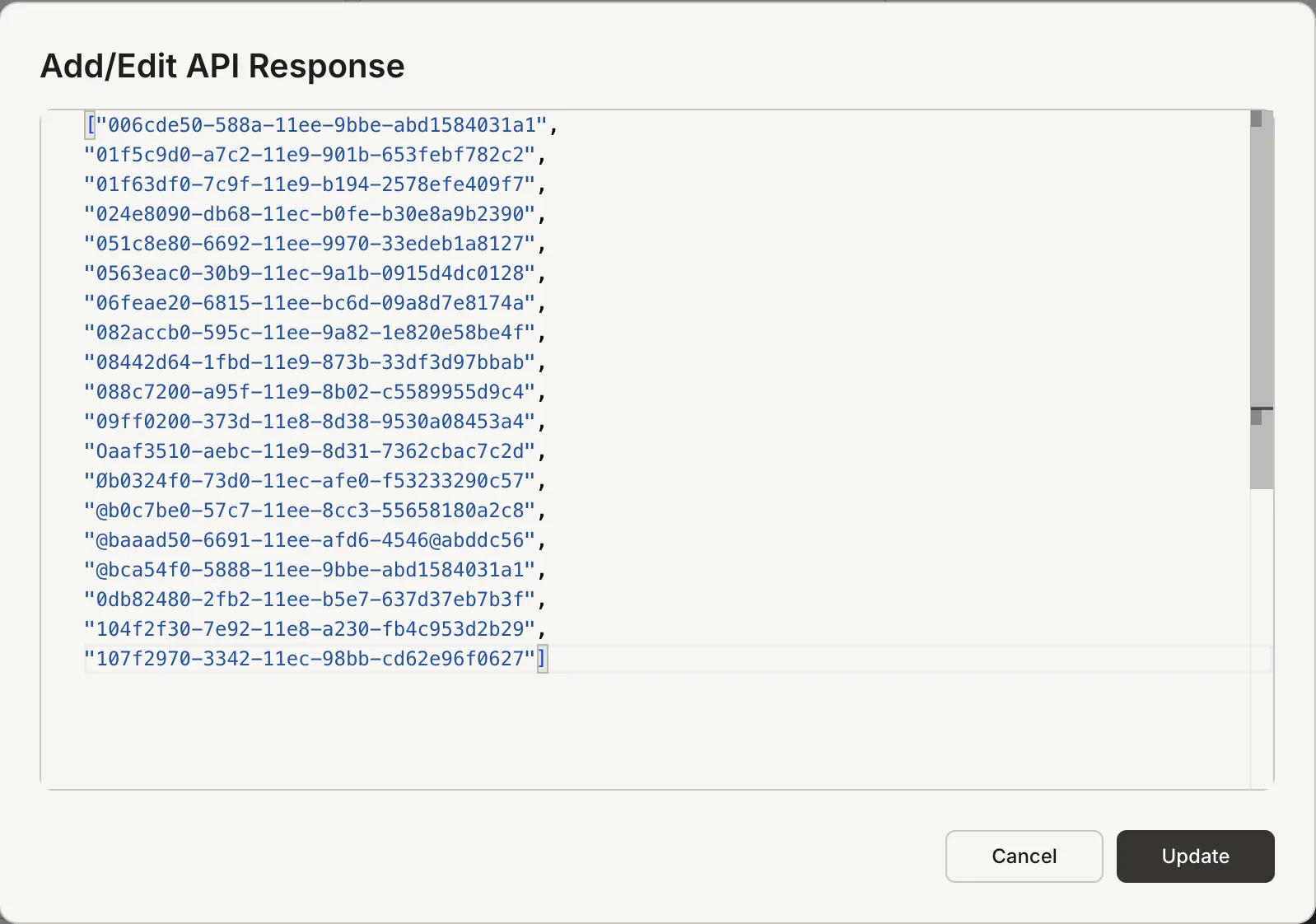
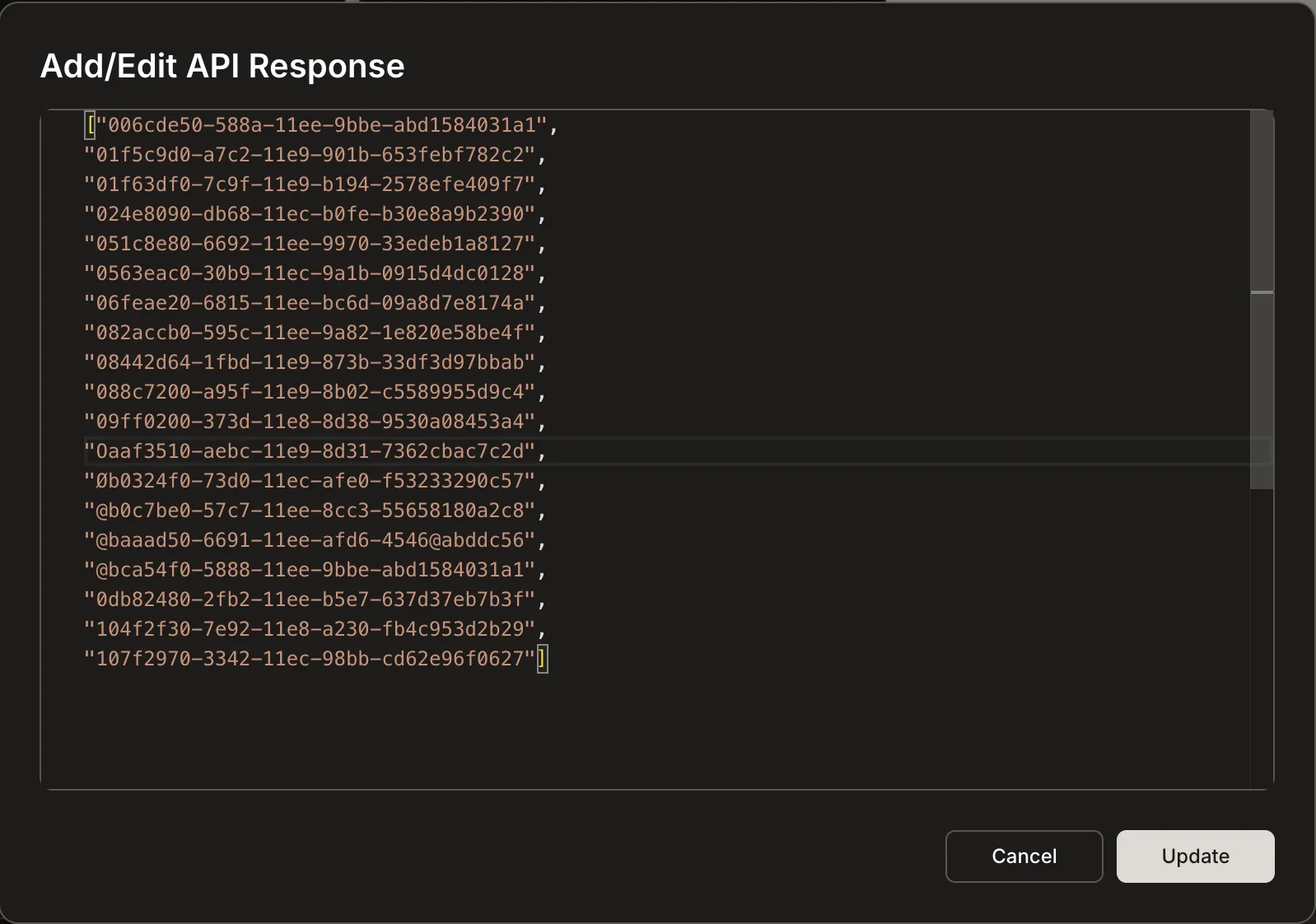
To update a mock or expected response for an API, open the **Add/Edit API Response** dialog for that endpoint and paste the updated JSON, then click **Update**.
Click **Submit** and Rocket generates the integration code.
**Pre-call tips:**
* Validate required variables exist (base URLs, IDs, query params)
* Check auth state (token exists, not expired)
* Refresh token here if possible
**Post-call tips:**
* Store response data into a named state variable your UI can bind to
* Cache successful responses to improve performance
* Handle error states with clear user feedback
* Navigate when needed (e.g. redirect to login on 401)
Clear pre and post-call instructions help Rocket generate robust error handling code.
## Edit an API response
To update a mock or expected response for an API, open the **Add/Edit API Response** dialog for that endpoint and paste the updated JSON, then click **Update**.
 ## Troubleshooting
Import did not complete, or you imported into a different project. Reopen **Add APIs** and verify your source: check that your Postman API key is valid, that your Postman workspace contains collections, and that you are importing into the correct project.
The imported definition includes placeholders. Map them to known state variables or environment variables. Set any placeholder like `accessToken` to reference your stored token value and confirm the request uses the correct auth scheme (e.g. `Authorization: Bearer `).
Response data is likely not stored to the variable your UI is bound to. Update the Post API call instructions to store the response, then bind your UI list or widget to that variable.
Token is missing, expired, or not attached correctly. Fix in Pre API call instructions and ensure auth header formatting is correct (e.g. `Bearer `).
## What's next?
Build and iterate on your app through natural conversation.
Add scripts, embeds, and UI components from external sources.
Some services have dedicated integrations that are simpler than raw API imports.
Browse and edit your project's source files directly.
## Troubleshooting
Import did not complete, or you imported into a different project. Reopen **Add APIs** and verify your source: check that your Postman API key is valid, that your Postman workspace contains collections, and that you are importing into the correct project.
The imported definition includes placeholders. Map them to known state variables or environment variables. Set any placeholder like `accessToken` to reference your stored token value and confirm the request uses the correct auth scheme (e.g. `Authorization: Bearer `).
Response data is likely not stored to the variable your UI is bound to. Update the Post API call instructions to store the response, then bind your UI list or widget to that variable.
Token is missing, expired, or not attached correctly. Fix in Pre API call instructions and ensure auth header formatting is correct (e.g. `Bearer `).
## What's next?
Build and iterate on your app through natural conversation.
Add scripts, embeds, and UI components from external sources.
Some services have dedicated integrations that are simpler than raw API imports.
Browse and edit your project's source files directly.