> ## Documentation Index
> Fetch the complete documentation index at: https://docs.rocket.new/llms.txt
> Use this file to discover all available pages before exploring further.
# Chat with Rocket
> Build and iterate on your app through Rocket.new chat - describe changes in plain language and the AI writes production code.
export const LlmsDirective = () =>
For the complete documentation index, see llms.txt.
For a lightweight markdown version of this page, append .md to the URL.
;
Chat is how you build with Rocket. Describe what you want in plain language and Rocket writes the code, updates the live preview, and suggests what to build next. You do not need to know how to code.
## What you can do in chat
* Add new pages, features, or components
* Change layouts, colors, typography, and spacing
* Fix bugs and errors
* Connect integrations like Supabase, Stripe, or Resend
* Ask Rocket to explain or refactor existing code
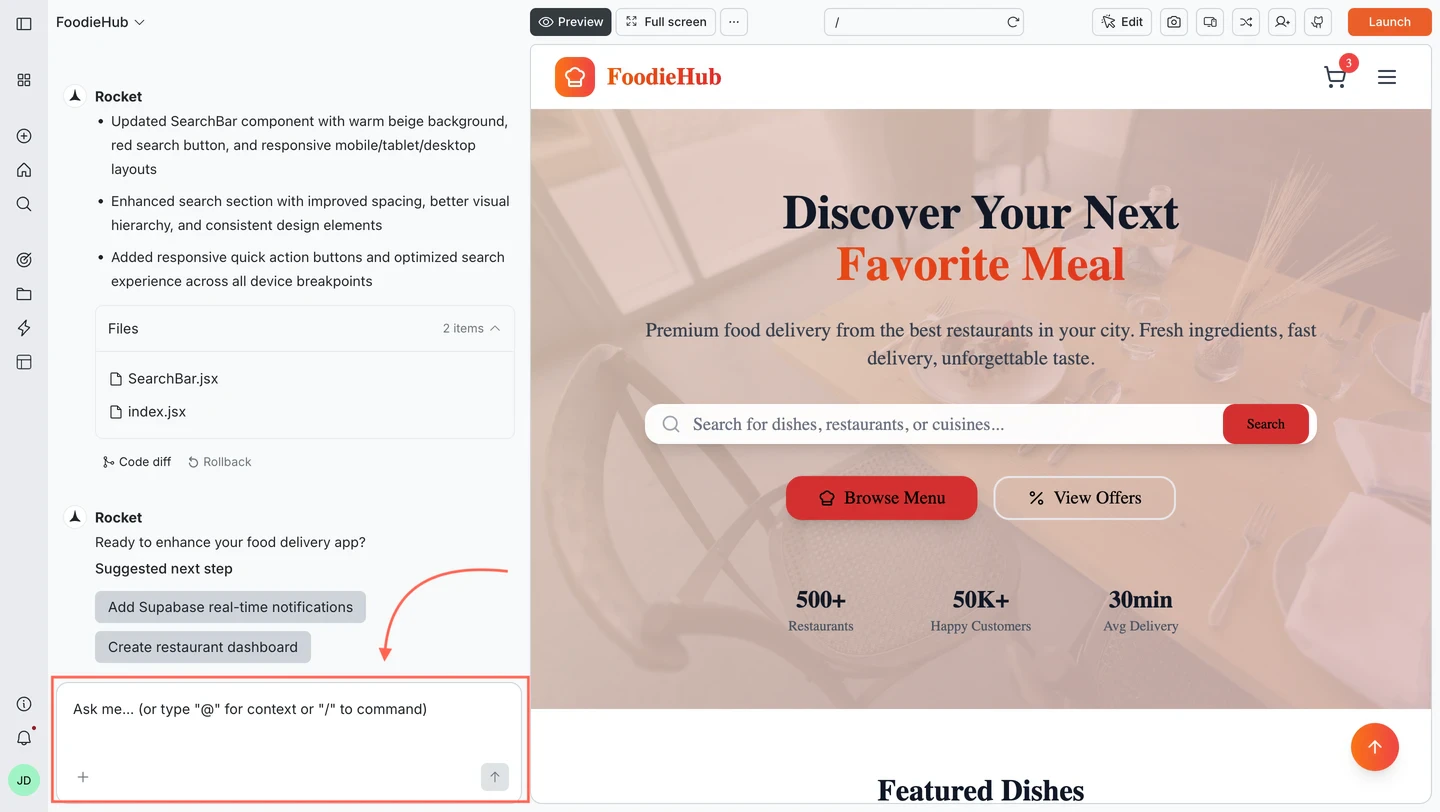
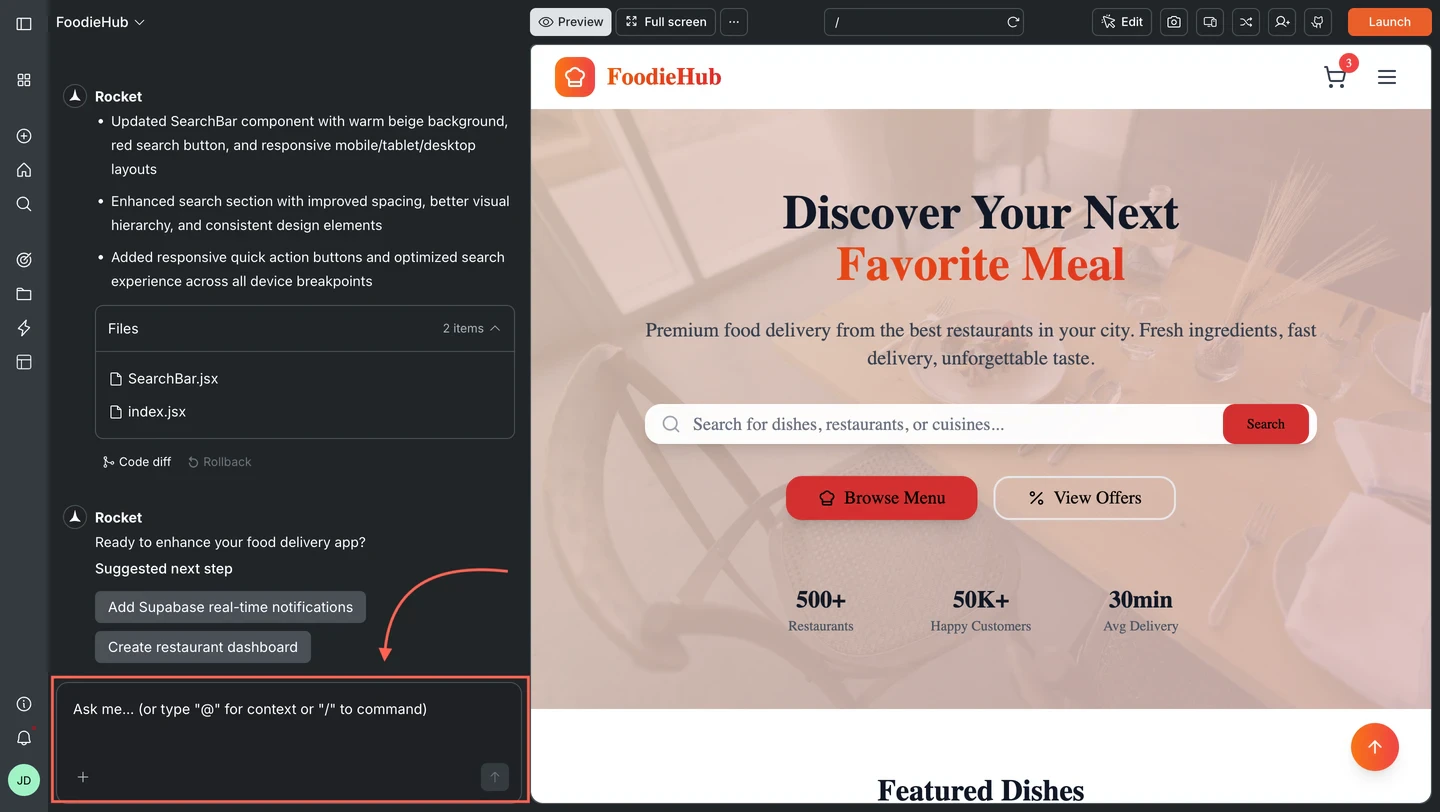 **Example messages:**
* "Add a pricing page with three tiers: Free, Pro, and Business"
* "Make the hero section taller with a gradient background from blue to purple"
* "Connect the contact form to send emails using Resend"
* "Fix the signup form - the submit button is not responding"
* "Add dark mode support across the whole app"
After each message, Rocket returns the updated code and a live preview. If it detects errors, it fixes them automatically.
For faster, targeted edits on the web, use [slash and @ commands](/build/editor/commands) directly from the chat input.
## Attachments
Attach a file to give Rocket a visual reference or content to work with.
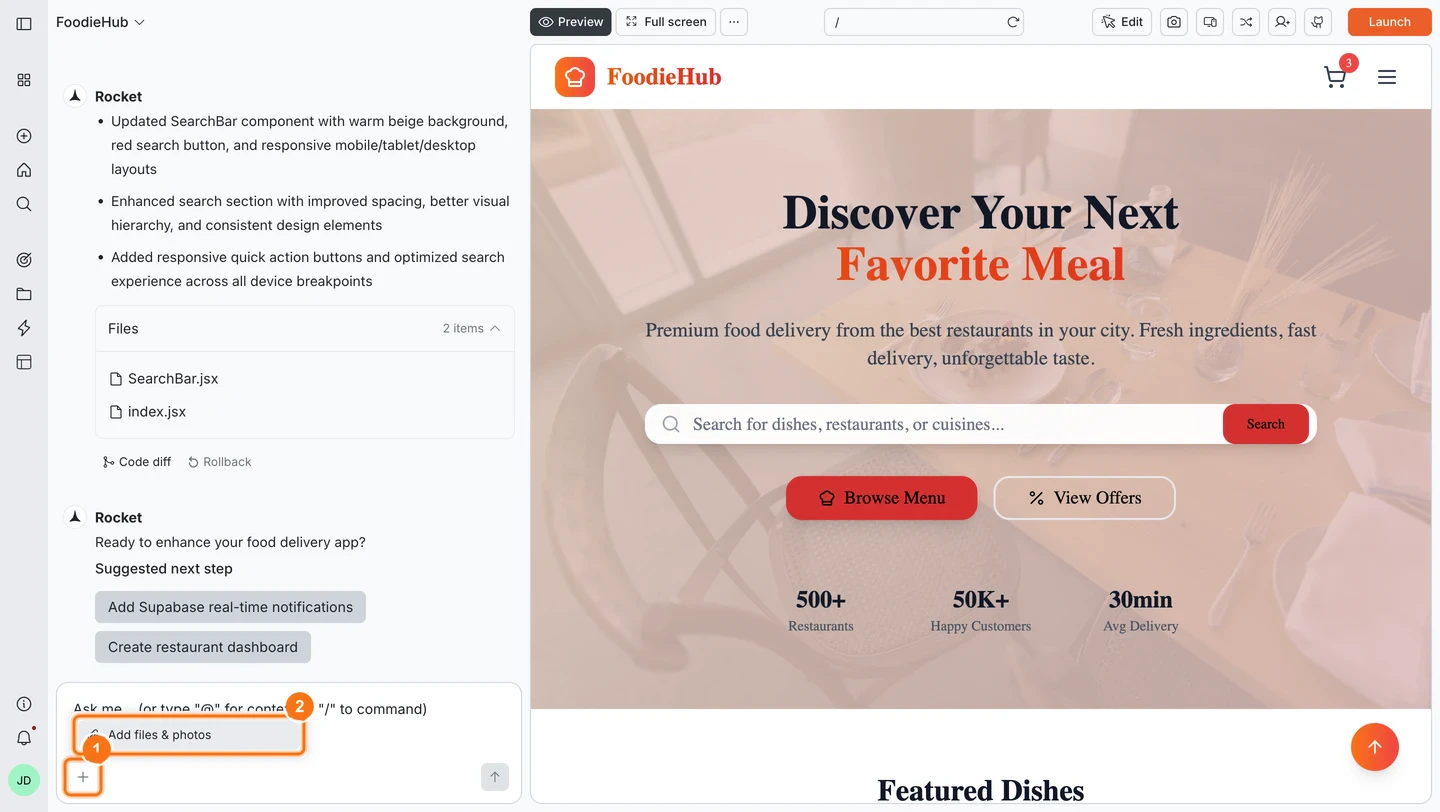
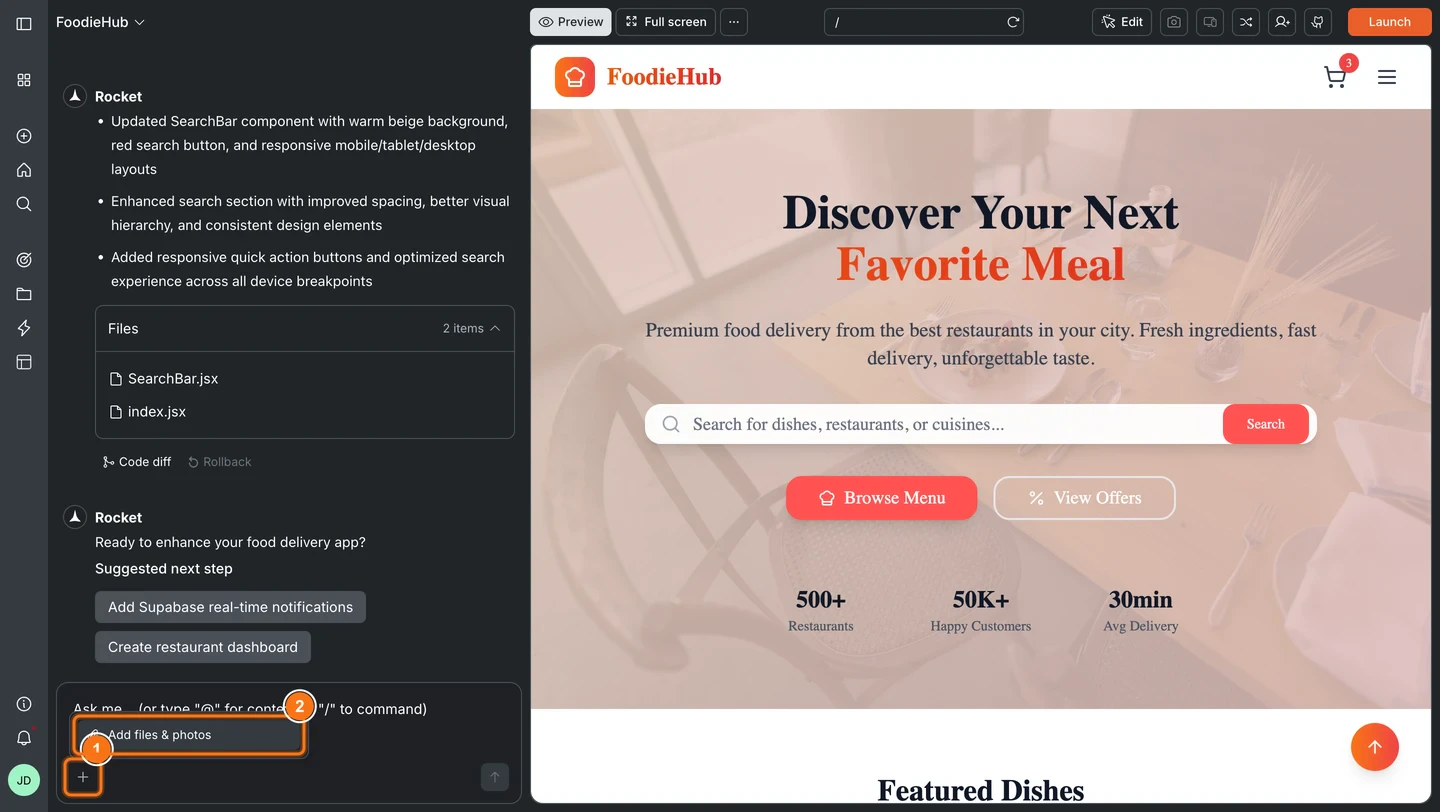
Click the **+** button at the lower left of the chat input and select **Add files & photos**. You can also drag and drop or paste an image directly.
**Example messages:**
* "Add a pricing page with three tiers: Free, Pro, and Business"
* "Make the hero section taller with a gradient background from blue to purple"
* "Connect the contact form to send emails using Resend"
* "Fix the signup form - the submit button is not responding"
* "Add dark mode support across the whole app"
After each message, Rocket returns the updated code and a live preview. If it detects errors, it fixes them automatically.
For faster, targeted edits on the web, use [slash and @ commands](/build/editor/commands) directly from the chat input.
## Attachments
Attach a file to give Rocket a visual reference or content to work with.
Click the **+** button at the lower left of the chat input and select **Add files & photos**. You can also drag and drop or paste an image directly.
 Choose a file from your device. Supported file types: images (`.png`, `.jpg`, `.jpeg`, `.ico`), PDFs, Excel (`.xlsx`), CSVs, and Markdown (`.md`).
You can attach up to **5 files per message**. Each file must be under **5 MB**.
Tell Rocket what to do with the attachment. Be specific about where and how to use it.
| Attachment | What to say |
| :---------------- | :----------------------------------------------------- |
| Design screenshot | "Match this layout for the landing page" |
| Logo image | "Replace the app logo with this file" |
| CSV data | "Build a product catalog from this spreadsheet" |
| PDF spec | "Build the onboarding flow described in this document" |
## Continuing a conversation
Rocket remembers everything in the current task, so you can keep building without repeating context.
Ask Rocket to adjust, expand, or rework its previous output without starting over.
* "Change the hero background to dark blue instead"
* "Add a section for customer testimonials below the pricing table"
* "Make the sidebar collapsible on mobile"
Change course at any point. Rocket adapts while keeping what came before.
* "Actually, use a single-column layout instead"
* "Scrap the modal approach - use an inline form instead"
Point back to something Rocket built earlier in the same task.
* "Apply the same color scheme you used on the dashboard to this page"
* "Use the button style from the hero section throughout the app"
## Web vs mobile
The web browser provides the full experience:
* [Slash and @ commands](/build/editor/commands) for targeted edits
* [Visual edit mode](/build/editor/visual-edit) for direct manipulation
* [Image generation](/build/editor/image-generation) for AI-generated images and SVGs
* [Preview](/build/editor/preview) for testing on different screen sizes
* [Version history](/build/editor/versions) with code diff, rollback, labels, and per-version launch
* [Code tab](/build/editor/code) for browsing and editing files directly
* Smart suggestions for next steps
* Full project settings and integrations access
The mobile app supports core chat features:
* Send messages and receive responses
* Attach images and files
* View generated files
* Version history with code diff and rollback
* Smart suggestions
Smart suggestions work the same way on web and mobile. Rocket recommends what to build or fix next based on your current app state.
Choose a file from your device. Supported file types: images (`.png`, `.jpg`, `.jpeg`, `.ico`), PDFs, Excel (`.xlsx`), CSVs, and Markdown (`.md`).
You can attach up to **5 files per message**. Each file must be under **5 MB**.
Tell Rocket what to do with the attachment. Be specific about where and how to use it.
| Attachment | What to say |
| :---------------- | :----------------------------------------------------- |
| Design screenshot | "Match this layout for the landing page" |
| Logo image | "Replace the app logo with this file" |
| CSV data | "Build a product catalog from this spreadsheet" |
| PDF spec | "Build the onboarding flow described in this document" |
## Continuing a conversation
Rocket remembers everything in the current task, so you can keep building without repeating context.
Ask Rocket to adjust, expand, or rework its previous output without starting over.
* "Change the hero background to dark blue instead"
* "Add a section for customer testimonials below the pricing table"
* "Make the sidebar collapsible on mobile"
Change course at any point. Rocket adapts while keeping what came before.
* "Actually, use a single-column layout instead"
* "Scrap the modal approach - use an inline form instead"
Point back to something Rocket built earlier in the same task.
* "Apply the same color scheme you used on the dashboard to this page"
* "Use the button style from the hero section throughout the app"
## Web vs mobile
The web browser provides the full experience:
* [Slash and @ commands](/build/editor/commands) for targeted edits
* [Visual edit mode](/build/editor/visual-edit) for direct manipulation
* [Image generation](/build/editor/image-generation) for AI-generated images and SVGs
* [Preview](/build/editor/preview) for testing on different screen sizes
* [Version history](/build/editor/versions) with code diff, rollback, labels, and per-version launch
* [Code tab](/build/editor/code) for browsing and editing files directly
* Smart suggestions for next steps
* Full project settings and integrations access
The mobile app supports core chat features:
* Send messages and receive responses
* Attach images and files
* View generated files
* Version history with code diff and rollback
* Smart suggestions
Smart suggestions work the same way on web and mobile. Rocket recommends what to build or fix next based on your current app state.
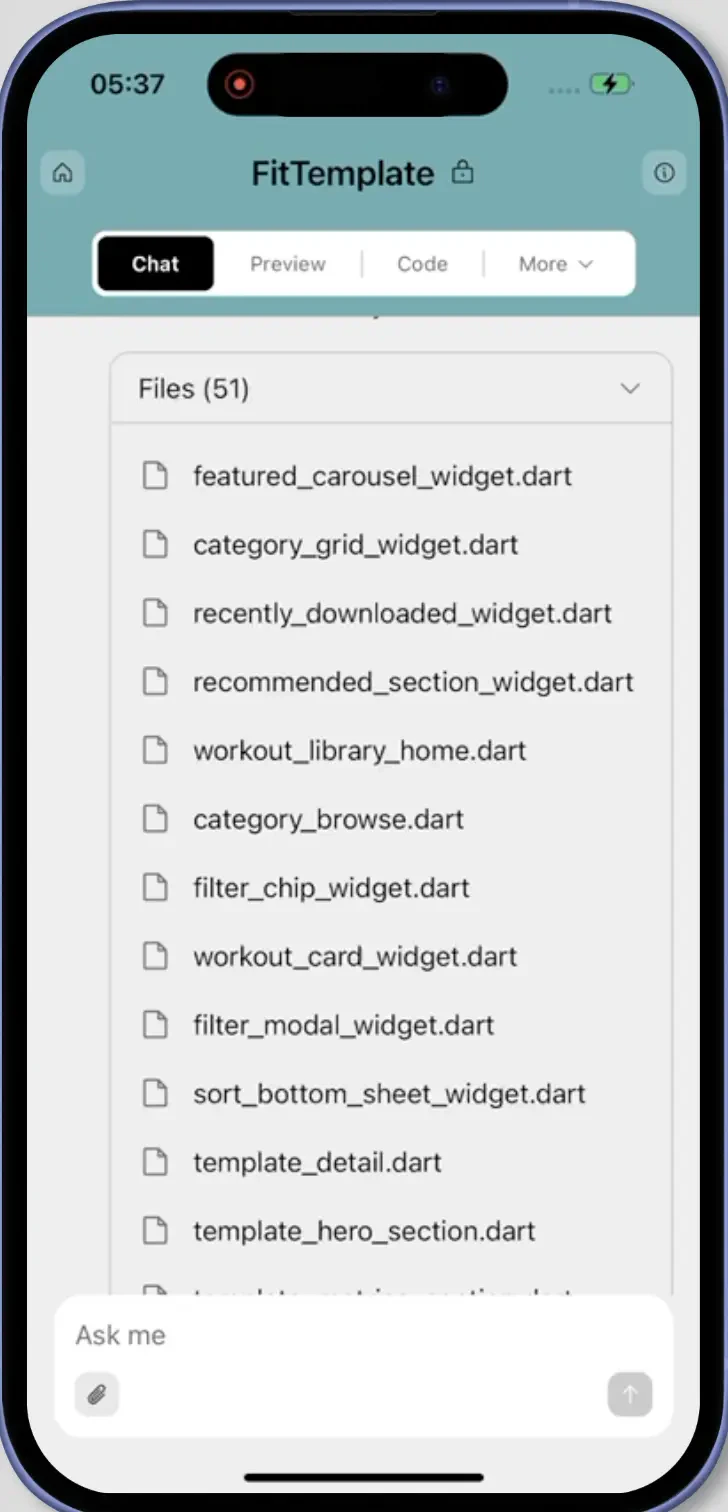 Commands, visual edit, and advanced project settings are only available in the web browser.
## Tips
Vague messages produce vague results. Name the element, its location, and what you want it to do.
| Instead of | Try |
| :-------------------- | :------------------------------------------------------------------------------------ |
| "Make it look better" | "Increase the hero section height to 80vh and add a gradient from #1e3a5f to #0f172a" |
| "Fix the nav" | "The mobile navigation menu is not closing when a link is tapped" |
Break complex requests into individual messages. Rocket is more accurate when the scope is focused.
Reference the exact section, component, or file. Quote any text you want changed.
* "In the hero section, change 'Get started' to 'Launch now'"
* "In the pricing table, swap the order of Pro and Business columns"
[Slash and @ commands](/build/editor/commands) are faster and use fewer credits than describing everything from scratch.
Screenshots and mockups help Rocket match exactly what you have in mind, especially for layout and design changes.
## What's next?
Use slash and @ commands for precise, targeted edits.
Click any element to change it directly without writing a prompt.
Create AI-generated images and SVGs placed directly in your app.
Test your app on different screen sizes before deploying.
Compare, roll back, label, and launch specific versions.
Browse and edit your project files directly in the code view.
Store API keys and secrets your app needs at runtime.
Import and attach APIs to your UI elements.
Commands, visual edit, and advanced project settings are only available in the web browser.
## Tips
Vague messages produce vague results. Name the element, its location, and what you want it to do.
| Instead of | Try |
| :-------------------- | :------------------------------------------------------------------------------------ |
| "Make it look better" | "Increase the hero section height to 80vh and add a gradient from #1e3a5f to #0f172a" |
| "Fix the nav" | "The mobile navigation menu is not closing when a link is tapped" |
Break complex requests into individual messages. Rocket is more accurate when the scope is focused.
Reference the exact section, component, or file. Quote any text you want changed.
* "In the hero section, change 'Get started' to 'Launch now'"
* "In the pricing table, swap the order of Pro and Business columns"
[Slash and @ commands](/build/editor/commands) are faster and use fewer credits than describing everything from scratch.
Screenshots and mockups help Rocket match exactly what you have in mind, especially for layout and design changes.
## What's next?
Use slash and @ commands for precise, targeted edits.
Click any element to change it directly without writing a prompt.
Create AI-generated images and SVGs placed directly in your app.
Test your app on different screen sizes before deploying.
Compare, roll back, label, and launch specific versions.
Browse and edit your project files directly in the code view.
Store API keys and secrets your app needs at runtime.
Import and attach APIs to your UI elements.