> ## Documentation Index
> Fetch the complete documentation index at: https://docs.rocket.new/llms.txt
> Use this file to discover all available pages before exploring further.
# View and edit code
> Browse project files and make direct edits inside the Rocket.new Build editor.
export const LlmsDirective = () =>
For the complete documentation index, see llms.txt.
For a lightweight markdown version of this page, append .md to the URL.
;
Code view lets you browse your project's source files, make direct edits, view live build logs, and download or push your code. All without leaving the Rocket editor.
## When to use code view
| Use code view when | Use chat instead when |
| :------------------------------------------ | :--------------------------------------- |
| You need to edit a specific line of code | You want to add new features or pages |
| Managing API keys and environment variables | You want to change design or layout |
| Debugging with build logs | You need broad changes across many files |
| Reviewing what Rocket generated | You are not sure what to change |
## How to open
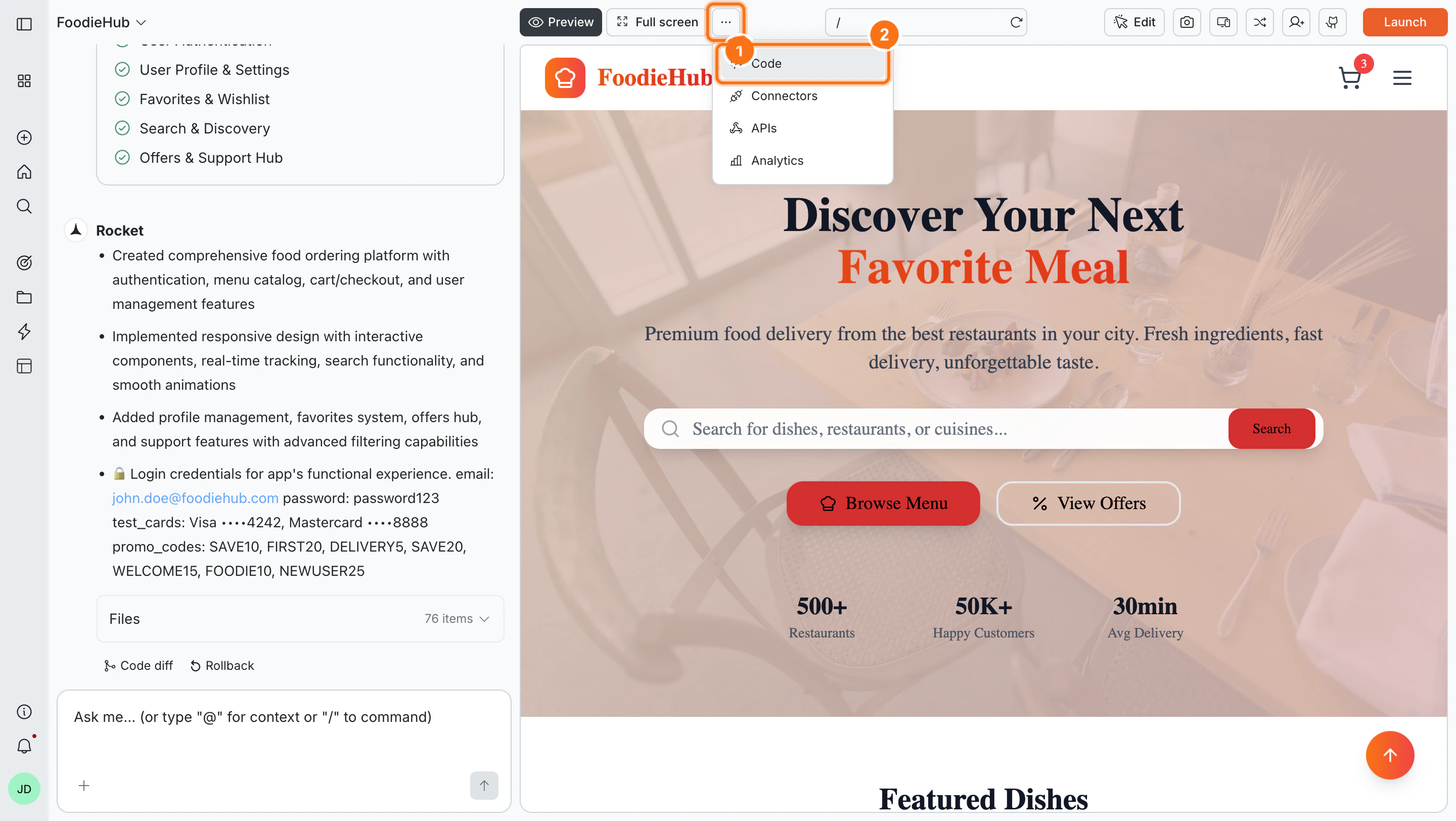
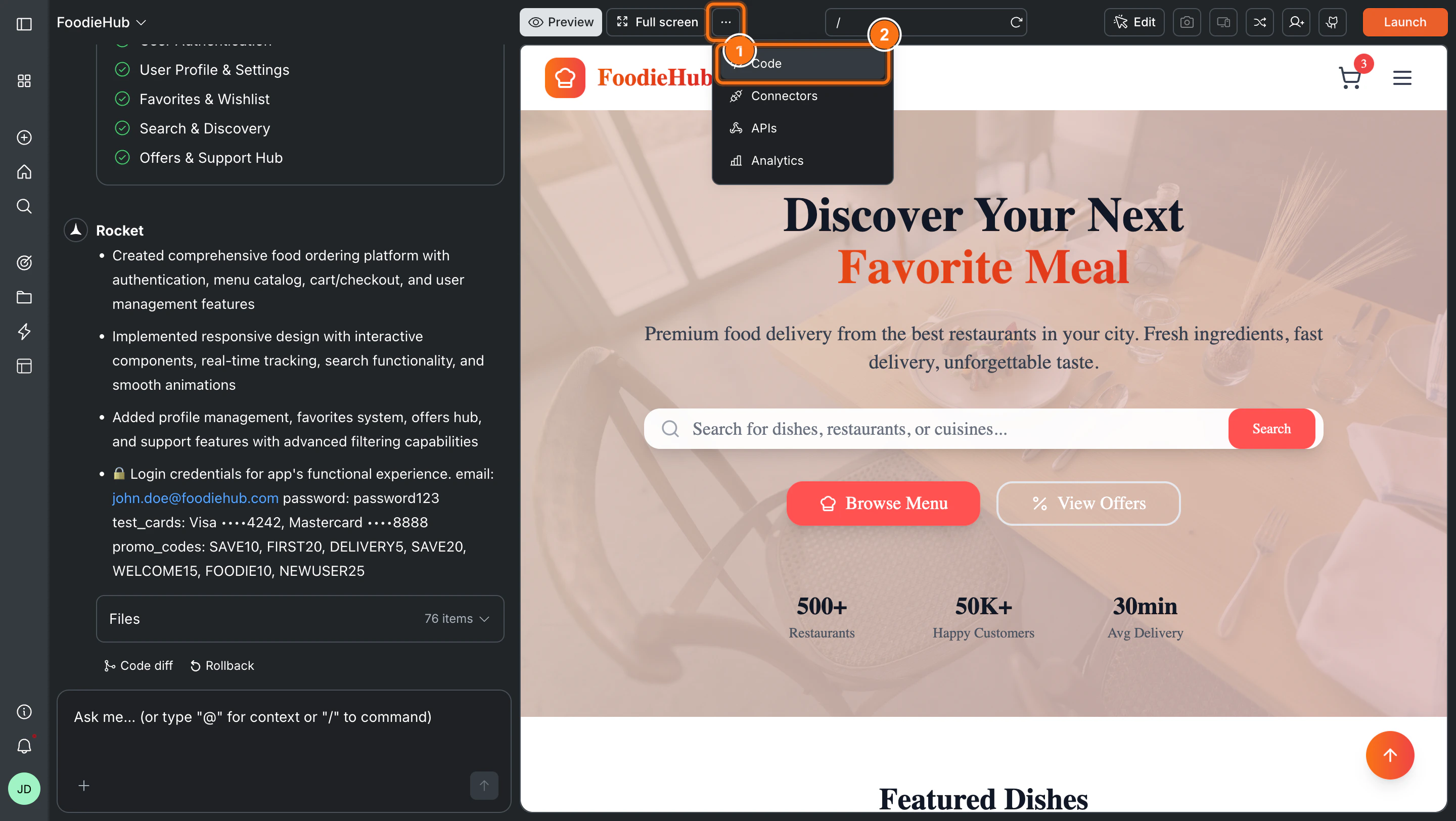
Click the **` Code`** button in the top toolbar - the same bar as **Preview** and **Full screen**. This switches the main panel to code view.
 ### Browse your files
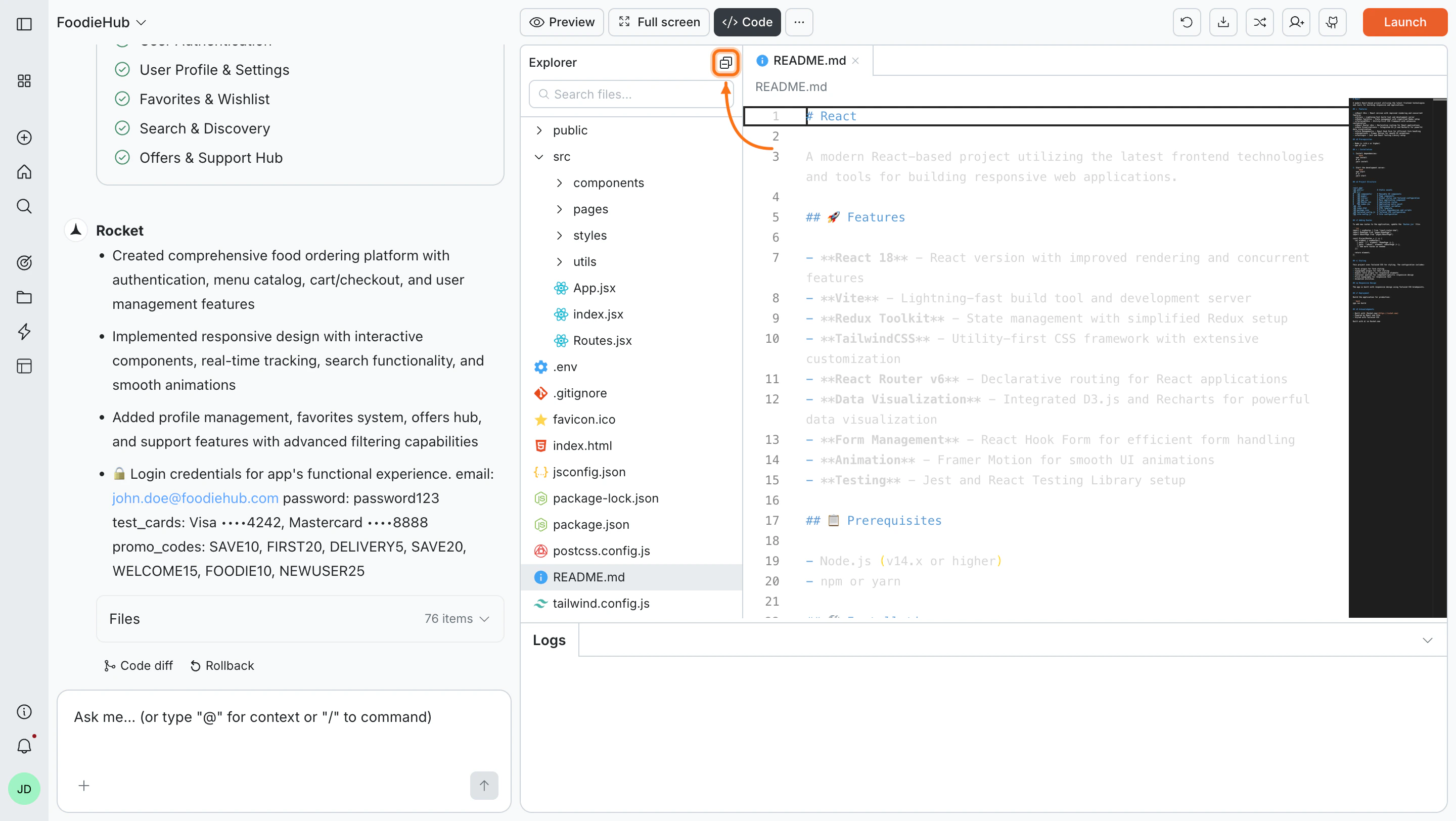
The **Explorer** panel on the left shows your full project file tree. Click any file to open it in the editor.
* Use the **Search files...** bar at the top of the Explorer to find files by name - results filter as you type
* Collapse the Explorer using the **collapse icon** in the top-right corner of the panel
### Browse your files
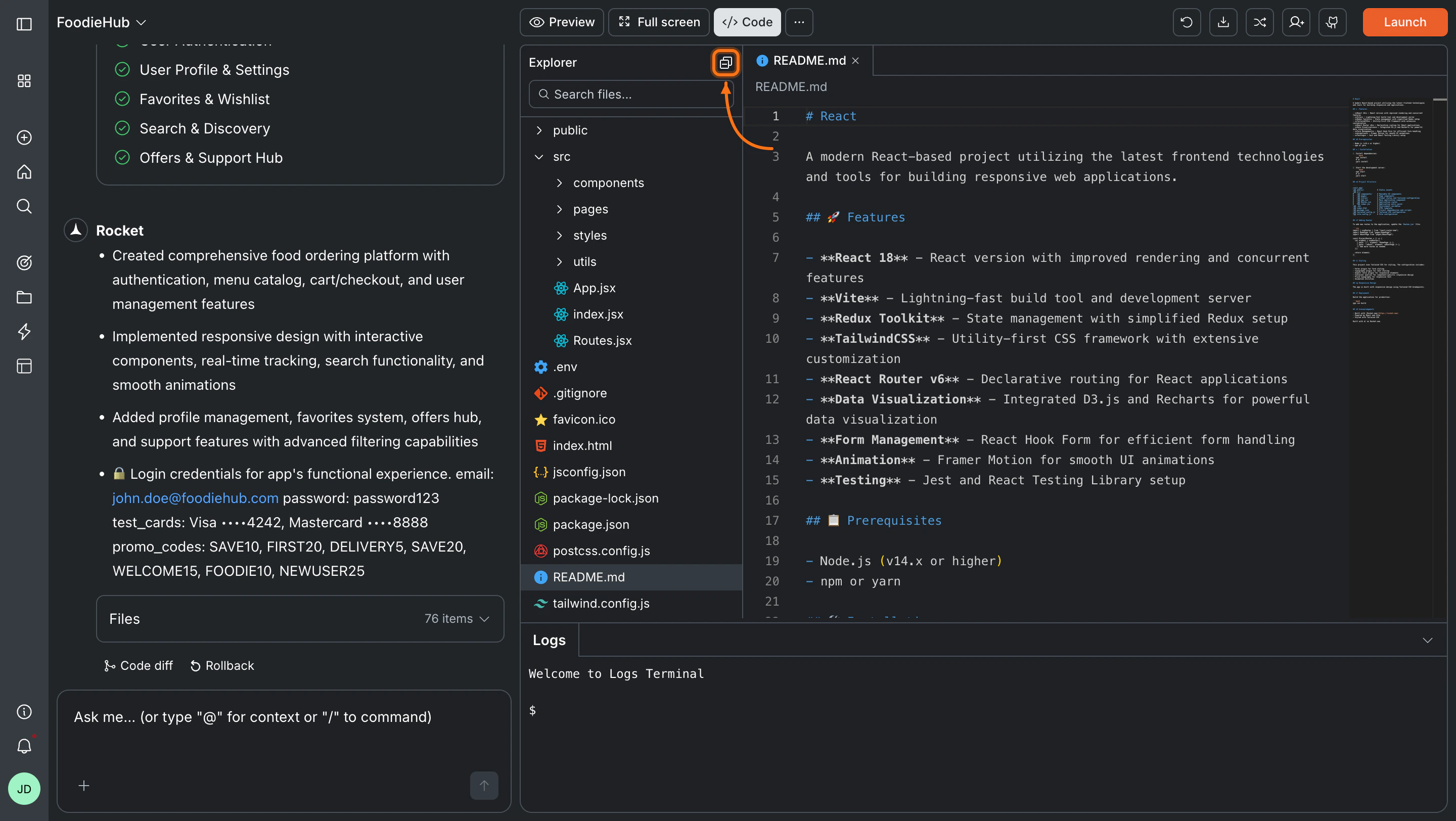
The **Explorer** panel on the left shows your full project file tree. Click any file to open it in the editor.
* Use the **Search files...** bar at the top of the Explorer to find files by name - results filter as you type
* Collapse the Explorer using the **collapse icon** in the top-right corner of the panel
 ### Edit and save a file
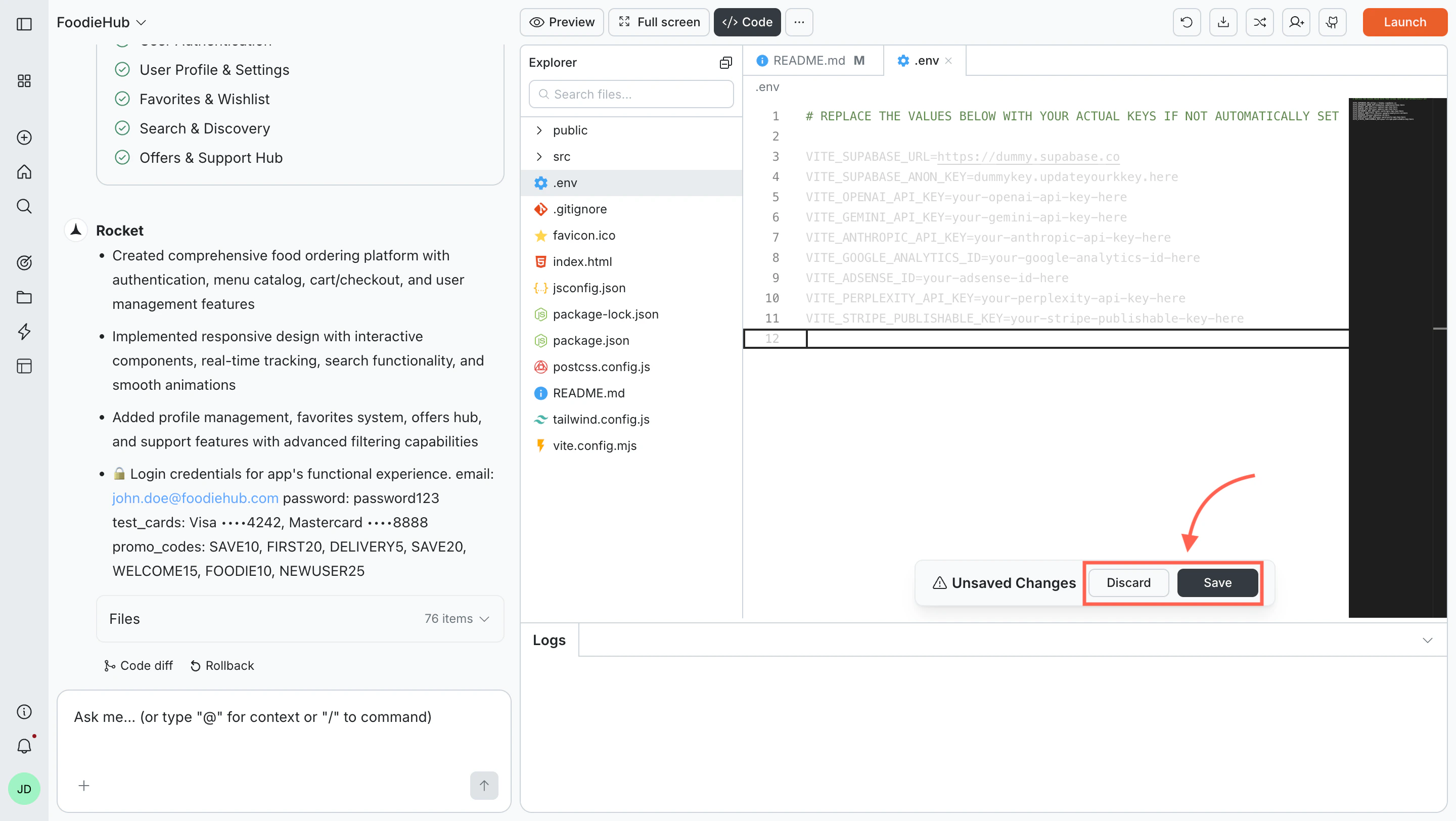
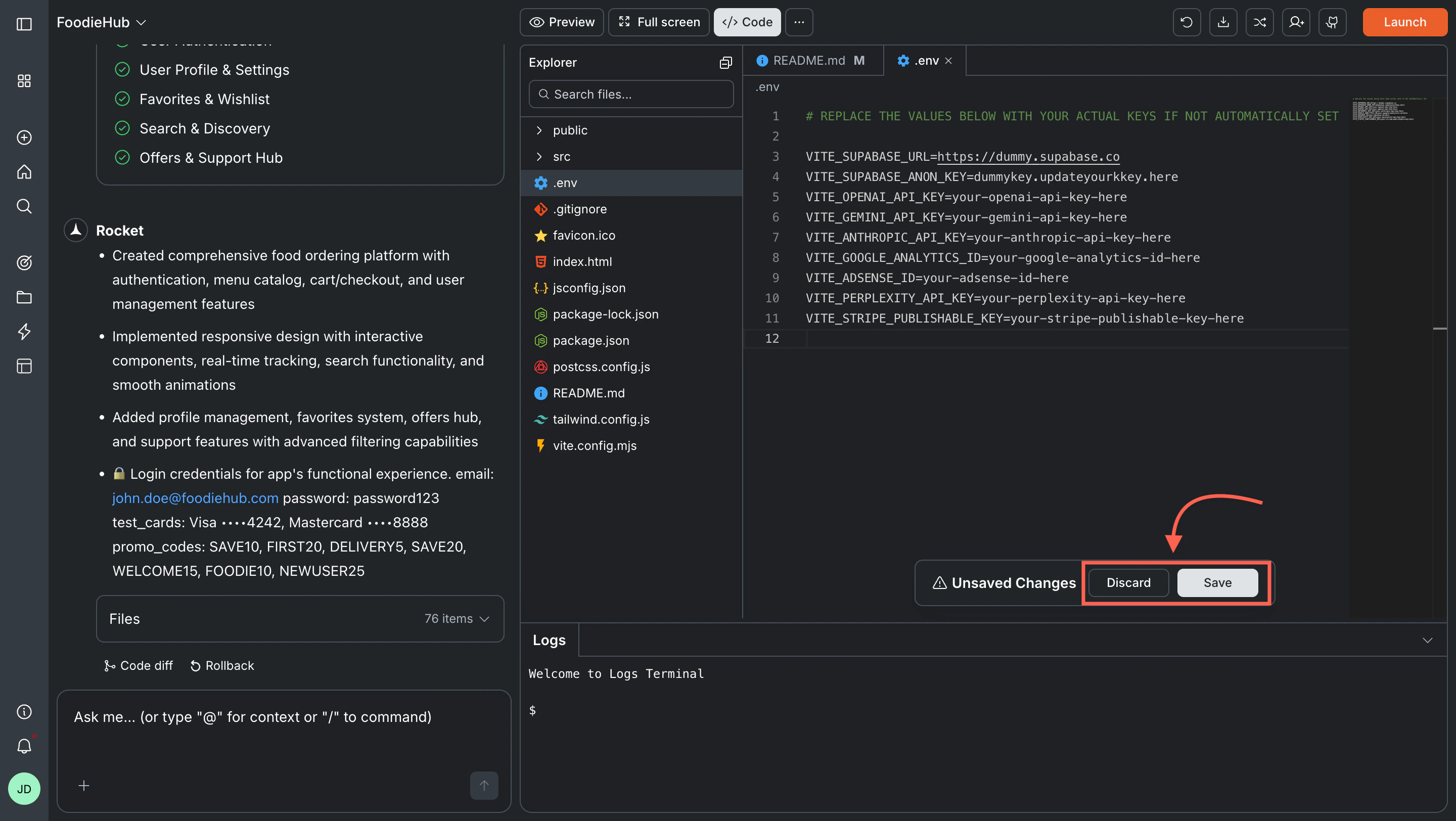
Click a file to open it in the editor. Make your changes, then use the **save bar** at the bottom:
* Click **Save** to apply changes
* Click **Discard** to undo them
### Edit and save a file
Click a file to open it in the editor. Make your changes, then use the **save bar** at the bottom:
* Click **Save** to apply changes
* Click **Discard** to undo them
 Editing configuration files like `tailwind.config.js` or `package.json` can affect how your app compiles or behaves. If something breaks after a config edit, you can [roll back to a previous version](/build/editor/versions).
### Environment variables
Your environment files store sensitive values like API keys:
* **Web apps** use `.env`
* **Mobile apps** use `env.json`
You can edit these files directly in code view. For a full guide on adding and managing variables:
Manage environment variables
### Build logs
The **Logs** panel at the bottom of the screen shows live output as you edit and save. It has a collapse arrow on the right to hide it when you need more editor space. Logs update automatically - no commands needed.
Use the logs to:
* Monitor builds in real time
* Catch and diagnose errors
* Confirm that a save was applied successfully
Editing configuration files like `tailwind.config.js` or `package.json` can affect how your app compiles or behaves. If something breaks after a config edit, you can [roll back to a previous version](/build/editor/versions).
### Environment variables
Your environment files store sensitive values like API keys:
* **Web apps** use `.env`
* **Mobile apps** use `env.json`
You can edit these files directly in code view. For a full guide on adding and managing variables:
Manage environment variables
### Build logs
The **Logs** panel at the bottom of the screen shows live output as you edit and save. It has a collapse arrow on the right to hide it when you need more editor space. Logs update automatically - no commands needed.
Use the logs to:
* Monitor builds in real time
* Catch and diagnose errors
* Confirm that a save was applied successfully

 ### Toolbar actions
The top-right of the code view toolbar has quick actions:
* **Refresh** - Reload the editor and file tree
* **Download** - Export your app as a `.zip` file to open locally (paid plan required)
* **GitHub** - Push your project to a GitHub repository
Set up GitHub and learn about two-way code sync
The mobile app supports browsing files and GitHub integration. Editing files, managing environment variables, viewing build logs, and downloading code are only available on the web browser.
### Toolbar actions
The top-right of the code view toolbar has quick actions:
* **Refresh** - Reload the editor and file tree
* **Download** - Export your app as a `.zip` file to open locally (paid plan required)
* **GitHub** - Push your project to a GitHub repository
Set up GitHub and learn about two-way code sync
The mobile app supports browsing files and GitHub integration. Editing files, managing environment variables, viewing build logs, and downloading code are only available on the web browser.
 ### Browse your files
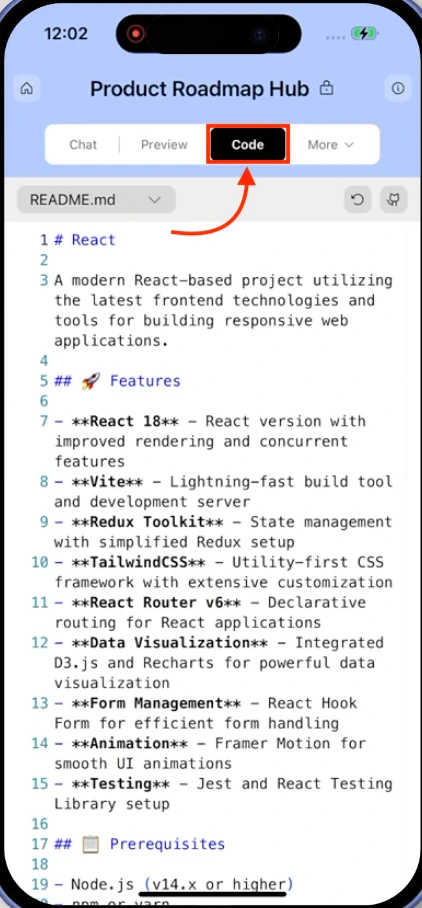
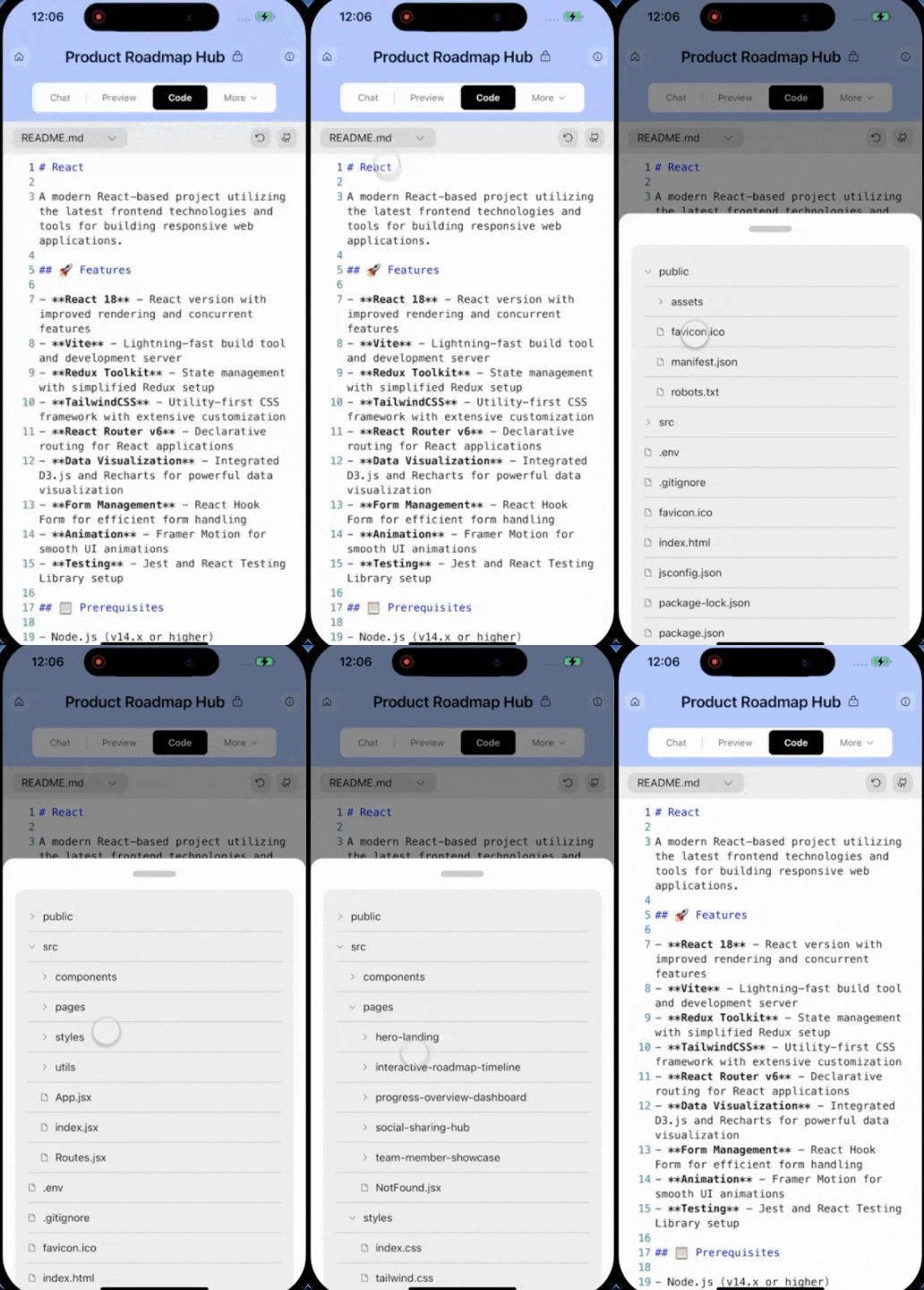
Tap the **current file name** at the top of the screen to open the file picker. Browse all folders and files in your project and tap any file to switch to it.
### Browse your files
Tap the **current file name** at the top of the screen to open the file picker. Browse all folders and files in your project and tap any file to switch to it.
 ### Refresh
Tap the **Refresh** button in the top-right corner to reload the editor and file tree.
### Refresh
Tap the **Refresh** button in the top-right corner to reload the editor and file tree.
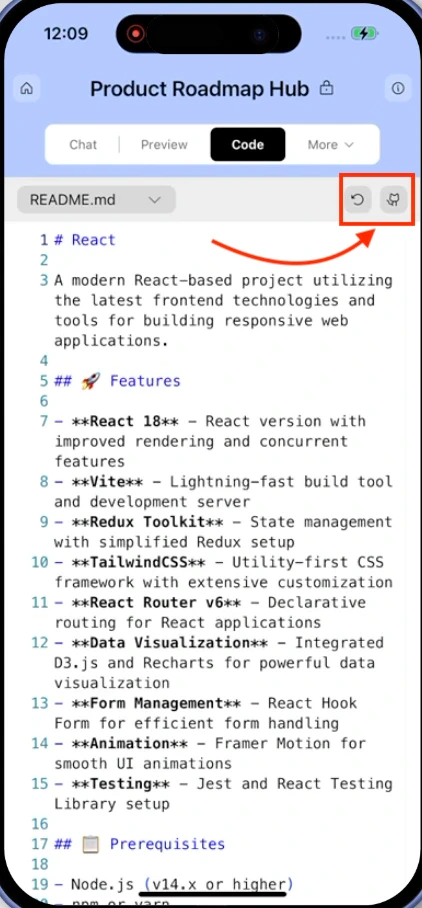 ### Push to GitHub
Tap the **GitHub** button in the top-right toolbar to push your project to a GitHub repository. After the initial push, use **Update** to push new changes.
## What's next?
Use chat to make broader changes across your project.
Store API keys and secrets your app needs at runtime.
Bring in external scripts, embeds, and components.
Import and integrate API endpoints into your app.
### Push to GitHub
Tap the **GitHub** button in the top-right toolbar to push your project to a GitHub repository. After the initial push, use **Update** to push new changes.
## What's next?
Use chat to make broader changes across your project.
Store API keys and secrets your app needs at runtime.
Bring in external scripts, embeds, and components.
Import and integrate API endpoints into your app.