> ## Documentation Index
> Fetch the complete documentation index at: https://docs.rocket.new/llms.txt
> Use this file to discover all available pages before exploring further.
# Use commands
> Execute precise edits with Rocket.new slash and @ commands inside the Build editor.
export const LlmsDirective = () =>
For the complete documentation index, see llms.txt.
For a lightweight markdown version of this page, append .md to the URL.
;
Commands give you precise control over edits without writing long prompts. Type `/` to run screen-aware shortcuts on whatever page is open, or type `@` to lock edits to a specific file, folder, or task. Both run from the chat input and are only available in the web browser editor.
Commands use fewer [credits](/getting-started/credits) than open-ended prompts. Quoting exact text or naming the area you want to change avoids follow-up messages.
## How commands work
| | `/` commands | `@` commands |
| :------------- | :--------------------------------------------------------- | :------------------------------------------------------- |
| What they do | Screen-aware shortcuts that update the page you have open | Scope edits to a specific file, folder, or task |
| How to trigger | Type `/` in chat and browse or filter the popup menu | Type `@` in chat and pick a target from the picker |
| Targeting | Automatically targets the current open screen | Locks scope to your selected file, folder, or task |
| Best for | Layout fixes, content changes, theme updates, integrations | Precise edits to known files, isolated component changes |
After a command runs, you see a short summary and a preview link to review the changes.
## `/` commands
Slash commands automatically target whatever page or screen you have open. You do not need to specify a file.
Navigate to the page or screen you want to change. `/` commands automatically target whatever is currently open.
A popup menu appears with all available commands. Browse the list or start typing to filter.
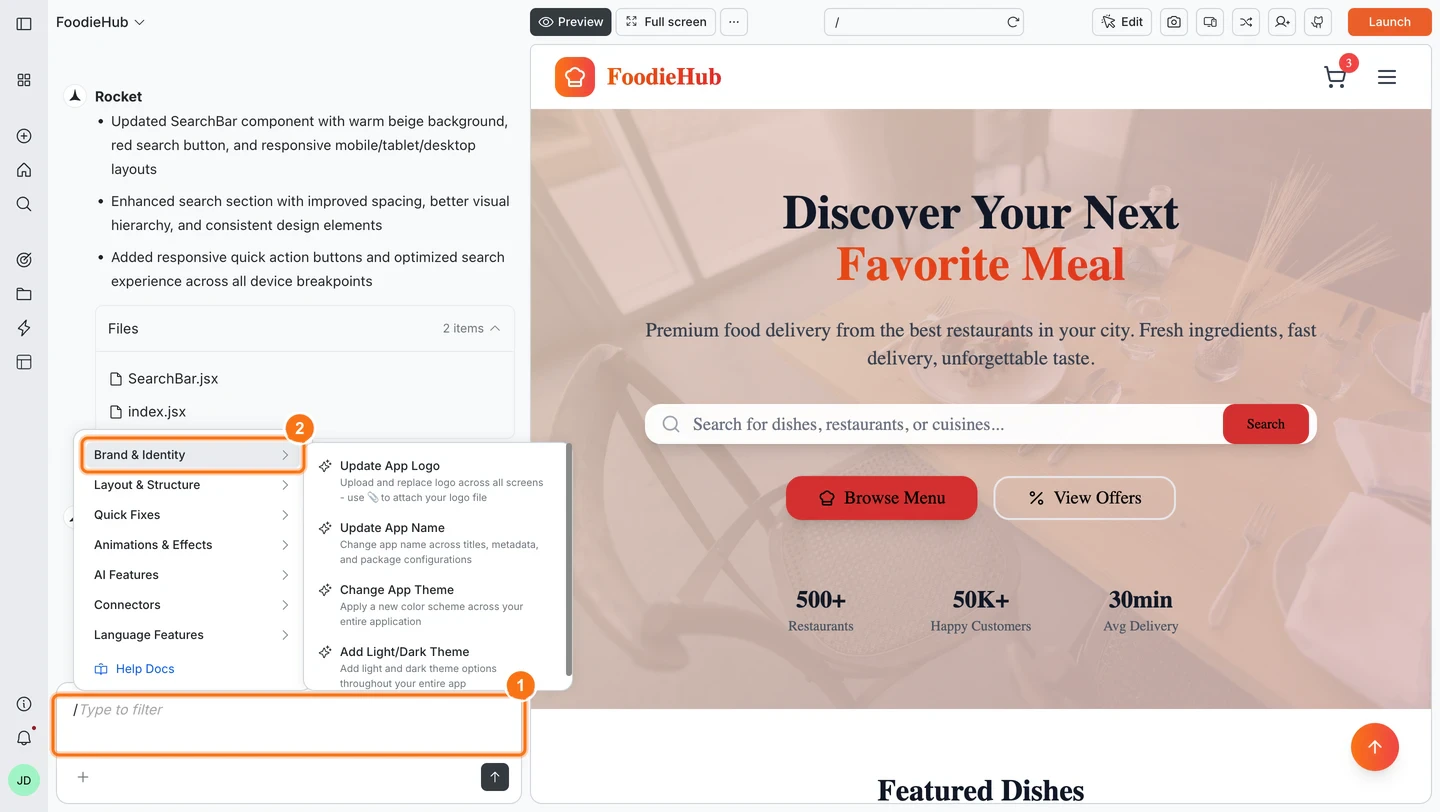
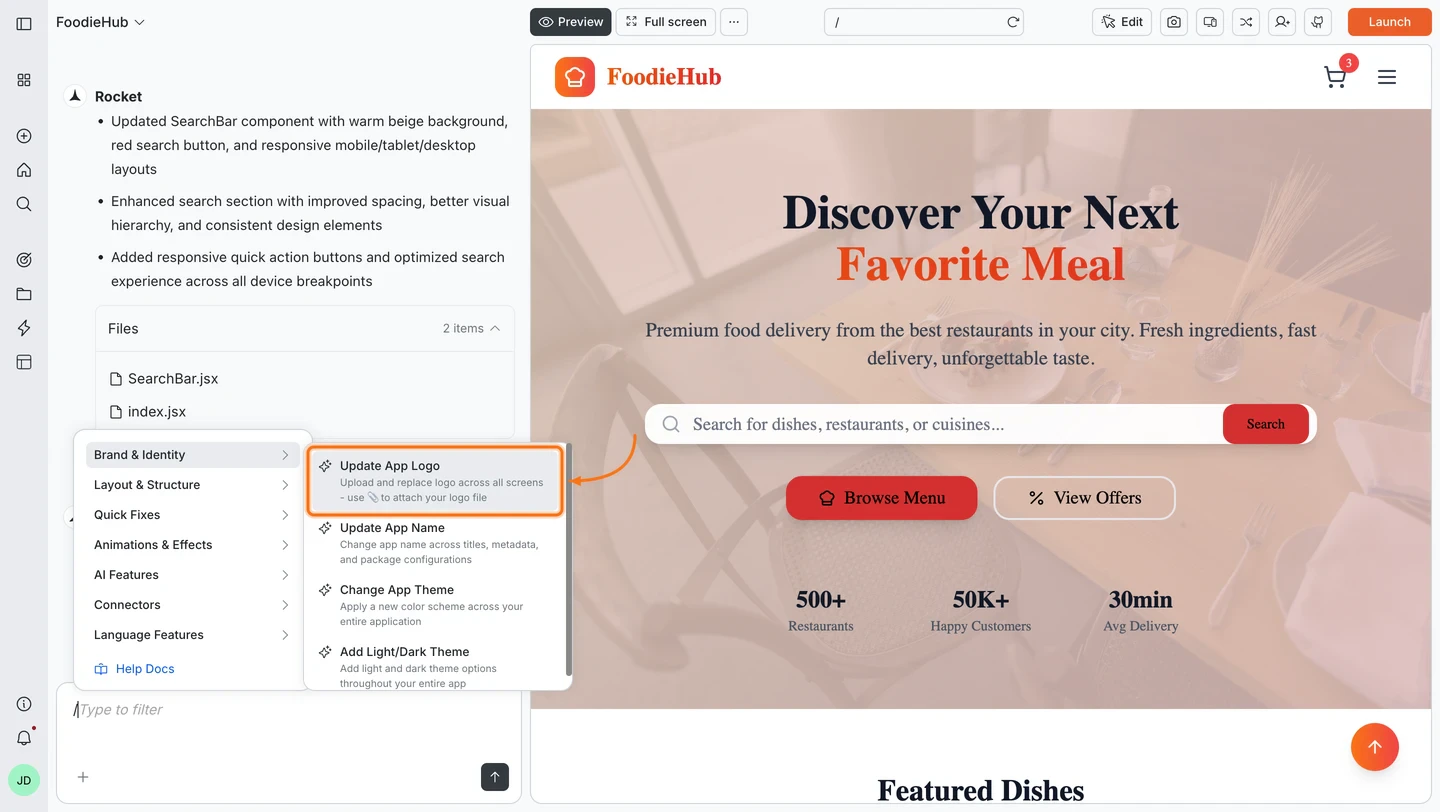
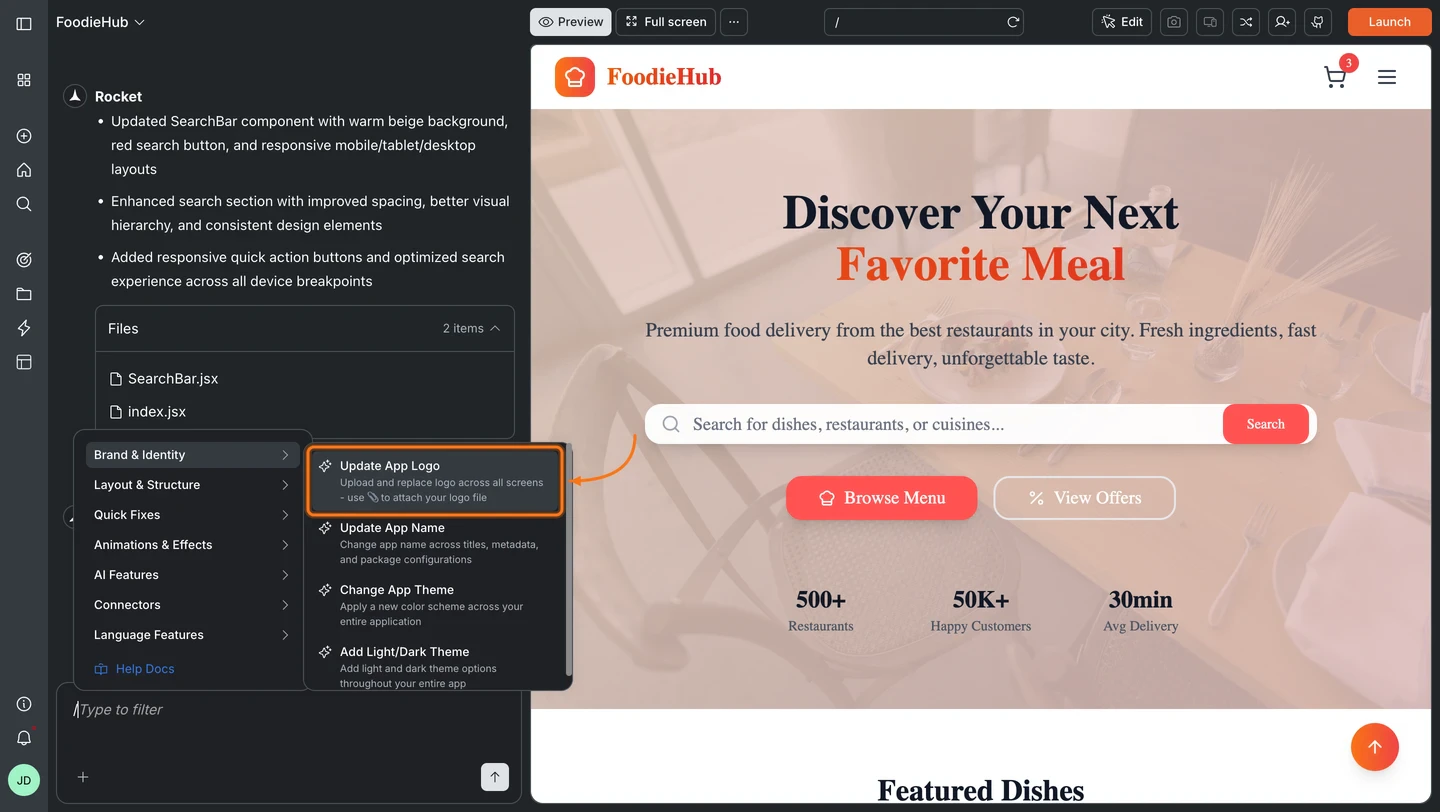
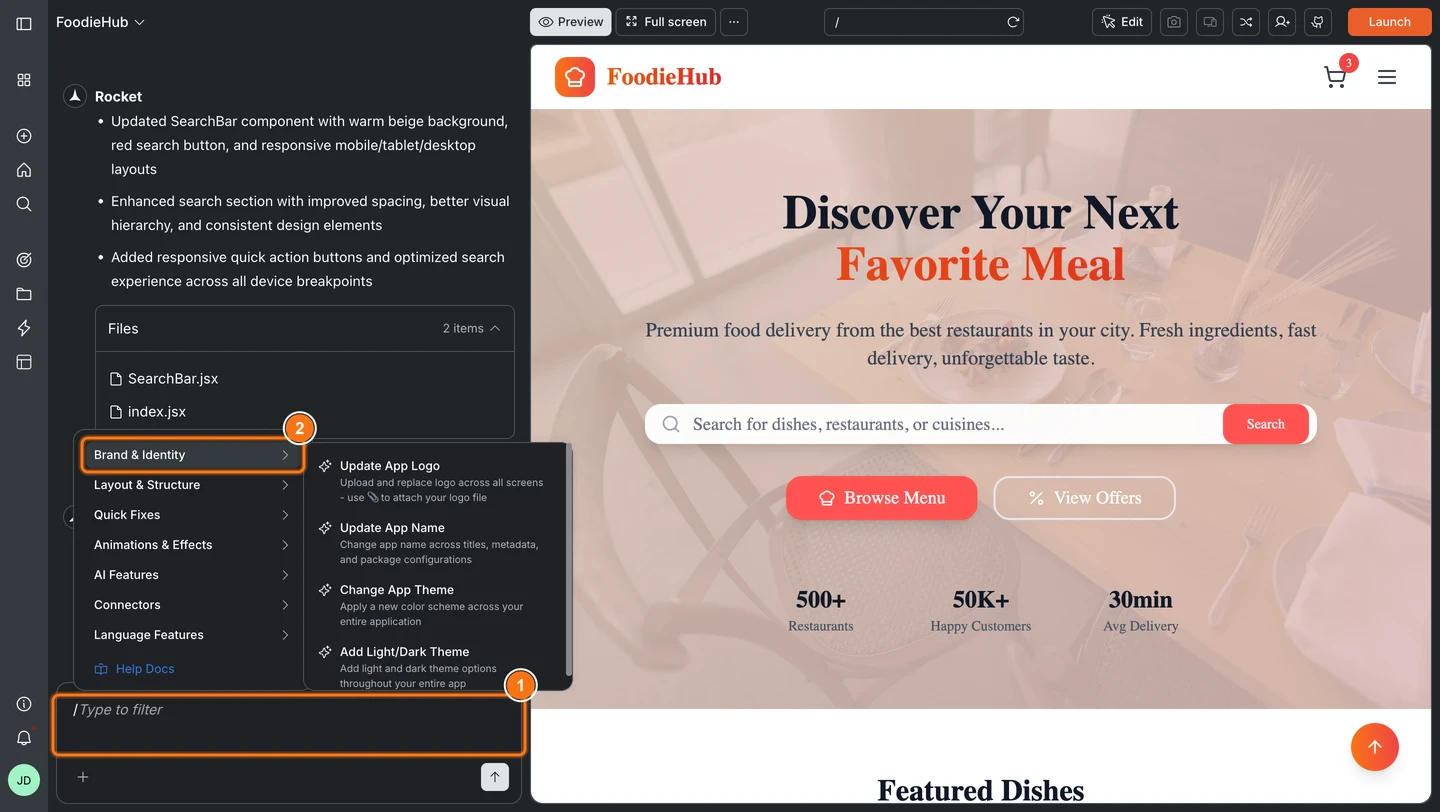 Pick a command from the menu, then write your instruction in natural language. Reference sections, elements, or quote exact text for the most accurate result.
 ### Phrasing patterns
These patterns work well with most `/` commands.
**Replace something:**
* `/Update Content change "Old text" to "New text" in [section name]`
**Insert something new:**
* `/Add Element add [element description] to [area]`
**Fix a specific issue:**
* `/Fix Layout Issues in [area or breakpoint]`
**Examples:**
* `/Update Content change "Get started" to "Launch now" in hero section`
* `/Remove Element testimonial card three in reviews section`
* `/Generate Image replace team photo in About section with a modern workspace photo`
* `/Fix Layout Issues in pricing grid`
### Available `/` commands
Browse the full command catalog below. Commands are organized by platform (Web or Mobile) and category.
**Purpose:**
Replace the app logo across all pages.
**Usage:**
Attach the logo file first, then run the `/Update App Logo` command.
**Examples:**
* `/Update App Logo`
* `/Update App Logo use the logo from the attached file`
Transparent PNGs work well for logos.
**Purpose:**
Change the app name in titles, UI, and metadata.
**Examples:**
* `/Update App Name Nova Suite`
* `/Update App Name Atlas`
For custom text blocks that still show the old name, use `/Update Content`.
**Purpose:**
Apply a new color scheme across your entire web app.
**Examples:**
* `/Change App Theme switch to a light theme with navy primary and soft gray background`
* `/Change App Theme primary color #4F46E5 and accent #F97316`
If colors look off after a big change, follow up with `/Fix Theme Switching`.
**Purpose:**
Add coordinated light and dark theme options to your app.
**Examples:**
* `/Add Light/Dark Theme`
* `/Add Light/Dark Theme with higher contrast dark mode for text and buttons`
Use `/Fix Theme Switching` if toggling between modes does not update all areas.
**Purpose:**
Create custom AI-generated SVG illustrations, hero visuals, section graphics, icons, and diagrams tailored to your app. SVGs are vector-based, so they scale to any size without losing quality.
**Examples:**
* `/Generate SVG Illustration replace the hero image with a custom drawing of a rocket launching from servers`
* `/Generate SVG Illustration add a process flow illustration showing fresh farms to cleaning to factory processing`
* `/Generate SVG Illustration create an animated notification bell icon with a gentle swing animation, duotone style, for the subscribe section`
Describe the style (isometric, geometric, line art, gradient), intended placement (hero, section, icon), and colors for best results.
**Purpose:**
Replace text, placeholders, or branding in the current page.
**Examples:**
* `/Update Content change "Get started" to "Launch now" in hero section`
* `/Update Content change hero title to "Welcome to Rocket" in hero section`
* `/Update Content change all CTA (Call To Action) buttons to "Buy Now" in pricing section`
* `/Update Content change pricing tier names to Starter, Growth, Scale in pricing section`
**Purpose:**
Replace an existing UI element with a different element type on the current page.
**Examples:**
* `/Change Element change hero image to video in hero section`
* `/Change Element change secondary button to a text link in footer`
**Purpose:**
Insert a new UI element into the current page.
**Examples:**
* `/Add Element add testimonial card under "What our customers say" in reviews section`
* `/Add Element add sticky CTA button in header that links to pricing section`
**Purpose:**
Delete UI elements or sections with automatic layout reflow.
**Examples:**
* `/Remove Element hero section`
* `/Remove Element footer`
* `/Remove Element announcement bar`
* `/Remove Element image row under "Features"`
**Purpose:**
Delete an entire screen from your app, including its route and navigation references.
**Examples:**
* `/Remove Screen delete the About page`
* `/Remove Screen remove onboarding screen`
**Purpose:**
Restructure the layout of the current page to a different design pattern.
**Examples:**
* `/Restructure Screen Layout change pricing section to a three column grid`
* `/Restructure Screen Layout turn hero into split layout with text on left and image on right`
**Purpose:**
Automatically fix spacing, alignment, positioning, and responsiveness issues on the current page.
**Examples:**
* `/Fix Layout Issues`
* `/Fix Layout Issues for mobile breakpoints`
* `/Fix Layout Issues in pricing grid`
* `/Fix Layout Issues for tablet and mobile breakpoints`
**Purpose:**
Resolve navigation and routing problems in your web app.
**Examples:**
* `/Fix Navigation Issues in header navigation`
* `/Fix Navigation Issues in sidebar menu for dashboard routes`
* `/Fix Navigation Issues for broken links in the footer`
**Purpose:**
Fix problems when switching between light and dark mode.
**Examples:**
* `/Fix Theme Switching for navbar and footer`
* `/Fix Theme Switching on dashboard pages where text stays dark on dark background`
**Purpose:**
Automatically fetch active errors from the running preview, filter by React hydration mismatch patterns, and apply targeted fixes to each affected file.
**Examples:**
* `/Fix Hydration Errors`
* `/Fix Hydration Errors in the dashboard layout`
* `/Fix Hydration Errors related to date formatting`
Make sure the preview is running so Rocket can read the active error log. Works with Next.js, Remix, and any SSR React setup.
**Purpose:**
Break large files into smaller modules and clean up structure for specified files.
**Examples:**
* `/Organize Code in src/components/dashboard.tsx`
* `/Organize Code for auth related files in src/auth`
**Purpose:**
Add smooth animations between pages across your web app.
**Examples:**
* `/Add Page Transitions slide in from right for all marketing pages`
* `/Add Page Transitions fade between dashboard and settings pages`
**Purpose:**
Create an AI generated image and place it by naming the destination.
**Examples:**
* `/Generate Image add hero banner with soft gradient sky to hero section`
* `/Generate Image replace product visual in hero section with a sleek abstract render`
* `/Generate Image replace image in pricing card A with a minimal 3D icon`
* `/Generate Image replace team photo in About with an abstract 3D shape (include alt: "Our team values")`
Use one clear visual idea per command. Include alt text where it improves accessibility.
**Purpose:**
Get AI recommendations for what to build next based on your current app.
**Examples:**
* `/Suggest What to Build Next based on current dashboard and auth flows`
* `/Suggest What to Build Next to improve onboarding and first session experience`
**Purpose:**
Migrate old AI integrations to a new secure server-side architecture.
**Examples:**
* `/Migrate AI Integration`
* `/Migrate AI Integration update all client-side AI calls to use server-side handlers`
**Purpose:**
Enable phone number login with OTP verification using Supabase Authentication.
**Examples:**
* `/Add Phone Authentication add phone OTP login to the signup screen`
* `/Add Phone Authentication enable phone number sign in alongside email login`
**Purpose:**
Add a complete authentication system with login, signup, profile, and password reset screens.
**Examples:**
* `/Add Supabase Authentication set up login, signup, and forgot password`
* `/Add Supabase Authentication add auth screens to this app`
Make sure your Supabase project is already connected in Rocket before running this command.
**Purpose:**
Add social sign in options using OAuth providers.
**Examples:**
* `/Add Social Authentication with Google and GitHub`
* `/Add Social Authentication add Google sign in button to login page`
**Purpose:**
Automatically diagnose and fix common Supabase authentication problems.
**Examples:**
* `/Fix Supabase Authentication Issues`
* `/Fix Supabase Authentication Issues for users who can sign up but cannot log in`
**Purpose:**
Set up one time checkout payments with Stripe.
**Examples:**
* `/Add Stripe Payments create checkout for Pro subscription on pricing page`
* `/Add Stripe Payments add one time purchase flow for order page`
**Purpose:**
Send automated email messages to users using Resend. Set up notifications for account updates, order confirmations, newsletters, or custom alerts.
**Examples:**
* `/Add Email Alerts send welcome email when user logs in to the system`
* `/Add Email Alerts send order confirmation emails after successful checkout`
**Purpose:**
Send automated WhatsApp messages to users using Twilio. Great for order updates, appointment reminders, and customer notifications.
**Examples:**
* `/Add WhatsApp Messages notify users to update product offers`
* `/Add WhatsApp Messages send appointment reminders from bookings page`
**Purpose:**
Send automated text messages (SMS) to users' phones using Twilio. Perfect for verification codes, order updates, and time-sensitive alerts.
**Examples:**
* `/Add Text Messages (SMS) send order confirmation after checkout`
* `/Add Text Messages (SMS) send OTP codes on signup`
**Purpose:**
Add an AI powered chat assistant to your web app. You can specify any LLM (Gemini, Anthropic, OpenAI, or others).
**Examples:**
* `/Add AI Chatbot add support assistant widget on Help page using Anthropic`
* `/Add AI Chatbot add in app assistant on dashboard`
**Purpose:**
Configure Google Analytics for page tracking, event tracking, and user properties.
**Examples:**
* `/Setup Google Analytics use measurement ID G-XXXXXXX`
* `/Setup Google Analytics track page views and signup button clicks on marketing pages`
**Purpose:**
Place Google Adsense ad units throughout your web app.
**Examples:**
* `/Setup Adsense add banner ad in blog sidebar`
* `/Setup Adsense add responsive ad unit at the end of article pages`
**Purpose:**
Track events, screen views, user identity, and funnels with Mixpanel.
**Examples:**
* `/Add Analytics Tracking identify users on login and track page views and button clicks`
* `/Add Analytics Tracking track checkout funnel from cart to confirmation`
**Purpose:**
Save form submissions or user records directly to Airtable.
**Examples:**
* `/Add User Data to Airtable save contact form submissions to my base in the Leads table`
* `/Add User Data to Airtable save new signups to Airtable Members table`
**Purpose:**
Read design or technical review comments from a Google Doc and apply them to the code.
**Examples:**
* `/Apply Review Feedback apply the design and tech review comments from this document [paste URL]`
**Purpose:**
Turn structured content from a Notion page, Google Doc, or Google Sheet into fully generated app screens.
**Examples:**
* `/Generate Screens from Content generate app screens from the FAQ entries and copy in this page [paste URL]`
**Purpose:**
Read rules from a document and convert them into tested, executable application logic.
**Examples:**
* `/Enforce Business Rules convert the pricing and commission rules in this document into executable logic [paste URL]`
**Purpose:**
Re-read an updated spec and apply the changes to the relevant parts of the app.
**Examples:**
* `/Sync Requirement Changes re-read this page and apply any requirement changes to the codebase [paste URL]`
**Purpose:**
Read a list of user stories and generate corresponding feature code for each.
**Examples:**
* `/Implement User Stories implement the stories listed in this document [paste URL]`
**Purpose:**
Read a PRD or feature spec from Notion, Google Docs, or Linear and generate the full feature with screens and logic.
**Examples:**
* `/Build Feature from Spec build the feature described in this page [paste URL]`
**Purpose:**
Fetch a Linear ticket and generate code scoped strictly to the ticket requirements.
**Examples:**
* `/Implement Ticket implement the requirements in ticket ENG-123`
* `/Implement Ticket [paste ticket URL or ID]`
**Purpose:**
Connect screens to a Strapi or Directus CMS collection with list, detail, and search views.
**Examples:**
* `/Add CMS Content show a paginated blog list and detail page from my articles collection`
* `/Add CMS Content connect the products screen to my Strapi products collection`
**Purpose:**
Drive app content, feature flags, or settings from an external store like Airtable, Strapi, or Directus.
**Examples:**
* `/Add Dynamic Config load feature flags and copy from a remote table at app startup`
* `/Add Dynamic Config drive homepage banner content from an Airtable base`
**Purpose:**
Subscribe users to a mailing list on registration or opt-in using Mailchimp, Brevo, or Mailerlite.
**Examples:**
* `/Add Email Sign-up add an opt-in checkbox on registration and subscribe users to my audience`
* `/Add Email Sign-up add newsletter sign up form in footer`
**Purpose:**
Generate OTP or magic link verification email flow using Brevo or Sendgrid.
**Examples:**
* `/Add Email Verification send a 6-digit OTP on signup`
* `/Add Email Verification use a magic link to verify email`
**Purpose:**
Set up instant emails like welcome messages, OTP codes, alerts, and order confirmations using Brevo or Sendgrid.
**Examples:**
* `/Add Transactional Email Notifications welcome email on signup, OTP verification, order confirmation`
* `/Add Transactional Email Notifications password reset email`
**Purpose:**
Set up marketing emails like newsletters, campaigns, and user engagement emails using Brevo, Mailchimp, or Mailerlite.
**Examples:**
* `/Add Marketing Email Notifications newsletter campaign and promotional email`
* `/Add Marketing Email Notifications product update emails to active users`
**Purpose:**
Embed a Calendly booking widget or let users schedule meetings in app.
**Examples:**
* `/Add Booking & Scheduling embed my booking page inline on the contact page pre-filled with the user's email`
* `/Add Booking & Scheduling add meeting scheduler to the onboarding flow`
**Purpose:**
Embed or trigger a Tally or Typeform form to collect user data.
**Examples:**
* `/Add Form Collection embed my contact form on the homepage as a popup`
* `/Add Form Collection add feedback form after purchase confirmation`
**Purpose:**
Add right to left layout support for languages like Arabic and Hebrew.
**Examples:**
* `/Add RTL Support apply RTL layout for all marketing pages`
* `/Add RTL Support enable RTL for dashboard while keeping admin language in English`
**Purpose:**
Prepare your app for multiple languages and translation.
**Examples:**
* `/Add Multiple Languages add English, Spanish, and French`
* `/Add Multiple Languages set up structure for future translations without changing layout`
**Purpose:**
Analyze codebase and generate SEO report.
**Examples:**
* `/Generate SEO Report`
* `/Generate SEO Report for marketing pages`
**Purpose:**
Implement SEO improvements across the current codebase.
**Examples:**
* `/Improve SEO`
* `/Improve SEO for landing page`
**Purpose:**
Implement GEO (Generative Engine Optimization) and AEO (Answer Engine Optimization) in the current codebase.
**Examples:**
* `/Improve GEO And AEO`
* `/Improve GEO And AEO for blog and docs`
**Purpose:**
Analyze codebase and generate GEO report.
**Examples:**
* `/Generate GEO And AEO Report`
* `/Generate GEO And AEO Report for content pages`
**Purpose:**
Audit codebase for WCAG 2.1 AA compliance and generate accessibility report.
**Examples:**
* `/Generate Accessibility Report`
* `/Generate Accessibility Report for dashboard`
**Purpose:**
Implement WCAG 2.1 AA accessibility fixes in the current codebase.
**Examples:**
* `/Improve Accessibility Audit`
* `/Improve Accessibility Audit for forms and navigation`
**Purpose:**
Implement privacy compliance infrastructure in the current codebase.
**Examples:**
* `/Implement Privacy Compliance`
* `/Implement Privacy Compliance for user data and cookies`
**Purpose:**
Analyze codebase and generate a privacy compliance report.
**Examples:**
* `/Generate Privacy Report`
* `/Generate Privacy Report for data handling`
**Purpose:**
Replace the app logo across all mobile screens.
**Usage:**
Attach the logo file first, then run the `/Update App Logo` command.
**Examples:**
* `/Update App Logo`
* `/Update App Logo use the logo from the attached file`
**Purpose:**
Change the app name in titles, UI, and package metadata.
**Examples:**
* `/Update App Name Nova Suite`
* `/Update App Name Atlas`
**Purpose:**
Apply a new color scheme across your mobile app.
**Examples:**
* `/Change App Theme switch to a dark theme with teal accents`
* `/Change App Theme primary color #0F766E and accent #F97316`
**Purpose:**
Add light and dark theme options throughout your mobile app.
**Examples:**
* `/Add Light/Dark Theme`
* `/Add Light/Dark Theme with high contrast dark mode for text and icons`
**Purpose:**
Replace text, placeholders, or branding in the current mobile screen.
**Examples:**
* `/Update Content change "Continue" to "Next" on onboarding screen`
* `/Update Content change CTA button text to "Start free trial" on home screen`
* `/Update Content change plan names to Starter, Growth, Scale on pricing screen`
**Purpose:**
Replace an existing UI element with a different element type in the current screen.
**Examples:**
* `/Change Element change text field to dropdown in filters section on home screen`
* `/Change Element change icon button to text button in header`
**Purpose:**
Insert a new UI element into the current mobile screen.
**Examples:**
* `/Add Element add floating action button on chat screen`
* `/Add Element add banner card above list on home screen`
**Purpose:**
Delete UI elements or sections with automatic layout reflow.
**Examples:**
* `/Remove Element hero section on onboarding screen`
* `/Remove Element image carousel under "Featured" on home screen`
**Purpose:**
Delete an entire screen from your mobile app, including its route and navigation references.
**Examples:**
* `/Remove Screen delete the Settings page`
* `/Remove Screen remove profile screen`
**Purpose:**
Restructure the layout of the current screen to a different pattern.
**Examples:**
* `/Restructure Screen Layout change settings screen to grouped list layout`
* `/Restructure Screen Layout arrange product cards in two column grid`
**Purpose:**
Automatically fix spacing, alignment, and layout issues in the current screen.
**Examples:**
* `/Fix Layout Issues on onboarding screen`
* `/Fix Layout Issues in bottom navigation bar`
* `/Fix Layout Issues for small devices`
**Purpose:**
Resolve navigation and routing problems in your mobile app.
**Examples:**
* `/Fix Navigation Issues in bottom tab bar`
* `/Fix Navigation Issues between profile and settings screens`
**Purpose:**
Resolve overflow and scrolling problems such as content being cut off or double scroll.
**Examples:**
* `/Fix Overflow and Scrolling Issue on transactions list screen`
* `/Fix Overflow and Scrolling Issue for small height devices`
**Purpose:**
Fix issues when switching between light and dark mode on mobile.
**Examples:**
* `/Fix Theme Switching on settings screen`
* `/Fix Theme Switching for status bar and navigation bar colors`
**Purpose:**
Improve touch targets and mobile interaction patterns on the current screen.
**Examples:**
* `/Fix Touch Interactions on product cards in home screen`
* `/Fix Touch Interactions for primary CTA button in checkout`
**Purpose:**
Split large mobile files into smaller modules and tidy structure.
**Examples:**
* `/Organize Code in lib/screens/home.dart`
* `/Organize Code for shared widgets in lib/components`
**Purpose:**
Add animations and visual effects to UI elements in the current mobile screen.
**Examples:**
* `/Add Animations & Effects add bounce effect on add to cart button when tapped`
* `/Add Animations & Effects add shimmer loading state for list items`
**Purpose:**
Add smooth transitions between mobile screens across your app.
**Examples:**
* `/Add Screen Transitions push from right when opening details screen`
* `/Add Screen Transitions fade between login and home screens`
**Purpose:**
Create an AI generated image and place it in a named area of the current screen.
**Examples:**
* `/Generate Image replace illustration on onboarding screen with a friendly welcome graphic`
* `/Generate Image add product preview image to top of details screen`
**Purpose:**
Get AI suggestions for the next features or screens to add to your app.
**Examples:**
* `/Suggest What to Build Next for this ecommerce app based on home and cart screens`
* `/Suggest What to Build Next to improve retention after onboarding`
**Purpose:**
Migrate old AI integrations to a new secure server-side architecture.
**Examples:**
* `/Migrate AI Integration`
* `/Migrate AI Integration update all client-side AI calls to use server-side handlers`
**Purpose:**
Enable phone number login with OTP verification using Supabase Authentication.
**Examples:**
* `/Add Phone Authentication add phone OTP login to the signup screen`
* `/Add Phone Authentication enable phone number sign in alongside email login`
**Purpose:**
Add a complete Supabase powered auth flow to your mobile app.
**Examples:**
* `/Add Supabase Authentication create login, signup, and forgot password screens`
* `/Add Supabase Authentication add auth screens and wire them to existing home screen`
**Purpose:**
Add social sign in options like Google or Apple to your auth flow.
**Examples:**
* `/Add Social Authentication with Google and Apple`
* `/Add Social Authentication add Google sign in button to login screen`
**Purpose:**
Diagnose and fix common Supabase auth issues in your mobile app.
**Examples:**
* `/Fix Supabase Authentication Issues`
* `/Fix Supabase Authentication Issues where users stay logged out after signup`
**Purpose:**
Set up Stripe powered one time checkout flows in your mobile app.
**Examples:**
* `/Add Stripe Payments create checkout for Pro subscription on pricing screen`
* `/Add Stripe Payments add one time purchase flow on order screen`
**Purpose:**
Send automated email messages triggered by your mobile app flows.
**Examples:**
* `/Add Email Alerts send welcome email when user logs in`
* `/Add Email Alerts send order confirmation emails after checkout`
**Purpose:**
Send automated WhatsApp messages using Twilio triggered by in app events.
**Examples:**
* `/Add WhatsApp Messages send order status updates after purchase`
* `/Add WhatsApp Messages send appointment reminders from bookings screen`
**Purpose:**
Send automated SMS messages for verification codes and time sensitive alerts.
**Examples:**
* `/Add Text Messages (SMS) send OTP codes on signup`
* `/Add Text Messages (SMS) send order confirmation after checkout`
**Purpose:**
Add an AI powered chat assistant to your mobile app. You can specify any LLM (Gemini, Anthropic, OpenAI, or others).
**Examples:**
* `/Add AI Chatbot add support assistant on Help screen using Anthropic`
* `/Add AI Chatbot add in app assistant on home screen`
**Purpose:**
Add right to left layout support for mobile screens.
**Examples:**
* `/Add RTL Support apply RTL layout for all main screens`
* `/Add RTL Support enable RTL when app language is Arabic or Hebrew`
**Purpose:**
Prepare your mobile app for multiple languages and translations.
**Examples:**
* `/Add Multiple Languages add English, Spanish, and French`
* `/Add Multiple Languages set up language switching in settings screen`
## `@` commands
Use `@` commands to scope edits to a specific file, folder, or task. This is useful when you know exactly which part of the codebase you want to change.
Start your message with `@`, or insert it anywhere in your sentence. The picker opens in chat with **Files & Folders** and **Tasks** options.
### Phrasing patterns
These patterns work well with most `/` commands.
**Replace something:**
* `/Update Content change "Old text" to "New text" in [section name]`
**Insert something new:**
* `/Add Element add [element description] to [area]`
**Fix a specific issue:**
* `/Fix Layout Issues in [area or breakpoint]`
**Examples:**
* `/Update Content change "Get started" to "Launch now" in hero section`
* `/Remove Element testimonial card three in reviews section`
* `/Generate Image replace team photo in About section with a modern workspace photo`
* `/Fix Layout Issues in pricing grid`
### Available `/` commands
Browse the full command catalog below. Commands are organized by platform (Web or Mobile) and category.
**Purpose:**
Replace the app logo across all pages.
**Usage:**
Attach the logo file first, then run the `/Update App Logo` command.
**Examples:**
* `/Update App Logo`
* `/Update App Logo use the logo from the attached file`
Transparent PNGs work well for logos.
**Purpose:**
Change the app name in titles, UI, and metadata.
**Examples:**
* `/Update App Name Nova Suite`
* `/Update App Name Atlas`
For custom text blocks that still show the old name, use `/Update Content`.
**Purpose:**
Apply a new color scheme across your entire web app.
**Examples:**
* `/Change App Theme switch to a light theme with navy primary and soft gray background`
* `/Change App Theme primary color #4F46E5 and accent #F97316`
If colors look off after a big change, follow up with `/Fix Theme Switching`.
**Purpose:**
Add coordinated light and dark theme options to your app.
**Examples:**
* `/Add Light/Dark Theme`
* `/Add Light/Dark Theme with higher contrast dark mode for text and buttons`
Use `/Fix Theme Switching` if toggling between modes does not update all areas.
**Purpose:**
Create custom AI-generated SVG illustrations, hero visuals, section graphics, icons, and diagrams tailored to your app. SVGs are vector-based, so they scale to any size without losing quality.
**Examples:**
* `/Generate SVG Illustration replace the hero image with a custom drawing of a rocket launching from servers`
* `/Generate SVG Illustration add a process flow illustration showing fresh farms to cleaning to factory processing`
* `/Generate SVG Illustration create an animated notification bell icon with a gentle swing animation, duotone style, for the subscribe section`
Describe the style (isometric, geometric, line art, gradient), intended placement (hero, section, icon), and colors for best results.
**Purpose:**
Replace text, placeholders, or branding in the current page.
**Examples:**
* `/Update Content change "Get started" to "Launch now" in hero section`
* `/Update Content change hero title to "Welcome to Rocket" in hero section`
* `/Update Content change all CTA (Call To Action) buttons to "Buy Now" in pricing section`
* `/Update Content change pricing tier names to Starter, Growth, Scale in pricing section`
**Purpose:**
Replace an existing UI element with a different element type on the current page.
**Examples:**
* `/Change Element change hero image to video in hero section`
* `/Change Element change secondary button to a text link in footer`
**Purpose:**
Insert a new UI element into the current page.
**Examples:**
* `/Add Element add testimonial card under "What our customers say" in reviews section`
* `/Add Element add sticky CTA button in header that links to pricing section`
**Purpose:**
Delete UI elements or sections with automatic layout reflow.
**Examples:**
* `/Remove Element hero section`
* `/Remove Element footer`
* `/Remove Element announcement bar`
* `/Remove Element image row under "Features"`
**Purpose:**
Delete an entire screen from your app, including its route and navigation references.
**Examples:**
* `/Remove Screen delete the About page`
* `/Remove Screen remove onboarding screen`
**Purpose:**
Restructure the layout of the current page to a different design pattern.
**Examples:**
* `/Restructure Screen Layout change pricing section to a three column grid`
* `/Restructure Screen Layout turn hero into split layout with text on left and image on right`
**Purpose:**
Automatically fix spacing, alignment, positioning, and responsiveness issues on the current page.
**Examples:**
* `/Fix Layout Issues`
* `/Fix Layout Issues for mobile breakpoints`
* `/Fix Layout Issues in pricing grid`
* `/Fix Layout Issues for tablet and mobile breakpoints`
**Purpose:**
Resolve navigation and routing problems in your web app.
**Examples:**
* `/Fix Navigation Issues in header navigation`
* `/Fix Navigation Issues in sidebar menu for dashboard routes`
* `/Fix Navigation Issues for broken links in the footer`
**Purpose:**
Fix problems when switching between light and dark mode.
**Examples:**
* `/Fix Theme Switching for navbar and footer`
* `/Fix Theme Switching on dashboard pages where text stays dark on dark background`
**Purpose:**
Automatically fetch active errors from the running preview, filter by React hydration mismatch patterns, and apply targeted fixes to each affected file.
**Examples:**
* `/Fix Hydration Errors`
* `/Fix Hydration Errors in the dashboard layout`
* `/Fix Hydration Errors related to date formatting`
Make sure the preview is running so Rocket can read the active error log. Works with Next.js, Remix, and any SSR React setup.
**Purpose:**
Break large files into smaller modules and clean up structure for specified files.
**Examples:**
* `/Organize Code in src/components/dashboard.tsx`
* `/Organize Code for auth related files in src/auth`
**Purpose:**
Add smooth animations between pages across your web app.
**Examples:**
* `/Add Page Transitions slide in from right for all marketing pages`
* `/Add Page Transitions fade between dashboard and settings pages`
**Purpose:**
Create an AI generated image and place it by naming the destination.
**Examples:**
* `/Generate Image add hero banner with soft gradient sky to hero section`
* `/Generate Image replace product visual in hero section with a sleek abstract render`
* `/Generate Image replace image in pricing card A with a minimal 3D icon`
* `/Generate Image replace team photo in About with an abstract 3D shape (include alt: "Our team values")`
Use one clear visual idea per command. Include alt text where it improves accessibility.
**Purpose:**
Get AI recommendations for what to build next based on your current app.
**Examples:**
* `/Suggest What to Build Next based on current dashboard and auth flows`
* `/Suggest What to Build Next to improve onboarding and first session experience`
**Purpose:**
Migrate old AI integrations to a new secure server-side architecture.
**Examples:**
* `/Migrate AI Integration`
* `/Migrate AI Integration update all client-side AI calls to use server-side handlers`
**Purpose:**
Enable phone number login with OTP verification using Supabase Authentication.
**Examples:**
* `/Add Phone Authentication add phone OTP login to the signup screen`
* `/Add Phone Authentication enable phone number sign in alongside email login`
**Purpose:**
Add a complete authentication system with login, signup, profile, and password reset screens.
**Examples:**
* `/Add Supabase Authentication set up login, signup, and forgot password`
* `/Add Supabase Authentication add auth screens to this app`
Make sure your Supabase project is already connected in Rocket before running this command.
**Purpose:**
Add social sign in options using OAuth providers.
**Examples:**
* `/Add Social Authentication with Google and GitHub`
* `/Add Social Authentication add Google sign in button to login page`
**Purpose:**
Automatically diagnose and fix common Supabase authentication problems.
**Examples:**
* `/Fix Supabase Authentication Issues`
* `/Fix Supabase Authentication Issues for users who can sign up but cannot log in`
**Purpose:**
Set up one time checkout payments with Stripe.
**Examples:**
* `/Add Stripe Payments create checkout for Pro subscription on pricing page`
* `/Add Stripe Payments add one time purchase flow for order page`
**Purpose:**
Send automated email messages to users using Resend. Set up notifications for account updates, order confirmations, newsletters, or custom alerts.
**Examples:**
* `/Add Email Alerts send welcome email when user logs in to the system`
* `/Add Email Alerts send order confirmation emails after successful checkout`
**Purpose:**
Send automated WhatsApp messages to users using Twilio. Great for order updates, appointment reminders, and customer notifications.
**Examples:**
* `/Add WhatsApp Messages notify users to update product offers`
* `/Add WhatsApp Messages send appointment reminders from bookings page`
**Purpose:**
Send automated text messages (SMS) to users' phones using Twilio. Perfect for verification codes, order updates, and time-sensitive alerts.
**Examples:**
* `/Add Text Messages (SMS) send order confirmation after checkout`
* `/Add Text Messages (SMS) send OTP codes on signup`
**Purpose:**
Add an AI powered chat assistant to your web app. You can specify any LLM (Gemini, Anthropic, OpenAI, or others).
**Examples:**
* `/Add AI Chatbot add support assistant widget on Help page using Anthropic`
* `/Add AI Chatbot add in app assistant on dashboard`
**Purpose:**
Configure Google Analytics for page tracking, event tracking, and user properties.
**Examples:**
* `/Setup Google Analytics use measurement ID G-XXXXXXX`
* `/Setup Google Analytics track page views and signup button clicks on marketing pages`
**Purpose:**
Place Google Adsense ad units throughout your web app.
**Examples:**
* `/Setup Adsense add banner ad in blog sidebar`
* `/Setup Adsense add responsive ad unit at the end of article pages`
**Purpose:**
Track events, screen views, user identity, and funnels with Mixpanel.
**Examples:**
* `/Add Analytics Tracking identify users on login and track page views and button clicks`
* `/Add Analytics Tracking track checkout funnel from cart to confirmation`
**Purpose:**
Save form submissions or user records directly to Airtable.
**Examples:**
* `/Add User Data to Airtable save contact form submissions to my base in the Leads table`
* `/Add User Data to Airtable save new signups to Airtable Members table`
**Purpose:**
Read design or technical review comments from a Google Doc and apply them to the code.
**Examples:**
* `/Apply Review Feedback apply the design and tech review comments from this document [paste URL]`
**Purpose:**
Turn structured content from a Notion page, Google Doc, or Google Sheet into fully generated app screens.
**Examples:**
* `/Generate Screens from Content generate app screens from the FAQ entries and copy in this page [paste URL]`
**Purpose:**
Read rules from a document and convert them into tested, executable application logic.
**Examples:**
* `/Enforce Business Rules convert the pricing and commission rules in this document into executable logic [paste URL]`
**Purpose:**
Re-read an updated spec and apply the changes to the relevant parts of the app.
**Examples:**
* `/Sync Requirement Changes re-read this page and apply any requirement changes to the codebase [paste URL]`
**Purpose:**
Read a list of user stories and generate corresponding feature code for each.
**Examples:**
* `/Implement User Stories implement the stories listed in this document [paste URL]`
**Purpose:**
Read a PRD or feature spec from Notion, Google Docs, or Linear and generate the full feature with screens and logic.
**Examples:**
* `/Build Feature from Spec build the feature described in this page [paste URL]`
**Purpose:**
Fetch a Linear ticket and generate code scoped strictly to the ticket requirements.
**Examples:**
* `/Implement Ticket implement the requirements in ticket ENG-123`
* `/Implement Ticket [paste ticket URL or ID]`
**Purpose:**
Connect screens to a Strapi or Directus CMS collection with list, detail, and search views.
**Examples:**
* `/Add CMS Content show a paginated blog list and detail page from my articles collection`
* `/Add CMS Content connect the products screen to my Strapi products collection`
**Purpose:**
Drive app content, feature flags, or settings from an external store like Airtable, Strapi, or Directus.
**Examples:**
* `/Add Dynamic Config load feature flags and copy from a remote table at app startup`
* `/Add Dynamic Config drive homepage banner content from an Airtable base`
**Purpose:**
Subscribe users to a mailing list on registration or opt-in using Mailchimp, Brevo, or Mailerlite.
**Examples:**
* `/Add Email Sign-up add an opt-in checkbox on registration and subscribe users to my audience`
* `/Add Email Sign-up add newsletter sign up form in footer`
**Purpose:**
Generate OTP or magic link verification email flow using Brevo or Sendgrid.
**Examples:**
* `/Add Email Verification send a 6-digit OTP on signup`
* `/Add Email Verification use a magic link to verify email`
**Purpose:**
Set up instant emails like welcome messages, OTP codes, alerts, and order confirmations using Brevo or Sendgrid.
**Examples:**
* `/Add Transactional Email Notifications welcome email on signup, OTP verification, order confirmation`
* `/Add Transactional Email Notifications password reset email`
**Purpose:**
Set up marketing emails like newsletters, campaigns, and user engagement emails using Brevo, Mailchimp, or Mailerlite.
**Examples:**
* `/Add Marketing Email Notifications newsletter campaign and promotional email`
* `/Add Marketing Email Notifications product update emails to active users`
**Purpose:**
Embed a Calendly booking widget or let users schedule meetings in app.
**Examples:**
* `/Add Booking & Scheduling embed my booking page inline on the contact page pre-filled with the user's email`
* `/Add Booking & Scheduling add meeting scheduler to the onboarding flow`
**Purpose:**
Embed or trigger a Tally or Typeform form to collect user data.
**Examples:**
* `/Add Form Collection embed my contact form on the homepage as a popup`
* `/Add Form Collection add feedback form after purchase confirmation`
**Purpose:**
Add right to left layout support for languages like Arabic and Hebrew.
**Examples:**
* `/Add RTL Support apply RTL layout for all marketing pages`
* `/Add RTL Support enable RTL for dashboard while keeping admin language in English`
**Purpose:**
Prepare your app for multiple languages and translation.
**Examples:**
* `/Add Multiple Languages add English, Spanish, and French`
* `/Add Multiple Languages set up structure for future translations without changing layout`
**Purpose:**
Analyze codebase and generate SEO report.
**Examples:**
* `/Generate SEO Report`
* `/Generate SEO Report for marketing pages`
**Purpose:**
Implement SEO improvements across the current codebase.
**Examples:**
* `/Improve SEO`
* `/Improve SEO for landing page`
**Purpose:**
Implement GEO (Generative Engine Optimization) and AEO (Answer Engine Optimization) in the current codebase.
**Examples:**
* `/Improve GEO And AEO`
* `/Improve GEO And AEO for blog and docs`
**Purpose:**
Analyze codebase and generate GEO report.
**Examples:**
* `/Generate GEO And AEO Report`
* `/Generate GEO And AEO Report for content pages`
**Purpose:**
Audit codebase for WCAG 2.1 AA compliance and generate accessibility report.
**Examples:**
* `/Generate Accessibility Report`
* `/Generate Accessibility Report for dashboard`
**Purpose:**
Implement WCAG 2.1 AA accessibility fixes in the current codebase.
**Examples:**
* `/Improve Accessibility Audit`
* `/Improve Accessibility Audit for forms and navigation`
**Purpose:**
Implement privacy compliance infrastructure in the current codebase.
**Examples:**
* `/Implement Privacy Compliance`
* `/Implement Privacy Compliance for user data and cookies`
**Purpose:**
Analyze codebase and generate a privacy compliance report.
**Examples:**
* `/Generate Privacy Report`
* `/Generate Privacy Report for data handling`
**Purpose:**
Replace the app logo across all mobile screens.
**Usage:**
Attach the logo file first, then run the `/Update App Logo` command.
**Examples:**
* `/Update App Logo`
* `/Update App Logo use the logo from the attached file`
**Purpose:**
Change the app name in titles, UI, and package metadata.
**Examples:**
* `/Update App Name Nova Suite`
* `/Update App Name Atlas`
**Purpose:**
Apply a new color scheme across your mobile app.
**Examples:**
* `/Change App Theme switch to a dark theme with teal accents`
* `/Change App Theme primary color #0F766E and accent #F97316`
**Purpose:**
Add light and dark theme options throughout your mobile app.
**Examples:**
* `/Add Light/Dark Theme`
* `/Add Light/Dark Theme with high contrast dark mode for text and icons`
**Purpose:**
Replace text, placeholders, or branding in the current mobile screen.
**Examples:**
* `/Update Content change "Continue" to "Next" on onboarding screen`
* `/Update Content change CTA button text to "Start free trial" on home screen`
* `/Update Content change plan names to Starter, Growth, Scale on pricing screen`
**Purpose:**
Replace an existing UI element with a different element type in the current screen.
**Examples:**
* `/Change Element change text field to dropdown in filters section on home screen`
* `/Change Element change icon button to text button in header`
**Purpose:**
Insert a new UI element into the current mobile screen.
**Examples:**
* `/Add Element add floating action button on chat screen`
* `/Add Element add banner card above list on home screen`
**Purpose:**
Delete UI elements or sections with automatic layout reflow.
**Examples:**
* `/Remove Element hero section on onboarding screen`
* `/Remove Element image carousel under "Featured" on home screen`
**Purpose:**
Delete an entire screen from your mobile app, including its route and navigation references.
**Examples:**
* `/Remove Screen delete the Settings page`
* `/Remove Screen remove profile screen`
**Purpose:**
Restructure the layout of the current screen to a different pattern.
**Examples:**
* `/Restructure Screen Layout change settings screen to grouped list layout`
* `/Restructure Screen Layout arrange product cards in two column grid`
**Purpose:**
Automatically fix spacing, alignment, and layout issues in the current screen.
**Examples:**
* `/Fix Layout Issues on onboarding screen`
* `/Fix Layout Issues in bottom navigation bar`
* `/Fix Layout Issues for small devices`
**Purpose:**
Resolve navigation and routing problems in your mobile app.
**Examples:**
* `/Fix Navigation Issues in bottom tab bar`
* `/Fix Navigation Issues between profile and settings screens`
**Purpose:**
Resolve overflow and scrolling problems such as content being cut off or double scroll.
**Examples:**
* `/Fix Overflow and Scrolling Issue on transactions list screen`
* `/Fix Overflow and Scrolling Issue for small height devices`
**Purpose:**
Fix issues when switching between light and dark mode on mobile.
**Examples:**
* `/Fix Theme Switching on settings screen`
* `/Fix Theme Switching for status bar and navigation bar colors`
**Purpose:**
Improve touch targets and mobile interaction patterns on the current screen.
**Examples:**
* `/Fix Touch Interactions on product cards in home screen`
* `/Fix Touch Interactions for primary CTA button in checkout`
**Purpose:**
Split large mobile files into smaller modules and tidy structure.
**Examples:**
* `/Organize Code in lib/screens/home.dart`
* `/Organize Code for shared widgets in lib/components`
**Purpose:**
Add animations and visual effects to UI elements in the current mobile screen.
**Examples:**
* `/Add Animations & Effects add bounce effect on add to cart button when tapped`
* `/Add Animations & Effects add shimmer loading state for list items`
**Purpose:**
Add smooth transitions between mobile screens across your app.
**Examples:**
* `/Add Screen Transitions push from right when opening details screen`
* `/Add Screen Transitions fade between login and home screens`
**Purpose:**
Create an AI generated image and place it in a named area of the current screen.
**Examples:**
* `/Generate Image replace illustration on onboarding screen with a friendly welcome graphic`
* `/Generate Image add product preview image to top of details screen`
**Purpose:**
Get AI suggestions for the next features or screens to add to your app.
**Examples:**
* `/Suggest What to Build Next for this ecommerce app based on home and cart screens`
* `/Suggest What to Build Next to improve retention after onboarding`
**Purpose:**
Migrate old AI integrations to a new secure server-side architecture.
**Examples:**
* `/Migrate AI Integration`
* `/Migrate AI Integration update all client-side AI calls to use server-side handlers`
**Purpose:**
Enable phone number login with OTP verification using Supabase Authentication.
**Examples:**
* `/Add Phone Authentication add phone OTP login to the signup screen`
* `/Add Phone Authentication enable phone number sign in alongside email login`
**Purpose:**
Add a complete Supabase powered auth flow to your mobile app.
**Examples:**
* `/Add Supabase Authentication create login, signup, and forgot password screens`
* `/Add Supabase Authentication add auth screens and wire them to existing home screen`
**Purpose:**
Add social sign in options like Google or Apple to your auth flow.
**Examples:**
* `/Add Social Authentication with Google and Apple`
* `/Add Social Authentication add Google sign in button to login screen`
**Purpose:**
Diagnose and fix common Supabase auth issues in your mobile app.
**Examples:**
* `/Fix Supabase Authentication Issues`
* `/Fix Supabase Authentication Issues where users stay logged out after signup`
**Purpose:**
Set up Stripe powered one time checkout flows in your mobile app.
**Examples:**
* `/Add Stripe Payments create checkout for Pro subscription on pricing screen`
* `/Add Stripe Payments add one time purchase flow on order screen`
**Purpose:**
Send automated email messages triggered by your mobile app flows.
**Examples:**
* `/Add Email Alerts send welcome email when user logs in`
* `/Add Email Alerts send order confirmation emails after checkout`
**Purpose:**
Send automated WhatsApp messages using Twilio triggered by in app events.
**Examples:**
* `/Add WhatsApp Messages send order status updates after purchase`
* `/Add WhatsApp Messages send appointment reminders from bookings screen`
**Purpose:**
Send automated SMS messages for verification codes and time sensitive alerts.
**Examples:**
* `/Add Text Messages (SMS) send OTP codes on signup`
* `/Add Text Messages (SMS) send order confirmation after checkout`
**Purpose:**
Add an AI powered chat assistant to your mobile app. You can specify any LLM (Gemini, Anthropic, OpenAI, or others).
**Examples:**
* `/Add AI Chatbot add support assistant on Help screen using Anthropic`
* `/Add AI Chatbot add in app assistant on home screen`
**Purpose:**
Add right to left layout support for mobile screens.
**Examples:**
* `/Add RTL Support apply RTL layout for all main screens`
* `/Add RTL Support enable RTL when app language is Arabic or Hebrew`
**Purpose:**
Prepare your mobile app for multiple languages and translations.
**Examples:**
* `/Add Multiple Languages add English, Spanish, and French`
* `/Add Multiple Languages set up language switching in settings screen`
## `@` commands
Use `@` commands to scope edits to a specific file, folder, or task. This is useful when you know exactly which part of the codebase you want to change.
Start your message with `@`, or insert it anywhere in your sentence. The picker opens in chat with **Files & Folders** and **Tasks** options.
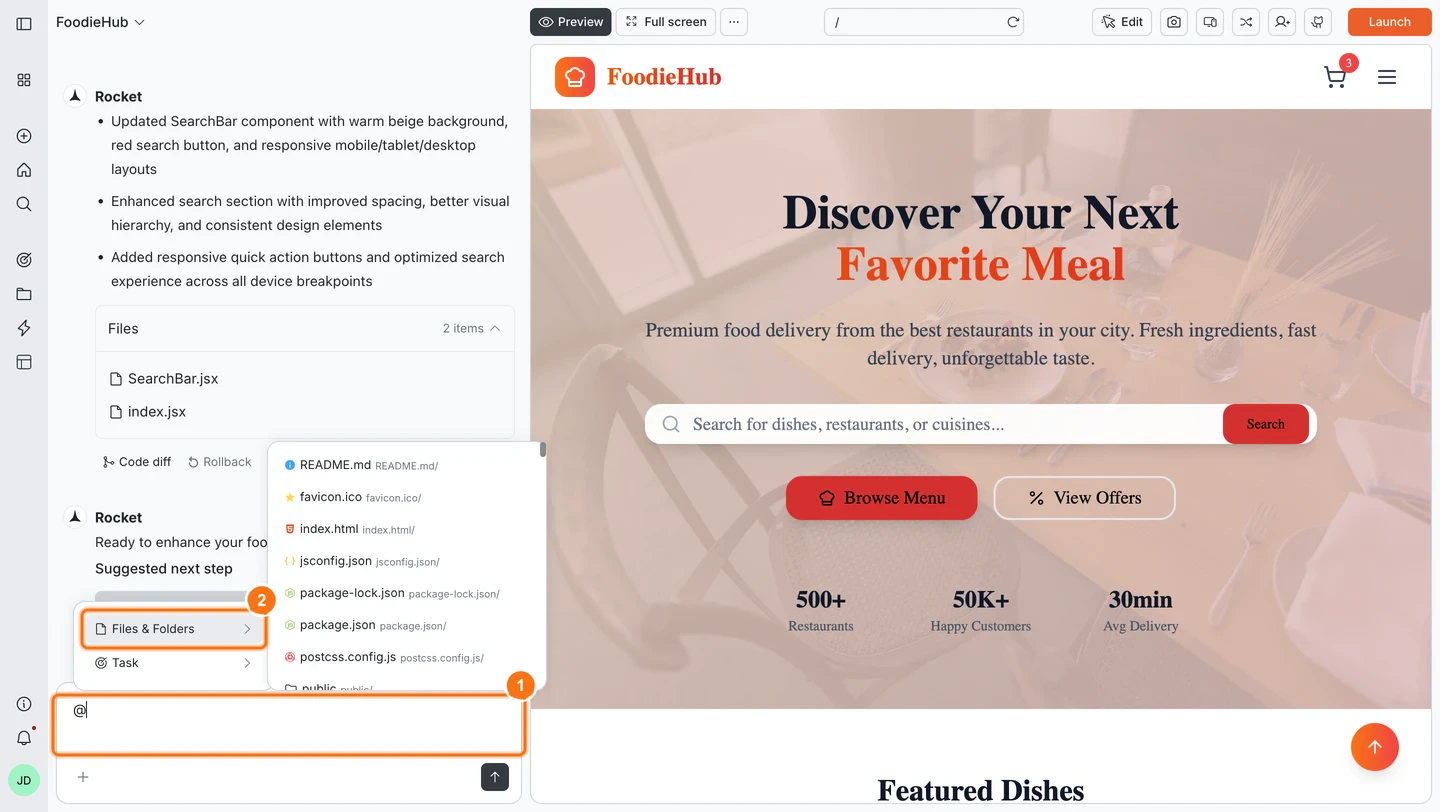
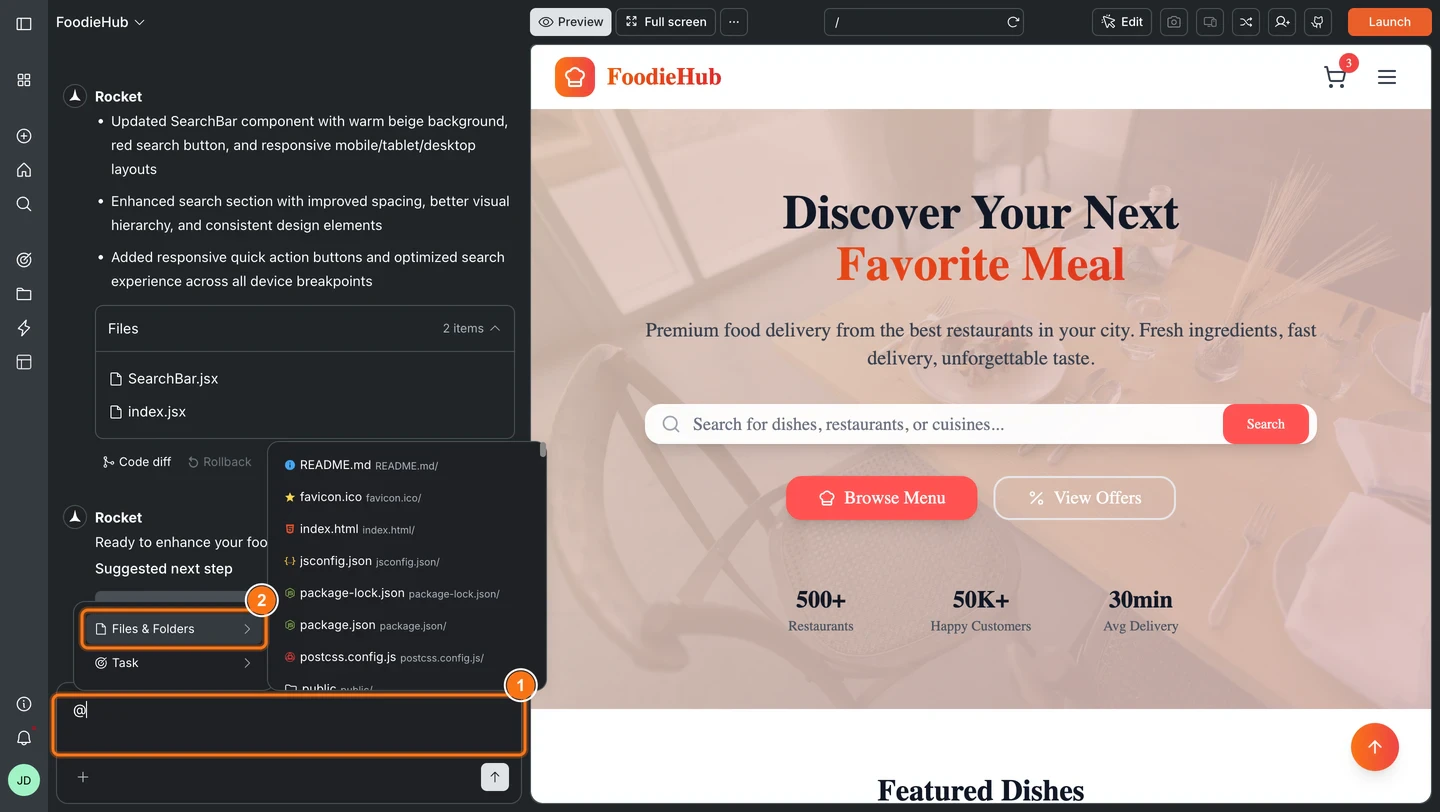 Choose **Files & Folders** to scope edits to a file or folder, or choose **Tasks** to bring in context from a previous task. Your selection appears in the chat input.
Continue typing. The scope is locked to your selection, so Rocket only modifies the targeted file or folder.
Selecting **Tasks** from the `@` picker links a previous task and brings its context into the current conversation. See [cross-task context](/getting-started/task/task-context) for details on how this works.
### Example patterns
**Restructure content:**
`@pages/faq.jsx Reorder questions so payments and refunds appear first. Keep answers unchanged.`
**Improve guidance:**
`@pages/onboarding.jsx Rewrite tips to be friendlier and shorter. Keep the same steps.`
**Replace visuals:**
`@assets/screenshots Replace getting-started.png with the latest capture. Update the caption to match.`
**Clarify microcopy:**
`@components/empty-state Rewrite the message to set expectations and add a single call to action.`
**Localize a section:**
`@pages/about.jsx Translate the team bio section to Spanish. Keep names and roles in English.`
## Guidelines
### Referencing elements
* Use clear terms like "hero section", "footer", "primary CTA button", or "pricing image row"
* Quote exact text for copy changes: `"Get started"` to `"Launch now"`
* For `@` commands, use exact paths: `@pages/home.tsx`, `@components/card`, or `@docs/faq.md`
### Workflow tips
* Make content changes first. If reflow causes issues, run `/Fix Layout Issues`
* State locations for clarity: "in hero", "in pricing", "navigation bar"
* Keep instructions specific. Small, focused edits work best
### Troubleshooting
**Nothing changed:**
* Confirm you are on the correct screen
* For text changes: quote the exact phrase you want changed
* For image changes: name the area precisely
**Mobile layout issues:**
* Try `/Fix Layout Issues for mobile breakpoints`
* If problems persist, run `/Fix Layout Issues for tablet and mobile breakpoints`
**Cannot find the right file (`@` commands):**
* Start typing the exact file name in the picker. Include the folder path if you know it.
**Edit feels too broad (`@` commands):**
* Split the request into smaller `@` command messages, each scoped to a single file or folder
## What's next?
Use chat alongside commands for full control over your Build project.
Click any element to change it directly without writing a prompt.
Browse and edit your project source files directly.
Compare, roll back, and launch specific versions of your app.
Choose **Files & Folders** to scope edits to a file or folder, or choose **Tasks** to bring in context from a previous task. Your selection appears in the chat input.
Continue typing. The scope is locked to your selection, so Rocket only modifies the targeted file or folder.
Selecting **Tasks** from the `@` picker links a previous task and brings its context into the current conversation. See [cross-task context](/getting-started/task/task-context) for details on how this works.
### Example patterns
**Restructure content:**
`@pages/faq.jsx Reorder questions so payments and refunds appear first. Keep answers unchanged.`
**Improve guidance:**
`@pages/onboarding.jsx Rewrite tips to be friendlier and shorter. Keep the same steps.`
**Replace visuals:**
`@assets/screenshots Replace getting-started.png with the latest capture. Update the caption to match.`
**Clarify microcopy:**
`@components/empty-state Rewrite the message to set expectations and add a single call to action.`
**Localize a section:**
`@pages/about.jsx Translate the team bio section to Spanish. Keep names and roles in English.`
## Guidelines
### Referencing elements
* Use clear terms like "hero section", "footer", "primary CTA button", or "pricing image row"
* Quote exact text for copy changes: `"Get started"` to `"Launch now"`
* For `@` commands, use exact paths: `@pages/home.tsx`, `@components/card`, or `@docs/faq.md`
### Workflow tips
* Make content changes first. If reflow causes issues, run `/Fix Layout Issues`
* State locations for clarity: "in hero", "in pricing", "navigation bar"
* Keep instructions specific. Small, focused edits work best
### Troubleshooting
**Nothing changed:**
* Confirm you are on the correct screen
* For text changes: quote the exact phrase you want changed
* For image changes: name the area precisely
**Mobile layout issues:**
* Try `/Fix Layout Issues for mobile breakpoints`
* If problems persist, run `/Fix Layout Issues for tablet and mobile breakpoints`
**Cannot find the right file (`@` commands):**
* Start typing the exact file name in the picker. Include the folder path if you know it.
**Edit feels too broad (`@` commands):**
* Split the request into smaller `@` command messages, each scoped to a single file or folder
## What's next?
Use chat alongside commands for full control over your Build project.
Click any element to change it directly without writing a prompt.
Browse and edit your project source files directly.
Compare, roll back, and launch specific versions of your app.