> ## Documentation Index
> Fetch the complete documentation index at: https://docs.rocket.new/llms.txt
> Use this file to discover all available pages before exploring further.
# Preview your app
> Test your Rocket.new app live as you build with responsive previews, screen navigation, and screenshot capture - no deploying needed.
export const LlmsDirective = () =>
For the complete documentation index, see llms.txt.
For a lightweight markdown version of this page, append .md to the URL.
;
**See your app running live as you build.** The preview is a browser built into the Rocket editor. Every change you make updates the preview in real time. The preview is separate from your live URL. Use **Launch** in the toolbar to publish your app publicly.
## What you can do in preview
| Action | How |
| :----------------------- | :-------------------------------------------------------------------- |
| Navigate to any screen | Use the URL bar in the preview toolbar to go to any route in your app |
| Test responsive layouts | Switch between desktop, tablet, and mobile views |
| Click through user flows | Navigate your app like a real user to verify routing and interactions |
| Capture screenshots | Take a screenshot and drag it straight into chat |
| Make visual edits | Click any element to open Visual Edit and change it directly |
| Launch your app | Click **Launch** in the top right of the preview toolbar to publish |
## Preview toolbar
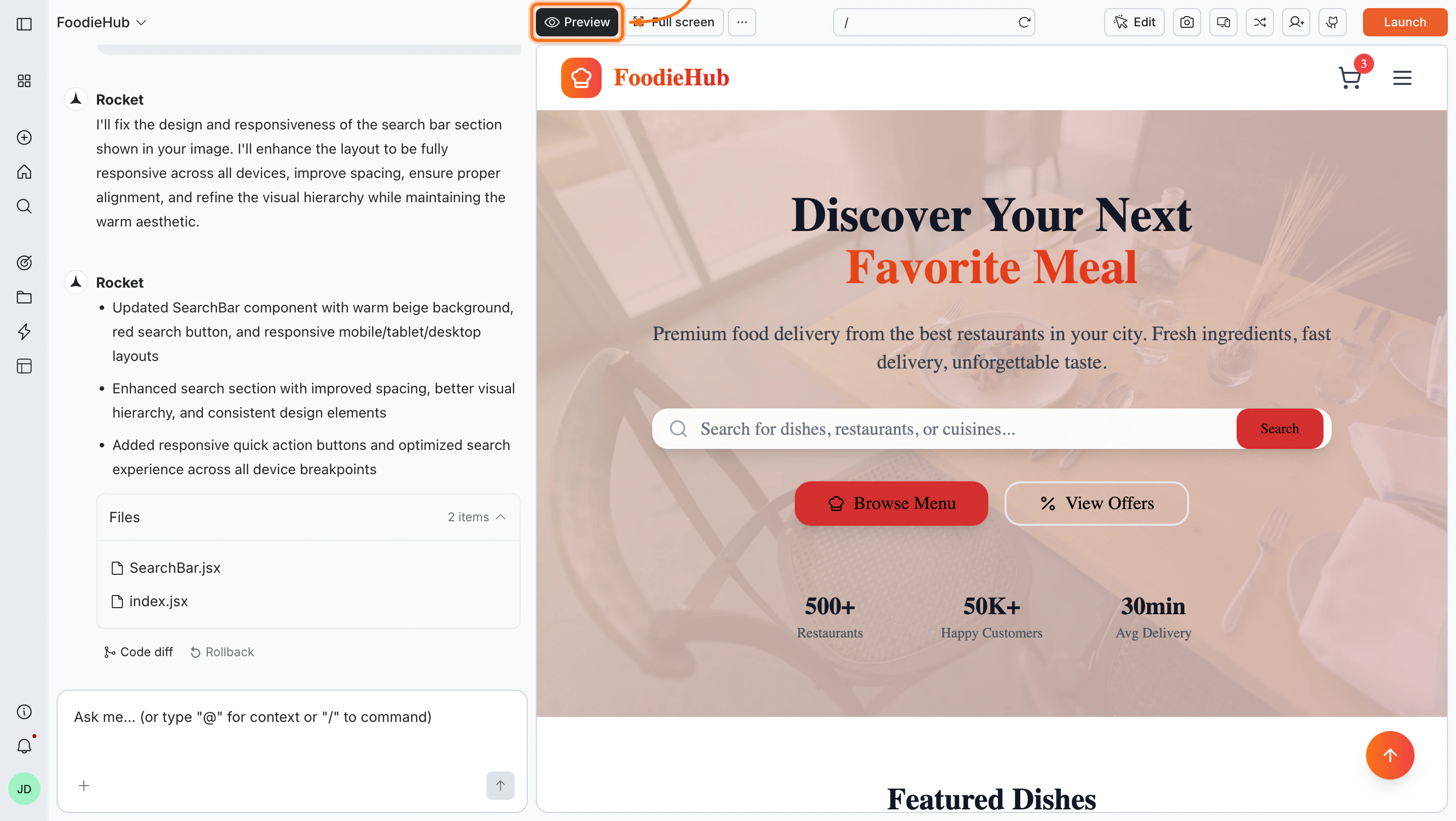
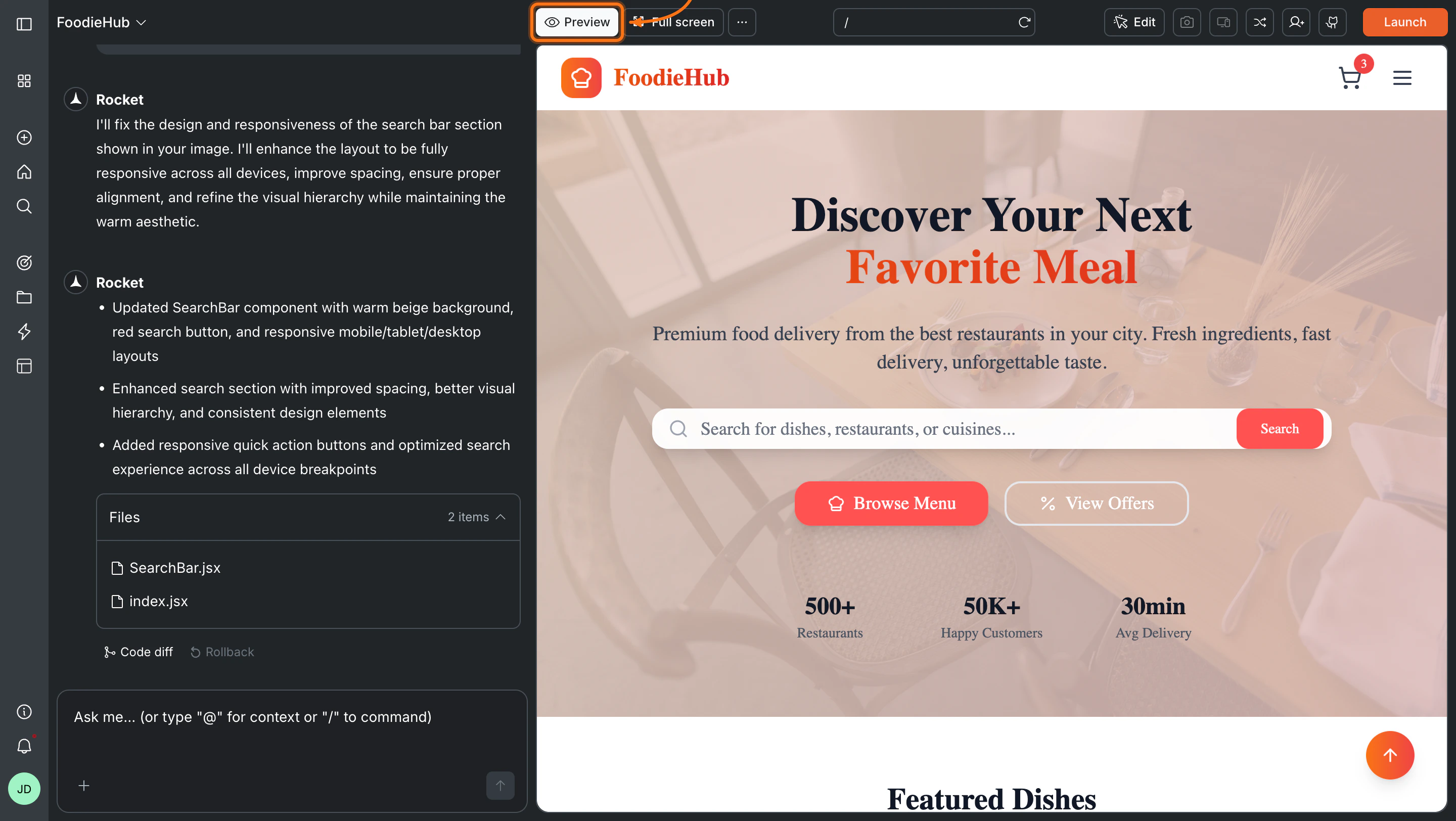
The toolbar runs across the top of the preview panel and gives you quick access to all preview controls.
| Button | What it does |
| :---------------- | :---------------------------------------------------------- |
| **Preview** | Opens or focuses the preview panel |
| **Full screen** | Expands the preview and hides the chat panel |
| **`...`** | Additional options |
| URL bar | Shows the current route. Type any path to navigate directly |
| Refresh | Reloads the preview to show your latest changes |
| **Edit** | Opens the Edit dropdown for Visual edits and Theme |
| Camera | Capture a screenshot of the current view |
| Device/responsive | Switch screen sizes and device models |
| **Launch** | Publish your app to a live URL |
## Using the preview
 ### Navigate to a screen
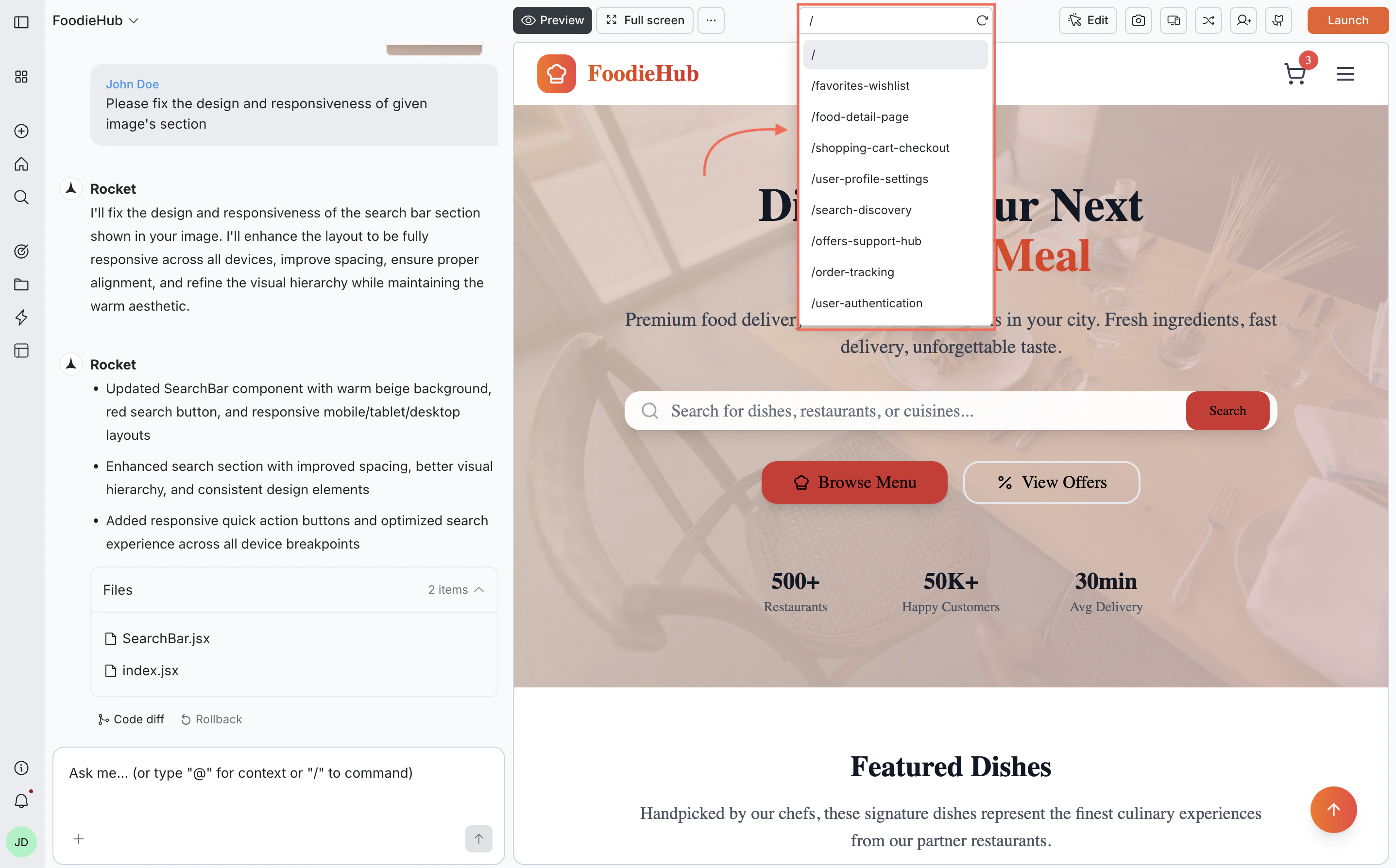
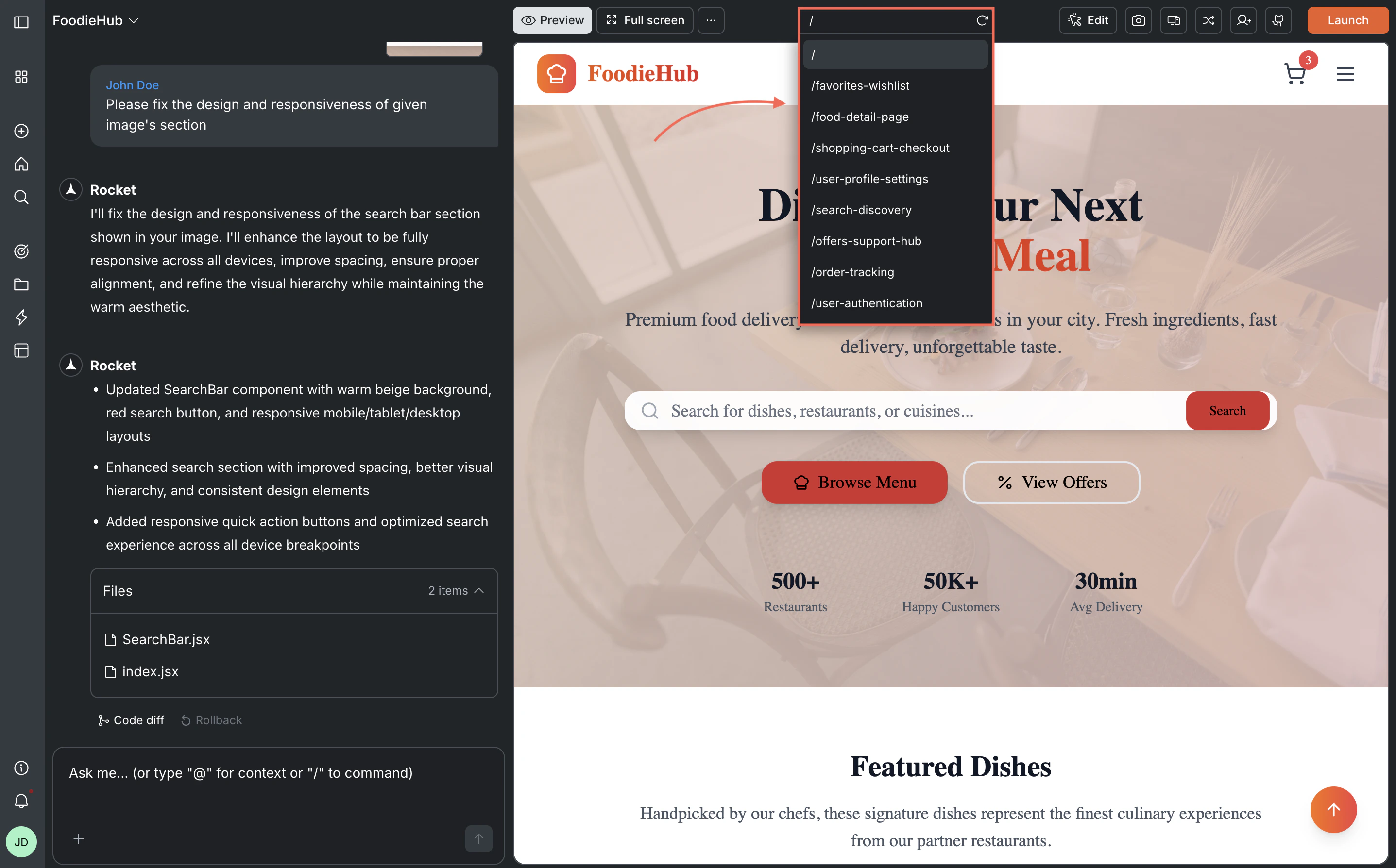
Use the **URL bar** in the preview toolbar to go to any route in your app. Type the path directly (for example `/dashboard` or `/settings`) and press Enter.
You can also use the **Currently viewing** dropdown to switch between screens. The **Refresh** icon sits in the same control strip as the URL bar. Click it if your latest changes are not showing.
### Navigate to a screen
Use the **URL bar** in the preview toolbar to go to any route in your app. Type the path directly (for example `/dashboard` or `/settings`) and press Enter.
You can also use the **Currently viewing** dropdown to switch between screens. The **Refresh** icon sits in the same control strip as the URL bar. Click it if your latest changes are not showing.
 ### Full screen
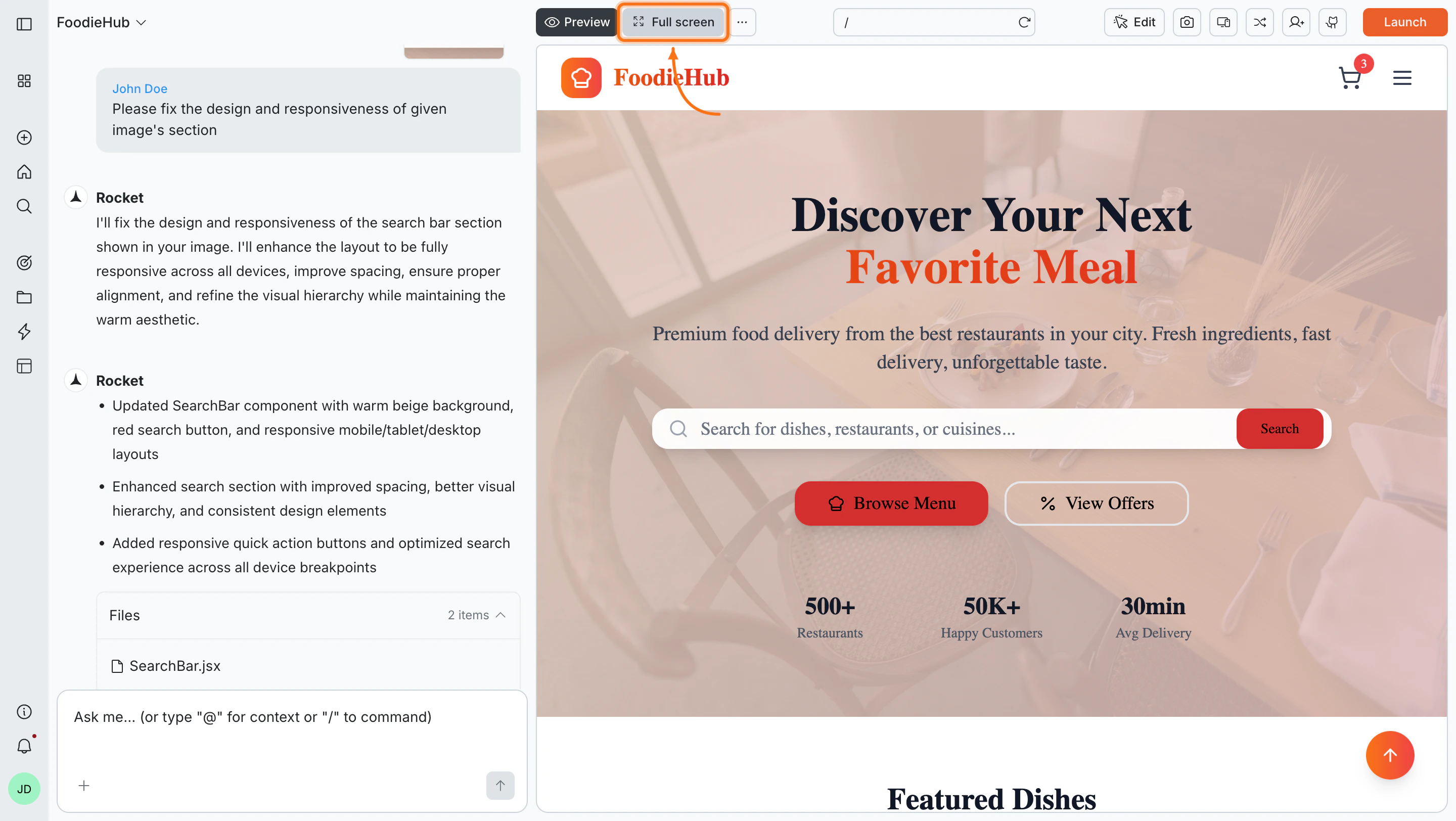
Click **Full screen** in the toolbar to expand the preview and hide the chat panel. Use this when you want a larger view or need more room to test interactions.
Click **Full screen** again to return to the editor.
### Full screen
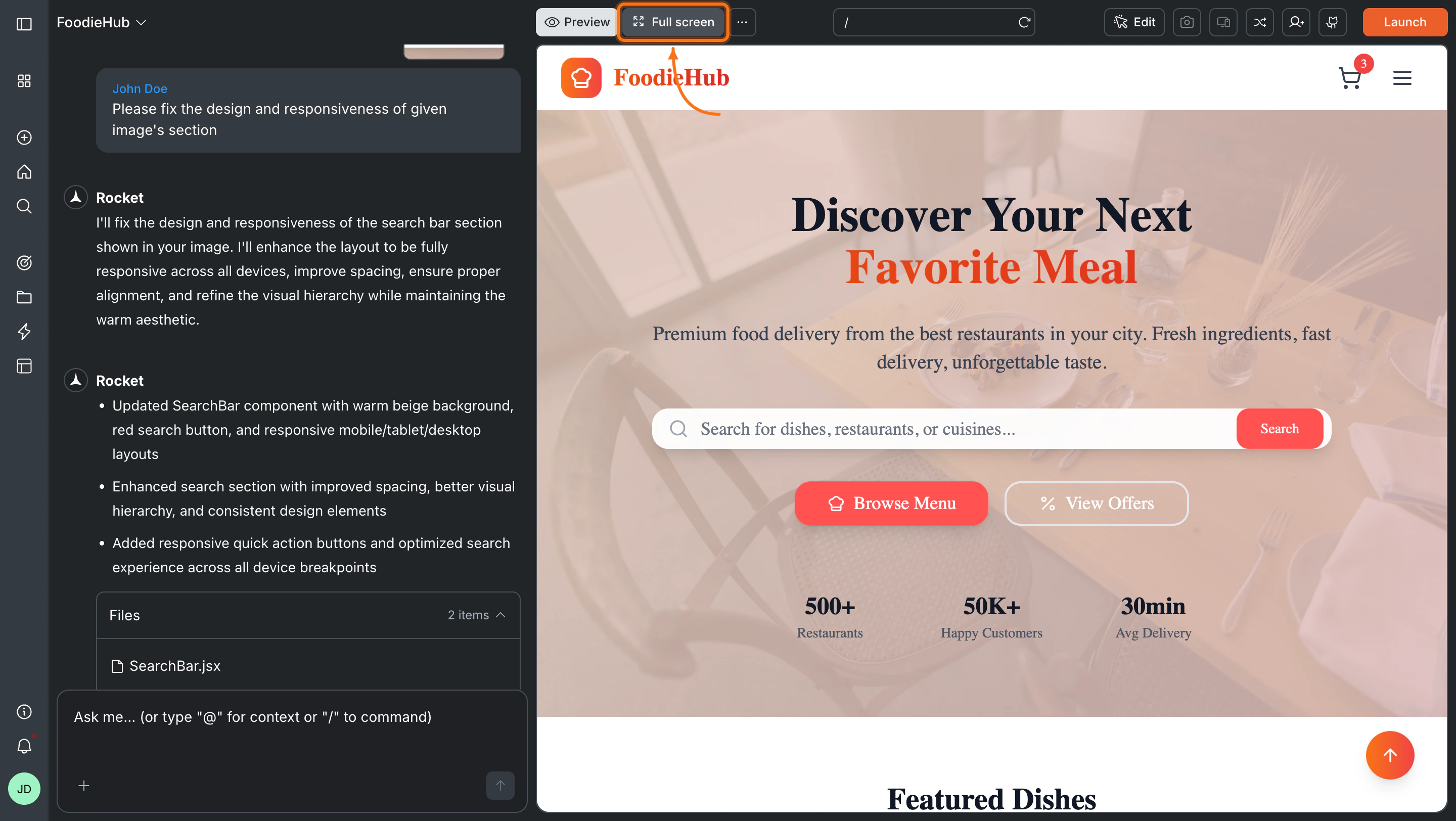
Click **Full screen** in the toolbar to expand the preview and hide the chat panel. Use this when you want a larger view or need more room to test interactions.
Click **Full screen** again to return to the editor.
 ### Test responsive layouts and device models
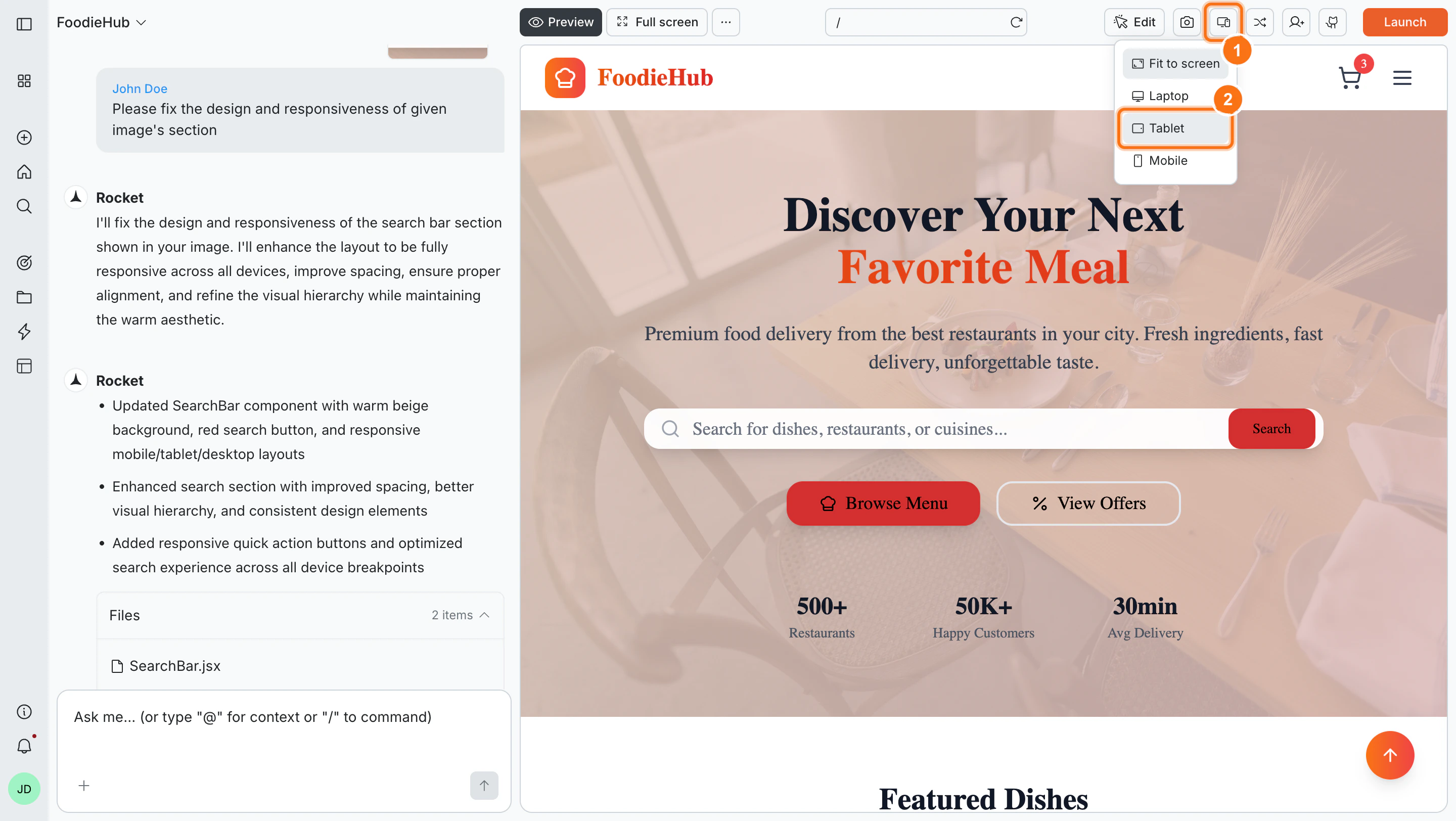
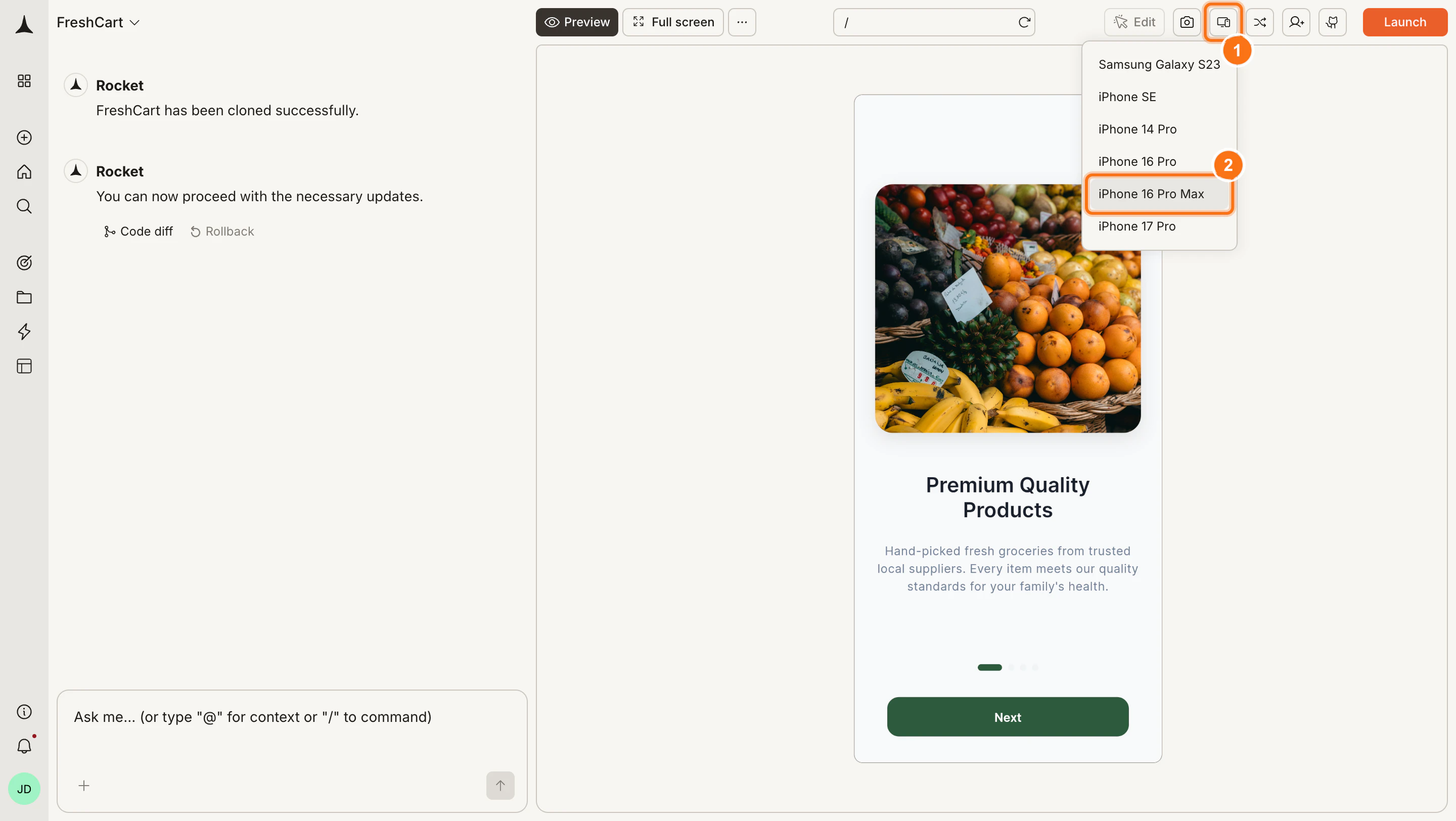
Click the **Device** icon in the toolbar to test how your app looks on different screen sizes.
Available views:
* Desktop
* Laptop
* Tablet
* Mobile
### Test responsive layouts and device models
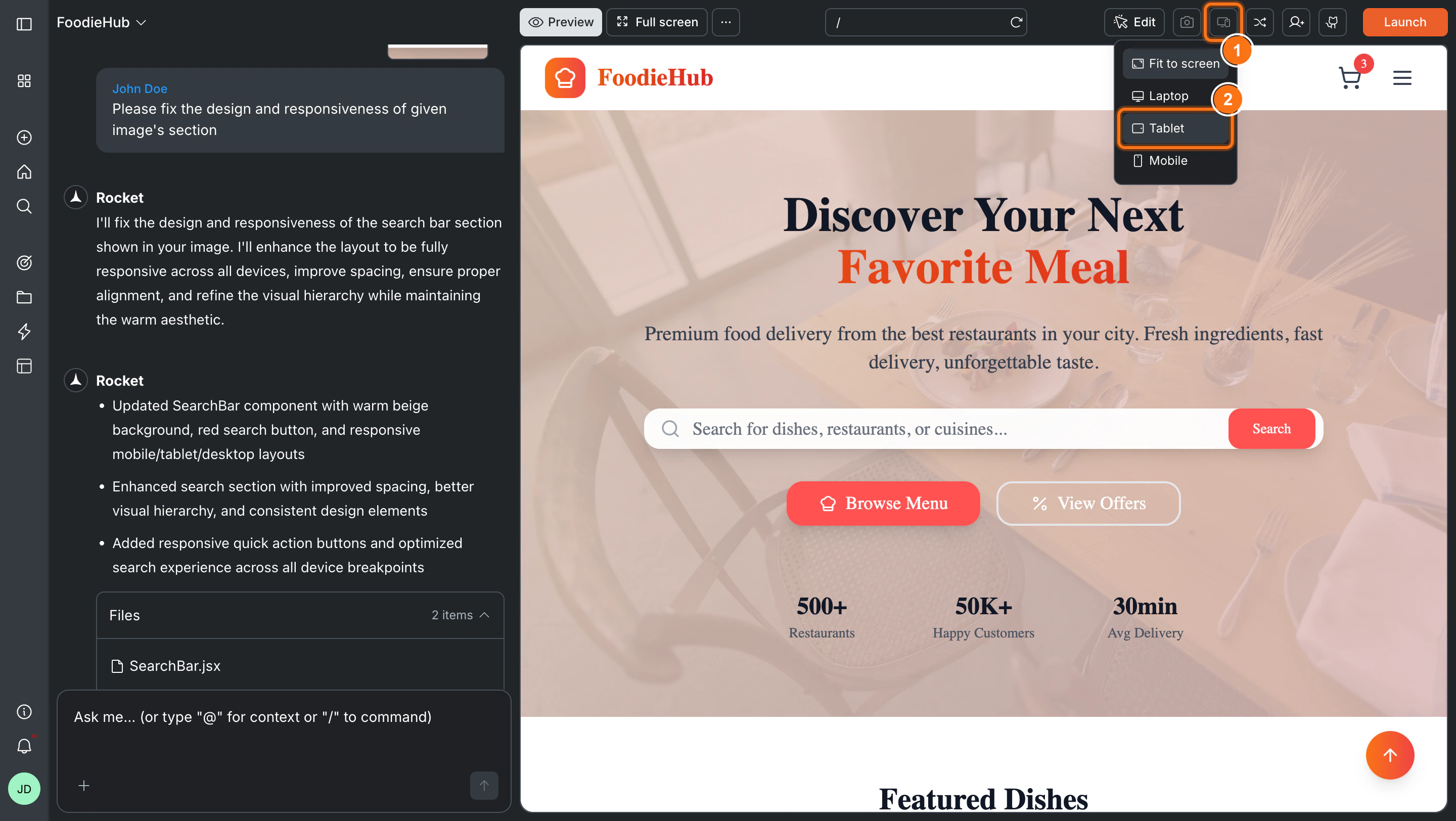
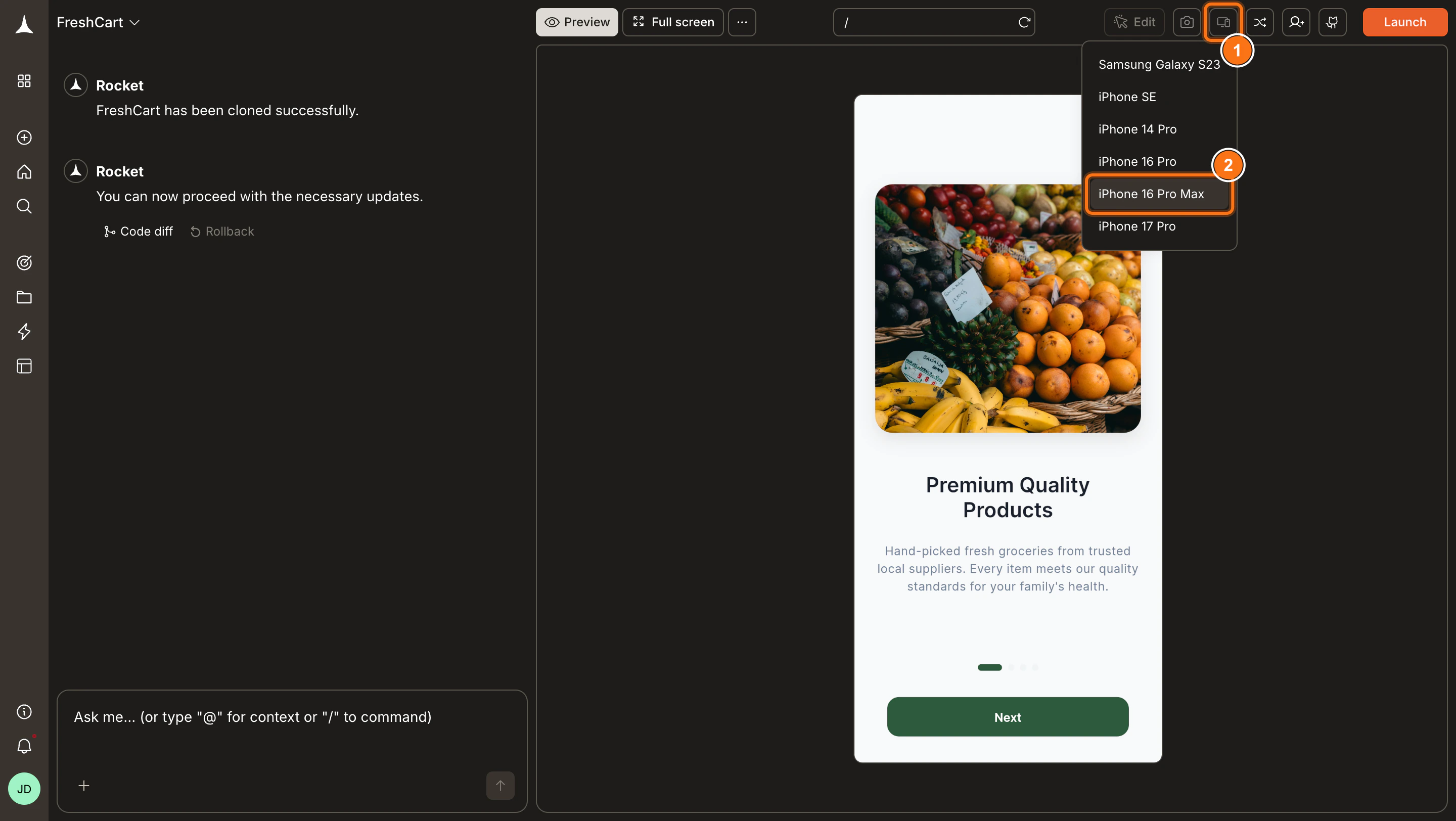
Click the **Device** icon in the toolbar to test how your app looks on different screen sizes.
Available views:
* Desktop
* Laptop
* Tablet
* Mobile
 Available device models:
* Samsung Galaxy S23
* iPhone SE
* iPhone 14 Pro
* iPhone 16 Pro
* iPhone 16 Pro Max
* iPhone 17 Pro
Available device models:
* Samsung Galaxy S23
* iPhone SE
* iPhone 14 Pro
* iPhone 16 Pro
* iPhone 16 Pro Max
* iPhone 17 Pro
 ### Edit visually
Click the **Edit** button in the toolbar and select **Visual edits** to enter visual edit mode. Click any element to change its text, style, spacing, or image directly in the preview.
Learn more about visual edit and what you can change.
### Capture screenshots
Take a screenshot of the current preview and use it in chat to show Rocket exactly what to change.
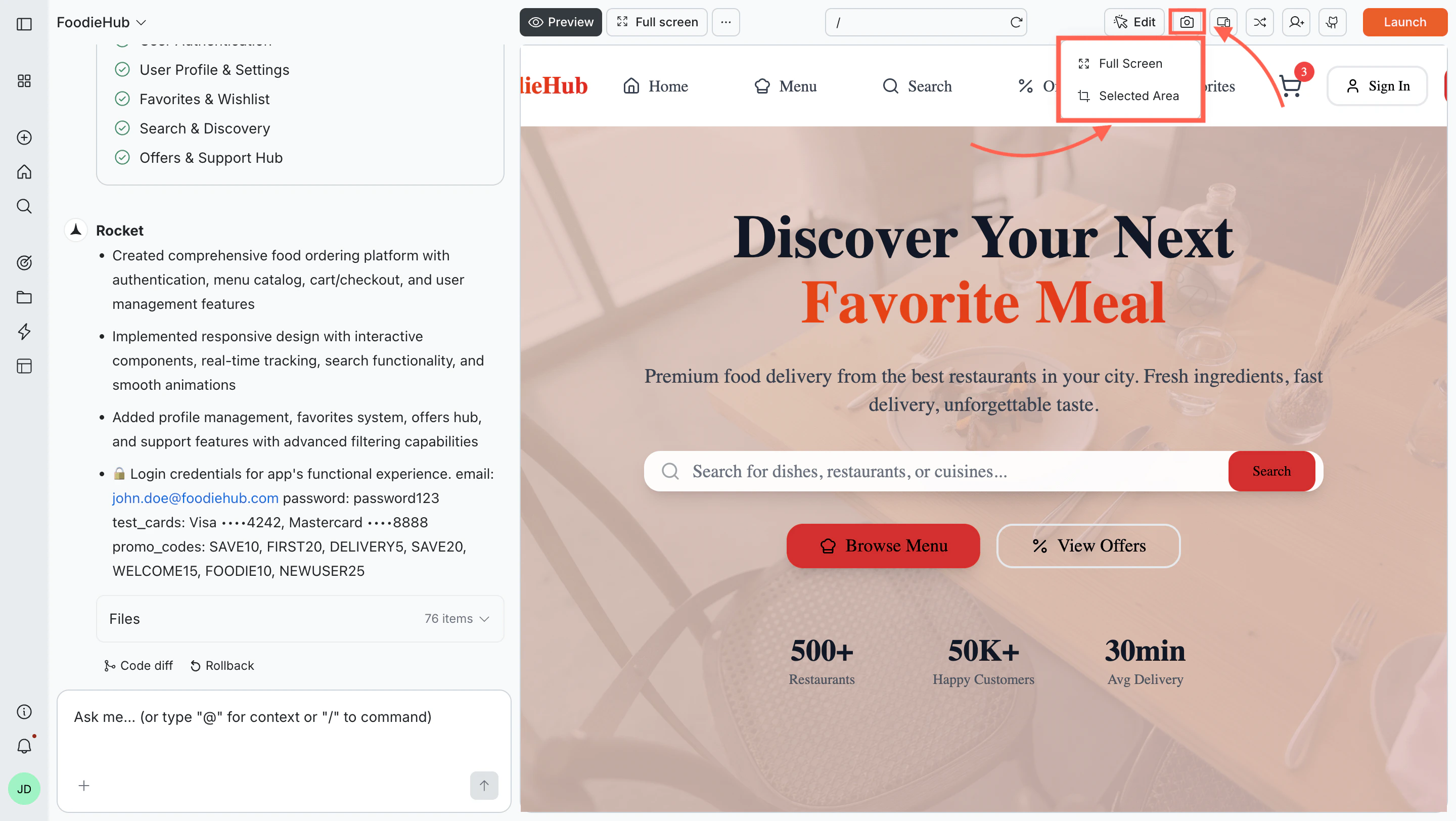
1. Click the **Camera** icon in the toolbar.
2. Choose your capture mode:
* **Full screen** - captures the entire preview area
* **Selected area** - click and drag to capture a specific region
3. Drag and drop the screenshot into the chat input.
### Edit visually
Click the **Edit** button in the toolbar and select **Visual edits** to enter visual edit mode. Click any element to change its text, style, spacing, or image directly in the preview.
Learn more about visual edit and what you can change.
### Capture screenshots
Take a screenshot of the current preview and use it in chat to show Rocket exactly what to change.
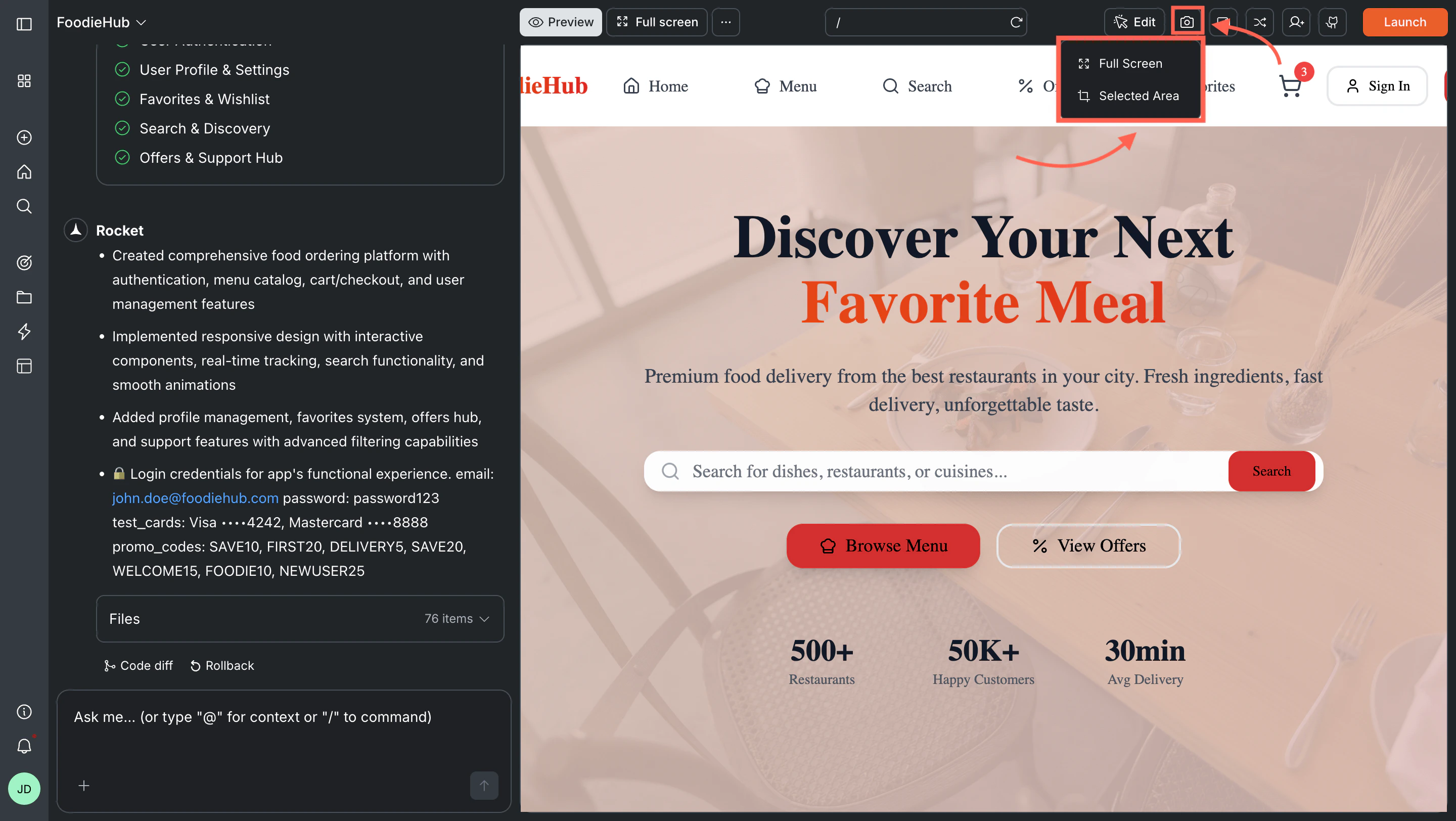
1. Click the **Camera** icon in the toolbar.
2. Choose your capture mode:
* **Full screen** - captures the entire preview area
* **Selected area** - click and drag to capture a specific region
3. Drag and drop the screenshot into the chat input.
 The Rocket mobile app supports screen navigation, refresh, and responsive views. Full screen, visual edit, and screenshot capture are only available on the web browser.
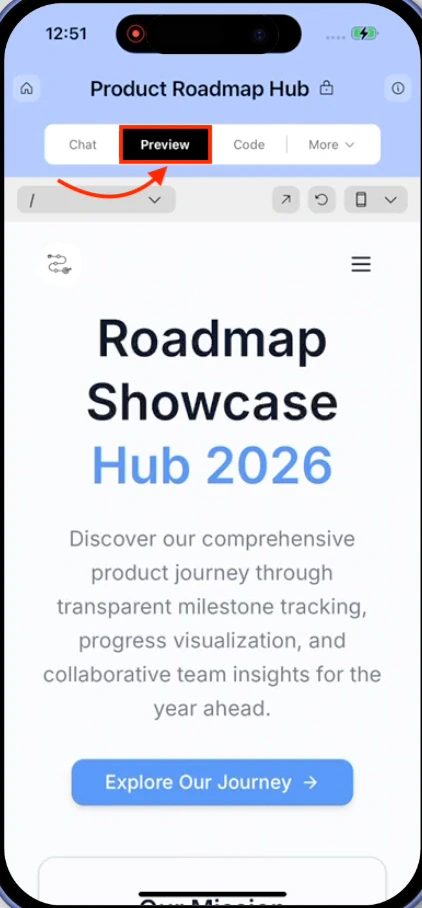 ### Navigate to a screen
Use the **Currently viewing** dropdown to switch between screens in your app. The **Refresh** icon sits in the same control strip as the URL bar. Tap it if your latest changes are not showing.
### Navigate to a screen
Use the **Currently viewing** dropdown to switch between screens in your app. The **Refresh** icon sits in the same control strip as the URL bar. Tap it if your latest changes are not showing.
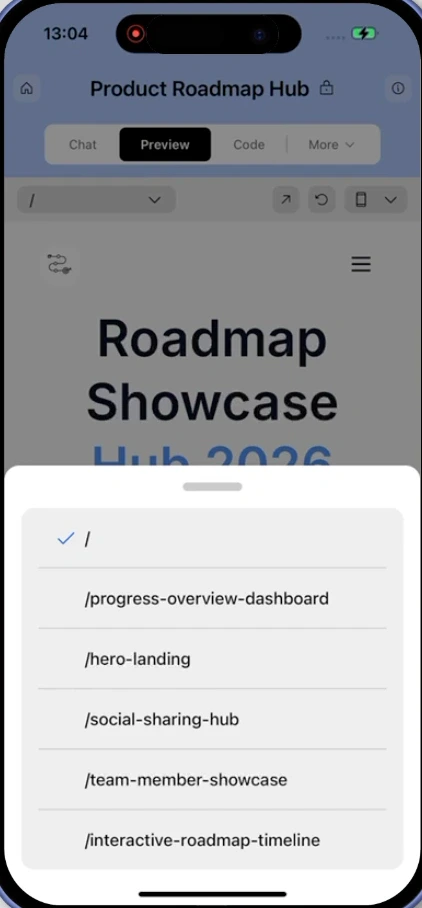 ### Test responsive layouts and device models
Tap the **Device** icon to switch between screen sizes and device models.
**Web app views:** Desktop, Laptop, Tablet, Mobile
**Mobile device models:** Samsung Galaxy S23, iPhone SE, iPhone 14 Pro, iPhone 16 Pro, iPhone 16 Pro Max, iPhone 17 Pro
## What's next?
Click any element in the preview to change its text, style, or spacing.
Update your app's fonts, colors, logo, and images from one place.
Compare, roll back, and launch specific versions of your app.
Publish your app to a live URL and share it with the world.
### Test responsive layouts and device models
Tap the **Device** icon to switch between screen sizes and device models.
**Web app views:** Desktop, Laptop, Tablet, Mobile
**Mobile device models:** Samsung Galaxy S23, iPhone SE, iPhone 14 Pro, iPhone 16 Pro, iPhone 16 Pro Max, iPhone 17 Pro
## What's next?
Click any element in the preview to change its text, style, or spacing.
Update your app's fonts, colors, logo, and images from one place.
Compare, roll back, and launch specific versions of your app.
Publish your app to a live URL and share it with the world.