> ## Documentation Index
> Fetch the complete documentation index at: https://docs.rocket.new/llms.txt
> Use this file to discover all available pages before exploring further.
# Versions
> Every Rocket build saves a version. Compare diffs, roll back, label milestones, and deploy any version directly from chat.
export const LlmsDirective = () =>
For the complete documentation index, see llms.txt.
For a lightweight markdown version of this page, append .md to the URL.
;
Every time Rocket responds to a Build message, it saves the result as a new version. You get a complete history of your project that you can compare, roll back, label, and deploy - all from the chat panel.
## How versions work
At the bottom of each Rocket message in chat you will see a **Files** row showing the version number and which files changed. Below it are four action buttons.
| Button | What it does |
| :--------------- | :----------------------------------------------------------- |
| **Code diff** | Shows what changed between this version and the previous one |
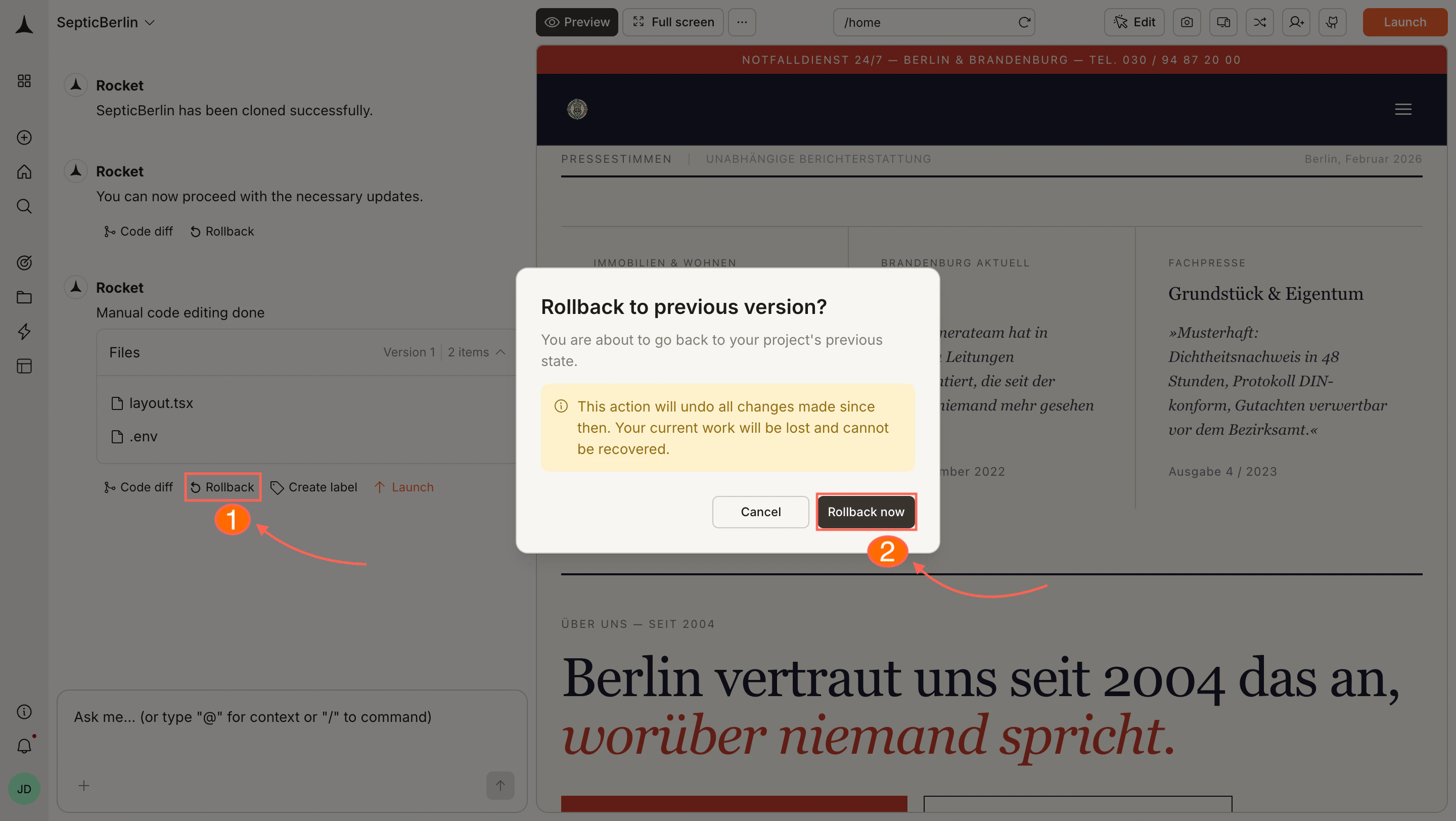
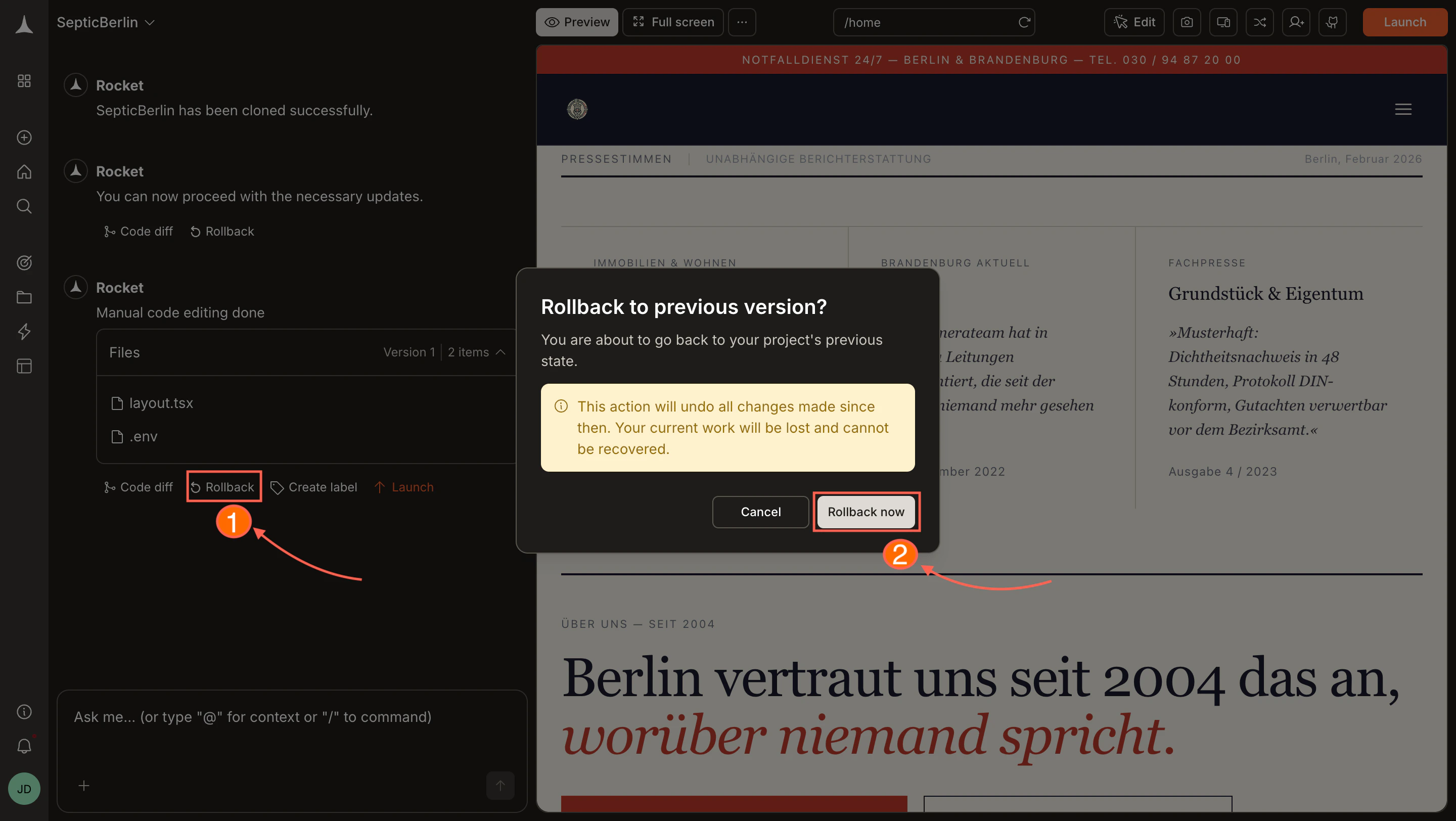
| **Rollback** | Reverts your project to this version |
| **Create label** | Adds a name to this version so you can find it easily |
| **Launch** | Deploys this specific version to staging or production |
## Code diff
Code diff opens a side-by-side view of every file that changed in this version. Added lines are highlighted in green, removed lines in red.
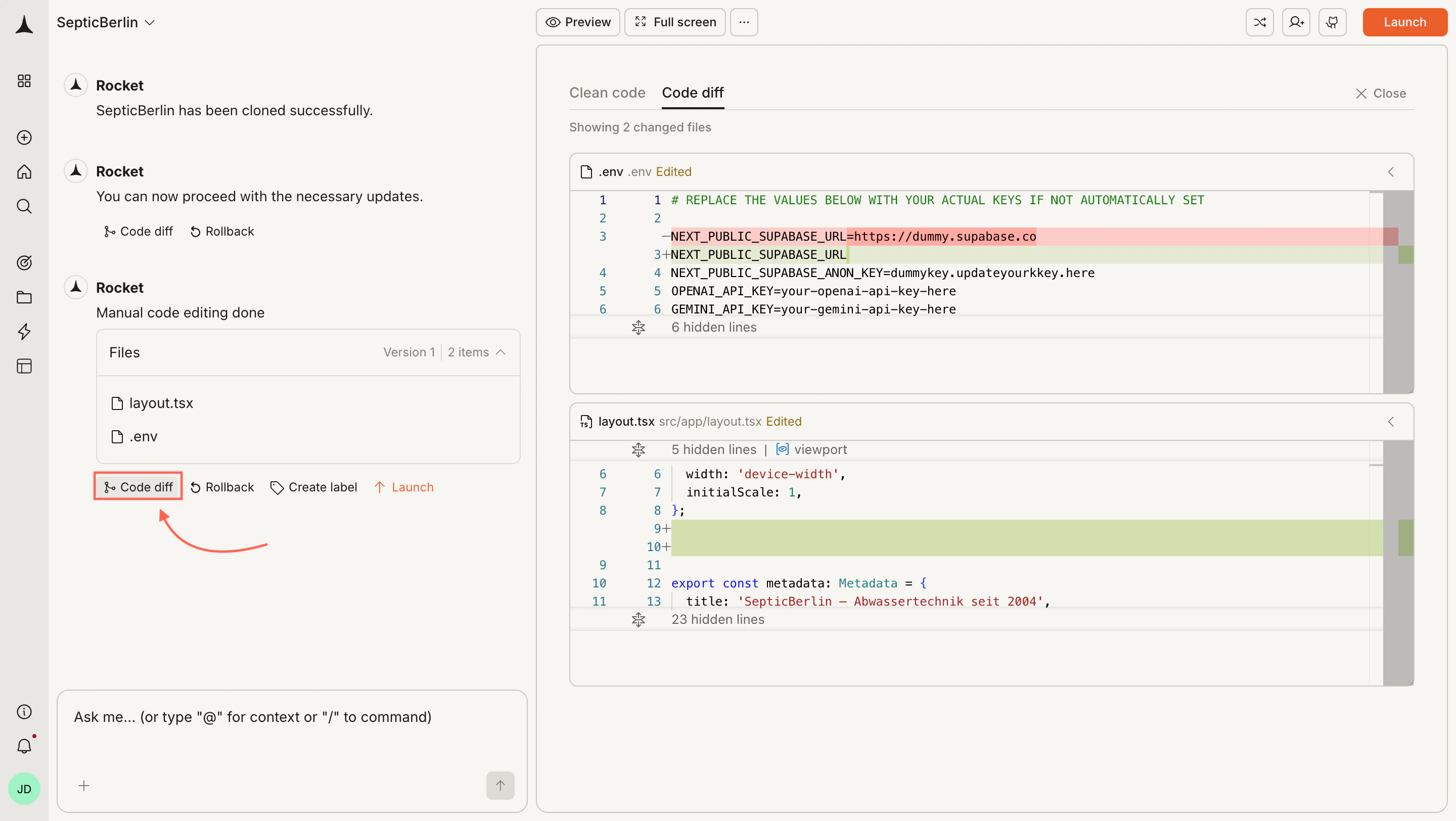
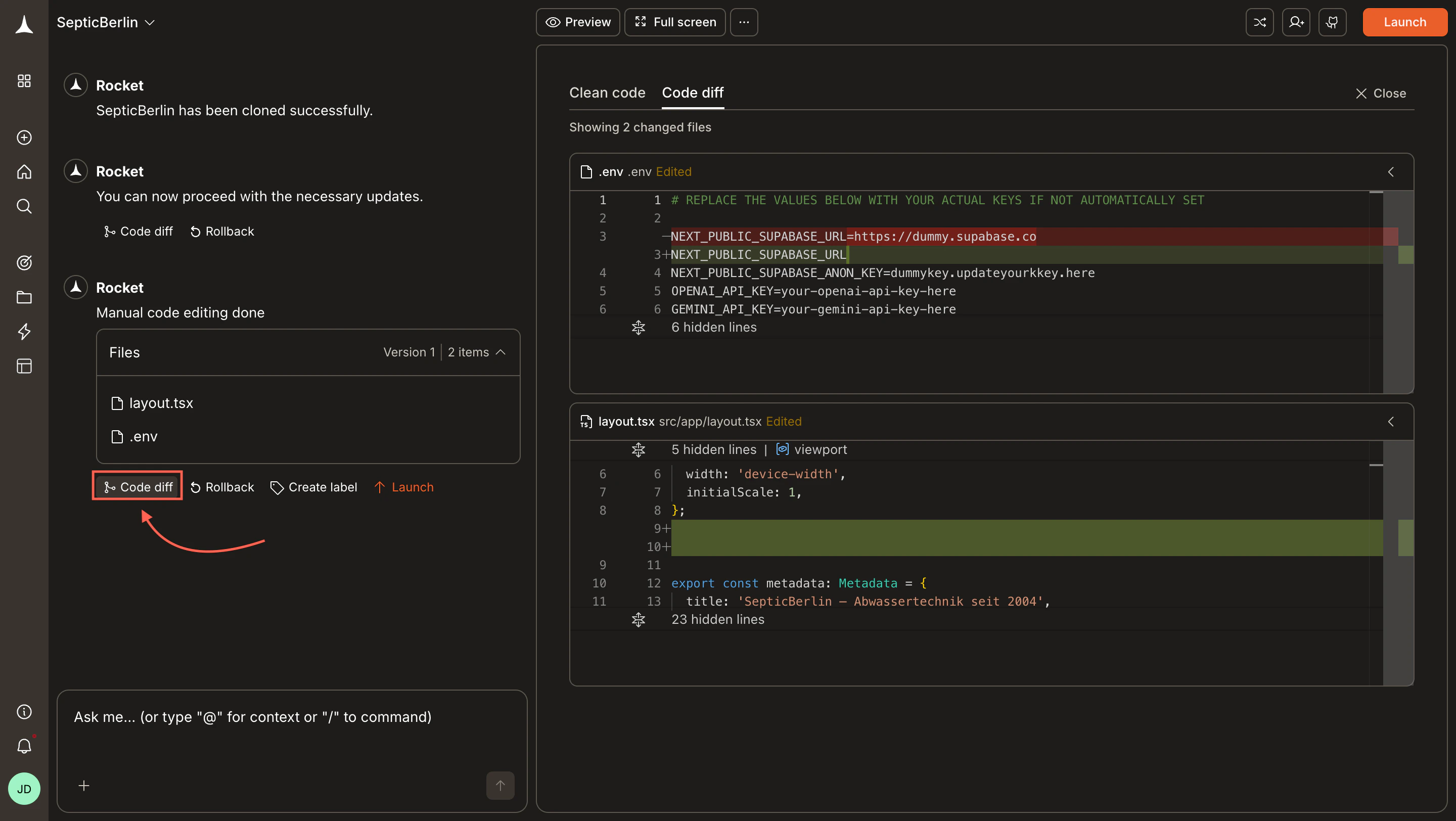 Use code diff to:
* Review exactly what Rocket changed before moving on
* Understand the impact of a specific edit
* Debug unexpected behavior after a build
## Rollback
Rollback reverts your entire project to the selected version instantly.
Rolling back discards all changes made after the selected version. This cannot be undone. If you want to keep your current state, create a label before rolling back (see [Create label](#create-label) below).
Locate the version you want to return to in the chat.
Click **Rollback**.
Click **Rollback now** to confirm.
Use code diff to:
* Review exactly what Rocket changed before moving on
* Understand the impact of a specific edit
* Debug unexpected behavior after a build
## Rollback
Rollback reverts your entire project to the selected version instantly.
Rolling back discards all changes made after the selected version. This cannot be undone. If you want to keep your current state, create a label before rolling back (see [Create label](#create-label) below).
Locate the version you want to return to in the chat.
Click **Rollback**.
Click **Rollback now** to confirm.
 ## Create label
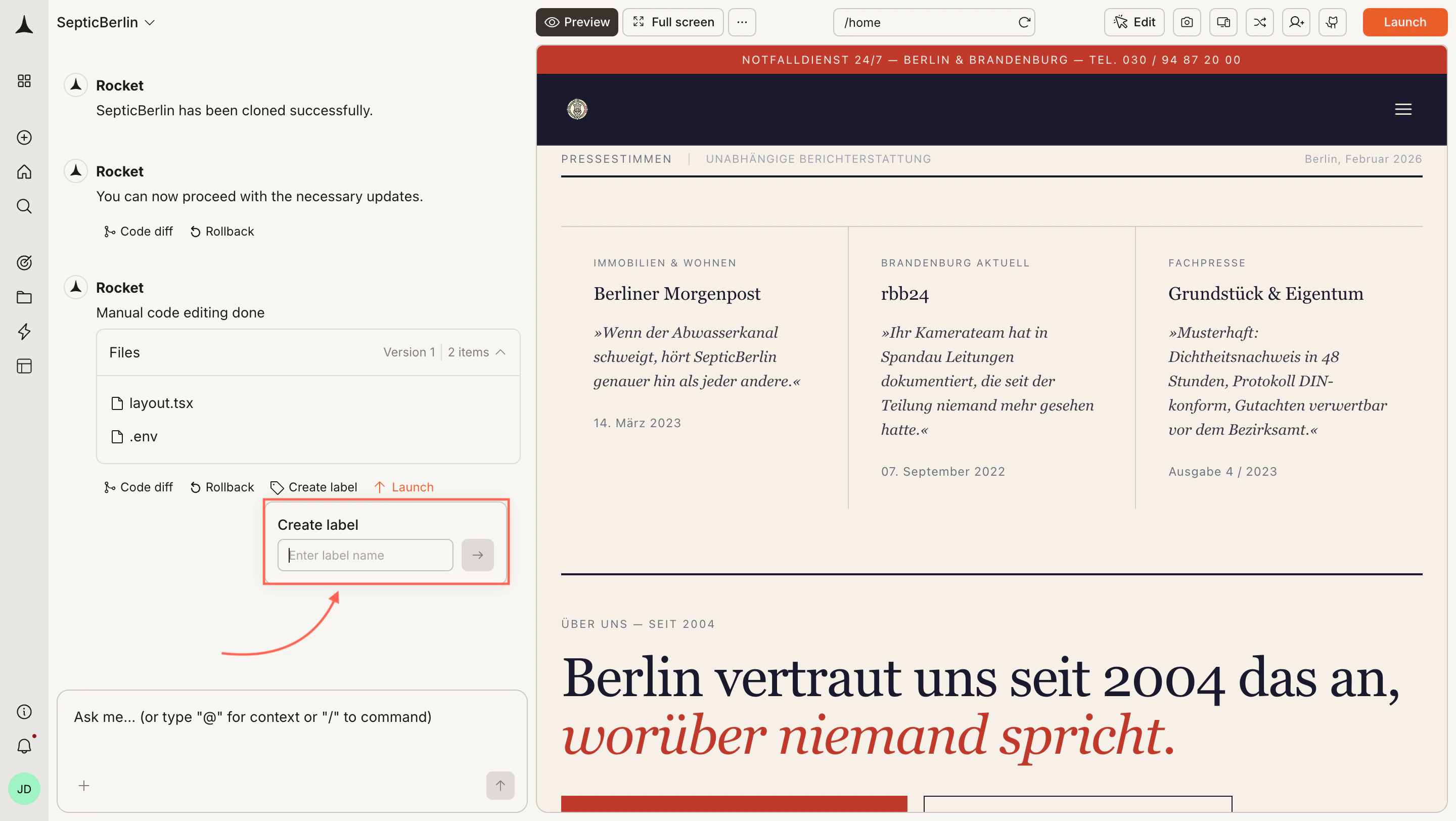
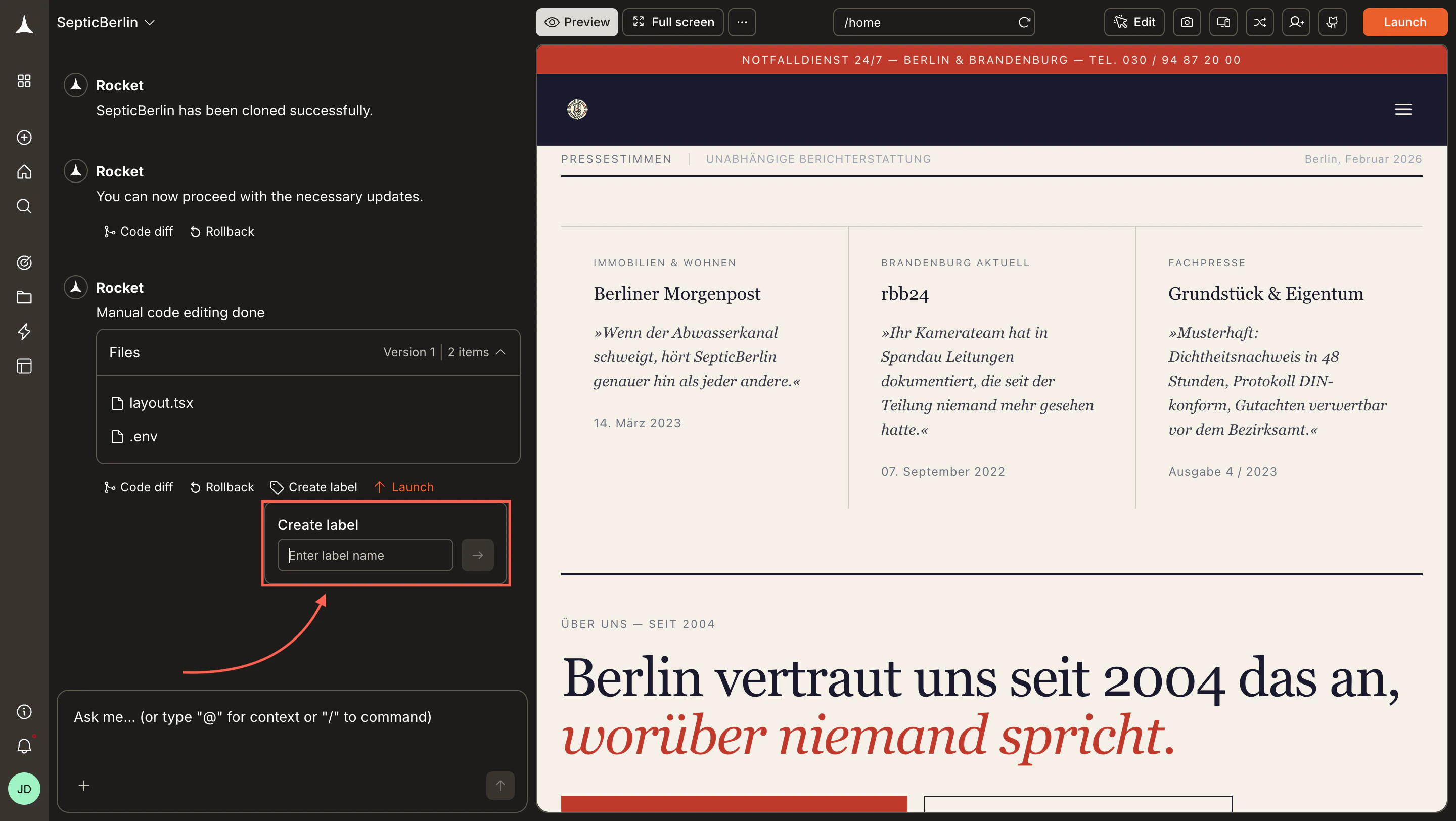
Labels let you name and bookmark a specific version for easy reference later.
Locate the version in the chat.
Click **Create label**.
Type a name and press Enter.
## Create label
Labels let you name and bookmark a specific version for easy reference later.
Locate the version in the chat.
Click **Create label**.
Type a name and press Enter.
 Good times to create a label:
* Before a risky change you might want to undo
* When a version is ready for review ("Client review v1")
* At a significant milestone ("MVP", "Beta launch")
## Launch a version
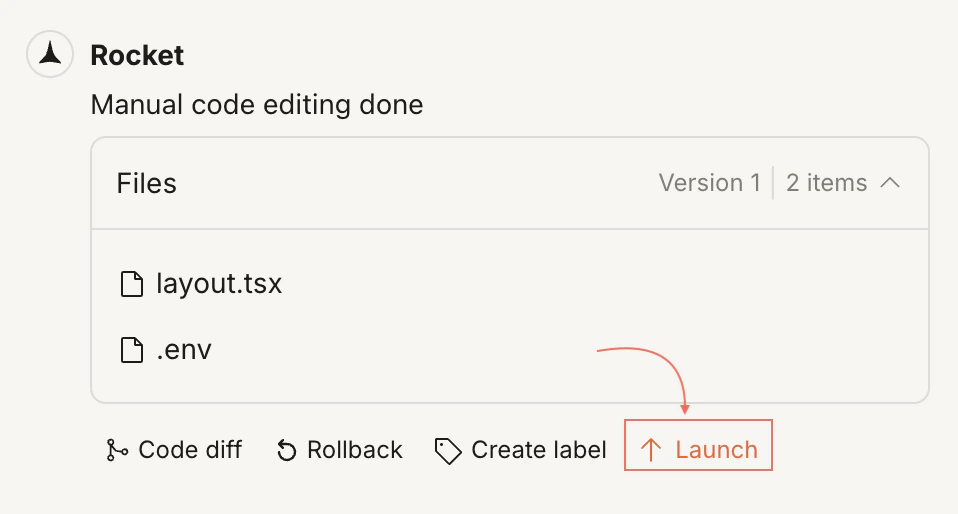
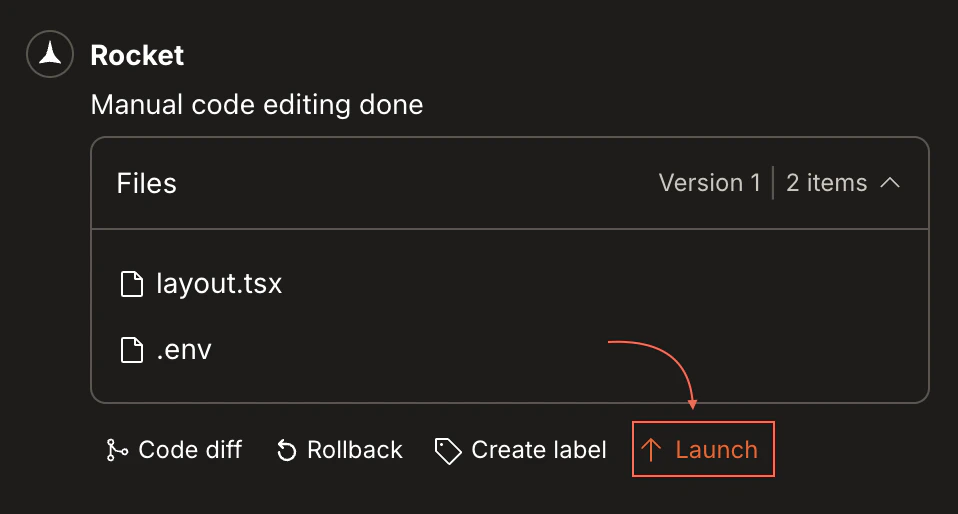
You can deploy any version directly - it does not have to be the most recent one.
Locate the version in the chat.
Click **Launch**.
Select **Staging** or **Production**.
Good times to create a label:
* Before a risky change you might want to undo
* When a version is ready for review ("Client review v1")
* At a significant milestone ("MVP", "Beta launch")
## Launch a version
You can deploy any version directly - it does not have to be the most recent one.
Locate the version in the chat.
Click **Launch**.
Select **Staging** or **Production**.
 | Target | What it is |
| :------------- | :------------------------------------------------------------------ |
| **Staging** | A private preview environment for testing, not visible to end users |
| **Production** | Your live app, visible to everyone with the URL |
Launching a version does not affect your working state in the editor. Your project continues from wherever you are - only the deployed environment changes.
For a full breakdown of how staging and production work together, see [Launch your site](/build/launch-web/launch-your-site).
## What's next?
Test your app on different screen sizes before launching.
Understand staging and production, and manage your releases.
Browse and edit your project source files directly.
Keep building - every message creates a new version automatically.
| Target | What it is |
| :------------- | :------------------------------------------------------------------ |
| **Staging** | A private preview environment for testing, not visible to end users |
| **Production** | Your live app, visible to everyone with the URL |
Launching a version does not affect your working state in the editor. Your project continues from wherever you are - only the deployed environment changes.
For a full breakdown of how staging and production work together, see [Launch your site](/build/launch-web/launch-your-site).
## What's next?
Test your app on different screen sizes before launching.
Understand staging and production, and manage your releases.
Browse and edit your project source files directly.
Keep building - every message creates a new version automatically.