> ## Documentation Index
> Fetch the complete documentation index at: https://docs.rocket.new/llms.txt
> Use this file to discover all available pages before exploring further.
# Task visibility
> Set Rocket.new tasks as public or private to control who sees your work.
export const LlmsDirective = () =>
For the complete documentation index, see llms.txt.
For a lightweight markdown version of this page, append .md to the URL.
;
Every Build task has its own visibility setting. You choose who can view each task: just you, or anyone with the link. Visibility is set per task, giving you fine-grained control over what you share.
## Visibility levels
| Level | Who can see it | Best for |
| :---------- | :-------------------------- | :--------------------------------------------------------- |
| **Public** | Anyone with the link | Showcasing work, sharing examples, community contributions |
| **Private** | Only you (the task creator) | Personal work, sensitive data, draft explorations |
Public tasks display a Rocket watermark. Anyone can view the output, but only the task creator can edit it. Private tasks are completely hidden from other users even if they have the URL.
Setting a task to Private requires a paid plan (Pro or above). Free plan tasks are public by default.
## Set task visibility
You can set visibility when creating a task, or change it at any time from inside the task.
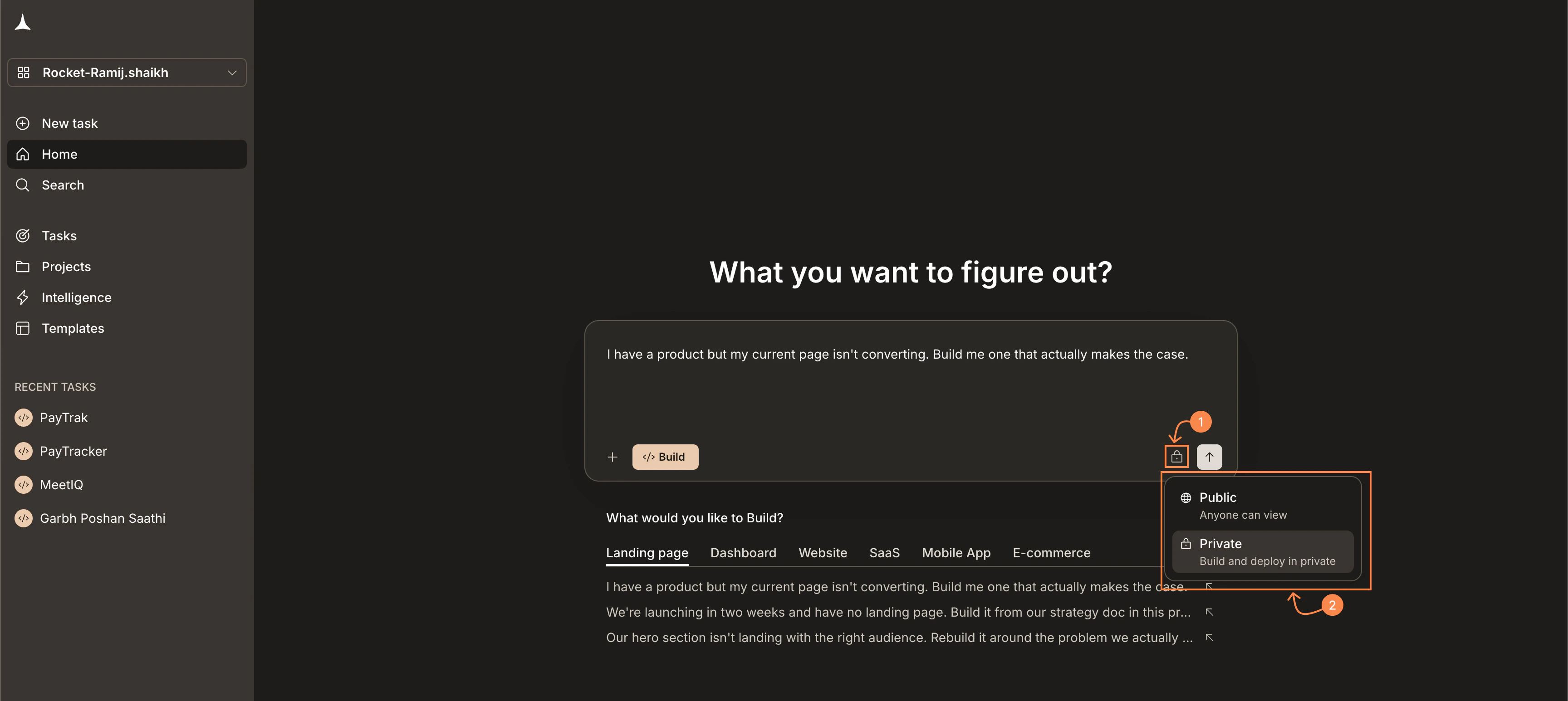
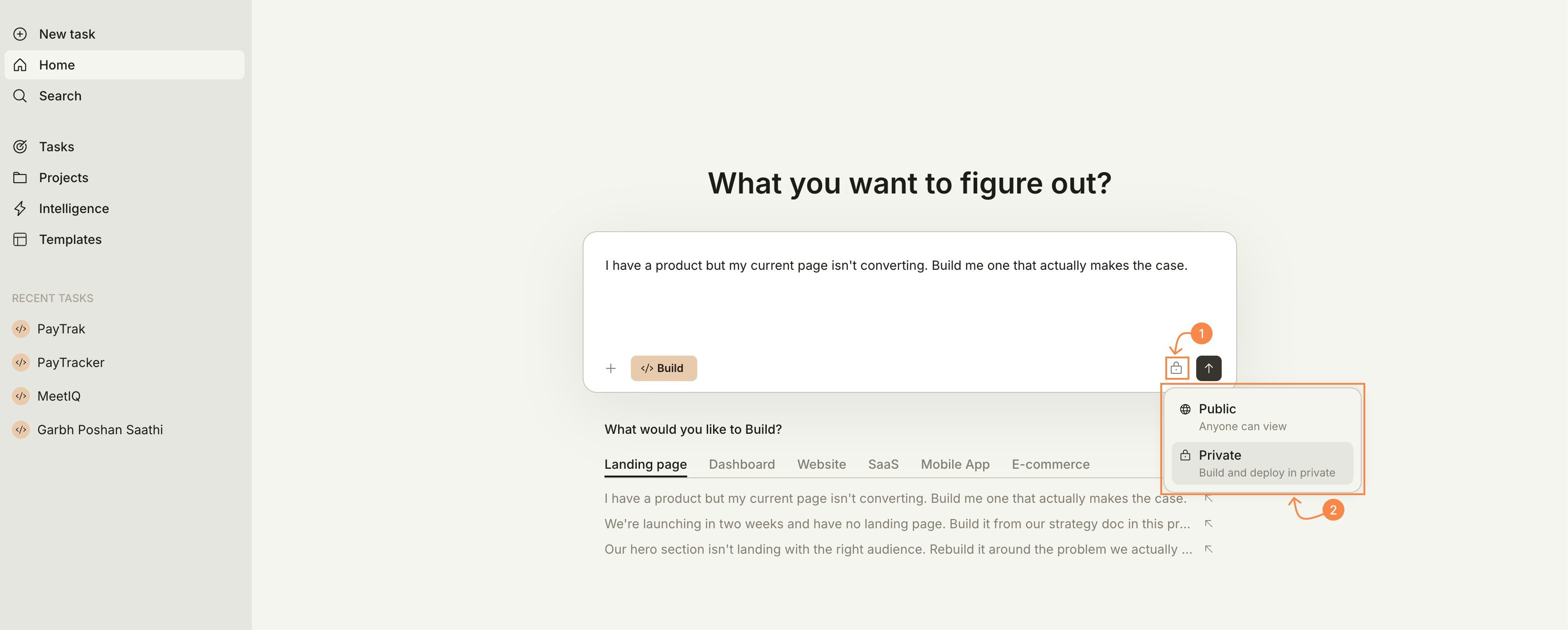
Before submitting a new task from **Home**, click the **lock icon** next to the send button to choose **Public** or **Private**.
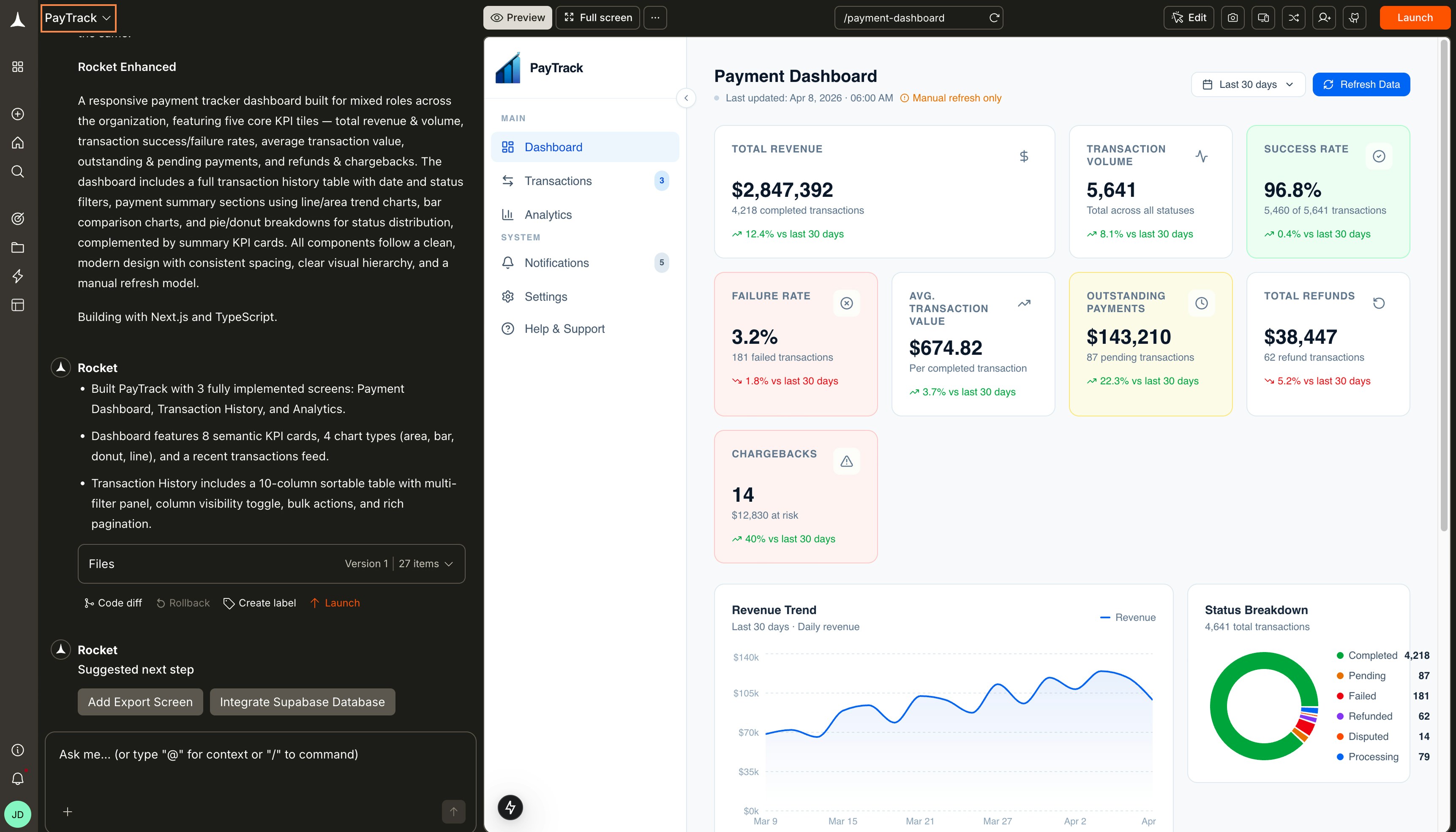
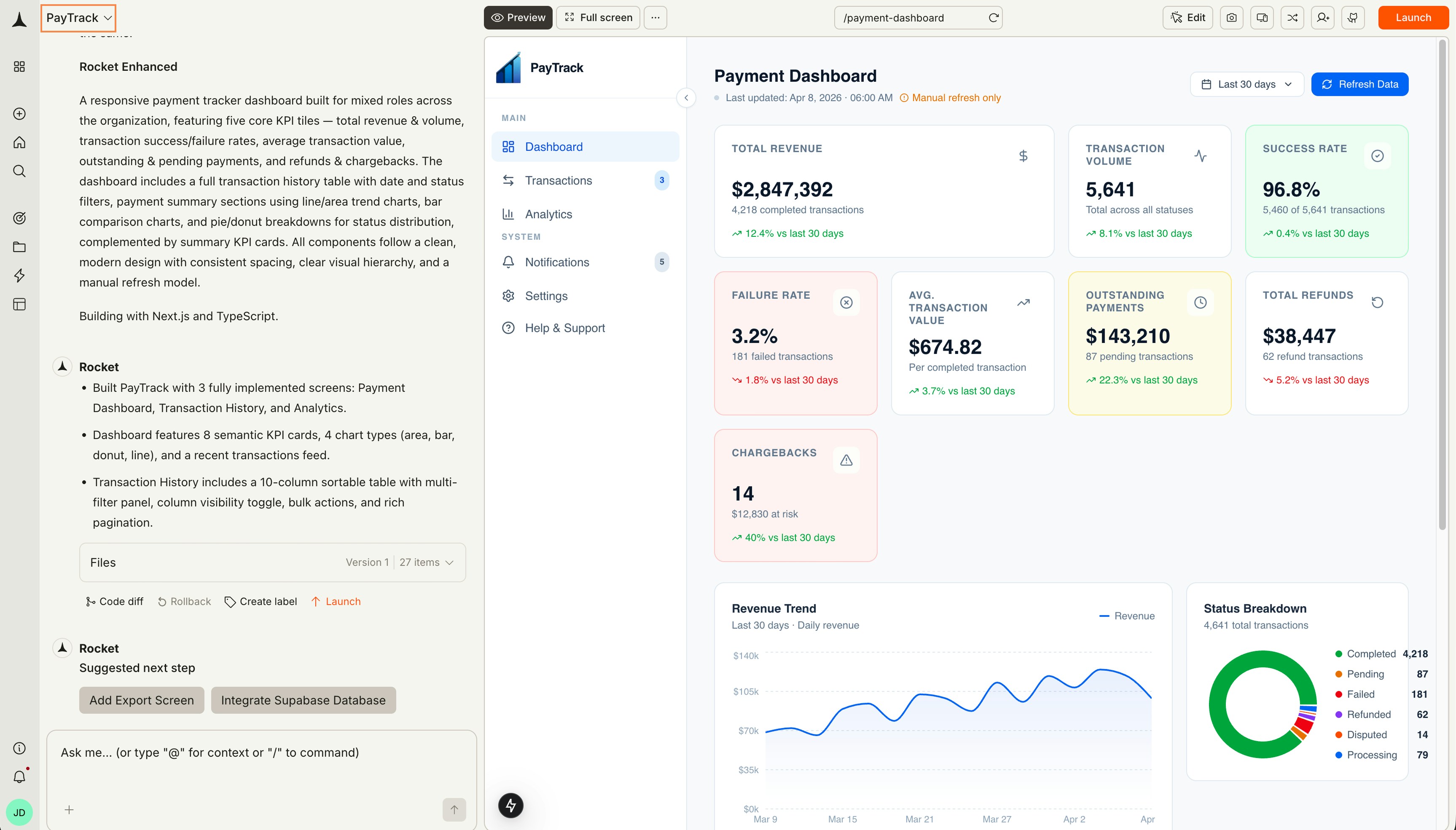
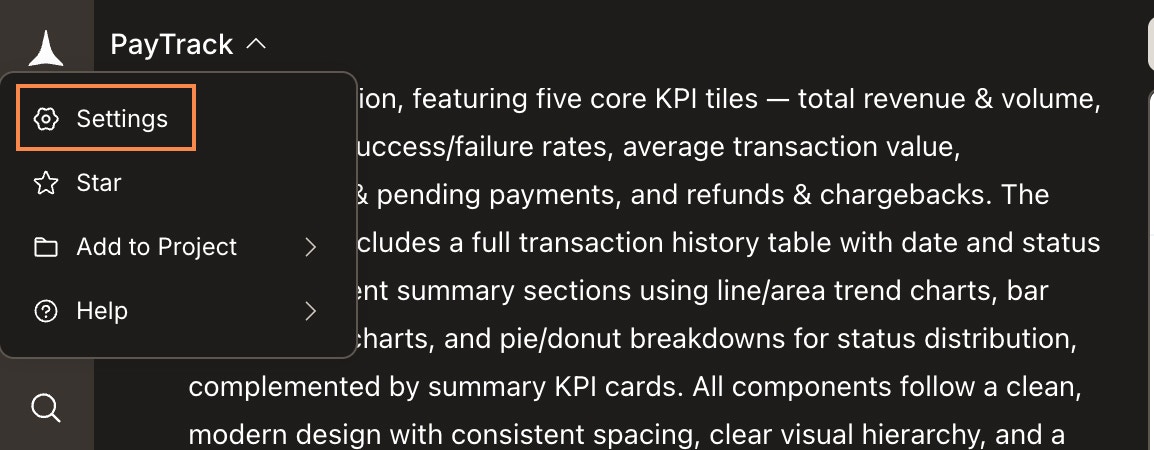
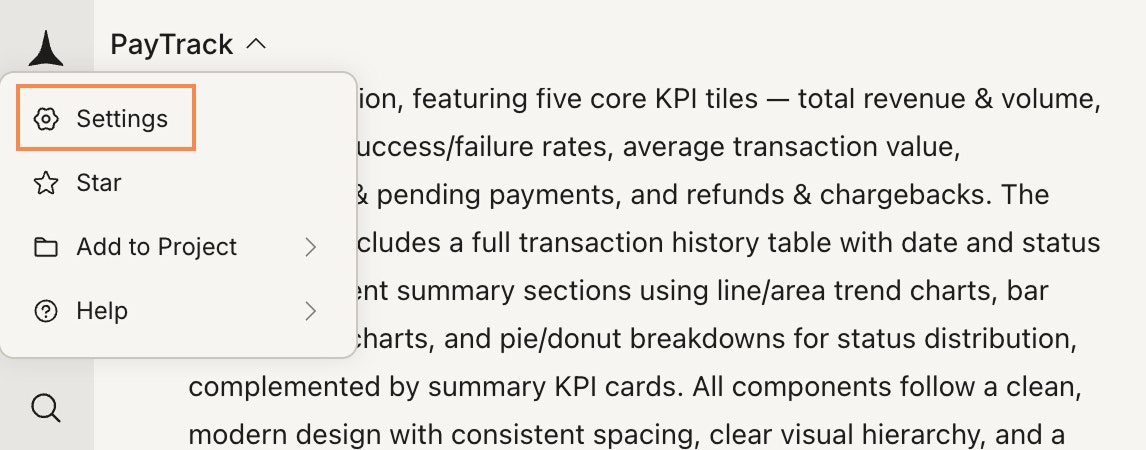
 Open the task, then click the **task name** at the top-left to open the dropdown.
 Select **Settings** from the dropdown.
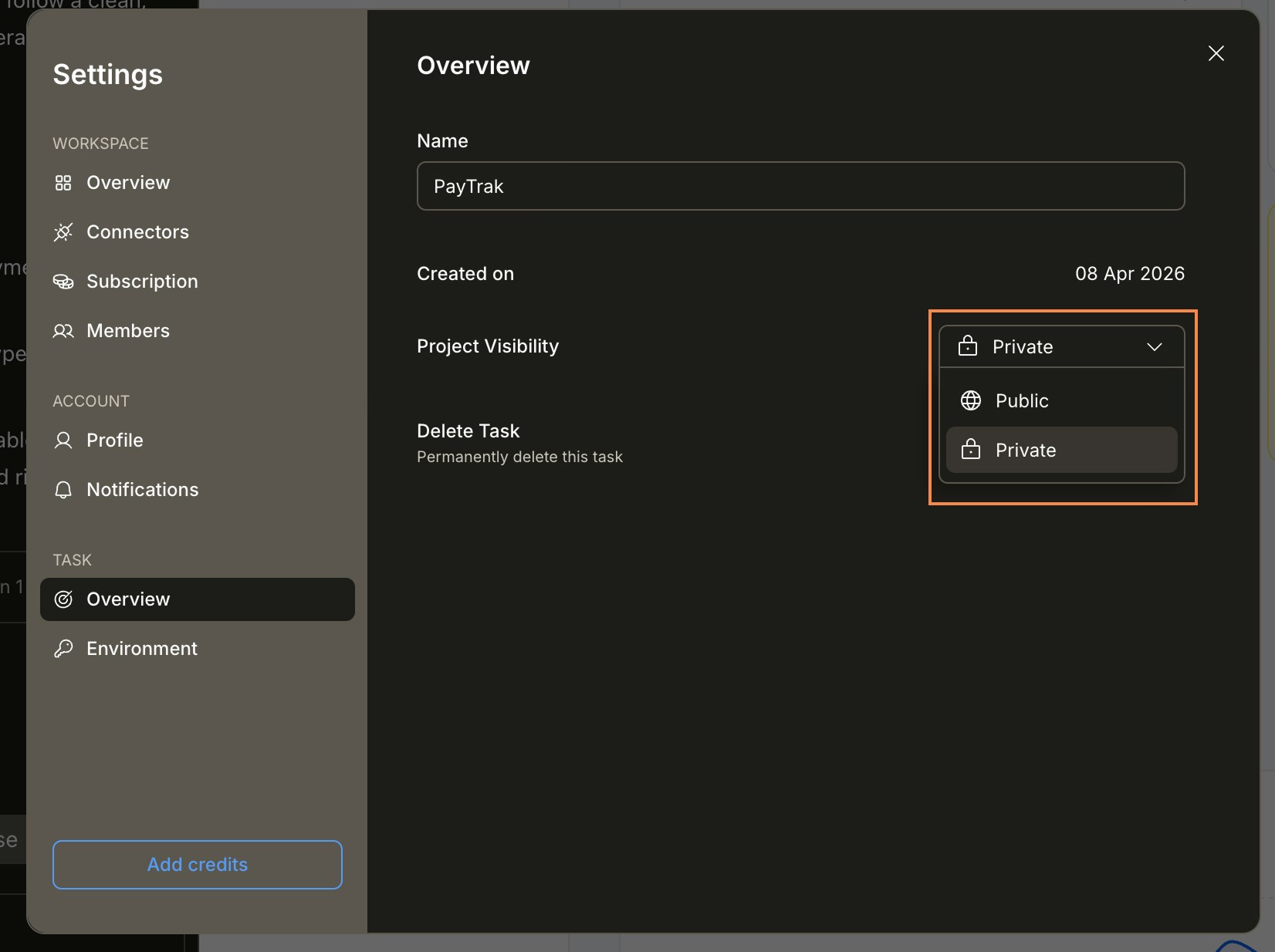
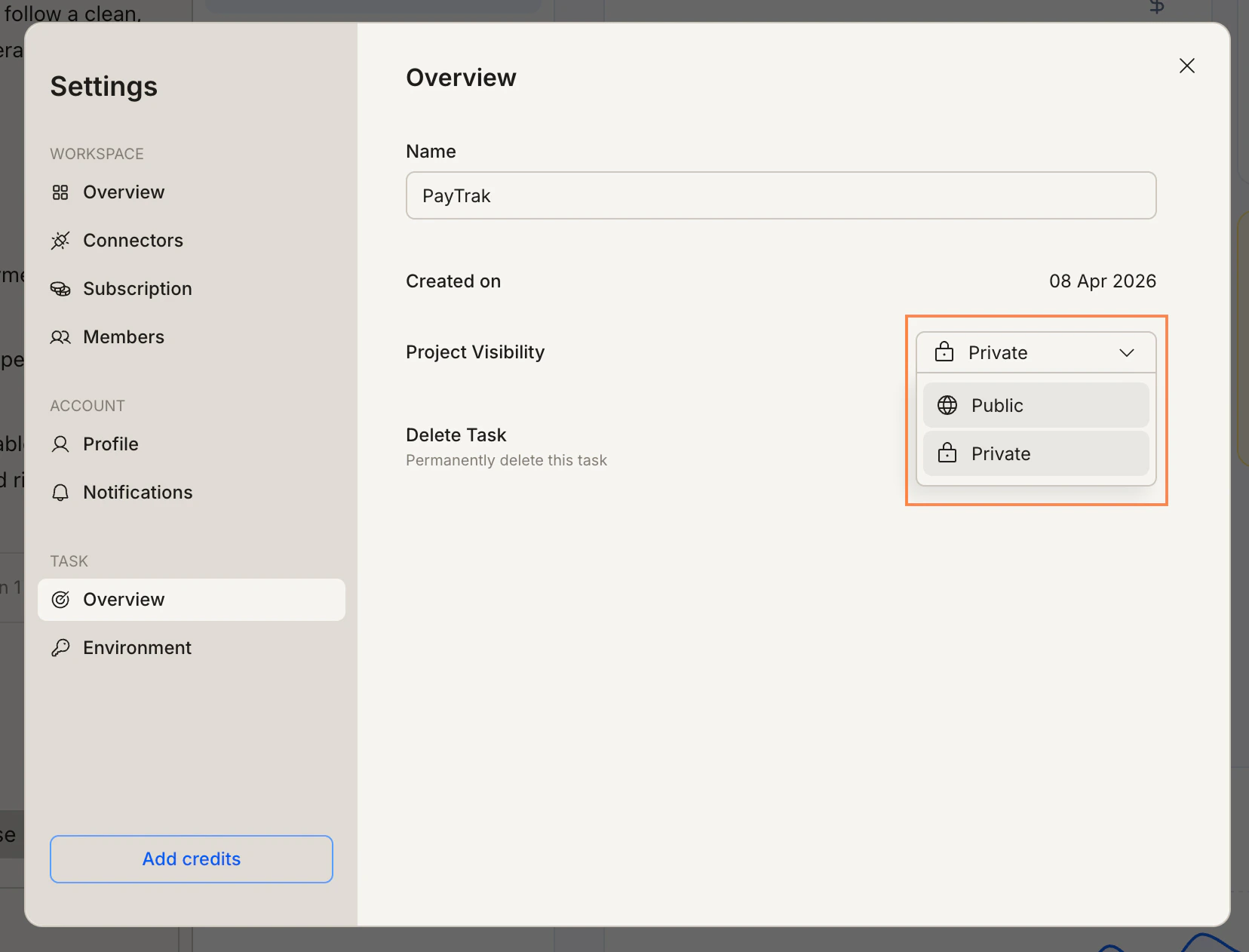
 In the **Overview** panel, open the **Task Visibility** dropdown and choose **Public** or **Private**. The change takes effect immediately.
 ## How visibility affects sharing
**Public tasks:** Copy the task URL and share it with anyone. Recipients can view the task output without logging in.
**Private tasks:** Private tasks are completely hidden from other users. If you later change a private task to public, the full task history becomes visible immediately.
Changing visibility from Private to Public exposes the entire task history, including all messages and outputs. Review your task content before making it visible.
## Frequently asked questions
Yes. See the steps in the **From inside the task** tab above.
No. Visibility controls who can see the task, not what Rocket can do with it. Rocket has full access to the task's files, context, and connected services regardless of visibility.
Existing links stop working immediately. Anyone who previously had access will see an error page. If you switch back to public, the same link becomes active again.
No. Each task has its own visibility setting. You can have a mix of public and private tasks within a single [project](/getting-started/project/overview).
## What's next?
Share tasks with teammates via link or email.
Rename, star, move, or delete a task.
## How visibility affects sharing
**Public tasks:** Copy the task URL and share it with anyone. Recipients can view the task output without logging in.
**Private tasks:** Private tasks are completely hidden from other users. If you later change a private task to public, the full task history becomes visible immediately.
Changing visibility from Private to Public exposes the entire task history, including all messages and outputs. Review your task content before making it visible.
## Frequently asked questions
Yes. See the steps in the **From inside the task** tab above.
No. Visibility controls who can see the task, not what Rocket can do with it. Rocket has full access to the task's files, context, and connected services regardless of visibility.
Existing links stop working immediately. Anyone who previously had access will see an error page. If you switch back to public, the same link becomes active again.
No. Each task has its own visibility setting. You can have a mix of public and private tasks within a single [project](/getting-started/project/overview).
## What's next?
Share tasks with teammates via link or email.
Rename, star, move, or delete a task.