> ## Documentation Index
> Fetch the complete documentation index at: https://docs.rocket.new/llms.txt
> Use this file to discover all available pages before exploring further.

# Download and install APK

> Build and download an Android APK from your Rocket.new app in minutes. Follow this step-by-step guide to install and test on any Android device running v8.0 or higher. No Play Store needed.

export const LlmsDirective = () => <blockquote className="llms-directive">
    For the complete documentation index, see <a href="/llms.txt">llms.txt</a>.
    For a lightweight markdown version of this page, append .md to the URL.
  </blockquote>;

<LlmsDirective />

Rocket builds your mobile app into an <Tooltip tip="An Android Package file that you can install directly on Android devices without going through the Play Store.">APK</Tooltip> you can install on any Android device. Use this to get a full native testing experience before you [publish to Google Play](/build/launch-mobile/google-play). You need an Android device running version 8.0 or higher.

<Note>
  Downloading an APK requires a paid plan (Pro or above).
</Note>

<Tip>
  Not ready to build a native package? [Share your app as a web preview](/build/launch-mobile/share-as-web-preview) for instant testing in any browser without a build step.
</Tip>

## Build and download

<Tabs>
  <Tab title="Web Browser">
    <Steps>
      <Step title="Click Launch">
        From your task, click the **Launch** button in the top-right corner. A popup appears with the **Rocket hosted** tab selected by default.
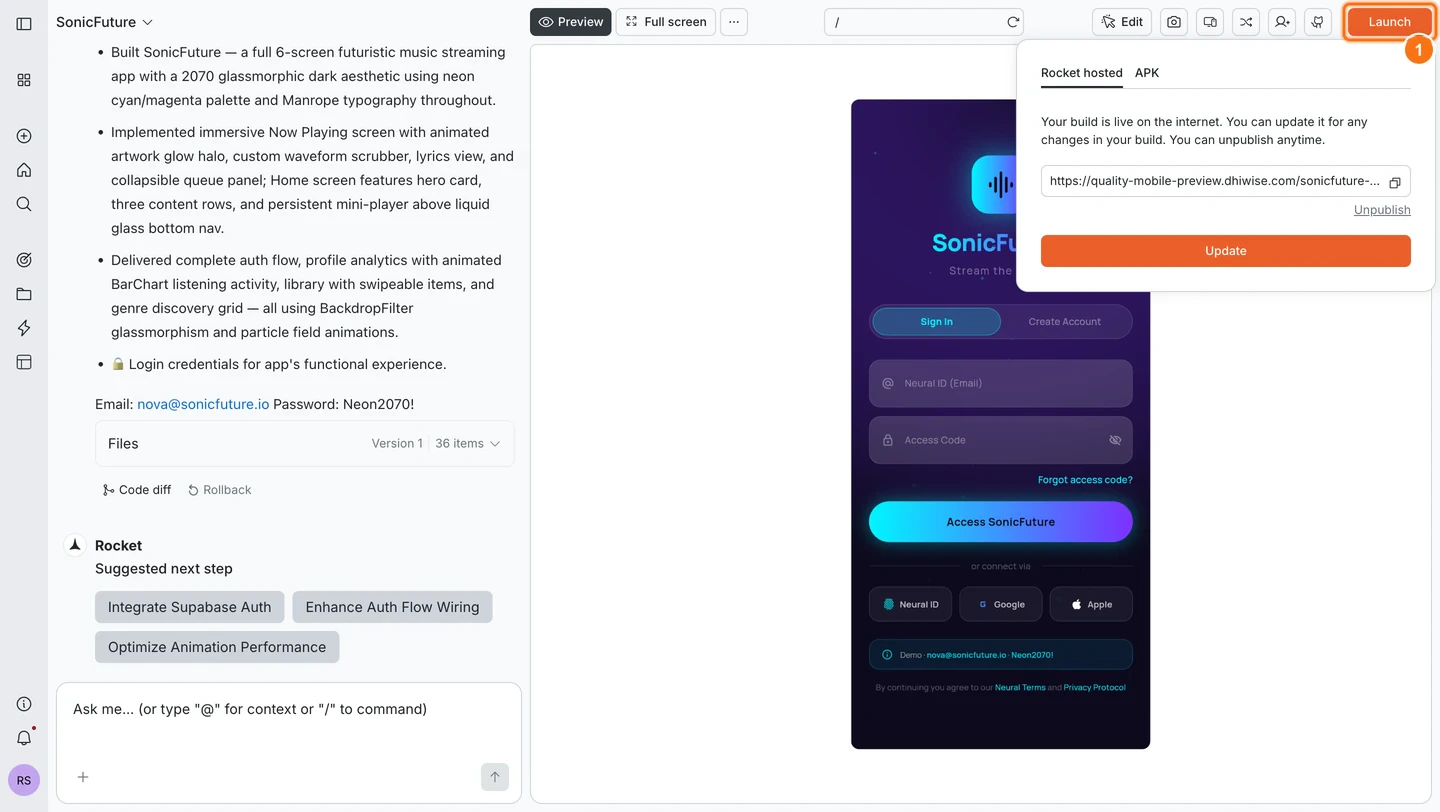
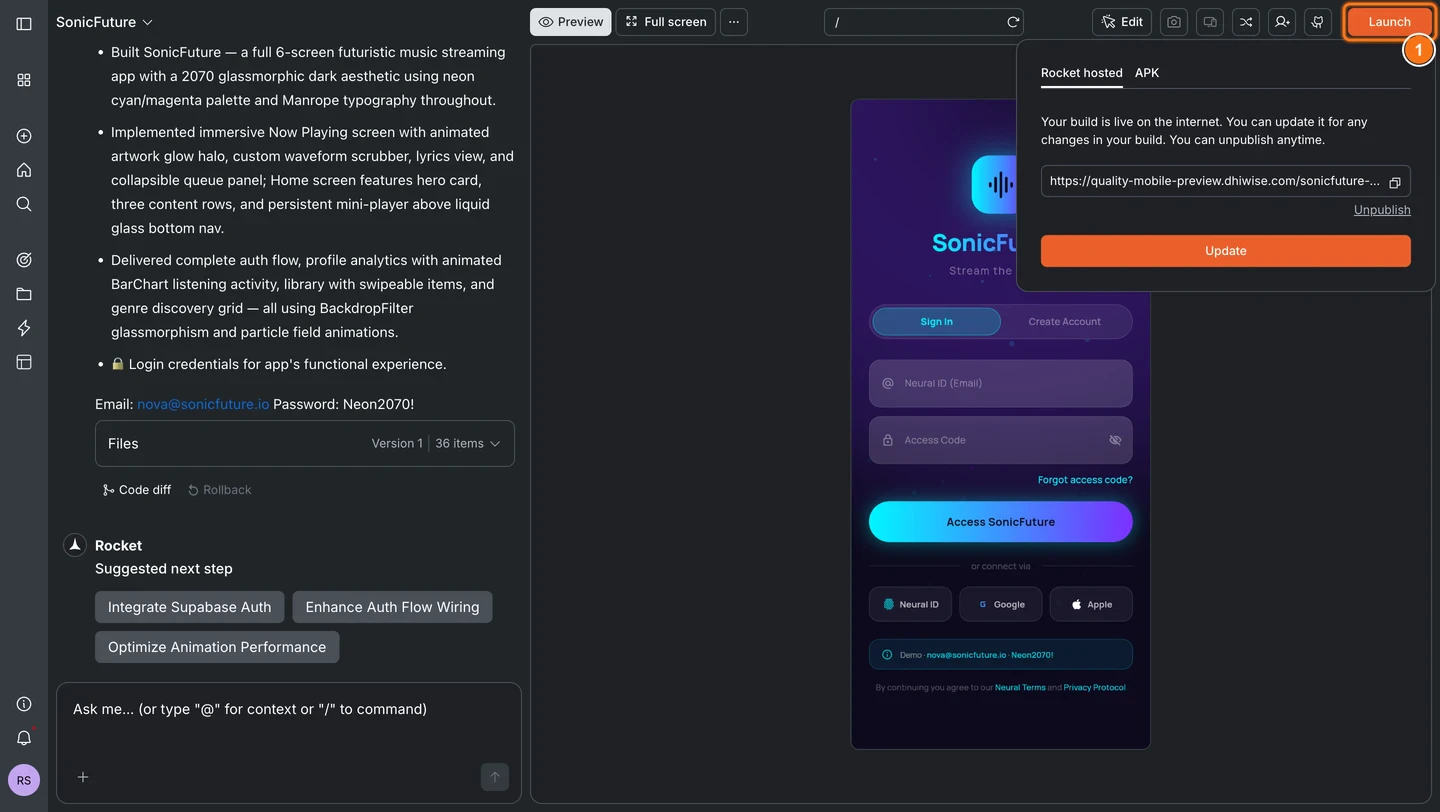
        <Frame caption="Launch popup with Rocket hosted and APK tabs">
          <img src="https://mintcdn.com/dhiwisepvtltd-5e04e6a4/SjTE8D-vvYrzhPjv/images/build-docs/launch-mobile/android-apk/web-browser/launch-popup-light.webp?fit=max&auto=format&n=SjTE8D-vvYrzhPjv&q=85&s=9cf4097d58145552b7a0b24b2d75923e" alt="Launch popup open showing Rocket hosted tab selected by default." className="theme-image light-image" width="1440" height="812" data-path="images/build-docs/launch-mobile/android-apk/web-browser/launch-popup-light.webp" />

          <img src="https://mintcdn.com/dhiwisepvtltd-5e04e6a4/SjTE8D-vvYrzhPjv/images/build-docs/launch-mobile/android-apk/web-browser/launch-popup-dark.webp?fit=max&auto=format&n=SjTE8D-vvYrzhPjv&q=85&s=7b12689d6d9171e9bdb49d440ebfb79f" alt="Launch popup open showing Rocket hosted tab selected by default." className="theme-image dark-image" width="1440" height="812" data-path="images/build-docs/launch-mobile/android-apk/web-browser/launch-popup-dark.webp" />
        </Frame>
      </Step>

      <Step title="Select the APK tab and click Build">
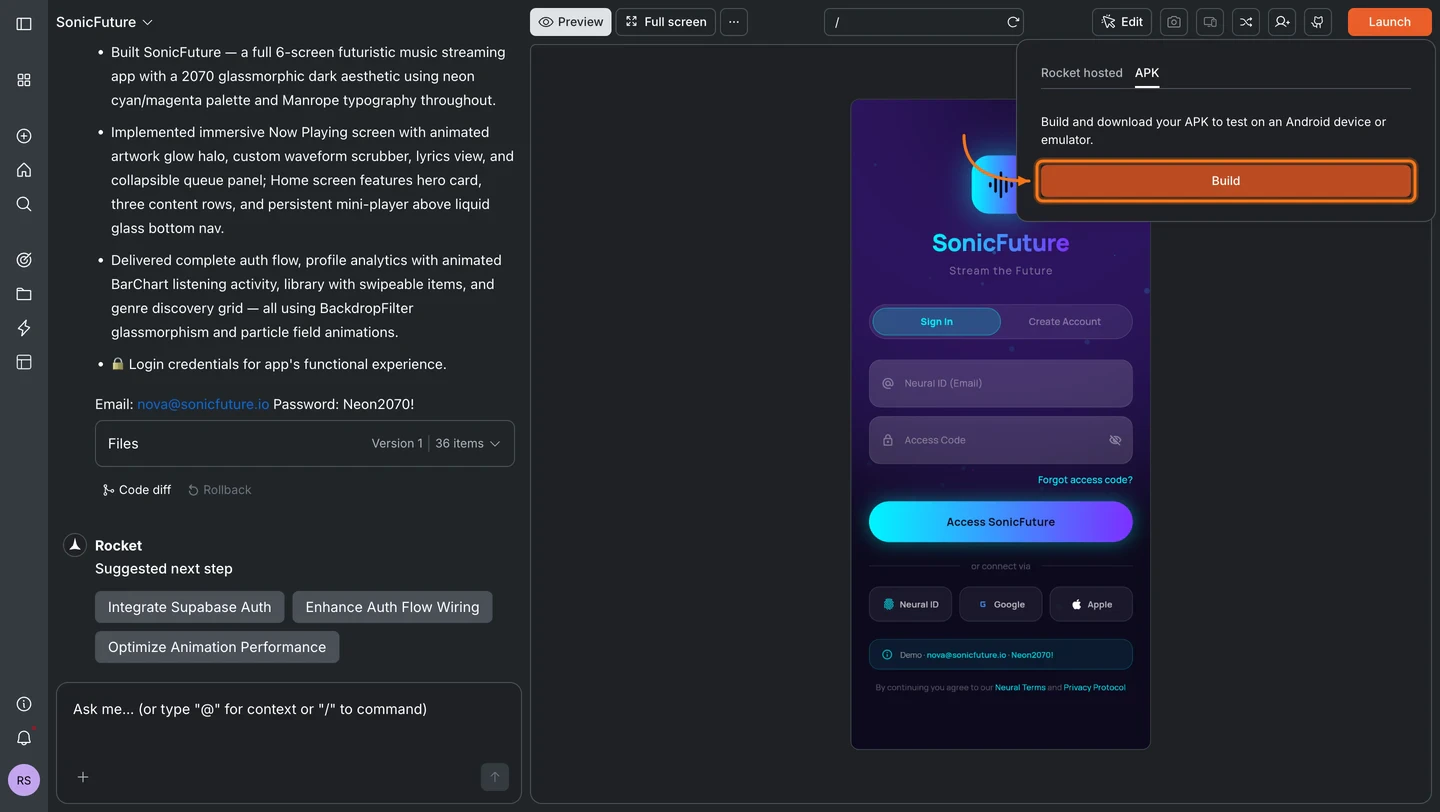
        Click the **APK** tab, then click **Build** to start generating your APK.
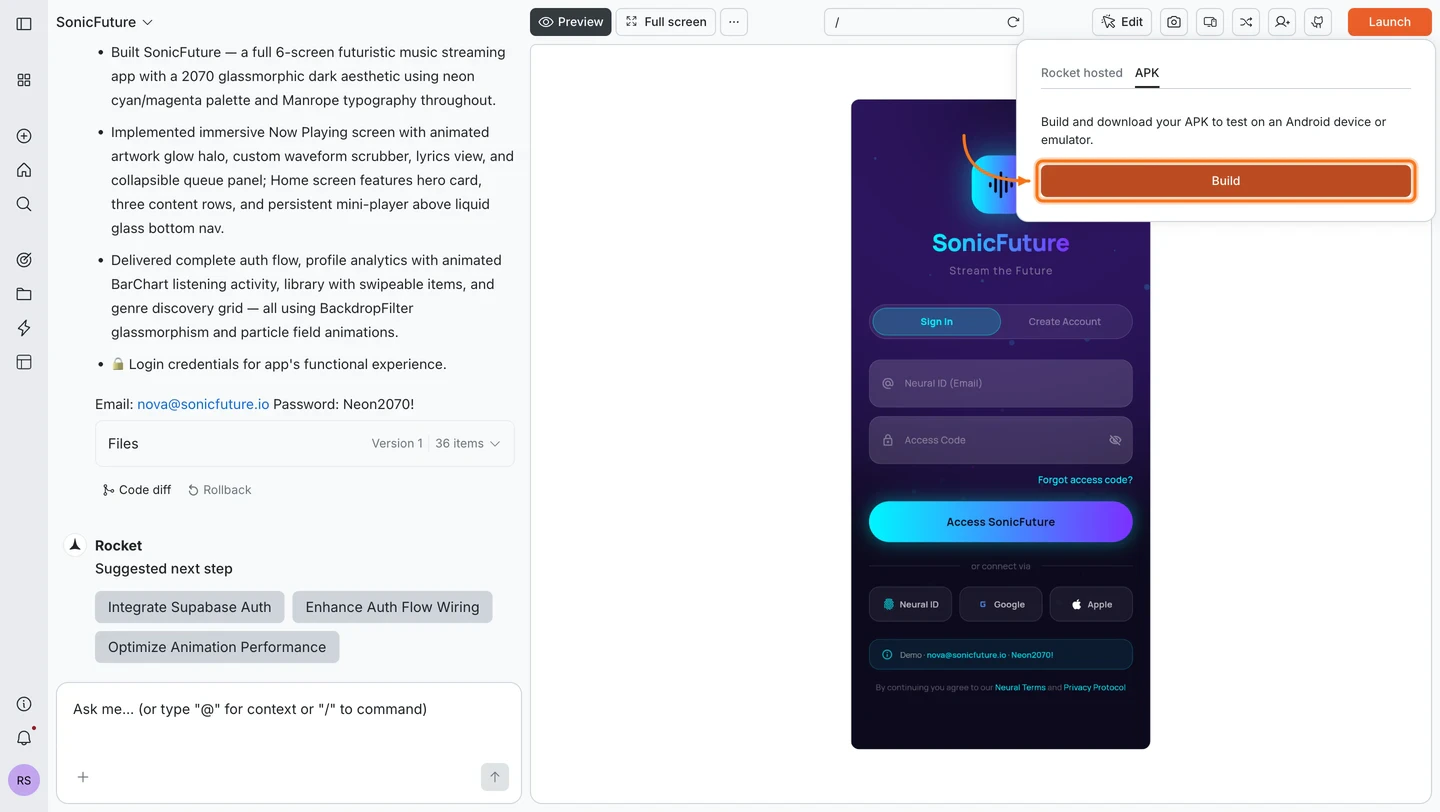
        <Frame caption="APK tab with Build button">
          <img src="https://mintcdn.com/dhiwisepvtltd-5e04e6a4/SjTE8D-vvYrzhPjv/images/build-docs/launch-mobile/android-apk/web-browser/apk-tab-light.webp?fit=max&auto=format&n=SjTE8D-vvYrzhPjv&q=85&s=8d414e10e5103460b65012b39fd51ed4" alt="APK tab selected in the Launch popup showing the Build button." className="theme-image light-image" width="1440" height="812" data-path="images/build-docs/launch-mobile/android-apk/web-browser/apk-tab-light.webp" />

          <img src="https://mintcdn.com/dhiwisepvtltd-5e04e6a4/SjTE8D-vvYrzhPjv/images/build-docs/launch-mobile/android-apk/web-browser/apk-tab-dark.webp?fit=max&auto=format&n=SjTE8D-vvYrzhPjv&q=85&s=04d1234c16a3c9a1a87b8e6845743614" alt="APK tab selected in the Launch popup showing the Build button." className="theme-image dark-image" width="1440" height="812" data-path="images/build-docs/launch-mobile/android-apk/web-browser/apk-tab-dark.webp" />
        </Frame>
      </Step>

      <Step title="Wait for the build to finish">
        A progress bar shows the build status. If it takes more than a minute, Rocket emails you a download link when it is ready.
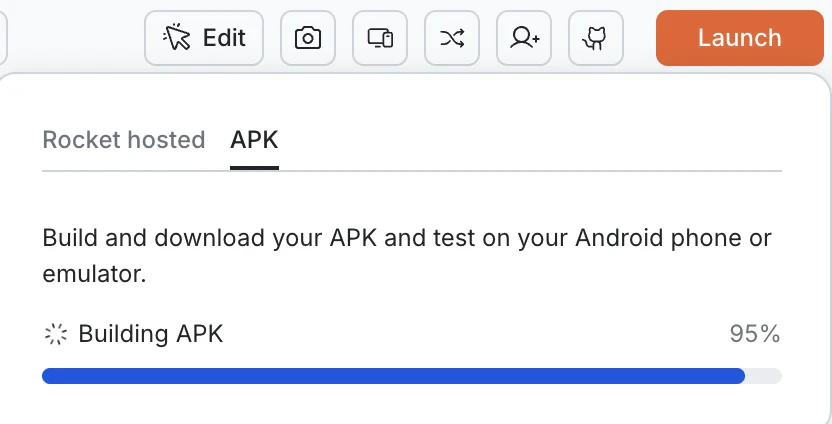
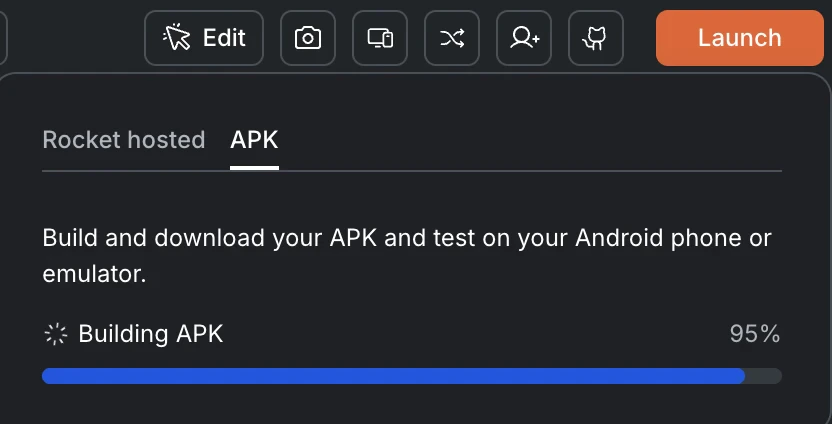
        <Frame caption="APK build in progress">
          <img src="https://mintcdn.com/dhiwisepvtltd-5e04e6a4/SjTE8D-vvYrzhPjv/images/build-docs/launch-mobile/android-apk/web-browser/apk-building-light.webp?fit=max&auto=format&n=SjTE8D-vvYrzhPjv&q=85&s=2a8cf44467ed59c55d483a30dd575e50" alt="APK tab showing Building APK progress bar at 95%." className="theme-image light-image" width="832" height="424" data-path="images/build-docs/launch-mobile/android-apk/web-browser/apk-building-light.webp" />

          <img src="https://mintcdn.com/dhiwisepvtltd-5e04e6a4/SjTE8D-vvYrzhPjv/images/build-docs/launch-mobile/android-apk/web-browser/apk-building-dark.webp?fit=max&auto=format&n=SjTE8D-vvYrzhPjv&q=85&s=7c1a7d7e46be8f49daca7dd7de1cdda5" alt="APK tab showing Building APK progress bar at 95%." className="theme-image dark-image" width="832" height="424" data-path="images/build-docs/launch-mobile/android-apk/web-browser/apk-building-dark.webp" />
        </Frame>
      </Step>

      <Step title="Download the APK">
        When the build finishes, click **Download** to save the `.apk` file to your computer. Click **Build new APK** to rebuild with your latest changes.
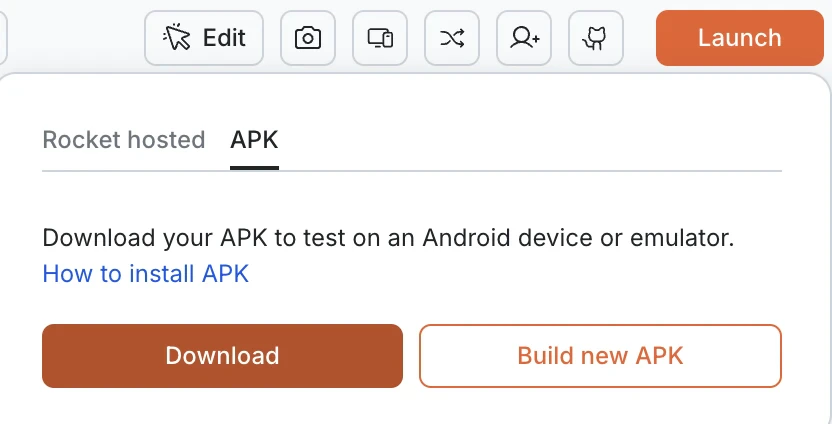
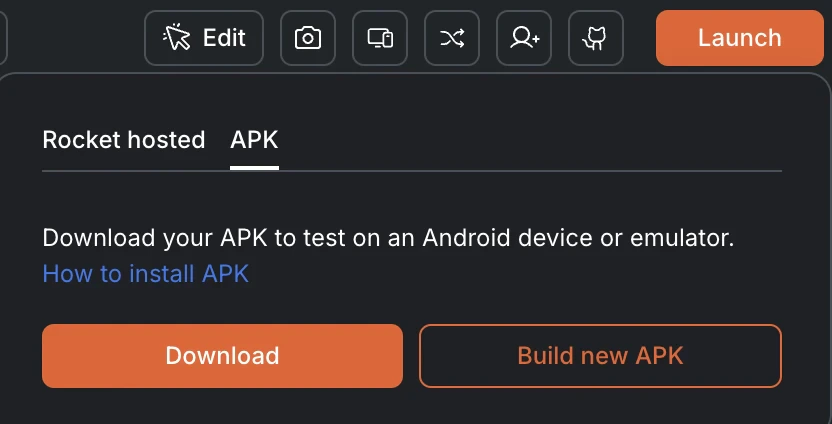
        <Frame caption="Download and Build new APK buttons">
          <img src="https://mintcdn.com/dhiwisepvtltd-5e04e6a4/SjTE8D-vvYrzhPjv/images/build-docs/launch-mobile/android-apk/web-browser/apk-download-light.webp?fit=max&auto=format&n=SjTE8D-vvYrzhPjv&q=85&s=d80a751290a183b9555062668e3c98f5" alt="APK tab showing Download and Build new APK buttons after a successful build." className="theme-image light-image" width="832" height="424" data-path="images/build-docs/launch-mobile/android-apk/web-browser/apk-download-light.webp" />

          <img src="https://mintcdn.com/dhiwisepvtltd-5e04e6a4/SjTE8D-vvYrzhPjv/images/build-docs/launch-mobile/android-apk/web-browser/apk-download-dark.webp?fit=max&auto=format&n=SjTE8D-vvYrzhPjv&q=85&s=25640bb9f83d63a8654107d706a208c2" alt="APK tab showing Download and Build new APK buttons after a successful build." className="theme-image dark-image" width="832" height="424" data-path="images/build-docs/launch-mobile/android-apk/web-browser/apk-download-dark.webp" />
        </Frame>
      </Step>
    </Steps>
  </Tab>

  <Tab title="Mobile App">
    <Steps>
      <Step title="Open the More menu">
        From your project screen, tap **More** in the header bar.
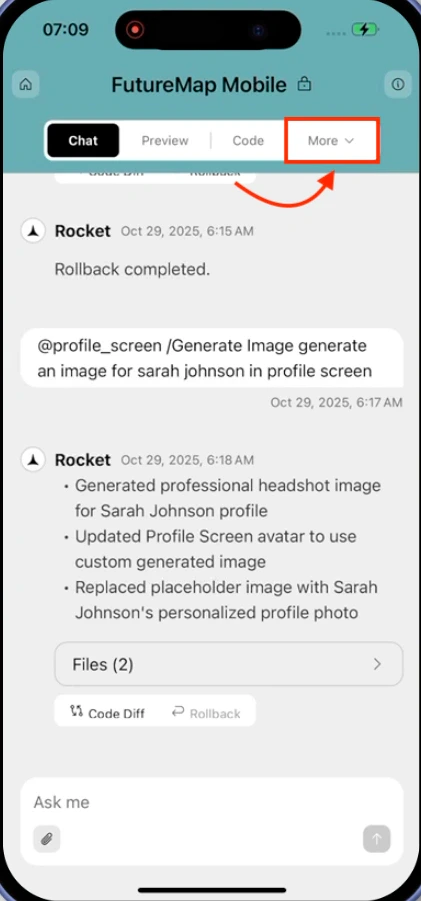
        <Frame caption="More button in header bar">
          <img src="https://mintcdn.com/dhiwisepvtltd-5e04e6a4/SjTE8D-vvYrzhPjv/images/build-docs/launch-mobile/share-as-web-preview/mobile-app/more-tab-at-rocket-app.webp?fit=max&auto=format&n=SjTE8D-vvYrzhPjv&q=85&s=c52749b0e37a389485c00e3de47c5dd5" alt="More button in header bar on mobile." className="theme-mobile-image" width="421" height="901" data-path="images/build-docs/launch-mobile/share-as-web-preview/mobile-app/more-tab-at-rocket-app.webp" />
        </Frame>
      </Step>

      <Step title="Tap Launch on Android phone">
        Tap **Launch on Android phone** from the menu.
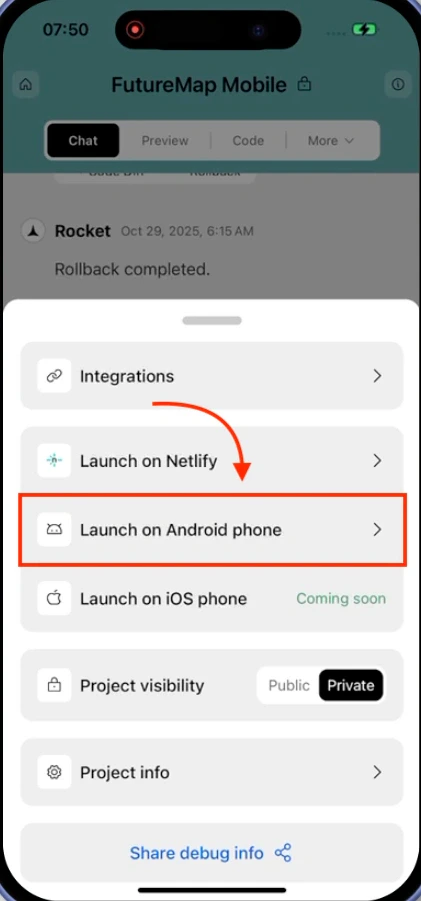
        <Frame caption="Launch on Android phone option">
          <img src="https://mintcdn.com/dhiwisepvtltd-5e04e6a4/SjTE8D-vvYrzhPjv/images/build-docs/launch-mobile/android-apk/mobile-app/launch-android-phone-option-in-rocket-app.webp?fit=max&auto=format&n=SjTE8D-vvYrzhPjv&q=85&s=4a30eeeaa2eca18375a6d7adfaebfbe3" alt="Dropdown menu showing Launch on Android phone option highlighted on mobile." className="theme-mobile-image" width="421" height="901" data-path="images/build-docs/launch-mobile/android-apk/mobile-app/launch-android-phone-option-in-rocket-app.webp" />
        </Frame>
      </Step>

      <Step title="Tap Build APK">
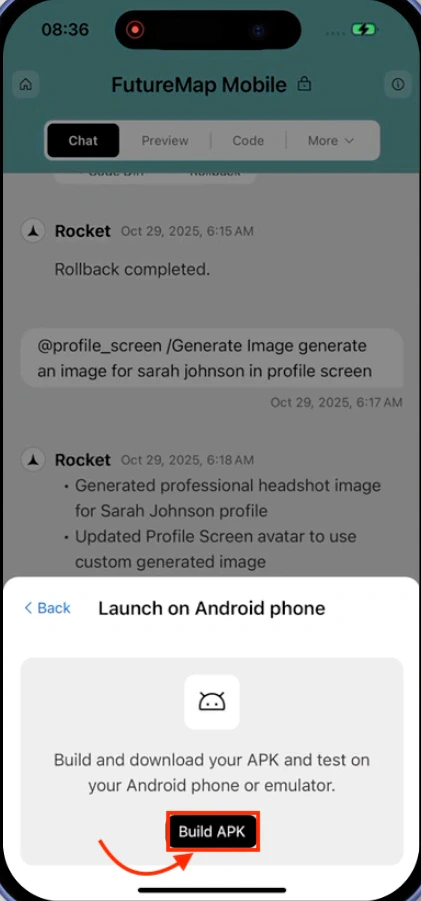
        Tap **Build APK** to start the build.

        <Frame caption="Build APK button">
          <img src="https://mintcdn.com/dhiwisepvtltd-5e04e6a4/SjTE8D-vvYrzhPjv/images/build-docs/launch-mobile/android-apk/mobile-app/build-apk-modal-in-rocket-app.webp?fit=max&auto=format&n=SjTE8D-vvYrzhPjv&q=85&s=e9a849b93956cc67d0132460ca784a9e" alt="Launch on Android phone modal showing Build APK button on mobile." className="theme-mobile-image" width="421" height="901" data-path="images/build-docs/launch-mobile/android-apk/mobile-app/build-apk-modal-in-rocket-app.webp" />
        </Frame>
      </Step>

      <Step title="Wait for the build to finish">
        A progress indicator shows the build status. If it takes more than a minute, Rocket emails you a download link when it is ready.
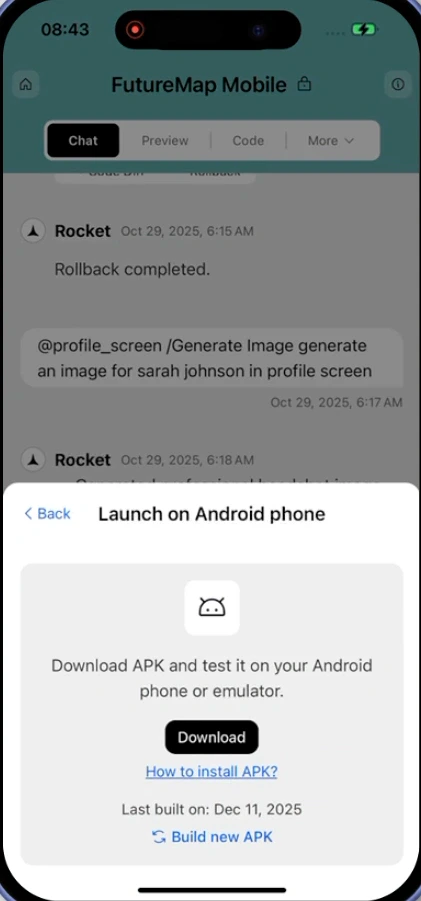
        <Frame caption="APK build in progress">
          <img src="https://mintcdn.com/dhiwisepvtltd-5e04e6a4/SjTE8D-vvYrzhPjv/images/build-docs/launch-mobile/android-apk/mobile-app/apk-build-progress-mobile-in-rocket-app.webp?fit=max&auto=format&n=SjTE8D-vvYrzhPjv&q=85&s=8c87960573f9f8d7105dfb5849382b44" alt="Progress indicator during Android app build showing Building status on mobile." className="theme-mobile-image" width="421" height="901" data-path="images/build-docs/launch-mobile/android-apk/mobile-app/apk-build-progress-mobile-in-rocket-app.webp" />
        </Frame>
      </Step>

      <Step title="Download the APK">
        When the build finishes, tap **Download** to save the `.apk` file to your device. Tap **Build new APK** to rebuild with your latest changes.
      </Step>
    </Steps>
  </Tab>
</Tabs>

<Warning>
  If a build fails, fix any code errors in your editor, make sure you have a stable internet connection, and click **Rebuild**. Common causes are dependency mismatches, invalid configurations, or unsupported packages. If it fails three times in a row, contact <a href="mailto:support@rocket.new">[support@rocket.new](mailto:support@rocket.new)</a>.
</Warning>

## Install on your Android device

<Steps>
  <Step title="Find the APK on your device">
    If you downloaded it from a browser, check the **Downloads** folder. If you downloaded it on your computer, transfer it to your device via USB or cloud storage.
  </Step>

  <Step title="Tap the APK file">
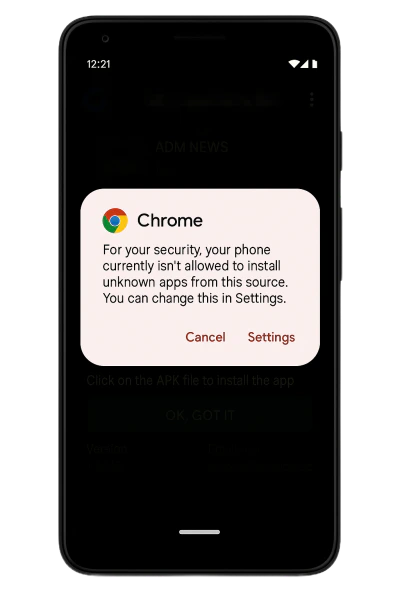
    Open your device's **Files** or **Downloads** app and tap the APK file. A system prompt appears asking if you want to install the app.
    <Frame caption="System install prompt after tapping the APK">
      <img src="https://mintcdn.com/dhiwisepvtltd-5e04e6a4/SjTE8D-vvYrzhPjv/images/build-docs/launch-mobile/android-apk/settings-unknown-source.webp?fit=max&auto=format&n=SjTE8D-vvYrzhPjv&q=85&s=c3433be1cab5e0d5c8b8ac1410a80423" alt="System prompt triggered after tapping the APK file to start installation." className="theme-image" width="400" height="600" data-path="images/build-docs/launch-mobile/android-apk/settings-unknown-source.webp" />
    </Frame>
  </Step>

  <Step title="Allow installs from this source">
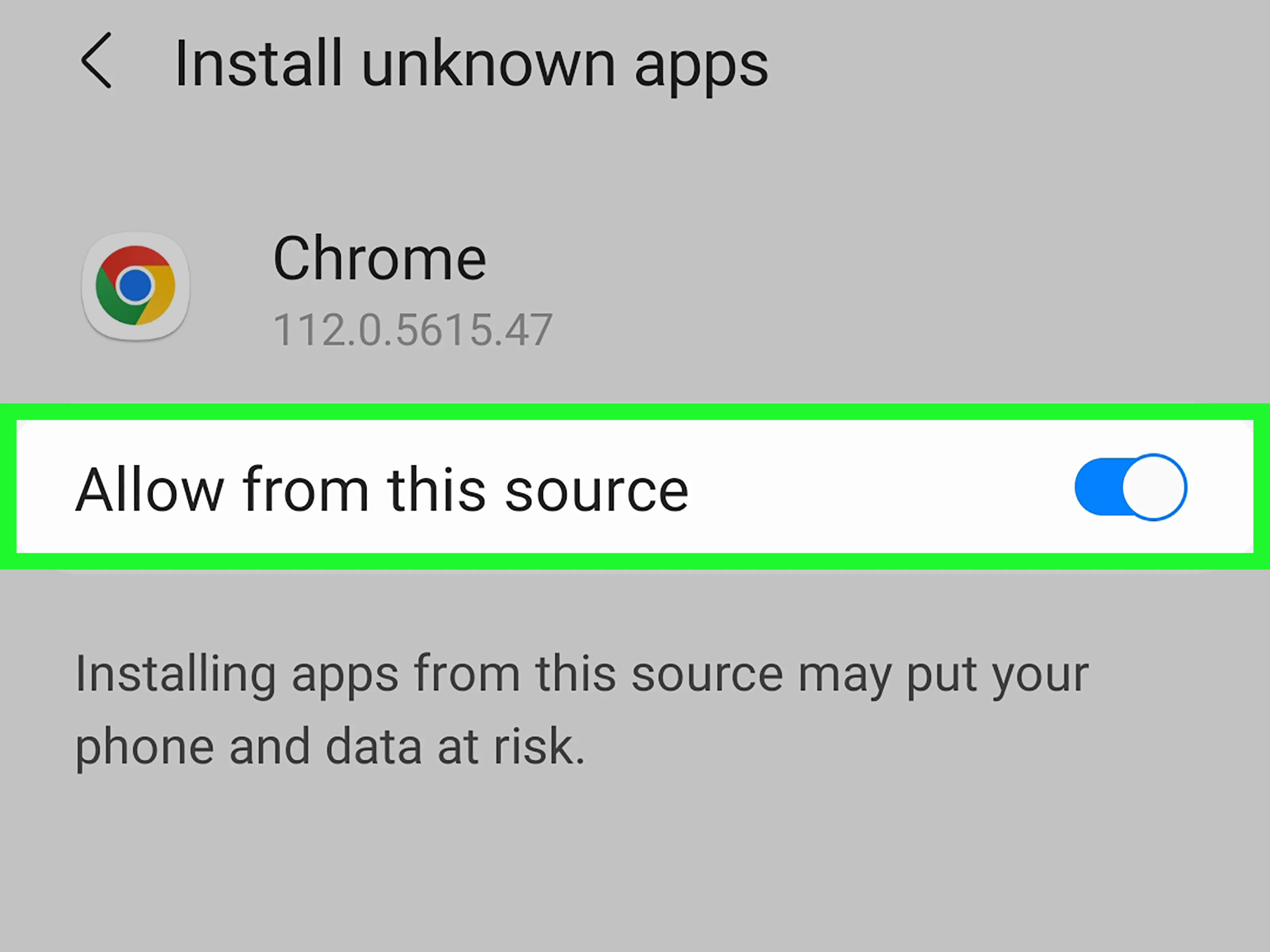
    If this is your first time installing an APK from this source, Android will block the install and show a warning.

    1. Tap **Settings** in the popup.
    2. Toggle on **Allow from this source**.
    3. Tap the back arrow to return to the install screen.
    <Frame caption="Enable Allow from this source">
      <img src="https://mintcdn.com/dhiwisepvtltd-5e04e6a4/SjTE8D-vvYrzhPjv/images/build-docs/launch-mobile/android-apk/install-unknown-source-apk.webp?fit=max&auto=format&n=SjTE8D-vvYrzhPjv&q=85&s=e50fb85f4618796f38dd3adb50a40b60" alt="Android settings screen showing Allow from this source toggle enabled." className="theme-image" width="3200" height="2400" data-path="images/build-docs/launch-mobile/android-apk/install-unknown-source-apk.webp" />
    </Frame>

    <Note>
      You only need to do this once per app you use to open the APK (such as Chrome or Gmail).
    </Note>
  </Step>

  <Step title="Install the app">
    Tap **Install** and wait a few seconds. Once done, tap **Open** to launch it or find it in your app drawer.
  </Step>
</Steps>

<Warning>
  After installing, consider turning off **Allow from this source** to protect your device. Go to **Settings > Apps > Special app access > Install unknown apps**, select the app you used, then disable the permission.
</Warning>

## What's next?

<CardGroup cols={2}>
  <Card title="Publish to Google Play" icon="android" href="/build/launch-mobile/google-play">
    Submit your tested app to the Google Play Store for public distribution.
  </Card>

  <Card title="Compare distribution options" icon="scale-balanced" href="/build/launch-mobile/sharing-vs-stores">
    Decide between web links, APK builds, and app store submissions.
  </Card>
</CardGroup>