> ## Documentation Index
> Fetch the complete documentation index at: https://docs.rocket.new/llms.txt
> Use this file to discover all available pages before exploring further.
# Custom domain
> Connect your own domain to a Rocket.new app with automatic HTTPS. Rocket can configure DNS automatically for supported providers, or you can add records manually.
export const LlmsDirective = () =>
For the complete documentation index, see llms.txt.
For a lightweight markdown version of this page, append .md to the URL.
;
Connect any domain you own to your Rocket app so it is reachable at your custom address with automatic HTTPS.
If you do not own a domain yet, you can [buy one directly through Rocket](/build/launch-web/buy-domain) (paid plan required).
Connecting a custom domain requires a paid plan (Pro or above). You also need a Rocket task that has been [deployed to the web](/build/launch-web/launch-your-site) and access to your domain provider account.
Rocket tries to configure DNS automatically by default. For supported providers, it logs into your domain account with one-time permission and updates the records for you. If automatic setup is not available for your provider or fails, you can fall back to the manual method where Rocket gives you the exact records to add yourself.
## Automatic setup (default)
Rocket uses an automated flow to log in to your domain provider and configure DNS automatically with your permission. This works for supported providers.
Click the **Launch** button in the top-right corner of your project, then click the **Production** tab.
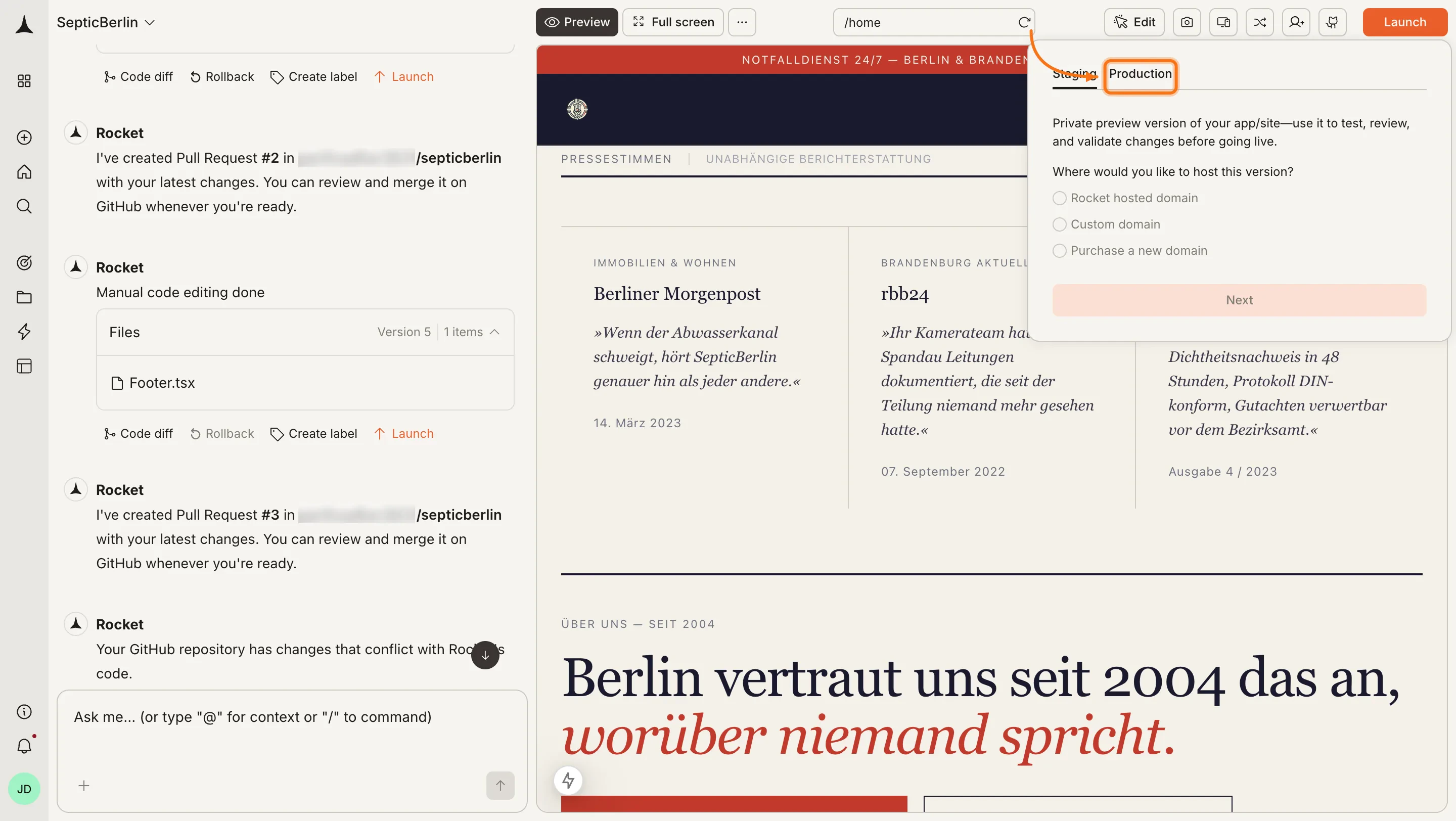
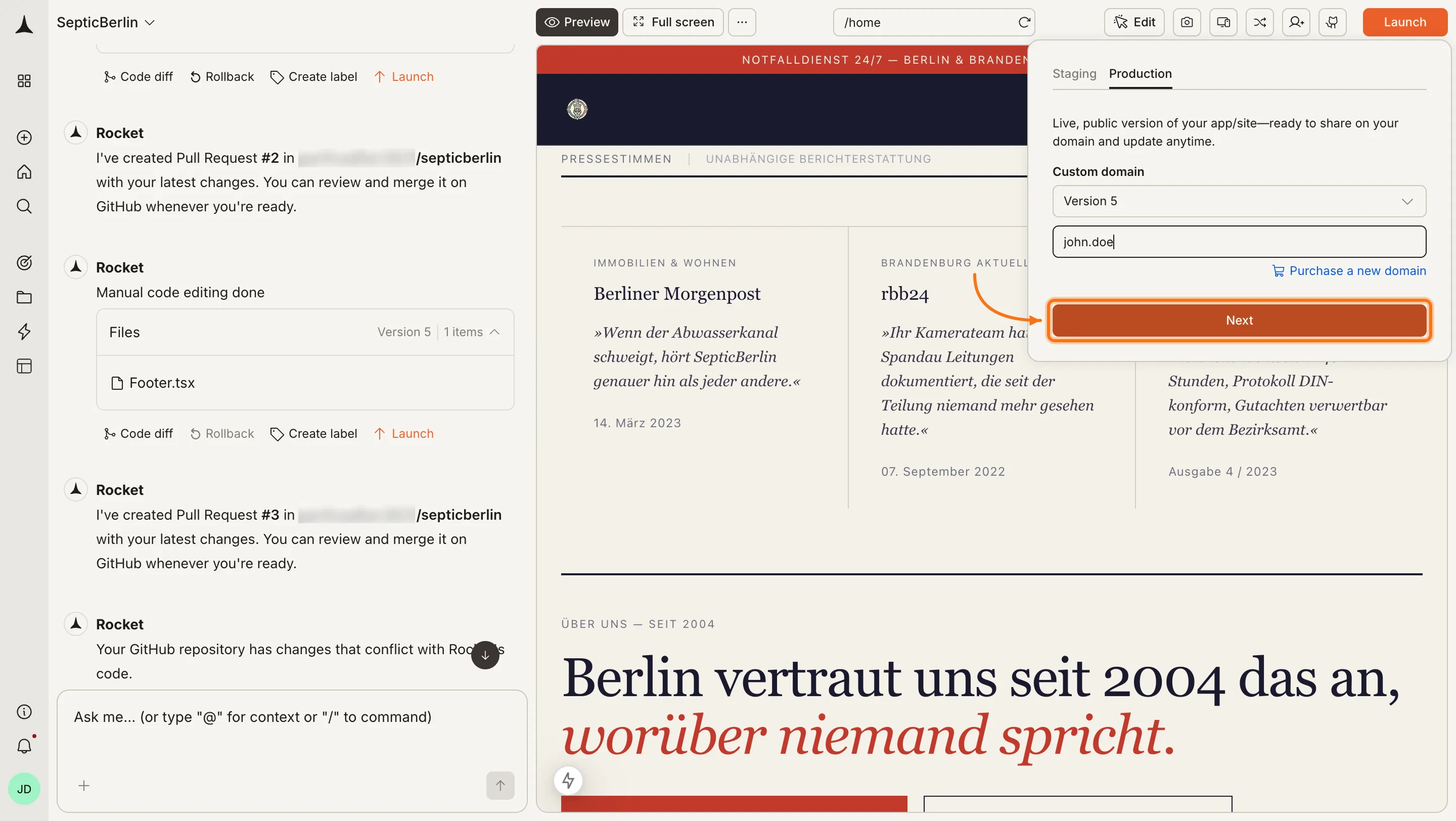
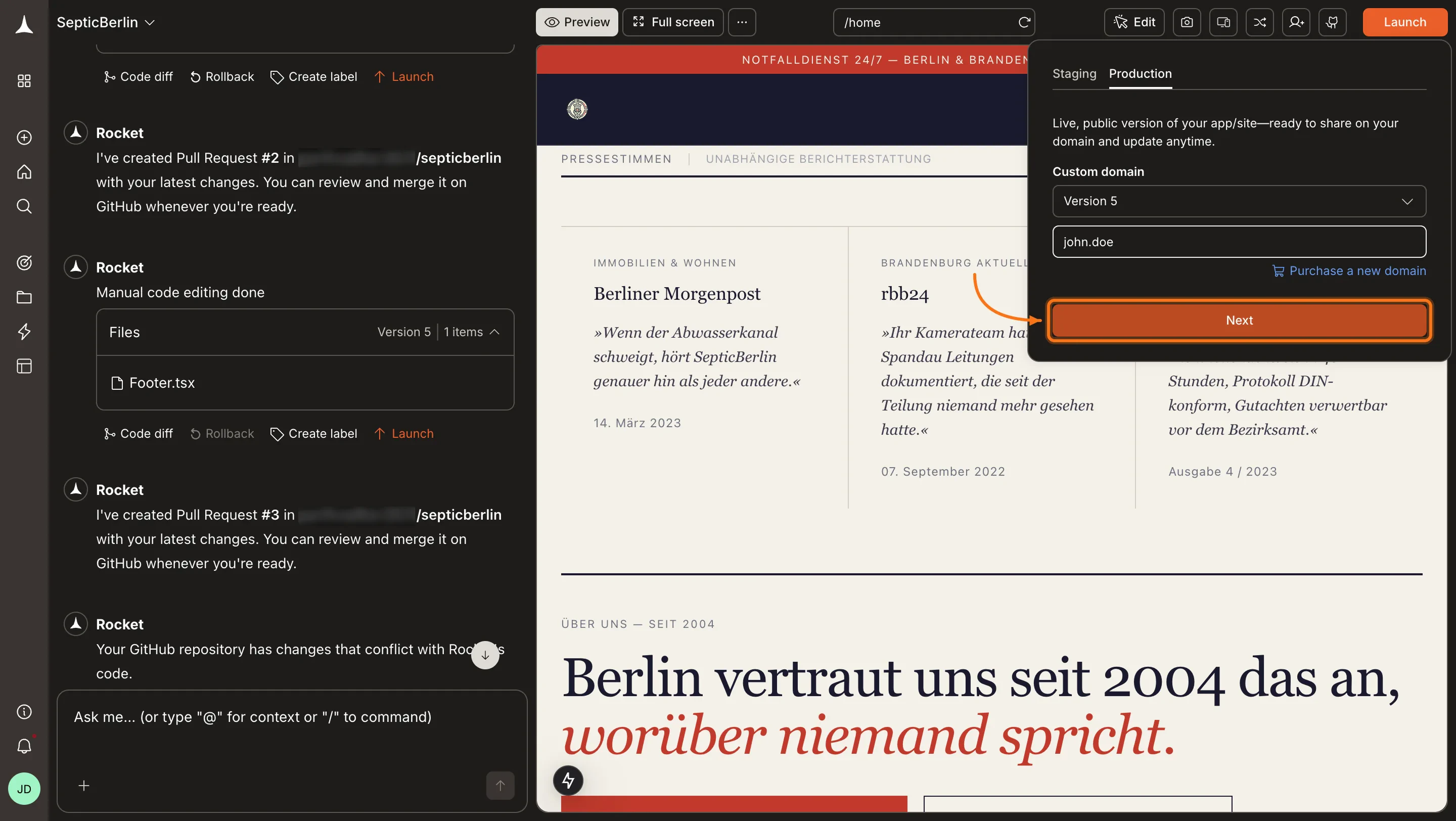
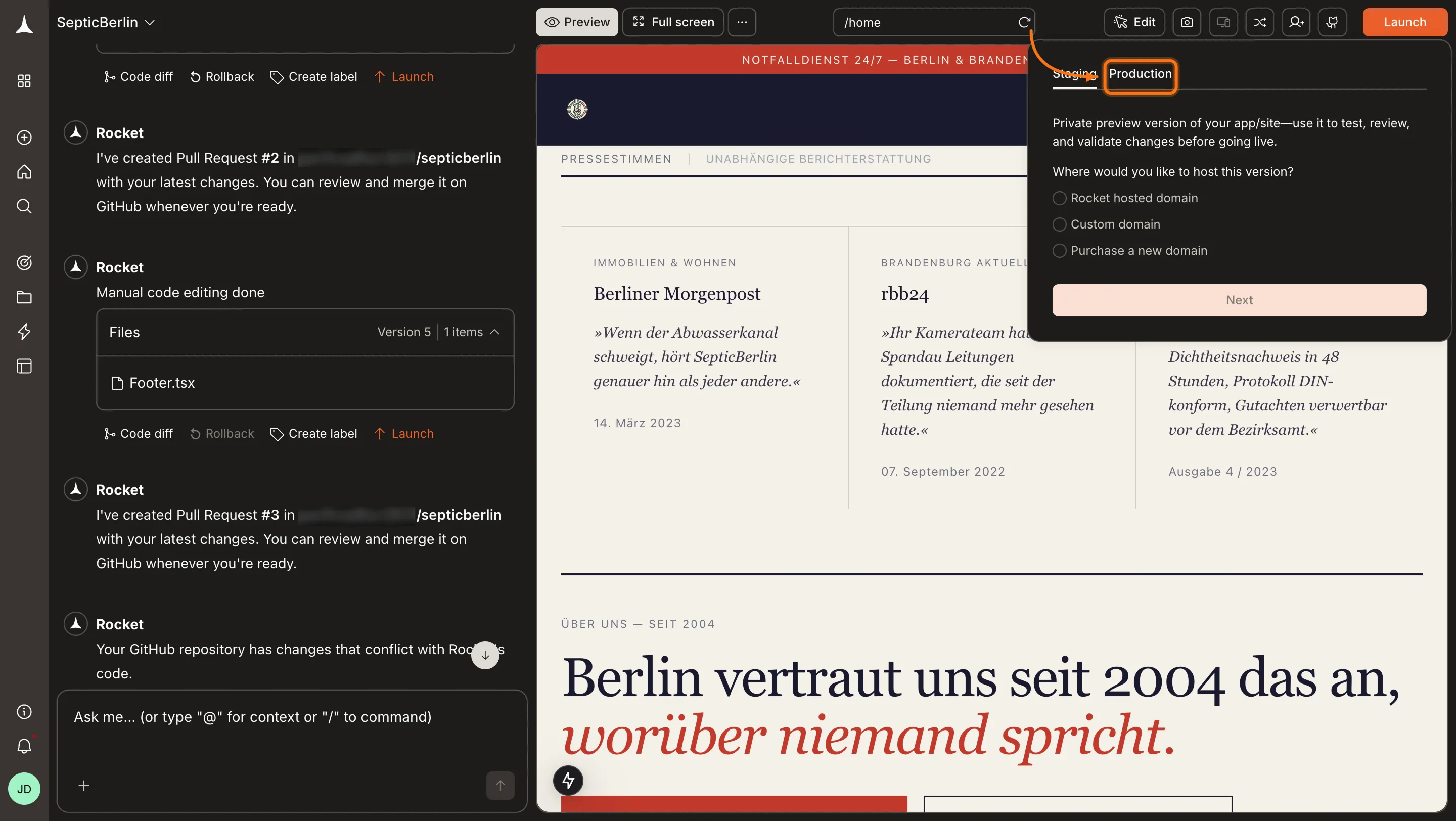 Choose which version of your app to publish from the version dropdown. Once you select a version, type your domain in the **Custom domain** field (for example, `example.com`) and click **Next**.
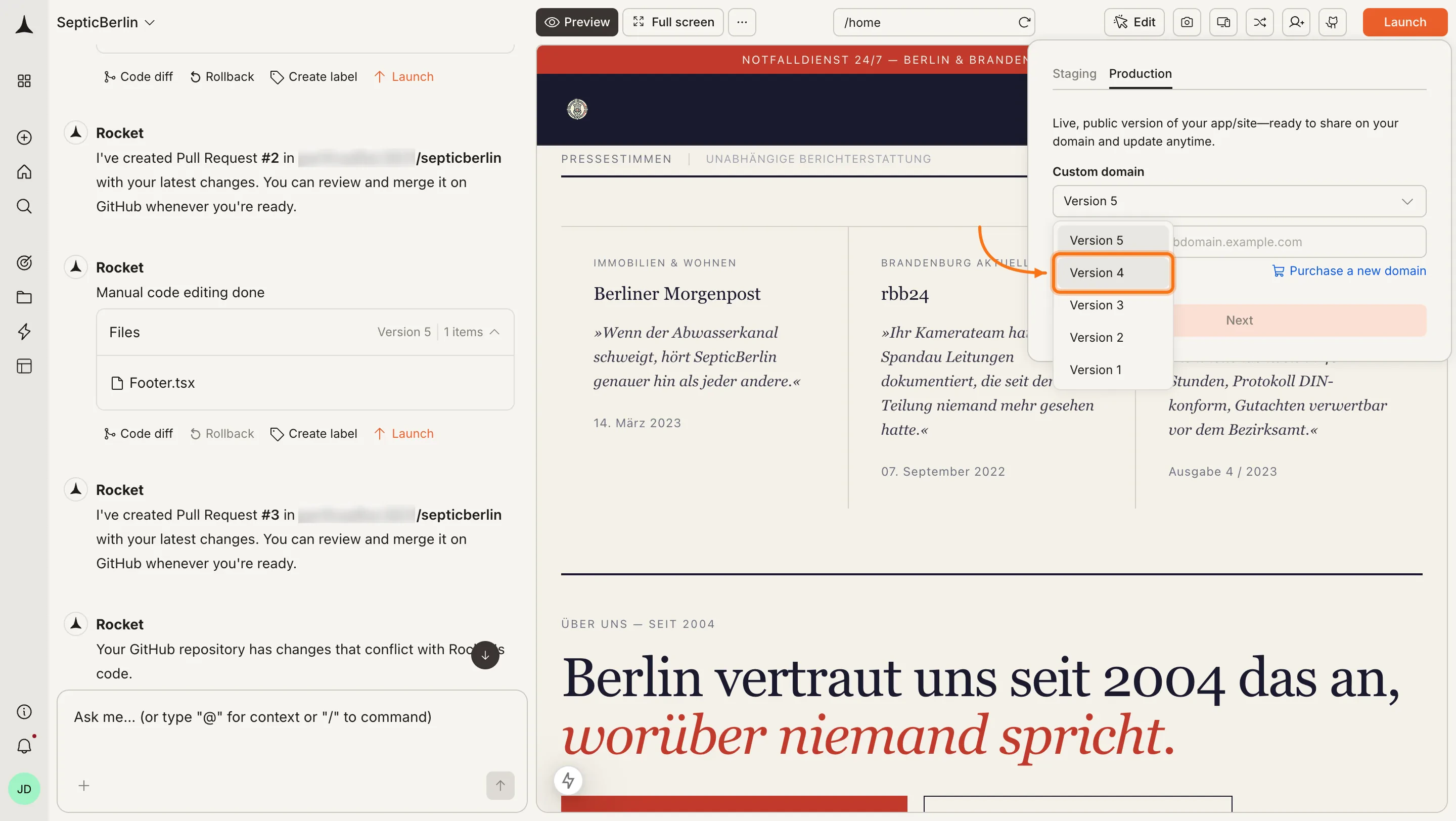
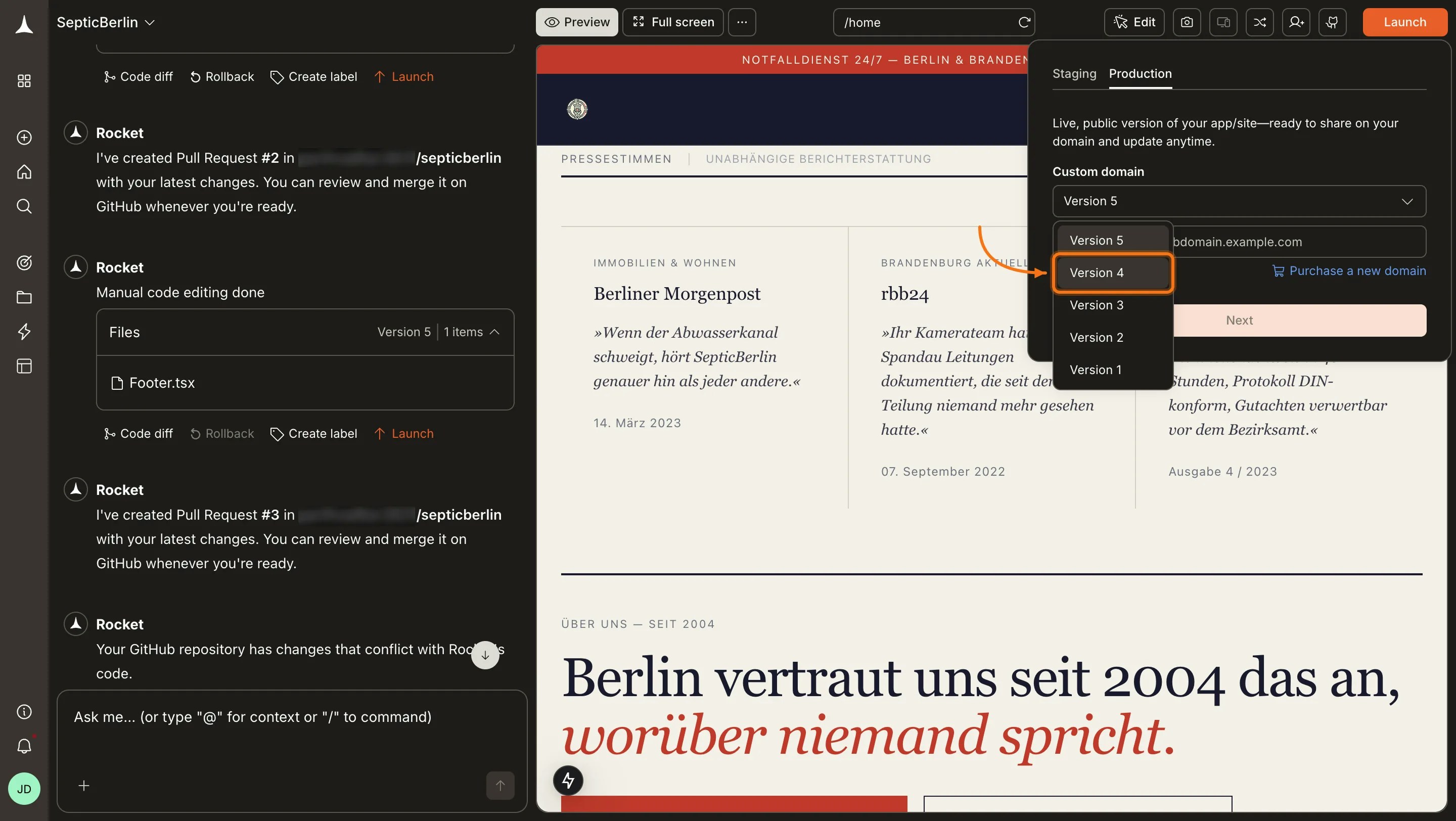 Once you publish on a version, you can only move forward to newer versions. To go back to an earlier version, you need to unpublish and publish again from that version.
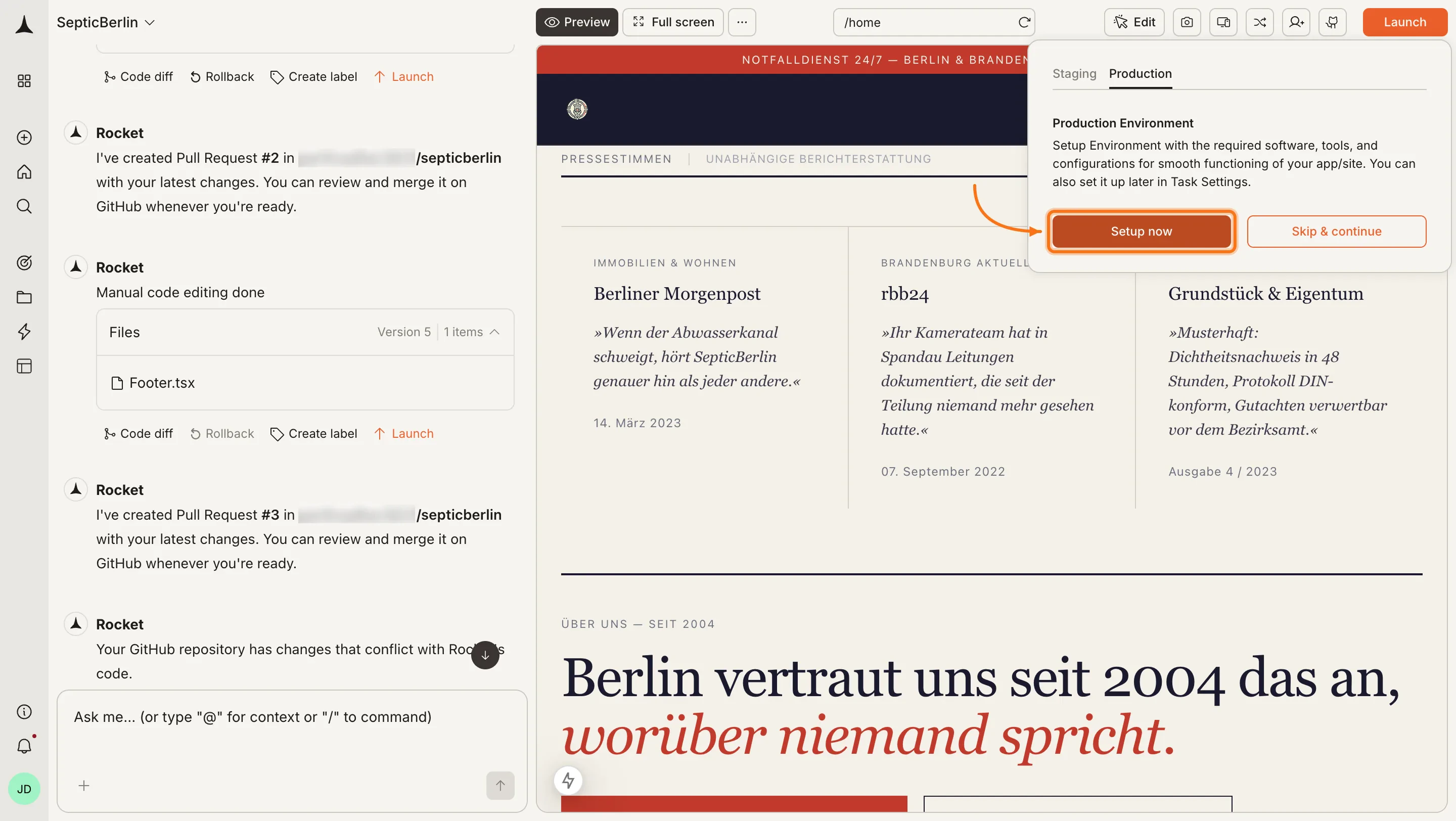
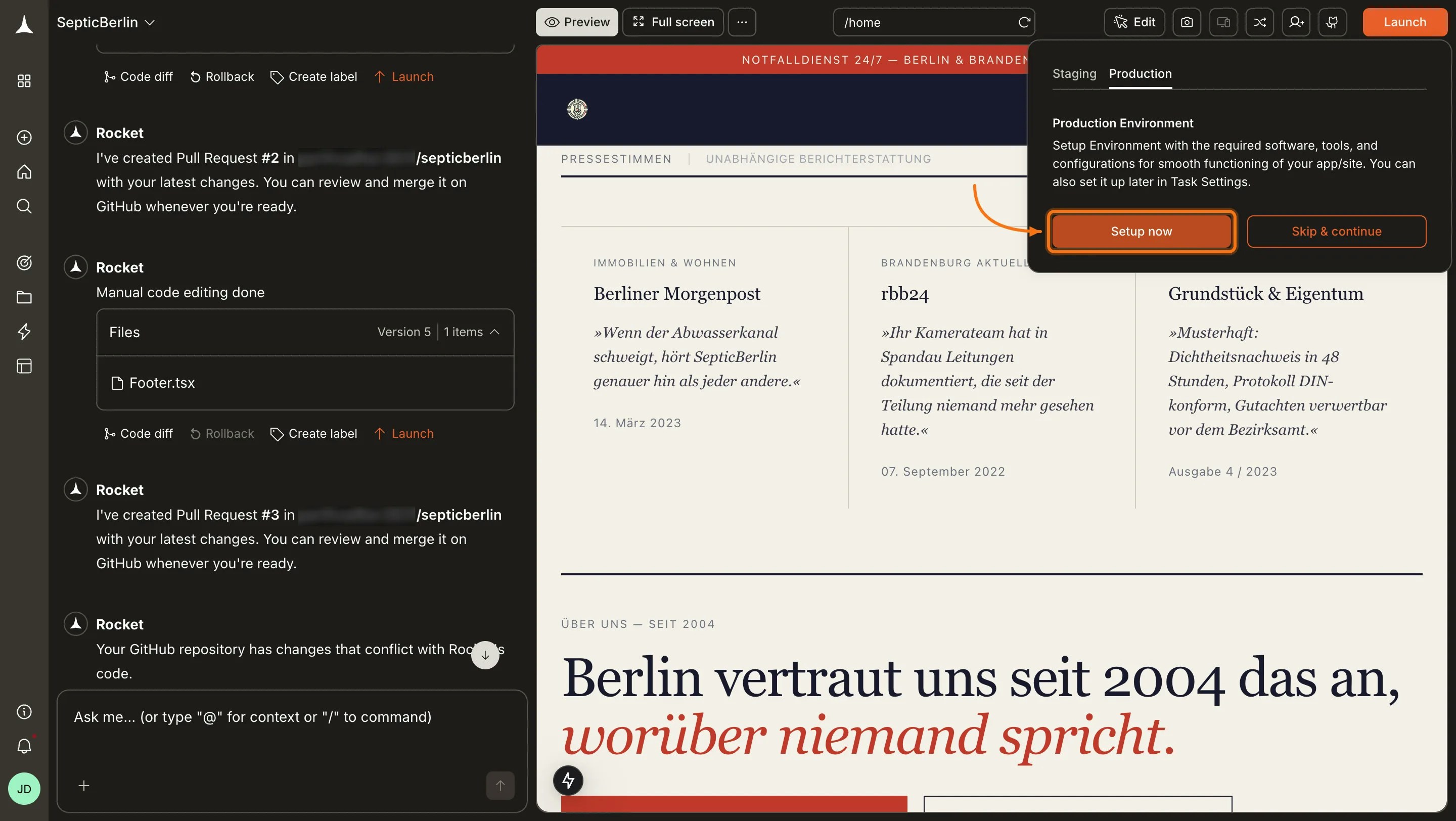
 Rocket prompts you to configure your Production Environment. Click **Setup now** to add any required environment variables. If you have no environment variables to add, click **Skip & continue**.
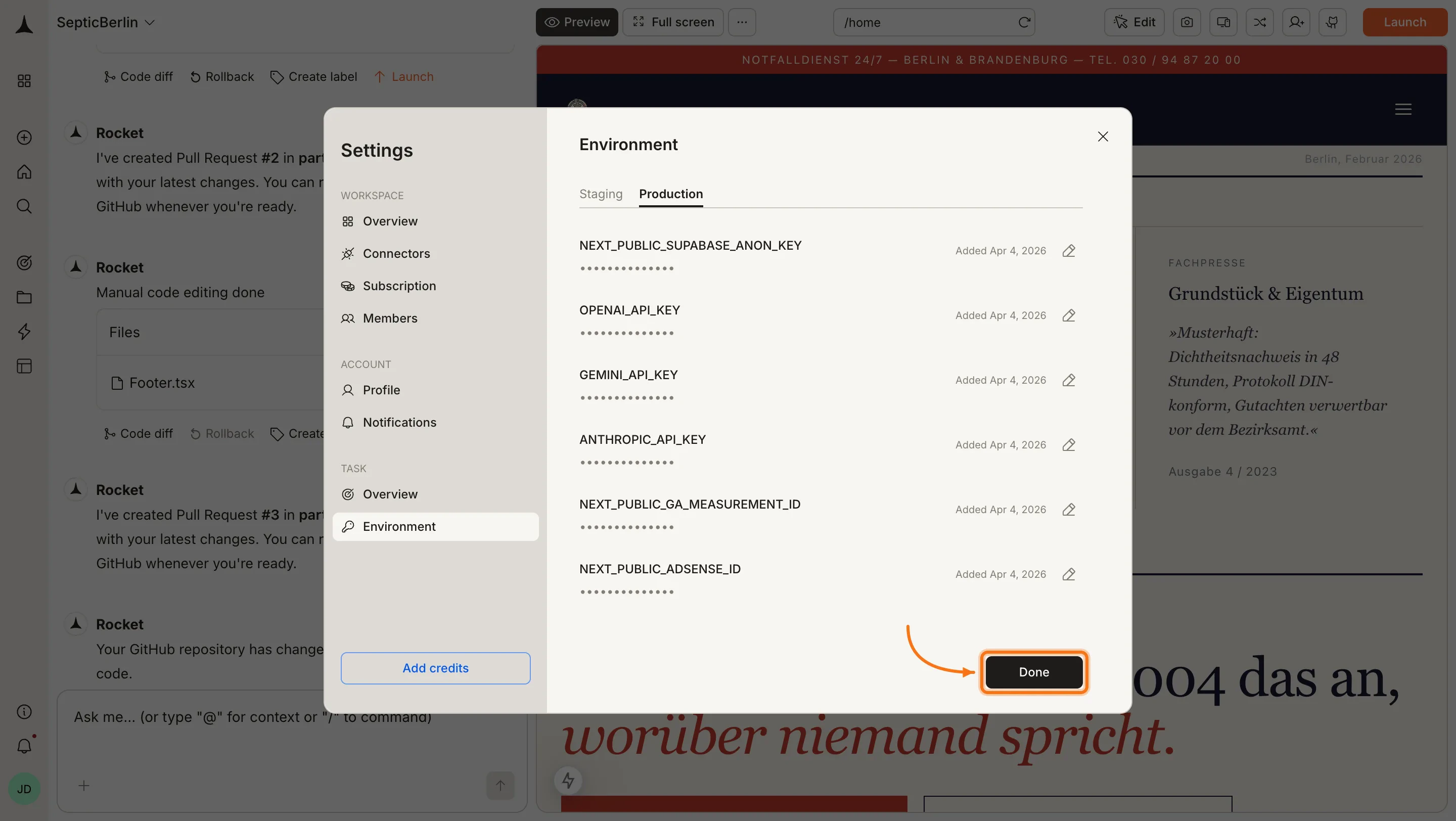
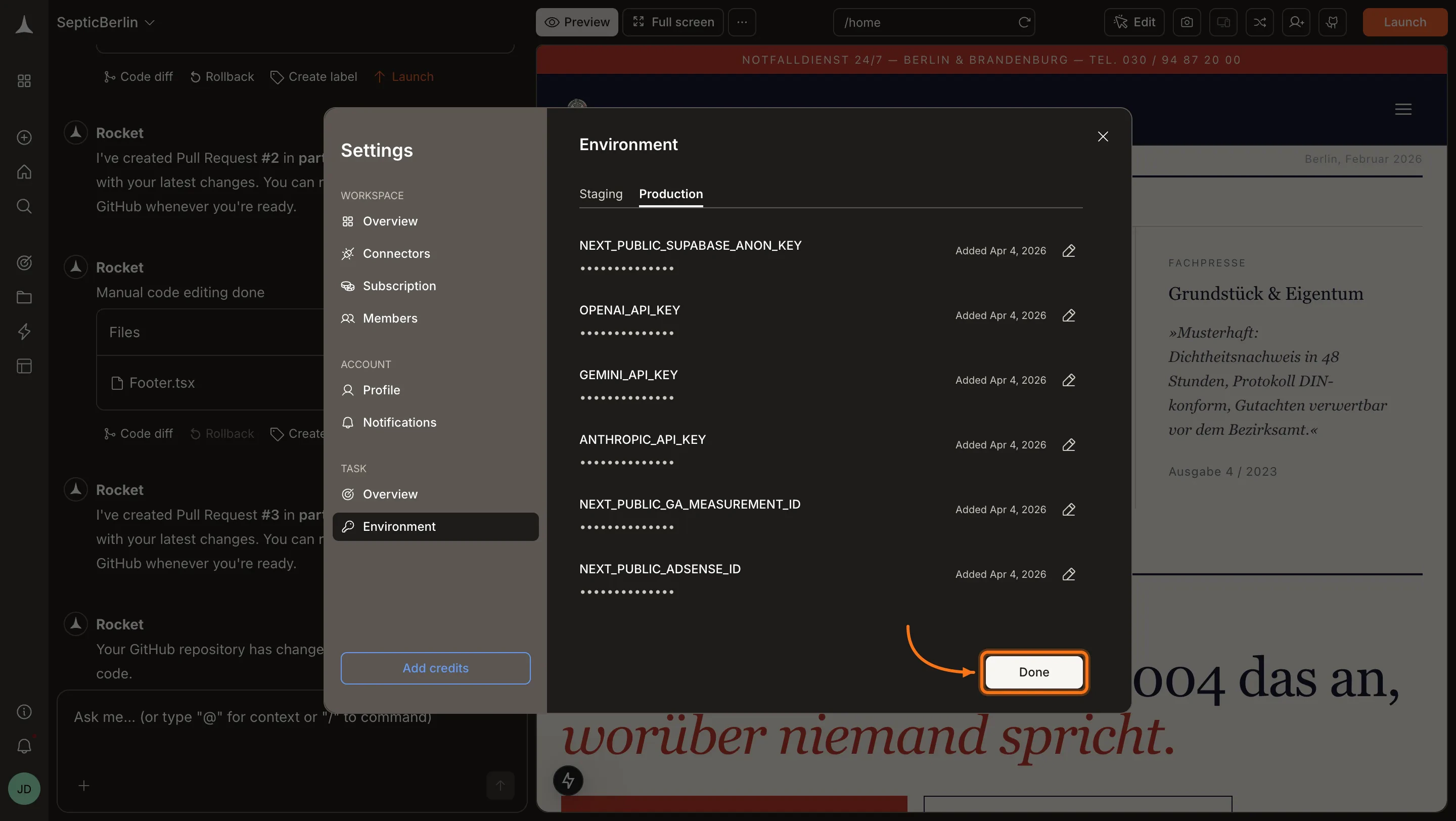
 Add your required environment variables in the Production environment settings, then click **Done** to continue.
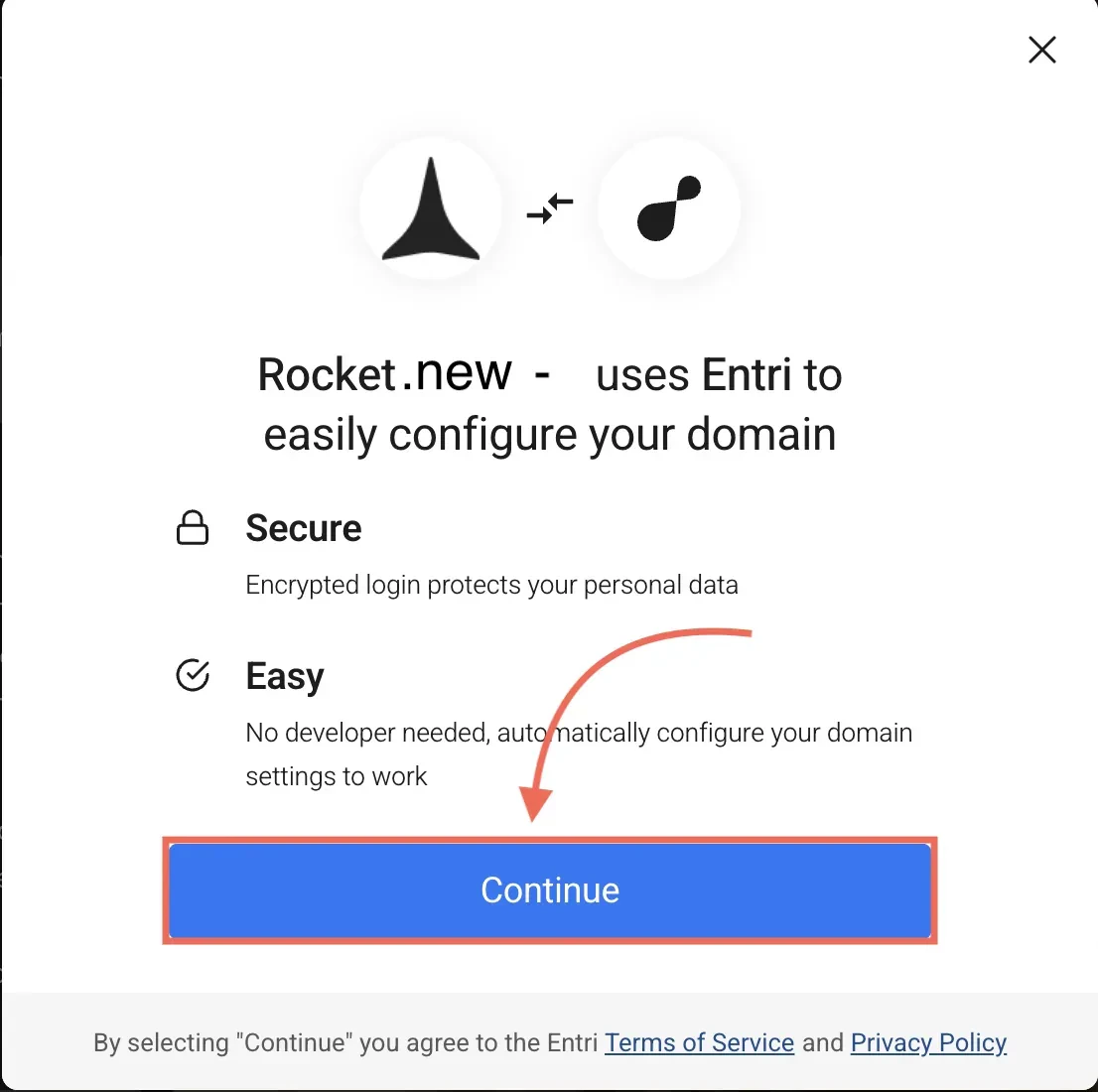
 Rocket opens a popup explaining that it will configure your domain automatically. Click **Continue**.
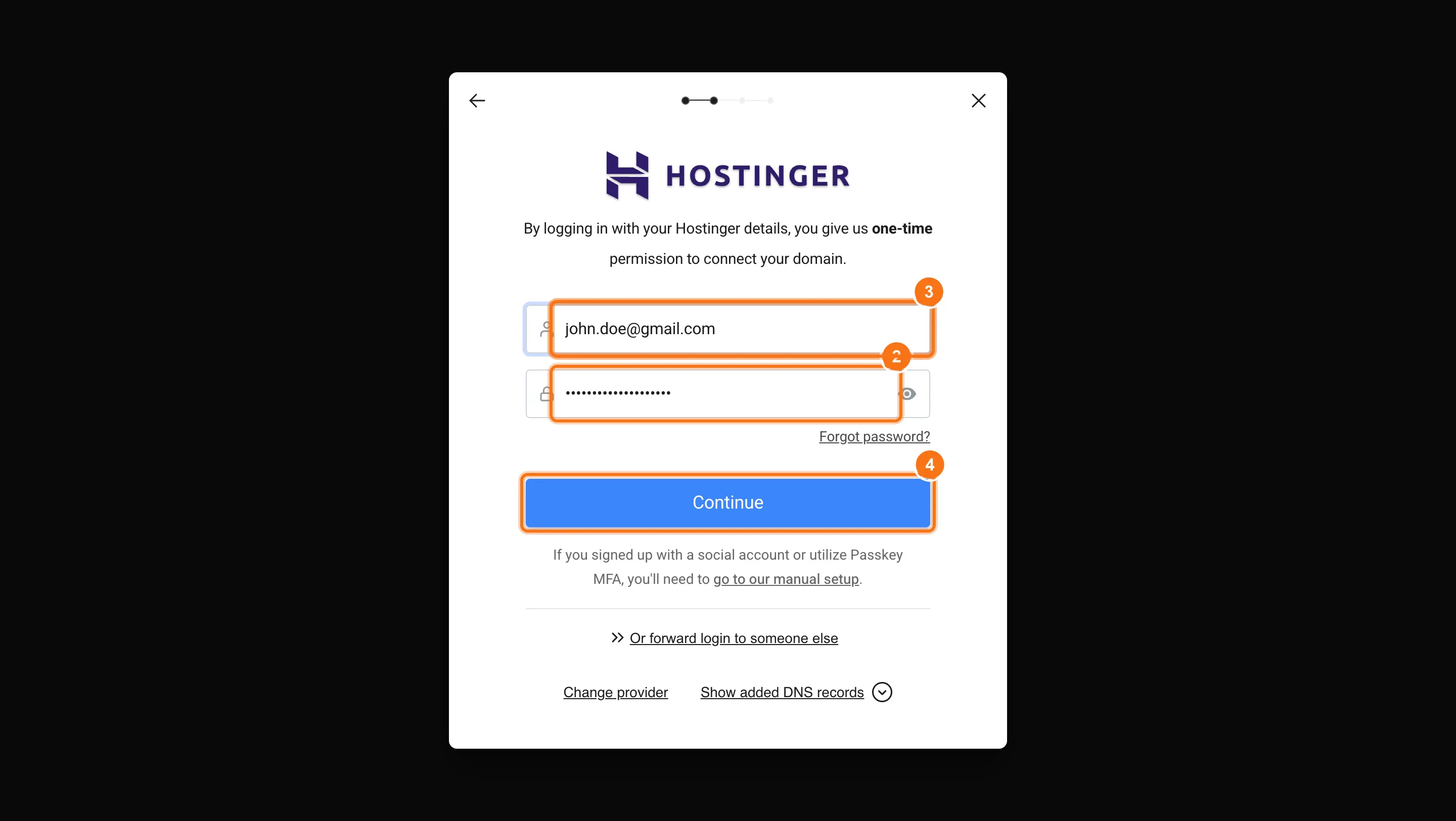
 Rocket shows a login screen for your domain provider. Enter your credentials and click **Continue** to grant one-time permission to configure DNS.
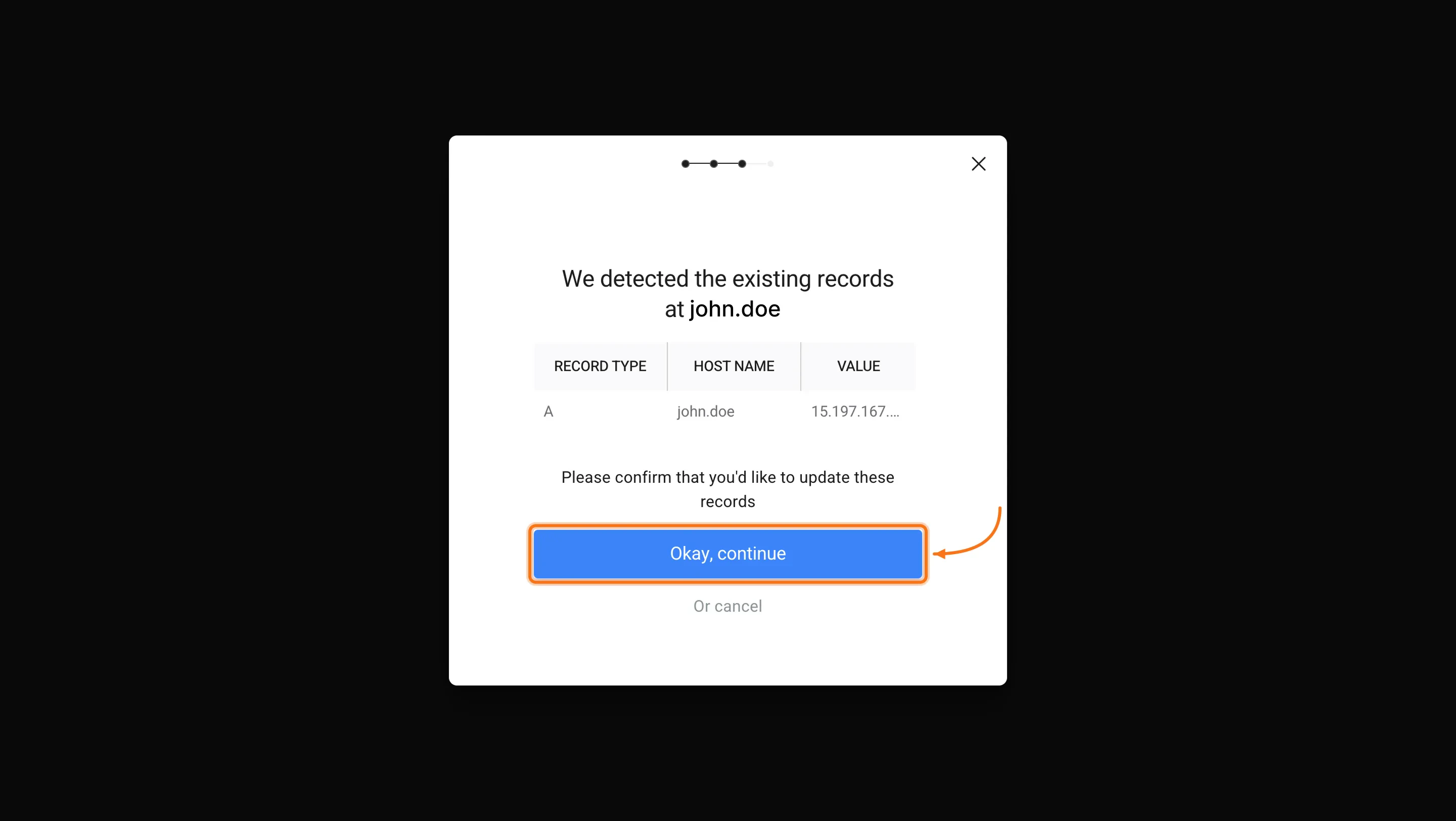
 Your provider shows the existing DNS records and the new ones Rocket wants to add. Review them and click **Okay, continue** to approve the change.
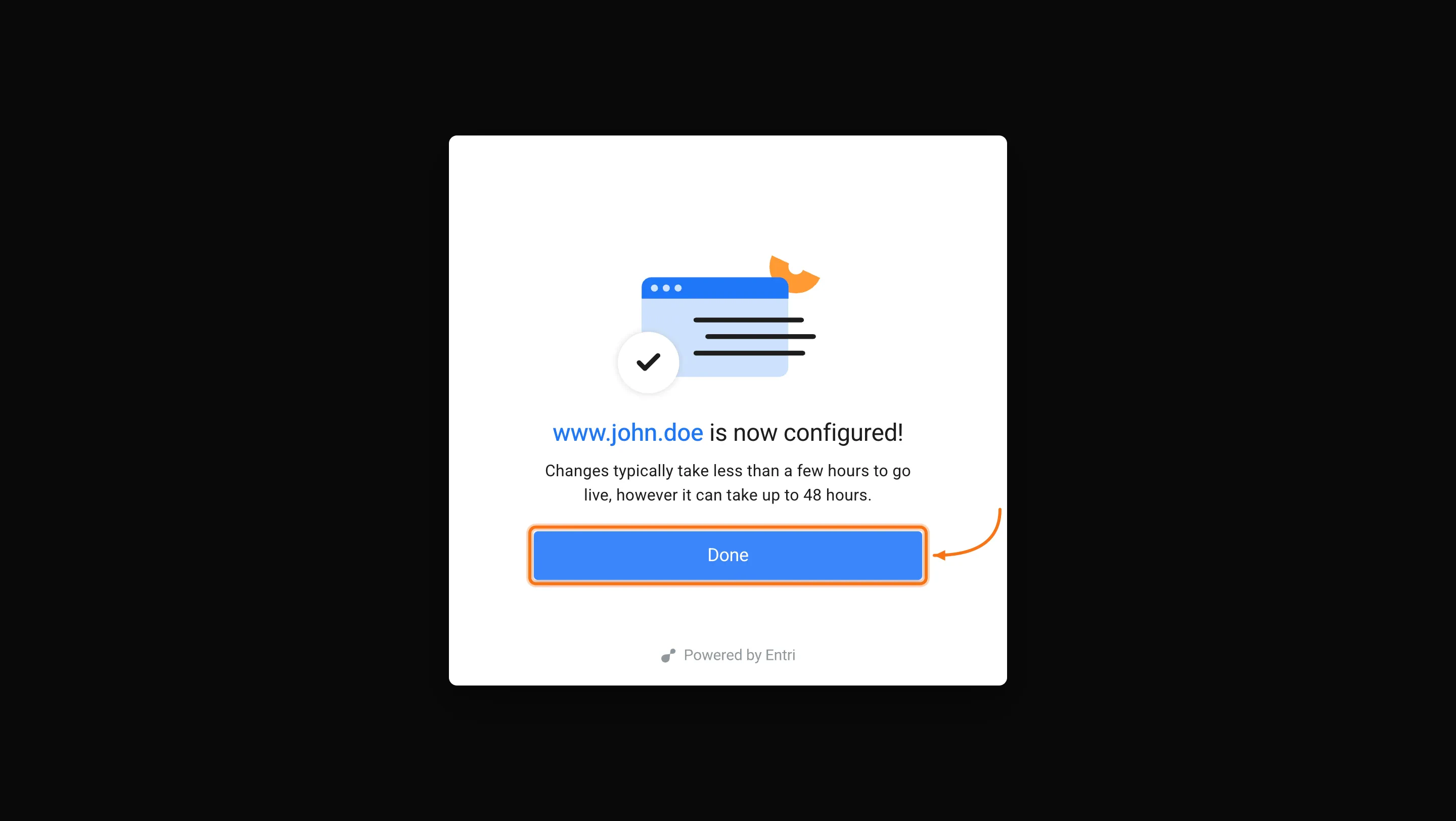
 Your domain is confirmed as configured. Click **Done**. DNS propagation can take up to 48 hours, after which your app is live at your custom domain.
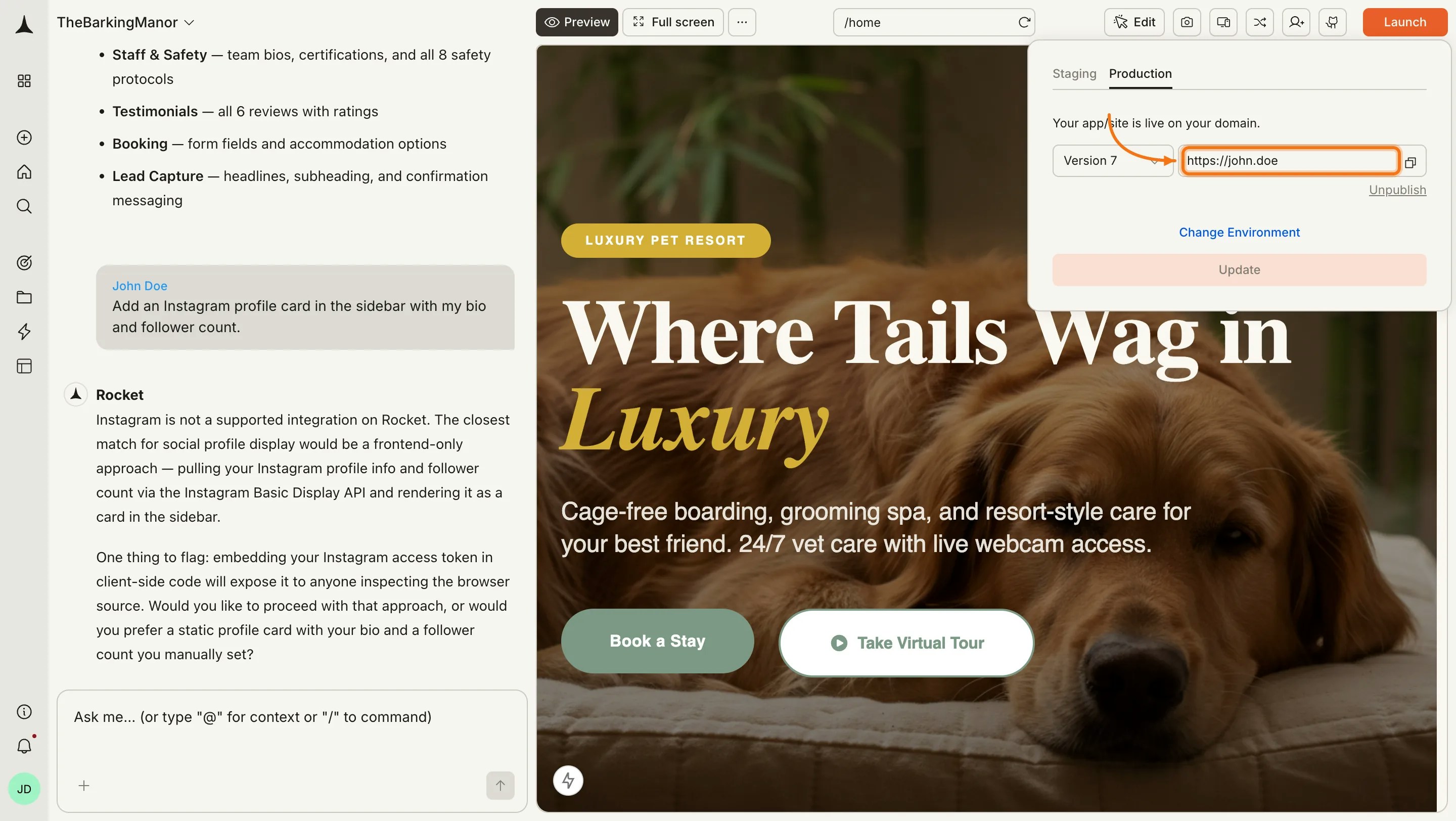
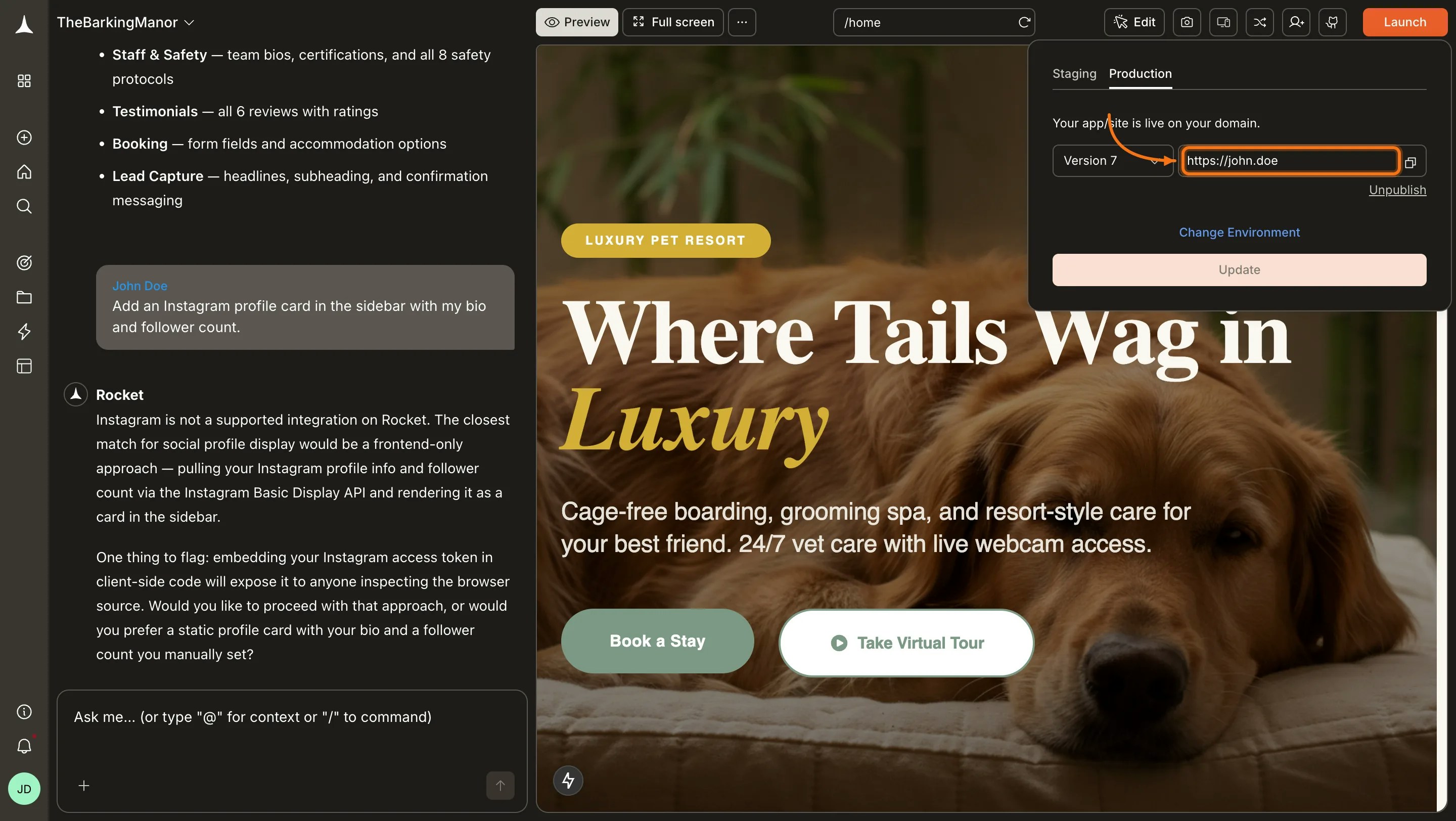
 Once live, the Launch panel shows your domain URL. You can click it to open your app.
 ## Manual setup (fallback)
Use this method if automatic setup is not available for your provider or did not complete successfully. Rocket shows you the exact DNS records and you add them directly in your domain provider's dashboard.
Click the **Launch** button, select the **Production** tab, choose your version, enter your domain, and click **Next**. Complete the [Production Environment step](#set-up-the-production-environment) as described above.
If automatic setup did not work or your provider is not supported, click **Go to our manual setup** on the automatic setup screen. Rocket shows you the exact DNS records to add.
## Manual setup (fallback)
Use this method if automatic setup is not available for your provider or did not complete successfully. Rocket shows you the exact DNS records and you add them directly in your domain provider's dashboard.
Click the **Launch** button, select the **Production** tab, choose your version, enter your domain, and click **Next**. Complete the [Production Environment step](#set-up-the-production-environment) as described above.
If automatic setup did not work or your provider is not supported, click **Go to our manual setup** on the automatic setup screen. Rocket shows you the exact DNS records to add.
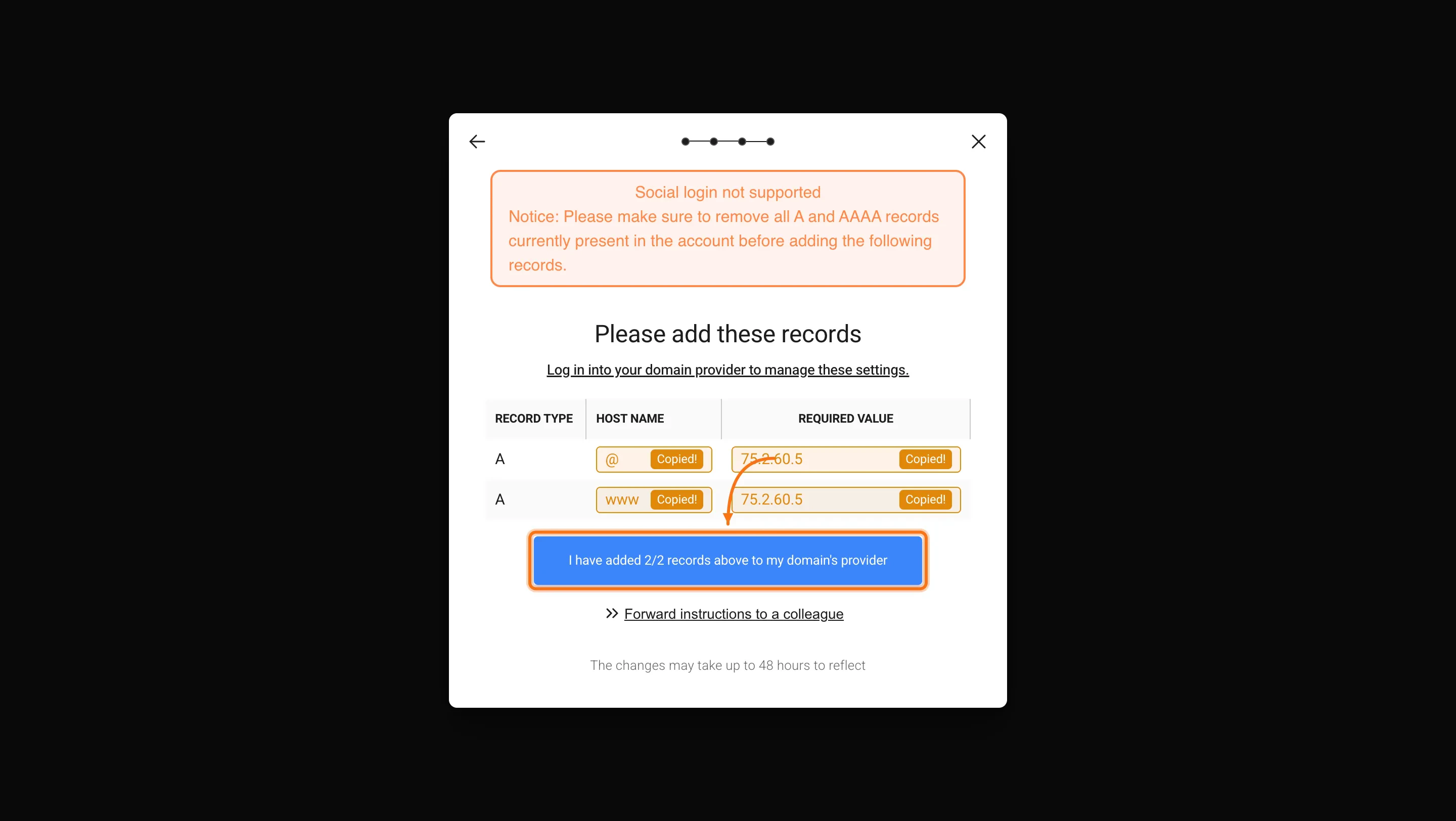 Remove any existing A and AAAA records for your domain before adding the new ones. Conflicting records will prevent your domain from connecting.
Copy each record (Type, Host Name, Required Value). In a new browser tab, open your domain provider's DNS settings and add them exactly as shown.
Once you have added all records in your provider's dashboard, click **I have added all records above to my domain's provider** in Rocket. Rocket starts monitoring for the DNS changes.
Remove any existing A and AAAA records for your domain before adding the new ones. Conflicting records will prevent your domain from connecting.
Copy each record (Type, Host Name, Required Value). In a new browser tab, open your domain provider's DNS settings and add them exactly as shown.
Once you have added all records in your provider's dashboard, click **I have added all records above to my domain's provider** in Rocket. Rocket starts monitoring for the DNS changes.
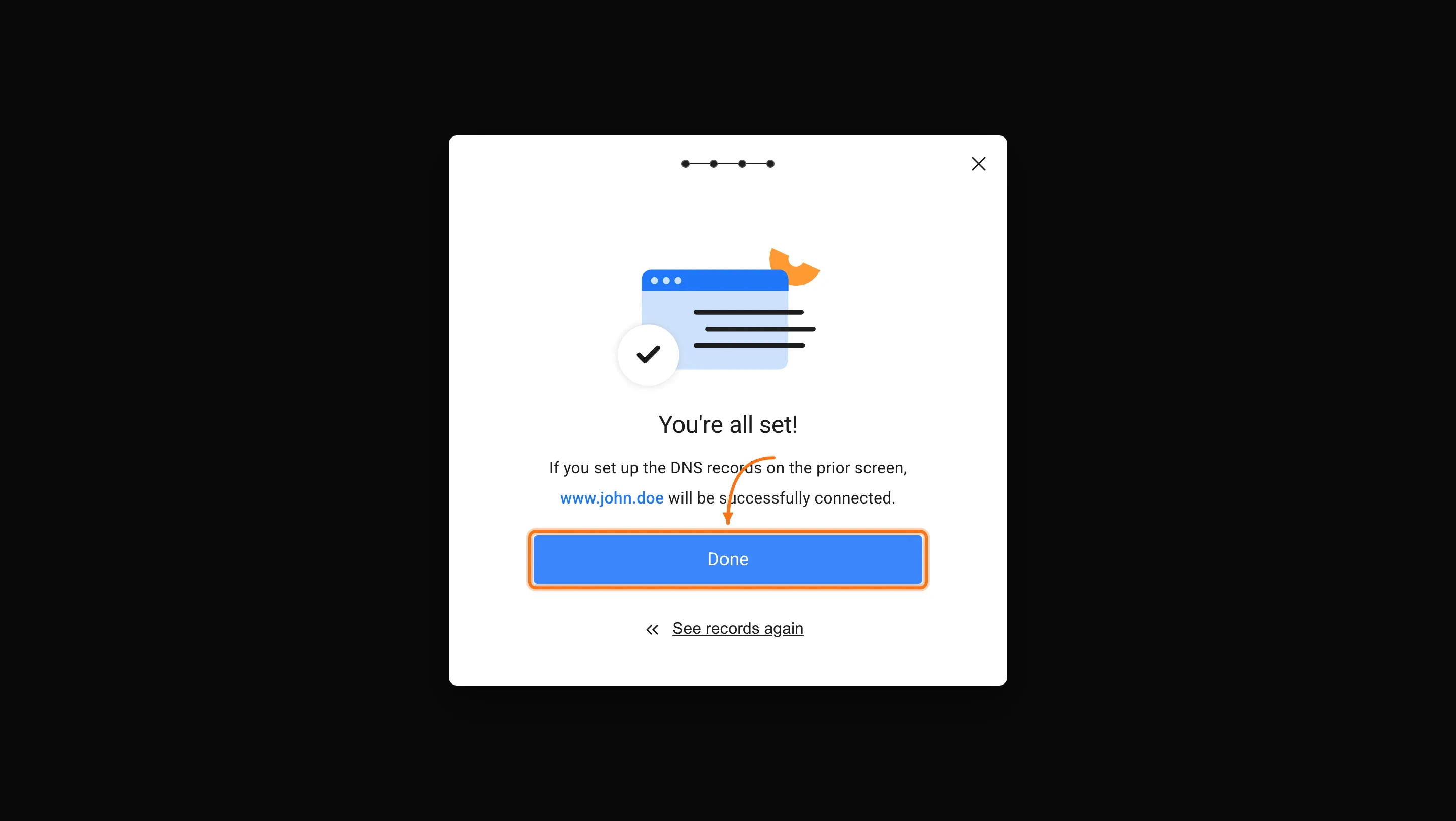 DNS propagation can take up to 48 hours. Once Rocket detects the records, your domain goes live automatically.
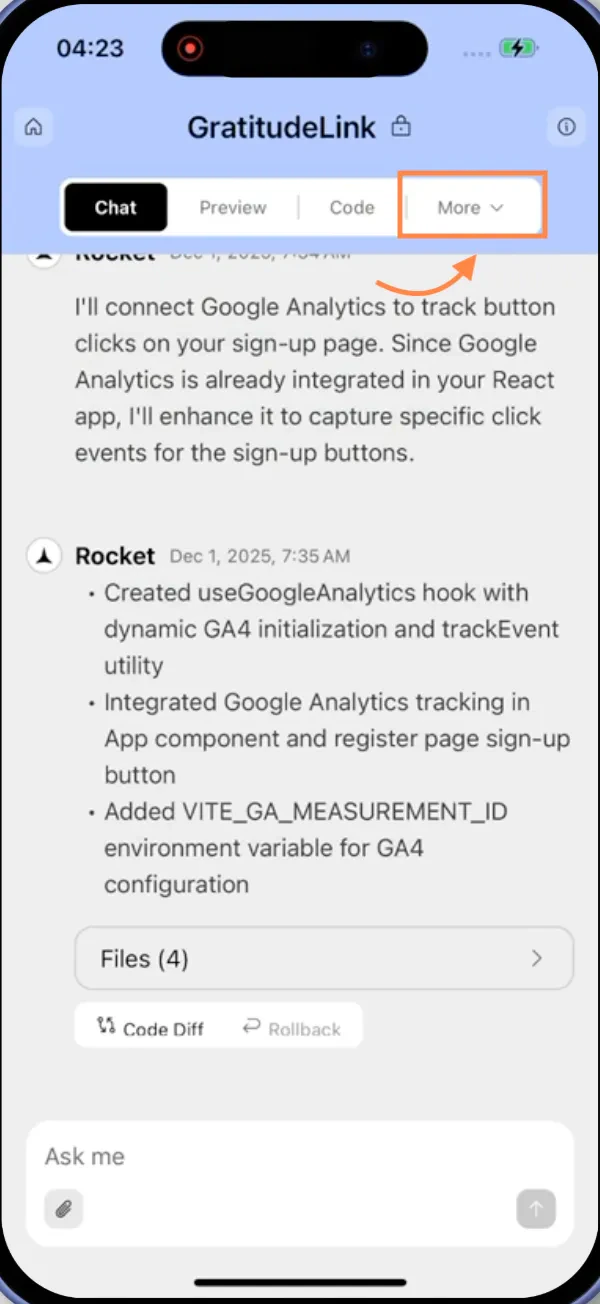
Open your app in the Rocket mobile app and tap the **More** tab at the bottom of the screen.
DNS propagation can take up to 48 hours. Once Rocket detects the records, your domain goes live automatically.
Open your app in the Rocket mobile app and tap the **More** tab at the bottom of the screen.
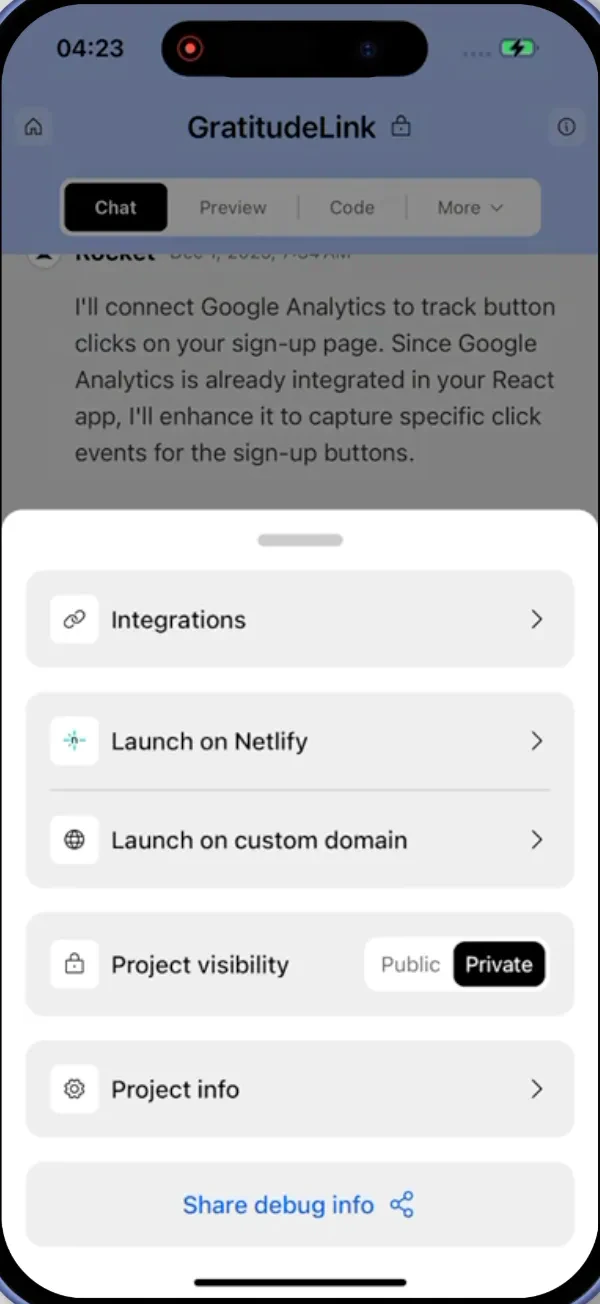
 In the settings modal, tap **Launch on custom domain**.
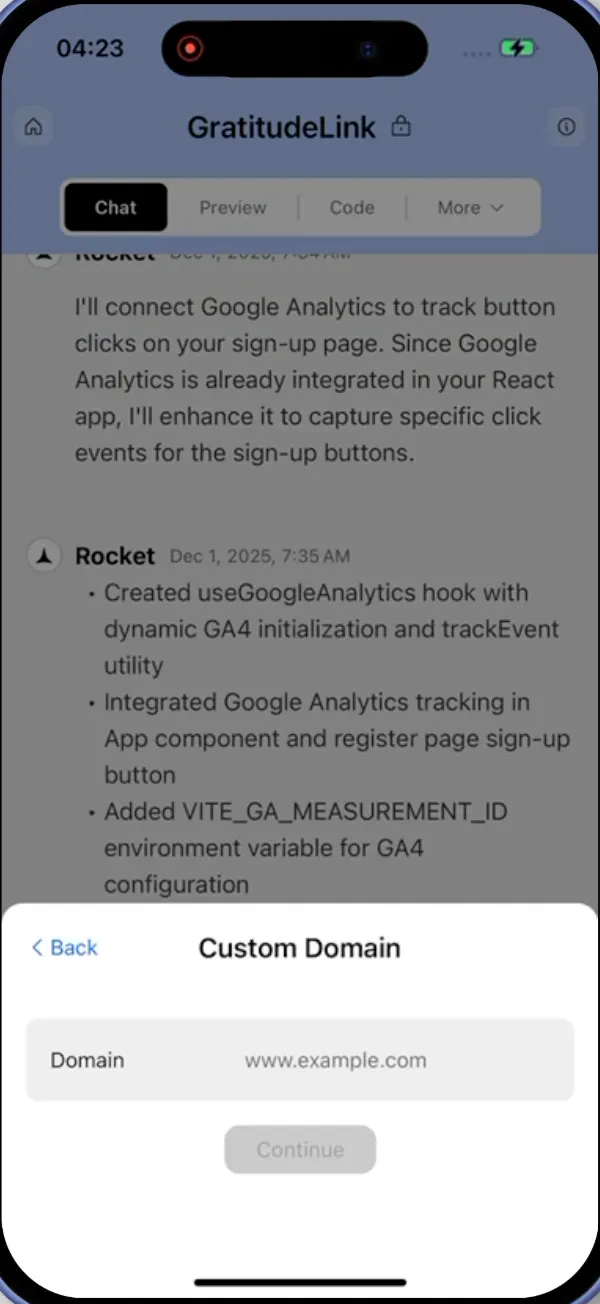
 Tap **+ Add domain**, type the domain you own (for example, `example.com`), and tap **Add Domain**.
Rocket adds the domain to your project and shows the DNS records you need.
Tap **+ Add domain**, type the domain you own (for example, `example.com`), and tap **Add Domain**.
Rocket adds the domain to your project and shows the DNS records you need.
 Copy the DNS records that Rocket shows you.
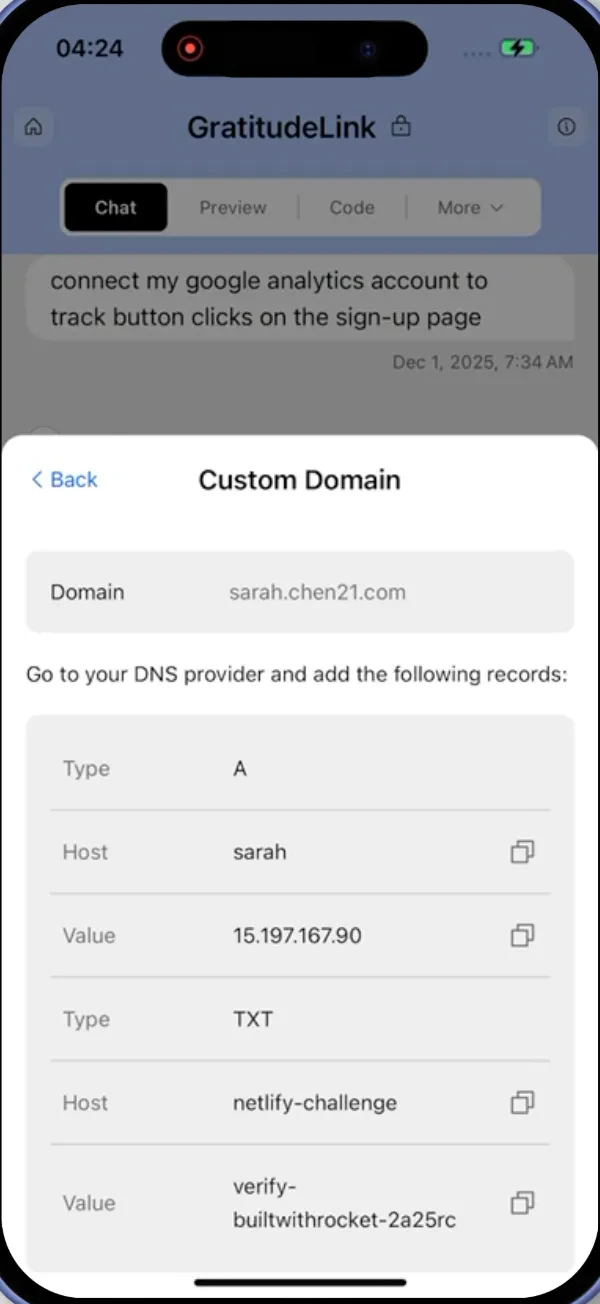 Open your domain provider's dashboard (you may need a web browser for this step) and add the records exactly as shown.
**What to add:**
* **Root domains** (e.g., `example.com`): Add two A records, one with host `@` (root) and one with host `www`, both pointing to the IP address provided by Rocket.
* **Subdomains** (e.g., `app.example.com`): Add one A record with the subdomain as the host (e.g., `app`), pointing to the IP address provided by Rocket.
Return to the Rocket mobile app and tap **Refresh** next to your domain. The status shows **Verification in process** at first.
When Rocket detects the correct DNS records, the status changes to **Live**. Your app is now accessible at your custom domain.
Open your domain provider's dashboard (you may need a web browser for this step) and add the records exactly as shown.
**What to add:**
* **Root domains** (e.g., `example.com`): Add two A records, one with host `@` (root) and one with host `www`, both pointing to the IP address provided by Rocket.
* **Subdomains** (e.g., `app.example.com`): Add one A record with the subdomain as the host (e.g., `app`), pointing to the IP address provided by Rocket.
Return to the Rocket mobile app and tap **Refresh** next to your domain. The status shows **Verification in process** at first.
When Rocket detects the correct DNS records, the status changes to **Live**. Your app is now accessible at your custom domain.
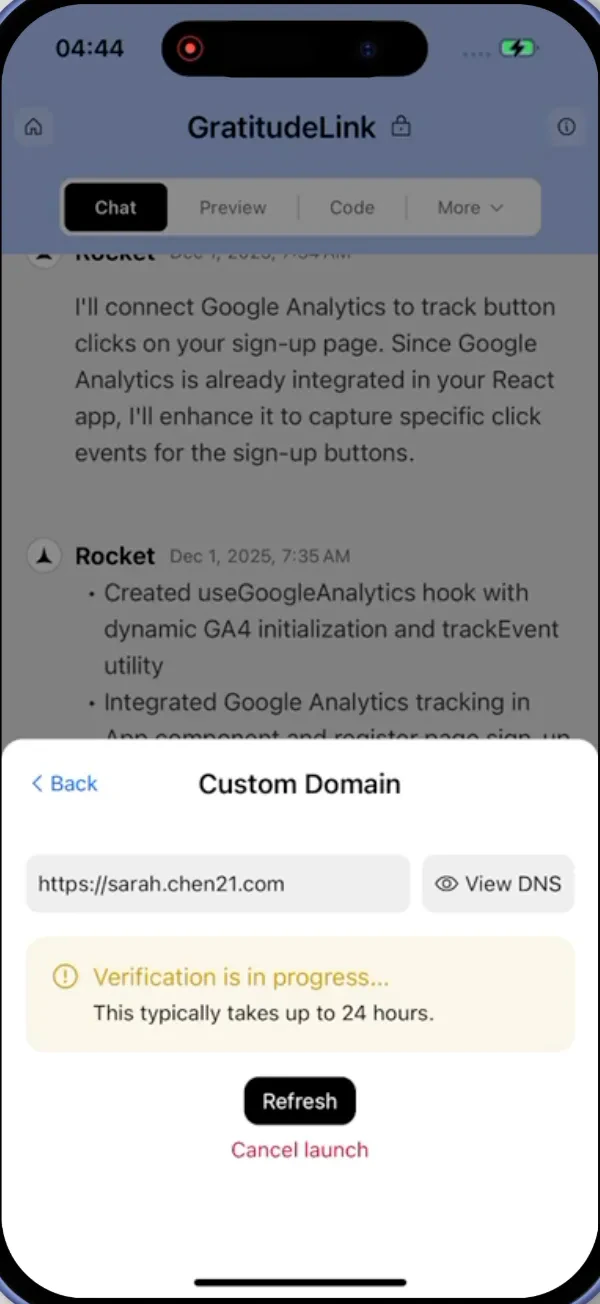 DNS changes can take up to 48 hours to propagate. Your domain may not work immediately after setup.
## Fix conflicting DNS records
If your domain is not connecting after 48 hours, you likely have conflicting DNS records.
Go to [dnschecker.org](https://dnschecker.org/), enter your domain, and select **A** as the record type.
If you see multiple different IP addresses, log in to your domain provider's dashboard and remove any A records that do not point to the IP address Rocket provided.
Wait up to 24 hours for the changes to propagate, then check the domain status in Rocket again.
Multiple A records with different IP addresses cause your domain to intermittently point to the wrong server. Keep only the Rocket IP address configured.
## What's next?
Optimize meta tags and sitemaps so search engines find your site.
Track visits, pageviews, and traffic sources from your dashboard.
Set up cookie consent, GDPR banners, and a privacy policy page.
DNS changes can take up to 48 hours to propagate. Your domain may not work immediately after setup.
## Fix conflicting DNS records
If your domain is not connecting after 48 hours, you likely have conflicting DNS records.
Go to [dnschecker.org](https://dnschecker.org/), enter your domain, and select **A** as the record type.
If you see multiple different IP addresses, log in to your domain provider's dashboard and remove any A records that do not point to the IP address Rocket provided.
Wait up to 24 hours for the changes to propagate, then check the domain status in Rocket again.
Multiple A records with different IP addresses cause your domain to intermittently point to the wrong server. Keep only the Rocket IP address configured.
## What's next?
Optimize meta tags and sitemaps so search engines find your site.
Track visits, pageviews, and traffic sources from your dashboard.
Set up cookie consent, GDPR banners, and a privacy policy page.