> ## Documentation Index
> Fetch the complete documentation index at: https://docs.rocket.new/llms.txt
> Use this file to discover all available pages before exploring further.
# Appearance
> Set Rocket.new to light mode, dark mode, or system theme.
export const LlmsDirective = () =>
For the complete documentation index, see llms.txt.
For a lightweight markdown version of this page, append .md to the URL.
;
Rocket lets you choose between light mode, dark mode, or a system-synced theme. The system option automatically mirrors your operating system's current appearance setting whenever it changes.
## Steps
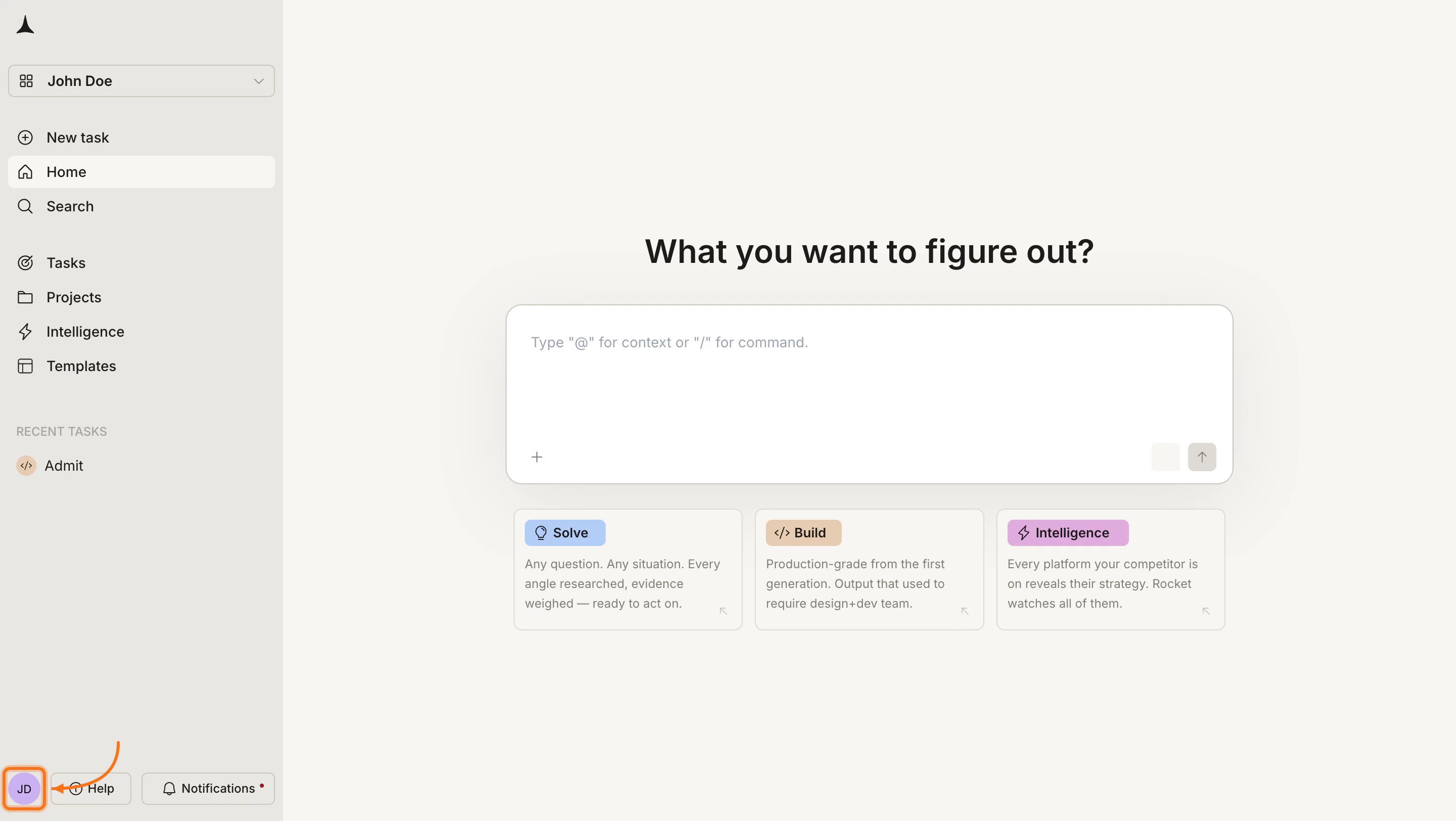
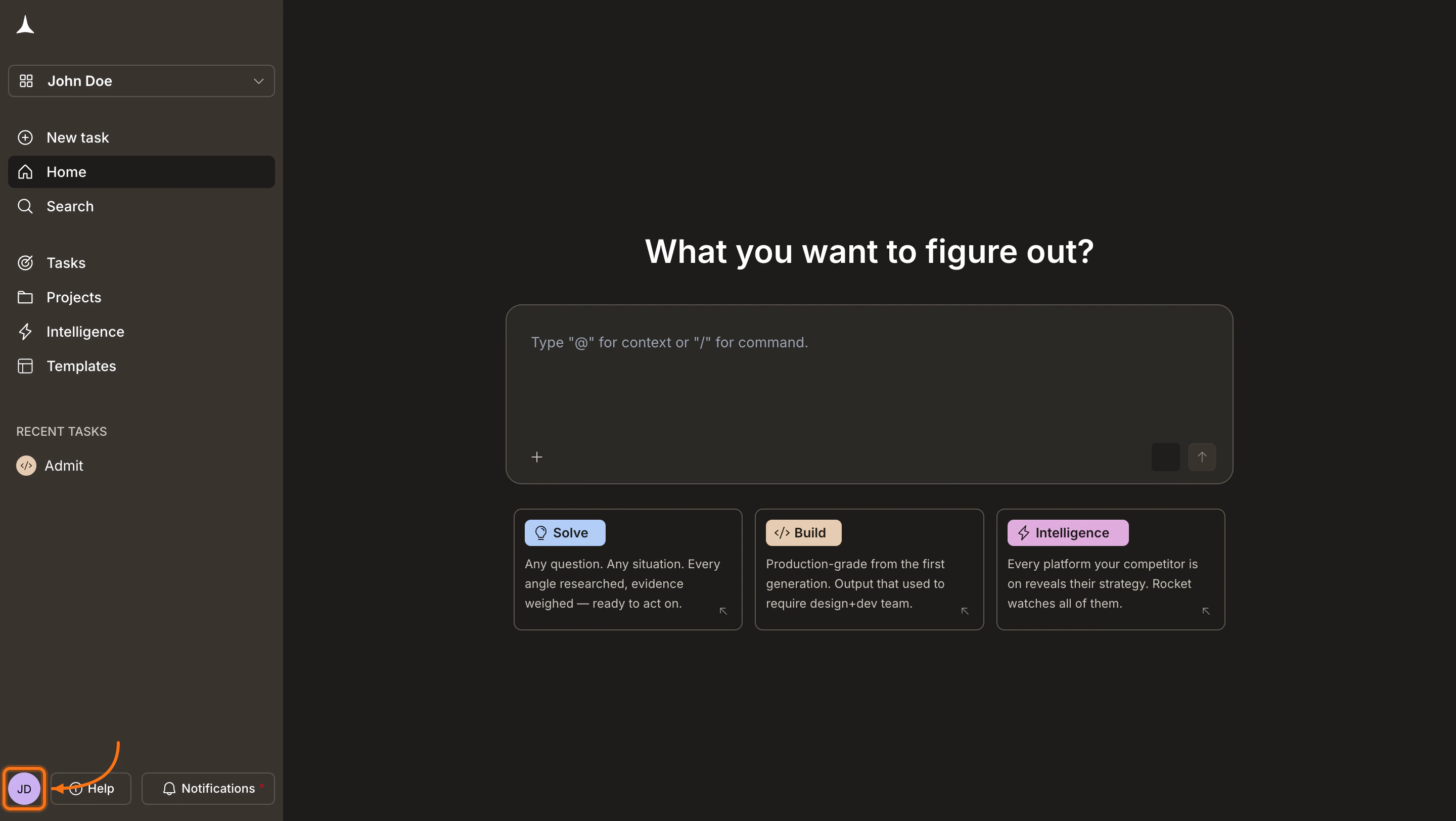
Click your **avatar** in the bottom-left corner of the screen.
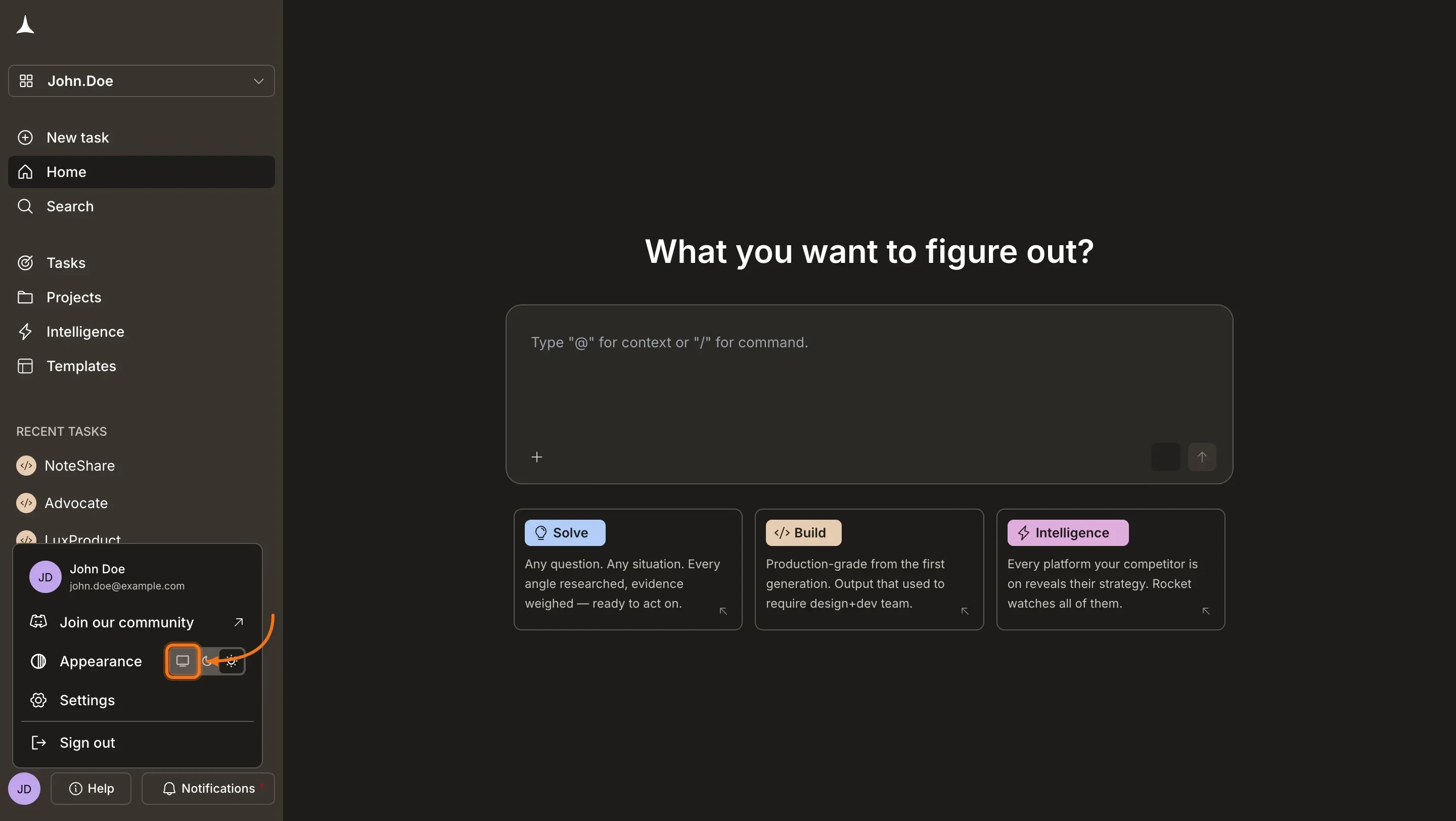
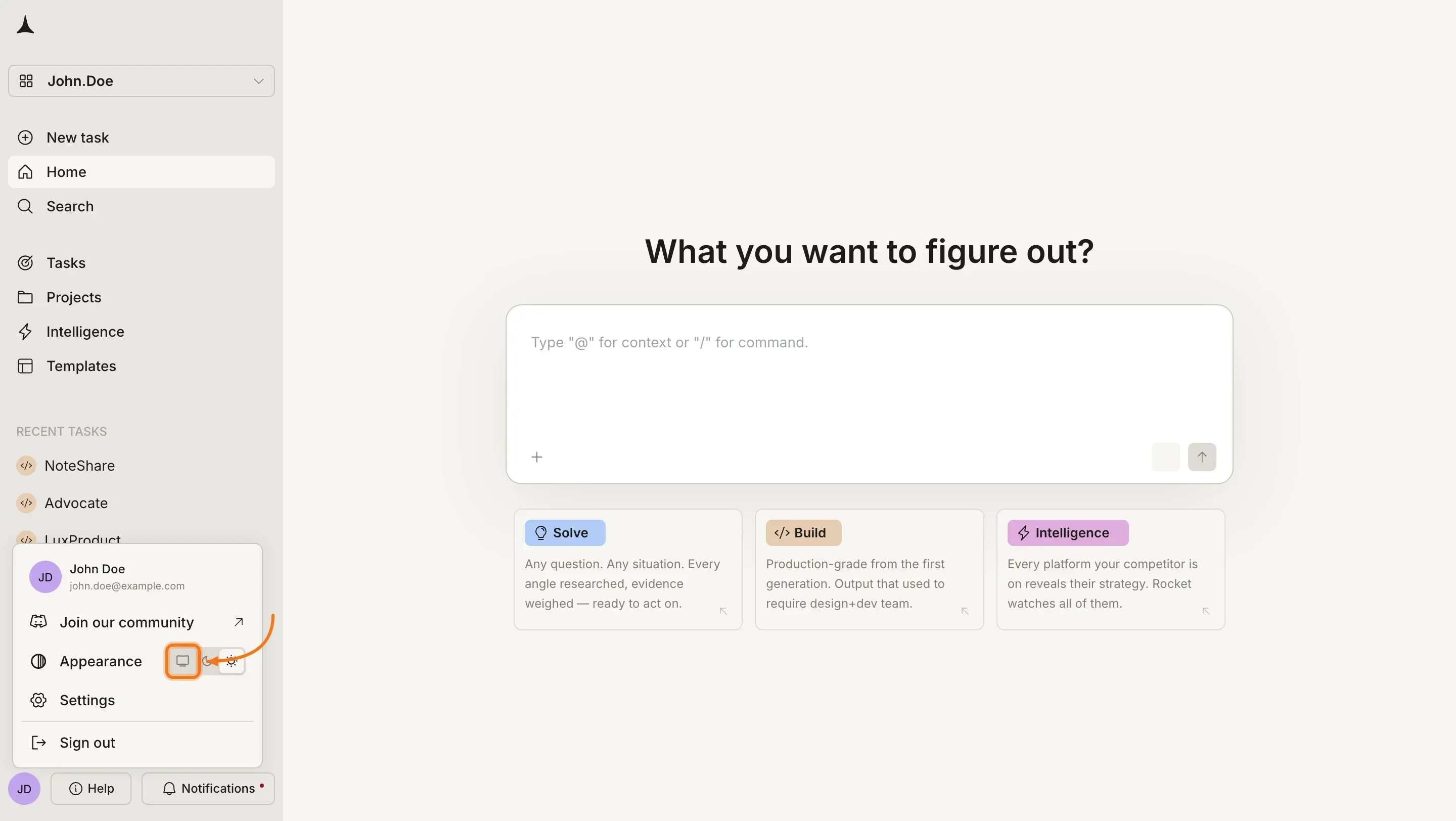
 In the account menu, find the **Appearance** row. Click one of the three icons to apply your preferred theme:
| Icon | Option | What it does |
| :---------------------- | :--------- | :---------------------------------------------------------------------------------------------- |
| | **System** | Follows your operating system's light or dark setting and updates automatically when it changes |
| | **Dark** | Applies a dark color scheme regardless of your system setting |
| | **Light** | Applies a light color scheme regardless of your system setting |
The change applies immediately. Rocket saves your choice across sessions so you only set it once.
In the account menu, find the **Appearance** row. Click one of the three icons to apply your preferred theme:
| Icon | Option | What it does |
| :---------------------- | :--------- | :---------------------------------------------------------------------------------------------- |
| | **System** | Follows your operating system's light or dark setting and updates automatically when it changes |
| | **Dark** | Applies a dark color scheme regardless of your system setting |
| | **Light** | Applies a light color scheme regardless of your system setting |
The change applies immediately. Rocket saves your choice across sessions so you only set it once.
 The System option is the default. If your operating system switches between light and dark based on time of day, Rocket reflects that change automatically.
## What's next?
Update your name, profile picture, and other personal details.
Configure push and audio alerts for build and task updates.
The System option is the default. If your operating system switches between light and dark based on time of day, Rocket reflects that change automatically.
## What's next?
Update your name, profile picture, and other personal details.
Configure push and audio alerts for build and task updates.