> ## Documentation Index
> Fetch the complete documentation index at: https://docs.rocket.new/llms.txt
> Use this file to discover all available pages before exploring further.
# Notification settings
> Enable push and audio alerts in Rocket.new for build status and milestones.
export const LlmsDirective = () =>
For the complete documentation index, see llms.txt.
For a lightweight markdown version of this page, append .md to the URL.
;
Notification settings control when and how Rocket alerts you to build completions, errors, and project milestones. Configure these alongside [appearance](/getting-started/account/appearance) from the same account menu. You can also view incoming alerts in the [notification panel](/getting-started/account/notifications), which organizes them by Requests, Updates, and Notifications.
## Steps
Your browser must have notification permissions enabled for Rocket to send push notifications.
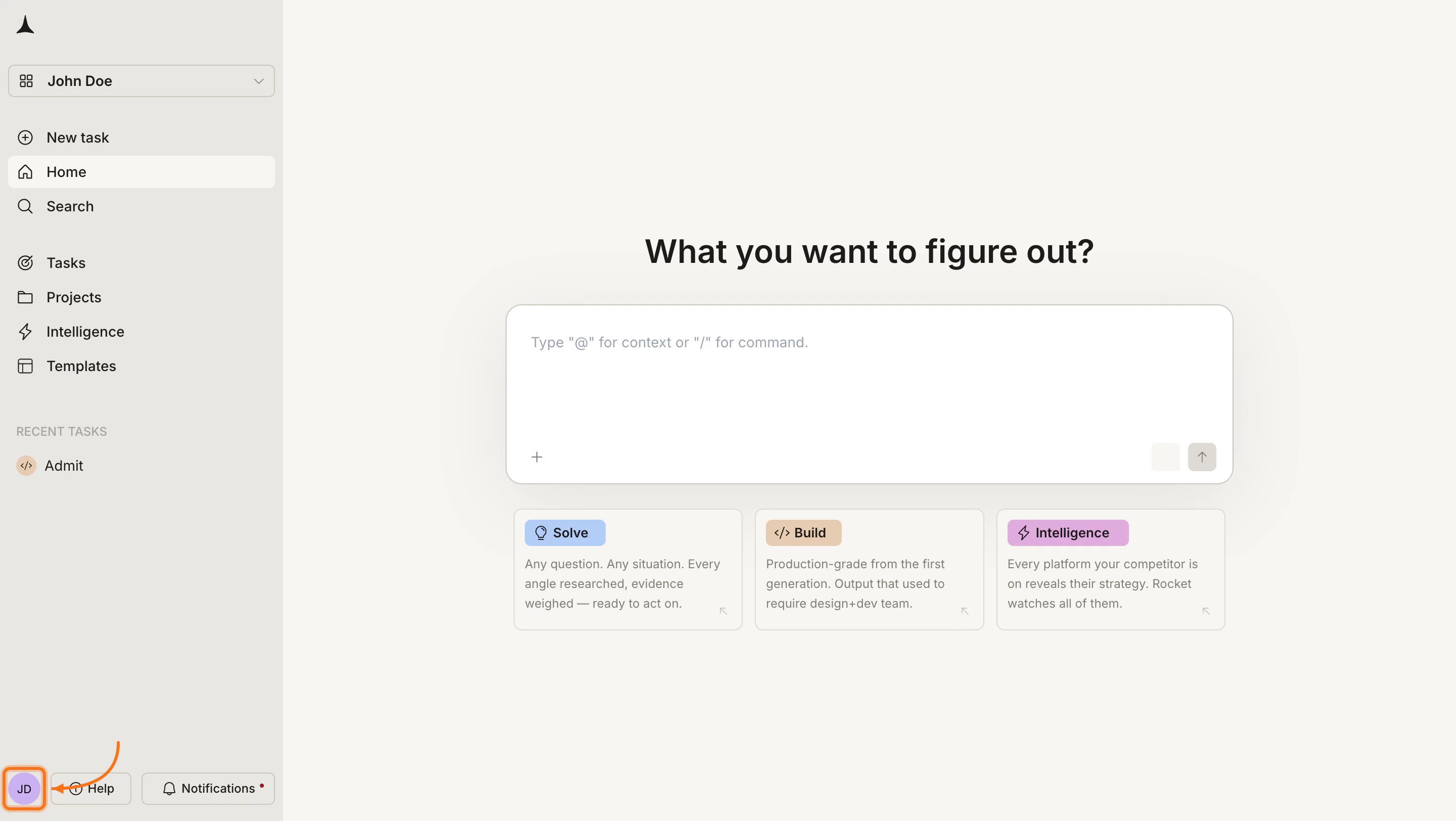
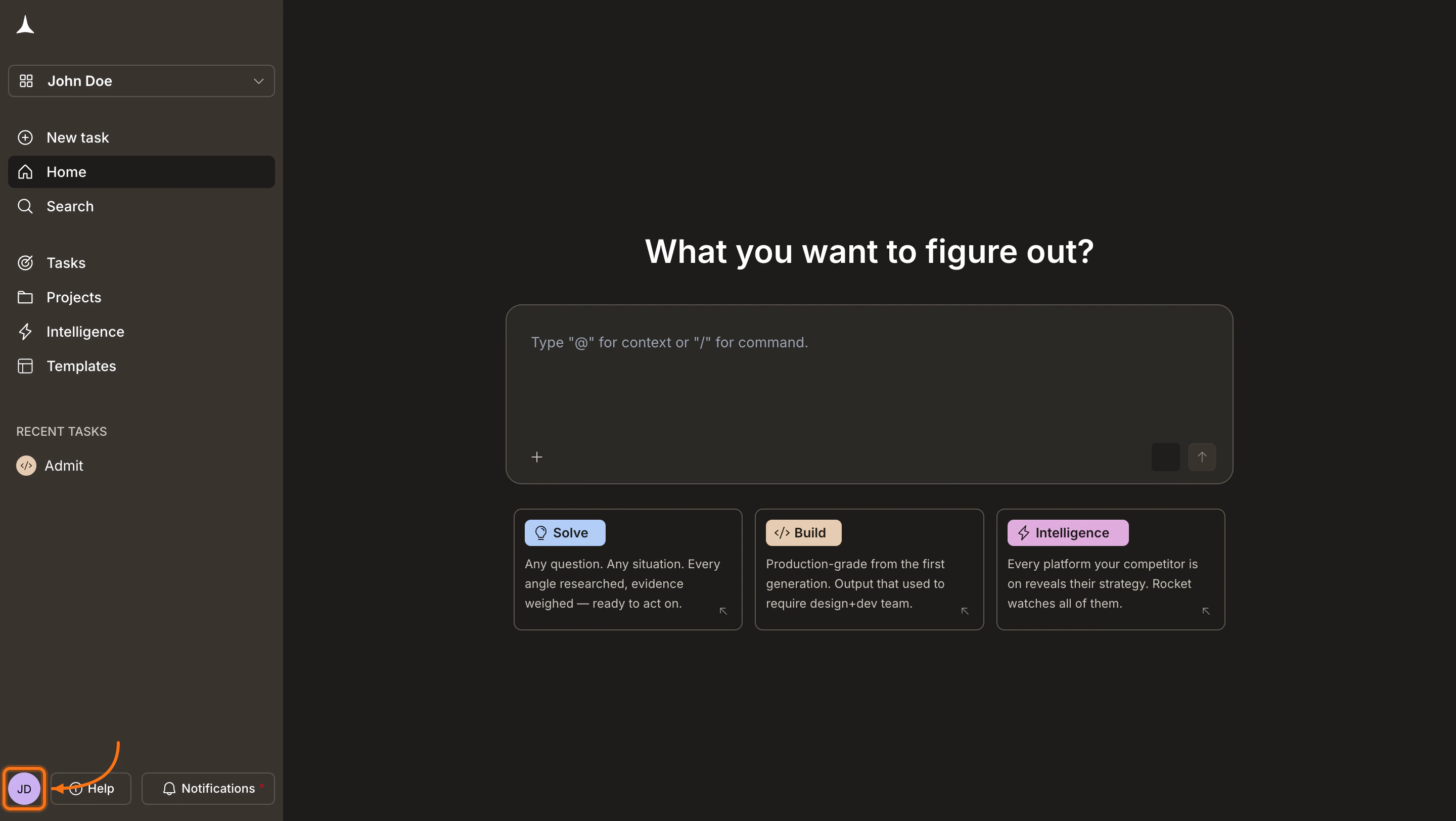
Click your **avatar** in the bottom-left corner of the screen.
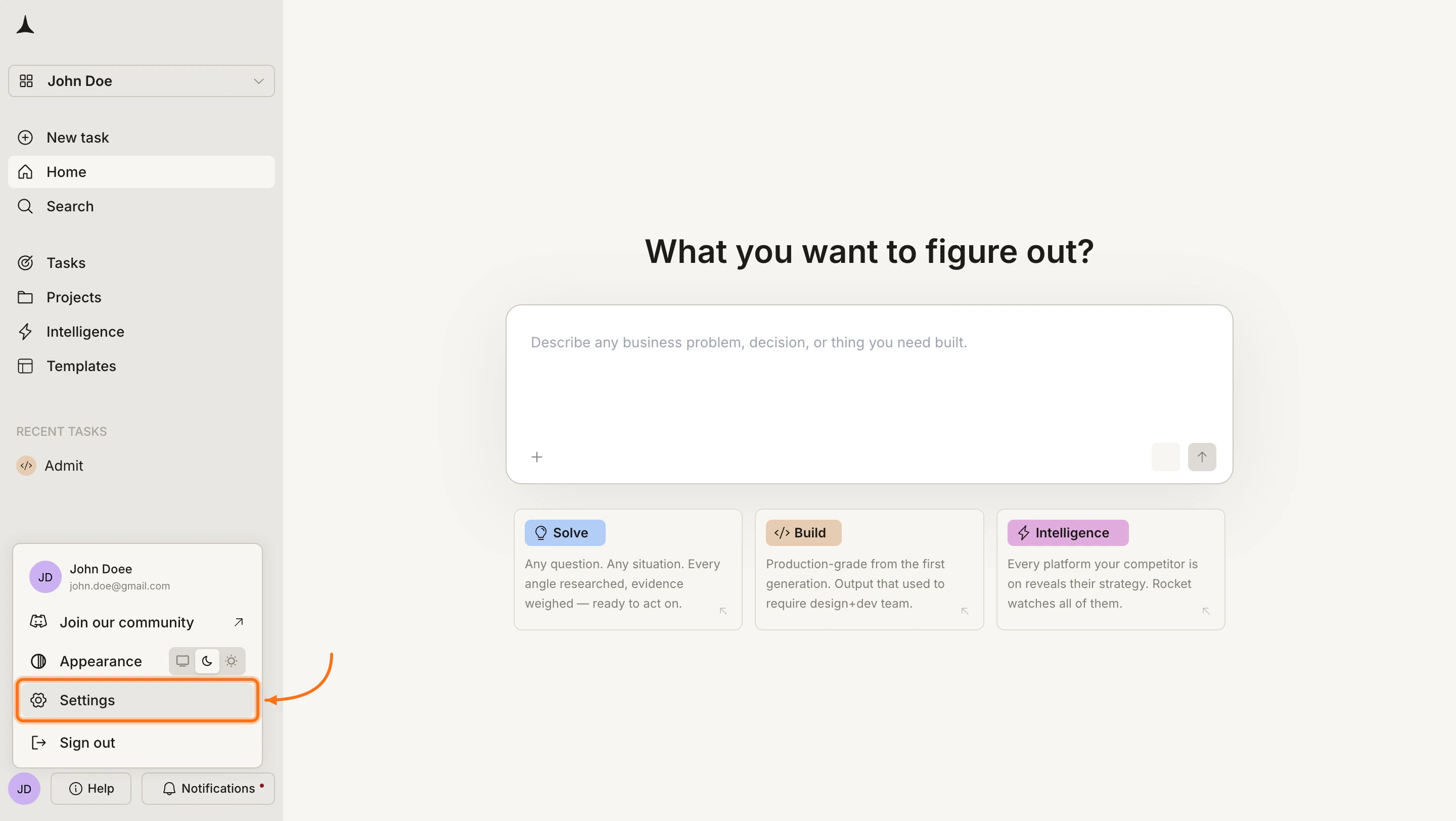
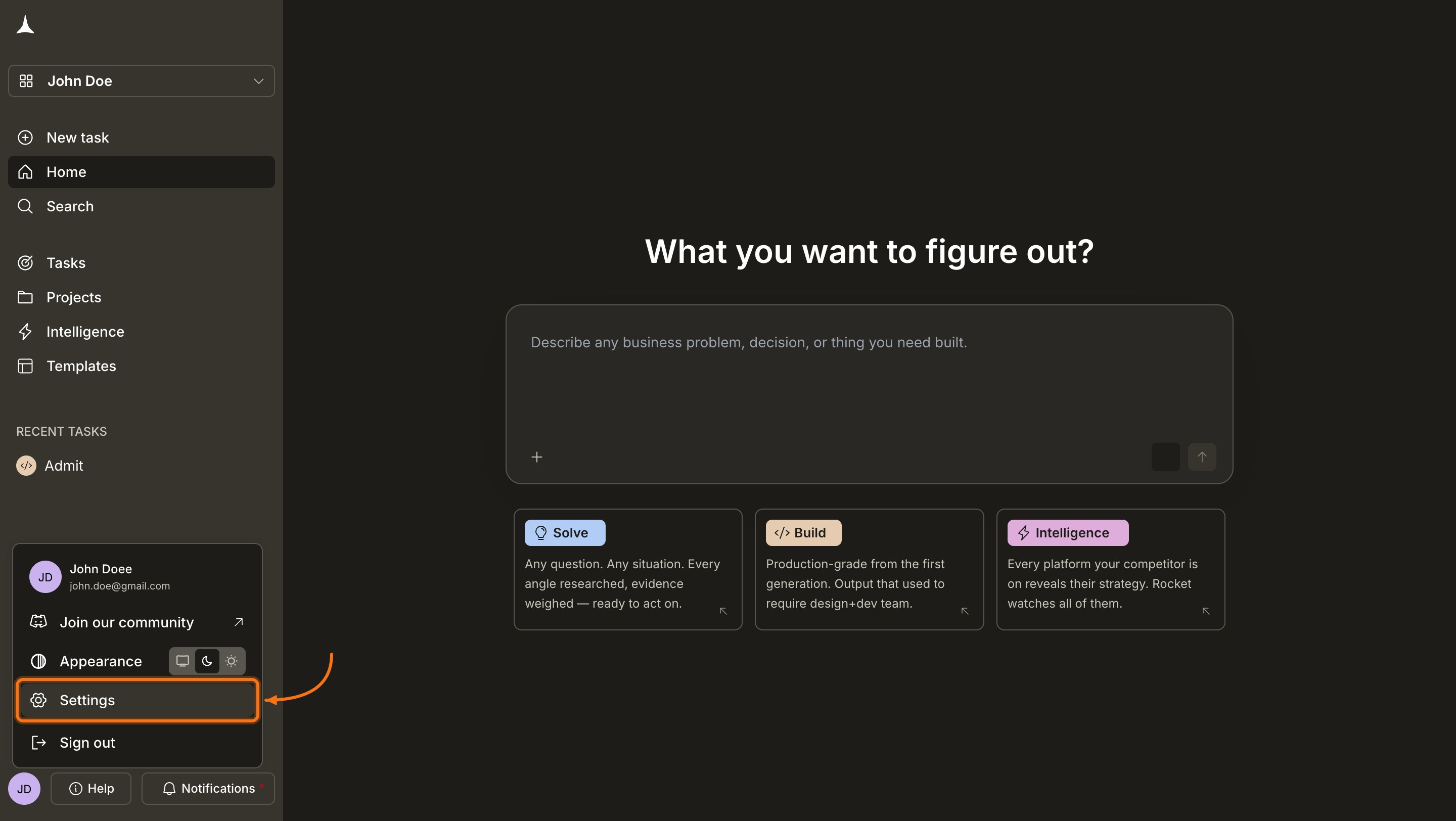
 In the account menu, click **Settings**.
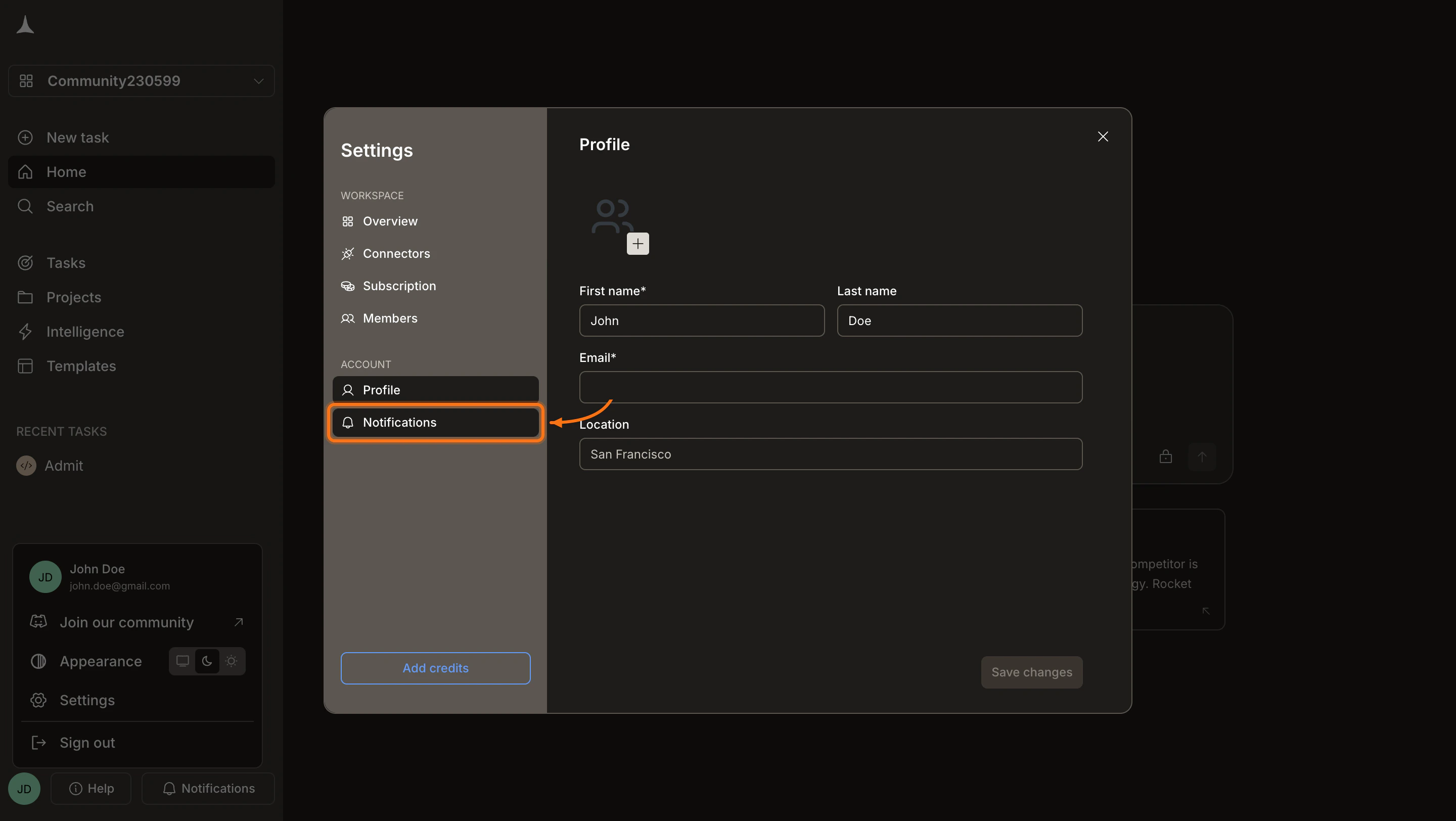
 In the Settings panel, click **Notifications** under the Account section.
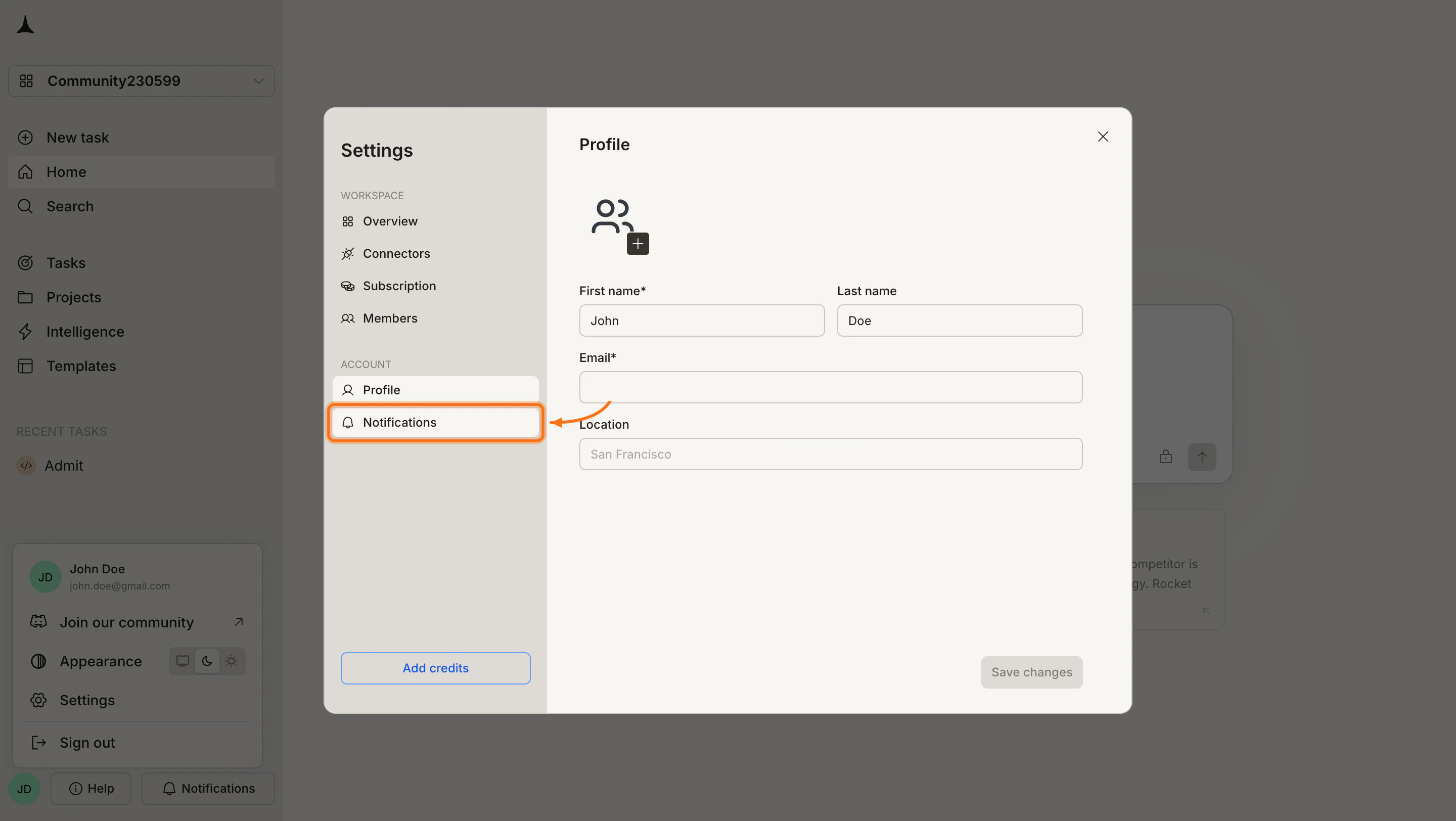
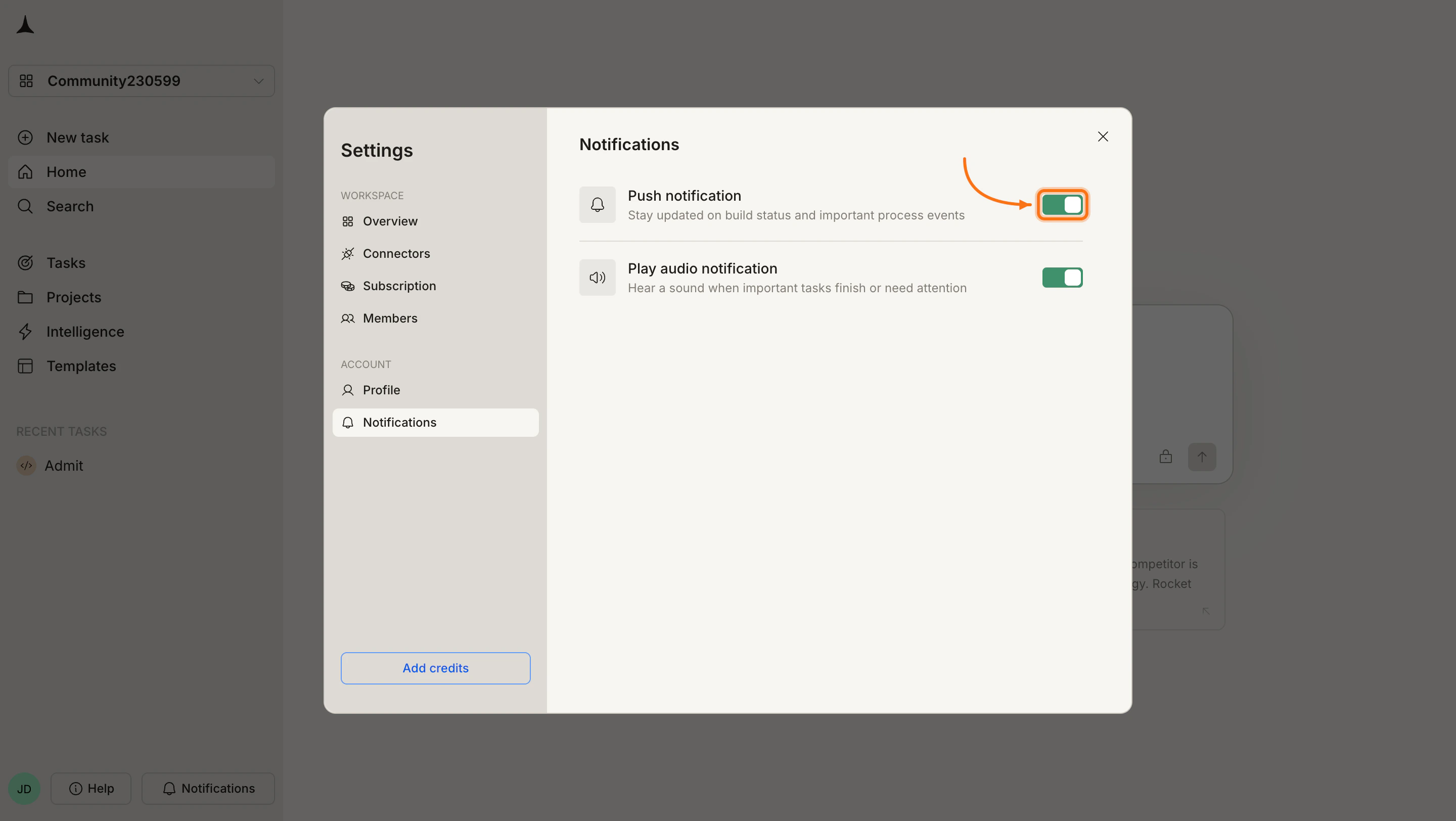
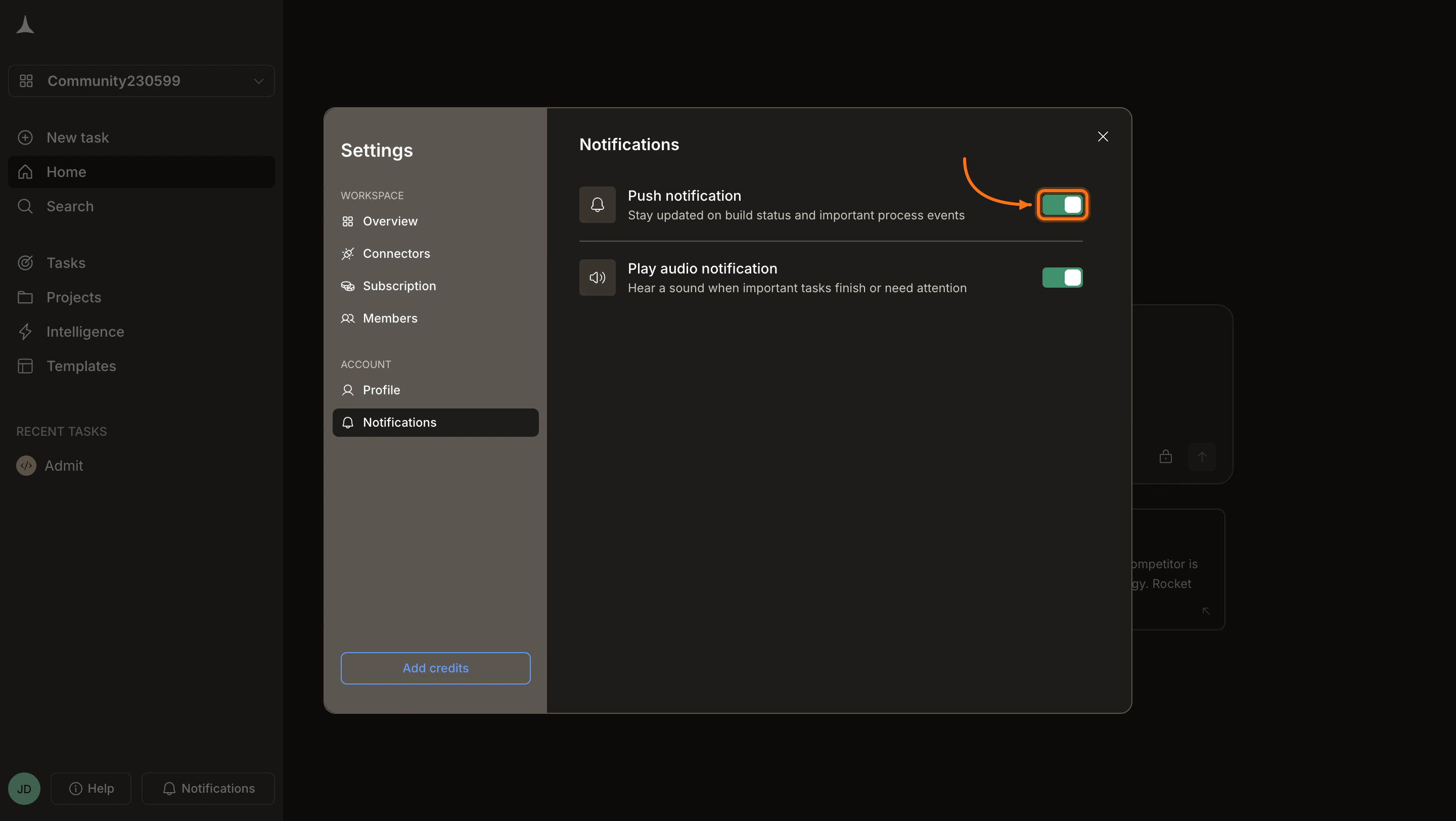
 Two toggles are available:
* **Push notifications**: Receive browser alerts even when Rocket is in the background. Covers build status updates, important process events, and project generation milestones.
* **Play audio notification**: Hear a sound alert for build completion, errors, and tasks that need attention. Useful when working in other tabs or applications.
Enable either or both based on your preference. If the browser prompts for notification permissions, click **Allow**.
Two toggles are available:
* **Push notifications**: Receive browser alerts even when Rocket is in the background. Covers build status updates, important process events, and project generation milestones.
* **Play audio notification**: Hear a sound alert for build completion, errors, and tasks that need attention. Useful when working in other tabs or applications.
Enable either or both based on your preference. If the browser prompts for notification permissions, click **Allow**.
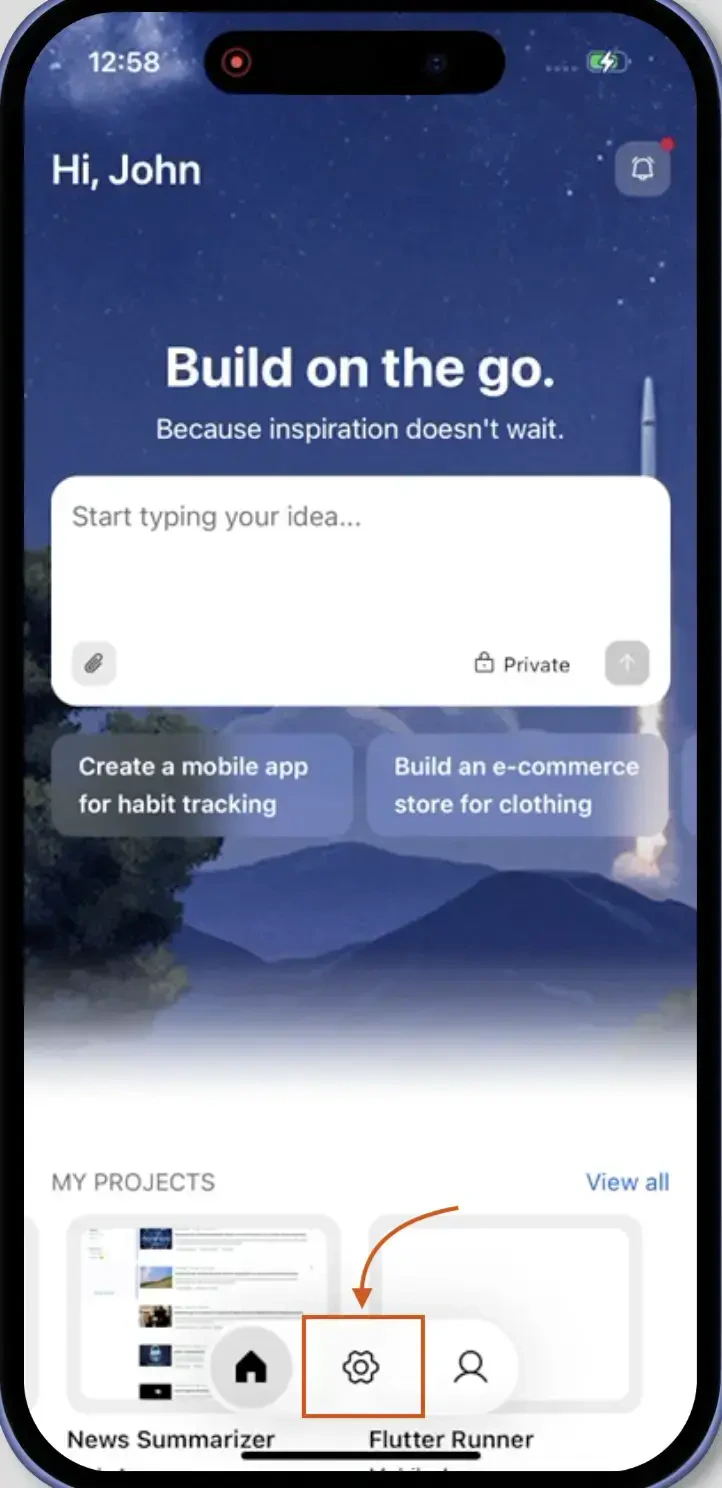
 On the home screen, tap the **Settings** icon in the footer bar at the bottom.
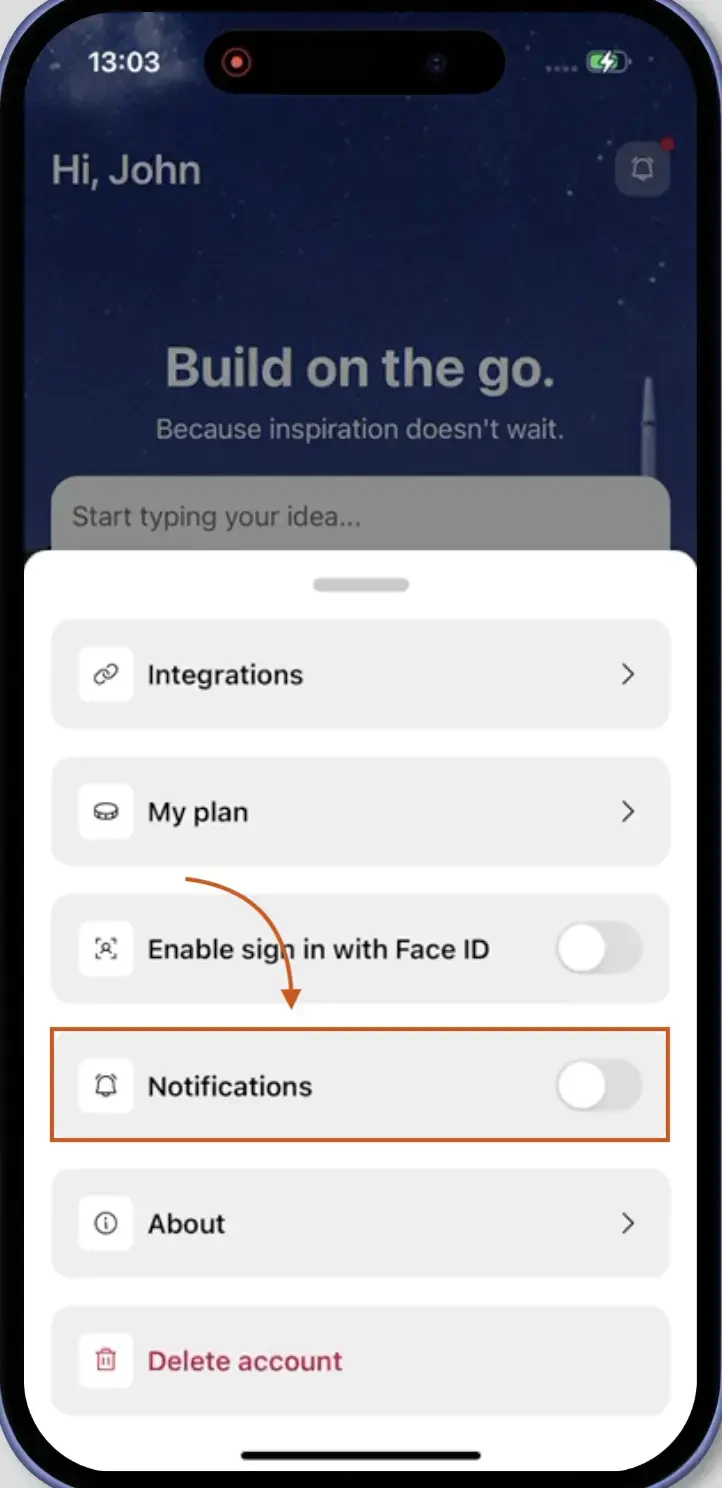
 In the settings sheet that slides up, toggle the **Notifications** switch to ON (green).
 When you toggle notifications on for the first time, iOS may prompt you to allow notifications. Tap **Allow** to grant permission.
If you previously denied notification permissions, go to device **Settings > Rocket > Notifications** to enable them, then return to the Rocket app.
Once enabled, Rocket sends mobile push notifications even when the app is in the background or closed. Notifications cover build status updates, important process events, and project generation milestones.
## Troubleshooting
1. Check that the push notifications toggle is enabled in Rocket settings.
2. Verify browser notification permissions are granted for Rocket.
3. Check your browser notification settings and confirm Rocket appears in the allowed sites list.
4. Try disabling and re-enabling the toggle in Rocket.
1. Check that the audio notifications toggle is enabled in Rocket settings.
2. Verify your browser allows audio playback for Rocket.
3. Check that your system volume is not muted.
4. Try playing audio in another tab to confirm browser audio works.
1. Check that the Notifications toggle is enabled in Rocket settings.
2. Go to device **Settings > Rocket > Notifications** and confirm they are allowed.
3. Check that Do Not Disturb is not active on your device.
4. Restart the Rocket app.
Disable audio notifications if you only want visual alerts. Disable push notifications if you only want audio cues. Disable both when working on long-running projects and check back manually.
## What's next?
Review incoming alerts organized by Requests, Updates, and Notifications.
Update your avatar, first name, last name, and location.
When you toggle notifications on for the first time, iOS may prompt you to allow notifications. Tap **Allow** to grant permission.
If you previously denied notification permissions, go to device **Settings > Rocket > Notifications** to enable them, then return to the Rocket app.
Once enabled, Rocket sends mobile push notifications even when the app is in the background or closed. Notifications cover build status updates, important process events, and project generation milestones.
## Troubleshooting
1. Check that the push notifications toggle is enabled in Rocket settings.
2. Verify browser notification permissions are granted for Rocket.
3. Check your browser notification settings and confirm Rocket appears in the allowed sites list.
4. Try disabling and re-enabling the toggle in Rocket.
1. Check that the audio notifications toggle is enabled in Rocket settings.
2. Verify your browser allows audio playback for Rocket.
3. Check that your system volume is not muted.
4. Try playing audio in another tab to confirm browser audio works.
1. Check that the Notifications toggle is enabled in Rocket settings.
2. Go to device **Settings > Rocket > Notifications** and confirm they are allowed.
3. Check that Do Not Disturb is not active on your device.
4. Restart the Rocket app.
Disable audio notifications if you only want visual alerts. Disable push notifications if you only want audio cues. Disable both when working on long-running projects and check back manually.
## What's next?
Review incoming alerts organized by Requests, Updates, and Notifications.
Update your avatar, first name, last name, and location.