> ## Documentation Index
> Fetch the complete documentation index at: https://docs.rocket.new/llms.txt
> Use this file to discover all available pages before exploring further.
# Notifications
> Open the Rocket.new notification panel for requests, updates, and task alerts.
export const LlmsDirective = () =>
For the complete documentation index, see llms.txt.
For a lightweight markdown version of this page, append .md to the URL.
;
The notification panel keeps you informed about activity across your workspaces, projects, and tasks. It organizes activity into three tabs: **Requests**, **Updates**, and **Notifications**.
 ## Steps
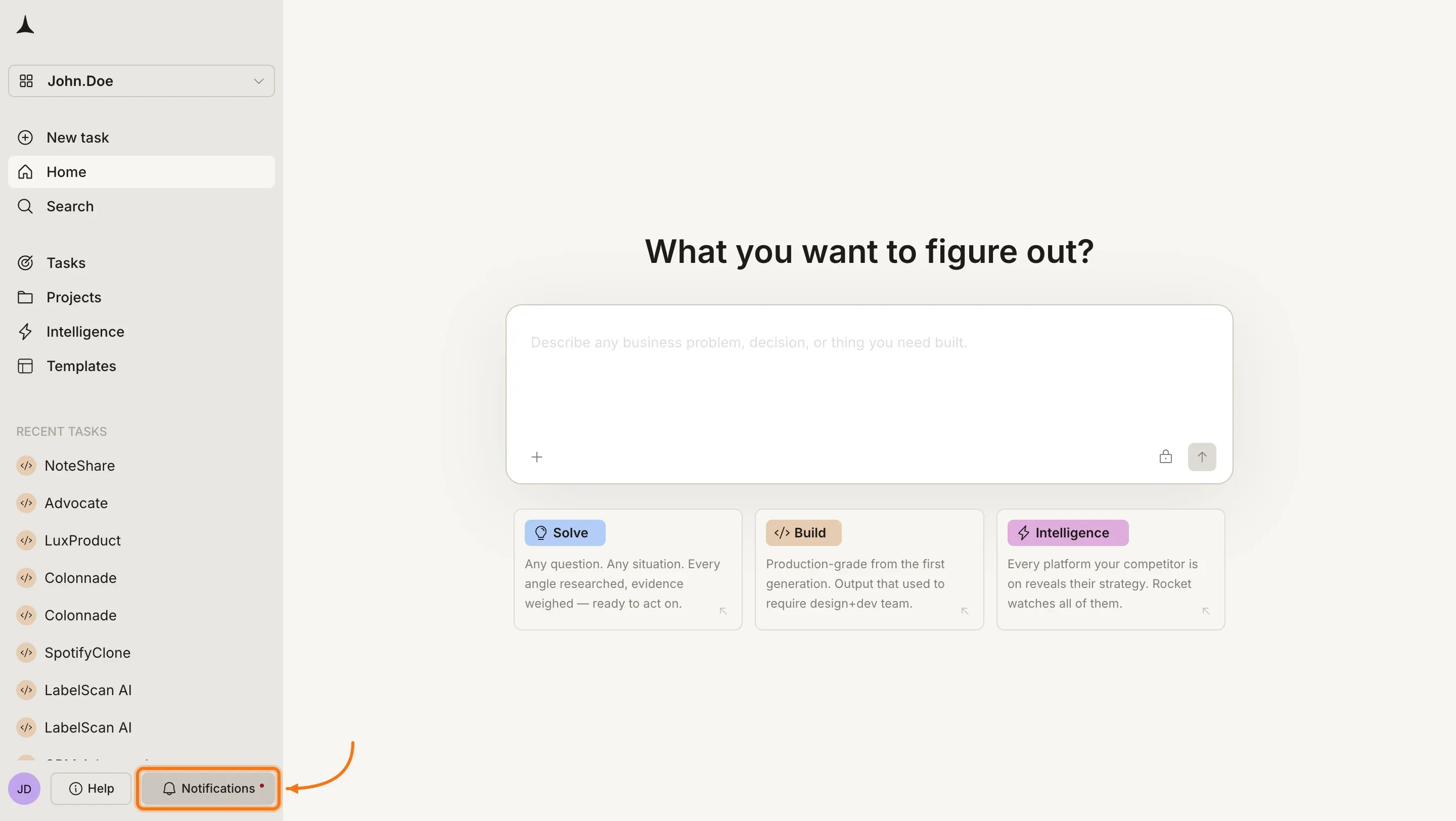
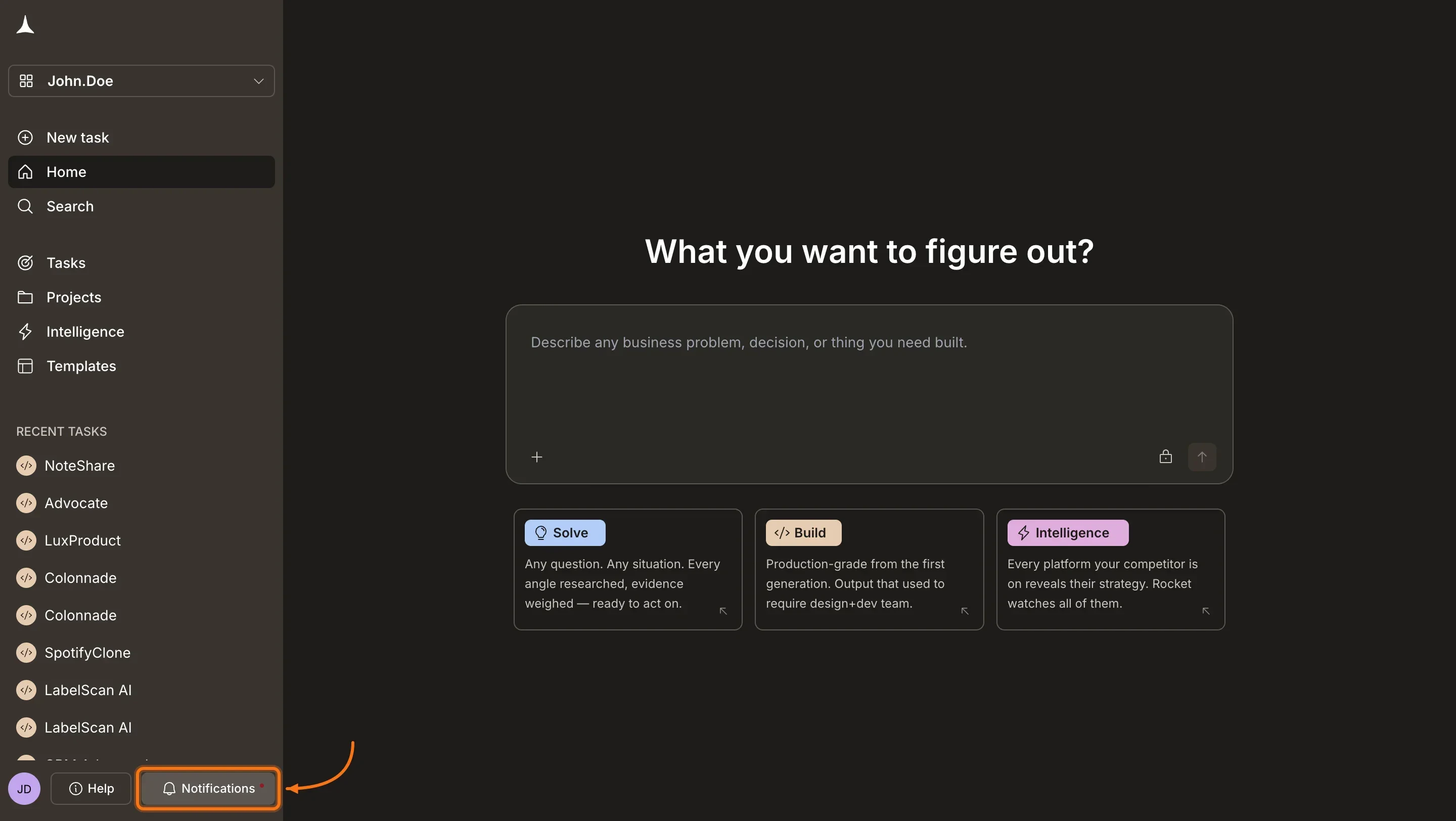
In the bottom-left corner of the screen, click the **Notifications** button. A panel opens over the current view.
At the top of the panel, click the tab for the activity you want to review:
## Steps
In the bottom-left corner of the screen, click the **Notifications** button. A panel opens over the current view.
At the top of the panel, click the tab for the activity you want to review:
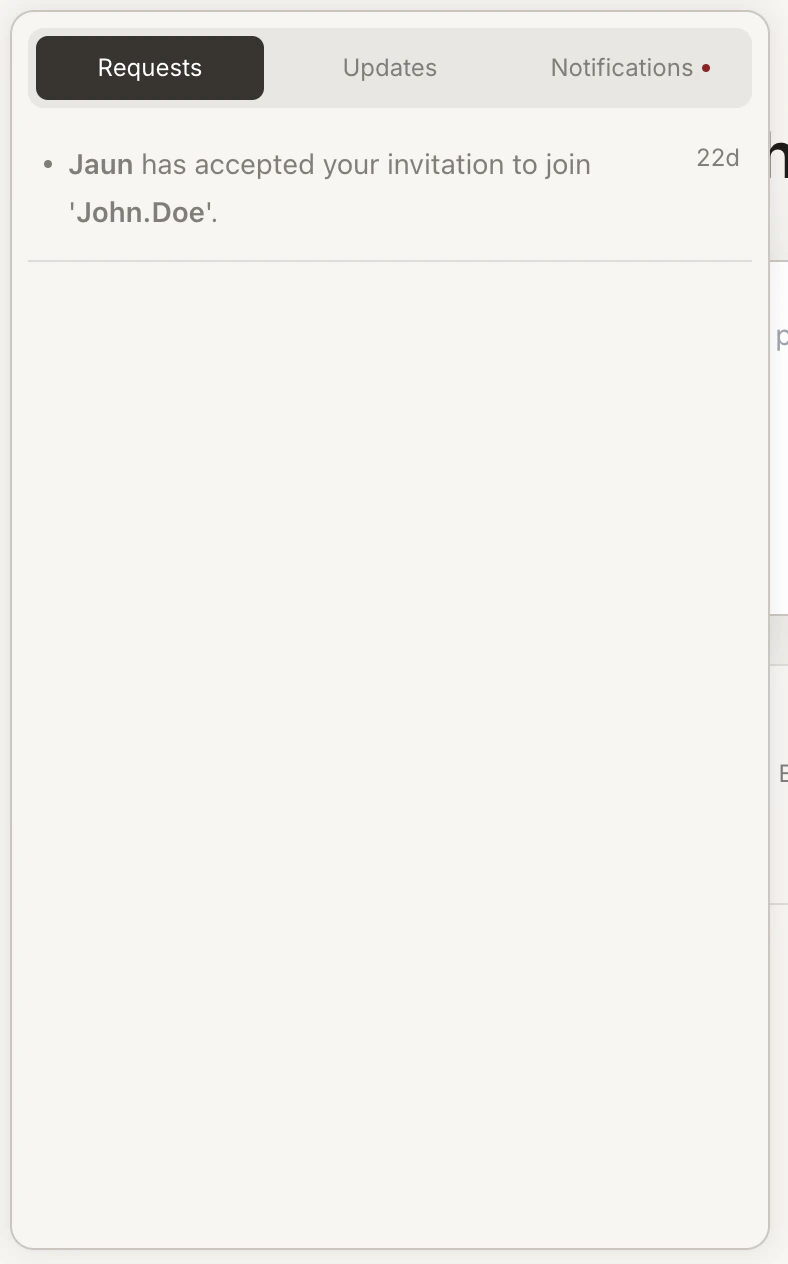
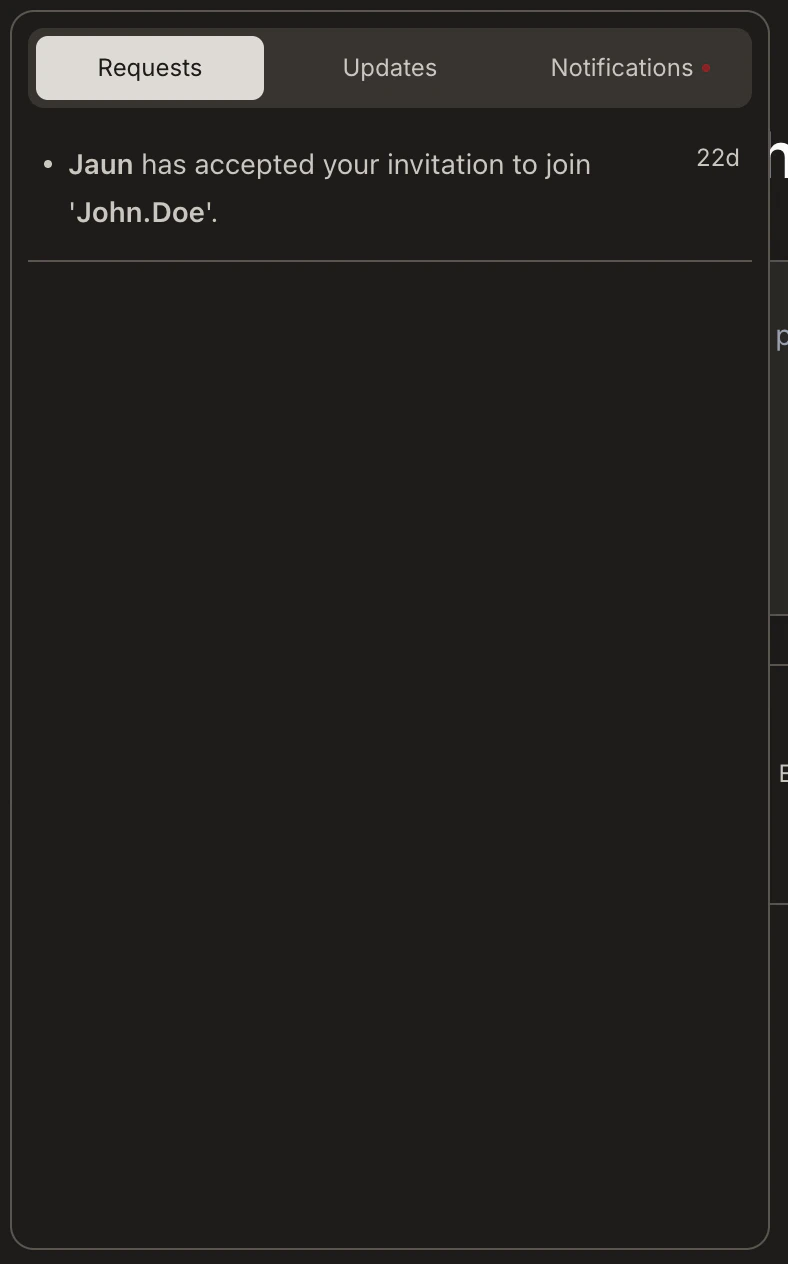 * **Requests** for invitations and collaboration events on Solve and Build tasks
* **Updates** for new features and platform announcements
* **Notifications** for task completions and prompt results
A red dot on the **Notifications** button or on a tab label means there are unread items in that tab.
## What each tab shows
| Tab | What it covers |
| :---------------- | :--------------------------------------------------------------------------------------------------------- |
| **Requests** | Collaboration activity: invitations accepted, join requests received or approved for Solve and Build tasks |
| **Updates** | Platform announcements: new features and improvements introduced to Rocket |
| **Notifications** | Task completion events: finished Solve reports, completed Build changes, and prompt execution results |
**Requests** shows when someone accepts your invitation to a [Solve or Build task](/getting-started/collaboration/task), and when others request to join tasks you own. Every collaboration action that needs your attention appears here.
**Updates** keeps you informed about new capabilities added to the platform. Check this tab to learn about features before you need them.
**Notifications** confirms that Rocket has finished work on your behalf. You see an entry when a Solve report is ready, when a Build task completes, or when Rocket finishes applying the changes or prompt you submitted. To control which events trigger alerts and whether they play a sound, see [notification settings](/getting-started/account/notification-settings).
## What's next?
Turn push and audio alerts on or off for builds, errors, and task milestones.
Share individual tasks and manage access requests that appear in the Requests tab.
* **Requests** for invitations and collaboration events on Solve and Build tasks
* **Updates** for new features and platform announcements
* **Notifications** for task completions and prompt results
A red dot on the **Notifications** button or on a tab label means there are unread items in that tab.
## What each tab shows
| Tab | What it covers |
| :---------------- | :--------------------------------------------------------------------------------------------------------- |
| **Requests** | Collaboration activity: invitations accepted, join requests received or approved for Solve and Build tasks |
| **Updates** | Platform announcements: new features and improvements introduced to Rocket |
| **Notifications** | Task completion events: finished Solve reports, completed Build changes, and prompt execution results |
**Requests** shows when someone accepts your invitation to a [Solve or Build task](/getting-started/collaboration/task), and when others request to join tasks you own. Every collaboration action that needs your attention appears here.
**Updates** keeps you informed about new capabilities added to the platform. Check this tab to learn about features before you need them.
**Notifications** confirms that Rocket has finished work on your behalf. You see an entry when a Solve report is ready, when a Build task completes, or when Rocket finishes applying the changes or prompt you submitted. To control which events trigger alerts and whether they play a sound, see [notification settings](/getting-started/account/notification-settings).
## What's next?
Turn push and audio alerts on or off for builds, errors, and task milestones.
Share individual tasks and manage access requests that appear in the Requests tab.