> ## Documentation Index
> Fetch the complete documentation index at: https://docs.rocket.new/llms.txt
> Use this file to discover all available pages before exploring further.

# Profile settings

> Update your avatar, name, and location in Rocket.new profile settings.

export const LlmsDirective = () => <blockquote className="llms-directive">
    For the complete documentation index, see <a href="/llms.txt">llms.txt</a>.
    For a lightweight markdown version of this page, append .md to the URL.
  </blockquote>;

<LlmsDirective />

Your profile is your identity across Rocket. Your avatar, first name, last name, and location appear on every [task](/getting-started/task/overview) you create, in collaboration invitations, and in emails sent to you.

The same account menu also gives access to [notification settings](/getting-started/account/notification-settings) and appearance options.

## Steps

<Tabs>
  <Tab title="Web Browser">
    <Steps>
      <Step title="Click your avatar">
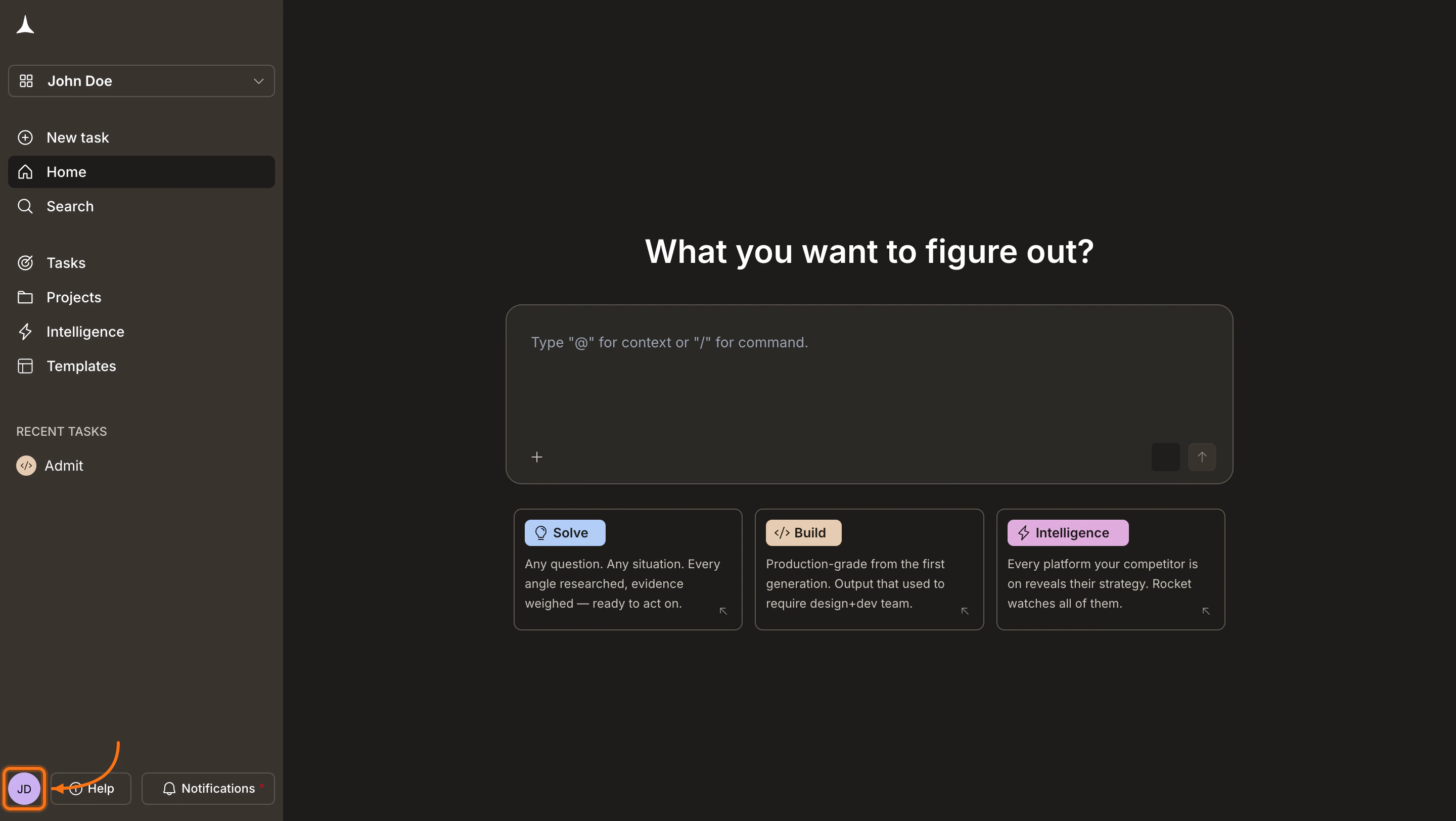
        Click your **avatar** in the bottom-left corner of the screen.
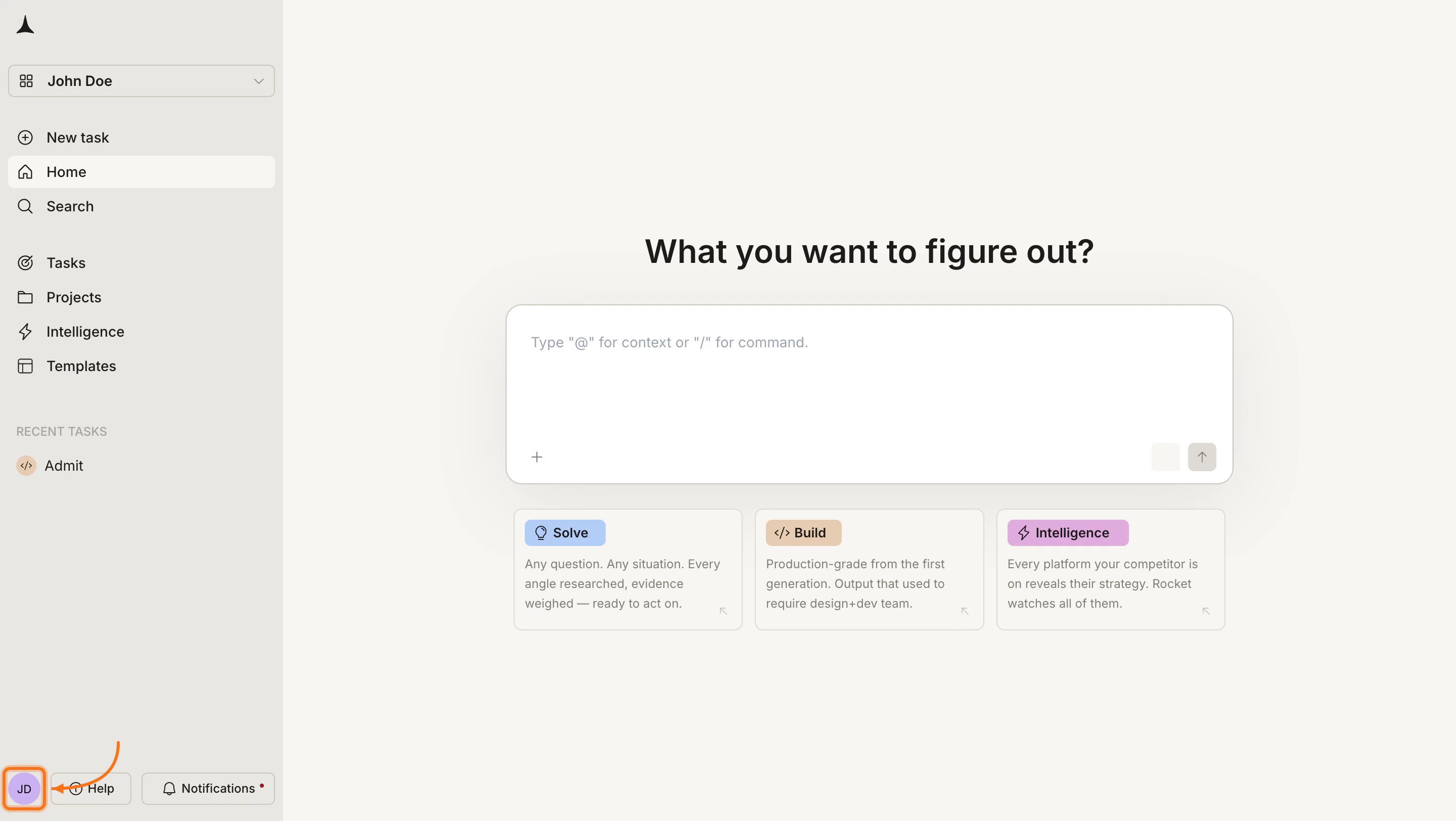
        <Frame caption="Click your avatar in the bottom-left corner">
          <img src="https://mintcdn.com/dhiwisepvtltd-5e04e6a4/DBJMXb_BEYh5GrMJ/images/getting-started/account/profile-settings/web-browser/click-avatar-light.webp?fit=max&auto=format&n=DBJMXb_BEYh5GrMJ&q=85&s=edab4651690368a90fb6f7692179e602" alt="Rocket home screen with the avatar highlighted in the bottom-left corner." className="theme-image light-image" width="2880" height="1624" data-path="images/getting-started/account/profile-settings/web-browser/click-avatar-light.webp" />

          <img src="https://mintcdn.com/dhiwisepvtltd-5e04e6a4/DBJMXb_BEYh5GrMJ/images/getting-started/account/profile-settings/web-browser/click-avatar-dark.webp?fit=max&auto=format&n=DBJMXb_BEYh5GrMJ&q=85&s=d9a56b98617a59ace3d1f39a26194334" alt="Rocket home screen with the avatar highlighted in the bottom-left corner." className="theme-image dark-image" width="2880" height="1624" data-path="images/getting-started/account/profile-settings/web-browser/click-avatar-dark.webp" />
        </Frame>
      </Step>

      <Step title="Click Settings">
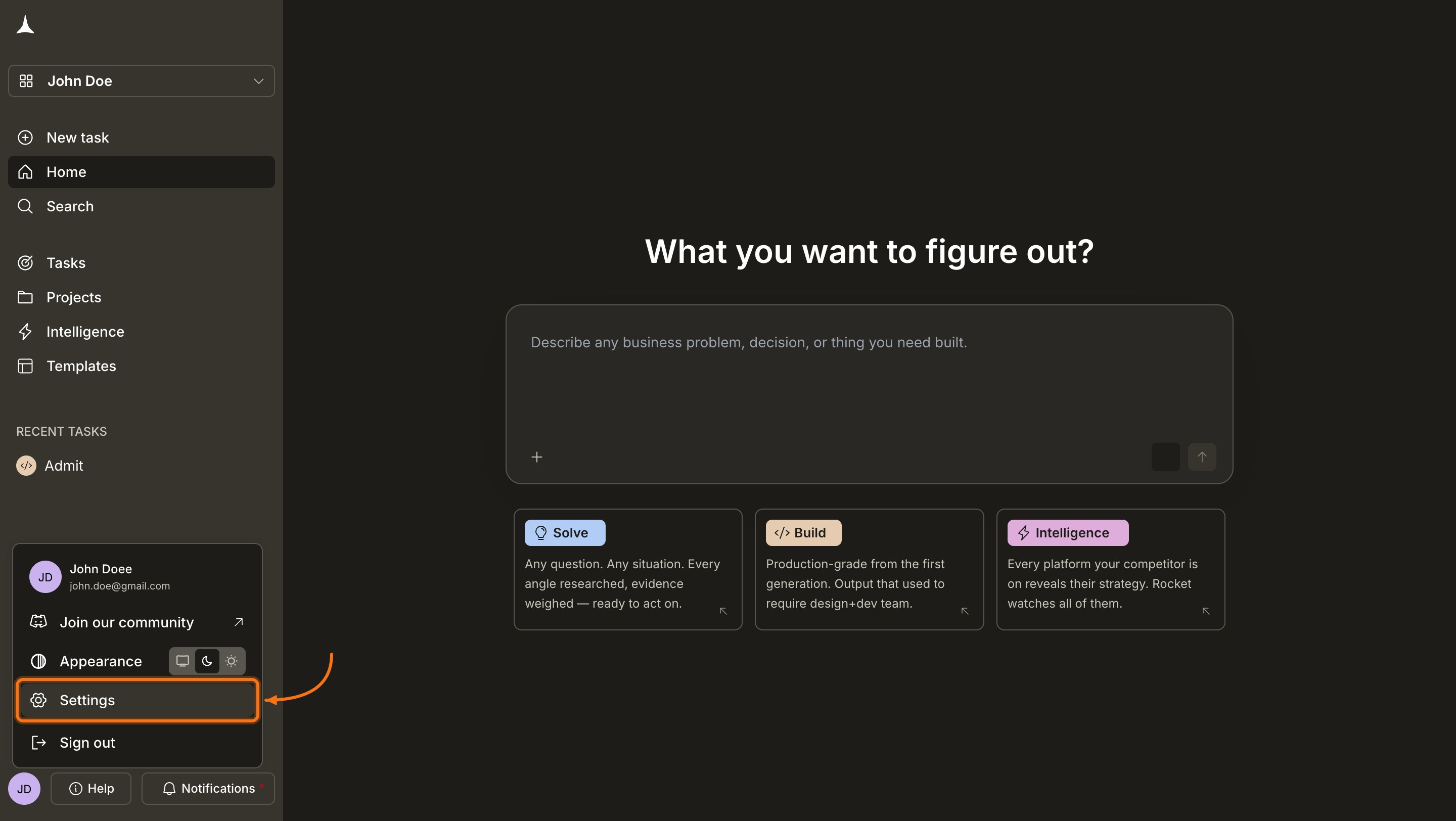
        In the account menu, click **Settings**. The Profile tab opens by default.
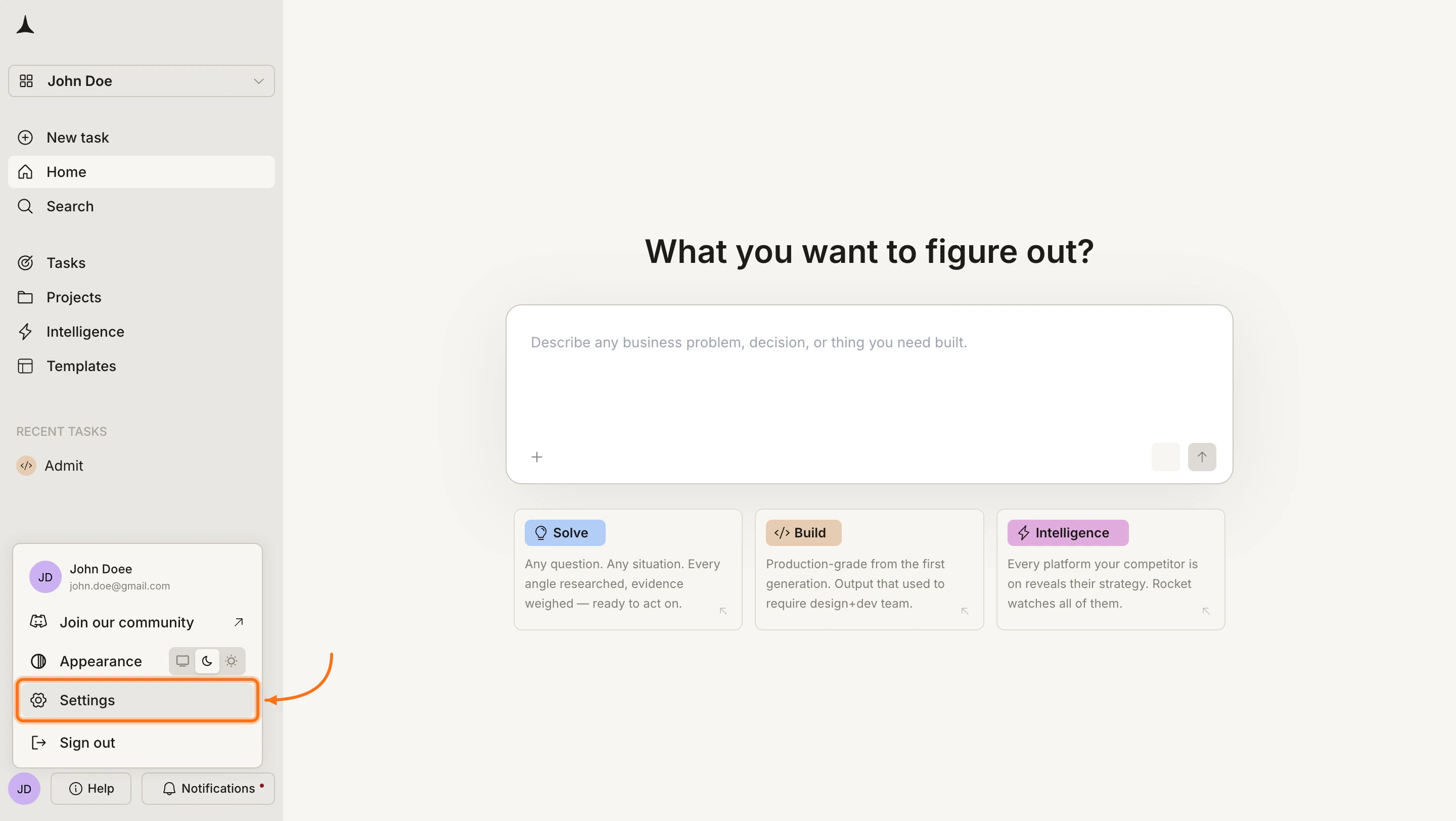
        <Frame caption="Click Settings in the account menu">
          <img src="https://mintcdn.com/dhiwisepvtltd-5e04e6a4/DBJMXb_BEYh5GrMJ/images/getting-started/account/profile-settings/web-browser/account-menu-settings-light.webp?fit=max&auto=format&n=DBJMXb_BEYh5GrMJ&q=85&s=39d947b75845bf579bc68c94434edfba" alt="Account menu open with Settings highlighted." className="theme-image light-image" width="2880" height="1624" data-path="images/getting-started/account/profile-settings/web-browser/account-menu-settings-light.webp" />

          <img src="https://mintcdn.com/dhiwisepvtltd-5e04e6a4/DBJMXb_BEYh5GrMJ/images/getting-started/account/profile-settings/web-browser/account-menu-settings-dark.webp?fit=max&auto=format&n=DBJMXb_BEYh5GrMJ&q=85&s=3013b64536a2fa5ba7509e6db4c92cd8" alt="Account menu open with Settings highlighted." className="theme-image dark-image" width="2880" height="1624" data-path="images/getting-started/account/profile-settings/web-browser/account-menu-settings-dark.webp" />
        </Frame>
      </Step>

      <Step title="Edit your details and save">
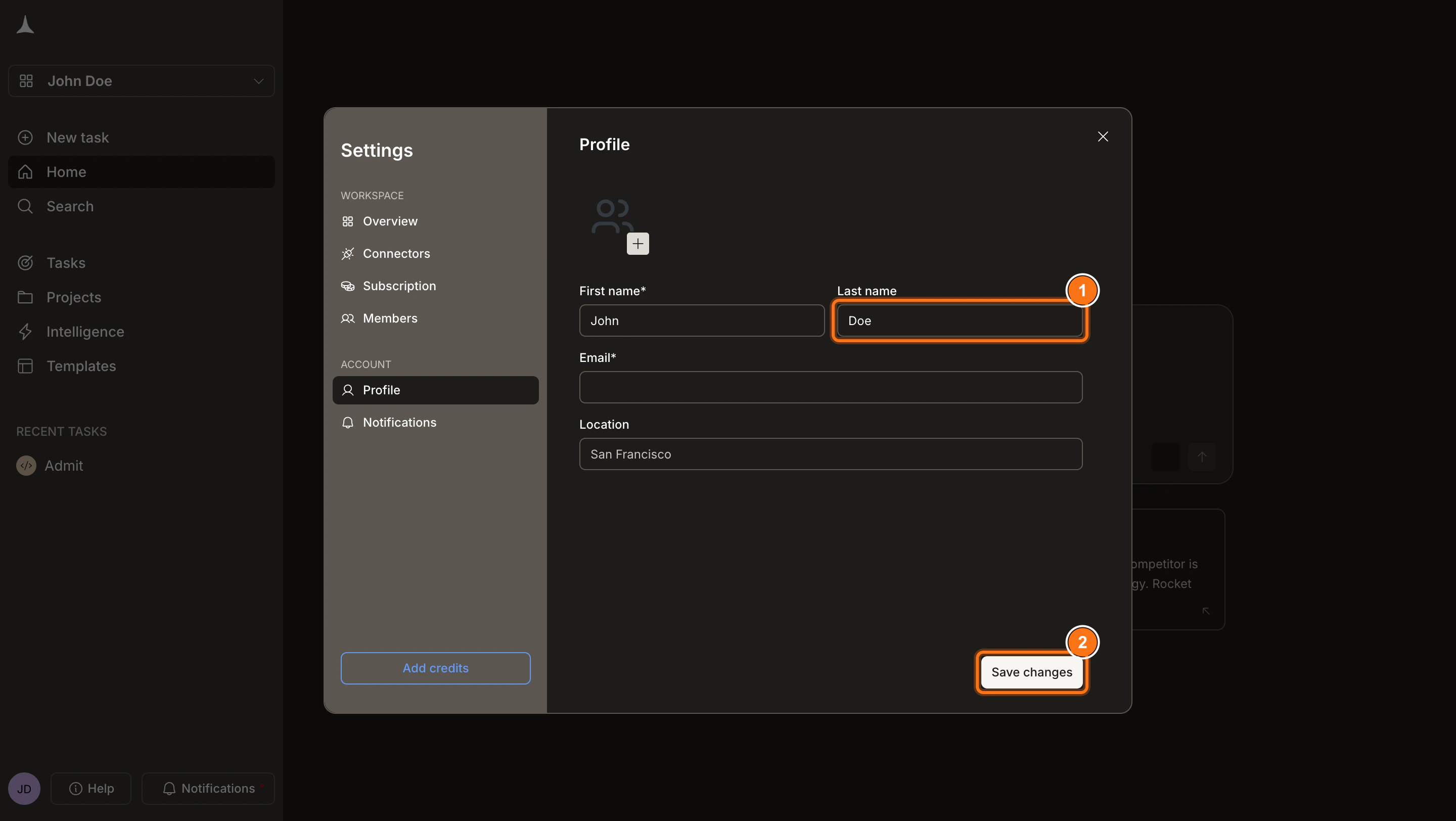
        Update any of the following fields **(1)**:

        * **Avatar**: Click the image area and upload a photo or picture file.
        * **First name**: Enter your first name as it appears across Rocket.
        * **Last name**: Enter your last name.
        * **Location**: Add your city or time zone.

        Then click **Save changes** **(2)** at the bottom of the form.
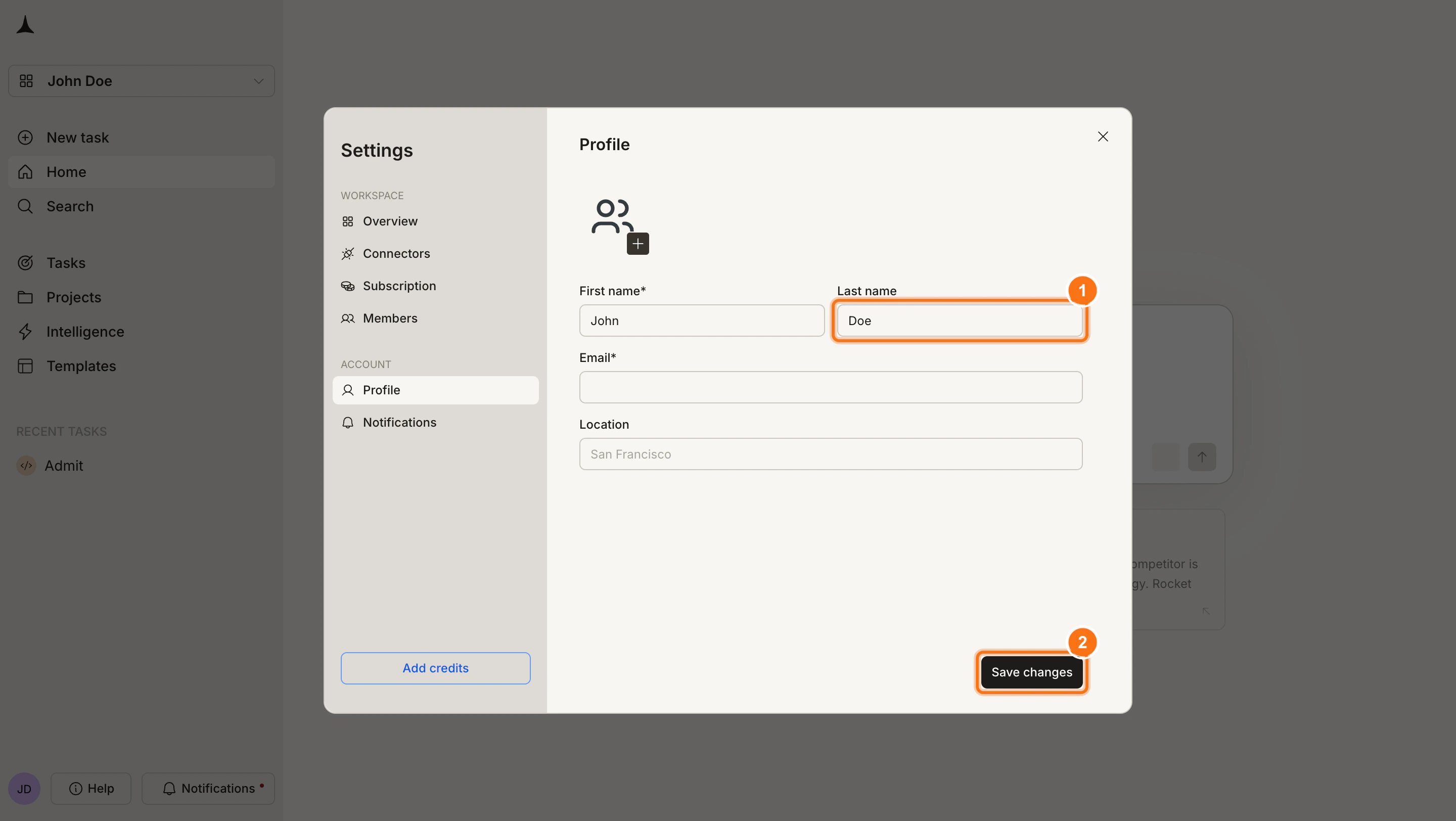
        <Frame caption="Edit your profile fields and click Save changes">
          <img src="https://mintcdn.com/dhiwisepvtltd-5e04e6a4/DBJMXb_BEYh5GrMJ/images/getting-started/account/profile-settings/web-browser/profile-form-save-light.webp?fit=max&auto=format&n=DBJMXb_BEYh5GrMJ&q=85&s=9c79ede6ea4ecf1baf523c951b3585a7" alt="Profile settings panel with fields and Save changes button highlighted." className="theme-image light-image" width="2880" height="1624" data-path="images/getting-started/account/profile-settings/web-browser/profile-form-save-light.webp" />

          <img src="https://mintcdn.com/dhiwisepvtltd-5e04e6a4/DBJMXb_BEYh5GrMJ/images/getting-started/account/profile-settings/web-browser/profile-form-save-dark.webp?fit=max&auto=format&n=DBJMXb_BEYh5GrMJ&q=85&s=4e9695750155ac747123991511963cb1" alt="Profile settings panel with fields and Save changes button highlighted." className="theme-image dark-image" width="2880" height="1624" data-path="images/getting-started/account/profile-settings/web-browser/profile-form-save-dark.webp" />
        </Frame>

        <Warning>
          Email address changes are handled by the support team. Contact [support@rocket.new](mailto:support@rocket.new) if you need to change your login address.
        </Warning>
      </Step>
    </Steps>
  </Tab>

  <Tab title="Mobile App">
    <Steps>
      <Step title="Tap the profile icon">
        Tap the <Icon icon="user" color="currentColor" /> profile icon in the bottom navigation bar of the home screen.
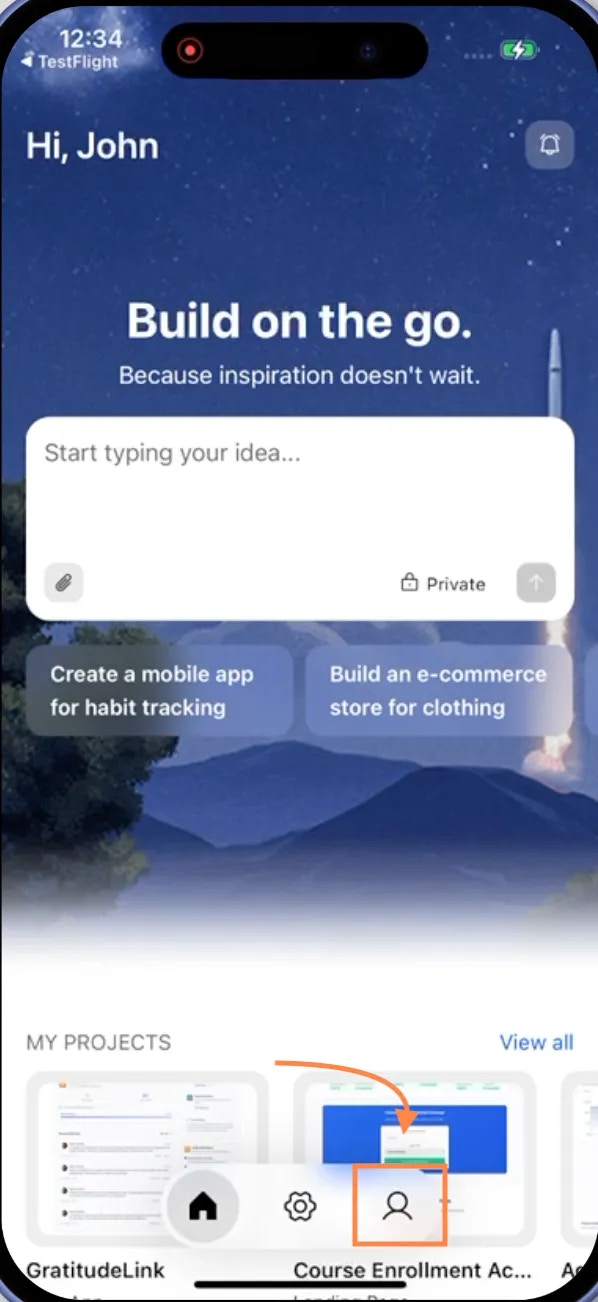
        <Frame caption="Profile icon in bottom navigation">
          <img src="https://mintcdn.com/dhiwisepvtltd-5e04e6a4/V8n5a5SD5I4rMm7t/images/getting-started/account/profile-settings/mobile-app/profile-icon-bottom-nav.webp?fit=max&auto=format&n=V8n5a5SD5I4rMm7t&q=85&s=8d020bee3c0339ea850d4870abe92139" alt="Rocket home screen showing profile icon in bottom navigation bar." className="theme-mobile-image" width="598" height="1302" data-path="images/getting-started/account/profile-settings/mobile-app/profile-icon-bottom-nav.webp" />
        </Frame>
      </Step>

      <Step title="Open the Profile modal">
        The Profile modal shows your current picture, name, email, and location.
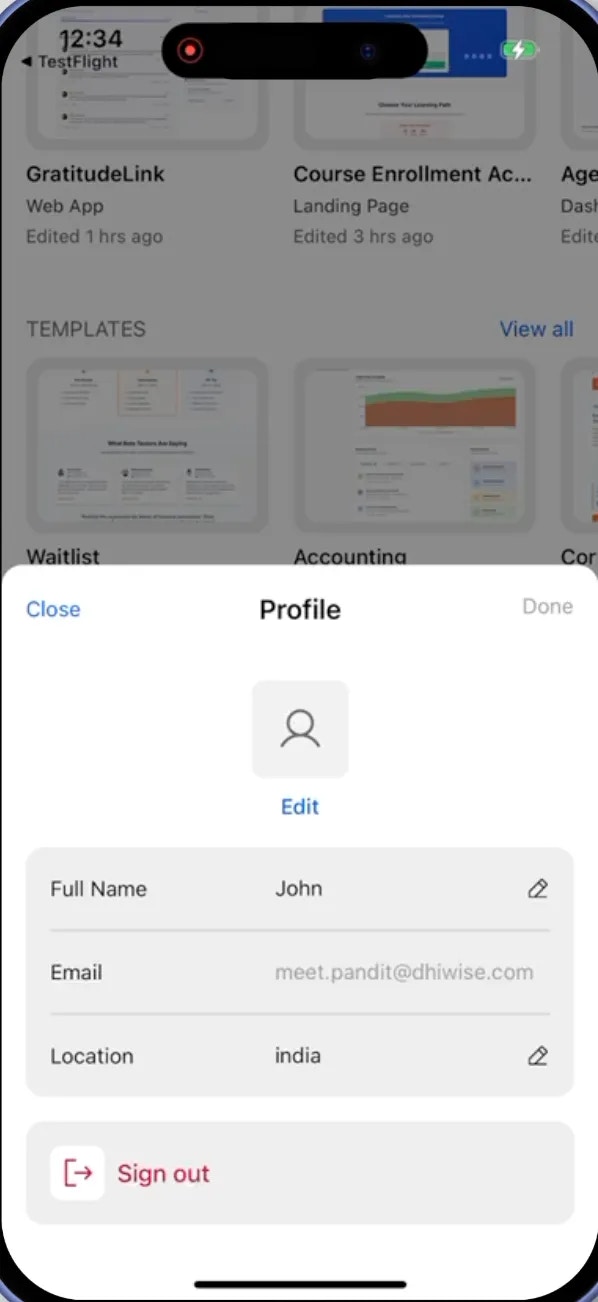
        <Frame caption="Profile modal with user information">
          <img src="https://mintcdn.com/dhiwisepvtltd-5e04e6a4/V8n5a5SD5I4rMm7t/images/getting-started/account/profile-settings/mobile-app/profile-modal-open.webp?fit=max&auto=format&n=V8n5a5SD5I4rMm7t&q=85&s=68970e29786fb53fafff8cf85309686c" alt="Profile modal showing user details with Close and Done buttons." className="theme-mobile-image" width="598" height="1302" data-path="images/getting-started/account/profile-settings/mobile-app/profile-modal-open.webp" />
        </Frame>
      </Step>

      <Step title="Update your details">
        Tap the pencil icon next to any field to edit it:

        * **Avatar**: Tap the profile image area, then tap **Edit** to upload a new photo or picture.
        * **First name**: Tap the pencil icon next to your first name.
        * **Last name**: Tap the pencil icon next to your last name.
        * **Location**: Tap the pencil icon next to your location.

        <Warning>
          Email address changes are handled by the support team. Contact [support@rocket.new](mailto:support@rocket.new) if you need to change your login address.
        </Warning>
      </Step>

      <Step title="Save your changes">
        Tap **Done** in the top-right corner of the Profile modal. Rocket saves your updates and closes the modal.
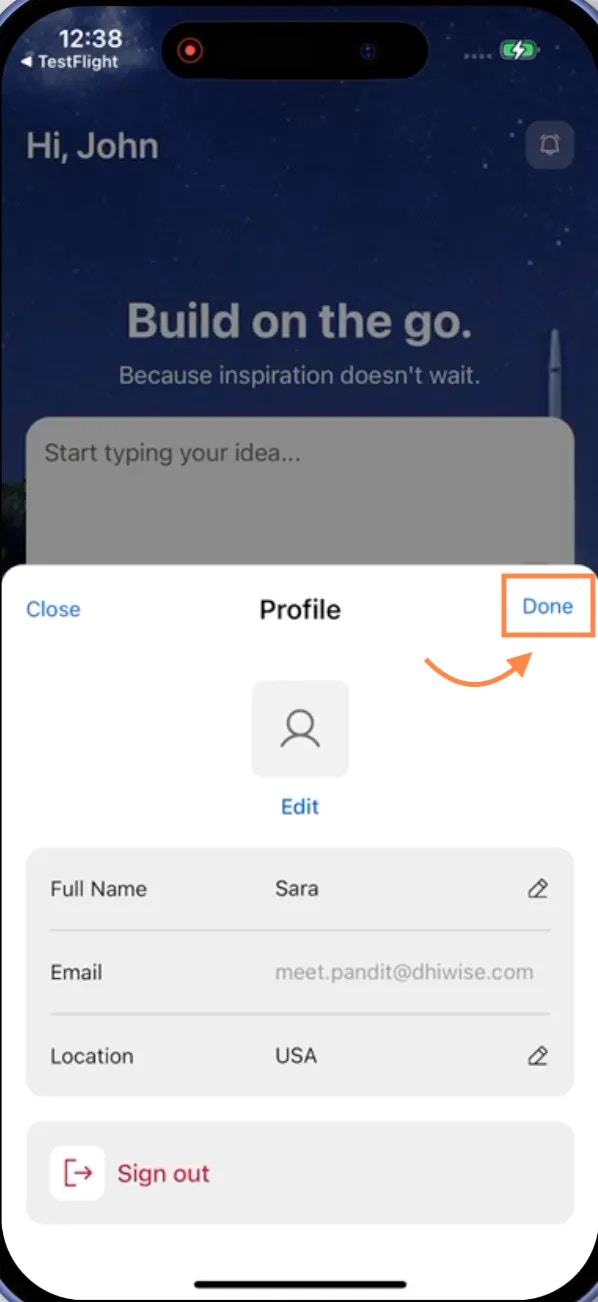
        <Frame caption="Done button in Profile modal">
          <img src="https://mintcdn.com/dhiwisepvtltd-5e04e6a4/V8n5a5SD5I4rMm7t/images/getting-started/account/profile-settings/mobile-app/done-button-highlighted.webp?fit=max&auto=format&n=V8n5a5SD5I4rMm7t&q=85&s=f712ef768e882bae113b9ac67dc83aa9" alt="Profile modal with Done button highlighted in top right corner." className="theme-mobile-image" width="598" height="1302" data-path="images/getting-started/account/profile-settings/mobile-app/done-button-highlighted.webp" />
        </Frame>
      </Step>
    </Steps>
  </Tab>
</Tabs>

## What's next?

<CardGroup cols={2}>
  <Card title="Notifications" icon="bell" href="/getting-started/account/notifications">
    Open the notification panel to review collaboration requests, product updates, and task completion alerts.
  </Card>

  <Card title="Appearance" icon="circle-half-stroke" href="/getting-started/account/appearance">
    Switch between light mode, dark mode, or system-synced theme.
  </Card>
</CardGroup>