> ## Documentation Index
> Fetch the complete documentation index at: https://docs.rocket.new/llms.txt
> Use this file to discover all available pages before exploring further.

# Task

> Share individual Rocket.new tasks via email without exposing the full project.

export const LlmsDirective = () => <blockquote className="llms-directive">
    For the complete documentation index, see <a href="/llms.txt">llms.txt</a>.
    For a lightweight markdown version of this page, append .md to the URL.
  </blockquote>;

<LlmsDirective />

Task-level sharing is the most granular level of collaboration in Rocket. It lets you give someone access to a single Solve or Build task without exposing the rest of the project. Use this for external reviewers, clients, or stakeholders who only need to see one output.

## Steps

<Steps>
  <Step title="Go to Tasks">
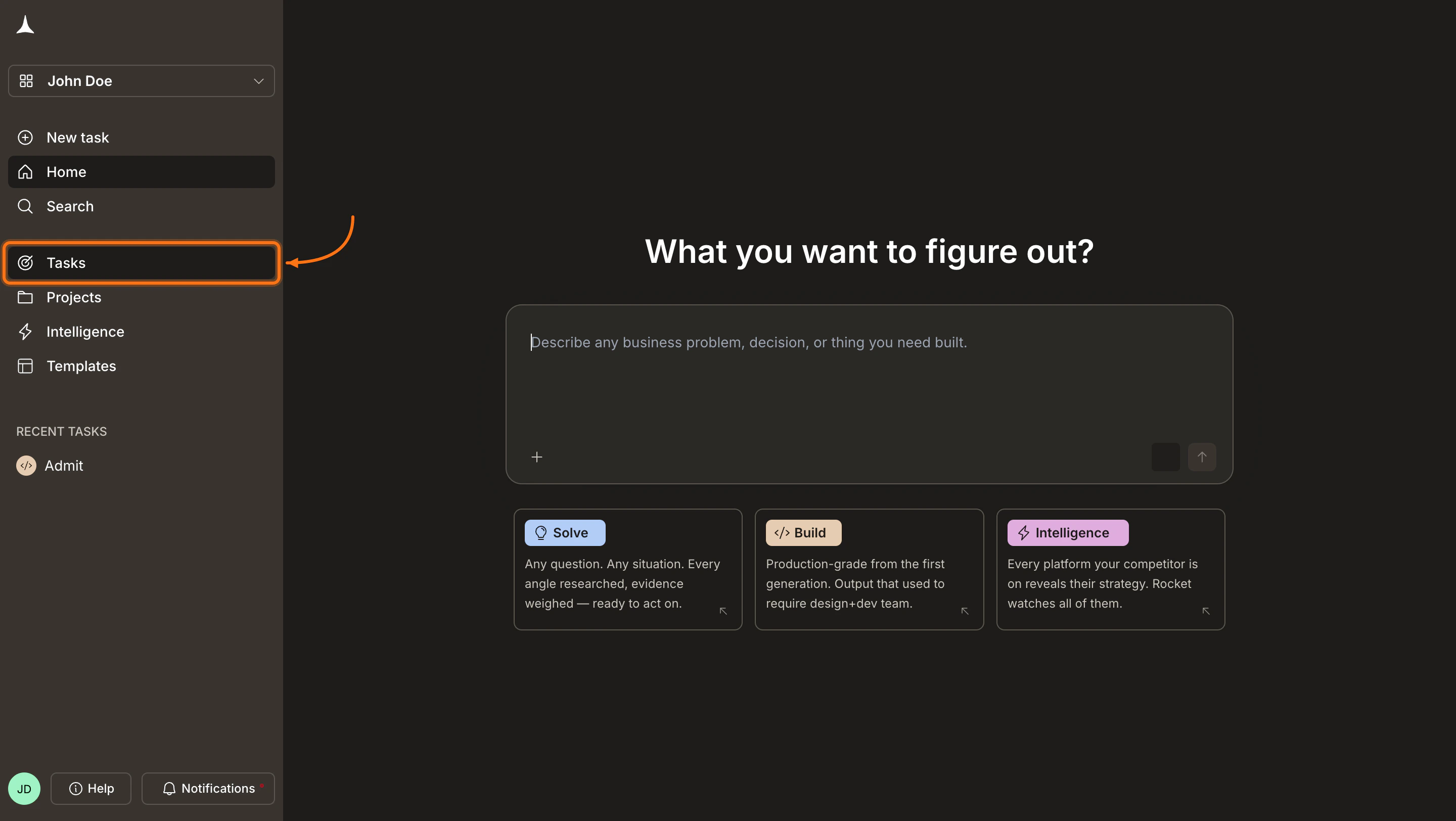
    In the left sidebar, click **Tasks** to open your tasks list.
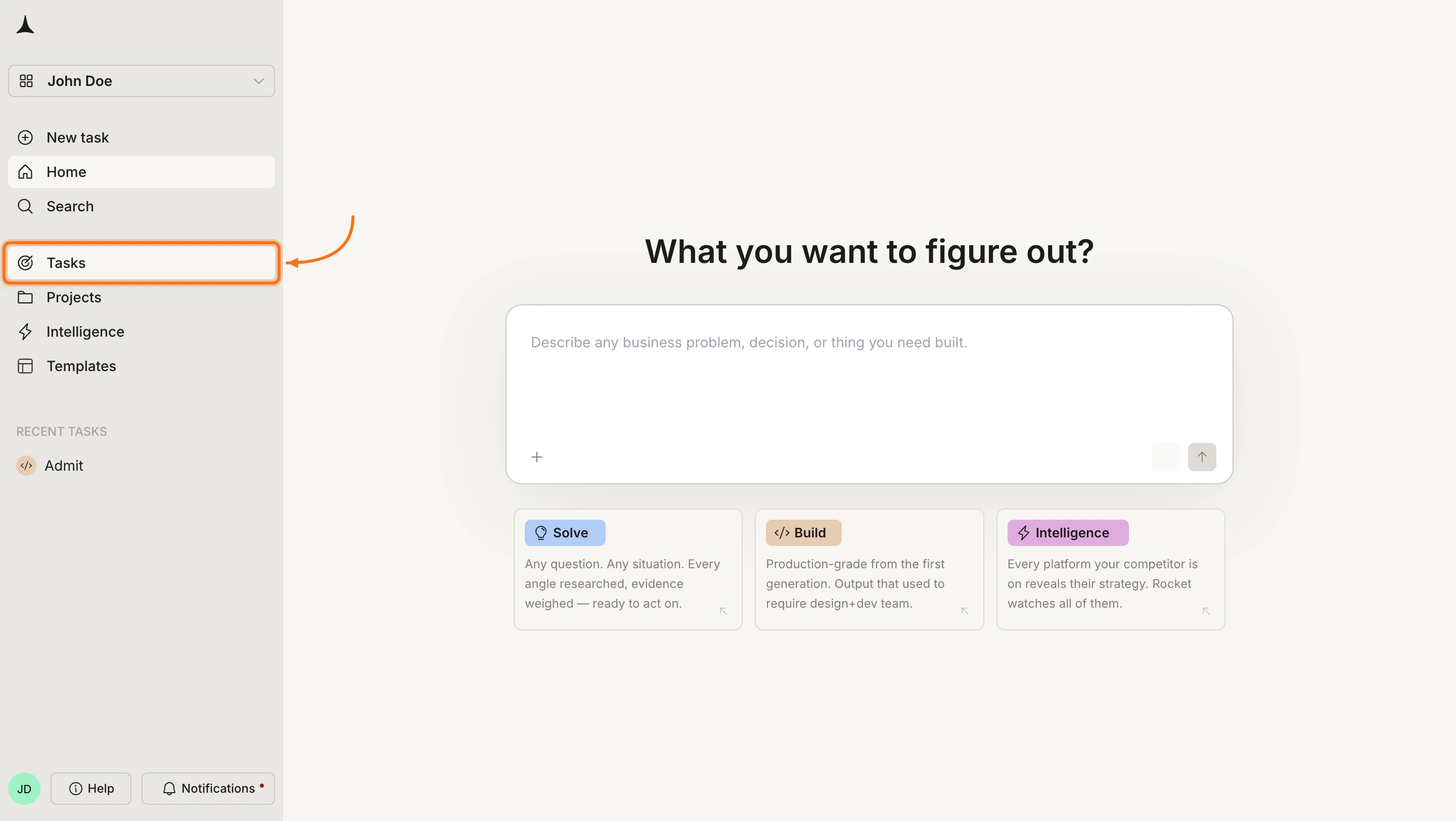
    <Frame caption="Click Tasks in the sidebar">
      <img src="https://mintcdn.com/dhiwisepvtltd-5e04e6a4/Jkm__gyDvGJetp9C/images/getting-started/collaboration/task/task-nav-tasks-light.webp?fit=max&auto=format&n=Jkm__gyDvGJetp9C&q=85&s=5ae0eb7458bf733e2b7a271e49af5a0d" alt="Rocket sidebar with Tasks highlighted." className="theme-image light-image" width="2880" height="1624" data-path="images/getting-started/collaboration/task/task-nav-tasks-light.webp" />

      <img src="https://mintcdn.com/dhiwisepvtltd-5e04e6a4/Jkm__gyDvGJetp9C/images/getting-started/collaboration/task/task-nav-tasks-dark.webp?fit=max&auto=format&n=Jkm__gyDvGJetp9C&q=85&s=c65ef0958ae9da7f2ad862d6da5a3b9f" alt="Rocket sidebar with Tasks highlighted." className="theme-image dark-image" width="2880" height="1624" data-path="images/getting-started/collaboration/task/task-nav-tasks-dark.webp" />
    </Frame>
  </Step>

  <Step title="Open the task">
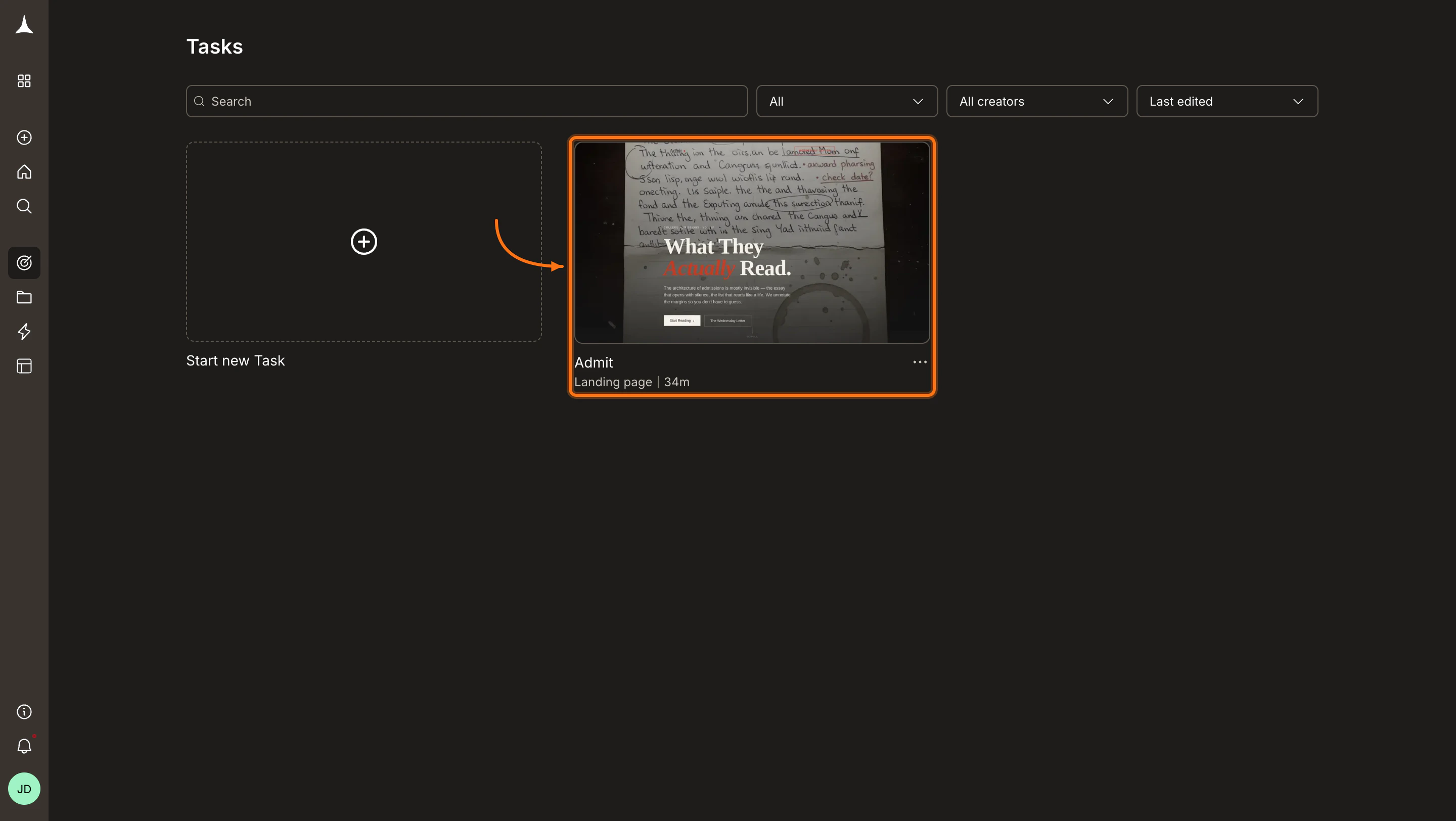
    Click the task card you want to share.
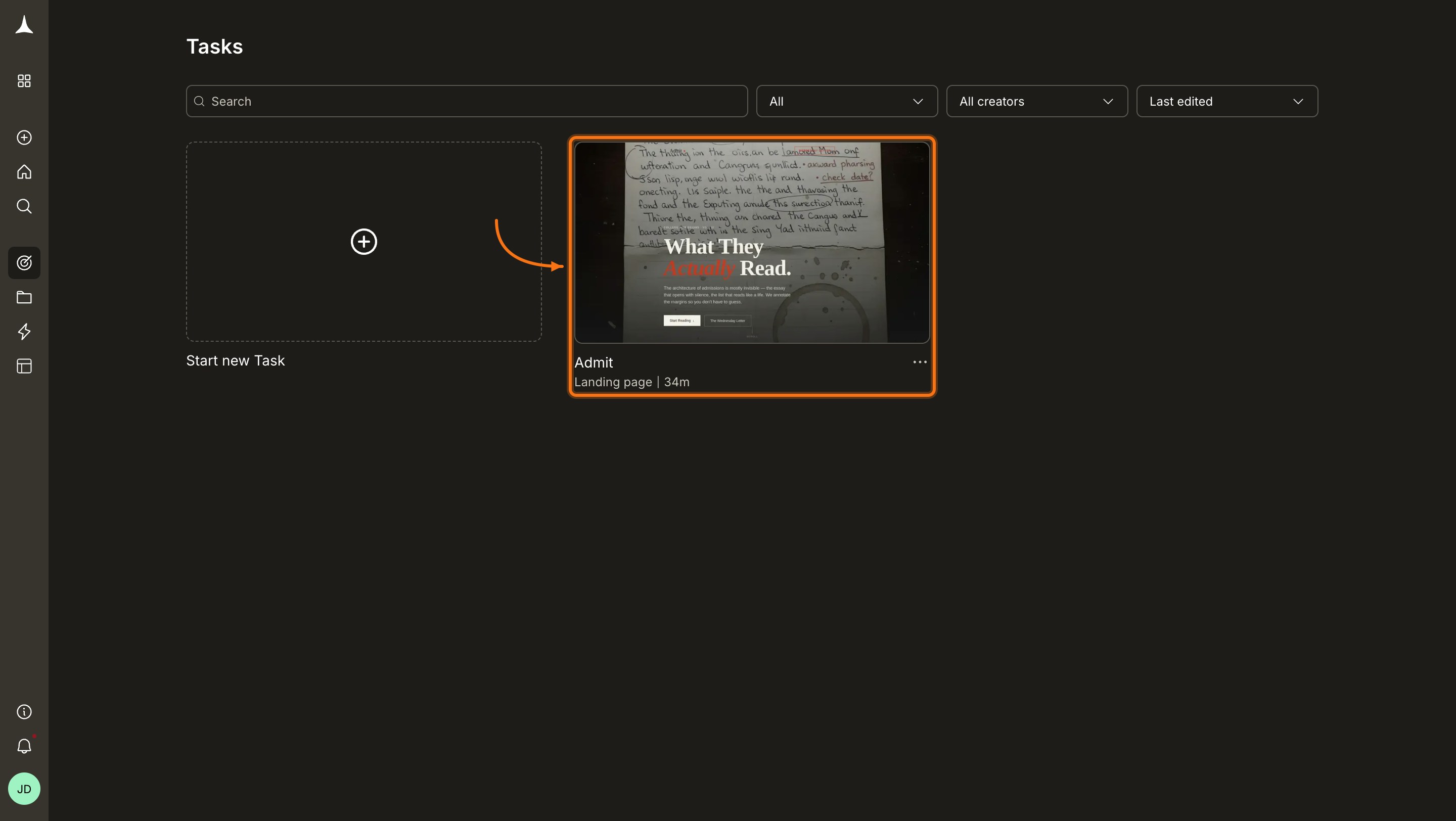
    <Frame caption="Click the task card to open it">
      <img src="https://mintcdn.com/dhiwisepvtltd-5e04e6a4/Jkm__gyDvGJetp9C/images/getting-started/collaboration/task/task-open-task-light.webp?fit=max&auto=format&n=Jkm__gyDvGJetp9C&q=85&s=1a4aeb00541aef140e96d1541344d318" alt="Tasks list with a task card highlighted." className="theme-image light-image" width="2880" height="1624" data-path="images/getting-started/collaboration/task/task-open-task-light.webp" />

      <img src="https://mintcdn.com/dhiwisepvtltd-5e04e6a4/Jkm__gyDvGJetp9C/images/getting-started/collaboration/task/task-open-task-dark.webp?fit=max&auto=format&n=Jkm__gyDvGJetp9C&q=85&s=f31a74d2fabb29cb3bd77b1d964a59ce" alt="Tasks list with a task card highlighted." className="theme-image dark-image" width="2880" height="1624" data-path="images/getting-started/collaboration/task/task-open-task-dark.webp" />
    </Frame>
  </Step>

  <Step title="Click the Members icon">
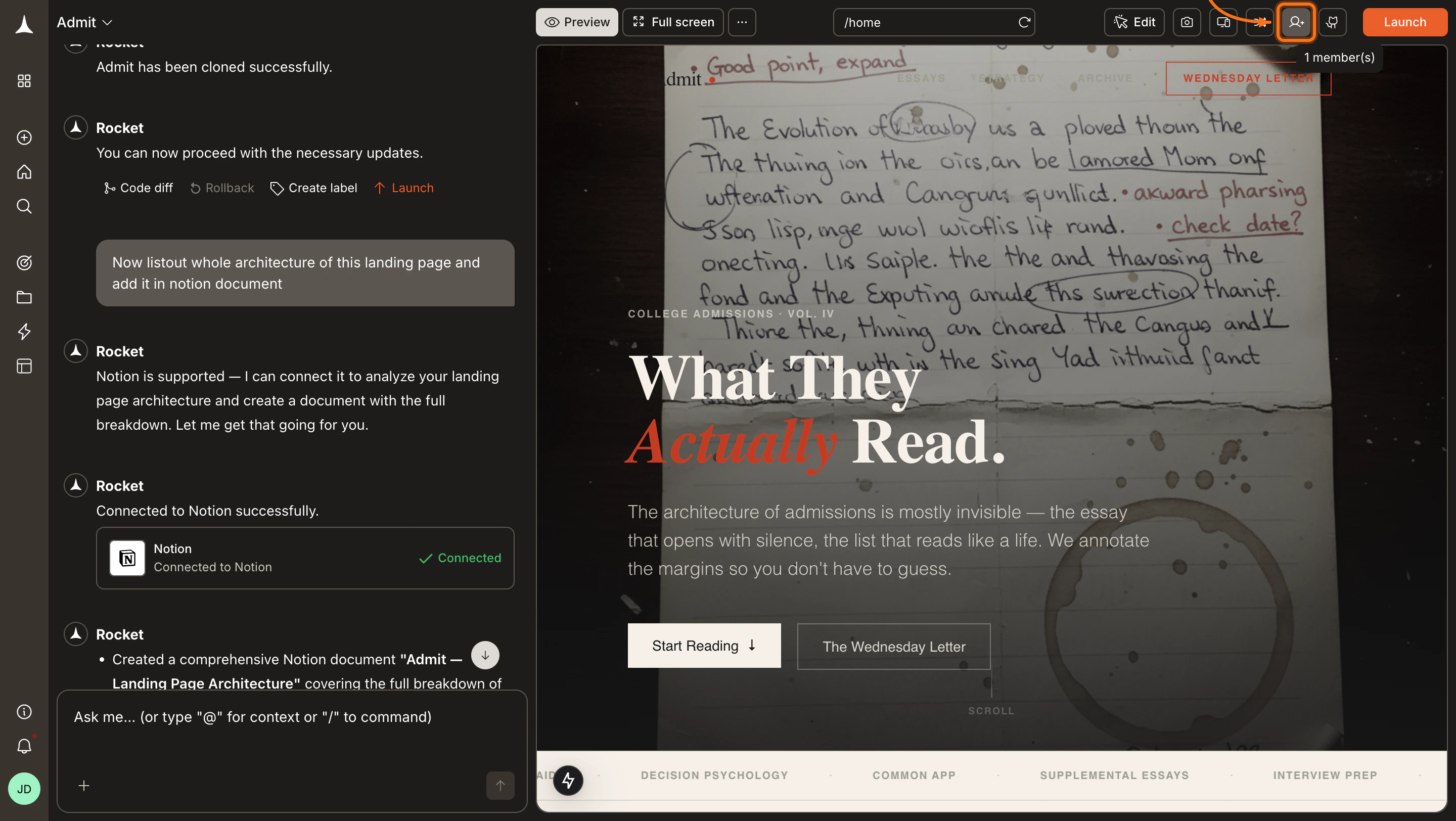
    In the task toolbar at the top-right, click the **Members** icon to open the sharing panel.
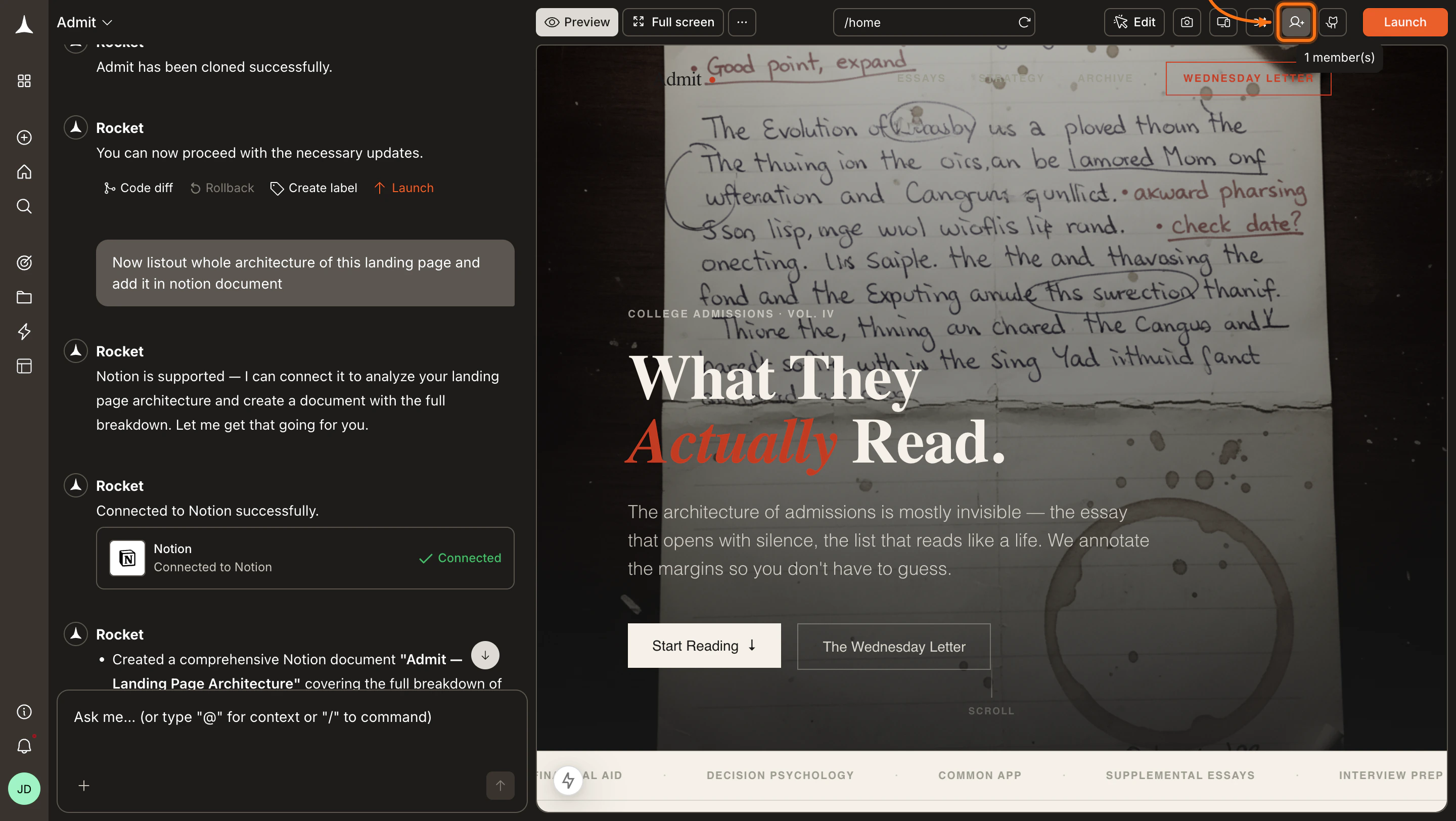
    <Frame caption="Click the Members icon in the task toolbar">
      <img src="https://mintcdn.com/dhiwisepvtltd-5e04e6a4/Jkm__gyDvGJetp9C/images/getting-started/collaboration/task/task-members-icon-light.webp?fit=max&auto=format&n=Jkm__gyDvGJetp9C&q=85&s=1265f7f701d898328bd605313d13ac23" alt="Task view with the Members icon highlighted in the toolbar." className="theme-image light-image" width="2880" height="1624" data-path="images/getting-started/collaboration/task/task-members-icon-light.webp" />

      <img src="https://mintcdn.com/dhiwisepvtltd-5e04e6a4/Jkm__gyDvGJetp9C/images/getting-started/collaboration/task/task-members-icon-dark.webp?fit=max&auto=format&n=Jkm__gyDvGJetp9C&q=85&s=731c3c187ba82216306000351883a2d4" alt="Task view with the Members icon highlighted in the toolbar." className="theme-image dark-image" width="2880" height="1624" data-path="images/getting-started/collaboration/task/task-members-icon-dark.webp" />
    </Frame>
  </Step>

  <Step title="Enter an email address and choose a role">
    In the **Share your task** panel, type the recipient's email address **(1)** and select a role **(2)**: **Editor** or **Viewer**. See [Roles and permissions](#roles-and-permissions) for what each role can do.
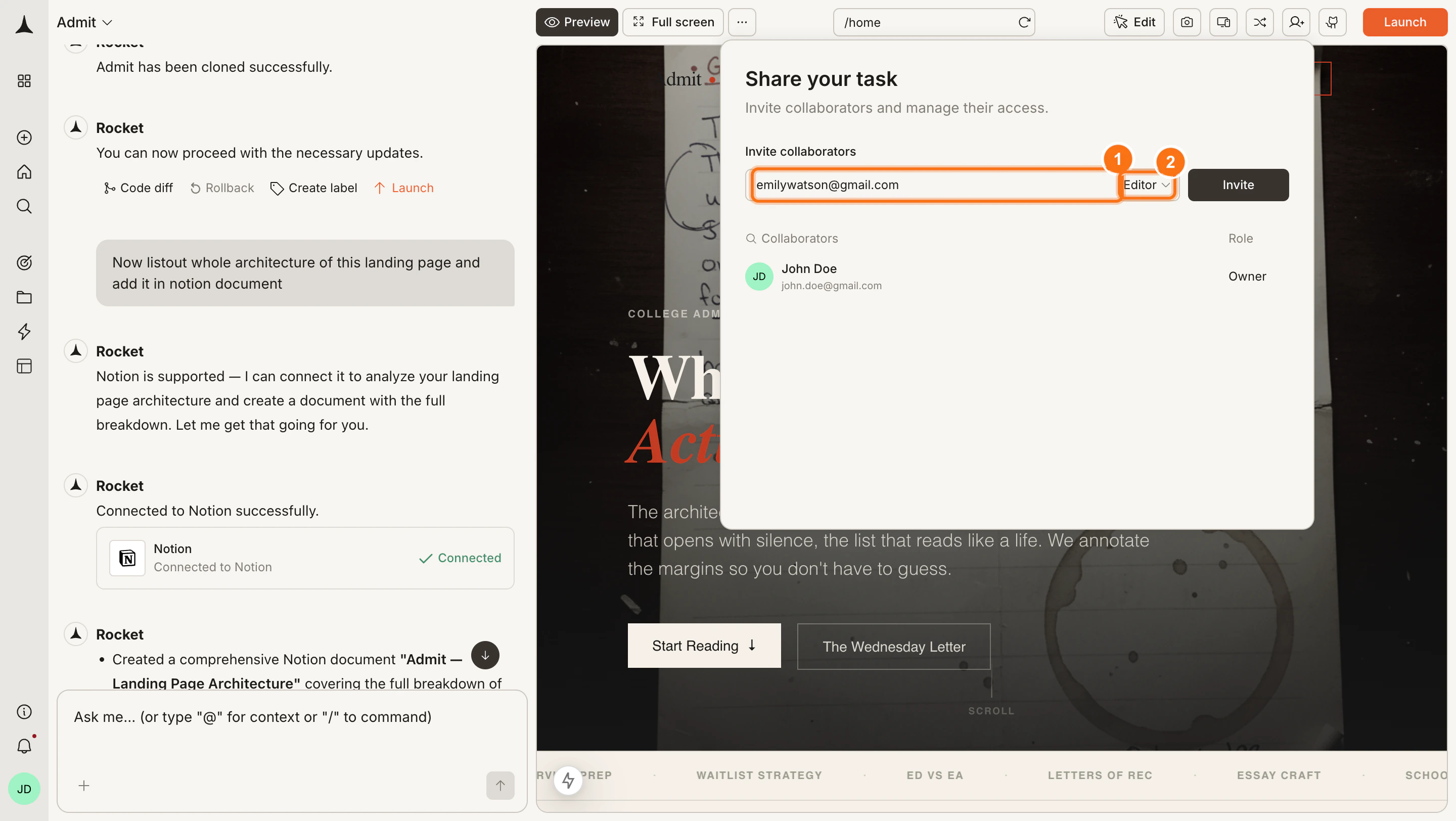
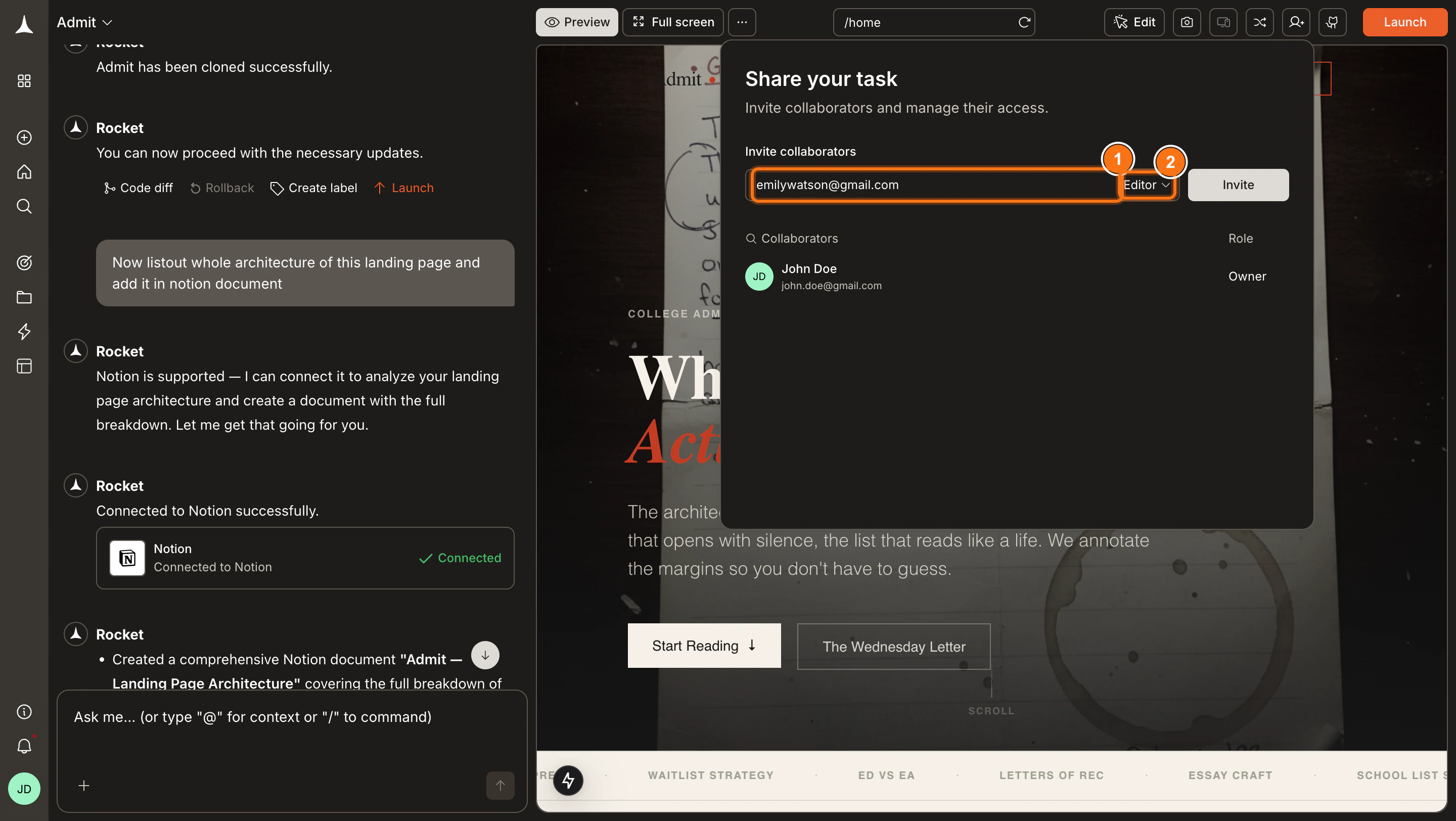
    <Frame caption="Enter an email and select a role for the invitee">
      <img src="https://mintcdn.com/dhiwisepvtltd-5e04e6a4/Jkm__gyDvGJetp9C/images/getting-started/collaboration/task/task-enter-email-role-light.webp?fit=max&auto=format&n=Jkm__gyDvGJetp9C&q=85&s=ef5d7b1cd39a5a521ab9b7967a52b31e" alt="Share your task panel with email input and role dropdown." className="theme-image light-image" width="2880" height="1624" data-path="images/getting-started/collaboration/task/task-enter-email-role-light.webp" />

      <img src="https://mintcdn.com/dhiwisepvtltd-5e04e6a4/Jkm__gyDvGJetp9C/images/getting-started/collaboration/task/task-enter-email-role-dark.webp?fit=max&auto=format&n=Jkm__gyDvGJetp9C&q=85&s=33afe73b15a7390d588e66a1b6f7e46b" alt="Share your task panel with email input and role dropdown." className="theme-image dark-image" width="2880" height="1624" data-path="images/getting-started/collaboration/task/task-enter-email-role-dark.webp" />
    </Frame>
  </Step>

  <Step title="Confirm the role and click Invite">
    Select the role from the dropdown and click **Invite**. The recipient receives an email with a link to access the task. You can also copy the invite link directly using the copy icon next to their name in the sharing panel. You can track acceptance in the **Requests** tab of the [notification panel](/getting-started/account/notifications).
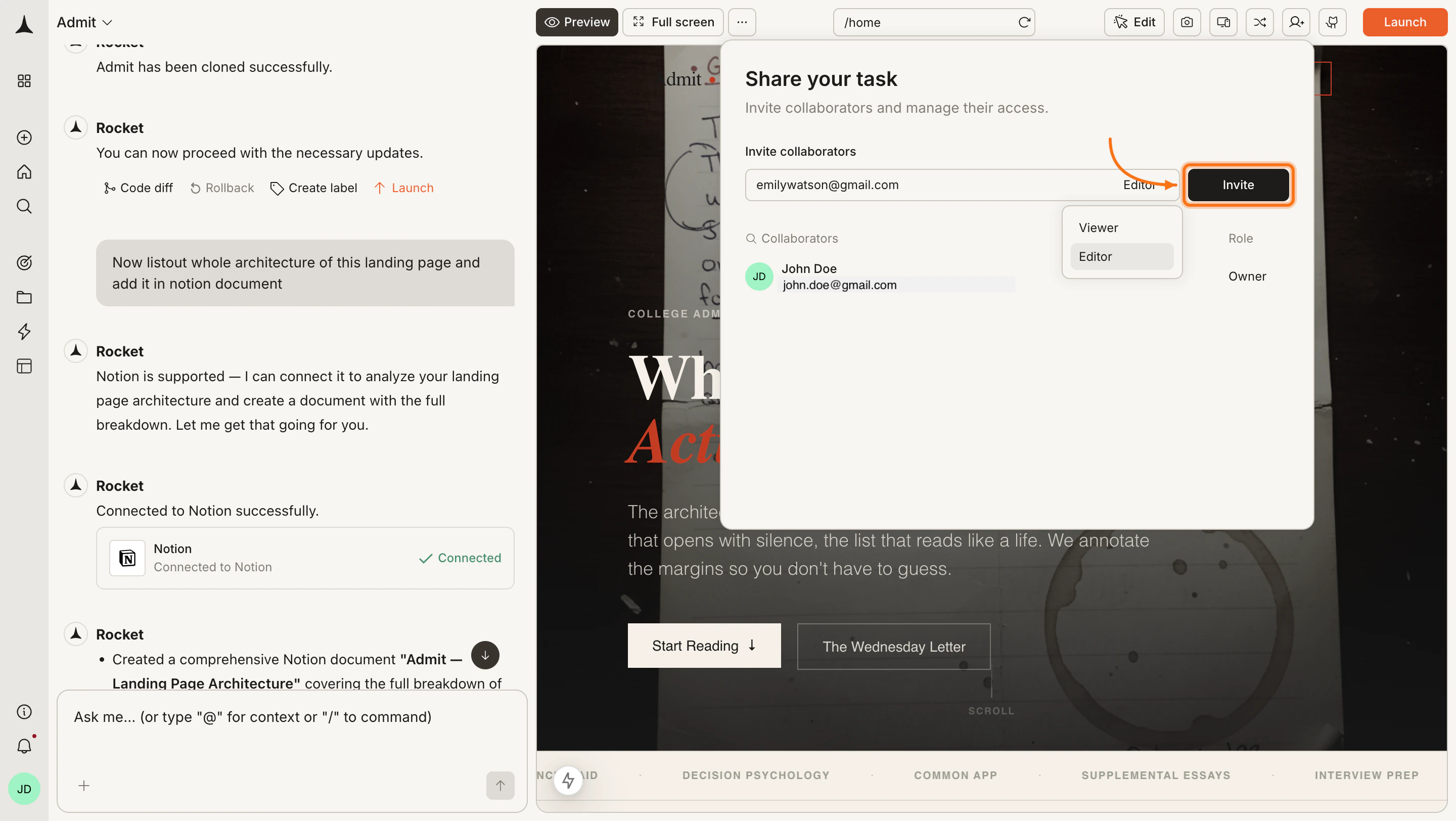
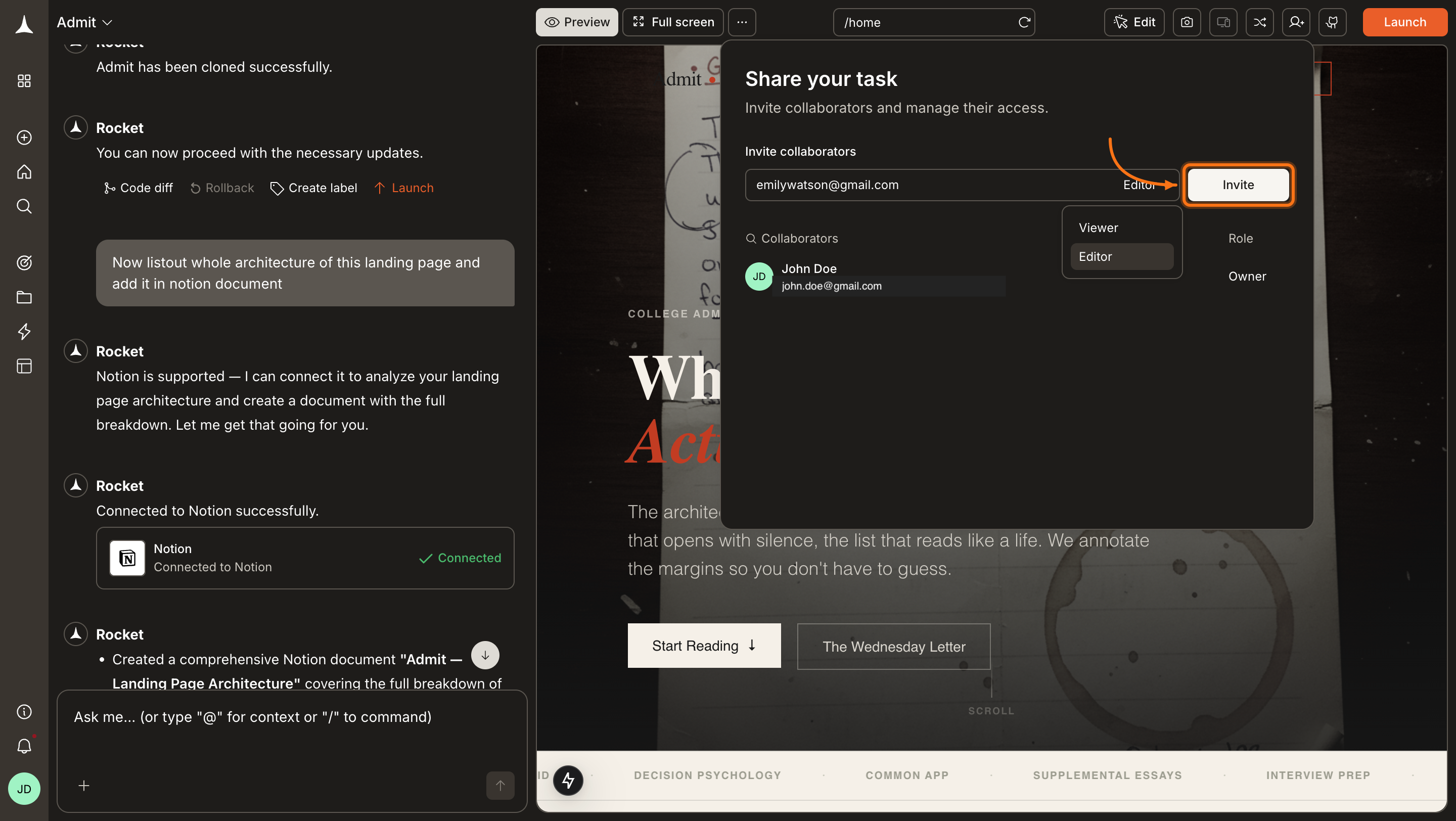
    <Frame caption="Select a role and click Invite to send the invitation">
      <img src="https://mintcdn.com/dhiwisepvtltd-5e04e6a4/Jkm__gyDvGJetp9C/images/getting-started/collaboration/task/task-select-role-invite-light.png?fit=max&auto=format&n=Jkm__gyDvGJetp9C&q=85&s=1a7956bb71a3d514df7616c5eaeab3d6" alt="Share your task panel with role dropdown open and Invite button highlighted." className="theme-image light-image" width="2880" height="1624" data-path="images/getting-started/collaboration/task/task-select-role-invite-light.png" />

      <img src="https://mintcdn.com/dhiwisepvtltd-5e04e6a4/Jkm__gyDvGJetp9C/images/getting-started/collaboration/task/task-select-role-invite-dark.png?fit=max&auto=format&n=Jkm__gyDvGJetp9C&q=85&s=0a95589806bc73338fb04cc18b86bdcf" alt="Share your task panel with role dropdown open and Invite button highlighted." className="theme-image dark-image" width="2880" height="1624" data-path="images/getting-started/collaboration/task/task-select-role-invite-dark.png" />
    </Frame>
  </Step>
</Steps>

<Note>
  Task-level sharing does **not** grant access to the parent project or workspace. Recipients can only see the specific task you shared.
</Note>

## Remove a collaborator

To remove someone's access to the task, open the **Share your task** panel, find the collaborator's row, and click their role dropdown.

<Steps>
  <Step title="Open the role dropdown on the collaborator's row">
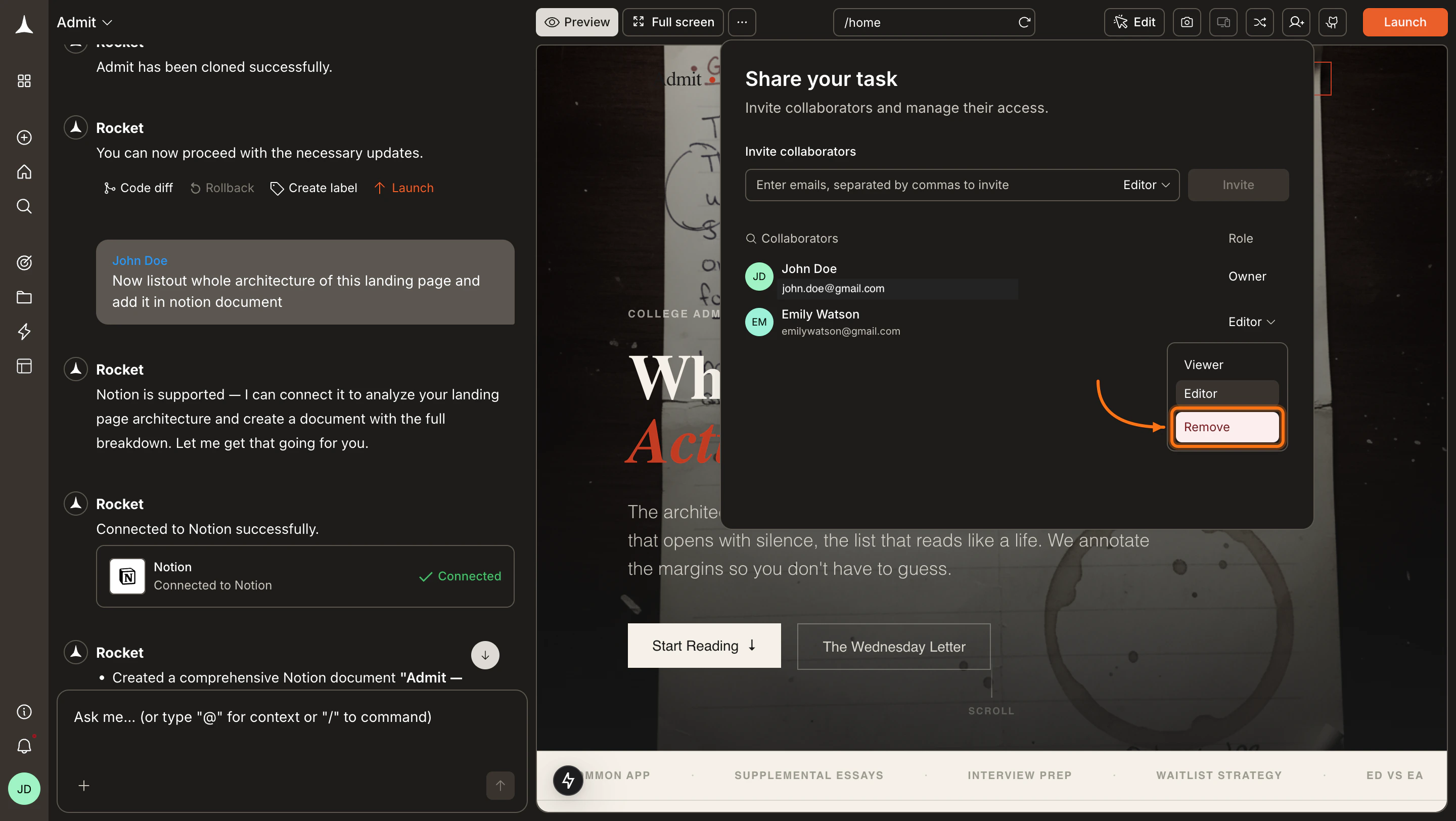
    In the **Share your task** panel, click the role dropdown (showing **Editor** or **Viewer**) next to the collaborator you want to remove.
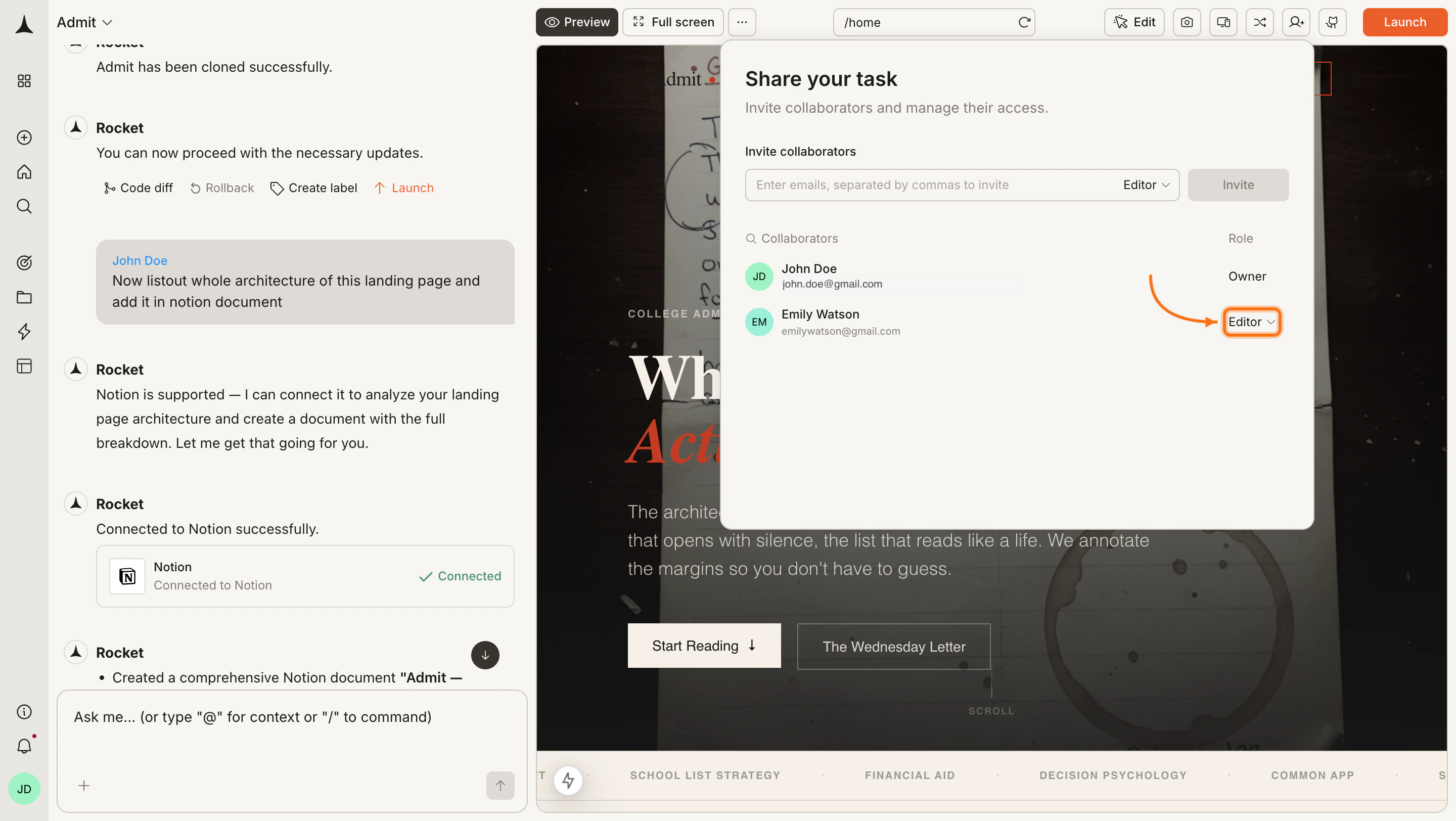
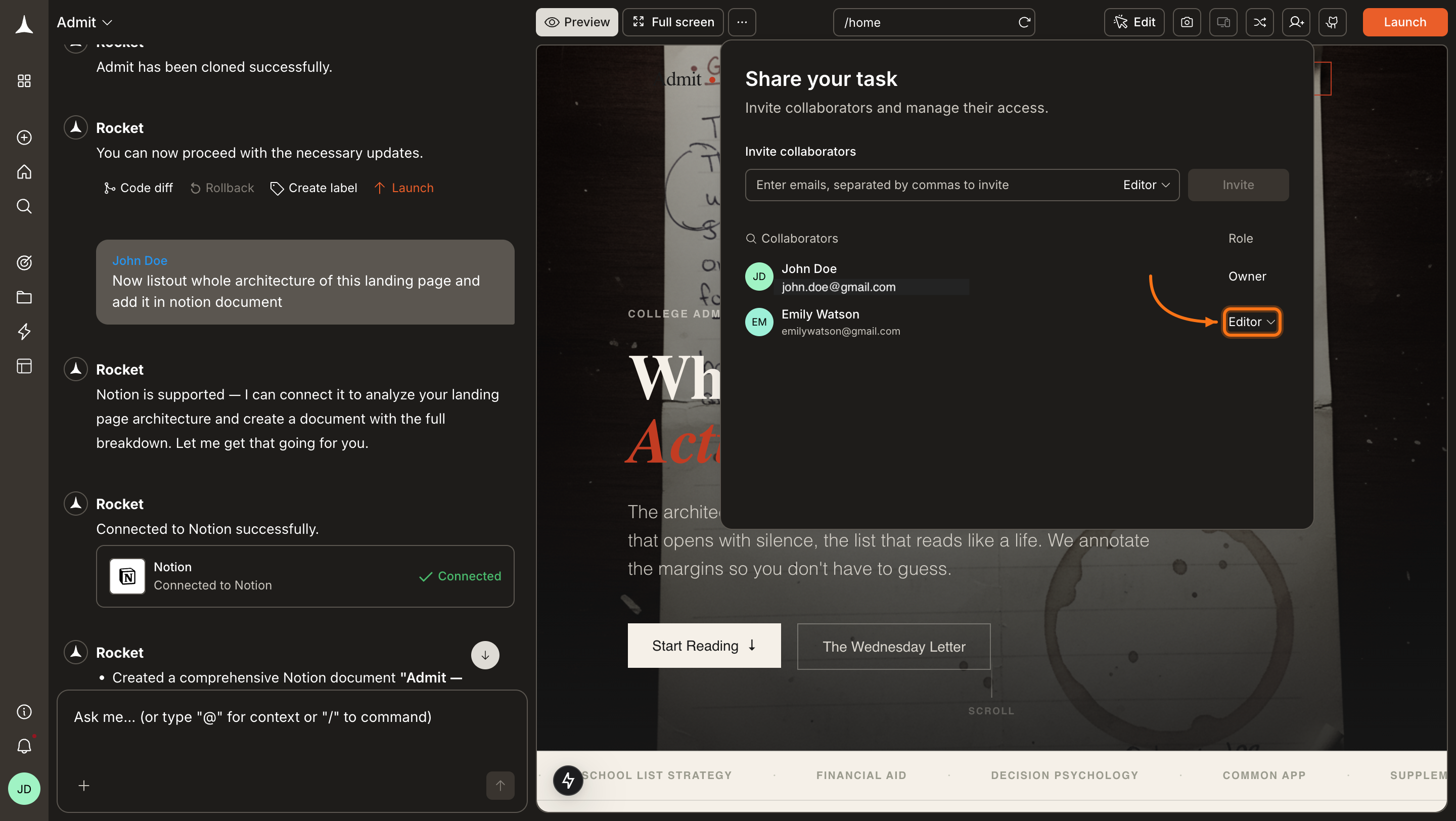
    <Frame caption="Click the role dropdown on the collaborator's row">
      <img src="https://mintcdn.com/dhiwisepvtltd-5e04e6a4/Jkm__gyDvGJetp9C/images/getting-started/collaboration/task/task-remove-role-dropdown-light.png?fit=max&auto=format&n=Jkm__gyDvGJetp9C&q=85&s=097143cc18e3a6d57a4d114f2662063b" alt="Share your task panel with the role dropdown highlighted on a collaborator row." className="theme-image light-image" width="2880" height="1624" data-path="images/getting-started/collaboration/task/task-remove-role-dropdown-light.png" />

      <img src="https://mintcdn.com/dhiwisepvtltd-5e04e6a4/Jkm__gyDvGJetp9C/images/getting-started/collaboration/task/task-remove-role-dropdown-dark.png?fit=max&auto=format&n=Jkm__gyDvGJetp9C&q=85&s=f7911b3780152a5f99c5bf0c48c1f8a5" alt="Share your task panel with the role dropdown highlighted on a collaborator row." className="theme-image dark-image" width="2880" height="1624" data-path="images/getting-started/collaboration/task/task-remove-role-dropdown-dark.png" />
    </Frame>
  </Step>

  <Step title="Click Remove">
    Select **Remove** from the dropdown. The collaborator loses access to the task immediately.
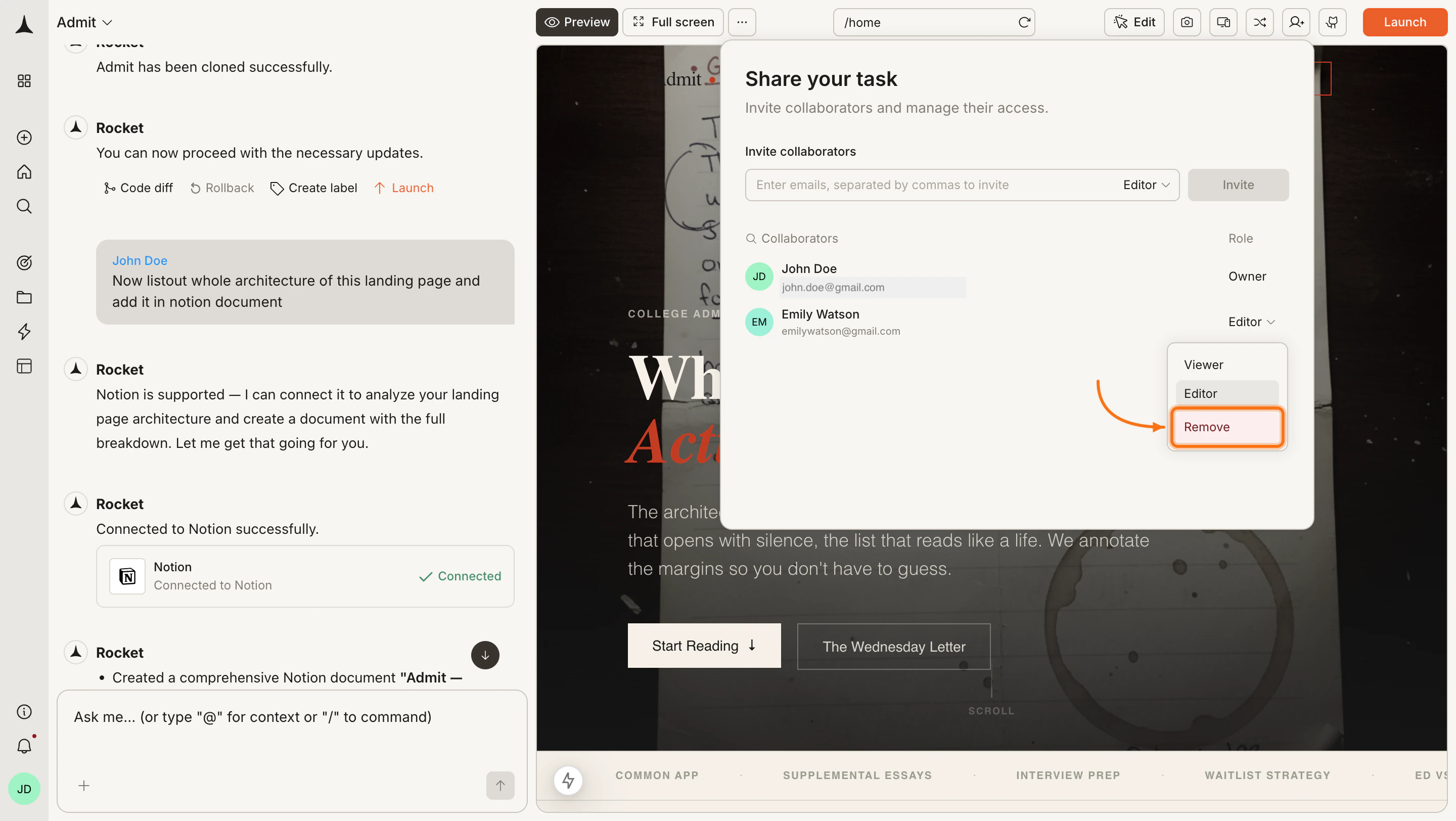
    <Frame caption="Select Remove to revoke the collaborator's access">
      <img src="https://mintcdn.com/dhiwisepvtltd-5e04e6a4/Jkm__gyDvGJetp9C/images/getting-started/collaboration/task/task-remove-confirm-light.png?fit=max&auto=format&n=Jkm__gyDvGJetp9C&q=85&s=8d3e77a27ab89eba9d8d93ef182b0ae6" alt="Role dropdown open showing Viewer, Editor, and Remove options with Remove highlighted." className="theme-image light-image" width="2880" height="1624" data-path="images/getting-started/collaboration/task/task-remove-confirm-light.png" />

      <img src="https://mintcdn.com/dhiwisepvtltd-5e04e6a4/Jkm__gyDvGJetp9C/images/getting-started/collaboration/task/task-remove-confirm-dark.png?fit=max&auto=format&n=Jkm__gyDvGJetp9C&q=85&s=ff899e4b67c780e411099da0e7990b81" alt="Role dropdown open showing Viewer, Editor, and Remove options with Remove highlighted." className="theme-image dark-image" width="2880" height="1624" data-path="images/getting-started/collaboration/task/task-remove-confirm-dark.png" />
    </Frame>
  </Step>
</Steps>

## Task visibility

Each task also has a visibility setting, either **Public** or **Private**, that controls who can see it independently of sharing. Visibility and sharing work together: you might set a task to Private but still share it with a specific client via email. See [task visibility settings](/build/editor/visibility) for the full breakdown of visibility levels, plan availability, and how to change settings.

## Roles and permissions

| Permission                       | **Editor** | **Viewer** |
| :------------------------------- | :--------- | :--------- |
| **View task and outputs**        | Yes        | Yes        |
| **Chat and iterate on the task** | Yes        | No         |
| **Upload files**                 | Yes        | No         |

## What's next?

<CardGroup cols={2}>
  <Card title="Project collaboration" icon="folder-open" href="/getting-started/collaboration/project">
    Invite members and collaborate at the project level.
  </Card>

  <Card title="Workspace collaboration" icon="building" href="/getting-started/collaboration/workspace">
    Manage workspace-level roles and team access.
  </Card>

  <Card title="Tasks overview" icon="bullseye-arrow" href="/getting-started/task/overview">
    Learn how Solve, Build, and Intelligence tasks work.
  </Card>

  <Card title="Pricing" icon="credit-card" href="/getting-started/pricing">
    Understand how visibility options vary by plan.
  </Card>
</CardGroup>