> ## Documentation Index
> Fetch the complete documentation index at: https://docs.rocket.new/llms.txt
> Use this file to discover all available pages before exploring further.

# Create an account

> Create your free Rocket.new account in 30 seconds with Google, SSO, or email. Start researching, building, and tracking competitors immediately.

export const LlmsDirective = () => <blockquote className="llms-directive">
    For the complete documentation index, see <a href="/llms.txt">llms.txt</a>.
    For a lightweight markdown version of this page, append .md to the URL.
  </blockquote>;

<LlmsDirective />

<Tabs>
  <Tab title="Web Browser">
    <Steps>
      <Step title="Go to rocket.new">
        Open **[rocket.new](https://rocket.new)** and click **Sign in** in the top-right corner, or click **Start free** on the homepage.
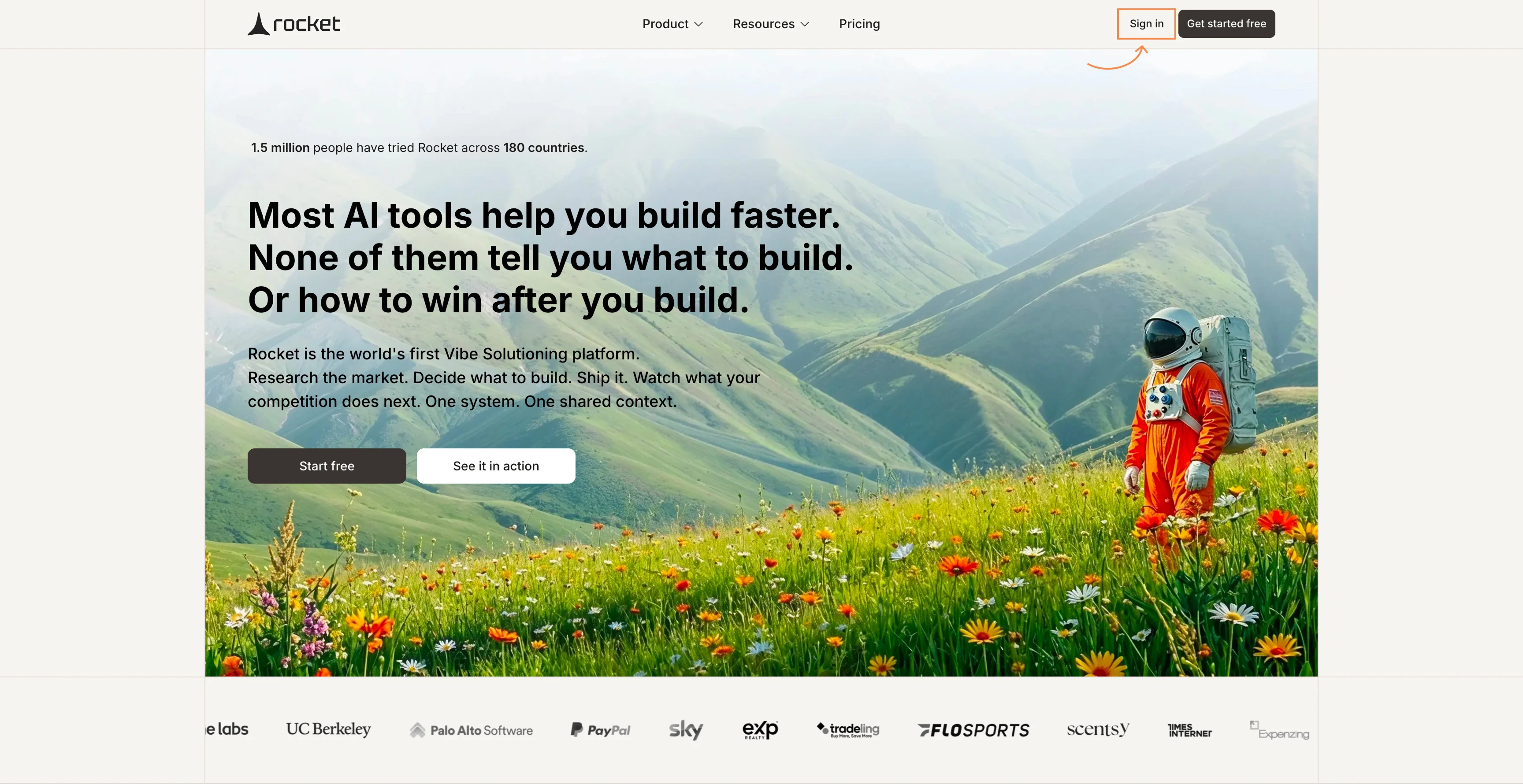
        <Frame caption="Rocket homepage">
          <img src="https://mintcdn.com/dhiwisepvtltd-5e04e6a4/kMglG6b8Pajovz_G/images/getting-started/create-an-account/web-browser/landing-page.webp?fit=max&auto=format&n=kMglG6b8Pajovz_G&q=85&s=dc85b61b491d1ed412754a858e9d2e49" alt="Rocket homepage with the Sign in button highlighted in the top-right corner." className="theme-image" width="3456" height="1780" data-path="images/getting-started/create-an-account/web-browser/landing-page.webp" />
        </Frame>
      </Step>

      <Step title="Choose how to sign in">
        A popup opens with three options. Pick the one that works best for you.
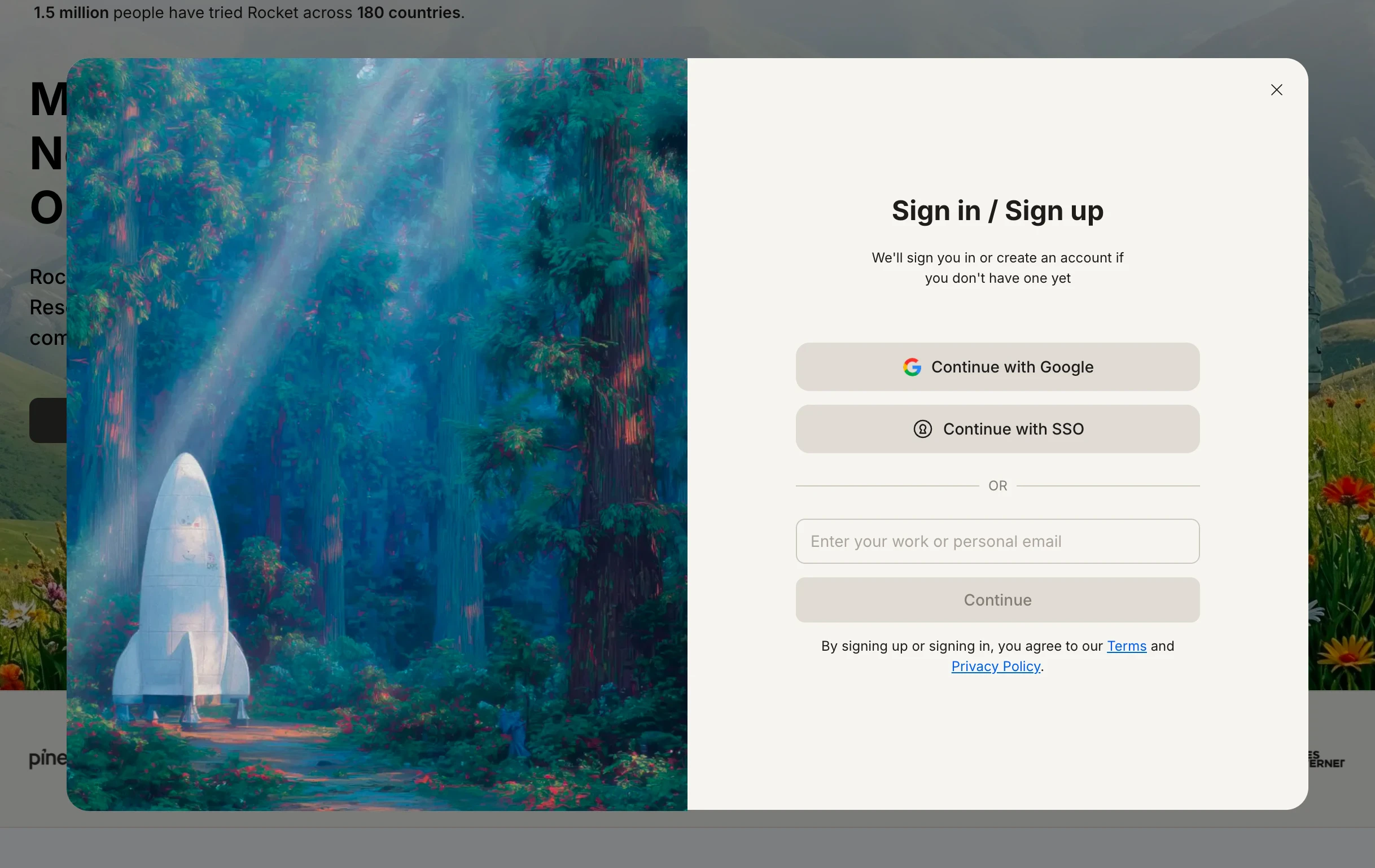
        <Frame caption="Sign in options">
          <img src="https://mintcdn.com/dhiwisepvtltd-5e04e6a4/kMglG6b8Pajovz_G/images/getting-started/create-an-account/web-browser/sign-in-modal.webp?fit=max&auto=format&n=kMglG6b8Pajovz_G&q=85&s=e708e134d488be90eff44d47a225f76a" alt="Sign in popup showing Continue with Google, Continue with SSO, and email field." className="theme-image" width="2436" height="1538" data-path="images/getting-started/create-an-account/web-browser/sign-in-modal.webp" />
        </Frame>

        <AccordionGroup>
          <Accordion title="Continue with Google">
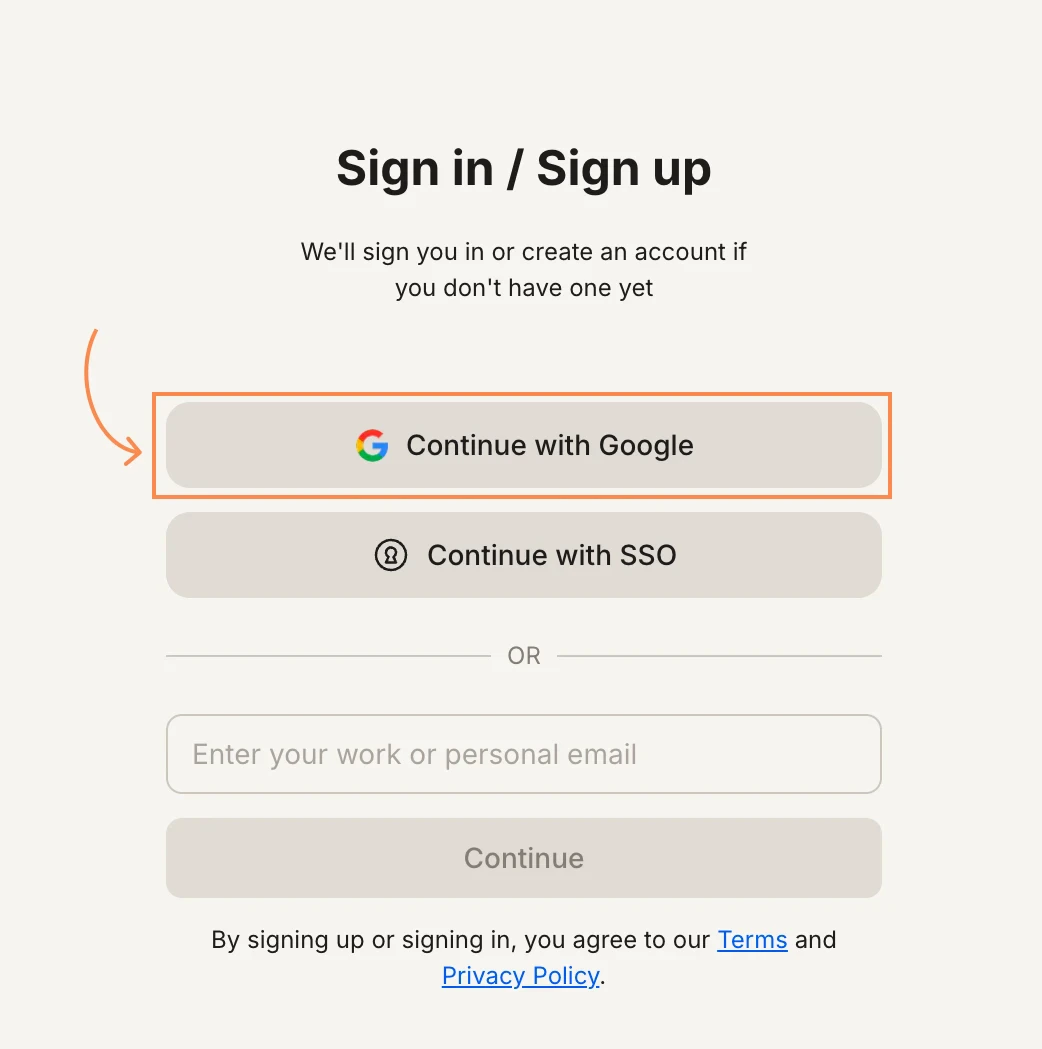
            Click **Continue with Google**.

            <Frame caption="Continue with Google">
              <img src="https://mintcdn.com/dhiwisepvtltd-5e04e6a4/kMglG6b8Pajovz_G/images/getting-started/create-an-account/web-browser/continue-with-google.webp?fit=max&auto=format&n=kMglG6b8Pajovz_G&q=85&s=ed9bc1deb202126f4a72c35cddc779ba" alt="Sign in popup with the Continue with Google button highlighted." className="theme-image" width="1042" height="1049" data-path="images/getting-started/create-an-account/web-browser/continue-with-google.webp" />
            </Frame>

            If you have one Google account, you are signed in immediately. If you have multiple accounts, choose the one you want to use. Review the permission request and click **Continue**.

            <Warning>
              If you are redirected back to the sign-up page, enable third-party cookies or try an incognito window.
            </Warning>
          </Accordion>

          <Accordion title="Continue with SSO">
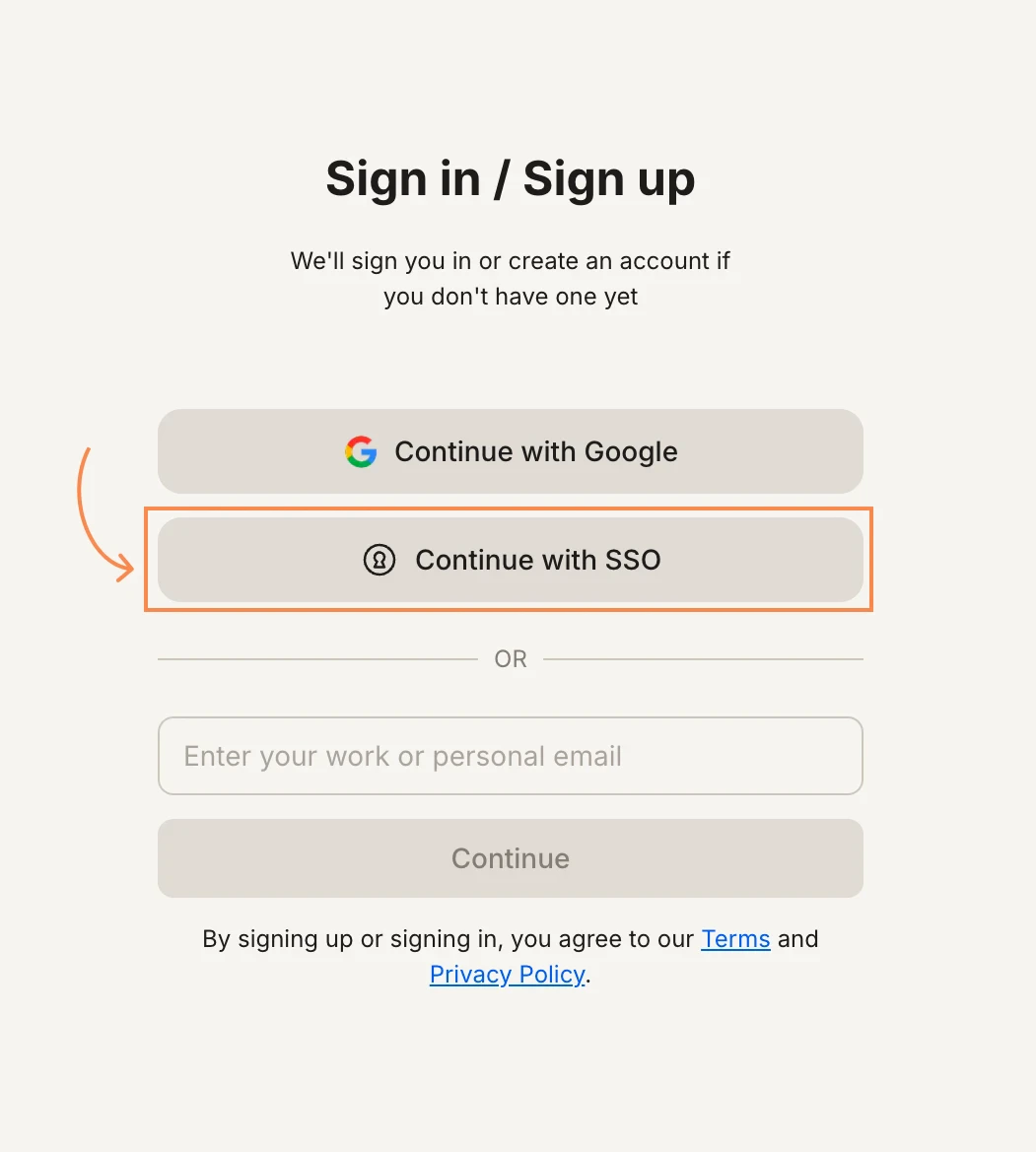
            Click **Continue with SSO**.

            <Frame caption="Continue with SSO">
              <img src="https://mintcdn.com/dhiwisepvtltd-5e04e6a4/kMglG6b8Pajovz_G/images/getting-started/create-an-account/web-browser/continue-with-sso.webp?fit=max&auto=format&n=kMglG6b8Pajovz_G&q=85&s=b87d47a0ab3521b04dfaf791f37c6883" alt="Sign in popup with the Continue with SSO button highlighted." className="theme-image" width="1051" height="1169" data-path="images/getting-started/create-an-account/web-browser/continue-with-sso.webp" />
            </Frame>

            Enter your work email address and click **Continue with SSO**. You will be redirected to your organization's identity provider to complete authentication.
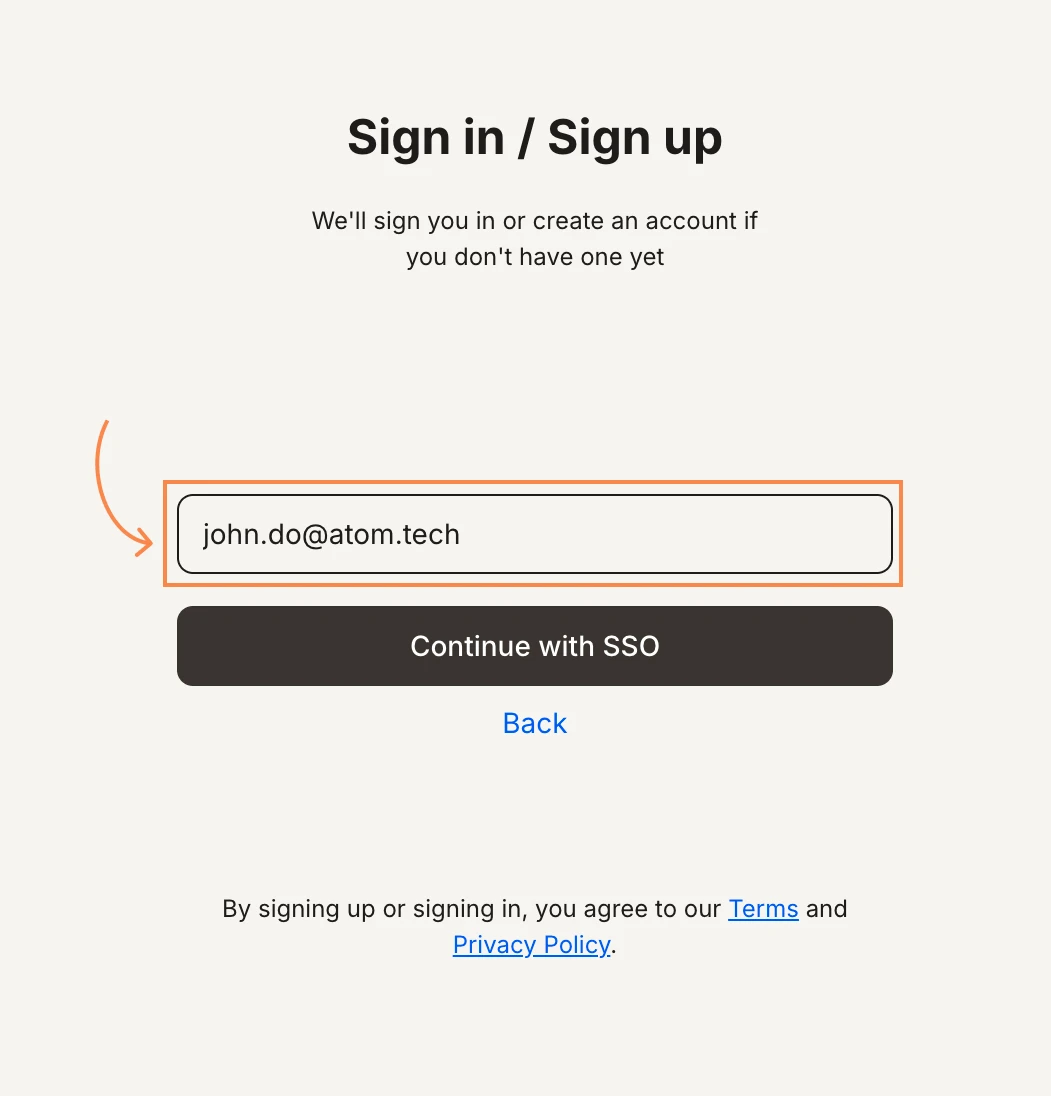
            <Frame caption="SSO email input">
              <img src="https://mintcdn.com/dhiwisepvtltd-5e04e6a4/kMglG6b8Pajovz_G/images/getting-started/create-an-account/web-browser/sso-email-input.webp?fit=max&auto=format&n=kMglG6b8Pajovz_G&q=85&s=35b64a0e41abcd5db5e1426e68bf2e17" alt="SSO screen with an email input field and Continue with SSO button." className="theme-image" width="1051" height="1096" data-path="images/getting-started/create-an-account/web-browser/sso-email-input.webp" />
            </Frame>

            <Note>
              SSO is available on plans that include it. Contact your workspace admin if you are unsure whether your organization has SSO enabled.
            </Note>
          </Accordion>

          <Accordion title="Use email">
            Enter your email address and click **Continue**.
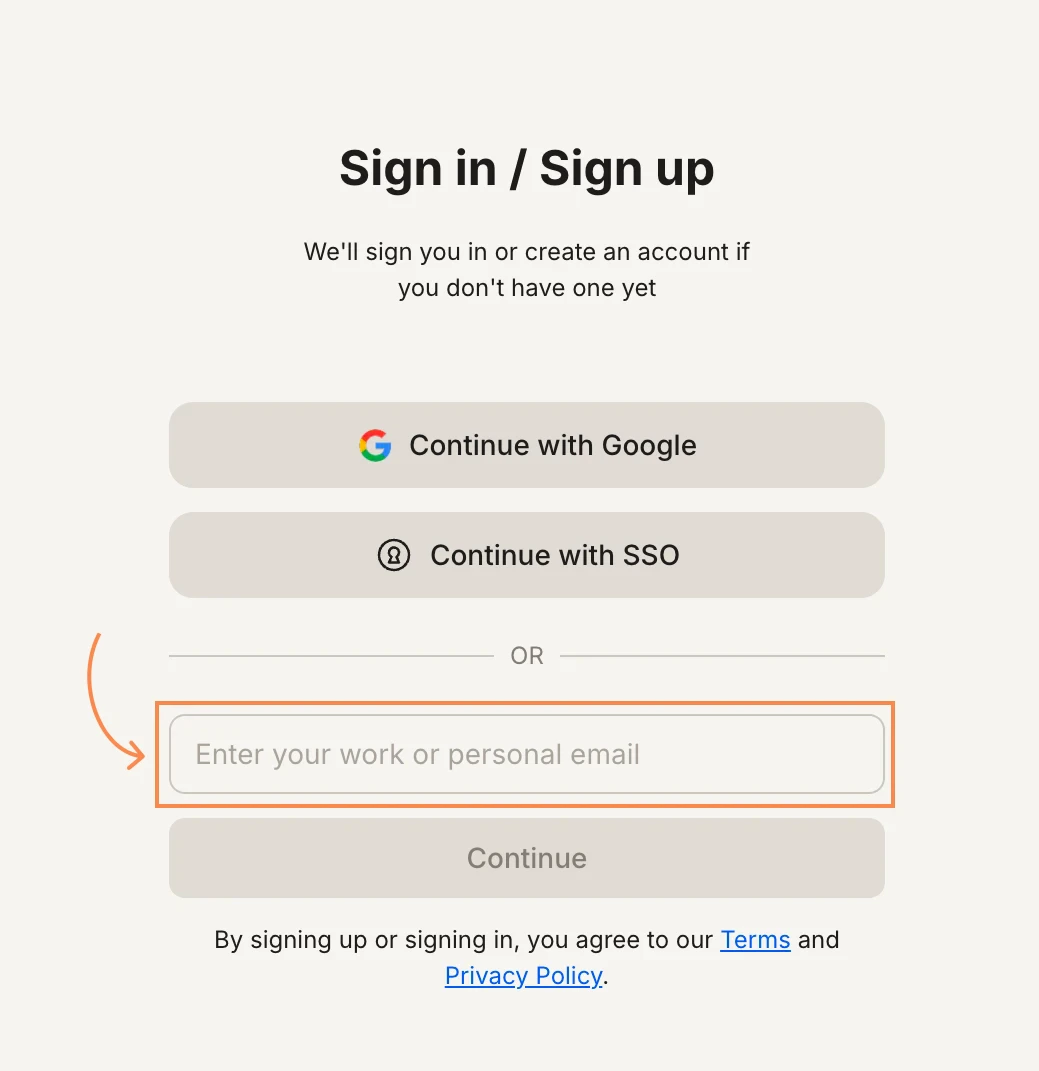
            <Frame caption="Email sign-up">
              <img src="https://mintcdn.com/dhiwisepvtltd-5e04e6a4/kMglG6b8Pajovz_G/images/getting-started/create-an-account/web-browser/continue-with-email.webp?fit=max&auto=format&n=kMglG6b8Pajovz_G&q=85&s=415e8bacb3892f0ef65a1f15d5ce6808" alt="Sign in popup with the email input field highlighted." className="theme-image" width="1039" height="1071" data-path="images/getting-started/create-an-account/web-browser/continue-with-email.webp" />
            </Frame>

            Check your inbox for an email from Rocket with a 6-digit OTP. Paste it into the field and click **Continue**.
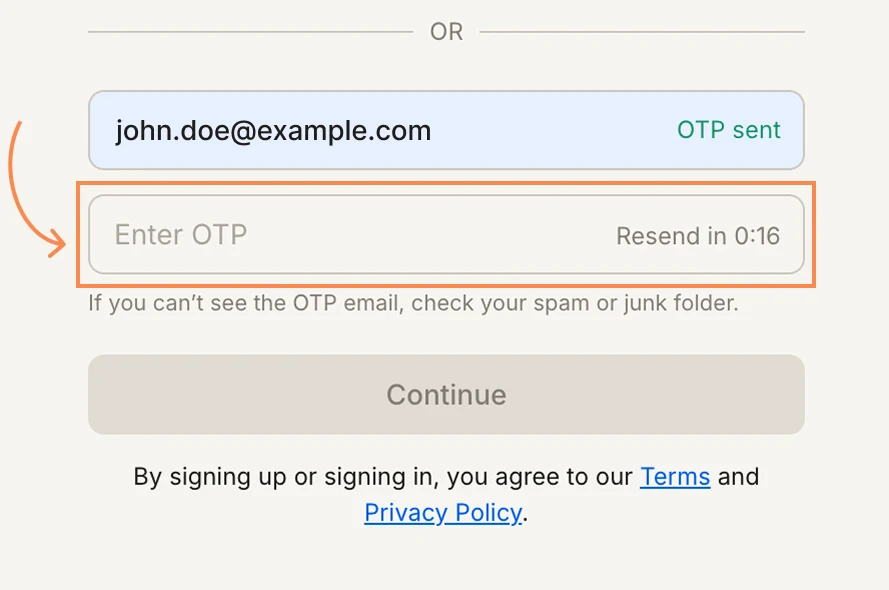
            <Frame caption="Enter OTP">
              <img src="https://mintcdn.com/dhiwisepvtltd-5e04e6a4/kMglG6b8Pajovz_G/images/getting-started/create-an-account/web-browser/email-otp.webp?fit=max&auto=format&n=kMglG6b8Pajovz_G&q=85&s=2f52c8e13b157b919fa3b0cf90c64217" alt="OTP verification screen with the Enter OTP field highlighted and a Resend timer." className="theme-image" width="889" height="590" data-path="images/getting-started/create-an-account/web-browser/email-otp.webp" />
            </Frame>

            <Warning>
              Did not receive the email? Check your spam or promotions folder, or click **Resend**.
            </Warning>
          </Accordion>
        </AccordionGroup>
      </Step>

      <Step title="You are in">
        Rocket redirects you to the home screen. Your account is active and ready to use.
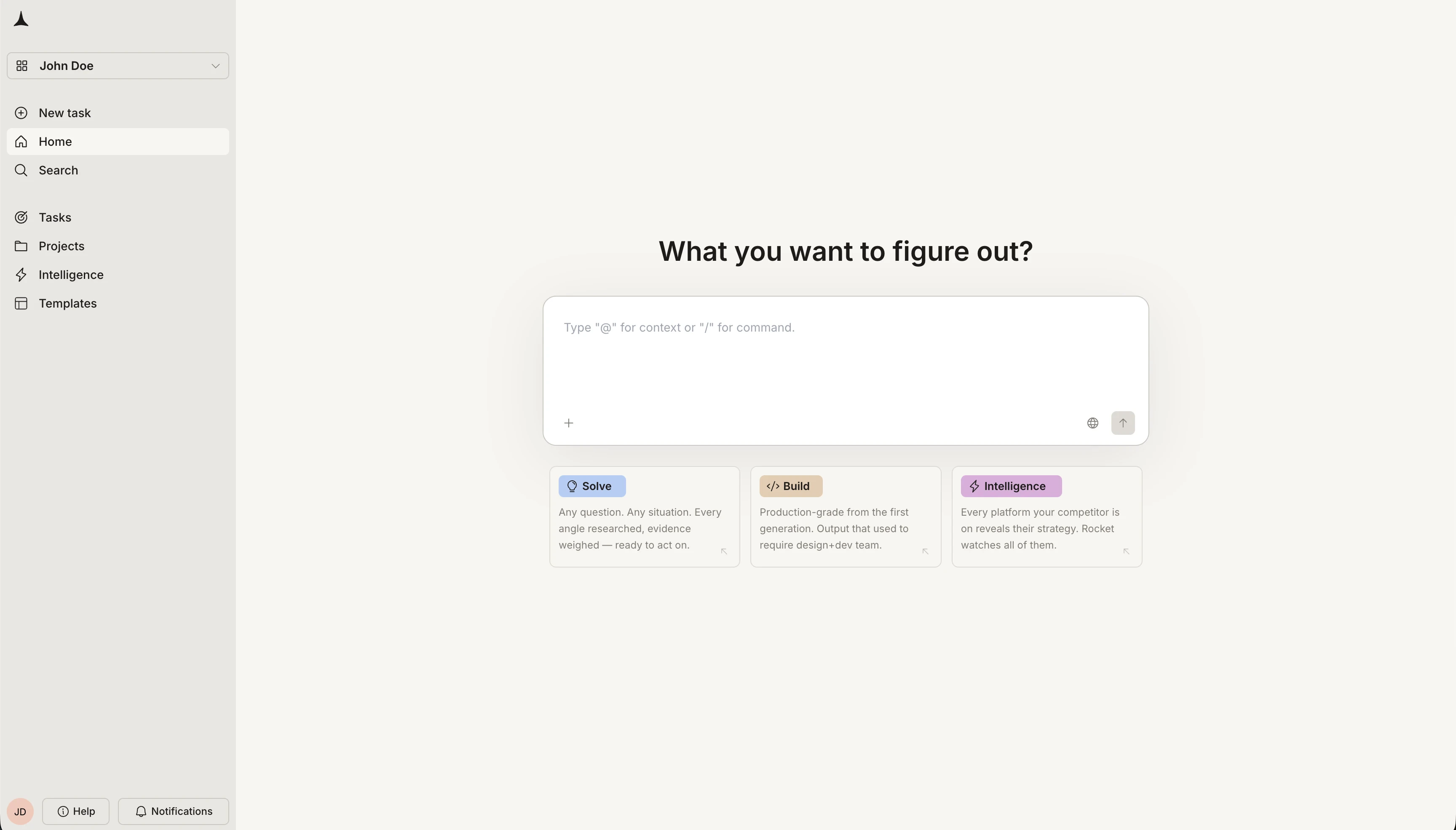
        <Frame caption="Rocket home screen">
          <img src="https://mintcdn.com/dhiwisepvtltd-5e04e6a4/kMglG6b8Pajovz_G/images/getting-started/create-an-account/web-browser/signed-in-home-light.webp?fit=max&auto=format&n=kMglG6b8Pajovz_G&q=85&s=e67d13bef826d7002faa4f89adc4768e" alt="Rocket home screen after sign-in showing the task input and Solve, Build, and Intelligence cards." className="theme-image light-image" width="3456" height="1970" data-path="images/getting-started/create-an-account/web-browser/signed-in-home-light.webp" />

          <img src="https://mintcdn.com/dhiwisepvtltd-5e04e6a4/kMglG6b8Pajovz_G/images/getting-started/create-an-account/web-browser/signed-in-home-dark.webp?fit=max&auto=format&n=kMglG6b8Pajovz_G&q=85&s=d275e8aa32f51b9cac72229faeb979ea" alt="Rocket home screen after sign-in showing the task input and Solve, Build, and Intelligence cards." className="theme-image dark-image" width="3456" height="1980" data-path="images/getting-started/create-an-account/web-browser/signed-in-home-dark.webp" />
        </Frame>
      </Step>
    </Steps>
  </Tab>

  <Tab title="Mobile App">
    <Steps>
      <Step title="Download the Rocket app">
        On your iPhone or iPad, open the **App Store**, search for **Rocket**, and install the app.

        <Note>
          The mobile app is currently available on iOS only.
        </Note>
      </Step>

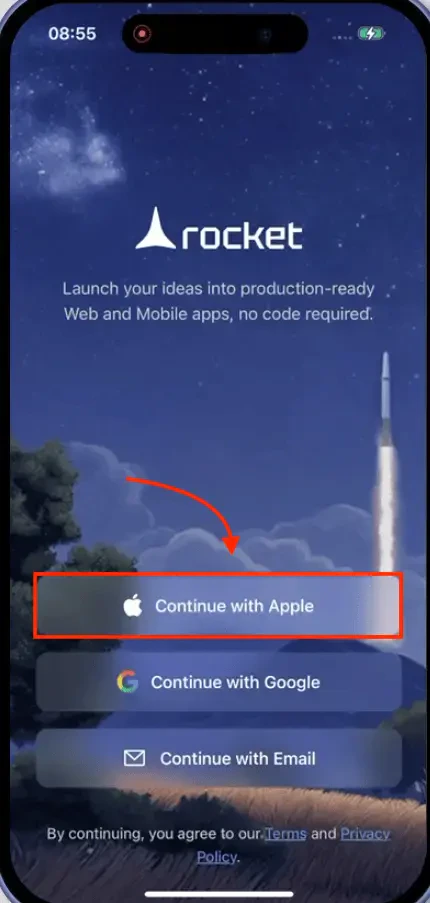
      <Step title="Choose how to sign in">
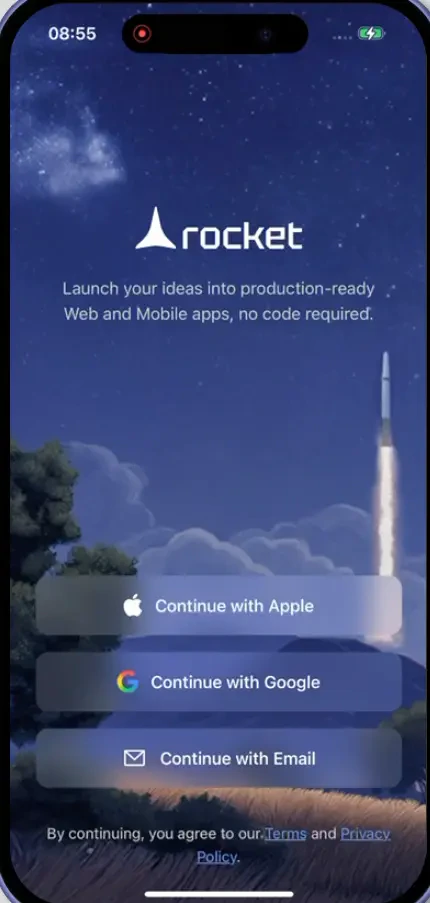
        Open the app and pick one of the available options.

        <Frame caption="Mobile sign-in options">
          <img src="https://mintcdn.com/dhiwisepvtltd-5e04e6a4/V8n5a5SD5I4rMm7t/images/getting-started/create-an-account/mobile-app/rocket-app-welcome-screen.webp?fit=max&auto=format&n=V8n5a5SD5I4rMm7t&q=85&s=07f56c50e4b4c2275e889a721f515ac5" alt="Mobile sign-up screen showing Google, Apple, and email sign-up options." className="theme-mobile-image" width="430" height="903" data-path="images/getting-started/create-an-account/mobile-app/rocket-app-welcome-screen.webp" />
        </Frame>

        <AccordionGroup>
          <Accordion title="Continue with Google">
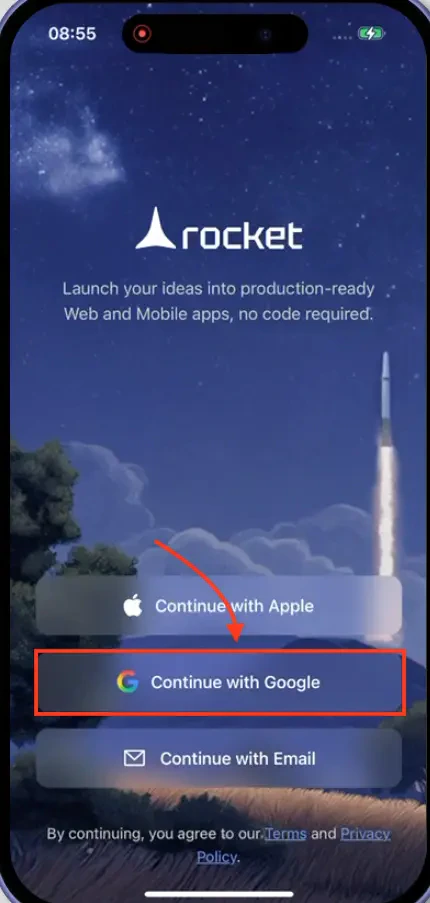
            Tap **Continue with Google**, then select your Google account.

            <Frame caption="Google sign-in on mobile">
              <img src="https://mintcdn.com/dhiwisepvtltd-5e04e6a4/V8n5a5SD5I4rMm7t/images/getting-started/create-an-account/mobile-app/mobile-app-google-sign-up-in-rocket-app.webp?fit=max&auto=format&n=V8n5a5SD5I4rMm7t&q=85&s=8d3d16916579b456c68e49328271ccfe" alt="Google option selection for mobile sign-up." className="theme-mobile-image" width="430" height="903" data-path="images/getting-started/create-an-account/mobile-app/mobile-app-google-sign-up-in-rocket-app.webp" />
            </Frame>

            Review the permission request and tap **Continue**.

            <Warning>
              If sign-in fails, check your internet connection and make sure you are signed into Google on your device.
            </Warning>
          </Accordion>

          <Accordion title="Continue with Apple">
            Tap **Continue with Apple**, then authenticate with Face ID, Touch ID, or your passcode.

            <Frame caption="Apple sign-in on mobile">
              <img src="https://mintcdn.com/dhiwisepvtltd-5e04e6a4/V8n5a5SD5I4rMm7t/images/getting-started/create-an-account/mobile-app/sign-in-with-apple-id-in-rocket-app.webp?fit=max&auto=format&n=V8n5a5SD5I4rMm7t&q=85&s=4cbd32469df7d8359c9e1ce7821a43d6" alt="Apple option selection for mobile sign-up on iOS." className="theme-mobile-image" width="430" height="903" data-path="images/getting-started/create-an-account/mobile-app/sign-in-with-apple-id-in-rocket-app.webp" />
            </Frame>

            Review the permission request and tap **Continue**.

            <Warning>
              If sign-in fails, make sure you are signed into iCloud and that Face ID or Touch ID is enabled on your device.
            </Warning>
          </Accordion>

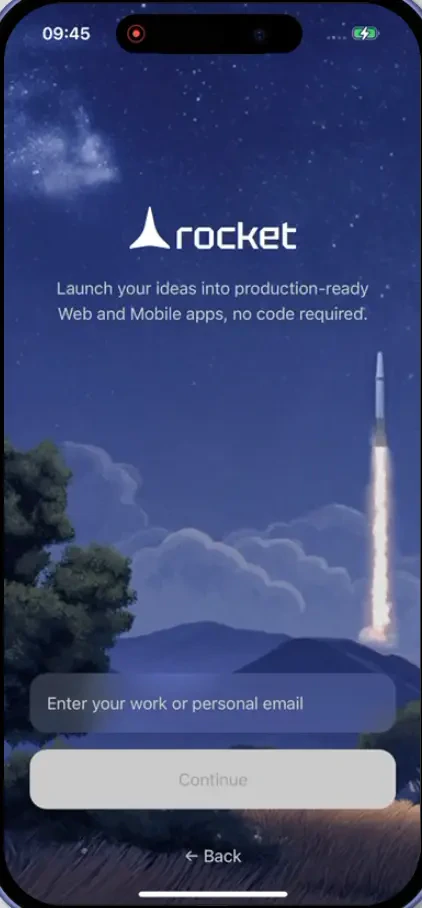
          <Accordion title="Use email">
            Enter your email address and tap **Continue**.

            <Frame caption="Email sign-in on mobile">
              <img src="https://mintcdn.com/dhiwisepvtltd-5e04e6a4/V8n5a5SD5I4rMm7t/images/getting-started/create-an-account/mobile-app/sign-in-with-email-in-rocket-app.webp?fit=max&auto=format&n=V8n5a5SD5I4rMm7t&q=85&s=2dfdc5ee543eea5c6844ba6bc5176c3e" alt="Mobile email sign-up screen with input field and Continue button." className="theme-mobile-image" width="422" height="908" data-path="images/getting-started/create-an-account/mobile-app/sign-in-with-email-in-rocket-app.webp" />
            </Frame>

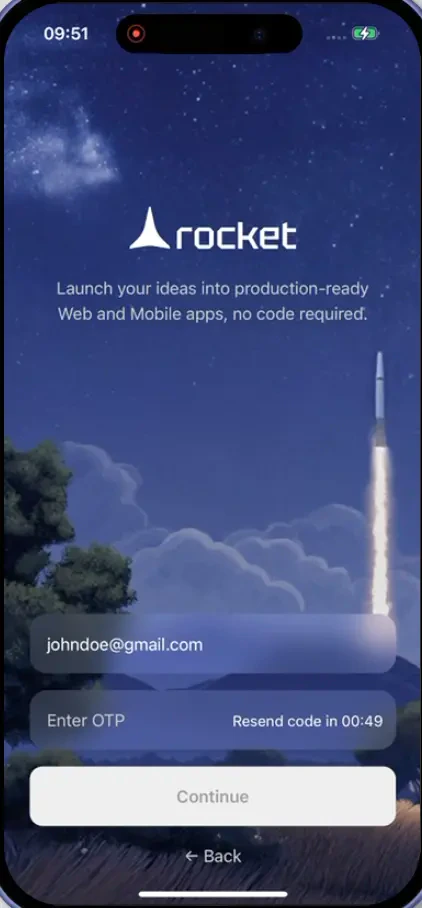
            Check your inbox for a 6-digit OTP from Rocket. Paste it into the field and tap **Continue**.

            <Frame caption="OTP verification on mobile">
              <img src="https://mintcdn.com/dhiwisepvtltd-5e04e6a4/V8n5a5SD5I4rMm7t/images/getting-started/create-an-account/mobile-app/mobile-otp-verify-screen-in-rocket-app.webp?fit=max&auto=format&n=V8n5a5SD5I4rMm7t&q=85&s=11249a5384c273208b8251aa0603097e" alt="Mobile OTP verification screen with input field and Continue button." className="theme-mobile-image" width="422" height="908" data-path="images/getting-started/create-an-account/mobile-app/mobile-otp-verify-screen-in-rocket-app.webp" />
            </Frame>

            <Warning>
              Did not receive the email? Check your spam or promotions folder, or tap **Resend**.
            </Warning>
          </Accordion>
        </AccordionGroup>
      </Step>

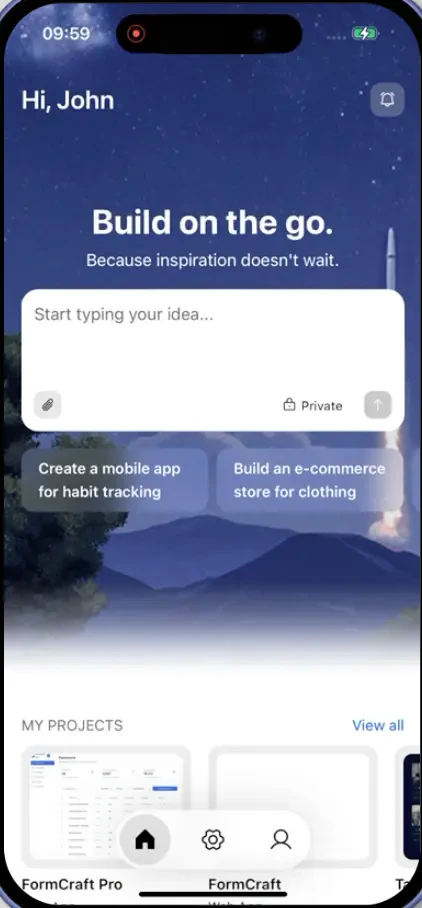
      <Step title="You are in">
        Rocket takes you to the home screen. Your account is active and ready to use.
        <Frame caption="Rocket mobile home screen">
          <img src="https://mintcdn.com/dhiwisepvtltd-5e04e6a4/V8n5a5SD5I4rMm7t/images/getting-started/create-an-account/mobile-app/rocket-mobile-app-homescreen-after-signup-and-login.webp?fit=max&auto=format&n=V8n5a5SD5I4rMm7t&q=85&s=567549f6780ab7f1c067b01212f7bca9" alt="Rocket mobile app home screen after sign-up." className="theme-mobile-image" width="422" height="908" data-path="images/getting-started/create-an-account/mobile-app/rocket-mobile-app-homescreen-after-signup-and-login.webp" />
        </Frame>
      </Step>
    </Steps>
  </Tab>
</Tabs>

## What's next?

<CardGroup cols={2}>
  <Card title="Quick start" icon="bolt" href="/getting-started/quick-start">
    Get your first result in under five minutes with a guided walkthrough.
  </Card>

  <Card title="Browse templates" icon="grid-2" href="/build/create/using-templates">
    Start from a production-ready template instead of a blank canvas.
  </Card>
</CardGroup>