> ## Documentation Index
> Fetch the complete documentation index at: https://docs.rocket.new/llms.txt
> Use this file to discover all available pages before exploring further.

# Connected services

> Link Notion and Google Drive to your Rocket.new project for live context.

export const LlmsDirective = () => <blockquote className="llms-directive">
    For the complete documentation index, see <a href="/llms.txt">llms.txt</a>.
    For a lightweight markdown version of this page, append .md to the URL.
  </blockquote>;

<LlmsDirective />

Connected services bring live external content into your project. Link Notion pages or Google Drive files and Rocket can read their content to inform every Solve and Build task without you copying, pasting, or re-uploading anything.

<Info>
  Connected services are different from [Build connectors](/build/connectors/overview). Build connectors add functionality to your apps (payments, databases, email). Connected services provide **context**: they give Rocket access to external documents and data to inform your work.
</Info>

## Supported services

<CardGroup cols={2}>
  <Card title="Google Drive" icon="google-drive">
    Google Docs and Google Sheets.
  </Card>

  <Card title="Notion" icon="book">
    Notion pages (`.md`) including product specs, meeting notes, and wikis.
  </Card>
</CardGroup>

## Connect a service

<Steps>
  <Step title="Open your project">
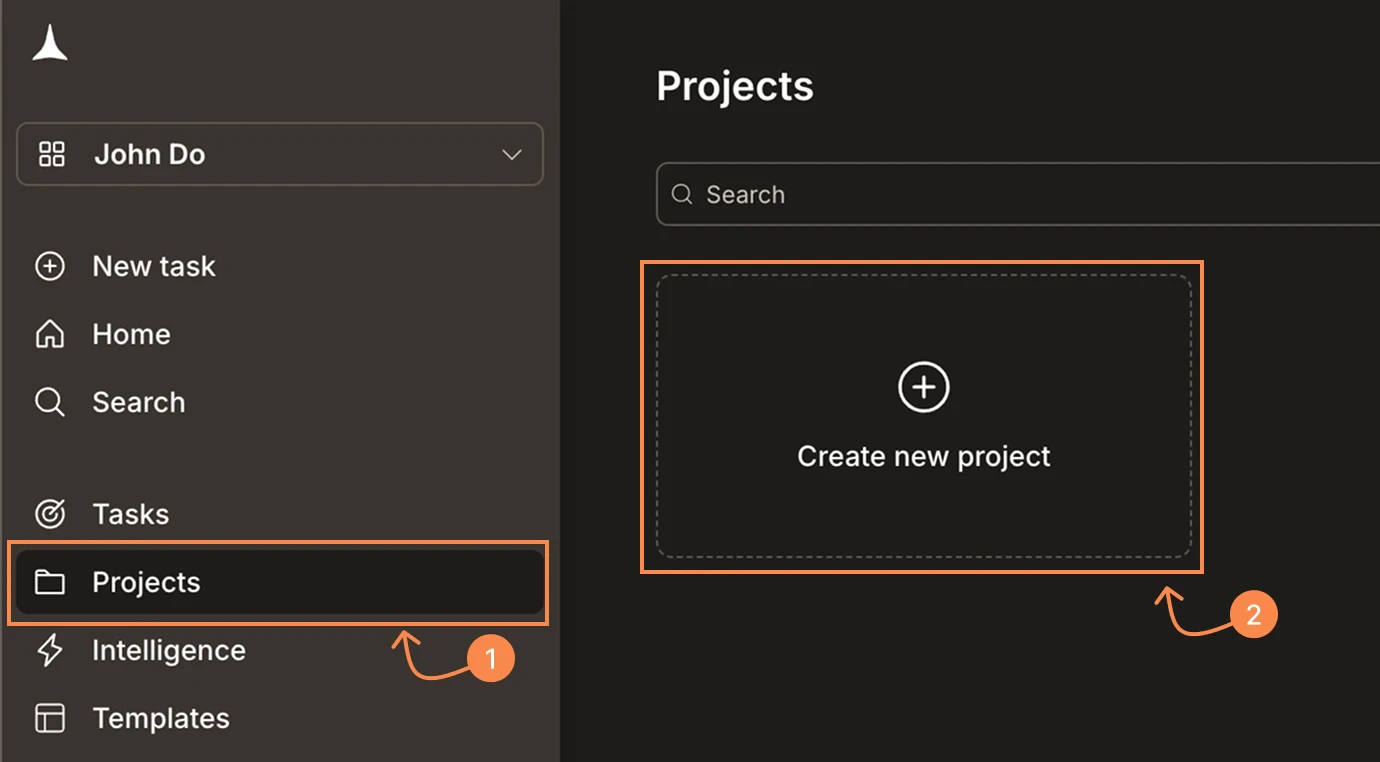
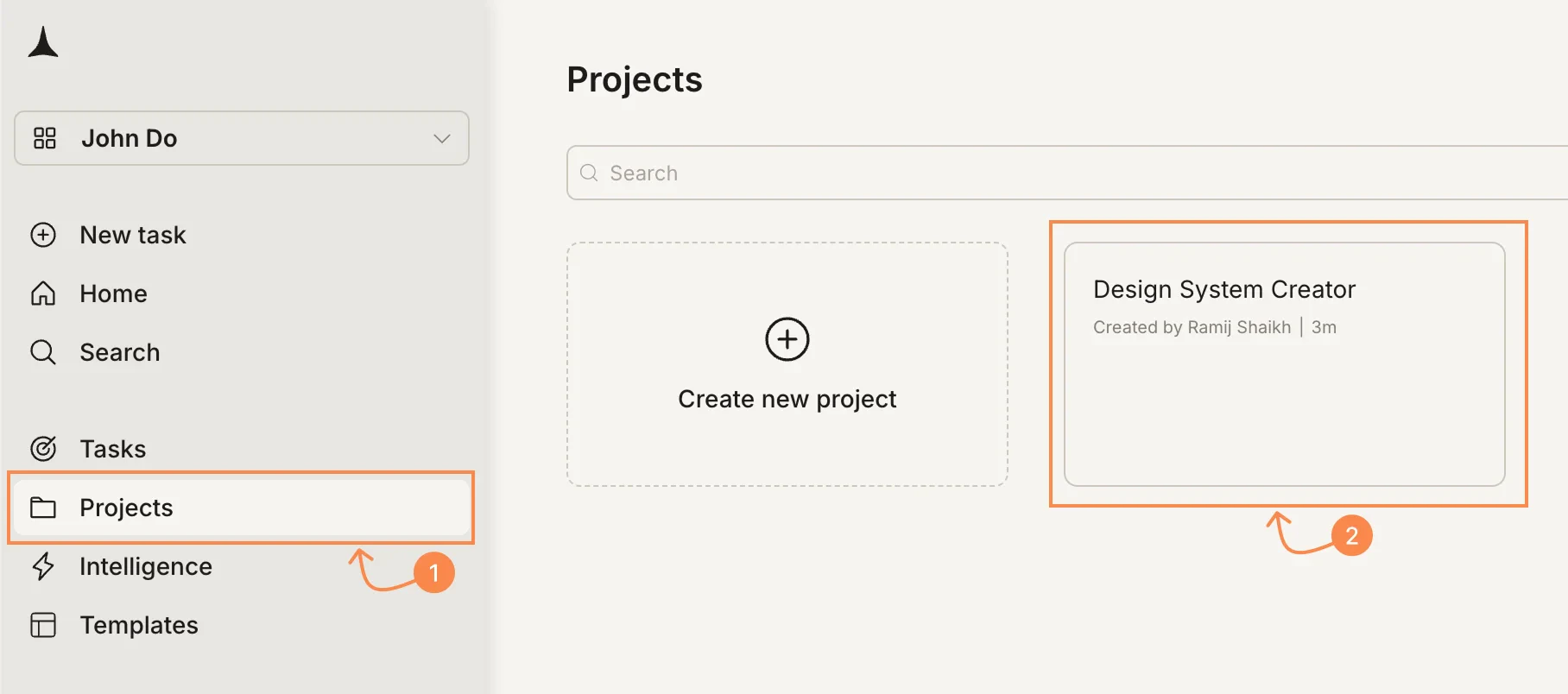
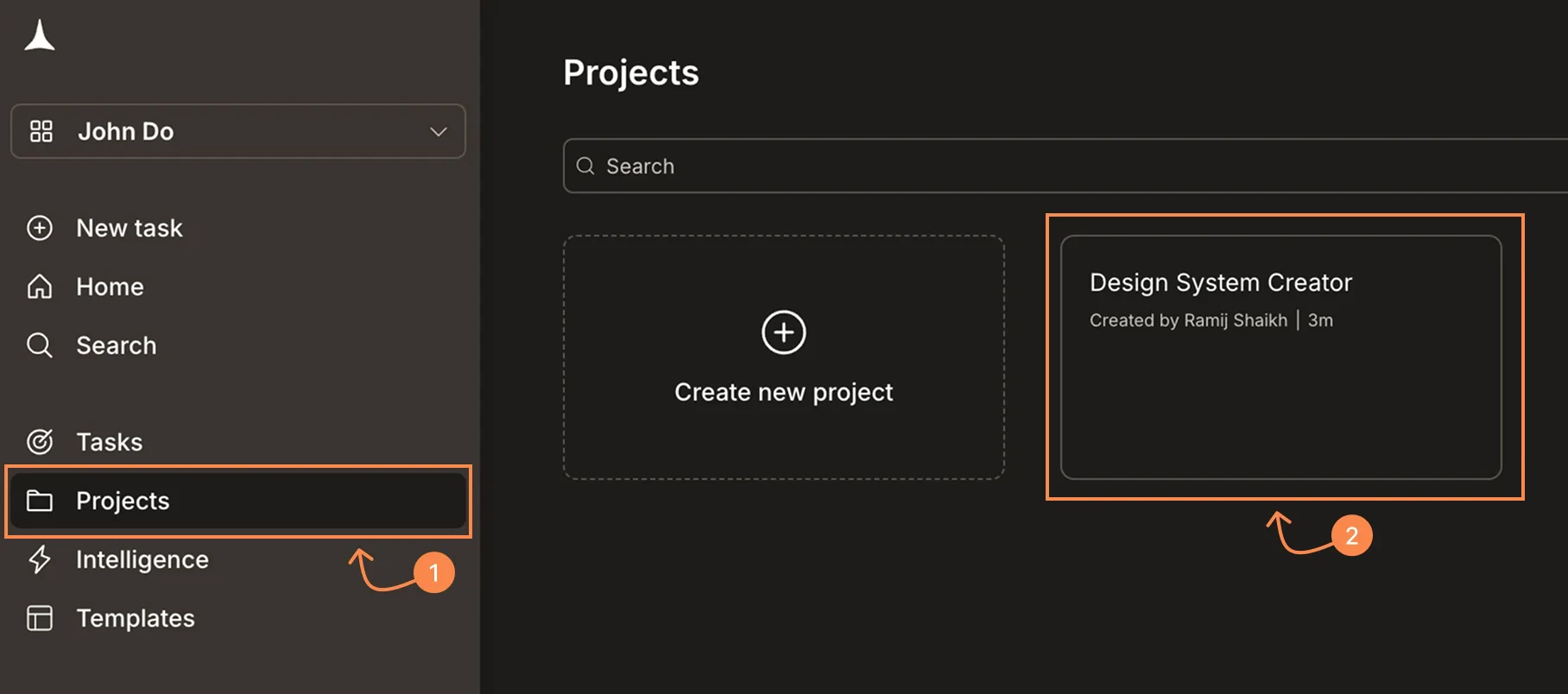
    Click **Projects** in the sidebar, then click your project.
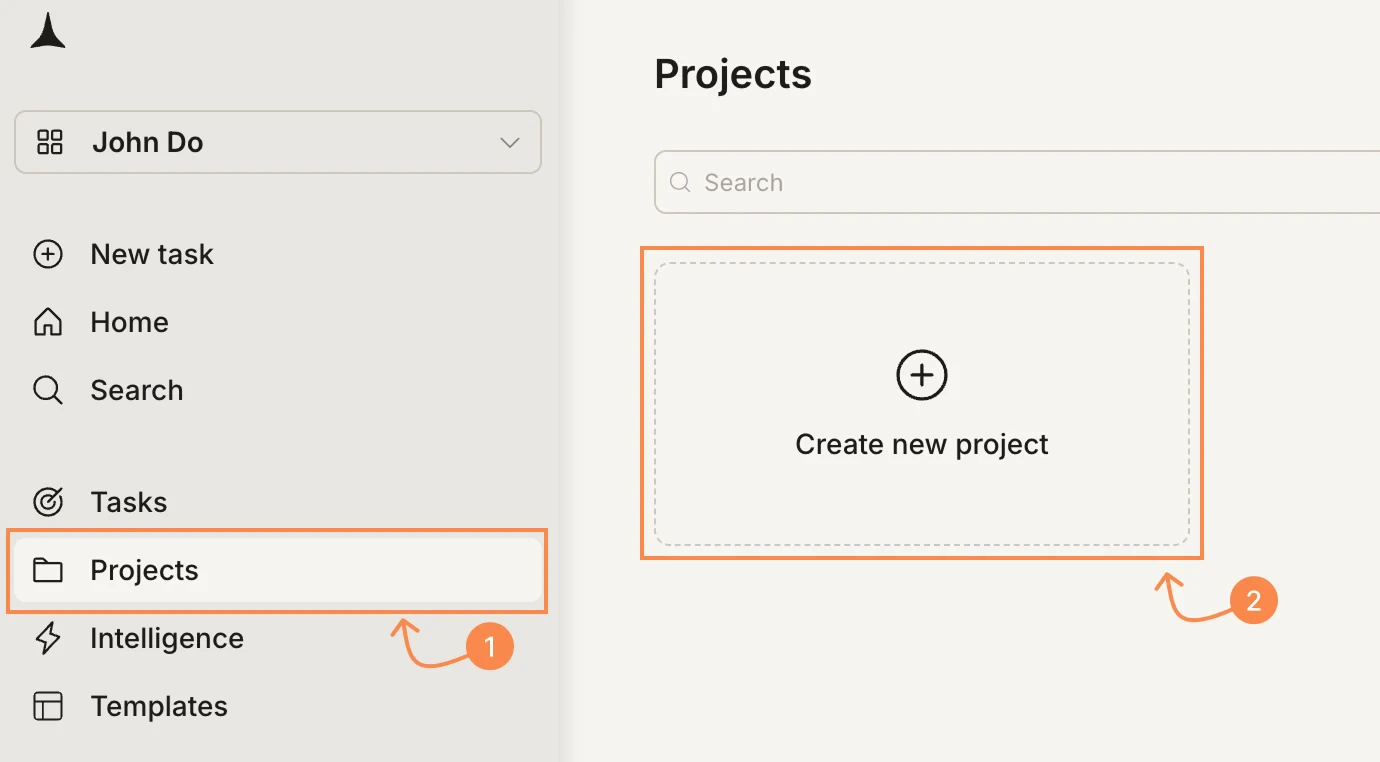
    <Frame caption="Click Projects in the sidebar, then open your project">
      <img src="https://mintcdn.com/dhiwisepvtltd-5e04e6a4/PzBM_J-yZNIHHGC0/images/getting-started/project/manage/create-projects-light.webp?fit=max&auto=format&n=PzBM_J-yZNIHHGC0&q=85&s=493518181b901e7a4ed98be7aa89a0e7" alt="Sidebar with Projects highlighted and a project card visible." className="theme-image light-image" width="1380" height="762" data-path="images/getting-started/project/manage/create-projects-light.webp" />

      <img src="https://mintcdn.com/dhiwisepvtltd-5e04e6a4/PzBM_J-yZNIHHGC0/images/getting-started/project/manage/create-projects-dark.webp?fit=max&auto=format&n=PzBM_J-yZNIHHGC0&q=85&s=e397901ddfe1bb5a8f2f280056932320" alt="Sidebar with Projects highlighted and a project card visible." className="theme-image dark-image" width="1380" height="762" data-path="images/getting-started/project/manage/create-projects-dark.webp" />
    </Frame>
  </Step>

  <Step title="Open the Context tab">
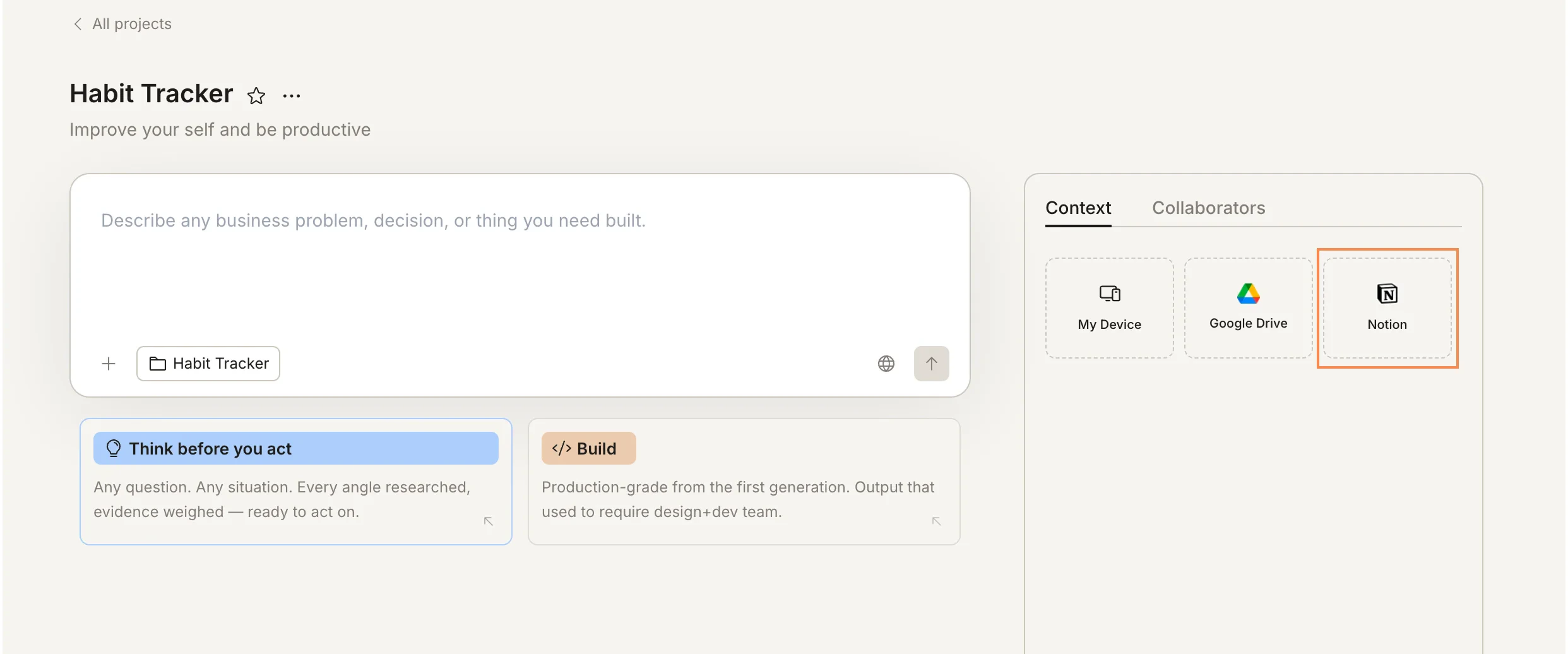
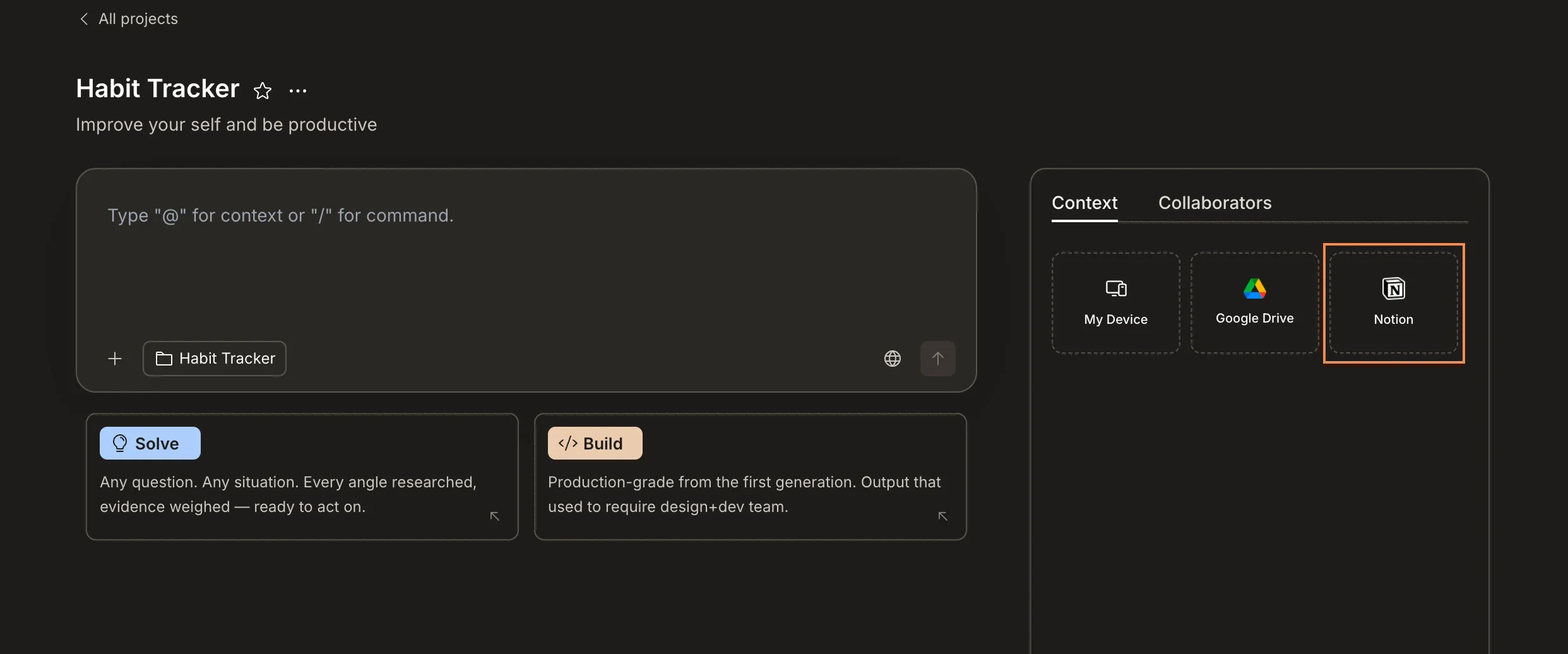
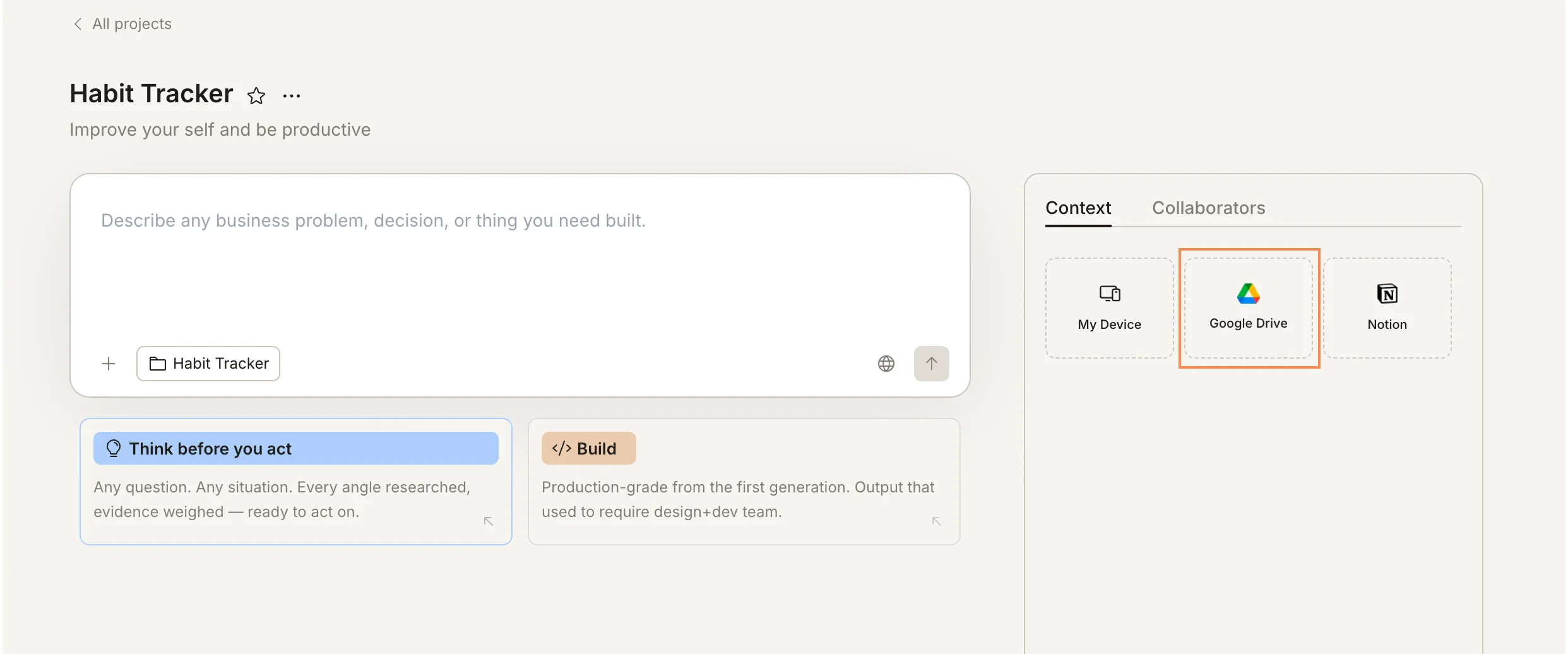
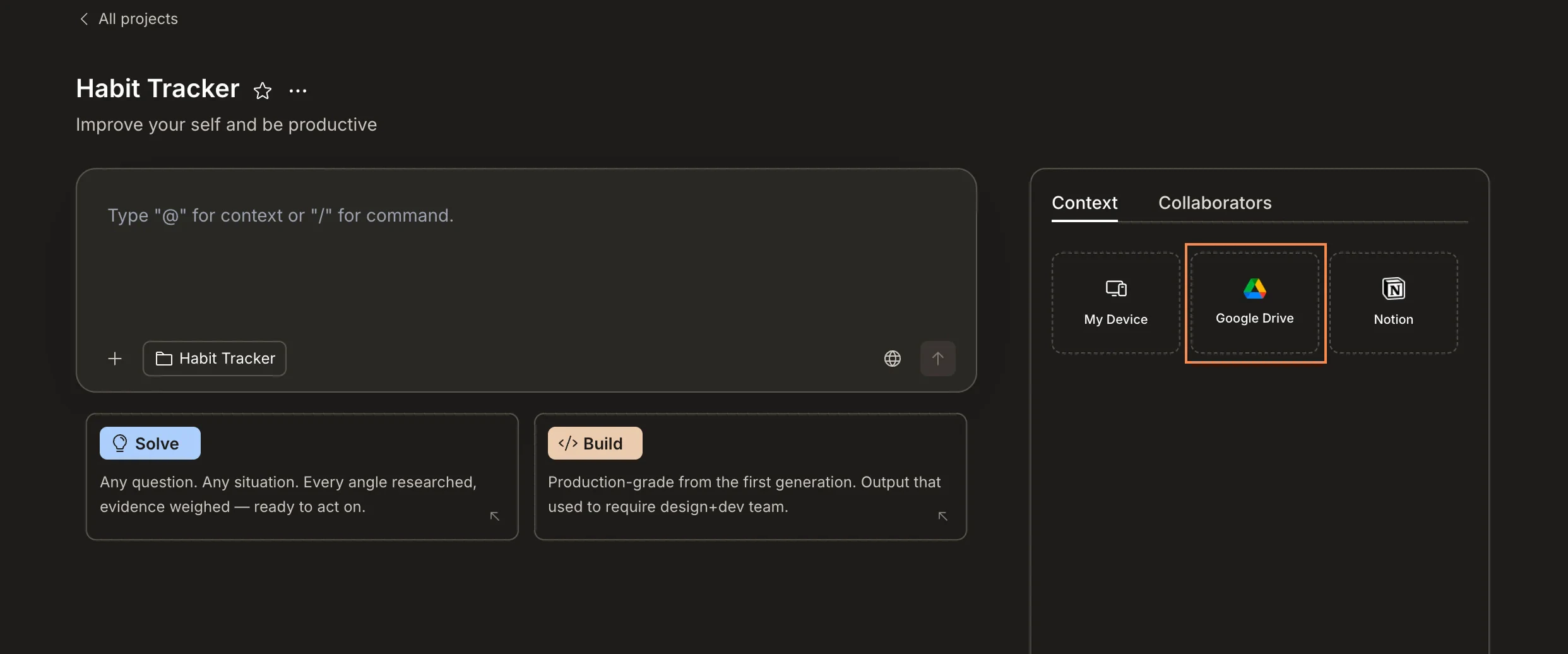
    Click the **Context** tab on the right panel. You'll see connectors for My Device, Google Drive, and Notion.
    <Frame caption="Context tab showing available connectors">
      <img src="https://mintcdn.com/dhiwisepvtltd-5e04e6a4/ycIZz3MwlUZ9wn5n/images/getting-started/project/context/connected-services/web-browser/project-context-light.webp?fit=max&auto=format&n=ycIZz3MwlUZ9wn5n&q=85&s=8491b001283e88eb821bf3bb71872495" alt="Project page showing the Context tab with My Device, Google Drive, and Notion connectors." className="theme-image light-image" width="1816" height="804" data-path="images/getting-started/project/context/connected-services/web-browser/project-context-light.webp" />

      <img src="https://mintcdn.com/dhiwisepvtltd-5e04e6a4/ycIZz3MwlUZ9wn5n/images/getting-started/project/context/connected-services/web-browser/project-context-dark.webp?fit=max&auto=format&n=ycIZz3MwlUZ9wn5n&q=85&s=7e7ccdf8f846d964a3a786d848628f01" alt="Project page showing the Context tab with My Device, Google Drive, and Notion connectors." className="theme-image dark-image" width="1816" height="804" data-path="images/getting-started/project/context/connected-services/web-browser/project-context-dark.webp" />
    </Frame>
  </Step>

  <Step title="Click a service and paste the URL">
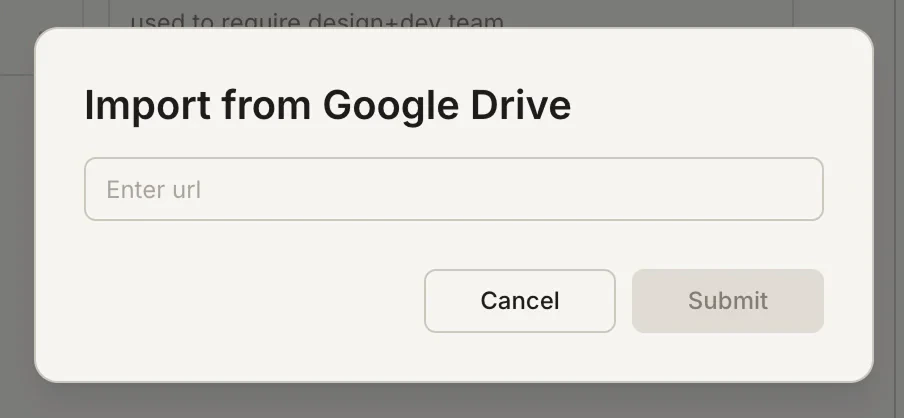
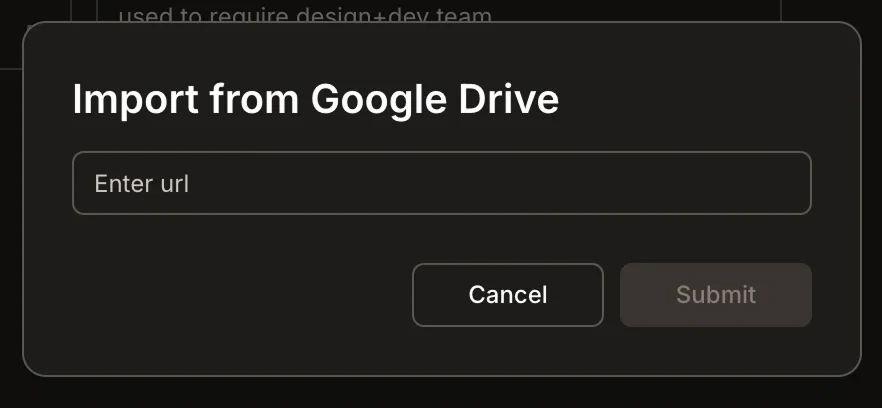
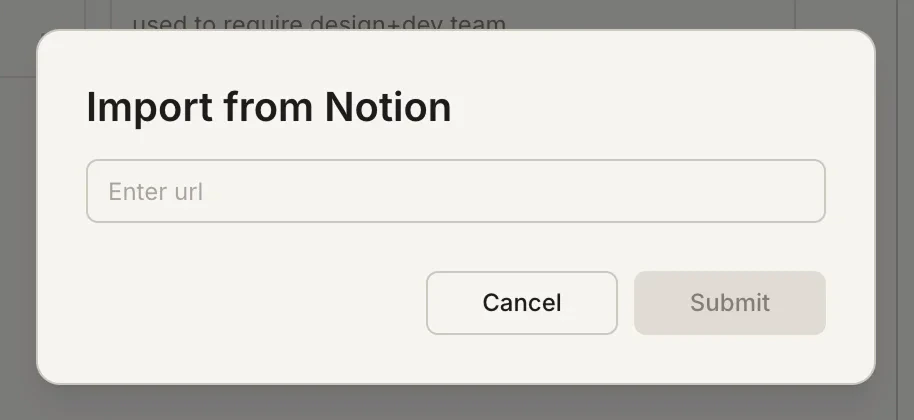
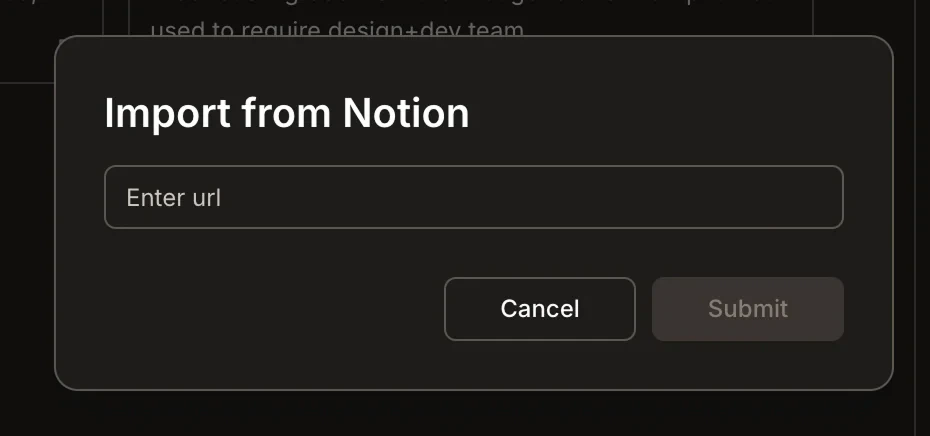
    Click the service you want to connect. A modal appears. Paste the URL of the file or page, then click **Submit**.
    <Tabs>
      <Tab title="Google Drive">
        <Frame caption="Click Google Drive to connect">
          <img src="https://mintcdn.com/dhiwisepvtltd-5e04e6a4/ycIZz3MwlUZ9wn5n/images/getting-started/project/context/connected-services/web-browser/google-drive-select-light.webp?fit=max&auto=format&n=ycIZz3MwlUZ9wn5n&q=85&s=89ae2ec698bde3552c42fc4f908ba36e" alt="Context panel with Google Drive highlighted." className="theme-image light-image" width="2484" height="1036" data-path="images/getting-started/project/context/connected-services/web-browser/google-drive-select-light.webp" />

          <img src="https://mintcdn.com/dhiwisepvtltd-5e04e6a4/ycIZz3MwlUZ9wn5n/images/getting-started/project/context/connected-services/web-browser/google-drive-select-dark.webp?fit=max&auto=format&n=ycIZz3MwlUZ9wn5n&q=85&s=57fbbb15342e94e01000085c16b6ad9f" alt="Context panel with Google Drive highlighted." className="theme-image dark-image" width="2484" height="1036" data-path="images/getting-started/project/context/connected-services/web-browser/google-drive-select-dark.webp" />
        </Frame>

        <Frame caption="Paste the Google Drive URL">
          <img src="https://mintcdn.com/dhiwisepvtltd-5e04e6a4/ycIZz3MwlUZ9wn5n/images/getting-started/project/context/connected-services/web-browser/google-drive-modal-light.webp?fit=max&auto=format&n=ycIZz3MwlUZ9wn5n&q=85&s=60f9bb982a42333e2959c03be32839fd" alt="Import from Google Drive modal with a URL input field." className="theme-image light-image" width="904" height="418" data-path="images/getting-started/project/context/connected-services/web-browser/google-drive-modal-light.webp" />

          <img src="https://mintcdn.com/dhiwisepvtltd-5e04e6a4/ycIZz3MwlUZ9wn5n/images/getting-started/project/context/connected-services/web-browser/google-drive-modal-dark.webp?fit=max&auto=format&n=ycIZz3MwlUZ9wn5n&q=85&s=ff352b062bd2050f5889d9527f0c904a" alt="Import from Google Drive modal with a URL input field." className="theme-image dark-image" width="882" height="408" data-path="images/getting-started/project/context/connected-services/web-browser/google-drive-modal-dark.webp" />
        </Frame>
      </Tab>

      <Tab title="Notion">
        <Frame caption="Click Notion to connect">
          <img src="https://mintcdn.com/dhiwisepvtltd-5e04e6a4/ycIZz3MwlUZ9wn5n/images/getting-started/project/context/connected-services/web-browser/notion-select-light.webp?fit=max&auto=format&n=ycIZz3MwlUZ9wn5n&q=85&s=094b4fd39143423fc8b4c3a9d0b6d426" alt="Context panel with Notion highlighted." className="theme-image light-image" width="2484" height="1036" data-path="images/getting-started/project/context/connected-services/web-browser/notion-select-light.webp" />

          <img src="https://mintcdn.com/dhiwisepvtltd-5e04e6a4/ycIZz3MwlUZ9wn5n/images/getting-started/project/context/connected-services/web-browser/notion-select-dark.webp?fit=max&auto=format&n=ycIZz3MwlUZ9wn5n&q=85&s=38ca9cb96e783ad45f9892b685f61c47" alt="Context panel with Notion highlighted." className="theme-image dark-image" width="2484" height="1036" data-path="images/getting-started/project/context/connected-services/web-browser/notion-select-dark.webp" />
        </Frame>

        <Frame caption="Paste the Notion page URL">
          <img src="https://mintcdn.com/dhiwisepvtltd-5e04e6a4/ycIZz3MwlUZ9wn5n/images/getting-started/project/context/connected-services/web-browser/notion-modal-light.webp?fit=max&auto=format&n=ycIZz3MwlUZ9wn5n&q=85&s=f764c40e2ad35be1b6c9aa5c35633803" alt="Import from Notion modal with a URL input field." className="theme-image light-image" width="914" height="420" data-path="images/getting-started/project/context/connected-services/web-browser/notion-modal-light.webp" />

          <img src="https://mintcdn.com/dhiwisepvtltd-5e04e6a4/ycIZz3MwlUZ9wn5n/images/getting-started/project/context/connected-services/web-browser/notion-modal-dark.webp?fit=max&auto=format&n=ycIZz3MwlUZ9wn5n&q=85&s=804e896a447b08c2bac159a80872f346" alt="Import from Notion modal with a URL input field." className="theme-image dark-image" width="930" height="436" data-path="images/getting-started/project/context/connected-services/web-browser/notion-modal-dark.webp" />
        </Frame>
      </Tab>
    </Tabs>
  </Step>

  <Step title="Confirm">
    The connected item appears in the **Files** section of the Context tab and is immediately available to all tasks in the project.
  </Step>
</Steps>

<Info>
  Connected services provide read-only access. Rocket reads your content but never writes back to or modifies your external documents.
</Info>

## How connected context helps

Once connected, Rocket uses that content automatically when it's relevant.

* A Notion product spec means your Build task produces an app that matches the brief from the first generation.
* A Notion brand doc means Solve and Build tasks reflect your actual positioning without you re-describing it.
* A Google Drive file with pricing data means a Solve task can analyze real numbers rather than placeholders.

## Manage connections

To remove a connected source, open the **Context** tab in your project.

* **Remove:** hover over the item in the Files section and click the **X** button that appears.
* **Add more:** click the service connector again and paste a new URL.

<Warning>
  Removing a connected source removes its content from the project context. Existing task outputs are not affected, but future tasks won't have access to that content.
</Warning>

## What's next?

<CardGroup cols={2}>
  <Card title="Upload files" icon="file-arrow-up" href="/getting-started/project/context/file-uploads">
    Upload files directly to your project for additional context.
  </Card>

  <Card title="Context overview" icon="arrows-repeat" href="/getting-started/project/context/overview">
    See how connected services fit into the broader context flow.
  </Card>

  <Card title="Build connectors" icon="puzzle-piece" href="/build/connectors/overview">
    Add functional integrations like Stripe, Supabase, and analytics to Build tasks.
  </Card>
</CardGroup>