> ## Documentation Index
> Fetch the complete documentation index at: https://docs.rocket.new/llms.txt
> Use this file to discover all available pages before exploring further.

# Manage

> Create, rename, star, and delete projects in Rocket.new.

export const LlmsDirective = () => <blockquote className="llms-directive">
    For the complete documentation index, see <a href="/llms.txt">llms.txt</a>.
    For a lightweight markdown version of this page, append .md to the URL.
  </blockquote>;

<LlmsDirective />

## Create a project

<Steps>
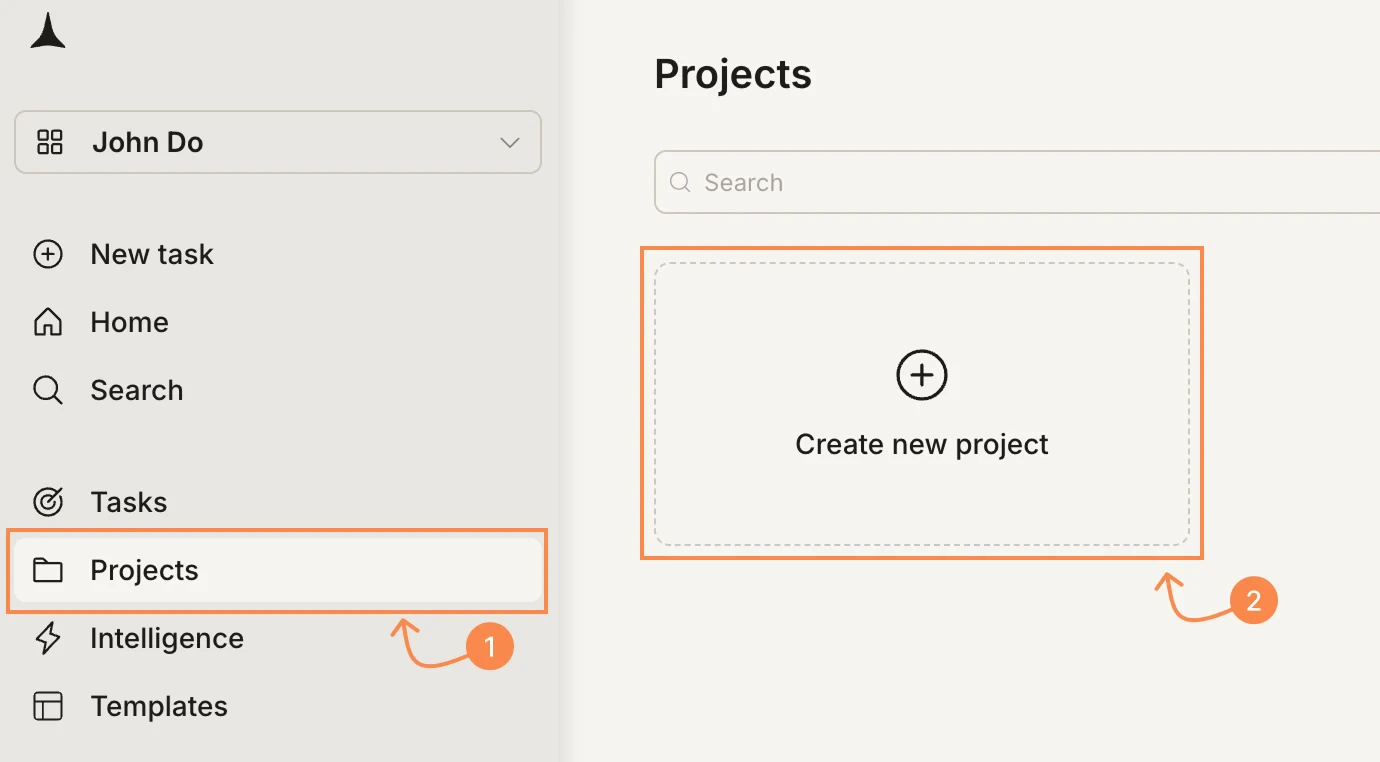
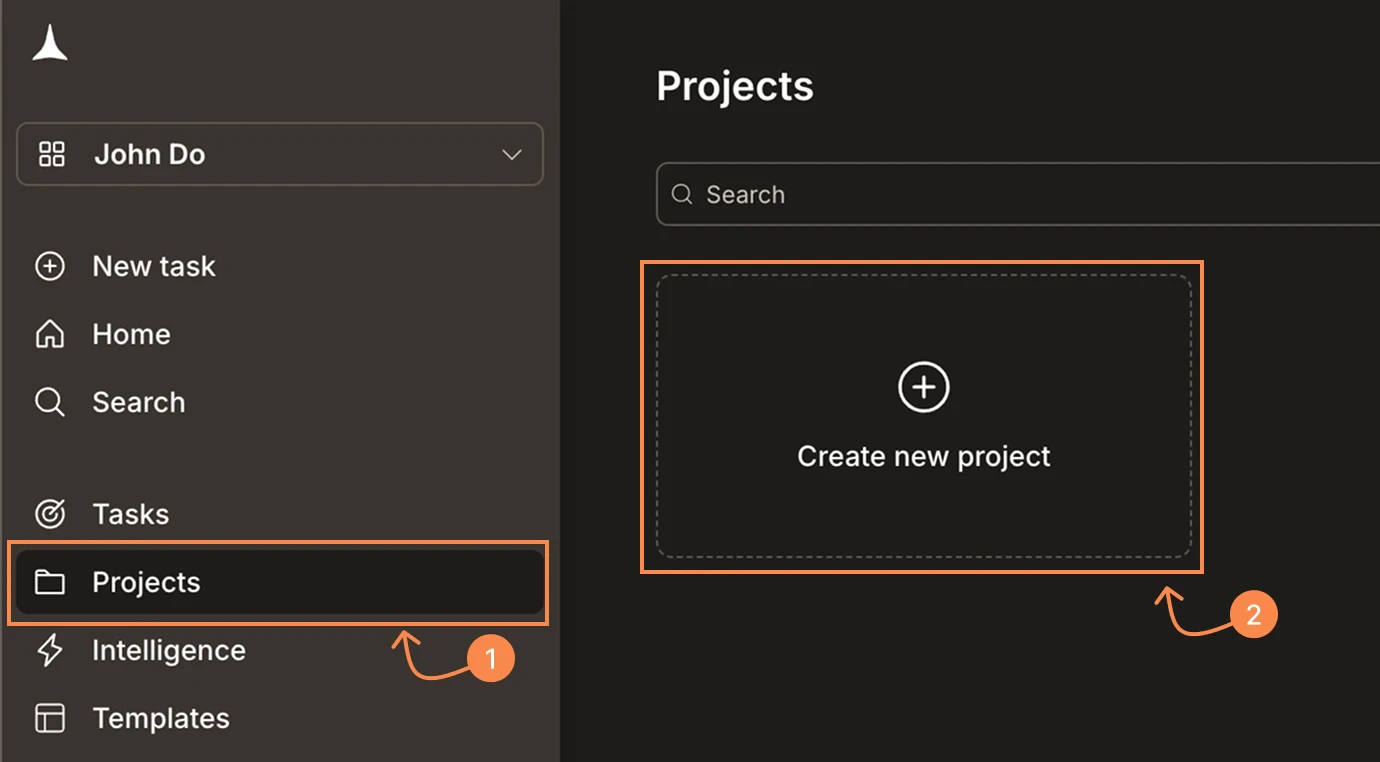
  <Step title="Go to Projects">
    Click **Projects** in the sidebar.

    <Frame caption="Click Projects in the sidebar, then Create new project">
      <img src="https://mintcdn.com/dhiwisepvtltd-5e04e6a4/PzBM_J-yZNIHHGC0/images/getting-started/project/manage/create-projects-light.webp?fit=max&auto=format&n=PzBM_J-yZNIHHGC0&q=85&s=493518181b901e7a4ed98be7aa89a0e7" alt="Sidebar with Projects highlighted and the Create new project card visible." className="theme-image light-image" width="1380" height="762" data-path="images/getting-started/project/manage/create-projects-light.webp" />

      <img src="https://mintcdn.com/dhiwisepvtltd-5e04e6a4/PzBM_J-yZNIHHGC0/images/getting-started/project/manage/create-projects-dark.webp?fit=max&auto=format&n=PzBM_J-yZNIHHGC0&q=85&s=e397901ddfe1bb5a8f2f280056932320" alt="Sidebar with Projects highlighted and the Create new project card visible." className="theme-image dark-image" width="1380" height="762" data-path="images/getting-started/project/manage/create-projects-dark.webp" />
    </Frame>
  </Step>

  <Step title="Click Create new project">
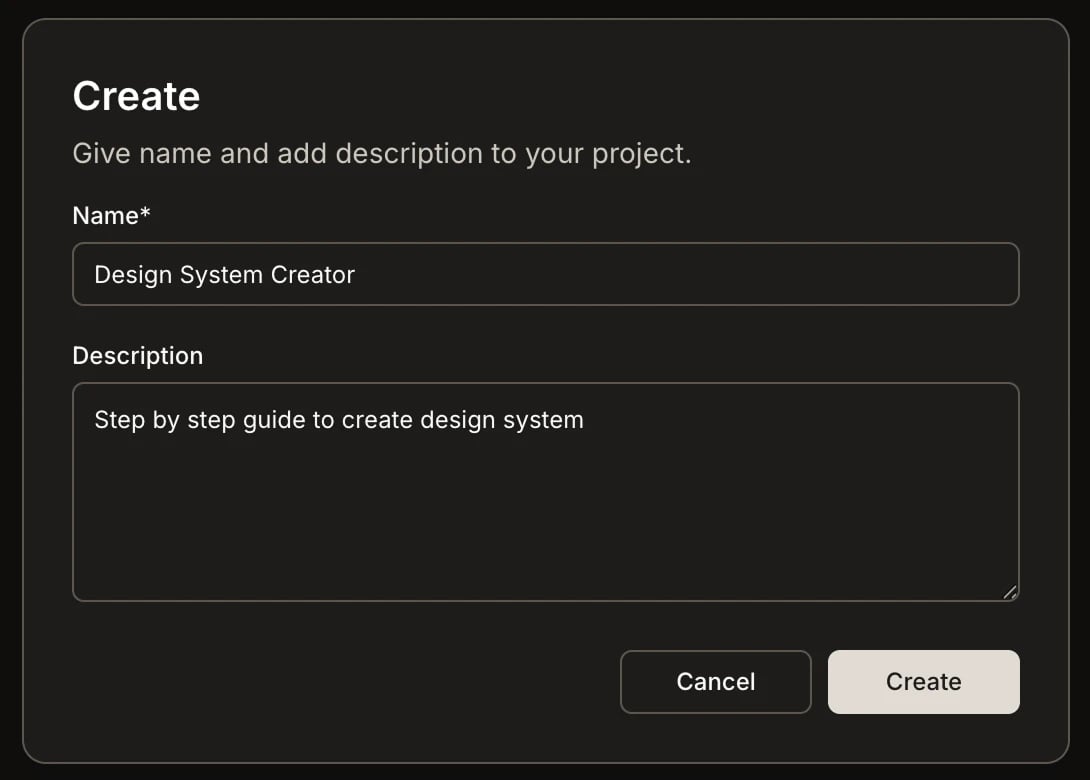
    Click the **Create new project** card. A dialog opens with a name and description field.
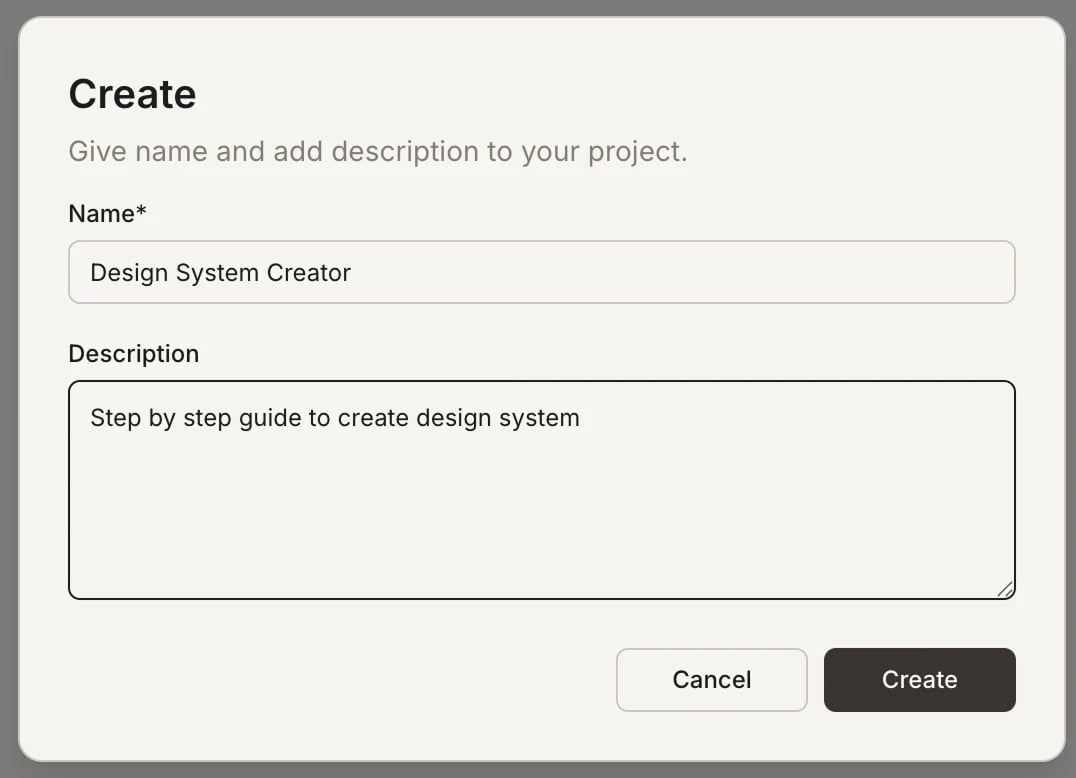
    <Frame caption="Enter a name and description">
      <img src="https://mintcdn.com/dhiwisepvtltd-5e04e6a4/PzBM_J-yZNIHHGC0/images/getting-started/project/manage/create-dialog-light.webp?fit=max&auto=format&n=PzBM_J-yZNIHHGC0&q=85&s=90c23a4d39302b3c4fa293f635f5dde2" alt="Create project dialog with Name and Description fields." className="theme-image light-image" width="1076" height="778" data-path="images/getting-started/project/manage/create-dialog-light.webp" />

      <img src="https://mintcdn.com/dhiwisepvtltd-5e04e6a4/PzBM_J-yZNIHHGC0/images/getting-started/project/manage/create-dialog-dark.webp?fit=max&auto=format&n=PzBM_J-yZNIHHGC0&q=85&s=fa7a8cef7499fc861bb553330611f320" alt="Create project dialog with Name and Description fields." className="theme-image dark-image" width="1090" height="780" data-path="images/getting-started/project/manage/create-dialog-dark.webp" />
    </Frame>
  </Step>

  <Step title="Name your project and click Create">
    Enter a name and an optional description, then click **Create**. Your project appears in the Projects list.
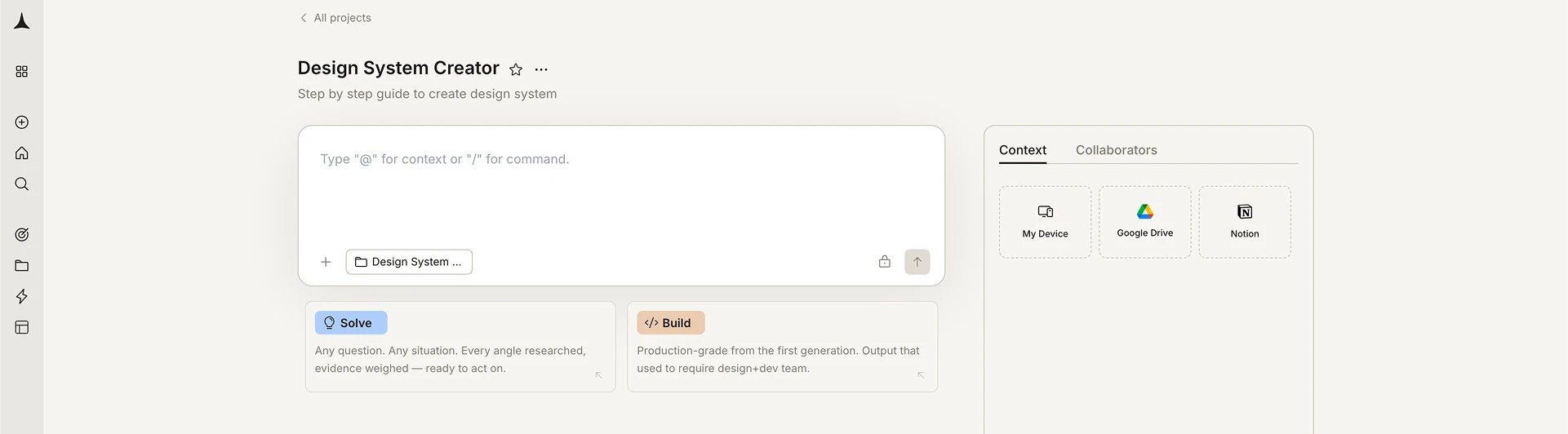
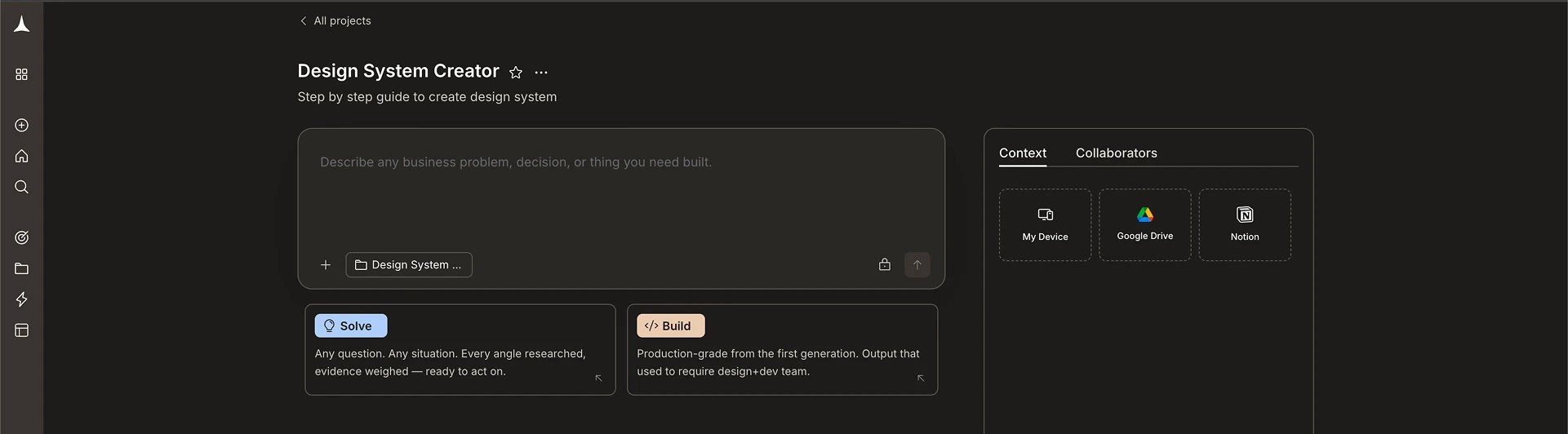
    <Frame caption="Project appears in your list">
      <img src="https://mintcdn.com/dhiwisepvtltd-5e04e6a4/PzBM_J-yZNIHHGC0/images/getting-started/project/manage/create-result-light.webp?fit=max&auto=format&n=PzBM_J-yZNIHHGC0&q=85&s=92da4b5b3ad9b8c514f2347cf66a0e41" alt="Projects page showing the newly created project card alongside the Create new project card." className="theme-image light-image" width="1921" height="532" data-path="images/getting-started/project/manage/create-result-light.webp" />

      <img src="https://mintcdn.com/dhiwisepvtltd-5e04e6a4/PzBM_J-yZNIHHGC0/images/getting-started/project/manage/create-result-dark.webp?fit=max&auto=format&n=PzBM_J-yZNIHHGC0&q=85&s=5a3bcb73362508b42ca626f0f7663203" alt="Projects page showing the newly created project card alongside the Create new project card." className="theme-image dark-image" width="1921" height="532" data-path="images/getting-started/project/manage/create-result-dark.webp" />
    </Frame>
  </Step>
</Steps>

<Tip>
  Use the **Search** bar at the top of the Projects page to quickly find a project by name.
</Tip>

<Divider />

## Edit a project

<Steps>
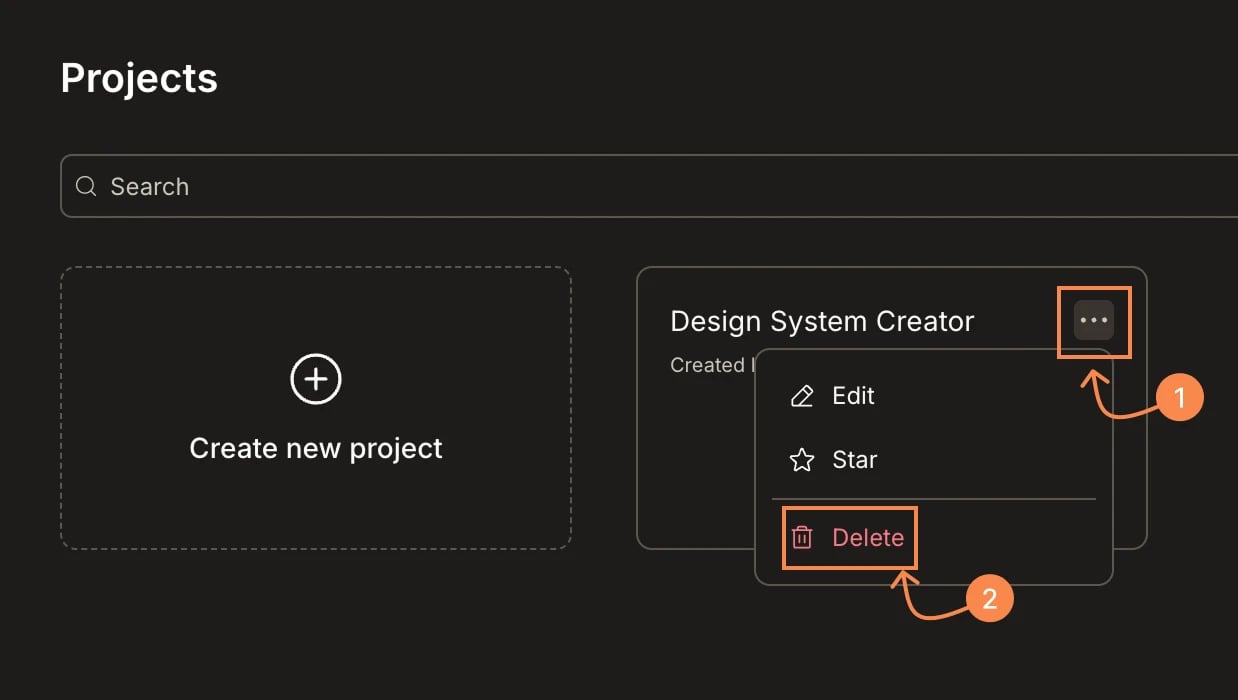
  <Step title="Open the project menu">
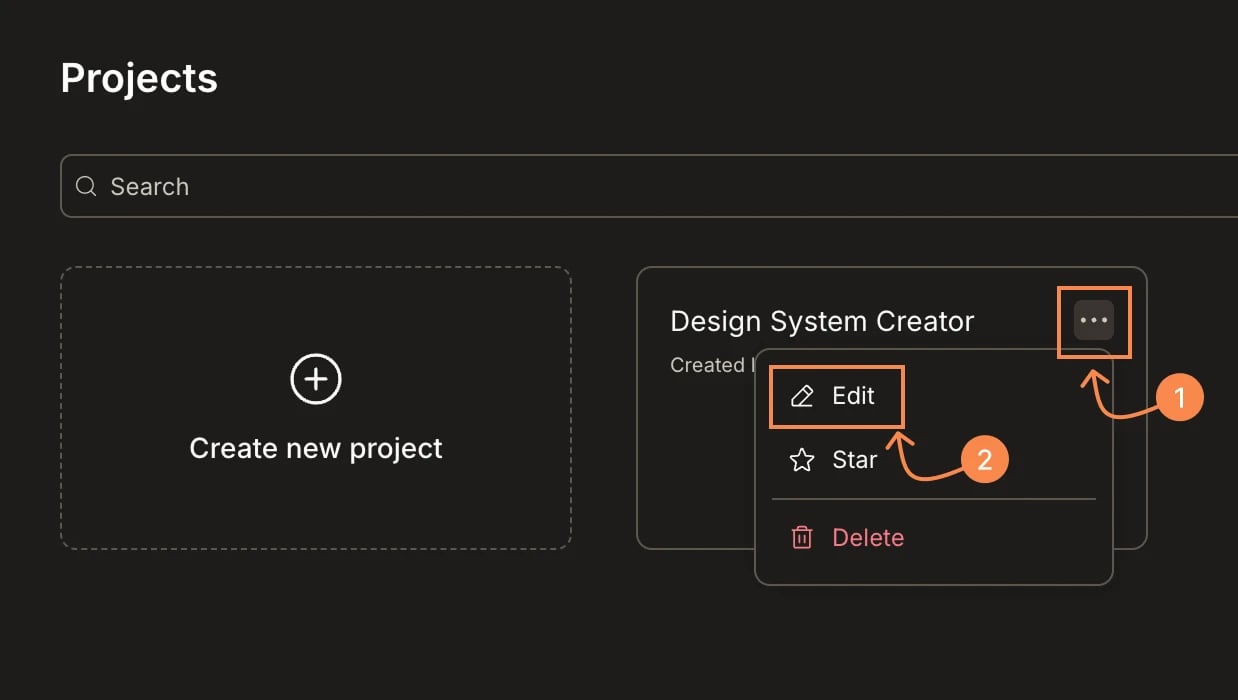
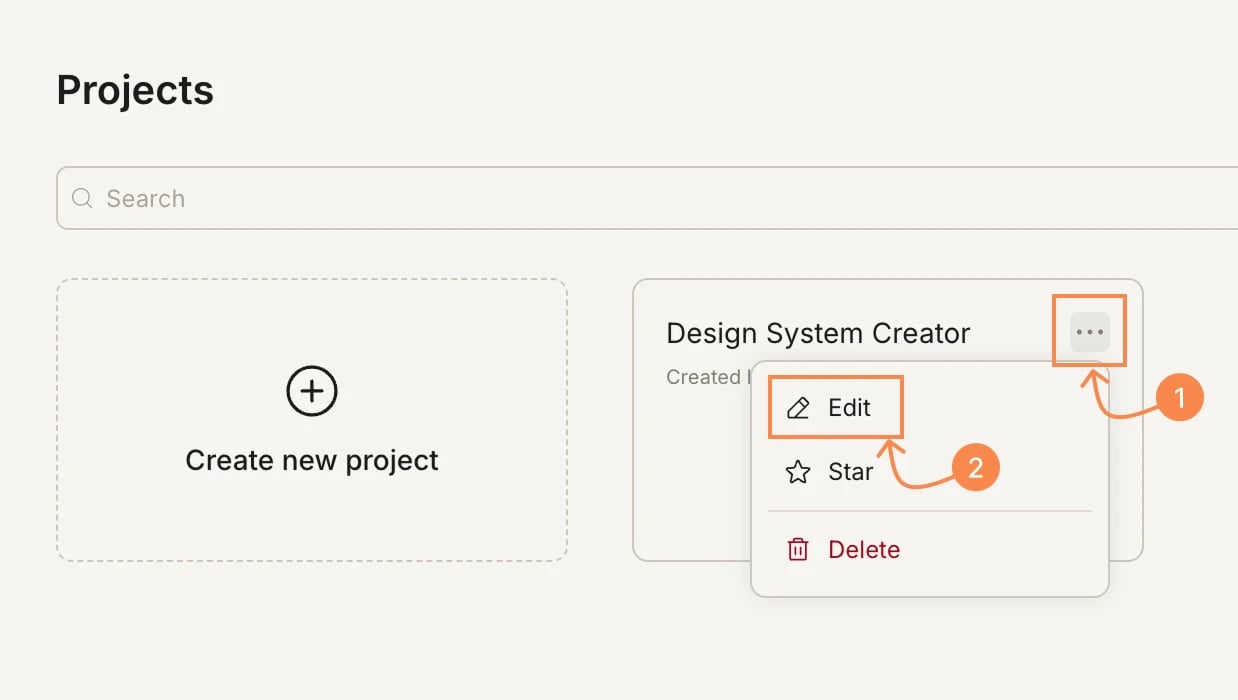
    On the **Projects** page, hover over a project card and click the **...** menu, then select **Edit**.
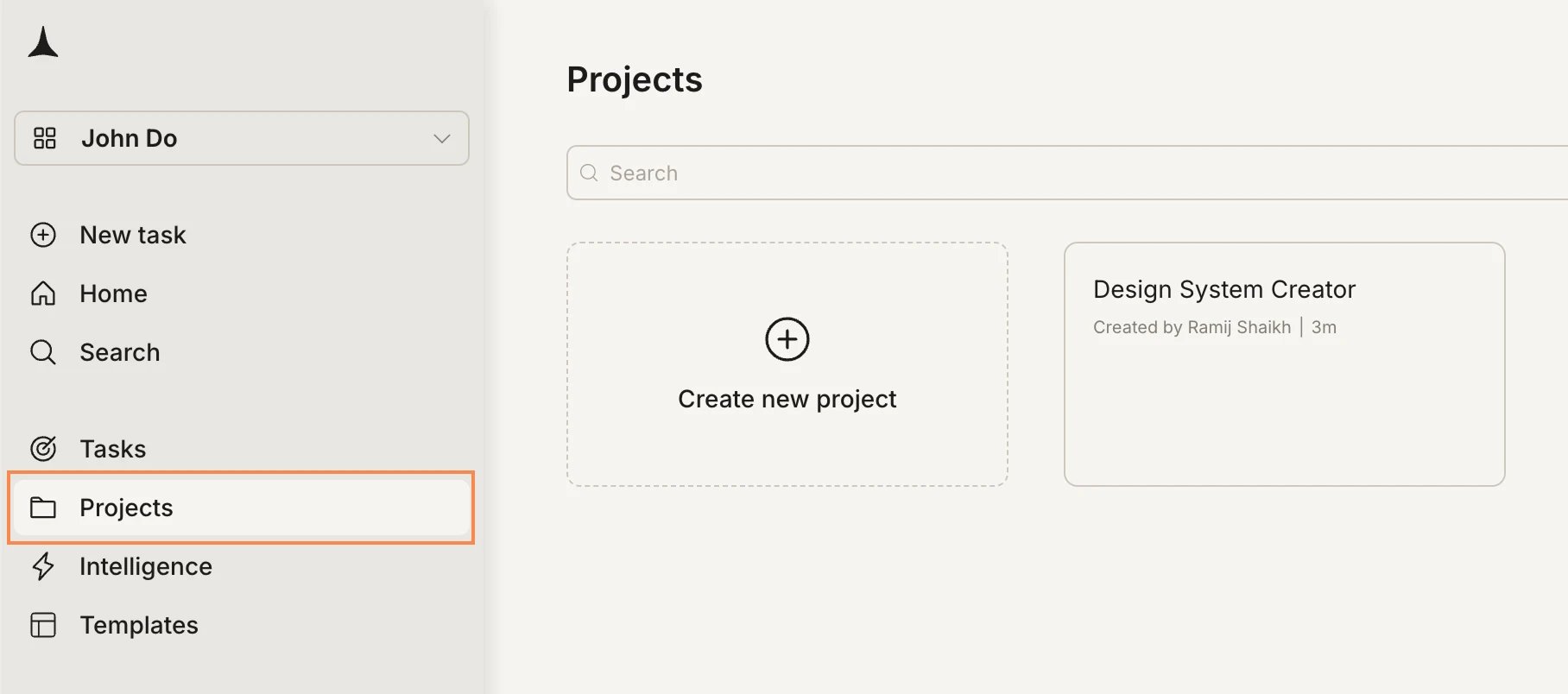
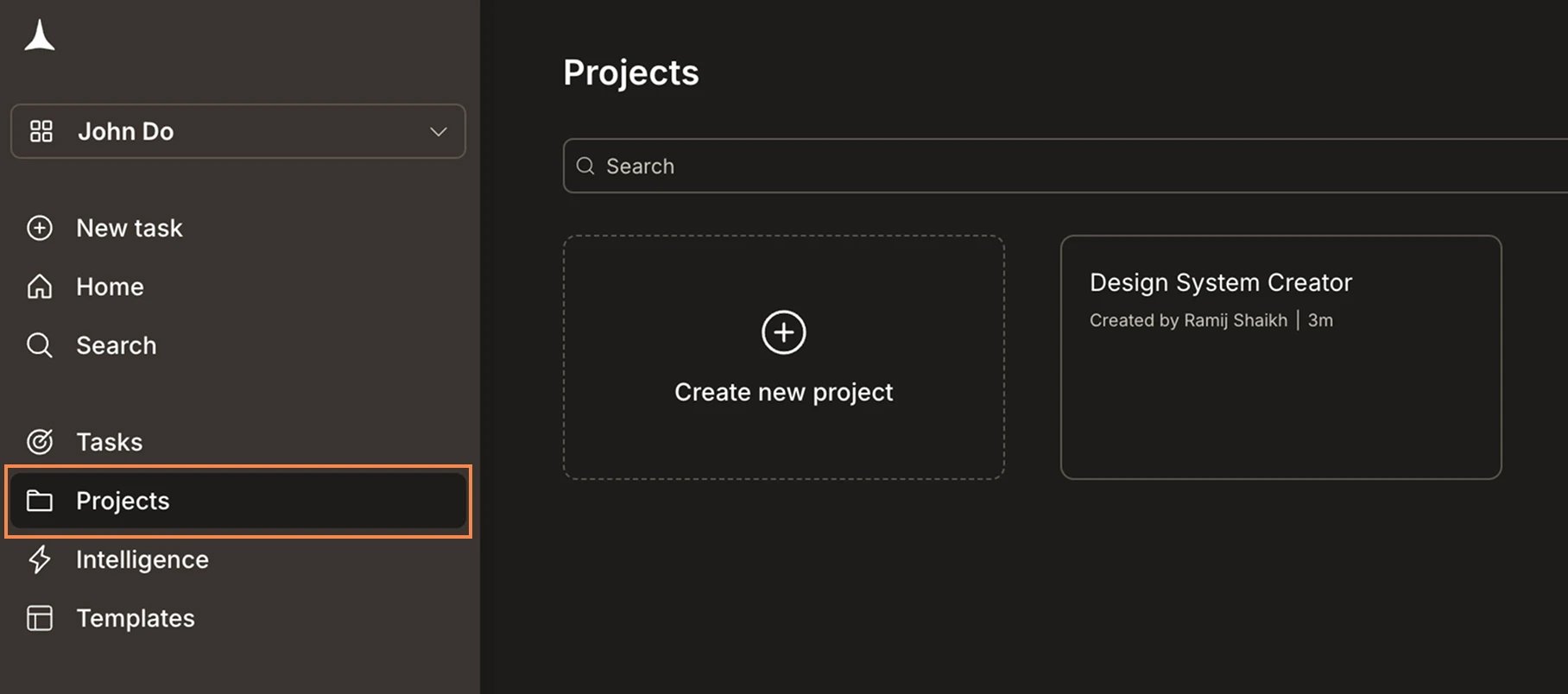
    <Frame caption="Click ... then Edit">
      <img src="https://mintcdn.com/dhiwisepvtltd-5e04e6a4/PzBM_J-yZNIHHGC0/images/getting-started/project/manage/edit-menu-light.webp?fit=max&auto=format&n=PzBM_J-yZNIHHGC0&q=85&s=be6ff0864e78554f449de148efe33376" alt="Project card with the three-dot menu open showing Edit, Star, and Delete options." className="theme-image light-image" width="1816" height="804" data-path="images/getting-started/project/manage/edit-menu-light.webp" />

      <img src="https://mintcdn.com/dhiwisepvtltd-5e04e6a4/PzBM_J-yZNIHHGC0/images/getting-started/project/manage/edit-menu-dark.webp?fit=max&auto=format&n=PzBM_J-yZNIHHGC0&q=85&s=45a9c303968ac531af931877779f9403" alt="Project card with the three-dot menu open showing Edit, Star, and Delete options." className="theme-image dark-image" width="1816" height="804" data-path="images/getting-started/project/manage/edit-menu-dark.webp" />
    </Frame>
  </Step>

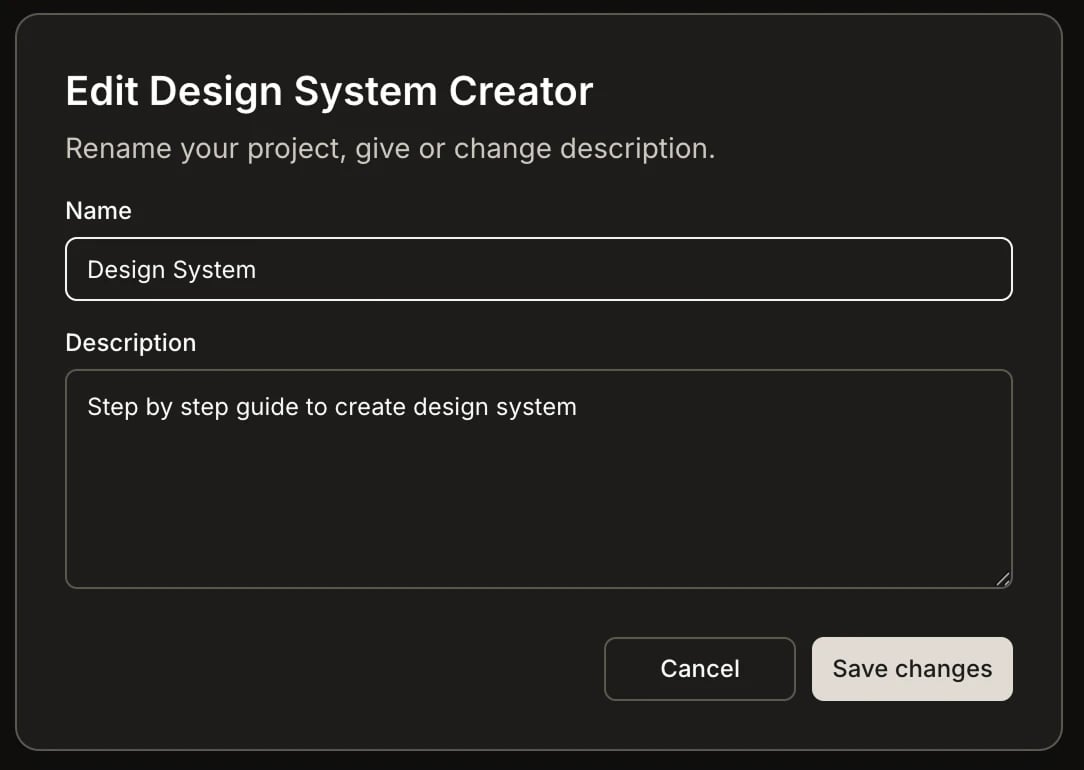
  <Step title="Update the name or description">
    The edit dialog opens with the current name and description.
    <Frame caption="Edit dialog with current project details">
      <img src="https://mintcdn.com/dhiwisepvtltd-5e04e6a4/PzBM_J-yZNIHHGC0/images/getting-started/project/manage/edit-dialog-light.webp?fit=max&auto=format&n=PzBM_J-yZNIHHGC0&q=85&s=b6fbfaaa35298da45c2411dcefb71ec4" alt="Edit project dialog with Name and Description fields showing current values." className="theme-image light-image" width="1238" height="700" data-path="images/getting-started/project/manage/edit-dialog-light.webp" />

      <img src="https://mintcdn.com/dhiwisepvtltd-5e04e6a4/PzBM_J-yZNIHHGC0/images/getting-started/project/manage/edit-dialog-dark.webp?fit=max&auto=format&n=PzBM_J-yZNIHHGC0&q=85&s=d85014d2ee303ed06439a2fb42634314" alt="Edit project dialog with Name and Description fields showing current values." className="theme-image dark-image" width="1238" height="700" data-path="images/getting-started/project/manage/edit-dialog-dark.webp" />
    </Frame>
  </Step>

  <Step title="Save your changes">
    Make your changes and click **Save changes**.
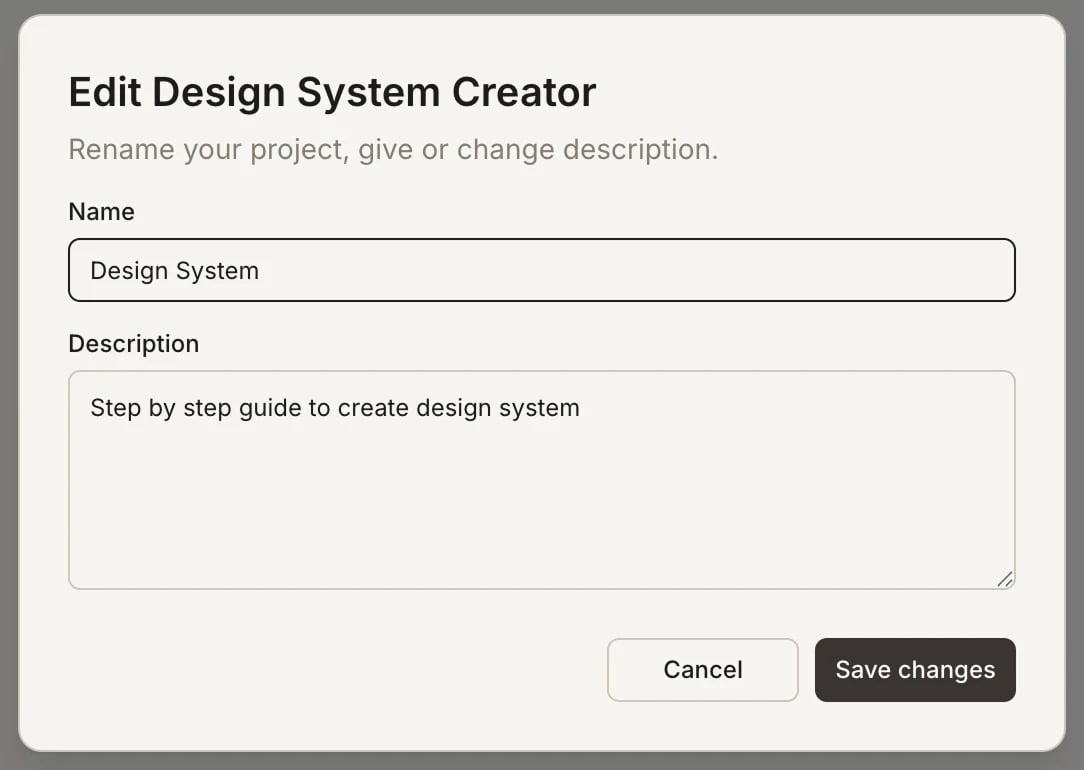
    <Frame caption="Updated name and description ready to save">
      <img src="https://mintcdn.com/dhiwisepvtltd-5e04e6a4/PzBM_J-yZNIHHGC0/images/getting-started/project/manage/edit-result-light.webp?fit=max&auto=format&n=PzBM_J-yZNIHHGC0&q=85&s=75212ce66e57223b27fb3bebd46eddd4" alt="Edit project dialog with updated name and description, Save changes button highlighted." className="theme-image light-image" width="1084" height="770" data-path="images/getting-started/project/manage/edit-result-light.webp" />

      <img src="https://mintcdn.com/dhiwisepvtltd-5e04e6a4/PzBM_J-yZNIHHGC0/images/getting-started/project/manage/edit-result-dark.webp?fit=max&auto=format&n=PzBM_J-yZNIHHGC0&q=85&s=af53c521234b25fe7276d18d7473dd59" alt="Edit project dialog with updated name and description, Save changes button highlighted." className="theme-image dark-image" width="1084" height="770" data-path="images/getting-started/project/manage/edit-result-dark.webp" />
    </Frame>
  </Step>
</Steps>

<Divider />

## Star a project

Star a project to pin it to the top of your list for quick access.

<Steps>
  <Step title="Open the project menu">
    Hover over a project card and click the **...** menu.
  </Step>

  <Step title="Select Star">
    Click **Star** to pin the project to the top of your list.
  </Step>
</Steps>

To unstar, open the same menu and select **Star** again. You can also filter your project list to show only starred projects using the filter at the top of the Projects page.

<Divider />

## Delete a project

<Warning>
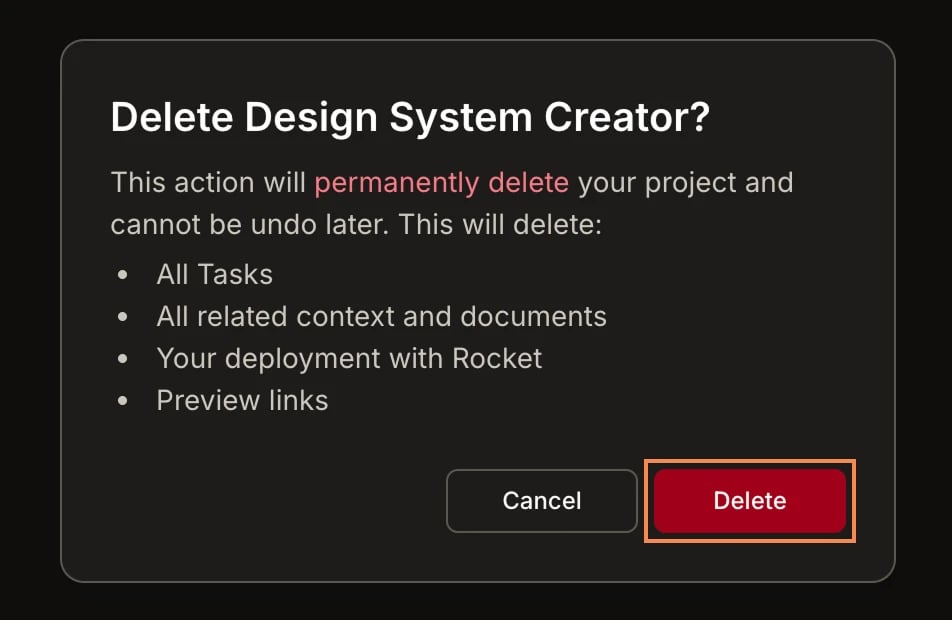
  Deleting a project is permanent. All tasks, context, documents, deployments, and preview links inside the project are deleted and cannot be recovered. Archive instead if you might need the work later.
</Warning>

<Steps>
  <Step title="Open the project menu and click Delete">
    On the **Projects** page, click the **...** menu on the project card and select **Delete**.
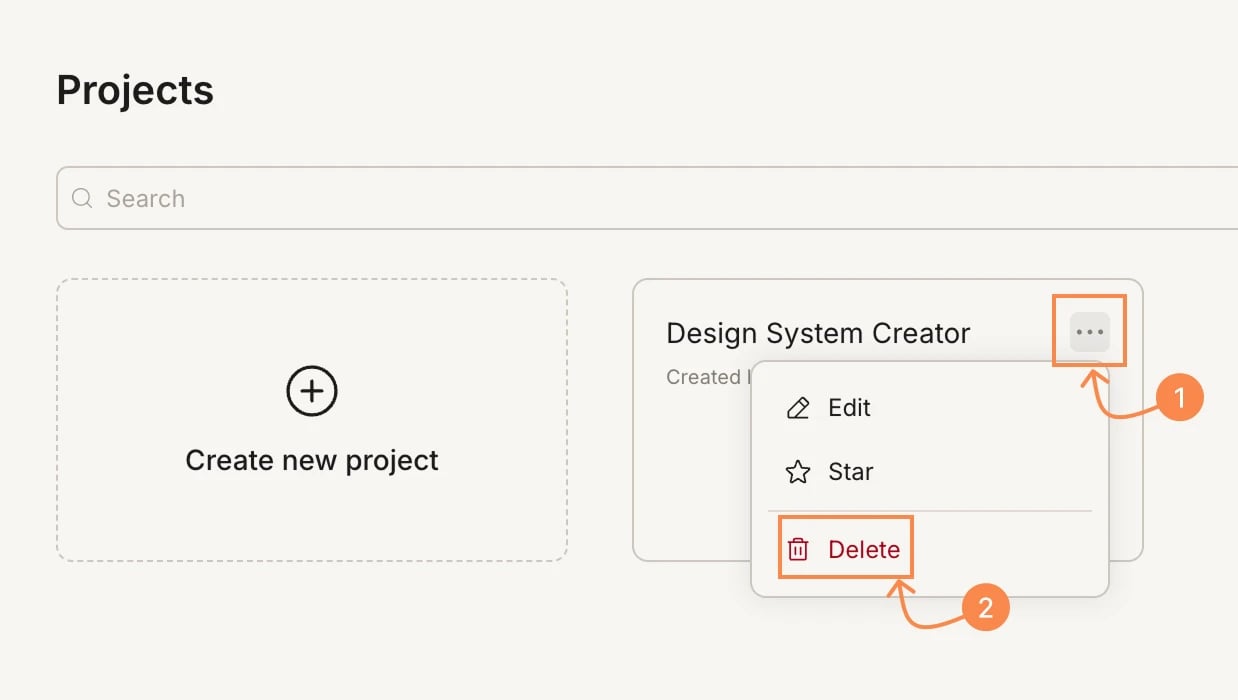
    <Frame caption="Click ... then Delete">
      <img src="https://mintcdn.com/dhiwisepvtltd-5e04e6a4/PzBM_J-yZNIHHGC0/images/getting-started/project/manage/delete-menu-light.webp?fit=max&auto=format&n=PzBM_J-yZNIHHGC0&q=85&s=2021b9805e3e4cfc39db7cbc4ba944d6" alt="Project card three-dot menu with Delete highlighted." className="theme-image light-image" width="1238" height="700" data-path="images/getting-started/project/manage/delete-menu-light.webp" />

      <img src="https://mintcdn.com/dhiwisepvtltd-5e04e6a4/PzBM_J-yZNIHHGC0/images/getting-started/project/manage/delete-menu-dark.webp?fit=max&auto=format&n=PzBM_J-yZNIHHGC0&q=85&s=c6c04734ae6c53c77700e31fd8f98270" alt="Project card three-dot menu with Delete highlighted." className="theme-image dark-image" width="1238" height="700" data-path="images/getting-started/project/manage/delete-menu-dark.webp" />
    </Frame>
  </Step>

  <Step title="Confirm deletion">
    Review what will be deleted and click **Delete** to confirm.
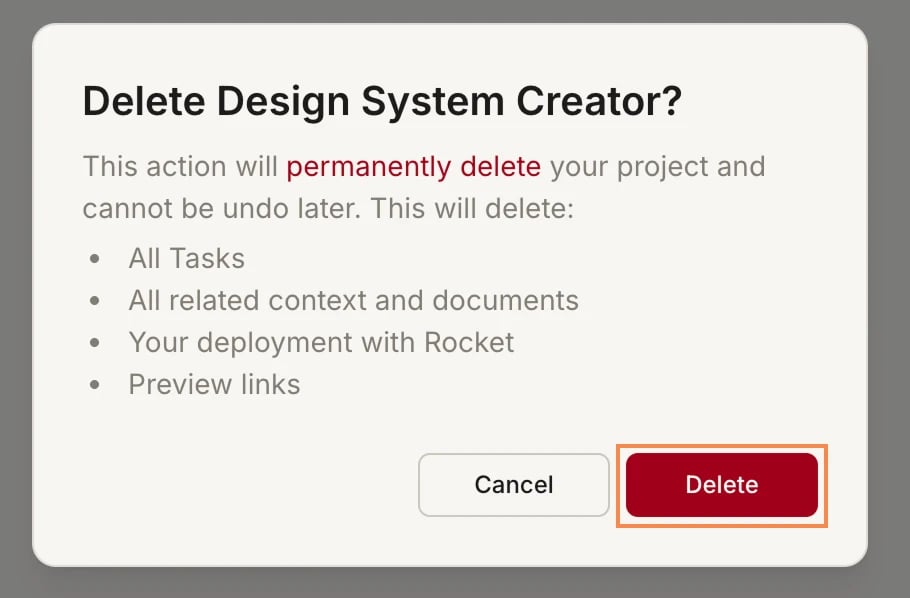
    <Frame caption="Deletion confirmation dialog">
      <img src="https://mintcdn.com/dhiwisepvtltd-5e04e6a4/PzBM_J-yZNIHHGC0/images/getting-started/project/manage/delete-confirm-light.webp?fit=max&auto=format&n=PzBM_J-yZNIHHGC0&q=85&s=c261539c1e70e54cd29a6387f26c7099" alt="Delete project confirmation dialog listing all tasks, context, documents, deployments, and preview links that will be permanently deleted." className="theme-image light-image" width="910" height="598" data-path="images/getting-started/project/manage/delete-confirm-light.webp" />

      <img src="https://mintcdn.com/dhiwisepvtltd-5e04e6a4/PzBM_J-yZNIHHGC0/images/getting-started/project/manage/delete-confirm-dark.webp?fit=max&auto=format&n=PzBM_J-yZNIHHGC0&q=85&s=c44bbada6fa82ec8fd3c6152aeb64db2" alt="Delete project confirmation dialog listing all tasks, context, documents, deployments, and preview links that will be permanently deleted." className="theme-image dark-image" width="952" height="620" data-path="images/getting-started/project/manage/delete-confirm-dark.webp" />
    </Frame>
  </Step>
</Steps>

<Divider />

## What's next?

<CardGroup cols={2}>
  <Card title="Project overview" icon="list" href="/getting-started/project/overview">
    Learn how projects organize your Solve and Build tasks.
  </Card>

  <Card title="Context" icon="layer-group" href="/getting-started/project/context/overview">
    Upload files and connect services for shared context.
  </Card>
</CardGroup>