> ## Documentation Index
> Fetch the complete documentation index at: https://docs.rocket.new/llms.txt
> Use this file to discover all available pages before exploring further.
# Attachments
> Attach files or paste URLs directly in a task to give Rocket context for that specific conversation.
export const LlmsDirective = () =>
For the complete documentation index, see llms.txt.
For a lightweight markdown version of this page, append .md to the URL.
;
Attachments let you bring your own data into a task. Attach a file or paste a URL alongside your message and Rocket reads, parses, and uses it in the response.
This works in both **Solve** and **Build** tasks. Use it when the context is specific to one conversation rather than shared across the whole project.
For context that should persist across every task in a project, use [project file uploads](/getting-started/project/context/file-uploads) instead. Task attachments are scoped to the current conversation only.
## Attach a file
Navigate to an existing task or start a new one.
Click the **+** icon **(1)** next to the message input and choose **Add files & photos** **(2)**. Select up to **5 files** from your device. Each file must be under 5 MB.
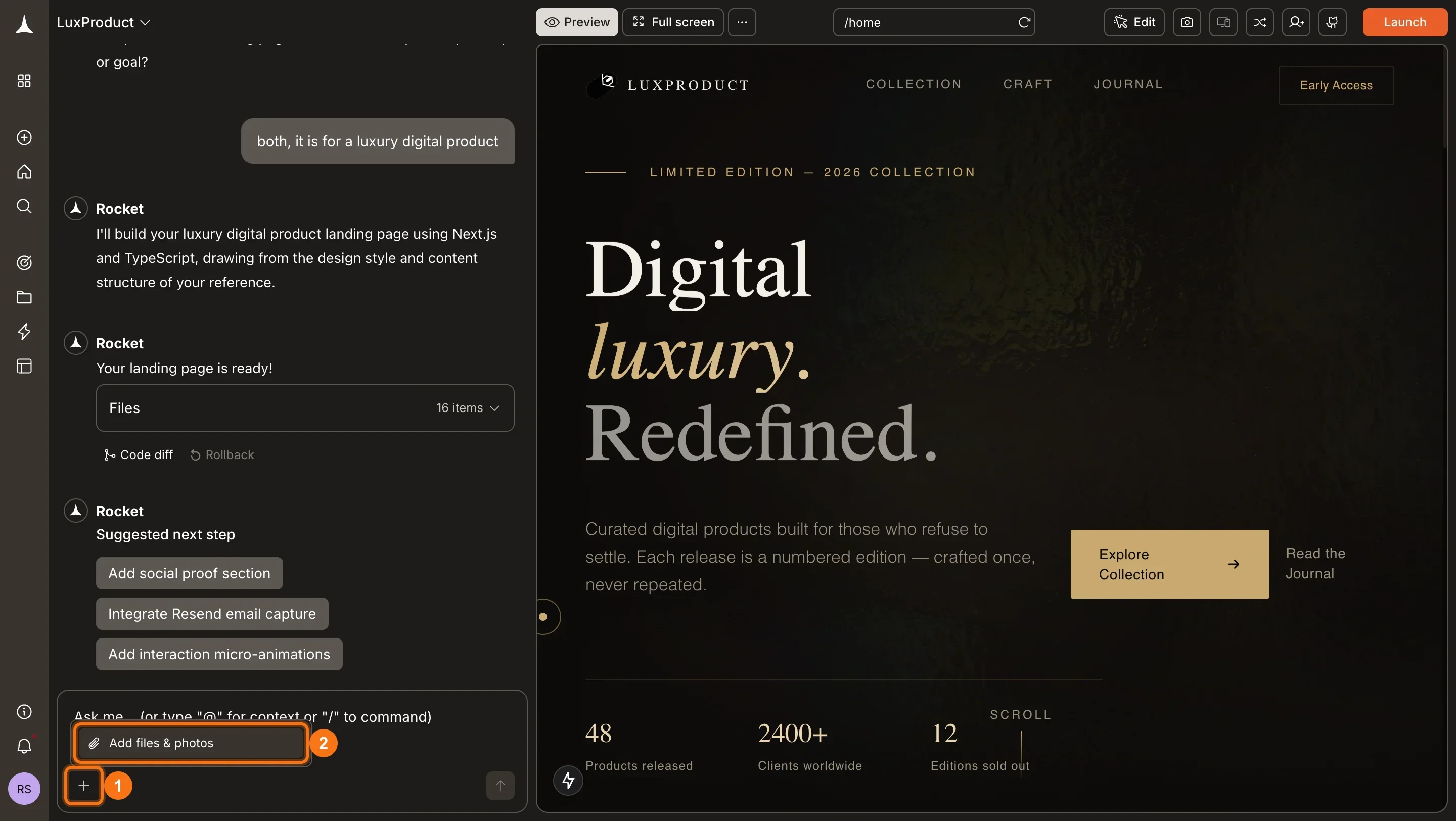
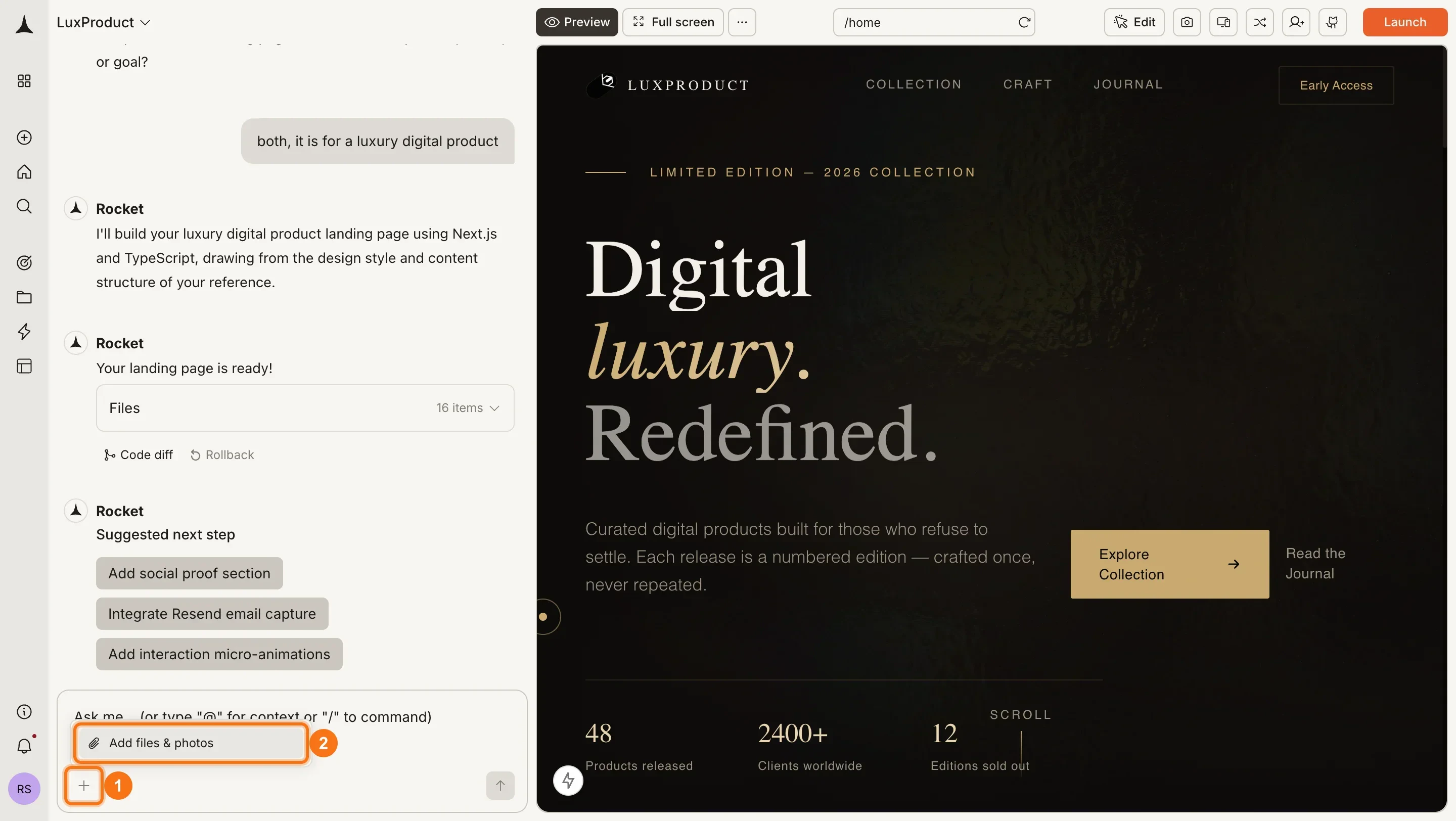 Write your question or instruction alongside the attachment. Being specific gets better results. "Using the attached financial model, estimate our runway under three growth scenarios" works better than attaching without context.
To start a new Build task from an attachment, see [Build from an attachment](/build/create/from-an-attachment).
## Import from a URL
Paste a URL directly into the message box. Rocket fetches and parses the page content automatically.
| Source | Requirement |
| :----------------- | :-------------------------------------------------------------------------------- |
| Public web pages | None |
| Notion pages | [Connect Notion](/getting-started/project/context/connected-services) first |
| Google Drive files | [Connect Google Drive](/getting-started/project/context/connected-services) first |
Private URLs only work if you have already connected that service. If the service is not connected, Rocket cannot access the content.
## Supported file types
| File type | What Rocket understands |
| :------------------------------- | :------------------------------------------------------------ |
| Markdown (`.md`) | Headings, sections, code blocks, and tables |
| PDF (`.pdf`) | Full text, structure, tables, and embedded images |
| Excel (`.xlsx`) | Multi-sheet workbooks, formulas, and cross-sheet dependencies |
| CSV (`.csv`) | Column structure, data types, and row relationships |
| Images (`.jpg`, `.jpeg`, `.png`) | Visual content, embedded text, diagrams, and UI layouts |
## How Rocket uses attachments
Rocket extracts text, structure, and data from the attached file or URL and uses it as source material for the response. For Solve tasks, attachments also reduce how often prompt intelligence needs to ask questions. If your attached pitch deck already identifies your industry, Rocket won't ask.
If a file cannot be fully read, Rocket works with what it can extract and continues with the task.
## What's next?
Upload files once at the project level so every task has access automatically.
Connect Notion and Google Drive to use their URLs in tasks.
Reference a previous task to carry its findings into the current one.
Learn how attachments help Rocket skip redundant questions.
Write your question or instruction alongside the attachment. Being specific gets better results. "Using the attached financial model, estimate our runway under three growth scenarios" works better than attaching without context.
To start a new Build task from an attachment, see [Build from an attachment](/build/create/from-an-attachment).
## Import from a URL
Paste a URL directly into the message box. Rocket fetches and parses the page content automatically.
| Source | Requirement |
| :----------------- | :-------------------------------------------------------------------------------- |
| Public web pages | None |
| Notion pages | [Connect Notion](/getting-started/project/context/connected-services) first |
| Google Drive files | [Connect Google Drive](/getting-started/project/context/connected-services) first |
Private URLs only work if you have already connected that service. If the service is not connected, Rocket cannot access the content.
## Supported file types
| File type | What Rocket understands |
| :------------------------------- | :------------------------------------------------------------ |
| Markdown (`.md`) | Headings, sections, code blocks, and tables |
| PDF (`.pdf`) | Full text, structure, tables, and embedded images |
| Excel (`.xlsx`) | Multi-sheet workbooks, formulas, and cross-sheet dependencies |
| CSV (`.csv`) | Column structure, data types, and row relationships |
| Images (`.jpg`, `.jpeg`, `.png`) | Visual content, embedded text, diagrams, and UI layouts |
## How Rocket uses attachments
Rocket extracts text, structure, and data from the attached file or URL and uses it as source material for the response. For Solve tasks, attachments also reduce how often prompt intelligence needs to ask questions. If your attached pitch deck already identifies your industry, Rocket won't ask.
If a file cannot be fully read, Rocket works with what it can extract and continues with the task.
## What's next?
Upload files once at the project level so every task has access automatically.
Connect Notion and Google Drive to use their URLs in tasks.
Reference a previous task to carry its findings into the current one.
Learn how attachments help Rocket skip redundant questions.