> ## Documentation Index
> Fetch the complete documentation index at: https://docs.rocket.new/llms.txt
> Use this file to discover all available pages before exploring further.

# Manage tasks

> Create, rename, star, move, and delete tasks in Rocket.new.

export const LlmsDirective = () => <blockquote className="llms-directive">
    For the complete documentation index, see <a href="/llms.txt">llms.txt</a>.
    For a lightweight markdown version of this page, append .md to the URL.
  </blockquote>;

<LlmsDirective />

Manage all aspects of a task from the task list or from inside the task itself. This page covers creating, renaming, starring, moving, and deleting [Solve and Build tasks](/getting-started/task/overview).

## Create a task

You can start a task from three places: the **Home** screen, the **Tasks** page, or from inside a project.

<Tabs>
  <Tab title="From Home">
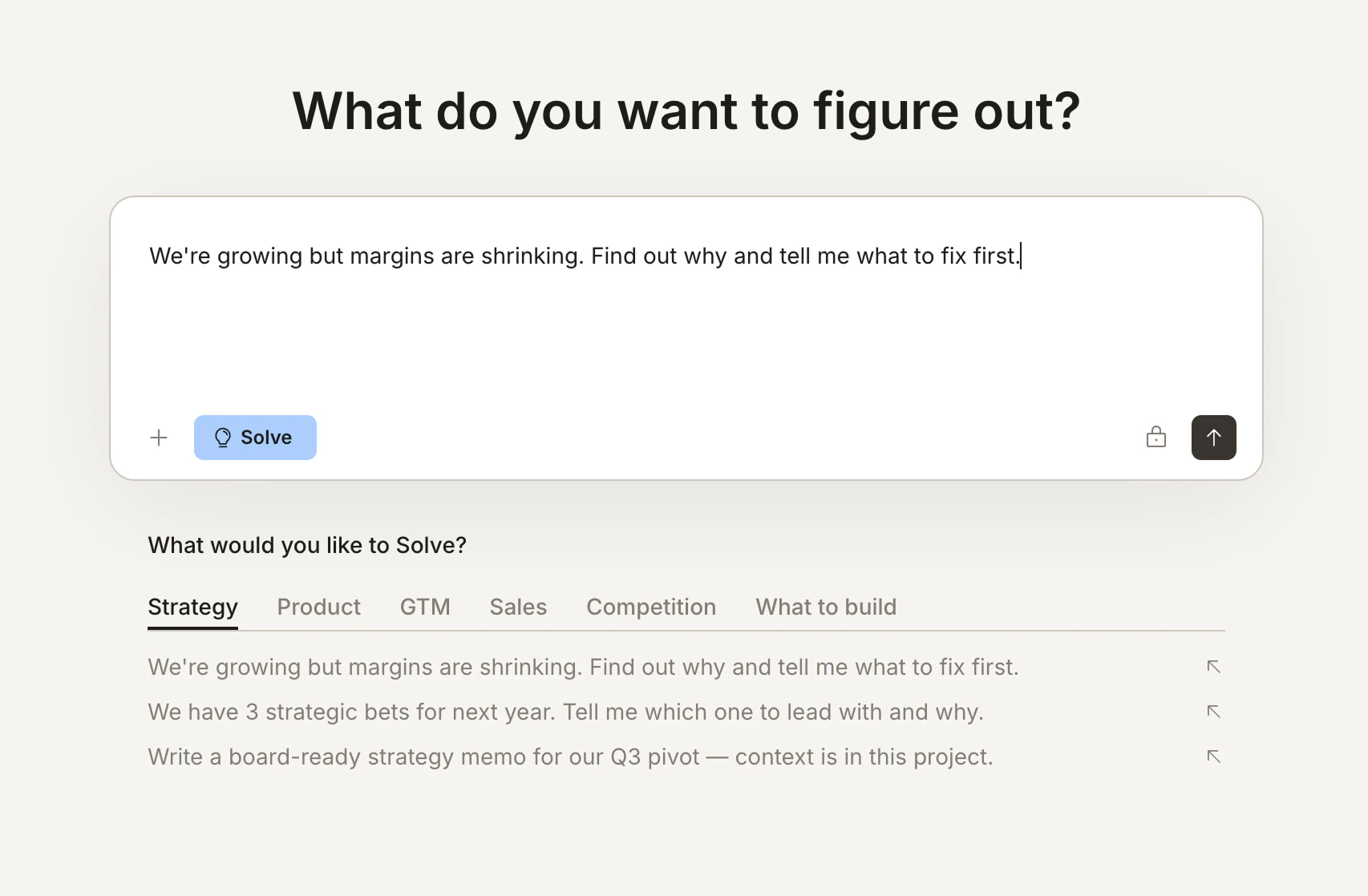
    Go to **Home**, type your prompt in the input, and press **Enter** or click the send button. Rocket detects whether this is a Solve or Build task from your description. You can also click **Solve** or **Build** in the input bar to set the type explicitly.
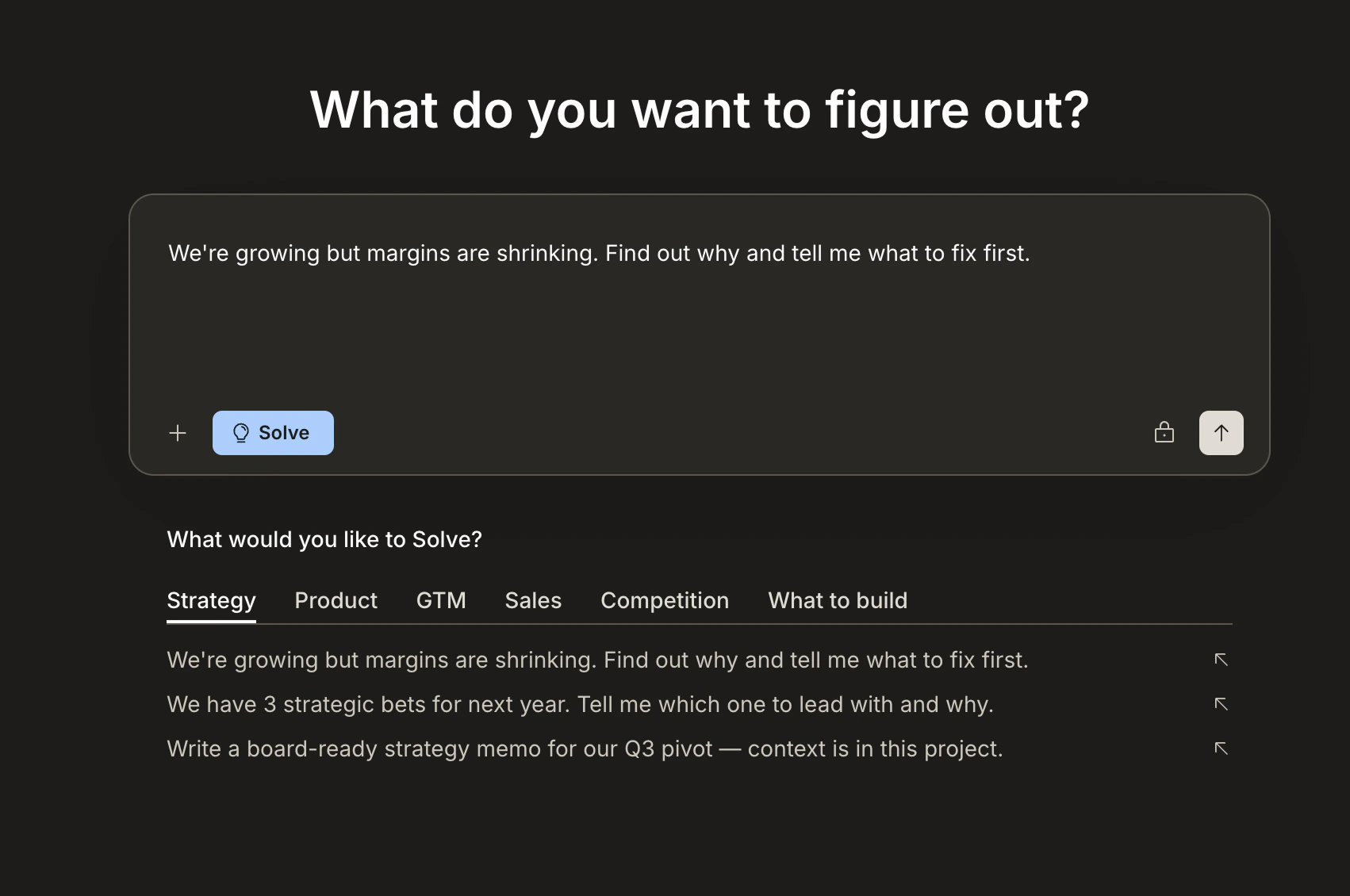
    <img src="https://mintcdn.com/dhiwisepvtltd-5e04e6a4/NNx4lZGfeKSKoC31/images/getting-started/task/manage/create-home-prompt-dark.jpg?fit=max&auto=format&n=NNx4lZGfeKSKoC31&q=85&s=e56273c82d1fbb5849d68721a3cb1636" alt="Home screen with a prompt typed in, showing the Solve button selected and task suggestions below." className="theme-image dark-image" width="1702" height="1130" data-path="images/getting-started/task/manage/create-home-prompt-dark.jpg" />

    <img src="https://mintcdn.com/dhiwisepvtltd-5e04e6a4/NNx4lZGfeKSKoC31/images/getting-started/task/manage/create-home-prompt-light.jpg?fit=max&auto=format&n=NNx4lZGfeKSKoC31&q=85&s=625850f423243dc9fd584d3d391b0ef8" alt="Home screen with a prompt typed in, showing the Solve button selected and task suggestions below." className="theme-image light-image" width="1706" height="1118" data-path="images/getting-started/task/manage/create-home-prompt-light.jpg" />
  </Tab>

  <Tab title="From the Tasks page">
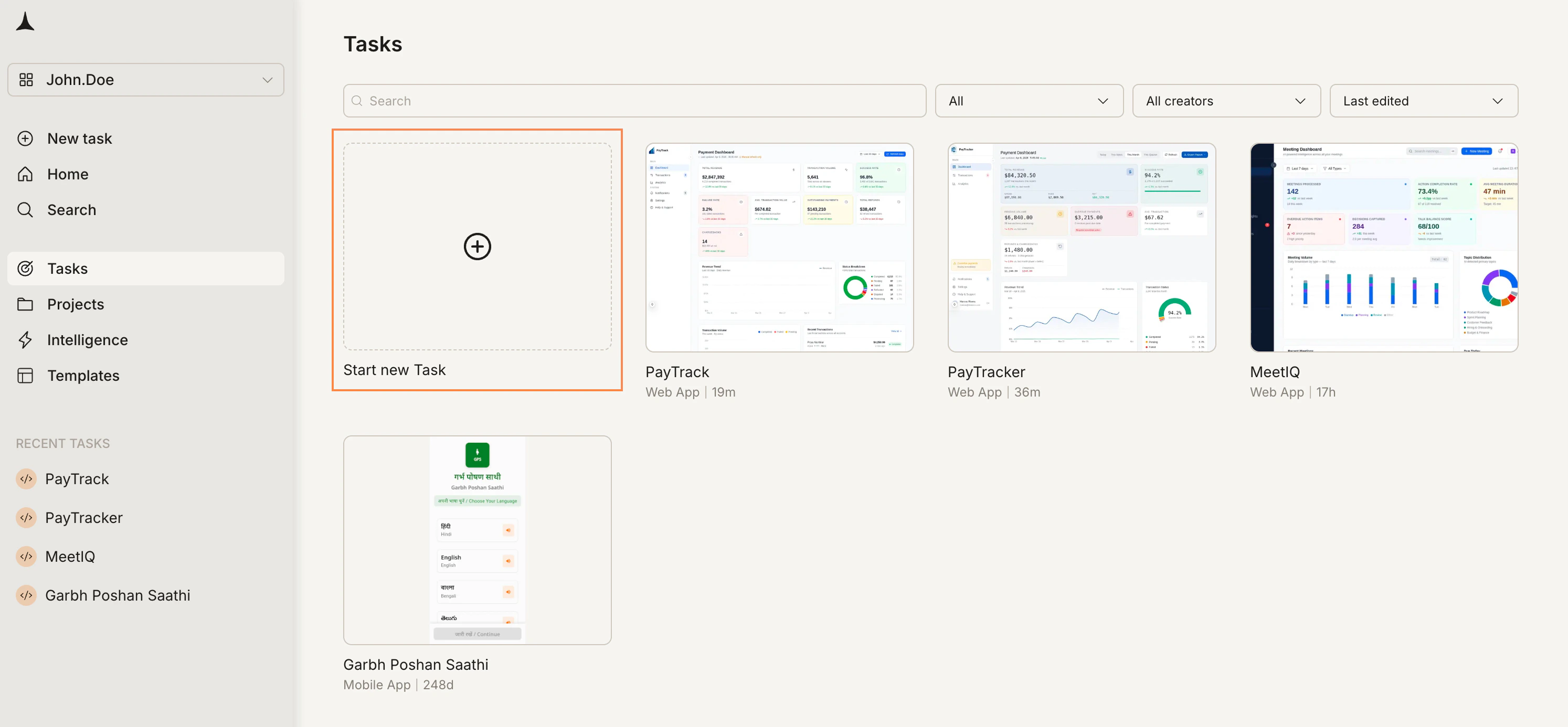
    Go to **Tasks** in the sidebar and click the **Start new Task** card. This takes you to the Home screen input to describe your task.
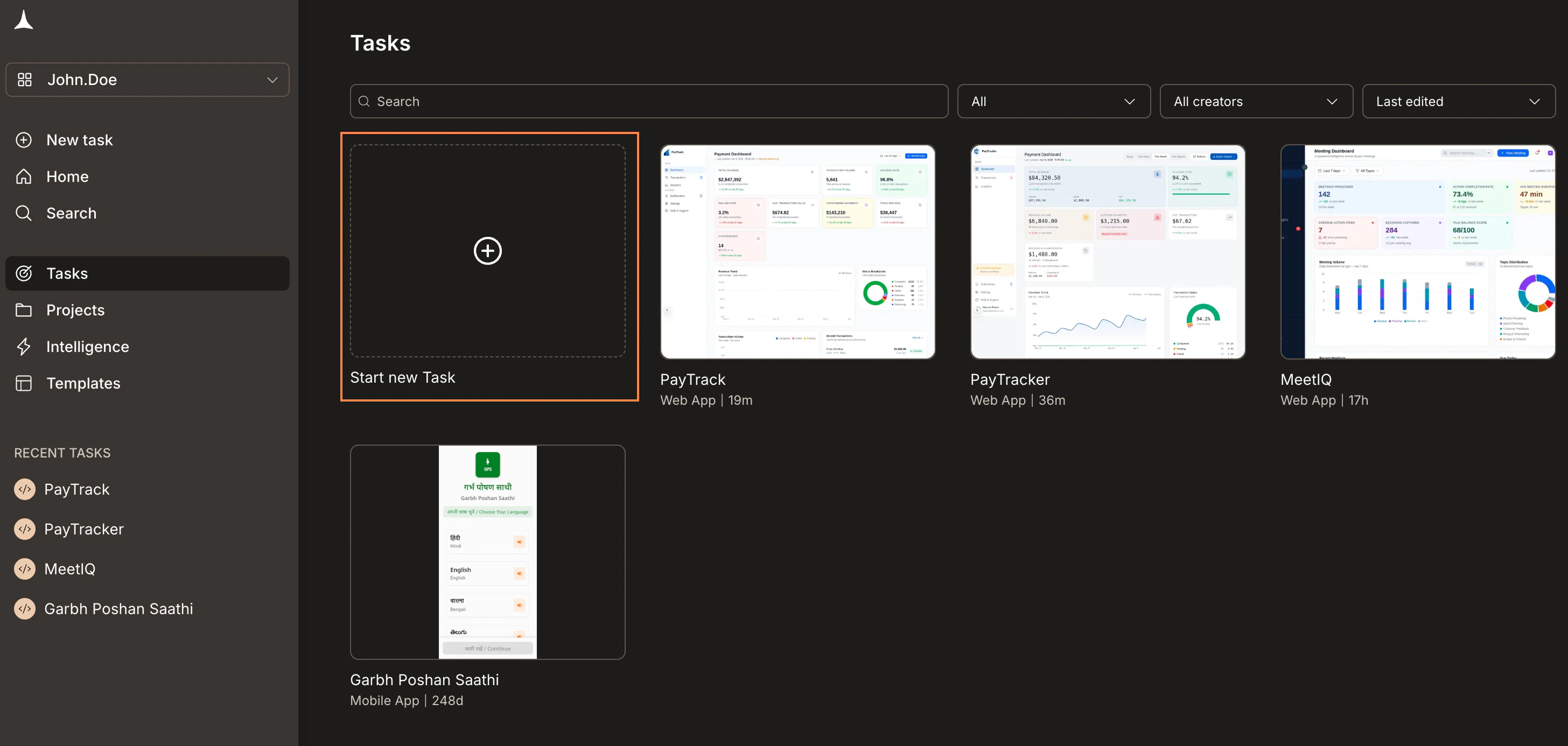
    <img src="https://mintcdn.com/dhiwisepvtltd-5e04e6a4/NNx4lZGfeKSKoC31/images/getting-started/task/manage/create-tasks-page-dark.jpg?fit=max&auto=format&n=NNx4lZGfeKSKoC31&q=85&s=1d77ca51fec3ba97e000002dc6478e1b" alt="Tasks page with Start new Task card highlighted." className="theme-image dark-image" width="2912" height="1386" data-path="images/getting-started/task/manage/create-tasks-page-dark.jpg" />

    <img src="https://mintcdn.com/dhiwisepvtltd-5e04e6a4/NNx4lZGfeKSKoC31/images/getting-started/task/manage/create-tasks-page-light.jpg?fit=max&auto=format&n=NNx4lZGfeKSKoC31&q=85&s=61c68c5c442aa10b237bc0c1e37303d1" alt="Tasks page with Start new Task card highlighted." className="theme-image light-image" width="2988" height="1386" data-path="images/getting-started/task/manage/create-tasks-page-light.jpg" />
  </Tab>

  <Tab title="Inside a project">
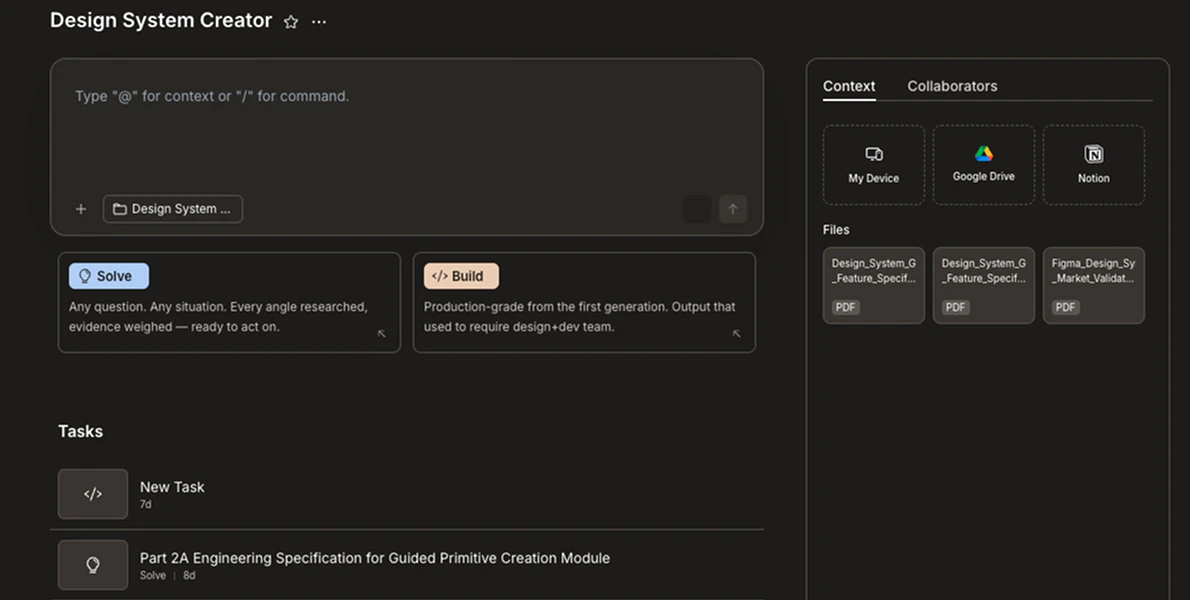
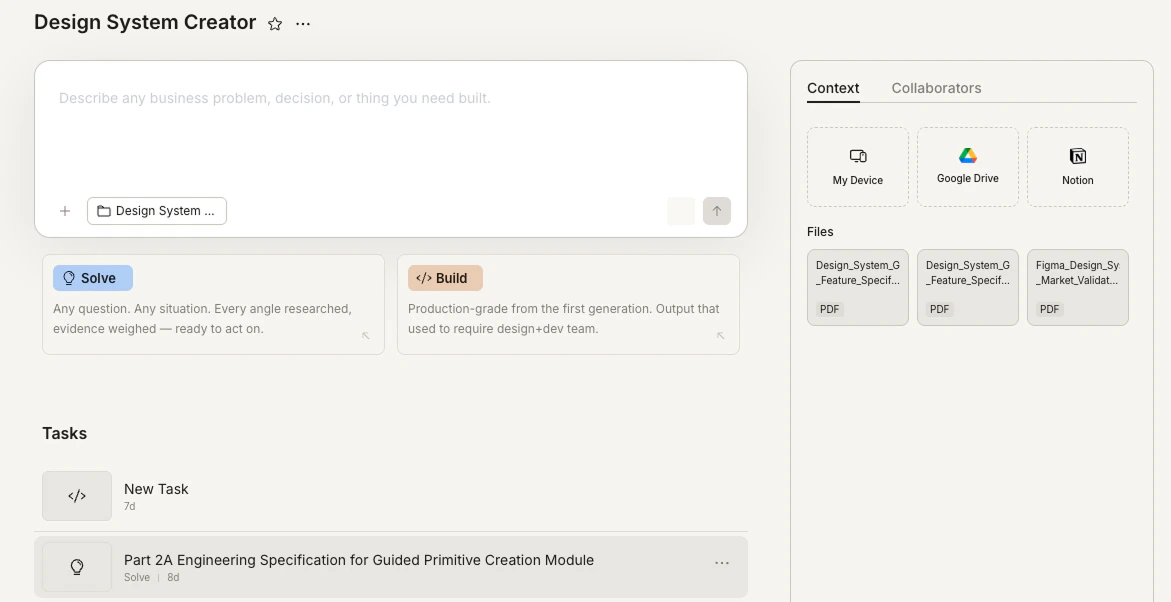
    Go to **Projects**, open a project, and type your prompt in the project's input. The task is automatically scoped to that project and benefits from its shared context.
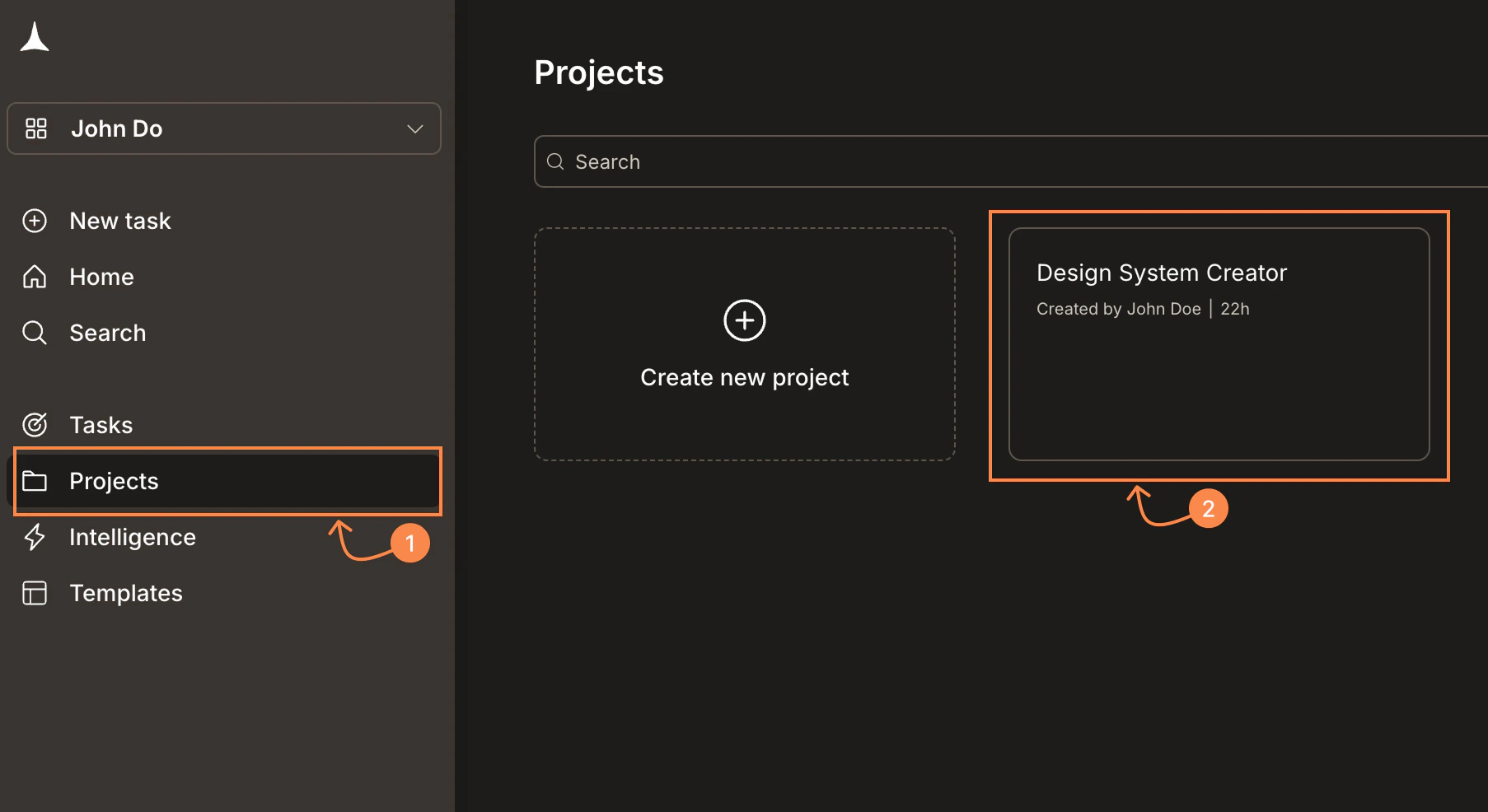
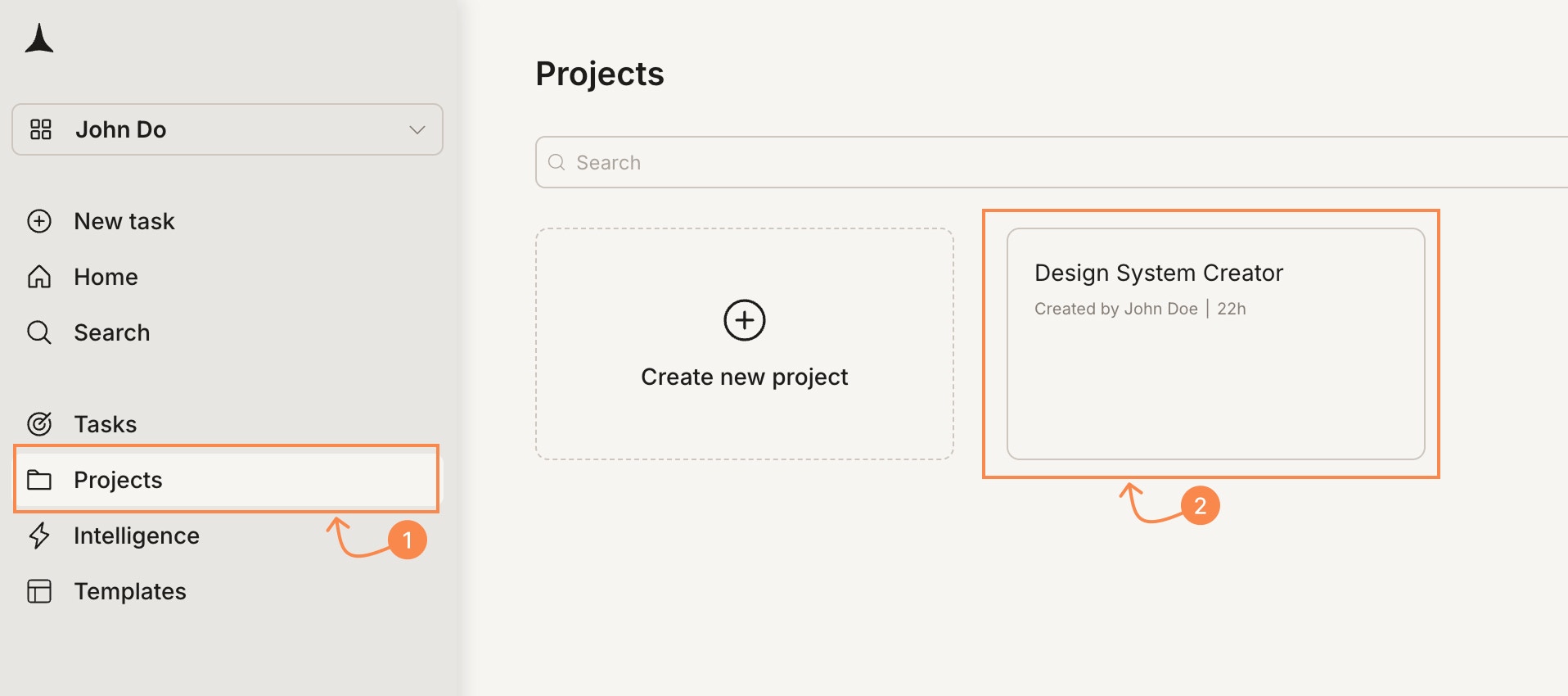
    <img src="https://mintcdn.com/dhiwisepvtltd-5e04e6a4/NNx4lZGfeKSKoC31/images/getting-started/task/manage/create-project-select-dark.jpg?fit=max&auto=format&n=NNx4lZGfeKSKoC31&q=85&s=7c695e222506f7ffc42242f217627cf5" alt="Projects page with a project card highlighted." className="theme-image dark-image" width="1806" height="986" data-path="images/getting-started/task/manage/create-project-select-dark.jpg" />

    <img src="https://mintcdn.com/dhiwisepvtltd-5e04e6a4/NNx4lZGfeKSKoC31/images/getting-started/task/manage/create-project-select-light.jpg?fit=max&auto=format&n=NNx4lZGfeKSKoC31&q=85&s=0dac721f9dc82cfee2c882df5349170b" alt="Projects page with a project card highlighted." className="theme-image light-image" width="1916" height="850" data-path="images/getting-started/task/manage/create-project-select-light.jpg" />

    <img src="https://mintcdn.com/dhiwisepvtltd-5e04e6a4/NNx4lZGfeKSKoC31/images/getting-started/task/manage/create-project-input-dark.jpg?fit=max&auto=format&n=NNx4lZGfeKSKoC31&q=85&s=413c053d3929da46e58139b2dad2771f" alt="Project view showing the input with Solve and Build cards, and existing tasks listed below." className="theme-image dark-image" width="1190" height="600" data-path="images/getting-started/task/manage/create-project-input-dark.jpg" />

    <img src="https://mintcdn.com/dhiwisepvtltd-5e04e6a4/NNx4lZGfeKSKoC31/images/getting-started/task/manage/create-project-input-light.jpg?fit=max&auto=format&n=NNx4lZGfeKSKoC31&q=85&s=4ac41ceac9152ad997003b0369ecfc63" alt="Project view showing the input with Solve and Build cards, and existing tasks listed below." className="theme-image light-image" width="1171" height="602" data-path="images/getting-started/task/manage/create-project-input-light.jpg" />

    <Note>
      Intelligence is a workspace-level setup, not a project task. Run the Intelligence setup wizard once from **New task > Intelligence**. Competitors are managed from the **Intelligence** panel in your sidebar.
    </Note>
  </Tab>
</Tabs>

## Task menu

Many task actions (rename, star, add to project, and delete) are available from the same **`...` menu**. You can open this menu from two places:

* **Tasks page or sidebar:** hover over a task and click the **`...`** that appears
* **Inside the task:** click the task name in the top-left to open the task dropdown, then select **Settings**, **Star**, or **Add to Project**

The sections below show both entry points for each action.

## Rename a task

<Tabs>
  <Tab title="From the task list or sidebar">
    Hover over the task in the **Tasks** page or in the **Recent Tasks** sidebar, click the **`...`** menu, and select **Rename**.
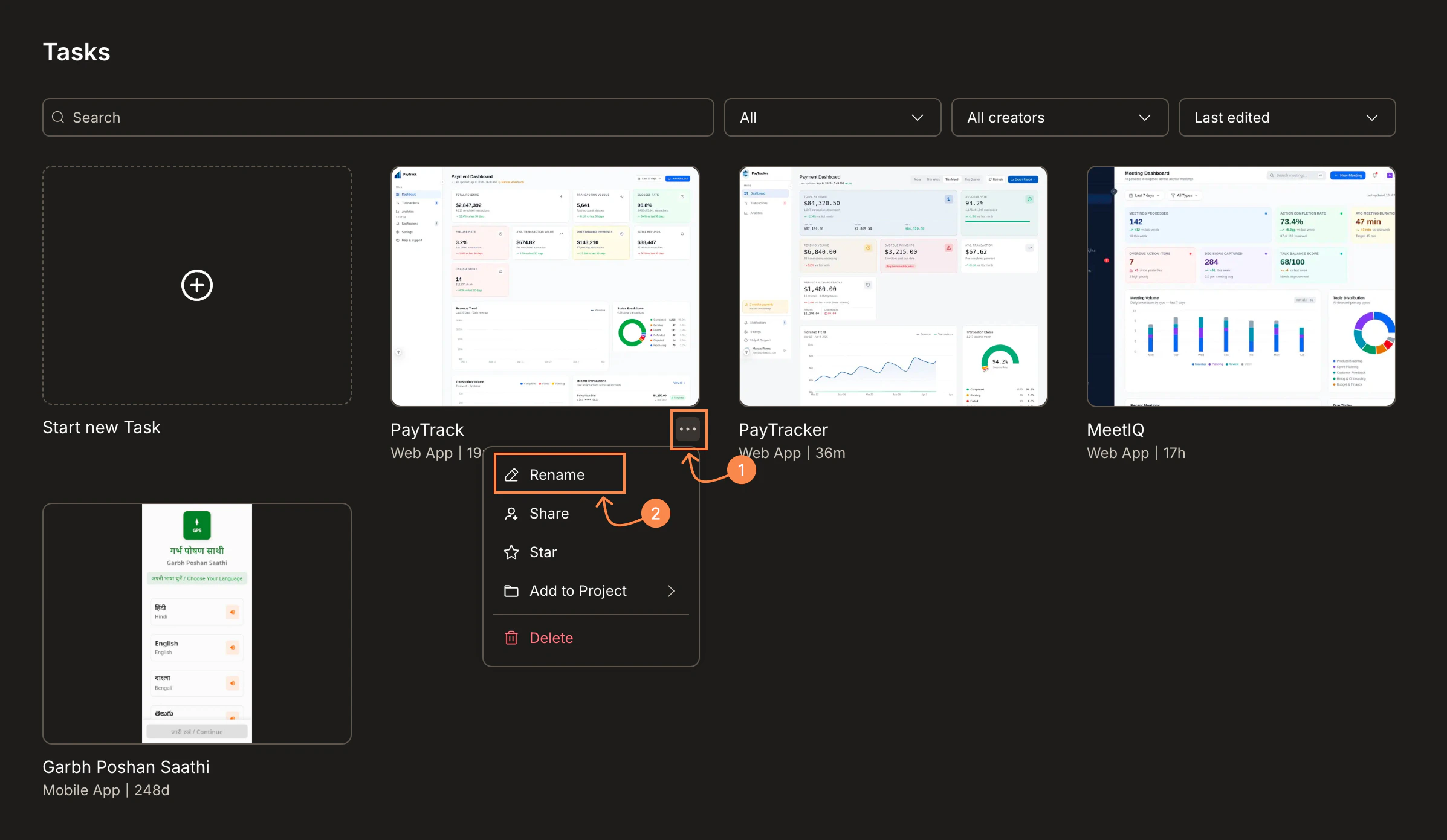
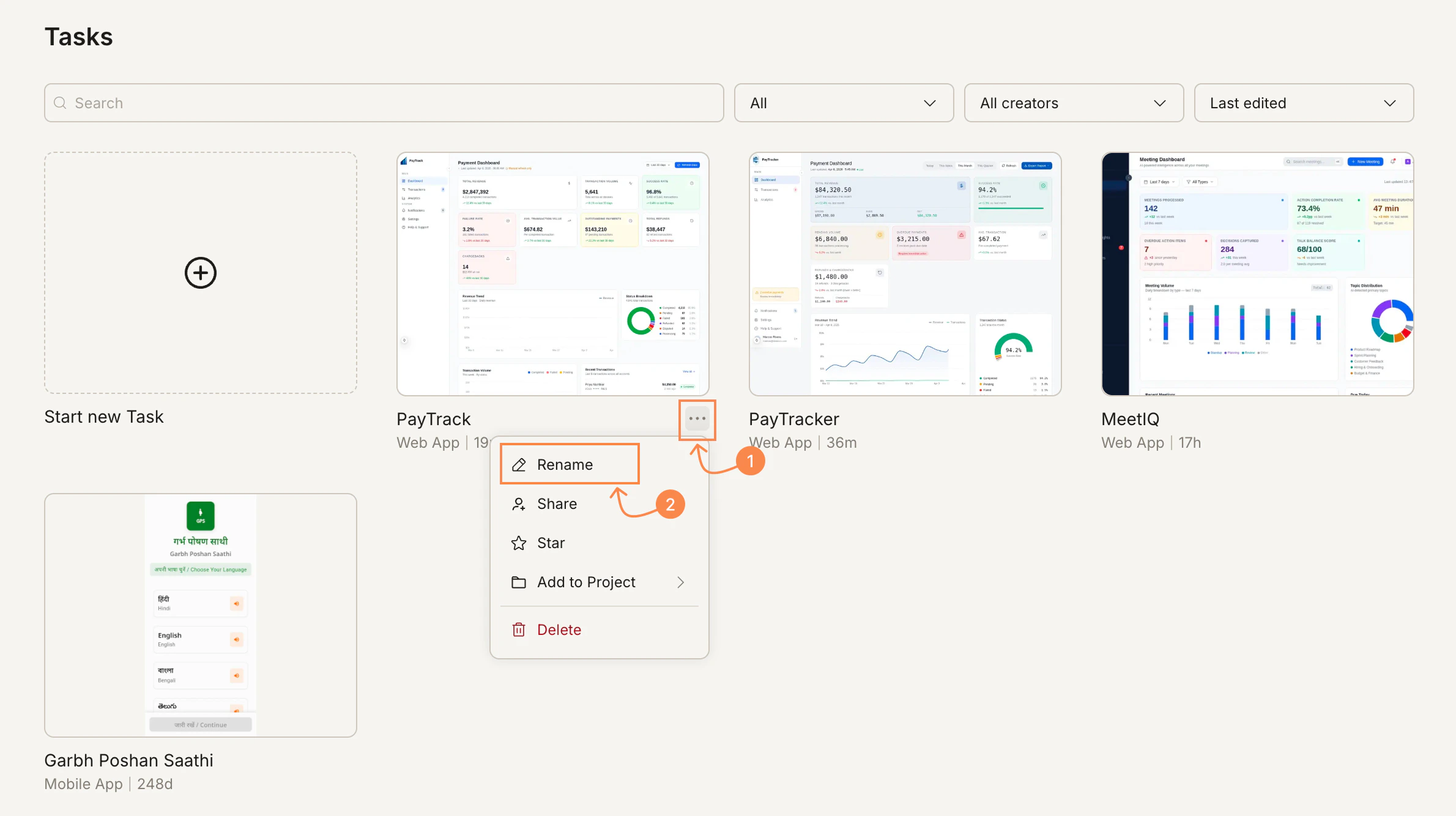
    <img src="https://mintcdn.com/dhiwisepvtltd-5e04e6a4/NNx4lZGfeKSKoC31/images/getting-started/task/manage/rename-menu-dark.jpg?fit=max&auto=format&n=NNx4lZGfeKSKoC31&q=85&s=596421a5f9e56034723b34339ffbdc85" alt="Tasks page with the ... menu open on a task, showing Rename highlighted." className="theme-image dark-image" width="2394" height="1390" data-path="images/getting-started/task/manage/rename-menu-dark.jpg" />

    <img src="https://mintcdn.com/dhiwisepvtltd-5e04e6a4/NNx4lZGfeKSKoC31/images/getting-started/task/manage/rename-menu-light.jpg?fit=max&auto=format&n=NNx4lZGfeKSKoC31&q=85&s=7c148982ebb76460f19630f21c04cc56" alt="Tasks page with the ... menu open on a task, showing Rename highlighted." className="theme-image light-image" width="2380" height="1334" data-path="images/getting-started/task/manage/rename-menu-light.jpg" />

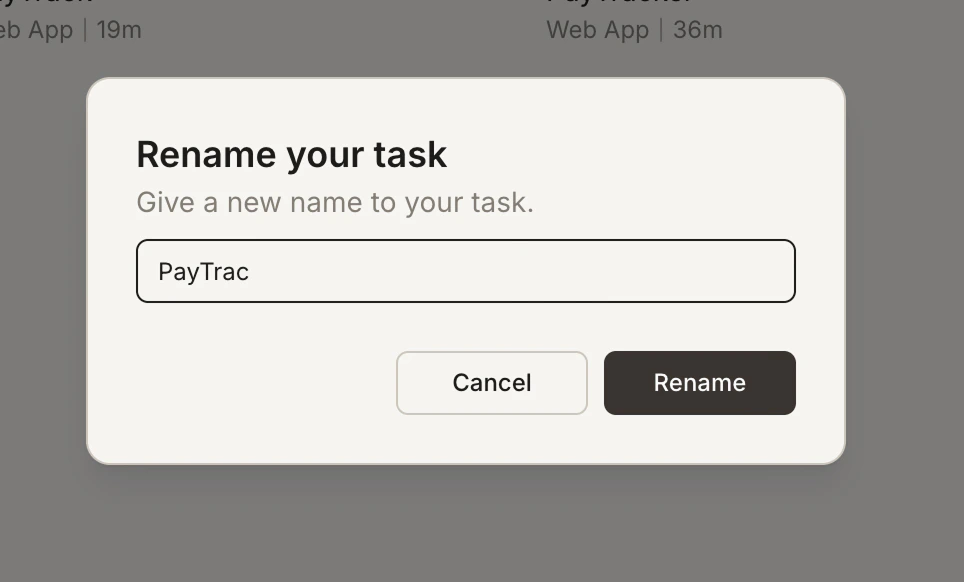
    A **Rename your task** popup appears. Type the new name and click **Rename**.
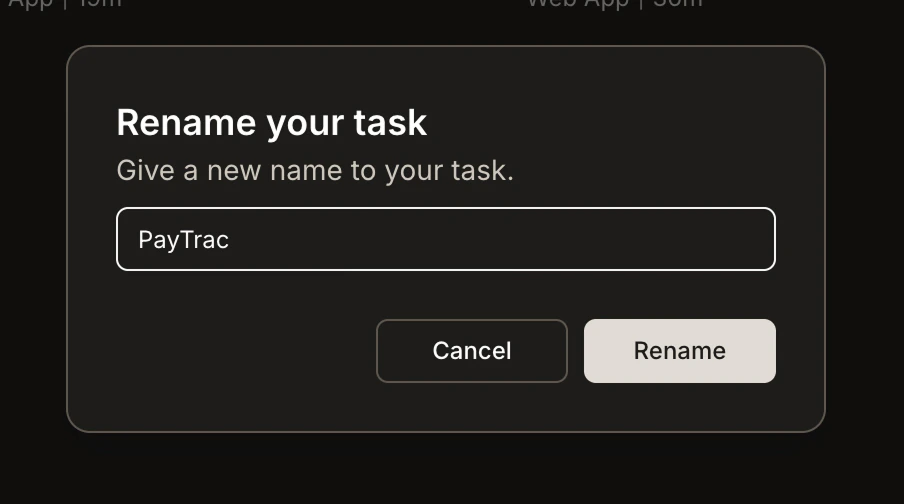
    <img src="https://mintcdn.com/dhiwisepvtltd-5e04e6a4/NNx4lZGfeKSKoC31/images/getting-started/task/manage/rename-popup-dark.jpg?fit=max&auto=format&n=NNx4lZGfeKSKoC31&q=85&s=b791e110aa299c5b6b9c5922dc022490" alt="Rename your task popup with a text field pre-filled with the current task name." className="theme-image dark-image" width="904" height="504" data-path="images/getting-started/task/manage/rename-popup-dark.jpg" />

    <img src="https://mintcdn.com/dhiwisepvtltd-5e04e6a4/NNx4lZGfeKSKoC31/images/getting-started/task/manage/rename-popup-light.jpg?fit=max&auto=format&n=NNx4lZGfeKSKoC31&q=85&s=6a603a74c13df1127503f3e1236925d5" alt="Rename your task popup with a text field pre-filled with the current task name." className="theme-image light-image" width="964" height="582" data-path="images/getting-started/task/manage/rename-popup-light.jpg" />
  </Tab>

  <Tab title="From inside the task">
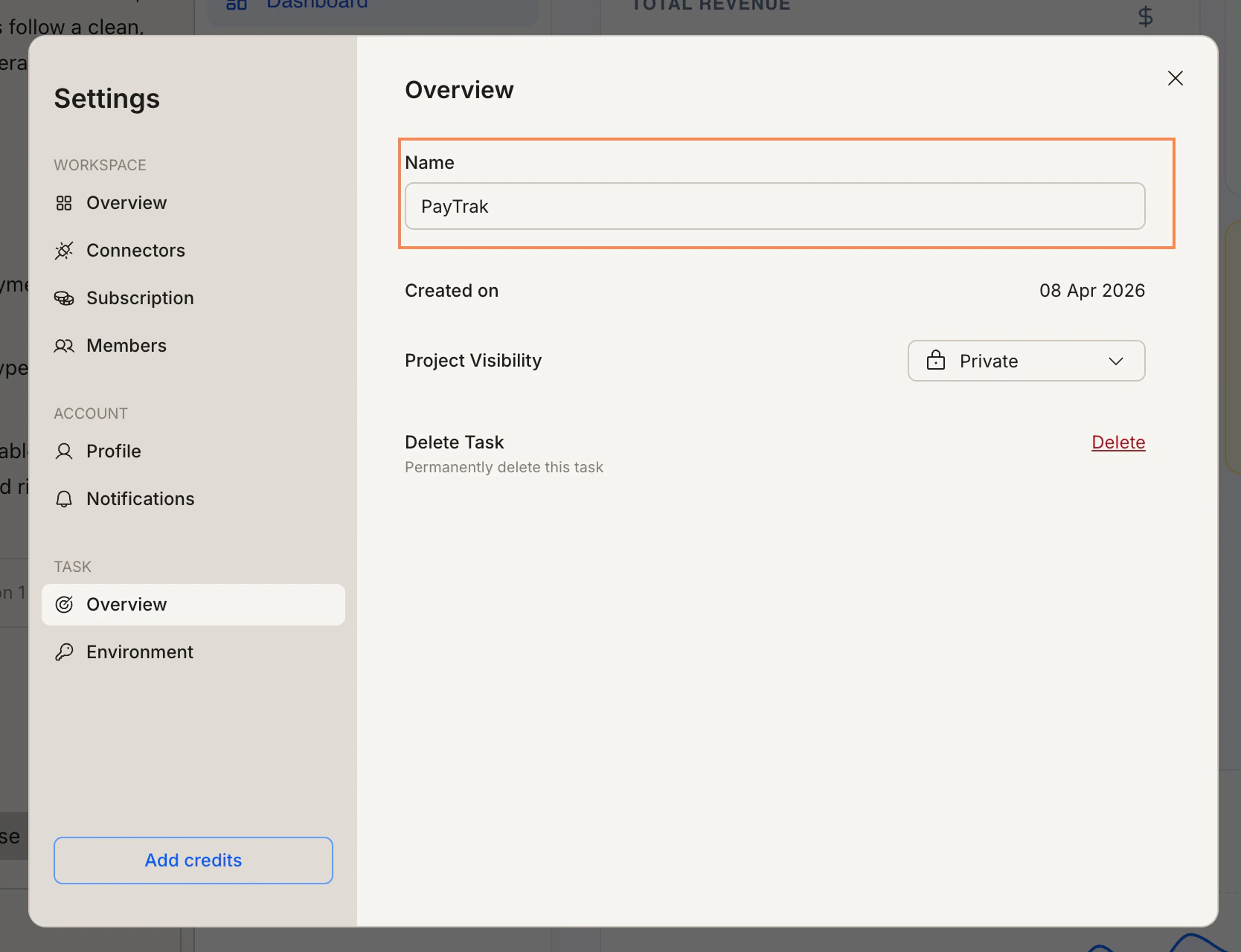
    Click the task name at the top-left of the task view to open the dropdown, then select **Settings**.
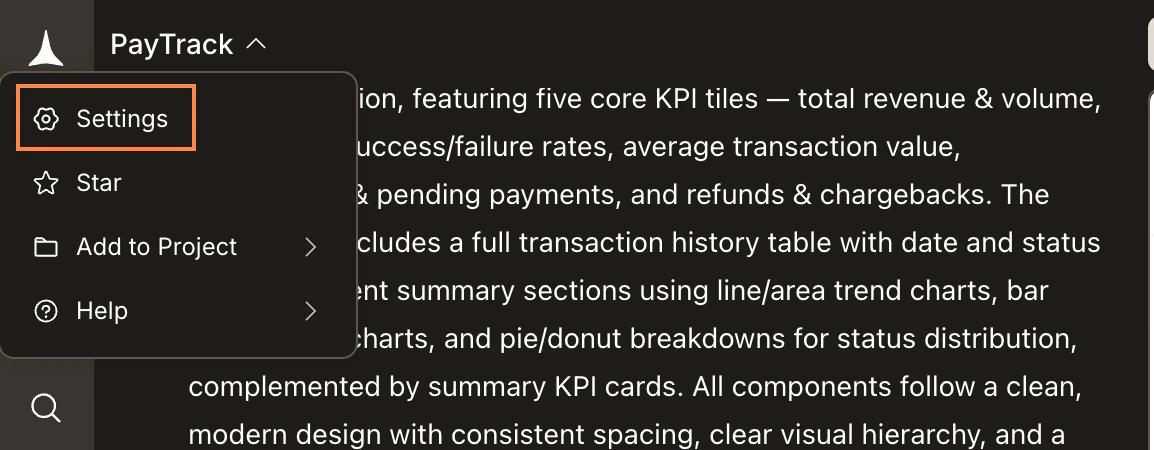
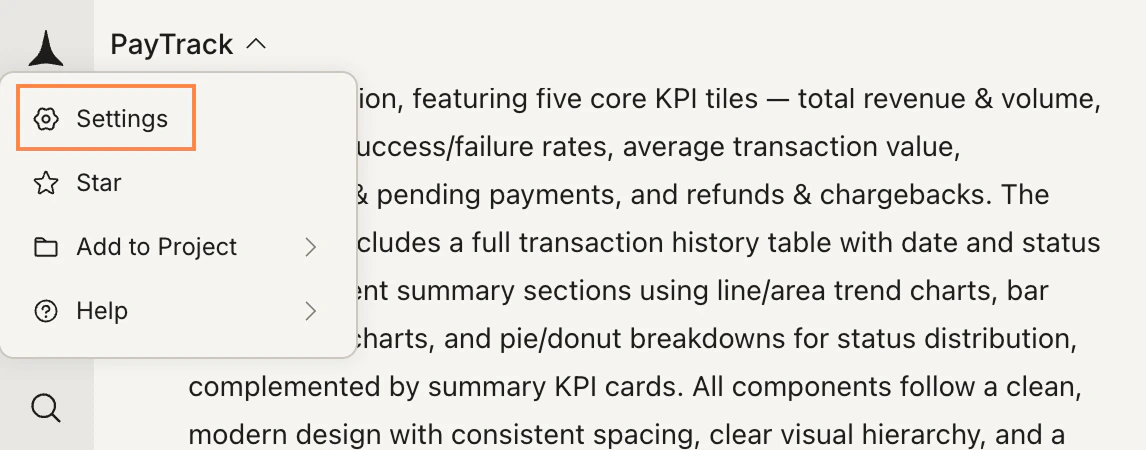
    <img src="https://mintcdn.com/dhiwisepvtltd-5e04e6a4/NNx4lZGfeKSKoC31/images/getting-started/task/manage/rename-settings-dropdown-dark.jpg?fit=max&auto=format&n=NNx4lZGfeKSKoC31&q=85&s=09c7d17b4126533160ebd713e13eeaf3" alt="Task view with the task name dropdown open, showing Settings highlighted." className="theme-image dark-image" width="1154" height="450" data-path="images/getting-started/task/manage/rename-settings-dropdown-dark.jpg" />

    <img src="https://mintcdn.com/dhiwisepvtltd-5e04e6a4/NNx4lZGfeKSKoC31/images/getting-started/task/manage/rename-settings-dropdown-light.jpg?fit=max&auto=format&n=NNx4lZGfeKSKoC31&q=85&s=e9d499487a1000ff7995298305aa9222" alt="Task view with the task name dropdown open, showing Settings highlighted." className="theme-image light-image" width="1146" height="450" data-path="images/getting-started/task/manage/rename-settings-dropdown-light.jpg" />

    In the **Settings** panel, click into the **Name** field, type the new name, and press **Enter** or click outside the field to save.
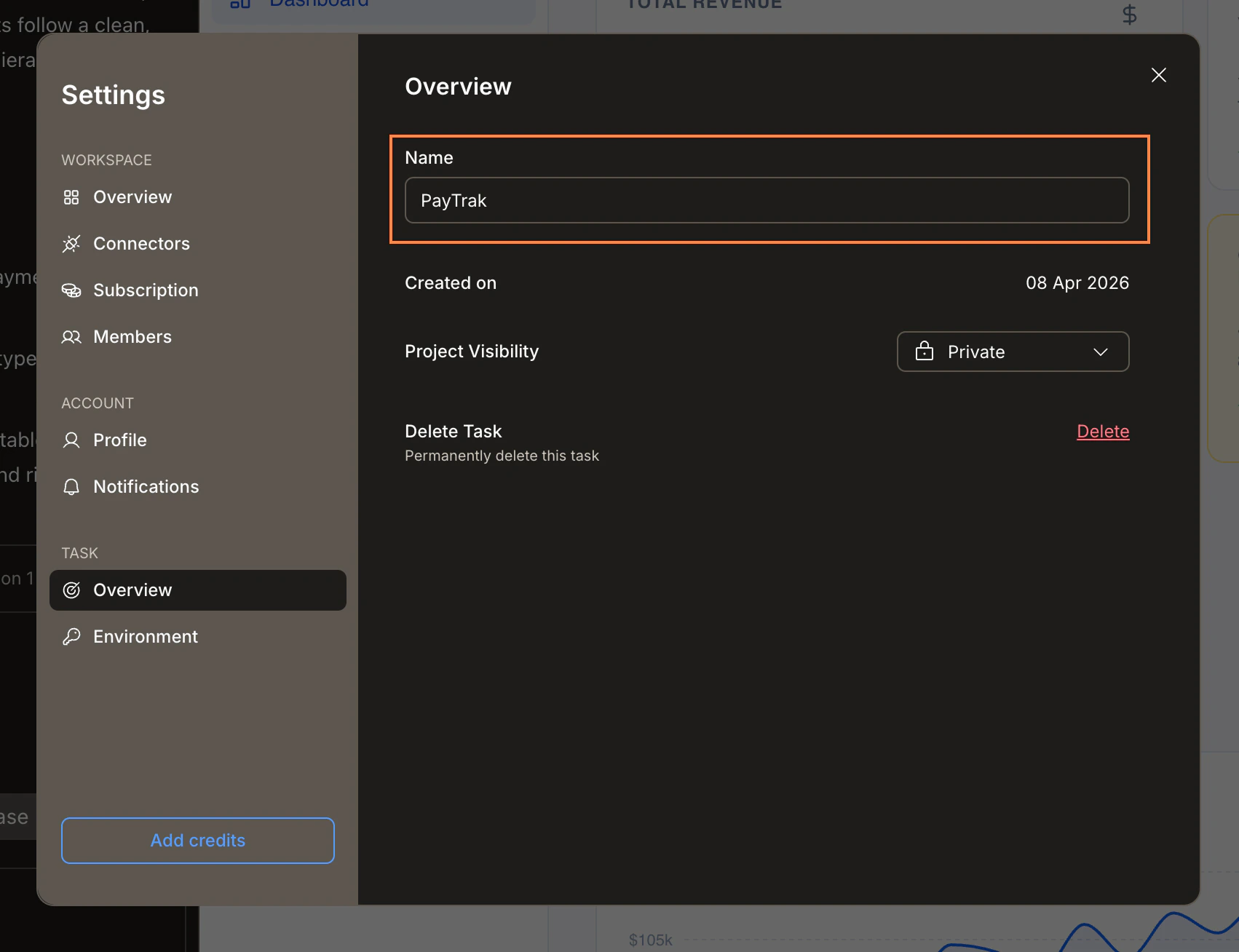
    <img src="https://mintcdn.com/dhiwisepvtltd-5e04e6a4/NNx4lZGfeKSKoC31/images/getting-started/task/manage/rename-settings-panel-dark.jpg?fit=max&auto=format&n=NNx4lZGfeKSKoC31&q=85&s=6e31c2d788d8ba44bf248951110f2a1c" alt="Settings panel showing the Task Overview section with the Name field highlighted." className="theme-image dark-image" width="1702" height="1308" data-path="images/getting-started/task/manage/rename-settings-panel-dark.jpg" />

    <img src="https://mintcdn.com/dhiwisepvtltd-5e04e6a4/NNx4lZGfeKSKoC31/images/getting-started/task/manage/rename-settings-panel-light.jpg?fit=max&auto=format&n=NNx4lZGfeKSKoC31&q=85&s=d0773eacc87fcad83b5bb80f1d57f835" alt="Settings panel showing the Task Overview section with the Name field highlighted." className="theme-image light-image" width="1668" height="1280" data-path="images/getting-started/task/manage/rename-settings-panel-light.jpg" />
  </Tab>
</Tabs>

## Star a task

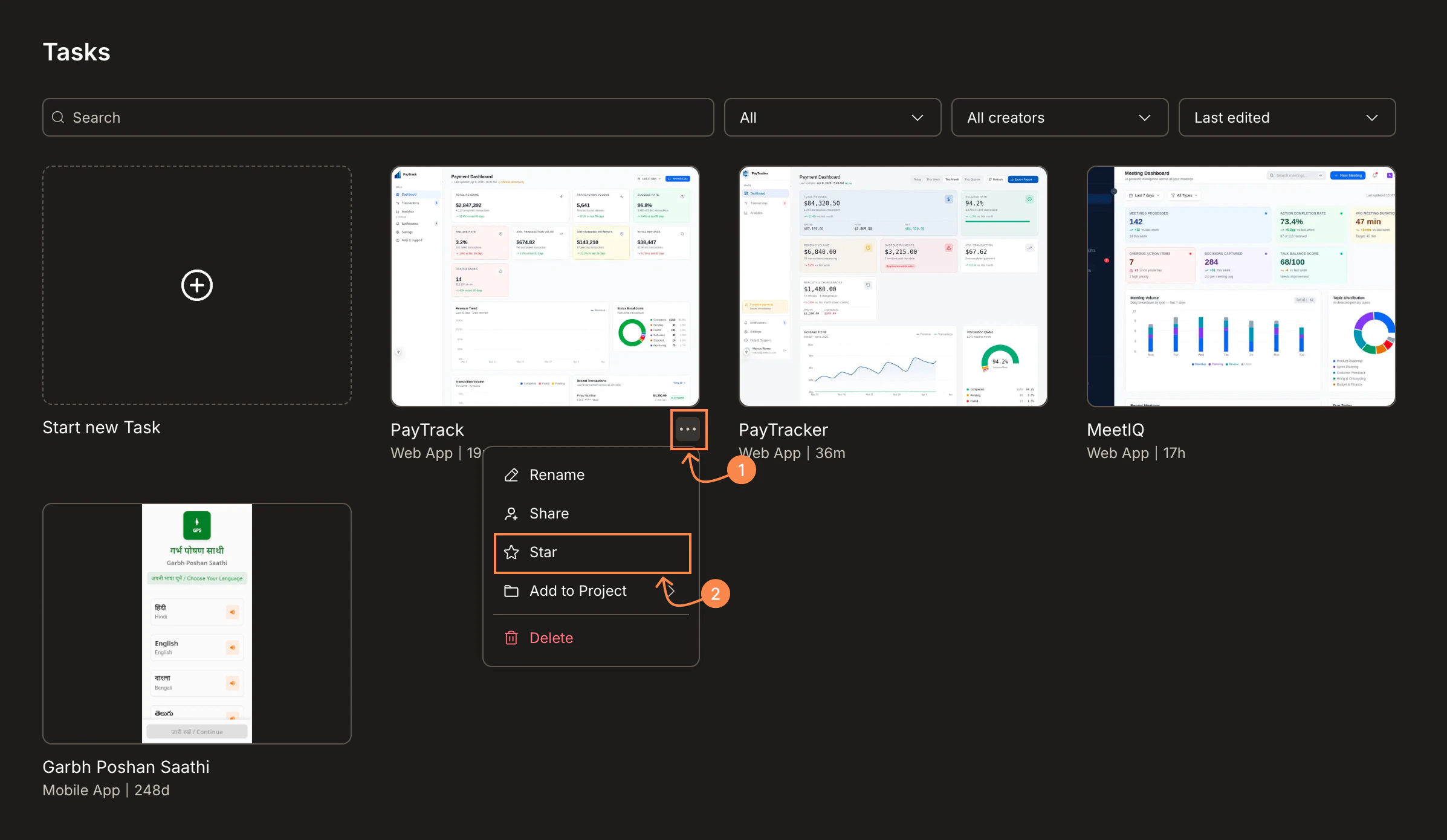
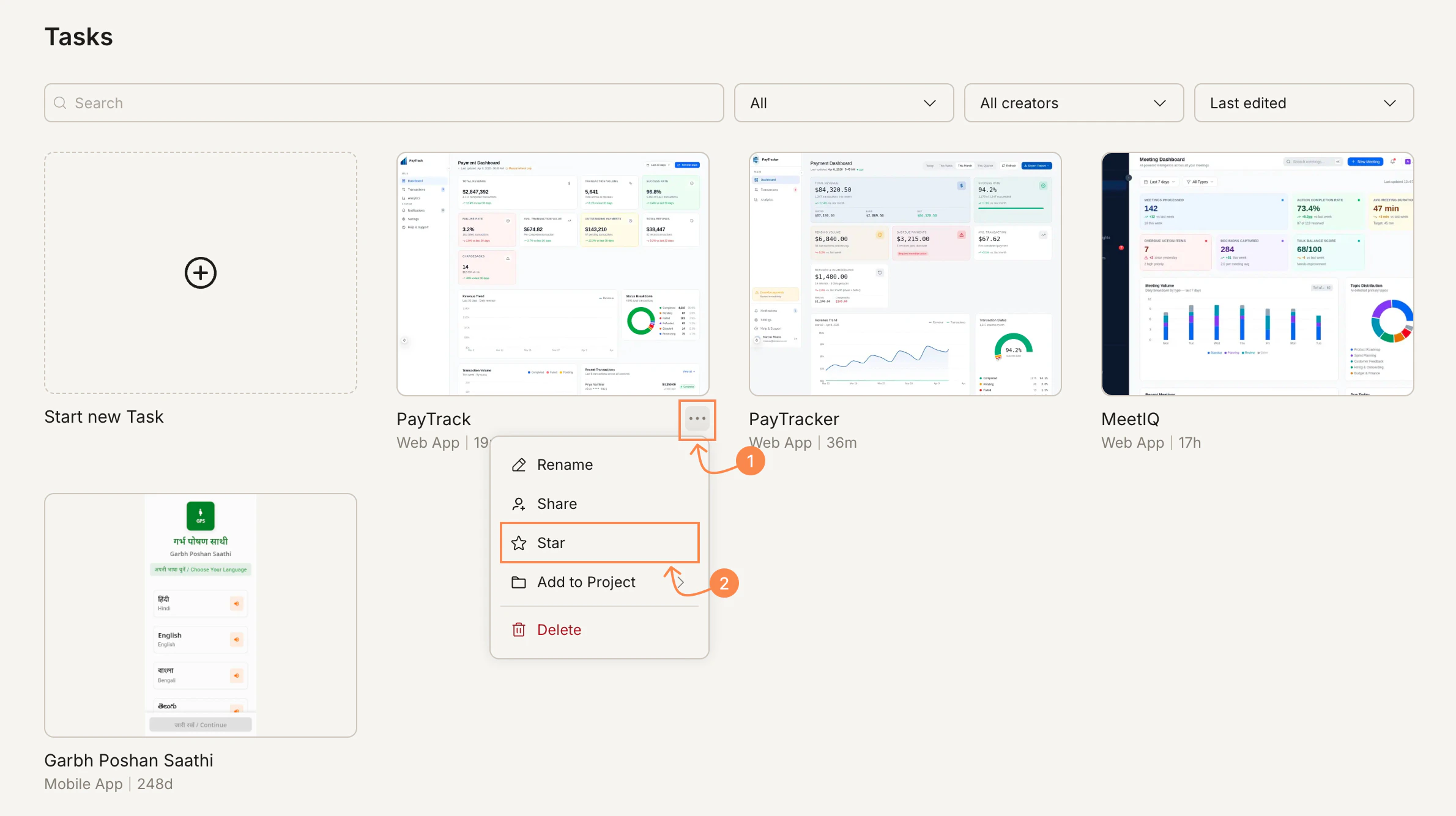
Star a task to pin it to the top of your task list for quick access.

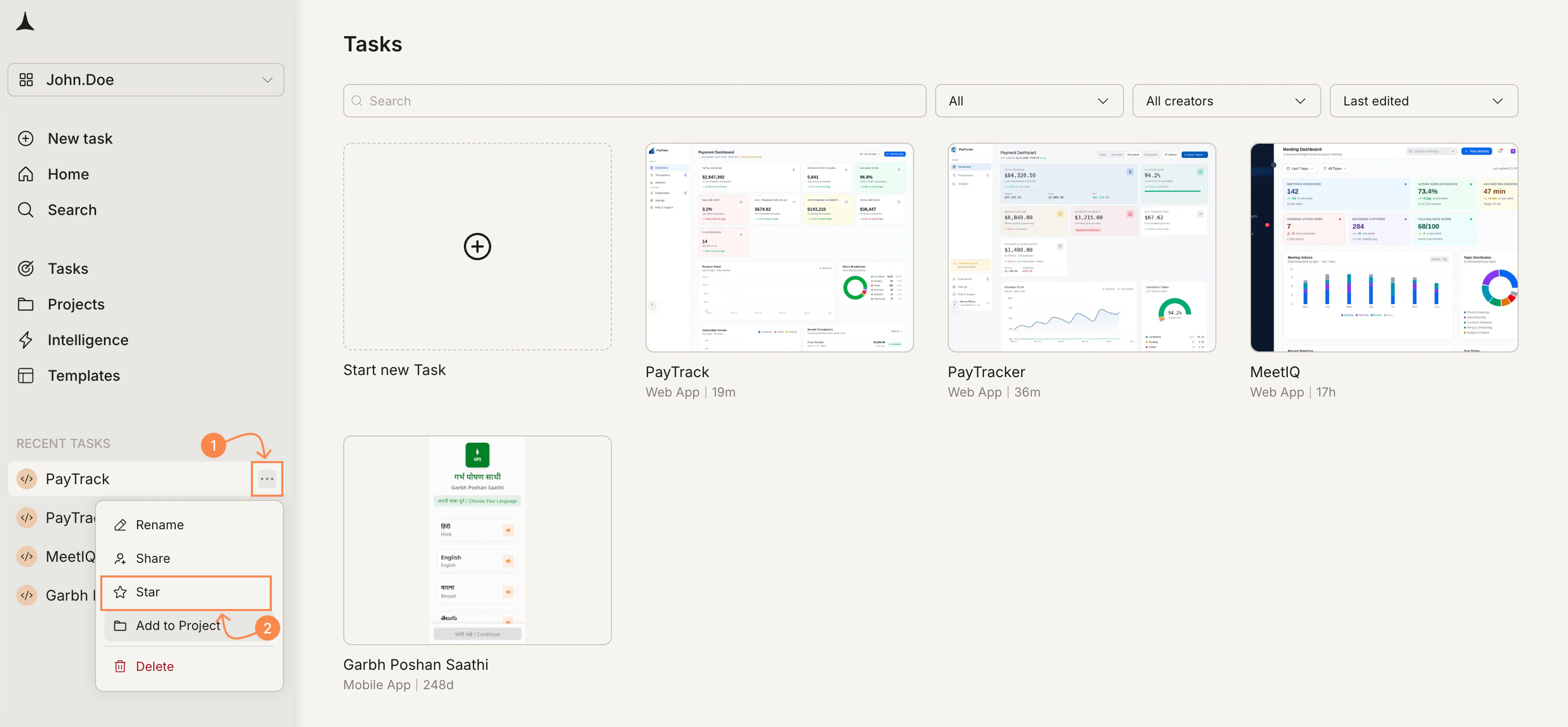
Hover over the task in the **Tasks** page or in the **Recent Tasks** sidebar, click the **`...`** menu, and select **Star**. To unstar, open the same menu and select **Star** again.
<img src="https://mintcdn.com/dhiwisepvtltd-5e04e6a4/NNx4lZGfeKSKoC31/images/getting-started/task/manage/star-menu-dark.jpg?fit=max&auto=format&n=NNx4lZGfeKSKoC31&q=85&s=d5ce9aa882b42c445ff87ce860a23c78" alt="Tasks page with the ... menu open on a task, showing Star highlighted." className="theme-image dark-image" width="2394" height="1390" data-path="images/getting-started/task/manage/star-menu-dark.jpg" />

<img src="https://mintcdn.com/dhiwisepvtltd-5e04e6a4/NNx4lZGfeKSKoC31/images/getting-started/task/manage/star-menu-light.jpg?fit=max&auto=format&n=NNx4lZGfeKSKoC31&q=85&s=e0df2cbf39894f17aade752a58ea912d" alt="Tasks page with the ... menu open on a task, showing Star highlighted." className="theme-image light-image" width="2380" height="1334" data-path="images/getting-started/task/manage/star-menu-light.jpg" />

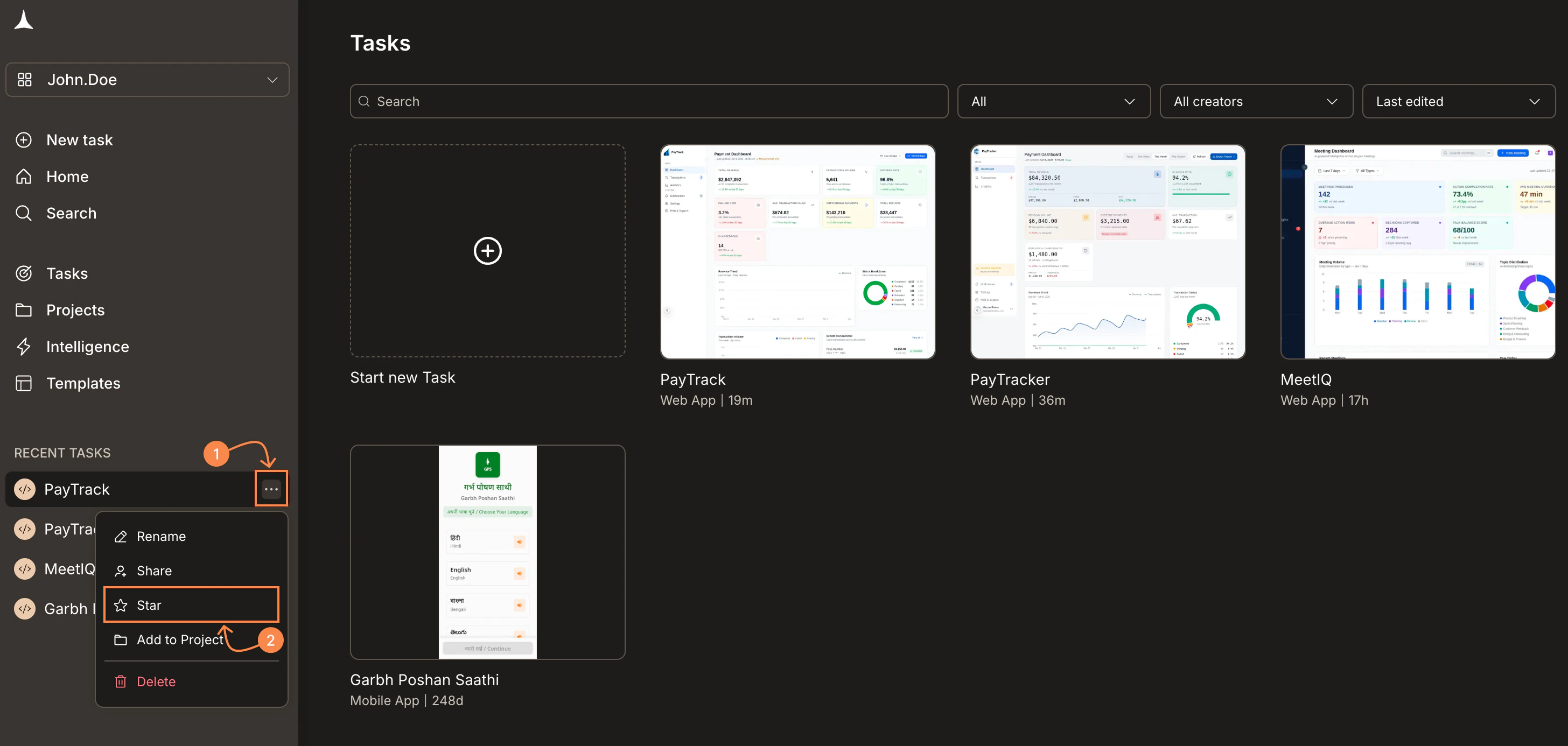
You can also star a task from the sidebar. Hover over the task in **Recent Tasks**, click the **`...`** menu, and select **Star**.
<img src="https://mintcdn.com/dhiwisepvtltd-5e04e6a4/NNx4lZGfeKSKoC31/images/getting-started/task/manage/star-sidebar-dark.jpg?fit=max&auto=format&n=NNx4lZGfeKSKoC31&q=85&s=bbd31eed6b787b8b068ddc1c9ff1c168" alt="Sidebar with Recent Tasks showing the ... menu open with Star highlighted." className="theme-image dark-image" width="2912" height="1386" data-path="images/getting-started/task/manage/star-sidebar-dark.jpg" />

<img src="https://mintcdn.com/dhiwisepvtltd-5e04e6a4/NNx4lZGfeKSKoC31/images/getting-started/task/manage/star-sidebar-light.jpg?fit=max&auto=format&n=NNx4lZGfeKSKoC31&q=85&s=72e058fe2246d624c80f5b0b1f0cdd50" alt="Sidebar with Recent Tasks showing the ... menu open with Star highlighted." className="theme-image light-image" width="2988" height="1386" data-path="images/getting-started/task/manage/star-sidebar-light.jpg" />

## Add a task to a project

You can add any standalone Solve or Build task to a project at any time without losing history. A task can only be part of one project at a time.

<Tabs>
  <Tab title="From the task list or sidebar">
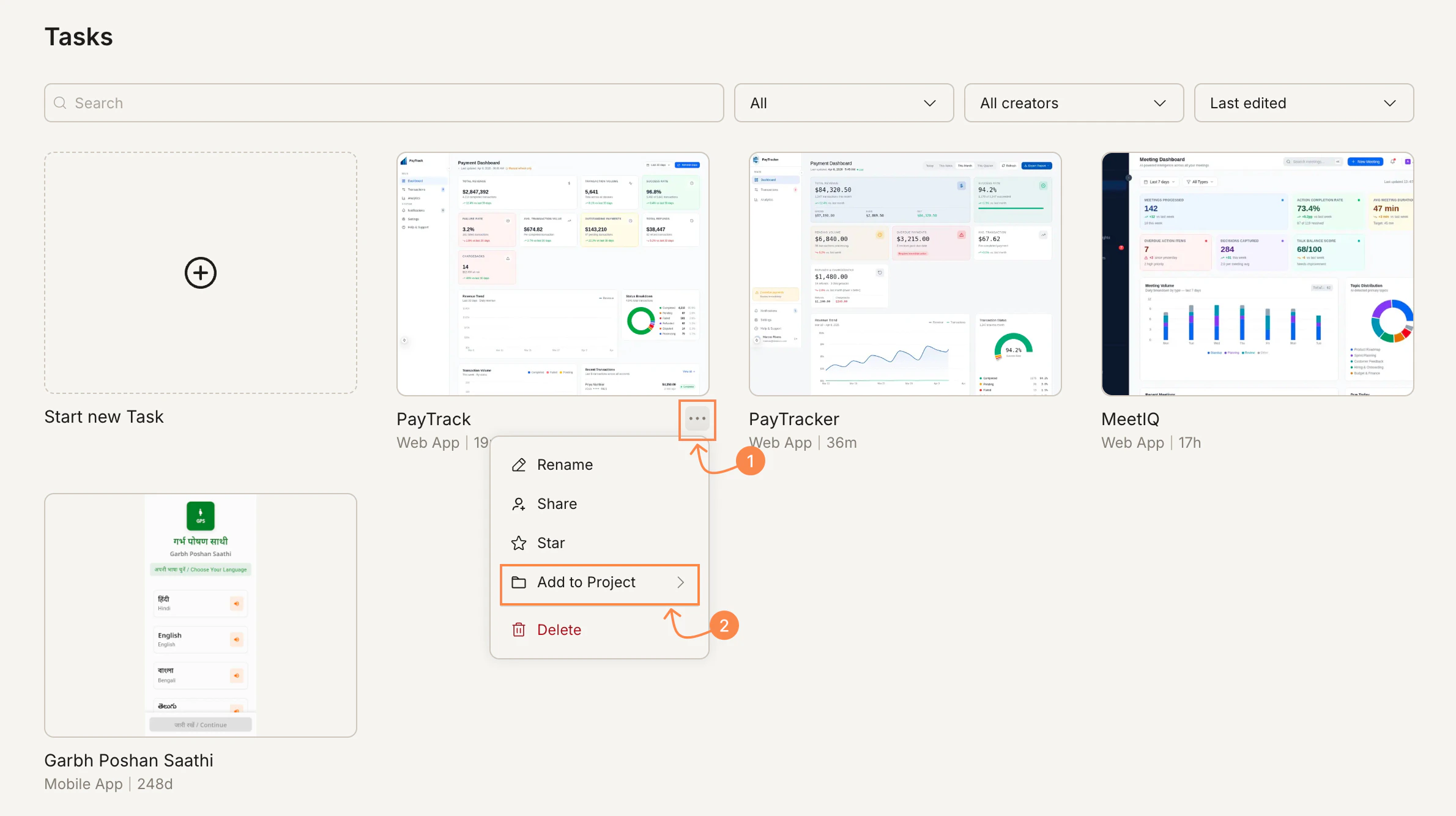
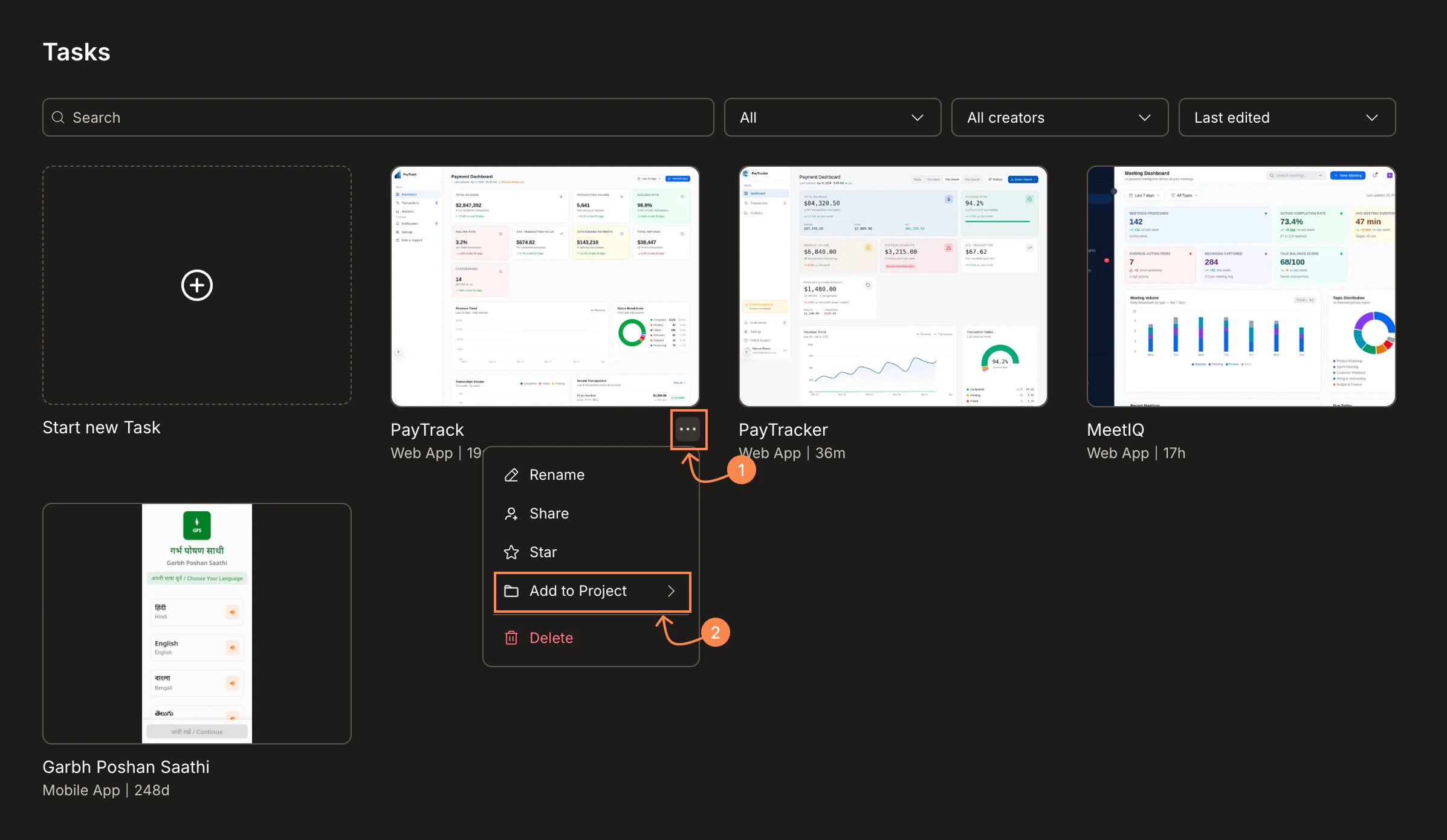
    Hover over the task, click the **`...`** menu, and select **Add to Project**.
    <img src="https://mintcdn.com/dhiwisepvtltd-5e04e6a4/NNx4lZGfeKSKoC31/images/getting-started/task/manage/add-project-menu-dark.jpg?fit=max&auto=format&n=NNx4lZGfeKSKoC31&q=85&s=7c9edf3e5895d41d269bb4bf1c6c540e" alt="Tasks page with the ... menu open, showing Add to Project highlighted." className="theme-image dark-image" width="2394" height="1390" data-path="images/getting-started/task/manage/add-project-menu-dark.jpg" />

    <img src="https://mintcdn.com/dhiwisepvtltd-5e04e6a4/NNx4lZGfeKSKoC31/images/getting-started/task/manage/add-project-menu-light.jpg?fit=max&auto=format&n=NNx4lZGfeKSKoC31&q=85&s=ca998e93989ae96d2670aad4871e597c" alt="Tasks page with the ... menu open, showing Add to Project highlighted." className="theme-image light-image" width="2380" height="1334" data-path="images/getting-started/task/manage/add-project-menu-light.jpg" />

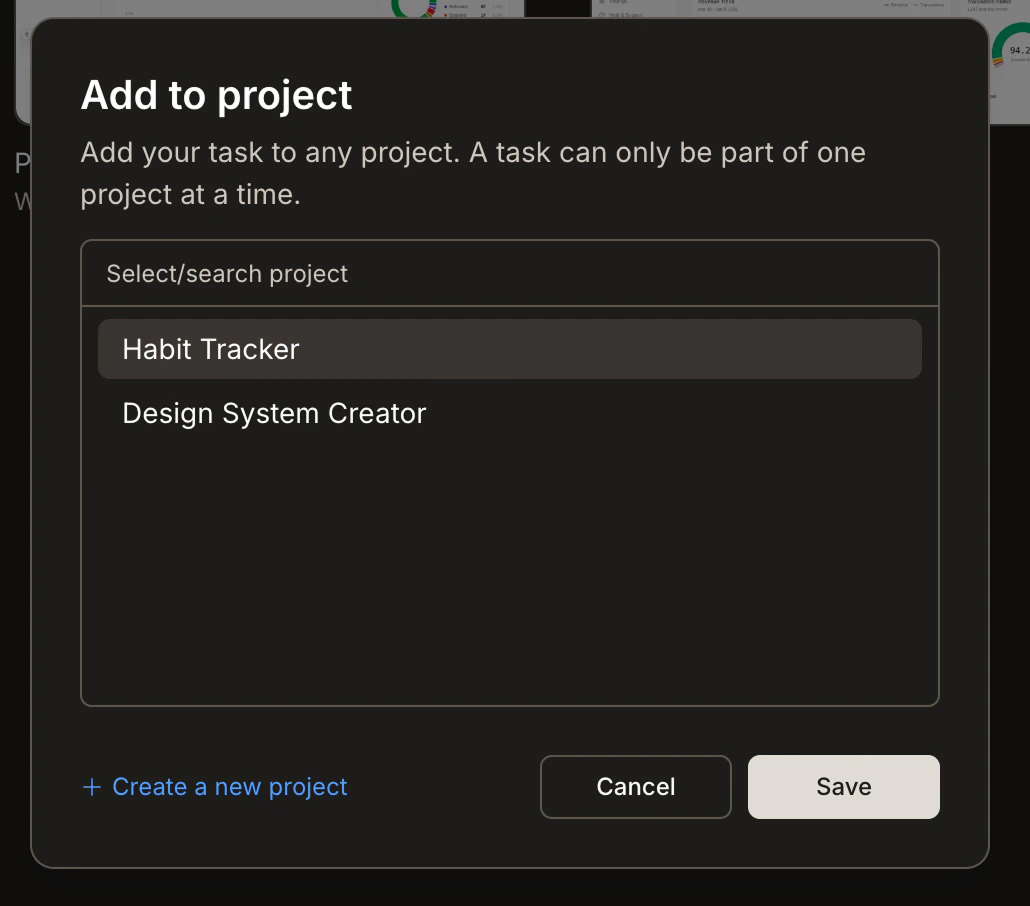
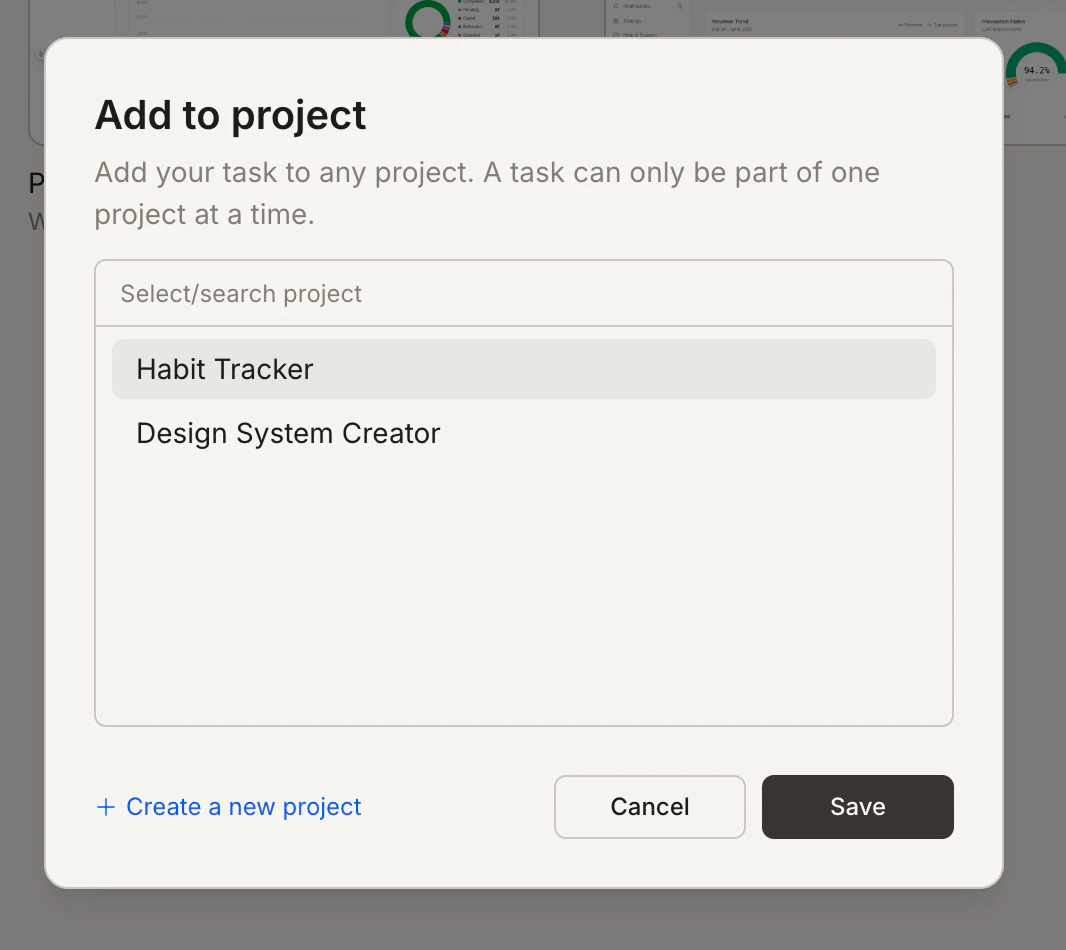
    The **Add to project** popup appears. Select a project from the list or search for one. You can also click **+ Create a new project** if needed. Click **Save** to confirm.
    <img src="https://mintcdn.com/dhiwisepvtltd-5e04e6a4/NNx4lZGfeKSKoC31/images/getting-started/task/manage/add-project-popup-dark.jpg?fit=max&auto=format&n=NNx4lZGfeKSKoC31&q=85&s=c8df2bcbfbfc14341cb9d32ec2eb017a" alt="Add to project popup showing a list of existing projects with a Save button." className="theme-image dark-image" width="1030" height="906" data-path="images/getting-started/task/manage/add-project-popup-dark.jpg" />

    <img src="https://mintcdn.com/dhiwisepvtltd-5e04e6a4/NNx4lZGfeKSKoC31/images/getting-started/task/manage/add-project-popup-light.jpg?fit=max&auto=format&n=NNx4lZGfeKSKoC31&q=85&s=8fa7bae22194a0afaa8e50842efe26ef" alt="Add to project popup showing a list of existing projects with a Save button." className="theme-image light-image" width="1066" height="950" data-path="images/getting-started/task/manage/add-project-popup-light.jpg" />
  </Tab>

  <Tab title="From inside the task">
    Click the task name at the top-left of the task view and select **Add to Project** from the dropdown.
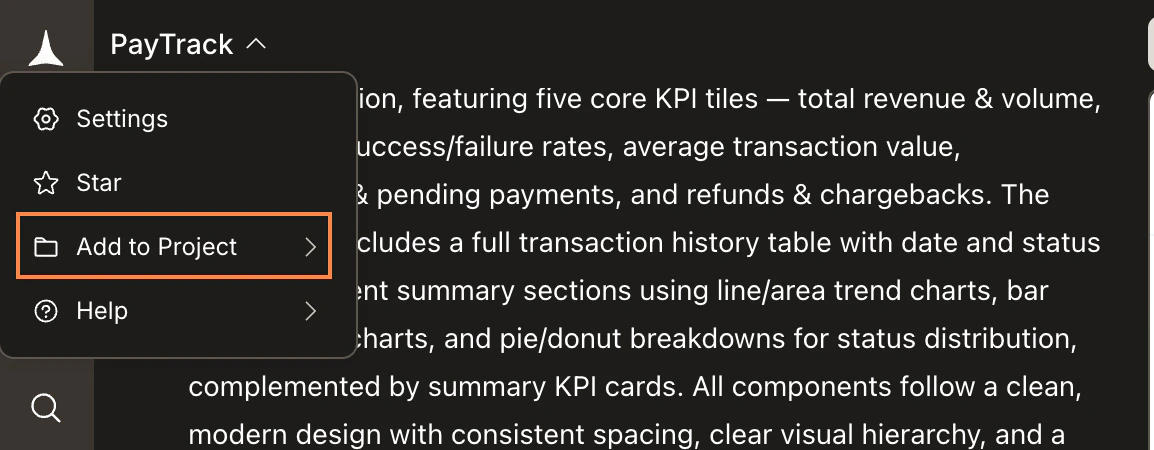
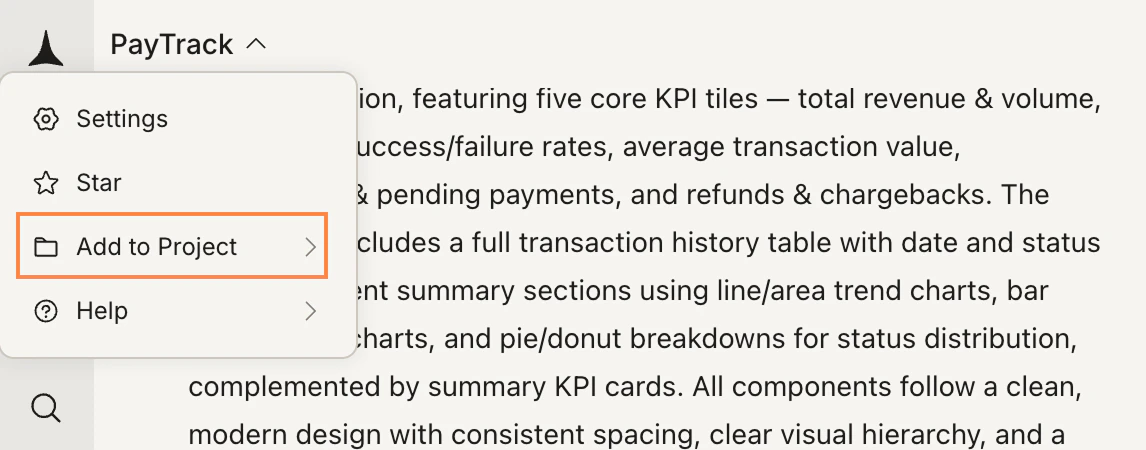
    <img src="https://mintcdn.com/dhiwisepvtltd-5e04e6a4/NNx4lZGfeKSKoC31/images/getting-started/task/manage/add-project-inside-dropdown-dark.jpg?fit=max&auto=format&n=NNx4lZGfeKSKoC31&q=85&s=1b58148c2d38f7e9011025070dd0d9a3" alt="Task name dropdown open with Add to Project highlighted." className="theme-image dark-image" width="1154" height="450" data-path="images/getting-started/task/manage/add-project-inside-dropdown-dark.jpg" />

    <img src="https://mintcdn.com/dhiwisepvtltd-5e04e6a4/NNx4lZGfeKSKoC31/images/getting-started/task/manage/add-project-inside-dropdown-light.jpg?fit=max&auto=format&n=NNx4lZGfeKSKoC31&q=85&s=527b3033cb1f43edac58ea8a01a4e564" alt="Task name dropdown open with Add to Project highlighted." className="theme-image light-image" width="1146" height="450" data-path="images/getting-started/task/manage/add-project-inside-dropdown-light.jpg" />

    The same **Add to project** popup appears. Select a project and click **Save**.
  </Tab>
</Tabs>

## Delete a task

<Warning>
  Deleting a task is permanent. All messages, outputs, and history within the task will be lost.
</Warning>

<Tabs>
  <Tab title="From the task list or sidebar">
    Hover over the task, click the **`...`** menu, and select **Delete**. Confirm the deletion in the prompt that appears.
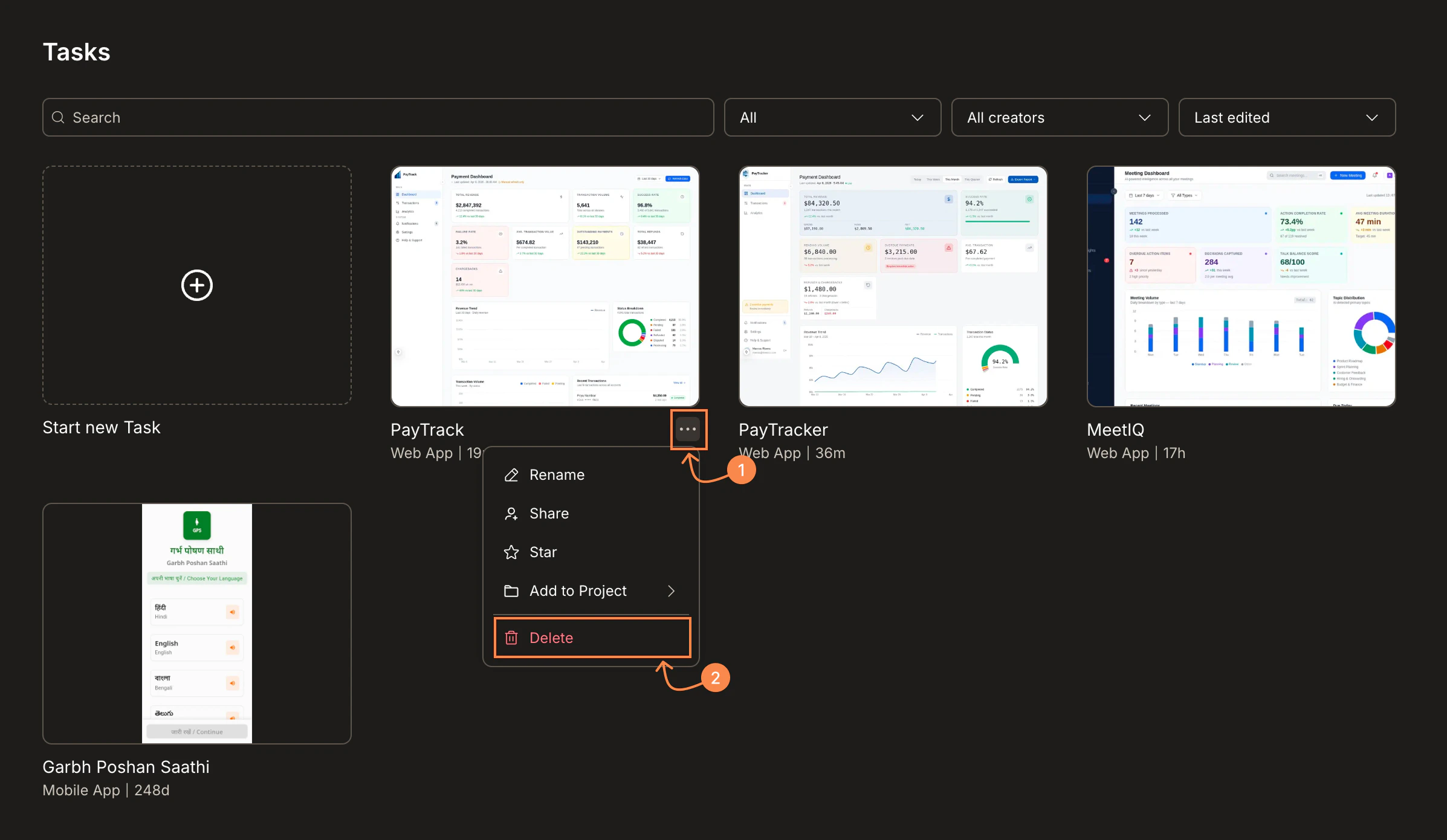
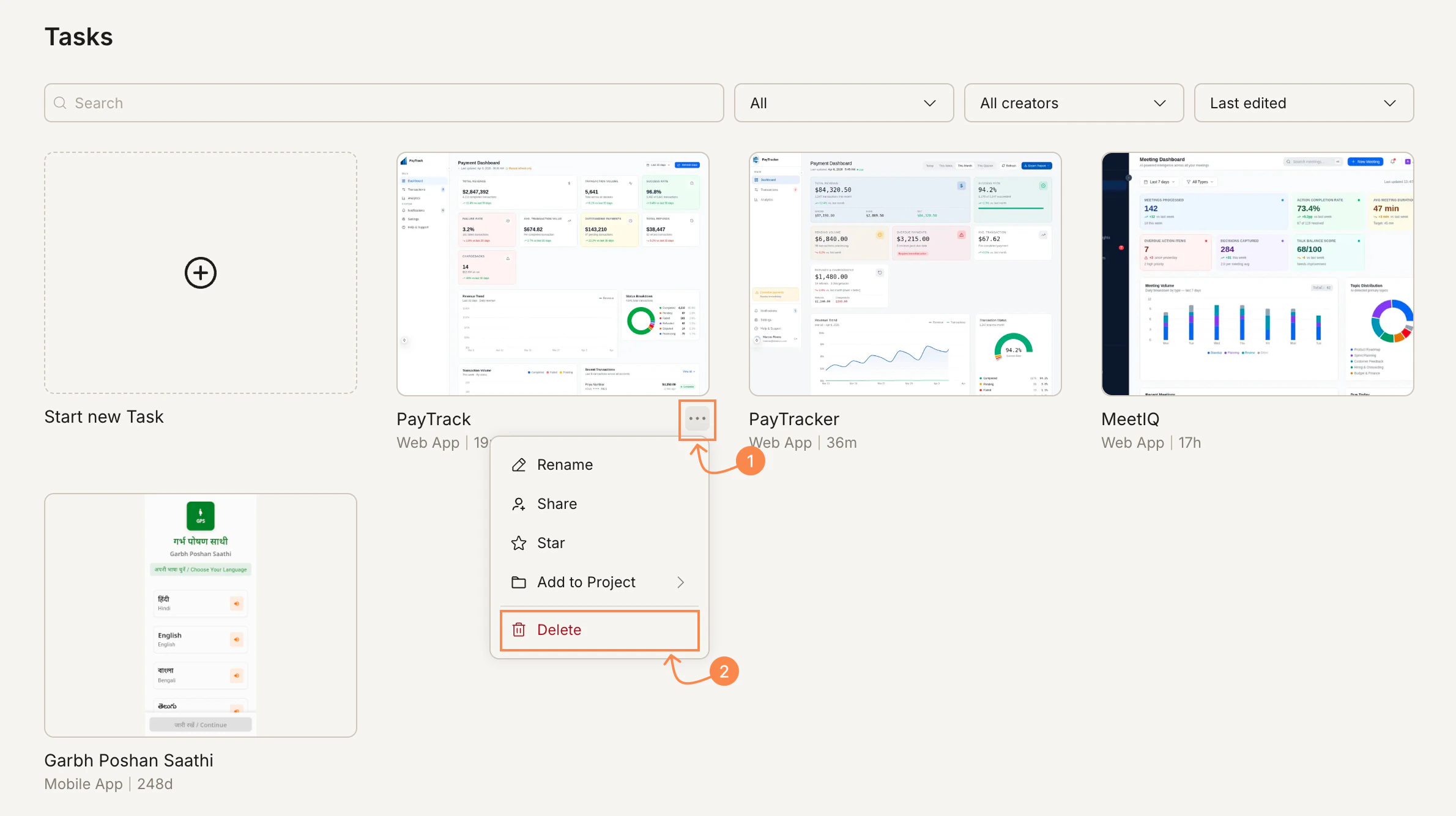
    <img src="https://mintcdn.com/dhiwisepvtltd-5e04e6a4/NNx4lZGfeKSKoC31/images/getting-started/task/manage/delete-menu-dark.jpg?fit=max&auto=format&n=NNx4lZGfeKSKoC31&q=85&s=ba8d7680b3e8d17dc73ac4d99723be66" alt="Tasks page with the ... menu open on a task, showing Delete highlighted." className="theme-image dark-image" width="2394" height="1390" data-path="images/getting-started/task/manage/delete-menu-dark.jpg" />

    <img src="https://mintcdn.com/dhiwisepvtltd-5e04e6a4/NNx4lZGfeKSKoC31/images/getting-started/task/manage/delete-menu-light.jpg?fit=max&auto=format&n=NNx4lZGfeKSKoC31&q=85&s=9095b2c9bdb605f5b6675836feed16b6" alt="Tasks page with the ... menu open on a task, showing Delete highlighted." className="theme-image light-image" width="2380" height="1334" data-path="images/getting-started/task/manage/delete-menu-light.jpg" />
  </Tab>

  <Tab title="From inside the task">
    Click the task name at the top-left, select **Settings**, then click **Delete** next to **Delete Task** in the **Overview** panel. Confirm the deletion.
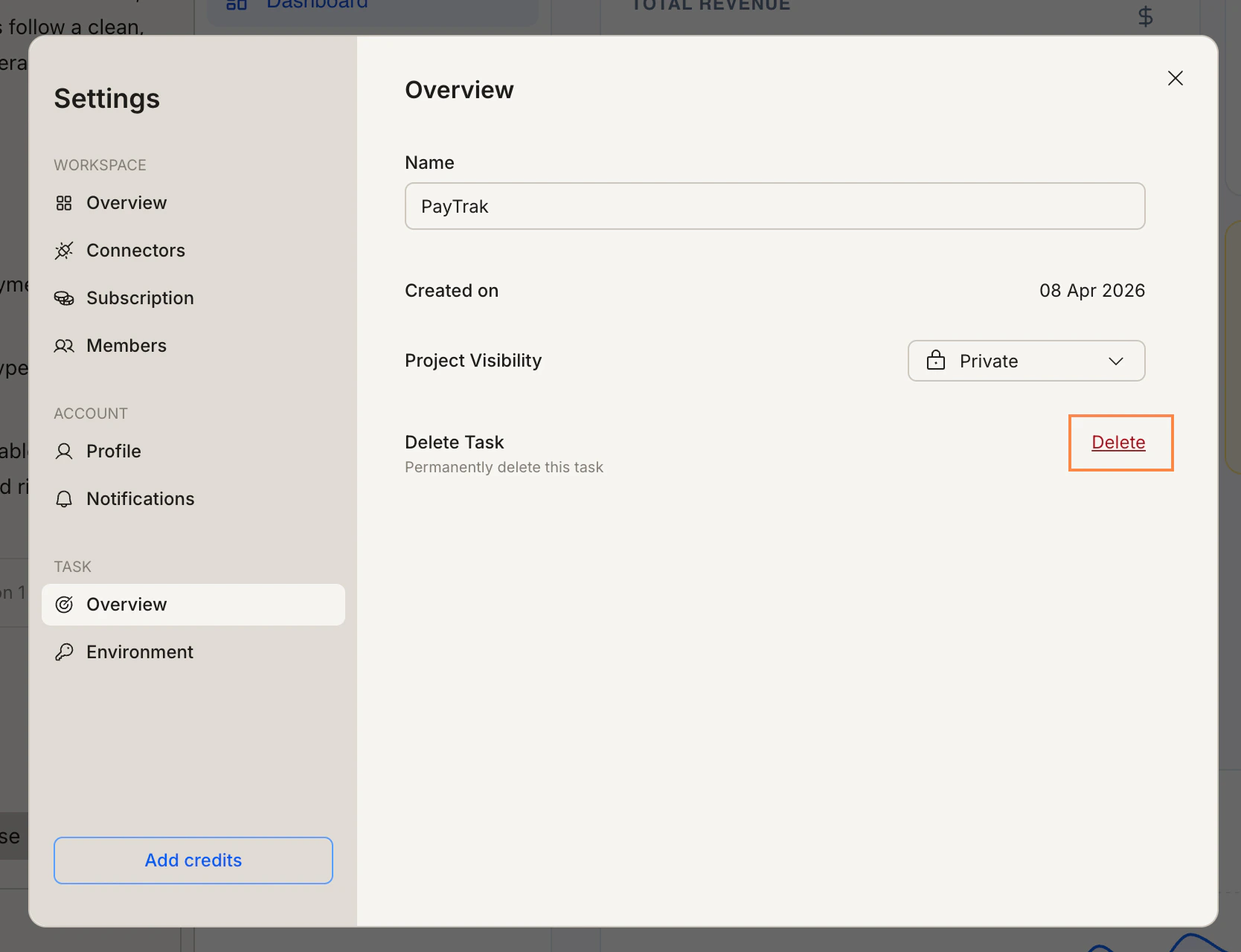
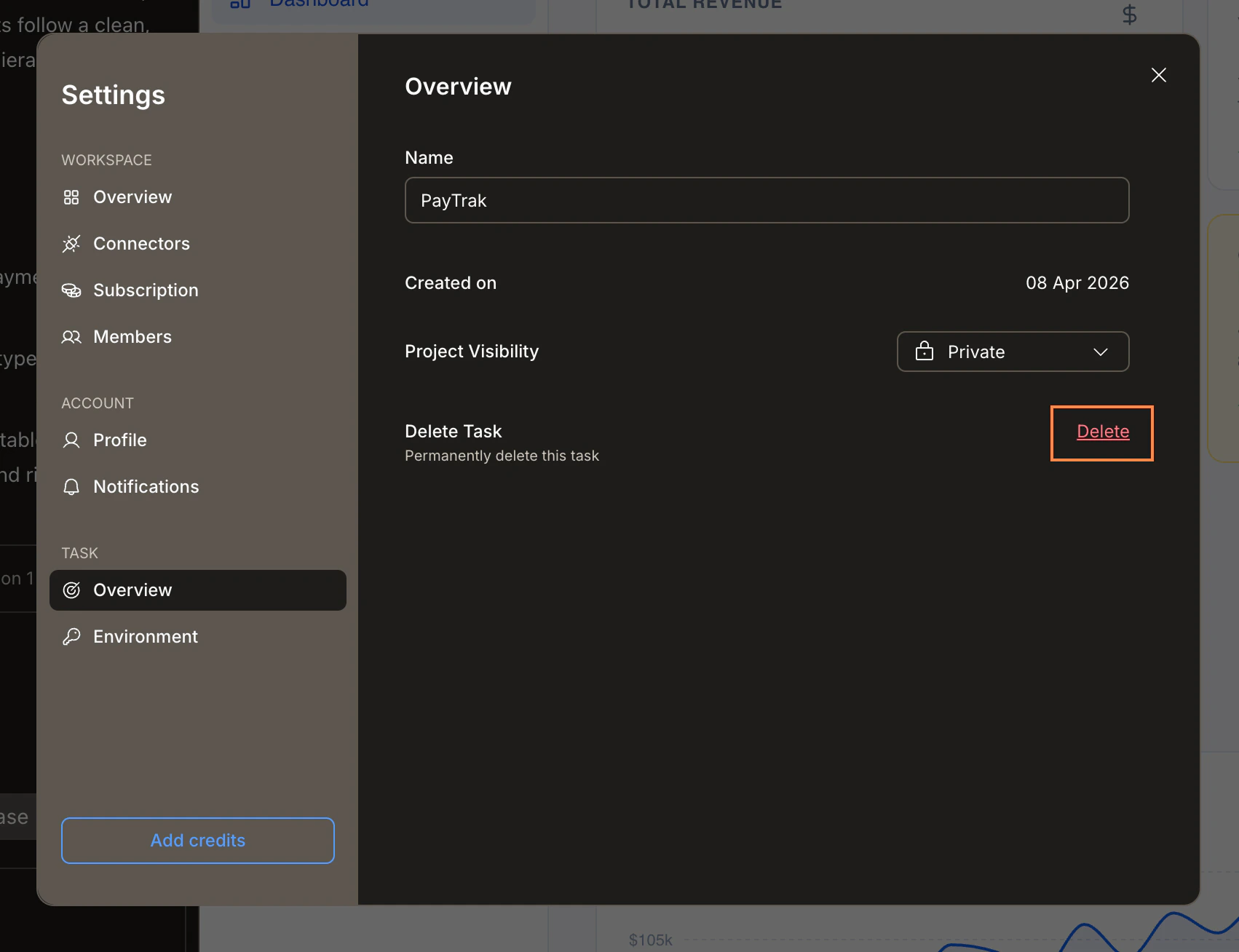
    <img src="https://mintcdn.com/dhiwisepvtltd-5e04e6a4/NNx4lZGfeKSKoC31/images/getting-started/task/manage/delete-settings-panel-light.jpg?fit=max&auto=format&n=NNx4lZGfeKSKoC31&q=85&s=3a7fe8a439b54a5d2205dad3363debfb" alt="Task Settings Overview panel with Delete Task and the Delete button highlighted." className="theme-image light-image" width="1668" height="1280" data-path="images/getting-started/task/manage/delete-settings-panel-light.jpg" />

    <img src="https://mintcdn.com/dhiwisepvtltd-5e04e6a4/NNx4lZGfeKSKoC31/images/getting-started/task/manage/delete-settings-panel-dark.jpg?fit=max&auto=format&n=NNx4lZGfeKSKoC31&q=85&s=5ff86aff2ed78807e921ae1127869503" alt="Task Settings Overview panel with Delete Task and the Delete button highlighted." className="theme-image dark-image" width="1702" height="1308" data-path="images/getting-started/task/manage/delete-settings-panel-dark.jpg" />
  </Tab>
</Tabs>

## What's next?

<CardGroup cols={2}>
  <Card title="Task visibility" icon="eye" href="/build/editor/visibility">
    Control who can see each Build task and understand plan-level availability.
  </Card>

  <Card title="Cross-task context" icon="arrows-cross" href="/getting-started/task/task-context">
    Reference a previous task to carry its knowledge into your current work.
  </Card>
</CardGroup>