> ## Documentation Index
> Fetch the complete documentation index at: https://docs.rocket.new/llms.txt
> Use this file to discover all available pages before exploring further.
# Cross-task context
> Reference past Rocket.new tasks with @-mentions to carry findings and decisions into your current work.
export const LlmsDirective = () =>
For the complete documentation index, see llms.txt.
For a lightweight markdown version of this page, append .md to the URL.
;
By default, each task is isolated. It has no knowledge of what was discussed in a separate task, even within the same project. Cross-task context removes that limitation.
Type `@` in the message input to reference a previous task. Rocket retrieves the conversation, findings, and conclusions from that task and uses them in the current one. You build on past work instead of re-explaining it.
This works in both **Solve** and **Build** tasks.
## How to use @-mentions
Navigate to an existing task or start a new one.
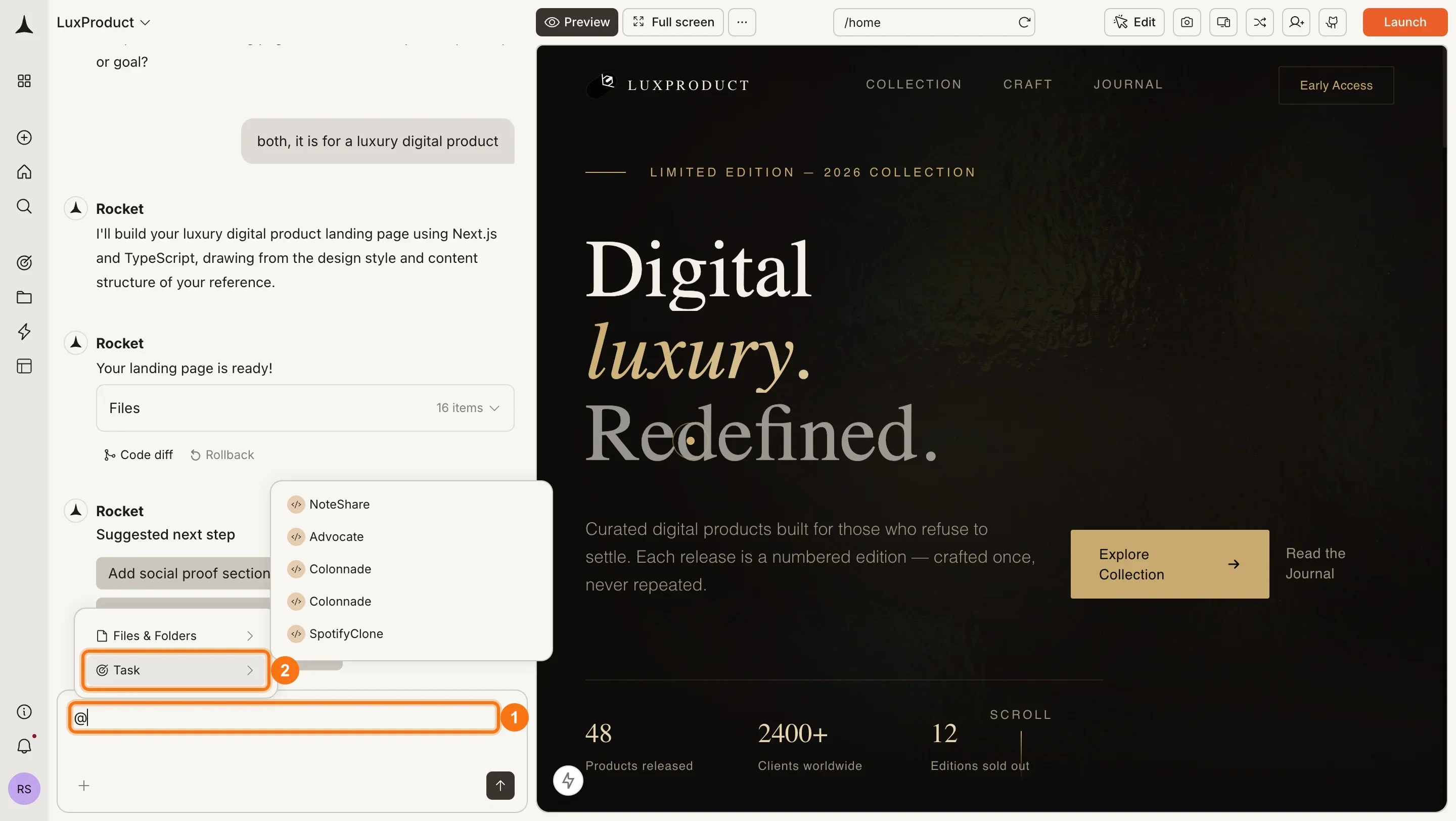
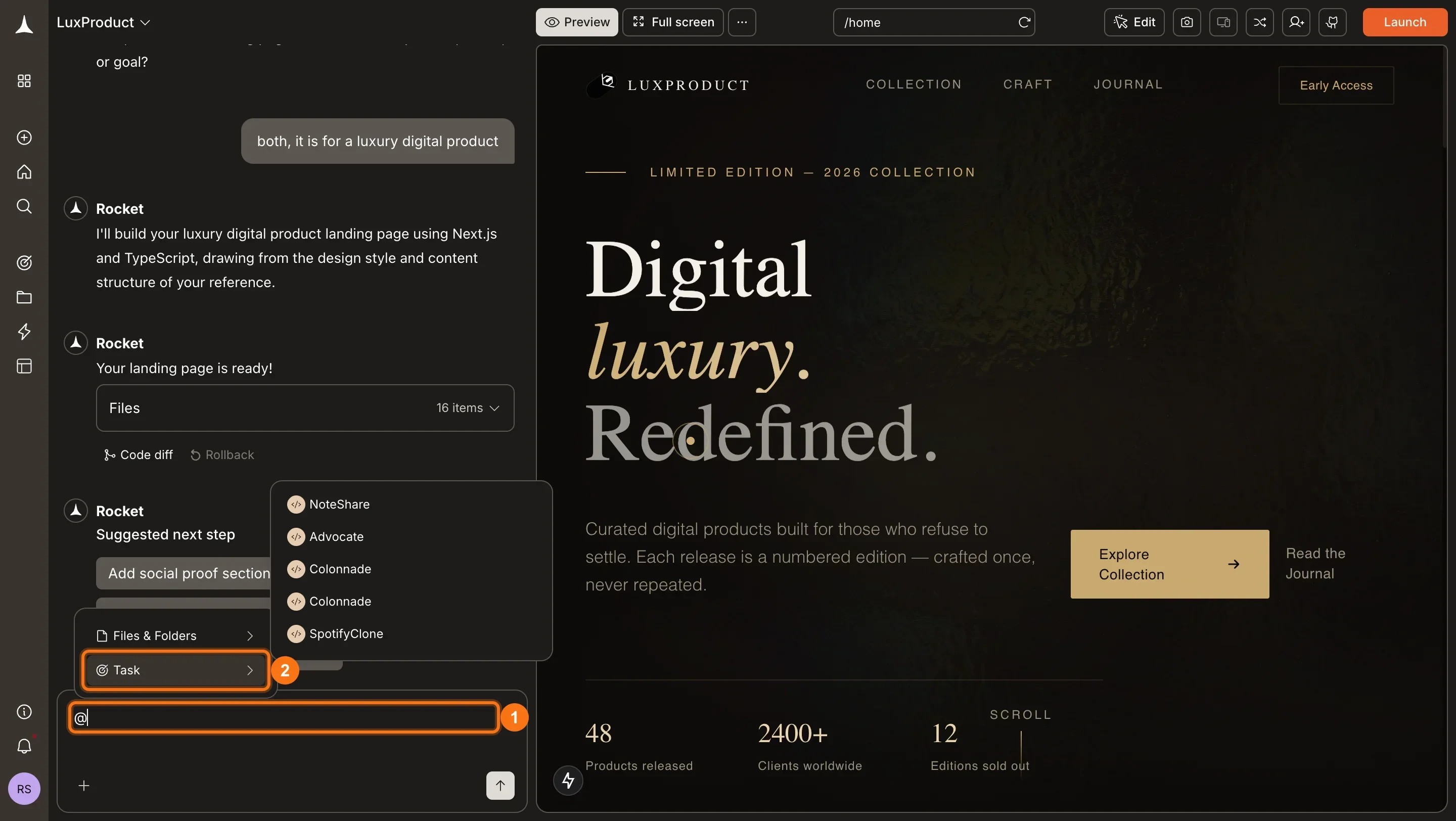
Type `@` **(1)** in the chat input. A menu appears showing **Files & Folders** and **Task**. Select **Task (2)** to browse your previous tasks.
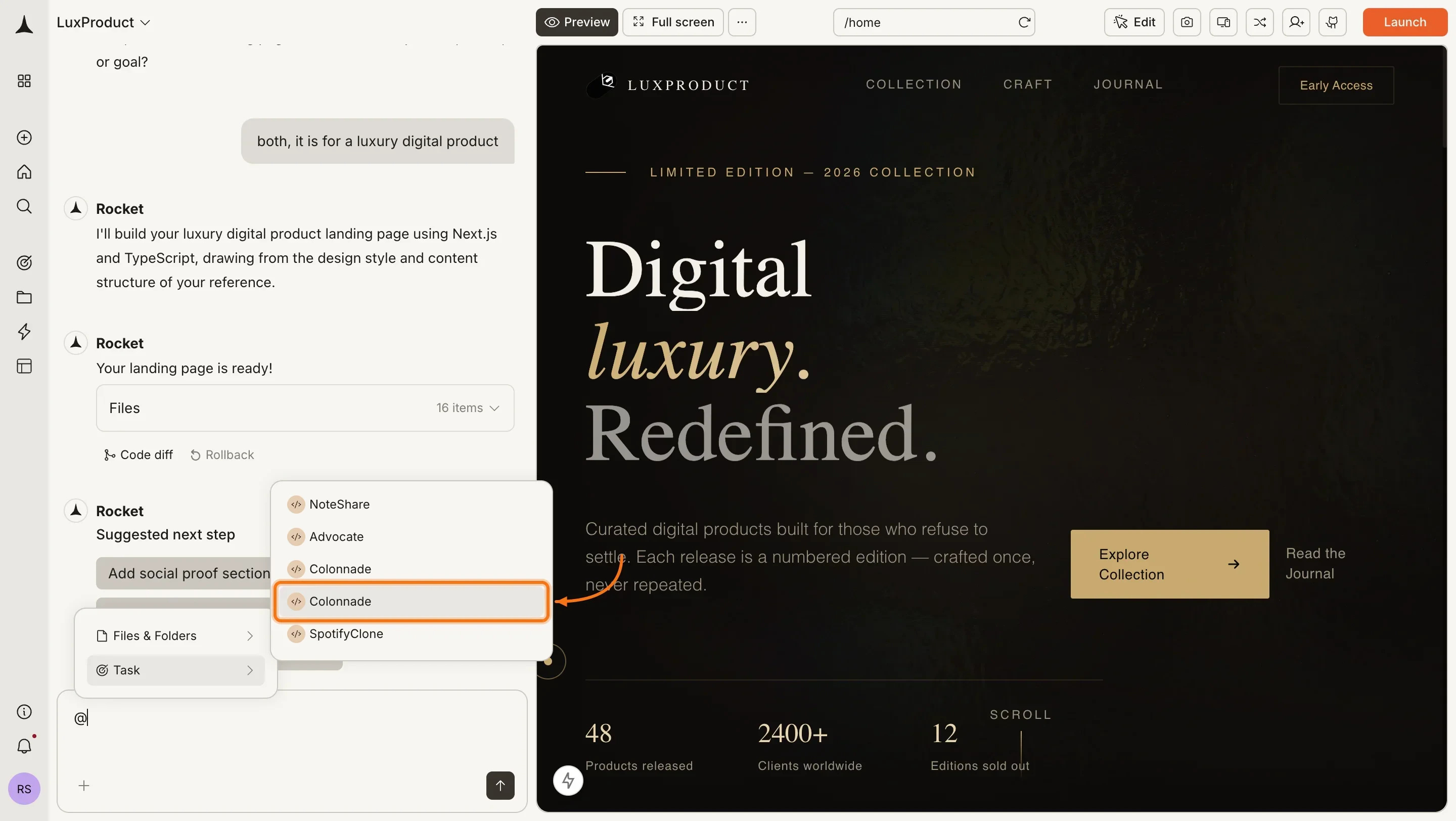
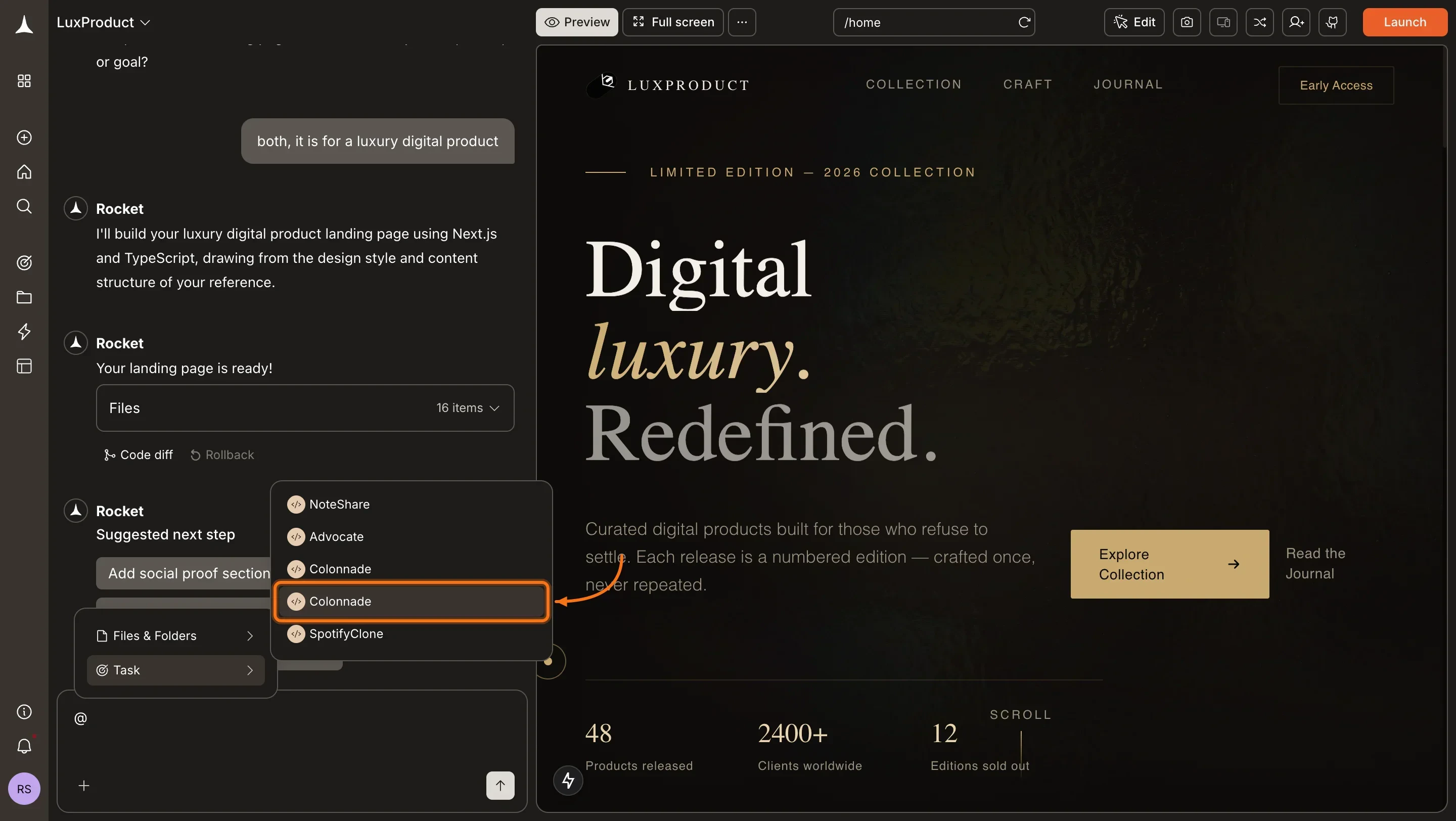
 A list of your tasks appears. Click the task you want to reference.
 Add your question or instructions alongside the @-mention. Being specific about what you want from the referenced task gets better results:
> *"@Q3 competitor analysis - how has the competitive landscape shifted since that report?"*
> *"@Landing page build - apply the same visual style to this new pricing page."*
## What gets carried over
Rocket pulls the relevant context from the referenced task based on your message. For Solve tasks, it brings over the findings and conclusions from the report. Exported formats like PDF, HTML, and PPT are not included, only the underlying content.
## Scope
Tasks you can reference depend on where your current task lives:
| Current task | Can reference |
| :--------------- | :------------------------------------- |
| Inside a project | Any other task inside the same project |
| Standalone task | Any other standalone task |
Cross-task context is scoped to the project. You cannot @-mention a task from a different project or reference a standalone task from inside a project.
## What's next?
Attach files or paste URLs to give a task additional source material.
Add files and connected services that persist across all tasks in a project.
Rename, delete, and organize your tasks.
Add your question or instructions alongside the @-mention. Being specific about what you want from the referenced task gets better results:
> *"@Q3 competitor analysis - how has the competitive landscape shifted since that report?"*
> *"@Landing page build - apply the same visual style to this new pricing page."*
## What gets carried over
Rocket pulls the relevant context from the referenced task based on your message. For Solve tasks, it brings over the findings and conclusions from the report. Exported formats like PDF, HTML, and PPT are not included, only the underlying content.
## Scope
Tasks you can reference depend on where your current task lives:
| Current task | Can reference |
| :--------------- | :------------------------------------- |
| Inside a project | Any other task inside the same project |
| Standalone task | Any other standalone task |
Cross-task context is scoped to the project. You cannot @-mention a task from a different project or reference a standalone task from inside a project.
## What's next?
Attach files or paste URLs to give a task additional source material.
Add files and connected services that persist across all tasks in a project.
Rename, delete, and organize your tasks.