> ## Documentation Index
> Fetch the complete documentation index at: https://docs.rocket.new/llms.txt
> Use this file to discover all available pages before exploring further.

# Connectors

> Connect GitHub, Notion, Figma, and more to your Rocket.new workspace.

export const LlmsDirective = () => <blockquote className="llms-directive">
    For the complete documentation index, see <a href="/llms.txt">llms.txt</a>.
    For a lightweight markdown version of this page, append .md to the URL.
  </blockquote>;

<LlmsDirective />

Workspace connectors let you establish connections to external services once and make them available to every project in the workspace. Instead of reconnecting in each project, you authorize a service at the workspace level and individual projects choose which specific resources to use.

<Note>
  This page covers **workspace-level connectors**: OAuth-based services like Notion, GitHub, and Google Workspace that are authorized once and shared across all projects. API key connectors (OpenAI, Anthropic, Stripe, and others) are task-level and connected per task from inside Build.
</Note>

<Card icon="plug" href="/build/connectors/overview" horizontal arrow="true">
  **Browse all connectors** including task-level API key connectors like OpenAI, Stripe, and Resend.
</Card>

## Connectors

<CardGroup cols={3}>
  <Card title="Notion" icon="book" href="/build/connectors/notion">
    Share pages, databases, wikis, and meeting notes across all projects.
  </Card>

  <Card title="Google Workspace" icon="google" href="/build/connectors/google">
    Share Docs, Sheets, and Calendar data across all projects.
  </Card>

  <Card title="GitHub" icon="github" href="/build/connectors/github/overview">
    Sync your codebase for backups, collaboration, and version control.
  </Card>

  <Card title="Supabase" icon="database" href="/build/connectors/supabase/overview">
    Add a PostgreSQL database, auth, file storage, and edge functions.
  </Card>

  <Card title="Figma" icon="figma" href="/build/connectors/figma">
    Import Figma designs and convert them into production-ready code.
  </Card>

  <Card title="Netlify" icon="globe" href="/build/connectors/netlify">
    Deploy your app to the web with one click.
  </Card>

  <Card title="Airtable" icon="table-cells" href="/build/connectors/airtable">
    Manage leads, content, inventory, and internal workflows.
  </Card>

  <Card title="Linear" icon="list-check" href="/build/connectors/linear">
    Build from tickets and write follow-up issues back to your board.
  </Card>

  <Card title="Mailchimp" icon="envelopes-bulk" href="/build/connectors/mailchimp">
    Email campaigns, audience management, and marketing automation.
  </Card>

  <Card title="Typeform" icon="square-check" href="/build/connectors/typeform">
    Conversational forms for lead capture, surveys, and feedback.
  </Card>

  <Card title="Calendly" icon="calendar-check" href="/build/connectors/calendly">
    Scheduling and appointment booking with automatic calendar sync.
  </Card>

  <Card title="Razorpay" icon="bolt" href="/build/connectors/razorpay">
    Accept payments, manage orders, and process refunds in your app.
  </Card>

  <Card title="Webflow" icon="webflow" href="/build/connectors/webflow">
    Pull CMS collections and site content as a live data source.
  </Card>

  <Card title="Confluence" icon="confluence" href="/build/connectors/confluence">
    Use team docs, specs, and wikis as context for code generation.
  </Card>
</CardGroup>

<Note>
  More connectors are coming. Check the [changelog](/changelog/2026/march/week-4) for the latest additions.
</Note>

## Connect a service

<Steps>
  <Step title="Open workspace Settings">
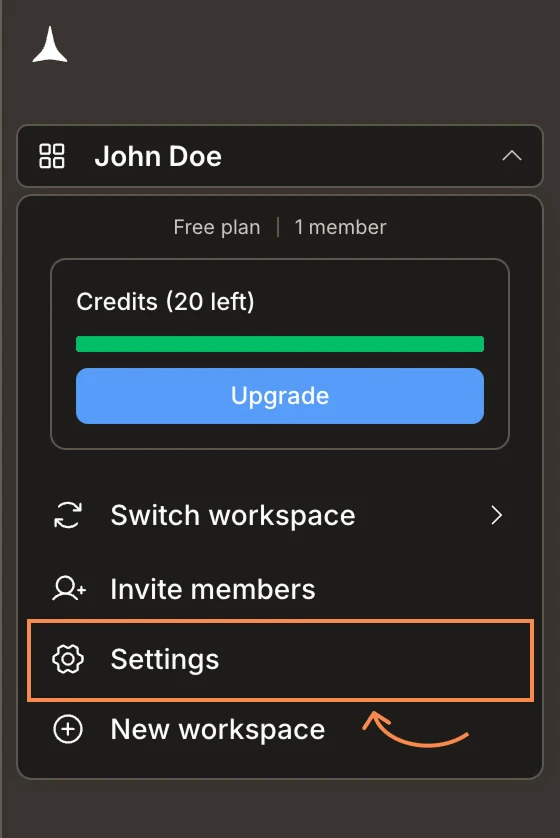
    Click your workspace name in the top left of the sidebar, then select **Settings**.
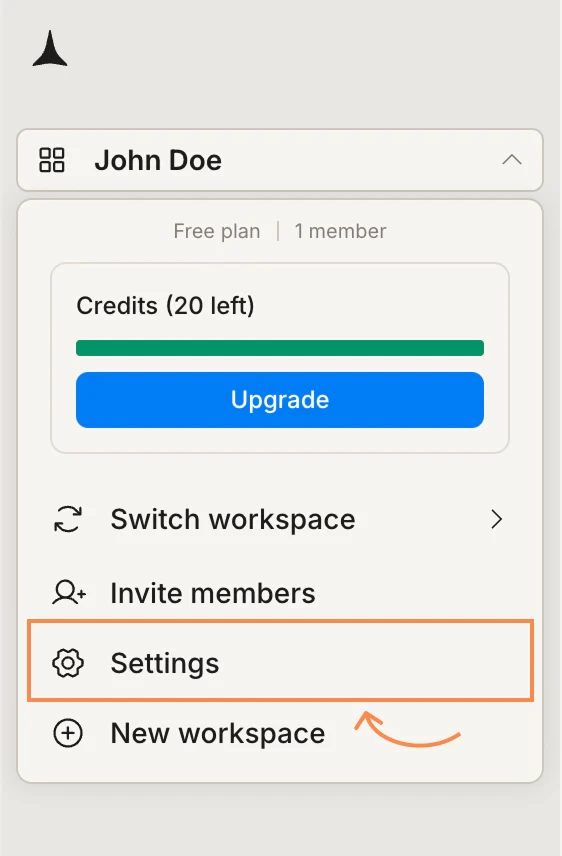
    <Frame caption="Open the workspace menu and click Settings">
      <img src="https://mintcdn.com/dhiwisepvtltd-5e04e6a4/s4kdAt2uX7DrYNkM/images/getting-started/workspace/connectors/open-settings-light.webp?fit=max&auto=format&n=s4kdAt2uX7DrYNkM&q=85&s=8fbf010ba0faade1497d6a26147f6215" alt="Workspace menu with Settings highlighted." className="theme-image light-image" width="562" height="856" data-path="images/getting-started/workspace/connectors/open-settings-light.webp" />

      <img src="https://mintcdn.com/dhiwisepvtltd-5e04e6a4/s4kdAt2uX7DrYNkM/images/getting-started/workspace/connectors/open-settings-dark.webp?fit=max&auto=format&n=s4kdAt2uX7DrYNkM&q=85&s=7914022b65666e43d277338dcf72be14" alt="Workspace menu with Settings highlighted." className="theme-image dark-image" width="560" height="838" data-path="images/getting-started/workspace/connectors/open-settings-dark.webp" />
    </Frame>
  </Step>

  <Step title="Open the Connectors tab and select a service">
    Click **Connectors** in the left sidebar. You will see all available workspace connectors. Click the one you want to connect.
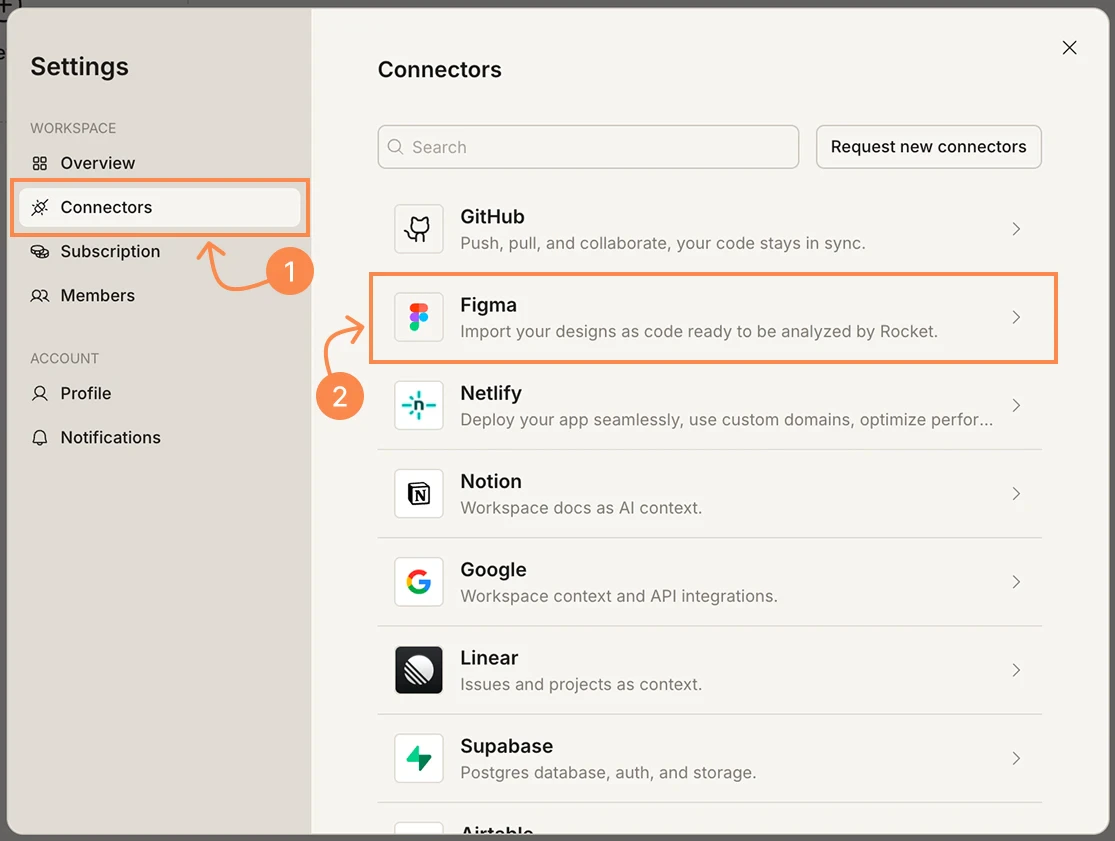
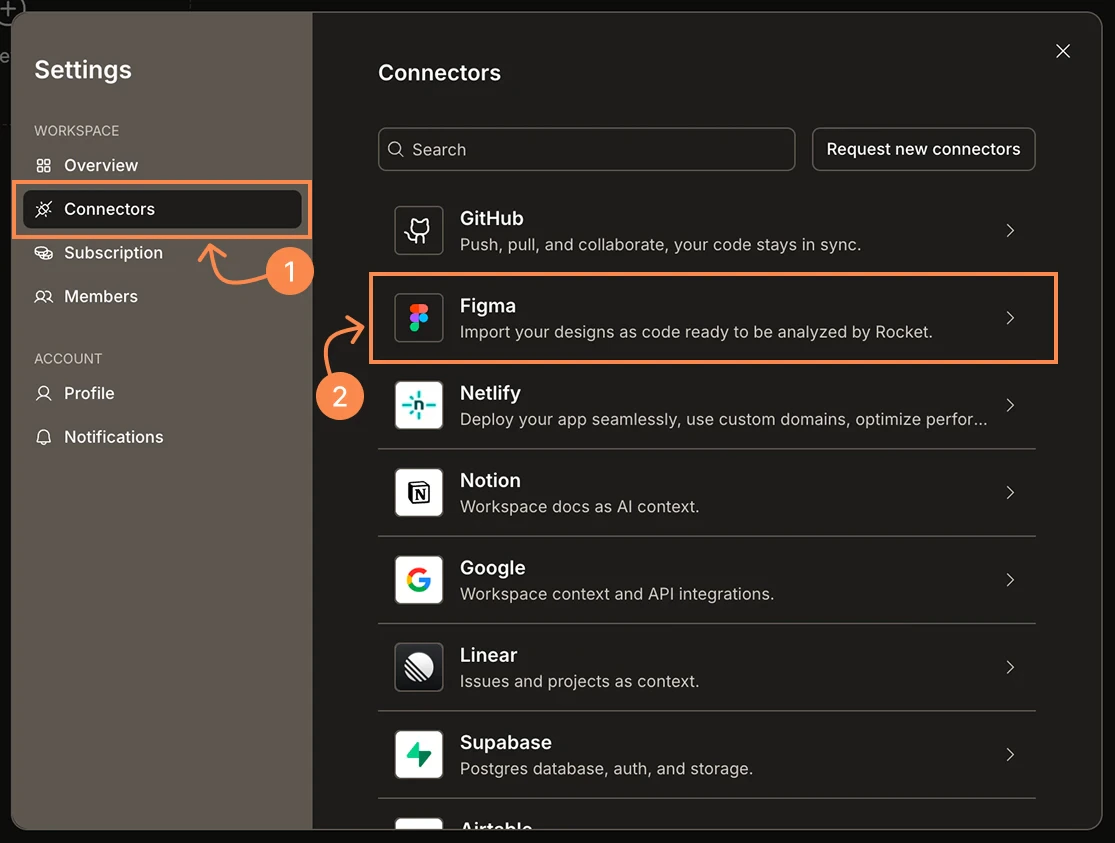
    <Frame caption="Settings - Connectors tab">
      <img src="https://mintcdn.com/dhiwisepvtltd-5e04e6a4/s4kdAt2uX7DrYNkM/images/getting-started/workspace/connectors/connectors-list-light.webp?fit=max&auto=format&n=s4kdAt2uX7DrYNkM&q=85&s=b8734418bac49e5d9c22a0d75e5707ac" alt="Settings panel showing the Connectors tab with a list of services including GitHub, Figma, Netlify, Notion, Google, Linear, and Supabase." className="theme-image light-image" width="1115" height="841" data-path="images/getting-started/workspace/connectors/connectors-list-light.webp" />

      <img src="https://mintcdn.com/dhiwisepvtltd-5e04e6a4/s4kdAt2uX7DrYNkM/images/getting-started/workspace/connectors/connectors-list-dark.webp?fit=max&auto=format&n=s4kdAt2uX7DrYNkM&q=85&s=652eb067174914c34f183197d9313118" alt="Settings panel showing the Connectors tab with a list of services including GitHub, Figma, Netlify, Notion, Google, Linear, and Supabase." className="theme-image dark-image" width="1115" height="843" data-path="images/getting-started/workspace/connectors/connectors-list-dark.webp" />
    </Frame>
  </Step>

  <Step title="Click Connect">
    On the connector detail page, click **Connect**. Complete the OAuth flow by signing in to the external service and granting Rocket the access it needs.
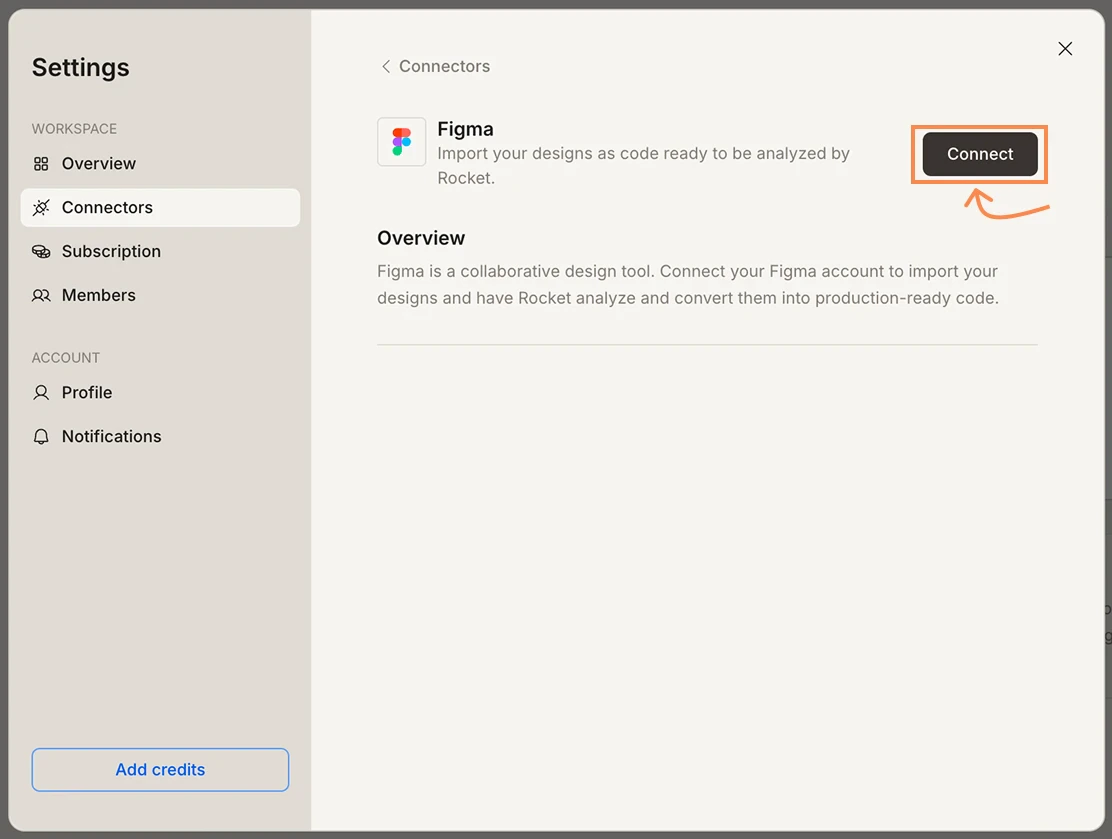
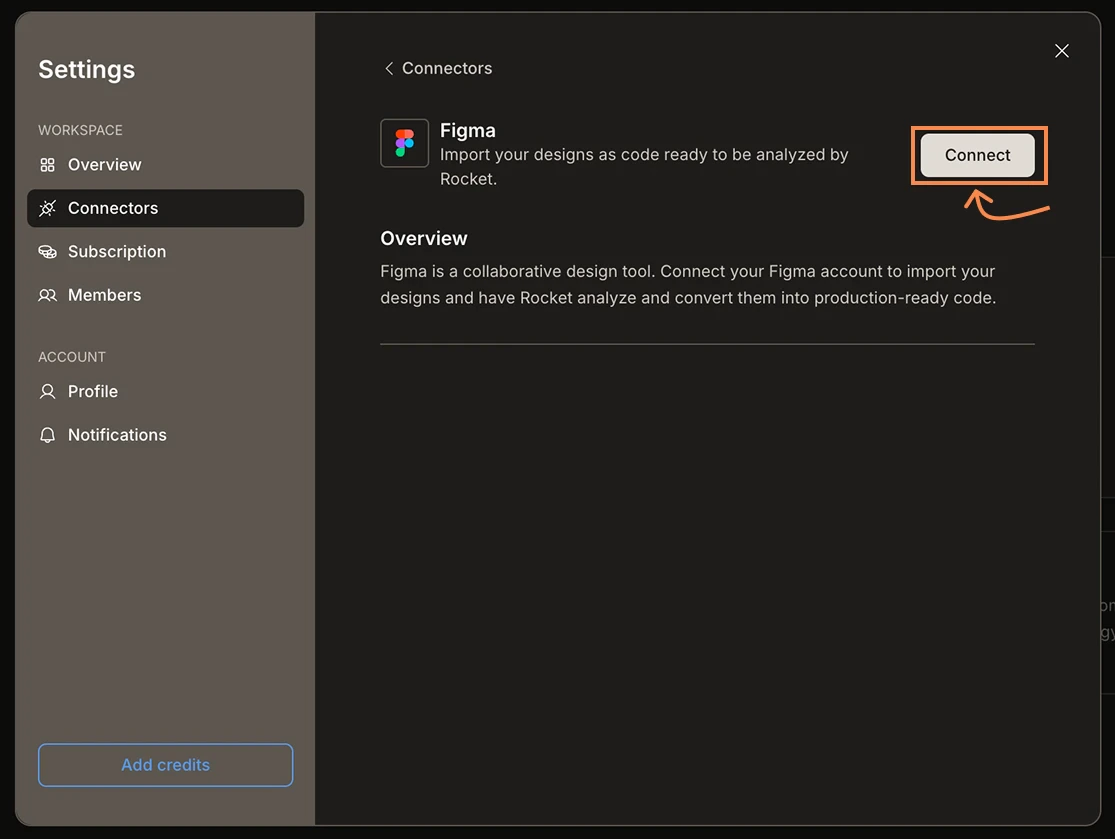
    <Frame caption="Connector detail page - click Connect">
      <img src="https://mintcdn.com/dhiwisepvtltd-5e04e6a4/s4kdAt2uX7DrYNkM/images/getting-started/workspace/connectors/connector-connect-light.webp?fit=max&auto=format&n=s4kdAt2uX7DrYNkM&q=85&s=da61f14848f0e82d0d98803561ed6532" alt="Figma connector detail page with a Connect button." className="theme-image light-image" width="1112" height="839" data-path="images/getting-started/workspace/connectors/connector-connect-light.webp" />

      <img src="https://mintcdn.com/dhiwisepvtltd-5e04e6a4/s4kdAt2uX7DrYNkM/images/getting-started/workspace/connectors/connector-connect-dark.webp?fit=max&auto=format&n=s4kdAt2uX7DrYNkM&q=85&s=a4681e030ed6f6b16f4b6b12185a68c7" alt="Figma connector detail page with a Connect button." className="theme-image dark-image" width="1115" height="839" data-path="images/getting-started/workspace/connectors/connector-connect-dark.webp" />
    </Frame>
  </Step>
</Steps>

<Check>
  A green dot appears next to the connector name when the connection is active. The connection is now available to all projects in the workspace.
</Check>

## Disconnect a service

Follow the same steps as connecting: open [**Settings > Connectors**](#connect-a-service), click the connector, then click **Disconnect**.
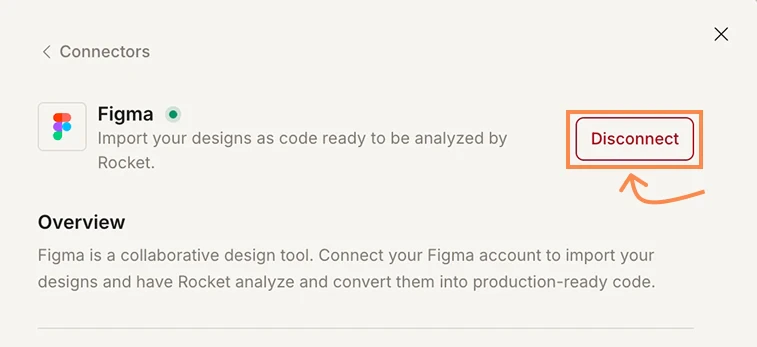
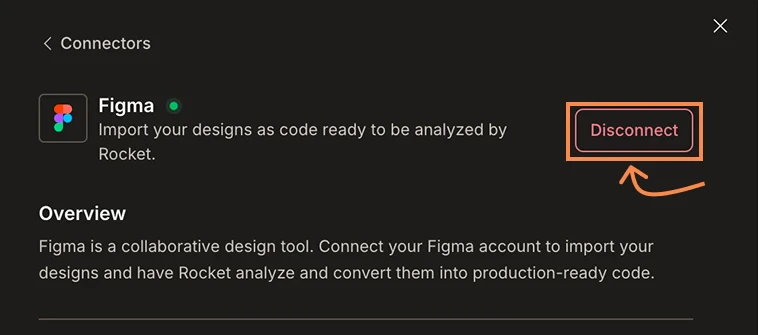
<Frame caption="Connected state - click Disconnect to remove the connection">
  <img src="https://mintcdn.com/dhiwisepvtltd-5e04e6a4/s4kdAt2uX7DrYNkM/images/getting-started/workspace/connectors/connector-disconnect-light.webp?fit=max&auto=format&n=s4kdAt2uX7DrYNkM&q=85&s=e06a564c78a410acdf5aba56d1f7e53b" alt="Figma connector showing a green active dot and a Disconnect button." className="theme-image light-image" width="757" height="347" data-path="images/getting-started/workspace/connectors/connector-disconnect-light.webp" />

  <img src="https://mintcdn.com/dhiwisepvtltd-5e04e6a4/s4kdAt2uX7DrYNkM/images/getting-started/workspace/connectors/connector-disconnect-dark.webp?fit=max&auto=format&n=s4kdAt2uX7DrYNkM&q=85&s=0e357c53f273fd8d6b4324423df290eb" alt="Figma connector showing a green active dot and a Disconnect button." className="theme-image dark-image" width="758" height="335" data-path="images/getting-started/workspace/connectors/connector-disconnect-dark.webp" />
</Frame>

<Warning>
  Disconnecting removes the connection for **all projects** in the workspace. Any project using resources from this connector will lose access to that context. Existing task outputs are not affected.
</Warning>

<Card icon="plug" href="/getting-started/project/context/connected-services" horizontal arrow="true">
  Once connected, each project selects which specific pages, documents, or sheets to use as context. Learn how at the project level.
</Card>

<Divider />

## What's next?

<CardGroup cols={2}>
  <Card title="Connected services" icon="plug" href="/getting-started/project/context/connected-services">
    Select specific resources from workspace connectors for a project.
  </Card>

  <Card title="Build connectors" icon="grid-2" href="/build/connectors/overview">
    Browse all connectors and see setup guides for each service.
  </Card>

  <Card title="Workspace collaboration" icon="users" href="/getting-started/collaboration/workspace">
    Understand who can manage connectors and project access.
  </Card>

  <Card title="Workspace overview" icon="building" href="/getting-started/workspace/overview">
    Learn about workspaces, billing, and team management.
  </Card>
</CardGroup>