> ## Documentation Index
> Fetch the complete documentation index at: https://docs.rocket.new/llms.txt
> Use this file to discover all available pages before exploring further.
# Overview
> Manage projects, members, and billing in one Rocket.new workspace.
export const LlmsDirective = () =>
For the complete documentation index, see llms.txt.
For a lightweight markdown version of this page, append .md to the URL.
;
A workspace is the top-level container in Rocket. It represents your organization, or a distinct team within it, and holds all projects, members, billing, and connectors in one place.
When you create a Rocket account, a default workspace is automatically created using your first and last name. This default workspace comes with the Free plan and its one-time 20 credits.
A workspace is the organizational shell. Projects live inside workspaces and contain the actual work (tasks, files, services). Think of a workspace as the company, and projects as the initiatives within it.
## What a workspace provides
| Feature | Description |
| :----------------------- | :--------------------------------------------------------------------------------------------------------------------- |
| **Unified billing** | One subscription and one invoice. All credit usage across projects is billed at the workspace level. |
| **Team management** | Invite members once to the workspace. They can be added to any project without re-inviting. |
| **Connectors** | Connect services like Notion and Google at the workspace level so all projects can use them. |
| **Project organization** | All projects in the workspace are visible to members based on their role, making it easy to find work and collaborate. |
| **Centralized settings** | Configure workspace-wide defaults for visibility, notifications, and security. |
## Manage your workspace
**Create, rename, switch between, and delete workspaces.** Step-by-step instructions.
## Members
Go to **Settings → Members** to view, invite, or manage workspace members. You can assign roles (**Editor** or **Viewer**) when inviting, or change them later. The **Owner** role is not assignable — you are the owner of any workspace you create.
See the full roles and permissions breakdown.
Removing a member revokes their access to the workspace and all projects within it. Their contributions (tasks, comments, files) remain in the workspace.
## Multiple workspaces
You can belong to more than one workspace. This is useful when you work with multiple organizations, or when your company separates teams into distinct workspaces for billing or access control.
* Your entire team works on related projects
* You want unified billing and a single member directory
* Cross-project visibility is important
* You are a small to mid-size team
* You work with distinct organizations (e.g., your company + a client)
* Teams need completely separate billing
* You need hard boundaries between groups of projects
* You are a large organization with independent departments
## View all workspaces
The **All workspaces** view lists every workspace you own in one place, with visibility into members and their roles, tasks, projects, and messages. Use it to monitor activity across workspaces and manage collaboration without switching contexts.
Click your workspace name in the top left of the sidebar to open the workspace menu.
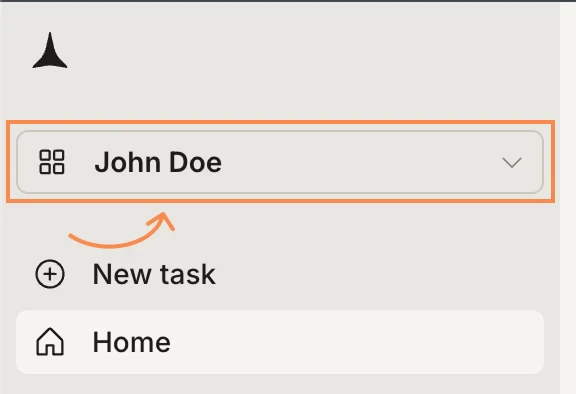
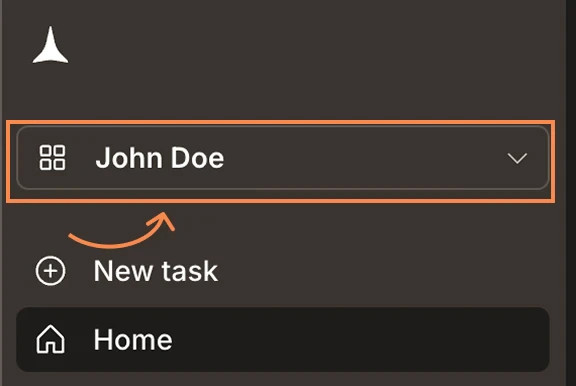 From the workspace menu, click **View all workspaces**.
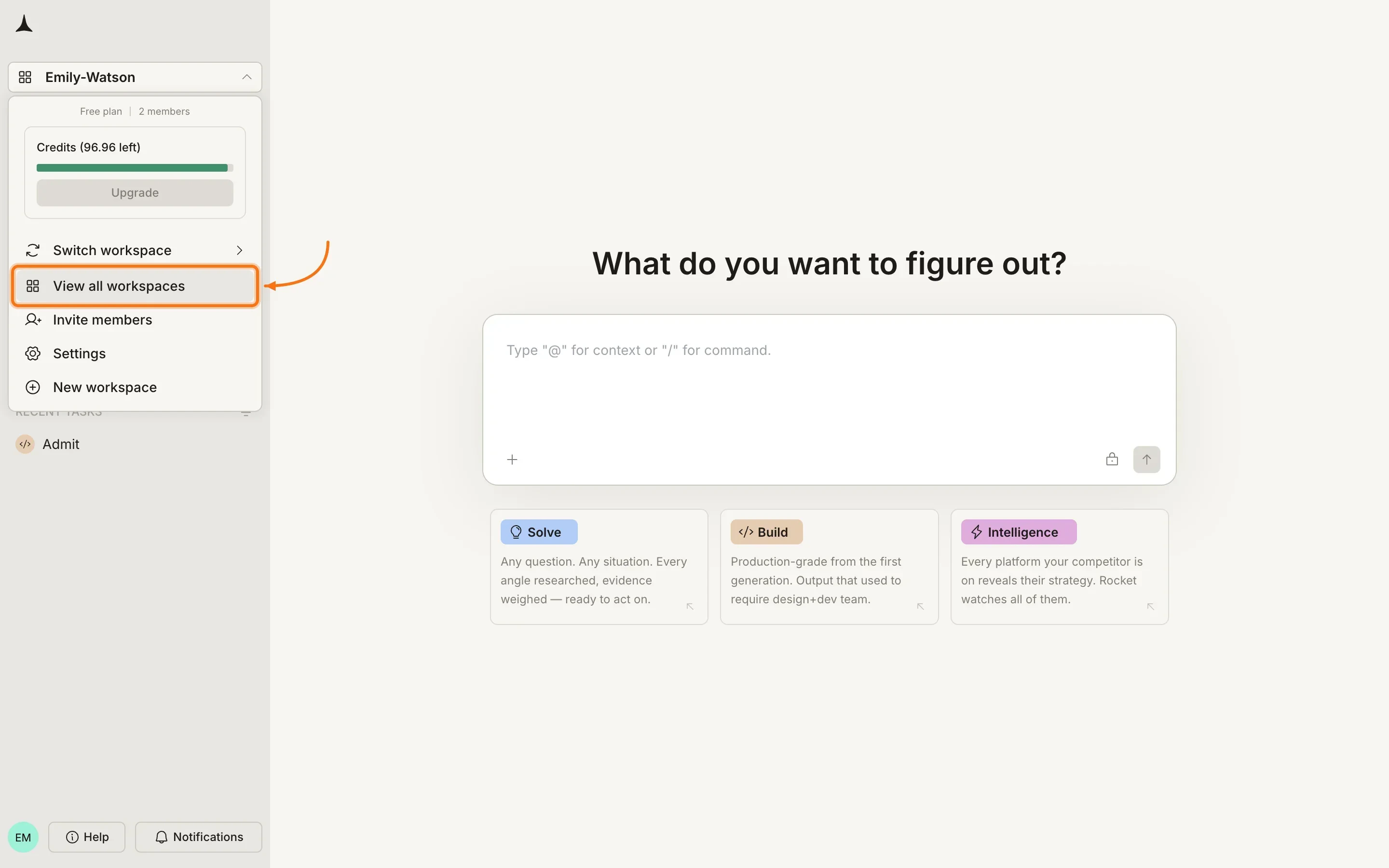
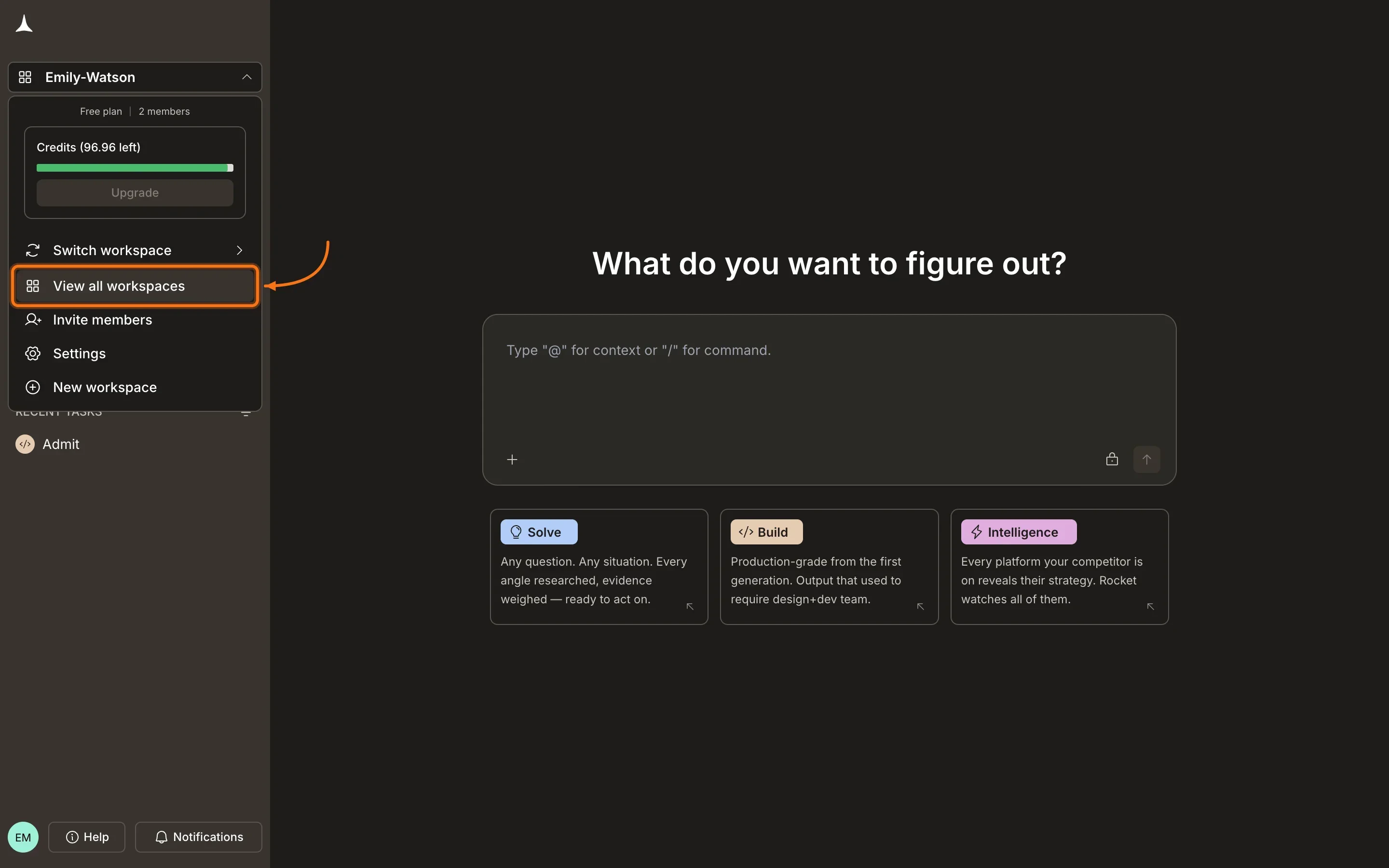 The **All workspaces** page opens with a row per workspace you own. Each row shows the workspace name alongside its members and roles, tasks, projects, and messages so you can see activity at a glance and jump into any workspace directly.
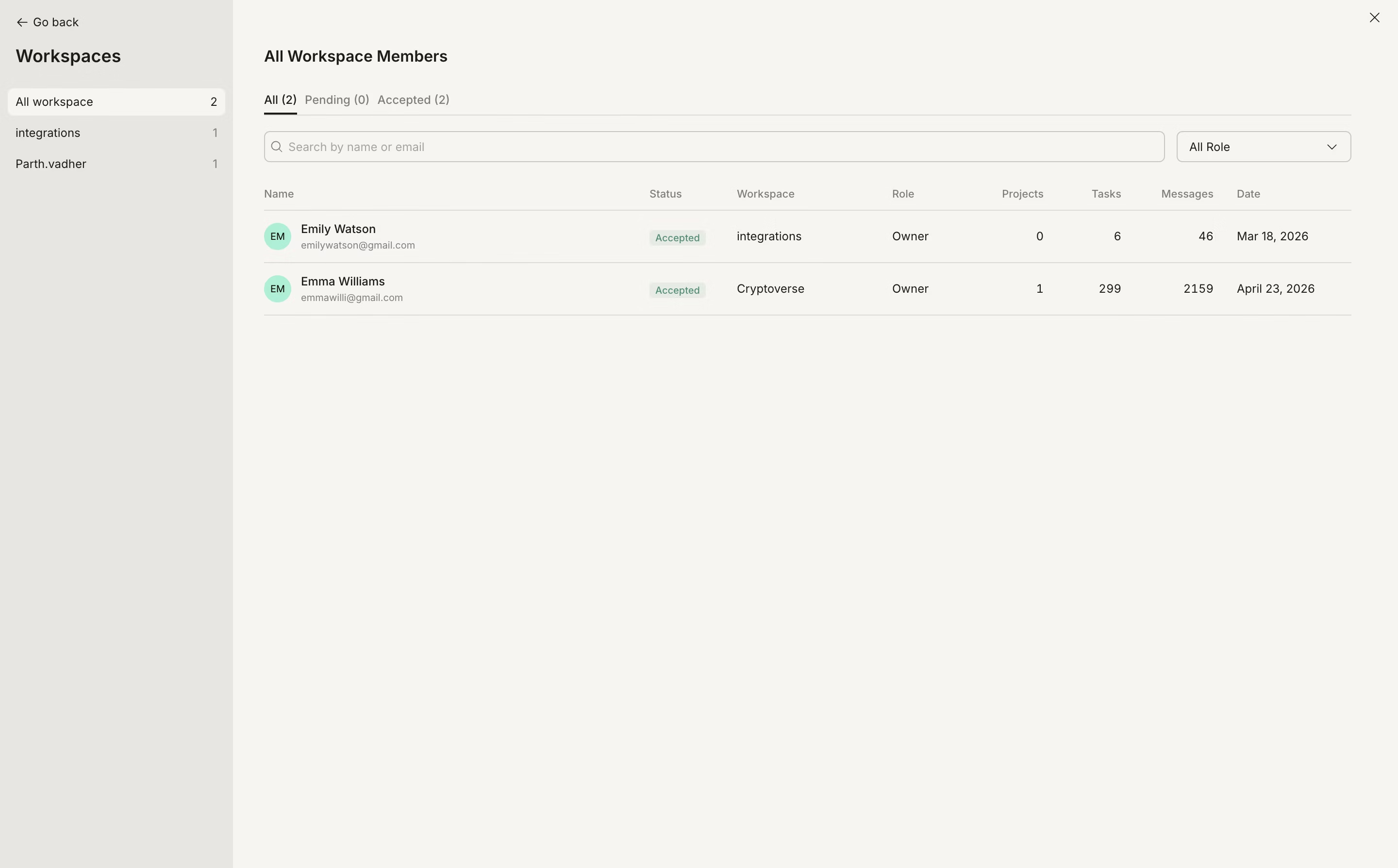
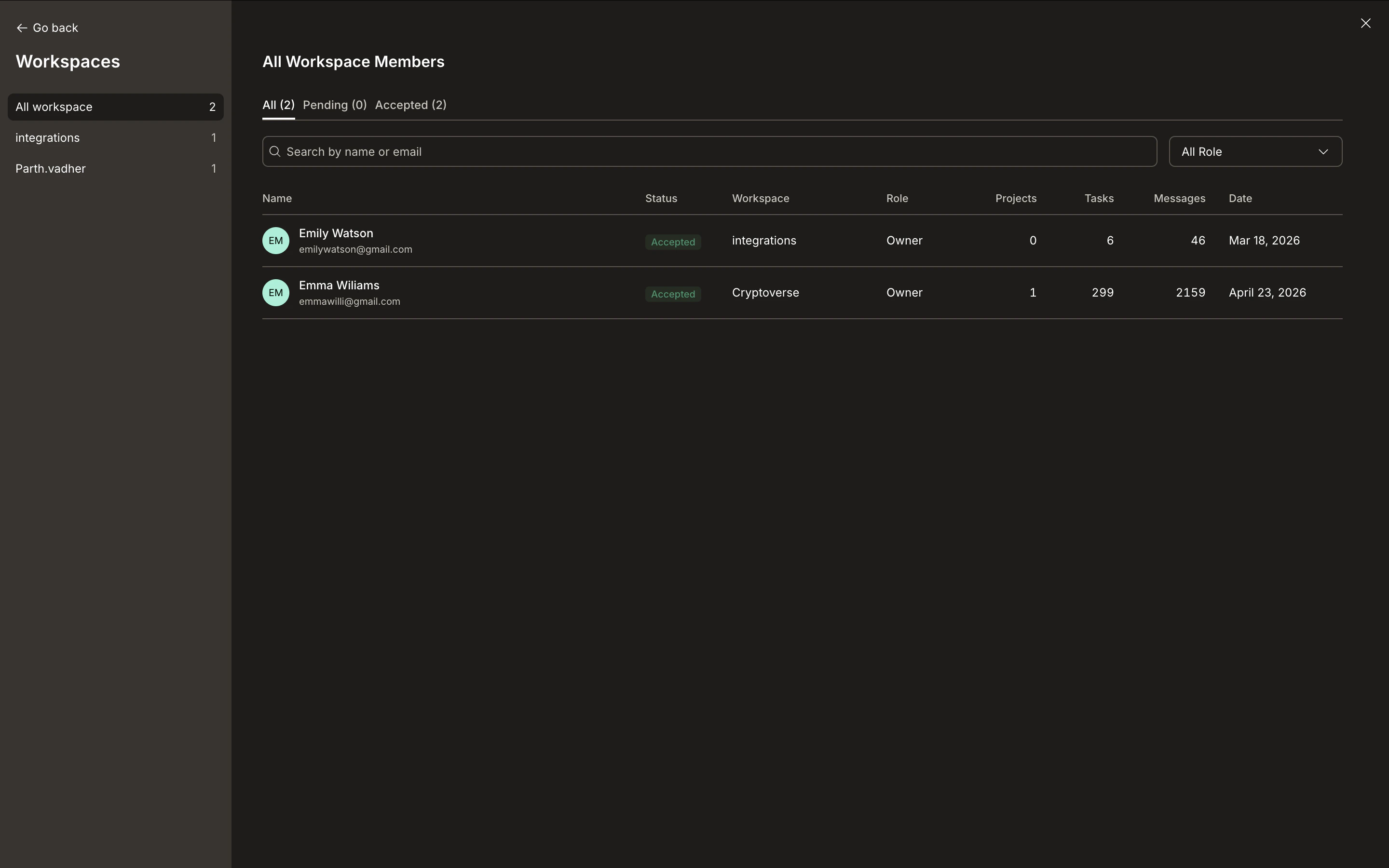 Only workspaces you own are listed in this view. To switch into a workspace where you are a member but not the owner, use **Switch workspace** in the menu. See [Manage workspaces](/getting-started/workspace/manage#switch-between-workspaces).
## Workspace settings
Click your workspace name in the sidebar, then select **Settings**. Here is what you can manage:
| Setting | Description |
| :--------------- | :------------------------------------------------------------------------------------------------------------------------------- |
| **Overview** | Workspace name, description, and default visibility for new projects. |
| **Connectors** | Connect and manage external services at the workspace level. See [Connectors](/getting-started/workspace/connectors). |
| **Subscription** | View plan details, credit usage, and manage payment methods. See [Subscription](/getting-started/workspace/subscription). |
| **Members** | Invite, remove, and manage roles for workspace members. See [Workspace collaboration](/getting-started/collaboration/workspace). |
## What's next?
Connect external services at the workspace level for all projects.
Manage your plan, credits, and payment methods.
Understand roles, permissions, and the full sharing model.
Start a new project inside your workspace.
Only workspaces you own are listed in this view. To switch into a workspace where you are a member but not the owner, use **Switch workspace** in the menu. See [Manage workspaces](/getting-started/workspace/manage#switch-between-workspaces).
## Workspace settings
Click your workspace name in the sidebar, then select **Settings**. Here is what you can manage:
| Setting | Description |
| :--------------- | :------------------------------------------------------------------------------------------------------------------------------- |
| **Overview** | Workspace name, description, and default visibility for new projects. |
| **Connectors** | Connect and manage external services at the workspace level. See [Connectors](/getting-started/workspace/connectors). |
| **Subscription** | View plan details, credit usage, and manage payment methods. See [Subscription](/getting-started/workspace/subscription). |
| **Members** | Invite, remove, and manage roles for workspace members. See [Workspace collaboration](/getting-started/collaboration/workspace). |
## What's next?
Connect external services at the workspace level for all projects.
Manage your plan, credits, and payment methods.
Understand roles, permissions, and the full sharing model.
Start a new project inside your workspace.