> ## Documentation Index
> Fetch the complete documentation index at: https://docs.rocket.new/llms.txt
> Use this file to discover all available pages before exploring further.
# Subscription
> Buy a plan, add credits, and manage billing in Rocket.new.
export const LlmsDirective = () =>
For the complete documentation index, see llms.txt.
For a lightweight markdown version of this page, append .md to the URL.
;
Subscription management is only available on the web browser. You need a logged-in Rocket account to manage your plan.
Each workspace has its own subscription plan and credit balance. Make sure you are in the correct workspace before managing your subscription.
You can switch workspaces from the sidebar. See [Manage workspaces](/getting-started/workspace/manage).
## Buy a plan
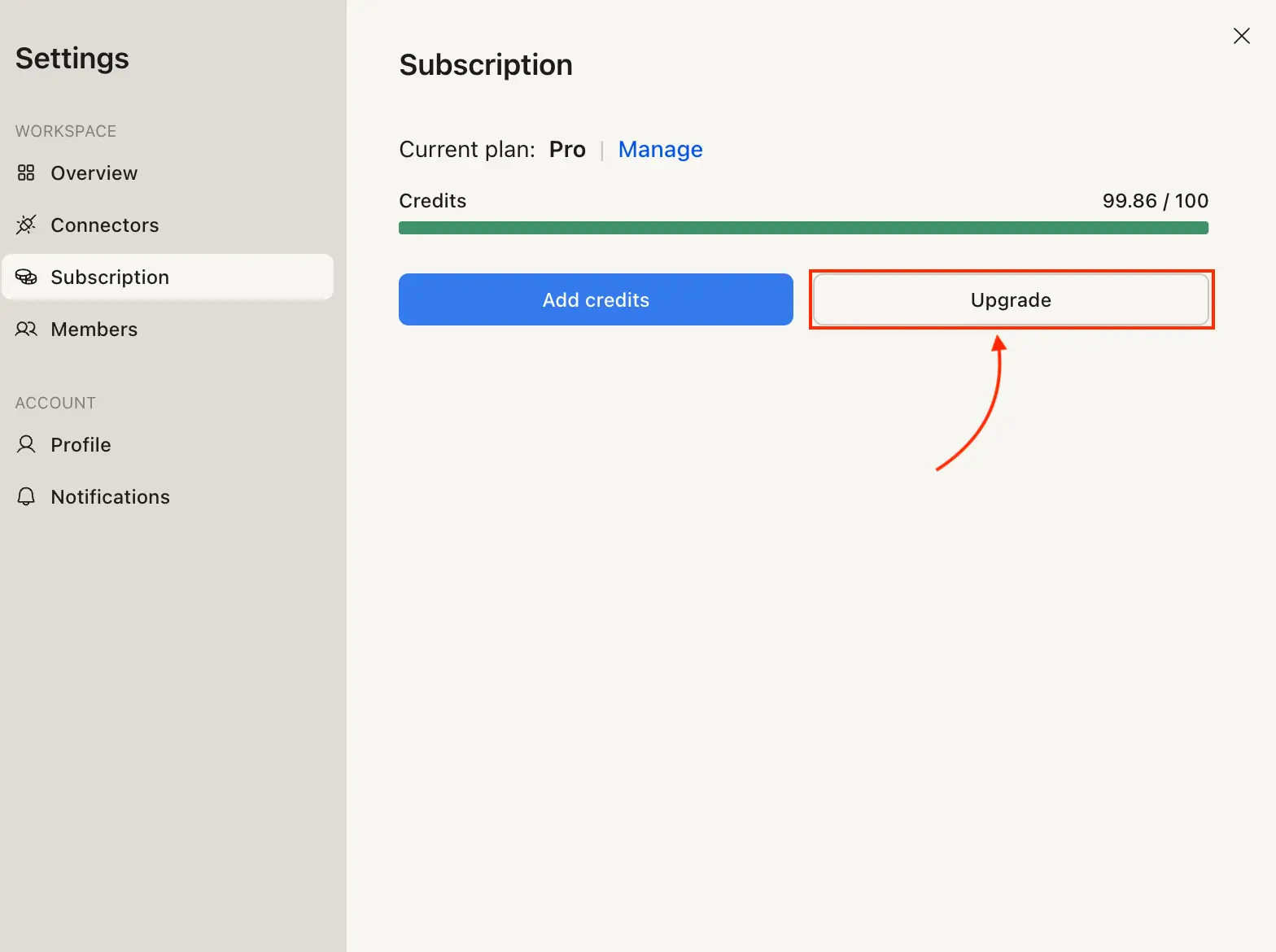
Go to **Settings → Subscription**. Click the **Upgrade** button. The Upgrade modal opens showing available plans (Pro, Rocket, Booster). Toggle **Yearly (save 20%)** to see annual pricing.
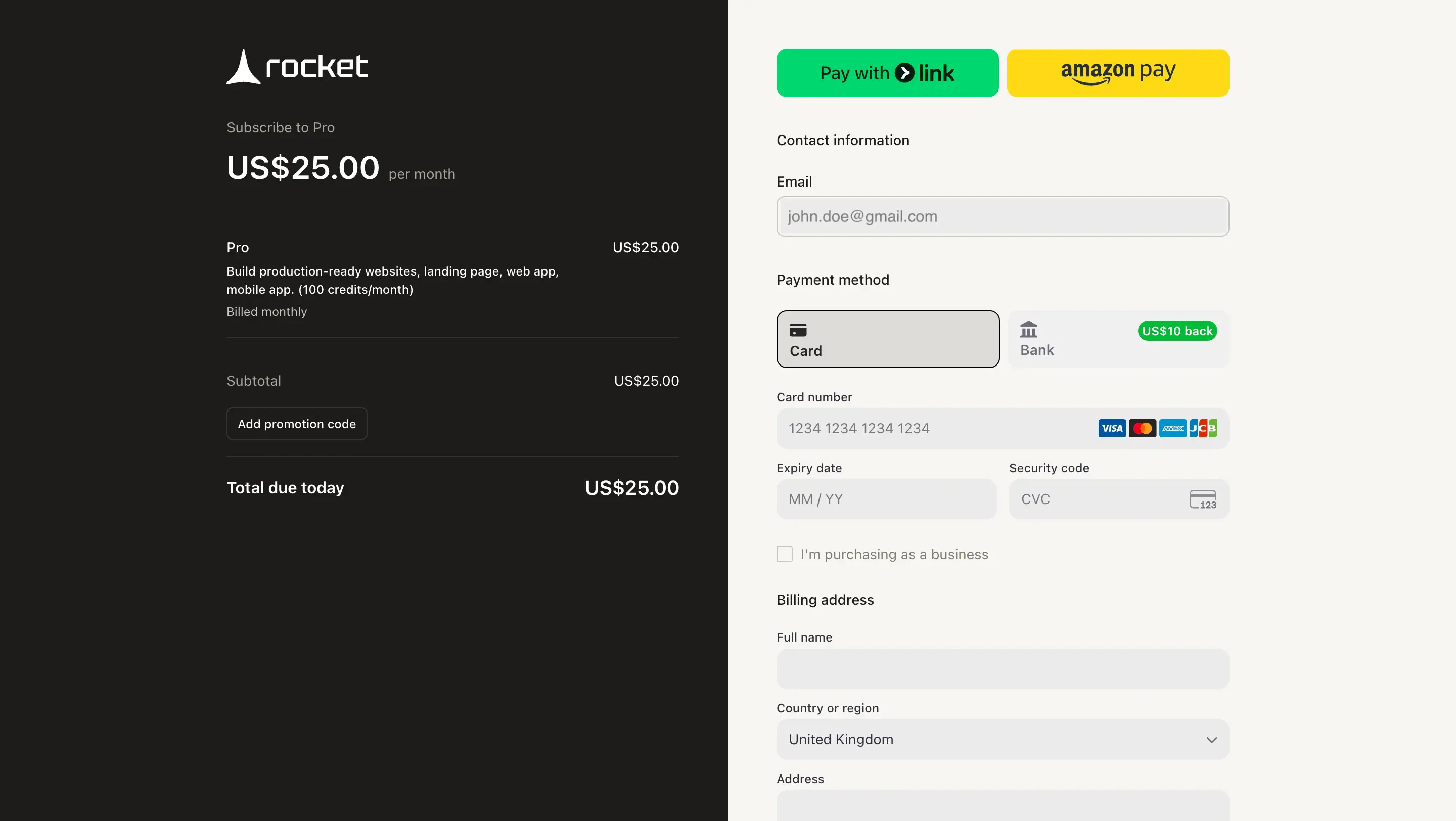
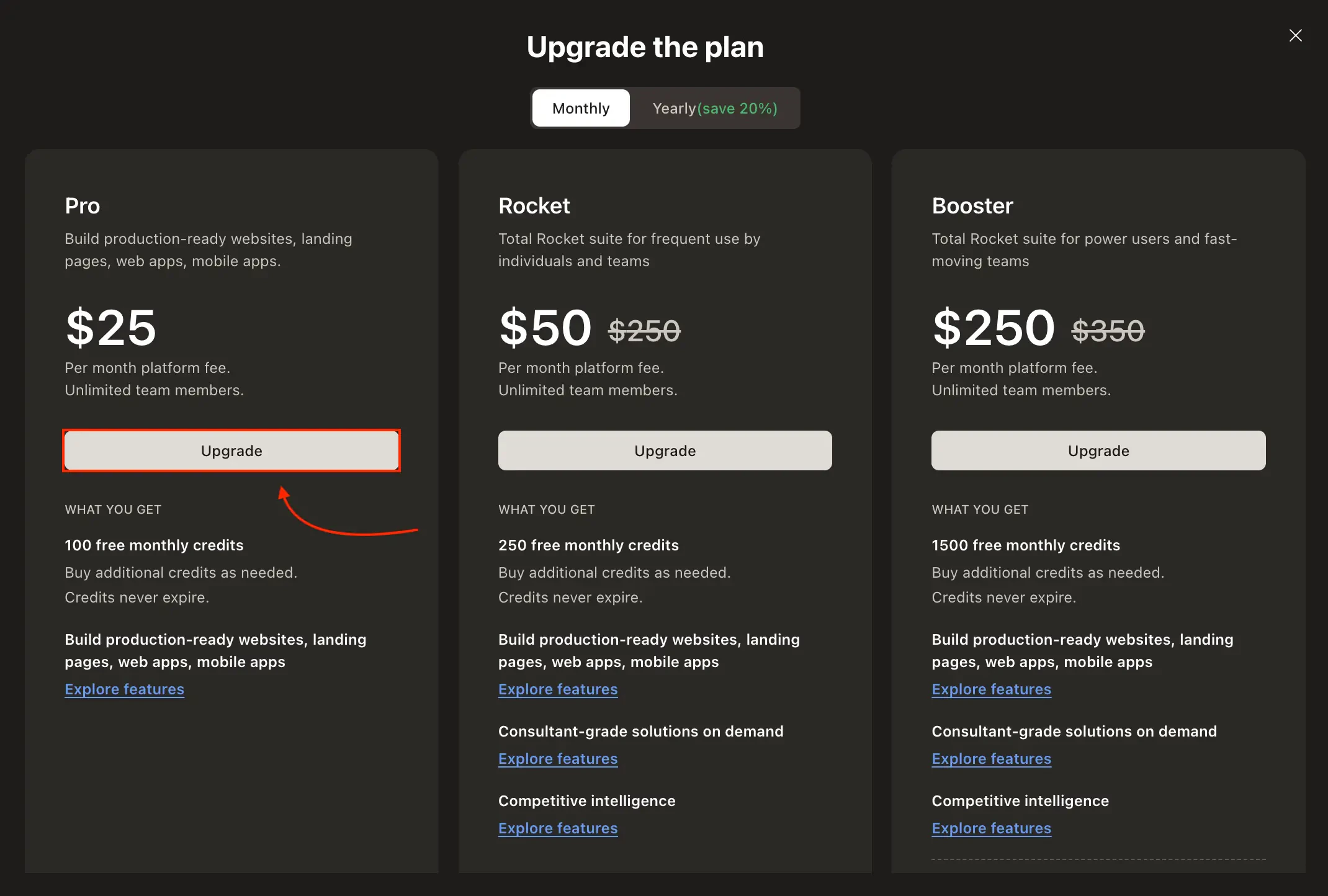 Click **Upgrade** on the plan that fits your workload. You are redirected to Stripe checkout.
Review the plan details, enter your payment information, and click **Subscribe**. Your credits are available immediately.
Click **Upgrade** on the plan that fits your workload. You are redirected to Stripe checkout.
Review the plan details, enter your payment information, and click **Subscribe**. Your credits are available immediately.
 Already on a paid plan? See [Upgrade to another plan](#upgrade-to-another-plan).
## Upgrade paths by plan
The Subscription tab shows different options based on your current plan. See [how to buy a plan](#buy-a-plan) or [upgrade to another plan](#upgrade-to-another-plan).
| Current plan | Available upgrades |
| :----------- | :----------------------------------- |
| **Free** | Pro, Rocket, Booster |
| **Pro** | Rocket, Booster |
| **Rocket** | Booster |
| **Booster** | No upgrades available (highest tier) |
## Upgrade to another plan
Go to **Settings → Subscription**. Your current plan is shown at the top. Click the **Upgrade** button.
Already on a paid plan? See [Upgrade to another plan](#upgrade-to-another-plan).
## Upgrade paths by plan
The Subscription tab shows different options based on your current plan. See [how to buy a plan](#buy-a-plan) or [upgrade to another plan](#upgrade-to-another-plan).
| Current plan | Available upgrades |
| :----------- | :----------------------------------- |
| **Free** | Pro, Rocket, Booster |
| **Pro** | Rocket, Booster |
| **Rocket** | Booster |
| **Booster** | No upgrades available (highest tier) |
## Upgrade to another plan
Go to **Settings → Subscription**. Your current plan is shown at the top. Click the **Upgrade** button.
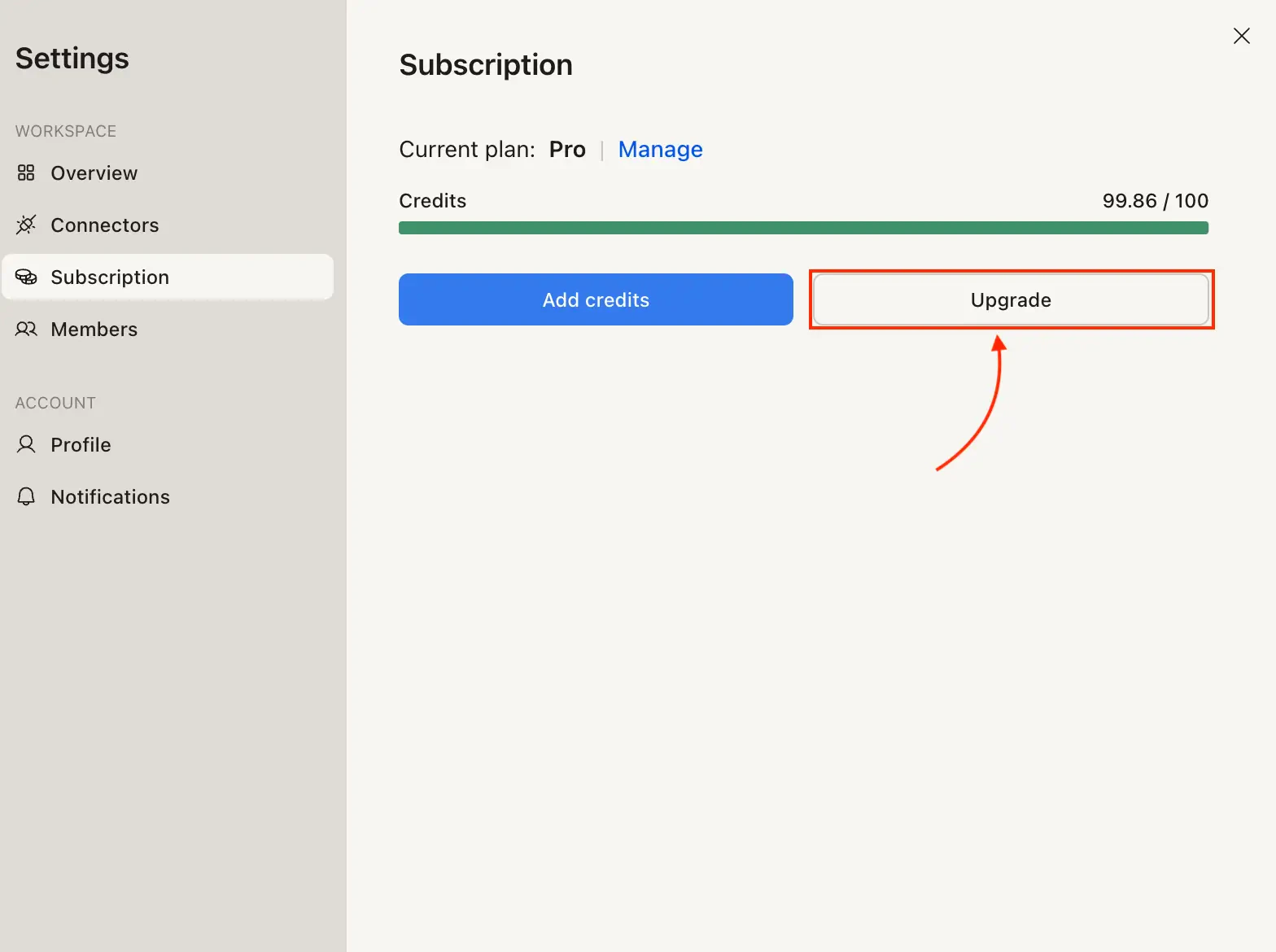
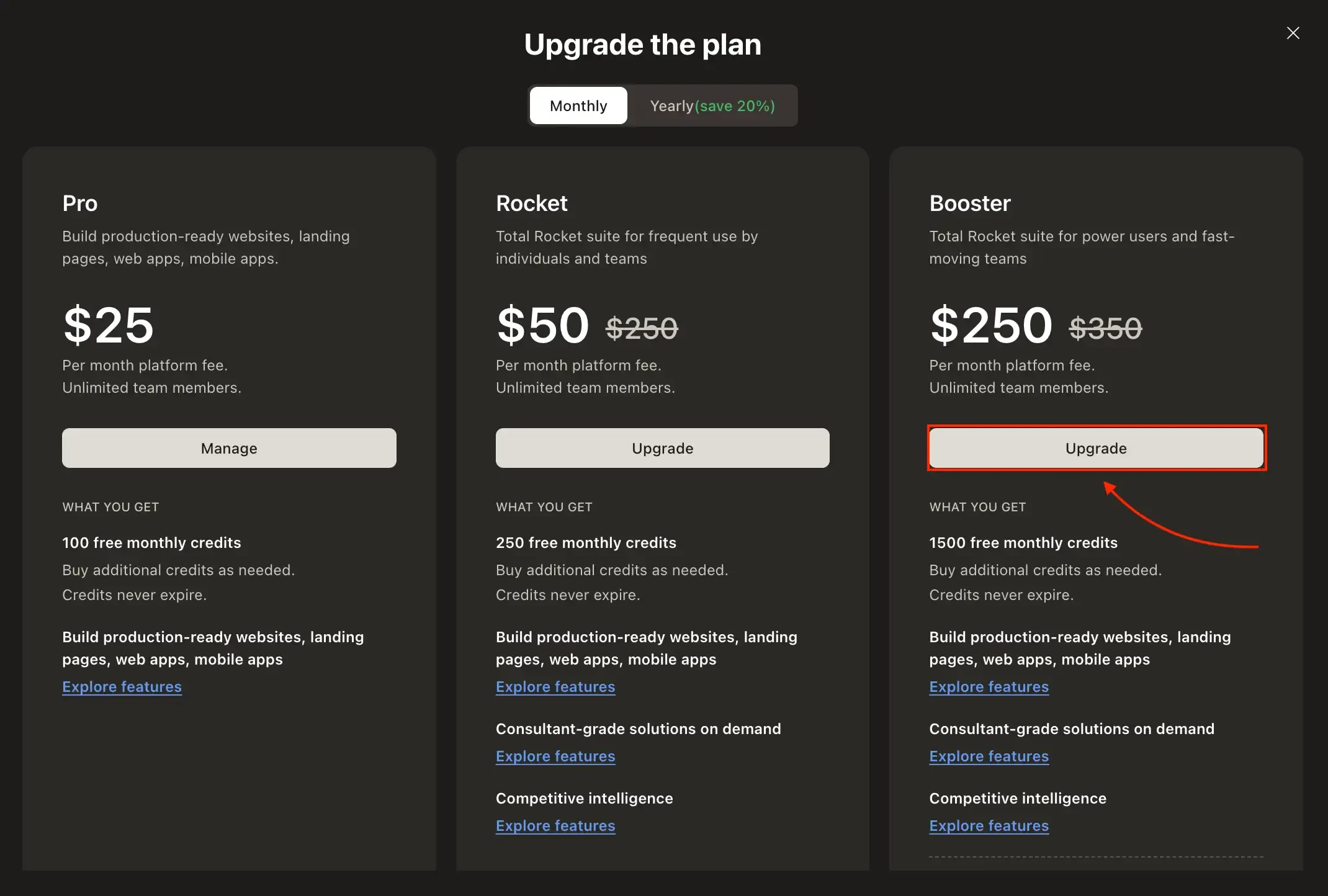
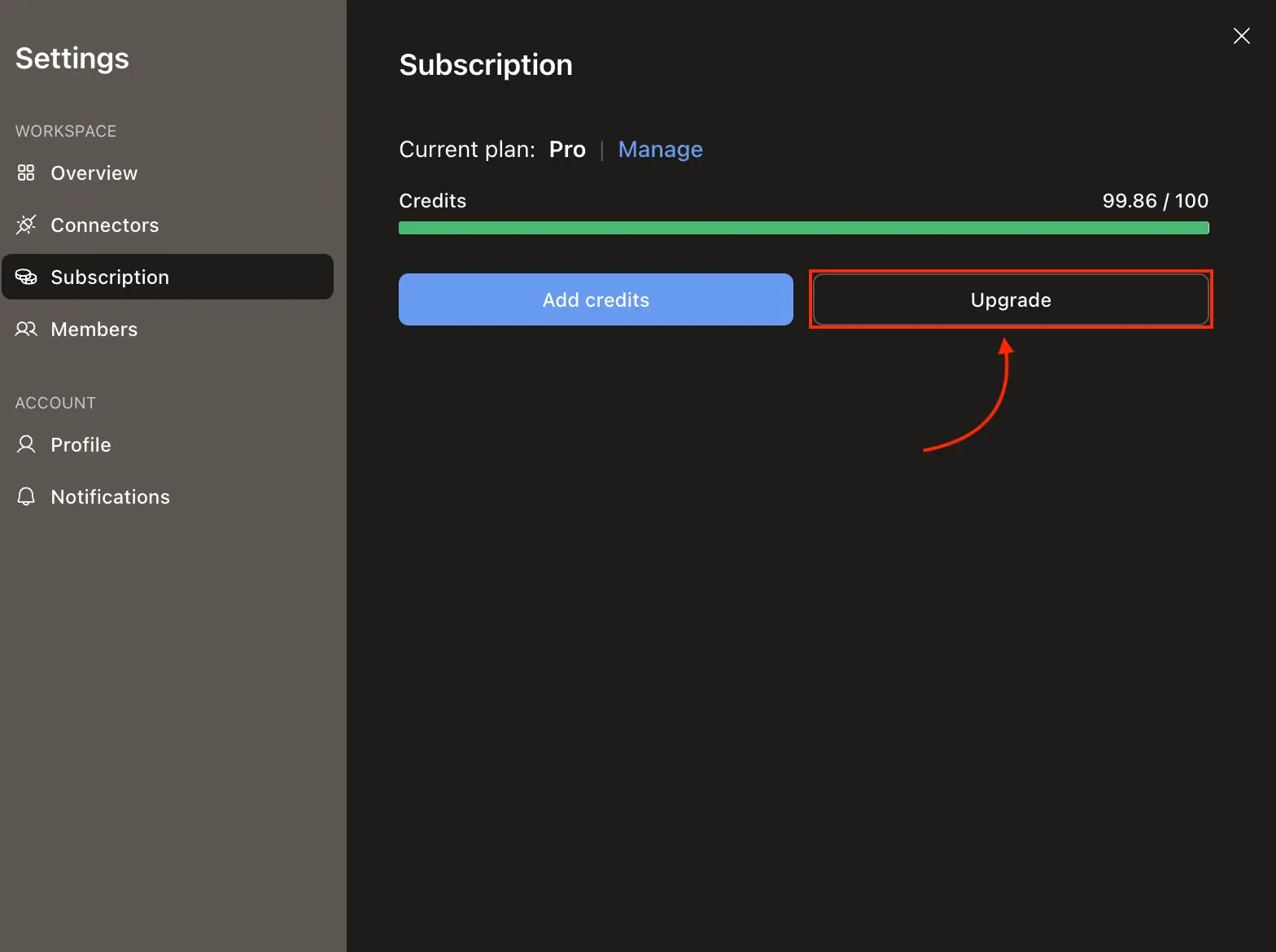 The Upgrade modal shows all available plans. Click **Upgrade** on the plan you want to move to.
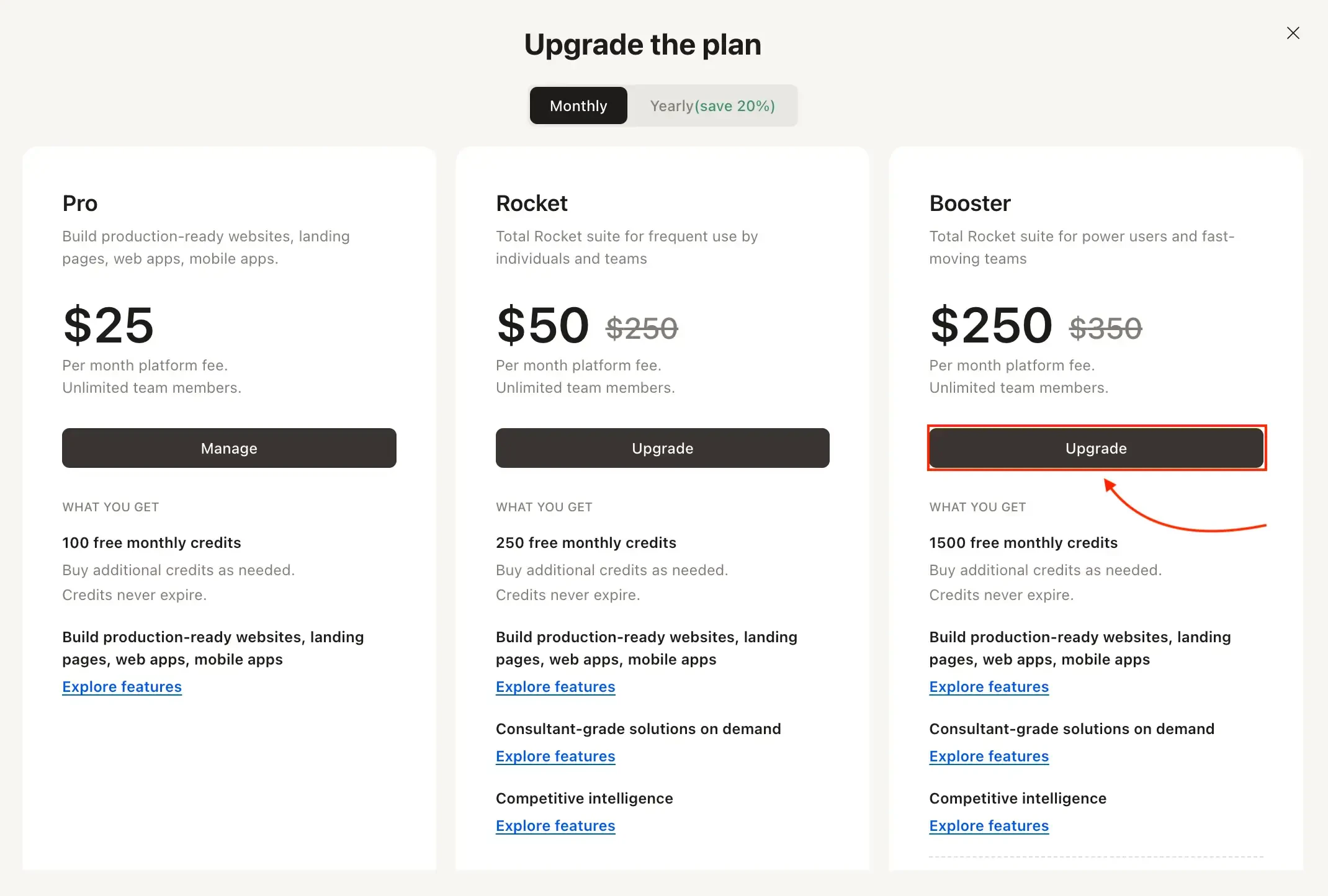
 Stripe shows the prorated charge for the remainder of your billing cycle. Review and click **Confirm**.
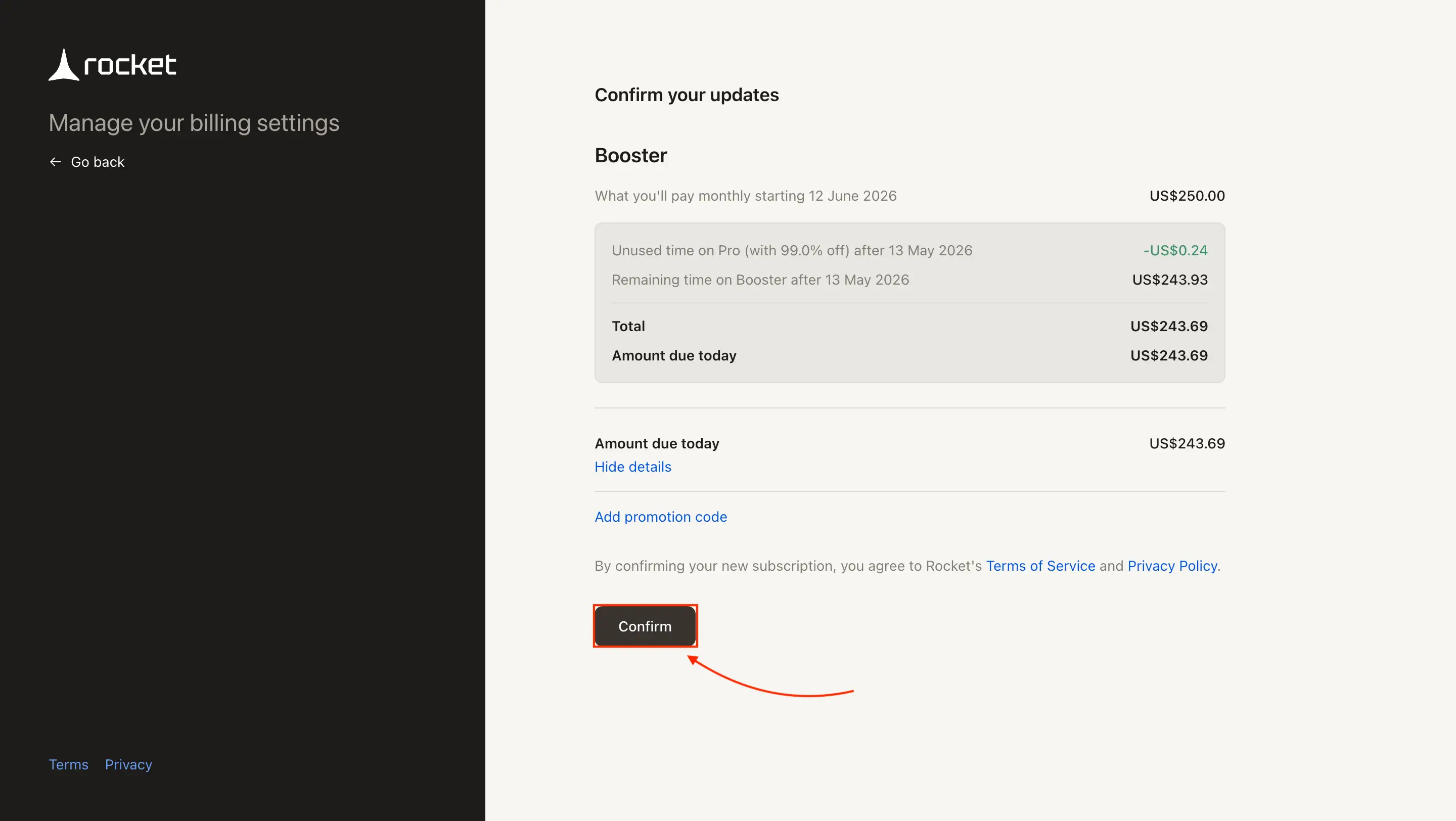 No cancellation is required. The upgrade takes effect immediately with prorated charges, and you receive the additional credits right away.
## Add credits
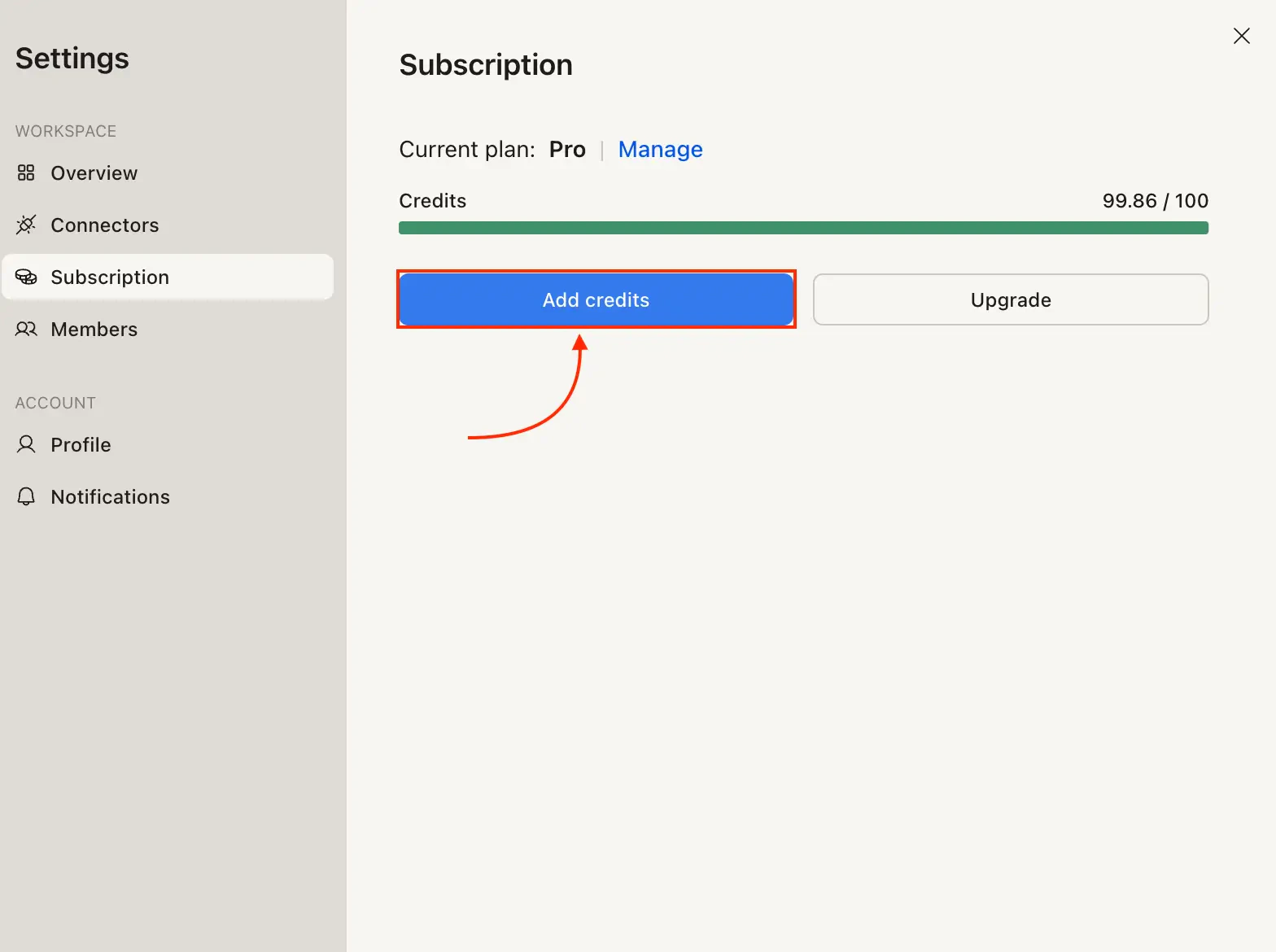
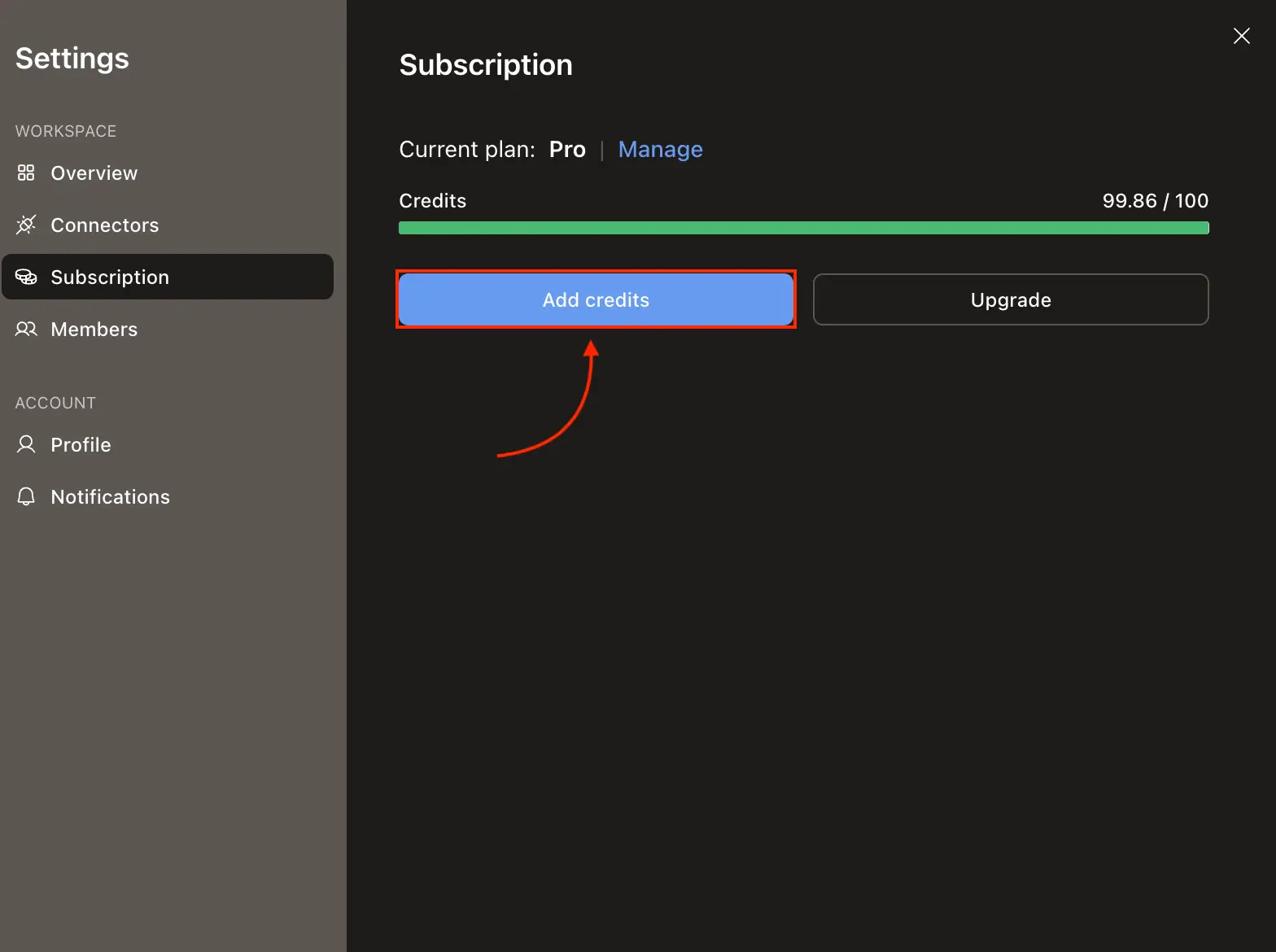
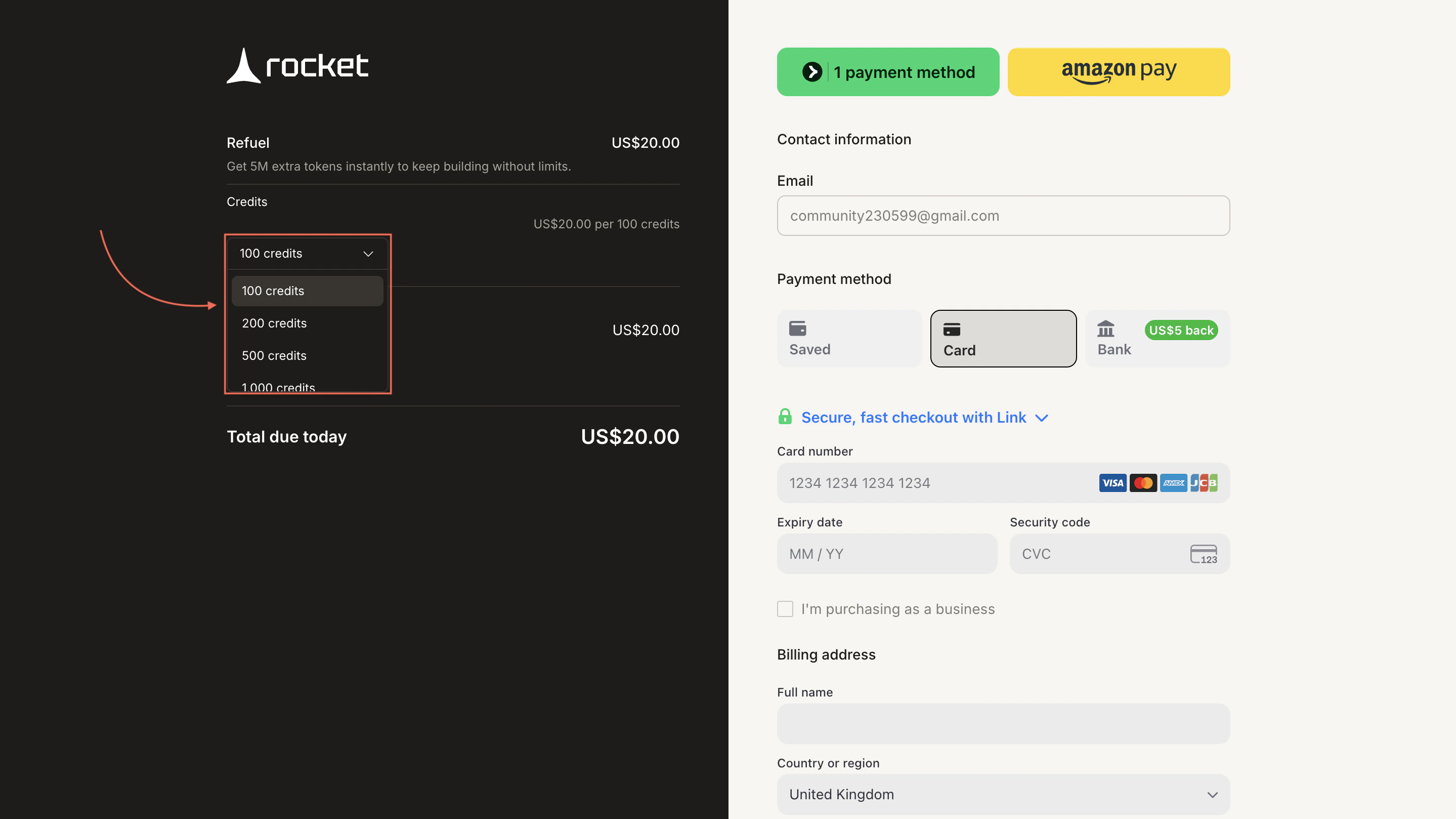
The **Add credits** button is visible in **Settings → Subscription** for paid users. Clicking it takes you directly to Stripe checkout where you choose how many credits to buy. If you find yourself adding credits regularly, consider [upgrading to a higher plan](#upgrade-to-another-plan) for better value.
Open **Settings → Subscription** and click **Add credits**.
No cancellation is required. The upgrade takes effect immediately with prorated charges, and you receive the additional credits right away.
## Add credits
The **Add credits** button is visible in **Settings → Subscription** for paid users. Clicking it takes you directly to Stripe checkout where you choose how many credits to buy. If you find yourself adding credits regularly, consider [upgrading to a higher plan](#upgrade-to-another-plan) for better value.
Open **Settings → Subscription** and click **Add credits**.
 Select the number of credits (100, 1,000, or more), confirm the total, and click **Pay**.
 Free plan users do not see the Add credits button. [Upgrade to a paid plan](#buy-a-plan) first.
## Cancel your subscription
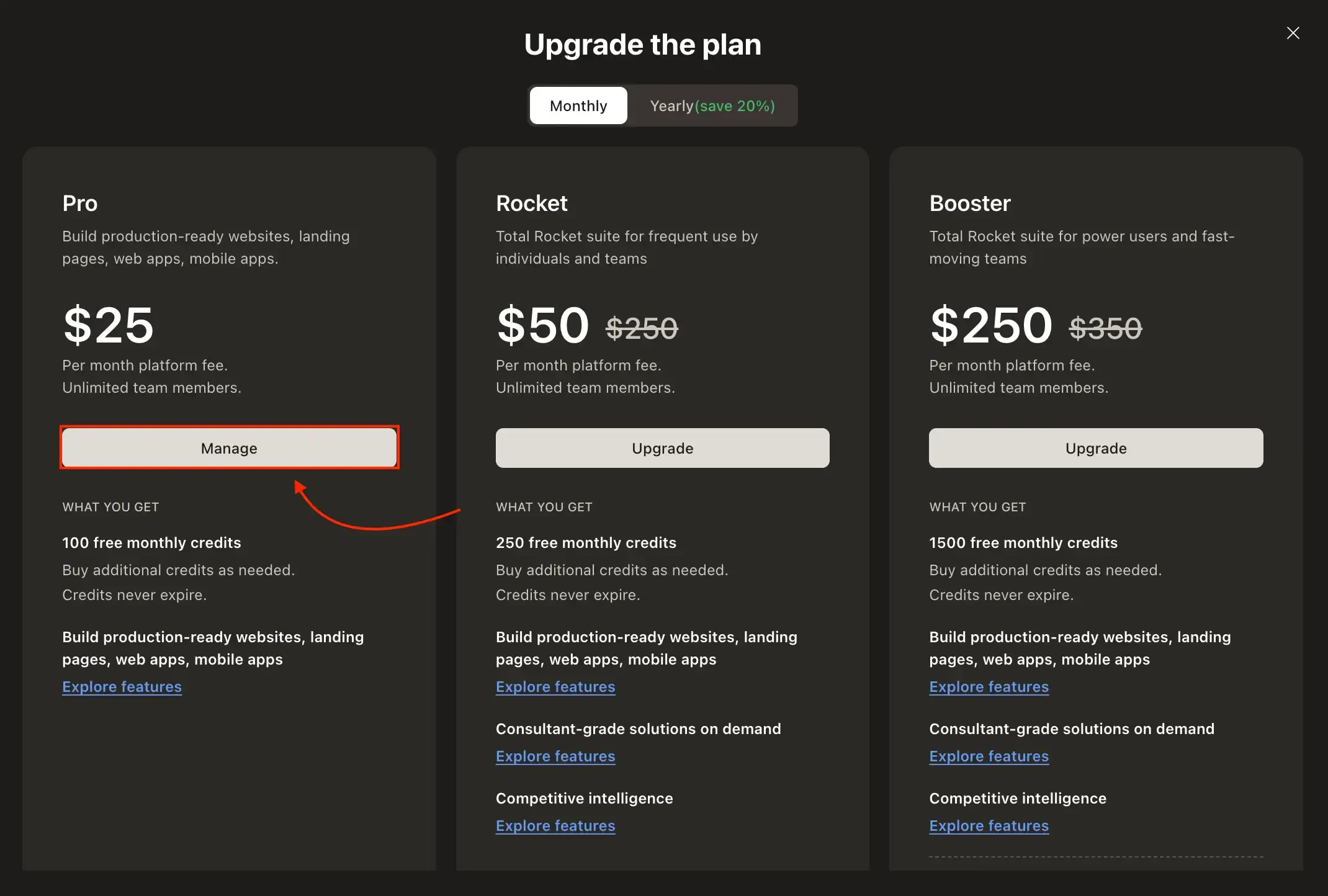
Open **Settings → Subscription** and click **Upgrade**. In the modal, your current plan shows a **Manage** button. Click it to open the Stripe billing portal.
Free plan users do not see the Add credits button. [Upgrade to a paid plan](#buy-a-plan) first.
## Cancel your subscription
Open **Settings → Subscription** and click **Upgrade**. In the modal, your current plan shows a **Manage** button. Click it to open the Stripe billing portal.
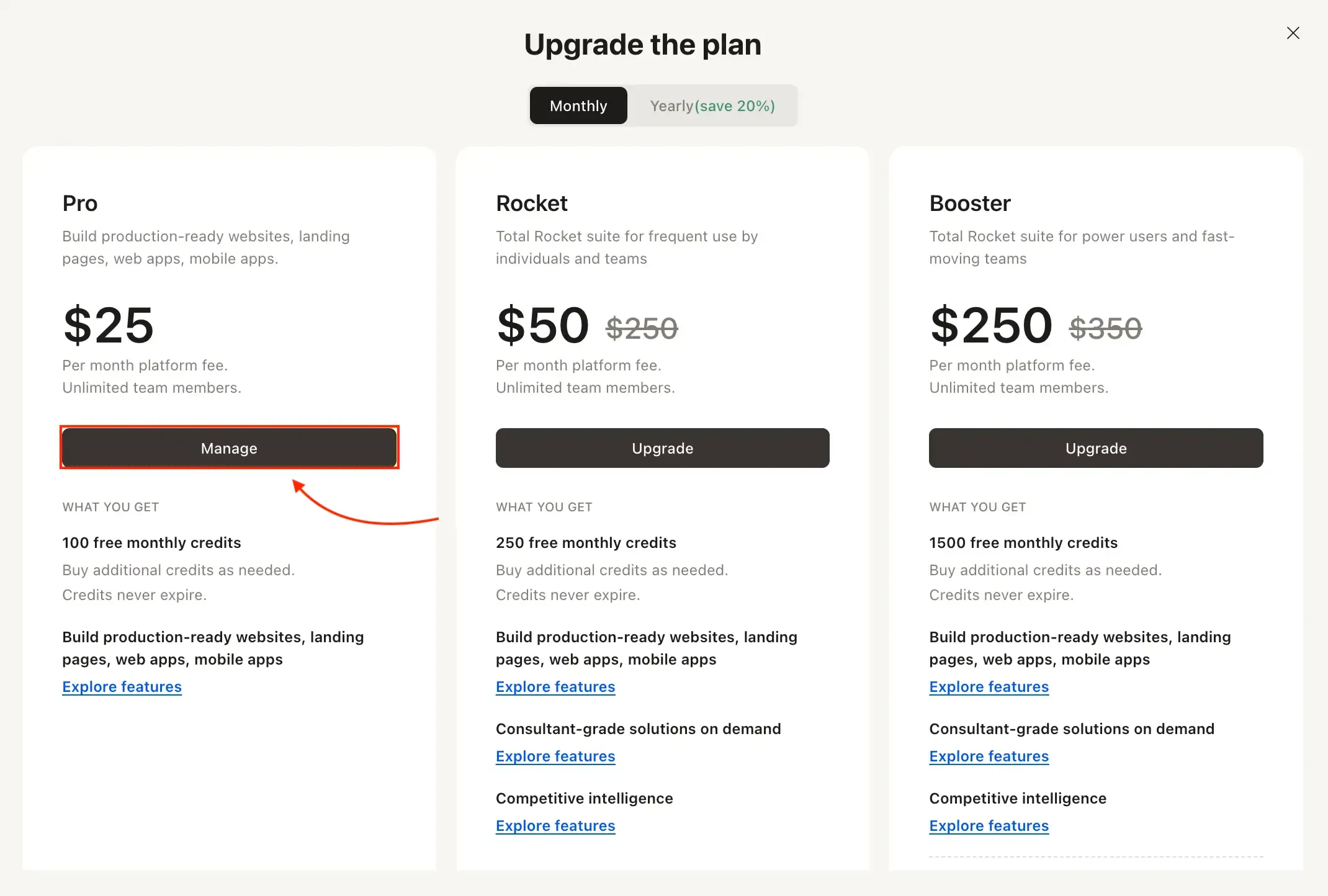
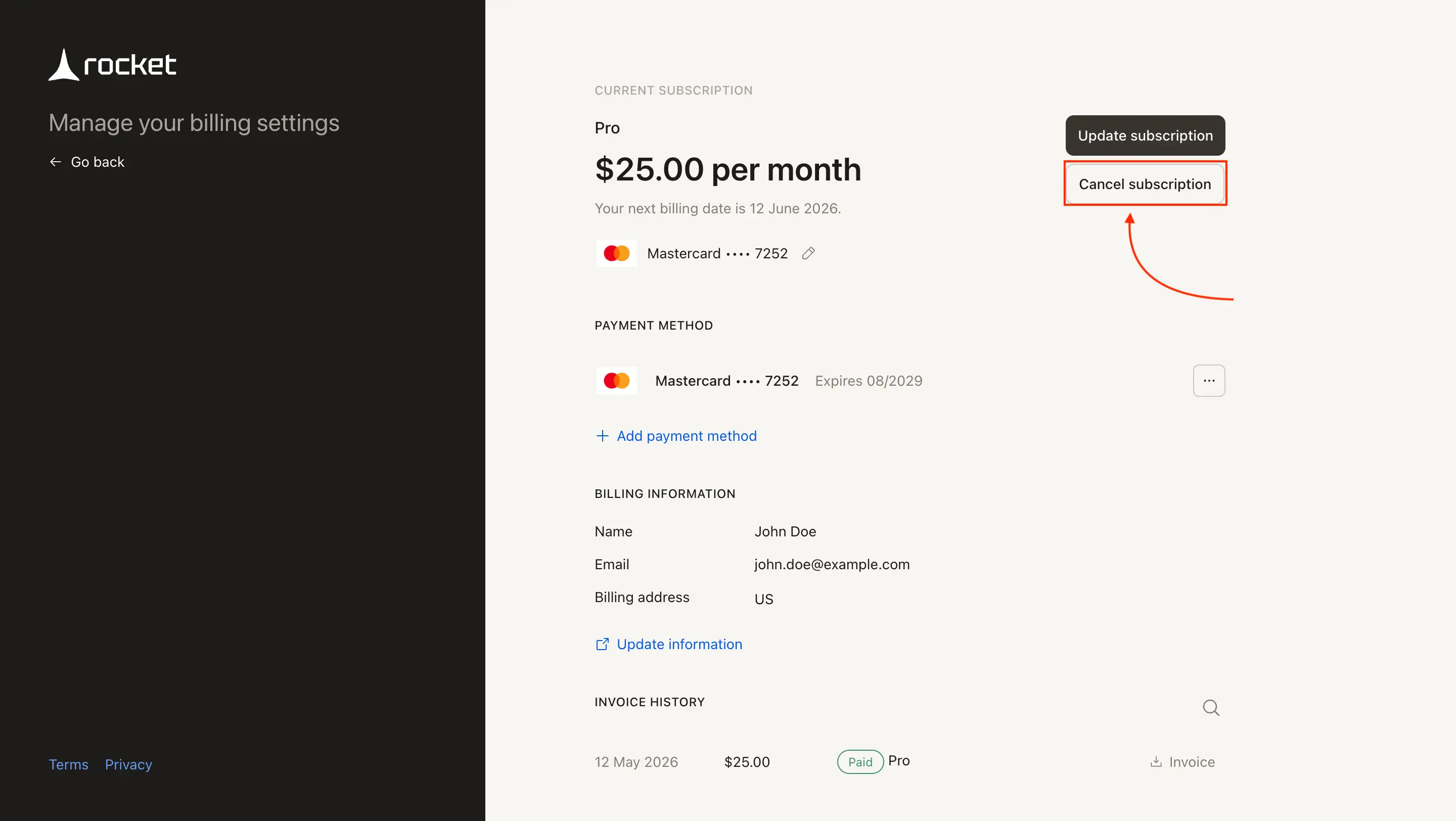
 In the Stripe billing portal, click **Cancel subscription**.
 Review the end date and click **Cancel subscription** to confirm.
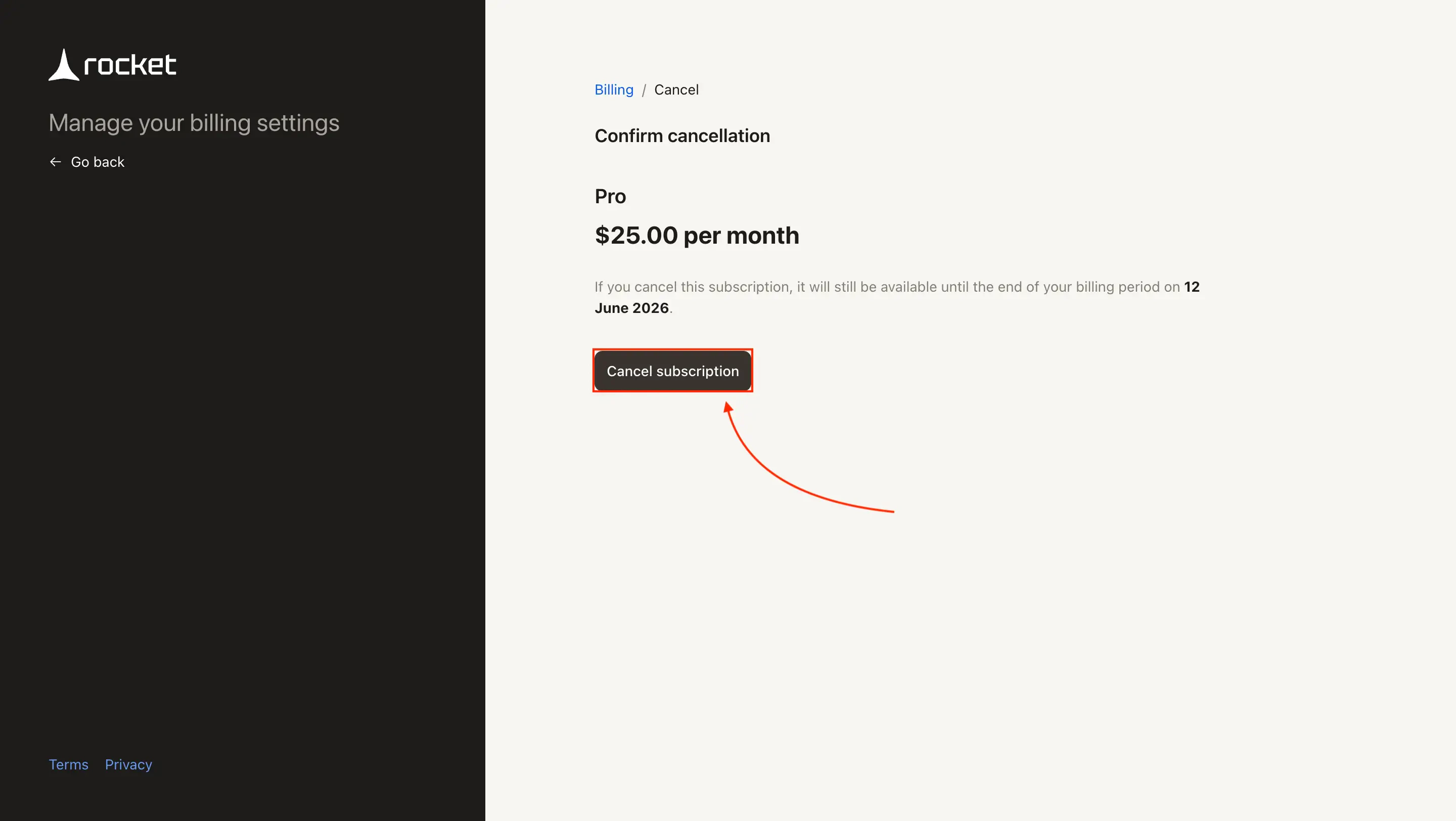 Billing stops immediately, but you keep access until the displayed end date.
Want to switch to a lower plan instead of cancelling? See [Downgrade your plan](#downgrade-your-plan).
## Downgrade your plan
To downgrade, [click **Manage**](#cancel-your-subscription) next to your active plan in Settings → Subscription, then select a lower-tier plan in the Stripe billing portal.
* Downgrades are scheduled for your next billing cycle.
* You keep your current plan and credit balance until then.
## Update your payment method
[Open **Settings → Subscription** and click **Manage**](#cancel-your-subscription), then scroll to the **Payment Method** section. Click **+ Add payment method** to add a new card, or use the three-dot menu on an existing card to delete it or set it as default.
Billing stops immediately, but you keep access until the displayed end date.
Want to switch to a lower plan instead of cancelling? See [Downgrade your plan](#downgrade-your-plan).
## Downgrade your plan
To downgrade, [click **Manage**](#cancel-your-subscription) next to your active plan in Settings → Subscription, then select a lower-tier plan in the Stripe billing portal.
* Downgrades are scheduled for your next billing cycle.
* You keep your current plan and credit balance until then.
## Update your payment method
[Open **Settings → Subscription** and click **Manage**](#cancel-your-subscription), then scroll to the **Payment Method** section. Click **+ Add payment method** to add a new card, or use the three-dot menu on an existing card to delete it or set it as default.
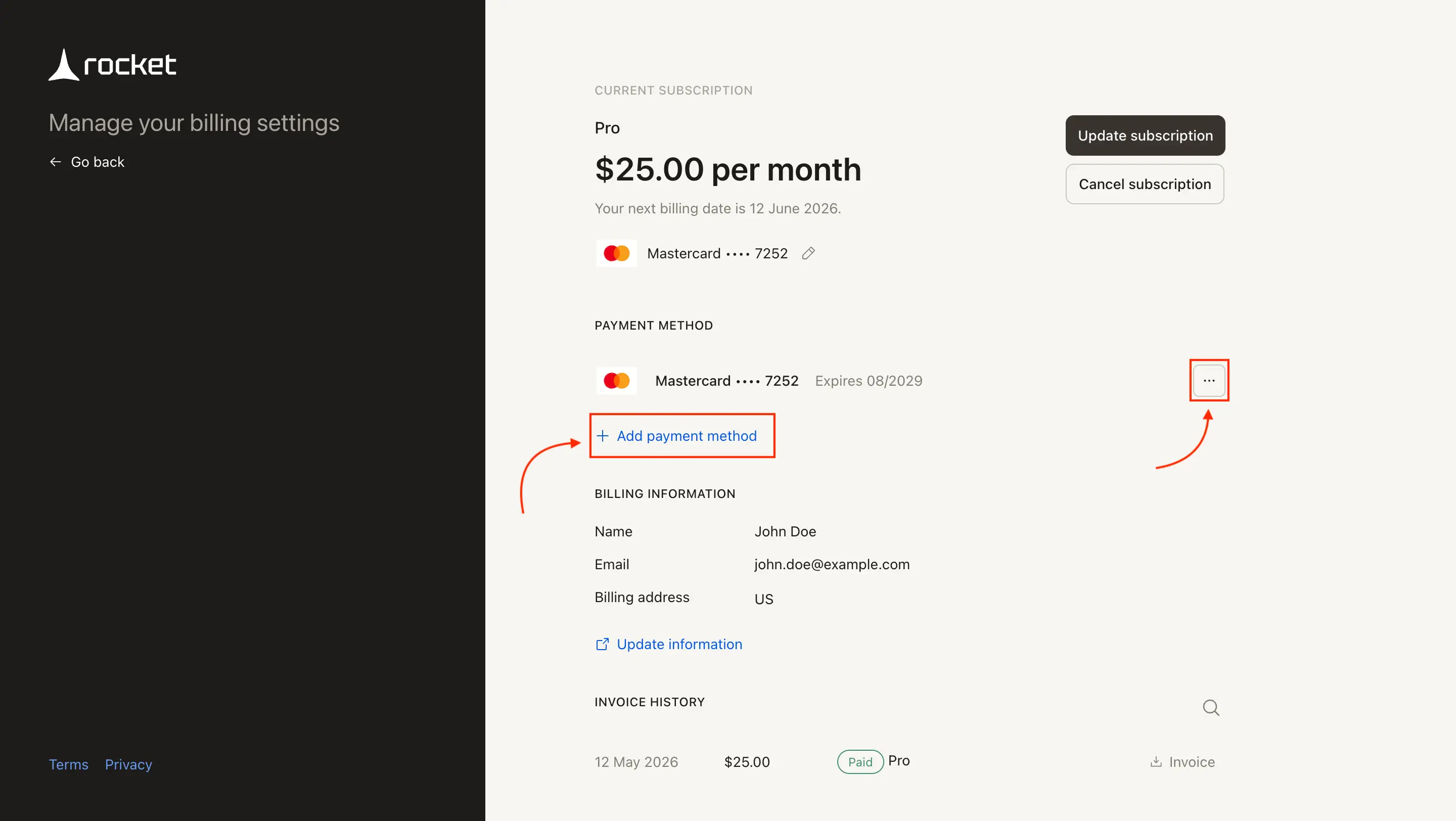 Enter your card number, expiry, and security code, then click **Save**.
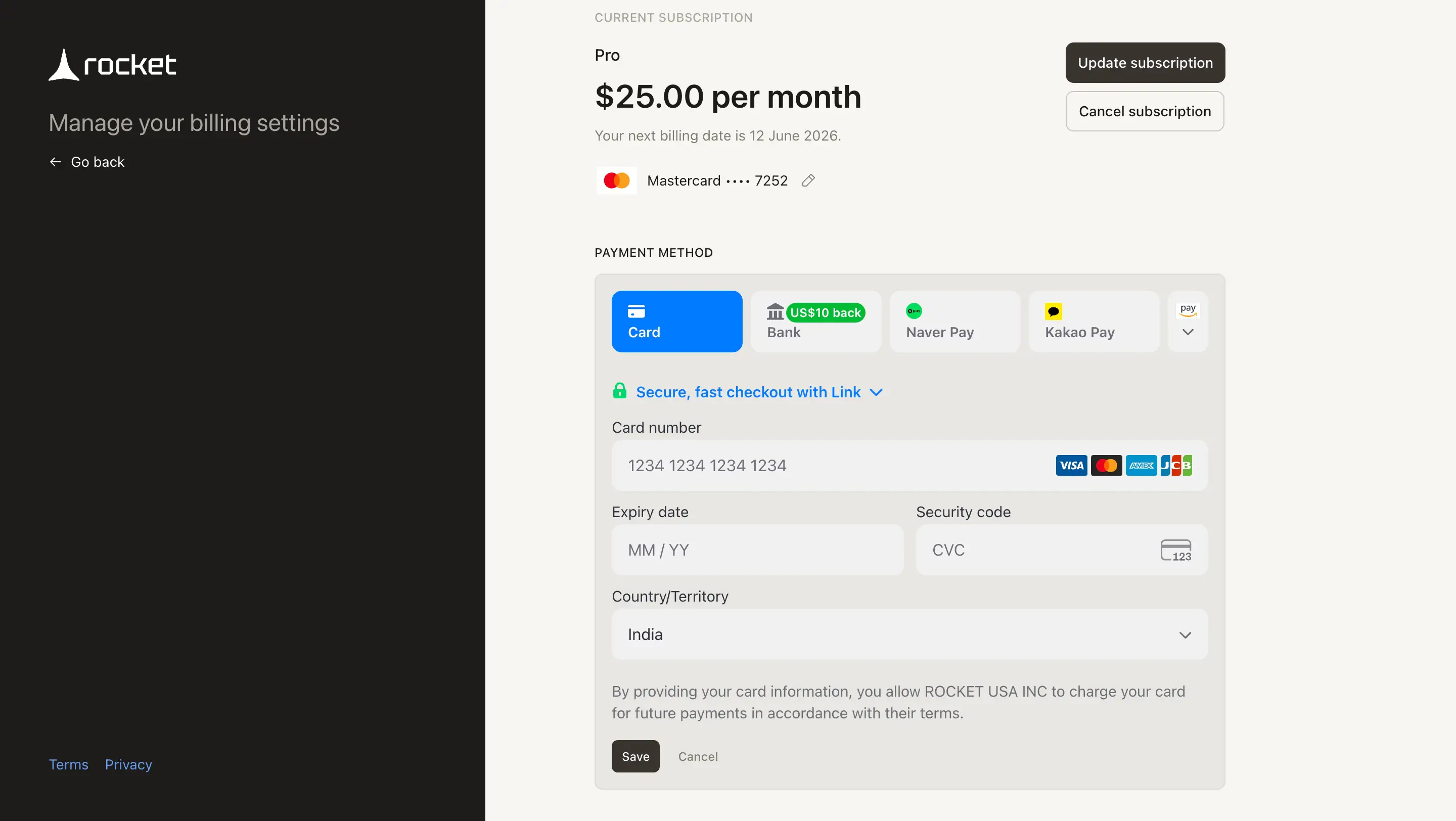 Keep at least one payment method linked to any active plan. Methods tied to a live subscription stay locked until you switch the plan to a different method.
## Update your billing information
[Open **Settings → Subscription** and click **Manage**](#cancel-your-subscription), then scroll to the **Billing Information** section and click **Update information**.
Keep at least one payment method linked to any active plan. Methods tied to a live subscription stay locked until you switch the plan to a different method.
## Update your billing information
[Open **Settings → Subscription** and click **Manage**](#cancel-your-subscription), then scroll to the **Billing Information** section and click **Update information**.
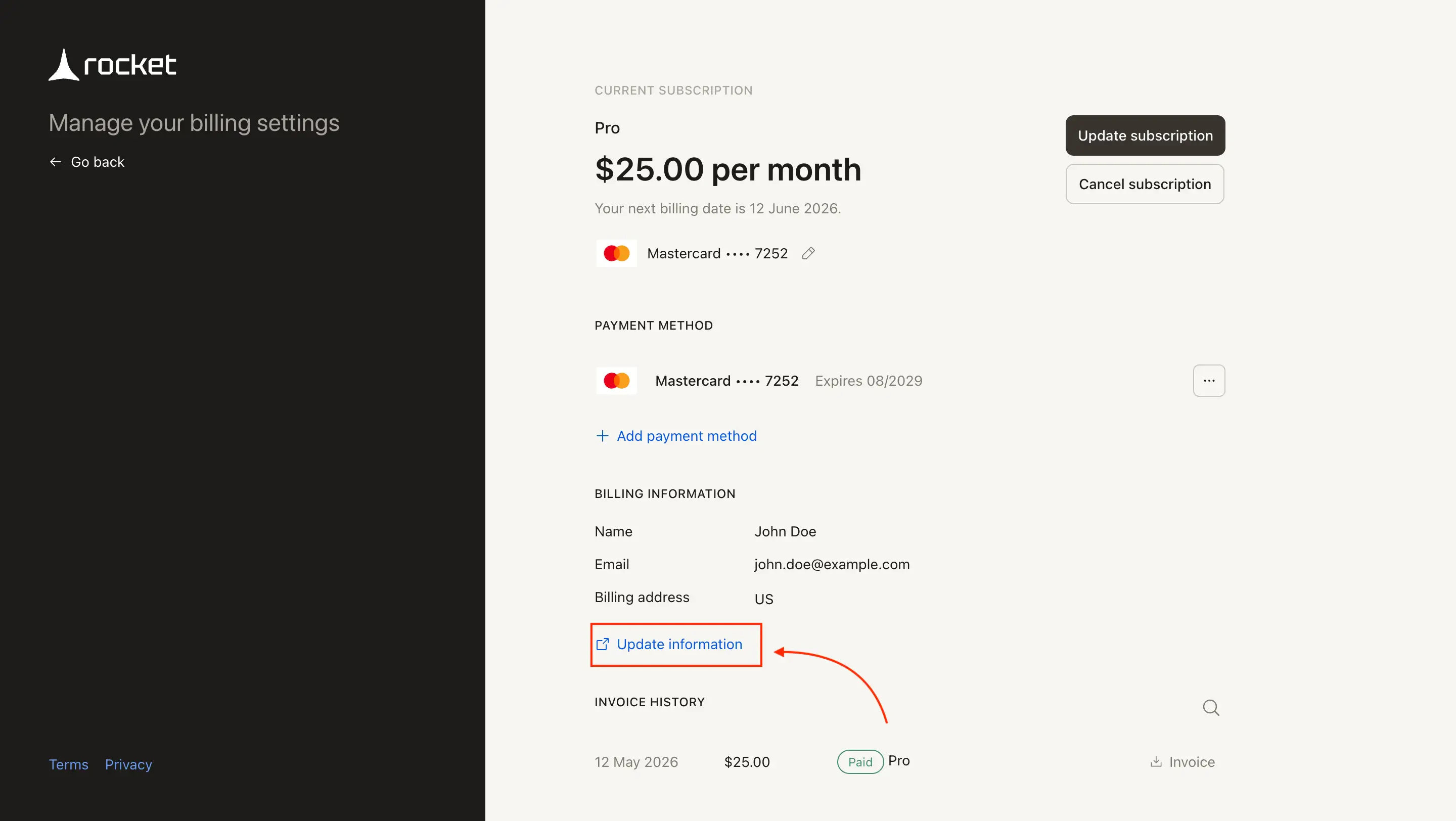 Update your name, address, or tax ID, then click **Save**.
Include your legal entity details for compliant invoices.
## Download an invoice or receipt
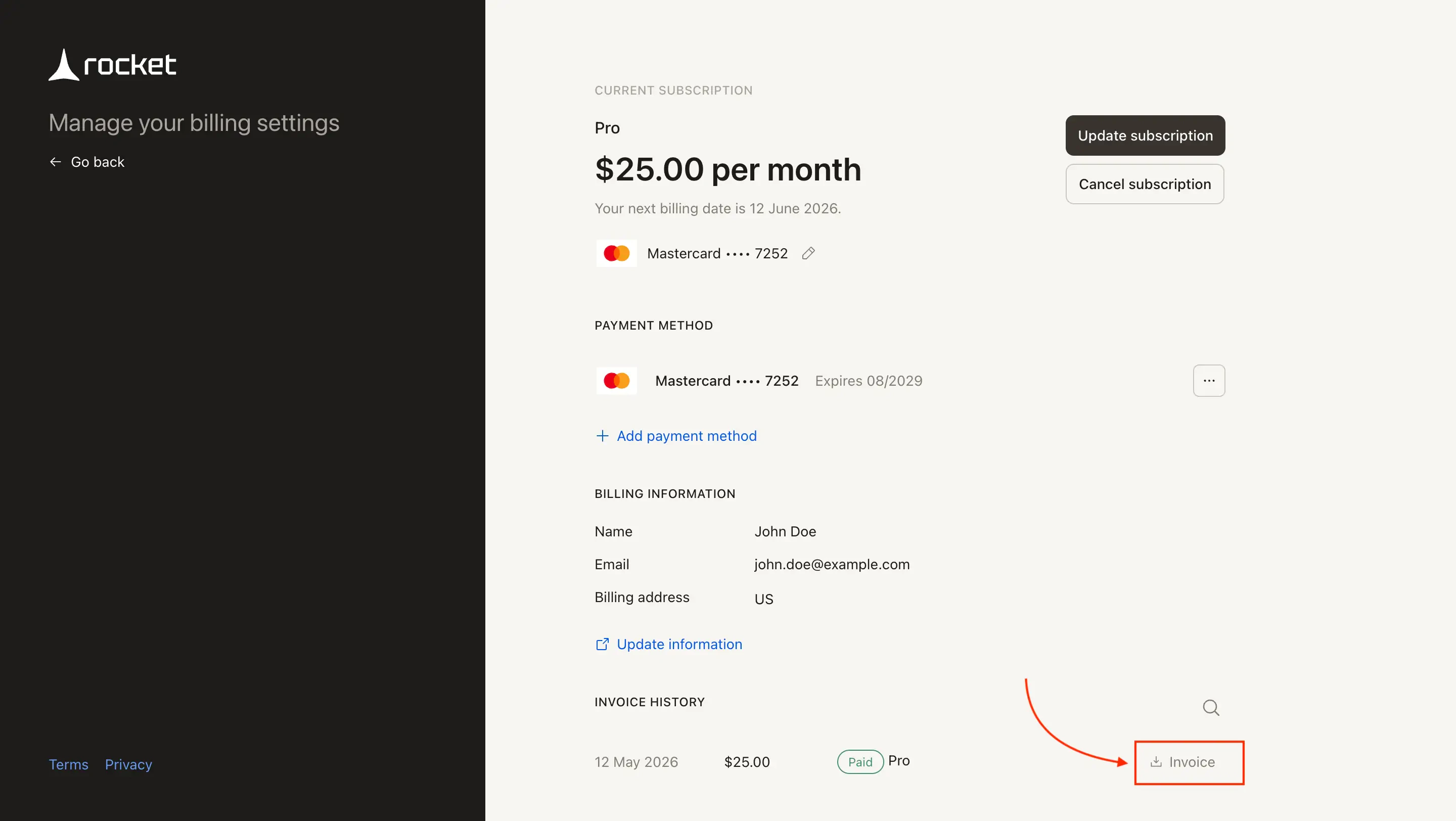
[Open **Settings → Subscription** and click **Manage**](#cancel-your-subscription), then scroll to **Invoice History**. Each row shows the date, amount, and plan. Click **Invoice** to download.
Update your name, address, or tax ID, then click **Save**.
Include your legal entity details for compliant invoices.
## Download an invoice or receipt
[Open **Settings → Subscription** and click **Manage**](#cancel-your-subscription), then scroll to **Invoice History**. Each row shows the date, amount, and plan. Click **Invoice** to download.
 ## What's next?
Compare plans and see what's included in each tier.
Learn how credits work, rollover policies, and when to add credits vs. upgrade.
## What's next?
Compare plans and see what's included in each tier.
Learn how credits work, rollover policies, and when to add credits vs. upgrade.