> ## Documentation Index
> Fetch the complete documentation index at: https://docs.rocket.new/llms.txt
> Use this file to discover all available pages before exploring further.
# Saved
> Your personal collection of bookmarked Intel cards. Save important signals for quick reference and remove them when you no longer need them.
export const LlmsDirective = () =>
For the complete documentation index, see llms.txt.
For a lightweight markdown version of this page, append .md to the URL.
;
**Saved** is your personal collection of bookmarked Intel. When you spot a signal worth revisiting, whether for a meeting, a decision, or ongoing monitoring, save it and find it here.
## Saving an Intel card
Click the **bookmark icon** on any Intel card in your For You or Following feed. A "Save" tooltip confirms the action.
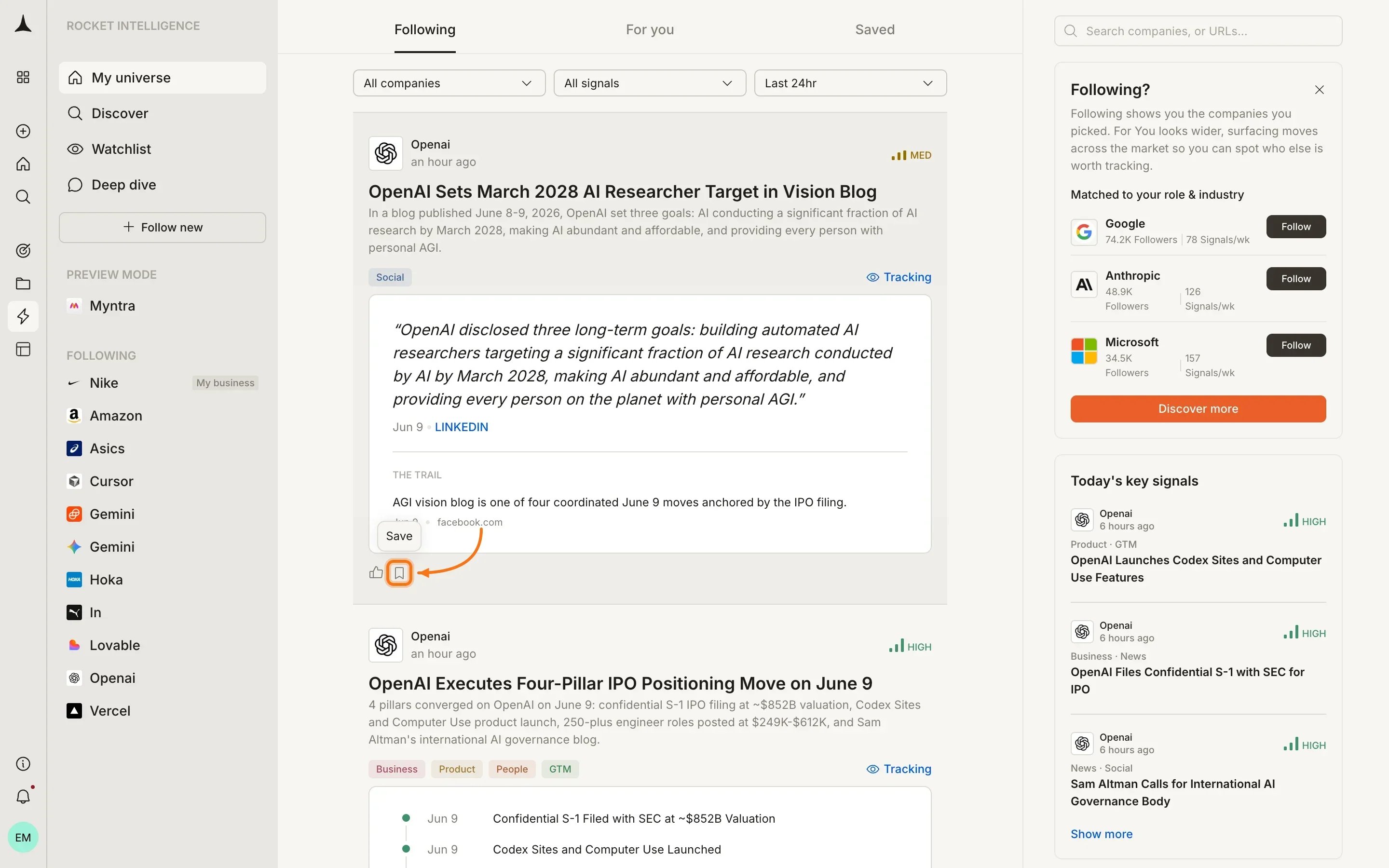
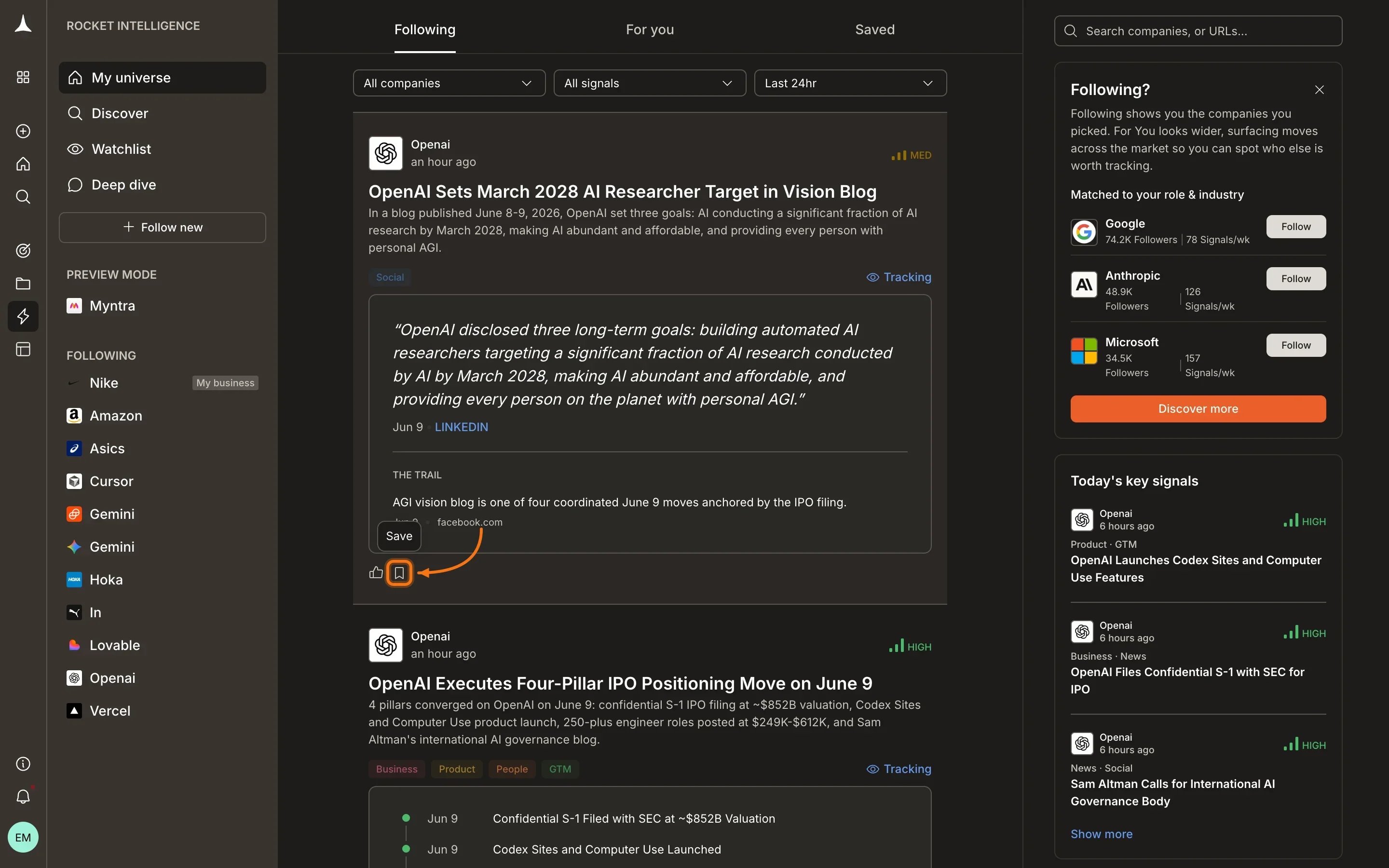 The bookmark icon fills in to indicate the card is saved. You can save Intel from any feed: For You, Following, or from a company's [pillar overview](/intelligence/pillars/overview).
## Viewing saved Intel
Access your saved cards by clicking the **Saved** tab in the Intelligence header navigation. All your bookmarked Intel appears here in reverse chronological order (most recently saved first).
The bookmark icon fills in to indicate the card is saved. You can save Intel from any feed: For You, Following, or from a company's [pillar overview](/intelligence/pillars/overview).
## Viewing saved Intel
Access your saved cards by clicking the **Saved** tab in the Intelligence header navigation. All your bookmarked Intel appears here in reverse chronological order (most recently saved first).
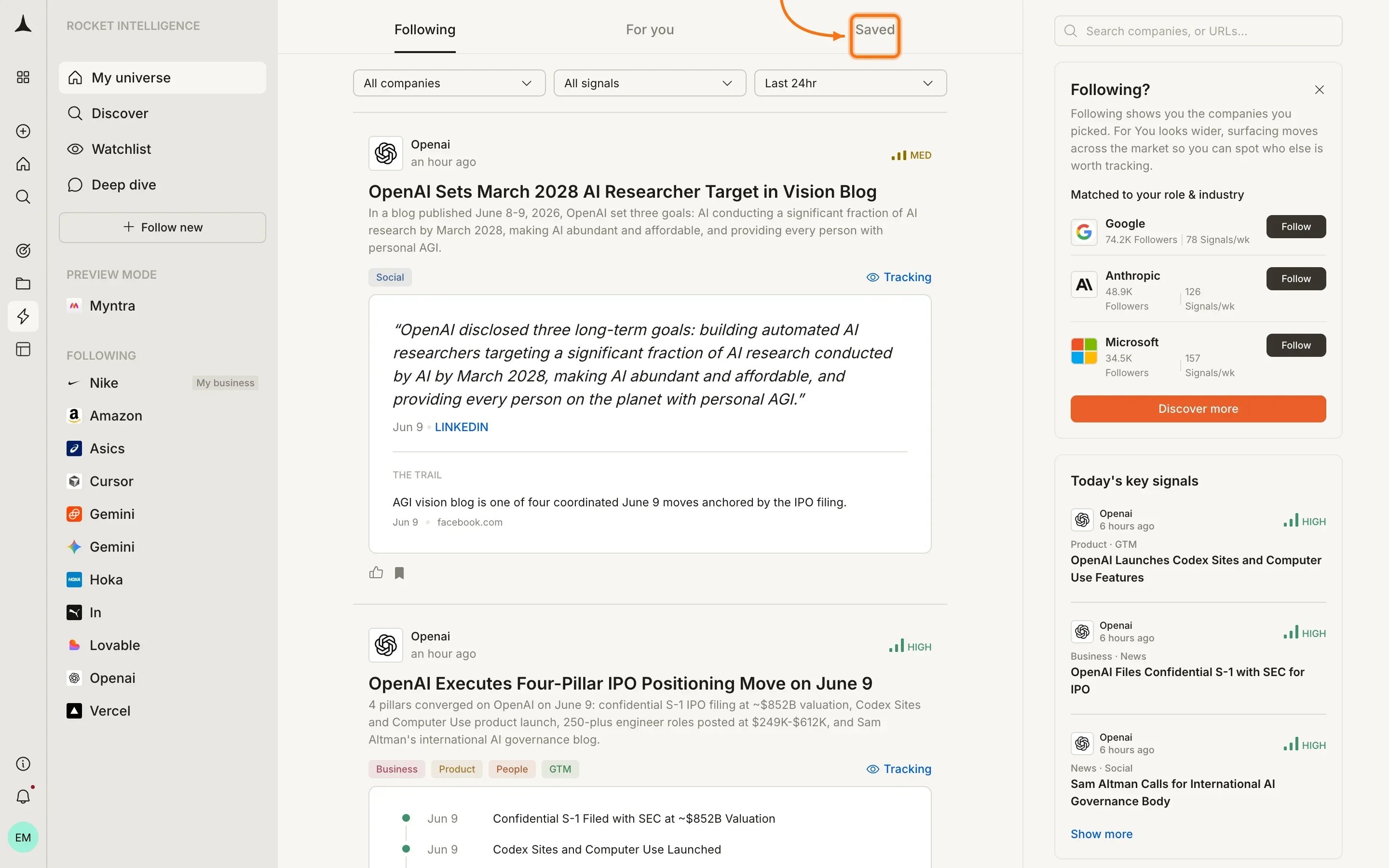
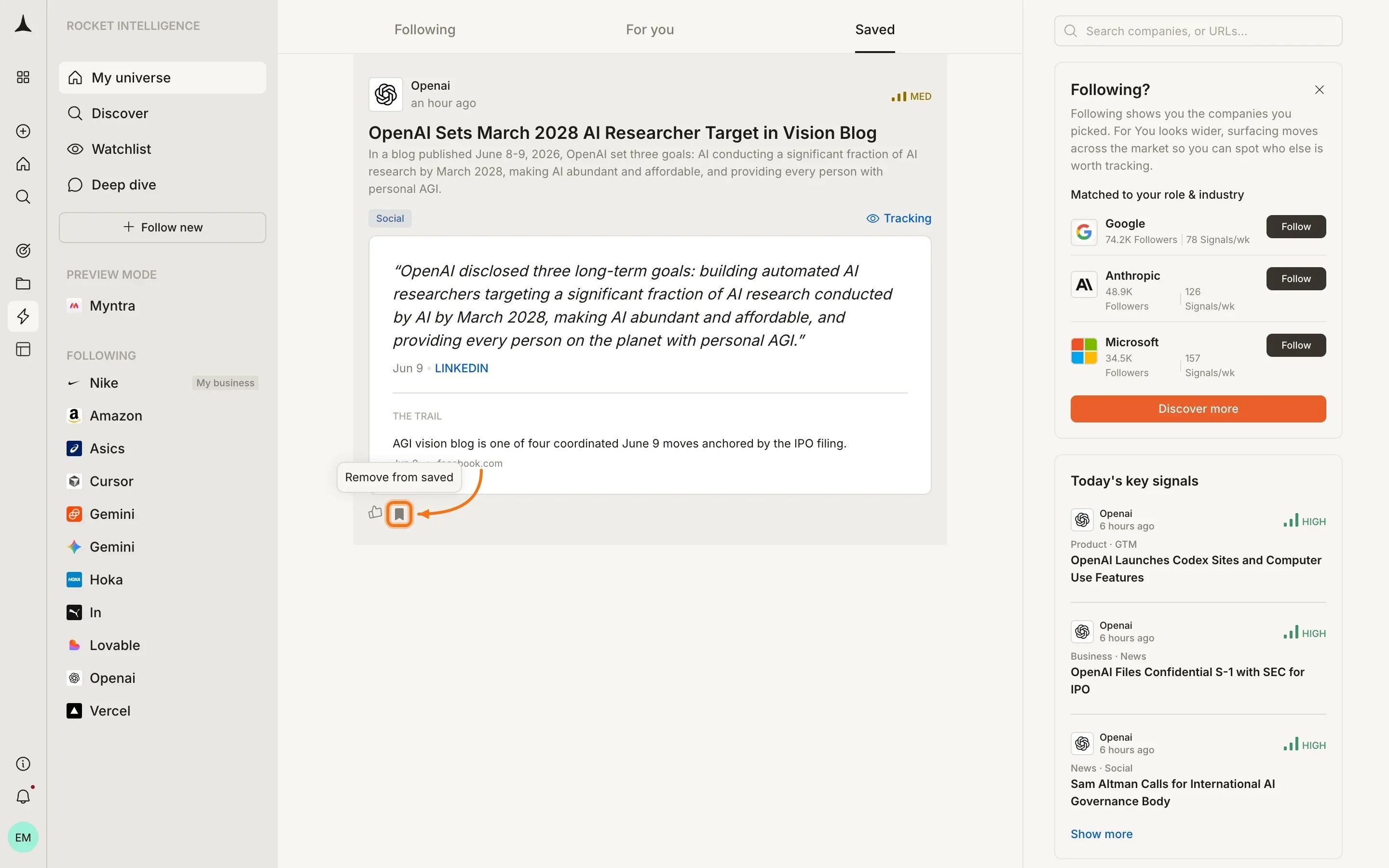
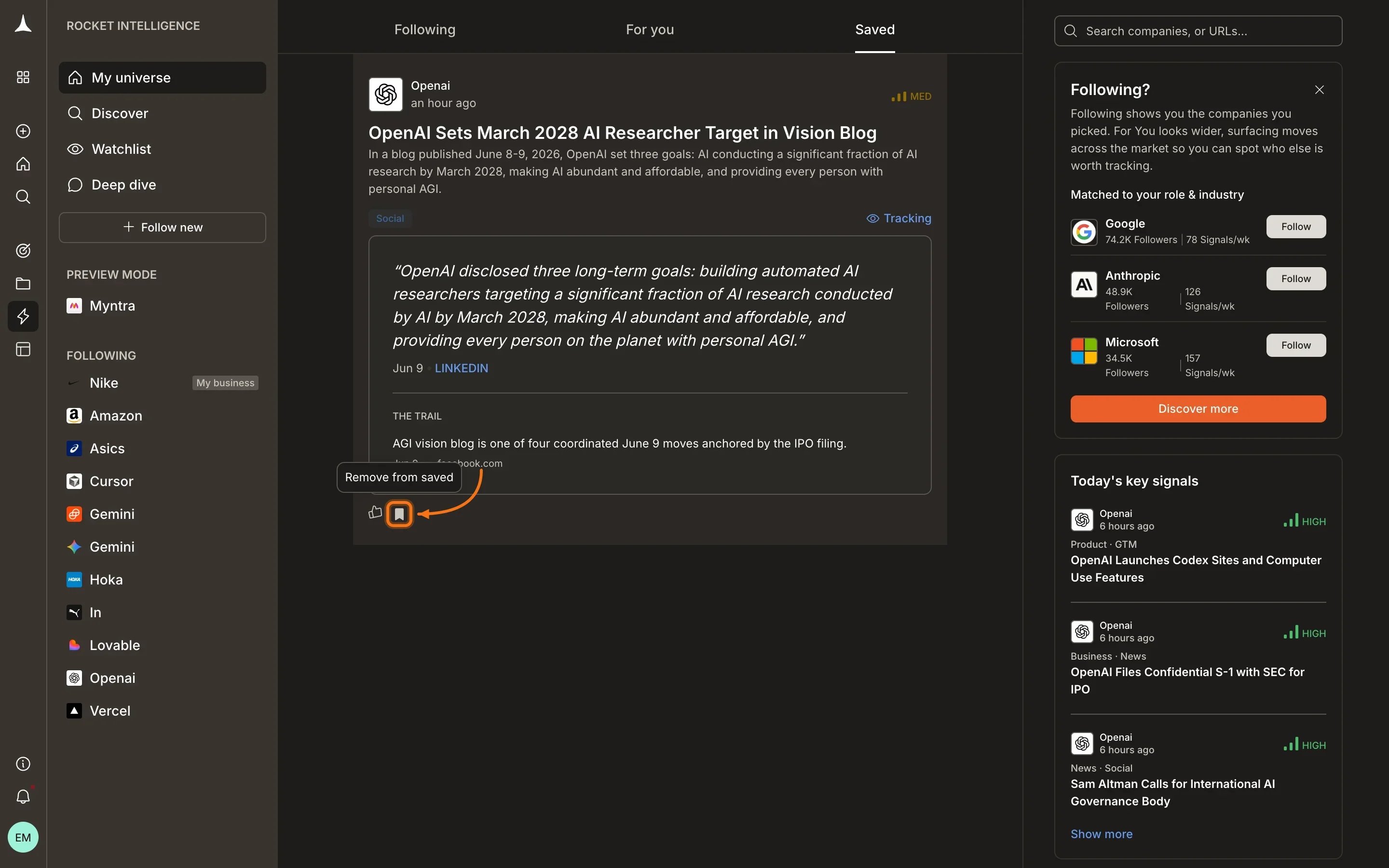
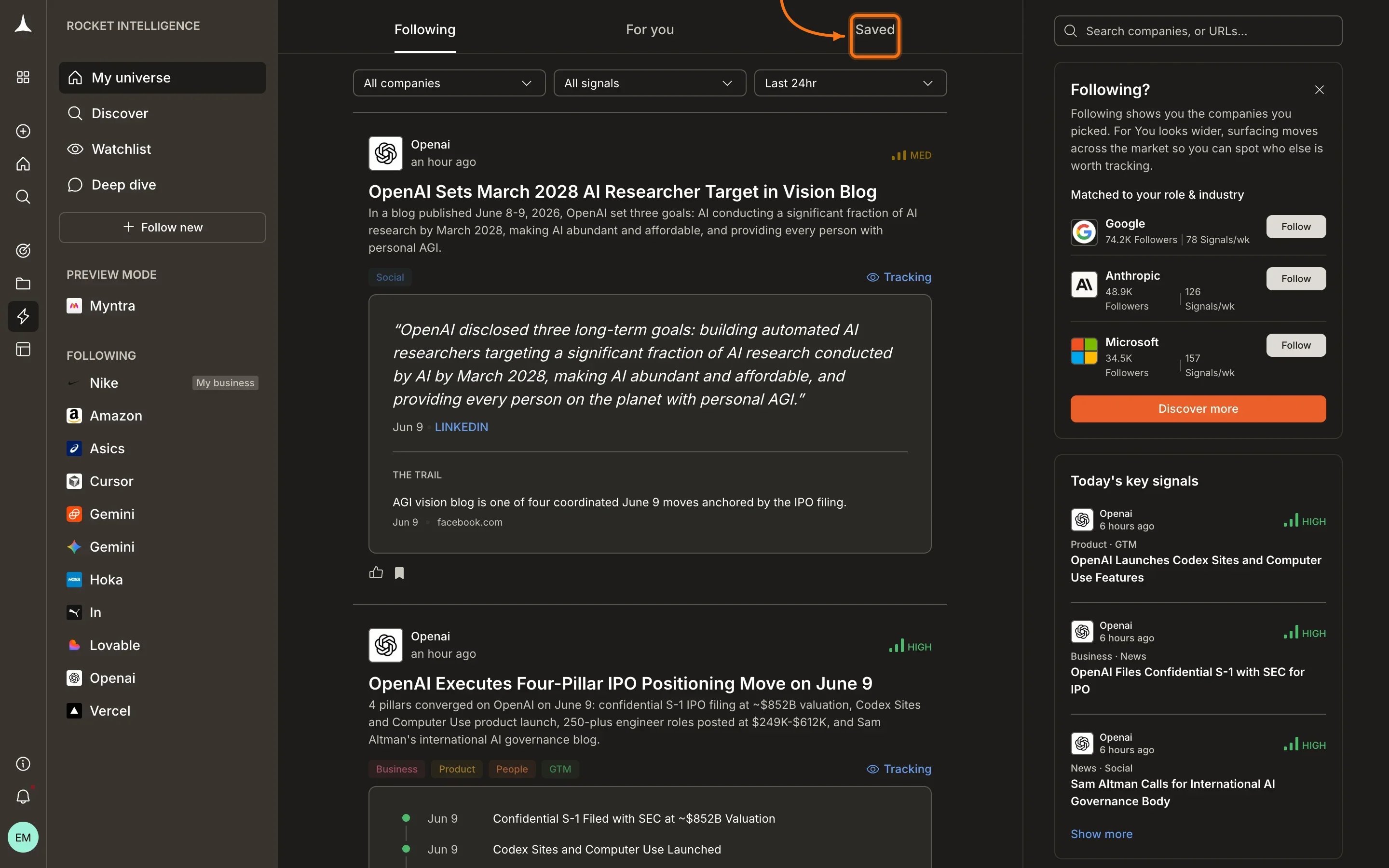 Saved Intel cards retain their full content: magnitude badge, headline, detail, pillar tags, trail, and all interactive elements. You can expand them, view pillars, or navigate to the company overview just as you would from the main feed.
## Removing saved Intel
To remove an Intel card from your Saved collection, click the **bookmark icon** again. A "Remove from saved" tooltip confirms the removal.
Saved Intel cards retain their full content: magnitude badge, headline, detail, pillar tags, trail, and all interactive elements. You can expand them, view pillars, or navigate to the company overview just as you would from the main feed.
## Removing saved Intel
To remove an Intel card from your Saved collection, click the **bookmark icon** again. A "Remove from saved" tooltip confirms the removal.
 The card is removed immediately. You can re-save it at any time by finding it in your feed and clicking the bookmark icon again.
## When to use Saved
Saved is useful when you want to:
* **Prepare for a meeting:** bookmark relevant Intel throughout the week and review before a strategy session
* **Track a developing signal:** save early Intel and compare it against later developments
* **Share with your team:** collect the most relevant signals to reference in conversations
* **Build a decision record:** save the Intel that informed a strategic choice for future reference
## Tips
Save generously. There is no limit to how many Intel cards you can bookmark, and removing them later is one click away.
Saved Intel is personal to your account. Other team members cannot see your bookmarks, and your saves do not affect feed ranking or signal processing.
## What's next
Intel from companies in your universe.
Discover Intel from companies you don't yet watch.
Find and add more companies to your universe.
Deep-dive into a specific company's activity.
The card is removed immediately. You can re-save it at any time by finding it in your feed and clicking the bookmark icon again.
## When to use Saved
Saved is useful when you want to:
* **Prepare for a meeting:** bookmark relevant Intel throughout the week and review before a strategy session
* **Track a developing signal:** save early Intel and compare it against later developments
* **Share with your team:** collect the most relevant signals to reference in conversations
* **Build a decision record:** save the Intel that informed a strategic choice for future reference
## Tips
Save generously. There is no limit to how many Intel cards you can bookmark, and removing them later is one click away.
Saved Intel is personal to your account. Other team members cannot see your bookmarks, and your saves do not affect feed ranking or signal processing.
## What's next
Intel from companies in your universe.
Discover Intel from companies you don't yet watch.
Find and add more companies to your universe.
Deep-dive into a specific company's activity.