> ## Documentation Index
> Fetch the complete documentation index at: https://docs.rocket.new/llms.txt
> Use this file to discover all available pages before exploring further.
# Share and export
> Share Rocket.new Solve reports via links, export as PDF or PPTX, and distribute structured research to your workspace and stakeholders.
export const LlmsDirective = () =>
For the complete documentation index, see llms.txt.
For a lightweight markdown version of this page, append .md to the URL.
;
Every Solve report can be shared outside of Rocket. Share a link for browser viewing, export as PDF or PPTX for offline distribution, or push to your workspace for team access. [Presentable reports](/solve/results/presentable-report) can be shared the same way as standard reports.
## Share via link
Open the report you want to share from the Documents panel or the **Final report** link in the chat.
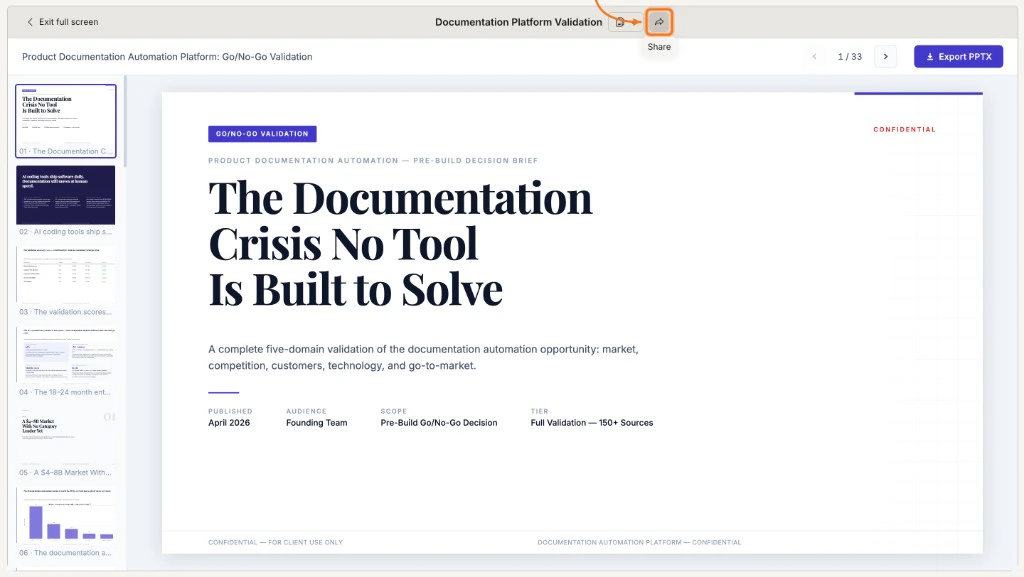
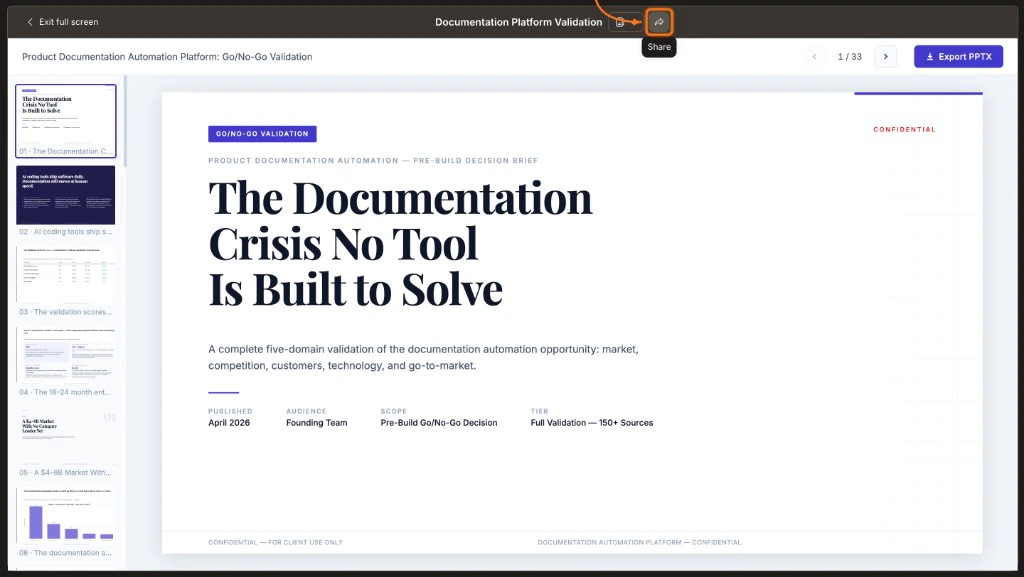 Select the **Create link** button in the report toolbar. Rocket generates a unique URL for this report.
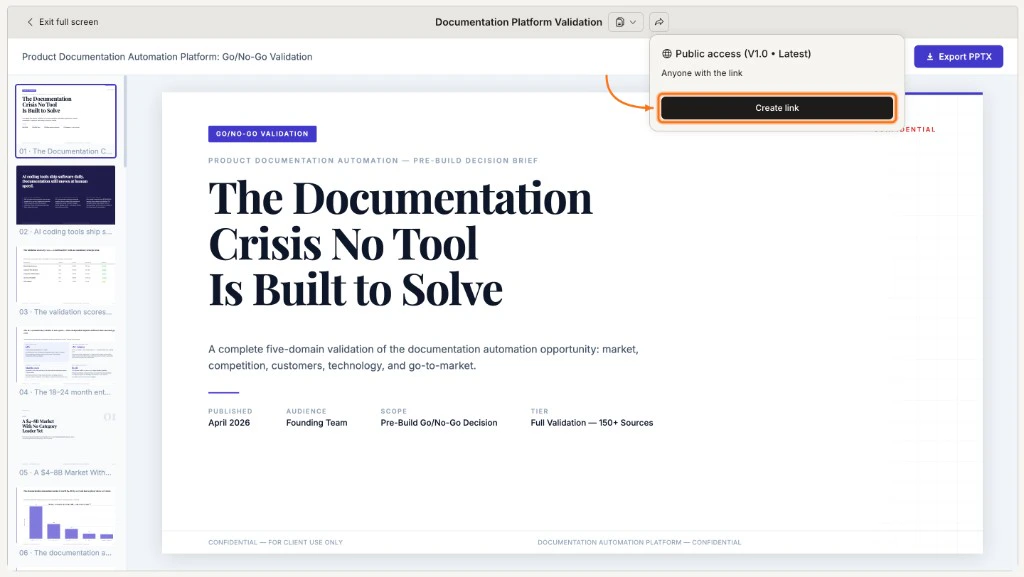
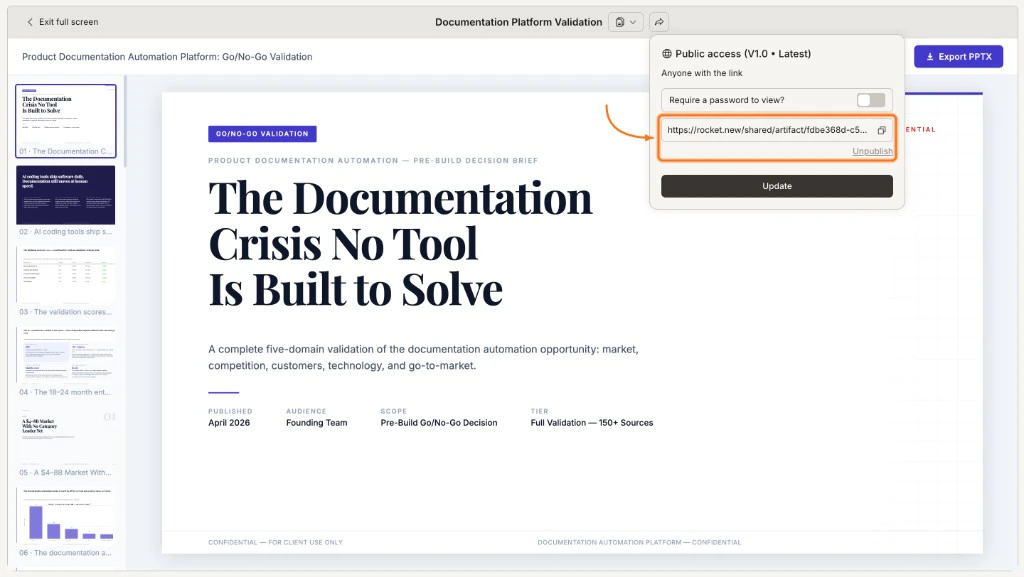
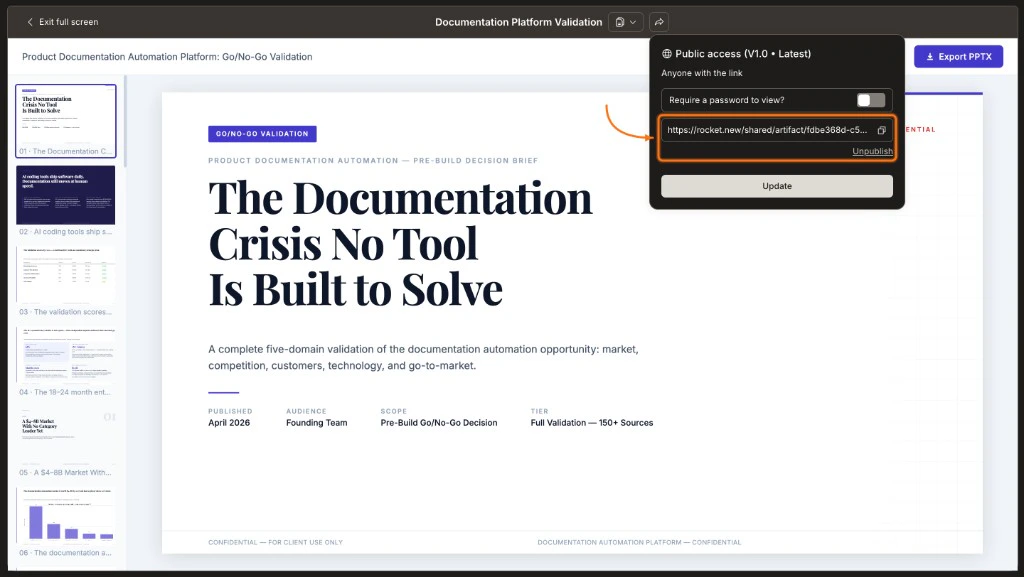
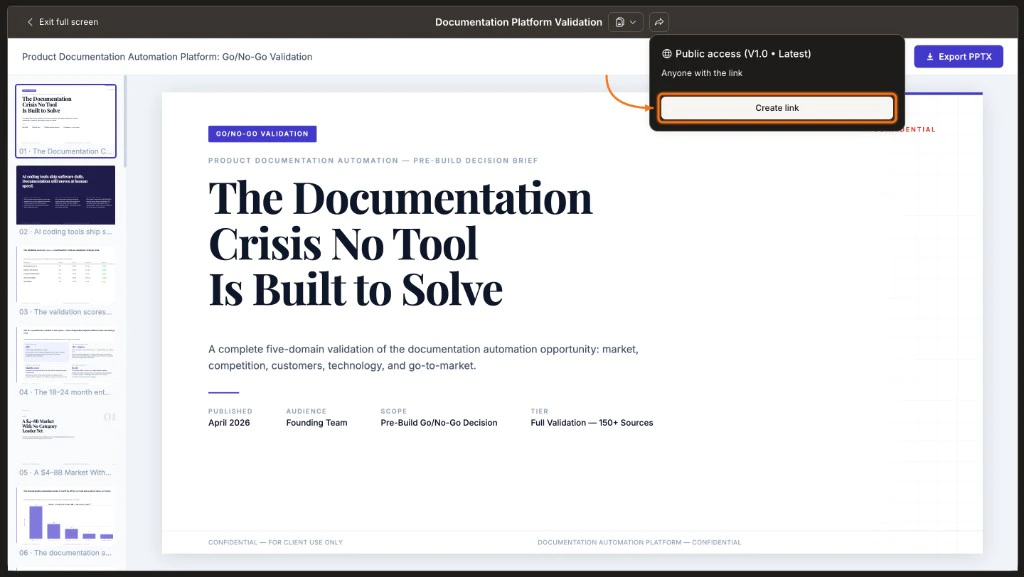 Enable password protection on the share dialog to restrict access. Recipients must enter the password before viewing. The password setting carries over to all versions of this report, including presentable outputs.
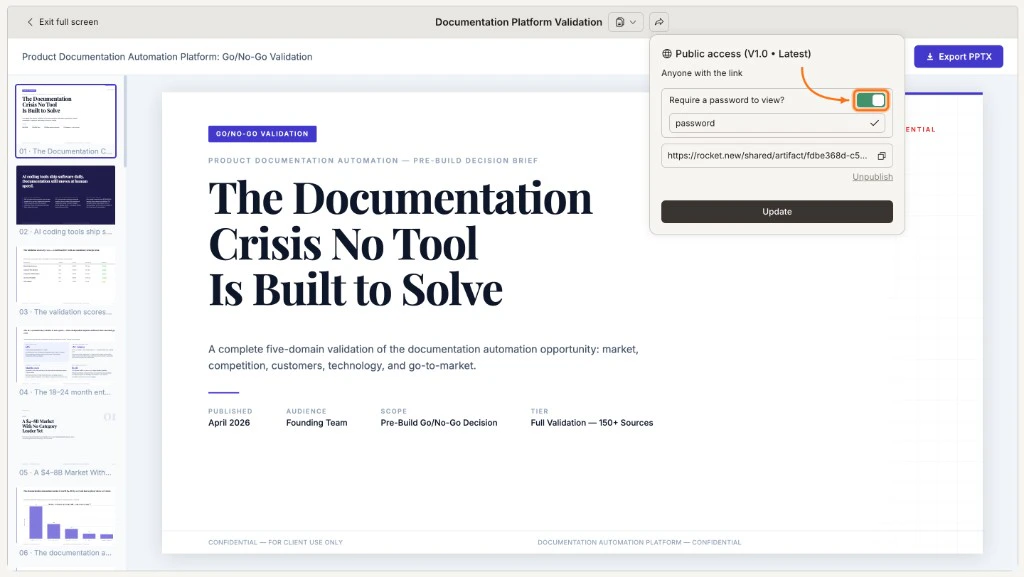
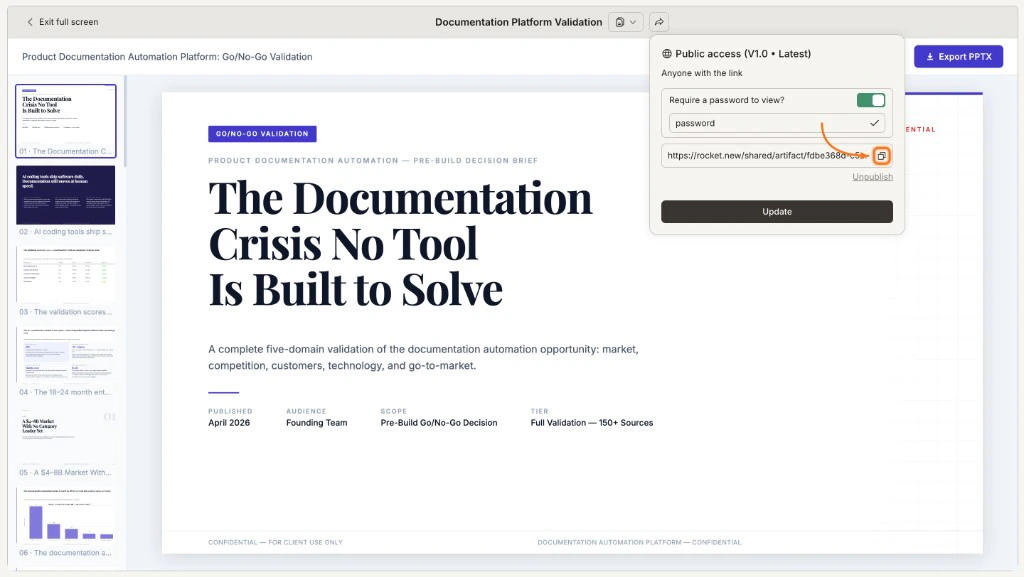
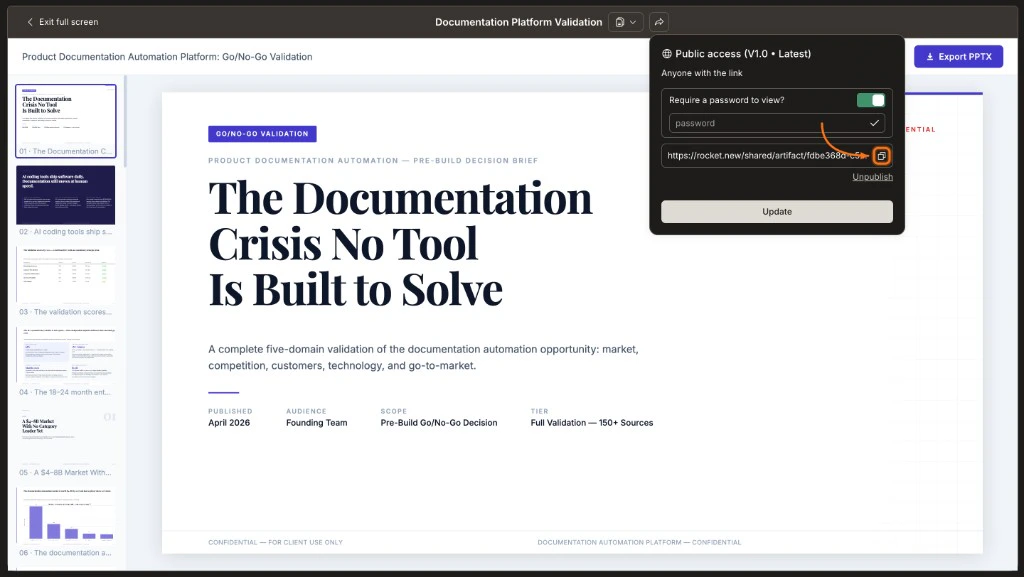
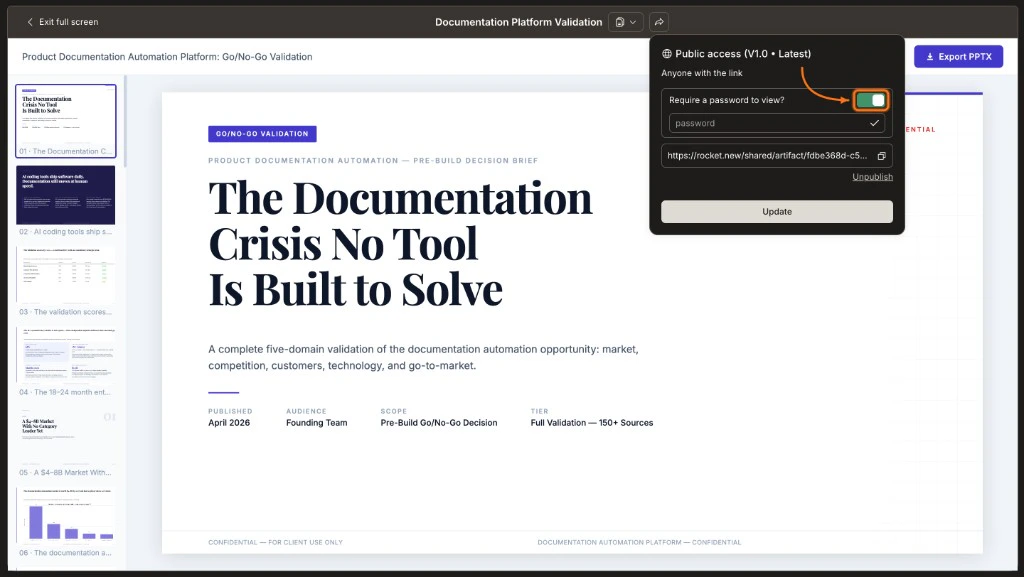 Copy the URL with a single click using the clipboard button and send it to your recipients. Anyone with the link (and password, if set) can view the report in their browser without a Rocket account.
 ## Unpublish a shared link
To revoke access, open the share dialog and select **Unpublish**. The link stops working immediately. Recipients who try the URL see an unavailable message. You can re-publish later to generate a new active link.
## Unpublish a shared link
To revoke access, open the share dialog and select **Unpublish**. The link stops working immediately. Recipients who try the URL see an unavailable message. You can re-publish later to generate a new active link.
 The share link is tied to the report, not a single version. Recipients always see the latest version. If you generate a new version through edits or presentable report generation, the link updates automatically.
## Update link settings
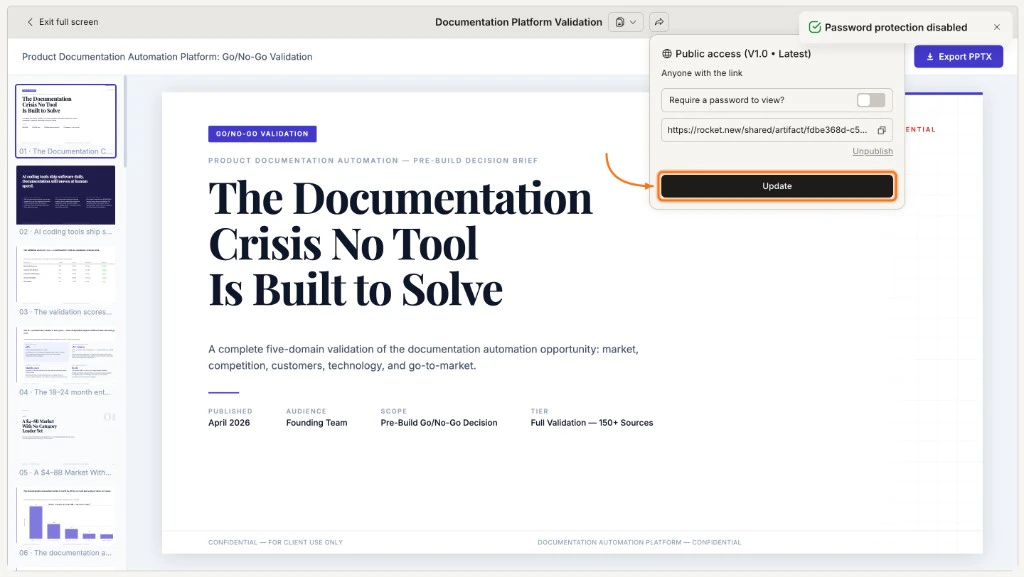
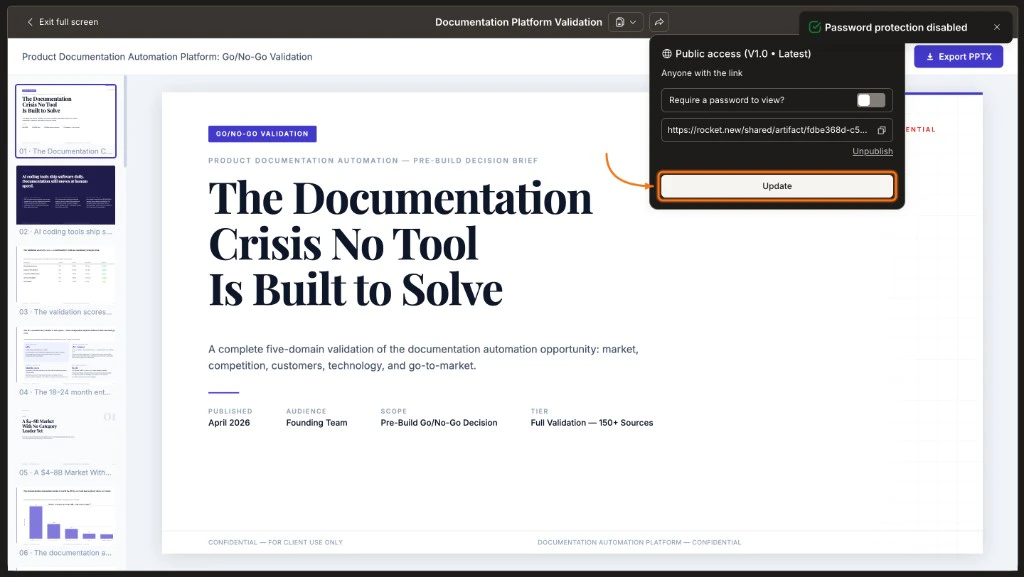
After publishing a link, you can change its settings at any time. Open the share dialog to toggle password protection on or off, then select **Update** to apply. The link stays active with the new settings. Recipients who already have the URL do not need a new link.
The share link is tied to the report, not a single version. Recipients always see the latest version. If you generate a new version through edits or presentable report generation, the link updates automatically.
## Update link settings
After publishing a link, you can change its settings at any time. Open the share dialog to toggle password protection on or off, then select **Update** to apply. The link stays active with the new settings. Recipients who already have the URL do not need a new link.
 ## Export
Export any report as a static file for offline use, printing, or editing in another tool.
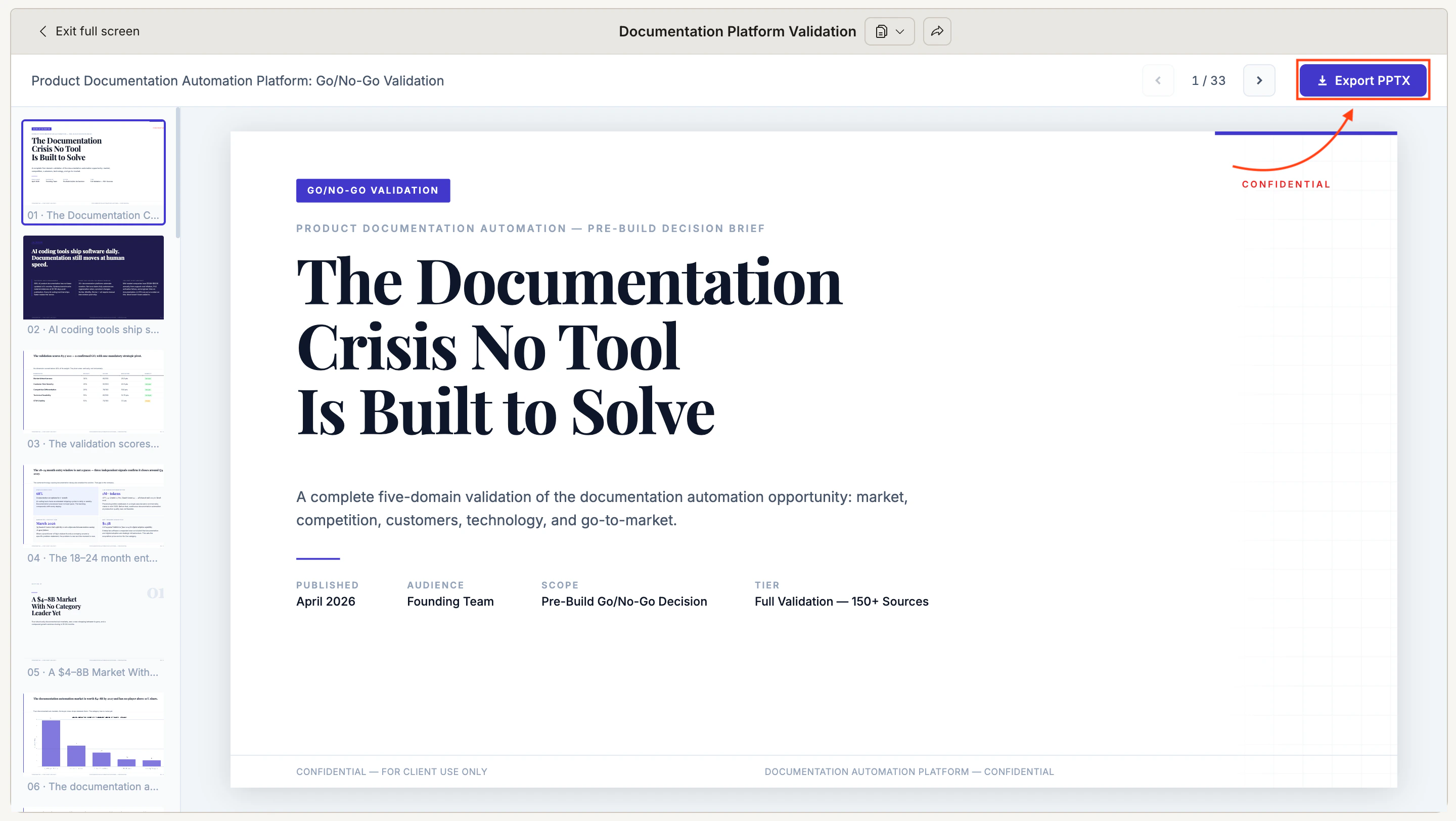
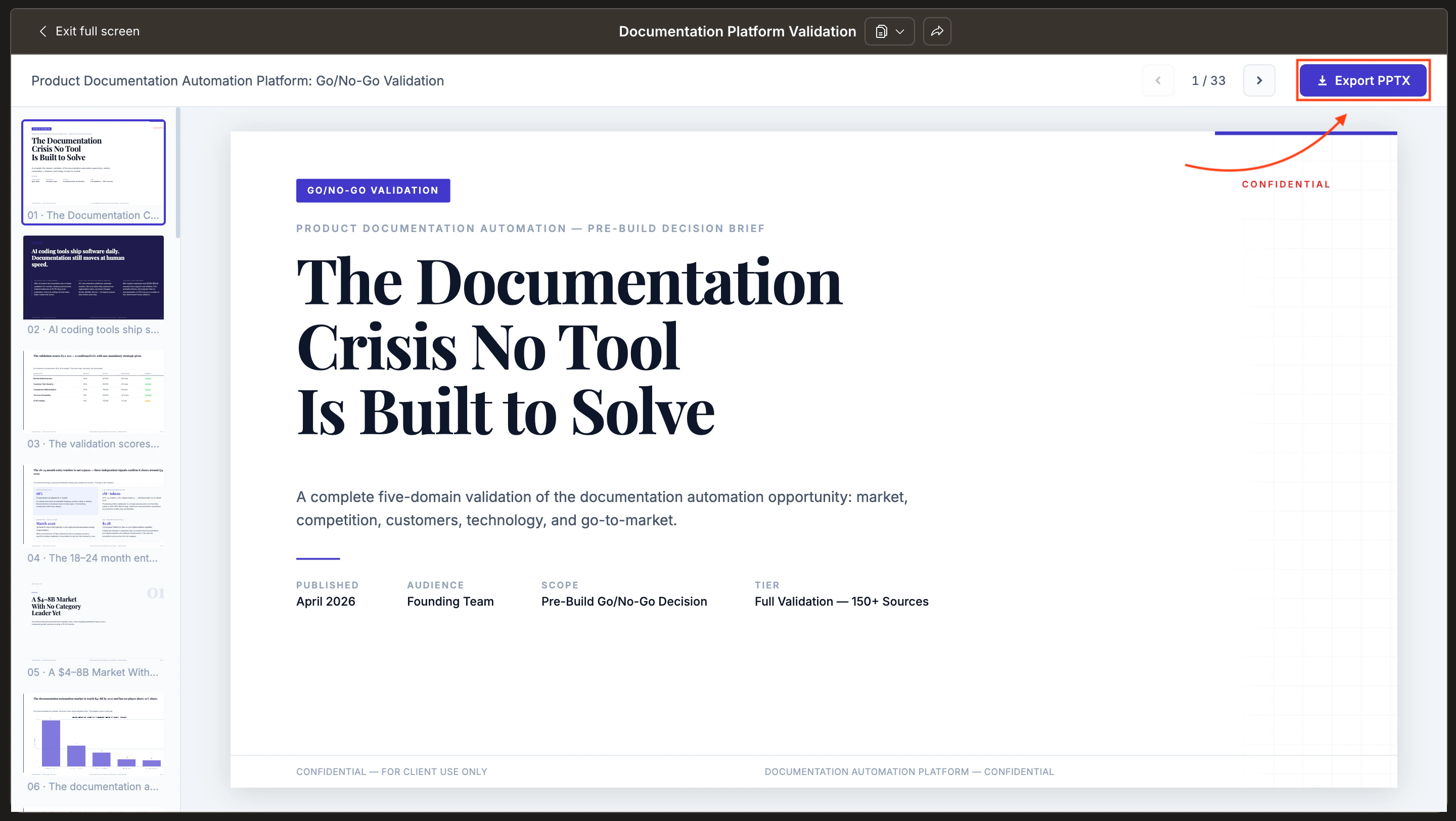
Open the report and select **Export** from the toolbar menu. Choose the format that fits your use case: PDF for a fixed-layout file you can attach to emails or archive, or PPTX for a PowerPoint file you can edit or present in your own slide tool.
## Export
Export any report as a static file for offline use, printing, or editing in another tool.
Open the report and select **Export** from the toolbar menu. Choose the format that fits your use case: PDF for a fixed-layout file you can attach to emails or archive, or PPTX for a PowerPoint file you can edit or present in your own slide tool.
 ## Workspace sharing
Push a report to your Rocket workspace so team members can access it from the shared documents area.
Open the report and select **Share to workspace** from the toolbar. The report appears in the team's shared document list. Workspace members can open, read, and reference the report in their own Solve tasks.
## Copy content
Select text in the report and use your standard copy shortcut to copy individual sections. To copy everything, select **Copy all** from the toolbar. Paste into Google Docs, Notion, Confluence, or any rich text editor.
## Use in other tasks
Reference a shared report in a new Solve task by mentioning it in your prompt. For example: "Using the competitive analysis from last week, compare pricing models for the EU market." Solve pulls context from the referenced report to inform the new research.
## What's next
Generate a polished HTML document or slide deck before sharing.
Learn how reports are structured and how to navigate them.
Edit and improve your report before distributing it.
## Workspace sharing
Push a report to your Rocket workspace so team members can access it from the shared documents area.
Open the report and select **Share to workspace** from the toolbar. The report appears in the team's shared document list. Workspace members can open, read, and reference the report in their own Solve tasks.
## Copy content
Select text in the report and use your standard copy shortcut to copy individual sections. To copy everything, select **Copy all** from the toolbar. Paste into Google Docs, Notion, Confluence, or any rich text editor.
## Use in other tasks
Reference a shared report in a new Solve task by mentioning it in your prompt. For example: "Using the competitive analysis from last week, compare pricing models for the EU market." Solve pulls context from the referenced report to inform the new research.
## What's next
Generate a polished HTML document or slide deck before sharing.
Learn how reports are structured and how to navigate them.
Edit and improve your report before distributing it.