In this guide, you’ll learn how to:
  • Select the plan that fits your usage.
  • Refuel your token balance.
  • Upgrade, switch, or cancel without service gaps.
  • Manage payment sources and billing profiles.
  • Export invoices or receipts on demand.

Before you begin

You’ll need:
  • A logged in Rocket account.
Mobile app limitation: Subscription management is not available on the mobile app. Please use the web browser to manage your subscription.

Buy a plan

1

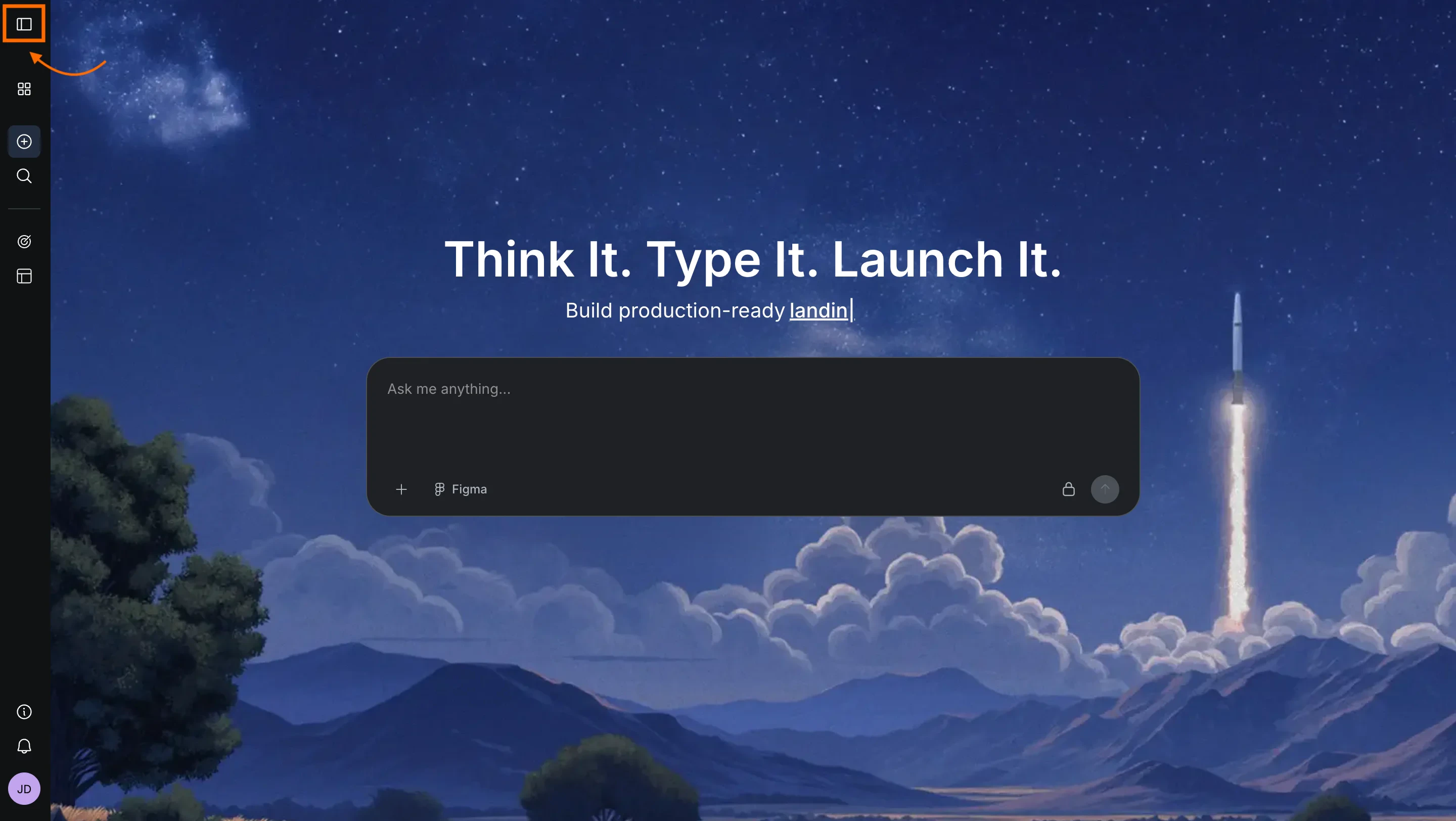
Open your profile menu

Select in the upper-right corner to open account controls.
Profile menu opened from profile icon on Rocket homepage.
2

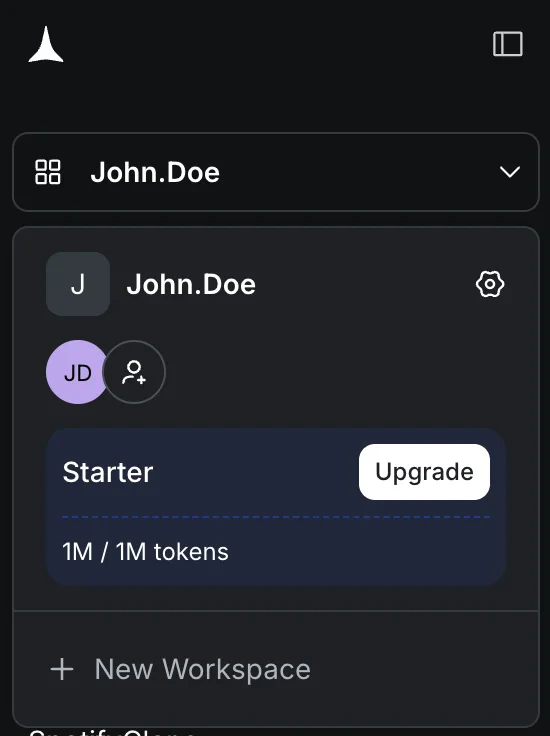
Go to Account Settings

Choose Account Settings from the dropdown.
Account Settings option highlighted in the dropdown menu.
3

Open the Subscription tab

Inside settings, choose Subscription in the left navigation.
Subscription tab in the settings sidebar.Subscription tab in the settings sidebar.
4

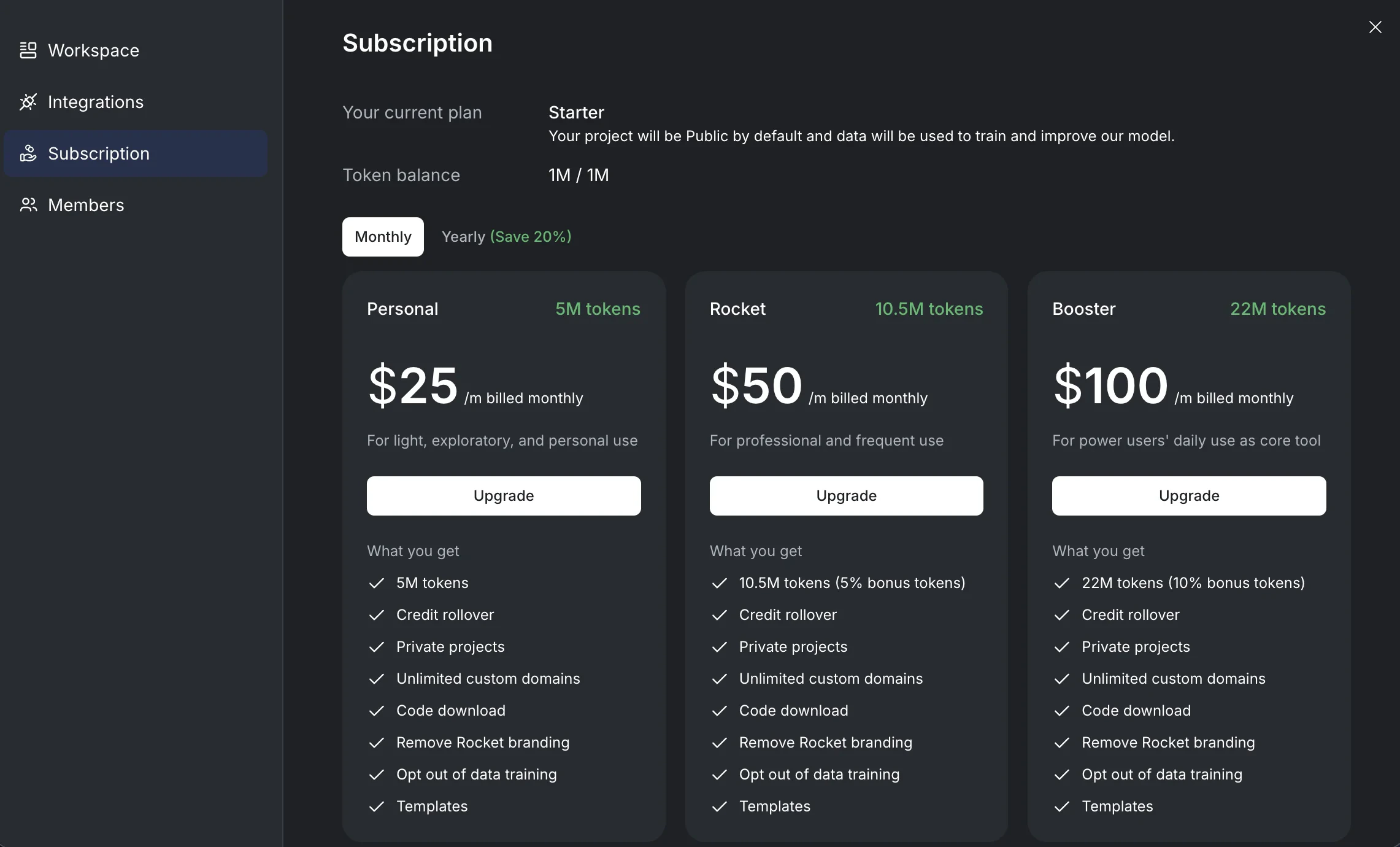
Choose a plan

Pick a paid plan from Personal, Rocket, or Booster.
Annual billing automatically applies a 20% discount.
List of Rocket subscription plans with pricing and included tokens.List of Rocket subscription plans with pricing and included tokens.
5

Click Upgrade

Select Upgrade on the plan that aligns with your workload.
Success check: The secure checkout screen opens with your selection pre-filled.
6

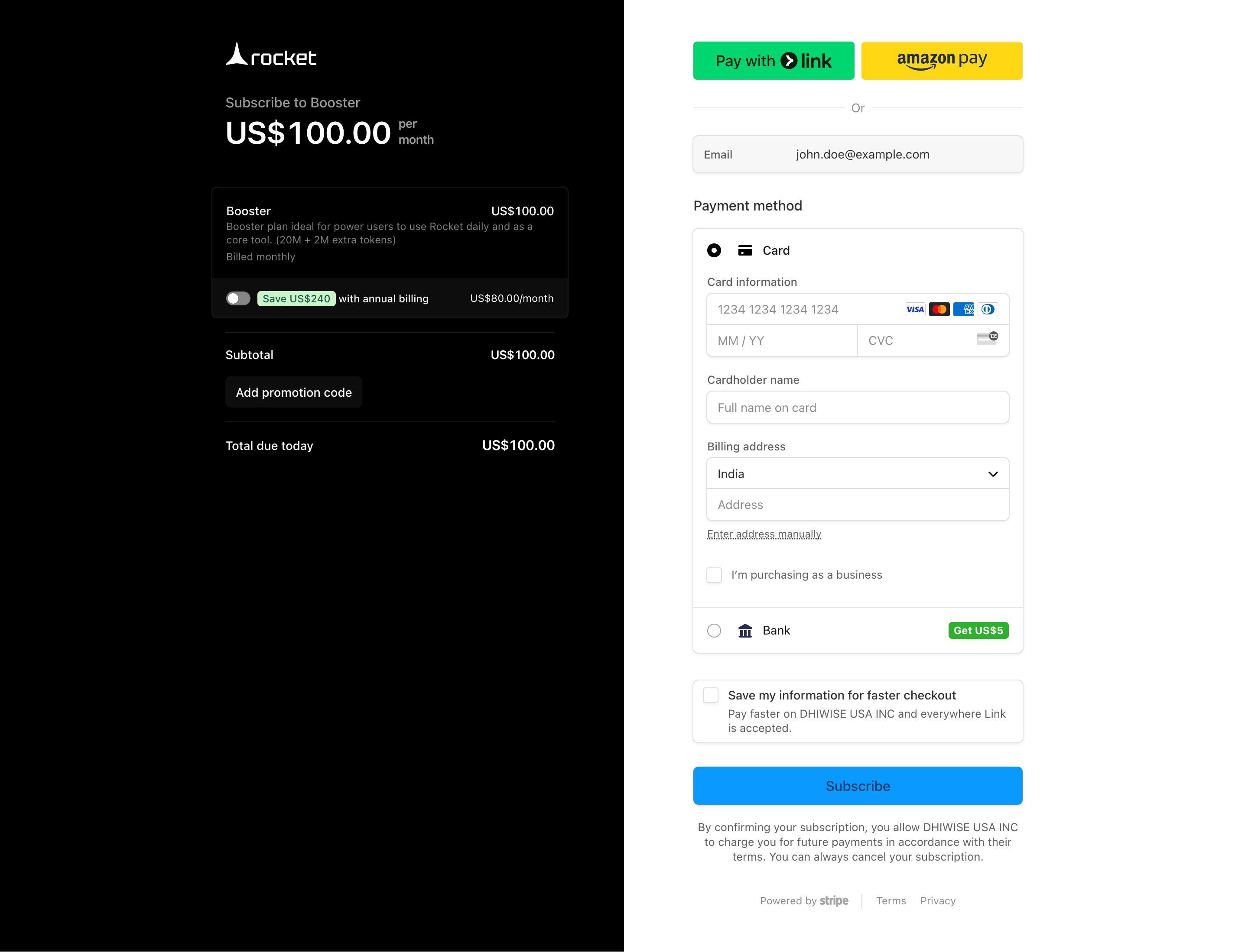
Subscribe to the plan

Enter payment details, review billing cycle, then click Subscribe.
Checkout form to complete subscription with payment details.
Success check: You receive an email confirmation, fresh tokens appear in Subscription, and the new plan badge is active.

Refuel your token balance

1

Go to Subscription tab

2

Click Refuel

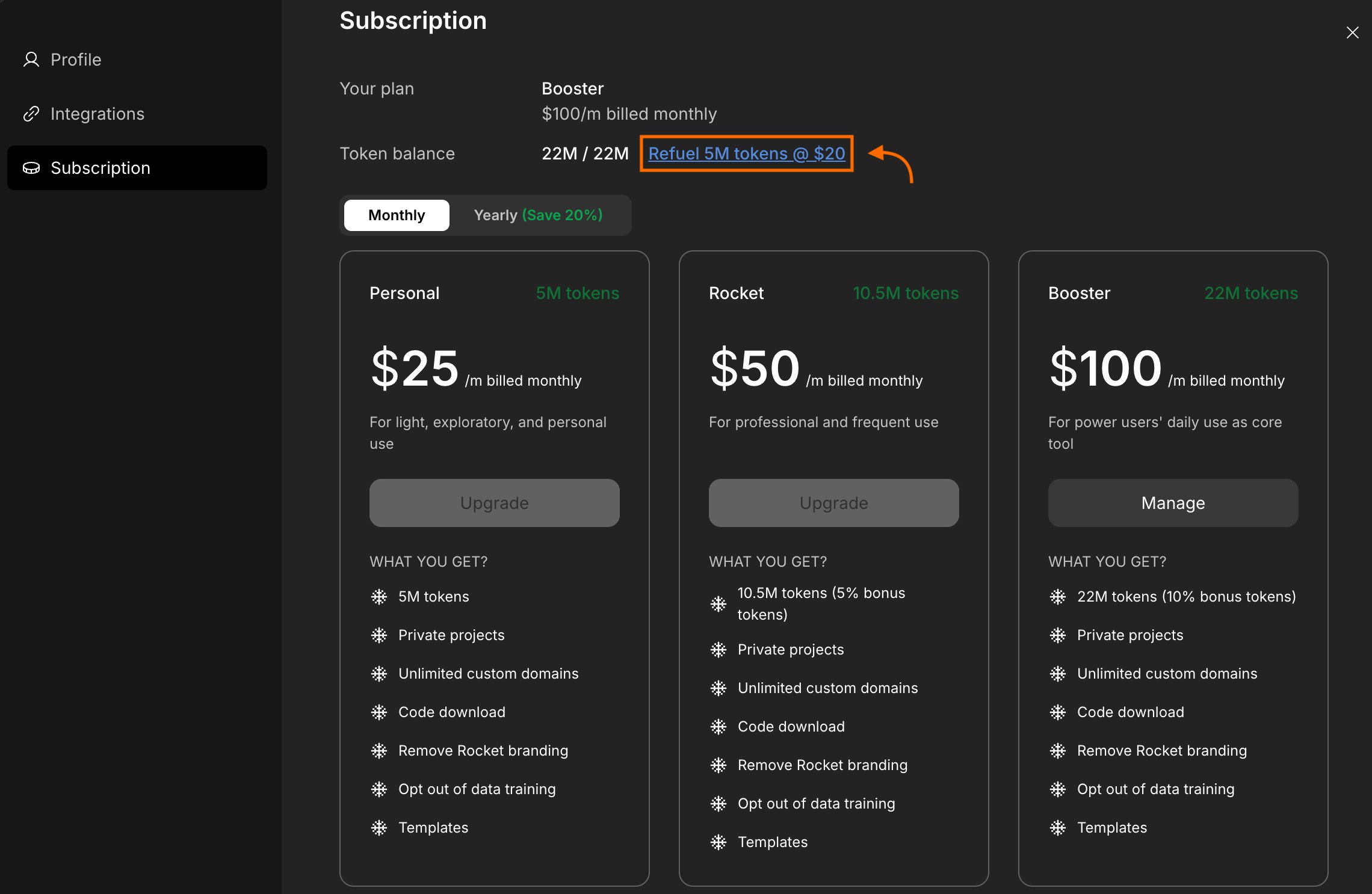
Click Refuel 5M tokens for US$20 beside your current balance.
Refuel tokens link next to your current token balance.Refuel tokens link next to your current token balance.
3

Choose quantity and confirm payment

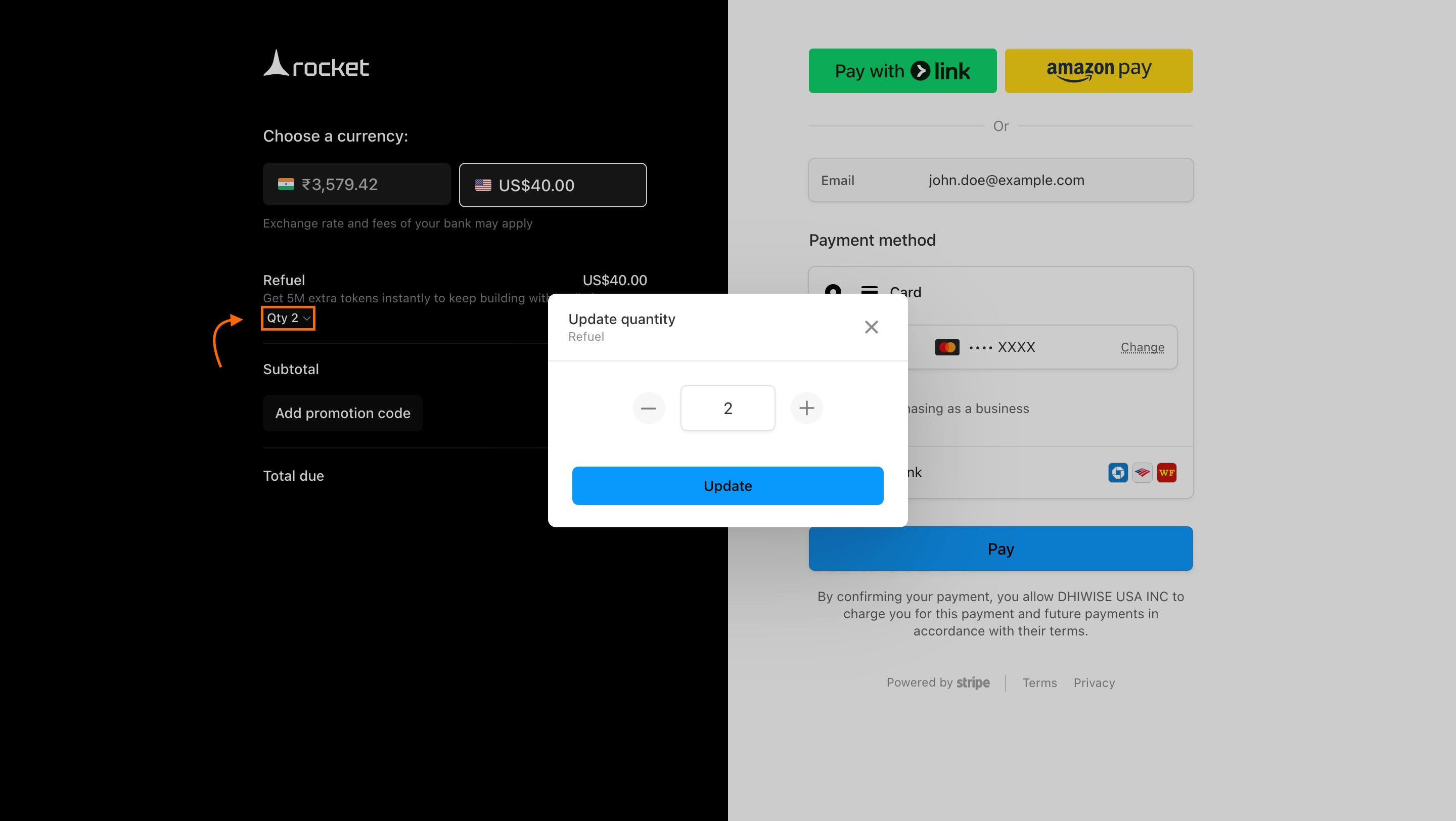
Set the number of packs, verify the total, and click Pay.
Checkout screen with quantity selection for refueling tokens.

Upgrade to another plan

1

Click Upgrade on a different plan

Inside Account Settings → Subscription, pick Upgrade on the desired tier.
2

Confirm the upgrade

Follow the checkout prompts to authorize the change.
No cancellation is required. Rocket prorates and upgrades automatically.

Cancel your subscription

1

Open Manage Subscription

In Account Settings → Subscription, choose Manage beside your active plan.
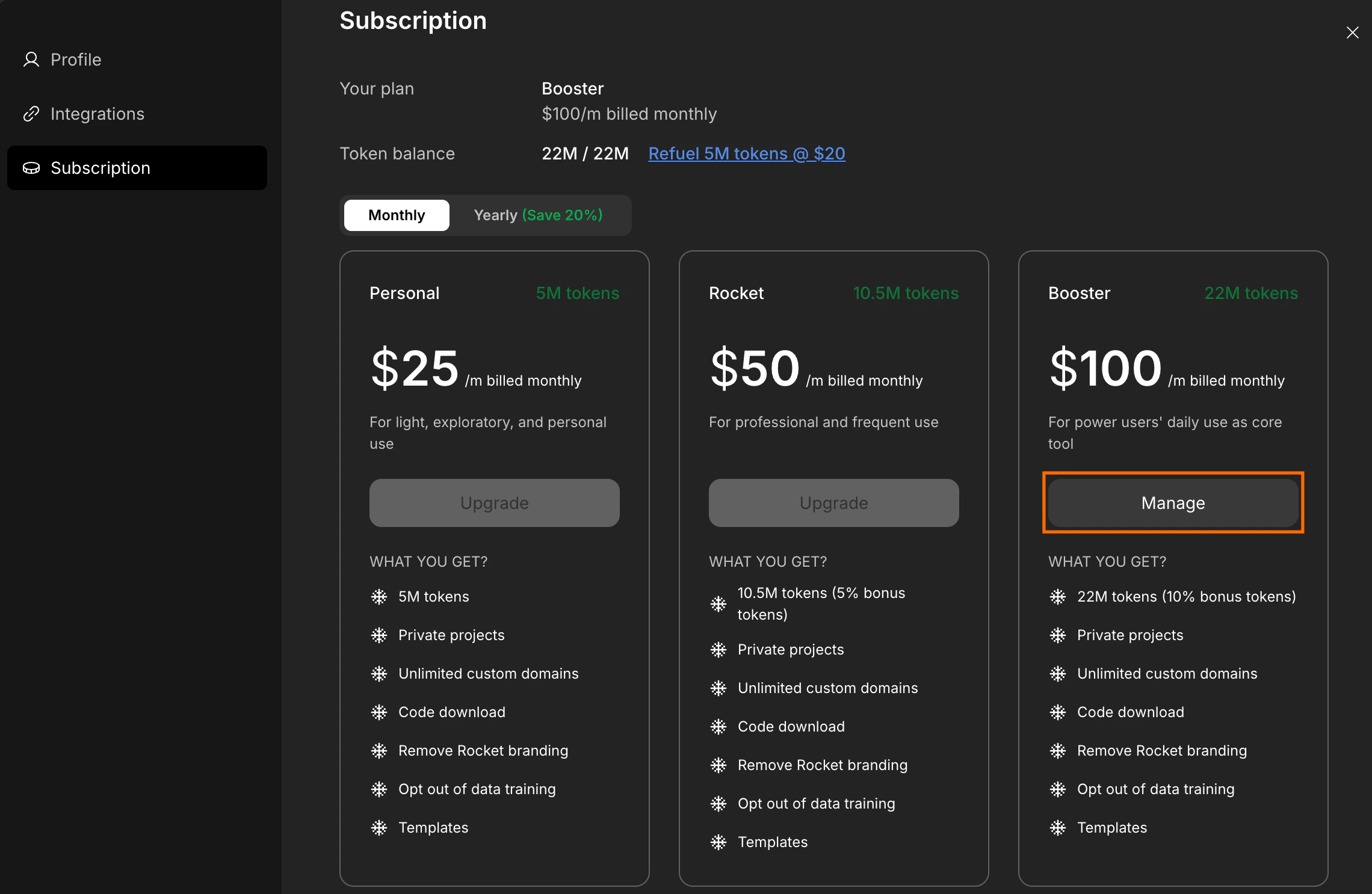
Manage button next to your current subscription plan.Manage button next to your current subscription plan.
2

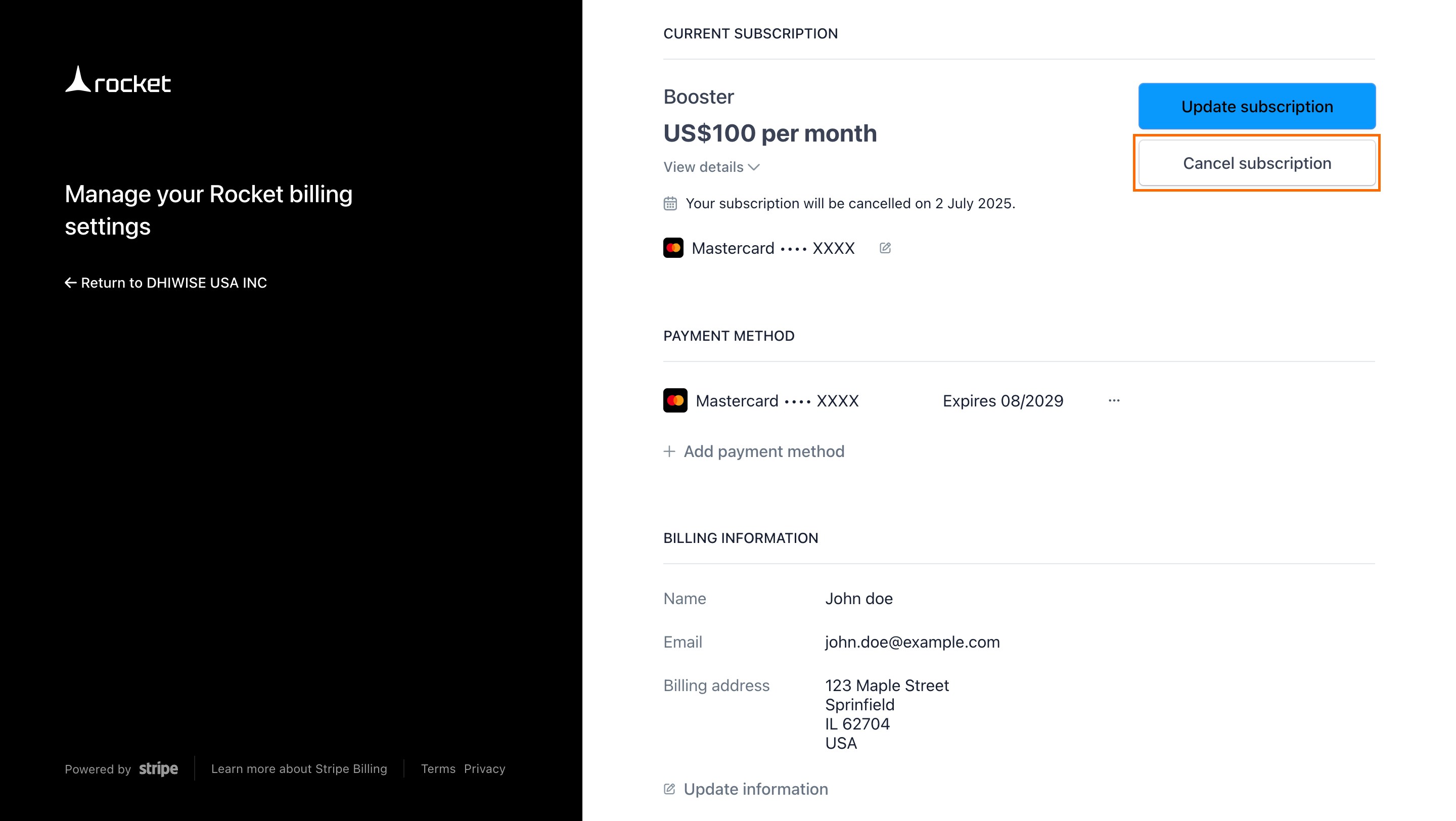
Click Cancel Subscription

Select Cancel Subscription to start the offboarding flow.
Cancel Subscription button in manage plan view.
3

Confirm the cancellation

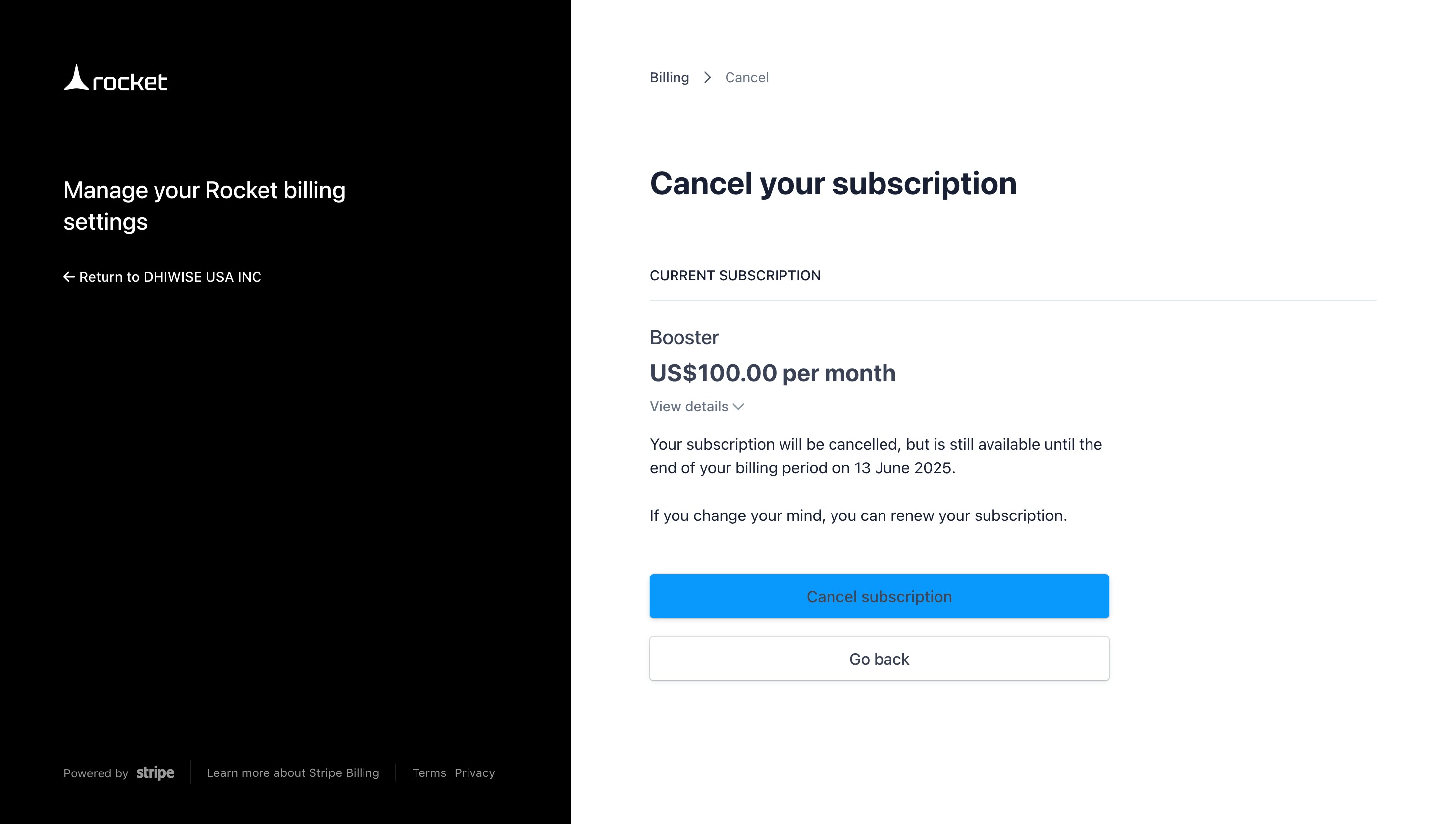
Review the end date, acknowledge token expiration, and click Cancel subscription.
Confirmation screen for canceling Rocket subscription.
Success check: Billing stops immediately while access continues until the displayed end date.

Update your payment methods

1

Go to Payment Methods

Open Manage, then scroll to Payment Methods.
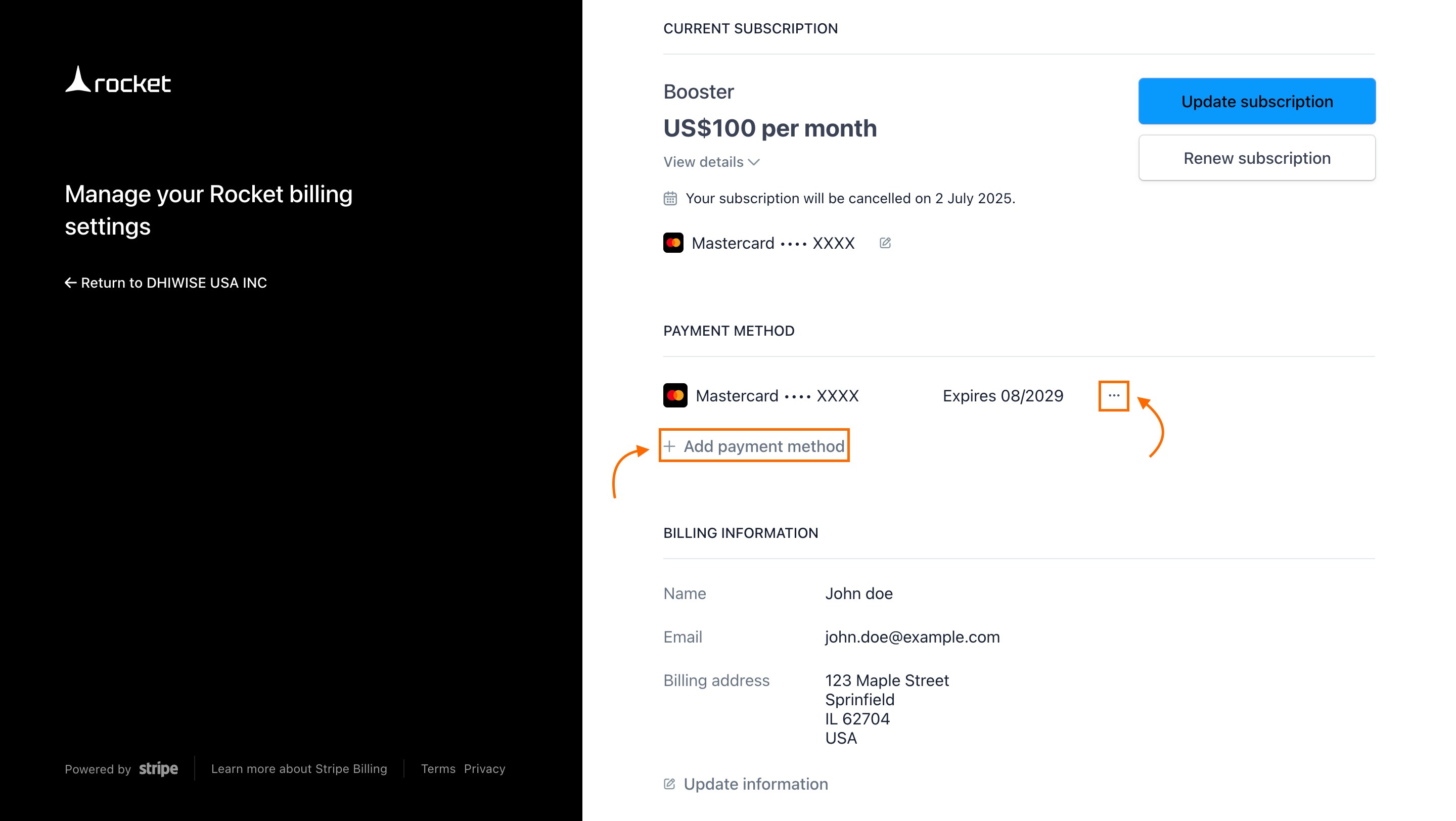
Saved payment methods listed in manage subscription view.
2

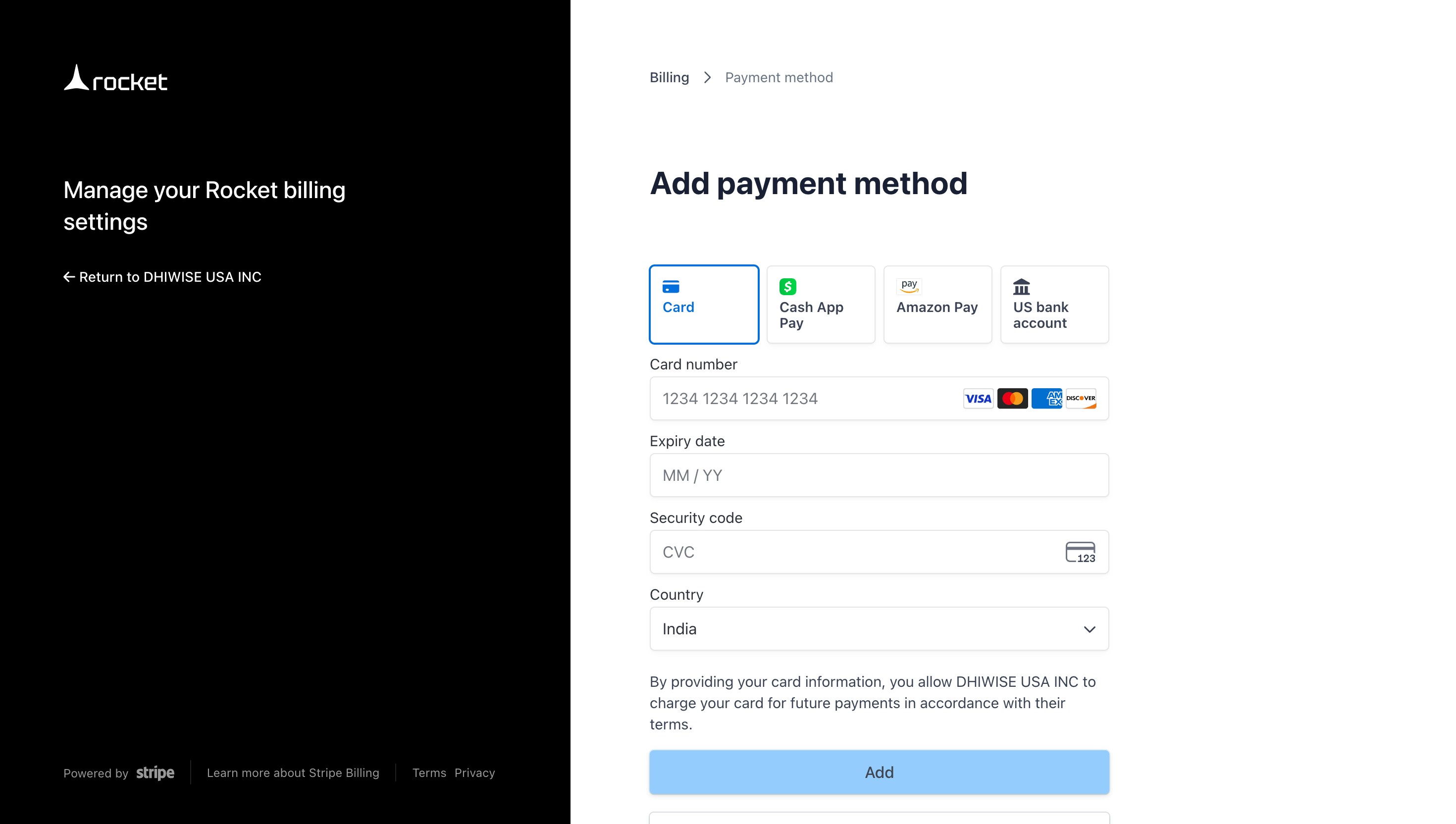
Add a new payment method

Hit + Add payment method, then add card, bank, or wallet details.
Payment method form with options for card, Cash App, Amazon Pay, and bank.
Need to adjust a method?
Use the three-dot menu to Delete or Make default. Keep at least one method tied to any active plan.
Methods linked to live subscriptions stay locked until you switch the plan to a new method.

Update your billing information

1

Open Manage Subscription

Navigate to Account Settings → Subscription and choose Manage.
2

Click Update Billing Information

Scroll to Billing Information and select Update Billing Information.
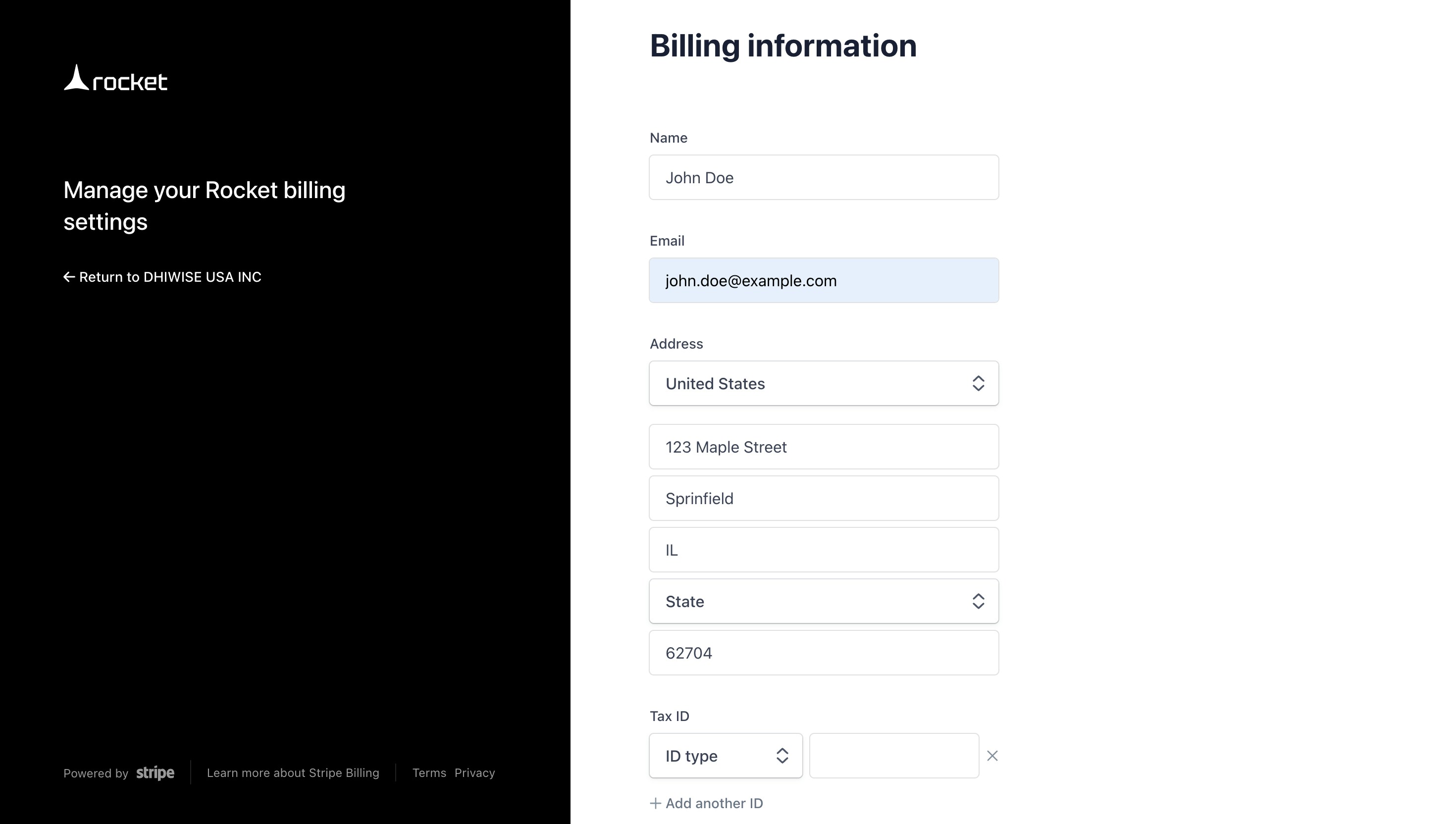
Form for updating name, address, and tax info.
3

Edit and save your details

Refresh name, address or tax info, then click Save.
Tip: Include legal entity info for compliant invoices.
Success check: The Billing Information card reflects your latest details instantly.

Download an invoice or receipt

1

Go to Invoice History

Inside Manage Subscription, scroll to Invoice History.
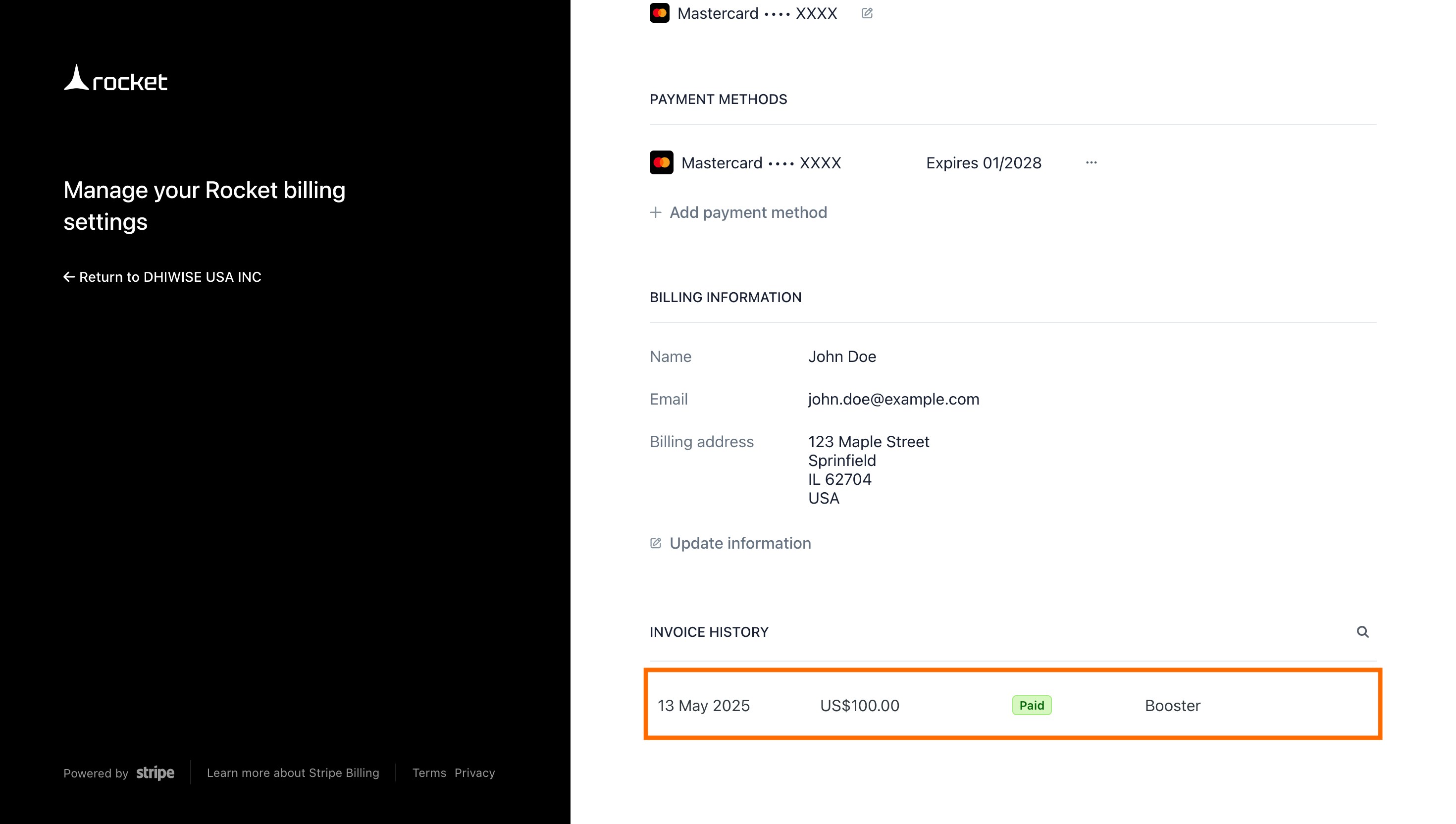
List of previous invoices showing plan name and dates.
2

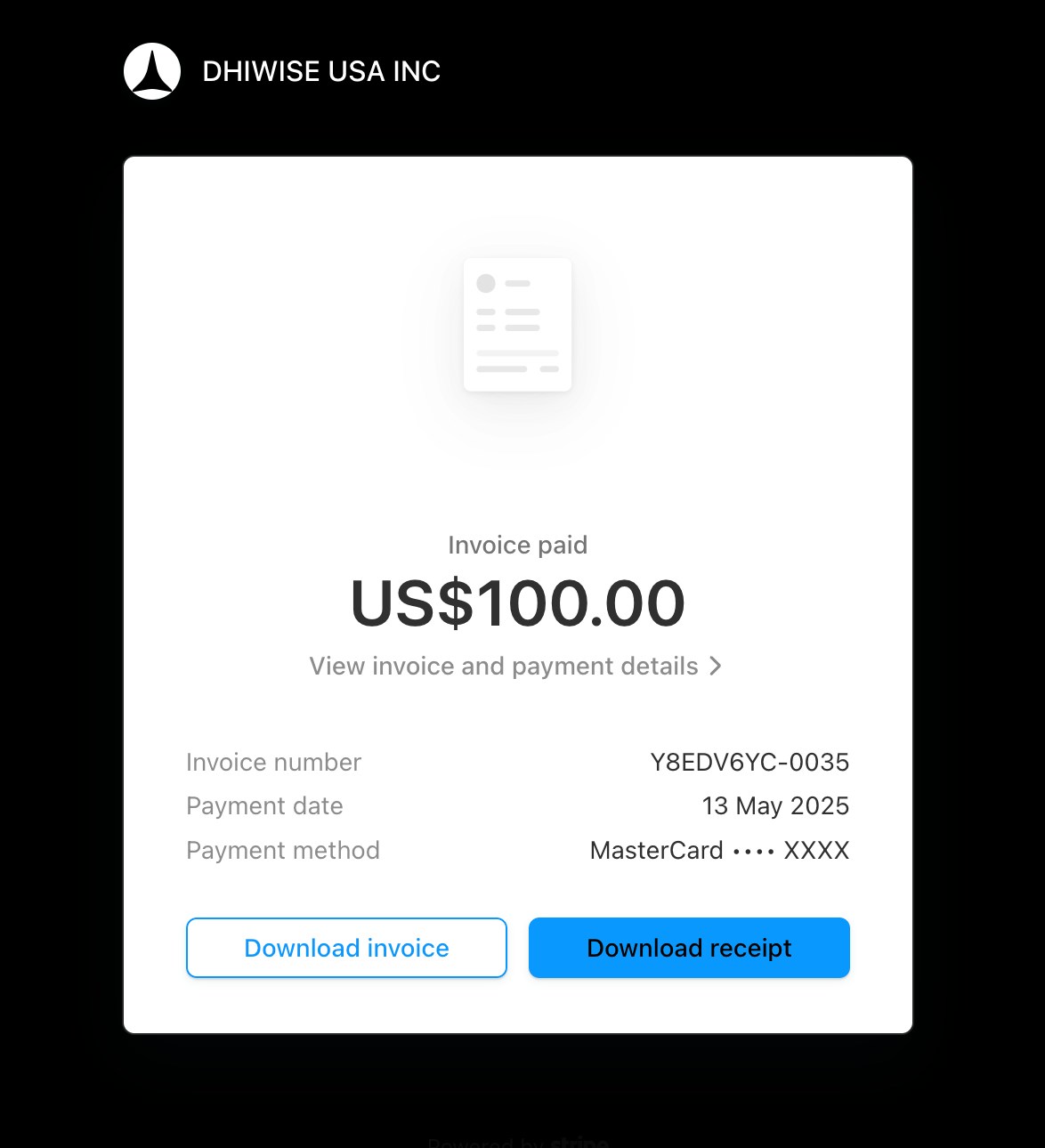
View or download invoice

Open an invoice entry, then pick Download Invoice or Download Receipt.
Invoice detail view with options to download invoice or receipt.
Success check: The PDF downloads immediately and is ready to share or file.

You did it!

You’re in full control. Plan, pay, and download on your terms. Rocket’s got your back.